
1. Introduction
Welcome to the Rails 8 on Google Cloud workshop! In this hands-on codelab, you will take a modern Rails 8 application from a simple local SQLite baseline to a production-grade, enterprise-ready reference architecture on Google Cloud.
In this workshop we don't just deploy an app — we execute an opinionated, production-grade cloud modernization (lift-and-shift done right!).
You start from the typical "works on my machine" local setup (ephemeral disk, embedded SQLite, in-process jobs) and progressively evolve it into an enterprise, bulletproof cloud architecture on Google Cloud:
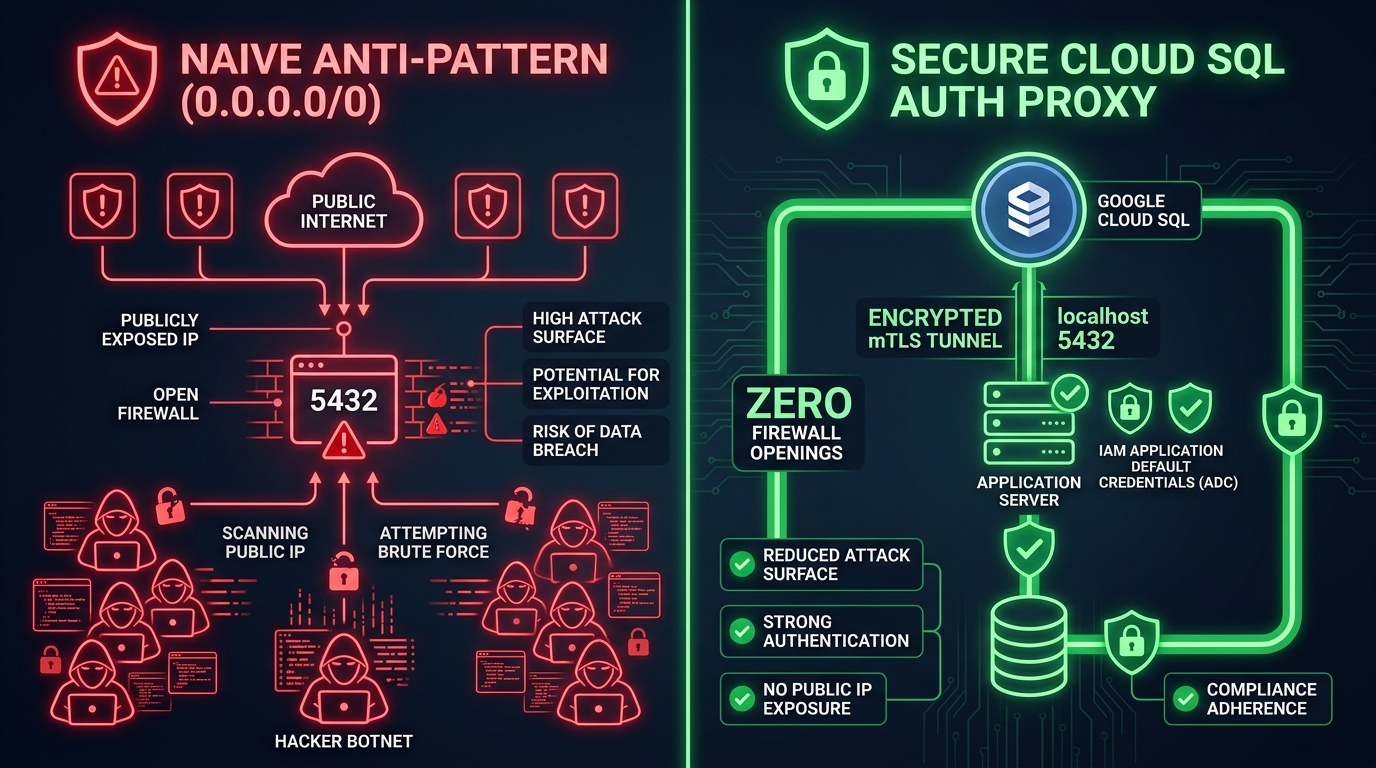
- 🐘 From Local SQLite → Cloud SQL (PostgreSQL): No more DB wiped on restarts. We move to managed PostgreSQL connected securely via Cloud SQL Auth Proxy (mTLS, no public IPs).
- 🪣 From Ephemeral Local Storage → Private GCS: Serverless disk is temporary. We wire ActiveStorage to private Google Cloud Storage using IAM signed URLs (
iam: true) — no public buckets, no leaked keys. - 🚀 From In-Process Jobs → Multi-Container Cloud Run: We bridge the Rails monolith and serverless cloud! Using standard Docker Compose, we run Solid Queue as a dedicated worker container alongside Puma in a Cloud Run multi-container pod — zero microservice sprawl, zero thread starvation, DHH would be proud!
🍌 And because we live in 2026, we supercharge the whole stack with Google Antigravity. This is not an after thought, we have prompts and skills to guide your harness to better execute (and enjoy) this workshop!
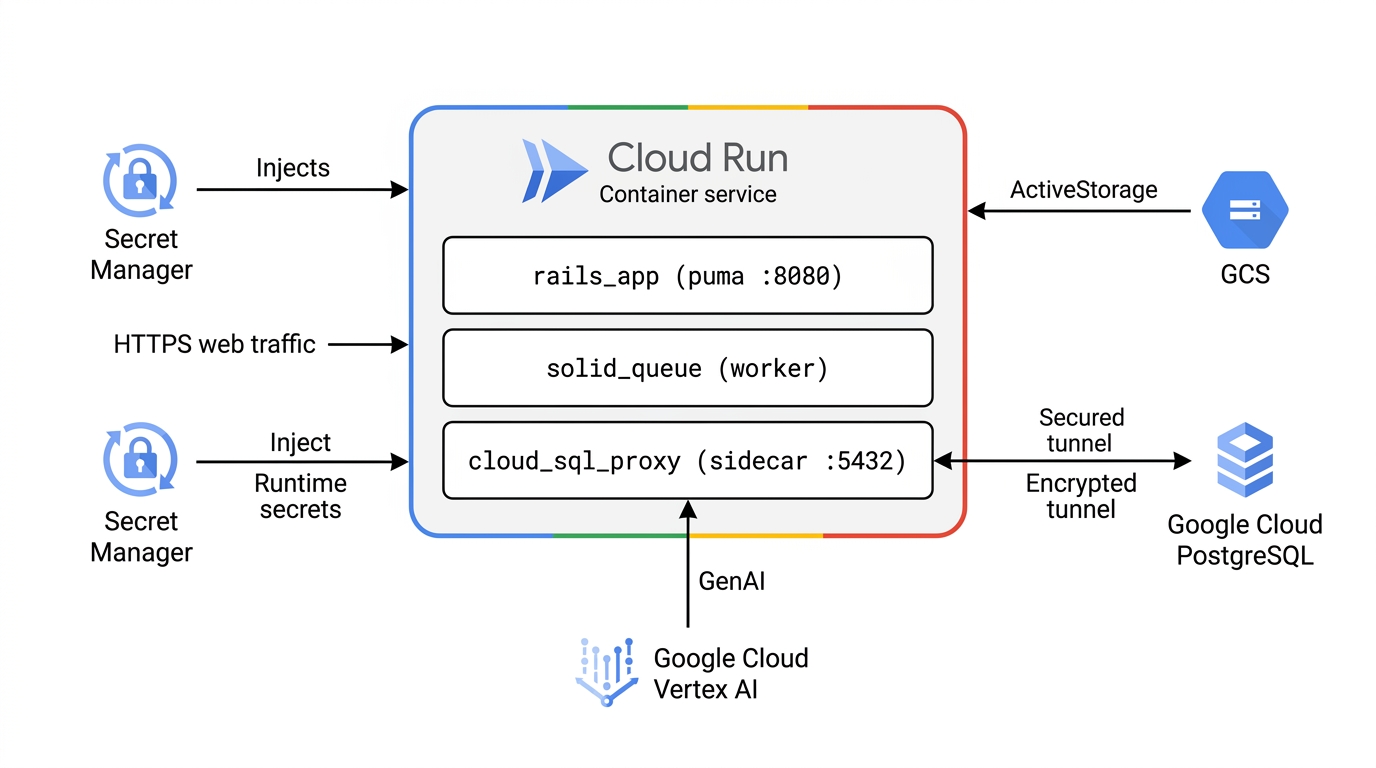
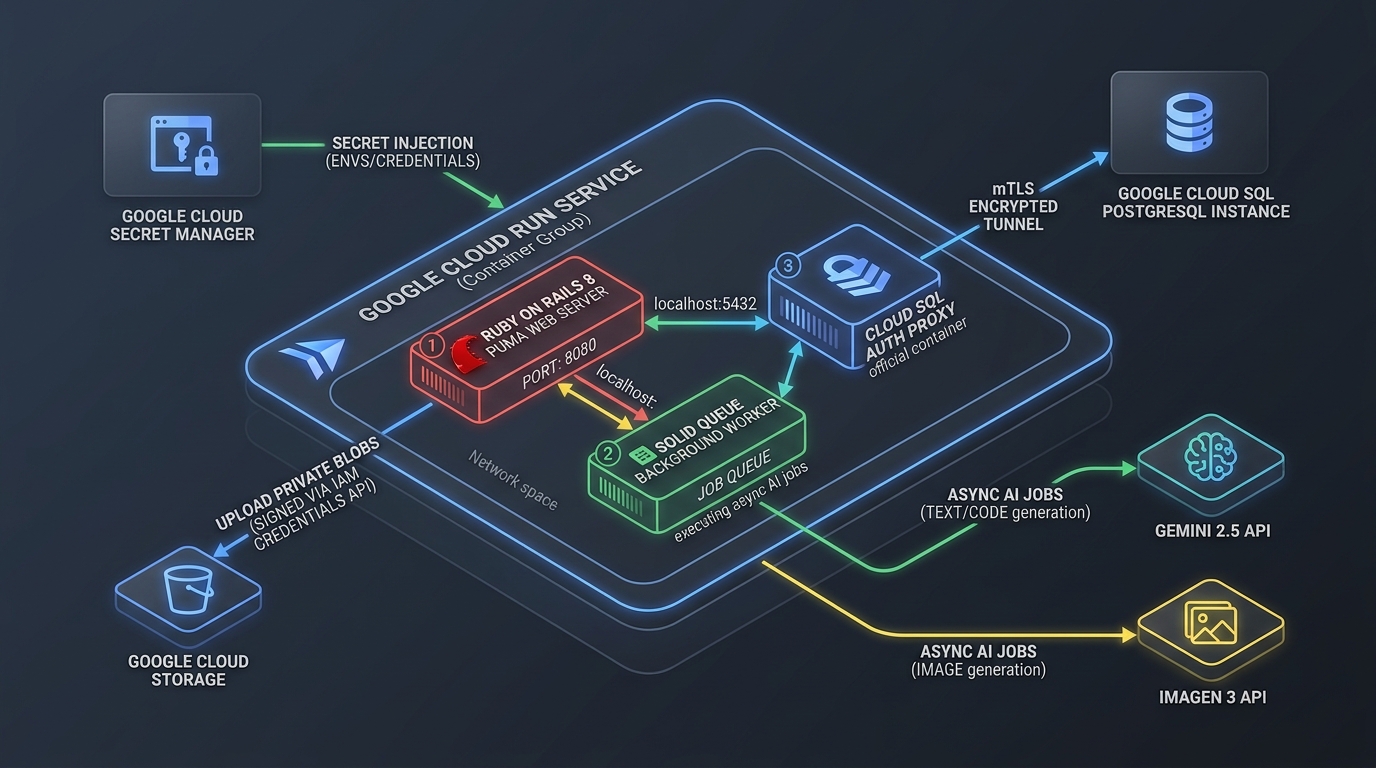
🏛️ Target Reference Architecture (Variant 1: Clean Flat Vector Enterprise)
Here is the canonical Google Cloud reference architecture you will build and deploy (Variant 1: Clean Flat Vector Enterprise), showcasing our production multi-container Cloud Run service connected to all managed Google Cloud persistence and AI services:
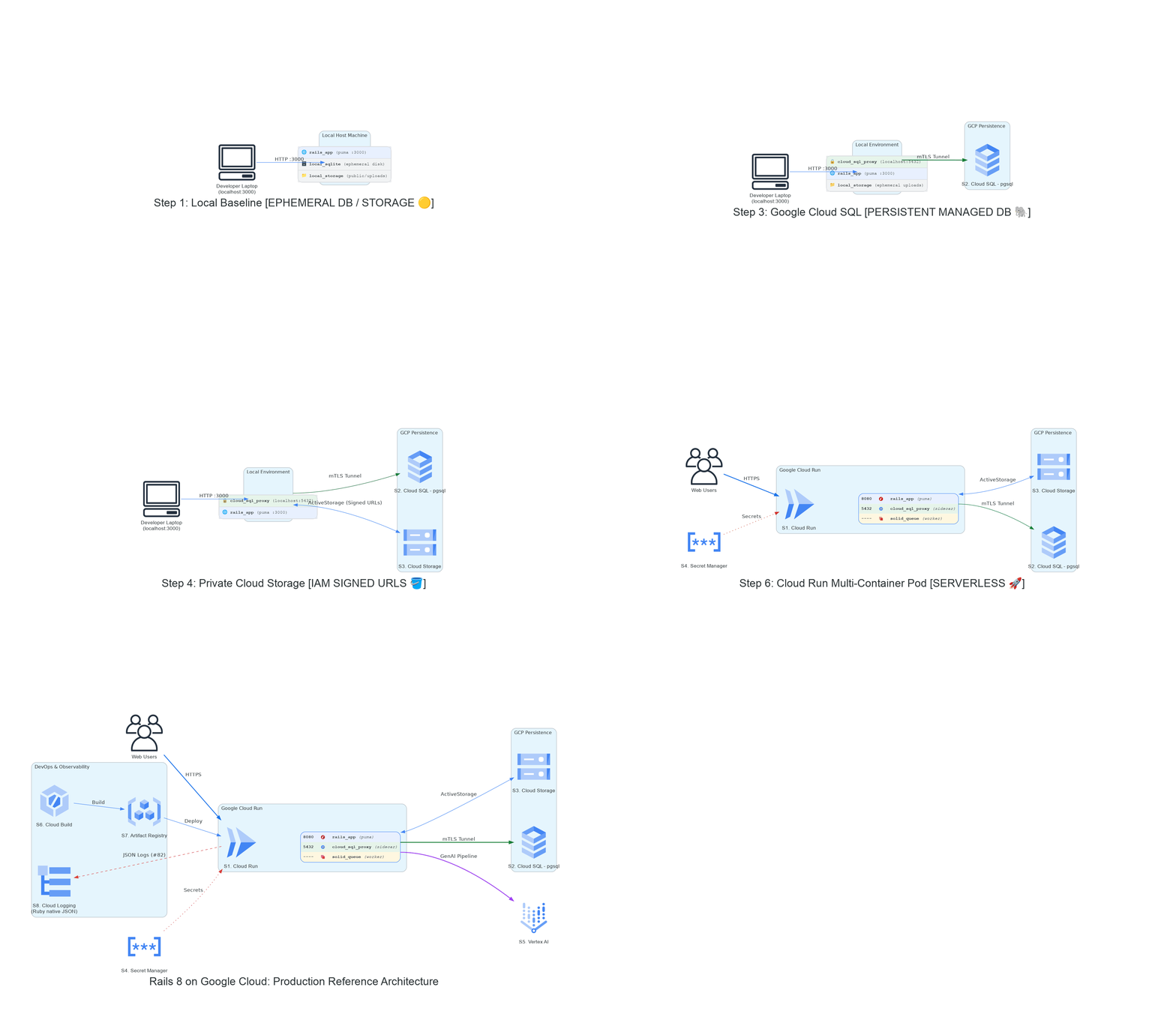
🎞️ The Architectural Evolution: From Zero to Cloud-Native
Watch our stack progressively modernize from an ephemeral single-machine baseline to a fully managed Google Cloud blueprint across each workshop milestone:
What you'll learn
- How to pair-program with Google Antigravity to demystify Rails 8 and Google Cloud.
- How to run automated pre-flight diagnostics (
just workshop-test). - How to provision Google Cloud infrastructure asynchronously using Terraform while continuing local development without blocking using
googleprovider. - How to eliminate security anti-patterns: private GCS buckets (
iam: true) and Cloud SQL Auth Proxy mTLS tunnels instead of opening0.0.0.0/0. - How to inject secrets directly from Google Cloud Secret Manager.
- How to orchestrate asynchronous GenAI background jobs (NanoBanana cover generator, bilingual podcast synthesis) via Solid Queue.
Let's get started!
2. Step 0: Prerequisites, Antigravity Setup & Billing Verification
💡 The Scenario: You and your team are building a mission-critical Rails 8 application. Before touching code or launching cloud resources, we must establish our toolchain, connect Google Antigravity, and verify our Google Cloud credentials and billing foundation.
1. Prerequisites Checklist
Before we begin, ensure you have the following tools available in your environment:
just(1.21+): (just --version) the task runner — every single command in this workshop is ajustrecipe (ask your AI harness to install it, or seeskills/rails8app-workshop).- Git (2.30+): (
git --version) for version control, branching, and cloning the repository. - Google Cloud SDK (
gcloudCLI): Installed and up to date. - Terraform CLI (1.5+): For declarative infrastructure provisioning.
docker&docker-compose: Installed and running locally.- Ruby
3.4.5: (ruby -v— pinned byblog/.ruby-version; ask your AI harness to install3.4.5if missing). Rails 8 is declared in theGemfileand installed automatically bybundle install. - Google Antigravity 2.0: Your autonomous AI pair programming assistant (Download Google Antigravity 2.0). You'll login with your personal Gmail — no API token needed.
2. Google Cloud Authentication, Dedicated Configuration & ADC
To prevent collisions with existing corporate, personal, or multi-account gcloud setups, we strongly recommend creating a dedicated named configuration for this workshop:
# 1. Create and activate dedicated workshop configuration (Fixes Issue #38)
gcloud config configurations create rails8-on-gcp-workshop --activate 2>/dev/null || \
  gcloud config configurations activate rails8-on-gcp-workshop

# 2. Authenticate your account and Application Default Credentials (ADC)
gcloud auth login $GOOGLE_CLOUD_ACCOUNT
gcloud auth application-default login

# 3. Configure active project and region
gcloud config set project $GOOGLE_CLOUD_PROJECT
gcloud config set compute/region europe-west1
💡 Why a Dedicated Configuration? Using gcloud config configurations create rails8-on-gcp-workshop isolates all CLI settings (account, quota project, default region) specifically for this workshop. When you finish, you can switch back to your normal setup anytime with gcloud config configurations activate default.

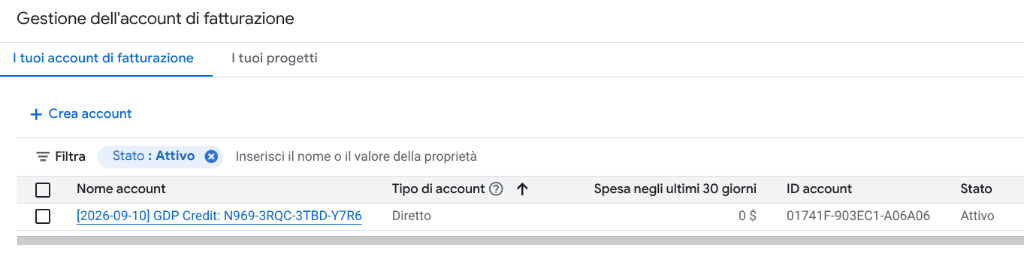
3. 🚨 GCP Billing Verification
⚠️ Note: Google Cloud SQL and Cloud Run deployments require an active linked billing account or valid workshop educational credits. Let's make sure your setup is correct now. To do so, run the billing verification check:
gcloud beta billing projects describe $GOOGLE_CLOUD_PROJECT
Ensure billingEnabled: true is returned. You can also list all your billing accounts:
gcloud billing accounts list
Make sure at least one of them shows OPEN: True. If none are active, link a billing account or redeem your workshop credit coupon in the Google Cloud Console Billing Page.
4. Clone the Repository & Pair with Antigravity
Clone the repository and enter the directory. Notice that we stay entirely on main:
git clone https://github.com/palladius/rails8-app-on-gcp.git
cd rails8-app-on-gcp
Open this directory in Google Antigravity. Antigravity will automatically inspect the repository, read AGENTS.md, and stand by as your pair programmer.
5. 🪫 If Antigravity Runs Out of Free Credits
⚠️ The Cloud credits you just redeemed do NOT refill Antigravity. They are two separate billing surfaces: Antigravity's quota sits on Google AI plans (Google One), while vouchers and Cloud credits land on a Cloud Billing account. Linking a billing account to your GCP project will not give you a single extra Antigravity prompt.
If the agent stops with a quota message, work down this ladder — the first two are free and instant:
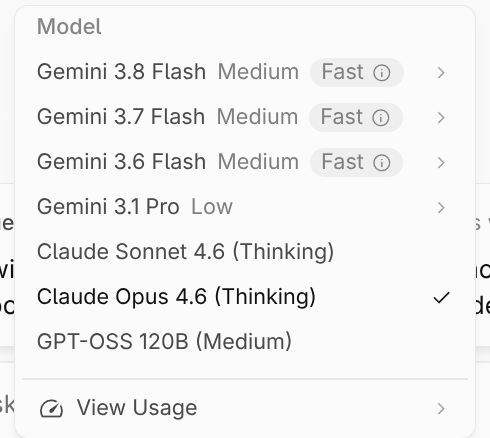
- Switch model pool. Quota is tracked per model family, and Antigravity shows two independent pools (Gemini models vs. Claude/GPT models). Claude and GPT-OSS models are available on the free tier, so a drained Gemini pool often leaves the other one untouched. Use the model selector under the prompt box.
- Pick a Flash model instead of Pro. Rate limits correlate with how much work the agent does per request, so a lighter model stretches what is left.
- Use the Antigravity CLI with your own Gemini API key. Bring-your-own-key is not supported in the Antigravity IDE — the CLI is the documented alternative. Create a free key in Google AI Studio (needs a project but no billing account), then download and configure the Antigravity CLI.
- Wait, or upgrade. Free-tier quota refreshes weekly (the error message states your reset date). Google AI Pro/Ultra is the only documented way to raise the baseline inside the desktop app; those plans refresh every five hours and can spend purchased AI credits on overage.
- While this is an Antigravity workshop, most AI coding harnesses should also work — just point yours at the
AGENTS.mdandskills/directory in the repo.
6. Automated Step 0 Validation
Verify that your Step 0 environment is 100% compliant with the evaluation suite:
just workshop-eval 0
✨ The Wow Moment: Antigravity and the workshop evaluation engine verify your CLI versions, Ruby environment, and ADC authentication in under 2 seconds!
3. Step 1: Terraform Infrastructure Kickoff & Pre-Flight Diagnostics
💡 The Strategy: Managed databases like Google Cloud SQL PostgreSQL take approximately 10–12 minutes to provision. Rather than waiting idly later, we launch immutable infrastructure via Terraform right now in the background while we develop locally!
1. Run Automated Pre-Flight Diagnostics Suite
Before launching cloud infrastructure, run the comprehensive pre-flight test suite:
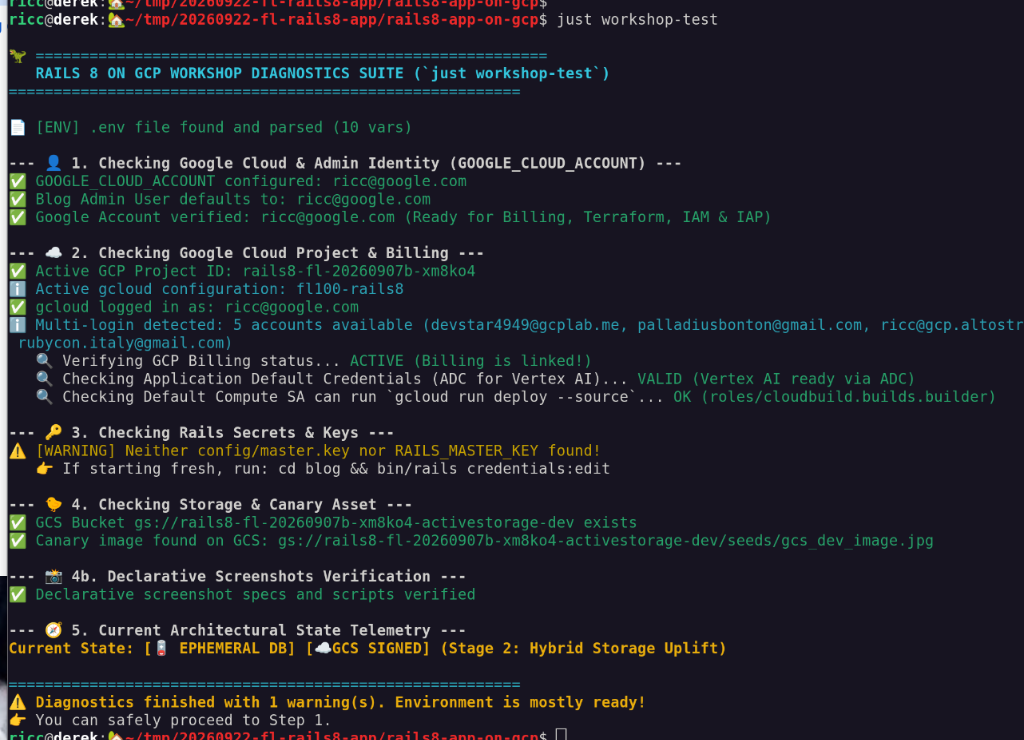
just workshop-test
This script (bin/workshop_diagnostics.rb):
- Verifies your
GOOGLE_CLOUD_ACCOUNTidentity configuration. - Verifies active billing and project linkage.
- Validates Application Default Credentials (ADC) for Vertex AI.
- Confirms the ActiveStorage canary seed image (
blog/app/assets/images/gcs_dev_image.jpg).
If .env is missing, copy it from the documented template:
cp .env.dist .env
# Edit .env and configure GOOGLE_CLOUD_ACCOUNT with your Google/Gmail account
💡 Tip: If just workshop-test reports that the billing API is disabled on your project, enable it quickly via:
gcloud services enable cloudbilling.googleapis.com
2. ⏱️ Launch Terraform Infrastructure Asynchronously
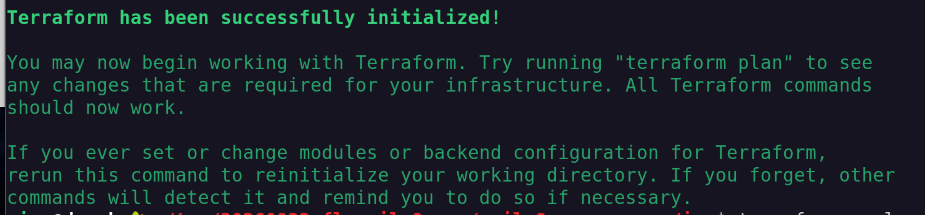
Run the one-step Terraform recipe, which creates the remote backend state bucket and triggers the infrastructure deployment:
just terraform-apply
Manual alternative (or run `iac/bin/terraform-apply.sh` directly)
# Fall back to active gcloud config if environment variables are unset
GOOGLE_CLOUD_PROJECT="${GOOGLE_CLOUD_PROJECT:-$(gcloud config get-value project)}"
GOOGLE_CLOUD_REGION="${GOOGLE_CLOUD_REGION:-europe-west1}"

# Create remote state bucket idempotently
gcloud storage buckets create "gs://${GOOGLE_CLOUD_PROJECT}-tfstate" --location="$GOOGLE_CLOUD_REGION" 2>/dev/null || \
  gcloud storage buckets describe "gs://${GOOGLE_CLOUD_PROJECT}-tfstate" >/dev/null

cd iac
terraform init -backend-config="bucket=${GOOGLE_CLOUD_PROJECT}-tfstate"
terraform apply -auto-approve -var="project_id=${GOOGLE_CLOUD_PROJECT}" -var="region=${GOOGLE_CLOUD_REGION}"
cd ..
What Terraform Provisions:
- Google Cloud Storage Bucket: Created with private access and IAM Credentials signing (
iam: true). - Canary Test Image: Uploads
gcs_dev_image.jpgto the bucket to enable end-to-end blob verification. - Google Cloud SQL PostgreSQL Instance: Initiates background provisioning (~10-12 minutes).

💡 Note: You can safely ignore the warning about missing automated backups — we won't need them for this workshop database (although automated daily backups are an essential best practice for any real production database!).
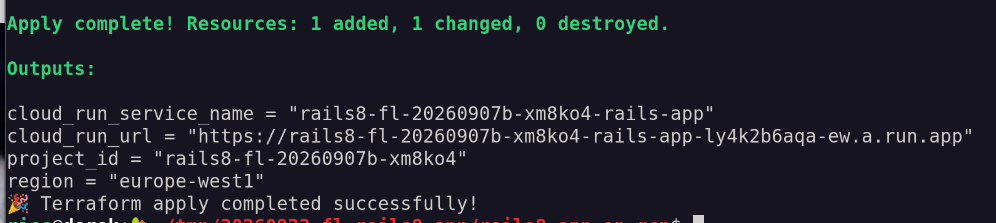
📝 Take note of your Cloud Run URL: The Terraform apply should succeed and print your infrastructure outputs. Note down your cloud_run_url (or copy it to your clipboard) — you'll need it in later steps when verifying your live service!
3. Automated Step 1 Validation (Optional)
Verify that your Step 1 prerequisites and configurations pass:
just workshop-eval 1
⏱️ Note: This evaluation checks live cloud resources and may take a couple of minutes to finish. It is completely optional — while it runs in your terminal, you can immediately proceed to the next step without waiting!
4. Step 2: The Local Baseline, Mailpit & Admin Onboarding
Our starting point is a clean, modern Rails 8 blog application running on localhost with SQLite, Mailpit email interception, and disk-based ActiveStorage.
1. Boot the App Locally
📁 Mind the directory! This repo holds the Rails app in blog/ and the Terraform in iac/. Step 1 left you in the repo root, so every command in Step 2 runs from
blog/ — Gemfile, bin/rails and compose.yaml all live there. Running them from the root fails with no configuration file provided: not found or a missing Gemfile.
Move into the Rails app, confirm you are on the pinned Ruby, then install the gems and set up the database:
cd blog
ruby -v          # must print 3.4.5 — see Step 0 if it does not
bundle install
bin/rails db:setup
🧯 Permission error writing to
/var/lib/gems/
or
ruby -v
shows system Ruby (e.g. 3.3.x)? Vanilla Linux system Ruby completely ignores .ruby-version files and attempts to install gems system-wide! Make sure rbenv is loaded in your active terminal shell:
eval "$(rbenv init - bash)"   # or: eval "$(rbenv init - zsh)"
ruby -v                       # confirm it now outputs 3.4.5!
Note: If you skipped installing 3.4.5 in Step 0, run rbenv install 3.4.5. Or simply use Mode A (Docker Compose) below (just compose-up), which runs the pinned Ruby stack completely inside containers without touching host gems!
💡 Prefer not to think about it? just install and just compose-up from the repo root do the cd blog for you.
2. 🌱 Smart Seed Auto-Discovery & Admin Bootstrap (Issue #21 & #25)
The database seed (db/seeds.rb) features Smart Environment Auto-Discovery:
- It inspects your active database adapter (SQLite vs Postgres) and storage configuration.
- It detects Stage 0 (Localhost) and automatically creates the initial admin user and seeds the pedagogical post:
[LOCAL BASELINE] Welcome to Rails 8 on Localhost!- Out-of-the-box local sad image attachment (
local_sad_image.png) with watermark informing you that local disk storage is ephemeral.
- It automatically triggers a password reset email via ActionMailer.
Verify or re-run the seed (automatically uses your GOOGLE_CLOUD_ACCOUNT from .env):
bin/rails db:seed # or from repo root: just seed
Boot the local development stack via Docker Compose:
docker compose up -d # from blog/ — or `just compose-up` from the repo root

The application, local Mailpit SMTP server, and Adminer database viewer are now running together in isolated containers:
- Rails App: http://localhost:3000
- Mailpit Web UI: http://localhost:8025
- Adminer DB UI: http://localhost:8081
🧯 Port 3000 conflict or
server.pid
error? If you previously started a native dev server (bin/dev), stop it with Ctrl+C. If Docker complains that port 3000 is already allocated or finds a leftover server.pid, clean up with:
just compose-down
rm -f blog/tmp/pids/server.pid
just compose-up
3. The Mailpit Experience & Admin Login
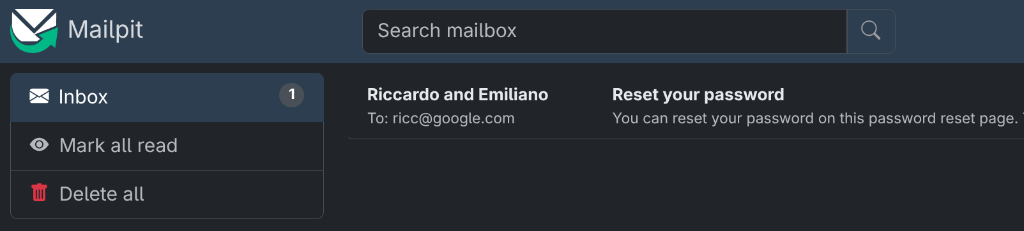
- Catch Outgoing Emails with Mailpit: Open
http://localhost:8025in your browser. Look at the local inbox! Duringdb:seed, ActionMailer dispatched an admin onboarding email which Mailpit safely captured locally without touching external email servers or credentials:
 2. Log into the Blog: Open
 http://localhost:3000 in your browser.
- You can click the password reset link directly inside the Mailpit email to set your password.
- Alternatively, log in using your Google Cloud account email (from
.env) and the default seeded password:Ch4ng3m3!!1.
- Observe the Visual Telemetry Badges:
- Notice the yellow environment banner and badges in the UI:
Notice: Ephemeral Database Active (POSTGRESQL)and[EPHEMERAL DB / STORAGE] 💾 Local. - Notice the post watermark: The 🏠 stamp (
nanobanana_stamp_local.pngin the bottom-right corner of the cover image). This provides immediate visual confirmation that your assets and database are currently bound to ephemeral local storage.
- Notice the yellow environment banner and badges in the UI:
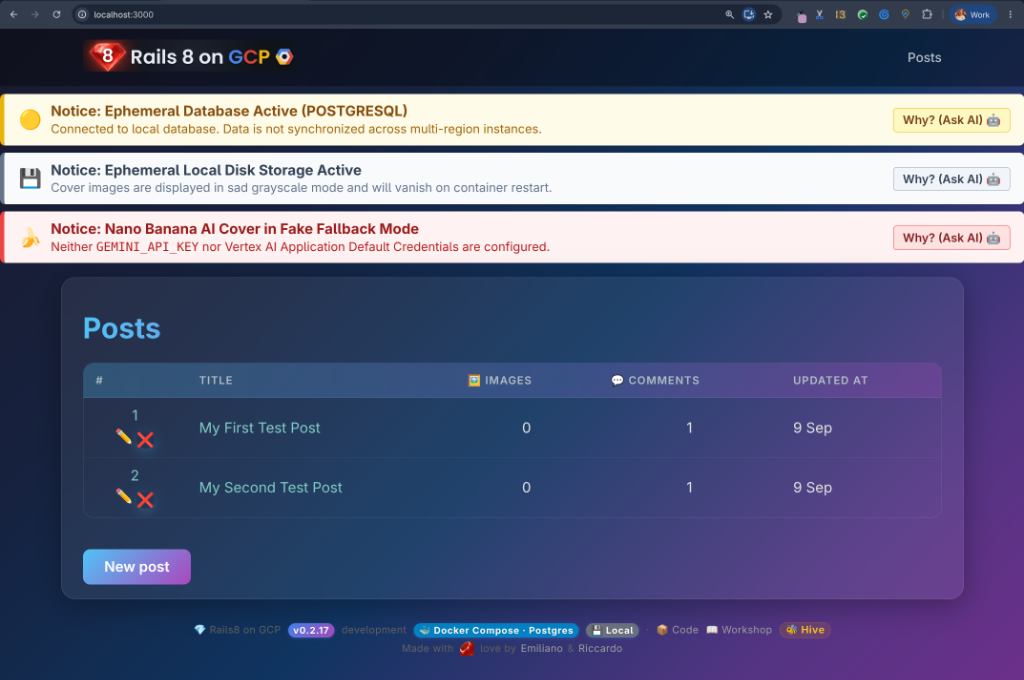
💡 Optional Pro-Tip: Rails Console Workout Curious how Rails interacts with your seeded data from the CLI? Drop into the interactive console:
bin/rails console
Inspect your seeded admin user dynamically using your environment variable:
user = User.find_by(email_address: ENV.fetch("GOOGLE_CLOUD_ACCOUNT"))
# Or simply grab the first user:
user = User.first
puts "Admin email: #{user.email_address} (created via: #{user.created_via})"
exit
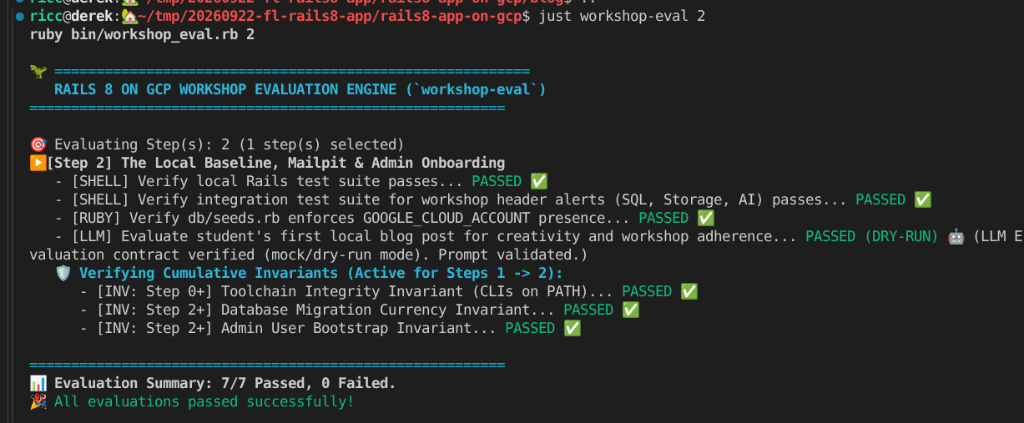
4. Automated Step 2 Validation
Verify your local baseline and admin setup:
just workshop-eval 2
5. The Catch: Stateless Containers
Cloud Run containers are stateless and ephemeral. If we deploy our SQLite database and local storage/ directory directly to Cloud Run, all posts and uploaded images will be permanently wiped out whenever a container scales to zero or restarts.
In the next step, we will intentionally deploy this ephemeral configuration to Cloud Run to witness the Stateless Shock first-hand!
5. Step 3: Deploy 1 — The Stateless Shock (Early WOW in 3 Minutes!)
Instead of waiting 15–20 minutes for cloud databases before seeing anything on the web, modern serverless development begins with an early victory: deploying our single-container Rails application directly to Google Cloud Run in under 3 minutes!
1. The Time-Machine Rewind
To guarantee that our starting configuration is 100% ephemeral (local SQLite database and local disk file storage), use the Zero-Branch Time-Machine engine:
just workshop-rewind 1
💡 What just happened?workshop-rewind 1 applied the stage-1-stateless configuration overlay to blog/config/ without leaving the main branch. Your app is configured with SQLite on container disk and ActiveStorage on local filesystem.
2. Deploying Single-Container Puma to Cloud Run
Deploy directly from source code to Cloud Run. Modern Rails 8 automatically generates an official, production-ready Dockerfile out of the box (with multi-stage builds, jemalloc, and non-root security). When you deploy from the blog/ folder, Google Cloud Build detects this native Dockerfile directly and provisions a managed serverless service:
# Ensure you are inside the Rails application directory
cd blog

# Ensure default region is set
export GOOGLE_CLOUD_REGION="europe-west1"

# Deploy single-container service from source (with dummy key fallback if starting without credentials)
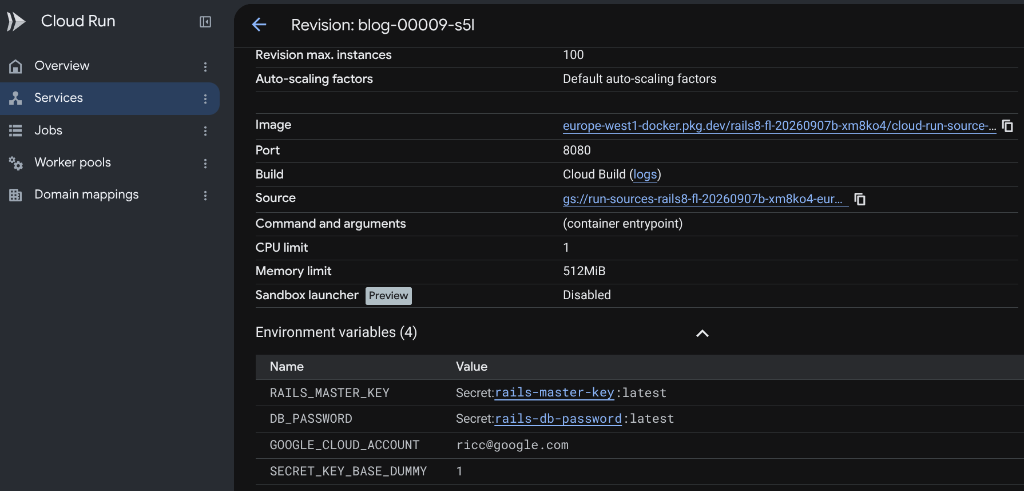
gcloud run deploy blog \
  --source . \
  --region $GOOGLE_CLOUD_REGION \
  --allow-unauthenticated \
  --set-env-vars GOOGLE_CLOUD_ACCOUNT=$GOOGLE_CLOUD_ACCOUNT,SECRET_KEY_BASE_DUMMY=1
You should see progress output similar to this:
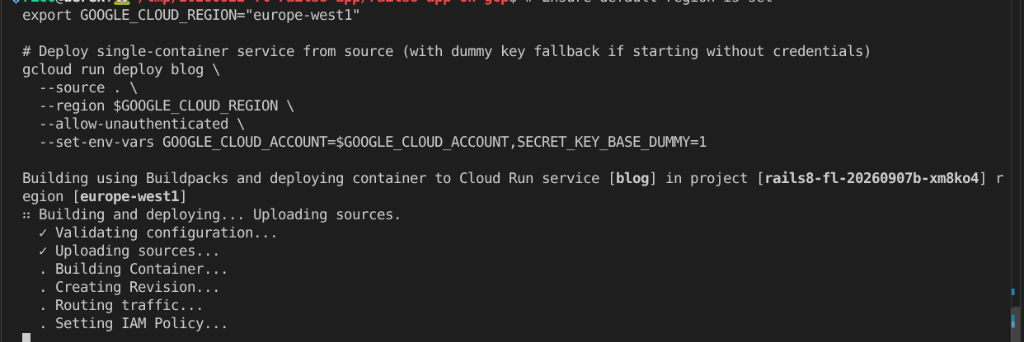
⏳ This should take a couple of minutes while Cloud Build packages your container and provisions the Cloud Run revision.
🧯 Troubleshooting & Common Caveats
PERMISSION_DENIED: Build failed because the default service account is missing required IAM permissions
? Two different causes wear the same error:
- gcloud just enabled an API for you. If the deploy printed
The following APIs are not enabled ... cloudbuild.googleapis.comand you answeredY, the build may have started before the new permissions finished propagating — gcloud's own prompt warns "this will take a few minutes". Wait a minute and re-run the exact same command; it usually succeeds. Step 1'sterraform applynormally enables this API for you, so you should not see the prompt at all. - The Default Compute SA really is missing roles. Modern GCP projects enforce least privilege on it, which breaks source deploys. Fix it with:
just project-status # grants storage.admin, logging.logWriter, artifactregistry.writer, cloudbuild.builds.builderjust workshop-testalso reports this now, so it is worth re-running if the deploy keeps failing.
During deployment:
- Cloud Run builds your Rails container image.
- It assigns a public, secure TLS domain:
https://blog-[hash]-[region].a.run.app. - Traffic begins routing to Puma on port 8080.
3. ✨ The Early WOW Moment
Open the generated Cloud Run URL in your browser!
- Your modern Rails 8 application is live on Google Cloud!
- Log in with your admin credentials (
GOOGLE_CLOUD_ACCOUNTandAPP_ADMIN_PASSWORD). If you find no login button, click on "New Post" and it will prompt for user and password first: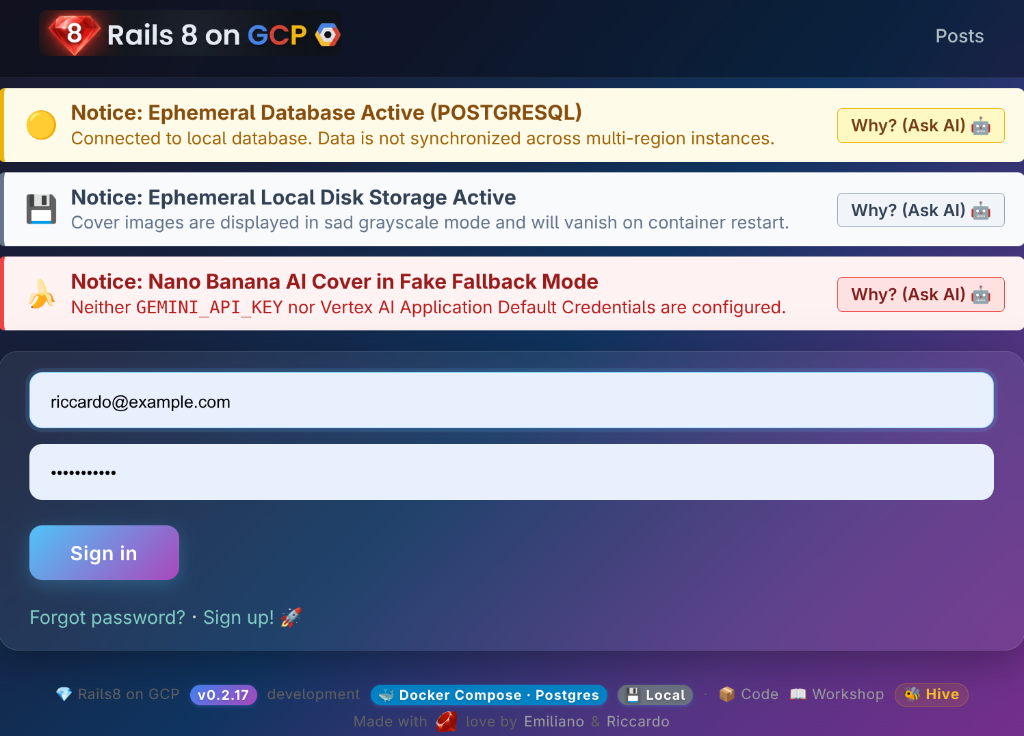
- Click "New Post", write an article titled "My First Cloud Run Post", attach a picture, and click Create Post.
- Your post is published with full formatting, and your image is rendered.
- Notice the visual telemetry:
- Header badge:
[EPHEMERAL DB / STORAGE] 💾 Local - Image watermark: The 🏠 stamp (
127.0.0.1ephemeral disk badge in the bottom-right corner).
- Header badge:
🐝 Join the Live Workshop Hive Leaderboard! If you are online and your proctor is showing the leaderboard, and you want to join it, add your Cloud Run URL here: 👉 Register your Cloud Run on the Leaderboard
4. 💥 The Catch: The Stateless Shock & The "Puma Workaround" Trap
Cloud Run is a stateless, serverless platform. When web traffic drops to zero, Cloud Run scales down to zero container instances to save money. When a new HTTP request arrives or a new container revision is deployed, Cloud Run starts a brand new, clean container image.
Stuck Jobs Banner
When you create a post or attach an image in a single-container deployment, Rails enqueues ActiveJob tasks (like image dimension analysis or metadata indexing). But since nobody is running a background worker, you will see the warning banner:

The Tempting Fix: Running Solid Queue inside Puma
A clever developer might say: "Wait! Rails 8 lets us run Solid Queue directly inside the Puma web server process by enabling the
SOLID_QUEUE_IN_PUMA=true
environment variable!"
Let's test this workaround on Cloud Run:
# Force a revision update to enable Solid Queue inside Puma
gcloud run services update blog \
  --region $GOOGLE_CLOUD_REGION \
  --update-env-vars SOLID_QUEUE_IN_PUMA=true
Now, go back to your browser and refresh the page:
💥 The Stateless Shock:
- The Good News: The Solid Queue worker is now active inside Puma! Any new jobs get drained immediately.
- The Cold Shower (The Catch!):
- Because Cloud Run deployed a new revision, the previous container instance was replaced!
- The article you wrote and the SQLite database file on disk were completely wiped out!
- The Architectural Lesson: Running background workers inside Puma consumes precious web thread CPU/RAM, and still does not solve persistence.
5. Automated Step 3 Validation
Verify your Cloud Run deployment and alert handling:
just workshop-eval 3
✨ The Lesson: Single-container workarounds like SOLID_QUEUE_IN_PUMA are handy for local development, but in modern cloud architecture:
- Media files require Google Cloud Storage (GCS) (Step 4).
- Relational data and job queues require managed Google Cloud SQL (Step 5).
- Heavy background workers belong in a dedicated sidecar container (Step 6).
6. Step 4: Deploy 3 — GCS Persistent Storage & POLA Warning
In this step, we decouple media and file storage from the container disk by switching ActiveStorage to Google Cloud Storage (GCS), using short-lived signed URLs via the IAM Credentials API (iam: true).
Before you touch any config, understand the three things Rails needs to talk to GCS:
① Project ID + Bucket name — Rails must know where to store blobs. The app reads GOOGLE_CLOUD_PROJECT from the environment and derives the bucket name as ${GOOGLE_CLOUD_PROJECT}-activestorage-prod. Your Terraform from Step 1 already created this bucket — no extra work needed.
② A Service Account with the right permissions — Cloud Run runs as the Compute Engine default service account (PROJECT_NUMBER-compute@developer.gserviceaccount.com). This SA needs two IAM roles on the bucket:
roles/storage.objectAdmin— to upload and serve blobsroles/iam.serviceAccountTokenCreatoron itself — to call the IAM CredentialssignBlobAPI and generate short-lived signed URLs
⚠️ The Tempting Shortcut —
public: true The fastest way to get GCS working is to set public: true in storage.yml and grant allUsers:objectViewer on the bucket. Images load instantly, no signing needed. Do not do this. A public bucket leaks all uploaded user media to the open internet, forever. Our blueprint uses iam: true to keep the bucket 100% private — every image URL is a signed, expiring token generated on the fly by the IAM Credentials API.
③
ACTIVE_STORAGE_SERVICE=google — the single env var that flips Rails from local disk to GCS at runtime. No code change, no redeploy of application logic — just one environment variable toggle.
1. The Time-Machine Rewind
Advance the time machine to Stage 2:
just workshop-rewind 2
Inspect blog/config/storage.yml — you'll see the app defines three named GCS environments (dev / test / prod), all using the same secure pattern:
<% gcp_project = ENV.fetch("GOOGLE_CLOUD_PROJECT") { Rails.application.credentials.dig(:gcs, :project) } %>
<% gcs_signer_sa = ENV.fetch("GCS_SIGNER_SA_EMAIL") { "rails-cloudrun-sa@#{gcp_project}.iam.gserviceaccount.com" } %>

google_prod: &google_prod
  service: GCS
  project: <%= gcp_project %>
  bucket: <%= gcp_project %>-activestorage-prod  # ← derived from project ID, no extra env var!
  iam: true        # Sign URLs via IAM Credentials signBlob API (no private key JSON required!)
  gsa_email: <%= gcs_signer_sa %>

# Convenience alias — ACTIVE_STORAGE_SERVICE=google points here
google:
  <<: *google_prod

2. Granting IAM Storage & Signing Permissions
Ensure your Cloud Run runtime service account has permissions to sign URLs and upload objects:
export PROJECT_NUMBER=$(gcloud projects describe $GOOGLE_CLOUD_PROJECT --format="value(projectNumber)")
export RUN_SA="${PROJECT_NUMBER}-compute@developer.gserviceaccount.com"
export GCS_BUCKET="${GOOGLE_CLOUD_PROJECT}-activestorage-prod"

# Grant Storage Object Admin
gcloud storage buckets add-iam-policy-binding gs://$GCS_BUCKET \
  --member="serviceAccount:$RUN_SA" \
  --role="roles/storage.objectAdmin"

# Grant Service Account Token Creator (required for IAM signed URLs)
gcloud iam service-accounts add-iam-policy-binding $RUN_SA \
  --member="serviceAccount:$RUN_SA" \
  --role="roles/iam.serviceAccountTokenCreator"
3. Third Deploy to Cloud Run with GCS Attached
Re-deploy with GCS enabled. Make sure you are inside the blog/ folder (otherwise Cloud Run attempts to build using Buildpacks instead of the Rails 8 Dockerfile, causing build failures).
Use --update-env-vars (not --set-env-vars) to preserve existing env vars (master key, IAP config, etc.):
cd blog
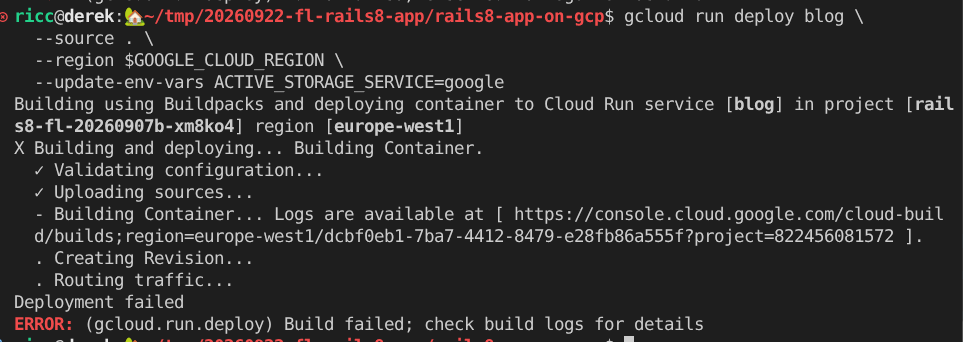
gcloud run deploy blog \
  --source . \
  --region $GOOGLE_CLOUD_REGION \
  --update-env-vars ACTIVE_STORAGE_SERVICE=google
💡 Tip: If the deployment fails, click on the Cloud Build logs link conveniently provided in your terminal output (as shown in the figure below). You can also ask Antigravity for help deciphering and fixing the error!
4. ✨ The Surviving Image & The Cloud Stamp
- Refresh your blog URL.
- Create a new blog post titled "Surviving the Cloud" and upload a photo.
- Look at the bottom-right corner of the image:
- The 🏠 stamp is gone!
- It is replaced by the colorful Cloud GCS Stamp (
nanobanana_stamp_cloud.png).
- Force another container restart (which should trigger a fourth revision):
gcloud run services update blog --region $GOOGLE_CLOUD_REGION --update-env-vars RESTART_TRIGGER=$(date +%s) - Refresh the page: while the SQLite database reset, the image binary is safe and sound in Google Cloud Storage! Verify via CLI:
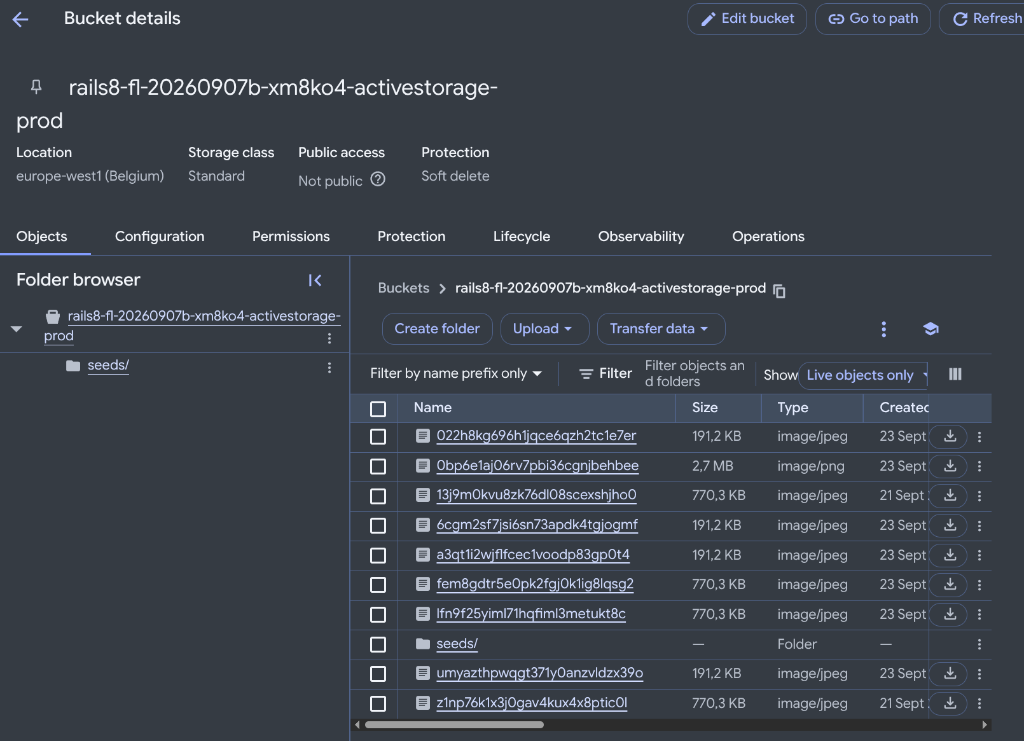
gcloud storage ls -l -r gs://$GCS_BUCKET/
Here is a list of uploaded blobs and media objects you might see on the Google Cloud Storage Browser Console in your production bucket (gs://$GCS_BUCKET):
5. ⚠️ The Catch: Stuck Jobs Warning Banner
When you uploaded the image, ActiveStorage enqueued an analysis job (ActiveStorage::AnalyzeJob) to extract dimensions and metadata.
However, Cloud Run is currently running only one single web container (puma). In Rails 8, Solid Queue stores background jobs in the database, but nobody is executing bundle exec rails solid_queue:start!
Look at the top of your blog page: you will see a bright warning banner rendered by blog/app/views/layouts/_check_stuck_jobs.html.erb.
We are going to solve this properly in Step 6, when we graduate to a production-grade multi-container sidecar architecture with a dedicated worker container running Solid Queue independently from web traffic!
6. Automated Step 4 Validation
Verify your GCS configuration and stuck jobs telemetry:
just workshop-eval 4
7. Step 5: Pre-Flight Checklist: Cloud SQL, Secrets & DB Connectivity
While you mastered stateless containers and Google Cloud Storage in Steps 3 and 4, Terraform has finished cooking your production backend in the background!
Before deploying our full 3-container production sidecar architecture (Deploy 4 in Step 6), this step acts as a fast Pre-Flight Inspection to verify database health, connectivity, and secret access.
0. Bootstrap Environment Variables
Export all required shell variables directly from your Terraform outputs:
# Core project variables (should already be set from Step 0)
export GOOGLE_CLOUD_REGION="${GOOGLE_CLOUD_REGION:-europe-west1}"

# Compute runtime service account
export PROJECT_NUMBER=$(gcloud projects describe $GOOGLE_CLOUD_PROJECT --format="value(projectNumber)")
export RUN_SA="${PROJECT_NUMBER}-compute@developer.gserviceaccount.com"

# Cloud SQL instance name (from Terraform output, NOT hardcoded)
export SQL_INSTANCE_NAME=$(cd iac && terraform output -raw sql_instance_name 2>/dev/null || gcloud sql instances list --format='value(name)' --limit=1)

# Database password (from Terraform output)
export DB_PASSWORD=$(cd iac && terraform output -raw db_password 2>/dev/null || echo "CHANGE_ME")

# GCS bucket names
export GCS_BUCKET="${GOOGLE_CLOUD_PROJECT}-activestorage-prod"

echo "✅ Pre-flight environment variables ready:"
echo "   RUN_SA=$RUN_SA"
echo "   SQL_INSTANCE_NAME=$SQL_INSTANCE_NAME"
echo "   GCS_BUCKET=$GCS_BUCKET"
1. Cloud SQL Health Check
Verify that your managed PostgreSQL instance has finished initial provisioning and is healthy:
echo "Checking instance: $SQL_INSTANCE_NAME"
gcloud sql instances describe $SQL_INSTANCE_NAME --format="value(state)"
The output must be RUNNABLE.
2. (Optional) Testing Database Connectivity from your Laptop
In production, Cloud Run containers connect securely to Cloud SQL via an encrypted sidecar proxy (127.0.0.1:5432) without exposing the database to the public internet (0.0.0.0/0).
ℹ️ Note: This step is completely optional! In Cloud Run, the official Cloud SQL Auth Proxy sidecar container handles mTLS connectivity automatically. You do not need to install anything locally to complete the workshop.
If you have cloud-sql-proxy and psql installed on your machine and want to verify direct connectivity from your laptop:
# Optional: test connectivity via Google-managed mTLS proxy
gcloud sql connect $SQL_INSTANCE_NAME --user=rails_user --database=rails_production
(If prompted for a password, enter
$DB_PASSWORD
. Otherwise, feel free to skip directly to Step 3 below!)
3. Inspecting Terraform-Provisioned Secrets
Never store plain-text database passwords, API keys, or Rails master keys in git or in container environment variables. In modern cloud architecture, we use Google Cloud Secret Manager for zero-trust runtime injection.
ℹ️ Terraform Handled This for You in Step 1:
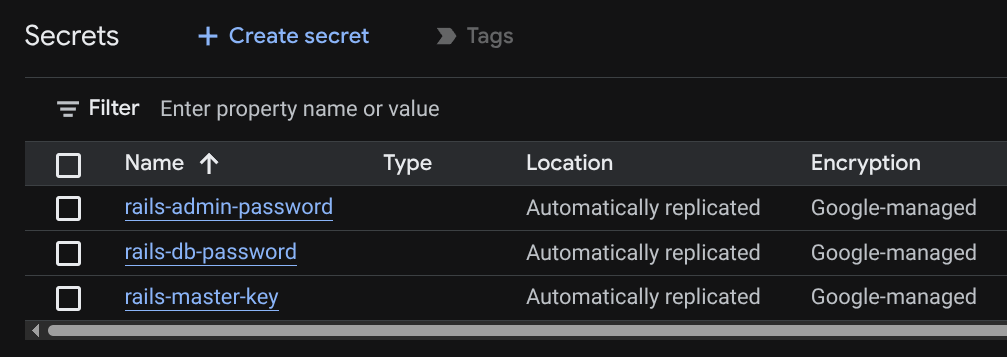
rails-master-key— for decrypting Rails credentials at runtime.rails-db-password— a cryptographically secure random password matching the Cloud SQL user.rails-admin-password— a secure password for your initial administrator user.
Verify that your secrets are present and active in Secret Manager:
gcloud secrets list --filter="name:rails-"
🔑 Syncing master.key to Your Laptop (Local Sync)
Because blog/config/master.key is gitignored for security, your local clone might not have it yet. Run this friendly self-healing snippet to pull it from Secret Manager so your local Rails tools can decrypt credentials:
if [ ! -f blog/config/master.key ]; then
  echo "📥 Pulling rails-master-key from Secret Manager to local blog/config/master.key..."
  gcloud secrets versions access latest --secret=rails-master-key > blog/config/master.key
  echo "🔑 Created local blog/config/master.key! 🎉"
else
  echo "✅ Local blog/config/master.key already exists! 🚀"
fi
🧪 Playground: Want to create a custom secret just to see how easy it is? Secret Manager isn't just for Rails! You can create any secret in one simple CLI command:
echo -n "MySuperSecretValue123!" | gcloud secrets create workshop-fun-secret --data-file=-
echo "✨ Created workshop-fun-secret in Secret Manager! 🪄"
4. Verifying Secret Accessor Permissions
In order for Cloud Run containers to mount these secrets as environment variables or volume mounts at boot, the runtime service account ($RUN_SA) needs the roles/secretmanager.secretAccessor role on each secret.
Terraform already granted this during Step 1! Verify the IAM policy binding on rails-master-key:
# Verify that Cloud Run runtime SA has Secret Accessor role
gcloud secrets get-iam-policy rails-master-key \
  --flatten="bindings[].members" \
  --format="table(bindings.role,bindings.members)" \
  --filter="bindings.members:$RUN_SA"
You should see:
ROLE                                 MEMBERS
roles/secretmanager.secretAccessor   serviceAccount:PROJECT_NUMBER-compute@developer.gserviceaccount.com
5. Automated Pre-Flight Validation
Run the automated Step 5 test suite to confirm that your database is runnable, secrets are non-empty, and IAM permissions are green:
just workshop-eval 5
8. Step 6: Deploy 4 — Enterprise Multi-Container Sidecars (The Gold Standard)
Now we assemble the ultimate reference architecture: Multi-Container Cloud Run!
1. Restoring the Gold Standard
Restore your repository configuration to the canonical main state:
just workshop-restore-gold
2. Inspecting the 3-Container Production Blueprint
Open blog/compose.prod.yaml and inspect the architecture:
graph LR
  Client[Internet / HTTPS Client] -->|Port 8080| Web[Web Container: Puma]
  Web -->|Localhost:5432| Proxy[Sidecar: Cloud SQL Auth Proxy]
  Worker[Worker Container: Solid Queue] -->|Localhost:5432| Proxy
  Proxy -->|IAM mTLS Tunnel| CloudSQL[(Google Cloud SQL PostgreSQL)]
The production deployment runs three coordinated containers sharing the same local network:
web: Serves HTTP traffic on port 8080 via Puma.worker: Dedicated background processing container runningbundle exec rails solid_queue:start.cloudsql-proxy: Official Google Cloud SQL Auth Proxy sidecar (gcr.io/cloud-sql-connectors/cloud-sql-proxy:2) bound to127.0.0.1:5432.
3. Running Database Migrations via Cloud Run Job
Before routing web traffic to our new deployment, we must run database migrations and initial seeding against Cloud SQL.
⚖️ How to Run Migrations in Containers: Two Strategies
In containerized cloud environments, there are two common approaches to executing database migrations:
- Option A: Automatic inside Docker Entrypoint (
entrypoint.shexecutesdb:migrateon container boot)- Pros: Fully automated; developers don't have to remember to run a command.
- Cons: Hazardous in serverless autoscaling! When Cloud Run scales up to 10 instances simultaneously under high traffic, 10 containers race to run migrations concurrently, causing database locking, schema race conditions, or boot timeouts.
- Option B: Explicit via Cloud Run Job (Our Architectural Choice)
- Pros: Complete control, transactional safety, and zero race conditions. Runs as a dedicated one-shot container task completely detached from serving web traffic. If a migration fails, web serving is unaffected.
- Cons: Requires triggering a CLI job or CI/CD step before deployment.
We choose Option B for maximum production reliability.
⚠️ Critical: DATABASE_URL Format & Ruby 3.4.5 RFC 3986 Strictness
Cloud Run Jobs connect to Cloud SQL using the native Unix socket proxy (/cloudsql/PROJECT:REGION:INSTANCE). The DATABASE_URL must use the triple-slash format:
postgresql:///rails_production?user=rails_user&password=PASS&host=/cloudsql/PROJECT:REGION:INSTANCE
# Core environment variables for database migration & initial admin seed
export GOOGLE_CLOUD_ACCOUNT="${GOOGLE_CLOUD_ACCOUNT:-$(gcloud config get-value account)}"
echo "Admin user will be seeded for: $GOOGLE_CLOUD_ACCOUNT"

# Get the latest blog image from Cloud Run (jobs don't support --source)
export BLOG_IMAGE=$(gcloud run services describe blog --region=$GOOGLE_CLOUD_REGION --format='value(spec.template.spec.containers[0].image)')

# Build the DATABASE_URL in triple-slash format (required for Unix socket proxy)
export DB_PASSWORD=$(gcloud secrets versions access latest --secret=rails-db-password)
export CLOUDSQL_CONNECTION="${GOOGLE_CLOUD_PROJECT}:${GOOGLE_CLOUD_REGION}:${SQL_INSTANCE_NAME}"
export DB_URL="postgresql:///rails_production?user=rails_user&password=${DB_PASSWORD}&host=/cloudsql/${CLOUDSQL_CONNECTION}"

# Create migration job — note ALL 4 database URL env vars and GOOGLE_CLOUD_ACCOUNT for seed user creation
gcloud run jobs create rails-migrate \
  --image=$BLOG_IMAGE \
  --command "bin/rails" \
  --args "db:prepare" \
  --set-env-vars="DATABASE_URL=${DB_URL},DATABASE_QUEUE_URL=${DB_URL},DATABASE_CACHE_URL=${DB_URL},DATABASE_CABLE_URL=${DB_URL},GOOGLE_CLOUD_PROJECT=${GOOGLE_CLOUD_PROJECT},GOOGLE_CLOUD_ACCOUNT=${GOOGLE_CLOUD_ACCOUNT}" \
  --set-secrets="RAILS_MASTER_KEY=rails-master-key:latest" \
  --set-cloudsql-instances="${CLOUDSQL_CONNECTION}" \
  --service-account=$RUN_SA \
  --region $GOOGLE_CLOUD_REGION 2>/dev/null || true

# Execute migration job
gcloud run jobs execute rails-migrate --region $GOOGLE_CLOUD_REGION --wait
💡 Rails 8 Multi-Database: The app uses 4 databases (primary, queue, cache, cable) per database.yml. All 4 DATABASE_*_URL env vars must point to the same Cloud SQL instance, otherwise Solid Queue/Cache/Cable tables won't be created.
After db:prepare, load the Solid Queue/Cache/Cable schemas:
# Schema load for queue, cache, and cable databases (creates solid_queue_jobs, etc.)
gcloud run jobs update rails-migrate \
  --command "bash" \
  --args "-c,DISABLE_DATABASE_ENVIRONMENT_CHECK=1 bin/rails db:schema:load:queue db:schema:load:cache db:schema:load:cable" \
  --region $GOOGLE_CLOUD_REGION

gcloud run jobs execute rails-migrate --region $GOOGLE_CLOUD_REGION --wait
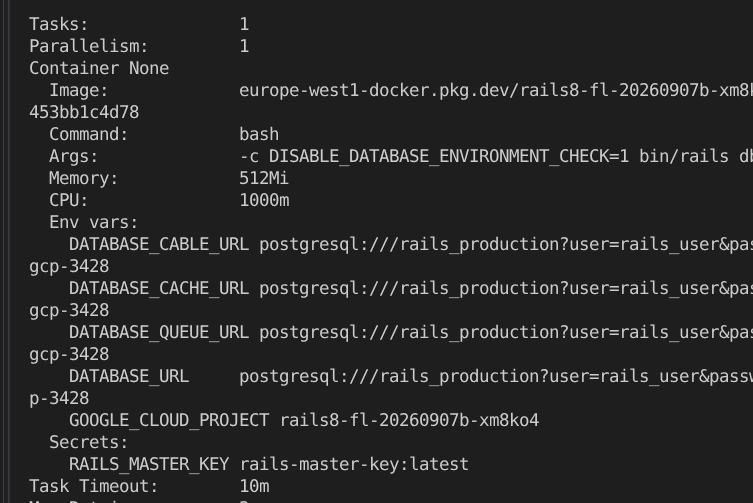 In the figure above, you can see a possible output of
gcloud run jobs executions describe $JOBNAME
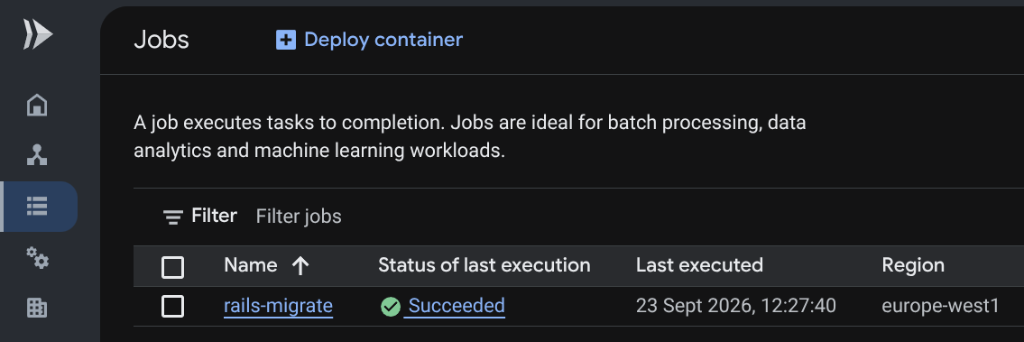 Google Cloud Run Jobs Console showing
rails-migrate
execution Succeeded
4. Fourth Deploy: Deploying Multi-Container Cloud Run via Docker Compose
Now deploy the genuine 3-container production stack (web, worker, cloudsql-proxy) directly from compose.prod.yaml:
# 1. Self-healing environment exports (guarantees no missing master key or DB password)
export RAILS_MASTER_KEY="${RAILS_MASTER_KEY:-$(cat config/master.key 2>/dev/null || gcloud secrets versions access latest --secret=rails-master-key)}"
export DB_PASSWORD=$(gcloud secrets versions access latest --secret=rails-db-password)
export CLOUDSQL_INSTANCE_CONNECTION_NAME="${GOOGLE_CLOUD_PROJECT}:${GOOGLE_CLOUD_REGION}:${SQL_INSTANCE_NAME}"

# 2. Database credentials & GCS attachments
export DB_USER="rails_user"
export DB_NAME="rails_production"
export GCS_BUCKET="${GCS_BUCKET}"
export ACTIVE_STORAGE_SERVICE="google"
export GOOGLE_CLOUD_ACCOUNT="${GOOGLE_CLOUD_ACCOUNT:-$(gcloud config get-value account)}"
export GEMINI_API_KEY="${GEMINI_API_KEY:-dummy-key}"

# 3. Deploy the full multi-container sidecar architecture to Cloud Run
gcloud run compose up compose.prod.yaml \
  --region=$GOOGLE_CLOUD_REGION \
  --allow-unauthenticated
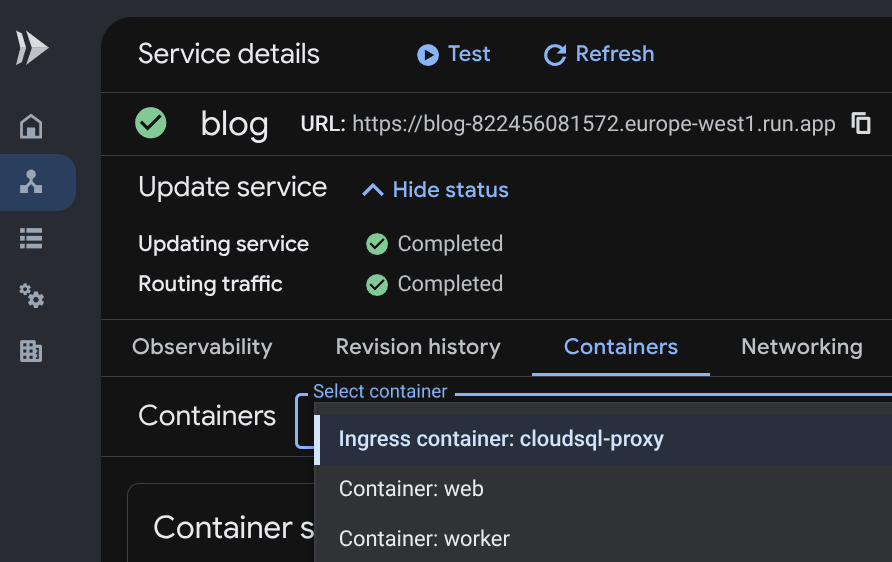 Google Cloud Run Console: ‘Containers' tab displaying all three sidecar containers (
cloudsql-proxy
,
web
,
worker
)
💡 UI Curiosity / Console Glitch: In the Console dropdown, you may notice Cloud Run labels the top entry as Ingress container: cloudsql-proxy. Don't worry! This is purely a visual UI glitch in the Google Cloud Console (tracked in #149) caused by container dependency ordering. In reality, web is the only container listening on HTTP port 8080 and handles 100% of ingress web traffic, while cloudsql-proxy strictly serves private PostgreSQL traffic on port 5432!
5. ✨ The Wow Moment: Zero Warnings & Full Cloud Persistence!
Take a deep breath and marvel at your screen: all warning banners have vanished! 🪄
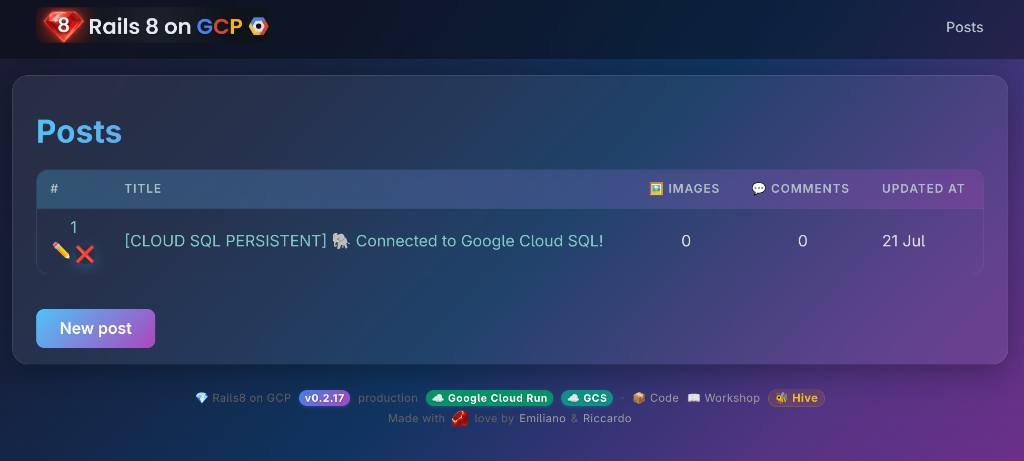 The production Rails 8 blog: pristine UI, zero warning banners, and persistent Cloud SQL state!
The application is now officially Production-Grade & Cloud-Native:
- Backed by managed Google Cloud SQL (PostgreSQL) via secure mTLS tunneling.
- Media safely stored in private Google Cloud Storage with IAM blob signing.
- Zero ephemeral storage warnings and zero stuck jobs alerts.
Open your Cloud Run URL:
- Look at the telemetry badges:
[CLOUD PERSISTENT 🐘 ☁️]is verified in your database seed!- Both Google Cloud Run and GCS badges in the footer shine green!
- The stuck jobs warning banner is completely gone!
- Create blog posts and comments.
- Restart or redeploy as many times as you like: your data, posts, comments, and assets survive forever in Cloud SQL and GCS!
6. Automated Step 6 Validation
Verify the multi-container configuration:
just workshop-eval 6
9. Step 7: Generative AI Pipelines, Podcastifier & The GCS Treasure Hunt 🏴☠️
With Solid Queue running in a dedicated container and Google Cloud Storage active, we can unleash asynchronous Generative AI!
1. The NanoBanana Vintage Cover Generator (Ready-to-Use GenAI Pipeline)

Good news: this functionality is already fully implemented in the codebase! You don't need to write any code — your task here is to trigger and observe an asynchronous cloud GenAI pipeline in action.
🧠 How it Works Behind the Scenes
- Authentication: Zero API keys required! It uses Application Default Credentials (
roles/aiplatform.useron Vertex AI) automatically via the Cloud Run runtime service account. (Alternatively, ifGEMINI_API_KEYis provided, it calls the Gemini API directly). - The Pipeline: When an article is created without a cover image, an
after_commitcallback enqueuesGenerateCoverImageJobinto Solid Queue. - Model: It prompts Google's multimodal model (Gemini 2.5 Flash Image / Imagen on Vertex AI) to generate an authentic vintage 1960s Italian film poster ("Locandina di un film 1960") complete with a cameo banana and a shiny ruby "8".
- Dynamic Provenance Watermark: Uses
libvipsto dynamically stamp a visual badge on the corner (colorful cloud stamp on GCS). - Turbo Stream Hot-Swap: When the image is attached,
Turbo::StreamsChannel.broadcast_refresh_to(post)updates the reader's browser live without a manual page reload!
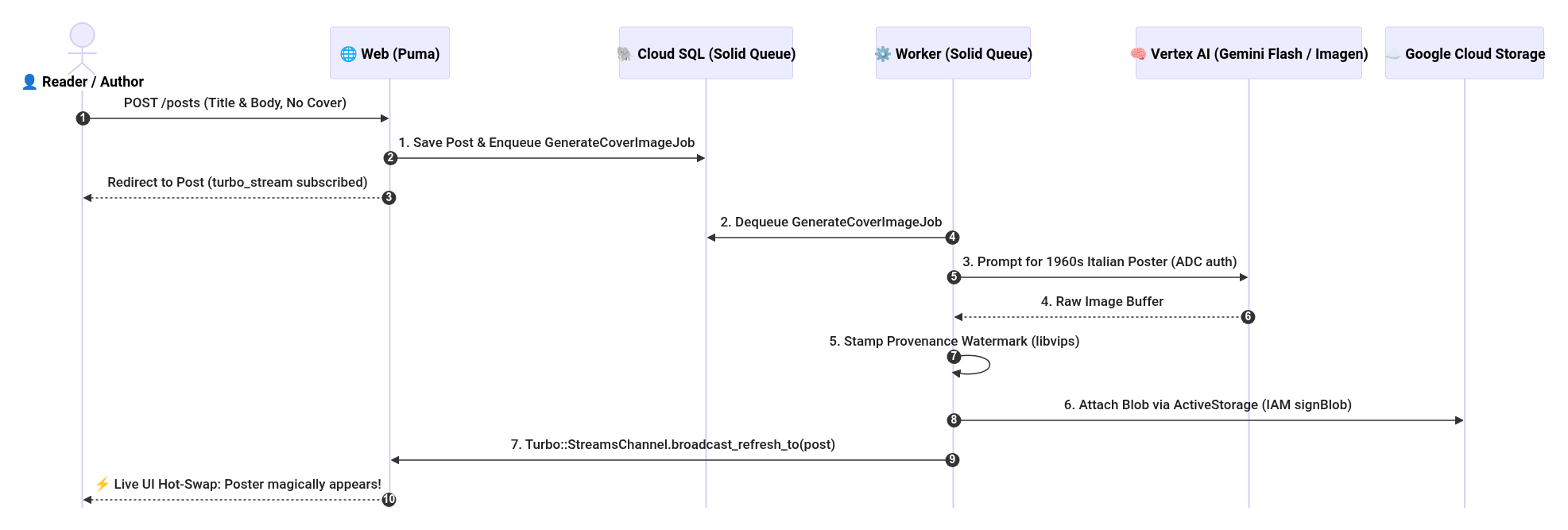
📐 View Mermaid Sequence Diagram Source
sequenceDiagram
  autonumber
  actor User as 👤 Reader / Author
  participant Web as 🌐 Web (Puma)
  participant DB as 🐘 Cloud SQL (Solid Queue)
  participant Worker as ⚙️ Worker (Solid Queue)
  participant Vertex as 🧠 Vertex AI (Gemini Flash / Imagen)
  participant GCS as ☁️ Google Cloud Storage

  User->>Web: POST /posts (Title & Body, No Cover)
  Web->>DB: 1. Save Post & Enqueue GenerateCoverImageJob
  Web-->>User: Redirect to Post (turbo_stream subscribed)

  Worker->>DB: 2. Dequeue GenerateCoverImageJob
  Worker->>Vertex: 3. Prompt for 1960s Italian Poster (ADC auth)
  Vertex-->>Worker: 4. Raw Image Buffer
  Worker->>Worker: 5. Stamp Provenance Watermark (libvips)
  Worker->>GCS: 6. Attach Blob via ActiveStorage (IAM signBlob)
  Worker->>Web: 7. Turbo::StreamsChannel.broadcast_refresh_to(post)
  Web-->>User: ⚡ Live UI Hot-Swap: Poster magically appears!
🧪 Try It Live!
You can trigger it in two ways:
- Option A (Web UI): Click New post, enter a title like "Serverless Architecture with Ruby on Rails 8", write some content, and leave the cover image file input empty. Click Create Post.
- Option B (CLI Runner): Run from your terminal:
bin/rails runner 'Post.create!(title: "Serverless Architecture with Ruby on Rails 8", body: "Exploring asynchronous AI pipelines with Solid Queue and NanoBanana!")'
Wait ~15–30 seconds: watch the Solid Queue worker logs in Cloud Run. The vintage poster will appear directly on your post!
📸 TODO(riccardo): add screenshot of a blog post with an AI-generated vintage 1960s Italian movie poster featuring a cameo banana and ruby 8
2. The Bilingual Podcastifier Quest (Hands-On Antigravity Coding Exercise)
⚠️ Important Notice: Unlike the Cover Generator above, this feature is NOT yet implemented!
If you open blog/app/jobs/podcastifier_job.rb, you will find an empty scaffold stub:
class PodcastifierJob < ApplicationJob
  queue_as :default

  def perform(post_id)
    # TODO(student): COMPLETE_ME — Pair program with Google Antigravity to implement
    # Italian TTS podcast generation using voice 'it-IT-Wavenet-A' via Cloud TTS / ADC!
  end
end
Your mission in this hands-on exercise is to pair-program with Google Antigravity to complete this feature:
- Prompt Antigravity:"Help me implement PodcastifierJob in
app/jobs/podcastifier_job.rb. It should fetch the Post, translate or synthesize an Italian audio overview using Google Cloud Text-to-Speech (voice ‘it-IT-Wavenet-A' with language code ‘it-IT' via ADC credentials), and attach the audio file topost.podcast_audio_itusing ActiveStorage!" - Add Player to View: In
app/views/posts/show.html.erb, add an HTML5player when@post.podcast_audio_it.attached?. - Trigger Synthesis: When saved, Solid Queue will execute the text-to-speech job asynchronously in the background.
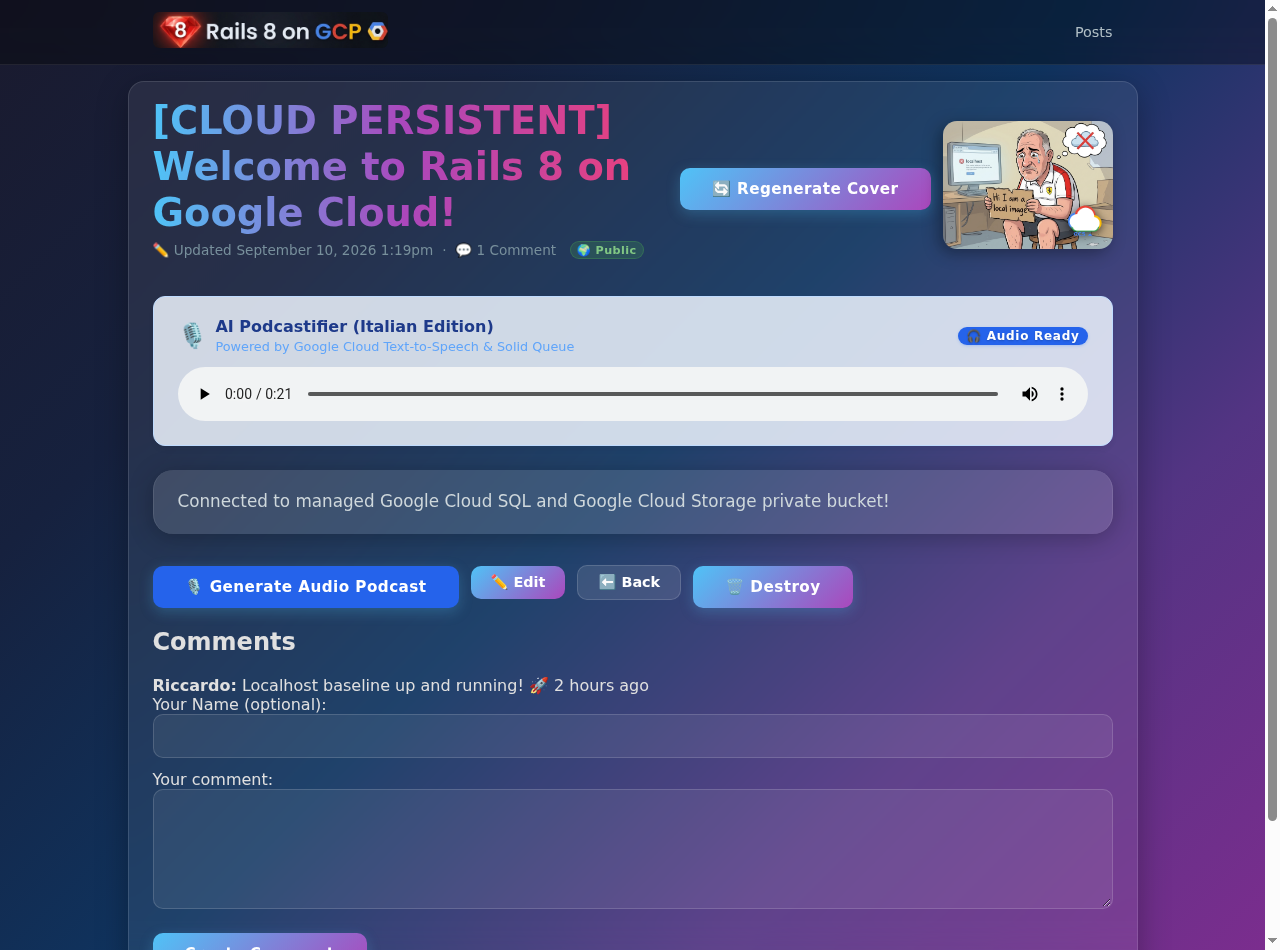
🎧 Sample Podcastifier Outputs:
💡 Need Help or Got Stuck? A complete, battle-tested reference solution is available on branch solutions/podcastifier. You can inspect it anytime with git diff solutions/podcastifier.
3. [OPTIONAL] 🏴☠️ The GCS Treasure Hunt (Console Blob Recovery)
ℹ️ Prerequisite Check: Local
cloud-sql-proxy
CLI Required This optional exercise connects your local laptop directly to Google Cloud SQL via an encrypted mTLS tunnel. Check if you have the CLI proxy installed:
which cloud-sql-proxy
- If installed: Proceed below!
- If NOT installed and you want to do this quest: Install it with:
# Linux (x86_64) curl -o /tmp/cloud-sql-proxy https://storage.googleapis.com/cloud-sql-connectors/cloud-sql-proxy/v2.14.0/cloud-sql-proxy.linux.amd64 chmod +x /tmp/cloud-sql-proxy && sudo mv /tmp/cloud-sql-proxy /usr/local/bin/cloud-sql-proxy # macOS (Homebrew) brew install cloud-sql-proxy - Otherwise: Feel free to skip to the Step 7 automated validation!
Remember that photo you uploaded back in Step 4 before the container restart wiped out the ephemeral SQLite database? That image file is still sitting safely in your private GCS bucket as an "orphaned blob"!
Let's use the Rails console to rescue it and attach it to a Cloud SQL post:
# Connect to your production database via Rails console and Cloud SQL Proxy
cloud-sql-proxy --port 5432 ${GOOGLE_CLOUD_PROJECT}:${GOOGLE_CLOUD_REGION}:${SQL_INSTANCE_NAME} &
DATABASE_URL=postgresql://rails_user:${DB_PASSWORD}@127.0.0.1:5432/rails_production bin/rails c
Inside the Rails console:
# 1. Search for orphaned GCS blobs in ActiveStorage
orphan_blobs = ActiveStorage::Blob.where.missing(:attachments)
puts "🏴☠️ Found #{orphan_blobs.count} orphaned GCS blobs!"
# 2. Attach the surviving blob to your latest post
if orphan_blobs.any?
post = Post.last
post.cover_image.attach(orphan_blobs.first)
post.save!
puts "🎉 Rescued blob #{orphan_blobs.first.filename} attached to '#{post.title}'!"
end
exit
📸 TODO(riccardo): add screenshot of the interactive Rails console executing the GCS Treasure Hunt snippet and rescuing orphaned ActiveStorage blobs
Refresh your blog: the photo uploaded during Step 4's Stateless Shock is resurrected and permanently attached to your Cloud SQL post!
4. Automated Step 7 Validation
Verify GenAI jobs and assets:
just workshop-eval 7
10. Step 8: Choose Your Own Adventure / Advanced Quests 🏆
Now that you have mastered the canonical reference architecture, choose your graduation quest!
🛡️ Quest 1: Zero-Trust Google IAP (Identity-Aware Proxy)
- Difficulty: Medium (Enterprise Security)
- The Goal: Lock down your Cloud Run application so only your verified Google / Gmail accounts can access it, eliminating password login entirely!
- How it Works:
- An External HTTPS Application Load Balancer terminates Google OAuth and verifies identity before traffic ever reaches Cloud Run.
- Google forwards verified identity headers (
X-Goog-Authenticated-User-Email). - Rails automatically logs in the verified Google identity via
blog/app/controllers/concerns/iap_authenticatable.rb:module IapAuthenticatable extend ActiveSupport::Concern included { before_action :authenticate_via_iap } private def authenticate_via_iap return unless (raw = request.headers["X-Goog-Authenticated-User-Email"]).present? email = raw.sub(/^accounts\.google\.com:/, "") user = User.find_or_create_by!(email_address: email) { |u| u.password = SecureRandom.hex(16) } start_new_session_for(user) unless authenticated? end end - Enable the Terraform module in
iac/iap.tfwithenable_iap = trueand specify your allowed Google accounts:iap_allowed_users = [var.google_cloud_account]

📊 Quest 2: Production SRE Telemetry & Cloud Logging
- Difficulty: Medium (Observability)
- The Goal: Stream structured JSON application logs with trace correlation IDs directly to Google Cloud Logging and catch production exceptions in real-time with Cloud Error Reporting.
- How it Works:
- Configure
blog/config/environments/production.rbto emit structured JSON logs with GCP trace labels. - Trigger an intentional test exception and watch Google Cloud Error Reporting group and notify you instantly.
- Configure
📸 TODO(riccardo): add screenshot of Google Cloud Error Reporting showing grouped production exceptions and Cloud Logging structured JSON payload with trace labels
🧠 Quest 3: pgvector Semantic Search & Gemini RAG
- Difficulty: Hard (GenAI Capstone)
- The Goal: Search articles conceptually using vector embeddings stored in PostgreSQL on Cloud SQL.
- How it Works:
- Enable the
vectorextension on your Cloud SQL PostgreSQL instance:CREATE EXTENSION IF NOT EXISTS vector; - Add the
neighborgem toblog/Gemfileand generate text embeddings with Gemini (text-embedding-004) onPost#after_save. - Perform cosine distance queries (
<=>) to power a semantic search bar with Turbo Streams!
- Enable the
📸 TODO(riccardo): add screenshot of the live blog semantic search bar returning conceptual matches with cosine similarity scores
⚡ Quest 4: SEO & Performance Audit Assistant
- Difficulty: Easy / Fun (Developer Experience)
- The Goal: Audit Core Web Vitals, Largest Contentful Paint (LCP), and Flesch-Kincaid / Fog readability indices using Antigravity and Speedgrapher tools.
📸 TODO(riccardo): add screenshot of Speedgrapher / Lighthouse SEO and Core Web Vitals audit summary
🤔 Curiosity Box: Getting a Live Rails Console on Cloud Run
💡 The Question: On traditional VMs or Heroku-style PaaS platforms, developers commonly SSH into a running instance or use heroku run rails console to inspect or fix production data live. What is the Cloud Run-native equivalent, and how do you harden it?
Why
gcloud run exec
doesn't exist for Cloud Run Services
Cloud Run is a serverless platform: your container may be running as zero, one, or hundreds of identical instances, with no stable identity or addressable shell. This is fundamentally different from Kubernetes (kubectl exec), where a specific pod has a named socket you can attach to.
# ❌ This does NOT exist for Cloud Run Services:
gcloud run services exec blog --region europe-west1 -- rails console

# ✅ This exists for Cloud Run JOBS (non-interactive, one-shot tasks):
gcloud run jobs execute my-job --region europe-west1 --wait
The Four GCP-Native Patterns
Pattern | Command | Interactive? | Security |
1. Local proxy + remote DB |
| ✅ Full | 🔒 Cloud SQL Auth Proxy mTLS |
2. Cloud Run Job (one-shot) |
| ❌ Script only | 🔒 IAM role required |
3. Web Console gem + IAP | Browser → | ✅ Full | 🛡️ IAP Zero-Trust |
4. Cloud Shell + Proxy | Cloud Shell → | ✅ Full | 🔒 Google identity |
Pattern 1 (Recommended for data inspection): Run a local Rails console that talks directly to your Cloud SQL PostgreSQL via the Cloud SQL Auth Proxy:
# In one terminal: start the auth proxy
cloud-sql-proxy rails8-fl-20260907b-xm8ko4:europe-west1:your-instance

# In another terminal: open a read-write or sandbox console
DATABASE_URL=postgresql://rails_user:${DB_PASSWORD}@127.0.0.1:5432/rails_production \
  bin/rails console --sandbox
You get full IRB interactivity with zero network exposure — the Cloud SQL Proxy uses mTLS over a Unix domain socket or loopback.
Pattern 3 (Web Console + IAP Zero-Trust, the hardened browser path):
The web-console gem provides a browser-based IRB session. Without protection it is a critical security vulnerability — never expose it publicly. But combined with Google IAP (Quest 1), the Attack surface collapses: only verified Google identities on your allowlist can reach the /rails/console endpoint.
# Gemfile — only load in development/staging, never production without IAP!
gem "web-console", group: :development

# config/environments/production.rb — if IAP is enabled:
config.web_console.allowed_ips = ["0.0.0.0/0"]  # IAP terminates auth before us
⚠️ Pattern 3 requires Quest 1 (IAP) to be enabled first. Without it, /rails/console on a public URL is equivalent to leaving your server room unlocked. With IAP, it becomes a powerful operator tool hardened by Google-grade Zero-Trust.
Ask Antigravity: "Show me how to run
rails console --sandbox
against my Cloud SQL production database safely using the Cloud SQL Auth Proxy."
🏆 Graduating on The Hive: Proctor-Validated Proof-of-Work
Once you have completed your chosen quest, claim your Step 8 Graduation Trophy 🏆 on The Hive Leaderboard:
- Submit Your Quest on GitHub:
- Open a new Issue on the official repository: github.com/palladius/rails8-app-on-gcp/issues/new
- Title format:
🎓 [Step 8 Completed]: - In the body, include a brief description of what you accomplished and a link to your live Cloud Run deployment.
- Connect Your Cloud Run App to Your Issue:
- Note your Issue number (e.g.
88or the full URLhttps://github.com/palladius/rails8-app-on-gcp/issues/88). - Inject the
STEP_8_GHIenvironment variable into your Cloud Run service:gcloud run services update blog \ --region europe-west1 \ --update-env-vars STEP_8_GHI=<YOUR_ISSUE_NUMBER> - Verify that your
/status.jsonendpoint now reports your quest:curl -s https://<YOUR_APP>.run.app/status.json | jq .quest{ "step_8_completed": true, "ghi_issue": 88, "ghi_url": "https://github.com/palladius/rails8-app-on-gcp/issues/88" }
- Note your Issue number (e.g.
- Get Your Proctor Review & Unlock the Golden Trophy:
- Check The Hive Leaderboard: your row will now display an amber badge:
⏳ GHI #XX review pending. - Ask workshop proctors (@palladius, @emilianodellacasa, or @ricc) to inspect your deployment.
- As soon as a proctor comments
LGTMon your issue, The Hive will automatically elevate your progress to 8/8 🏆 with a golden/purple glowing badge and a permanent trophy linking directly to your capstone issue!
- Check The Hive Leaderboard: your row will now display an amber badge:
11. Conclusion and Clean Up 🎓
Congratulations! 🎉
You have built and deployed a production-grade, enterprise-ready Rails 8 application on Google Cloud Platform:
- Zero-Branch Progression: Mastered modern workflows with Time-Machine overlays on
main. - Cloud Storage: Scalable, private object storage with IAM blob signing (
iam: true). - Cloud SQL: Managed PostgreSQL secured with Cloud SQL Auth Proxy mTLS tunnels.
- Secret Manager: Zero plain-text credentials or
.envfile leaks. - Cloud Run Multi-Container: Isolated Puma web, Solid Queue worker, and proxy sidecars.
- Generative AI: Asynchronous vintage poster generation and TTS podcast synthesis with Vertex AI.
- Quests: Zero-Trust IAP, SRE Observability, and pgvector embeddings!
🧹 Resource Clean Up
To avoid ongoing charges after completing the workshop, make sure to clean up your Google Cloud resources! Choose the approach that best fits your environment:
Option 1: Terraform Teardown (Recommended / Default 🟢)
Use this option if you are using an existing or shared Google Cloud project where other resources or data live. It surgically destroys only the resources provisioned during this workshop (Cloud Run, Cloud SQL, Secret Manager, GCS buckets), leaving the rest of your project untouched.
cd iac
terraform destroy -auto-approve
Option 2: Total Project Deletion (Leave Zero Trace 🌪️)
Use this option if you created a dedicated workshop project (e.g., using workshop credits or a sandbox) and want to guarantee that zero trace remains—including logs, metadata, service accounts, and billing links.
gcloud projects delete $GOOGLE_CLOUD_PROJECT --quiet