

1. Tổng quan
Các nút GKE bảo mật (CGKE) đảm bảo dữ liệu trong khối lượng công việc được mã hoá khi sử dụng. Việc hiển thị thiết bị vTPM cho các tải công việc CGKE cho phép các tải công việc sử dụng các tính năng của vTPM. Trong lớp học lập trình này, bạn sẽ tìm hiểu các tính năng của vTPM cũng như cách tận dụng chứng thực phần cứng Intel TDX và AMD SEV-SNP bằng cách sử dụng cc-device-plugin.
- Chứng thực từ xa vTPM cho phép một bên từ xa xác minh rằng các nút CGKE lưu trữ khối lượng công việc đang chạy trên Máy ảo bảo mật (CVM).
- Uỷ quyền vTPM và niêm phong vTPM.
- Chứng thực phần cứng bằng cách sử dụng các thiết bị khách Intel TDX và AMD SEV-SNP được hiển thị.
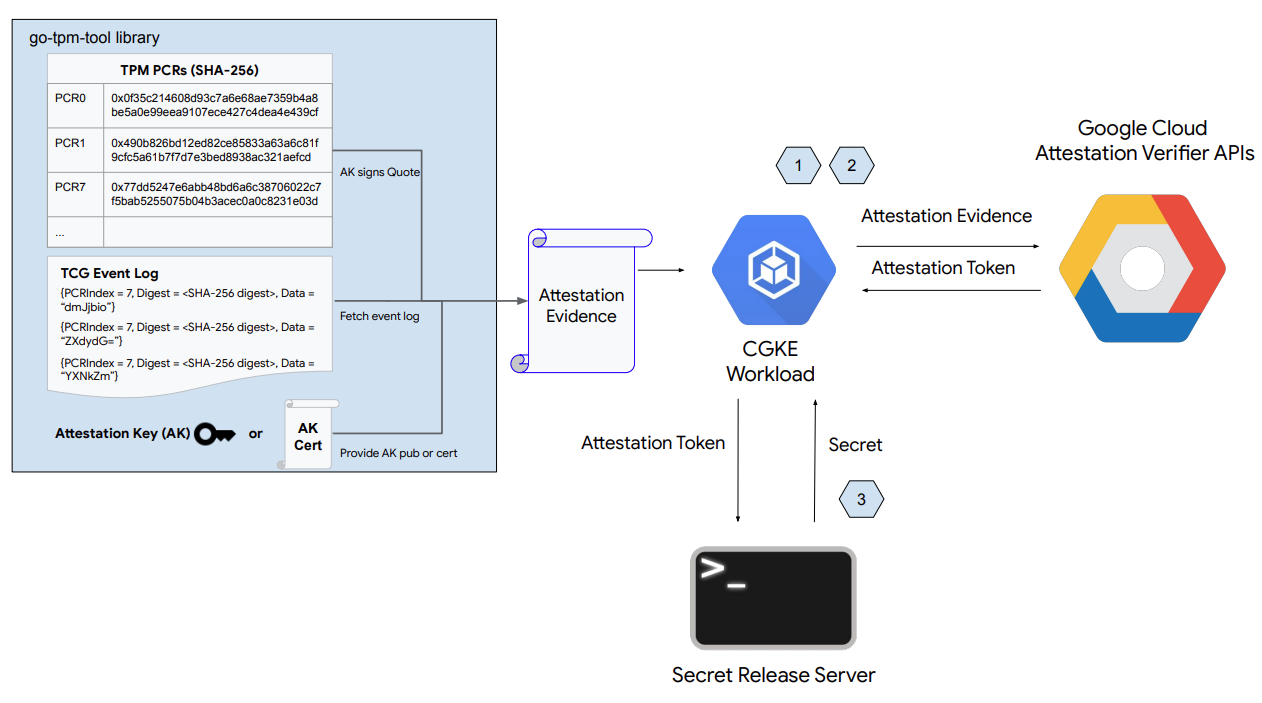
Như minh hoạ trong hình trên, phần đầu tiên của lớp học lập trình này bao gồm các bước sau:
- Thiết lập các nút CGKE và hiển thị thiết bị vTPM cho các khối lượng công việc đã chọn.
- Triển khai một khối lượng công việc và chứng thực từ xa nút CGKE lưu trữ khối lượng công việc đó.
- Triển khai một tải để tìm nạp Trích dẫn chứng thực phần cứng trực tiếp từ các thiết bị TDX hoặc SEV-SNP.
- Thiết lập máy chủ web phát hành bí mật.
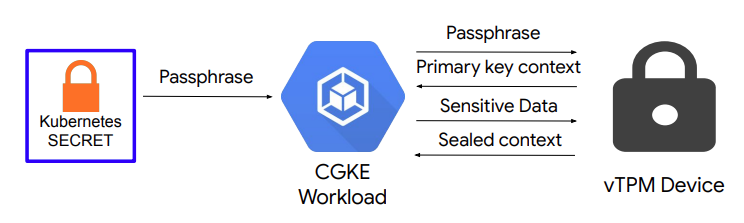
Như minh hoạ trong hình trên, phần thứ hai của lớp học lập trình này bao gồm:
- Thiết lập uỷ quyền vTPM và niêm phong vTPM trên các nút CGKE.
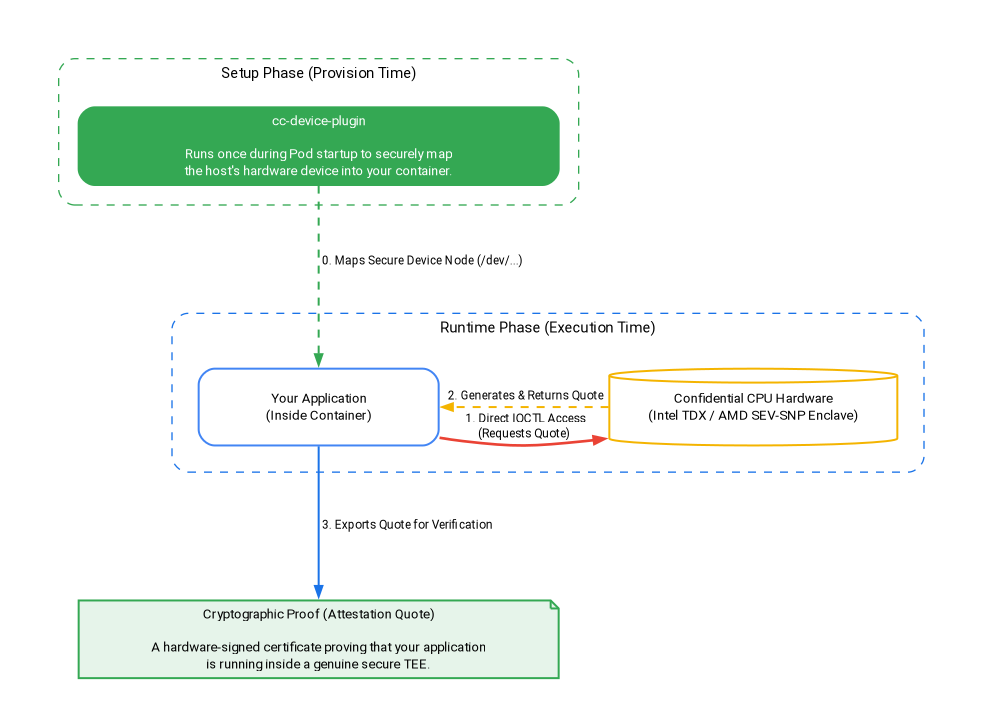
Như minh hoạ trong hình trên, phần thứ ba của lớp học lập trình này bao gồm:
- Cách
cc-device-pluginánh xạ các thiết bị phần cứng một cách an toàn trong Giai đoạn thiết lập. - Triển khai các khối lượng công việc để tìm nạp Trích dẫn chứng thực phần cứng trực tiếp từ các thiết bị TDX hoặc SEV-SNP trong Giai đoạn thời gian chạy mà không tốn chi phí.
Kiến thức bạn sẽ học được
- Cách hiển thị thiết bị vTPM cho các khối lượng công việc CGKE.
- Cách chứng thực từ xa thông qua Điện toán bảo mật API (dịch vụ Trình xác minh chứng thực) trên khối lượng công việc CGKE.
- Cách thiết lập cơ chế uỷ quyền vTPM và thực hiện niêm phong vTPM.
- Cách truy cập vào các thiết bị SEV-SNP và TDX trong khối lượng công việc CGKE bằng cách sử dụng
cc-device-plugin. - Cách tìm nạp Chứng chỉ chứng thực phần cứng bằng go-tdx-guest và go-sev-guest.
Bạn cần có
- Một dự án trên Google Cloud Platform
- Một trình duyệt, chẳng hạn như Chrome hoặc Firefox
- Kiến thức cơ bản về Google Compute Engine (lớp học lập trình), VM bảo mật, nút GKE bảo mật và Artifact Registry
- Đối với Intel TDX hoặc AMD SEV-SNP: Phiên bản GKE tối thiểu là v1.33.5-gke.1697000+ hoặc v1.34.1-gke.2909000+ và các dòng máy phù hợp (c3 cho TDX, n2d cho SNP).
2. Thiết lập và yêu cầu
Để bật các API cần thiết, hãy chạy lệnh sau trong bảng điều khiển đám mây hoặc môi trường phát triển cục bộ:
gcloud auth login

gcloud services enable \
    cloudapis.googleapis.com \
    cloudshell.googleapis.com \
    container.googleapis.com \
    artifactregistry.googleapis.com \
    confidentialcomputing.googleapis.com \
    iamcredentials.googleapis.com \
    compute.googleapis.com
3. Thiết lập Tầng điều khiển CGKE dùng chung
Trong bước này, bạn sẽ thiết lập mặt phẳng điều khiển GKE dùng chung và một kho lưu trữ Docker Artifact Registry.
1). Thiết lập các biến môi trường và tạo cụm GKE dùng chung:
Thay your-project-id bằng mã dự án của bạn. Thay thế us-central1-c bằng múi giờ bạn muốn. (Xem phần Khu vực và múi giờ)
export PROJECT_ID="your-project-id"
export ZONE="us-central1-c"
export CLUSTER_NAME="cgke-attestation-codelab"

gcloud config set project ${PROJECT_ID}

gcloud container clusters create ${CLUSTER_NAME} \
    --zone=${ZONE} \
    --num-nodes=1 \
    --machine-type=e2-medium \
    --workload-pool=${PROJECT_ID}.svc.id.goog \
    --workload-metadata=GKE_METADATA

gcloud container clusters get-credentials ${CLUSTER_NAME} --zone=${ZONE}
2). Tạo một kho lưu trữ Docker Artifact Registry để lưu trữ hình ảnh vùng chứa của khối lượng công việc:
gcloud artifacts repositories create codelab-repo \
    --repository-format=docker \
    --location=us
Chọn đường dẫn của bạn
Giờ đây, bạn có thể sử dụng mặt phẳng điều khiển GKE dùng chung và kho lưu trữ Artifact Registry. Chọn lộ trình:
- Cách 1: Chứng thực từ xa và niêm phong vTPM (AMD SEV) – Tiếp tục trực tiếp đến phần Thiết lập các nút CGKE và hiển thị thiết bị vTPM.
- Lựa chọn 2: Chứng thực phần cứng (Intel TDX và AMD SEV-SNP) – Chuyển thẳng đến phần Triển khai các tải công việc để thực hiện chứng thực phần cứng. (Bạn muốn khám phá mọi thứ? Bạn chỉ cần hoàn tất Cách 1 rồi tiếp tục tuần tự đến Cách 2)
4. Thiết lập các nút CGKE và hiển thị thiết bị vTPM cho các khối lượng công việc đã chọn
Trong bước này, bạn sẽ tạo một nhóm nút vTPM trên CGKE và áp dụng một trình bổ trợ thiết bị để hiển thị thiết bị CVM vTPM cho các tải. Chuyển đến bảng điều khiển đám mây hoặc môi trường phát triển cục bộ để chạy các lệnh.
1). Thêm một bộ nút SEV của AMD
gcloud container node-pools create sev-pool \
    --cluster=${CLUSTER_NAME} \
    --zone=${ZONE} \
    --machine-type=n2d-standard-2 \
    --num-nodes=1 \
    --enable-confidential-nodes \
    --confidential-node-type=sev
2). Xoá Nhóm nút mặc định (Không bắt buộc nhưng nên thực hiện để tiết kiệm chi phí/giảm nhiễu)
gcloud container node-pools delete default-pool \
    --cluster=${CLUSTER_NAME} \
    --zone=${ZONE} \
    --quiet
3). Khởi động trình bổ trợ thiết bị để cho phép cụm CGKE hiển thị thiết bị vTPM cho các tải. Chúng tôi sử dụng trình bổ trợ thiết bị Kubernetes để tạo tài nguyên mới (google.com/cc). Mọi tải sẽ được liên kết với tài nguyên mới và có thể thấy các thiết bị trên nút worker.
gcloud container clusters get-credentials ${CLUSTER_NAME} --zone ${ZONE} --project ${PROJECT_ID}

kubectl apply -f https://raw.githubusercontent.com/google/cc-device-plugin/main/manifests/cc-device-plugin.yaml
Lệnh sau đây cho phép bạn xem cc-device-plugin đã triển khai.
kubectl get pods -A | grep "cc-device-plugin"
Lưu ý: Trong trường hợp cụm GKE ở chế độ hỗn hợp (với cả nút worker GKE bảo mật và không bảo mật), bạn nên chỉ triển khai cc-device-plugin trên các nút worker GKE bảo mật.
(Tùy chọn). Áp dụng tính năng giám sát Prometheus của nhóm CGKE. Khi bật tính năng giám sát, bạn có thể quan sát trạng thái của trình bổ trợ thiết bị.
kubectl apply -f https://raw.githubusercontent.com/google/cc-device-plugin/main/manifests/cc-device-plugin-pod-monitoring.yaml
Truy cập vào https://console.cloud.google.com/monitoring/metrics-explorer rồi tìm chỉ số cc-device-plugin hoặc sử dụng PROMQL. Ví dụ: Lệnh PROMQL sau đây cho biết số giây CPU cho mỗi quy trình cc-device-plugin.
rate(process_cpu_seconds_total[${__interval}])
5. Triển khai một khối lượng công việc và thực hiện chứng thực từ xa trên khối lượng công việc đó (vTPM)
Ở bước này, bạn sẽ tạo và triển khai một tải trọng cho cụm CGKE mà bạn đã tạo ở bước trước, đồng thời thực hiện chứng thực từ xa vTPM để truy xuất Mã thông báo chứng thực (Mã thông báo OIDC) trên nút worker.
1). Tạo hình ảnh vùng chứa ứng dụng rồi đẩy hình ảnh đó vào Artifact Registry. Hình ảnh vùng chứa ứng dụng chứa công cụ go-tpm. Công cụ này có thể thu thập bằng chứng chứng thực và gửi đến dịch vụ Trình xác minh chứng thực để lấy Mã thông báo chứng thực (Mã thông báo OIDC).
- Tạo
Dockerfilecho hình ảnh vùng chứa ứng dụng.
cat << 'EOF' > Dockerfile
FROM golang:1.26.4 as builder
WORKDIR /
RUN git clone https://github.com/google/go-tpm-tools.git
WORKDIR /go-tpm-tools/cmd/gotpm
RUN CGO_ENABLED=0 GOOS=linux go build -o /gotpm

FROM debian:trixie
WORKDIR /
RUN apt-get update -y
RUN DEBIAN_FRONTEND=noninteractive apt-get install -y ca-certificates curl
RUN rm -rf /etc/apt/sources.list.d
COPY --from=builder /gotpm /gotpm
CMD ["tail", "-f", "/dev/null"]
EOF
- Đẩy hình ảnh vùng chứa ứng dụng vào Artifact Registry.
docker build -t us-docker.pkg.dev/${PROJECT_ID}/codelab-repo/go-tpm:latest .
docker push us-docker.pkg.dev/${PROJECT_ID}/codelab-repo/go-tpm:latest
2). Thiết lập tài khoản dịch vụ Kubernetes để kế thừa các quyền của tài khoản dịch vụ GCP đối với các tài nguyên trên GCP.
- Tạo tài khoản dịch vụ Kubernetes
codelab-ksa.
kubectl create serviceaccount codelab-ksa \
    --namespace default
- Tạo một vai trò
Confidential_Computing_Workload_Uservà cấp cho vai trò này các quyền truy cập vào API Điện toán bảo mật.
gcloud iam roles create Confidential_Computing_Workload_User --project=${PROJECT_ID} \
    --title="CGKE Workload User" --description="Grants the ability to generate an attestation token in a GKE workload." \
    --permissions="confidentialcomputing.challenges.create,confidentialcomputing.challenges.verify,confidentialcomputing.locations.get,confidentialcomputing.locations.list" --stage=GA
- Tạo tài khoản dịch vụ GCP
codelab-csavà liên kết tài khoản đó với vai tròConfidential_Computing_Workload_User. Đểcodelab-csacó quyền truy cập vào API Điện toán bảo mật.
gcloud iam service-accounts create codelab-csa \
    --project=${PROJECT_ID}

gcloud projects add-iam-policy-binding ${PROJECT_ID} \
    --member "serviceAccount:codelab-csa@${PROJECT_ID}.iam.gserviceaccount.com" \
    --role "projects/${PROJECT_ID}/roles/Confidential_Computing_Workload_User"

gcloud iam service-accounts add-iam-policy-binding codelab-csa@${PROJECT_ID}.iam.gserviceaccount.com \
    --role roles/iam.workloadIdentityUser \
    --member "serviceAccount:${PROJECT_ID}.svc.id.goog[default/codelab-ksa]"
- Liên kết tài khoản dịch vụ Kubernetes
codelab-ksavới tài khoản dịch vụ GCPcodelab-csa. Đểcodelab-ksacó quyền truy cập vào API Điện toán bảo mật.
kubectl annotate serviceaccount codelab-ksa \
    --namespace default \
    iam.gke.io/gcp-service-account=codelab-csa@${PROJECT_ID}.iam.gserviceaccount.com
3). Tạo tệp YAML triển khai ứng dụng cho ứng dụng minh hoạ. Chỉ định tài khoản dịch vụ Kubernetes codelab-ksa cho các tải được chọn.
cat << EOF > deploy.yaml
apiVersion: v1
kind: Pod
metadata:
  name: go-tpm-demo
  labels:
    app.kubernetes.io/name: go-tpm-demo
spec:
  serviceAccountName: codelab-ksa
  nodeSelector:
    iam.gke.io/gke-metadata-server-enabled: "true"
    cloud.google.com/machine-family: "n2d"
    cloud.google.com/gke-confidential-nodes-instance-type: "SEV"
  containers:
  - name: go-tpm
    image: us-docker.pkg.dev/${PROJECT_ID}/codelab-repo/go-tpm:latest
    resources:
      limits:
        google.com/cc: 1
EOF
4). Áp dụng việc triển khai cho cụm CGKE.
kubectl apply -f deploy.yaml
5). Kết nối với tải và khởi chạy quy trình chứng thực từ xa để tìm nạp Mã thông báo chứng thực (Mã thông báo OIDC).
kubectl exec -it go-tpm-demo -- /bin/bash
./gotpm token --event-log=/run/cc-device-plugin/binary_bios_measurements > attestation_token
6). In mã thông báo ra màn hình để bạn có thể sao chép mã này.
cat attestation_token
Bạn có thể giải mã mã thông báo chứng thực trong jwt.io để xem các yêu cầu.
6. Thiết lập máy chủ web phát hành bí mật
Trong bước này, bạn sẽ thoát khỏi phiên SSH trước và thiết lập một VM khác. Trên VM này, bạn thiết lập một máy chủ web phát hành bí mật. Máy chủ web xác thực Mã thông báo chứng thực đã nhận và các thông tin xác nhận của mã thông báo đó. Nếu quá trình xác thực thành công, thì nó sẽ chuyển khoá bí mật cho bên yêu cầu.
1). Truy cập vào bảng điều khiển đám mây hoặc môi trường phát triển cục bộ. Tạo một máy ảo.
gcloud config set project ${PROJECT_ID}

gcloud compute instances create cgke-attestation-codelab-web-server \
    --machine-type=n2d-standard-2 \
    --zone=${ZONE} \
    --image-family=ubuntu-2204-lts \
    --image-project=ubuntu-os-cloud
2). Tạo kết nối SSH đến máy ảo mới.
gcloud compute ssh --zone ${ZONE} cgke-attestation-codelab-web-server
3). Thiết lập môi trường Go.
wget https://go.dev/dl/go1.26.4.linux-amd64.tar.gz
sudo tar -C /usr/local -xzf go1.26.4.linux-amd64.tar.gz
export PATH=$PATH:/usr/local/go/bin
4). Tạo 2 tệp sau đây để lưu trữ mã nguồn của máy chủ web phát hành bí mật.
Tạo main.go:
cat << 'EOF' > main.go
package main

import (
	"fmt"
	"net/http"
	"strings"
	"time"
	"log"

	"github.com/golang-jwt/jwt/v4"
)

const (
	theSecret = "This is the super secret information!"
)

func homePage(w http.ResponseWriter, r *http.Request) {
	tokenString := r.Header.Get("Authorization")
	if tokenString != "" {
		tokenString, err := extractToken(tokenString)
		if err != nil {
			http.Error(w, err.Error(), http.StatusUnauthorized)
		}

		tokenBytes := []byte(tokenString)
		// A method to return a public key from the well-known endpoint
		keyFunc := getRSAPublicKeyFromJWKsFile

		token, err := decodeAndValidateToken(tokenBytes, keyFunc)
		if err != nil {
			http.Error(w, "Invalid JWT Token", http.StatusUnauthorized)
		}

		if ok, err := isValid(token.Claims.(jwt.MapClaims)); ok {
			fmt.Fprintln(w, theSecret)
		} else {
			if err != nil {
				http.Error(w, "Error validating JWT claims: "+err.Error(), http.StatusUnauthorized)
			} else {
				http.Error(w, "Invalid JWT token Claims", http.StatusUnauthorized)
			}
		}
	} else {
		http.Error(w, "Authorization token required", http.StatusUnauthorized)
	}
}

func extractToken(tokenString string) (string, error) {
	if strings.HasPrefix(tokenString, "Bearer ") {
		return strings.TrimPrefix(tokenString, "Bearer "), nil
	}
	return "", fmt.Errorf("invalid token format")
}

func isValid(claims jwt.MapClaims) (bool, error) {
	// 1. Evaluating Standard Claims:
	subject, ok := claims["sub"].(string)
	if !ok {
		return false, fmt.Errorf("missing or invalid 'sub' claim")
	}
	fmt.Println("Subject:", subject)

	issuedAt, ok := claims["iat"].(float64)
	if !ok {
		return false, fmt.Errorf("missing or invalid 'iat' claim")
	}
	fmt.Println("Issued At:", time.Unix(int64(issuedAt), 0))

	// 2. Evaluating Remote Attestation Claims:
	hwModel, ok := claims["hwmodel"].(string)
	// Support attestation of both AMD SEV and Intel TDX
	if !ok || (hwModel != "GCP_AMD_SEV" && hwModel != "GCP_INTEL_TDX") {
		return false, fmt.Errorf("missing or invalid 'hwModel': %v", hwModel)
	}
	fmt.Println("hwmodel:", hwModel)

	swName, ok := claims["swname"].(string)
	if !ok || swName != "GCE" {
		return false, fmt.Errorf("missing or invalid 'swName'")
	}
	fmt.Println("swname:", swName)

	return true, nil
}


func main() {
	http.HandleFunc("/", homePage)
	fmt.Println("Server listening on :8080")
	err := http.ListenAndServe(":8080", nil)
	if err != nil {
		log.Fatalf("Server failed to start: %v", err)
	}
}
EOF
Tạo helper.go:
cat << 'EOF' > helper.go
package main

import (
	"crypto/rsa"
	"encoding/base64"
	"encoding/json"
	"errors"
	"fmt"
	"io"
	"math/big"
	"net/http"

	"github.com/golang-jwt/jwt/v4"
)

const (
	socketPath     = "/run/container_launcher/teeserver.sock"
	expectedIssuer = "https://confidentialcomputing.googleapis.com"
	wellKnownPath  = "/.well-known/openid-configuration"
)

type jwksFile struct {
	Keys []jwk `json:"keys"`
}

type jwk struct {
	N   string `json:"n"`   // "nMMTBwJ7H6Id8zUCZd-L7uoNyz9b7lvoyse9izD9l2rtOhWLWbiG-7pKeYJyHeEpilHP4KdQMfUo8JCwhd-OMW0be_XtEu3jXEFjuq2YnPSPFk326eTfENtUc6qJohyMnfKkcOcY_kTE11jM81-fsqtBKjO_KiSkcmAO4wJJb8pHOjue3JCP09ZANL1uN4TuxbM2ibcyf25ODt3WQn54SRQTV0wn098Y5VDU-dzyeKYBNfL14iP0LiXBRfHd4YtEaGV9SBUuVhXdhx1eF0efztCNNz0GSLS2AEPLQduVuFoUImP4s51YdO9TPeeQ3hI8aGpOdC0syxmZ7LsL0rHE1Q",
	E   string `json:"e"`   // "AQAB" or 65537 as an int
	Kid string `json:"kid"` // "1f12fa916c3a0ef585894b4b420ad17dc9d6cdf5",

	// Unused fields:
	// Alg string `json:"alg"` // "RS256",
	// Kty string `json:"kty"` // "RSA",
	// Use string `json:"use"` // "sig",
}

type wellKnown struct {
	JwksURI string `json:"jwks_uri"` // "https://www.googleapis.com/service_accounts/v1/metadata/jwk/signer@confidentialspace-sign.iam.gserviceaccount.com"

	// Unused fields:
	// Iss                                   string `json:"issuer"`                                // "https://confidentialcomputing.googleapis.com"
	// Subject_types_supported               string `json:"subject_types_supported"`               // [ "public" ]
	// Response_types_supported              string `json:"response_types_supported"`              // [ "id_token" ]
	// Claims_supported                      string `json:"claims_supported"`                      // [ "sub", "aud", "exp", "iat", "iss", "jti", "nbf", "dbgstat", "eat_nonce", "google_service_accounts", "hwmodel", "oemid", "secboot", "submods", "swname", "swversion" ]
	// Id_token_signing_alg_values_supported string `json:"id_token_signing_alg_values_supported"` // [ "RS256" ]
	// Scopes_supported                      string `json:"scopes_supported"`                      // [ "openid" ]
}

func getWellKnownFile() (wellKnown, error) {
	httpClient := http.Client{}
	resp, err := httpClient.Get(expectedIssuer + wellKnownPath)
	if err != nil {
		return wellKnown{}, fmt.Errorf("failed to get raw .well-known response: %w", err)
	}

	wellKnownJSON, err := io.ReadAll(resp.Body)
	if err != nil {
		return wellKnown{}, fmt.Errorf("failed to read .well-known response: %w", err)
	}

	wk := wellKnown{}
	json.Unmarshal(wellKnownJSON, &wk)
	return wk, nil
}

func getJWKFile() (jwksFile, error) {
	wk, err := getWellKnownFile()
	if err != nil {
		return jwksFile{}, fmt.Errorf("failed to get .well-known json: %w", err)
	}

	// Get JWK URI from .wellknown
	uri := wk.JwksURI
	fmt.Printf("jwks URI: %v\n", uri)

	httpClient := http.Client{}
	resp, err := httpClient.Get(uri)
	if err != nil {
		return jwksFile{}, fmt.Errorf("failed to get raw JWK response: %w", err)
	}

	jwkbytes, err := io.ReadAll(resp.Body)
	if err != nil {
		return jwksFile{}, fmt.Errorf("failed to read JWK body: %w", err)
	}

	file := jwksFile{}
	err = json.Unmarshal(jwkbytes, &file)
	if err != nil {
		return jwksFile{}, fmt.Errorf("failed to unmarshall JWK content: %w", err)
	}

	return file, nil
}

// N and E are 'base64urlUInt' encoded: https://www.rfc-editor.org/rfc/rfc7518#section-6.3
func base64urlUIntDecode(s string) (*big.Int, error) {
	b, err := base64.RawURLEncoding.DecodeString(s)
	if err != nil {
		return nil, err
	}
	z := new(big.Int)
	z.SetBytes(b)
	return z, nil
}

func getRSAPublicKeyFromJWKsFile(t *jwt.Token) (any, error) {
	keysfile, err := getJWKFile()
	if err != nil {
		return nil, fmt.Errorf("failed to fetch the JWK file: %w", err)
	}

	// Multiple keys are present in this endpoint to allow for key rotation.
	// This method finds the key that was used for signing to pass to the validator.
	kid := t.Header["kid"]
	for _, key := range keysfile.Keys {
		if key.Kid != kid {
			continue // Select the key used for signing
		}

		n, err := base64urlUIntDecode(key.N)
		if err != nil {
			return nil, fmt.Errorf("failed to decode key.N %w", err)
		}
		e, err := base64urlUIntDecode(key.E)
		if err != nil {
			return nil, fmt.Errorf("failed to decode key.E %w", err)
		}

		// The parser expects an rsa.PublicKey: https://github.com/golang-jwt/jwt/blob/main/rsa.go#L53
		// or an array of keys. We chose to show passing a single key in this example as its possible
		// not all validators accept multiple keys for validation.
		return &rsa.PublicKey{
			N: n,
			E: int(e.Int64()),
		}, nil
	}

	return nil, fmt.Errorf("failed to find key with kid '%v' from well-known endpoint", kid)
}

func decodeAndValidateToken(tokenBytes []byte, keyFunc func(t *jwt.Token) (any, error)) (*jwt.Token, error) {
	var err error
	fmt.Println("Unmarshalling token and checking its validity...")
	token, err := jwt.NewParser().Parse(string(tokenBytes), keyFunc)

	fmt.Printf("Token valid: %v\n", token.Valid)
	if token.Valid {
		return token, nil
	}
	if ve, ok := err.(*jwt.ValidationError); ok {
		if ve.Errors&jwt.ValidationErrorMalformed != 0 {
			return nil, fmt.Errorf("token format invalid. Please contact the Confidential Space team for assistance")
		}
		if ve.Errors&(jwt.ValidationErrorNotValidYet) != 0 {
			// If device time is not synchronized with the Attestation Service you may need to account for that here.
			return nil, errors.New("token is not active yet")
		}
		if ve.Errors&(jwt.ValidationErrorExpired) != 0 {
			return nil, fmt.Errorf("token is expired")
		}
		return nil, fmt.Errorf("unknown validation error: %v", err)
	}

	return nil, fmt.Errorf("couldn't handle this token or couldn't read a validation error: %v", err)
}
EOF
5). Chạy các lệnh sau để tạo và chạy máy chủ web. Thao tác này sẽ khởi động máy chủ web phát hành bí mật tại cổng :8080.
go mod init google.com/codelab
go mod tidy
go get github.com/golang-jwt/jwt/v4
go build
./codelab
Khắc phục sự cố: bạn có thể thấy cảnh báo sau đây và có thể bỏ qua cảnh báo này khi chạy go mod tidy:
go: finding module for package github.com/golang-jwt/jwt/v4
go: downloading github.com/golang-jwt/jwt v3.2.2+incompatible
go: downloading github.com/golang-jwt/jwt/v4 v4.5.0
go: found github.com/golang-jwt/jwt/v4 in github.com/golang-jwt/jwt/v4 v4.5.0
go: google.com/codelab/go/pkg/mod/github.com/golang-jwt/jwt@v3.2.2+incompatible: import path "google.com/codelab/go/pkg/mod/github.com/golang-jwt/jwt@v3.2.2+incompatible" should not have @version
go: google.com/codelab/go/pkg/mod/github.com/golang-jwt/jwt@v3.2.2+incompatible/cmd/jwt: import path "google.com/codelab/go/pkg/mod/github.com/golang-jwt/jwt@v3.2.2+incompatible/cmd/jwt" should not have @version
go: google.com/codelab/go/pkg/mod/github.com/golang-jwt/jwt@v3.2.2+incompatible/request: import path "google.com/codelab/go/pkg/mod/github.com/golang-jwt/jwt@v3.2.2+incompatible/request" should not have @version
go: google.com/codelab/go/pkg/mod/github.com/golang-jwt/jwt@v3.2.2+incompatible/test: import path "google.com/codelab/go/pkg/mod/github.com/golang-jwt/jwt@v3.2.2+incompatible/test" should not have @version
6). Bắt đầu một phiên khác trên thẻ bảng điều khiển đám mây hoặc môi trường phát triển cục bộ rồi chạy lệnh sau. Thao tác này sẽ giúp bạn nhận được cgke-attestation-codelab-web-server-internal-ip.
gcloud compute instances describe cgke-attestation-codelab-web-server \
    --format='get(networkInterfaces[0].networkIP)' \
    --zone=${ZONE}
7). Kết nối với tải CGKE và khởi chạy quy trình chứng thực từ xa để tìm nạp Mã thông báo chứng thực (Mã thông báo OIDC). Sau đó, hãy nhúng nội dung của attestation-token và cgke-attestation-codelab-web-server-internal-ip vào lệnh sau. Thao tác này sẽ tìm nạp cho bạn bí mật do máy chủ web phát hành bí mật nắm giữ!
kubectl exec -it go-tpm-demo -- /bin/bash
./gotpm token --event-log=/run/cc-device-plugin/binary_bios_measurements > attestation_token
curl http://<cgke-attestation-codelab-web-server-internal-ip>:8080 -H "Authorization: Bearer $(cat ./attestation_token)"
Thay thế nội dung sau:
cgke-attestation-codelab-web-server-internal-iplà IP nội bộ của phiên bản máy ảocgke-attestation-codelab-web-server.
7. Niêm phong vTPM trên các nút CGKE
Trong bước này, bạn sẽ thiết lập cơ chế uỷ quyền của chủ sở hữu vTPM trên các nút CGKE và triển khai một khối lượng công việc bằng cụm mật khẩu của chủ sở hữu vTPM. Sau đó, bạn tạo một khoá chính vTPM để niêm phong và mở niêm phong dữ liệu trong khối lượng công việc bằng khả năng niêm phong vTPM.
1). Thiết lập uỷ quyền của chủ sở hữu vTPM trên các nút CGKE.
- Tạo một hình ảnh vùng chứa công việc một lần. Tác vụ một lần này đặt mật khẩu của chủ sở hữu cho tất cả vTPM. Sau đây là
Dockerfileđể tạo hình ảnh vùng chứa.
cat << 'EOF' > Dockerfile
FROM debian:latest

RUN echo 'debconf debconf/frontend select Noninteractive' | debconf-set-selections
RUN apt-get update

RUN apt -y install \
  autoconf-archive \
  libcmocka0 \
  libcmocka-dev \
  net-tools \
  build-essential \
  git \
  pkg-config \
  gcc \
  g++ \
  m4 \
  libtool \
  automake \
  libgcrypt20-dev \
  libssl-dev \
  uthash-dev \
  autoconf \
  uuid-dev \
  libcurl4-openssl-dev \
  libjson-c-dev

RUN mkdir /src

WORKDIR /src
RUN git clone https://github.com/tpm2-software/tpm2-tss
WORKDIR /src/tpm2-tss
RUN ./bootstrap
RUN ./configure --prefix=/usr/local
RUN make all install

WORKDIR /src
RUN git clone https://github.com/tpm2-software/tpm2-tools
WORKDIR /src/tpm2-tools
RUN apt-get -y install libcurl4 libcurl4-openssl-dev pandoc man-db
RUN ./bootstrap
RUN ./configure --prefix=/usr/local
RUN make all install

RUN apt-get -y install vim

ENTRYPOINT ["/bin/bash"]
EOF
- Tạo và đẩy hình ảnh vùng chứa của công việc một lần vào Artifact Registry.
docker build -t us-docker.pkg.dev/${PROJECT_ID}/codelab-repo/tpm-tools:latest .
docker push us-docker.pkg.dev/${PROJECT_ID}/codelab-repo/tpm-tools:latest
- Thực thi công việc một lần thông qua một công việc Kubernetes. (CẢNH BÁO: thao tác này sẽ xoá vTPM trên mỗi CVM. Nếu CVM của bạn dùng vTPM để mã hoá ổ đĩa, thì thao tác này sẽ khiến CVM không dùng được sau khi khởi động lại. Bạn có thể kiểm tra xem ổ đĩa của mình có FSTYPE
crypto_LUKSbằng lệnhlsblk -fhay không)
cat << EOF > tpm-tools-task.yaml
apiVersion: batch/v1
kind: Job
metadata:
  name: tpm-tools-task
spec:
  template:
    spec:
      nodeSelector:
        cloud.google.com/machine-family: "n2d"
        cloud.google.com/gke-confidential-nodes-instance-type: "SEV"
      containers:
      - name: tpm-tools
        image: us-docker.pkg.dev/${PROJECT_ID}/codelab-repo/tpm-tools:latest
        command: ["/bin/sh", "-c"]
        args: ["tpm2_clear; tpm2_changeauth -c owner this_is_passphrase"]
        resources:
          limits:
            google.com/cc: 1
      restartPolicy: Never
EOF
Lưu ý: Nếu cần chạy lại tác vụ tpm-tools-task, hãy nhớ xoá tác vụ hiện có trước:
kubectl delete job tpm-tools-task
- Chạy công việc một lần. Tác vụ này đặt cụm mật khẩu của chủ sở hữu vTPM trên tất cả các nút worker.
kubectl apply -f tpm-tools-task.yaml
2). Tạo một khoá bí mật Kubernetes để lưu trữ cụm mật khẩu của chủ sở hữu vTPM.
kubectl create secret generic tpm-secret --from-literal=passphrase='this_is_passphrase'
3). Tạo một vùng chứa ứng dụng minh hoạ và truyền cụm mật khẩu vào vùng chứa đó. Vùng chứa ứng dụng minh hoạ chứa tpm2-tools để tương tác với vTPM.
- Tạo tệp YAML triển khai cho vùng chứa ứng dụng minh hoạ.
cat << EOF > deploy_demo.yaml
apiVersion: v1
kind: Pod
metadata:
  name: tpm-tools-demo
  labels:
    app.kubernetes.io/name: tpm-tools-demo
spec:
  nodeSelector:
    cloud.google.com/machine-family: "n2d"
    cloud.google.com/gke-confidential-nodes-instance-type: "SEV"
  containers:
  - name: tpm-tools
    image: us-docker.pkg.dev/${PROJECT_ID}/codelab-repo/tpm-tools:latest
    command: ["tail", "-f", "/dev/null"]
    resources:
      limits:
        google.com/cc: 1
    volumeMounts:
      - name: secret-volume
        mountPath: "/etc/tpmsecret"
        readOnly: true
  volumes:
    - name: secret-volume
      secret:
        secretName: tpm-secret
EOF
- Triển khai ứng dụng minh hoạ.
kubectl apply -f deploy_demo.yaml
4). Thực hiện hoạt động niêm phong vTPM trong vùng chứa ứng dụng minh hoạ.
- Kết nối với vùng chứa ứng dụng minh hoạ và đặt khoá chính bằng cụm mật khẩu.
kubectl exec -it tpm-tools-demo -- /bin/bash
tpm2_createprimary -C o -c primary.ctx -P $(cat /etc/tpmsecret/passphrase)
tpm2_createprimary tương tác với vTPM để tạo đối tượng chính dựa trên hệ thống phân cấp và mẫu được chỉ định.
- -C o: Cho biết khoá chính sẽ được tạo trong hệ thống phân cấp của chủ sở hữu TPM.
- -c
primary.ctx: Lưu ngữ cảnh (xử lý và dữ liệu liên kết) của đối tượng chính đã tạo vào tệpprimary.ctx. Bối cảnh này là điều kiện thiết yếu cho các thao tác sau này.
Tải không thể dùng cụm mật khẩu chủ sở hữu không chính xác để tạo khoá chính.
tpm2_createprimary -C o -P wrong_passphrase
Lệnh này trả về các lỗi sau:
WARNING:esys:src/tss2-esys/api/Esys_CreatePrimary.c:401:Esys_CreatePrimary_Finish() Received TPM Error
ERROR:esys:src/tss2-esys/api/Esys_CreatePrimary.c:135:Esys_CreatePrimary() Esys Finish ErrorCode (0x000009a2)
ERROR: Esys_CreatePrimary(0x9A2) - tpm:session(1):authorization failure without DA implications
ERROR: Unable to run tpm2_createprimary
- Sau đó, bạn có thể dùng khoá chính đã tạo để niêm phong và mở niêm phong dữ liệu.
echo "This is my secret message" > secret.txt
tpm2_create -C primary.ctx -u sealed.pub -r sealed.priv -i secret.txt
tpm2_load -C primary.ctx -u sealed.pub -r sealed.priv -c sealed.ctx
tpm2_unseal -c sealed.ctx -o unsealed.txt
cat unsealed.txt
tpm2_create tương tác với vTPM để tạo đối tượng mật mã mong muốn.
- -C
primary.ctx: Sử dụng ngữ cảnh khoá chính mà chúng ta đã tạo trước đó. - -u
sealed.pub: Lưu trữ phần công khai của khoá niêm phong (cần thiết để mở niêm phong) trongsealed.pub. - -r
sealed.priv: Lưu trữ phần riêng tư của khoá niêm phong trongsealed.priv. - -i
secret.txt: Tệp chứa bí mật cần được niêm phong.
tpm2_load: Tải khoá niêm phong vào TPM bằng cách sử dụng các phần công khai và riêng tư (sealed.pub, sealed.priv) rồi lưu ngữ cảnh của khoá vào sealed.ctx.
tpm2_unseal: Giải mã (mở) dữ liệu đã được mã hoá (niêm phong) trước đó bằng cách sử dụng một đối tượng niêm phong vTPM.
cat unsealed.txt: Hiển thị thông điệp bí mật chưa được niêm phong để xác nhận rằng quy trình đã thành công.
Xin lưu ý rằng bạn chỉ có thể sử dụng các tệp primary.ctx, sealed.priv trên một thiết bị vTPM. Bất kỳ ai có quyền truy cập vào thiết bị vTPM và các tệp này đều có thể truy cập vào dữ liệu được niêm phong. Bạn có thể sử dụng thêm chính sách về các giá trị PCR để niêm phong dữ liệu, nhưng điều này nằm ngoài phạm vi của lớp học lập trình này.
8. Triển khai các khối lượng công việc để thực hiện chứng thực phần cứng: Intel TDX và AMD SEV-SNP
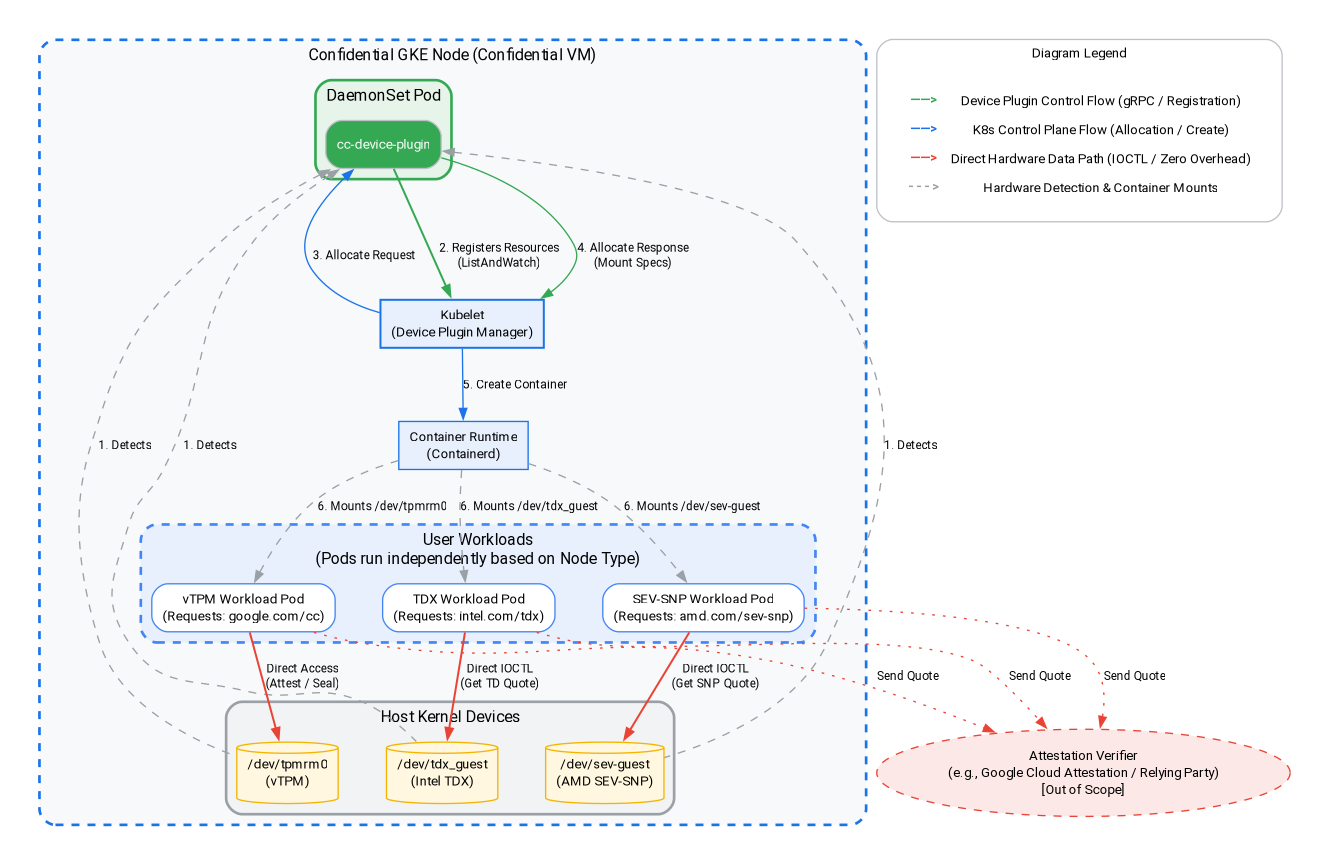
Trong bước này, bạn sẽ tạo một tải trọng dựa trên Intel TDX hoặc AMD SEV-SNP và thực hiện quy trình chứng thực ở cấp độ phần cứng trên các Nút GKE bảo mật. Như minh hoạ trong sơ đồ cấu trúc ở trên, chúng ta sẽ dùng trình bổ trợ thiết bị khách để tìm nạp các trích dẫn chứng thực cho cấu trúc Intel TDX và AMD SEV-SNP. Chuyển đến bảng điều khiển đám mây hoặc môi trường phát triển cục bộ để chạy các lệnh.
Chọn cấu trúc Điện toán bảo mật mà bạn muốn kiểm thử – Intel TDX hoặc AMD SEV-SNP.
1). Thêm một bộ nút TDX của Intel
gcloud container node-pools create tdx-pool \
    --cluster=${CLUSTER_NAME} \
    --zone=${ZONE} \
    --machine-type=c3-standard-4 \
    --num-nodes=1 \
    --enable-confidential-nodes \
    --confidential-node-type=tdx
2). Thêm một bộ nút AMD SEV-SNP
gcloud container node-pools create snp-pool \
    --cluster=${CLUSTER_NAME} \
    --zone=${ZONE} \
    --machine-type=n2d-standard-2 \
    --num-nodes=1 \
    --enable-confidential-nodes \
    --confidential-node-type=sev_snp \
    --min-cpu-platform="AMD Milan"
3). Xoá Nhóm nút mặc định (Không bắt buộc nhưng nên thực hiện để tiết kiệm chi phí/giảm nhiễu)
gcloud container node-pools delete default-pool \
    --cluster=${CLUSTER_NAME} \
    --zone=${ZONE} \
    --quiet
(Lưu ý: Nếu bạn đã hoàn thành phần vTPM trước đó, thì nhóm này đã bị xoá và bạn có thể bỏ qua mọi lỗi "Không tìm thấy" tại đây.)
4). Khởi động trình bổ trợ thiết bị để cho phép cụm CGKE hiển thị các thiết bị khách chứng thực phần cứng cho khối lượng công việc. Chúng tôi sử dụng trình bổ trợ thiết bị Kubernetes để tạo tài nguyên mới (intel.com/tdx và amd.com/sev-snp). Mọi tải sẽ được liên kết với các tài nguyên này và có thể truy cập vào các thiết bị khách trên nút worker.
gcloud container clusters get-credentials ${CLUSTER_NAME} --zone ${ZONE} --project ${PROJECT_ID}

kubectl apply -f https://raw.githubusercontent.com/google/cc-device-plugin/main/manifests/cc-device-plugin.yaml
Lệnh sau đây cho phép bạn xem cc-device-plugin đã triển khai.
kubectl get pods -A | grep "cc-device-plugin"
Lưu ý: Trong trường hợp cụm GKE ở chế độ hỗn hợp (với cả nút worker GKE bảo mật và không bảo mật), bạn nên chỉ triển khai cc-device-plugin cho các nút worker GKE bảo mật.
9. Chứng thực phần cứng: Intel TDX và AMD SEV-SNP
Trong phần này, bạn sẽ tìm hiểu cách thực hiện chứng thực ở cấp phần cứng bên trong các nút GKE bảo mật bằng cách tìm nạp các trích dẫn chứng thực cho các cấu trúc Intel TDX và AMD SEV-SNP bằng cách sử dụng các trình bổ trợ thiết bị khách.
1). Tạo một ứng dụng Go để tìm nạp câu trích dẫn chứng thực phần cứng từ thiết bị khách tương ứng.
cat << 'EOF' > main.go
package main

import (
	"crypto/rand"
	"log"
	"os"
	"strconv"
	"time"
	"unsafe"

	sevclient "github.com/google/go-sev-guest/client"
	"golang.org/x/sys/unix"
)

// TDX Linux ABI Definitions
const (
	iocTdxGetReport = 0xc4405401
)

type tdxReportReq struct {
	ReportData [64]byte
	TdReport   [1024]byte
}

func main() {
	ccType := os.Getenv("CC_TYPE") // Expected "tdx" or "snp"

	iterationsStr := os.Getenv("ITERATIONS")
	iterations := 100
	if val, err := strconv.Atoi(iterationsStr); err == nil && val > 0 {
		iterations = val
	}

	successCount := 0
	failureCount := 0
	startTime := time.Now()

	log.Printf("Starting Attestation test for CC_TYPE: %s (iterations: %d)", ccType, iterations)

	if ccType == "tdx" {
		devicePath := "/dev/tdx_guest"
		file, err := os.OpenFile(devicePath, os.O_RDWR|os.O_SYNC, 0)
		if err != nil {
			log.Fatalf("FATAL: Failed to open %s: %v", devicePath, err)
		}
		defer file.Close()

		for i := 1; i <= iterations; i++ {
			var reportData [64]byte
			rand.Read(reportData[:])
			req := tdxReportReq{ReportData: reportData}

			_, _, errno := unix.Syscall(unix.SYS_IOCTL, file.Fd(), uintptr(iocTdxGetReport), uintptr(unsafe.Pointer(&req)))
			if errno != 0 || (req.TdReport[0] == 0 && req.TdReport[10] == 0) {
				failureCount++
			} else {
				successCount++
			}
		}
	} else if ccType == "snp" {
		device, err := sevclient.OpenDevice()
		if err != nil {
			log.Fatalf("FATAL: Failed to open SEV-SNP device: %v", err)
		}
		defer device.Close()

		for i := 1; i <= iterations; i++ {
			var reportData [64]byte
			rand.Read(reportData[:])
			report, err := sevclient.GetRawReport(device, reportData)
			if err != nil || len(report) == 0 {
				failureCount++
			} else {
				successCount++
			}
		}
	}

	elapsed := time.Since(startTime)
	log.Printf("=== Test Completed ===")
	log.Printf("Total Iterations: %d", iterations)
	log.Printf("Success: %d, Failures: %d", successCount, failureCount)
	log.Printf("Total Time: %s", elapsed)
}
EOF
2). Tạo Dockerfile cho công cụ kiểm thử chứng thực phần cứng:
cat << 'EOF' > Dockerfile
FROM golang:1.26.4 AS builder
WORKDIR /app
COPY main.go .
RUN go mod init cc-attestation
RUN go mod tidy
RUN CGO_ENABLED=0 GOOS=linux go build -o /cc-attestation-check main.go

FROM ubuntu:22.04
COPY --from=builder /cc-attestation-check /usr/local/bin/
CMD ["/usr/local/bin/cc-attestation-check"]
EOF
3). Tạo và đẩy hình ảnh vào Artifact Registry:
docker build -t us-docker.pkg.dev/${PROJECT_ID}/codelab-repo/cc-attestation-check:latest .
docker push us-docker.pkg.dev/${PROJECT_ID}/codelab-repo/cc-attestation-check:latest
4). Tạo tệp YAML triển khai ứng dụng cho cả khối lượng công việc Intel TDX và AMD SEV-SNP để hiển thị các thiết bị phần cứng.
- Đối với các tải công việc TDX của Intel, hãy tạo tệp YAML triển khai sau:
cat << EOF > deploy-tdx.yaml
apiVersion: v1
kind: Pod
metadata:
  name: tdx-attestation-pod
spec:
  restartPolicy: Never
  containers:
  - name: tdx-container
    image: us-docker.pkg.dev/${PROJECT_ID}/codelab-repo/cc-attestation-check:latest
    env:
    - name: CC_TYPE
      value: "tdx"
    - name: ITERATIONS
      value: "1000"
    resources:
      limits:
        intel.com/tdx: 1
  nodeSelector:
    cloud.google.com/gke-confidential-nodes-instance-type: "TDX"
    cloud.google.com/machine-family: "c3"
EOF
- Đối với các tải công việc AMD SEV-SNP, hãy tạo tệp YAML triển khai sau:
cat << EOF > deploy-snp.yaml
apiVersion: v1
kind: Pod
metadata:
  name: snp-attestation-pod
spec:
  restartPolicy: Never
  containers:
  - name: snp-container
    image: us-docker.pkg.dev/${PROJECT_ID}/codelab-repo/cc-attestation-check:latest
    env:
    - name: CC_TYPE
      value: "snp"
    - name: ITERATIONS
      value: "100"
    resources:
      limits:
        amd.com/sev-snp: 1
  nodeSelector:
    cloud.google.com/gke-confidential-nodes-instance-type: "SEV_SNP"
    cloud.google.com/machine-family: "n2d"
EOF
5). Áp dụng các hoạt động triển khai cho cụm CGKE.
kubectl apply -f deploy-tdx.yaml
kubectl apply -f deploy-snp.yaml
6). Đợi các pod hoàn tất và xác minh nhật ký chứng thực phần cứng.
Trước tiên, hãy kiểm tra trạng thái của các nhóm để đảm bảo chúng được lên lịch và chạy thành công (Đợi cho đến khi chúng hiển thị trạng thái Đã hoàn tất hoặc Đang chạy):
kubectl get pods -w
Sau khi các nhóm sẵn sàng, hãy kiểm tra nhật ký để xác minh rằng bạn đã tìm nạp thành công các trích dẫn chứng thực phần cứng:
# View the TDX attestation logs
kubectl logs tdx-attestation-pod

# View the SEV-SNP attestation logs
kubectl logs snp-attestation-pod
(Bạn sẽ thấy tổng thời gian thực thi, tổng số lần lặp lại và số lần thành công/thất bại được ghi lại.)
10. Dọn dẹp
Để tránh các khoản phí phát sinh liên tục cho tài khoản Google Cloud của bạn, bạn cần xoá các tài nguyên đã tạo trong lớp học lập trình này.
Chạy các lệnh sau trong Cloud Shell hoặc môi trường phát triển cục bộ.
1). Đặt các biến môi trường:
export PROJECT_ID="your-project-id"
export ZONE="us-central1-c"
export CLUSTER_NAME="cgke-attestation-codelab"

gcloud config set project ${PROJECT_ID}
2). Xoá tài nguyên GKE
gcloud container clusters delete ${CLUSTER_NAME} \
    --zone=${ZONE} \
    --quiet
3). Xoá Artifact Registry
gcloud artifacts repositories delete codelab-repo \
    --location=us \
    --quiet
4). Xoá máy ảo máy chủ web
gcloud compute instances delete cgke-attestation-codelab-web-server \
    --zone=${ZONE}
5). Xoá tài nguyên IAM
# Delete the GCP service account
gcloud iam service-accounts delete codelab-csa@${PROJECT_ID}.iam.gserviceaccount.com \
    --quiet

# Delete the custom IAM role
gcloud iam roles delete Confidential_Computing_Workload_User \
    --project=${PROJECT_ID} \
    --quiet
11. Bước tiếp theo
Tìm hiểu thêm về Nút GKE bảo mật.