
1. Introduction
In this codelab you will learn how to use Cloud SQL for MySQL AI integration for semantic search using embeddings and how to improve performance using an index on the vector data.
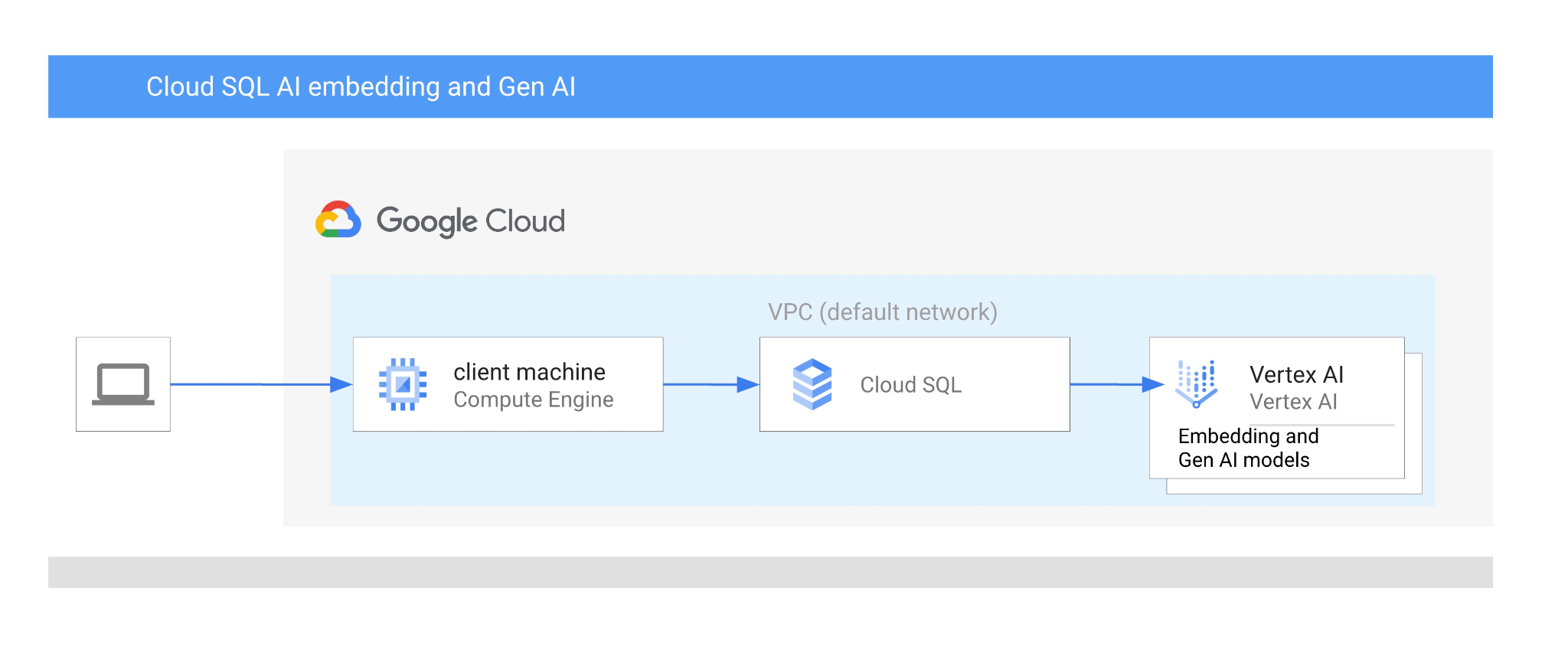
Prerequisites
- A basic understanding of Google Cloud and the Google Cloud console
- Basic experience with the command-line interface and Cloud Shell
What you'll learn
- How to deploy a Cloud SQL for MySQL instance
- How to create database and enable Cloud SQL AI integration
- How to load data to the database
- How to use Cloud SQL Studio
- How to use Vertex AI embedding model in Cloud SQL
- How to use Agent Platform Studio
- How to enrich the result using a Gemini Enterprise Agent Platform model
- How to improve performance using vector index
What you'll need
- A Google Cloud Account and a Google Cloud Project
- A web browser such as Chrome
2. Setup and Requirements
Project Setup
- Sign in to the Google Cloud Console. If you don't already have a Gmail or Google Workspace account, you must create a Google Account.
Use a personal account instead of a work or school account.
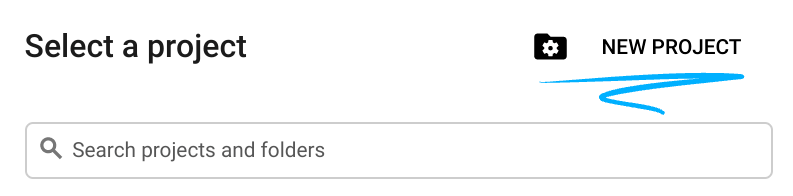
- Create a new project or reuse an existing one. To create a new project in the Google Cloud console, click Select a project in the toolbar.

In the Select a project window push the button New Project which will open a dialog box for the new project.
In the dialog, enter a Project name and select the Location.
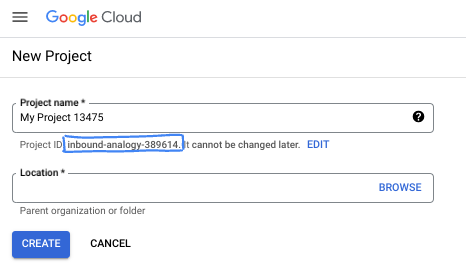
- The Project name is the display name for this project's participants. The project name isn't used by Google APIs, and it can be changed at any time.
- The Project ID is unique across all Google Cloud projects and is immutable (it cannot be changed after it is set). The Google Cloud console automatically generates a unique ID, but you can customize it. If you don't like the generated ID, you can generate another random one or provide your own to check its availability. In most codelabs, you reference your project ID, which is typically identified with the
- For your information, there is a third value, a Project Number, which some APIs use. Learn more about all three of these values in the Creating and managing projects documentation.
Enable Billing
To enable billing, you have two options. You can either use your personal billing account or you can redeem credits with the following steps.
Redeem Google Cloud credits (optional)
To run this workshop, you need a billing account with credit. Use the credits provided by workshop organizers or if it is provided in the banner at the top of this codelab to get started. If you are already connected to a billing account, you can skip this step.
Set up a personal billing account
If you set up billing using Google Cloud credits, you can skip this step.
To set up a personal billing account, enable billing in the Google Cloud Billing console.
Notes:
- Completing this lab costs less than $5 USD in Google Cloud resources.
- Follow the steps at the end of this lab to delete resources and avoid further charges.
- New users are eligible for the $300 USD Free Trial.
- New and existing users can start with Cloud SQL using Cloud SQL free trial instance
Start Cloud Shell
While you can operate Google Cloud remotely from your computer, in this codelab you use Google Cloud Shell, a command-line environment running in the cloud.
In the Google Cloud Console, click the Cloud Shell icon on the top right toolbar:

Alternatively, press g then s within the Google Cloud console, or open Cloud Shell.
It takes only a few moments to provision and connect to the environment. When it is finished, you should see the connected terminal:

This virtual machine is loaded with all the development tools you need. It offers a persistent 5 GB home directory and runs on Google Cloud, enhancing network performance and authentication. All your work in this codelab can be done within a browser.
3. Before you begin
Enable API
To use Cloud SQL, Compute Engine, Service Networking, and Gemini Enterprise Agent Platform, enable their respective APIs in your Google Cloud project.
In the Cloud Shell terminal, make sure that your project ID is set:
gcloud config get project
If it returns an empty string, set it with:
gcloud config set project [YOUR-PROJECT-ID]
Set the PROJECT_ID environment variable:
PROJECT_ID=$(gcloud config get-value project)
Enable all necessary APIs:
gcloud services enable sqladmin.googleapis.com \
                       compute.googleapis.com \
                       cloudresourcemanager.googleapis.com \
                       servicenetworking.googleapis.com \
                       aiplatform.googleapis.com
Expected output
student@cloudshell:~ (test-project-001-402417)$ gcloud config set project test-project-001-402417
Updated property [core/project].
student@cloudshell:~ (test-project-001-402417)$ PROJECT_ID=$(gcloud config get-value project)
Your active configuration is: [cloudshell-14650]
student@cloudshell:~ (test-project-001-402417)$
student@cloudshell:~ (test-project-001-402417)$ gcloud services enable sqladmin.googleapis.com \
                       compute.googleapis.com \
                       cloudresourcemanager.googleapis.com \
                       servicenetworking.googleapis.com \
                       aiplatform.googleapis.com
Operation "operations/acat.p2-4470404856-1f44ebd8-894e-4356-bea7-b84165a57442" finished successfully.
You can read about each enabled API in the documentation.
4. Create a Cloud SQL instance
Create a Cloud SQL instance with Gemini Enterprise Agent Platform database integration.
Create Database password
Define a password for the default database user. You can define your own password or use a random function to generate one:
export CLOUDSQL_PASSWORD=`openssl rand -hex 16`
Display the generated password value:
echo $CLOUDSQL_PASSWORD
Note the generated password to use it later.
Create Cloud SQL for MySQL Instance
Cloud SQL instances can be created using several methods, including the Google Cloud console, Terraform, or the Google Cloud CLI (gcloud). In this codelab, you use gcloud. To learn how to create an instance with other tools, see the Create instances documentation.
The cloudsql_vector flag can be enabled when creating an instance. Vector support is available for MySQL 8.0 R20241208.01_00 or newer
In the Cloud Shell session execute:
gcloud sql instances create my-cloudsql-instance \
--database-version=MYSQL_8_4 \
--tier=db-custom-2-8192 \
--region=us-central1 \
--enable-google-ml-integration \
--edition=ENTERPRISE \
--root-password=$CLOUDSQL_PASSWORD
Connect to the instance using gcloud sql connect. When prompted, enter the password:
gcloud sql connect my-cloudsql-instance --user=root
The expected output:
$gcloud sql connect my-cloudsql-instance --user=root
Allowlisting your IP for incoming connection for 5 minutes...done.
Connecting to database with SQL user [root].Enter password:
Welcome to the MySQL monitor.  Commands end with ; or \g.
Your MySQL connection id is 71
Server version: 8.4.4-google (Google)

Copyright (c) 2000, 2025, Oracle and/or its affiliates.

Oracle is a registered trademark of Oracle Corporation and/or its
affiliates. Other names may be trademarks of their respective
owners.

Type 'help;' or '\h' for help. Type '\c' to clear the current input statement.

mysql>
Exit from the mysql session by pressing Ctrl+D or entering exit:
exit
Enable Gemini Enterprise Agent Platform integration
Grant the necessary IAM role to the Cloud SQL service account to enable Gemini Enterprise Agent Platform integration.
Retrieve the Cloud SQL service account email and export it as an environment variable:
SERVICE_ACCOUNT_EMAIL=$(gcloud sql instances describe my-cloudsql-instance --format="value(serviceAccountEmailAddress)")
echo $SERVICE_ACCOUNT_EMAIL
Grant the roles/aiplatform.user role to the Cloud SQL service account:
gcloud projects add-iam-policy-binding $PROJECT_ID \
  --member="serviceAccount:$SERVICE_ACCOUNT_EMAIL" \
  --role="roles/aiplatform.user"
Read more about instance creation and configuration in the Cloud SQL documentation here.
5. Prepare Database
Create a database and enable vector support.
Create Database
Create a database named quickstart_db. You can create databases using database clients (such as mysql), the Google Cloud CLI, or Cloud SQL Studio. In this step, use gcloud.
In Cloud Shell, run the following command to create the database:
gcloud sql databases create quickstart_db --instance=my-cloudsql-instance
6. Load Data
Create tables in the database and load data using fictional Cymbal Store dataset files stored in a public Cloud Storage bucket in CSV format.
Cloud Shell will be your main environment to connect to a database, create all the objects and load the data.
Add your Cloud Shell public IP to the list of authorized networks for our Cloud SQL instance.
In the cloud shell execute:
gcloud sql instances patch my-cloudsql-instance --authorized-networks=$(curl ifconfig.me)
If your session is lost, reset or you work from another tool then export your CLOUDSQL_PASSWORD variable again:
export CLOUDSQL_PASSWORD=...your password defined for the instance...
Create the required database objects. Use mysql along with curl to download and apply the schema from the public source.
In the cloud shell execute:
export INSTANCE_IP=$(gcloud sql instances describe my-cloudsql-instance --format="value(ipAddresses.ipAddress)")
curl -LJ https://raw.githubusercontent.com/GoogleCloudPlatform/devrel-demos/main/infrastructure/cymbal-store-embeddings/cymbal_mysql_schema.sql | mysql --host=$INSTANCE_IP --user=root --password=$CLOUDSQL_PASSWORD quickstart_db
Command breakdown. In the previous step, you connected to your database and ran the SQL script to create tables, indexes, and sequences.
Next, populate the database with cymbal_products data by running curl and mysql:
curl -LJ https://raw.githubusercontent.com/GoogleCloudPlatform/devrel-demos/main/infrastructure/cymbal-store-embeddings/cymbal_products.csv | mysql --enable-local-infile --host=$INSTANCE_IP --user=root --password=$CLOUDSQL_PASSWORD quickstart_db -e "LOAD DATA LOCAL INFILE '/dev/stdin' INTO TABLE cymbal_products FIELDS TERMINATED BY ',' OPTIONALLY ENCLOSED BY '\"' LINES TERMINATED BY '\n' IGNORE 1 LINES;"
Continue with cymbal_stores.
curl -LJ https://raw.githubusercontent.com/GoogleCloudPlatform/devrel-demos/main/infrastructure/cymbal-store-embeddings/cymbal_stores.csv | mysql --enable-local-infile --host=$INSTANCE_IP --user=root --password=$CLOUDSQL_PASSWORD quickstart_db -e "LOAD DATA LOCAL INFILE '/dev/stdin' INTO TABLE cymbal_stores FIELDS TERMINATED BY ',' OPTIONALLY ENCLOSED BY '\"' LINES TERMINATED BY '\n' IGNORE 1 LINES;"
And complete with cymbal_inventory which has the number of each product in each store.
curl -LJ https://raw.githubusercontent.com/GoogleCloudPlatform/devrel-demos/main/infrastructure/cymbal-store-embeddings/cymbal_inventory.csv | mysql --enable-local-infile --host=$INSTANCE_IP --user=root --password=$CLOUDSQL_PASSWORD quickstart_db -e "LOAD DATA LOCAL INFILE '/dev/stdin' INTO TABLE cymbal_inventory FIELDS TERMINATED BY ',' OPTIONALLY ENCLOSED BY '\"' LINES TERMINATED BY '\n' IGNORE 1 LINES;"
Optional: If you have your own sample dataset, you can import compatible CSV files using the Import tool in the Google Cloud console instead.
7. Create Embeddings
Build embeddings for the product descriptions using the text-embedding-005 model from Gemini Enterprise Agent Platform and store them as vector data.
To store the vector data you have to enable vector functionality in your Cloud SQL instance.
Execute in the Cloud Shell:
gcloud sql instances patch my-cloudsql-instance \
--database-flags=cloudsql_vector=on
Connect to the database:
mysql --host=$INSTANCE_IP --user=root --password=$CLOUDSQL_PASSWORD quickstart_db
Create a new column embedding in the cymbal_products table using the embedding function. That new column will hold the vector embeddings based on the text in the product_description column:
ALTER TABLE cymbal_products ADD COLUMN embedding vector(768) using varbinary;
UPDATE cymbal_products SET embedding = mysql.ml_embedding('text-embedding-005', product_description);
Note: Embedding generation for 2,000 rows usually finishes in under 5 minutes.
Exit from the mysql session:
exit
8. Run Similarity Search
Run a similarity search by comparing the vector embeddings calculated for product descriptions against the embedding for a search query.
You can run SQL queries from the command line or from Cloud SQL Studio. Cloud SQL studio provides more convenient way to edit and execute long SQL statements with multiple rows in output.
Create a MySQL user for Cloud SQL Studio
You need a new database user which can be use the Cloud SQL Studio. Create a built-in type user student with the same password as you have used for the root user.
In the Cloud Shell execute:
gcloud sql users create student --instance=my-cloudsql-instance --password=$CLOUDSQL_PASSWORD --host=%
Start Cloud SQL Studio
- In the Google Cloud console, navigate to Cloud SQL instances and click
my-cloudsql-instance.
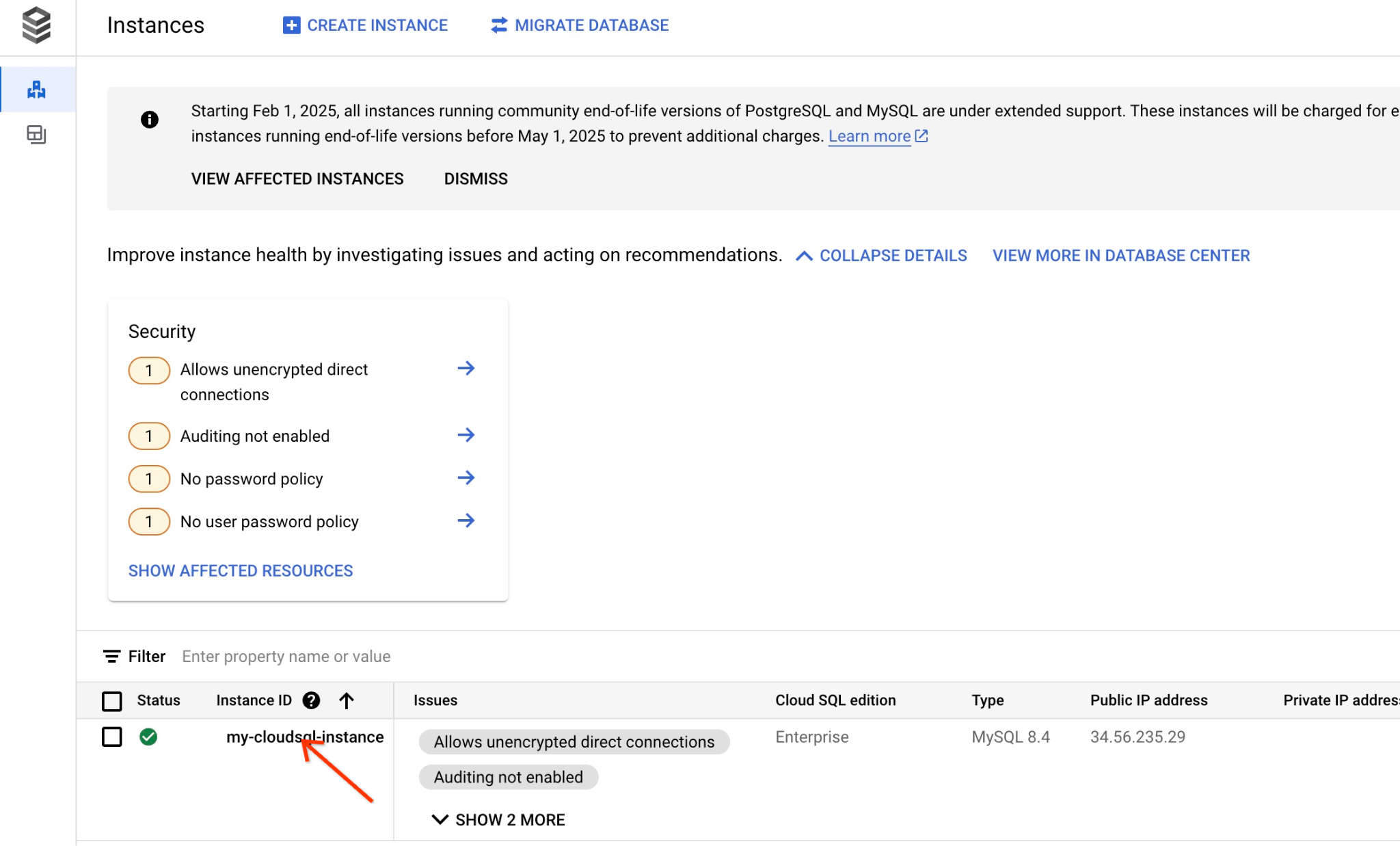
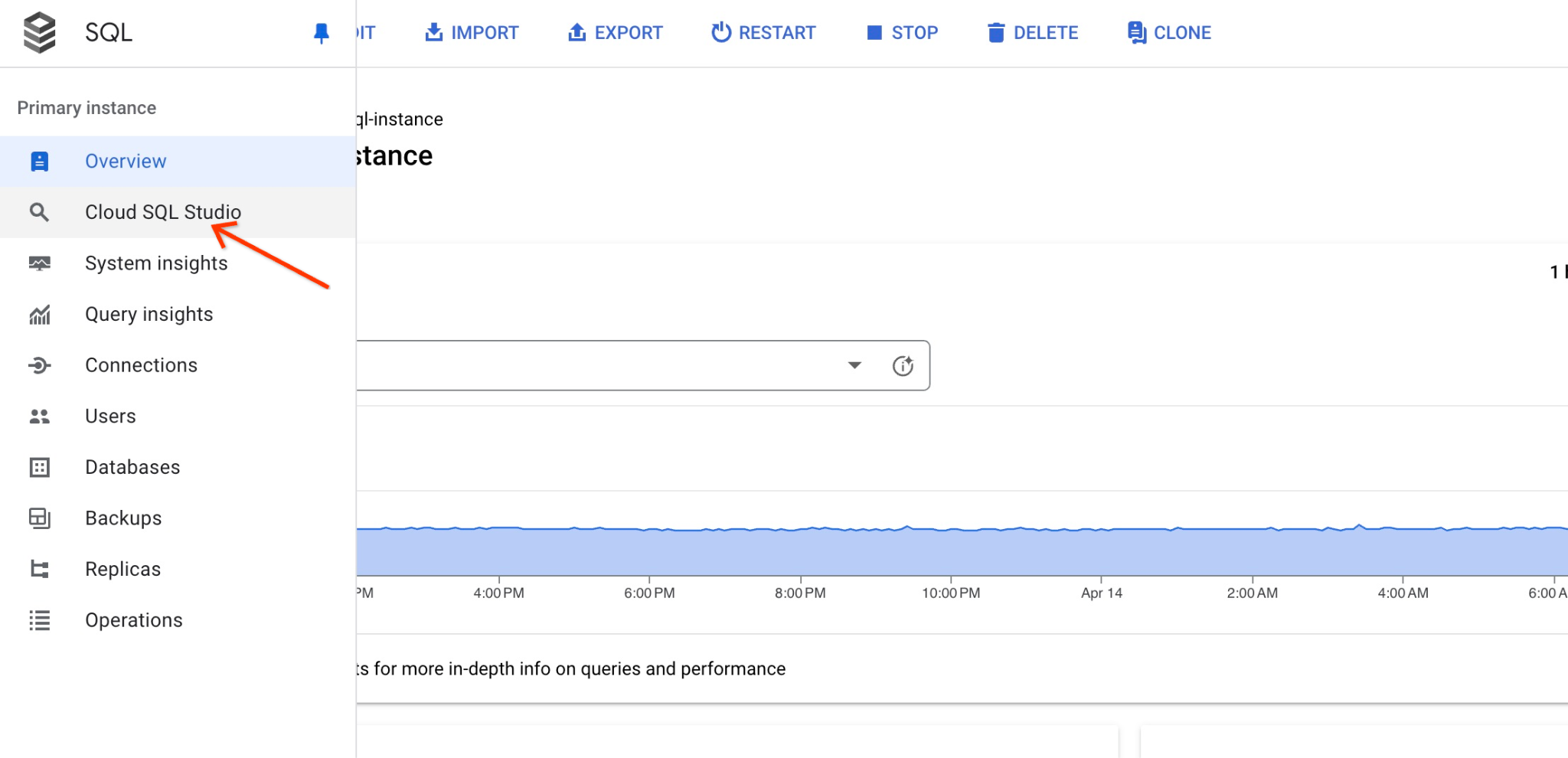
- In the navigation menu, click Cloud SQL Studio.
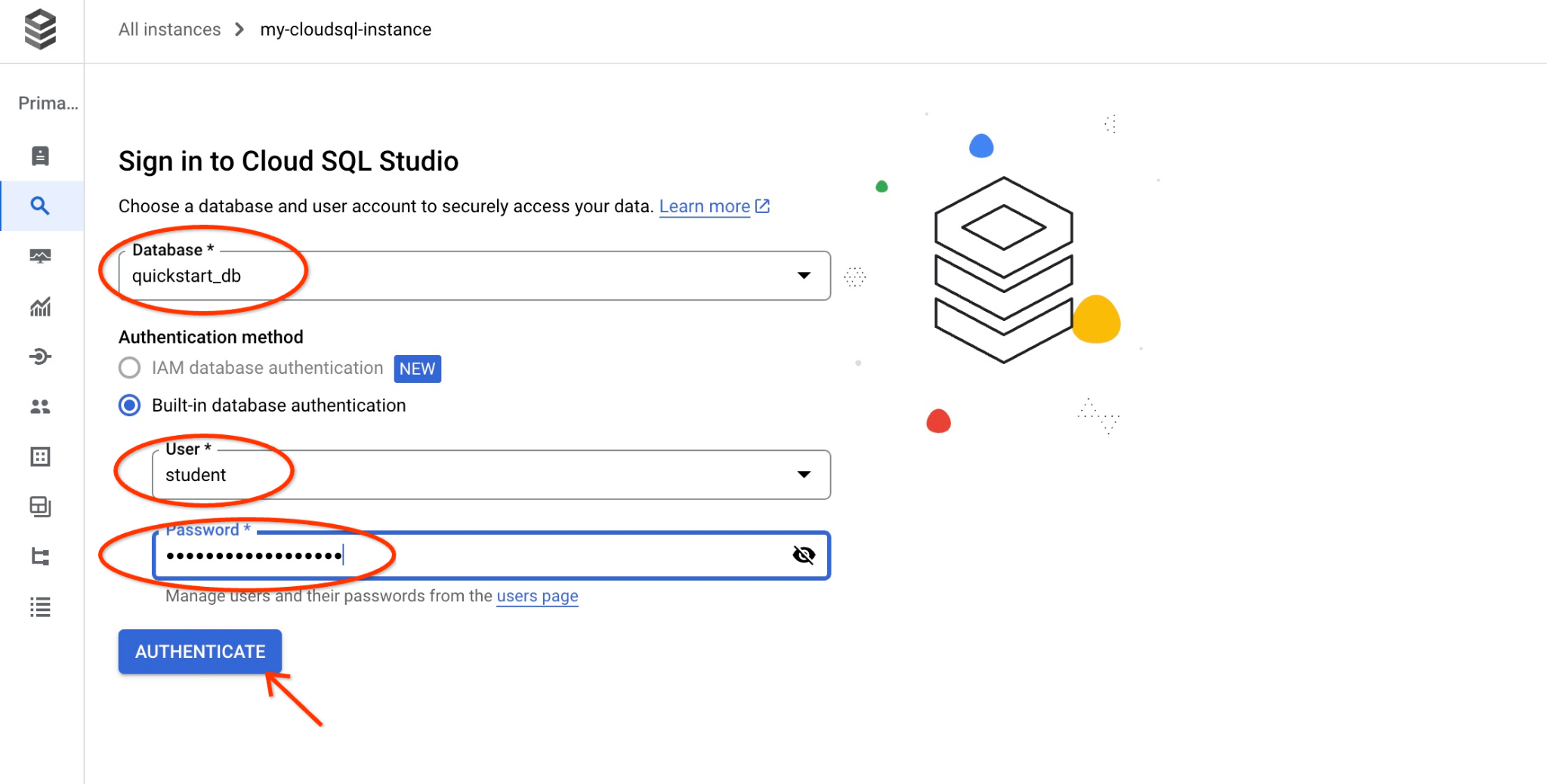
- In the authentication dialog, enter the database name and credentials:
- Database:
quickstart_db - User:
student - Password:
- Database:
- Click Authenticate.
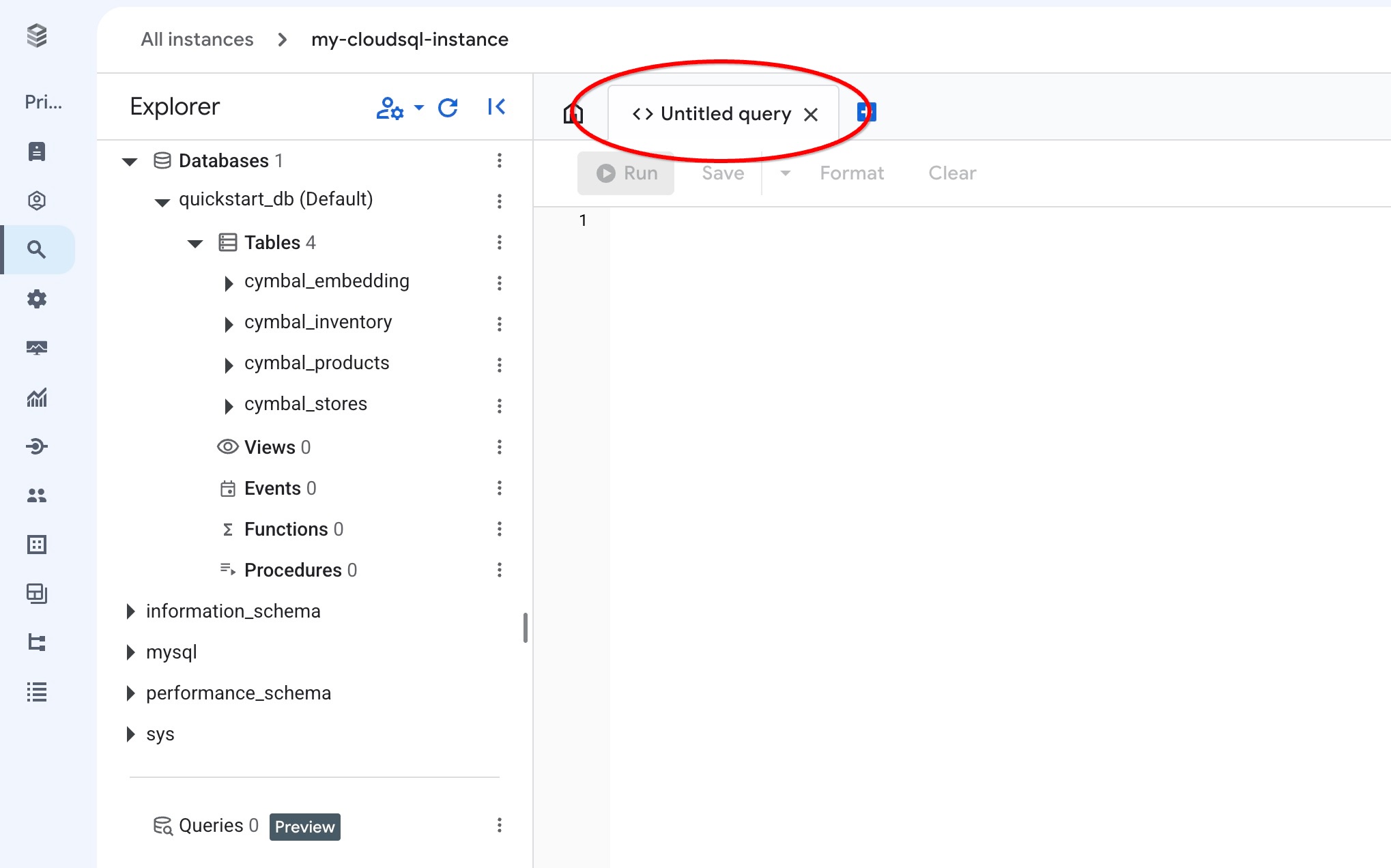
- Click the Untitled query tab to open the SQL Editor.
Run Query
Run a query to retrieve the top 5 products most relevant to the customer query: "What kind of fruit trees grow well here?"
Run query with cosine_distance for KNN (exact) vector search
Here is the query you can run to choose first 5 items most suitable for our request using cosine_distance function:
SELECT mysql.ML_EMBEDDING('text-embedding-005','What kind of fruit trees grow well here?') into @query_vector;
SELECT
        cp.product_name,
        left(cp.product_description,80) as description,
        cp.sale_price,
        cs.zip_code,
        cosine_distance(cp.embedding ,@query_vector) as distance
FROM
        cymbal_products cp
JOIN cymbal_inventory ci on
        ci.uniq_id=cp.uniq_id
JOIN cymbal_stores cs on
        cs.store_id=ci.store_id
        AND ci.inventory>0
        AND cs.store_id = 1583
ORDER BY
        distance ASC
LIMIT 5;
In Cloud SQL Studio, enter the query and click Run (or run the query in your sql session):
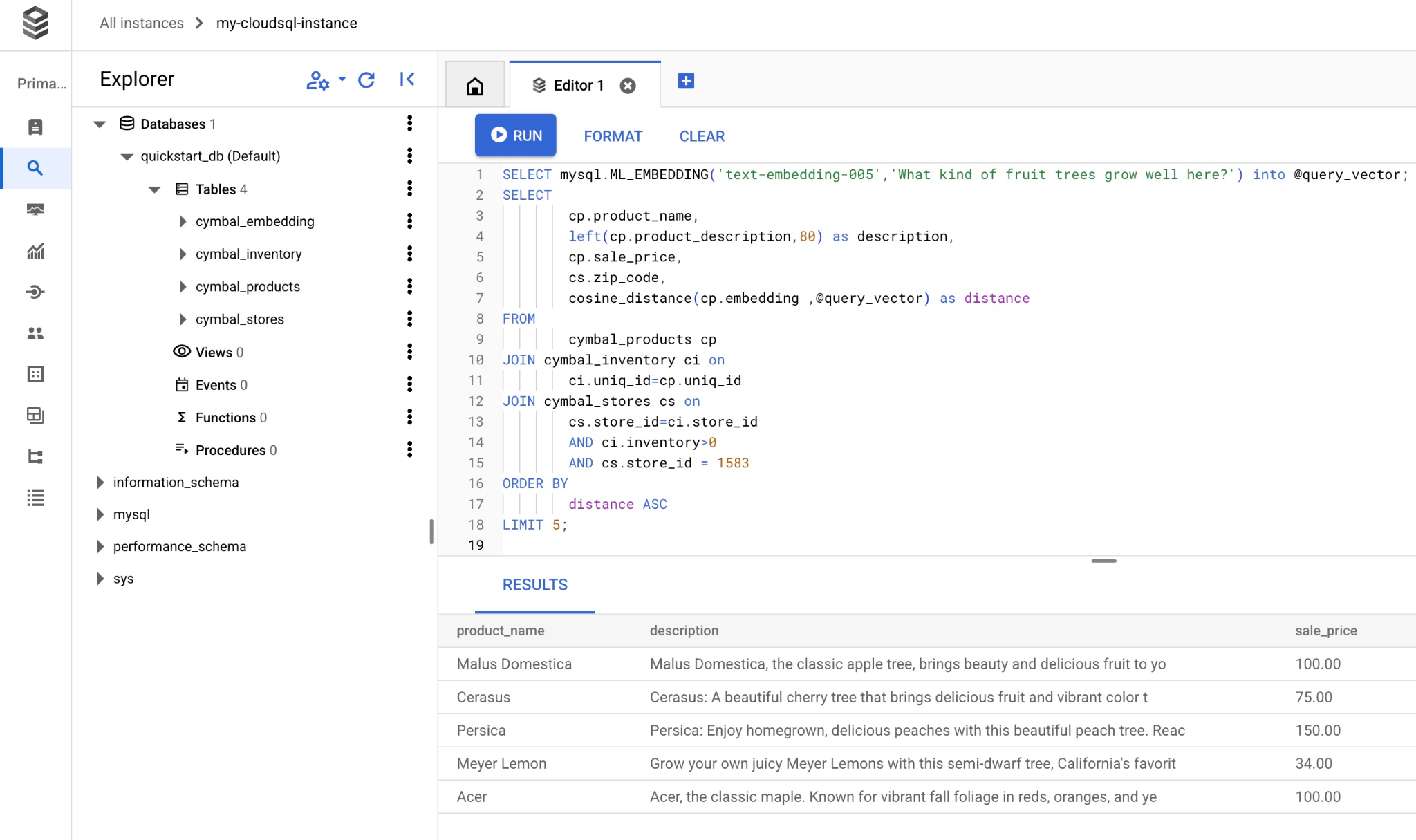
The query returns matching products ordered by cosine distance:
+-----------------+----------------------------------------------------------------------------------+------------+----------+---------------------+
| product_name    | description                                                                      | sale_price | zip_code | distance            |
+-----------------+----------------------------------------------------------------------------------+------------+----------+---------------------+
| Malus Domestica | Malus Domestica, the classic apple tree, brings beauty and delicious fruit to yo |     100.00 |    93230 | 0.37740096545831603 |
| Cerasus         | Cerasus: A beautiful cherry tree that brings delicious fruit and vibrant color t |      75.00 |    93230 |   0.405704177142419 |
| Persica         | Persica: Enjoy homegrown, delicious peaches with this beautiful peach tree. Reac |     150.00 |    93230 | 0.41031799106722877 |
| Meyer Lemon     | Grow your own juicy Meyer Lemons with this semi-dwarf tree, California's favorit |      34.00 |    93230 | 0.42823360959352186 |
| Acer            | Acer, the classic maple. Known for vibrant fall foliage in reds, oranges, and ye |     100.00 |    93230 | 0.42953897057301615 |
+-----------------+----------------------------------------------------------------------------------+------------+----------+---------------------+
5 rows in set (0.13 sec)
The query execution time is approximately 0.13 sec with the cosine_distance function.
Run query with approx_distance for KNN (exact) vector search
Run the same query but using KNN search using approx_distance function. If you don't have an ANN index for your embeddings it automatically reverts to exact search behind the scenes:
SELECT mysql.ML_EMBEDDING('text-embedding-005','What kind of fruit trees grow well here?') into @query_vector;
SELECT
        cp.product_name,
        left(cp.product_description,80) as description,
        cp.sale_price,
        cs.zip_code,
        approx_distance(cp.embedding ,@query_vector, 'distance_measure=cosine') as distance
FROM
        cymbal_products cp
JOIN cymbal_inventory ci on
        ci.uniq_id=cp.uniq_id
JOIN cymbal_stores cs on
        cs.store_id=ci.store_id
        AND ci.inventory>0
        AND cs.store_id = 1583
ORDER BY
        distance ASC
LIMIT 5;
And here is a list of products returned by the query.
+-----------------+----------------------------------------------------------------------------------+------------+----------+---------------------+
| product_name    | description                                                                      | sale_price | zip_code | distance            |
+-----------------+----------------------------------------------------------------------------------+------------+----------+---------------------+
| Malus Domestica | Malus Domestica, the classic apple tree, brings beauty and delicious fruit to yo |     100.00 |    93230 | 0.37740096545831603 |
| Cerasus         | Cerasus: A beautiful cherry tree that brings delicious fruit and vibrant color t |      75.00 |    93230 |   0.405704177142419 |
| Persica         | Persica: Enjoy homegrown, delicious peaches with this beautiful peach tree. Reac |     150.00 |    93230 | 0.41031799106722877 |
| Meyer Lemon     | Grow your own juicy Meyer Lemons with this semi-dwarf tree, California's favorit |      34.00 |    93230 | 0.42823360959352186 |
| Acer            | Acer, the classic maple. Known for vibrant fall foliage in reds, oranges, and ye |     100.00 |    93230 | 0.42953897057301615 |
+-----------------+----------------------------------------------------------------------------------+------------+----------+---------------------+
5 rows in set, 1 warning (0.12 sec)
The query execution took only 0.12 of a second. We got the same results as for the KNN exact cosine_distance function.
Read more about the function in the Cloud SQL for MySQL documentation
9. Improve LLM Response Using Retrieved Data
Improve the generative AI response to a client application by passing query results as grounded context in a prompt to a Gemini Enterprise Agent Platform foundation language model.
To accomplish this:
- Generate a JSON payload from the vector search result in Cloud SQL.
- Test the prompt in Agent Platform Studio.
- Execute the end-to-end prompt directly from SQL using the
google_mlintegration.
Generate output in JSON format
Modify the query to format the result as JSON and return one row:
SELECT mysql.ML_EMBEDDING('text-embedding-005','What kind of fruit trees grow well here?') into @query_vector;
WITH trees as (
SELECT
        cp.product_name,
        left(cp.product_description,80) as description,
        cp.sale_price,
        cs.zip_code,
        cp.uniq_id as product_id
FROM
        cymbal_products cp
JOIN cymbal_inventory ci on
        ci.uniq_id=cp.uniq_id
JOIN cymbal_stores cs on
        cs.store_id=ci.store_id
        AND ci.inventory>0
        AND cs.store_id = 1583
ORDER BY
        (approx_distance(cp.embedding ,@query_vector, 'distance_measure=cosine')) ASC
LIMIT 1)
SELECT json_arrayagg(json_object('product_name',product_name,'description',description,'sale_price',sale_price,'zip_code',zip_code,'product_id',product_id)) FROM trees;
Expected JSON output:
[{"zip_code": 93230, "product_id": "23e41a71d63d8bbc9bdfa1d118cfddc5", "sale_price": 100.00, "description": "Malus Domestica, the classic apple tree, brings beauty and delicious fruit to yo", "product_name": "Malus Domestica"}]
Run the prompt in Agent Platform Studio
Supply the generated JSON as context in a prompt to a generative model in Agent Platform Studio.
- In the Google Cloud console, open Agent Platform Studio.
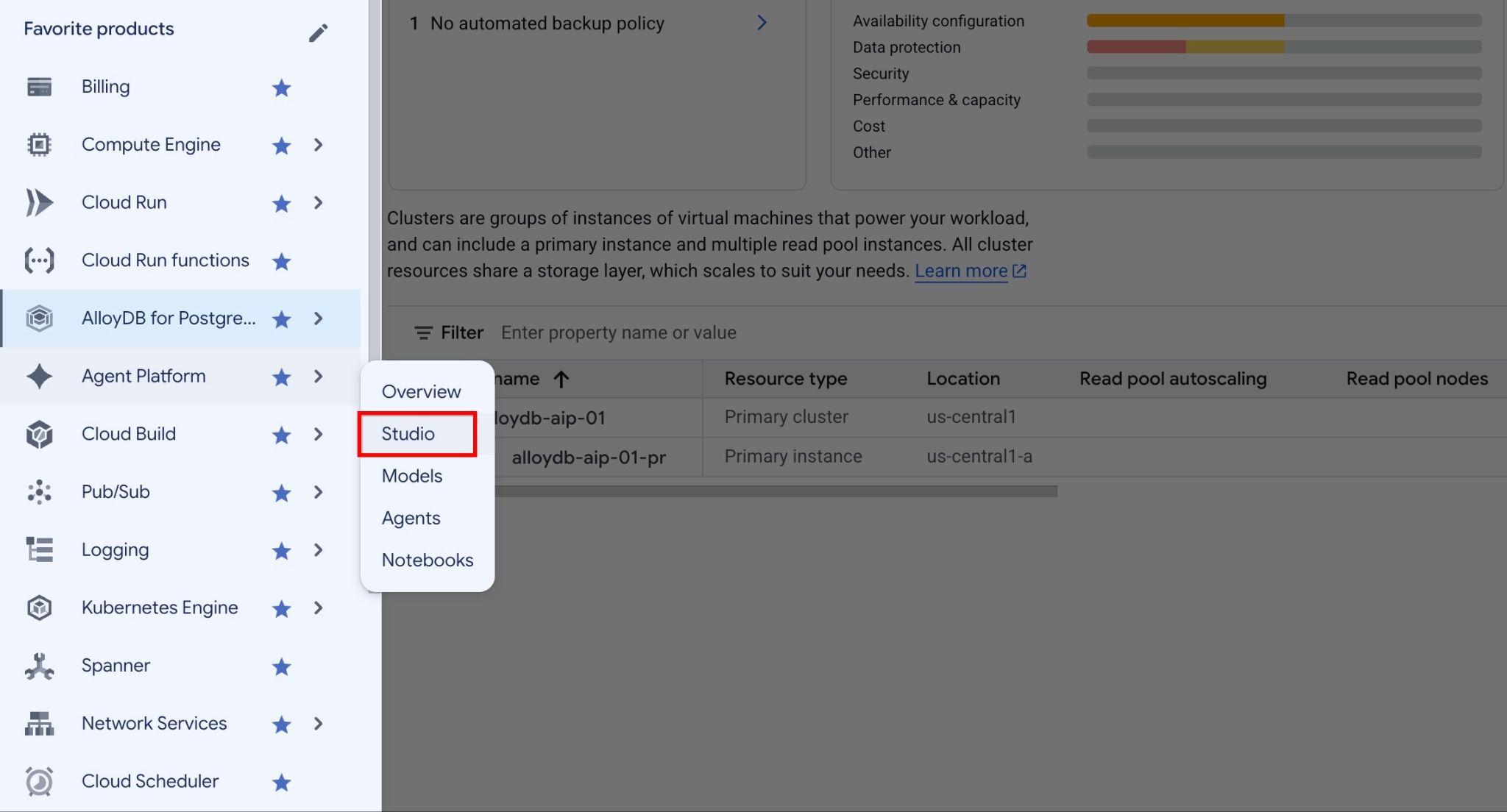
- Enter the following prompt in Agent Platform Studio:
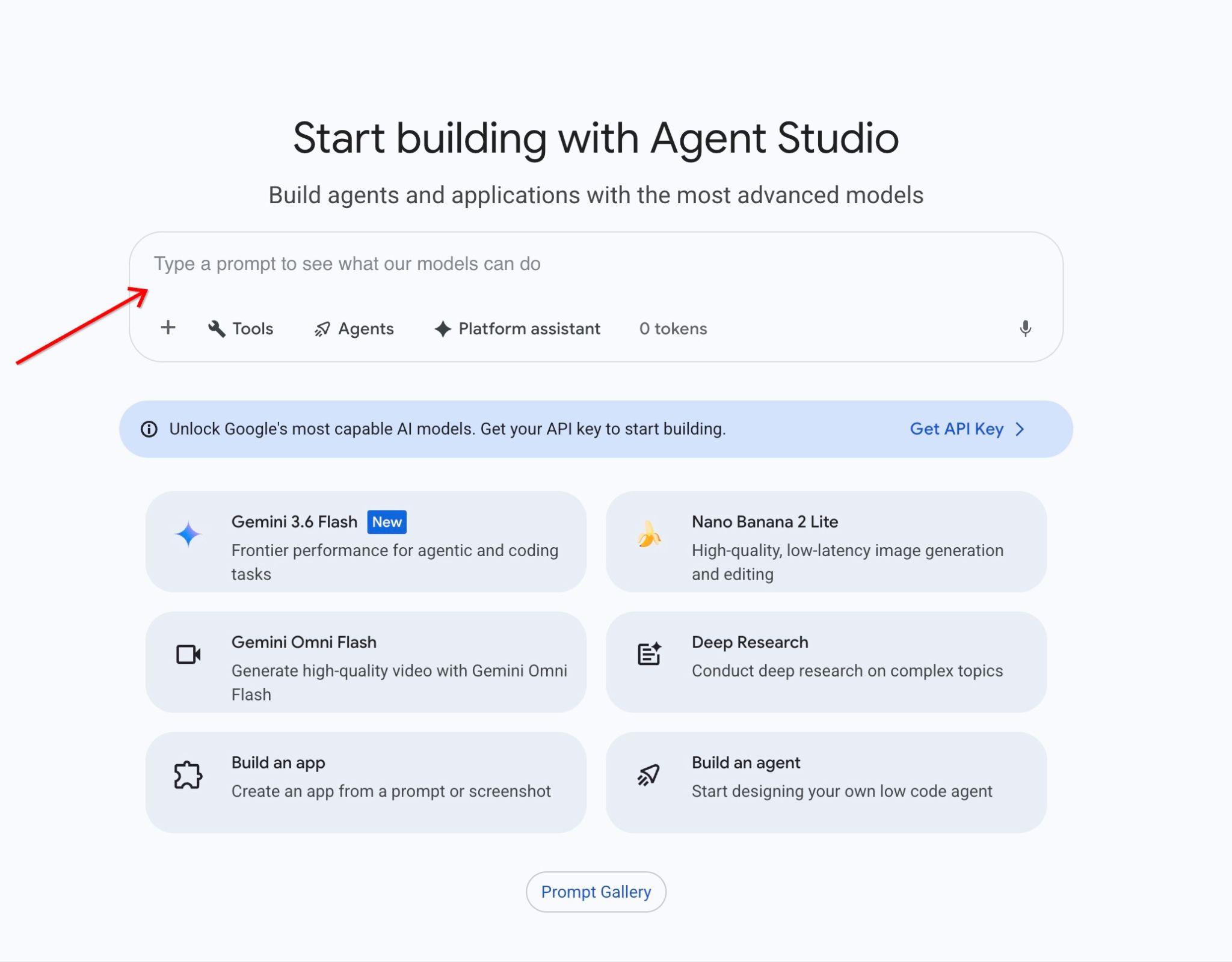
You are a friendly advisor helping to find a product based on the customer's needs.
Based on the client request we have loaded a list of products closely related to search.
The list in JSON format with list of values like {"product_name":"name","description":"some description","sale_price":10,"zip_code": 10234, "produt_id": "02056727942aeb714dc9a2313654e1b0"}
Here is the list of products:
<JSON_OUTPUT>
The customer asked "What tree is growing the best here?"
You should give information about the product, price and some supplemental information.
Do not ask any additional questions and assume location based on the zip code provided in the list of products.
Replace
You are a friendly advisor helping to find a product based on the customer's needs.
Based on the client request we have loaded a list of products closely related to search.
The list in JSON format with list of values like {"product_name":"name","description":"some description","sale_price":10,"zip_code": 10234, "produt_id": "02056727942aeb714dc9a2313654e1b0"}
Here is the list of products:
{"zip_code": 93230, "product_id": "23e41a71d63d8bbc9bdfa1d118cfddc5", "sale_price": 100.00, "description": "Malus Domestica, the classic apple tree, brings beauty and delicious fruit to yo", "product_name": "Malus Domestica"}
The customer asked "What tree is growing the best here?"
You should give information about the product, price and some supplemental information.
Do not ask any additional questions and assume location based on the zip code provided in the list of products.
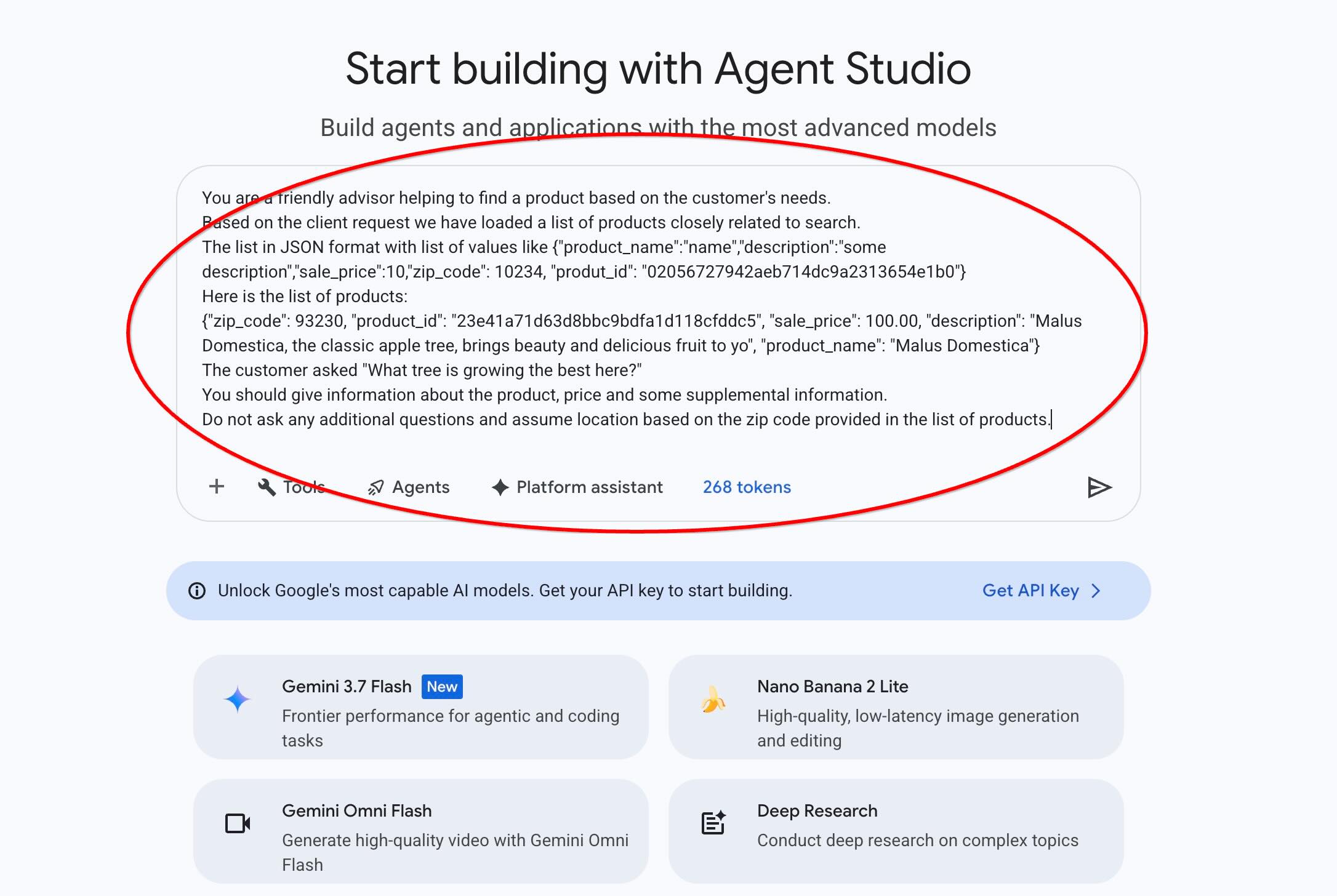
- Run the prompt.
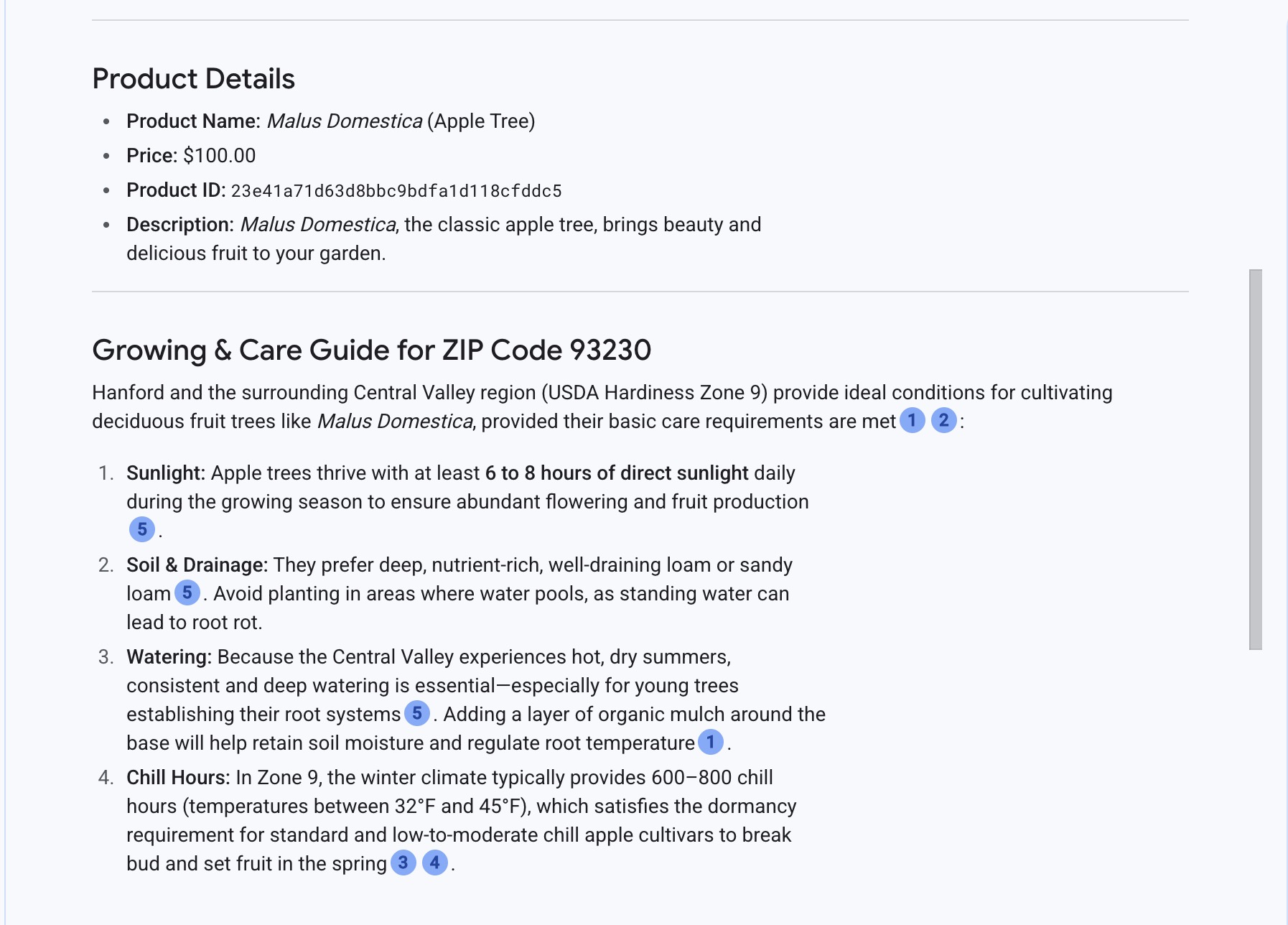
The answer includes price, description and supplemental information the model gets from external sources based on information about the tree and location.
Run the prompt in SQL
You can also use Cloud SQL AI integration with Gemini Enterprise Agent Platform to get responses from a generative model directly within SQL.
First, register the model.
- Register the
gemini-3.5-flashmodel for generating responses (replace
CALL
  mysql.ml_create_model_registration(
  'gemini-3.5-flash',
  'https://aiplatform.googleapis.com/v1/projects/<PROJECT_ID>/locations/global/publishers/google/models/gemini-3.5-flash:generateContent',
  'google',
  'GENERIC',
  NULL,
  'auth_type_cloudsql_service_agent_iam',
  NULL, NULL, NULL, NULL);
We can also use the Cloud SQL AI integration with Gemini Enterprise Agent Platform to get the similar response from a generative model using SQL directly in the database.
Now we can use the generated in a subquery with JSON results to supply it as a part of the prompt to generative AI text model using SQL.
In the mysql or Cloud SQL Studio session to the database run the query
SELECT mysql.ML_EMBEDDING('text-embedding-005','What kind of fruit trees grow well here?') into @query_vector;
WITH trees AS (
SELECT
        cp.product_name,
        cp.product_description AS description,
        cp.sale_price,
        cs.zip_code,
        cp.uniq_id AS product_id
FROM
        cymbal_products cp
JOIN cymbal_inventory ci ON
        ci.uniq_id = cp.uniq_id
JOIN cymbal_stores cs ON
        cs.store_id = ci.store_id
        AND ci.inventory>0
        AND cs.store_id = 1583
ORDER BY
         (approx_distance(cp.embedding ,@query_vector, 'distance_measure=cosine')) ASC
LIMIT 1),
prompt AS (
SELECT
       CONCAT( 'You are a friendly advisor helping to find a product based on the customer''s needs.
Based on the client request we have loaded a list of products closely related to search.
The list in JSON format with list of values like {"product_name":"name","product_description":"some description","sale_price":10}
Here is the list of products:', json_arrayagg(json_object('product_name',trees.product_name,'description',trees.description,'sale_price',trees.sale_price,'zip_code',trees.zip_code,'product_id',trees.product_id)) , 'The customer asked "What kind of fruit trees grow well here?"
You should give information about the product, price and some supplemental information') AS prompt_text
FROM
        trees),
response AS (
SELECT
       mysql.ML_PREDICT_ROW('gemini-3.5-flash',
        json_object('contents',
        json_object('role',
        'user',
        'parts',
        json_array(
        json_object('text',
        prompt_text))))) AS resp
FROM
        prompt)
SELECT
JSON_EXTRACT(resp, '$.candidates[0].content.parts[0].text')
FROM
        response;
And here is the sample output. Your output might be different depending on the model version and parameters.:
"Hello there! I'd be happy to help you find the perfect fruit tree for your space. \n\nBased on your area, a wonderful option we currently have in stock is the **Malus Domestica** (the classic Apple Tree)!\n\nHere are the key details:\n\n* **Product Name:** Malus Domestica (Classic Apple Tree)\n* **Price:** $100.00\n\n### Why it's a great choice:\n* **Beautiful Seasonal Foliage:** It features vibrant green leaves during the summer that turn into gorgeous shades of red, orange, and yellow in the autumn. \n* **Shade & Size:** It grows to approximately 30 feet tall, making it a strong, durable tree that offers excellent shade for your yard alongside delicious fresh fruit.\n* **Growing Conditions:** It thrives best in cool, moist climates with well-draining, loamy soil and is ideal for USDA Hardiness Zones 4–8.\n\n### Supplemental Care Tips:\n* **Planting Location:** Choose a spot that gets full sunlight (at least 6 hours a day) to ensure maximum fruit production.\n* **Soil:** Make sure the soil is rich and loamy with good drainage so the roots stay healthy.\n* **Cross-Pollination:** Apple trees often produce a higher yield when planted near another compatible apple tree variety, so if you have extra space, adding a companion tree in the future can boost your harvest!\n\nLet me know if you have any questions about planting or care, or if you'd like help adding this to your cart!"
The output is provided in Markdown format.
10. Create a nearest-neighbor index
For large datasets with millions of vectors, vector search can require significant compute resources. To improve query performance, create an index on the vector embeddings.
Create ScaNN index
We are going to try the ScaNN index type for our test.
To build the index for the embedding column you need to define our distance measurement for the embedding column. You can read about the parameters in detail in the documentation.
CREATE VECTOR INDEX cymbal_products_embedding_idx ON cymbal_products(embedding) USING SCANN DISTANCE_MEASURE=COSINE;
Compare Response
Run the vector search query again and see the results:
SELECT mysql.ML_EMBEDDING('text-embedding-005','What kind of fruit trees grow well here?') into @query_vector;
SELECT
        cp.product_name,
        left(cp.product_description,80) as description,
        cp.sale_price,
        cs.zip_code,
        approx_distance(cp.embedding ,@query_vector, 'distance_measure=cosine') as distance
FROM
        cymbal_products cp
JOIN cymbal_inventory ci on
        ci.uniq_id=cp.uniq_id
JOIN cymbal_stores cs on
        cs.store_id=ci.store_id
        AND ci.inventory>0
        AND cs.store_id = 1583
ORDER BY
        distance ASC
LIMIT 5;
Expected output:
+-----------------+----------------------------------------------------------------------------------+------------+----------+---------------------+
| product_name    | description                                                                      | sale_price | zip_code | distance            |
+-----------------+----------------------------------------------------------------------------------+------------+----------+---------------------+
| Malus Domestica | Malus Domestica, the classic apple tree, brings beauty and delicious fruit to yo |     100.00 |    93230 | 0.37740096545831603 |
| Cerasus         | Cerasus: A beautiful cherry tree that brings delicious fruit and vibrant color t |      75.00 |    93230 |   0.405704177142419 |
| Persica         | Persica: Enjoy homegrown, delicious peaches with this beautiful peach tree. Reac |     150.00 |    93230 | 0.41031799106722877 |
| Meyer Lemon     | Grow your own juicy Meyer Lemons with this semi-dwarf tree, California's favorit |      34.00 |    93230 | 0.42823360959352186 |
| Acer            | Acer, the classic maple. Known for vibrant fall foliage in reds, oranges, and ye |     100.00 |    93230 | 0.42953897057301615 |
+-----------------+----------------------------------------------------------------------------------+------------+----------+---------------------+
5 rows in set (0.08 sec)
The performance improvements is only slightly different but it is expected for such a small dataset. It would be be much more noticeable for big datasets with millions of vectors.
Check the execution plan using EXPLAIN command:
SELECT mysql.ML_EMBEDDING('text-embedding-005','What kind of fruit trees grow well here?') into @query_vector;
EXPLAIN ANALYZE SELECT
        cp.product_name,
        left(cp.product_description,80) as description,
        cp.sale_price,
        cs.zip_code,
        approx_distance(cp.embedding ,@query_vector, 'distance_measure=cosine') as distance
FROM
        cymbal_products cp
JOIN cymbal_inventory ci on
        ci.uniq_id=cp.uniq_id
JOIN cymbal_stores cs on
        cs.store_id=ci.store_id
        AND ci.inventory>0
        AND cs.store_id = 1583
ORDER BY
        distance ASC
LIMIT 5;
Execution plan (excerpt):
...
-> Nested loop inner join  (cost=443 rows=5) (actual time=1.14..1.18 rows=5 loops=1)
                                -> Vector index scan on cp  (cost=441 rows=5) (actual time=1.1..1.1 rows=5 loops=1)
                                -> Single-row index lookup on cp using PRIMARY (uniq_id=cp.uniq_id)  (cost=0.25 rows=1) (actual time=0.0152..0.0152 rows=1 loops=5)

...
It shows vector index scan on the cp table(alias for the cymbal_products table).
Try it out with your own data or test different search queries to see how the semantic search works in MySQL.
11. Clean up environment
Delete the Cloud SQL instance
Destroy the Cloud SQL instance when you are done with the lab
In the cloud shell define the project and environment variables if you've been disconnected and all the previous settings are lost:
export INSTANCE_NAME=my-cloudsql-instance
export PROJECT_ID=$(gcloud config get-value project)
Delete the instance:
gcloud sql instances delete $INSTANCE_NAME --project=$PROJECT_ID
Expected console output:
student@cloudshell:~$ gcloud sql instances delete $INSTANCE_NAME --project=$PROJECT_ID
All of the instance data will be lost when the instance is deleted.

Do you want to continue (Y/n)?  y

Deleting Cloud SQL instance...done.
Deleted [https://sandbox.googleapis.com/v1beta4/projects/test-project-001-402417/instances/my-cloudsql-instance].
12. Congratulations
Congratulations for completing the codelab.
Google Cloud Learning Path
This lab is part of the Production-Ready AI with Google Cloud Learning Path.
- Explore the full curriculum to bridge the gap from prototype to production.
- Share your progress with the hashtag
#ProductionReadyAI.
What you've covered
- How to deploy a Cloud SQL for MySQL instance
- How to create database and enable Cloud SQL AI integration
- How to load data to the database
- How to use Cloud SQL Studio
- How to use Vertex AI embedding model in Cloud SQL
- How to use Agent Platform Studio
- How to enrich the result using a Gemini Enterprise Agent Platform model
- How to improve performance using vector index
Try similar codelab for AlloyDB or a codelab for Cloud SQL for Postgres
Survey
Output: