

1. 소개
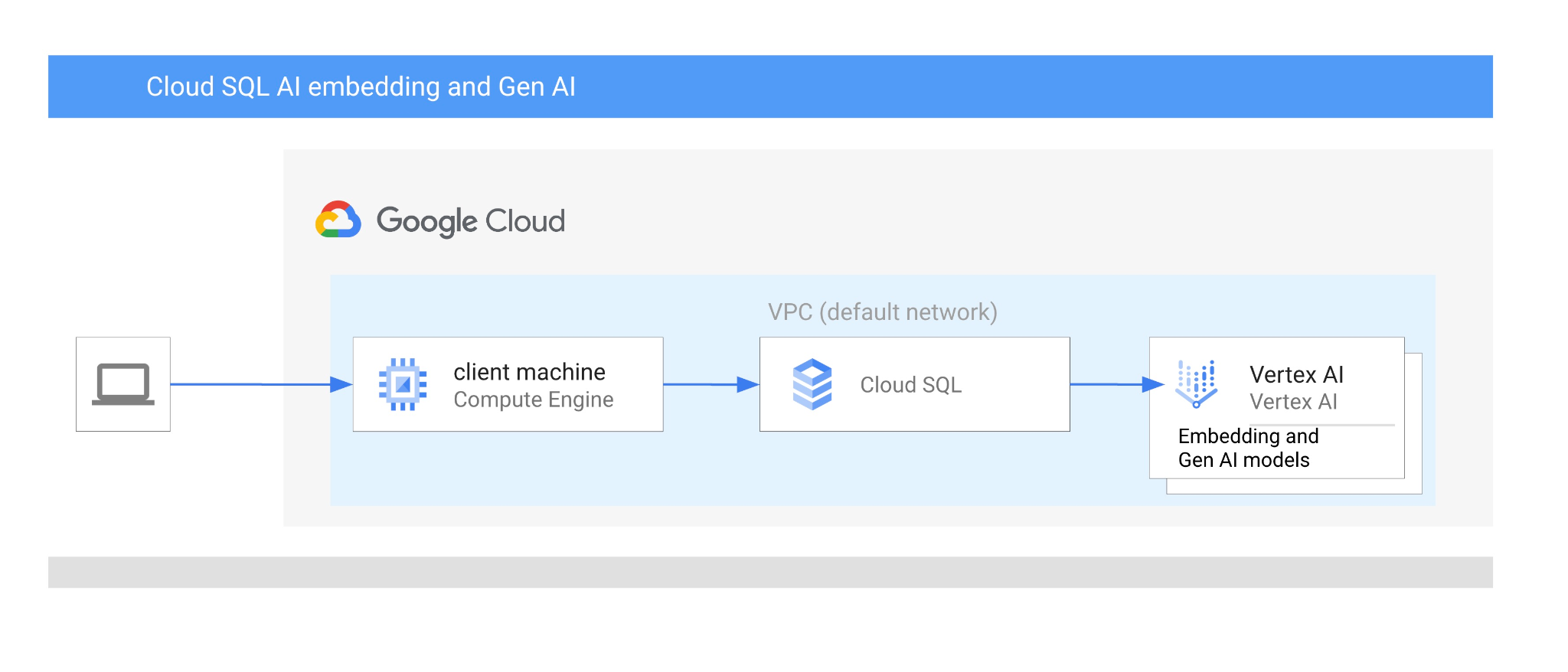
이 Codelab에서는 벡터 검색과 Vertex AI 임베딩을 결합하여 PostgreSQL용 Cloud SQL AI 통합을 사용하는 방법을 알아봅니다.
기본 요건
- Google Cloud, 콘솔에 관한 기본적인 이해
- 명령줄 인터페이스 및 Cloud Shell의 기본 기술
학습할 내용
- PostgreSQL용 Cloud SQL 인스턴스를 배포하는 방법
- 데이터베이스를 만들고 Cloud SQL AI 통합을 사용 설정하는 방법
- 데이터베이스에 데이터를 로드하는 방법
- Cloud SQL Studio 사용 방법
- Cloud SQL에서 Vertex AI 임베딩 모델을 사용하는 방법
- Vertex AI Studio 사용 방법
- Vertex AI 생성형 모델을 사용하여 결과를 보강하는 방법
- 벡터 색인을 사용하여 성능을 개선하는 방법
필요한 항목
- Google Cloud 계정 및 Google Cloud 프로젝트
- Google Cloud 콘솔 및 Cloud Shell을 지원하는 웹브라우저(예: Chrome)
2. 설정 및 요구사항
프로젝트 설정
- Google Cloud 콘솔에 로그인합니다. 아직 Gmail이나 Google Workspace 계정이 없는 경우 계정을 만들어야 합니다.
직장 또는 학교 계정 대신 개인 계정을 사용하세요.
- 새 프로젝트를 만들거나 기존 프로젝트를 재사용합니다. Google Cloud 콘솔에서 새 프로젝트를 만들려면 헤더에서 프로젝트 선택 버튼을 클릭하여 팝업 창을 엽니다.

프로젝트 선택 창에서 새 프로젝트 버튼을 누르면 새 프로젝트 대화상자가 열립니다.

대화상자에서 원하는 프로젝트 이름을 입력하고 위치를 선택합니다.
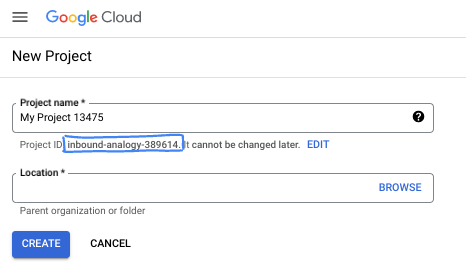
- 프로젝트 이름은 이 프로젝트 참가자의 표시 이름입니다. 프로젝트 이름은 Google API에서 사용되지 않으며 언제든지 변경할 수 있습니다.
- 프로젝트 ID는 모든 Google Cloud 프로젝트에서 고유하며 변경할 수 없습니다 (설정된 후에는 변경할 수 없음). Google Cloud 콘솔에서 고유 ID를 자동으로 생성하지만 이를 맞춤설정할 수 있습니다. 생성된 ID가 마음에 들지 않으면 다른 임의 ID를 생성하거나 직접 ID를 입력하여 사용 가능 여부를 확인할 수 있습니다. 대부분의 Codelab에서는 프로젝트 ID를 참조해야 합니다. 프로젝트 ID는 일반적으로 PROJECT_ID 자리표시자로 식별됩니다.
- 참고로 세 번째 값은 일부 API에서 사용하는 프로젝트 번호입니다. 이 세 가지 값에 대한 자세한 내용은 문서를 참고하세요.
결제 사용 설정
결제를 사용 설정하는 방법에는 두 가지가 있습니다. 개인 결제 계정을 사용하거나 다음 단계에 따라 크레딧을 사용할 수 있습니다.
$5 Google Cloud 크레딧 사용 (선택사항)
이 워크숍을 진행하려면 크레딧이 있는 결제 계정이 필요합니다. 자체 결제를 사용하려는 경우 이 단계를 건너뛰어도 됩니다.
- 이 링크를 클릭하고 개인 Google 계정으로 로그인합니다.
- 다음과 같은 화면을 볼 수 있습니다.
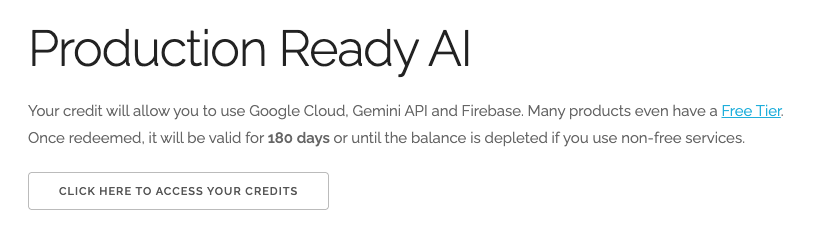
- 크레딧에 액세스하려면 여기를 클릭하세요 버튼을 클릭합니다. 그러면 결제 프로필을 설정하는 페이지로 이동합니다. 무료 체험 가입 화면이 표시되면 취소를 클릭하고 결제 연결을 계속합니다.
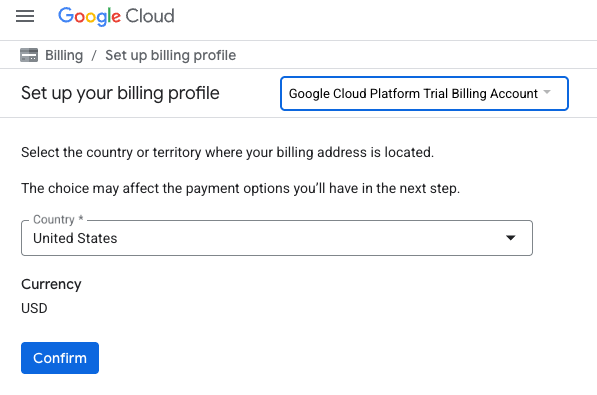
- '확인'을 클릭합니다. 이제 Google Cloud Platform 평가판 결제 계정에 연결되었습니다.
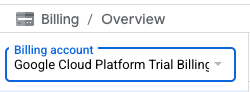
개인 결제 계정 설정
Google Cloud 크레딧을 사용하여 결제를 설정한 경우 이 단계를 건너뛸 수 있습니다.
개인 결제 계정을 설정하려면 Cloud 콘솔에서 여기에서 결제를 사용 설정하세요.
참고 사항:
- 이 실습을 완료하는 데 드는 Cloud 리소스 비용은 미화 3달러 미만입니다.
- 이 실습이 끝나면 단계에 따라 리소스를 삭제하여 추가 요금이 발생하지 않도록 할 수 있습니다.
- 신규 사용자는 미화$300 상당의 무료 체험판을 사용할 수 있습니다.
Cloud Shell 시작
Google Cloud를 노트북에서 원격으로 실행할 수 있지만, 이 Codelab에서는 Cloud에서 실행되는 명령줄 환경인 Google Cloud Shell을 사용합니다.
Google Cloud Console의 오른쪽 상단 툴바에 있는 Cloud Shell 아이콘을 클릭합니다.

또는 G를 누른 다음 S를 누릅니다. Google Cloud 콘솔에 있거나 이 링크를 사용하는 경우 이 시퀀스를 통해 Cloud Shell이 활성화됩니다.
환경을 프로비저닝하고 연결하는 데 몇 분 정도 소요됩니다. 완료되면 다음과 같이 표시됩니다.

가상 머신에는 필요한 개발 도구가 모두 들어있습니다. 영구적인 5GB 홈 디렉터리를 제공하고 Google Cloud에서 실행되므로 네트워크 성능과 인증이 크게 개선됩니다. 이 Codelab의 모든 작업은 브라우저 내에서 수행할 수 있습니다. 아무것도 설치할 필요가 없습니다.
3. 시작하기 전에
API 사용 설정
출력:
Cloud SQL, Compute Engine, 네트워킹 서비스, Vertex AI를 사용하려면 Google Cloud 프로젝트에서 각 API를 사용 설정해야 합니다.
Cloud Shell 터미널 내에 프로젝트 ID가 설정되어 있는지 확인합니다.
gcloud config set project [YOUR-PROJECT-ID]
환경 변수 PROJECT_ID를 설정합니다.
PROJECT_ID=$(gcloud config get-value project)
필요한 모든 서비스를 사용 설정합니다.
gcloud services enable sqladmin.googleapis.com \
                       compute.googleapis.com \
                       cloudresourcemanager.googleapis.com \
                       servicenetworking.googleapis.com \
                       aiplatform.googleapis.com
예상 출력
student@cloudshell:~ (test-project-001-402417)$ gcloud config set project test-project-001-402417
Updated property [core/project].
student@cloudshell:~ (test-project-001-402417)$ PROJECT_ID=$(gcloud config get-value project)
Your active configuration is: [cloudshell-14650]
student@cloudshell:~ (test-project-001-402417)$
student@cloudshell:~ (test-project-001-402417)$ gcloud services enable sqladmin.googleapis.com \
                       compute.googleapis.com \
                       cloudresourcemanager.googleapis.com \
                       servicenetworking.googleapis.com \
                       aiplatform.googleapis.com
Operation "operations/acat.p2-4470404856-1f44ebd8-894e-4356-bea7-b84165a57442" finished successfully.
API 소개
- Cloud SQL Admin API (
sqladmin.googleapis.com)를 사용하면 프로그래매틱 방식으로 Cloud SQL 인스턴스를 만들고, 구성하고, 관리할 수 있습니다. MySQL, PostgreSQL, SQL Server를 지원하는 Google의 완전 관리형 관계형 데이터베이스 서비스의 제어 영역을 제공하여 프로비저닝, 백업, 고가용성, 확장과 같은 작업을 처리합니다. - Compute Engine API (
compute.googleapis.com)를 사용하면 가상 머신 (VM), 영구 디스크, 네트워크 설정을 만들고 관리할 수 있습니다. 워크로드를 실행하고 많은 관리형 서비스의 기본 인프라를 호스팅하는 데 필요한 핵심 Infrastructure-as-a-Service (IaaS) 기반을 제공합니다. - Cloud Resource Manager API (
cloudresourcemanager.googleapis.com)를 사용하면 Google Cloud 프로젝트의 메타데이터와 구성을 프로그래매틱 방식으로 관리할 수 있습니다. 이를 통해 리소스를 구성하고, ID 및 액세스 관리 (IAM) 정책을 처리하고, 프로젝트 계층 구조 전반에서 권한을 검증할 수 있습니다. - 서비스 네트워킹 API (
servicenetworking.googleapis.com)를 사용하면 가상 프라이빗 클라우드 (VPC) 네트워크와 Google의 관리형 서비스 간의 비공개 연결 설정을 자동화할 수 있습니다. AlloyDB와 같은 서비스가 다른 리소스와 안전하게 통신할 수 있도록 비공개 IP 액세스를 설정해야 합니다. - Vertex AI API (
aiplatform.googleapis.com)를 사용하면 애플리케이션에서 머신러닝 모델을 빌드, 배포, 확장할 수 있습니다. 생성형 AI 모델 (예: Gemini) 및 맞춤 모델 학습에 대한 액세스를 비롯한 모든 Google Cloud AI 서비스에 대한 통합 인터페이스를 제공합니다.
4. Cloud SQL 인스턴스 만들기
Vertex AI와 데이터베이스 통합을 사용하여 Cloud SQL 인스턴스를 만듭니다.
데이터베이스 비밀번호 만들기
기본 데이터베이스 사용자의 비밀번호를 정의합니다. 직접 비밀번호를 정의하거나 무작위 함수를 사용하여 비밀번호를 생성할 수 있습니다.
export CLOUDSQL_PASSWORD=`openssl rand -hex 12`
생성된 비밀번호 값을 확인합니다.
echo $CLOUDSQL_PASSWORD
PostgreSQL용 Cloud SQL 인스턴스 만들기
Cloud SQL 인스턴스는 Google Cloud 콘솔, Terraform과 같은 자동화 도구 또는 Google Cloud SDK와 같은 다양한 방법으로 만들 수 있습니다. 실습에서는 주로 Google Cloud SDK gcloud 도구를 사용합니다. 다른 도구를 사용하여 인스턴스를 만드는 방법은 문서를 참고하세요.
Cloud Shell 세션에서 다음을 실행합니다.
gcloud sql instances create my-cloudsql-instance \
--database-version=POSTGRES_17 \
--tier=db-custom-1-3840 \
--region=us-central1 \
--edition=ENTERPRISE \
--enable-google-ml-integration \
--database-flags cloudsql.enable_google_ml_integration=on
인스턴스를 만든 후 인스턴스의 기본 사용자에 대한 비밀번호를 설정하고 비밀번호로 연결할 수 있는지 확인해야 합니다.
gcloud sql users set-password postgres \
    --instance=my-cloudsql-instance \
    --password=$CLOUDSQL_PASSWORD
상자에 표시된 대로 'gcloud sql connect' 명령어를 실행하고 연결할 준비가 되면 프롬프트에 비밀번호를 입력합니다.
gcloud sql connect my-cloudsql-instance --user=postgres
ctrl+d 단축키를 사용하거나 exit 명령어를 실행하여 psql 세션을 종료합니다.
exit
Vertex AI 통합 사용 설정
Vertex AI 통합을 사용할 수 있도록 내부 Cloud SQL 서비스 계정에 필요한 권한을 부여합니다.
Cloud SQL 내부 서비스 계정 이메일을 확인하고 변수로 내보냅니다.
SERVICE_ACCOUNT_EMAIL=$(gcloud sql instances describe my-cloudsql-instance --format="value(serviceAccountEmailAddress)")
echo $SERVICE_ACCOUNT_EMAIL
Cloud SQL 서비스 계정에 Vertex AI 액세스 권한을 부여합니다.
PROJECT_ID=$(gcloud config get-value project)
gcloud projects add-iam-policy-binding $PROJECT_ID \
  --member="serviceAccount:$SERVICE_ACCOUNT_EMAIL" \
  --role="roles/aiplatform.user"
인스턴스 생성 및 구성에 대한 자세한 내용은 Cloud SQL 문서 여기를 참고하세요.
5. 데이터베이스 준비
이제 데이터베이스를 만들고 벡터 지원을 사용 설정해야 합니다.
데이터베이스 만들기
quickstart_db라는 이름의 데이터베이스를 만듭니다 .이렇게 하려면 PostgreSQL용 psql과 같은 명령줄 데이터베이스 클라이언트, SDK 또는 Cloud SQL Studio와 같은 다양한 옵션을 사용할 수 있습니다. 데이터베이스를 만들고 인스턴스에 연결하는 데 SDK (gcloud)를 사용합니다.
Cloud Shell에서 명령어를 실행하여 데이터베이스를 만듭니다.
gcloud sql databases create quickstart_db --instance=my-cloudsql-instance
확장 프로그램 사용 설정
Vertex AI 및 벡터를 사용하려면 생성된 데이터베이스에서 두 가지 확장 프로그램을 사용 설정해야 합니다.
Cloud Shell에서 명령어를 실행하여 생성된 데이터베이스에 연결합니다 (비밀번호를 입력해야 함).
gcloud sql connect my-cloudsql-instance --database quickstart_db --user=postgres
그런 다음 연결에 성공한 후 SQL 세션에서 다음 두 명령어를 실행해야 합니다.
CREATE EXTENSION IF NOT EXISTS google_ml_integration CASCADE;
CREATE EXTENSION IF NOT EXISTS vector CASCADE;
SQL 세션을 종료합니다.
exit;
6. 데이터 로드
이제 데이터베이스에서 객체를 만들고 데이터를 로드해야 합니다. 가상의 Cymbal Store 데이터를 사용합니다. 데이터는 공개 Google 스토리지 버킷에서 CSV 형식으로 제공됩니다.
먼저 데이터베이스에 필요한 모든 객체를 만들어야 합니다. 이를 위해 이미 익숙한 gcloud sql connect 및 gcloud storage 명령어를 사용하여 스키마 객체를 다운로드하고 데이터베이스로 가져옵니다.
클라우드 셸에서 다음을 실행하고 인스턴스를 만들 때 기록해 둔 비밀번호를 제공합니다.
gcloud storage cat gs://cloud-training/gcc/gcc-tech-004/cymbal_demo_schema.sql |gcloud sql connect my-cloudsql-instance --database quickstart_db --user=postgres
이전 명령어에서 정확히 무엇을 했나요? 데이터베이스에 연결하고 다운로드한 SQL 코드를 실행하여 테이블, 색인, 시퀀스를 만들었습니다.
다음 단계는 데이터를 로드하는 것입니다. 이를 위해 Google Cloud Storage에서 CSV 파일을 다운로드해야 합니다.
gcloud storage cp gs://cloud-training/gcc/gcc-tech-004/cymbal_products.csv .
gcloud storage cp gs://cloud-training/gcc/gcc-tech-004/cymbal_inventory.csv .
gcloud storage cp gs://cloud-training/gcc/gcc-tech-004/cymbal_stores.csv .
그런 다음 데이터베이스에 연결해야 합니다.
gcloud sql connect my-cloudsql-instance --database quickstart_db --user=postgres
CSV 파일에서 데이터를 가져옵니다.
\copy cymbal_products from 'cymbal_products.csv' csv header
\copy cymbal_inventory from 'cymbal_inventory.csv' csv header
\copy cymbal_stores from 'cymbal_stores.csv' csv header
자체 데이터가 있고 CSV 파일이 Cloud 콘솔에서 제공되는 Cloud SQL 가져오기 도구와 호환되는 경우 명령줄 접근 방식 대신 이 도구를 사용할 수 있습니다.
7. 임베딩 만들기
다음 단계는 Google Vertex AI의 textembedding-004 모델을 사용하여 제품 설명의 임베딩을 빌드하고 벡터 데이터로 저장하는 것입니다.
종료했거나 이전 세션이 연결 해제된 경우 데이터베이스에 연결합니다.
gcloud sql connect my-cloudsql-instance --database quickstart_db --user=postgres
임베딩 함수를 사용하여 cymbal_products 테이블에 가상 열 embedding을 만듭니다. 이 명령어는 'product_description' 열을 기반으로 생성된 임베딩이 포함된 벡터를 저장하는 가상 열 'embedding'을 만듭니다. 또한 테이블의 모든 기존 행에 대한 임베딩을 만듭니다. 모델은 삽입 함수의 첫 번째 매개변수로 정의되고 소스 데이터는 두 번째 매개변수로 정의됩니다.
ALTER TABLE cymbal_products ADD COLUMN embedding vector(768) GENERATED ALWAYS AS (embedding('text-embedding-005',product_description)) STORED;
시간이 다소 걸릴 수 있지만 900~1,000개의 행의 경우 5분을 넘지 않으며 일반적으로 훨씬 빠릅니다.
표에 새 행을 삽입하거나 기존 행의 product_description을 업데이트하면 'embedding' 열의 가상 열 데이터가 'product_description'을 기반으로 다시 생성됩니다.
8. 유사성 검색 실행
이제 설명에 대해 계산된 벡터 값과 요청에 대해 가져온 벡터 값을 기반으로 유사성 검색을 사용하여 검색을 실행할 수 있습니다.
SQL 쿼리는 gcloud sql connect를 사용하여 동일한 명령줄 인터페이스에서 실행하거나 Cloud SQL Studio에서 실행할 수 있습니다. 다중 행 및 복잡한 쿼리는 Cloud SQL Studio에서 관리하는 것이 좋습니다.
Cloud SQL Studio 시작
콘솔에서 이전에 만든 Cloud SQL 인스턴스를 클릭합니다.
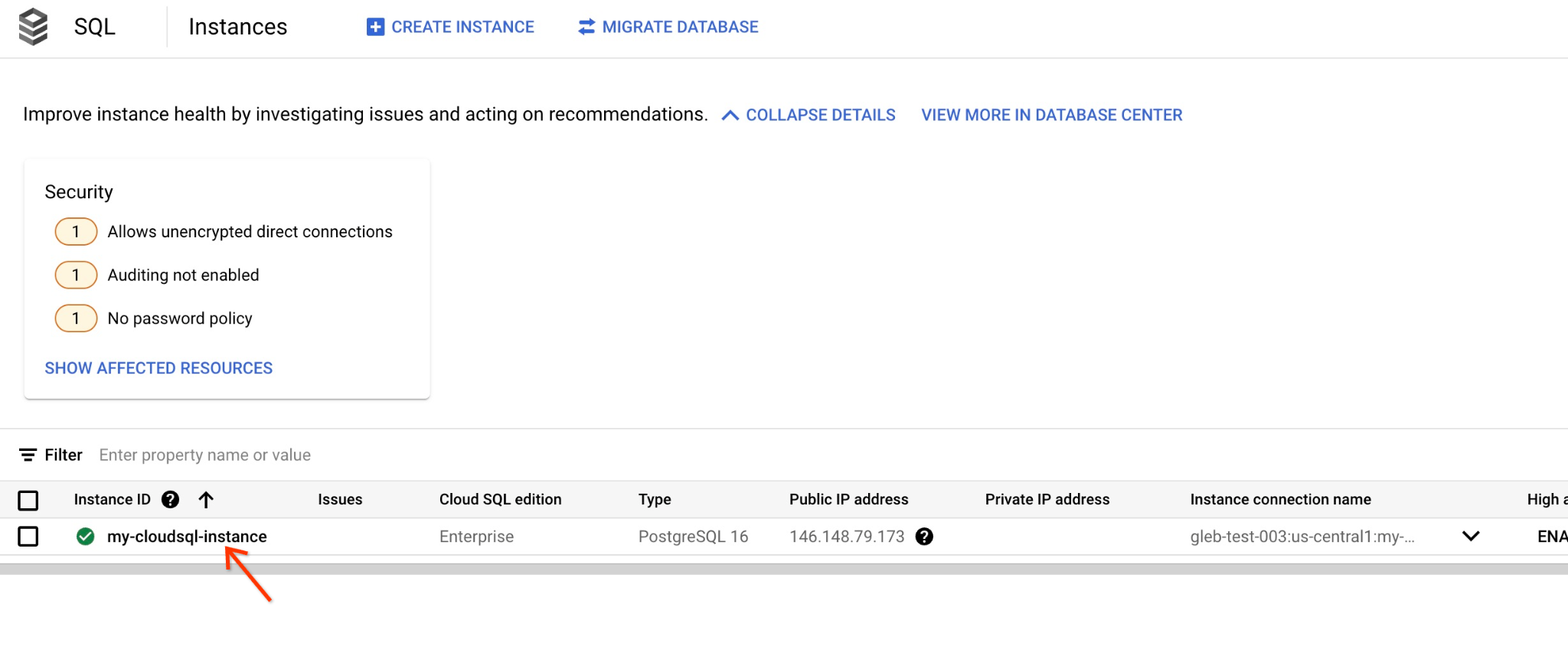
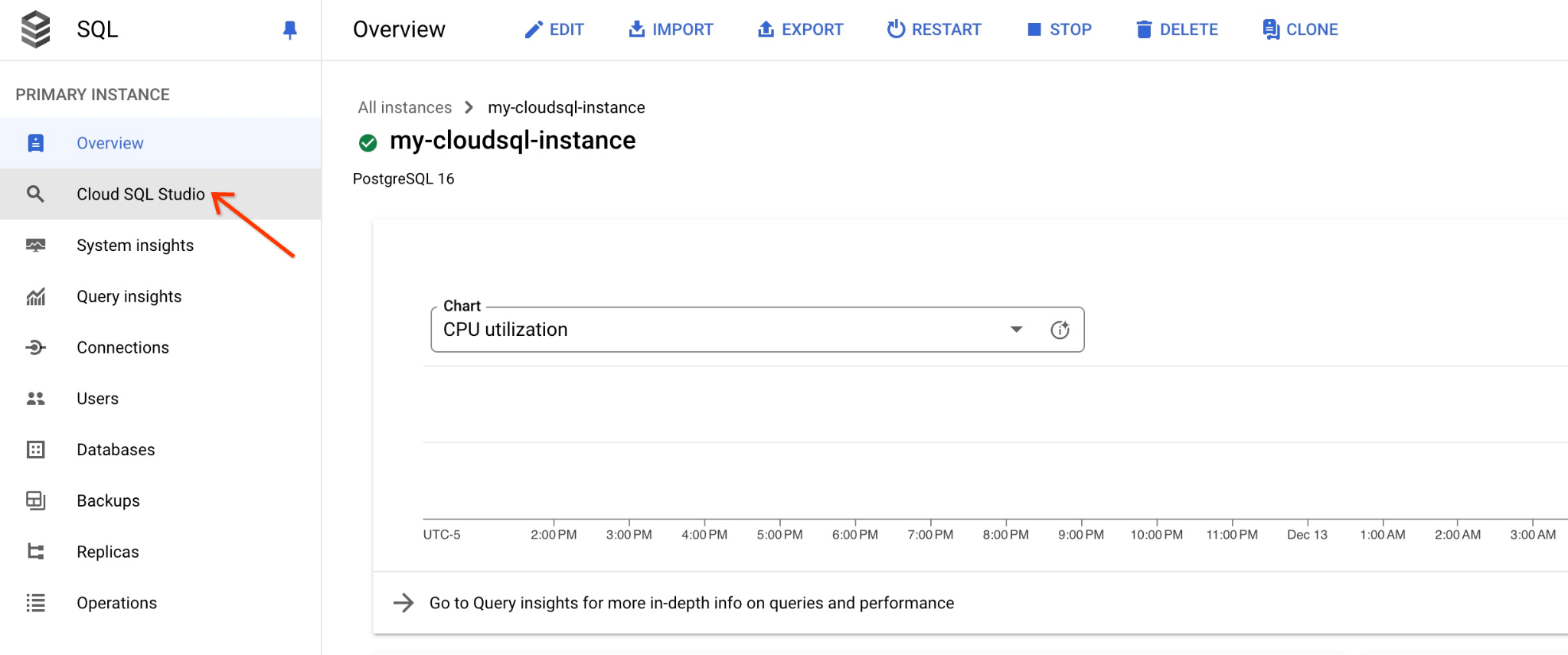
오른쪽 패널에서 열면 Cloud SQL Studio가 표시됩니다. 이 탭을 클릭하세요.
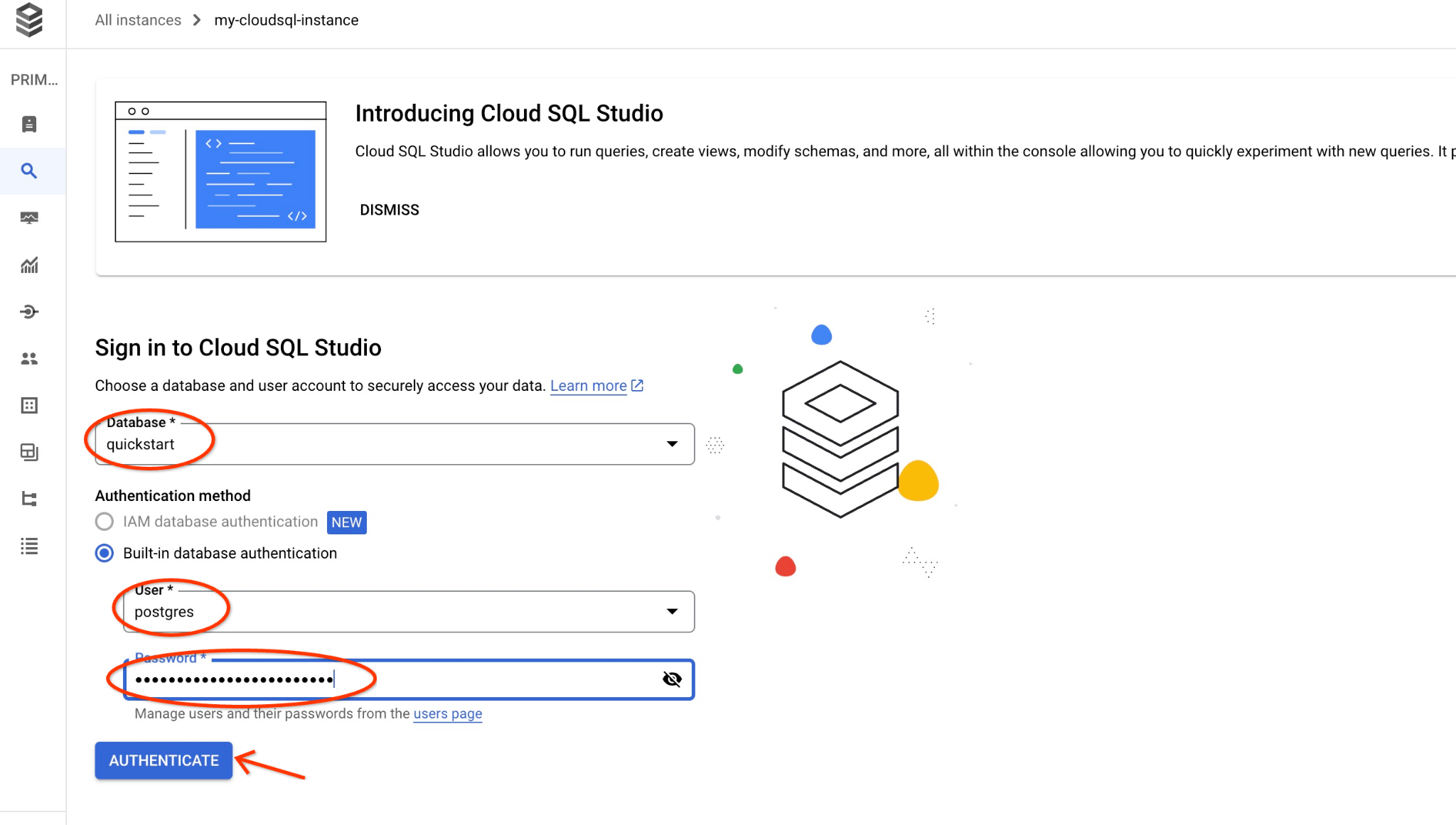
데이터베이스 이름과 사용자 인증 정보를 제공하는 대화상자가 열립니다.
- 데이터베이스: quickstart_db
- 사용자: postgres
- 비밀번호: 기록해 둔 기본 데이터베이스 사용자의 비밀번호
'인증' 버튼을 클릭합니다.
다음 창이 열리면 오른쪽의 '편집기' 탭을 클릭하여 SQL 편집기를 엽니다.
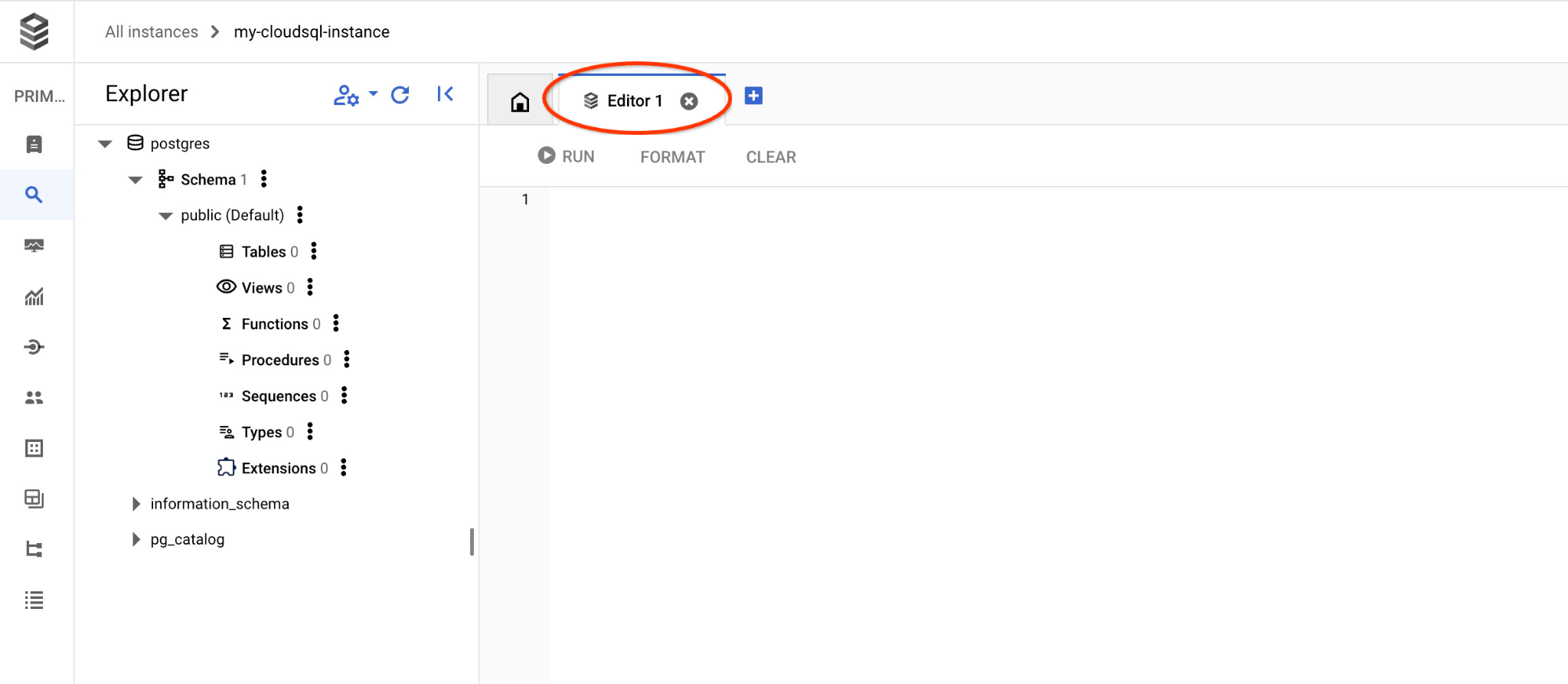
이제 쿼리를 실행할 준비가 되었습니다.
쿼리 실행
클라이언트의 요청과 가장 관련성이 높은 사용 가능한 제품 목록을 가져오는 쿼리를 실행합니다. 벡터 값을 가져오기 위해 Vertex AI에 전달할 요청은 '여기에서 잘 자라는 과일 나무는 무엇인가요?'와 같습니다.
요청에 가장 적합한 상위 10개 항목을 선택하기 위해 실행할 수 있는 쿼리는 다음과 같습니다.
SELECT
        cp.product_name,
        left(cp.product_description,80) as description,
        cp.sale_price,
        cs.zip_code,
        (cp.embedding <=> embedding('text-embedding-005','What kind of fruit trees grow well here?')::vector) as distance
FROM
        cymbal_products cp
JOIN cymbal_inventory ci on
        ci.uniq_id=cp.uniq_id
JOIN cymbal_stores cs on
        cs.store_id=ci.store_id
        AND ci.inventory>0
        AND cs.store_id = 1583
ORDER BY
        distance ASC
LIMIT 10;
쿼리를 복사하여 Cloud SQL Studio 편집기에 붙여넣고 '실행' 버튼을 누르거나 quickstart_db 데이터베이스에 연결된 명령줄 세션에 붙여넣습니다.
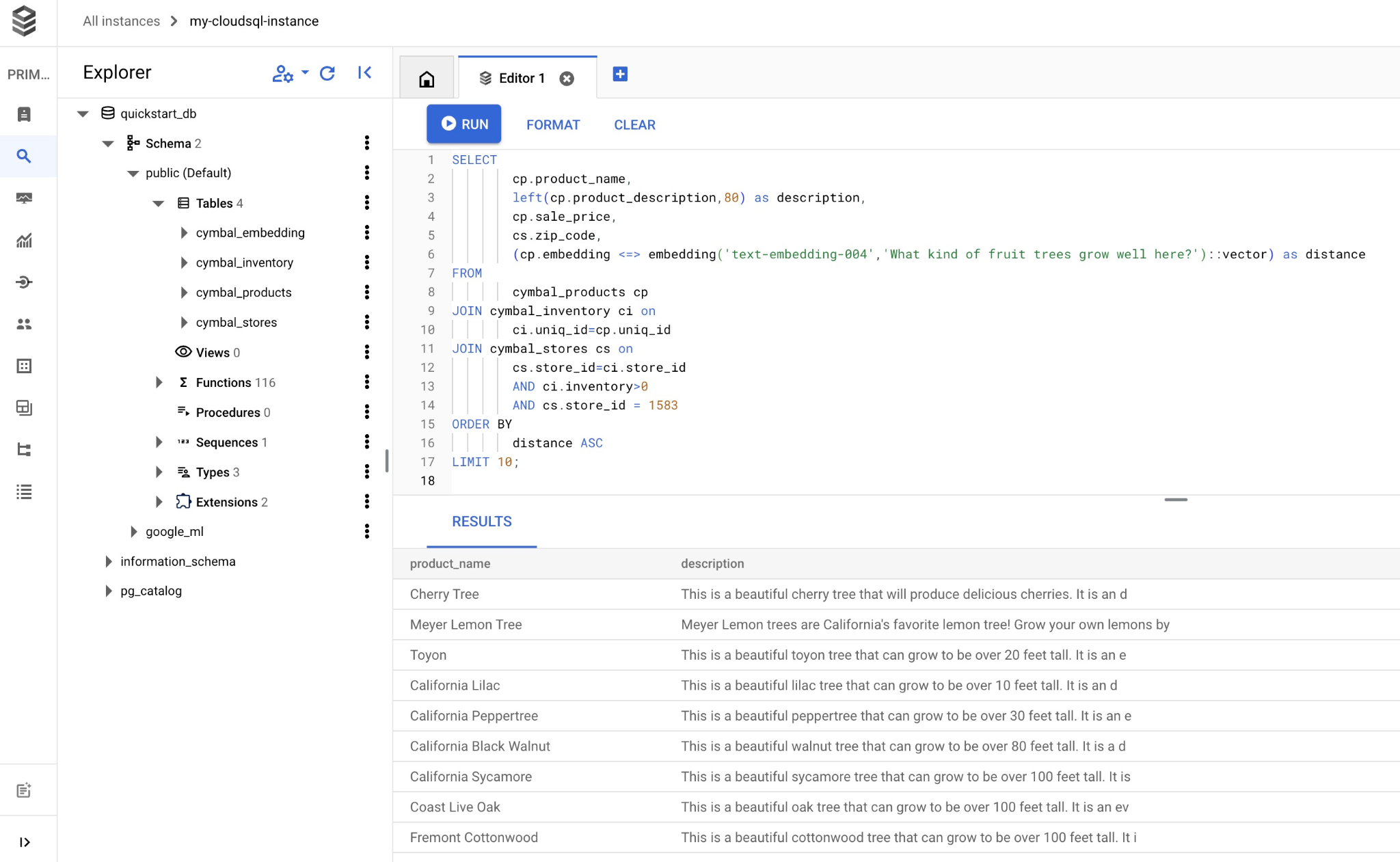
다음은 쿼리와 일치하도록 선택된 제품 목록입니다.
product_name       |                                   description                                    | sale_price | zip_code |      distance
-------------------------+----------------------------------------------------------------------------------+------------+----------+---------------------
 Cherry Tree             | This is a beautiful cherry tree that will produce delicious cherries. It is an d |      75.00 |    93230 | 0.43922018972266397
 Meyer Lemon Tree        | Meyer Lemon trees are California's favorite lemon tree! Grow your own lemons by  |         34 |    93230 |  0.4685112926118228
 Toyon                   | This is a beautiful toyon tree that can grow to be over 20 feet tall. It is an e |      10.00 |    93230 |  0.4835677149651668
 California Lilac        | This is a beautiful lilac tree that can grow to be over 10 feet tall. It is an d |       5.00 |    93230 |  0.4947204525907498
 California Peppertree   | This is a beautiful peppertree that can grow to be over 30 feet tall. It is an e |      25.00 |    93230 |  0.5054166905547247
 California Black Walnut | This is a beautiful walnut tree that can grow to be over 80 feet tall. It is a d |     100.00 |    93230 |  0.5084219510932597
 California Sycamore     | This is a beautiful sycamore tree that can grow to be over 100 feet tall. It is  |     300.00 |    93230 |  0.5140519790508755
 Coast Live Oak          | This is a beautiful oak tree that can grow to be over 100 feet tall. It is an ev |     500.00 |    93230 |  0.5143126438081371
 Fremont Cottonwood      | This is a beautiful cottonwood tree that can grow to be over 100 feet tall. It i |     200.00 |    93230 |  0.5174774727252058
 Madrone                 | This is a beautiful madrona tree that can grow to be over 80 feet tall. It is an |      50.00 |    93230 |  0.5227400803389093
(10 rows)
9. 검색된 데이터를 사용하여 LLM 응답 개선
실행된 쿼리의 결과를 사용하여 클라이언트 애플리케이션에 대한 생성형 AI LLM 응답을 개선하고, 제공된 쿼리 결과를 Vertex AI 생성형 기반 언어 모델에 대한 프롬프트의 일부로 사용하여 의미 있는 출력을 준비할 수 있습니다.
이를 위해 벡터 검색 결과를 포함하는 JSON을 생성한 다음 생성된 JSON을 Vertex AI의 LLM 모델 프롬프트에 추가하여 의미 있는 출력을 생성해야 합니다. 첫 번째 단계에서는 JSON을 생성하고, 두 번째 단계에서는 Vertex AI Studio에서 테스트하고, 마지막 단계에서는 애플리케이션에서 사용할 수 있는 SQL 문에 통합합니다.
JSON 형식으로 출력 생성
JSON 형식으로 출력을 생성하고 Vertex AI에 전달할 행을 하나만 반환하도록 쿼리를 수정합니다.
PostgreSQL용 Cloud SQL
다음은 쿼리의 예입니다.
WITH trees as (
SELECT
        cp.product_name,
        left(cp.product_description,80) as description,
        cp.sale_price,
        cs.zip_code,
        cp.uniq_id as product_id
FROM
        cymbal_products cp
JOIN cymbal_inventory ci on
        ci.uniq_id=cp.uniq_id
JOIN cymbal_stores cs on
        cs.store_id=ci.store_id
        AND ci.inventory>0
        AND cs.store_id = 1583
ORDER BY
        (cp.embedding <=> embedding('text-embedding-005','What kind of fruit trees grow well here?')::vector) ASC
LIMIT 1)
SELECT json_agg(trees) FROM trees;
다음은 출력에서 예상되는 JSON입니다.
[{"product_name":"Cherry Tree","description":"This is a beautiful cherry tree that will produce delicious cherries. It is an d","sale_price":75.00,"zip_code":93230,"product_id":"d536e9e823296a2eba198e52dd23e712"}]
Vertex AI Studio에서 프롬프트 실행
생성된 JSON을 사용하여 Vertex AI Studio의 생성형 AI 텍스트 모델에 프롬프트의 일부로 제공할 수 있습니다.
클라우드 콘솔에서 Vertex AI Studio를 엽니다.
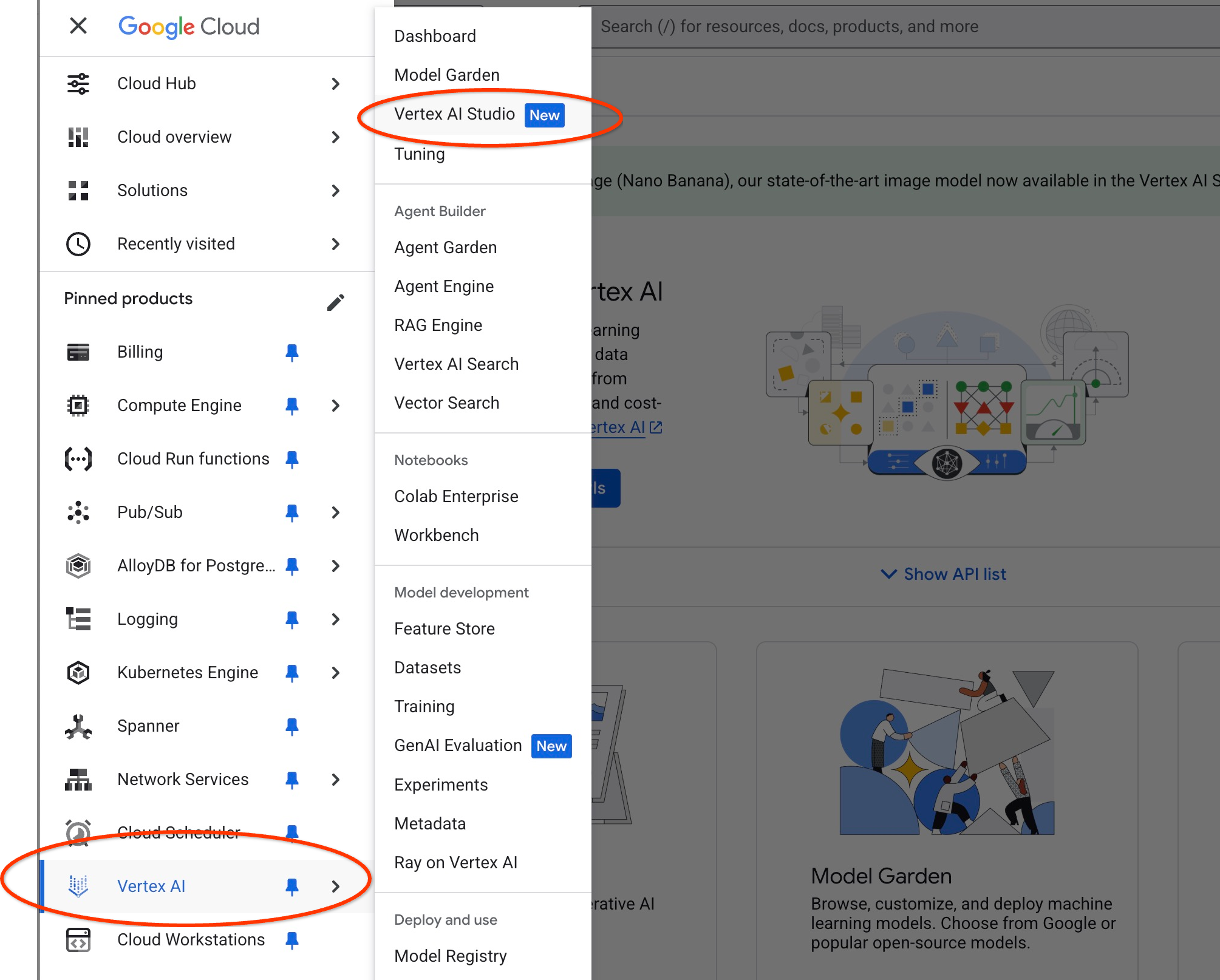
추가 API를 사용 설정하라는 메시지가 표시될 수 있지만 요청을 무시해도 됩니다. 실습을 완료하는 데 추가 API는 필요하지 않습니다.
스튜디오에 프롬프트를 입력합니다.
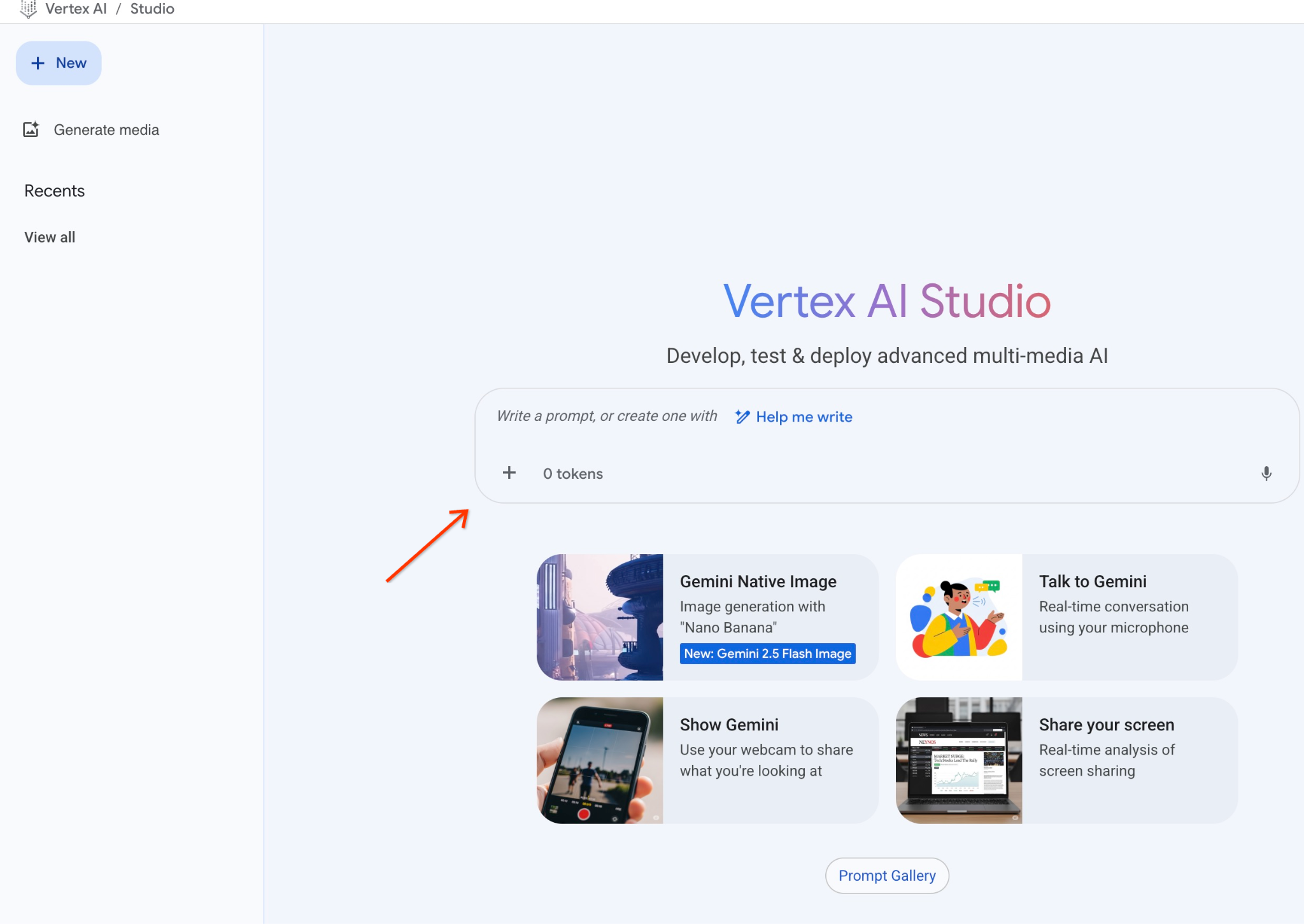
사용할 프롬프트는 다음과 같습니다.
You are a friendly advisor helping to find a product based on the customer's needs.
Based on the client request we have loaded a list of products closely related to search.
The list in JSON format with list of values like {"product_name":"name","description":"some description","sale_price":10,"zip_code": 10234, "produt_id": "02056727942aeb714dc9a2313654e1b0"}
Here is the list of products:
[place your JSON here]
The customer asked "What tree is growing the best here?"
You should give information about the product, price and some supplemental information.
Do not ask any additional questions and assume location based on the zip code provided in the list of products.
쿼리의 응답으로 JSON 자리표시자를 대체하면 다음과 같이 표시됩니다.
You are a friendly advisor helping to find a product based on the customer's needs.
Based on the client request we have loaded a list of products closely related to search.
The list in JSON format with list of values like {"product_name":"name","description":"some description","sale_price":10,"zip_code": 10234, "produt_id": "02056727942aeb714dc9a2313654e1b0"}
Here is the list of products:
[{"product_name":"Cherry Tree","description":"This is a beautiful cherry tree that will produce delicious cherries. It is an d","sale_price":75.00,"zip_code":93230,"product_id":"d536e9e823296a2eba198e52dd23e712"}]
The customer asked "What tree is growing the best here?"
You should give information about the product, price and some supplemental information.
Do not ask any additional questions and assume location based on the zip code provided in the list of products.
JSON 값으로 프롬프트를 실행한 결과는 다음과 같습니다.
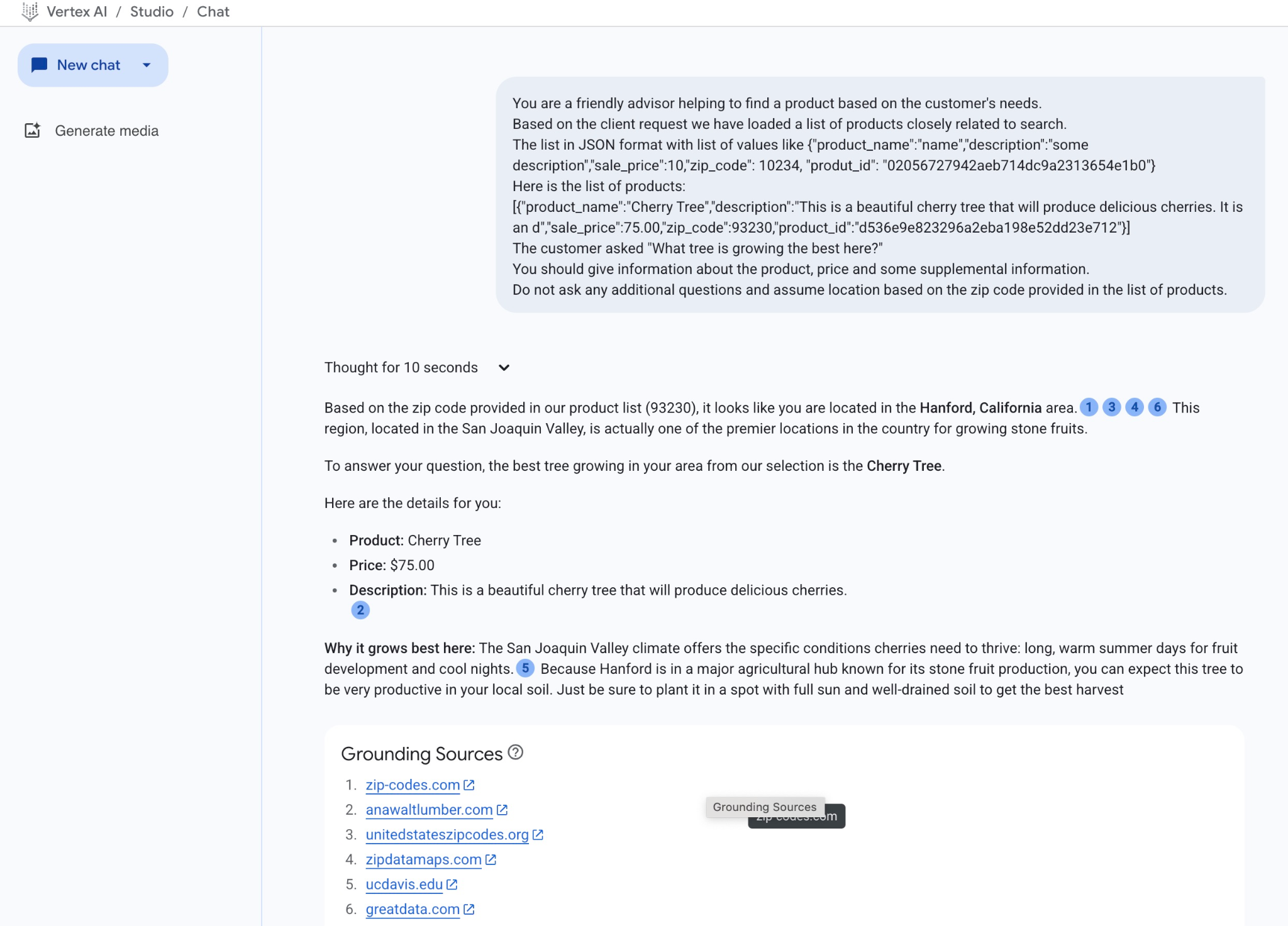
이 예시에서 모델이 제공한 답변은 다음과 같습니다. 시간이 지남에 따라 모델과 매개변수가 변경되므로 답변이 다를 수 있습니다.
'제품 목록에 제공된 우편번호 (93230)를 기준으로 볼 때 캘리포니아주 핸포드 지역에 계신 것 같습니다.1346 샌호아킨 밸리에 위치한 이 지역은 실제로 미국에서 핵과류를 재배하기에 가장 좋은 곳 중 하나입니다.
질문에 답변드리자면, 저희가 선택한 나무 중에서 해당 지역에 가장 적합한 나무는 체리나무입니다.
자세한 내용은 다음과 같습니다.
제품: Cherry Tree
가격: 75.00달러
설명: 맛있는 체리를 생산하는 아름다운 벚나무입니다.2
이 지역에서 가장 잘 자라는 이유: 샌호아킨 밸리 기후는 체리가 잘 자라는 데 필요한 특정 조건을 제공합니다. 과일이 자라는 길고 따뜻한 여름과 서늘한 밤이 있습니다.5 핸퍼드는 핵과류 생산으로 유명한 주요 농업 중심지에 있으므로 이 나무가 지역 토양에서 매우 생산적일 것으로 예상됩니다. 최고의 수확을 얻으려면 햇볕이 잘 들고 배수가 잘 되는 곳에 심어야 합니다.'
PSQL에서 프롬프트 실행
또한 Vertex AI와의 Cloud SQL AI 통합을 사용하여 데이터베이스에서 직접 SQL을 사용하여 생성형 모델로부터 유사한 응답을 얻을 수도 있습니다. 하지만 gemini-2.0-flash-exp 모델을 사용하려면 먼저 등록해야 합니다.
PostgreSQL용 Cloud SQL에서 실행
현재 버전이 낮은 경우 확장 프로그램을 버전 1.4.2 이상으로 업그레이드합니다. 이전에 표시된 대로 gcloud sql connect에서 quickstart_db 데이터베이스에 연결하고 (또는 Cloud SQL Studio 사용) 다음을 실행합니다.
SELECT extversion from pg_extension where extname='google_ml_integration';
반환된 값이 1.4.3보다 작으면 다음을 실행합니다.
ALTER EXTENSION google_ml_integration UPDATE TO '1.4.3';
그런 다음 google_ml_integration.enable_model_support 데이터베이스 플래그를 'on'으로 설정해야 합니다. 현재 설정을 확인하려면 다음을 실행하세요.
show google_ml_integration.enable_model_support;
psql 세션의 예상 출력은 'on'입니다.
quickstart_db => show google_ml_integration.enable_model_support;
 google_ml_integration.enable_model_support
--------------------------------------------
 on
(1 row)
'off'라고 표시되면 데이터베이스 플래그를 업데이트해야 합니다. 이를 수행하려면 웹 콘솔 인터페이스를 사용하거나 다음 gcloud 명령어를 실행하면 됩니다.
gcloud sql instances patch my-cloudsql-instance \
--database-flags google_ml_integration.enable_model_support=on,cloudsql.enable_google_ml_integration=on
명령어를 백그라운드에서 실행하는 데 1~3분 정도 걸립니다. 그런 다음 psql 세션에서 또는 quickstart_db 데이터베이스에 연결된 Cloud SQL Studio를 사용하여 새 플래그를 확인할 수 있습니다.
show google_ml_integration.enable_model_support;
psql 세션의 예상 출력은 'on'입니다.
quickstart_db => show google_ml_integration.enable_model_support;
 google_ml_integration.enable_model_support
--------------------------------------------
 on
(1 row)
그런 다음 두 모델을 등록해야 합니다. 첫 번째는 이미 사용된 text-embedding-005 모델입니다. 모델 등록 기능을 사용 설정했으므로 등록해야 합니다.
모델 실행을 등록하려면 psql 또는 Cloud SQL Studio에서 다음 코드를 실행합니다.
CALL
  google_ml.create_model(
    model_id => 'text-embedding-005',
    model_provider => 'google',
    model_qualified_name => 'text-embedding-005',
    model_type => 'text_embedding',
    model_auth_type => 'cloudsql_service_agent_iam',
    model_in_transform_fn => 'google_ml.vertexai_text_embedding_input_transform',
    model_out_transform_fn => 'google_ml.vertexai_text_embedding_output_transform');
등록해야 하는 다음 모델은 사용자 친화적인 출력을 생성하는 데 사용되는 gemini-2.0-flash-001입니다.
CALL
  google_ml.create_model(
    model_id => 'gemini-2.5-flash',
    model_request_url => 'https://us-central1-aiplatform.googleapis.com/v1/projects/$PROJECT_ID/locations/us-central1/publishers/google/models/gemini-2.5-flash:streamGenerateContent',
    model_provider => 'google',
    model_auth_type => 'cloudsql_service_agent_iam');
언제든지 google_ml.model_info_view에서 정보를 선택하여 등록된 모델 목록을 확인할 수 있습니다.
select model_id,model_type from google_ml.model_info_view;
다음은 샘플 출력입니다.
quickstart_db=> select model_id,model_type from google_ml.model_info_view;
               model_id               |   model_type
--------------------------------------+----------------
 textembedding-gecko                  | text_embedding
 textembedding-gecko@001              | text_embedding
 gemini-1.5-pro:streamGenerateContent | generic
 gemini-1.5-pro:generateContent       | generic
 gemini-1.0-pro:generateContent       | generic
 text-embedding-005                   | text_embedding
 gemini-2.5-flash                     | generic
이제 생성된 하위 쿼리 JSON을 사용하여 SQL을 통해 생성형 AI 텍스트 모델에 프롬프트의 일부로 제공할 수 있습니다.
데이터베이스에 대한 psql 또는 Cloud SQL Studio 세션에서 쿼리를 실행합니다.
WITH trees AS (
SELECT
        cp.product_name,
        cp.product_description AS description,
        cp.sale_price,
        cs.zip_code,
        cp.uniq_id AS product_id
FROM
        cymbal_products cp
JOIN cymbal_inventory ci ON
        ci.uniq_id = cp.uniq_id
JOIN cymbal_stores cs ON
        cs.store_id = ci.store_id
        AND ci.inventory>0
        AND cs.store_id = 1583
ORDER BY
        (cp.embedding <=> google_ml.embedding('text-embedding-005',
        'What kind of fruit trees grow well here?')::vector) ASC
LIMIT 1),
prompt AS (
SELECT
        'You are a friendly advisor helping to find a product based on the customer''s needs.
Based on the client request we have loaded a list of products closely related to search.
The list in JSON format with list of values like {"product_name":"name","product_description":"some description","sale_price":10}
Here is the list of products:' || json_agg(trees) || 'The customer asked "What kind of fruit trees grow well here?"
You should give information about the product, price and some supplemental information' AS prompt_text
FROM
        trees),
response AS (
SELECT
        json_array_elements(google_ml.predict_row( model_id =>'gemini-2.5-flash',
        request_body => json_build_object('contents',
        json_build_object('role',
        'user',
        'parts',
        json_build_object('text',
        prompt_text)))))->'candidates'->0->'content'->'parts'->0->'text' AS resp
FROM
        prompt)
SELECT
        string_agg(resp::text,
        ' ')
FROM
        response;
예상되는 출력은 다음과 같습니다. 모델 버전과 매개변수에 따라 출력이 다를 수 있습니다.
"That's a great question! It sounds like you're looking to add some delicious fruit to your garden.\n\nBased on the products we have that are closely related to your search, I can tell you about a fantastic option:\n\n**Cherry Tree**" "\n* **Description:** This beautiful deciduous tree will produce delicious cherries. It grows to be about 15 feet tall, with dark green leaves in summer that turn a beautiful red in the fall. Cherry trees are known for their beauty, shade, and privacy. They prefer a cool, moist climate and sandy soil." "\n* **Price:** $75.00\n* **Grows well in:** USDA Zones 4-9.\n\nTo confirm if this Cherry Tree will thrive in your specific location, you might want to check which USDA Hardiness Zone your area falls into. If you're in zones 4-9, this" " could be a wonderful addition to your yard!"
10. 최근접 이웃 색인 만들기
데이터 세트가 매우 작으며 응답 시간은 주로 AI 모델과의 상호작용에 따라 달라집니다. 하지만 벡터가 수백만 개에 달하면 벡터 검색이 응답 시간의 상당 부분을 차지하고 시스템에 높은 부하를 가할 수 있습니다. 이를 개선하기 위해 벡터 위에 색인을 빌드할 수 있습니다.
HNSW 색인 만들기
테스트에는 HNSW 색인 유형을 사용해 보겠습니다. HNSW는 Hierarchical Navigable Small World의 약자로, 다층 그래프 색인을 나타냅니다.
임베딩 열의 색인을 빌드하려면 임베딩 열, 거리 함수, 선택적으로 m 또는 ef_constructions와 같은 매개변수를 정의해야 합니다. 매개변수에 대한 자세한 내용은 문서를 참고하세요.
CREATE INDEX cymbal_products_embeddings_hnsw ON cymbal_products
  USING hnsw (embedding vector_cosine_ops)
  WITH (m = 16, ef_construction = 64);
예상 출력:
quickstart_db=> CREATE INDEX cymbal_products_embeddings_hnsw ON cymbal_products
  USING hnsw (embedding vector_cosine_ops)
  WITH (m = 16, ef_construction = 64);
CREATE INDEX
quickstart_db=>
응답 비교
이제 EXPLAIN 모드에서 벡터 검색 쿼리를 실행하고 색인이 사용되었는지 확인할 수 있습니다.
EXPLAIN (analyze)
WITH trees as (
SELECT
        cp.product_name,
        left(cp.product_description,80) as description,
        cp.sale_price,
        cs.zip_code,
        cp.uniq_id as product_id
FROM
        cymbal_products cp
JOIN cymbal_inventory ci on
        ci.uniq_id=cp.uniq_id
JOIN cymbal_stores cs on
        cs.store_id=ci.store_id
        AND ci.inventory>0
        AND cs.store_id = 1583
ORDER BY
        (cp.embedding <=> embedding('text-embedding-005','What kind of fruit trees grow well here?')::vector) ASC
LIMIT 1)
SELECT json_agg(trees) FROM trees;
예상 출력:
 Aggregate  (cost=779.12..779.13 rows=1 width=32) (actual time=1.066..1.069 rows=1 loops=1)
   ->  Subquery Scan on trees  (cost=769.05..779.12 rows=1 width=142) (actual time=1.038..1.041 rows=1 loops=1)
         ->  Limit  (cost=769.05..779.11 rows=1 width=158) (actual time=1.022..1.024 rows=1 loops=1)
               ->  Nested Loop  (cost=769.05..9339.69 rows=852 width=158) (actual time=1.020..1.021 rows=1 loops=1)
                     ->  Nested Loop  (cost=768.77..9316.48 rows=852 width=945) (actual time=0.858..0.859 rows=1 loops=1)
                           ->  Index Scan using cymbal_products_embeddings_hnsw on cymbal_products cp  (cost=768.34..2572.47 rows=941 width=941) (actual time=0.532..0.539 rows=3 loops=1)
                                 Order By: (embedding <=> '[0.008864171,0.03693164,-0.024245683,...
<redacted>
...,0.017593635,-0.040275685,-0.03914233,-0.018452475,0.00826032,-0.07372604
]'::vector)
                           ->  Index Scan using product_inventory_pkey on cymbal_inventory ci  (cost=0.42..7.17 rows=1 width=37) (actual time=0.104..0.104 rows=0 loops=3)
                                 Index Cond: ((store_id = 1583) AND (uniq_id = (cp.uniq_id)::text))
                                 Filter: (inventory > 0)
                                 Rows Removed by Filter: 1
                     ->  Materialize  (cost=0.28..8.31 rows=1 width=8) (actual time=0.133..0.134 rows=1 loops=1)
                           ->  Index Scan using product_stores_pkey on cymbal_stores cs  (cost=0.28..8.30 rows=1 width=8) (actual time=0.129..0.129 rows=1 loops=1)
                                 Index Cond: (store_id = 1583)
 Planning Time: 112.398 ms
 Execution Time: 1.221 ms
출력에서 쿼리가 'cymbal_products_embeddings_hnsw를 사용한 색인 스캔'을 사용하고 있음을 명확하게 확인할 수 있습니다.
설명 없이 쿼리를 실행하면 다음과 같습니다.
WITH trees as (
SELECT
        cp.product_name,
        left(cp.product_description,80) as description,
        cp.sale_price,
        cs.zip_code,
        cp.uniq_id as product_id
FROM
        cymbal_products cp
JOIN cymbal_inventory ci on
        ci.uniq_id=cp.uniq_id
JOIN cymbal_stores cs on
        cs.store_id=ci.store_id
        AND ci.inventory>0
        AND cs.store_id = 1583
ORDER BY
        (cp.embedding <=> embedding('text-embedding-005','What kind of fruit trees grow well here?')::vector) ASC
LIMIT 1)
SELECT json_agg(trees) FROM trees;
예상 출력 (모델 및 색인에 따라 출력이 다를 수 있음):
[{"product_name":"Cherry Tree","description":"This is a beautiful cherry tree that will produce delicious cherries. It is an d","sale_price":75.00,"zip_code":93230,"product_id":"d536e9e823296a2eba198e52dd23e712"}]
결과가 동일한 것을 확인할 수 있으며 색인이 없는 검색에서 상단에 있던 동일한 체리 나무를 반환합니다. 매개변수와 색인 유형에 따라 결과가 약간 다를 수 있으며 트리의 다른 상위 레코드가 반환될 수 있습니다. 테스트 중에 색인이 생성된 쿼리는 색인이 없는 경우 167.631ms에 비해 131.301ms에 결과를 반환했지만 매우 작은 데이터 세트를 처리하고 있었으며 더 큰 데이터에서는 차이가 더 커질 것입니다.
문서에서 벡터에 사용할 수 있는 다양한 인덱스와 LangChain 통합을 사용한 실습 및 예시를 확인할 수 있습니다.
11. 환경 정리
Cloud SQL 인스턴스를 삭제합니다.
실습을 마치면 Cloud SQL 인스턴스를 폐기합니다.
연결이 끊어지고 이전 설정이 모두 손실된 경우 Cloud Shell에서 프로젝트와 환경 변수를 정의합니다.
export INSTANCE_NAME=my-cloudsql-instance
export PROJECT_ID=$(gcloud config get-value project)
인스턴스를 삭제합니다.
gcloud sql instances delete $INSTANCE_NAME --project=$PROJECT_ID
예상되는 콘솔 출력:
student@cloudshell:~$ gcloud sql instances delete $INSTANCE_NAME --project=$PROJECT_ID
All of the instance data will be lost when the instance is deleted.

Do you want to continue (Y/n)?  y

Deleting Cloud SQL instance...done.
Deleted [https://sandbox.googleapis.com/v1beta4/projects/test-project-001-402417/instances/my-cloudsql-instance].
12. 축하합니다
축하합니다. Codelab을 완료했습니다.
이 실습은 Google Cloud를 사용한 프로덕션 레디 AI 학습 과정의 일부입니다.
- 전체 커리큘럼 살펴보기를 통해 프로토타입에서 프로덕션으로 전환하세요.
- 해시태그
#ProductionReadyAI를 사용하여 진행 상황을 공유하세요.
학습한 내용
- PostgreSQL용 Cloud SQL 인스턴스를 배포하는 방법
- 데이터베이스를 만들고 Cloud SQL AI 통합을 사용 설정하는 방법
- 데이터베이스에 데이터를 로드하는 방법
- Cloud SQL Studio 사용 방법
- Cloud SQL에서 Vertex AI 임베딩 모델을 사용하는 방법
- Vertex AI Studio 사용 방법
- Vertex AI 생성형 모델을 사용하여 결과를 보강하는 방법
- 벡터 색인을 사용하여 성능을 개선하는 방법
HNSW 대신 ScaNN 색인을 사용하는 유사한 AlloyDB용 Codelab을 사용해 보세요.
13. 설문조사
결과: