
1. Introduction
It's Monday morning and the CFO just pinged you. Average order value is down 7% this month, but total revenue is flat. Something doesn't add up, and the board wants answers by Friday.
Your company, Cymbal Pets, is one of the largest online pet supply retailers in the US. The data you need is scattered across three Google Cloud services: sales and order history in BigQuery, customer and product records in Cloud SQL, and marketing files in Cloud Storage. Normally, pulling together a cross-service investigation like this means switching between consoles, writing connection boilerplate, and stitching results together manually.
In this codelab, you'll use the Google Cloud Data Agent Kit (DAK) in the Antigravity IDE to investigate the anomaly using natural language. You describe what you're looking for, and the AI agent handles the connections, SQL, and cross-service joins across BigQuery, Cloud SQL, and Cloud Storage. Once you've cracked the case, you'll ask the agent to build a dbt pipeline to operationalize your findings, debug a real data modeling bug, and deliver a forecast-backed recommendation to the CFO.
What you'll do
- Discover data assets across BigQuery, Cloud SQL, and Cloud Storage using the Knowledge Catalog
- Investigate an anomaly by querying multiple services in a single conversation using MCP Tools
- Build a dbt pipeline to stage and join cross-service data with staging models and automated tests
- Debug a data modeling issue as the agent self-diagnoses and refactors a fan-out bug
- Forecast future trends and deliver a data-driven recommendation using BigQuery's
AI.FORECAST
What you'll need
- A web browser such as Chrome
- Antigravity IDE
- A Google Cloud project with billing enabled and access to the Google Cloud Console (we recommend using a new, dedicated project for hands-on labs)
- Basic familiarity with SQL and Google Cloud Console
This codelab is for intermediate data practitioners (analytics engineers, data analysts, data scientists).
The resources created in this codelab should cost less than $5. Be sure to follow the Clean Up instructions at the end of the lab to delete provisioned resources.
2. Before you begin
In this section, you'll run a setup script that provisions your entire lab environment: a BigQuery dataset with order data, a Cloud SQL Postgres instance with customer and product data, and a Cloud Storage bucket with promotional campaign records. The script takes about 8-10 minutes to complete, with Cloud SQL provisioning as the bottleneck.
Select or create a project
Choose an existing project or create a new project in the Google Cloud Console.
Verify billing
Make sure that billing is enabled for your Google Cloud project. You can learn more on how to do this by following this guide.
Start Cloud Shell
You will use Google Cloud Shell to run the setup script.
- Open the Google Cloud Console and click Activate Cloud Shell at the top of the window.

- Once connected, set your project ID and confirm your environment:
gcloud config set project <<YOUR_PROJECT_ID>>
export PROJECT_ID=$(gcloud config get-value project)
You should see a message similar to:
Your active configuration is: [cloudshell-####]
Updated property [core/project]
Clone the repository
Clone the codelab repository to your Cloud Shell environment:
cd ~/
git clone --filter=blob:none --no-checkout https://github.com/GoogleCloudPlatform/devrel-demos.git
cd ~/devrel-demos
git sparse-checkout init --cone
git sparse-checkout set codelabs/agentic-data-labs
git checkout main
cd codelabs/agentic-data-labs/
Run the setup script
The setup script prepares your entire lab environment automatically so you can jump straight into the investigation:
cd ~/devrel-demos/codelabs/agentic-data-labs/scripts
chmod +x setup.sh setup_sql.sh
./setup.sh
When it finishes, you'll see a summary of your foreground environment:
╔══════════════════════════════════════════════════════╗
║   Base Setup complete!                               ║
╚══════════════════════════════════════════════════════╝

Your core BigQuery and GCS assets are ready.
Cloud SQL is currently provisioning in the background and will be fully ready by Step 4.

  BigQuery:   YOUR_PROJECT_ID.cymbal_pets
              ├── orders
              └── order_items

  GCS:        gs://YOUR_PROJECT_ID-cymbal-pets-raw
              └── promo_events.json
While you continue with the next steps of the lab, the database is being provisioned and seeded in the background. You can monitor its progress at any time in a separate terminal panel using:
tail -f /tmp/cloudsql_setup.log
Notice the data architecture: historical sales records (orders and order items) live in BigQuery, while operational application data (customers, pet profiles, and products) lives in Cloud SQL. This split mirrors real-world organizations where analytical warehouses and operational databases hold different pieces of the puzzle.
Section Recap: You ran the setup script to bootstrap your lab environment and kicked off background database provisioning.
3. Set up the IDE and Data Agent Kit
Open the Antigravity IDE
You don't need to wait for Cloud SQL to finish! Go ahead and open the Antigravity IDE and connect it to your Google Cloud project.
- If you haven't already, download and install the Antigravity IDE from the Google Antigravity download page.
- Launch the Antigravity IDE desktop application.
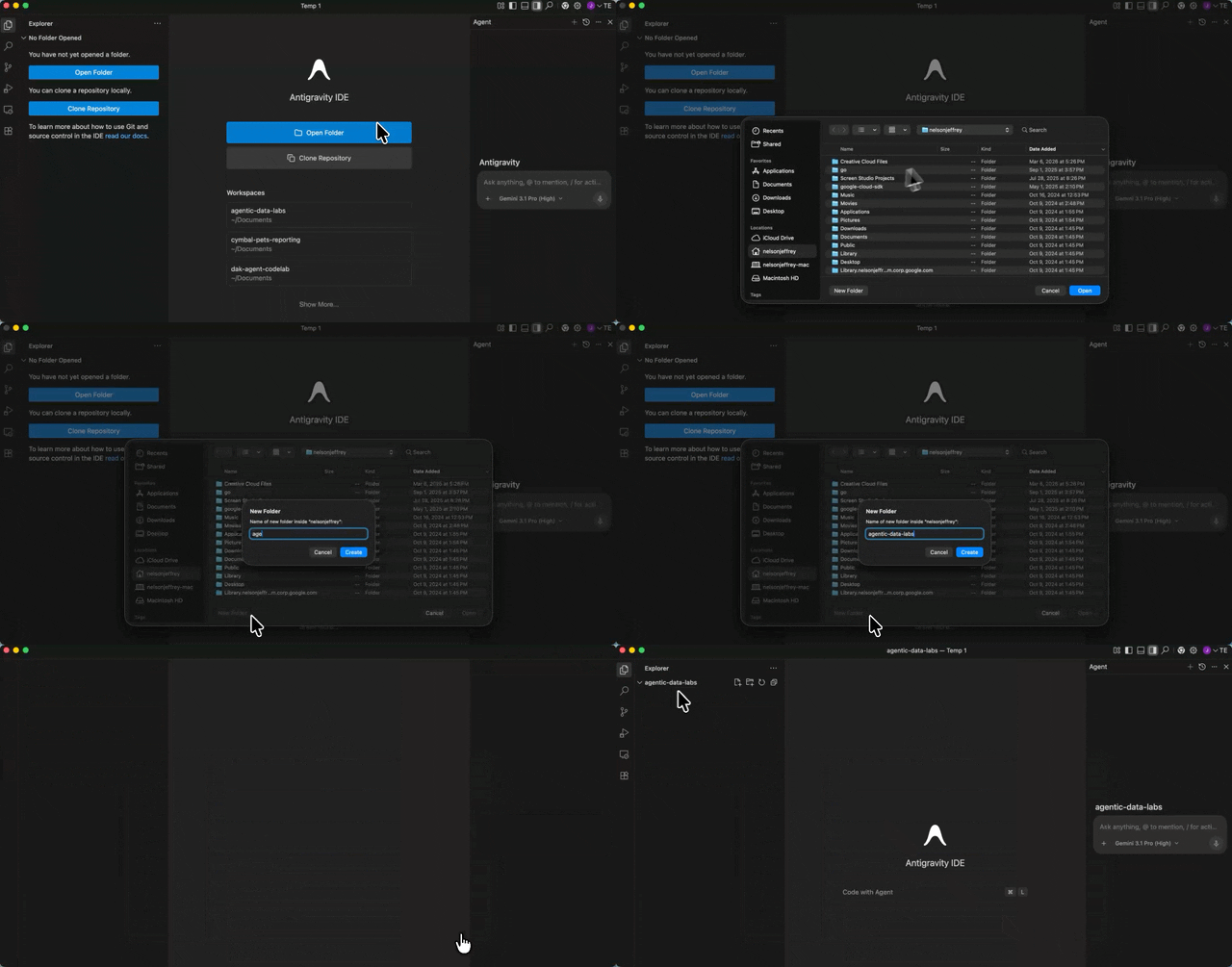
- Create a new, empty folder on your local machine (e.g. named
agentic-data-labs), and open it in the IDE by choosing Open Folder. This will act as your local workspace for the codelab.
Install the Data Agent Kit extension
The Google Cloud Data Agent Kit extension adds a data catalog browser, agent skills, and MCP servers for BigQuery, Cloud SQL, and Cloud Storage, so you can query and inspect those services from the editor.
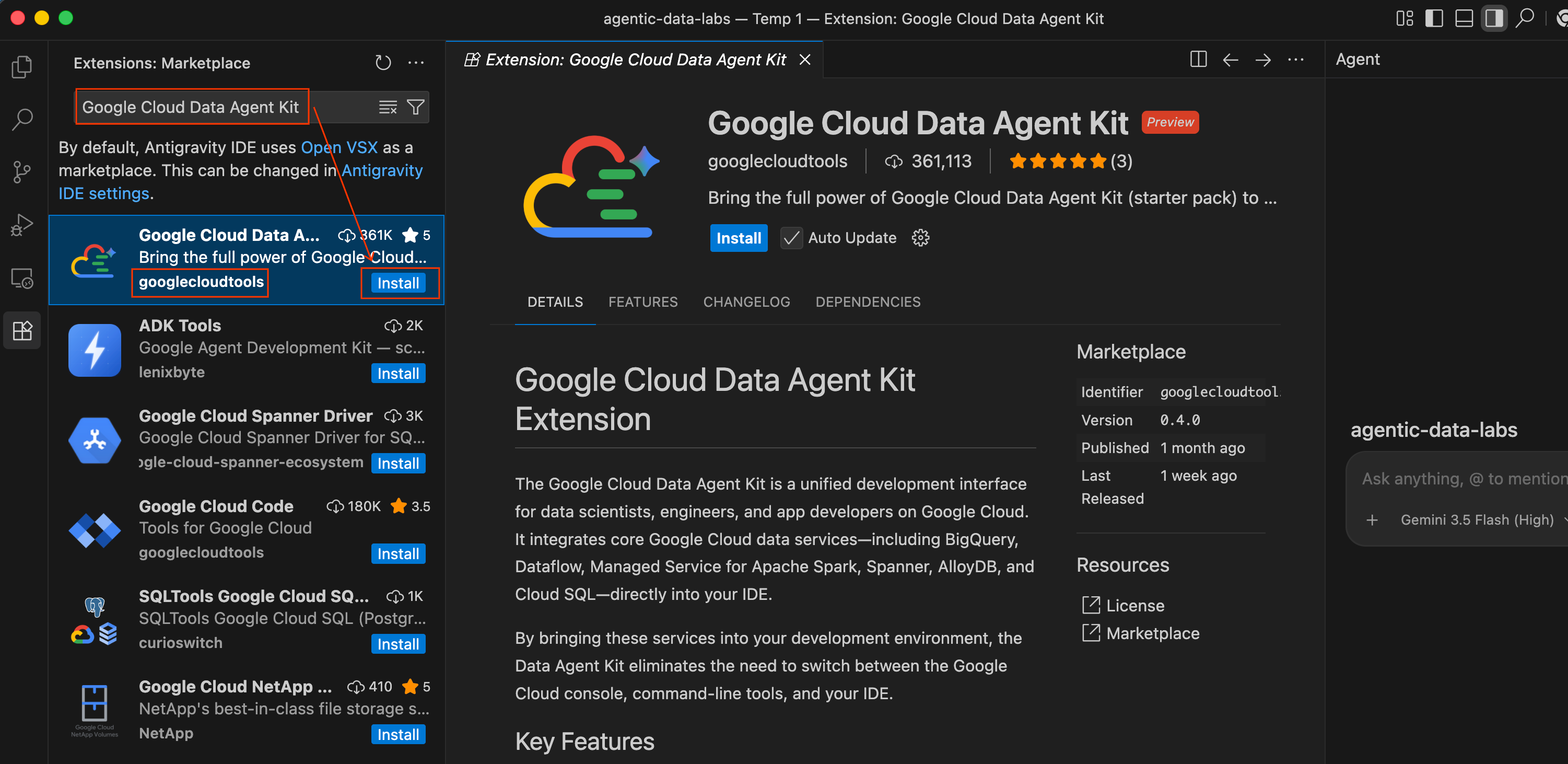
- In the Antigravity IDE, click the Extensions icon in the Activity Bar on the far left side of the screen (it looks like four squares).
- In the search bar at the top of the Extensions pane, type
Google Cloud Data Agent Kit. - Locate the first result named Google Cloud Data Agent Kit (published by
googlecloudtools). - Click the Install button.
- A prompt may appear asking, "Do you trust publisher ‘googlecloudtools' and their extensions?" Click Trust Publishers & Install to proceed.
Once installed, you'll see a new Google Cloud Data Agent Kit icon appear in the Activity Bar on the far left of the Antigravity IDE.
Authenticate and configure the extension
After installation, connect the extension to your Google Cloud project.
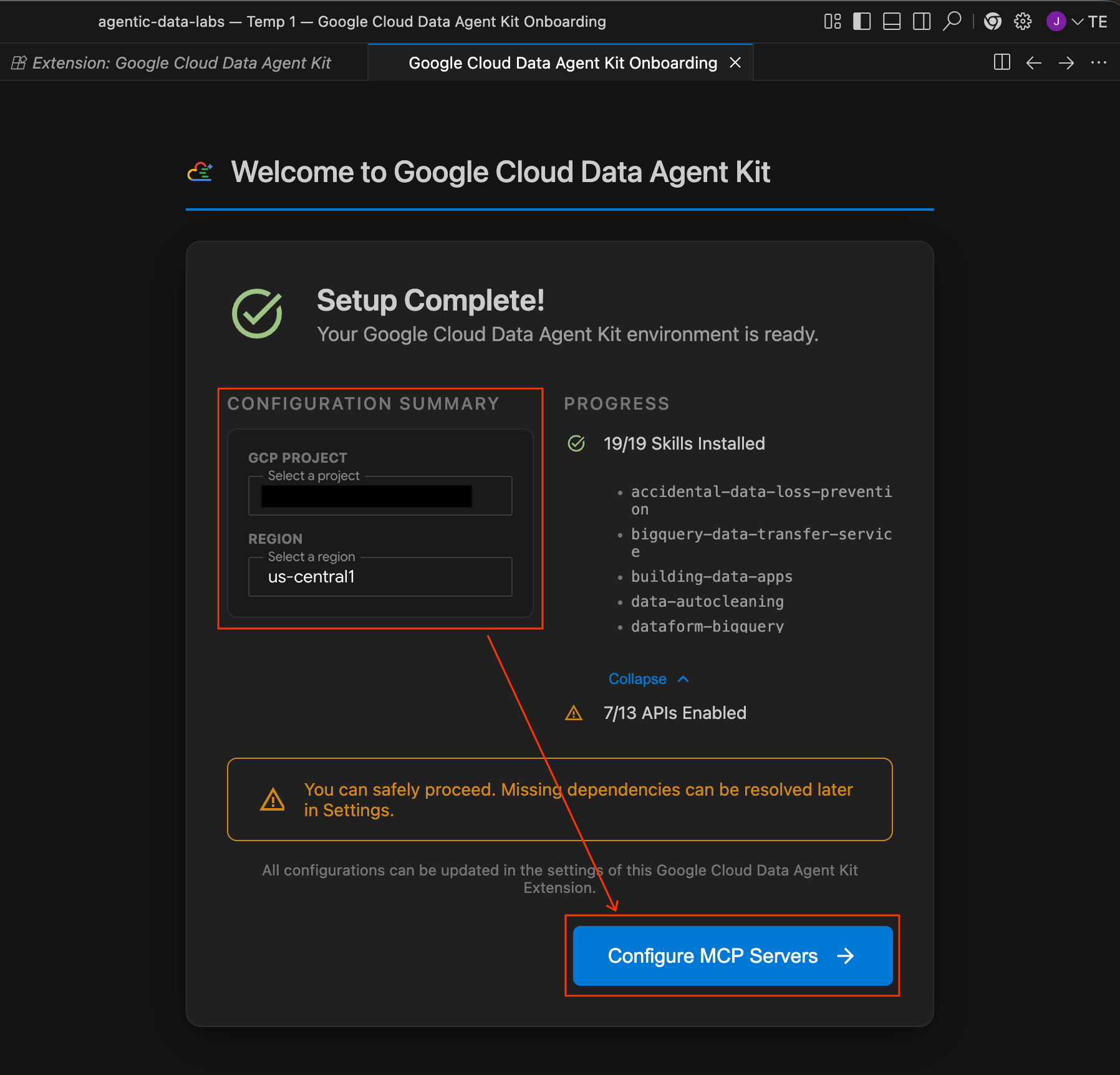
- An onboarding page titled "Welcome to Google Cloud Data Agent Kit" should automatically open. If you aren't signed into your Cloud account, follow any prompts to allow access.
- In the Configuration Summary section, locate the project field. Click the dropdown and select your Google Cloud project. Set your region as
us-central1. Then select Configure MCP Servers.
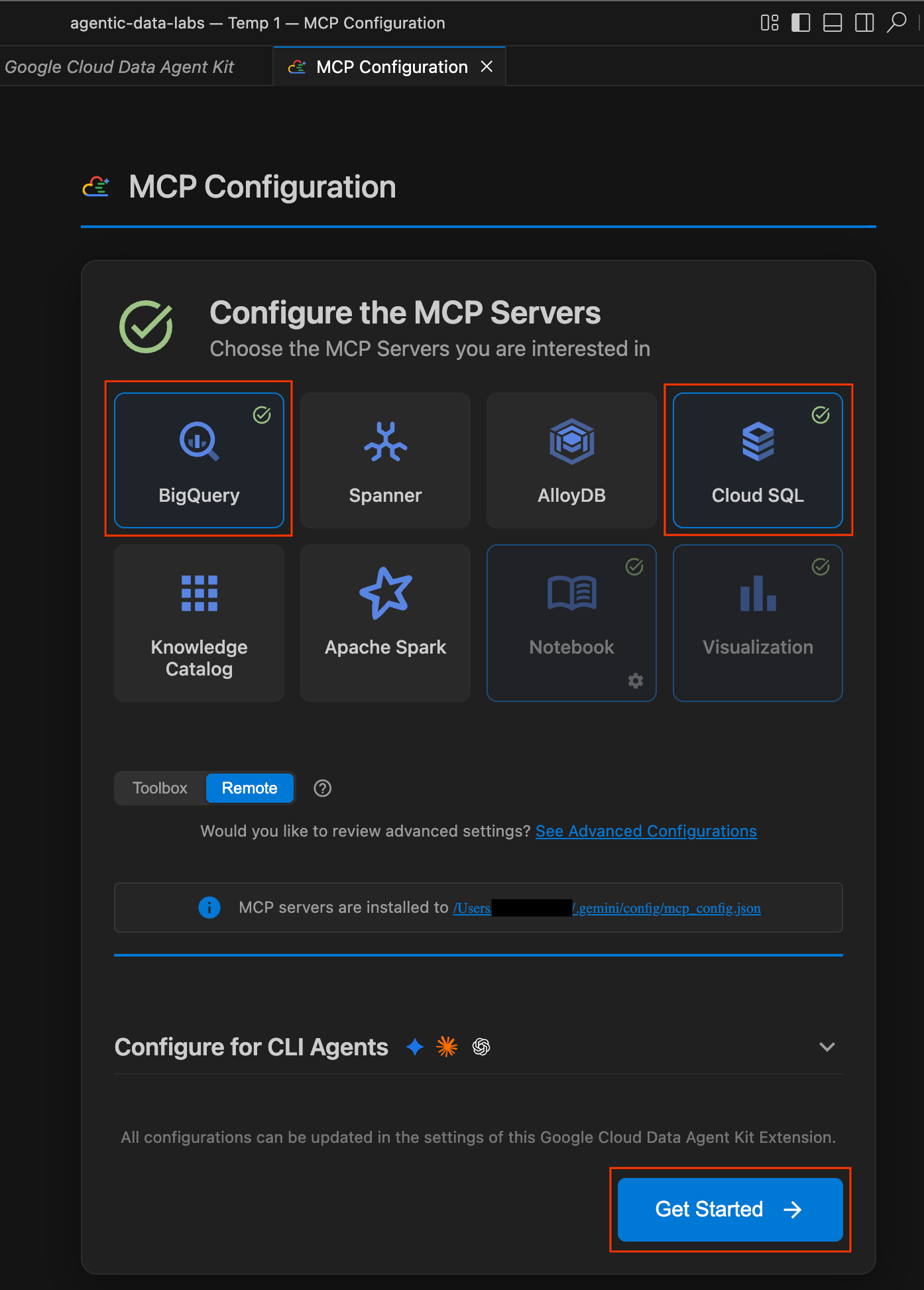
- Under the MCP Configuration pane, click to enable BigQuery and Cloud SQL. Then click Get Started.
Explore configuration options
Once setup is complete, you'll land on the "Get started with Google Cloud Data Agent Kit" page.
- Under "Setup & Configuration," click Get Started.
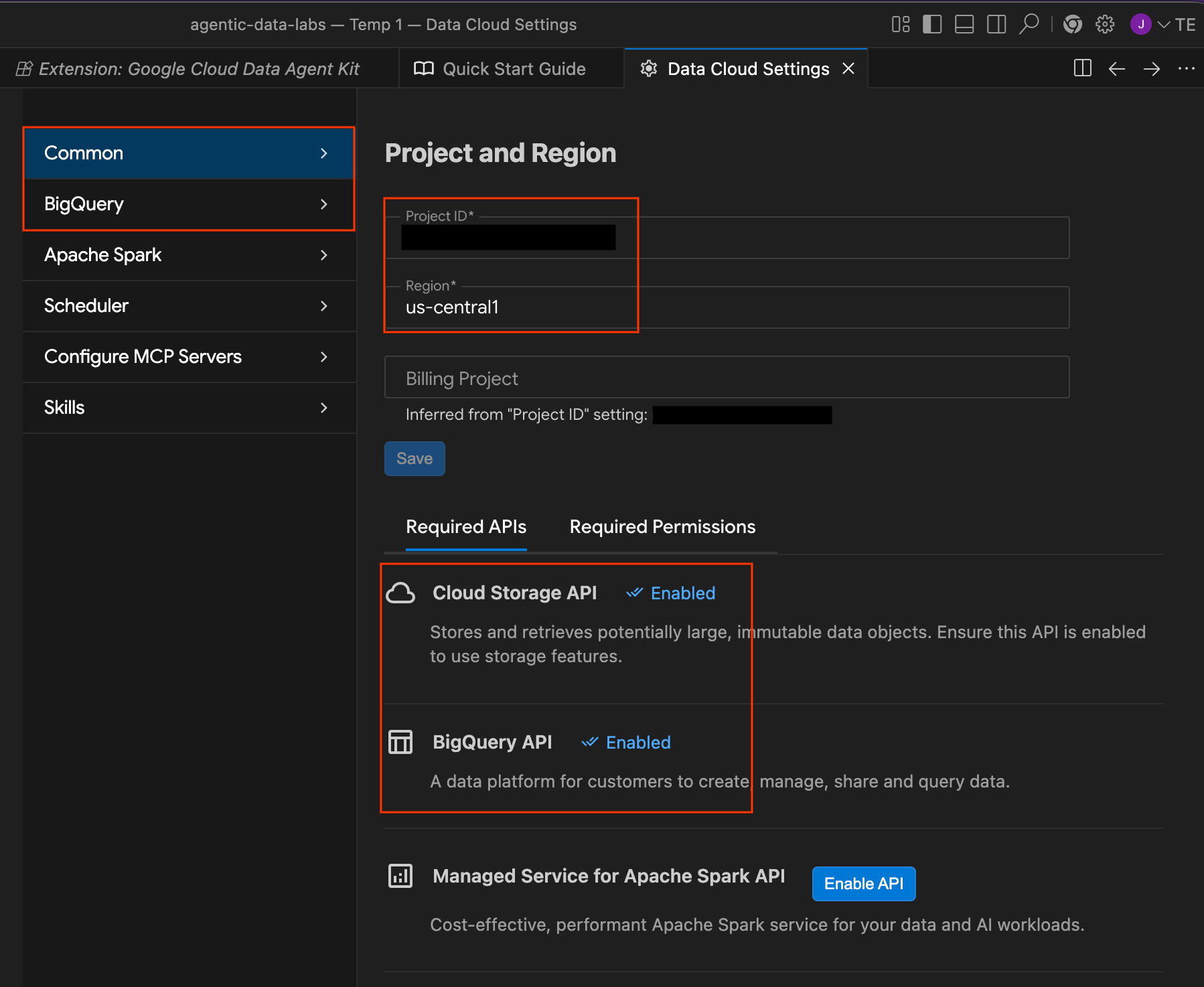
- This opens the Data Agent Kit Configuration panel. Explore the tabs:
- Project and Region: Verify your selected Project ID and check that the required APIs (Cloud Storage API, BigQuery API, Catalog API, and Cloud SQL Admin API) are enabled.
- BigQuery: Configure the default location for your BigQuery queries. Use the region
us-central1. - Configure MCP Servers: View the enabled MCP servers (BigQuery, Notebooks, Cloud SQL, etc.) that allow AI agents to securely interact with your data.
- Skills: Explore pre-built skills that provide agents with specialized capabilities for complex data tasks.
Section Recap: You opened the Antigravity IDE, connected it to your Google Cloud project, and configured the Data Agent Kit remote MCP servers.
4. Discover your data
Time to set the scene. Here's the situation: the CFO says average order value dropped 7% last month, but total revenue is flat. Before you start asking the agent to investigate, you should first understand what data you're working with.
In this section, you'll manually explore the Data Agent Kit panel to get a lay of the land. Understanding your data before you start querying it is a critical first step in any investigation.
Explore BigQuery tables
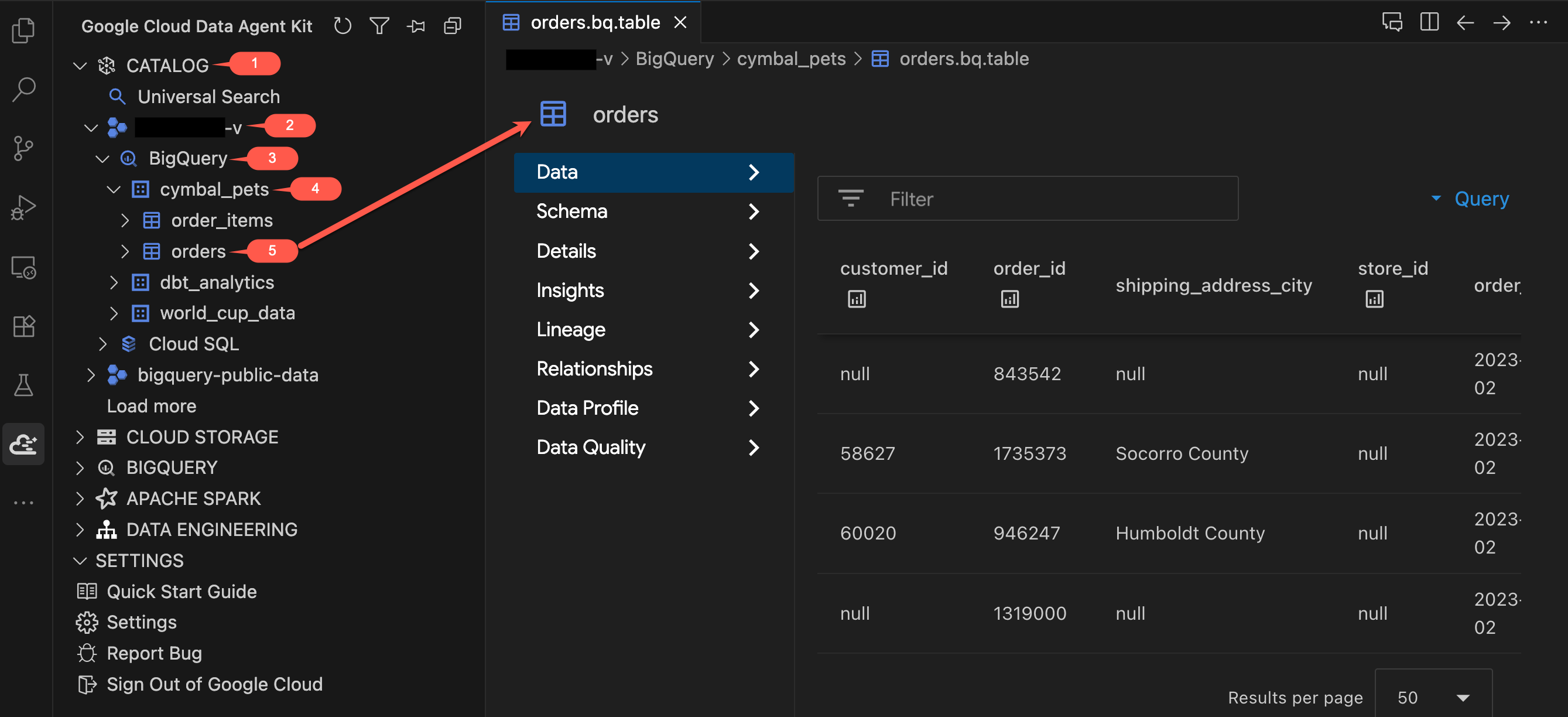
- In the Data Agent Kit panel, under CATALOG, expand your project → BigQuery →
cymbal_pets. - Click on the
orderstable. A new tab opens showing the table's details. - Explore the tabs along the left side of the table viewer:
- Data: Preview actual rows. Scroll through the dataset and examine the columns.
- Schema: Review the column names and types. Notice fields like
order_typeandpromo_codewhich will become important later. - Other tabs (Details, Insights, Data Profile, etc.): Access metadata, data lineage, and quality details that you would normally find in the Google Cloud console, all without leaving your editor.
- Now click on the
order_itemstable and review its schema. Notice thequantityandpricefields.
Explore Cloud SQL tables
The setup script also placed customer, pet, and product data in a PostgreSQL database in Cloud SQL.
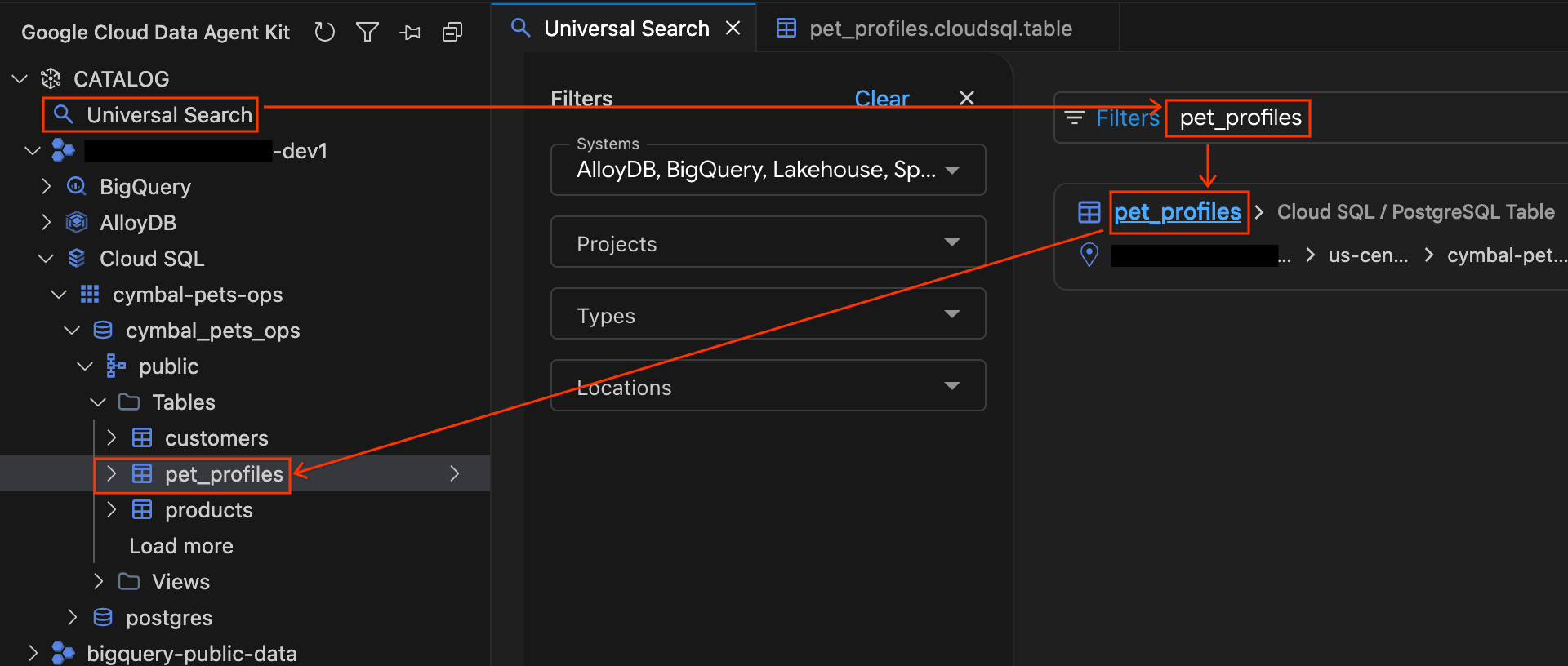
- In the Data Agent Kit panel, click on Universal Search under the CATALOG section.
- In the search box, type
pet_profilesand press Enter. - In the search results, click on the PostgreSQL Table result for
pet_profiles(under your project's Cloud SQL instance). Notice that the sidebar accordion automatically expands, showing you exactly where the table lives in the database tree. Now click on thecustomerstable located right above it in the tree to open its details, and explore the Schema and Details tabs.
Explore Cloud Storage files
Finally, marketing and promotional campaign records are stored as raw JSON files in Cloud Storage.
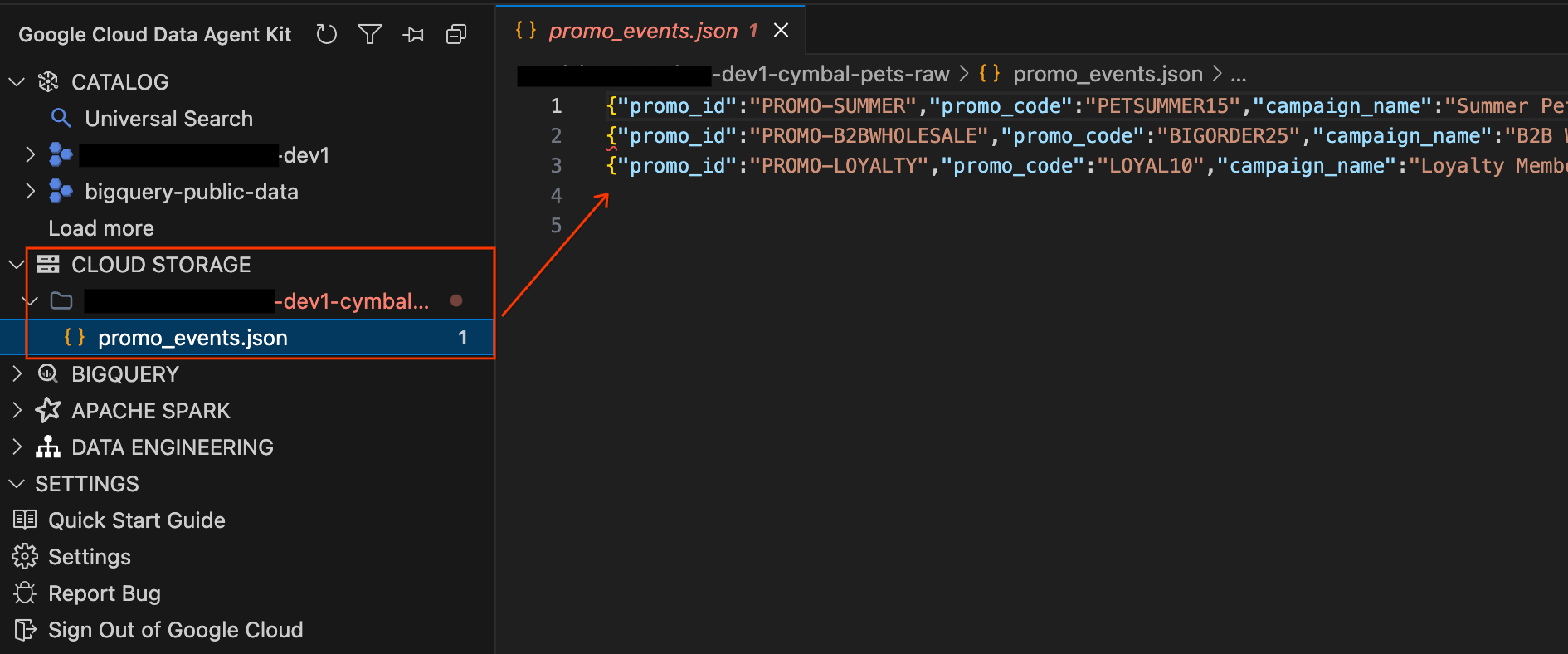
- In the Data Agent Kit panel on the left, expand the CLOUD STORAGE section. Locate your project's raw bucket (
YOUR_PROJECT_ID-cymbal-pets-raw). - Click the
promo_events.jsonfile inside the bucket. A new editor tab opens, allowing you to view the raw JSON content of the marketing campaigns directly inside the IDE.
Take stock
Here's what you now know about the data:
Service | Tables | What's there |
BigQuery |
| ~1.9M orders, ~4.3M line items, date range 2023-2025 |
Cloud SQL |
| ~92K customers, ~7.6K pet profiles, 206 products |
Cloud Storage |
| Promotional campaign records |
The data is spread across three services. In a traditional workflow, you'd need to set up connections, write integration code, and manually join results. In the next step, you'll let the AI agent handle all of that through a single conversation.
Section Recap: You used the Data Agent Kit panel to manually explore the data architecture across BigQuery, Cloud SQL, and Cloud Storage. You now know where the data lives and what fields are available, so you're ready to start the investigation.
5. Follow the numbers
Now the investigation begins. You'll use the Chat pane to ask the AI agent to pull Average Order Value (AOV) data from BigQuery. AOV is a business metric representing the average dollar amount spent per order. The agent will query on your behalf using MCP Tools, and you'll be able to see every SQL query it runs.
Pull the average order value trend
- In the Chat pane on the right side of the IDE, type the following prompt and press Enter:
Calculate our monthly average order value from August 2024 through January 2025 using the orders and order_items tables in BigQuery. - Approve data access permissions. It's healthy to be cautious about AI agents running queries on your databases. The Data Agent Kit keeps you in control by pausing to ask for explicit permission before accessing data. When prompted, you can choose:
- Allow this time: Approves a single use (ideal for auditing high-risk queries).
- Always allow: Approves ongoing use of this specific tool for the session.
- No: Blocks the action completely.
For the smoothest lab experience, select Yes, and always allow. Note: Permissions are granted on a per-tool basis. You will likely see a few more prompts shortly as the agent uses new tools (like list_table_ids or execute_sql_readonly). Feel free to "always allow" these as well.
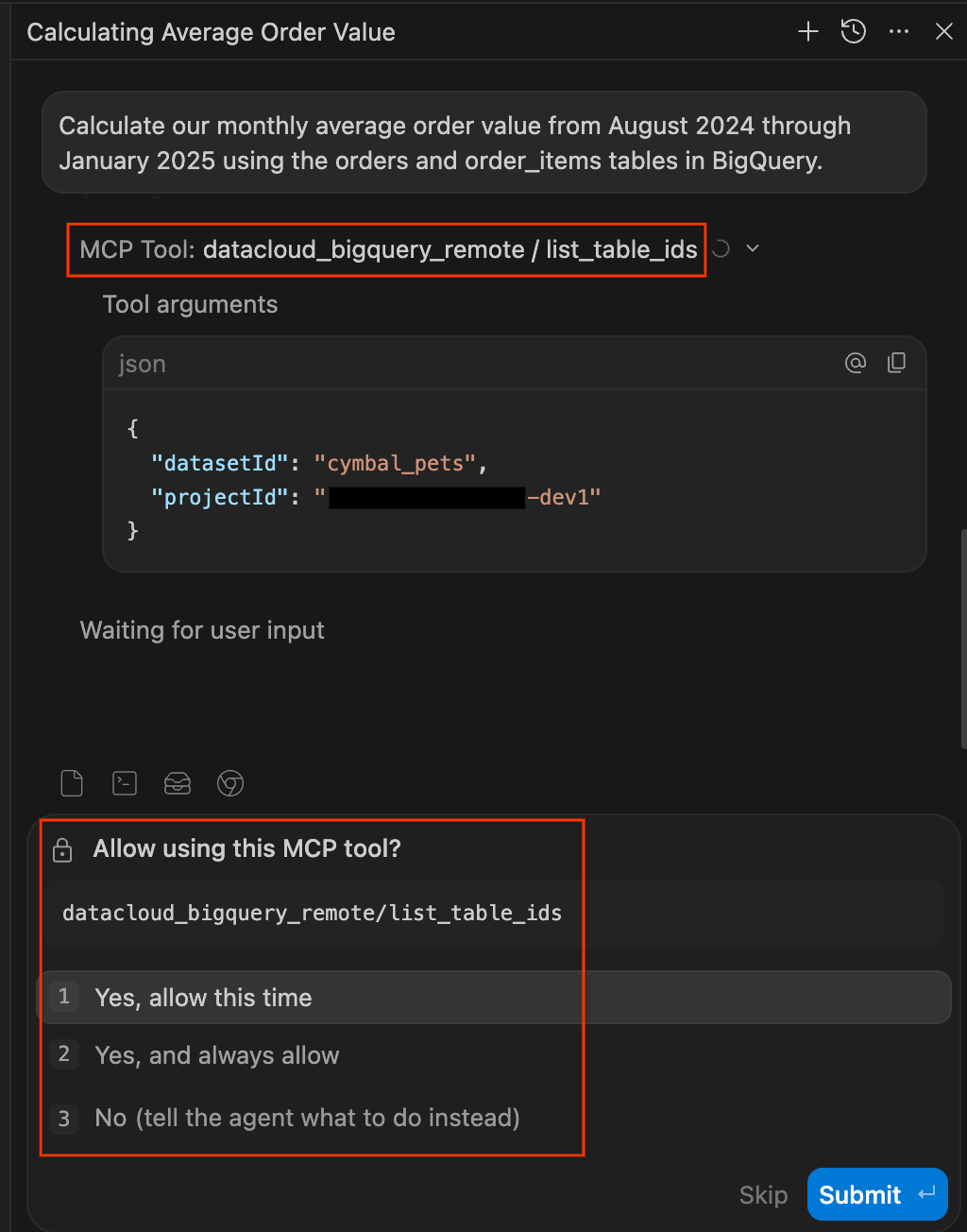
- Watch the agent work. The Chat pane doubles as a transparency log for everything the agent does. Instead of a black box, the agent shows you its reasoning and actions in real time.
- Once the agent finishes, click the Worked for Xm dropdown below your prompt to expand the full work log. Here you can inspect exactly how it got your answer:
- Explored: Expand these items to see the agent reading files, browsing folders, or calling MCP tools (like
datacloud_bigquery_remote / list_table_idsandexecute_sql_readonly). You can view the exact JSON arguments passed to the tools and the SQL executed. - Ran: Expand these items to see any terminal commands the agent executed, such as
gcloud config list.
- Explored: Expand these items to see the agent reading files, browsing folders, or calling MCP tools (like
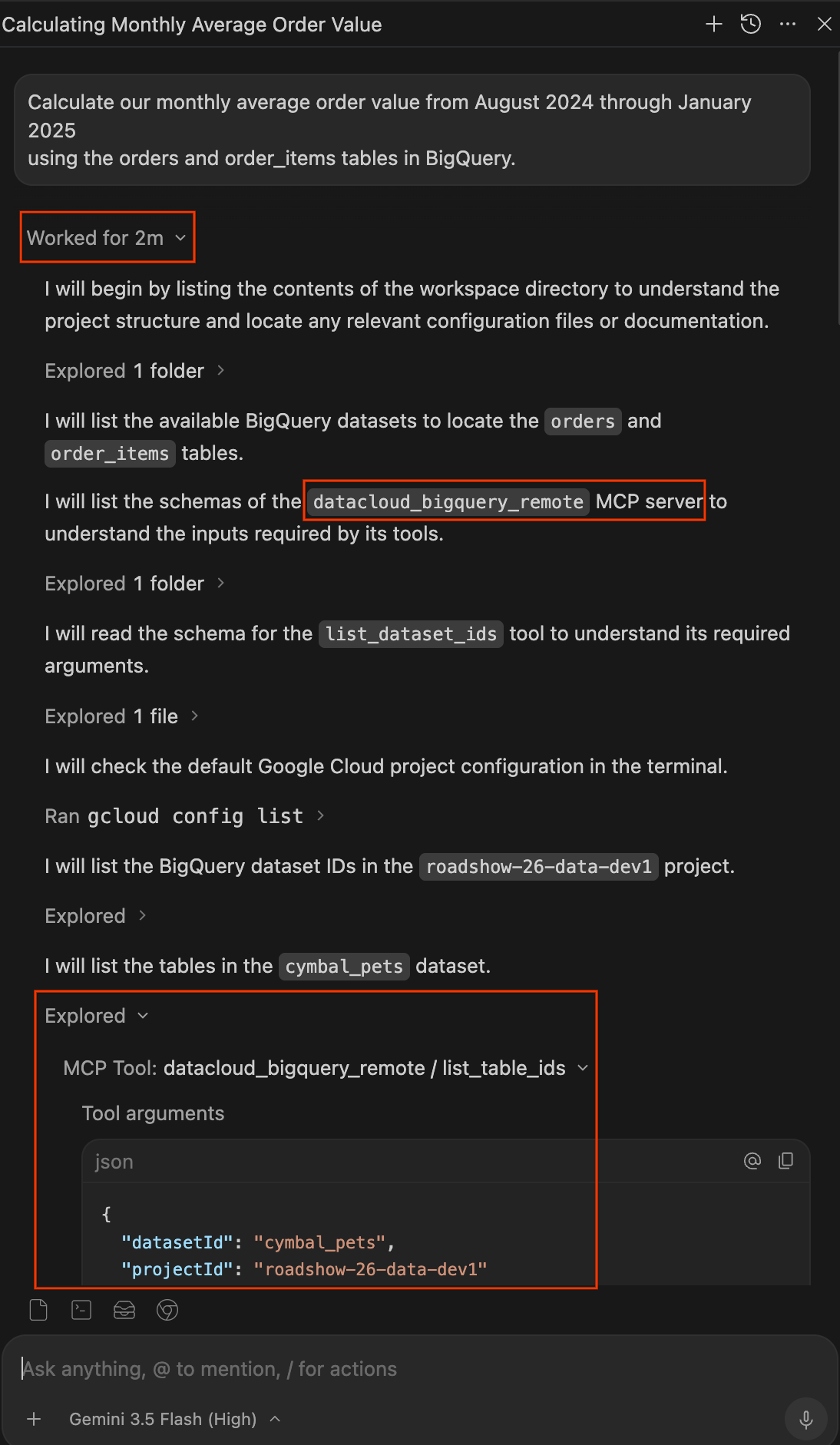
- Review the results. The agent should return a table of monthly AOV values. Look at the numbers yourself: prior months hover around ~$110, then January dips to around ~$103. That's the anomaly the CFO flagged.
Drill down by channel
The overall AOV dropped, but where is the drop coming from? Let's find out.
- In the Chat pane, type:
January looks lower than the prior months. Break down January's AOV by order_type to see what's going on? - The agent runs another BigQuery query, this time grouping by
order_type. Review the results carefully. You should see something striking: Online and Offline AOV remain stable at ~$110. But there's a new channel, B2B-Wholesale, with a much lower AOV (around ~$75). This new channel is dragging down the blended average. - The agent may proactively suggest investigating the B2B customers. If it doesn't, that's fine. You'll do that in the next step.
Section Recap: You spotted the January AOV dip yourself from a neutral data pull, then drilled in by order_type to identify B2B-Wholesale as the new channel pulling down the blended average. Now you need to find out who these B2B customers are.
6. Cross the service boundary
You've identified B2B-Wholesale as the anomalous channel in BigQuery, but the customer data lives in Cloud SQL. With the Data Agent Kit, you can keep the same conversation going and it handles the service boundary.
Investigate the B2B customers
- In the Chat pane, type:
Who are these B2B customers? Their profiles should be in our Cloud SQL database. Check for: - Who they are - When they signed up - Whether they're new or existing customers - Watch the Chat pane carefully. You should see a different MCP Tool appear this time. The agent is now querying Cloud SQL instead of BigQuery. The agent connects to the
cymbal-pets-opsCloud SQL Postgres instance and runs a query against thecustomerstable. Click Show Details to see the SQL. - Review the results. The agent should surface several key findings:
- All B2B customers have
customer_type = 'Business' - They all signed up within the last 30 days (January 2025)
- Their
last_namevalues are business names like "Pet Supply Co," "Animal Care LLC," and "Happy Paws Inc" - There are about 100 of them, a cohort that didn't exist before this month
- All B2B customers have
Connect the promo code
- The agent may notice on its own that many B2B orders in BigQuery carry a
promo_codevalue ofBIGORDER25. If it volunteers this observation, great. The investigation is naturally progressing.If the agent doesn't mention the promo code, nudge it:I noticed a promo_code field on the orders table in BigQuery. Check what promo codes appear on the B2B-Wholesale orders? - The agent queries BigQuery again and finds that approximately 92% of B2B-Wholesale orders have
promo_code = 'BIGORDER25'. Nearly all B2B activity is tied to a single promotional campaign.The agent may next look for promotional data elsewhere in the environment. (It's in Cloud Storage.)
Section Recap: The agent queried Cloud SQL to reveal that B2B customers are all new businesses that signed up in January 2025. Combined with the BigQuery finding that ~92% of their orders carry promo_code = 'BIGORDER25', the trail now points toward a promotional campaign. Time to find the source.
7. Find the missing piece
Two services down, one to go. You know what happened (B2B orders are dragging down AOV) and who is doing it (new Business customers from the last 30 days). Now you need to find why, and the answer is in Cloud Storage.
Check the GCS bucket
- In the Chat pane, type:
Good catch on the promo code. We might have promotional campaign data in our GCS bucket. Can you check what's there? - The agent doesn't have a pre-configured MCP tool for Cloud Storage, so it automatically pivots to using its terminal tool to run
gcloud storagecommands. It will ask for permission to run commands likegcloud storage ls. Allow these commands, then expand the Ran log in the Chat pane to see the exact CLI commands it used to read and parse thepromo_events.jsonfile. - The agent should identify three promotional campaigns in the file:
That's the cause. TheCampaign
Promo code
Discount
Target
Dates
Summer Pet Care Sale
PETSUMMER1515% off
All
Jun 2024
B2B Wholesale Push
BIGORDER2525% off
B2B
Jan 2025
Loyalty Member Holiday Bonus
LOYAL1010% off
Loyalty Members
Dec 2024
BIGORDER25promo code maps to a campaign called B2B Wholesale Push: 25% off for B2B customers with a minimum order quantity of 50 units.
Put it all together
- Ask the agent to synthesize everything it's found:
Put it all together. What happened to our average order value? - The agent delivers a clear, structured synthesis connecting all three data sources. It should explain something like:
- The AOV drop is real, but it's not a decline in existing business. Online and Offline AOV remain stable at ~$110.
- A new B2B-Wholesale channel appeared in January 2025, with ~25,000 orders at a much lower AOV (~$75-100).
- The B2B customers are 100 new business accounts that all signed up within the last 30 days (Cloud SQL).
- The activity is driven by a promotional campaign ("B2B Wholesale Push") offering 25% off bulk orders with a 50-unit minimum (Cloud Storage).
- Revenue is flat because the high volume of B2B orders offsets the lower prices. However, unit margins are heavily compressed (eroded by ~65%) under the 25% wholesale discount, severely threatening overall profitability when shipping and operational overhead are factored in.
Section Recap: You found the cause in Cloud Storage: a B2B promotional campaign offering 25% off bulk orders. The agent synthesized findings across all three services into a clear narrative. The investigation phase is complete. Next, you'll operationalize these findings.
8. Build the pipeline
You've cracked the case. Now the CFO wants this analysis to update automatically. In this section, you'll ask the agent to build a dbt project that stages the BigQuery data and produces a fact table for ongoing AOV analysis.
This is where the agent shifts from investigator to engineer. You'll see it scaffold an entire dbt project and run the full pipeline, all from a single prompt.
Scaffold the dbt project
- In the Chat pane, type the following prompt. This is deliberately goal-oriented rather than step-by-step. You're telling the agent what you want, not how to build it:
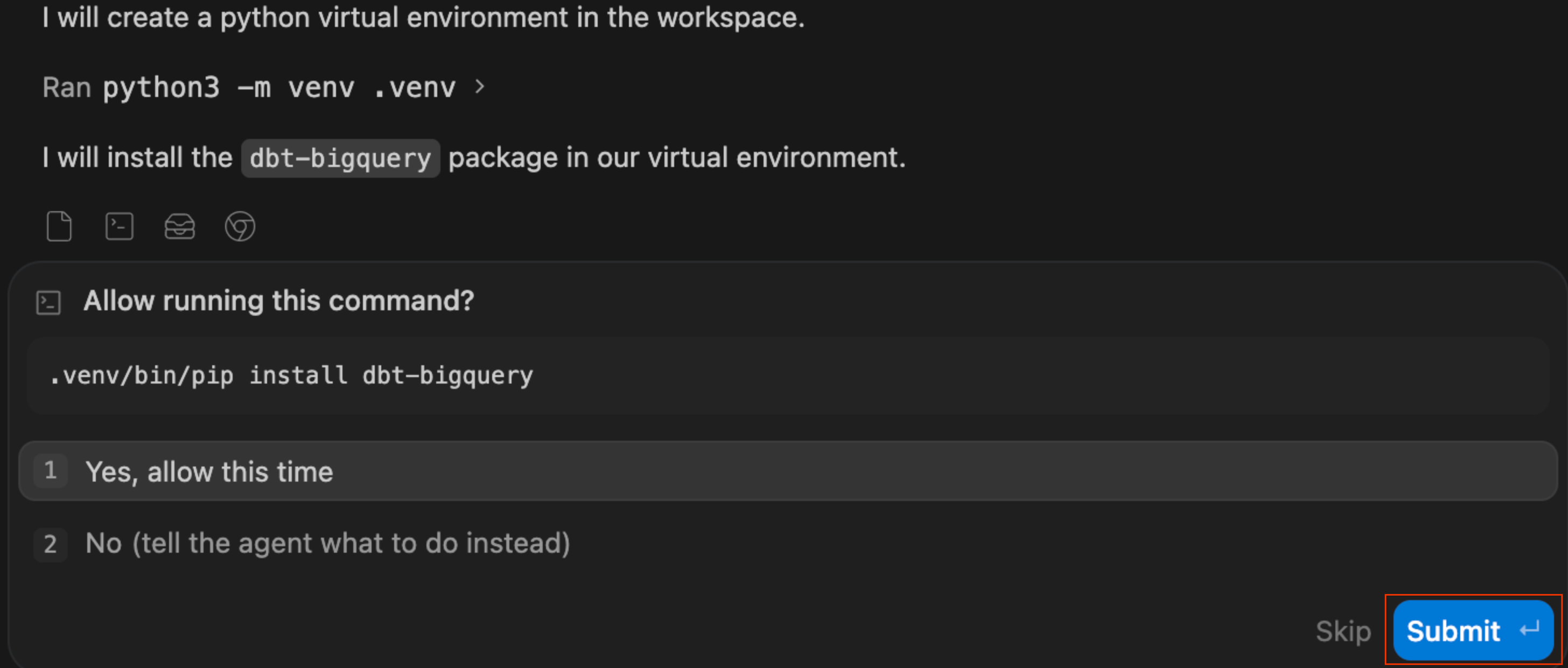
I want to productionize our AOV analysis so it updates automatically. Build a dbt project that: 1. Creates staging models for the BigQuery tables (orders and order_items) and a mart called fct_order_analysis that calculates AOV by channel and month 2. Add a uniqueness test on order_id and run dbt build - Observe Self-Correction: If you expand the "Worked for Ns" log, you may see the agent check for
dbtand, upon finding it missing, automatically run commands to create a Python virtual environment (.venv). It's handling the environment setup for you!
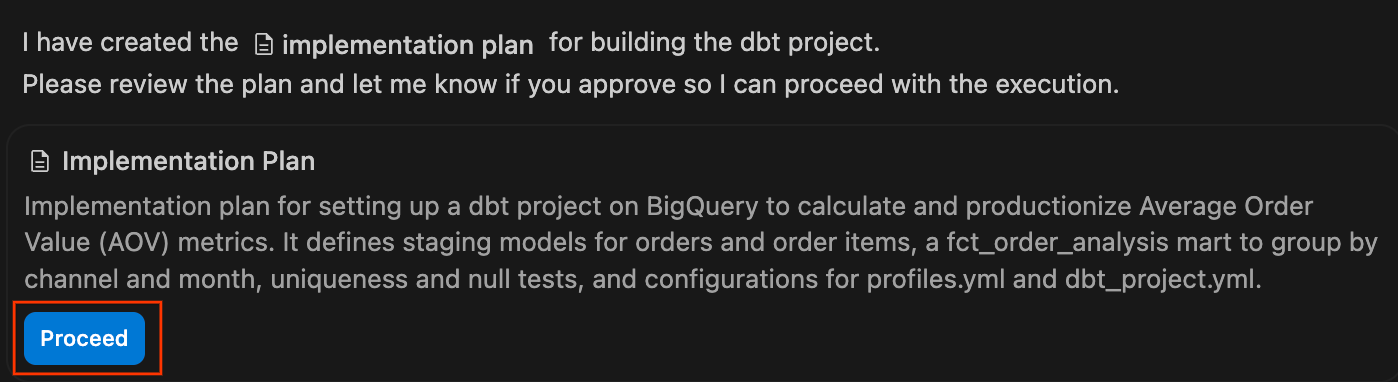
- Review the Implementation Plan: The agent will generate a formal implementation plan. You can review its proposed files and architecture, add comments if needed, and click Proceed to let the agent execute the plan.
- Watch the Chat pane as the agent executes its plan, writing the necessary
.sqlfiles and YAML configurations. When it finishes and successfully compiles the project, it will present a summary of the changes. Click Accept all to add these files to your workspace.
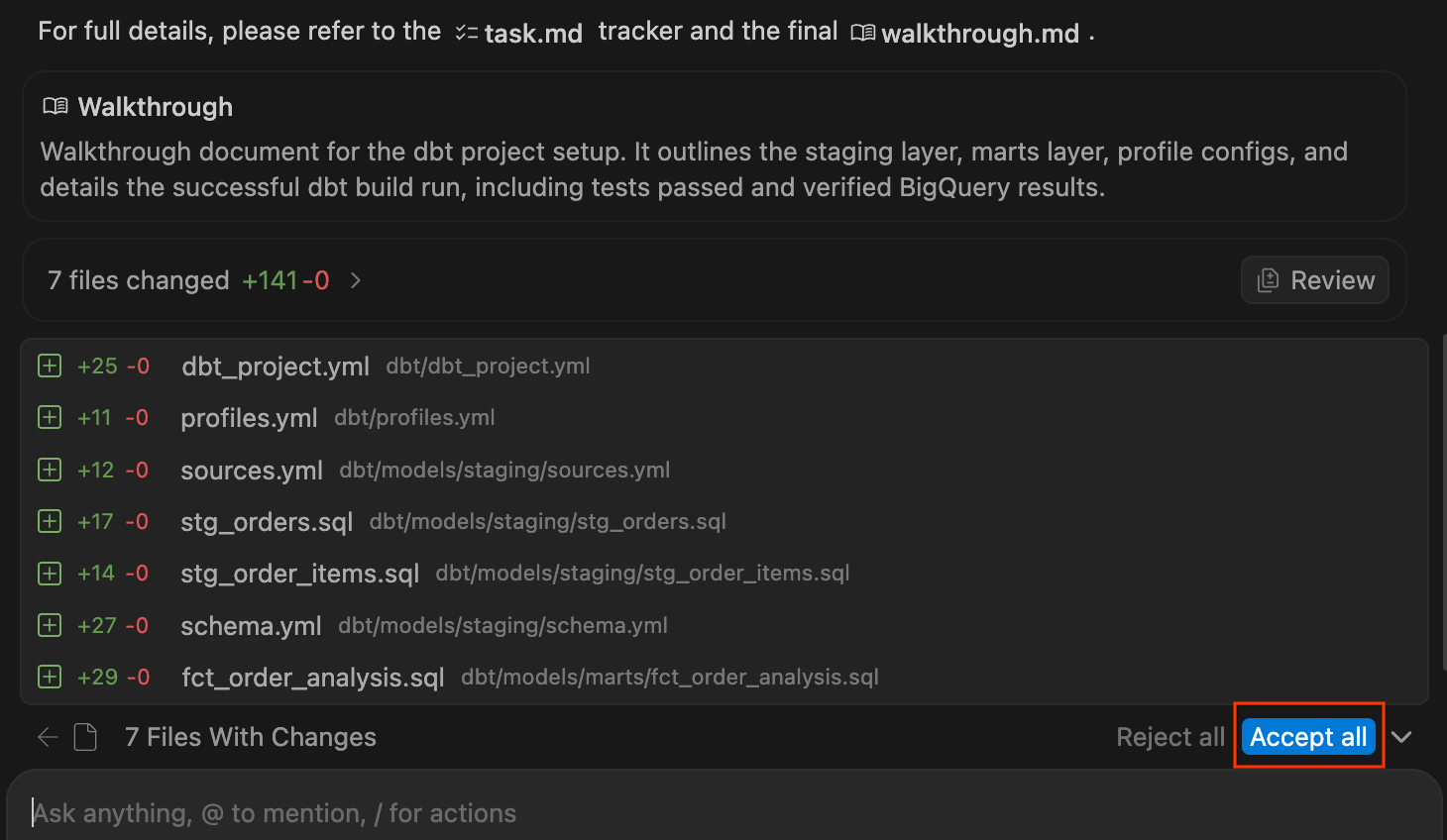
- Explore the newly generated dbt project in the Explorer on the left. You should see a structure similar to:
dbt/
├── models/
│   ├── marts/
│   │   └── fct_order_analysis.sql
│   └── staging/
│       ├── schema.yml
│       ├── sources.yml
│       ├── stg_order_items.sql
│       └── stg_orders.sql
├── dbt_project.yml
└── profiles.yml
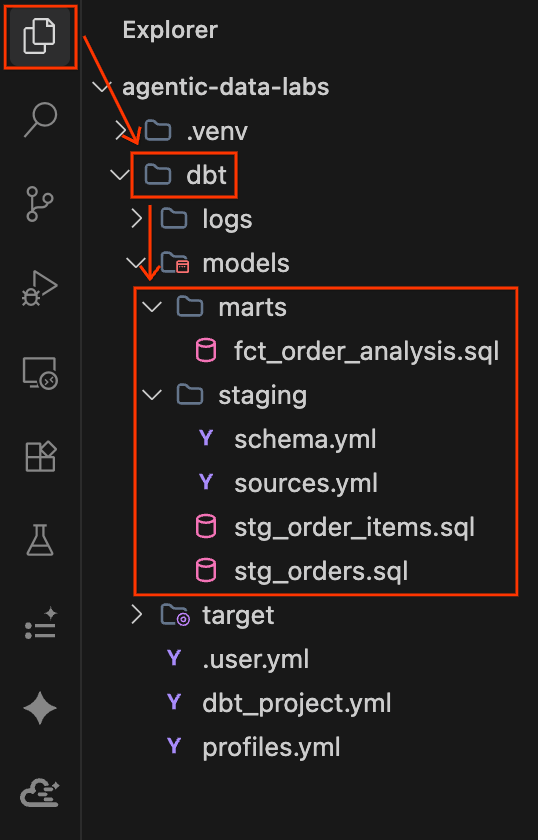
- Click the
.sqlmodel files to review the SQL the agent generated. Pay attention to how it handles:- Staging models: Clean, renamed columns with source references
- The mart model: The join logic and AOV calculation by channel
- Handling guest checkouts: You may notice
COALESCE(customer_type, 'Guest')or relaxed null constraints. This models retail guest purchases made without an account and preserves valid order revenue instead of dropping incomplete records.
- Check the Chat pane (or click into the generated Walkthrough artifact) for the agent's confirmation that all models materialized and all tests passed. The AOV results from the mart should confirm what you found during the investigation:
- Online: ~$110
- Offline: ~$110
- B2B-Wholesale: ~$75 to $77
Section Recap: The agent built a dbt project from a single goal-oriented prompt: scaffolded staging and mart models, ran a successful dbt build, and confirmed the AOV anomaly. Next, you'll throw a curveball to see how the agent handles complexity.
9. When tests fail, the agent debugs
The pipeline works, but it only uses BigQuery data. The product team wants to enrich the analysis with customer and pet profile data from Cloud SQL so they can recommend products based on dietary needs. This means the agent needs to bridge the Cloud SQL boundary and handle a subtle data modeling bug, a classic dimensional modeling "fan-out" join.
Depending on the model you are using and its reasoning capabilities, the agent will handle this request in one of two ways: Proactively avoiding the bug (Option A) or Self-healing after a test failure (Option B). Let's see which path your agent takes!
Trigger the request
- In the Chat pane, type:
Enrich fct_order_analysis with customer data and pet profile data from our Cloud SQL database. Include customer type and each customer's pets and dietary needs so we can recommend products. Keep the uniqueness test on order_id and run dbt build. - Watch the agent work. It will discover the Cloud SQL tables, figure out how to bridge the data into BigQuery (via federated query or materialized copy), create new staging models, and modify
fct_order_analysis.sql.
Option A: The proactive agent (bug avoidance)
If you are using an advanced reasoning model, the agent may detect the grain shift before writing any code. Because a customer can own multiple pets, a direct join duplicates orders and fails the uniqueness test you requested on order_id.
- Observe the Proactive Aggregation: In its Chat pane explanation or Walkthrough artifact, the agent may note that it pre-aggregated the pet data before joining it to prevent a "classic fan-out." It will typically do this by collapsing multiple pets per customer using an aggregation function (e.g.,
ARRAY_AGG()orSTRING_AGG()). - Check the Results: The
dbt buildruns and passes successfully on the first try because the agent proactively guarded the fact table's granularity. You can verify this by checking the generated Walkthrough artifact, which often shows the successful test output alongside the query results.
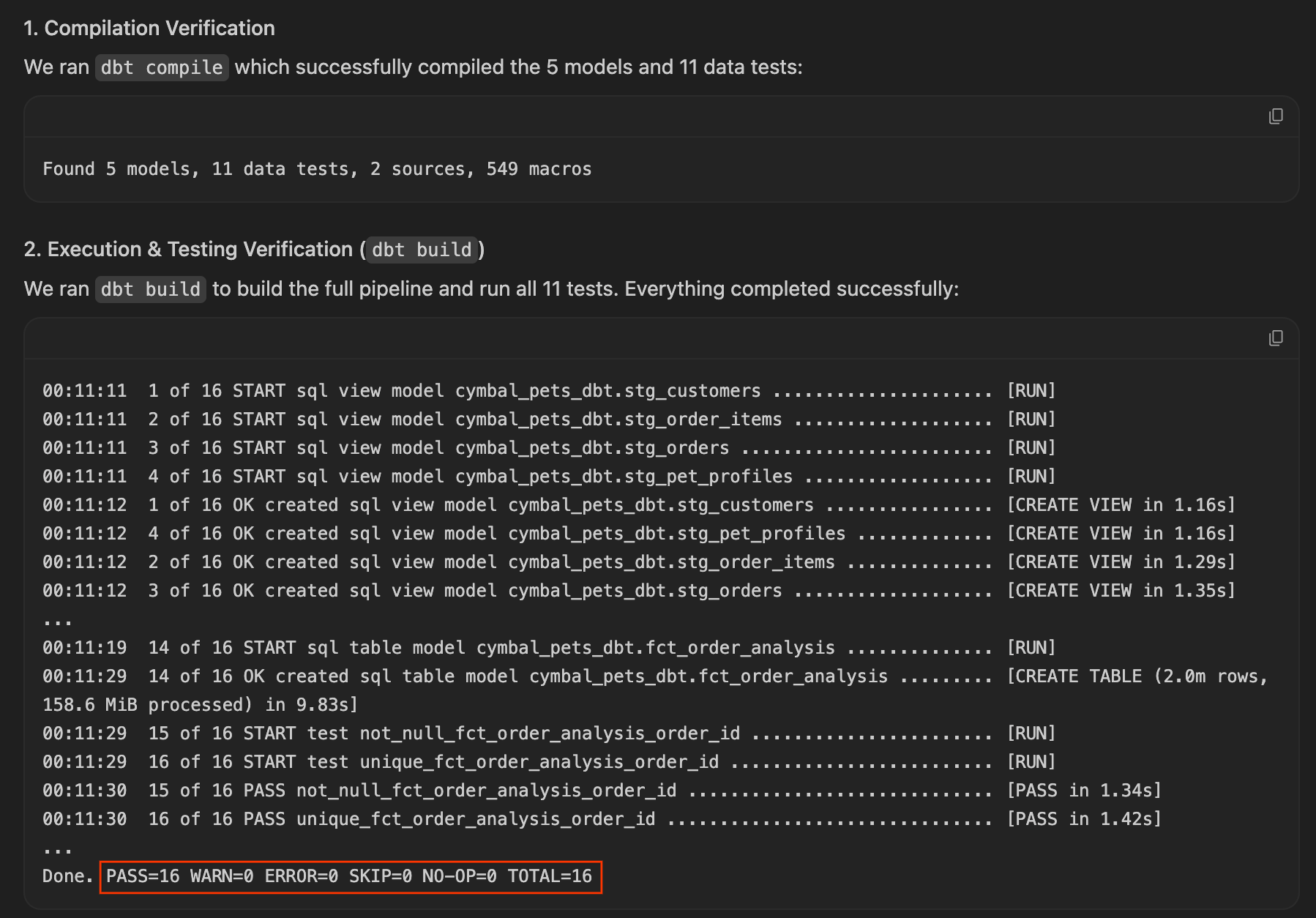
The agent avoided the bug. Review the generated SQL in fct_order_analysis.sql to see how it structured the aggregation, then skip ahead to the next section, Deliver the answer.
Option B: The self-healing agent (debugging & diagnostics)
If the model writes a naive direct left join first, the SQL query itself will run successfully, but the automated dbt test suite will catch the grain shift!
- Observe the test failure: You will see the failure reported in the Chat pane execution progress logs:
Completed with 1 error

Failure in test unique_fct_order_analysis_order_id
Got 287 results, configured to fail if != 0
order_idfound duplicate entries because customers with multiple pets fanned out the orders. - Let the agent diagnose & self-heal: Since the test failed, ask the agent to debug it. In the Chat pane, type:
The uniqueness test failed. Can you figure out why and fix it? - Watch the diagnosis: The agent will query the data, discover the one-to-many relationship in
pet_profiles, explain that joining it directly changes the grain from one-row-per-order to one-row-per-order-per-pet, and rewrite the model to pre-aggregate the pet profiles:-- Pre-aggregating pets per customer to resolve fan-out LEFT JOIN ( SELECT customer_id, COUNT(*) AS num_pets, STRING_AGG(DISTINCT pet_type, ', ') AS pet_types, STRING_AGG(DISTINCT dietary_needs, ', ') AS dietary_needs FROM pet_profiles GROUP BY customer_id ) pet_agg ON c.customer_id = pet_agg.customer_id - Verify the fix: The agent runs
dbt buildagain, and this time all models materialize and all tests pass successfully!
Section Recap: Whether your agent proactively avoided the bug or successfully self-healed after a test failure, you've seen it bridge the Cloud SQL boundary, integrate customer and pet profile data, and keep one row per order in the fact table. The pipeline is complete and tested!
10. Deliver the answer
It's Thursday. You started the week with a worried CFO and scattered data across three cloud services. Now you have the root cause and a production pipeline. Time to deliver the answer, along with a forward-looking recommendation backed by a quantitative forecast.
Write the executive summary
- In the Chat pane, type:
Write an executive summary covering: - Main findings and the quantitative margin impact - Project AOV for the subsequent quarter if the B2B program continues at its current trajectory - A data-driven recommendation - Watch the agent work.
- Review the agent's executive summary. A typical and well-structured response should address:
- Core Finding: January AOV dropped solely due to the new B2B-Wholesale channel. Online & Offline remain stable at ~$110.
- Root Cause: The "B2B Wholesale Push" (25% off bulk orders) attracted 100 new accounts, driving ~25,000 orders.
- Margin Impact: Wholesale orders compressed average unit profit by ~65% (from ~$7.50 to ~$2.60).
- Revenue: Flat overall revenue as high B2B volume offsets the lower prices.
Forecast AOV with AI.FORECAST
- The agent should also generate a forward-looking projection. Look for an MCP Tool call where the agent runs an
AI.FORECASTquery against BigQuery. This uses the built-in TimesFM foundation model to project AOV forward 90 days based on historical trends.The query should project AOV 90 days forward under two scenarios: campaign continuation (structurally depressed AOV) vs. campaign termination (recovery to ~$110).
- Review the agent's strategic recommendations. The recommendations should cover:
- Restructure discounts: Implement margin floors or cap bulk discounts to protect unit-level margins.
- Enforce stricter MOQs: Prevent retail buyers from abusing wholesale pricing.
- Separate reporting: Track retail and B2B divisions independently to avoid masking retail performance.
The full story
What began on Monday as a fire drill over a 7% drop in Average Order Value has a clear resolution for the CFO:
- Retail Health: Core retail channels remain healthy and stable at baseline.
- Wholesale Influx: The AOV drop is entirely due to the new B2B Wholesale channel and the
BIGORDER25campaign. - Margin Impact: The 25% bulk discount heavily eroded unit margins, threatening profitability despite flat revenue.
- Strategic Forecast: An
AI.FORECASTprojection shows that restructuring wholesale tiers will restore the blended AOV.
You deliver a data-backed recommendation to establish wholesale margin floors and separate retail/B2B reporting.
Section Recap: You asked the agent to write an executive summary with margin analysis, generate an AI.FORECAST projection, and deliver a data-driven recommendation. The investigation is complete.
11. Clean up
To avoid incurring ongoing charges to your Google Cloud account, delete the resources created in this codelab by running the teardown script.
- Return to Google Cloud Shell (where you ran the setup script) and run the teardown script:
cd ~/devrel-demos/codelabs/agentic-data-labs/scripts
chmod +x teardown.sh
./teardown.sh
- The script will display all the resources it plans to delete and ask for confirmation before proceeding:
- Cloud SQL instance (
cymbal-pets-ops): All tables - BigQuery datasets (
cymbal_pets,dbt_marts): All tables and models - Cloud Storage bucket (
gs://YOUR_PROJECT_ID-cymbal-pets-raw) - BigQuery connection (
cymbal-pets-cloudsql)
- Cloud SQL instance (
- Type
yto confirm. The teardown takes about 2-3 minutes.
[INFO]  Deleting BigQuery dataset cymbal_pets...
[ OK ]  BigQuery dataset cymbal_pets deleted.
[INFO]  Deleting BigQuery dataset dbt_marts...
[ OK ]  BigQuery dataset dbt_marts deleted.
[INFO]  Deleting GCS bucket gs://YOUR_PROJECT_ID-cymbal-pets-raw...
[ OK ]  GCS bucket deleted.
[INFO]  Deleting BigQuery connection cymbal-pets-cloudsql...
[ OK ]  BQ connection deleted.
[INFO]  Deleting Cloud SQL instance cymbal-pets-ops...
[ OK ]  Cloud SQL instance deleted.
12. Congratulations!
You've successfully completed The Cymbal Pets Investigation! You went from a vague CFO question to a fully operationalized, forecast-backed recommendation, using an AI agent that works across your entire Google Cloud data estate.
What you accomplished
- 🔍 Explored across services: Discovered and previewed assets in BigQuery, Cloud SQL, and Cloud Storage using the Data Agent Kit's Knowledge Catalog.
- 🕵️♂️ Investigated with AI: Queried multiple services in a single chat pane conversation using MCP Tools to trace the AOV anomaly to a bulk B2B promotional campaign.
- 🔧 Built a production pipeline: Scaffolded a complete dbt project to clean, join, and test order and customer data.
- 🐛 Debugged a fan-out bug: Observed the agent automatically diagnose a granularity issue and refactor the dbt SQL model to pre-aggregate customer pet profiles.
- 📈 Forecasted and recommended: Used BigQuery's built-in
AI.FORECASTto model AOV trends and delivered a data-driven recommendation to the CFO.
Key concepts
Concept | What you learned |
Secure, auditable connections that let the AI agent query services like BigQuery, Cloud SQL, Spanner, and other databases on your behalf, with every call visible in the Chat pane | |
Agent Skills | Pre-built instruction sets (like |
Cross-service investigation | The agent queries multiple Google Cloud services in a single conversation, with no connection setup and no context-switching between consoles |
Goal-oriented prompting | Telling the agent what you want ("build a dbt project that calculates AOV by channel") rather than how, and letting it choose the implementation approach |
The extension that binds everything together, from MCP Tools and Agent Skills to data discovery, giving you access to your entire Google Cloud data estate from within your IDE of choice |
Next steps
- Read the Data Agent Kit documentation to learn more about its capabilities
- Learn about BigQuery ML and AI functions including
AI.FORECAST,AI.GENERATE, andAI.EMBED - Try building your own cross-service investigation with the Antigravity IDE on your own data