
1. Overview
Where does building with AI start today? For most of us, it starts with a simple question: Can I quickly prototype a solution to the problem I've been thinking about? That's where Google AI Studio comes in. It's a platform for rapid prototyping. In this codelab, you'll build a simple web application using vibe coding and deploy it to Cloud Run.
Prerequisites
- A basic understanding of web applications.
What you'll learn
In this codelab, you learn how to:
- Build a simple web application in Google AI Studio using vibe coding.
- Test that the application works as expected.
- Deploy the application to Cloud Run.
Requirements
2. Before you begin
- If you don't already have a Google Account, you must create a Google Account.
- Use a personal account instead of a work or school account. Work and school accounts may have restrictions that prevent you from enabling the APIs needed for this lab.
- Navigate to Google AI Studio, and review the terms of service.
- Note that if you are on the Google Cloud Starter Tier, you can deploy up to two full-stack applications in a single Cloud Run region without setting up a full Google Cloud environment or billing account.
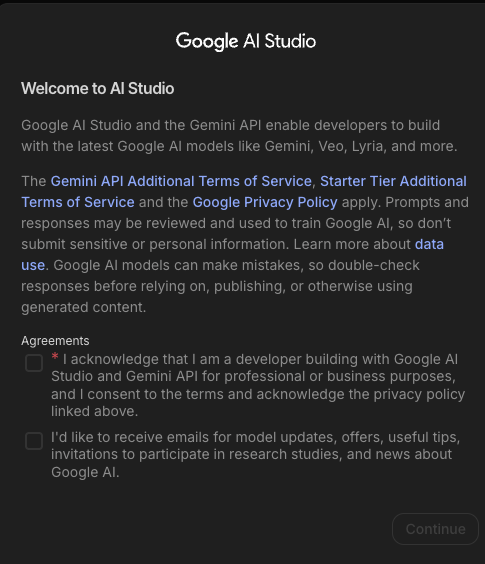
3. Prototype
On Google AI Studio, take a moment to review the Settings panel in the top-right corner. Here, you can select your model and default framework, and provide system instructions:
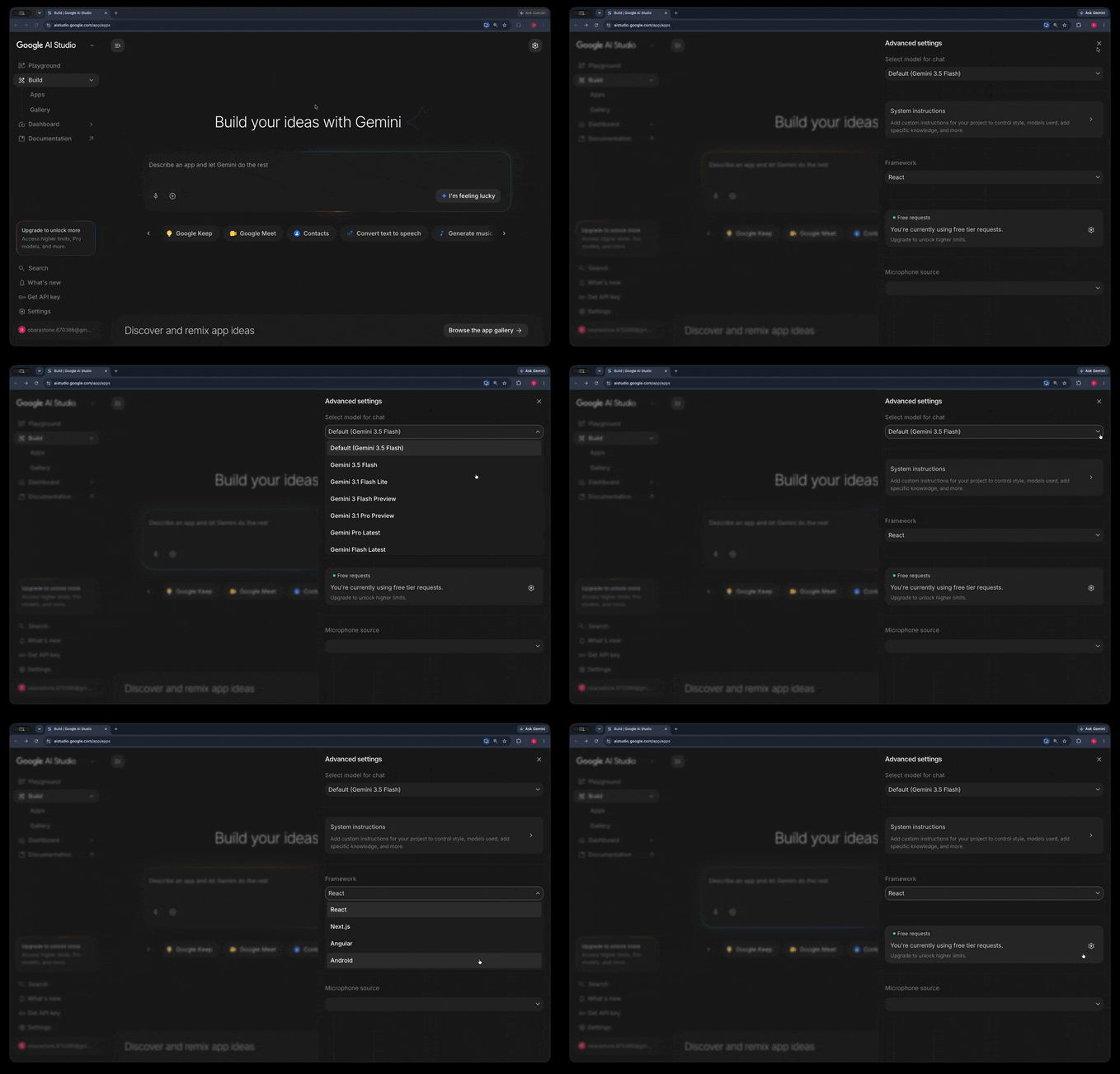
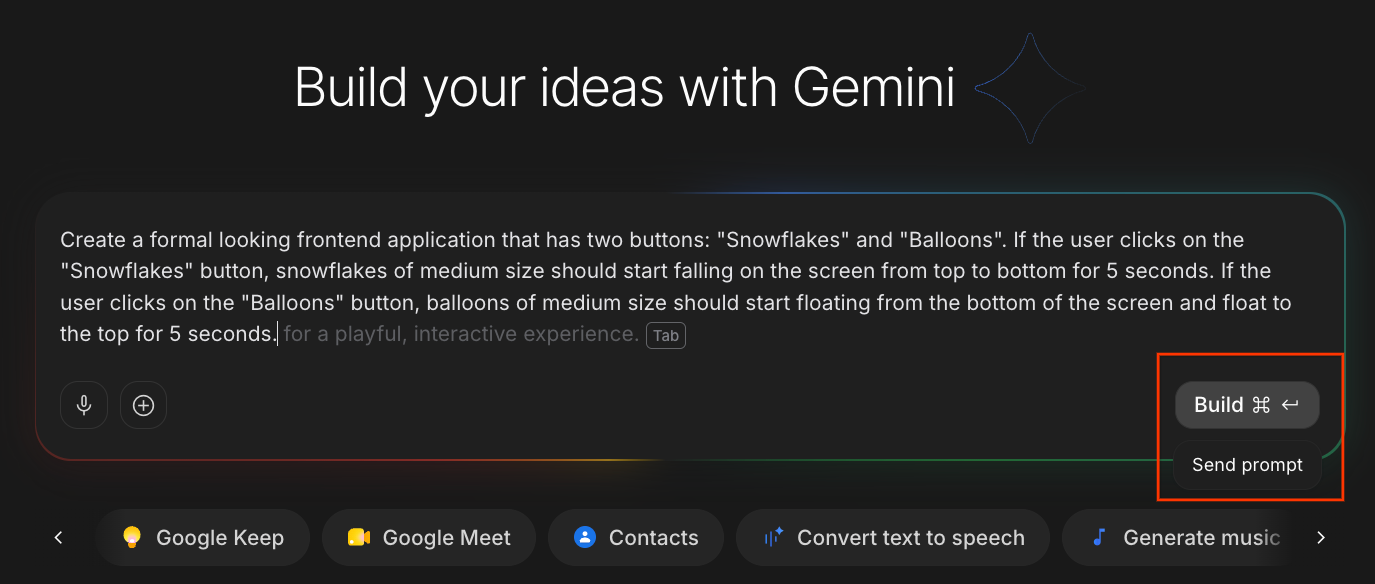
Once you're satisfied with the settings, describe the application you want to create and click Build:
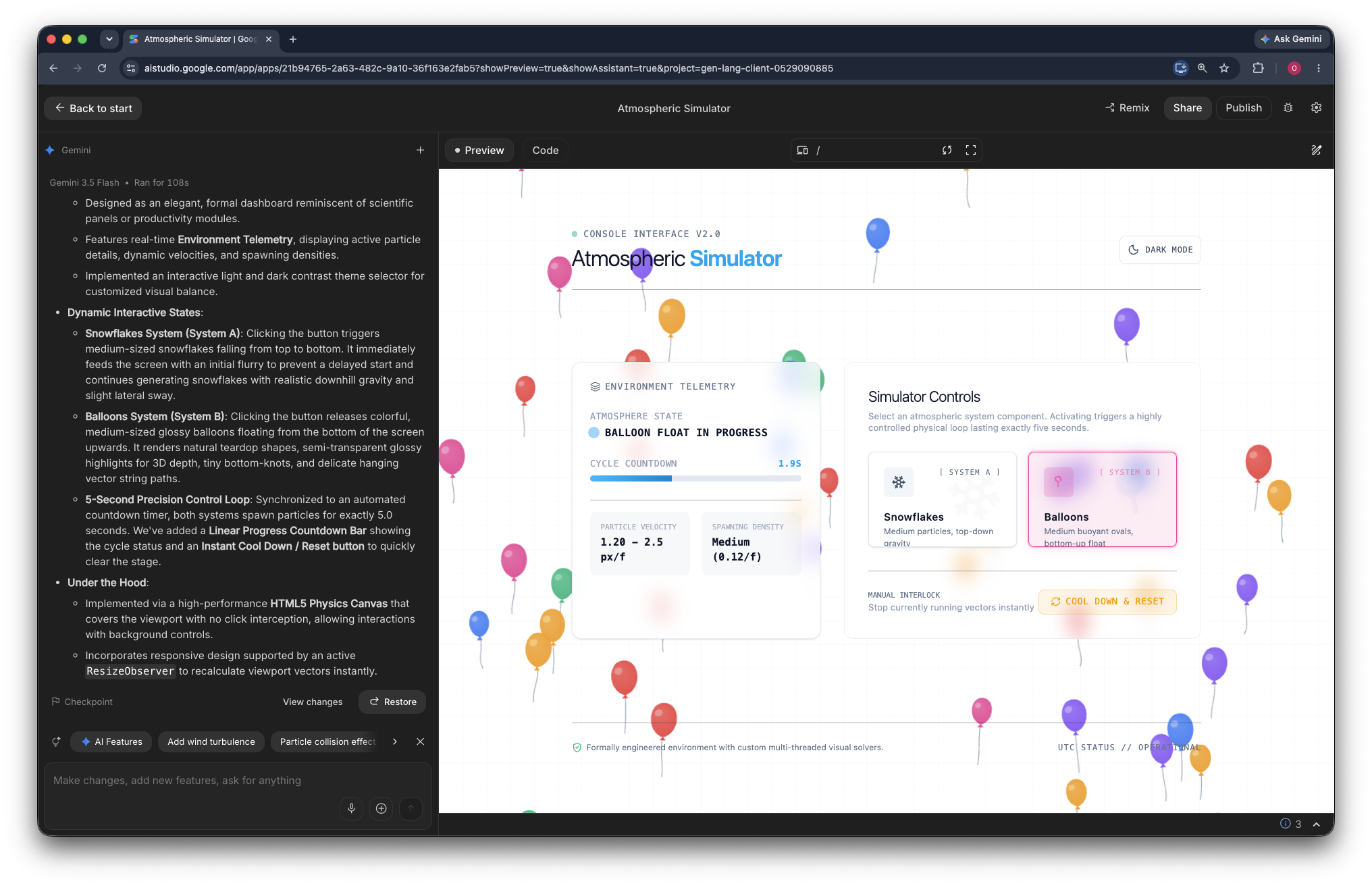
Create a formal looking frontend application that has two buttons: "Snowflakes" and "Balloons".
If the user clicks on the "Snowflakes" button, snowflakes of medium size should start falling on the screen from top to bottom for 5 seconds.
If the user clicks on the "Balloons" button, balloons of medium size should start floating from the bottom of the screen and float to the top for 5 seconds.
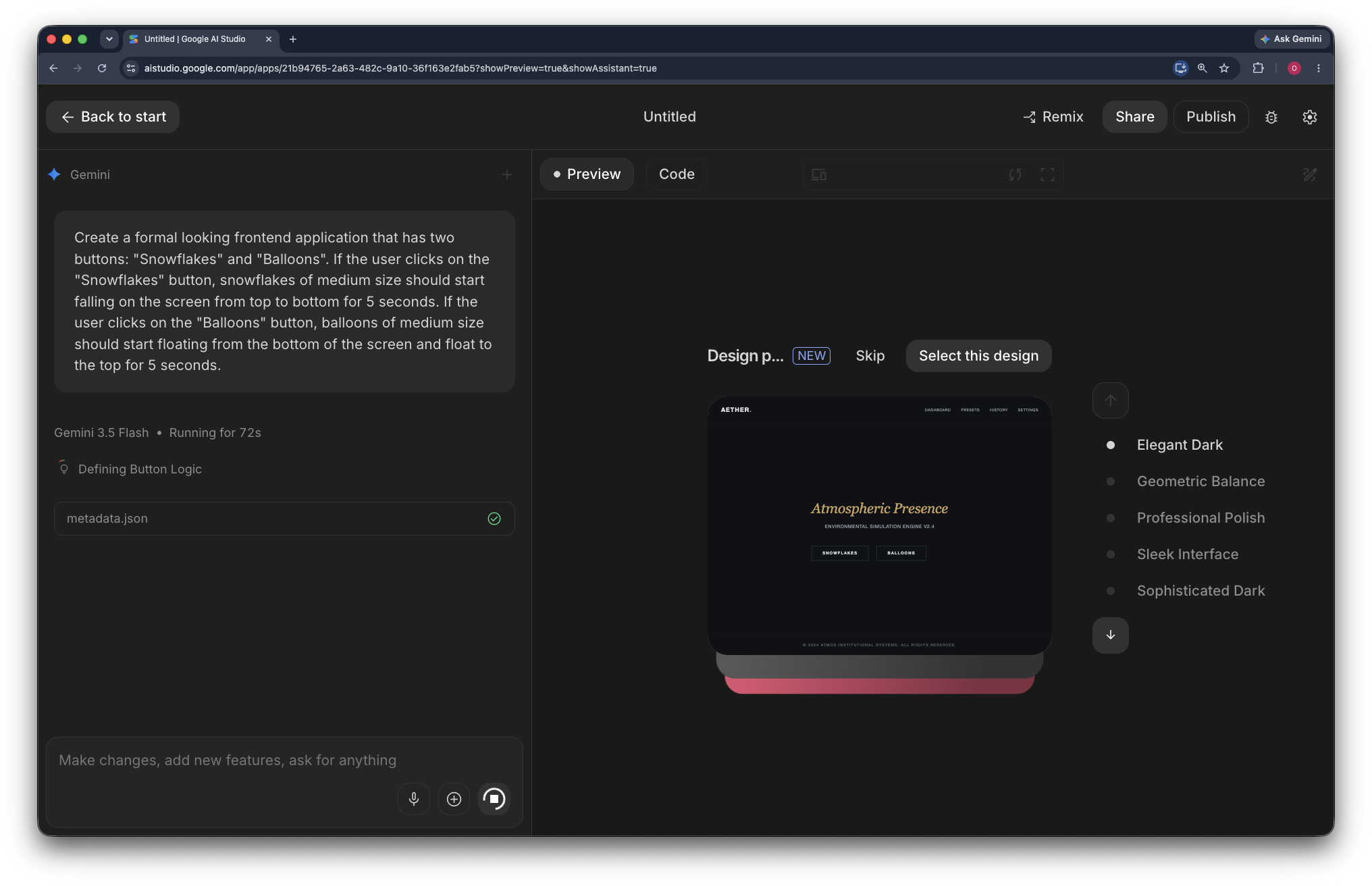
Based on this description, AI Studio builds a web application. The generation process takes 2-3 minutes, and you may be prompted to select design options during the process:
If you encounter issues with the application, you can enter additional prompts to refine its behavior (for example, Increase the size of the snowflakes to twice their current size).
The following image shows a snapshot of the generated application:
4. Deploy to Cloud Run
Now that the application is ready, deploy it to Cloud Run:
- In the top-right corner of the page, click Publish.
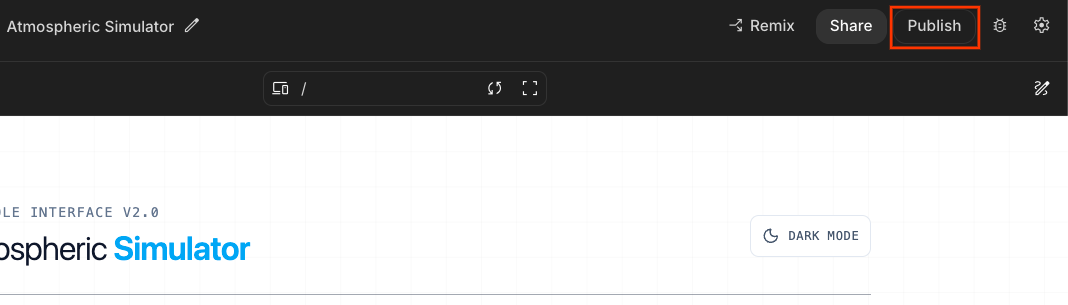
- This opens the Deploy app on Google Cloud dialog.
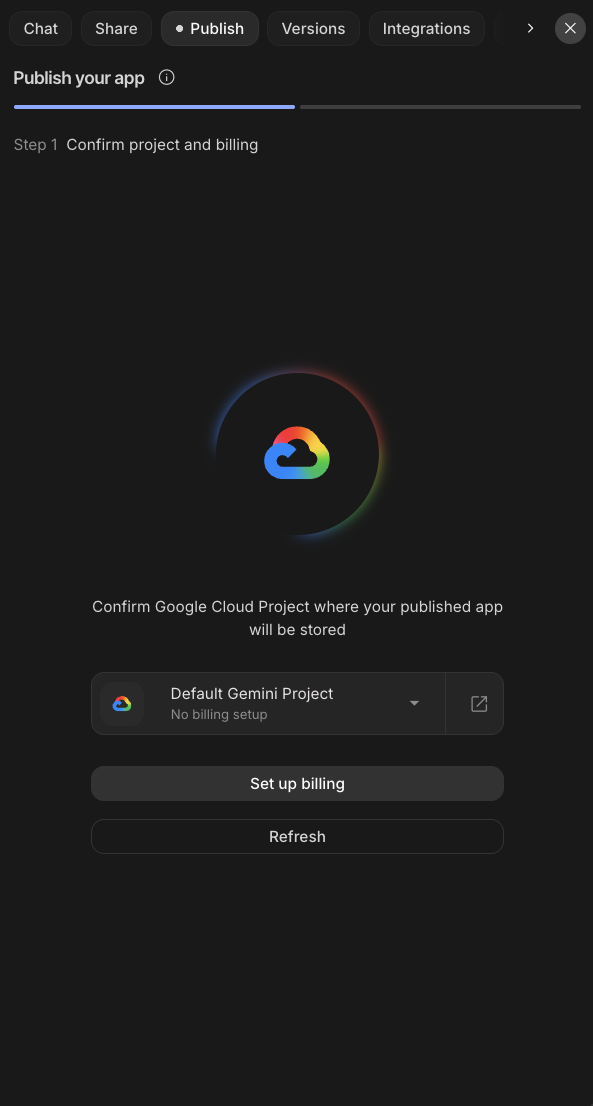
- Click the Select a Cloud Project dropdown to select your project, or continue with the Default Gemini Project.
- Select the project from the dropdown. If you cannot find your project, click Import project, and then select the project from the Import project pane.
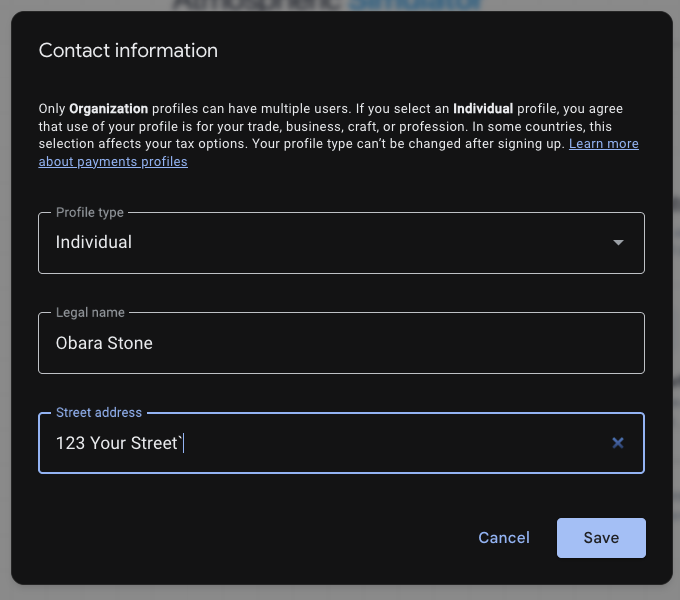
- If prompted, select Individual as your organization type and enter your street address:
- Click Publish your app and wait for the application to deploy to Cloud Run. Note that AI Studio automatically generates the Cloud Run service name.
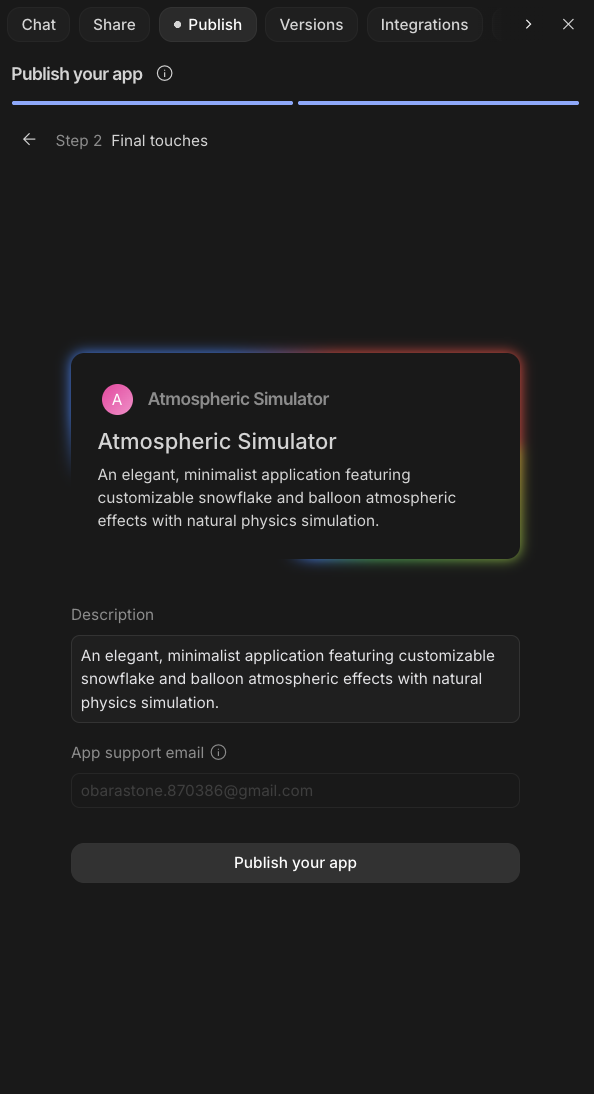
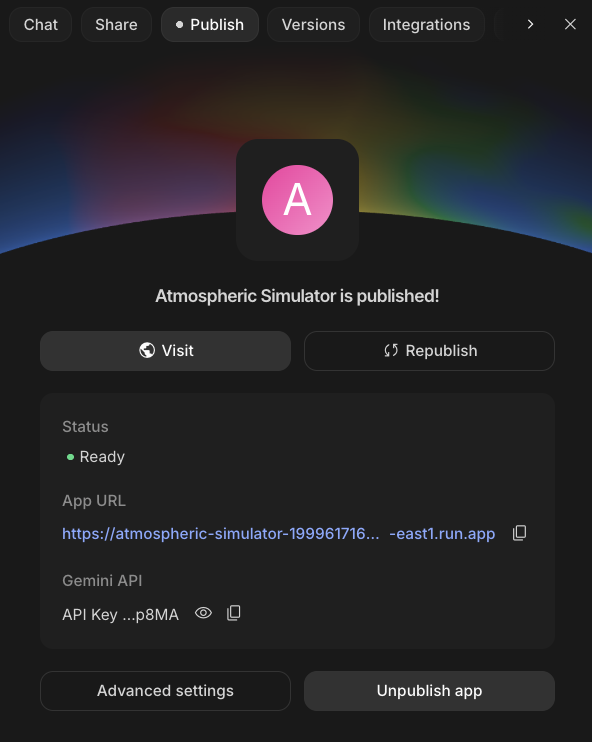
- The deployment takes a few minutes. When it completes, click the App URL to open the deployed web application.
5. Clean up
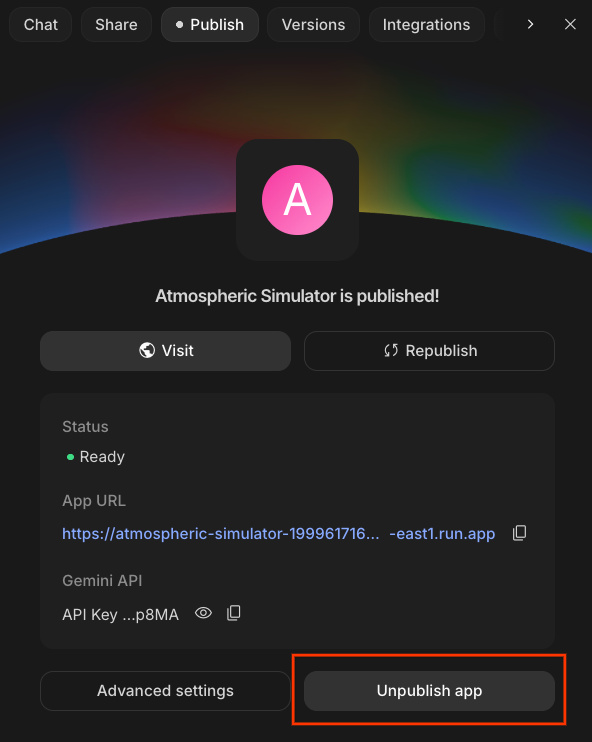
To avoid incurring charges to your Google Cloud account for the resources used in this codelab, click Unpublish app:
6. Congratulations
Congratulations! You successfully vibe coded a web application in Google AI Studio and deployed it to Cloud Run!
The integration of AI Studio with Cloud Run makes it easy to deploy applications directly to Google Cloud. By using Cloud Run, you get all the benefits of a serverless environment, abstracting away the complexities of infrastructure management.
Next Steps
Congratulations on completing this lab! Now that your application framework is ready, explore these official guides to expand your project's capabilities:
Recommended Documentation & Guides
- Prompt Design Strategies: Learn the core principles of structuring prompts, using system instructions, implementing few-shot examples, and controlling output format.
- Function Calling with the Gemini API: Connect your deployment to external tools and APIs, allowing the Gemini model to output structured data and trigger real-world application logic.
- Text-to-Speech Generation: Learn how to generate spoken audio using the Gemini API, control speech styles, and test voices using the Voice Library in Google AI Studio.