
1. Introduction
Google Developer Knowledge is the canonical, machine-readable source of Google's public developer documentation. It's programmatically accessible via Application Programming Interface (API) and Model Context Protocol (MCP) so that developers can integrate it into applications and workflows.
Instead of relying on outdated LLM training data or manual web scraping, AI agent developers should use it for real-time access to the most accurate documentation and reduce risk of hallucinations.
In this codelab, you will learn how to install and use the Developer Knowledge MCP from Antigravity 2.0, IDE, and/or CLI. MCP is an open standard that enables AI models to securely use tools provided by remote servers. You will set up Antigravity to interact with the knowledge base without writing any code!
What you'll do
- Enable the Developer Knowledge API in your Google Cloud project.
- Configure Antigravity to access the Developer Knowledge MCP.
- Test the integration with a few prompts.
What you'll need
- A web browser such as Chrome
- A Google Cloud project (billing is not required).
- Antigravity 2.0, IDE, and/or CLI installed on your local machine. You can find more detail and installation guidance from the official website.
Explore more MCPs and tools
In this codelab we only cover a few basic examples of what can be done using the Google Developer Knowledge MCP server. To see the full list of Google MCP servers and tools available, refer to the Supported Products.
Easy access to this codelab
2. Configure Cloud project
Create or Select a Google Cloud project
In the Google Cloud Console, select or create a Google Cloud project.
Enable the API
To use the Developer Knowledge MCP server, you must enable the standard Developer Knowledge API.
Create the API key
To use the Developer Knowledge MCP server, you must use an API key. In the Google Cloud Console, do the following:
- Go to APIs & Services > Credentials.
- Click + Create credentials, then select API key from the menu.
- Set Name with an arbitrary name such as
Antigravity. - Click the Select API restrictions drop-down, type
Developer Knowledge API, check the result, then click OK.
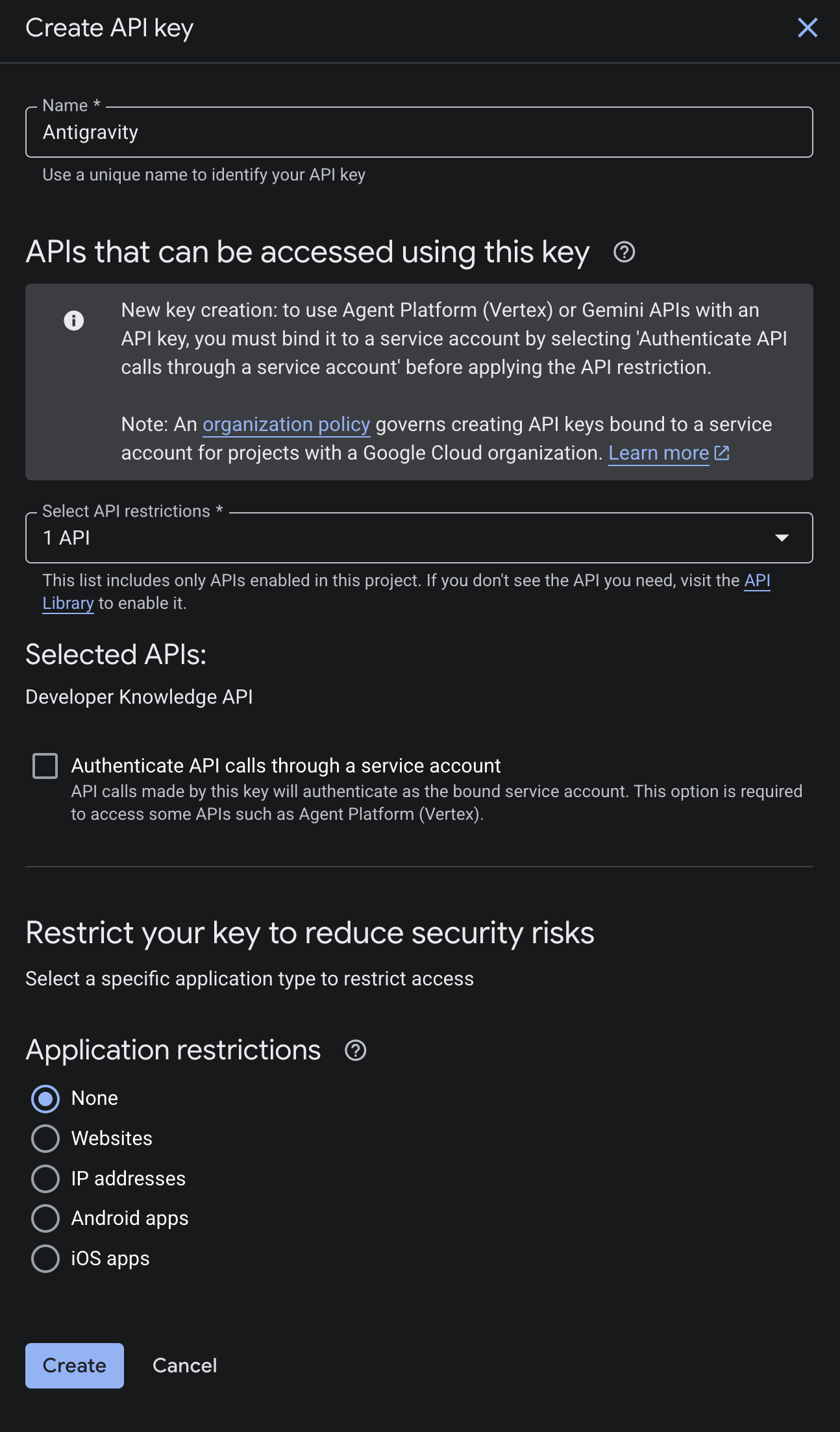
- Click Create.
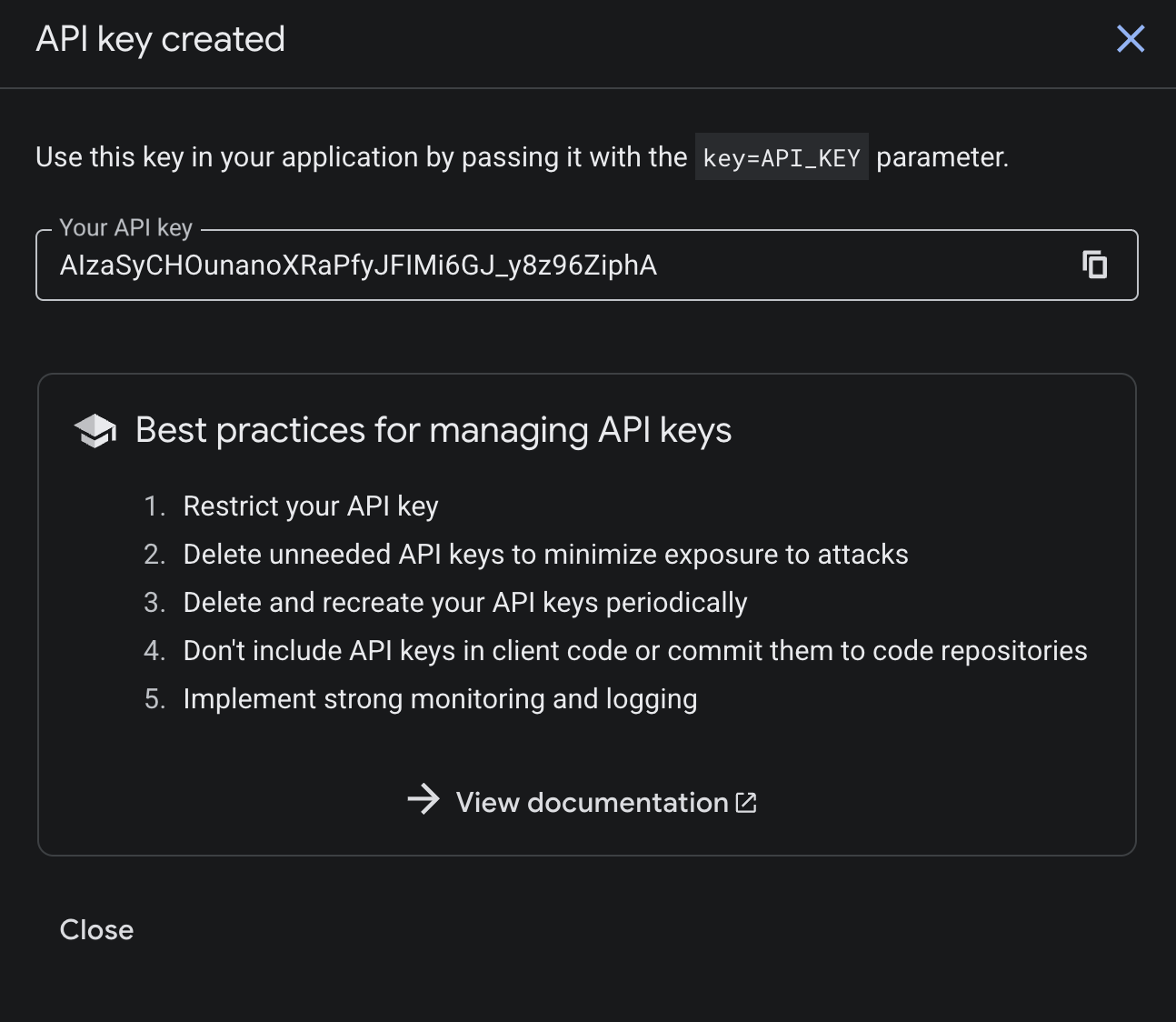
- Your API key is now displayed on the confirmation screen. Copy it to your clipboard, you'll need it to configure Antigravity in the next steps.
3. Configure Antigravity
Now let's configure Antigravity to use the MCP endpoint. If you don't have Antigravity 2.0, IDE, and/or CLI installed, follow the instructions on the Antigravity website.
Add custom MCP servers
Antigravity 2.0, IDE, and CLI share a central MCP configuration in the file ~/.gemini/config/mcp_config.json.
- Open it in your preferred text editor.
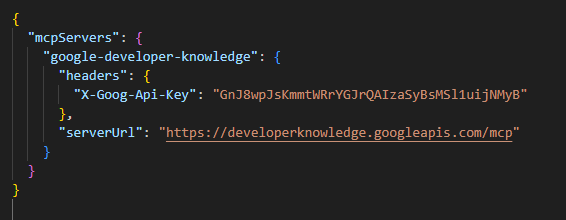
- Modify it with the following custom MCP server configuration. Before doing so, replace the <YOUR_API_KEY> placeholder with the API key you created in the previous steps:
{
  "mcpServers": {
    "google-developer-knowledge": {
      "headers": {
        "X-Goog-Api-Key": "<YOUR_API_KEY>"
      },
      "serverUrl": "https://developerknowledge.googleapis.com/mcp"
    }
    ...
  }
  ...
}
- Save it.
Validate
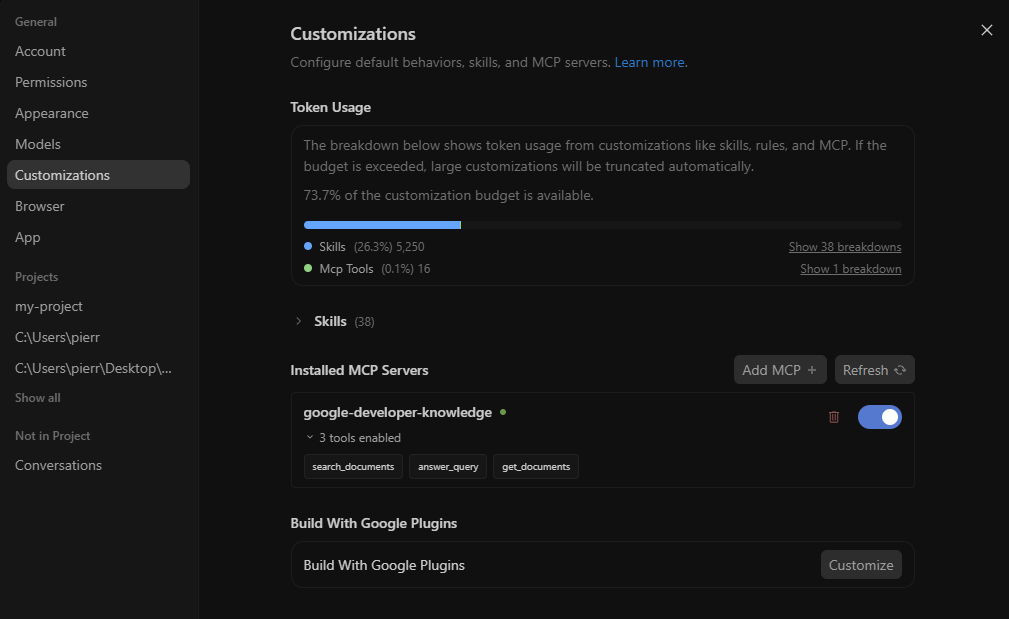
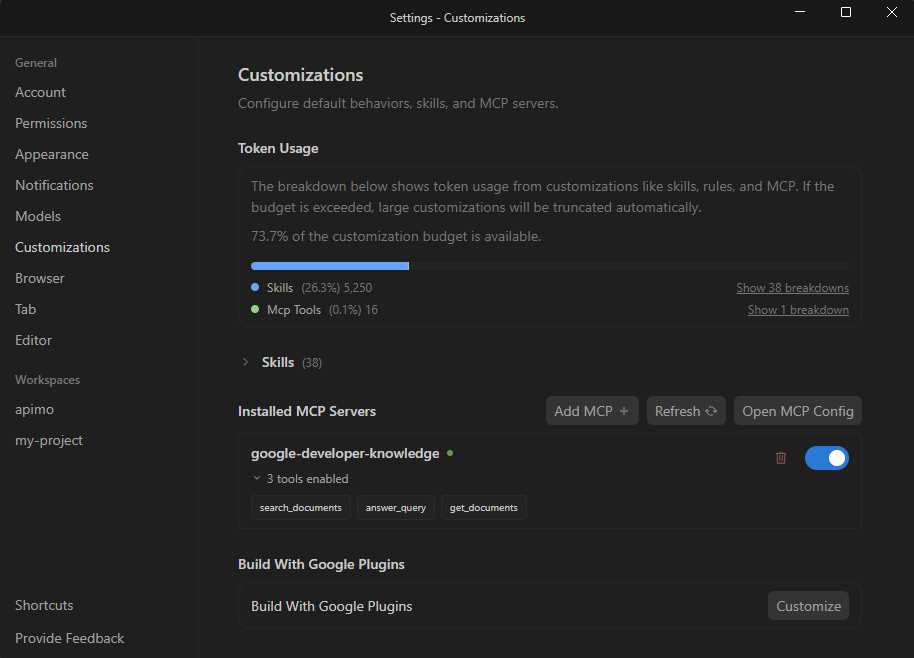
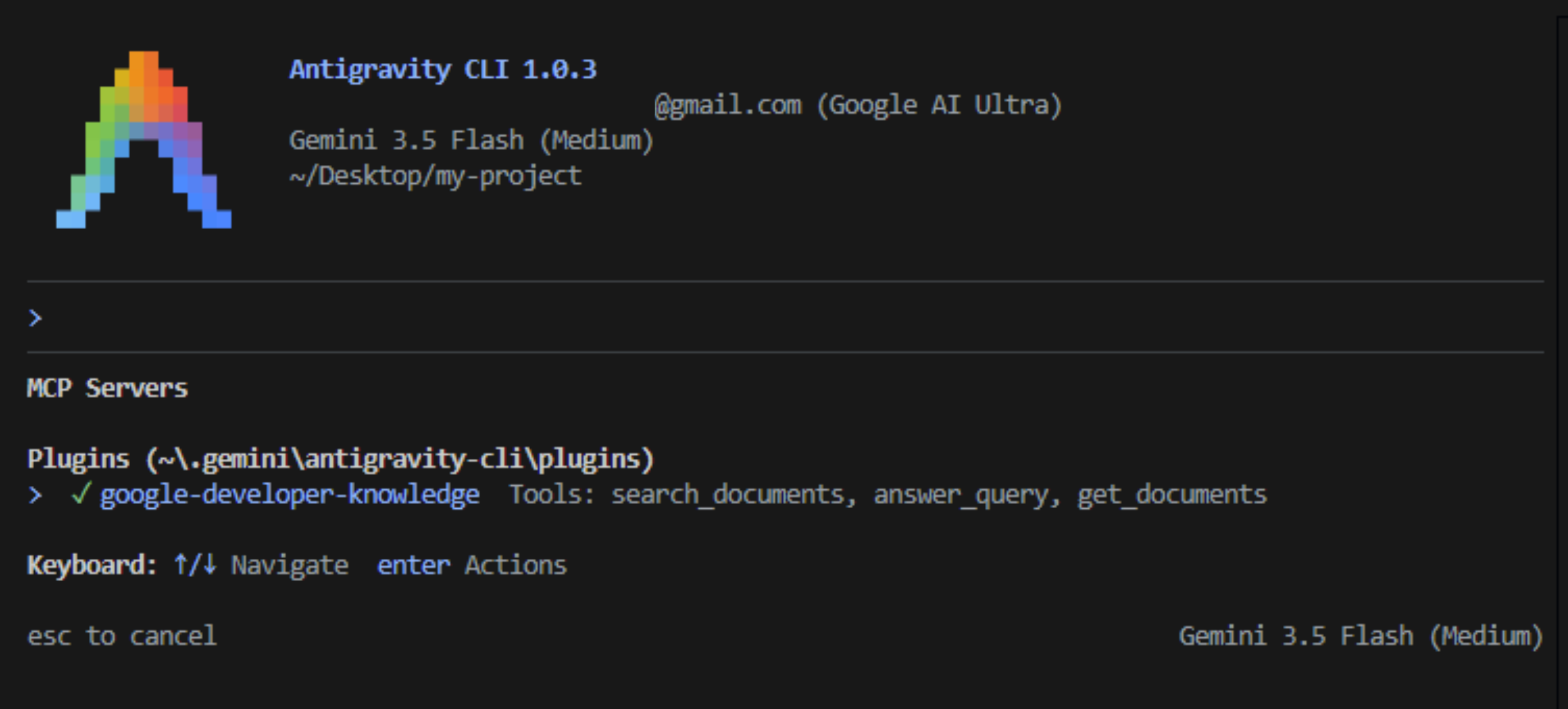
You should see the MCP server that you configured as installed in Antigravity: google-developer-knowledge.
Antigravity 2.0
- Click Settings at the bottom left.
- Navigate to Customizations.
- Under Installed MCP Servers, click Refresh.
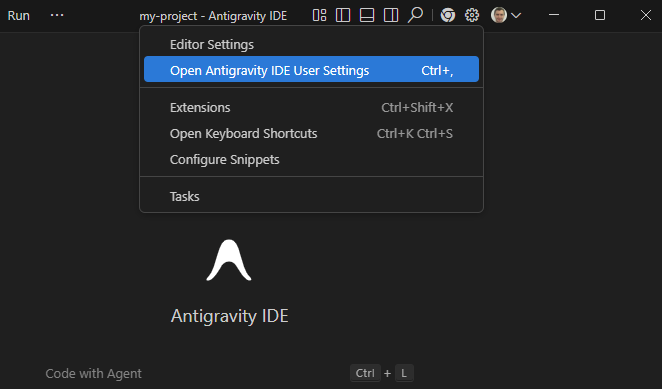
Antigravity IDE
- Open Antigravity User Settings via the Editor-Specific settings menu dropdown at the top of the window.
- Navigate to Customizations.
- Under Installed MCP Servers, click Refresh.
Antigravity CLI
- Start the CLI executing the command
agyfrom a terminal. - Type
/mcpand press enter.
4. Access Developer Knowledge
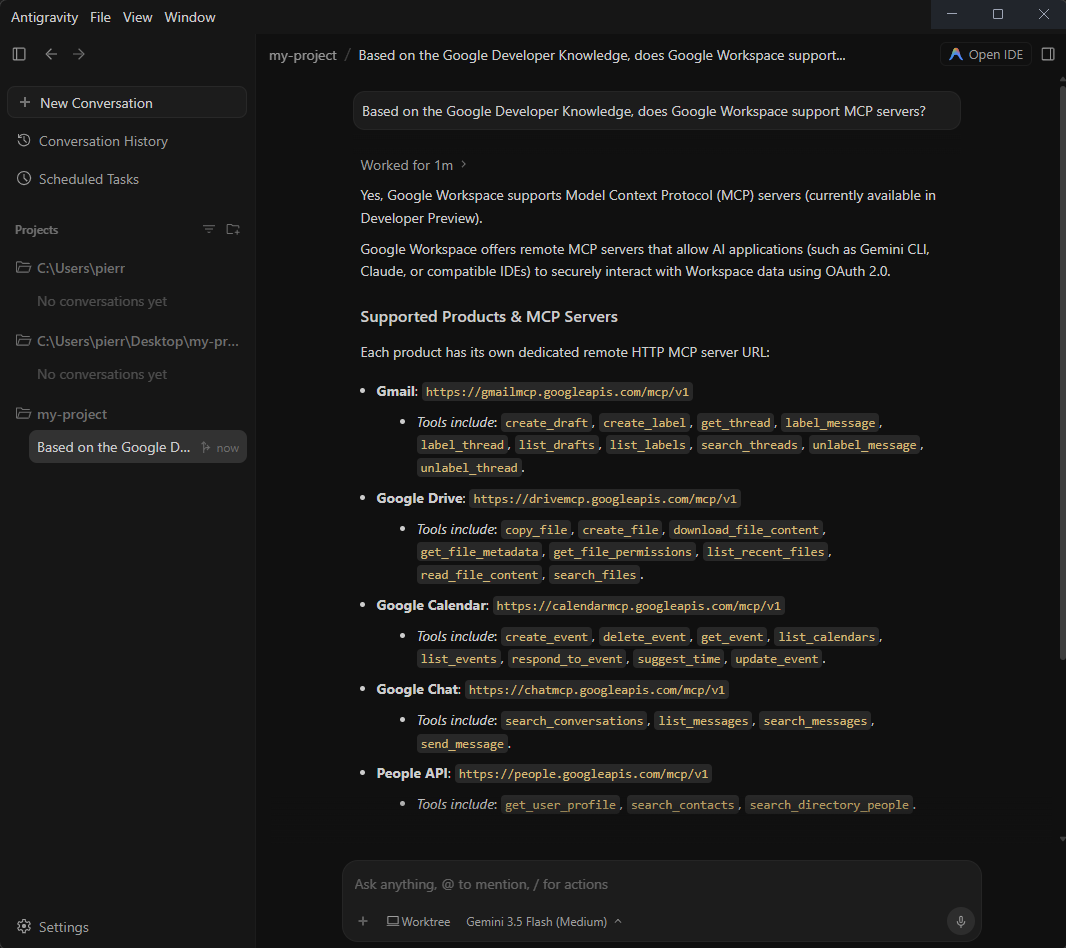
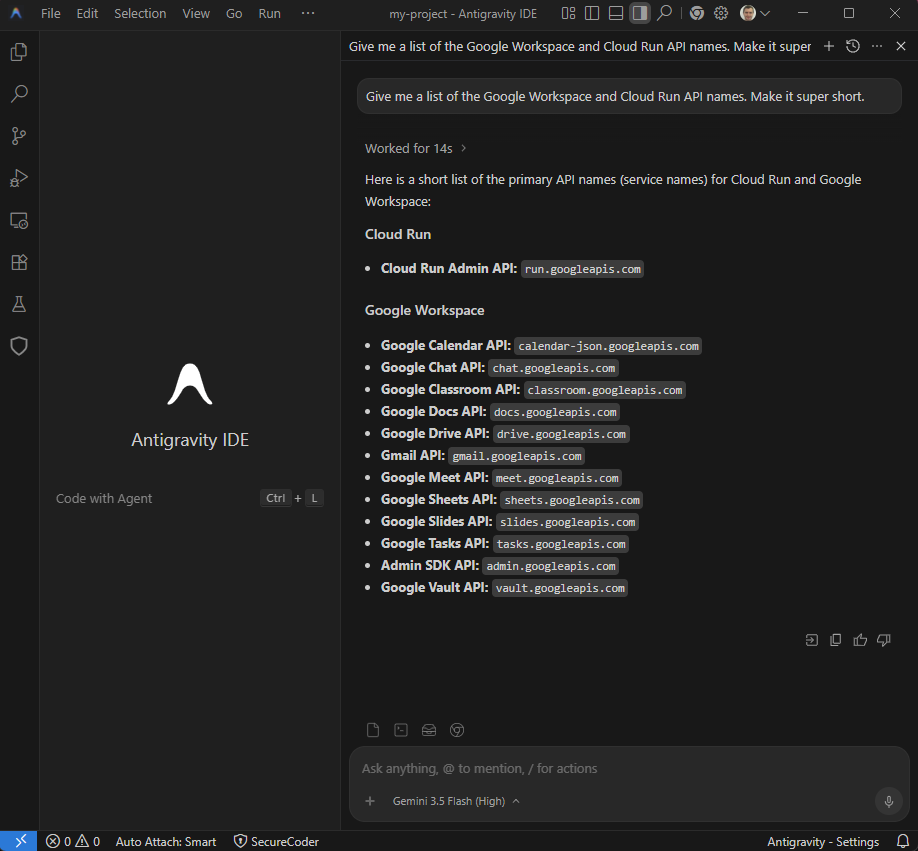
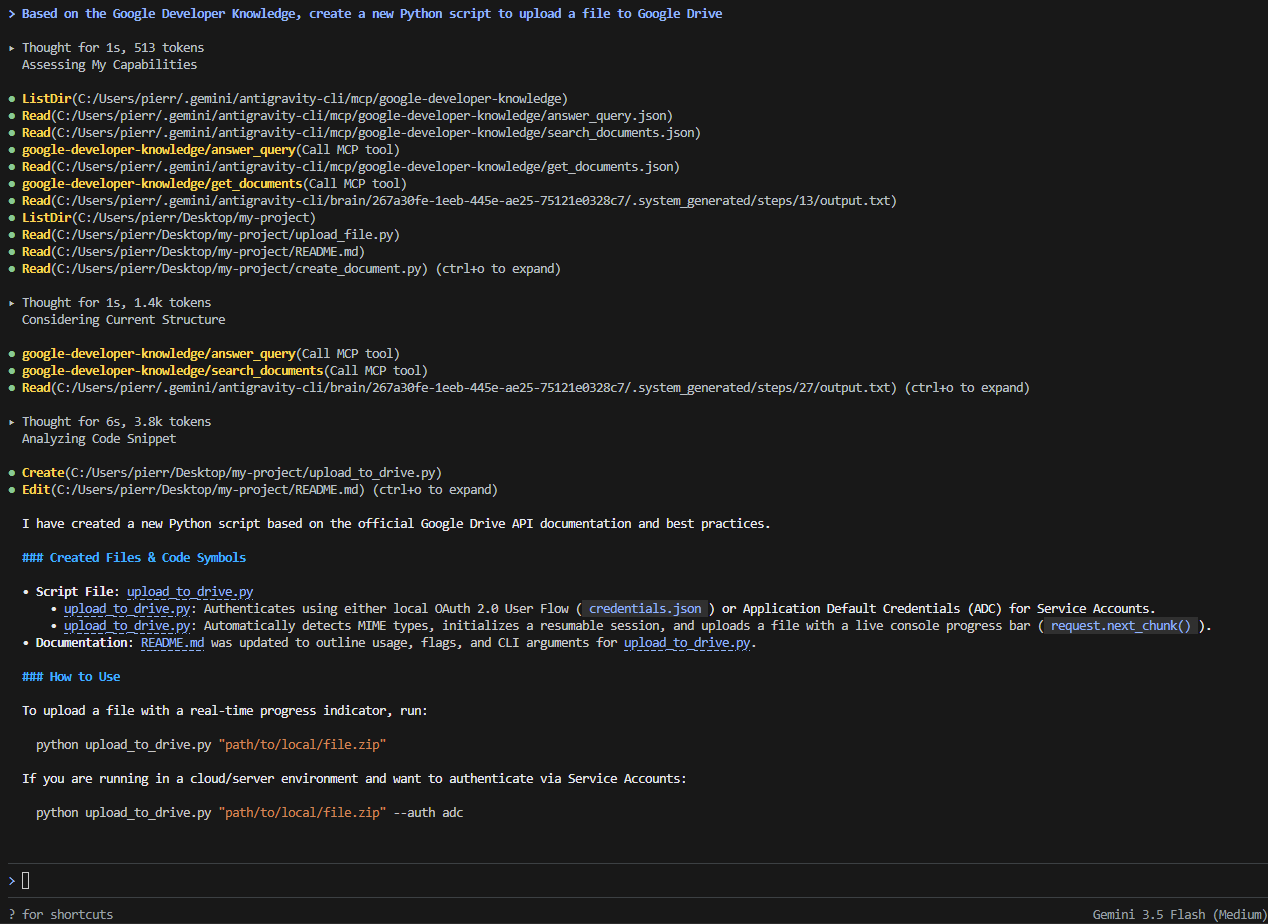
Now you can interact with Google Developer Knowledge using natural language. Here are some example prompts:
Based on the Google Developer Knowledge, does Google Workspace support MCP servers?Give me a list of the Google Workspace and Cloud Run API names. Make it super short.Based on the Google Developer Knowledge, create a new Python script to upload a file to Google Drive
Antigravity 2.0
Antigravity IDE
Antigravity CLI
5. Clean up
To clean up your Google Cloud project without deleting it, you can disable the Developer Knowledge API you enabled and delete the API key you created:
- In the Google Cloud Console, go to the API & Services Dashboard.
- Click Developer Knowledge API then Disable API.
- In the Google Cloud Console, go to API & Services > Credentials.
- Select the API key, click Delete then Delete to confirm.
6. Congratulations
Congratulations! You have successfully configured and tested the Google Developer Knowledge MCP server using Antigravity.