
1. Before you begin
Welcome to the fourth part of the "Building AI Agents with ADK" series! In this hands-on codelab, you will combine what you've learned in previous sessions to create a Data Analyst Agent. This agent will be designed to analyze data, generate valuable insights, and automate key aspects of the data analysis workflow.
You will empower your agent to explore uploaded files and connect it to enterprise-level databases like Google Cloud BigQuery, using the powerful tools included in the ADK.
You can also access this codelab via this shortened URL: goo.gle/adk-data-analyst
Prerequisites
- A foundational understanding of the Generative AI concepts
- Basic proficiency in Python programming and comfort using the command line.
- Familiarity with the concepts from the previous codelabs in this series: "The Foundation," and "Empowering with Tools."
What you'll learn
- How to build a functional Data Analyst Agent using the ADK framework.
- Methods for enabling an agent to analyze data from uploaded documents.
- How to connect your agent to a BigQuery database for enterprise-level data analysis.
- Techniques for defining your agent's core logic, including its purpose and instructions.
What you'll need
- A working computer and a reliable internet connection.
- A browser, such as Chrome, to access Google Cloud Console
- A curious mind and an eagerness to learn.
2. Introduction
In today's data-driven world, the ability to quickly and accurately analyze vast amounts of information is more critical than ever. However, the process of extracting meaningful insights often requires deep technical expertise in areas like SQL, creating a bottleneck that can slow down decision-making. What if you could bridge this gap and interact with complex datasets as easily as having a conversation?
This is where AI agents are changing the game. By acting as an intelligent interface between you and your data, AI agents can understand natural language questions, translate them into technical queries, and deliver actionable insights in seconds.
In this codelab, you will step into the future of data analytics by building a practical Data Analyst Agent using the Agent Development Kit (ADK). You will start by creating a foundational agent and then progressively enhance its capabilities. You will first teach your agent to analyze unstructured data from uploaded documents. Then, you will connect it to a powerful, enterprise-grade data warehouse, Google Cloud BigQuery, to query and analyze a large-scale, real-world healthcare dataset.
By the end of this tutorial, you will not only have a functional AI assistant but also a solid understanding of how to build agents that can automate routine data tasks, accelerate analysis, and democratize access to critical insights for you and your team.
3. Configure Google Cloud services
Create a Google Cloud project
To keep all of your work for this codelab organized and separated from other projects, you will begin by creating a new Google Cloud project.
To open the project creation page, click on:
Enter the required information at the project creation page:
- Project name: Enter a name of your choice, such as
genai-workshop. It must be between 4 and 30 characters and can only include letters, numbers, single quotes, hyphens, spaces, or exclamation points. - Location: Leave this set to No Organization.
- Billing account: If prompted, select Google Cloud Platform Trial Billing Account (or your preferred active billing account). If this option doesn't appear, simply proceed.
Copy down the generated Project ID, you will need it later. 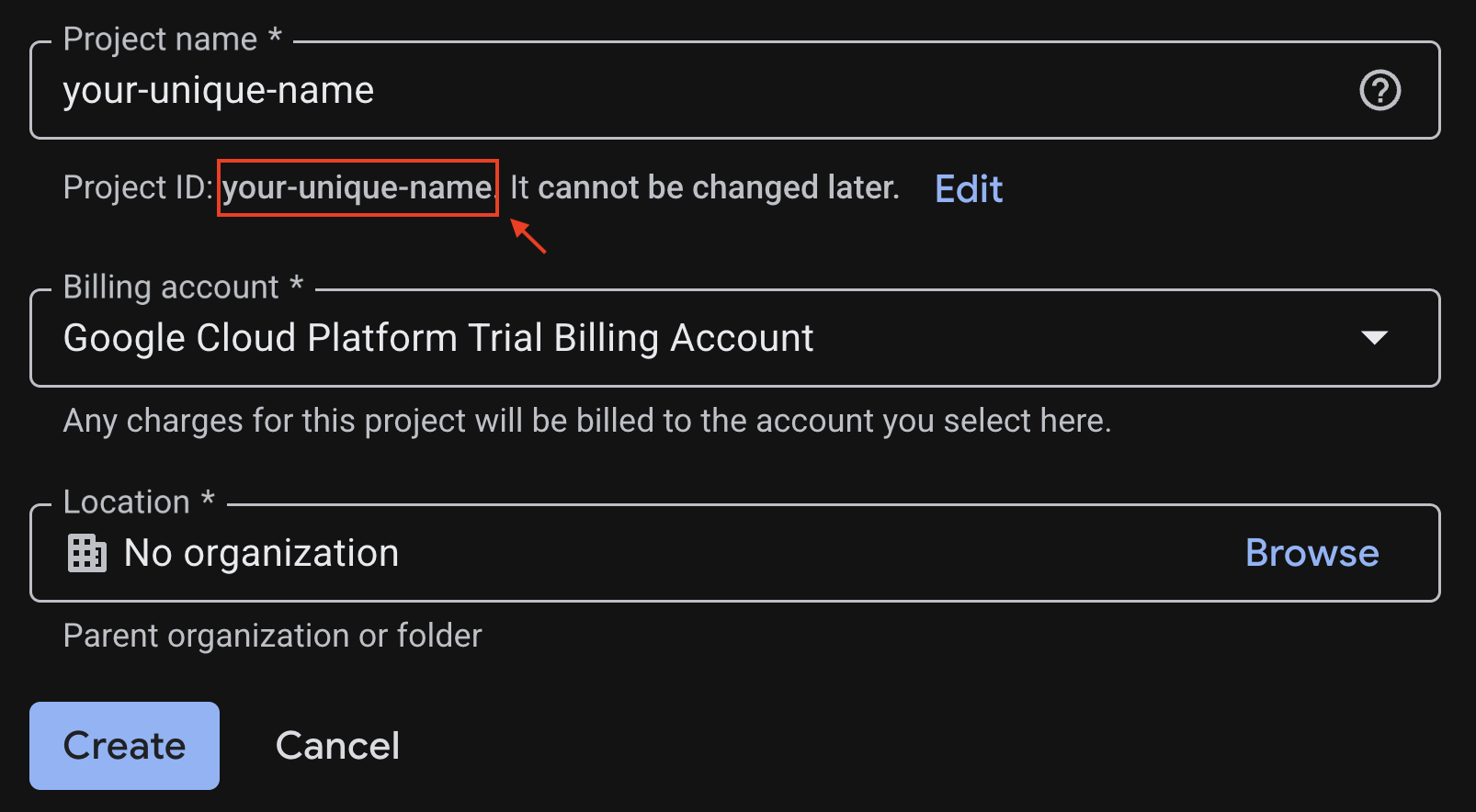
If everything is fine, click on the Create button.
Configure Cloud Shell
Cloud Shell is a pre-configured environment with all the tools you need for this codelab. Once your project is created successfully, do the following steps to set up Cloud Shell.
Launch Cloud Shell
To launch Cloud Shell, click on:
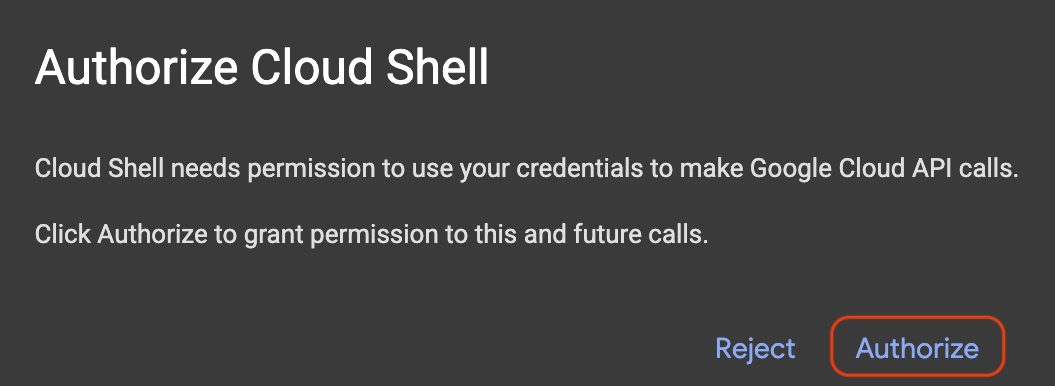
If a popup appears asking for authorization, click on Authorize.
Set Project ID
Replace replace-with-your-project-id with your actual Project ID from the project creation step above. Execute the following command in the Cloud Shell terminal to set the correct Project ID.
gcloud config set project replace-with-your-project-id
You should now see that the correct project is selected within the Cloud Shell terminal. The selected Project ID is highlighted in yellow.

3. Enable required APIs
To use Google Cloud services, you must first activate their respective APIs for your project. Run the commands below in the Cloud Shell terminal to enable the services for this Codelab:
gcloud services enable \
 aiplatform.googleapis.com \
 bigquery.googleapis.com
If the operation was successful, you'll see Operation/... finished successfully message printed in your terminal.
4. Create a Python virtual environment
Next, create an isolated Python environment to manage your project's dependencies.
1. Create project directory and navigate into it:
mkdir -p ai-agents-adk && cd ai-agents-adk
2. Create and activate a virtual environment:
uv venv --python 3.12
source .venv/bin/activate
You'll see (ai-agents-adk) prefixing your terminal prompt, indicating the virtual environment is active.

3. Remove existing cache
rm -rf ~/.cache
4. Install adk page
uv pip install google-adk --no-cache
5. Open the folder as Cloud Shell Workspace
cd ~
cloudshell workspace ai-agents-adk
5. Create a starter agent
With your environment ready, it's time to create your AI agent using a simple ADK command.
1. Create an agent
In your terminal, run the following command:
adk create data_analyst_agent
2. Configure your agent
You will be prompted to configure your agent. Make the following selections:
- Choose a model: Select 1.
gemini-2.5-flash. - Choose a backend: Select 2.
Vertex AI. - Enter Google Cloud project ID: Press Enter to confirm the correct Project ID.
- Enter Google Cloud region: Press Enter to use the default
us-central1.
3. Start the development web server
Once the agent is created, start the development web server by running the following command:
adk web --allow_origins "regex:https://.*\.cloudshell\.dev"
You can either Ctrl + Click or Cmd + Click on the link (i.e., http://localhost:8000) in the terminal or you can
- Click the Web Preview button
- Select Change Port.
- Enter the port number (e.g., 8000)
- Click Change and Preview
You'll then see the chat application-like UI appear in your browser.
4. Chat with your agent
Go ahead and chat with your agent through this interface! Say something like "hello, what can you do?".
6. Analyse Data From a Document
In this section, you will upload a document to the agent and ask questions about its content.
1. Summarize the document
Follow these steps to get a summary of the document:
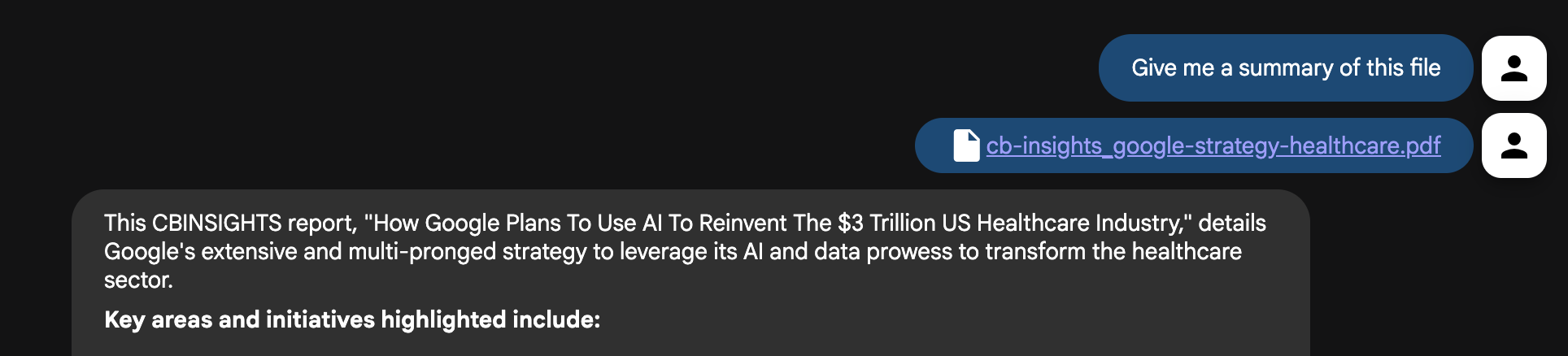
- Download the file about Google's Health Care Strategy.
- Click the upload file button in your agent's UI and select the file you just downloaded.
- In the chat interface, ask the agent to summarize the file: "Give me a summary of this file"
- Press enter.
You should receive a concise summary of the document's contents.
2. Ask more detailed questions
Now, try asking more detailed questions to dig deeper into the document:
- What are the primary diseases Google is currently targeting with its AI and data initiatives?
- How is Google planning to improve healthcare data interoperability and break down data silos?
- How is Google Cloud being utilized to support healthcare businesses and researchers?
- What new disease areas is Google potentially exploring next (e.g., COPD, cancer, mental health)?
3. Ask follow up questions
You can also ask follow up questions like finding out the page refernce number for further investigation:
- Where did you see information about diabetic related information?
- Direct me to the relevant pages about diseases.
- Where are the interesting charts that I should take a look at?
Challenge: Find a document of your own that you want the agent to analyze and upload it. Ask the agent questions about its content.
7. Combine document insights with live web search
The agent is now an expert on the document, but a powerful analyst also needs access to current, external information. Let's give our agent the ability to search the web.
- In the Cloud Shell terminal, press Ctrl+C to stop the web server.
- Open the
data_analyst_agent/agent.pyfile in the Cloud Shell Editor by executing this command:
cloudshell edit data_analyst_agent/agent.py
- Modify the file to import and add the
google_searchtool:
from google.adk.agents.llm_agent import Agent
from google.adk.tools import google_search

root_agent = Agent(
    model='gemini-2.5-flash',
    name='root_agent',
    description='A helpful assistant for user questions.',
    instruction="""
        First, check the uploaded files for an answer.
        If the information is not in the files, use your tools to search the web.
        Answer user questions to the best of your ability.
    """,
    tools=[
        google_search
    ]
)
- Save the file and restart the web server in your terminal by typing the following command in the terminal:
adk web --allow_origins "regex:https://.*\.cloudshell\.dev"
- In the agent UI, re-upload the
GoogleHealthStrategy.pdffile. - Now, ask a question that requires both the document's context and external information:
The document discusses Google's strategy in healthcare. What are three other major tech companies that are also investing heavily in healthcare AI, and what are their primary focus areas?
The agent will now synthesize information from both the document and a live Google search to give you a comprehensive answer. You can try asking a few questions:
- The document mentions using AI for diabetic retinopathy. What are some of the latest FDA-approved technologies in this area that have been announced in the last year?
- The file mentions partnerships. Can you find any recent news articles or press releases about Google's latest collaborations in the healthcare sector?
Challenge: Try asking similar questions to a document of your own. Something that makes use of a local document and the results from the internet.
8. Analyze healthcare data with BigQuery
Uploading individual documents isn't scalable. In a real-world scenario, data resides in enterprise systems like Google Cloud BigQuery.
Currently, developers building agentic applications often have to build and maintain their own custom tools. This manual process is slow, risky, and creates significant overhead. It forces the developers to handle everything from authentication to error handling instead of focusing on innovation.
The Agent Development Kit (ADK) includes first-party tools for BigQuery interaction. For this particular analysis, you will use the publicly available Medicare Utilization dataset provided by the Centers for Medicare & Medicaid Services (CMS).
First, let's connect our agent to a massive public healthcare dataset.
- In the Cloud Shell terminal, press Ctrl+C to stop the web server.
- Open the
data_analyst_agent/agent.pyfile in the Cloud Shell Editor by executing this command in the terminal:
cloudshell edit data_analyst_agent/agent.py
- Replace the entire content of the file with the following code to configure the powerful
BigQueryToolset:
import google.auth
from google.adk.agents.llm_agent import Agent
from google.adk.tools import google_search
from google.adk.tools.agent_tool import AgentTool
from google.adk.tools.bigquery import (
    BigQueryToolset,
    BigQueryCredentialsConfig
)
from google.adk.tools.bigquery.config import (
    BigQueryToolConfig,
    WriteMode
)

# Automatically get credentials from the gcloud environment
application_default_credentials, _ = google.auth.default()
credentials_config = BigQueryCredentialsConfig(
    credentials=application_default_credentials
)

# Configure the BigQuery tool
tool_config = BigQueryToolConfig(
    write_mode=WriteMode.ALLOWED,
    application_name='data_analyst_agent'
)

# Create the toolset with the specified configurations
bigquery_toolset = BigQueryToolset(
    credentials_config=credentials_config, bigquery_tool_config=tool_config
)

# Create an agent with google search tool as a search specialist
google_search_agent = Agent(
    model='gemini-2.5-flash',
    name='google_search_agent',
    description='A search agent that uses google search to get latest information about current events, weather, or business hours.',
    instruction='Use google search to answer user questions about real-time, logistical information.',
    tools=[google_search],
)

# Define the final agent with its instructions and tools
root_agent = Agent(
    model="gemini-2.5-flash",
    name="bigquery_agent",
    description=(
        "Agent to answer questions about BigQuery data and execute SQL queries."
    ),
    instruction="""
        You are an expert data analyst agent with access to BigQuery tools.
        When a user asks about a dataset, first use your tools to understand its schema.
        Then, use this knowledge to construct and execute SQL queries to answer the user's questions.
        Always confirm with the user if their question is ambiguous (e.g., for which year?).
    """,
    tools=[
        AgentTool(google_search_agent),
        bigquery_toolset
    ],
)
- Save the file and restart the web server in your terminal by typing the following command in the terminal:
adk web --allow_origins "regex:https://.*\.cloudshell\.dev"
- Now, you can ask your agent to analyze the public Medicare dataset. Start by exploring the data:
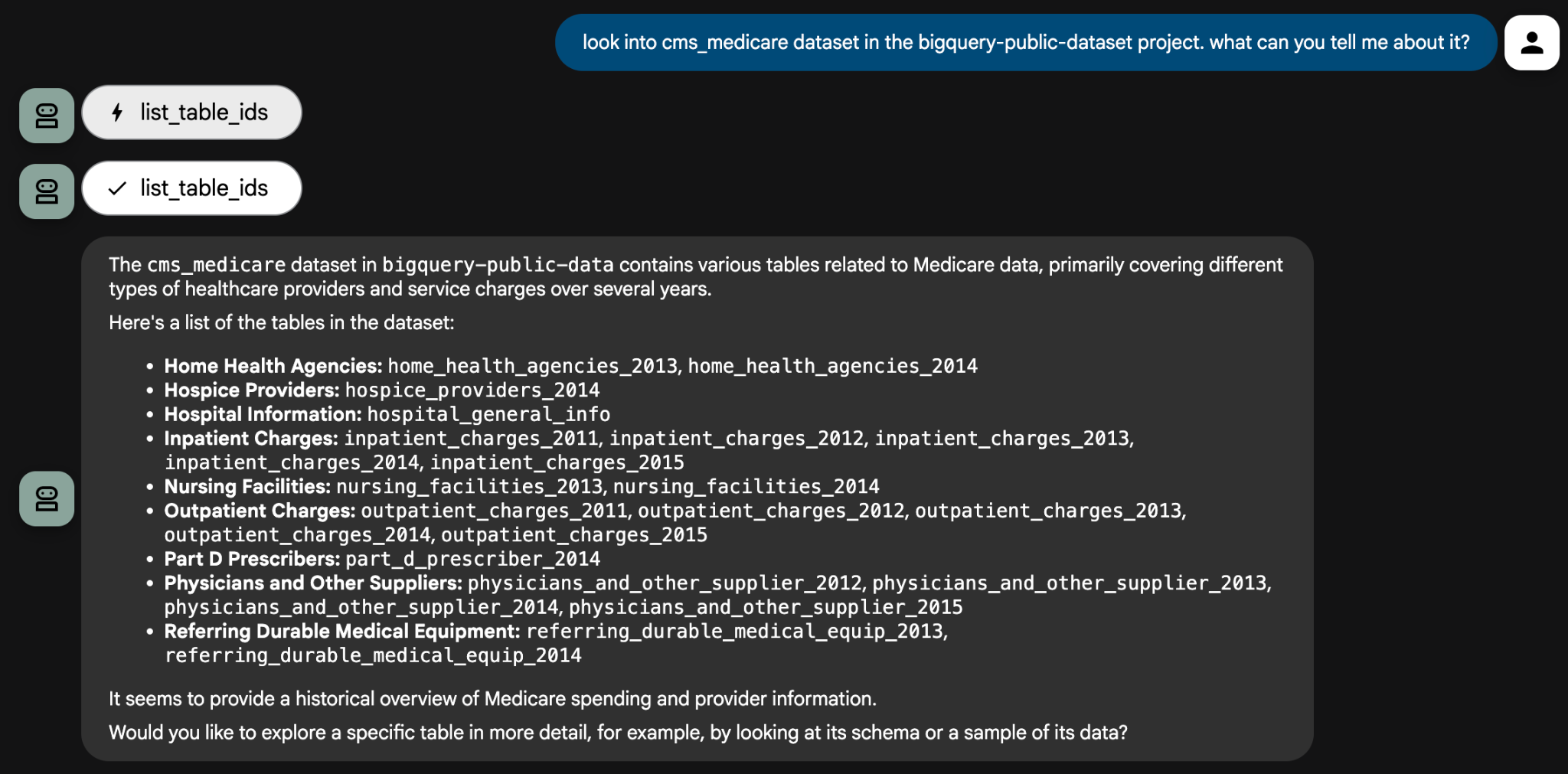
Look into the cms_medicare dataset in the bigquery-public-data project. What can you tell me about it?
The agent will use its tools to inspect the dataset and provide a list of available tables. From there, you can drill down with specific analytical questions. The agent may ask clarifying questions to ensure its queries are accurate.
For some questions, you will need to provide the Project ID to the agent so that it can use it to create a query. For example:
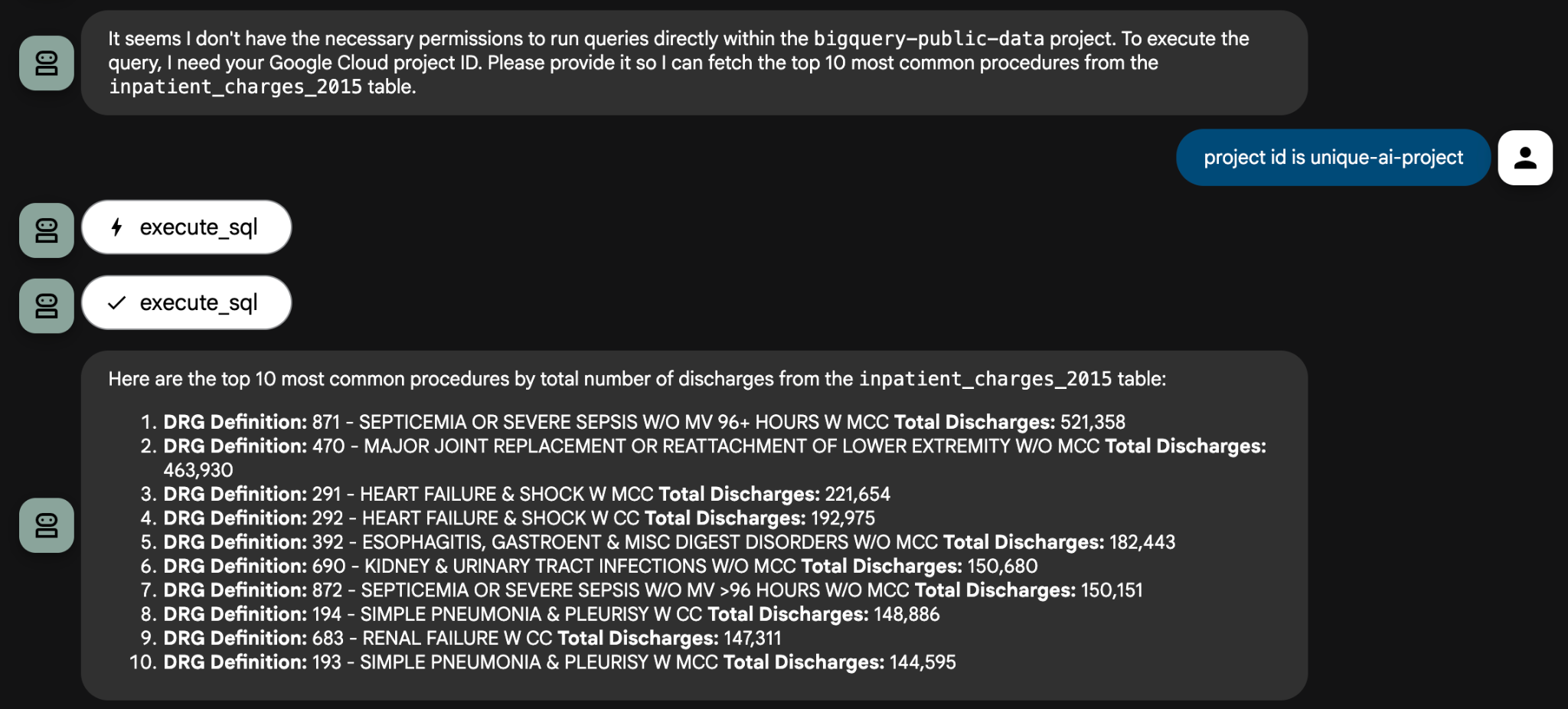
Here are some example analytical prompts that you can try:
- Using the
inpatient_charges_2015table, what are the top 5 procedures (DRG definitions) by total number of discharges? - What is the average total payment for ‘MAJOR JOINT REPLACEMENT' in California (CA)?
- Which state has the highest average covered charges for that same procedure?
That concludes this codelab. You have only scratched the surface of what you can achieve with data agents powered by enterprise data systems. Please feel free to ask any questions you might have about the cms_medicare dataset to your agent.
Challenge: Find another public dataset in BigQuery and use your agent to explore it. You can also create your own dataset with your own data and analyze it privately.
9. Clean up (optional)
To avoid incurring future charges, you can delete the resources used in this codelab.
1. Stop the agent
In Cloud Shell terminal, press Ctrl+C to stop the adk web process.
2. Delete project files
To remove the agent code from your Cloud Shell environment, run the following in the terminal:
cd ~ && rm -rf ai-agents-adk
3. Disable APIs
To disable the APIs you enabled earlie, run the following in the terminal:
gcloud services disable \
 aiplatform.googleapis.com \
 bigquery.googleapis.com
4. Shutdown the project
If you want to delete the entire Google Cloud project, follow the shutting down projects guide.
10. Conclusion
Congratulations! You've successfully built a Data Analyst Agent using the Agent Development Kit (ADK) framework. This agent is capable of analyzing data from various sources, generating insights, and helping to automate parts of the data analysis workflow.
To continue your learning journey, explore these resources:
- Read the official blog post: Announcing the BigQuery Toolset for AI Agents
- Explore the documentation: Visit the official Agent Development Kit (ADK) documentation for new features and advanced guides.
- Browse the code: Check out the ADK GitHub repository.
- Discover more data: Explore the Google Cloud Public Datasets catalog.