
1. Overview
An AI agent combines a large language model (LLM) with instructions, state, and tools so it can reason over user requests and execute multi-step tasks autonomously. Without a structured agent framework, developers have to wire model clients, environment configuration, conversation sessions, and local debugging interfaces by hand before testing a single prompt.
In this first part of the Building AI Agents with ADK series, you set up a Python development environment on Google Cloud and scaffold a personal_assistant agent on Agent Platform using Agent Development Kit (ADK 2) and gemini-3.8-flash. You explore the generated agent package and test your agent through both the interactive terminal CLI (adk run) and the browser-based ADK Web UI (adk web). You can also open this codelab directly at goo.gle/adk-foundation.
Prerequisites
- Understanding of Generative AI concepts
- Basic proficiency in Python programming
- Familiarity with the command line / terminal and the
gcloudCLI
What you learn
- How to configure Google Cloud Shell and an isolated Python 3.12 environment with
uv - How to scaffold a starter ADK 2 agent package powered by
gemini-3.8-flashon Agent Platform - How ADK 2 organizes agent code across
agent.py,__init__.py, and.env - How to run, test, and inspect events, traces, and SQLite-backed sessions in
adk runandadk web
What you need
- A Google account (use a personal
@gmail.comaccount if claiming workshop credits) - A workshop credit link from your instructor (plus a phone camera to scan the QR code) or an active Cloud Billing account
- Google Chrome (an Incognito window is recommended to avoid mixing personal and work accounts)
2. Claim Google Cloud credits (Optional)
If you are attending a workshop with an event credit link, claim your Google Developer Program credit to provision a billing account without a credit card.
Claim your event credit
- Open the workshop credit link in an Incognito window and sign in with your
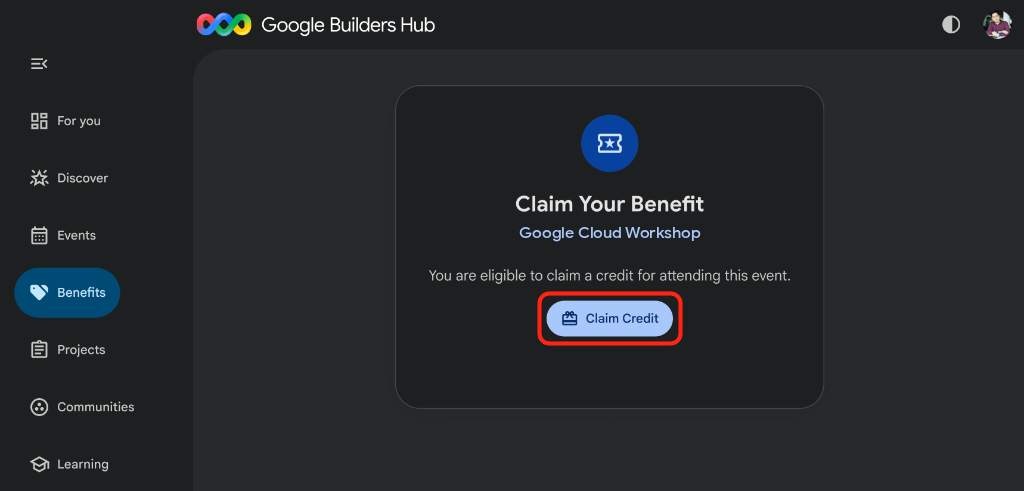
@gmail.comaccount. - On Claim Your Benefit, click Claim Credit:
- If prompted to create a Google Developer Program profile, complete the form.
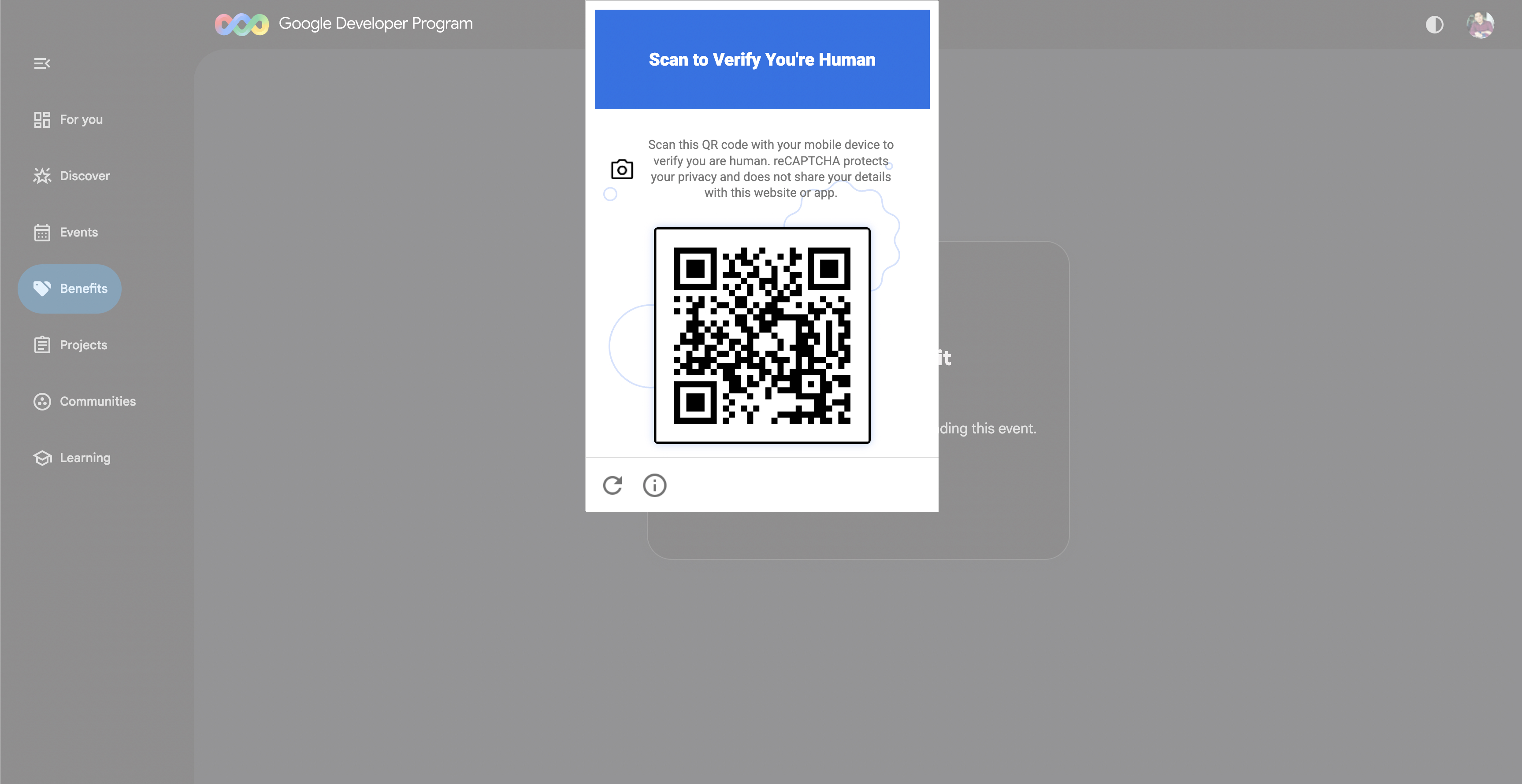
- When Scan to Verify You're Human appears, scan the QR code with your phone and complete verification (refresh and click Claim Credit again if the QR code does not appear):
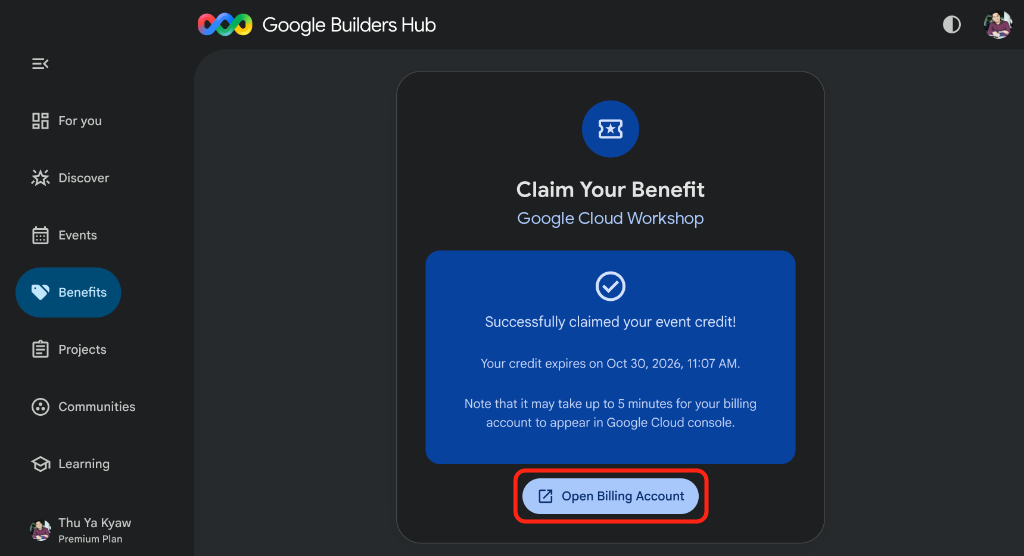
- Confirm Successfully claimed your event credit! appears, then click Open Billing Account:
🔍 Check your work
Billing account setup takes up to 3 minutes:
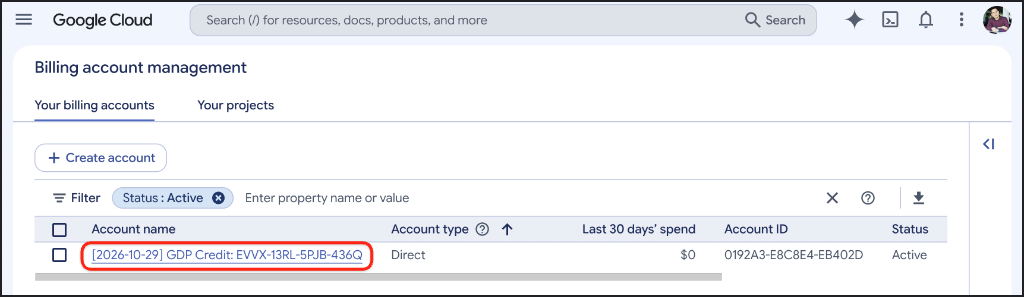
- Open Google Cloud Billing (or copy the URL into your Incognito window) and select Your billing accounts:
https://console.cloud.google.com/billing
- Refresh until your
GDP Creditaccount shows status Active:
3. Create a Google Cloud project (Optional)
Create a dedicated Google Cloud project so all resources from this codelab stay isolated and easy to clean up.
- Open Create a Project (or copy the URL into your Incognito window):
https://console.cloud.google.com/projectcreate
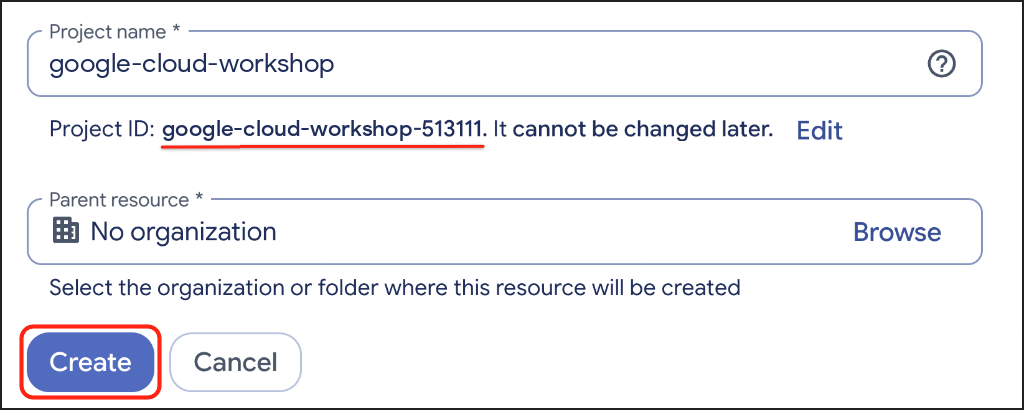
- Enter your project details:
- Project name: For example,
google-cloud-workshop - Billing account (if shown): Select
GDP Credit(or your active billing account) - Parent resource: No organization (or your organization if required)
- Project name: For example,
- Note the generated Project ID below the project name, then click Create:
🔍 Check your work
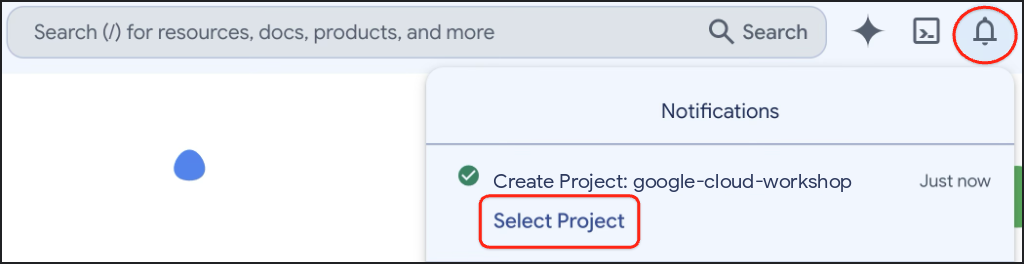
Click Notifications in the top-right toolbar and click Select Project once project creation finishes:
4. Set up your environment
Configure Google Cloud Shell, enable the Agent Platform API, and create an isolated Python 3.12 virtual environment with uv.
Configure Cloud Shell
- Click Activate Cloud Shell (
>_) in the Google Cloud console toolbar, or open Google Cloud Shell directly (or copy the URL into your Incognito window):
https://shell.cloud.google.com/?show=ide,terminal

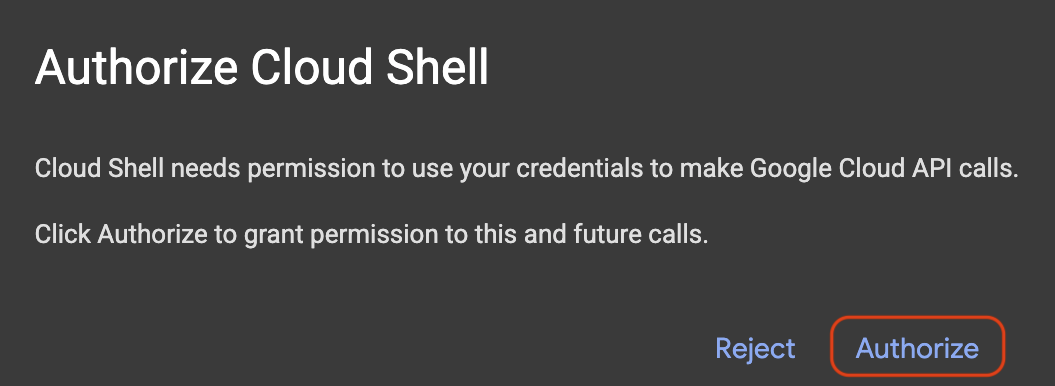
- Click Authorize if prompted:
- Select your active Google Cloud Project ID from the numbered menu in your terminal:
unset CLOUDSDK_CORE_PROJECT
PS3="Select your project (e.g. 1): "
select PROJECT_ID in $(gcloud projects list --format="value(projectId)"); do
  [ -n "$PROJECT_ID" ] && gcloud config set project "$PROJECT_ID" && break
done
You should see output similar to (untagged projects also print an informational [environment: untagged] line):
1) google-cloud-workshop-4210
2) my-cloud-project-8812
Select your project (e.g. 1): 1
Updated property [core/project].
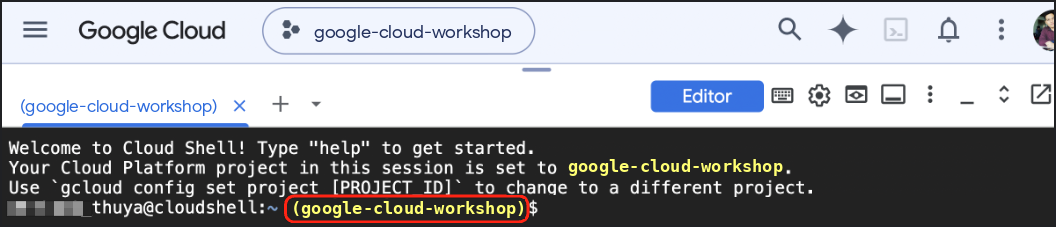
Verify your selected Project ID appears highlighted in yellow in the Cloud Shell prompt:
Enable required APIs
Enable the Agent Platform API so your ADK agent can invoke Gemini models:
gcloud services enable aiplatform.googleapis.com
You should see output similar to:
Operation "operations/acat.p2-..." finished successfully.
Create a Python virtual environment and install ADK
Create the ~/ai-agents-adk workspace directory and activate a Python 3.12 virtual environment:
cd ~
mkdir -p ai-agents-adk && cd ~/ai-agents-adk

which uv >/dev/null 2>&1 || curl -LsSf https://astral.sh/uv/install.sh | sh
export PATH="$HOME/.local/bin:$PATH"

uv venv .venv --python 3.12
source .venv/bin/activate
Confirm the (.venv) prefix appears at the start of your terminal prompt:

Install ADK inside the active virtual environment:
uv pip install --no-cache "google-adk==2.14.0"
🔍 Check your work
Verify the installed adk CLI version:
adk --version
You should see output similar to:
adk, version 2.14.0
5. Scaffold the agent
Generate the starter personal_assistant agent package with adk create. ADK creates four files inside personal_assistant/:
agent.py: Definesroot_agentwith its model, name, description, and system instruction.__init__.py: Markspersonal_assistantas a Python package so ADK can discover and importagent.py..env: Stores your backend flag (GOOGLE_GENAI_USE_ENTERPRISE=1), Project ID, and location (global)..gitignore: Excludes.envand local.adk/SQLite session files from version control.
Run adk create
Scaffold the personal_assistant package from ~/ai-agents-adk:
cd ~/ai-agents-adk
adk create personal_assistant
Select the following options when prompted (if prompted with Enable telemetry? [Y/n]: on first run, press Enter or type n and press Enter):
- Choose a model for the root agent: Type
2to selectgemini-3.8-flash(option1selectsgemini-3.5-flash) and press Enter. - Choose a backend: Type
2to select the Google Cloud Agent Platform backend (option2in the CLI menu below) and press Enter. - Enter Google Cloud project ID: Press Enter to accept your detected Project ID in brackets (or type your Project ID if different).
- Enter Google Cloud region: Type
global(required to servegemini-3.8-flashon Agent Platform) and press Enter.
🔍 Check your work
You should see output similar to:
Choose a model for the root agent:
1. gemini-3.5-flash
2. gemini-3.8-flash
3. Other models (fill later)
Choose model (1, 2, 3): 2
1. Google AI
2. Vertex AI
3. Login with Google
Choose a backend (1, 2, 3): 2

You need an existing Google Cloud account and project, check out this link for details:
https://google.github.io/adk-docs/get-started/quickstart/#gemini---google-cloud-vertex-ai

Enter Google Cloud project ID [google-cloud-workshop-4210]:
Enter Google Cloud region [us-central1]: global

Agent created in /home/your_username/ai-agents-adk/personal_assistant:
- .env
- .gitignore
- __init__.py
- agent.py

⚠️  WARNING: Secrets (like GOOGLE_API_KEY) are stored in .env.

Next steps:
- Chat with your agent in the terminal: adk run personal_assistant
- Or in the browser: adk web .
- Have your coding agent evaluate and deploy it: uvx google-agents-cli setup
  (other install options: https://adk.dev/get-started/agents-cli/)
6. Explore the generated code
Open ~/ai-agents-adk in the Cloud Shell Editor so you can inspect the generated files alongside your terminal:
which cloudshell >/dev/null 2>&1 && cloudshell workspace ~/ai-agents-adk || true
Reactivate your virtual environment in the reloaded terminal:
cd ~/ai-agents-adk
source .venv/bin/activate
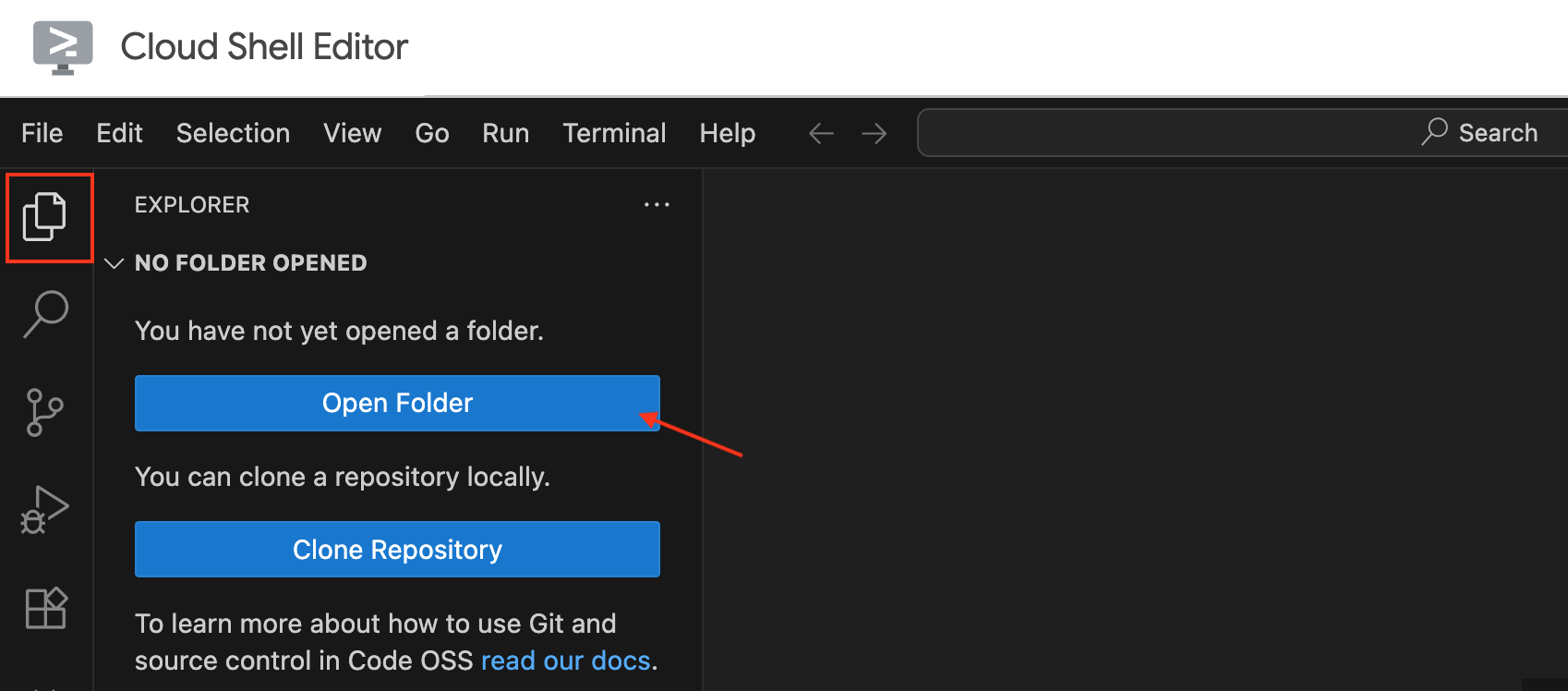
You can also open the workspace manually in the Cloud Shell Editor by clicking the Explorer icon (or File > Open Folder...) and selecting ai-agents-adk:
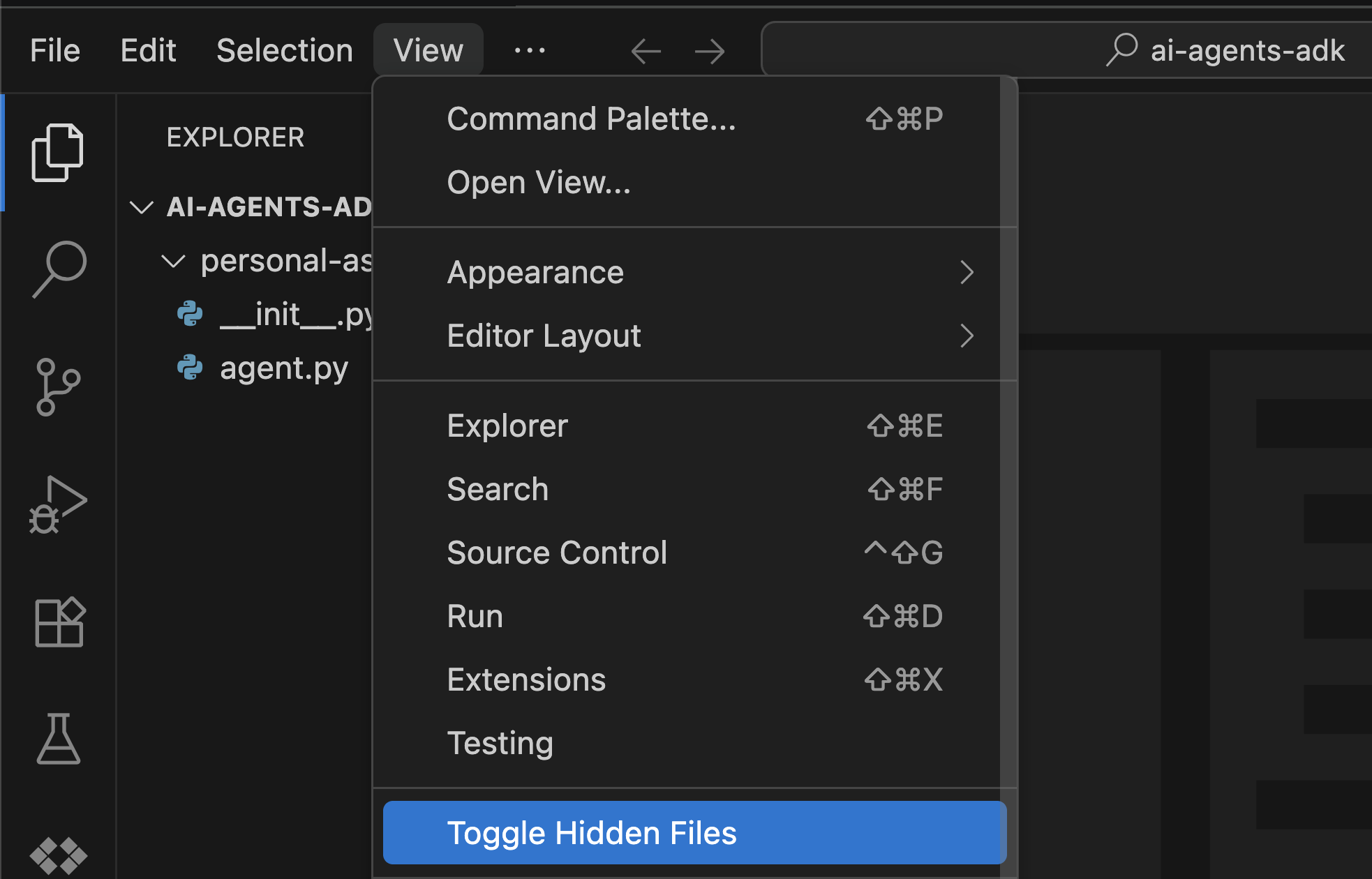
Dotfiles such as .env are hidden by default in the Explorer tree. Click View > Toggle Hidden Files in the top menu bar to reveal personal_assistant/.env:
Review agent.py
Open ~/ai-agents-adk/personal_assistant/agent.py in the Cloud Shell Editor:
cloudshell edit ~/ai-agents-adk/personal_assistant/agent.py
Inspect the scaffolded file (no edits required):
from google.adk.agents.llm_agent import Agent

root_agent = Agent(
    model='gemini-3.8-flash',
    name='root_agent',
    description='A helpful assistant for user questions.',
    instruction='Answer user questions to the best of your knowledge',
)
from google.adk.agents.llm_agent import Agent: Imports ADK'sAgentclass (an alias ofLlmAgent; ADK 2 also exposesfrom google.adk import Agentas a top-level shorthand when writing custom code).model='gemini-3.8-flash': Selectsgemini-3.8-flashas the model powering reasoning and responses.name='root_agent': Assigns the identifier ADK uses in logs, traces, and multi-agent graphs.description='...': Summarizes what the agent does when a parent coordinator decides whether to delegate to it.instruction='...': Sets the system prompt governing the agent's tone and behavior.
Review __init__.py and .env
Open personal_assistant/__init__.py to confirm it re-exports agent so adk run and adk web can discover root_agent:
from . import agent as agent
Open personal_assistant/.env to inspect your runtime configuration:
GOOGLE_GENAI_USE_ENTERPRISE=1
GOOGLE_CLOUD_PROJECT=google-cloud-workshop-4210
GOOGLE_CLOUD_LOCATION=global
GOOGLE_GENAI_USE_ENTERPRISE=1: Routes ADK model calls through Agent Platform using your Google Cloud credentials instead of an API key.GOOGLE_CLOUD_PROJECT: Associates model requests and billing with your Google Cloud project.GOOGLE_CLOUD_LOCATION=global: Targets the global endpoint wheregemini-3.8-flashis served.
🔍 Check your work
Verify from the terminal that personal_assistant/agent.py imports cleanly and .env points to global:
cd ~/ai-agents-adk && source .venv/bin/activate
python3 -c "from personal_assistant.agent import root_agent; print(root_agent.name, root_agent.model)"
cat ~/ai-agents-adk/personal_assistant/.env
You should see output similar to:
root_agent gemini-3.8-flash
GOOGLE_GENAI_USE_ENTERPRISE=1
GOOGLE_CLOUD_PROJECT=google-cloud-workshop-4210
GOOGLE_CLOUD_LOCATION=global
7. Run the agent in the terminal
Test your personal_assistant agent directly from the command line using adk run:
cd ~/ai-agents-adk && source .venv/bin/activate
adk run personal_assistant
At the [user]: prompt, send a message such as hello. What can you do for me? and verify the agent responds.
🔍 Check your work
You should see output similar to:
Running agent root_agent, type exit to exit.
[user]: hello. What can you do for me?
[root_agent]: Hello! I can help answer questions, explain concepts, summarize text, brainstorm ideas, and assist with writing or coding tasks. How can I help you today?
[user]: exit
Type exit and press Enter to close the interactive CLI session and return to your shell prompt before continuing.
Troubleshooting
This API method requires billing to be enabled: ConfirmGOOGLE_CLOUD_PROJECTinpersonal_assistant/.envmatches your active project, then open Linked Billing Account (or copy the URL below into your Incognito window) and link your activeGDP Creditor Cloud Billing account:
https://console.cloud.google.com/billing/linkedaccount
API has not been used in project: Enable the Agent Platform API in your terminal and retry after a few seconds:
gcloud services enable aiplatform.googleapis.com
8. Run the agent in the ADK Web UI
Markdown responses, event payloads, and multi-turn state are much easier to inspect in ADK 2's built-in browser playground. Start the ADK Web UI from the parent ~/ai-agents-adk directory (above personal_assistant/):
cd ~/ai-agents-adk && source .venv/bin/activate
adk web --allow_origins "*"
Open the ADK Web UI in your browser:
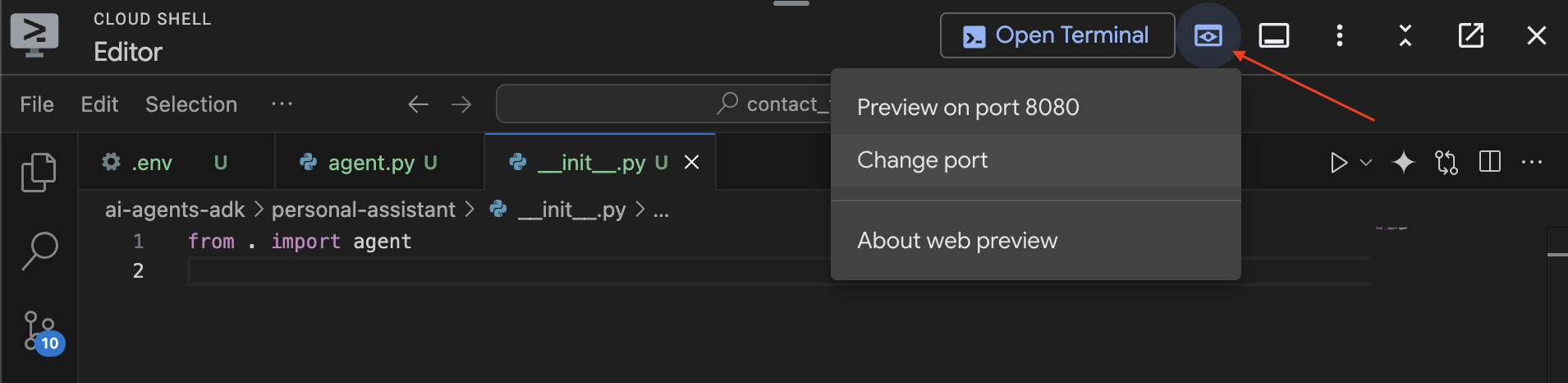
- Click the Web Preview icon in the top-right Cloud Shell toolbar and select Change port.
- Enter port
8000and click Change and Preview:
- Confirm
personal_assistantis selected in the top-left agent dropdown, send"Hello. What can you do?", and click the agent response event to inspect its metadata:
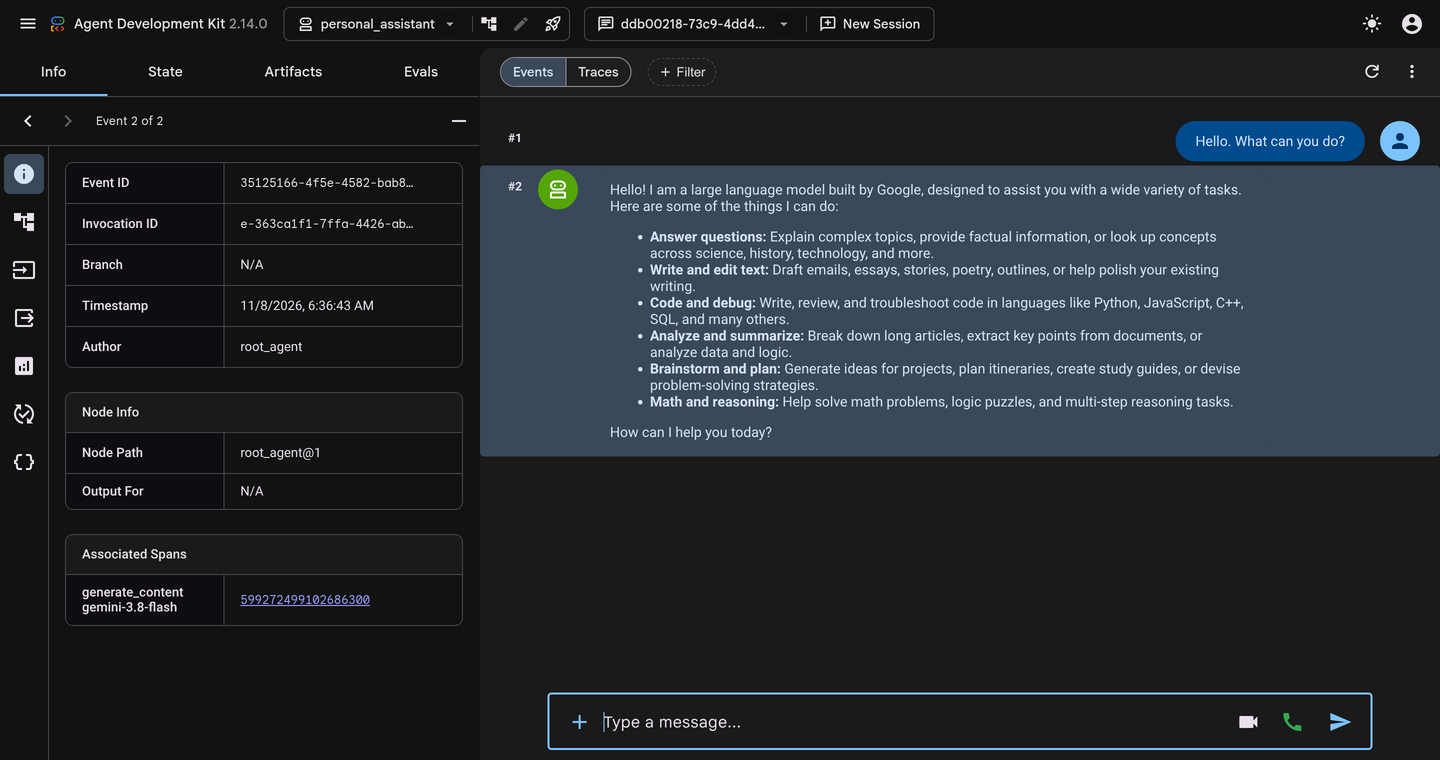
ADK 2's Web UI pairs the Events and Traces stream toggle with Info, State, Artifacts, and Evals inspector tabs (plus the Agent Structure graph icon in the top toolbar) and persists local sessions automatically in personal_assistant/.adk/session.db.
🔍 Check your work
In your Cloud Shell terminal, you should see output similar to:
INFO:     Started server process [4978]
INFO:     Waiting for application startup.
+------------------------------------------------------+
| ADK Web Server started                               |
|                                                      |
| For local testing, access at http://localhost:8000.  |
+------------------------------------------------------+
INFO:     Application startup complete.
INFO:     Uvicorn running on http://127.0.0.1:8000 (Press CTRL+C to quit)
When you are finished testing, press Ctrl + C in your terminal to stop the adk web server and return to the command prompt.
9. Clean up (Optional)
This codelab creates no persistent billable infrastructure beyond pay-per-request Gemini calls. Make sure adk web is stopped (Ctrl + C).
Remove local workspace files
To delete the ~/ai-agents-adk directory from Cloud Shell:
cd ~
rm -rf ~/ai-agents-adk
Delete a dedicated project (Optional)
gcloud projects delete "$(gcloud config get-value project)" --quiet
10. Congratulations
You set up an ADK 2 Python environment on Google Cloud, scaffolded a personal_assistant agent powered by gemini-3.8-flash on Agent Platform, explored its generated package structure, and tested it in both the terminal CLI and the ADK Web UI.
What you accomplished
- Configured Google Cloud Shell, enabled the Agent Platform API, and created a Python 3.12 environment with
uv - Scaffolded
personal_assistantwithadk createand explored howagent.py,__init__.py, and.envwork together - Tested multi-turn conversations via
adk runand inspected events, traces, and SQLite-backed sessions inadk web
Next steps
- Continue to Part 2: Building AI Agents with ADK: Empowering with Tools
- Continue to Part 3: Building AI Agents with ADK: Orchestrating Agent Workflows
- Continue to Part 4: Building AI Agents with ADK: Orchestrating Graph Workflows
- Explore the Agent Development Kit documentation and the GEAR learning program