
1. Introduction
Welcome to the Petverse! All pets are welcome! 🐈🐶🐍🐟🦄
Prerequisites
- Basic understanding of the Google Cloud Console
- Basic understanding of SQL statements
What you'll learn
- Create datasets and tables in BigQuery
- Create ObjectRef columns to reference multimedia in a storage bucket in BigQuery
- Use AI functions in BigQuery to enhance your dataset from the content of unstructured data
- Create multimedia embeddings to search for similar media
- Create text embeddings to perform semantic search with VECTOR_SEARCH
- Use the Gemini CLI to create a web application
What you'll need
- A Google Cloud Account and Google Cloud Project with a Billing account
- A web browser such as Chrome
2. Setup and Requirements
Self-paced environment setup
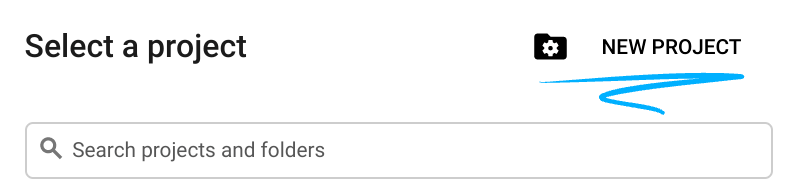
- Sign-in to the Google Cloud Console and create a new project or reuse an existing one. If you don't already have a Gmail or Google Workspace account, you must create one.

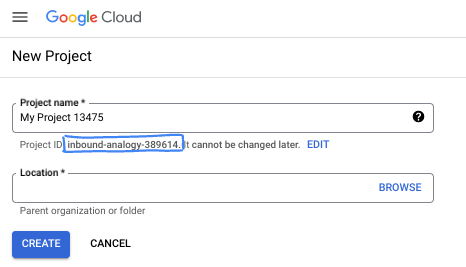
- The Project name is the display name for this project's participants. It is a character string not used by Google APIs. You can always update it.
- The Project ID is unique across all Google Cloud projects and is immutable (cannot be changed after it has been set). The Cloud Console auto-generates a unique string; usually you don't care what it is. In most codelabs, you'll need to reference your Project ID (typically identified as
PROJECT_ID). If you don't like the generated ID, you might generate another random one. Alternatively, you can try your own, and see if it's available. It can't be changed after this step and remains for the duration of the project. - For your information, there is a third value, a Project Number, which some APIs use. Learn more about all three of these values in the documentation.
- Next, you'll need to enable billing in the Cloud Console to use Cloud resources/APIs. Running through this codelab won't cost much, if anything at all. To shut down resources to avoid incurring billing beyond this tutorial, you can delete the resources you created or delete the project. New Google Cloud users are eligible for the $300 USD Free Trial program.
3. Open the Cloud Shell
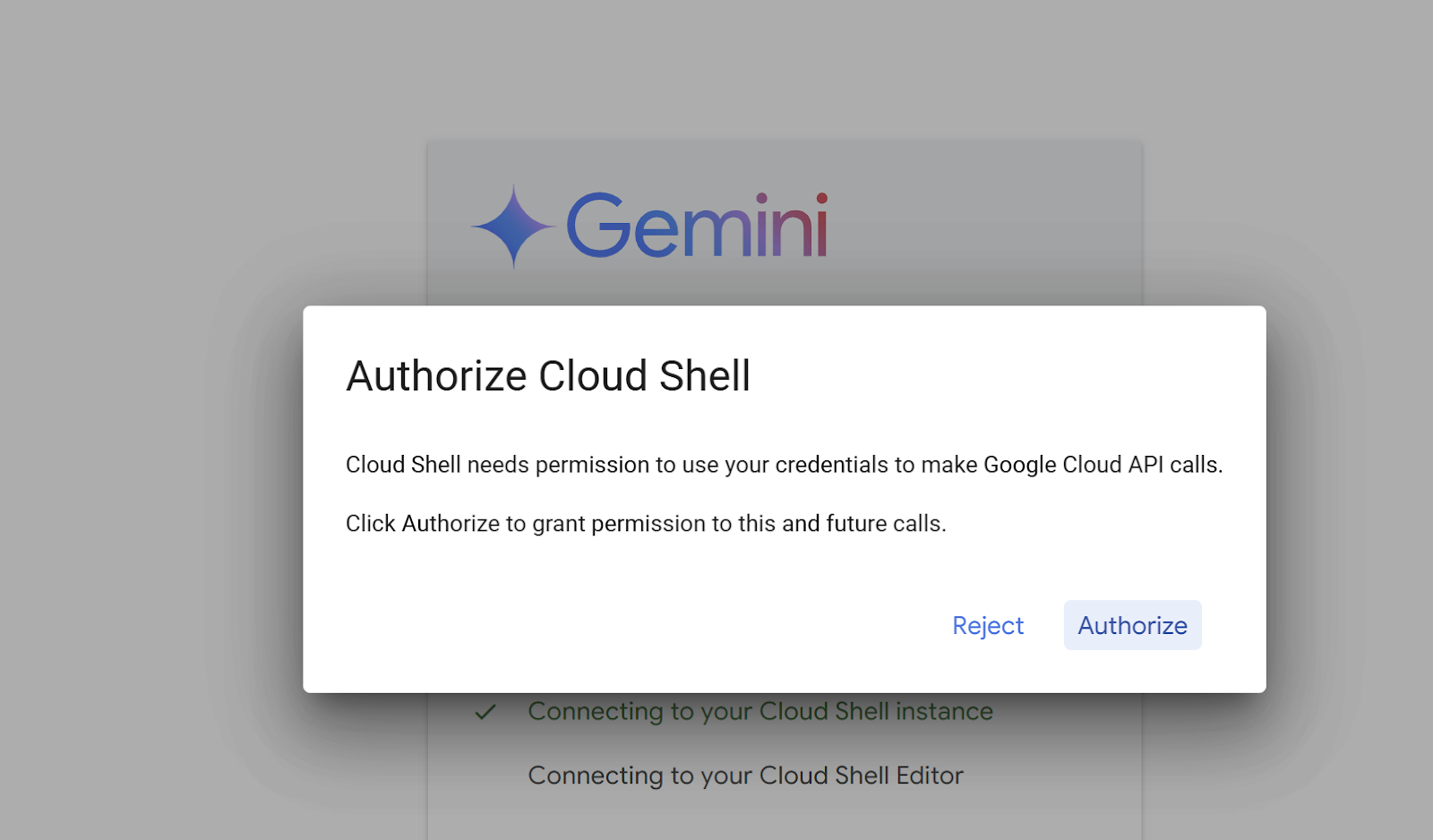
Navigate to https://shell.cloud.google.com/?show=ide%2Cterminal . When prompted, click Authorize.
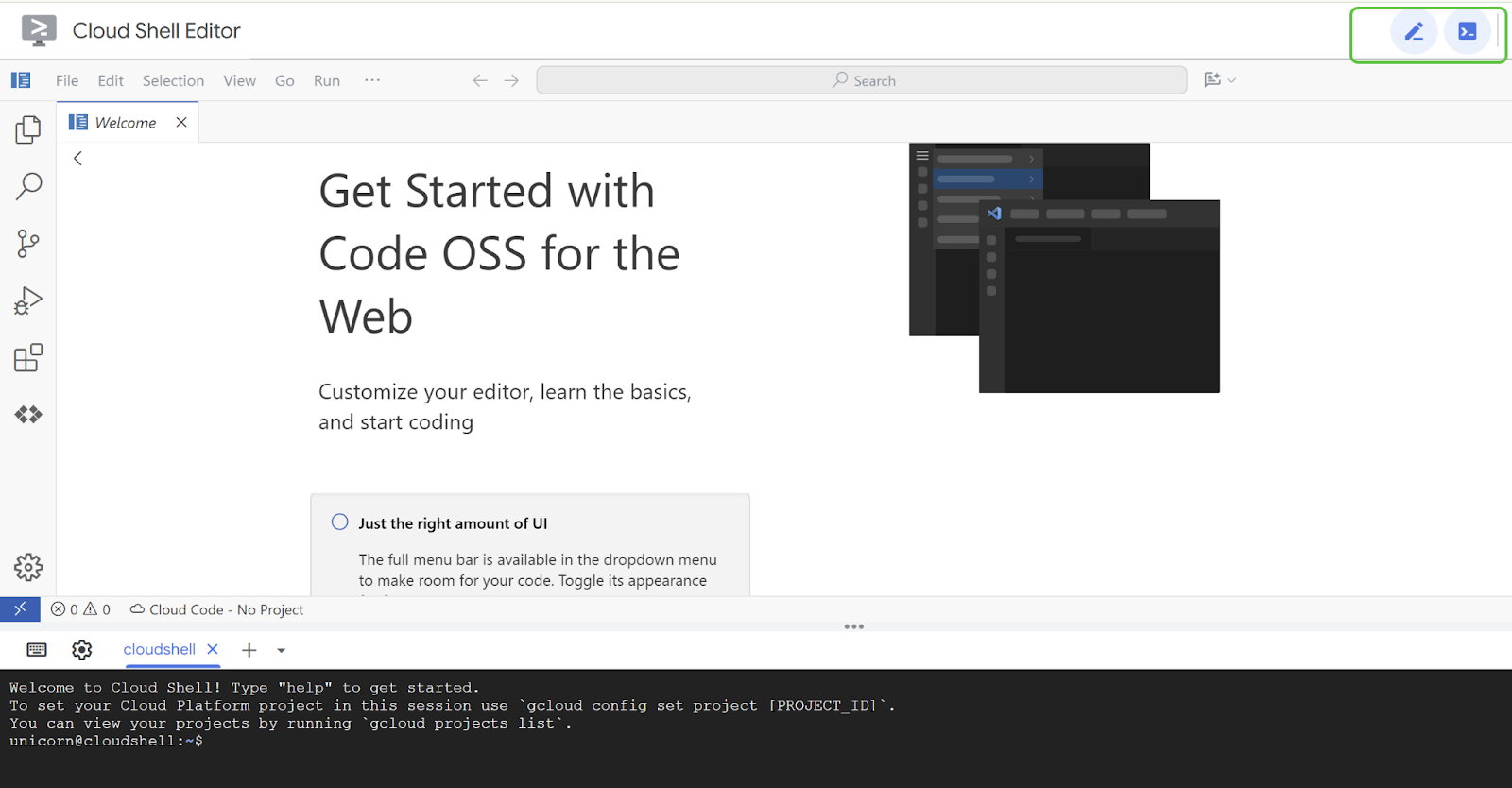
Make sure both the editor and the console are visible:
4. Create a helper script
To make this experience smoother, you will create a helper script that sets relevant environment variables.
Replace the <<Project ID>> with your project ID below.
Copy the following command into the Cloud Shell terminal and press Enter to execute**.**
gcloud config set project <<PROJECT_ID>>
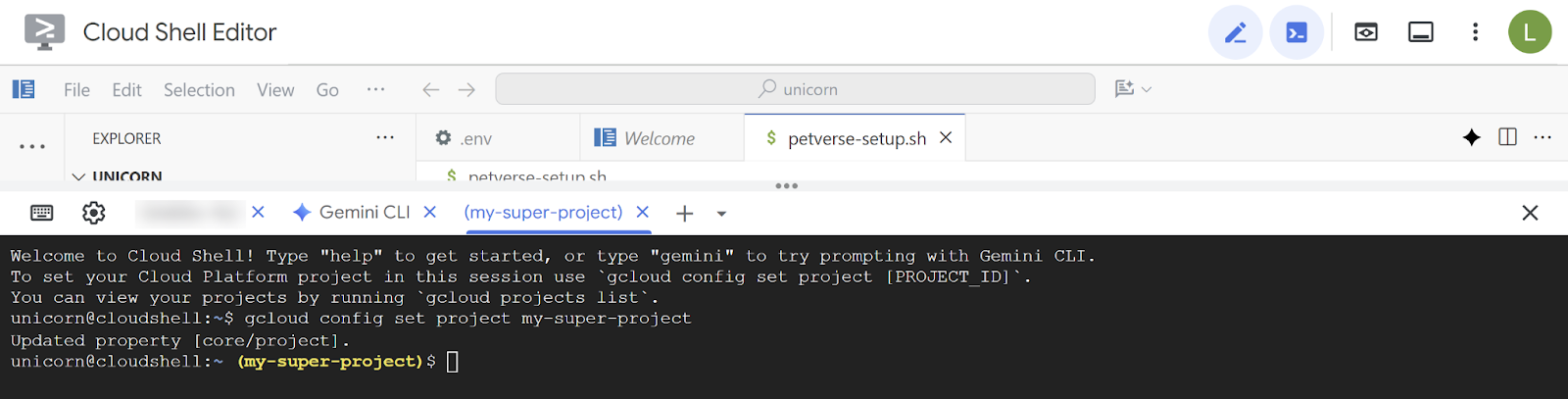
Copy the following command into the Cloud Shell terminal and press Enter to execute**.** This will enable necessary services and create the file and edit it in the Cloud Shell.
gcloud services enable compute.googleapis.com \
                       cloudresourcemanager.googleapis.com \
                       aiplatform.googleapis.com \
                       storage-component.googleapis.com  \
                       bigqueryconnection.googleapis.com \
run.googleapis.com \
secretmanager.googleapis.com \
cloudbuild.googleapis.com \
artifactregistry.googleapis.com  \
iap.googleapis.com
edit  ~/petverse-setup.sh
You should see a new tab with the name of the file. Paste the following script into the new file:
#!/bin/bash

# -----------------------------------------------------------------------------
# 1. Global Variables: Set your desired project ID and region here.
# -----------------------------------------------------------------------------

# 🦄 🦄 Set your project ID here ⬇️.

# Example: PROJECT_ID="your-project-id"
PROJECT_ID=""

# Set your desired region here. Default is 'us-central1'.
# Example: REGION="us-east1"
REGION="us-central1"

# -----------------------------------------------------------------------------
# 2. Check and Authenticate
# -----------------------------------------------------------------------------

echo "  ➡️   Checking for active Google Cloud authentication..."

# Check if the user is authenticated; if not, prompt for authentication.
if ! gcloud auth list --format="value(account)" | grep -q @; then
  echo "⚠️   Not authenticated. Please authenticate now."
  gcloud auth login
fi

echo "  ✅   Authentication check passed."

# -----------------------------------------------------------------------------
# 3. Get Project ID from User if not set
# -----------------------------------------------------------------------------

# If PROJECT_ID is not set in the script or as an environment variable,
# prompt the user to choose one.
if [[ -z "$PROJECT_ID" ]] && [[ -n "$DEVSHELL_PROJECT_ID" ]]; then
  PROJECT_ID=$DEVSHELL_PROJECT_ID
fi

if [[ -z "$PROJECT_ID" ]]; then
  echo "  ⚠️   Project ID is not set. Listing available projects:"

  # List projects and store them in an array.
  projects_array=($(gcloud projects list --format="value(projectId)"))

  # Check if projects were found.
  if [[ ${#projects_array[@]} -eq 0 ]]; then
    echo "  ❌   No projects found. Please ensure your account has access to projects."
    exit 1
  fi

  # Display the projects and prompt for input.
  echo " "
  echo "Available Projects:"
  for project in "${projects_array[@]}"; do
    echo "$project"
  done

  echo " "
  read -p "Please enter your desired project ID from the list above: " PROJECT_ID

  # Validate the user's input by checking if it's in the array.
  if [[ ! " ${projects_array[@]} " =~ " ${PROJECT_ID} " ]]; then
    echo "  ❌   Invalid project ID. Please run the script again and select a valid ID."
    exit 1
  fi
fi

echo "  ✅   Project ID set to: $PROJECT_ID"

# -----------------------------------------------------------------------------
# 4. Set Environment Variables
# -----------------------------------------------------------------------------

# Set the project and region for the current session.
echo "  🔄   Setting Google Cloud configuration for this session..."
gcloud config set project "$PROJECT_ID"
gcloud config set compute/region "$REGION"

echo "  ✅   Google Cloud configuration updated."
echo "Project ID: $PROJECT_ID"
echo "Region: $REGION"
echo " "
echo "  🎉 🦄 🦄   Script execution complete. You can now use Google Cloud commands in this shell session."
Replace the placeholder for PROJECT_ID with the name of your project:
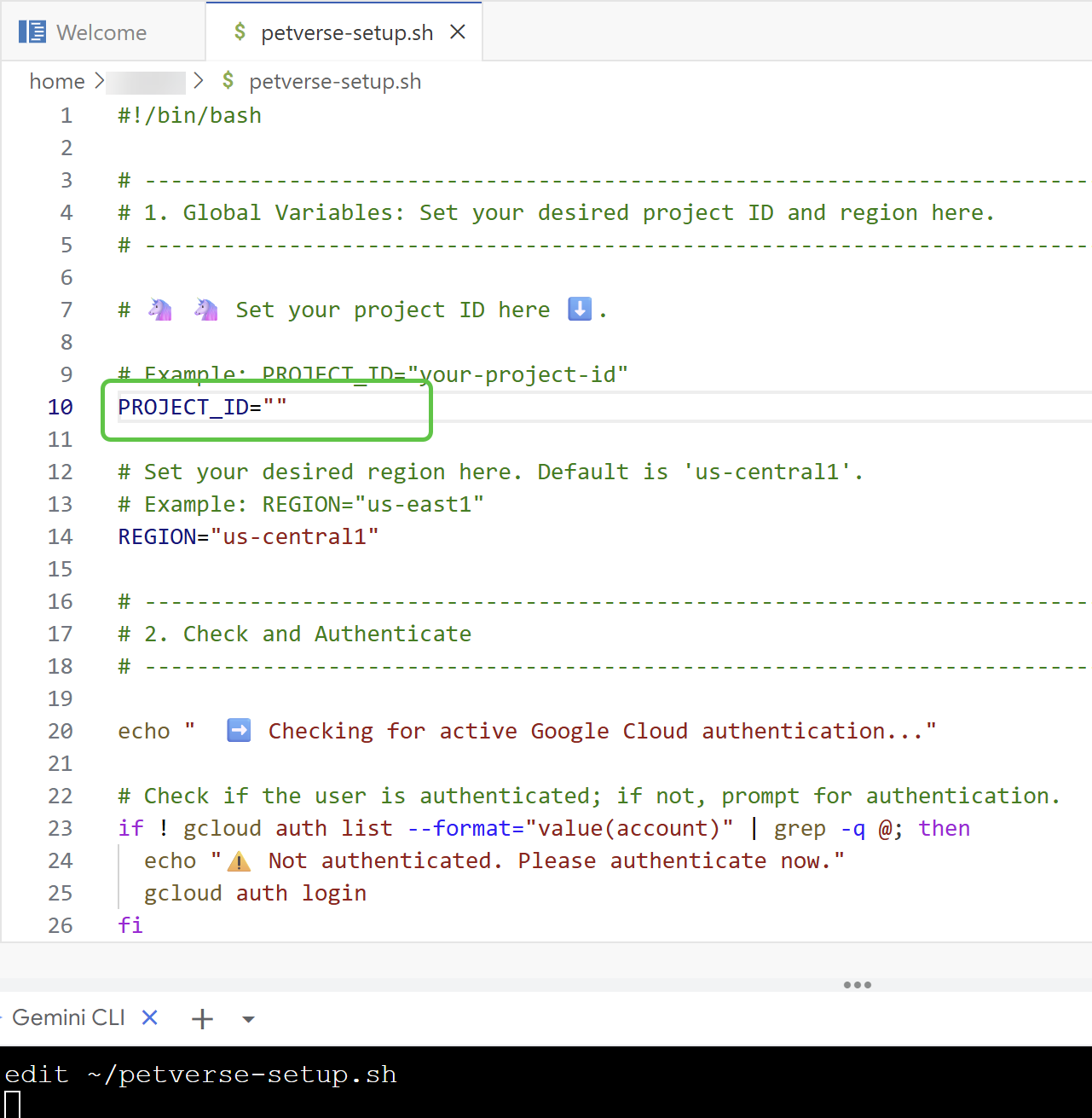
Copy the following command and execute in the terminal:
chmod +x petverse-setup.sh
~/petverse-setup.sh
Expected output:

5. Create a storage bucket
Create a Cloud Storage Bucket and copy the available media to your own bucket. You will use this to store available media for our wonderful pets. You will also create a connection to access the bucket through BigQuery.
Paste and execute the following in the terminal:
~/petverse-setup.sh
cd ~/
gcloud storage buckets create gs://$DEVSHELL_PROJECT_ID-petverse --uniform-bucket-level-access --location=us-central1
gcloud storage cp -r gs://sample-data-and-media/petverse/* gs://$DEVSHELL_PROJECT_ID-petverse/
bq mk --dataset --location=us-central1 --project_id=$DEVSHELL_PROJECT_ID petverse
bq mk --connection --location=us-central1 --project_id=$DEVSHELL_PROJECT_ID \
--connection_type=CLOUD_RESOURCE pet-connection
echo "your bucket is gs://$DEVSHELL_PROJECT_ID-petverse "

6. Create the pets table
You will now create a table in BigQuery to store information about your pets.
Open a new tab in the browser. Navigate to https://console.cloud.google.com/bigquery?utm_campaign=CDR_0x6cb6c9c7_default_b533854388&utm_medium=external&utm_source=lab .
Make sure the same project you have been using is selected in the console:
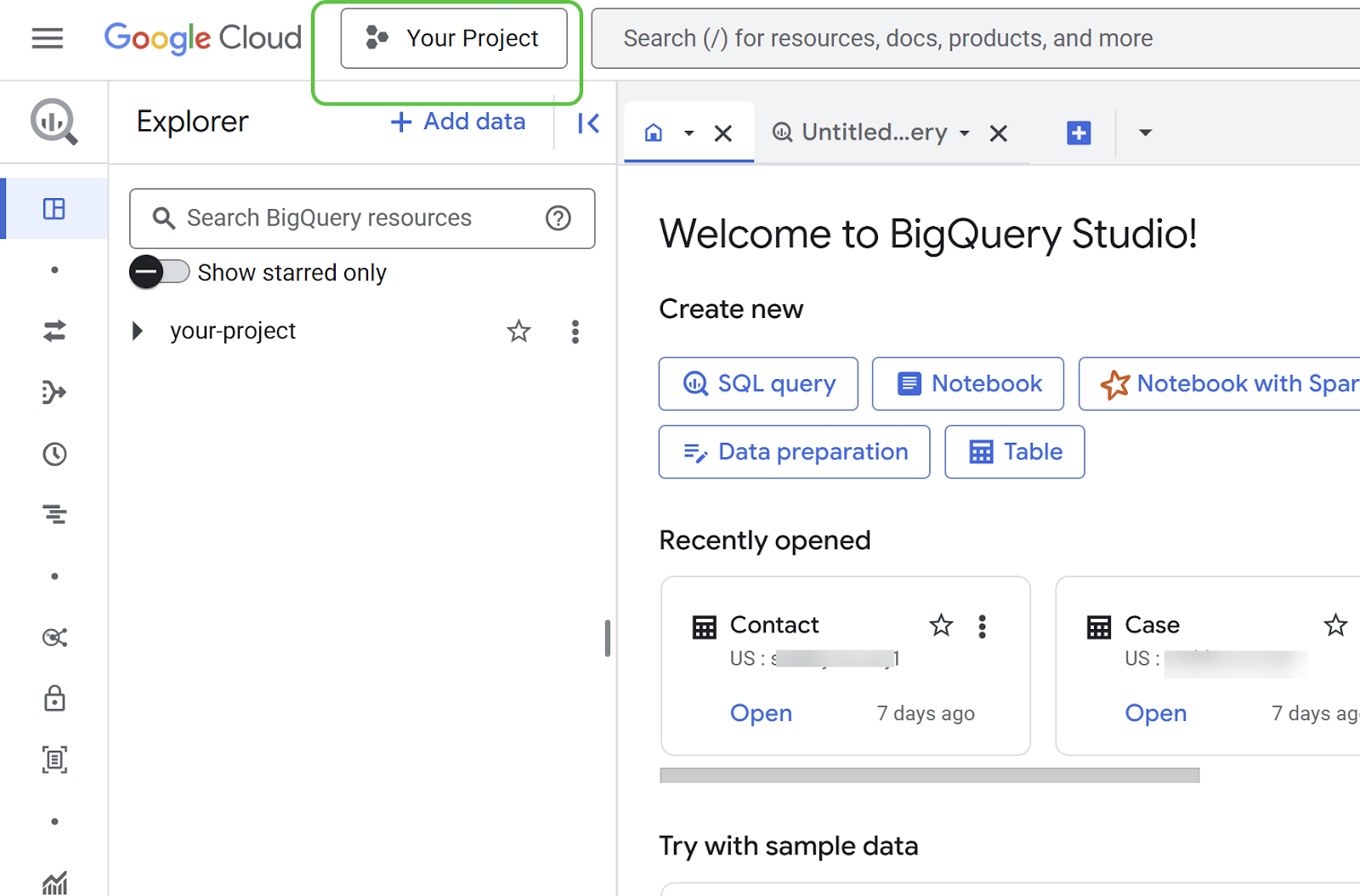
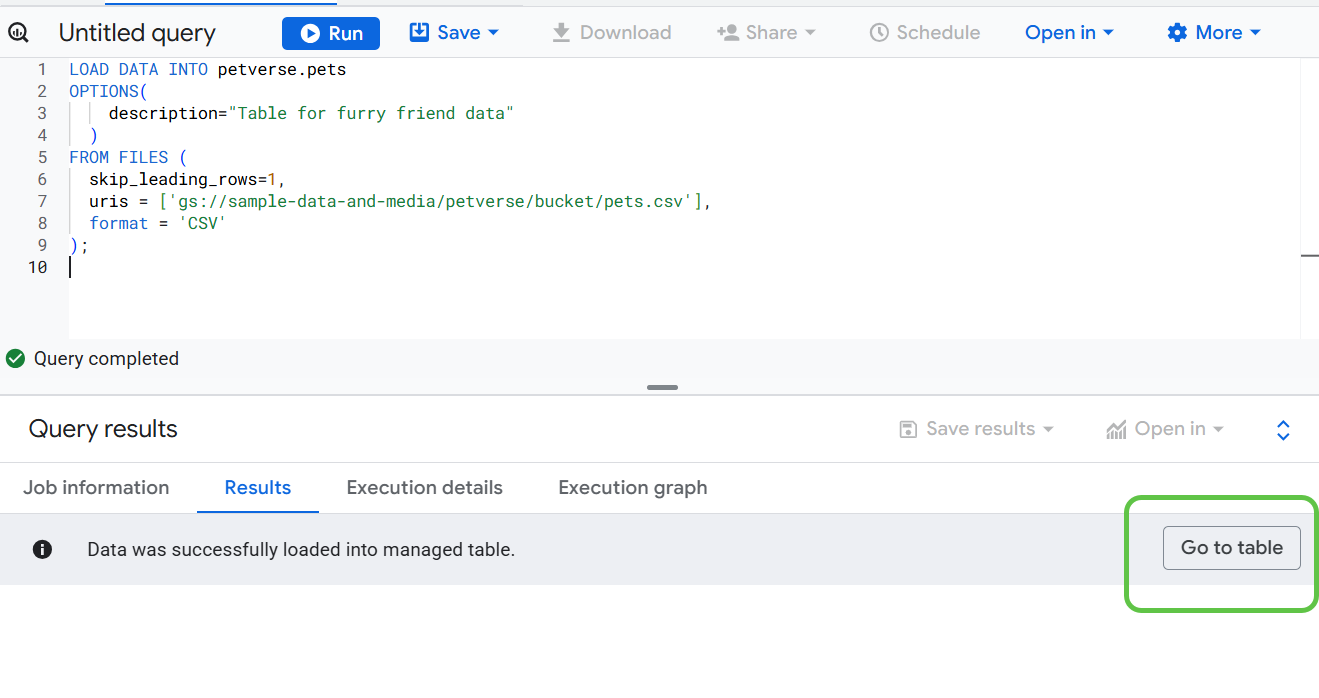
You can now create a table using the data in the file pets.csv. This file contains the names, favorite foods, toys and other interesting information about our pets.
Copy the following code into a new SQL query to create a physical table and load the data.
LOAD DATA INTO petverse.pets
OPTIONS(
    description="Table for furry friend data"
  )
FROM FILES (
  skip_leading_rows=1,
  uris = ['gs://<<your_bucket_name>>/pets.csv'],
  format = 'CSV'
);
Replace the placeholder for the bucket in the code with the bucket you created in the previous step.
You can check all your storage buckets in a separate browser tab pointed to this URL: https://console.cloud.google.com/storage/browser?utm_campaign=CDR_0x6cb6c9c7_default_b533854388&utm_medium=external&utm_source=lab .
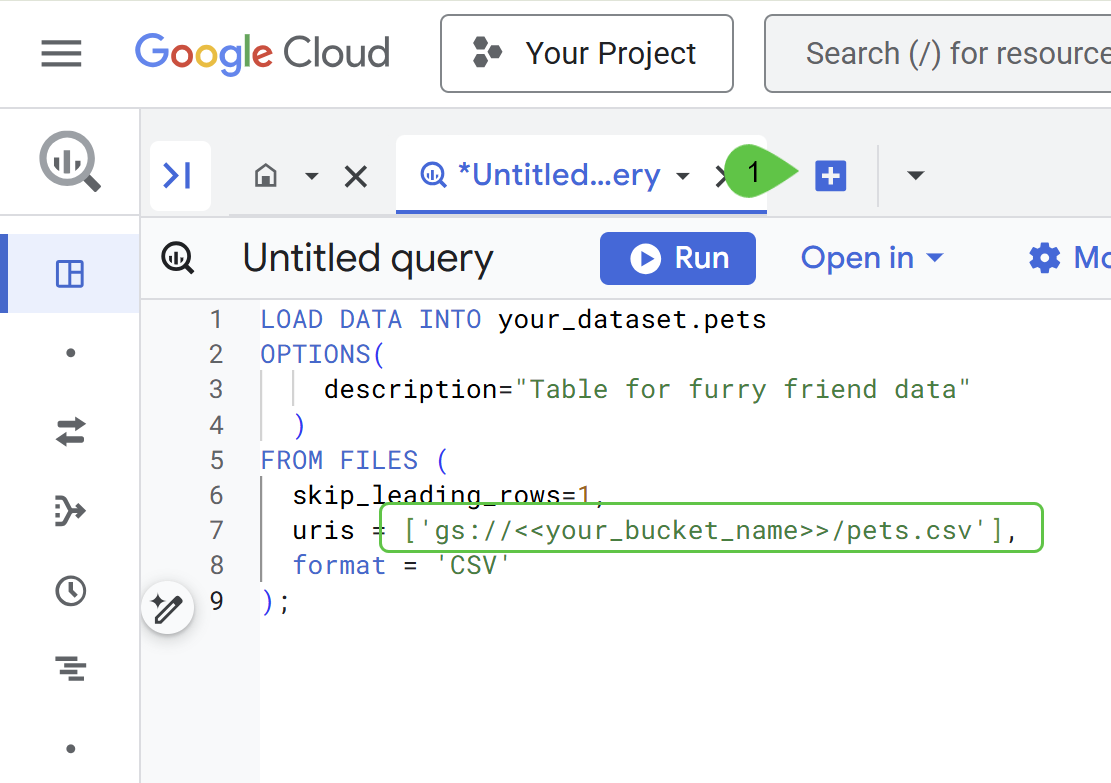
Use the Run button to execute the query.
Once the data is loaded successfully, click Go to table.
Click Preview to see the contents of the table. 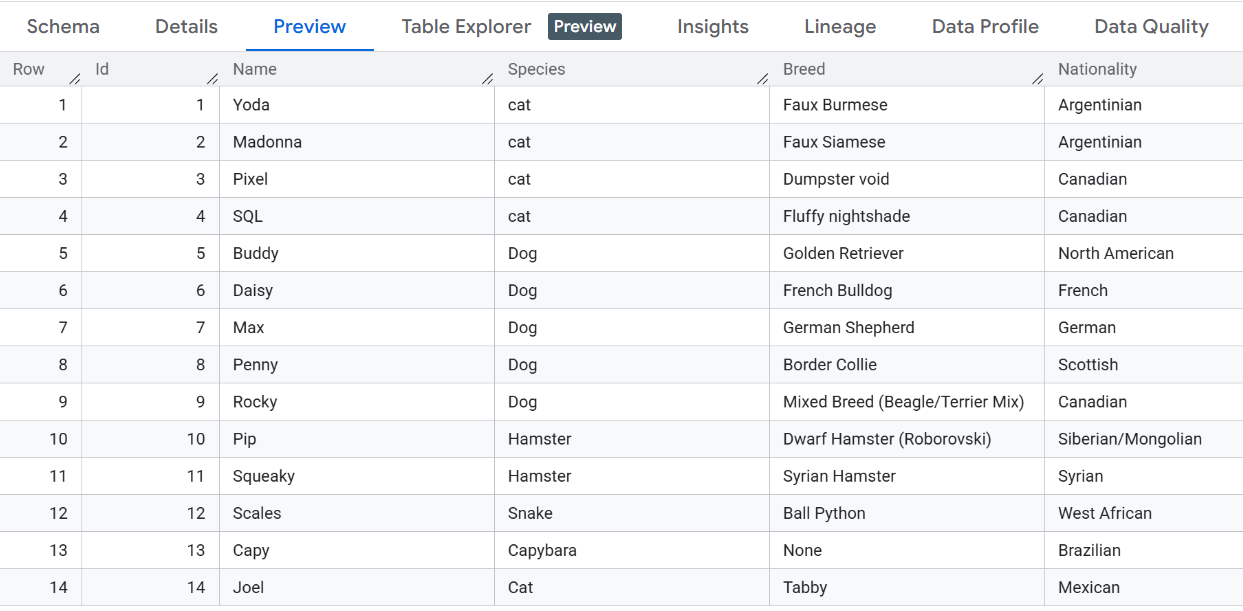
7. Connect BigQuery to the Storage Bucket
If you look in the bucket you created earlier, you will find a set of media files related to each pet.
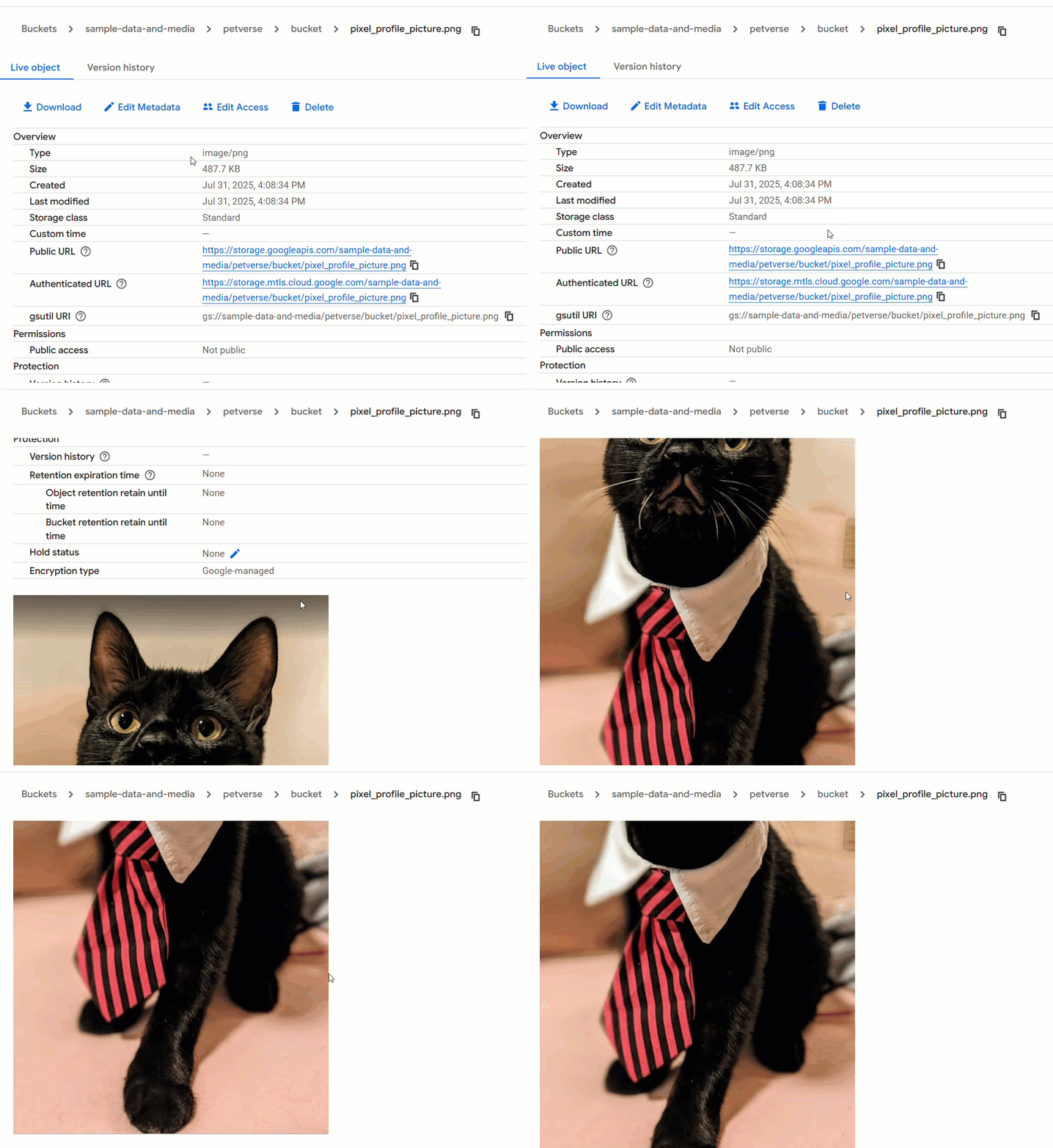
BigQuery has the capability to read into these buckets and use the files alongside data in tables. This value type is called ObjectRef.
Get the service account id for the connection you created earlier by clicking on it under External connections.
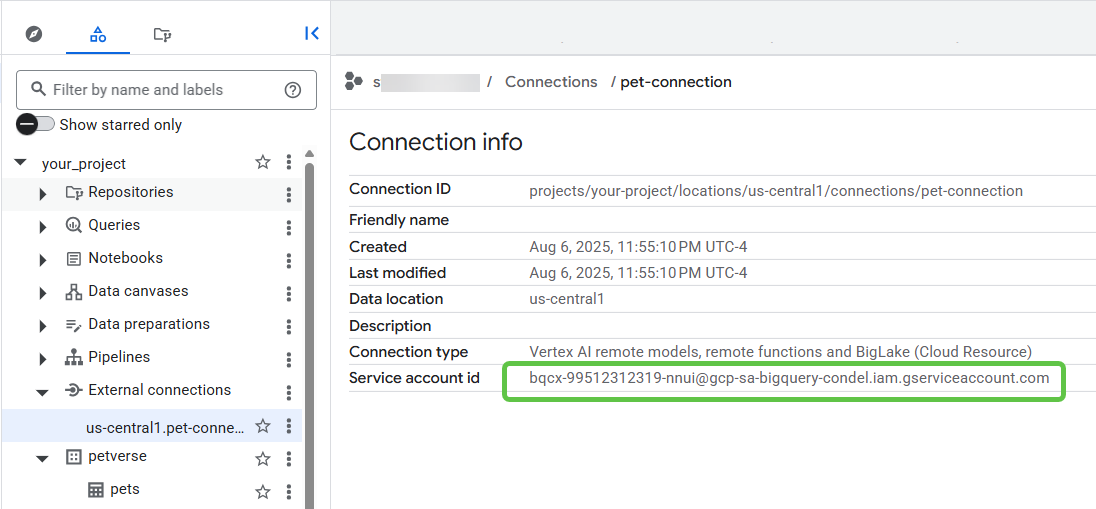
Copy the service account id.
Navigate to the IAM Admin console in a new browser tab ( https://console.cloud.google.com/iam-admin/ ).
Grant the service account with Storage Object Viewer and Vertex AI User (you will use this permission later).
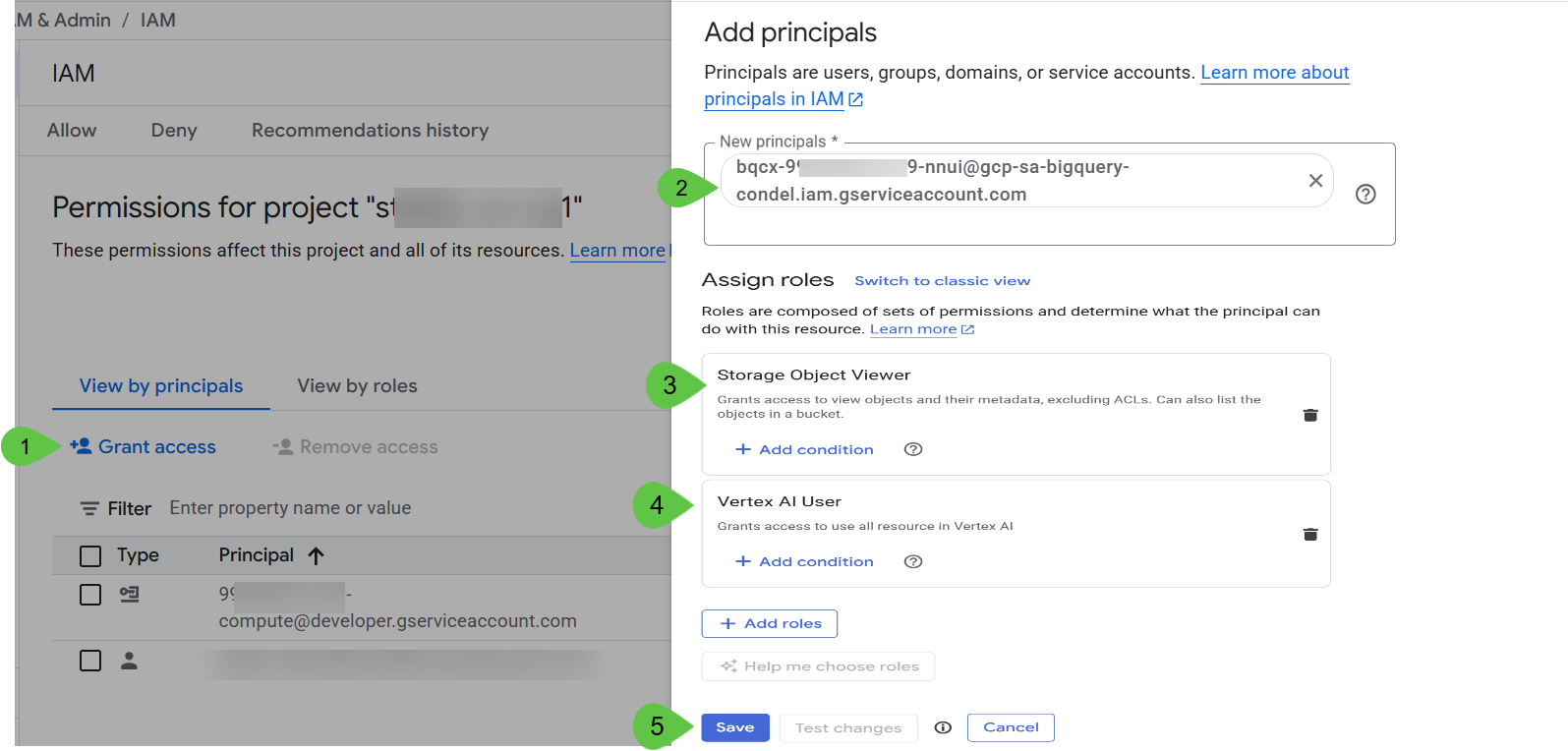
Click Save and 🕰️ wait a couple of minutes.
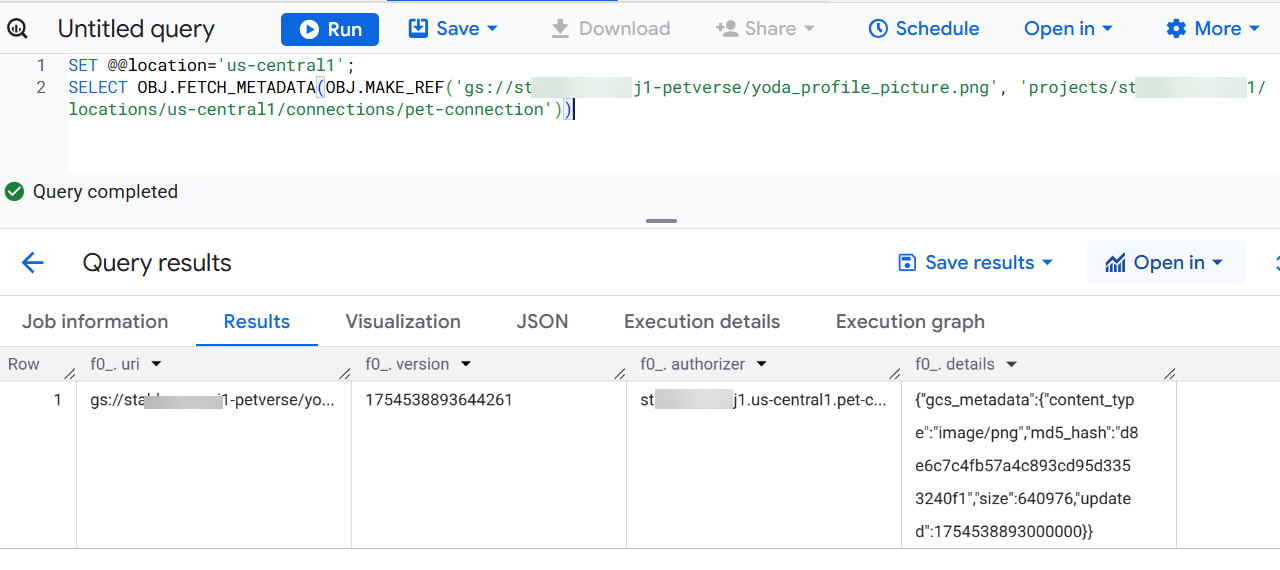
Back in the BigQuery tab, use the following query in BigQuery studio to test the connection between BigQuery and the storage bucket.
Replace <<PROJECT_ID>> with your project ID.
SET @@location='us-central1';
SELECT OBJ.FETCH_METADATA(OBJ.MAKE_REF('gs://<<PROJECT_ID>>-petverse/yoda_profile_picture.png', 'projects/<<PROJECT_ID>>/locations/us-central1/connections/pet-connection'))
Click View Results. You should get the metadata in the results:
8. Add the storage media to your structured data
You can enhance the pets table to add a column with each pet's profile picture where available. You will also add another column with an array of media references, to hold all the other files related to each pet.
The access to the multimedia requires a connection, which you created in the beginning of this codelab after creating your bucket.
Paste the following commands into a BigQuery SQL console and execute them to add two columns to your pets table.
SET @@location='us-central1';
ALTER TABLE petverse.pets
ADD COLUMN IF NOT EXISTS profile_picture STRUCT<uri STRING, version STRING, authorizer STRING, details JSON>,
ADD COLUMN IF NOT EXISTS additional_media ARRAY<STRUCT<uri STRING, version STRING, authorizer STRING, details JSON>>;
Copy the following statements and replace the place holder for PROJECT_ID with your project id.
SET @@location='us-central1';

UPDATE petverse.pets
SET profile_picture = (SELECT OBJ.FETCH_METADATA(OBJ.MAKE_REF('gs://<<PROJECT_ID>>-petverse/yoda_profile_picture.png', 'projects/<<PROJECT_ID>>/locations/us-central1/connections/pet-connection'))),
    additional_media = [(SELECT OBJ.FETCH_METADATA(OBJ.MAKE_REF('gs://<<PROJECT_ID>>-petverse/additional_media/Yoda_asks_for_cuddles.mp4', 'projects/<<PROJECT_ID>>/locations/us-central1/connections/pet-connection')))]
WHERE Id = 1;

UPDATE petverse.pets
SET profile_picture = (SELECT OBJ.FETCH_METADATA(OBJ.MAKE_REF('gs://<<PROJECT_ID>>-petverse/madonna_profile_picture.jpg', 'projects/<<PROJECT_ID>>/locations/us-central1/connections/pet-connection'))),
    additional_media = [(SELECT OBJ.FETCH_METADATA(OBJ.MAKE_REF('gs://<<PROJECT_ID>>-petverse/additional_media/Madonna_description.wav', 'projects/<<PROJECT_ID>>/locations/us-central1/connections/pet-connection')))]
WHERE Id = 2;

UPDATE petverse.pets
SET profile_picture = (SELECT OBJ.FETCH_METADATA(OBJ.MAKE_REF('gs://<<PROJECT_ID>>-petverse/pixel_profile_picture.png', 'projects/<<PROJECT_ID>>/locations/us-central1/connections/pet-connection'))),
    additional_media = [(SELECT OBJ.FETCH_METADATA(OBJ.MAKE_REF('gs://<<PROJECT_ID>>-petverse/additional_media/pixel_thug_life.mp4', 'projects/<<PROJECT_ID>>/locations/us-central1/connections/pet-connection'))),
                       (SELECT OBJ.FETCH_METADATA(OBJ.MAKE_REF('gs://<<PROJECT_ID>>-petverse/additional_media/pixel_description.wav', 'projects/<<PROJECT_ID>>/locations/us-central1/connections/pet-connection')))]
WHERE Id = 3;

UPDATE petverse.pets
SET profile_picture = (SELECT OBJ.FETCH_METADATA(OBJ.MAKE_REF('gs://<<PROJECT_ID>>-petverse/sql_profile_picture.png', 'projects/<<PROJECT_ID>>/locations/us-central1/connections/pet-connection'))),
    additional_media = [(SELECT OBJ.FETCH_METADATA(OBJ.MAKE_REF('gs://<<PROJECT_ID>>-petverse/additional_media/SQL_description.wav', 'projects/<<PROJECT_ID>>/locations/us-central1/connections/pet-connection'))),
                       (SELECT OBJ.FETCH_METADATA(OBJ.MAKE_REF('gs://<<PROJECT_ID>>-petverse/additional_media/SQL_favorite_toy.mp4', 'projects/<<PROJECT_ID>>/locations/us-central1/connections/pet-connection')))]
WHERE Id = 4;

UPDATE petverse.pets
SET profile_picture = (SELECT OBJ.FETCH_METADATA(OBJ.MAKE_REF('gs://<<PROJECT_ID>>-petverse/buddy_golden_retriever.png', 'projects/<<PROJECT_ID>>/locations/us-central1/connections/pet-connection'))),
    additional_media = NULL
WHERE Id = 5;

UPDATE petverse.pets
SET profile_picture = (SELECT OBJ.FETCH_METADATA(OBJ.MAKE_REF('gs://<<PROJECT_ID>>-petverse/daisy_french_bulldog.png', 'projects/<<PROJECT_ID>>/locations/us-central1/connections/pet-connection'))),
    additional_media = NULL
WHERE Id = 6;

UPDATE petverse.pets
SET profile_picture = (SELECT OBJ.FETCH_METADATA(OBJ.MAKE_REF('gs://<<PROJECT_ID>>-petverse/max_german_shepherd.png', 'projects/<<PROJECT_ID>>/locations/us-central1/connections/pet-connection'))),
    additional_media = [(SELECT OBJ.FETCH_METADATA(OBJ.MAKE_REF('gs://<<PROJECT_ID>>-petverse/additional_media/max_description_tells_jokes.mp4', 'projects/<<PROJECT_ID>>/locations/us-central1/connections/pet-connection')))]
WHERE Id = 7;

UPDATE petverse.pets SET profile_picture = NULL, additional_media = NULL WHERE Id = 8;

UPDATE petverse.pets SET profile_picture = NULL, additional_media = [(SELECT OBJ.FETCH_METADATA(OBJ.MAKE_REF('gs://<<PROJECT_ID>>-petverse/additional_media/rocky_description.mp4', 'projects/<<PROJECT_ID>>/locations/us-central1/connections/pet-connection')))] WHERE Id = 9;

UPDATE petverse.pets
SET profile_picture = (SELECT OBJ.FETCH_METADATA(OBJ.MAKE_REF('gs://<<PROJECT_ID>>-petverse/pip_hamster.png', 'projects/<<PROJECT_ID>>/locations/us-central1/connections/pet-connection'))),
    additional_media = [(SELECT OBJ.FETCH_METADATA(OBJ.MAKE_REF('gs://<<PROJECT_ID>>-petverse/additional_media/pip_Hamster_Wheel_Video_Generated.mp4', 'projects/<<PROJECT_ID>>/locations/us-central1/connections/pet-connection')))]
WHERE Id = 10;

UPDATE petverse.pets SET profile_picture = NULL, additional_media = NULL WHERE Id = 11;

UPDATE petverse.pets
SET profile_picture = (SELECT OBJ.FETCH_METADATA(OBJ.MAKE_REF('gs://<<PROJECT_ID>>-petverse/scales_snake.png', 'projects/<<PROJECT_ID>>/locations/us-central1/connections/pet-connection'))),
    additional_media = NULL
WHERE Id = 12;

UPDATE petverse.pets SET profile_picture = NULL, additional_media = NULL WHERE Id = 13;

UPDATE petverse.pets
SET profile_picture = (SELECT OBJ.FETCH_METADATA(OBJ.MAKE_REF('gs://<<PROJECT_ID>>-petverse/Joel_Profile_Picture.jpg', 'projects/<<PROJECT_ID>>/locations/us-central1/connections/pet-connection'))),
    additional_media = [(SELECT OBJ.FETCH_METADATA(OBJ.MAKE_REF('gs://<<PROJECT_ID>>-petverse/additional_media/Joel_Catwalk.jpg', 'projects/<<PROJECT_ID>>/locations/us-central1/connections/pet-connection'))),
                       (SELECT OBJ.FETCH_METADATA(OBJ.MAKE_REF('gs://<<PROJECT_ID>>-petverse/additional_media/Joel_Flowers.jpg', 'projects/<<PROJECT_ID>>/locations/us-central1/connections/pet-connection'))),
                       (SELECT OBJ.FETCH_METADATA(OBJ.MAKE_REF('gs://<<PROJECT_ID>>-petverse/additional_media/Joel_Plays.jpg', 'projects/<<PROJECT_ID>>/locations/us-central1/connections/pet-connection')))]
WHERE Id = 14;
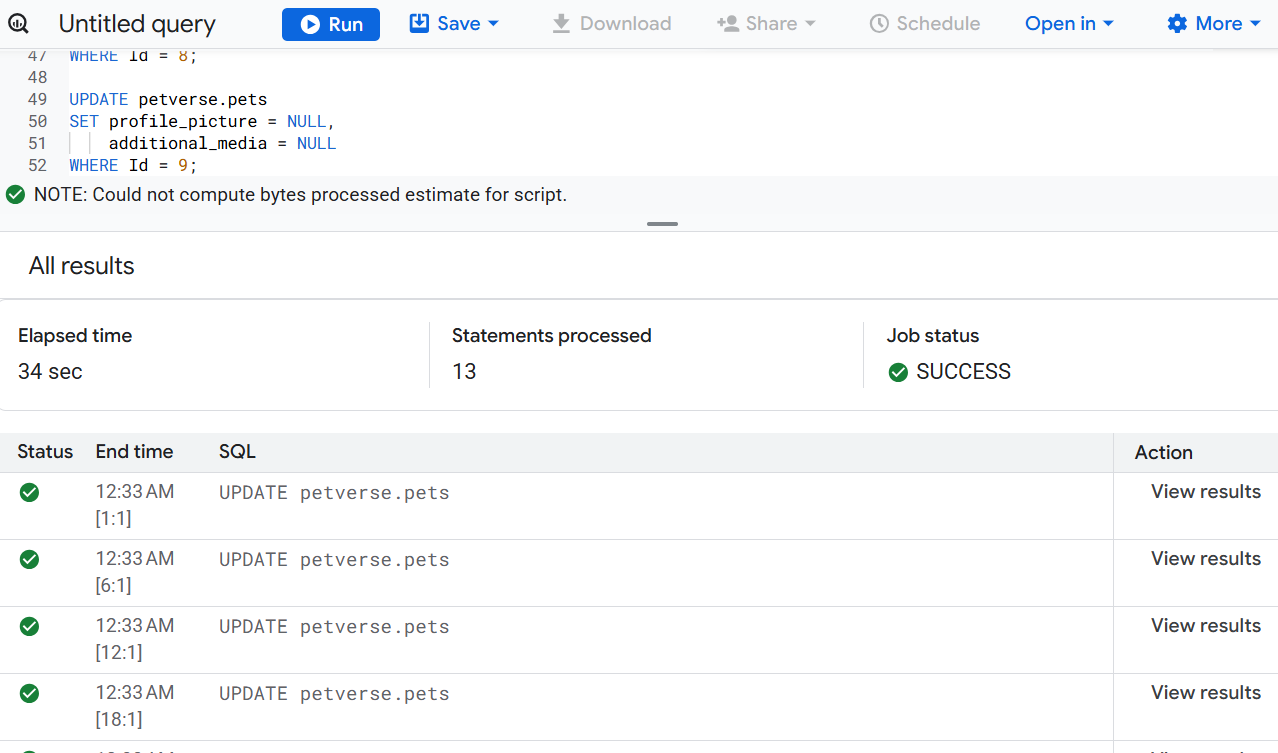
Run the statement. You should see successful executions after a few minutes:
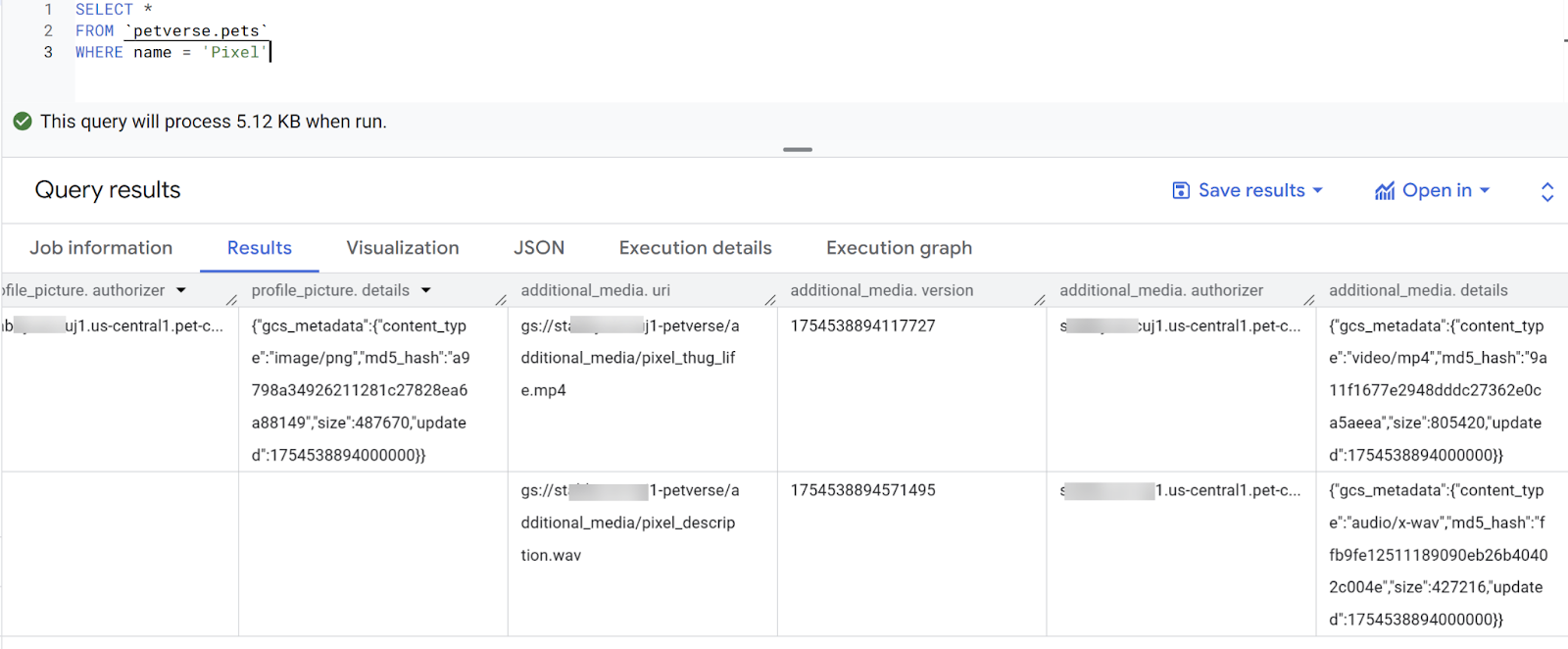
Check the results using the table preview. You should see the metadata for existing profile pictures and additional media for the cat called Pixel.
SELECT *
FROM `petverse.pets`
WHERE name = 'Pixel'
9. Generate descriptions of pets
If you preview the pets table, you will notice that some pets - like Yoda, Pixel or Rocky - are missing their favorite food or favorite toy.
The answers to these questions may be in the videos and audios related to these pets. You will use embedded AI functions to check.
Test this with the following statement:
SELECT name,
AI.GENERATE(
   prompt=> ('What are this pet\'s favorite toy and favorite foods', additional_media ),
    connection_id => 'us-central1.pet-connection',
    endpoint => 'gemini-2.5-flash',
output_schema => 'food STRING, toy STRING')
FROM petverse.pets
WHERE name = 'Rocky'
You can see Rocky's video in your storage bucket.
Use the following statement to update the missing descriptions:
UPDATE petverse.pets AS p
SET FavoriteFood = aigen.food
FROM
  (
    SELECT Id, name,
          AI.GENERATE(
                prompt=> ('What are this pet\'s favorite toy and favorite foods', additional_media ),
                connection_id => 'us-central1.pet-connection',
                endpoint => 'gemini-2.5-flash',
                output_schema => 'food STRING').food
    FROM petverse.pets ) AS  aigen
WHERE p.Id = aigen.Id
AND p.FavoriteFood IS NULL
AND p.additional_media IS NOT NULL
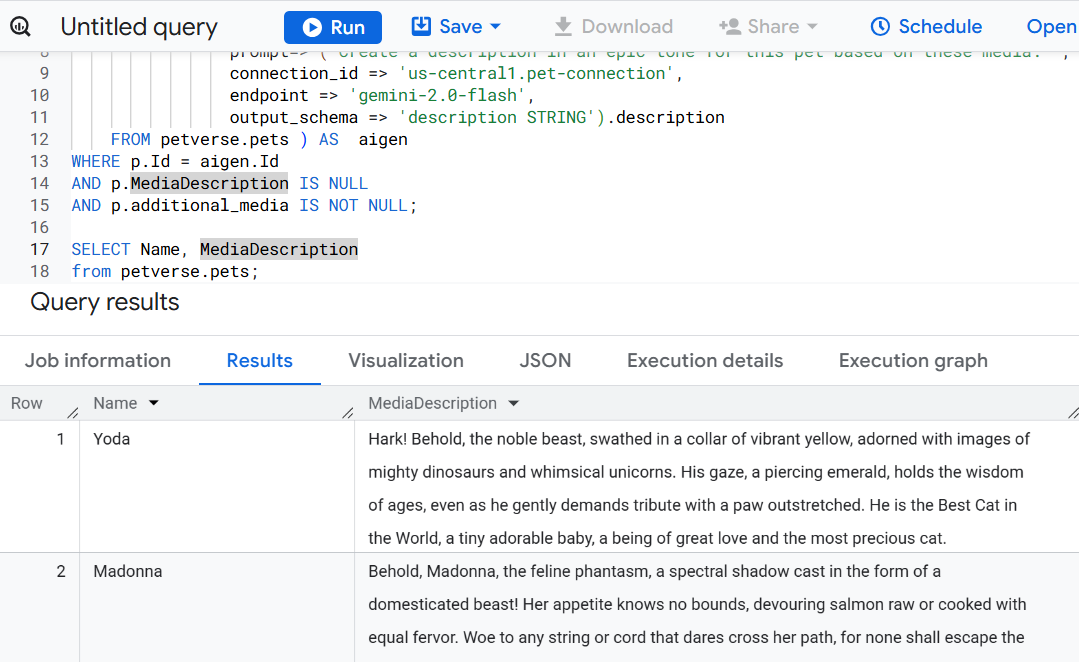
Use the following statement to create a description of the pets based on their multimedia into a new column:
ALTER TABLE petverse.pets ADD COLUMN MediaDescription STRING;
UPDATE petverse.pets AS p
SET MediaDescription = aigen.description
FROM
  (
    SELECT Id, name,
          AI.GENERATE(
                prompt=> ('Create a description in an epic tone for this pet based on these media: ', additional_media ),
                connection_id => 'us-central1.pet-connection',
                endpoint => 'gemini-2.5-flash',
                output_schema => 'description STRING').description
    FROM petverse.pets ) AS  aigen
WHERE p.Id = aigen.Id
AND p.MediaDescription IS NULL
AND p.additional_media IS NOT NULL
You should see some creative descriptions after a few minutes:
10. Create embeddings
Create a table to store the embeddings for the profile pictures and for the descriptions and hobbies to use in a semantic search. We will find similarities within pets using vector searches.
SET @@location='us-central1';

CREATE OR REPLACE MODEL petverse.multimodalembedding
  REMOTE WITH CONNECTION `us-central1.pet-connection`
  OPTIONS(ENDPOINT = 'multimodalembedding@001');

CREATE TABLE IF NOT EXISTS petverse.profile_embeddings
AS
SELECT *
FROM ML.GENERATE_EMBEDDING(
  MODEL petverse.multimodalembedding,
    (
      SELECT profile_picture as content,
      Id
      FROM petverse.pets)
 );

CREATE OR REPLACE MODEL petverse.textembedding
  REMOTE WITH CONNECTION `us-central1.pet-connection`
  OPTIONS (ENDPOINT = 'text-embedding-005');

CREATE OR REPLACE TABLE petverse.text_embeddings AS
SELECT * FROM ML.GENERATE_EMBEDDING(
  MODEL petverse.textembedding,
  (
    SELECT CONCAT(AdoptionStory, ' . This pet\'s hobby is: ', Hobby, ' and their nickname(s) is: ', COALESCE(Nicknames, Name)) AS content,
    Id, Name
    FROM petverse.pets
    WHERE LENGTH(AdoptionStory) > 0 AND LENGTH(Hobby) > 0
  )
)
WHERE LENGTH(ml_generate_embedding_status) = 0;
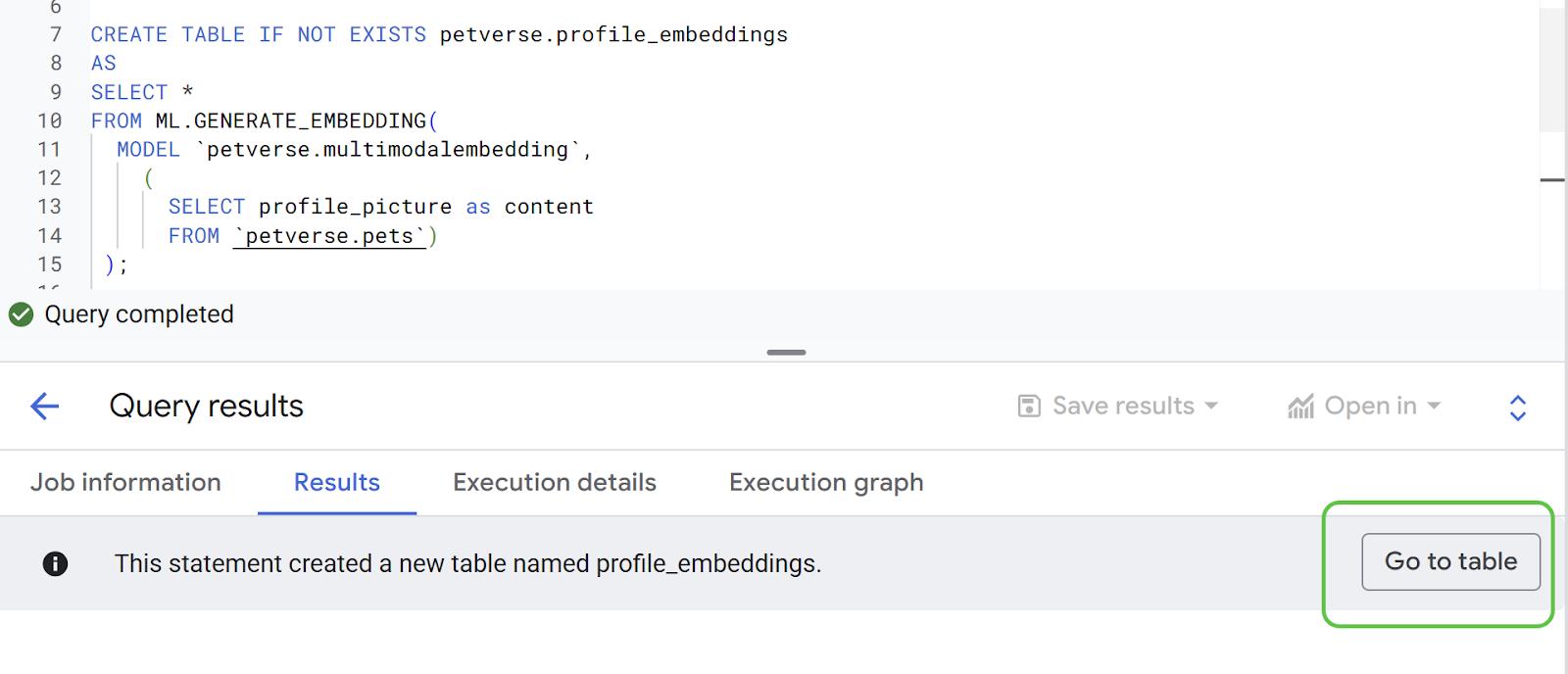
Check the new table from the results tab.
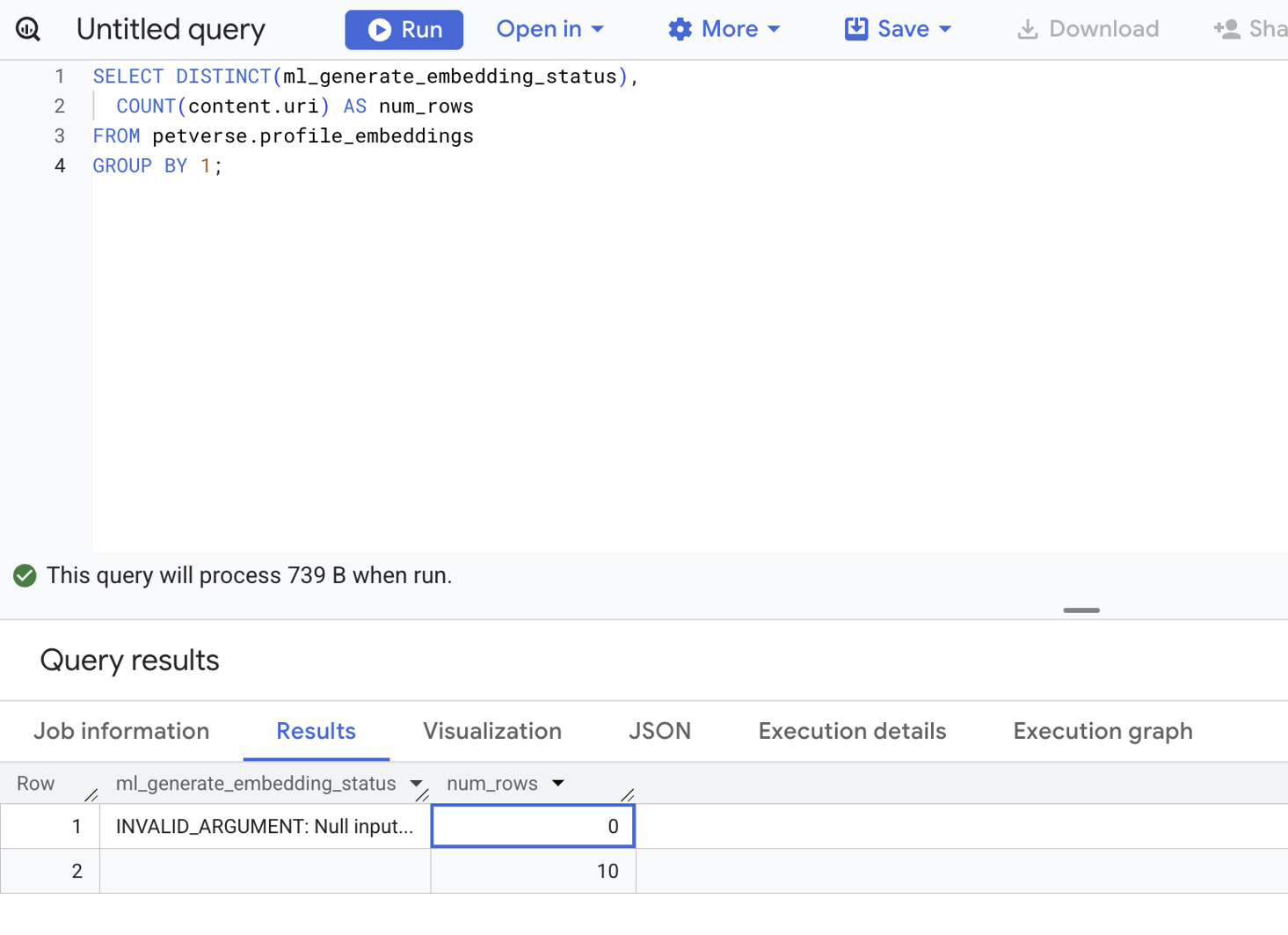
Use the following statement to check the status of all embeddings:
SELECT DISTINCT(ml_generate_embedding_status),
  COUNT(content.uri) AS num_rows
FROM petverse.profile_embeddings
GROUP BY 1;
If there are any errors, you will see them in a non-blank status. This is the right output - there are no records in error**:**
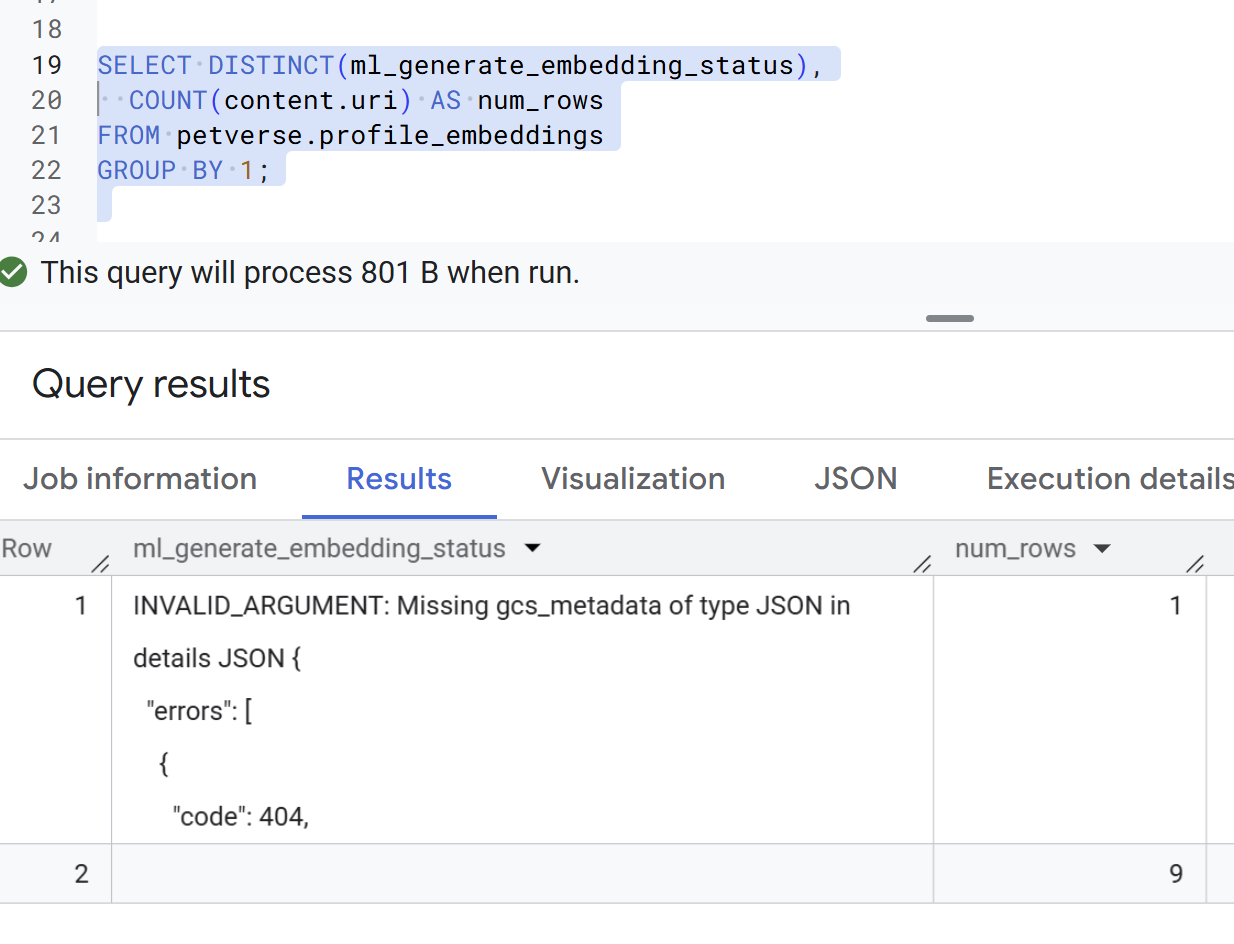
The following is an example of records with errors. These are not expected but need to be fixed before continuing with the next steps:
Look for similar pets
The default dataset has similar pets in it. Here are two examples Pixel (Id: 3) and SQL (Id: 4):
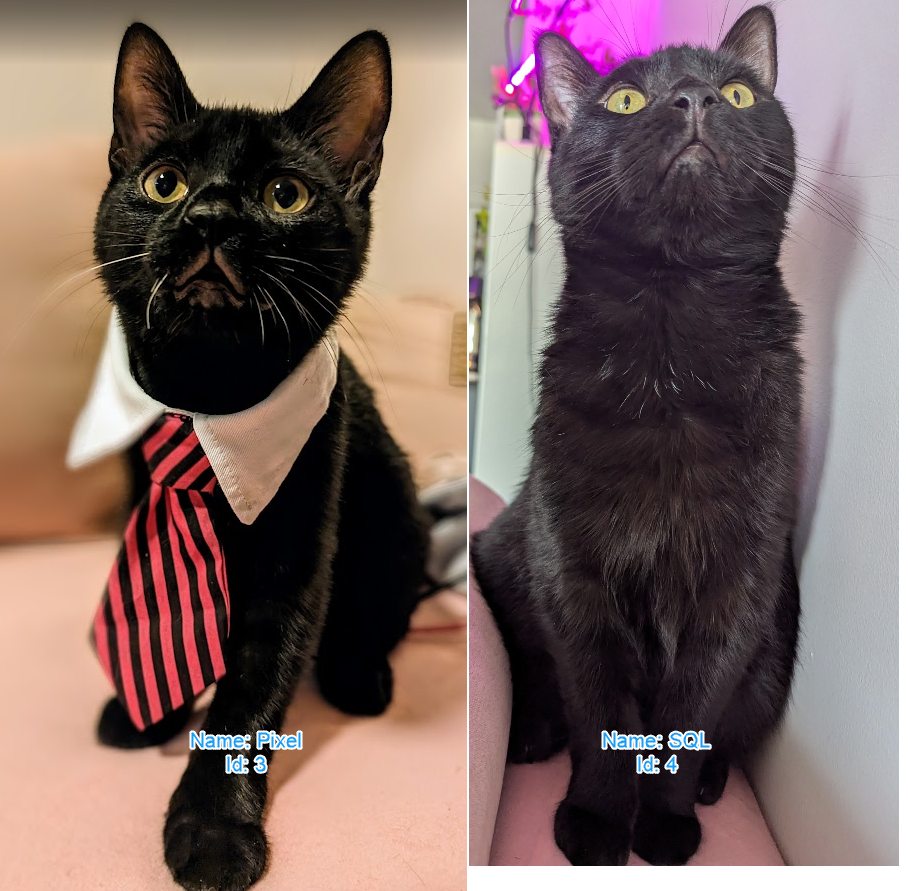
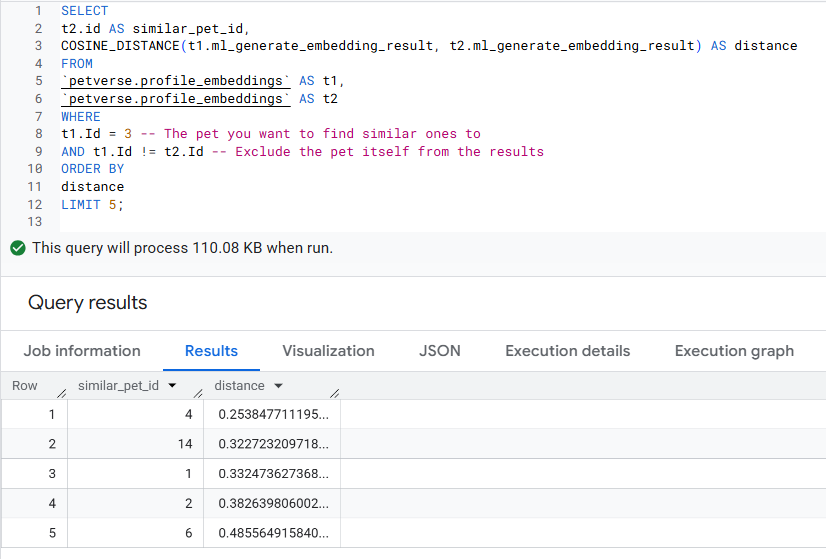
You can use the distance between the embeddings to calculate similar pets:
SELECT
t2.id AS similar_pet_id,
COSINE_DISTANCE(t1.ml_generate_embedding_result, t2.ml_generate_embedding_result) AS distance
FROM
petverse.profile_embeddings AS t1,
petverse.profile_embeddings AS t2
WHERE
t1.Id = 3 -- The pet you want to find similar ones to
AND t1.Id != t2.Id -- Exclude the pet itself from the results
AND t1.content.uri IS NOT NULL
AND t2.content.uri IS NOT NULL
ORDER BY
distance
LIMIT 5;
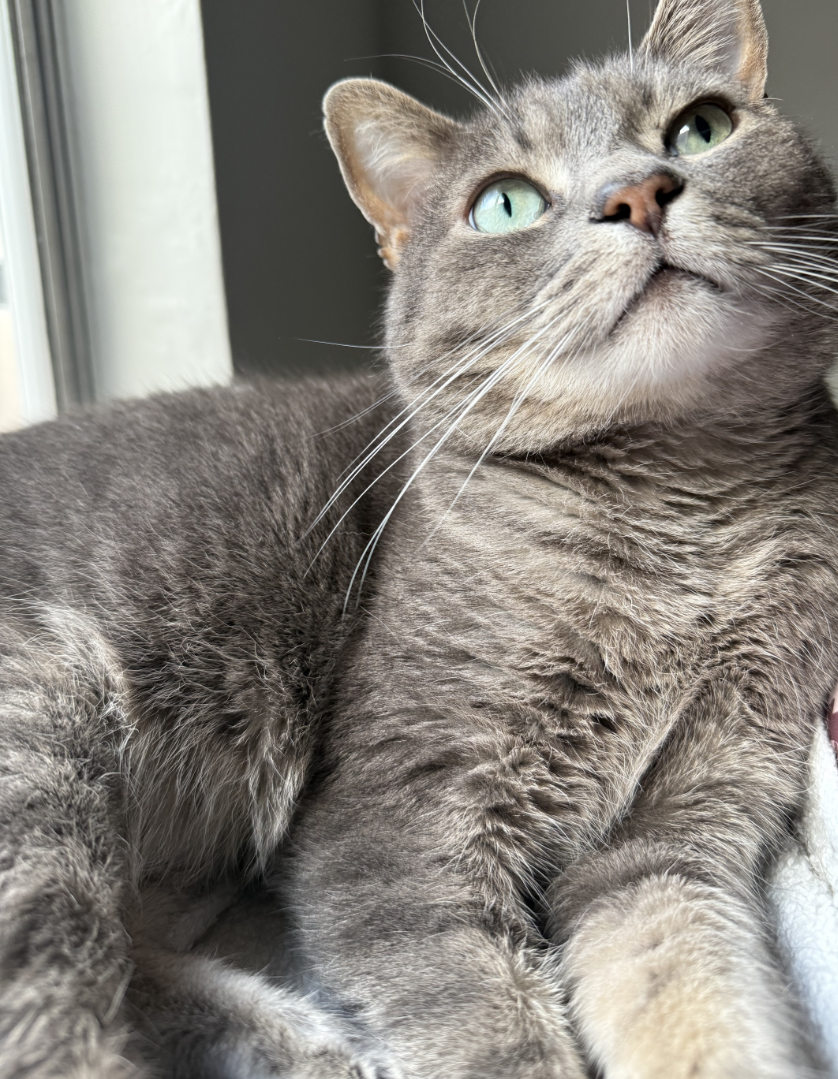
You should get results with the Ids of pictures that are similar to each other. This will include everything in the picture. In this example, Pixel and SQL are similar, and the next most similar pet is Joel (Id: 14).
Here's a picture of Joel for reference:
Try semantic search
You can use the VECTOR_SEARCH function to semantically search across text embeddings. If this table was larger, you would need to create and index for the embeddings.
SELECT query.query, base.content, base.Name
FROM VECTOR_SEARCH(
  TABLE `petverse.text_embeddings`, 'ml_generate_embedding_result',
  (
  SELECT ml_generate_embedding_result, content AS query
  FROM ML.GENERATE_EMBEDDING(
  MODEL `petverse.textembedding`,
  (SELECT 'Pets who like to relax' AS content))
  ),
  top_k => 5, options => '{"fraction_lists_to_search": 0.50}')
ORDER BY distance DESC
Try changing the semantic search term (Pets who like to relax) as well as the parameter fraction_lists_to_search and see what happens. You can learn more about these functions here.
11. Vibe code a profile page
You'll use the Gemini CLI in the Cloud Shell to jump start a simple, demo web application. This web application has been simplified in its prompt to demonstrate how the Petverse could come to life.
Return to the Cloud Shell. You'll have a better experience with just the console in full screen:
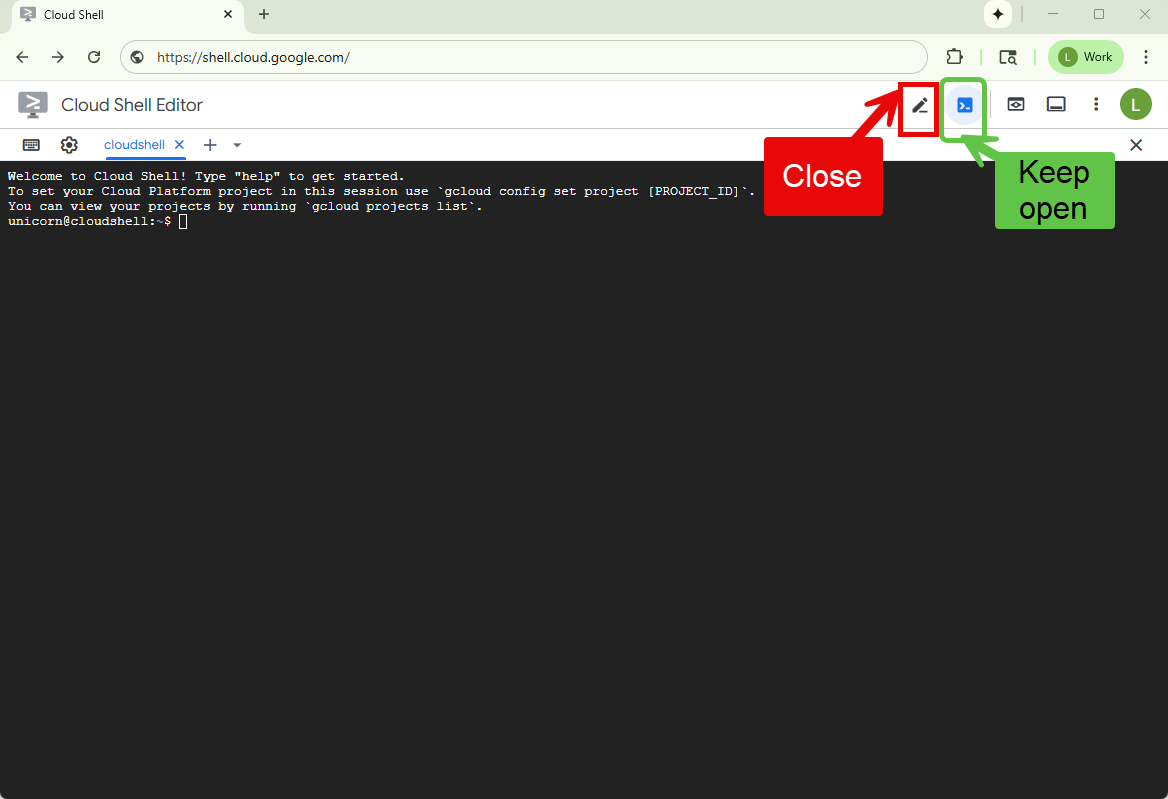
Run the initialization script to make sure environment variables are set, create a directory to contain this project and execute the Gemini CLI:
~/petverse-setup.sh
mkdir petverse-profiles
cd petverse-profiles
gemini
You should see Gemini's CLI:
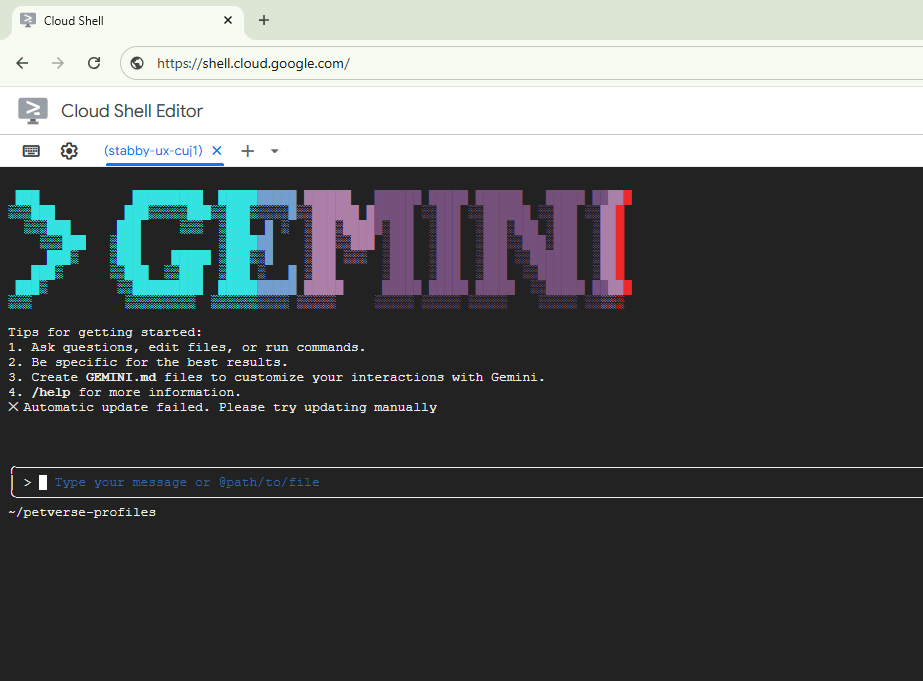
Replace the name of the bucket in the prompt below.
Paste the prompt into the Gemini command line.
You are a fullstack engineer creating an application to display the profiles of cats, dogs and other pets stored in BigQuery. The table where these are stored is called pets, in the dataset petverse.
1.Application Requirements: Display the pets with their profile picture, all the other information in the Pets table, and other media that may be available. The pictures are in a GCS bucket, the field in the table pets profile_picture.uri contains the URI for the storage bucket of that profile picture.  The field additional_media is an array of objectref that contains multiple URI to different media stored in a GCS bucket.
Important: In the code, in the values for the URIs retrieved from BigQuery, replace gs://<<YOUR_PROJECT_ID>>-petverse/ with https://storage.mtls.cloud.google.com/<<YOUR_PROJECT_ID>>-petverse/ as follows: replace('gs://', 'https://storage.mtls.cloud.google.com/'). Use the python library. Media can be pictures, videos and audio. Consider these formats in the code. Some pets may not have profile pictures or additional media.
2.Hosting: Create a web application hosted in a single container and service in Cloud Run, use the following syntax to deploy it using IAP. IMPORTANT: DO NOT ADD IAM AUTHENTICATION AND DO NOT ALLOW UNAUTHENTICATED: gcloud beta run deploy SERVICE_NAME  --region=REGION --image=IMAGE_URL  --no-allow-unauthenticated --iap
3.Database access: Display similar pets based on a similarity between embeddings in table petverse.profile_embeddings.
Here's the schema for the pets table in CSV format (Field name, type, mode):
Id,INTEGER,NULLABLE
Name,STRING,NULLABLE
Species,STRING,NULLABLE
Breed,STRING,NULLABLE
Nationality,STRING,NULLABLE
Nicknames,STRING,NULLABLE
Hobby,STRING,NULLABLE
AdoptionStory,STRING,NULLABLE
FavoriteFood,STRING,NULLABLE
FavoriteToy,STRING,NULLABLE
profile_picture,RECORD,NULLABLE
additional_media,RECORD,REPEATED
profile_embeddings,FLOAT,REPEATED
Here's a sample query to check for similarity:
SELECT
t2.id AS similar_pet_id,
COSINE_DISTANCE(t1.ml_generate_embedding_result, t2.ml_generate_embedding_result) AS distance
FROM
petverse.profile_embeddings AS t1,
petverse.profile_embeddings AS t2
WHERE
t1.Id = 3 -- The pet you want to find similar ones to
AND t1.Id != t2.Id -- Exclude the pet itself from the results
AND t1.content.uri IS NOT NULL
AND t2.content.uri IS NOT NULL
ORDER BY
distance
LIMIT 5;
Complement the profile of each pet with a description. Here's an example of the access to such table:
SELECT Name, MediaDescription from petverse.pets;
4.For each access to BigQuery, show the SQL statement that is used in the console logs.
5.Search functionality: Add a search bar for a semantic search for pets. There's a text embedding for the Adoption story, the pet's past-time or hobby and their nicknames in the table: petverse.text_embeddings . This is a sample of semantic search:
SELECT query.query, base.content, base.Name FROM VECTOR_SEARCH(TABLE `petverse.text_embeddings`, 'ml_generate_embedding_result', ( SELECT ml_generate_embedding_result, content AS query FROM ML.GENERATE_EMBEDDING(MODEL `petverse.textembedding`,(SELECT 'Pets who like to relax' AS content))), top_k => 5, options => '{"fraction_lists_to_search": 0.50}') ORDER BY distance DESC
6.Use Python for the backend. Generate the deployment scripts for an authenticated service using IAP with the flags --no-allow-unauthenticated --iap
7. Make the UI look like a modern art museum.
8. Use the gunicorn library. Validate version dependencies.
This is your adventure now. You will be shown a plan and asked for confirmation along the way.
It is very unlikely that the code and deployment produced works on the first try. You will need to iterate with the Gemini CLI until it gets it right.
If you see the process stuck in a loop, stop it with CTRL/Command + C, investigate the problem, and prompt it again.
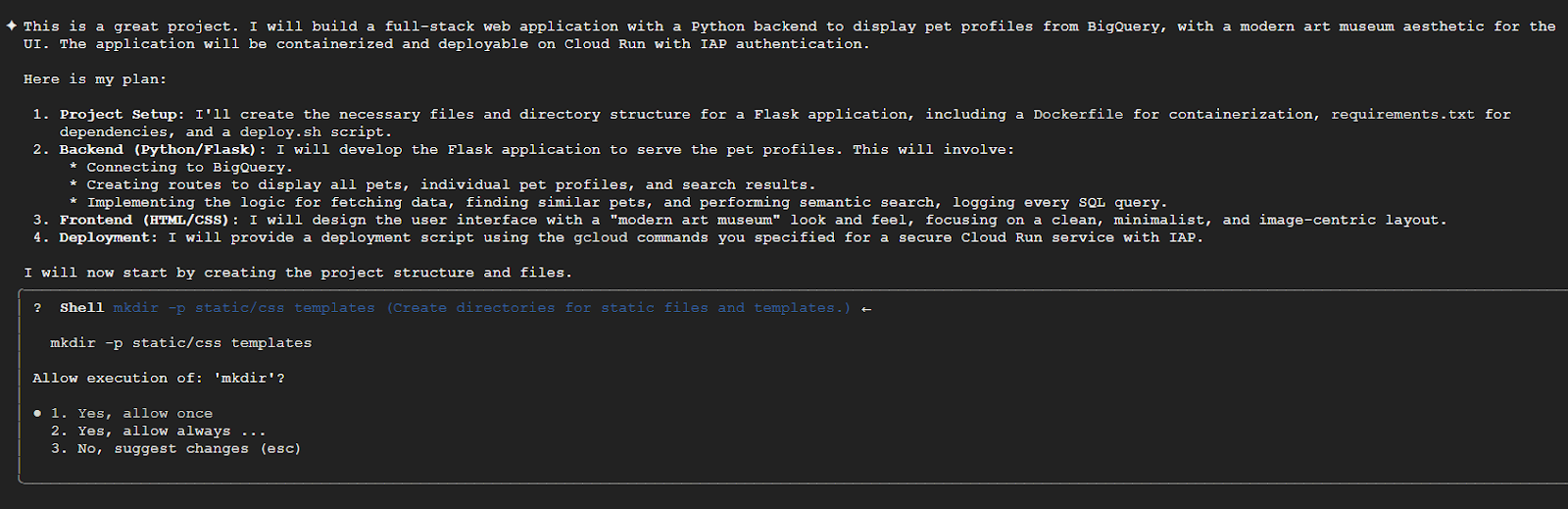
We recommend reading each of the confirmations carefully, one by one, to understand what the CLI will do:
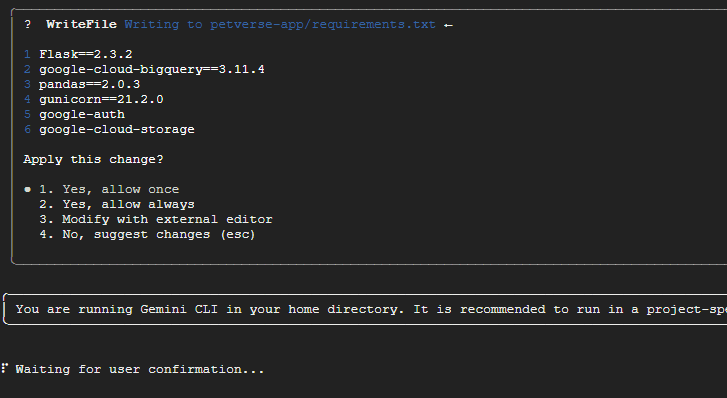
After some minutes, the application should be ready to execute. It may happen that it looks like the console is stuck:
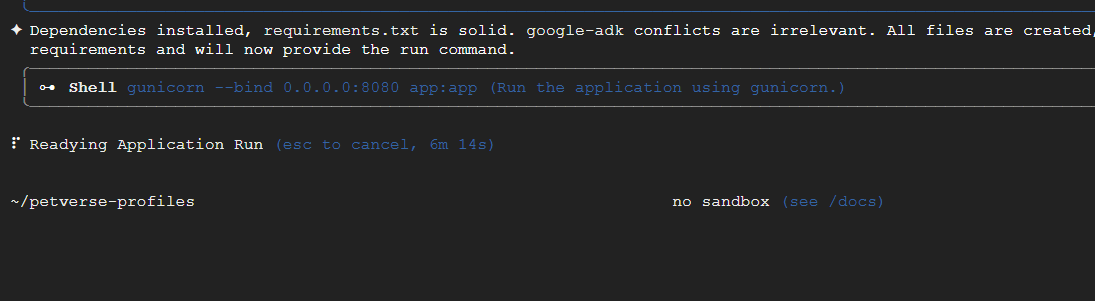
You can manually try the application in a new Cloud Shell tab with gunicorn. Make sure the project is set:
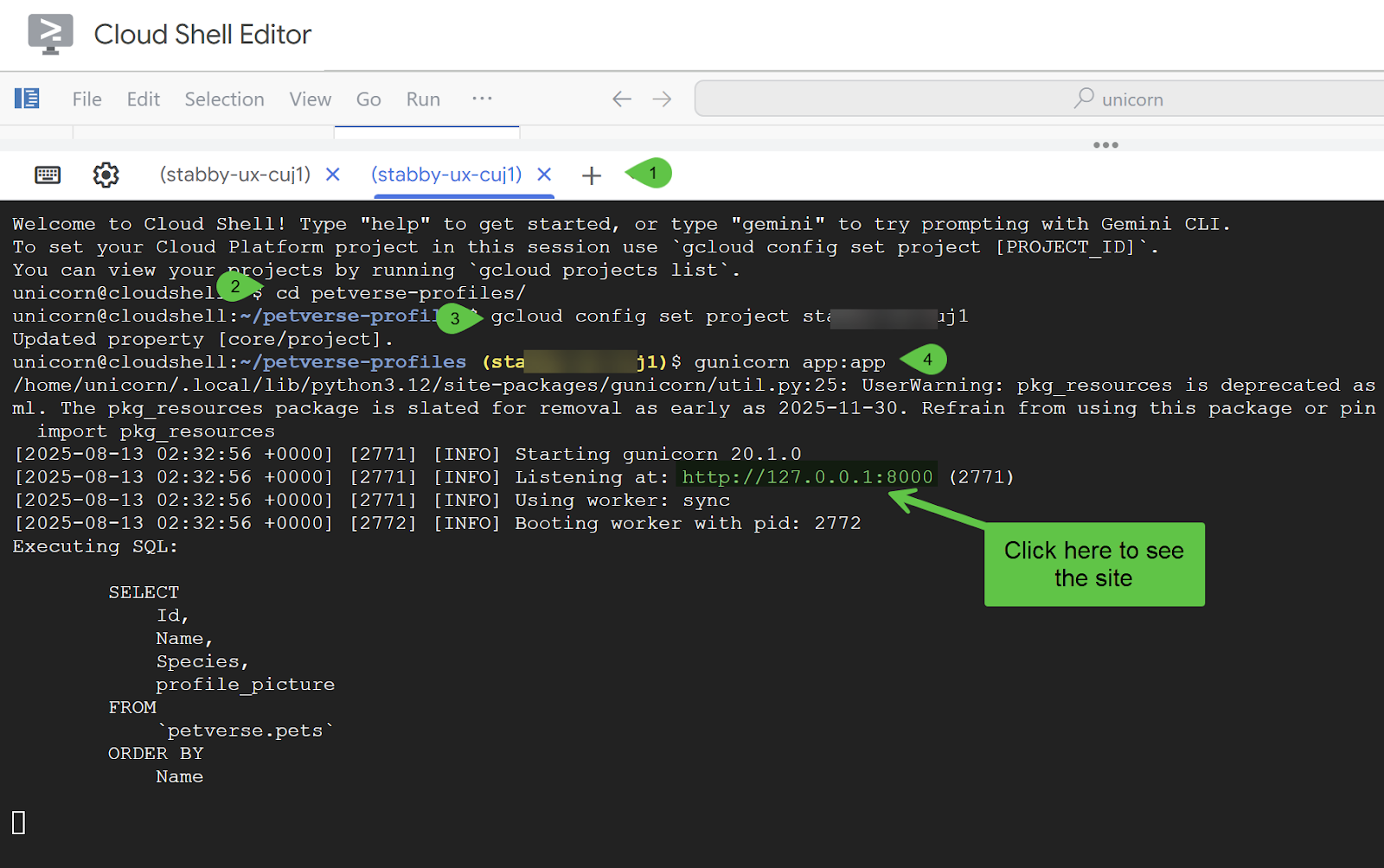
You should see your new site (it may look different from this). If anything isn't working, you should be able to see the error and debugging logs in the Cloud Shell command line executing locally.
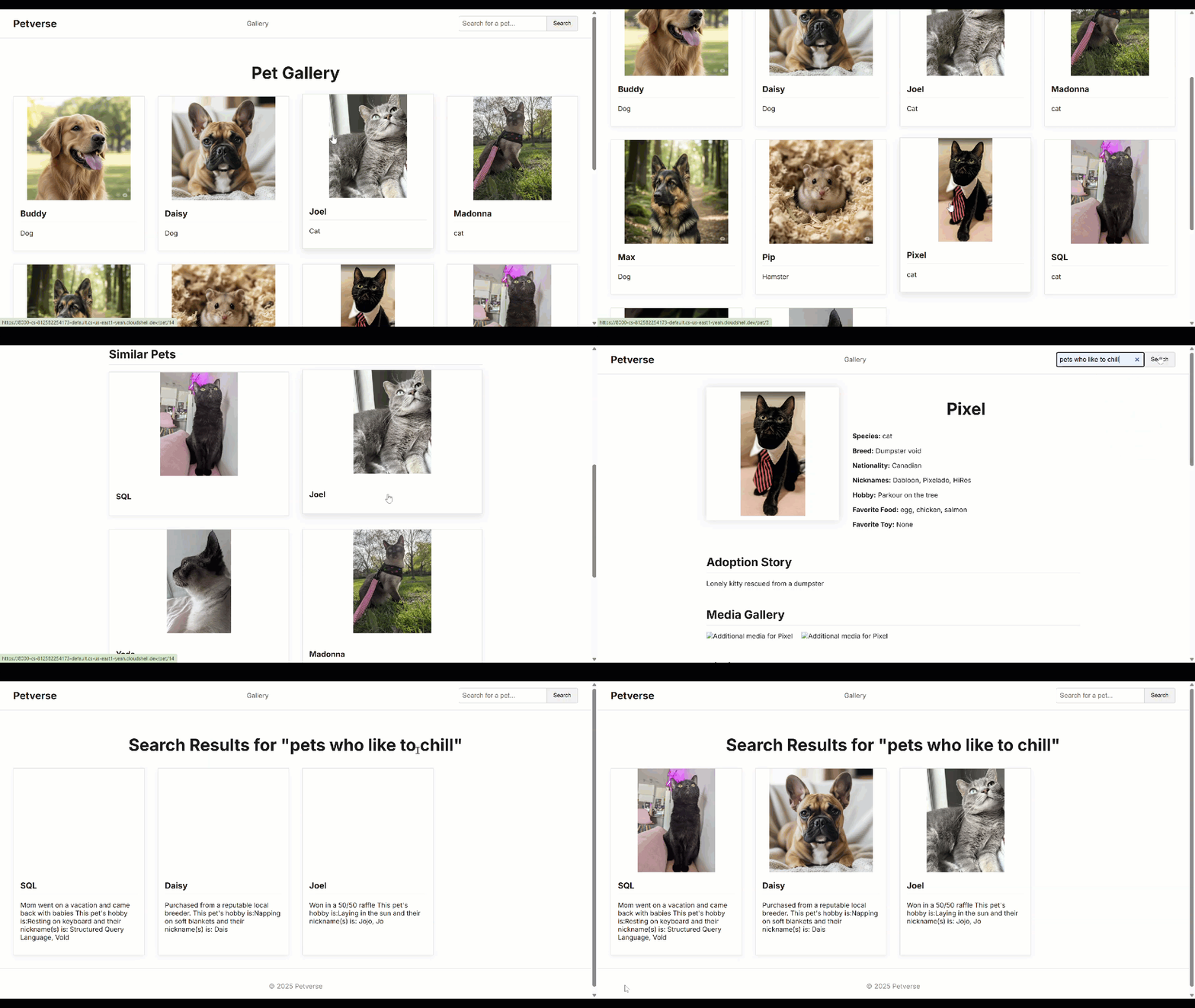
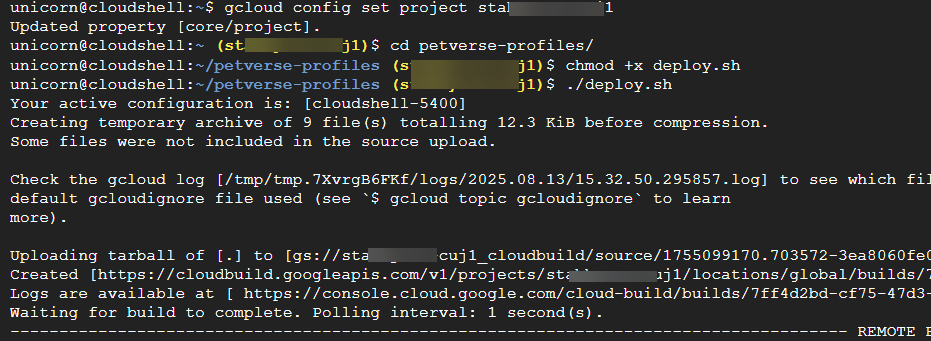
If everything looks good, you can optionally deploy the application into Cloud Run.
If your project belongs in an organization, make sure you configure IAP following these instructions. If your project is not a part of an organization, you can follow these instructions instead to secure access to your application. Specially for production settings, we recommend NOT allowing unauthenticated access.
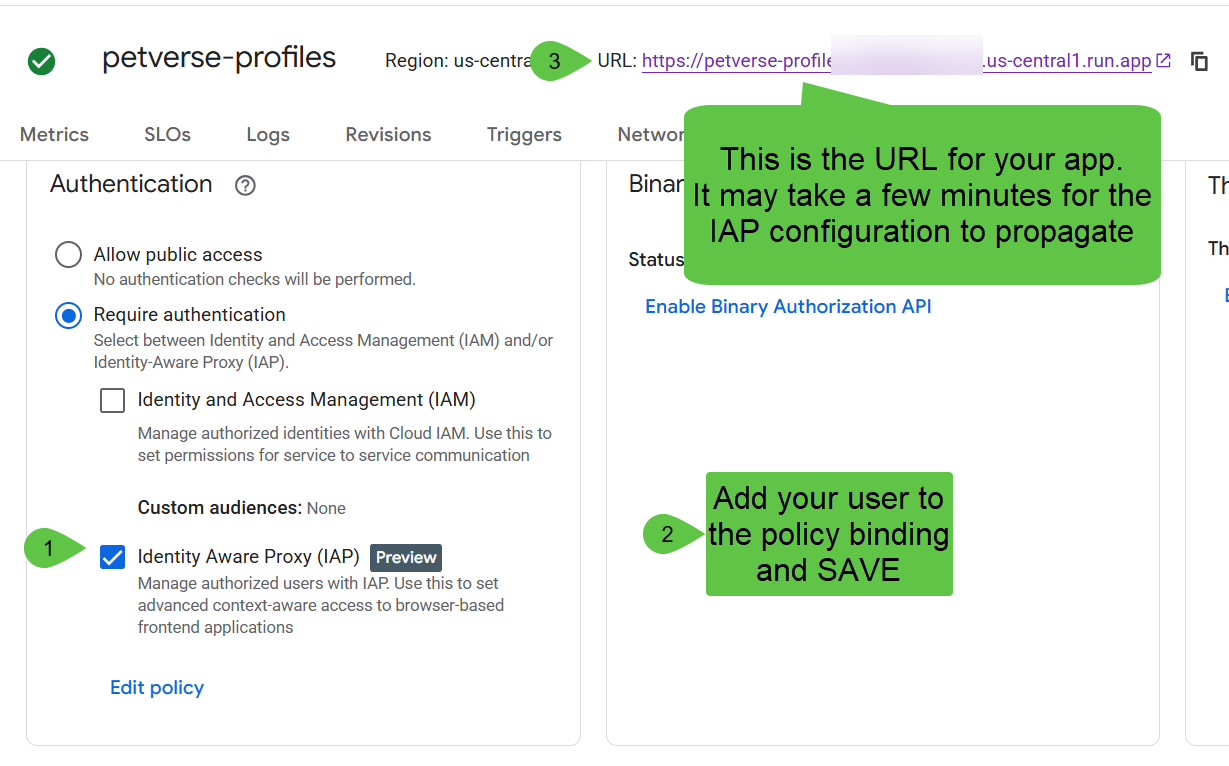
Assuming deployment works, you should see the Cloud Run application executing in the Cloud Run console.
Make sure the access is IAP only. Use Edit Policy to add your user to the binding and Save.
Wait a few minutes for the IAP bindings to propagate and click the URL at the top. The site should appear.
12. Clean up
This step will guide you through the deletion of the resources created in this codelab.
Delete Cloud Run service (adapt the name of the services and region as needed):
gcloud run services delete petverse-profiles --region us-central1
Delete all BigQuery assets:
bq rm -f petverse
gcloud bigquery connections delete pet-connection --location=us-central1