
1. Overview
TheLook, a hypothetical eCommerce clothing retailer, stores data on customers, products, orders, logistics, web events, and digital marketing campaigns in BigQuery. The company wants to leverage the team's existing SQL and PySpark expertise to analyze this data using Apache Spark.
To avoid manual infrastructure provisioning or tuning for Spark, TheLook seeks an auto-scaling solution that allows them to focus on workloads rather than cluster management. Additionally, they want to minimize the effort required to integrate Spark and BigQuery while staying within the BigQuery Studio environment.
In this lab, you predict whether a user will make a purchase by building a Logistic Regression Classifier using PySpark and leveraging BigQuery Studio's native notebook integration and AI-features for exploring the data. You deploy this model to an inference server and create an agent to query the model using natural language.
Prerequisites
Before starting this lab, you should be familiar with:
- Basic SQL and Python programming.
- Running Python code in a Jupyter notebook.
- A baseline understanding of distributed computing
Objectives
- Use BigQuery Studio notebooks to run a data science workflow.
- Create a connection to Apache Spark using Google Cloud Serverless for Apache Spark and powered by Spark Connect.
- Use Lightning Engine to accelerate Apache Spark workloads by up to 4.3x.
- Load data from BigQuery by using the built-in integration between Apache Spark and BigQuery.
- Explore the data using Gemini-assisted code generation.
- Perform feature engineering using Apache Spark's data processing framework.
- Train and evaluate a classification model by using Apache Spark's native machine learning library, MLlib.
- Deploy an inference server for the classification model using Flask and Cloud Run
- Deploy an agent to query the inference server using natural language with Agent Engine and the Agent Development Kit (ADK),
2. Connect to a Colab runtime environment
Identify a Google Cloud Project
Create a Google Cloud project. You may use an existing one.
Enable recommended APIs:
Click here to enable the following APIs:
- aiplatform.googleapis.com
- bigquery.googleapis.com
- bigquerystorage.googleapis.com
- bigqueryunified.googleapis.com
- cloudaicompanion.googleapis.com
- dataproc.googleapis.com
- storage.googleapis.com
- run.googleapis.com
Navigating the UI:
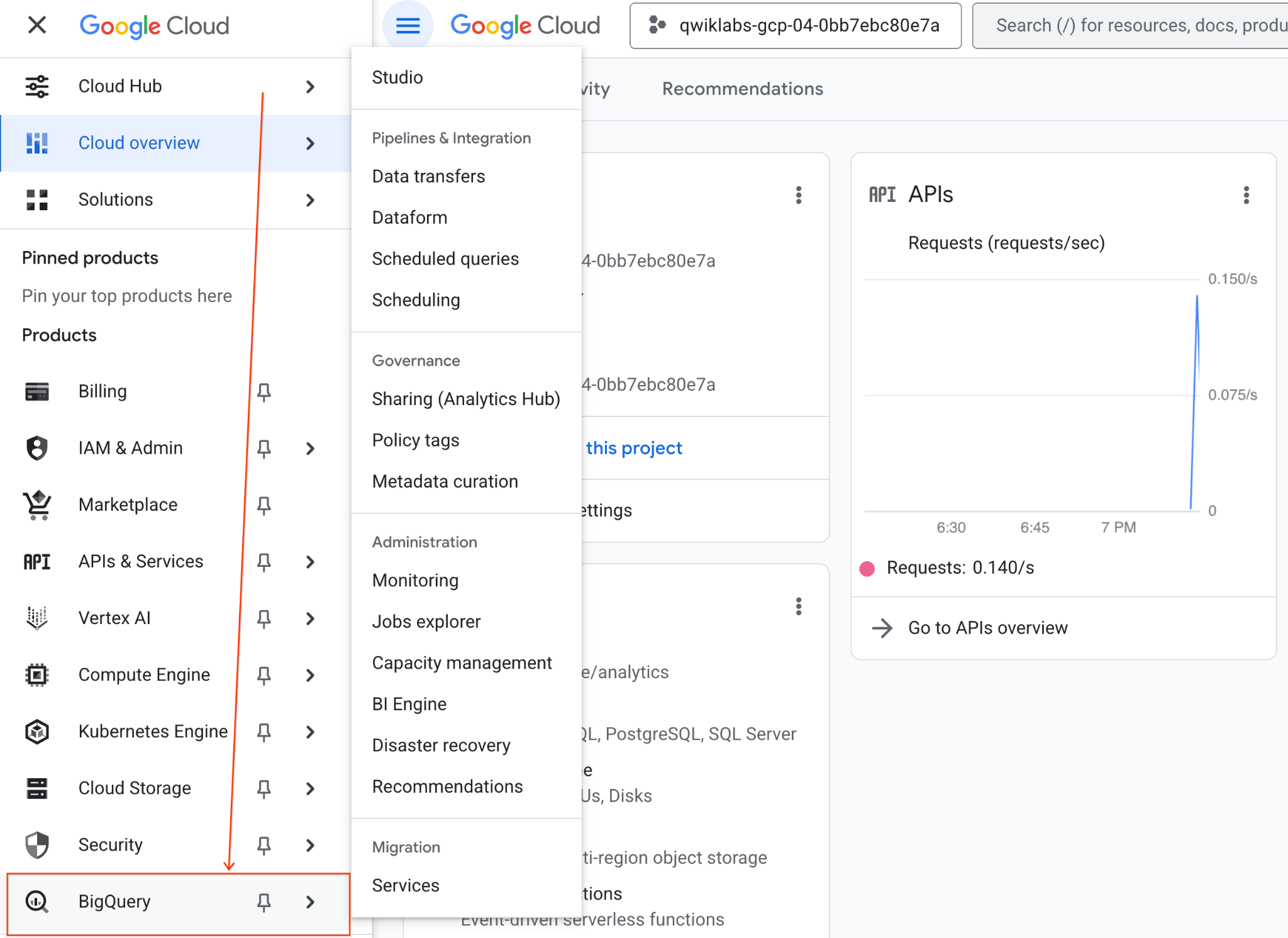
- In the Google Cloud Console, go to the Navigation menu > BigQuery.
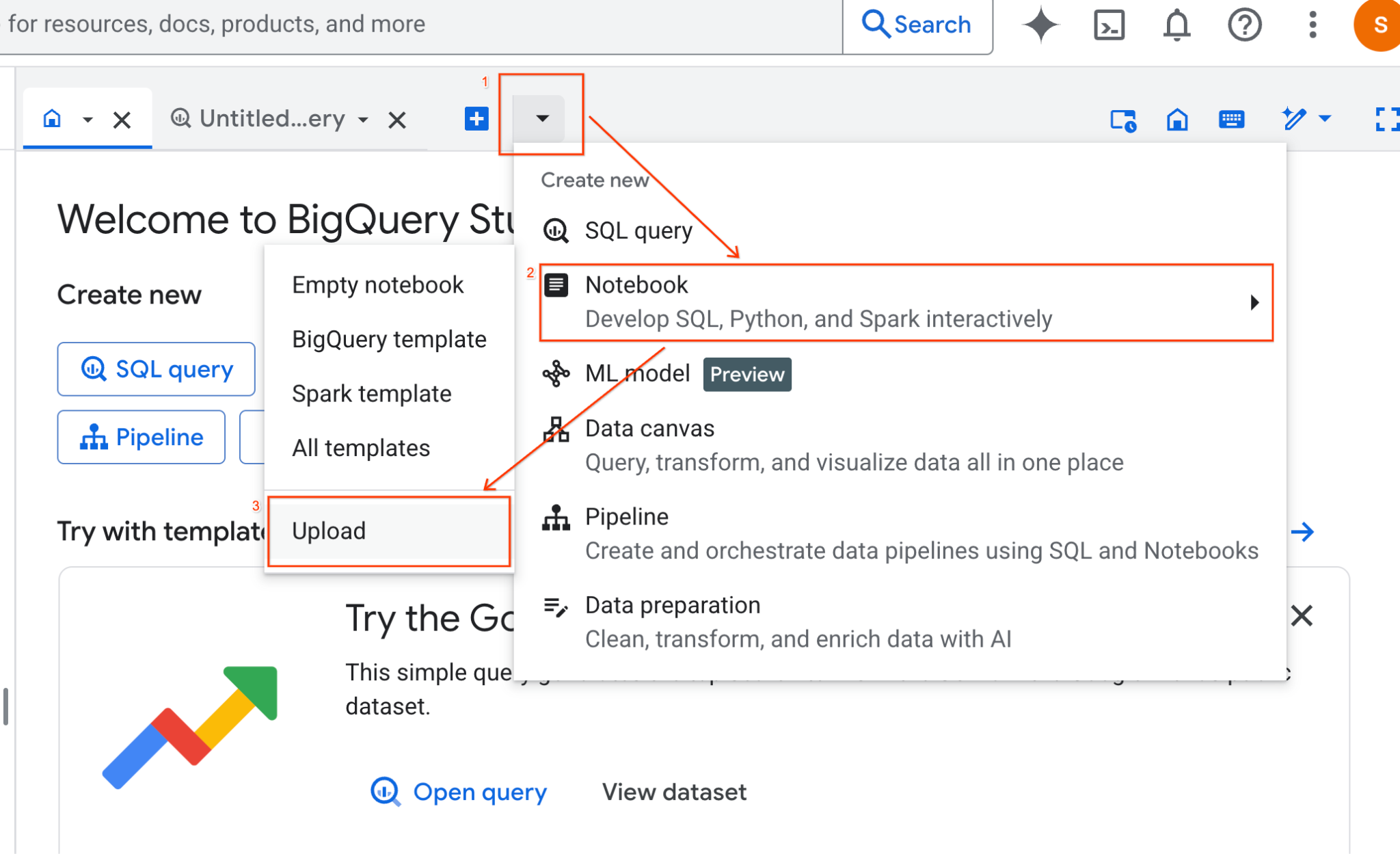
- In the BigQuery Studio pane, click the dropdown arrow button, hover over Notebook, and then select Upload.
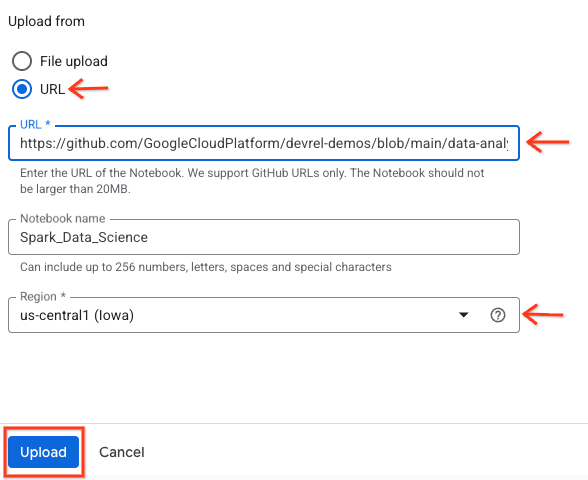
- Select the URL radio button, and input the following URL:
https://github.com/GoogleCloudPlatform/devrel-demos/blob/main/data-analytics/dataproc-webinar/data-science/Spark_Data_Science.ipynb
- Set the region to
us-central11and click Upload.
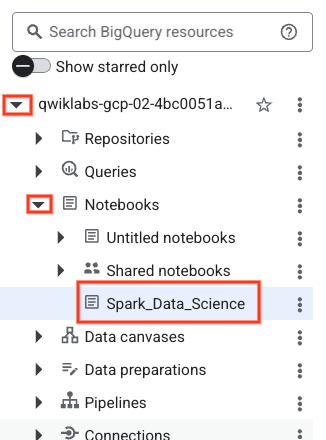
- To open the notebook, click your dropdown arrow in the Explorer pane with the name of your project-id. Then click the dropdown for Notebooks. Click the notebook
Spark_Data_Science.
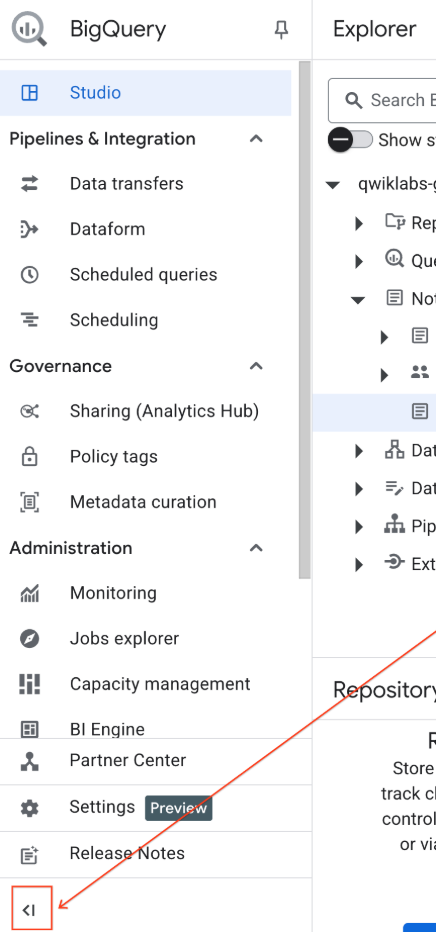
- Collapse the BigQuery navigation menu and the notebook's Table of Contents for more space.
3. Connect to a runtime and run additional setup code
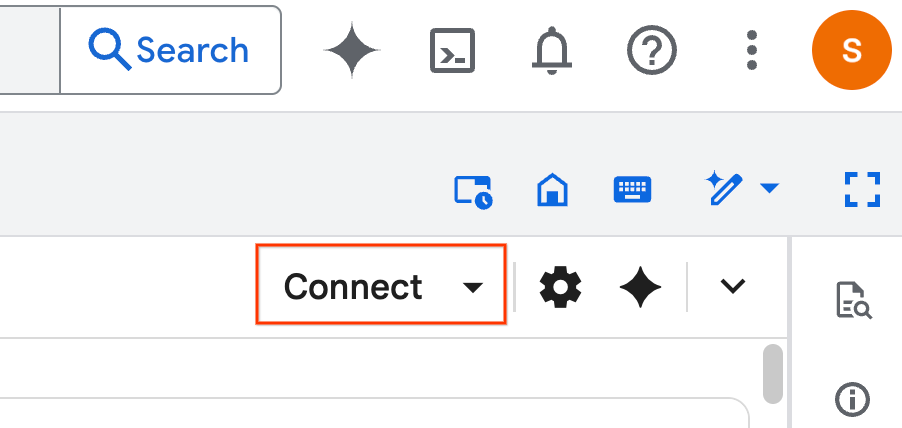
- Click Connect. In the pop-up, authorize Colab Enterprise with your email account. Your notebook will automatically connect to a runtime.
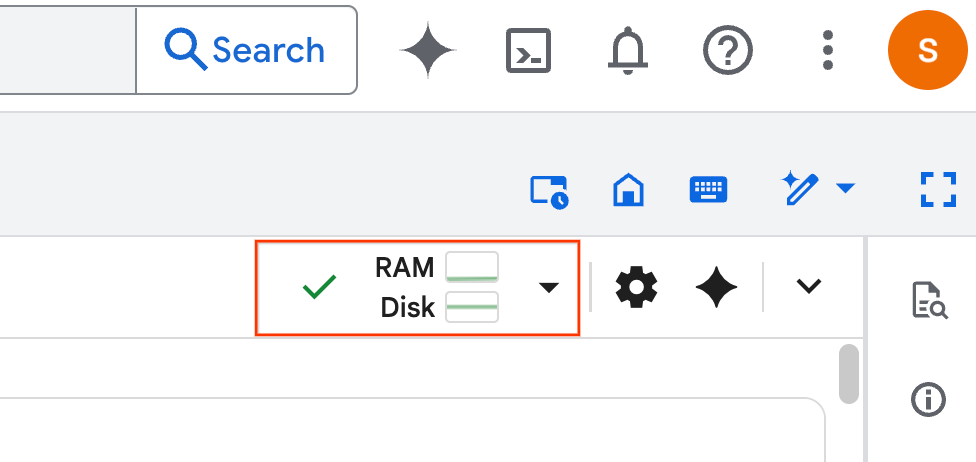
- Once the runtime is established, you will see the following:
- Within the notebook, scroll to the Setup section. Begin here.
4. Run setup code
Configure your environment with the necessary Python libraries to complete the lab. Configure Private Google Access. Create a Storage bucket. Create a BigQuery dataset. Copy your project ID into the notebook. Select a region. For this lab, use the region us-central1.
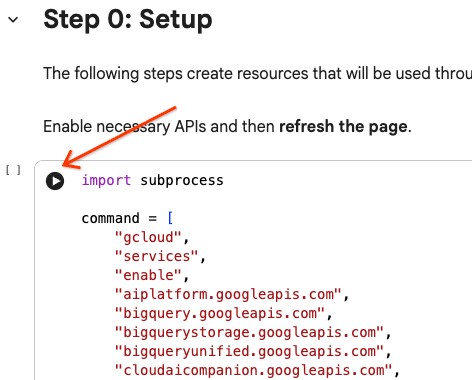
You can execute a code cell by hovering your cursor inside the cell block and clicking the arrow.
# Enable APIs
import subprocess

command = [
    "gcloud",
    "services",
    "enable",
    "aiplatform.googleapis.com",
    "bigquery.googleapis.com",
    "bigquerystorage.googleapis.com",
    "bigqueryunified.googleapis.com",
    "cloudaicompanion.googleapis.com",
    "dataproc.googleapis.com",
    "run.googleapis.com",
    "storage.googleapis.com"
]

result = subprocess.run(command, capture_output=True, text=True)
print(result.stdout)
print(result.stderr)

# Configure a PROJECT_ID and REGION
PROJECT_ID = "<YOUR_PROJECT_ID>"
REGION = "<YOUR_REGION>"

# Enable Private Google Access
import subprocess

command = [
    "gcloud",
    "compute",
    "networks",
    "subnets",
    "update",
    "default",
    f"--region={REGION}",
    "--enable-private-ip-google-access"
]

result = subprocess.run(command, capture_output=True, text=True)
print(result.stdout)
print(result.stderr)

# Create a Cloud Storage Bucket
from google.cloud import storage
from google.cloud.exceptions import NotFound

BUCKET_NAME = f"{PROJECT_ID}-demo"

storage_client = storage.Client(project=PROJECT_ID)
try:
    bucket = storage_client.get_bucket(BUCKET_NAME)
    print(f"Bucket {BUCKET_NAME} already exists.")
except NotFound:
    bucket = storage_client.create_bucket(BUCKET_NAME, location=REGION)
    print(f"Bucket {BUCKET_NAME} created.")


# Create a BigQuery dataset.
from google.cloud import bigquery

DATASET_ID = f"{PROJECT_ID}.demo"

client = bigquery.Client()

dataset = bigquery.Dataset(DATASET_ID)

dataset.location = REGION

dataset = client.create_dataset(dataset, exists_ok=True)
5. Create a connection to Google Cloud Serverless for Apache Spark
Using the Spark Connect, you connect to a serverless Spark session to run interactive Spark jobs. You configure your runtime with Lightning Engine for advanced Spark performance. Lightning Engine works by accelerating workloads using Apache Gluten and Velox.
from google.cloud.dataproc_spark_connect import DataprocSparkSession
from google.cloud.dataproc_v1 import Session

session = Session()

session.runtime_config.version = "3.0"

# You can optionally configure Spark properties as well. See https://cloud.google.com/dataproc-serverless/docs/concepts/properties.
session.runtime_config.properties = {
  "dataproc.runtime": "premium",
  "spark.dataproc.engine": "lightningEngine",
}

# To avoid going over quota in this demo, cap the max number of Spark workers.
session.runtime_config.properties = {
    "spark.dynamicAllocation.maxExecutors": "4"
}

spark = (
    DataprocSparkSession.builder
      .appName("CustomSparkSession")
      .dataprocSessionConfig(session)
      .getOrCreate()
)
6. Load and explore data using Gemini
In this section, you run through the first important step in any data science project: preparing your data. You start by loading data into an Apache Spark dataframe from BigQuery.
# Load the tables
order_items = spark.read.format("bigquery").option("table", "bigquery-public-data.thelook_ecommerce.order_items").load()

users = spark.read.format("bigquery").option("table", "bigquery-public-data.thelook_ecommerce.users").load()

# Register temp tables
users.createOrReplaceTempView("users")
order_items.createOrReplaceTempView("order_items")

# Verify temp tables
spark.sql("SELECT * FROM order_items LIMIT 10").show()
Then, you use Gemini to generate PySpark code to explore the data and better understand it.
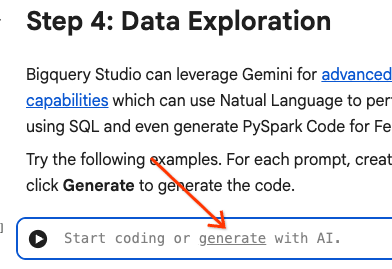
Prompt 1: Using PySpark, explore the users table and show the first 10 rows.
# prompt:  Using PySpark, explore the users table and show the first 10 rows.

users.show(10)
Prompt 2: Using PySpark, explore the order_items table and show the first 10 rows.
# prompt: Using PySpark, explore the order_items table and show the first 10 rows.

order_items.show(10)
Prompt 3: Using PySpark, show the top 5 most frequent countries in the users table. Display the country and the number of users from each country.
# prompt: Using PySpark, show the top 5 most frequent countries in the users table. Display the country and the number of users from each country.

from pyspark.sql.functions import col, count

users.groupBy("country").agg(count("*").alias("user_count")).orderBy(col("user_count").desc()).limit(5).show()
Prompt 4: Using PySpark, find the average sale price of items in the order_items table.
# prompt: Using PySpark, find the average sale price of items in the order_items table.

from pyspark.sql import functions as F

average_sale_price = order_items.agg(F.avg("sale_price").alias("average_sale_price"))
average_sale_price.show()
Prompt 5: Using the table "users", generate code to plot country vs traffic source using a suitable plotting library.
# prompt: Using the table "users", generate code to plot country vs traffic source using a suitable plotting library.

sql = """
    SELECT
        country,
        traffic_source
    FROM
        `bigquery-public-data.thelook_ecommerce.users`
    WHERE country IS NOT NULL AND traffic_source IS NOT NULL
"""
project_id = "iceberg-summit-2025"
df = pandas_gbq.read_gbq(sql, project_id=project_id, dialect="standard")

import matplotlib.pyplot as plt
import seaborn as sns

# Group by country and traffic_source and count occurrences
df_grouped = df.groupby(['country', 'traffic_source']).size().reset_index(name='count')

# Create a pivot table for easier plotting
pivot_table = df_grouped.pivot(index='country', columns='traffic_source', values='count').fillna(0)

# Plotting
plt.figure(figsize=(15, 8))
pivot_table.plot(kind='bar', stacked=True, figsize=(15, 8))
plt.title('Traffic Source Distribution by Country')
plt.xlabel('Country')
plt.ylabel('Number of Users')
plt.xticks(rotation=90)
plt.legend(title='Traffic Source')
plt.tight_layout()
plt.show()
Prompt 6: Create a histogram showing the distribution of "age", "country", "gender", "traffic_source".
# prompt: Create a histogram showing the distribution of "age", "country", "gender", "traffic_source".

import matplotlib.pyplot as plt

# Convert Spark DataFrame to Pandas DataFrame for visualization
users_pd = users.toPandas()

# Create histograms for 'age', 'country', 'gender', 'traffic_source'
fig, axes = plt.subplots(2, 2, figsize=(15, 10))
fig.suptitle('Distribution of User Attributes')

# Age distribution
axes[0, 0].hist(users_pd['age'].dropna(), bins=20, edgecolor='black')
axes[0, 0].set_title('Age Distribution')
axes[0, 0].set_xlabel('Age')
axes[0, 0].set_ylabel('Number of Users')

# Country distribution
users_pd['country'].value_counts().head(10).plot(kind='bar', ax=axes[0, 1])
axes[0, 1].set_title('Top 10 Countries Distribution')
axes[0, 1].set_xlabel('Country')
axes[0, 1].set_ylabel('Number of Users')
axes[0, 1].tick_params(axis='x', rotation=45)

# Gender distribution
users_pd['gender'].value_counts().plot(kind='bar', ax=axes[1, 0])
axes[1, 0].set_title('Gender Distribution')
axes[1, 0].set_xlabel('Gender')
axes[1, 0].set_ylabel('Number of Users')
axes[1, 0].tick_params(axis='x', rotation=0)

# Traffic Source distribution
users_pd['traffic_source'].value_counts().head(10).plot(kind='bar', ax=axes[1, 1])
axes[1, 1].set_title('Top 10 Traffic Source Distribution')
axes[1, 1].set_xlabel('Traffic Source')
axes[1, 1].set_ylabel('Number of Users')
axes[1, 1].tick_params(axis='x', rotation=45)

plt.tight_layout(rect=[0, 0.03, 1, 0.95])
plt.show()
7. Data preparation and feature engineering
Next, you perform feature engineering on the data. Select the appropriate columns, transform the data into more suitable data types, and identify a label column.
features = spark.sql("""
SELECT
  CAST(u.age AS DOUBLE) AS age,
  CAST(hash(u.country) AS BIGINT) * 1.0 AS country_hash,
  CAST(hash(u.gender) AS BIGINT) * 1.0 AS gender_hash,
  CAST(hash(u.traffic_source) AS BIGINT) * 1.0 AS traffic_source_hash,
  CASE WHEN COUNT(oi.id) > 0 THEN 1 ELSE 0 END AS label -- Changed label generation to count order items
FROM users AS u
LEFT JOIN order_items AS oi
ON u.id = oi.user_id
GROUP BY u.id, u.age, u.country, u.gender, u.traffic_source
""")
features.show()
8. Train a logistic regression model
Using MLlib, you train a logistic regression model. First, you use a VectorAssembler to convert the data into a vector format. Then, StandardScaler scales the features column for better performance. Then, you create a reference to a LogisticRegression model and define hyperparameters. You combine these steps into a Pipeline object, train the model using the fit() function and transform the data using the transform() function.
from pyspark.ml.classification import LogisticRegression, LogisticRegressionModel
from pyspark.ml.evaluation import BinaryClassificationEvaluator
from pyspark.ml.feature import VectorAssembler, StandardScaler
from pyspark.ml.pipeline import Pipeline
from pyspark.ml.functions import array_to_vector

#Split Train and Test Data (80:20)
train_data, test_data = features.randomSplit([0.8, 0.2], seed=42)

# Initialize VectorAssembler
assembler = VectorAssembler(
    inputCols=["age", "country_hash", "gender_hash", "traffic_source_hash"],
    outputCol="assembled_features"
)

# Initialize StandardScaler
scaler = StandardScaler(inputCol="assembled_features", outputCol="scaled_features")

# Initialize Logistic Regression model
lr = LogisticRegression(
    maxIter=100,
    regParam=0.2,
    threshold=0.8,
    featuresCol="scaled_features",
    labelCol="label"
)

# Define pipeline
pipeline = Pipeline(stages=[assembler, scaler, lr])

# Fit the model
pipeline_model = pipeline.fit(train_data)

# Transform the dataset using the trained model
transformed_dataset = pipeline_model.transform(test_data)
transformed_dataset.show()
9. Model evaluation
Evaluate your newly transformed dataset. Generate the evaluation metric area under curve (AUC).
# Model evaluation
eva = BinaryClassificationEvaluator(metricName="areaUnderPR")
aucPR = eva.evaluate(transformed_dataset)
print(f"AUC PR: {aucPR}")
Then, use Gemini to generate PySpark code to visualize your model output.
Prompt 1: Generate code to plot the Precision-Recall (PR) curve. Calculate precision and recall from the model's predictions and display the PR curve using a suitable plotting library.
# prompt: Generate code to plot the Precision-Recall (PR) curve. Calculate precision and recall from the model's predictions and display the PR curve using a suitable plotting library.

import matplotlib.pyplot as plt
from sklearn.metrics import precision_recall_curve, auc

# Extract predictions and labels
predictions = transformed_dataset.select("prediction", "label").toPandas()

# Calculate precision and recall
precision, recall, _ = precision_recall_curve(predictions["label"], predictions["prediction"])

# Calculate AUC-PR
pr_auc = auc(recall, precision)

# Plot the PR curve
plt.figure(figsize=(8, 6))
plt.plot(recall, precision, color='blue', lw=2, label=f'PR curve (AUC = {pr_auc:.2f})')
plt.xlabel('Recall')
plt.ylabel('Precision')
plt.title('Precision-Recall Curve')
plt.legend(loc='lower left')
plt.grid(True)
plt.show()
Prompt 2: Generate code to create a confusion matrix visualization. Calculate the confusion matrix from the model's predictions and display it as a heatmap or a table with counts of true positives (TP), true negatives (TN), false positives (FP), and false negatives (FN).
# prompt: Generate code to create a confusion matrix visualization. Calculate the confusion matrix from the model's predictions and display it as a heat map or a table with counts of true positives (TP), true negatives (TN), false positives (FP), and false negatives (FN).

import pandas as pd
import seaborn as sns
import matplotlib.pyplot as plt
from sklearn.metrics import confusion_matrix

# Extract predictions and labels
predictions_and_labels = transformed_dataset.select("prediction", "label").toPandas()

# Calculate the confusion matrix
cm = confusion_matrix(predictions_and_labels["label"], predictions_and_labels["prediction"])

# Create a DataFrame for better visualization
cm_df = pd.DataFrame(cm,
                     index=['Actual Negative', 'Actual Positive'],
                     columns=['Predicted Negative', 'Predicted Positive'])

# Display the confusion matrix as a table
print("Confusion Matrix:")
print(cm_df)

# Display the confusion matrix as a heatmap
plt.figure(figsize=(8, 6))
sns.heatmap(cm_df, annot=True, fmt='d', cmap='Blues', cbar=False, linewidths=.5)
plt.title('Confusion Matrix')
plt.ylabel('Actual Label')
plt.xlabel('Predicted Label')
plt.show()

# Calculate and display TP, TN, FP, FN
TN, FP, FN, TP = cm.ravel()
print(f"
True Positives (TP): {TP}")
print(f"True Negatives (TN): {TN}")
print(f"False Positives (FP): {FP}")
print(f"False Negatives (FN): {FN}")
10. Write predictions to BigQuery
Use Gemini to generate code to write your predictions to a new table in your BigQuery dataset.
Prompt: Using Spark, write the transformed dataset to BigQuery.
# prompt: Using Spark, write the transformed dataset to BigQuery.

transformed_dataset.write.format("bigquery").option("table", f"{PROJECT_ID}.demo.predictions").mode("overwrite").save()
11. Save the model to Cloud Storage
Using MLlib's native functionality, save your model to Cloud Storage. The inference server loads the model from here.
MODEL_PATH = "models/prediction_model"
pipeline_model.write().overwrite().save(f"gs://{BUCKET_NAME}/{MODEL_PATH}")
12. Create an inference server
Cloud Run is a flexible tool to run serverless web apps. It uses Docker containers to provide users with maximum customability. For this lab, a Dockerfile is configured to run a Flask app powering PySpark. This container runs on Cloud Run to perform inference on input data. The code for it can be found here.
Clone the repo with the inference server code.
!git clone https://github.com/GoogleCloudPlatform/devrel-demos.git
View the Dockerfile.
FROM python:3.12-slim

# Install OpenJDK-21 (Required for Spark)
RUN apt-get update && \
    apt-get install -y openjdk-21-jre-headless procps && \
    rm -rf /var/lib/apt/lists/*

ENV JAVA_HOME=/usr/lib/jvm/java-21-openjdk-amd64
ENV PORT=8080

WORKDIR /app

COPY requirements.txt .
RUN pip install --no-cache-dir -r requirements.txt

COPY main.py .

CMD ["gunicorn", "--bind", "0.0.0.0:8080", "--workers", "1", "--threads", "8", "--timeout", "0", "main:app"]
View the Python code for the server.
import os
import json
import logging

from flask import Flask, request, jsonify
from google.cloud import storage
from pyspark.ml import PipelineModel
from pyspark.sql import SparkSession
from pyspark.sql.functions import hash, col

# Configure basic logging
logging.basicConfig(level=logging.INFO, format='%(asctime)s - %(levelname)s - %(message)s')

# --- Initialization: Spark and Model Loading ---
GCS_BUCKET = os.environ.get("GCS_BUCKET")
GCS_MODEL_PATH = os.environ.get("GCS_MODEL_PATH")
LOCAL_MODEL_PATH = "/tmp/model"

try:
    spark = SparkSession.builder \
        .appName("CloudRunSparkService") \
        .master("local[*]") \
        .getOrCreate()
    logging.info("Spark Session successfully initialized.")
except Exception as e:
    logging.error(f"Failed to initialize Spark Session: {e}")
    raise

def download_directory(bucket_name, prefix, local_path):
    """Downloads a directory from GCS to local filesystem."""
    storage_client = storage.Client()
    bucket = storage_client.get_bucket(bucket_name)
    blobs = list(bucket.list_blobs(prefix=prefix))

    if len(blobs) == 0:
        logging.error(f"No files found in GCS bucket {bucket_name} at prefix {prefix}")
        return

    for blob in blobs:
        if blob.name.endswith("/"): continue # Skip directories

        # Structure local paths
        relative_path = os.path.relpath(blob.name, prefix)
        local_file_path = os.path.join(local_path, relative_path)
        os.makedirs(os.path.dirname(local_file_path), exist_ok=True)

        blob.download_to_filename(local_file_path)
    print(f"Model downloaded to {local_path}")

# Load model
def load_model(LOCAL_MODEL_PATH, GCS_BUCKET, GCS_MODEL_PATH):
    """Download and load model on startup to avoid latency per request."""
    global MODEL
    if not os.path.exists(LOCAL_MODEL_PATH):
        download_directory(GCS_BUCKET, GCS_MODEL_PATH, LOCAL_MODEL_PATH)

    logging.info(f"Loading PySpark model from {GCS_MODEL_PATH}")
    # Load the Spark ML model
    try:
        MODEL = PipelineModel.load(LOCAL_MODEL_PATH)
        logging.info("Spark model loaded successfully.")
    except Exception as e:
        logging.error(f"Failed to load model: {e}")
        raise

# Load Model on Startup
load_model(LOCAL_MODEL_PATH, GCS_BUCKET, GCS_MODEL_PATH)

# --- Flask Application Setup ---
app = Flask(__name__)

@app.route('/predict', methods=['POST'])
def predict():
    """
    Handles incoming POST requests for inference.
    Expects JSON data that can be converted into a Spark DataFrame.
    """
    if MODEL is None:
        return jsonify({"error": "Model failed to load at startup."}), 500

    try:
        # 1. Get data from the request
        data = request.get_json()

        # 2. Check length of list
        data_len = len(data)
        cap = 100
        if data_len > cap:
            return jsonify({"error": f"Too many records. Count: {data_len}, Max: {cap}"}), 400

        # 2. Create Spark DataFrame
        df = spark.createDataFrame(data)

        # 3. Transform data
        input_df = df.select(
            col("age").cast("DOUBLE").alias("age"),
            (hash(col("country")).cast("BIGINT") * 1.0).alias("country_hash"),
            (hash(col("gender")).cast("BIGINT") * 1.0).alias("gender_hash"),
            (hash(col("traffic_source")).cast("BIGINT") * 1.0).alias("traffic_source_hash")
        )

        # 3. Perform Inference
        predictions_df = MODEL.transform(input_df)

        # 4. Prepare results (collect and serialize)
        results = [p.prediction for p in predictions_df.select("prediction").collect()]

        # 5. Return JSON response
        return jsonify({"predictions": results})

    except Exception as e:
        logging.error(f"An error occurred during prediction: {e}")
        #return jsonify({"error": str(e)}), 500
        raise e

# Gunicorn entry point uses 'app' from this file
if __name__ == '__main__':
    # Local testing only: Cloud Run uses Gunicorn/CMD command
    app.run(host='0.0.0.0', port=int(os.environ.get('PORT', 8080)))
Deploy the inference server.
import subprocess

command = [
    "gcloud",
    "run",
    "deploy",
    "inference-server",
    "--source",
    "/content/devrel-demos/data-analytics/dataproc-webinar/data-science/inference-server",
    "--region",
    f"{REGION}",
    "--port",
    "8080",
    "--memory",
    "2Gi",
    "--allow-unauthenticated",
    "--set-env-vars",
    f"GCS_BUCKET={BUCKET_NAME},GCS_MODEL_PATH={MODEL_PATH}",
    "--startup-probe",
    "tcpSocket.port=8080,initialDelaySeconds=240,failureThreshold=3,timeoutSeconds=240,periodSeconds=240"
]

result = subprocess.run(command, capture_output=True, text=True)
print(result.stdout)
print(result.stderr)
Copy the inference server URL from the output into a new variable. It will be similar to https://inference-server-123456789.us-central1.run.app.
INFERENCE_SERVER_URL = "<YOUR_SERVER_URL>"
Test the inference server.
import requests

age = "25.0"
country = "United States"
traffic_source = "Search"
gender = "F"

response = requests.post(
    f"{INFERENCE_SERVER_URL}/predict",
    json=[{"age": age, "country": country, "traffic_source": traffic_source, "gender": gender}],
    headers={"Content-Type": "application/json"}
)

print(response.json())
The output should be 1.0 or 0.0.
{'predictions': [1.0]}
13. Configure an agent
Use Agent Engine to create an agent that can perform inference. Agent Engine is a part of Vertex AI Platform, a set of services that enable developers to deploy, manage, and scale AI agents in production. It has many tools including evaluating agents, session contexts, and code execution. It supports many popular agentic frameworks, including the Agent Development Kit (ADK). ADK is an open source agentic framework that, while built and optimized for use with Gemini and the Google ecosystem, is model-agnotic. It is designed to make agent development feel more like software development.
Initialize the Vertex AI client.
import vertexai
from vertexai import agent_engines # For the prebuilt templates

client = vertexai.Client(  # For service interactions via client.agent_engines
    project=f"{PROJECT_ID}",
    location=f"{REGION}",
)
Define a function for querying the deployed model.
def predict_purchase(
    age: str = "25.0",
    country: str = "United States",
    traffic_source: str = "Search",
    gender: str = "M",
):
    """Predicts whether or not a user will purchase a product.

    Args:
        age: The age of the user.
        country: The country of the user. One of: "China", "Poland", "Germany", "United States", "Spain", "United Kingdom", "España", "Japan", "Brasil", "Colombia", "Belgium", "South Korea", "Austria", "France", "Australia".
        Traffic_source: The source of the user's traffic. One of: "Display", "Email", "Search", "Organic", "Facebook".
        gender: The gender of the user. One of: "M" or "F".

    Returns:
        True if the model output is 1.0, False otherwise.
    """
    import requests
    response = requests.post(
        f"{INFERENCE_SERVER_URL}/predict",
        json=[{"age": age, "country": country, "traffic_source": traffic_source, "gender": gender}],
        headers={"Content-Type": "application/json"}
    )
    return response.json()
Test the function by passing in sample parameters.
predict_purchase(age=25.0, country="United States", traffic_source="Search", gender="M")
Using the ADK, define an agent below and provide the predict_purchase function as a tool.
from google.adk.agents import Agent
from vertexai import agent_engines

agent = Agent(
   model="gemini-2.5-flash",
   name='purchase_prediction_agent',
   tools=[predict_purchase]
)
Test the agent locally by passing in a query.
app = agent_engines.AdkApp(agent=agent)
async for event in app.async_stream_query(
    user_id="123",
    message="Will a 25 yo male from the United States who came from Search make a purchase? Strictly output 'yes' or 'no'.",
):
    try:
        print(event['content']['parts'][0]['text'])
    except:
      continue
Deploy the model to Agent Engine.
remote_agent = client.agent_engines.create(
    agent=app,
    config={
        "requirements": ["google-cloud-aiplatform[agent_engines,adk]"],
        "staging_bucket": f"gs://{BUCKET_NAME}",
        "display_name": "purchase-predictor",
        "description": "Agent that predicts whether or not a user will purchase a product.",
    }
)
Once done, view the deployed model in the Cloud Console.
Query the model again. This now points to the deployed agent instead of the local version.
async for event in remote_agent.async_stream_query(
    user_id="123",
    message="Will a 25 yo male from the United States who came from Search make a purchase? Strictly output 'yes' or 'no'.",
):
    try:
        print(event['content']['parts'][0]['text'])
    except:
      continue
14. Clean up
Delete all the Google Cloud resources you created. Running cleanup commands like this is a crucial best practice to avoid incurring future charges.
# Delete the deployed agent.
remote_agent.delete(force=True)

# Delete the inference server.
import subprocess

command = [
    "gcloud",
    "run",
    "services",
    "delete",
    "inference-server",
    "--region",
    f"{REGION}",
    "--quiet"
]

subprocess.run(command, capture_output=True, text=True)

# Delete the BigQuery dataset.
bigquery_client = bigquery.Client()

bigquery_client.delete_dataset(
    f"{PROJECT_ID}.demo", delete_contents=True, not_found_ok=True
)

# Delete the Storage bucket.
storage_client = storage.Client()

bucket = storage_client.get_bucket(BUCKET_NAME)
bucket.delete_blobs(list(bucket.list_blobs()))
bucket.delete()
15. Congratulations!
You made it! In this codelab, you did the following:
- Used BigQuery Studio notebooks to run a data science workflow.
- Created a connection to Apache Spark using Google Cloud Serverless for Apache Spark and powered by Spark Connect.
- Used Lightning Engine to accelerate Apache Spark workloads by up to 4.3x.
- Loaded data from BigQuery by using the built-in integration between Apache Spark and BigQuery.
- Explored the data using Gemini-assisted code generation.
- Performed feature engineering using Apache Spark's data processing framework.
- Trained and evaluated a classification model by using Apache Spark's native machine learning library, MLlib.
- Deployed an inference server for the classification model using Flask and Cloud Run
- Deployed an agent to query the inference server using natural language with Agent Engine and the Agent Development Kit (ADK),
What's next?
- Learn more about Google Cloud Serverless for Apache Spark.
- See how to configure Cloud Run.
- Read up on Agent Engine.