
1. Introduction and Overview
DNS Armor, powered by Infoblox, is a fully-managed service that provides DNS-layer security for your Google Cloud workloads. Its advanced threat detector is designed to detect malicious activity at the earliest point in the attack chain—the DNS query—without adding operational complexity or performance overhead.
This codelab provides step-by-step instructions to configure and test the DNS Armor service. You will set up the necessary network infrastructure, create the threat detector, test the service by simulating DNS threats, and finally, analyze the threat logs using Logs Explorer.
What You'll build
In this codelab, you will provision the following resources:
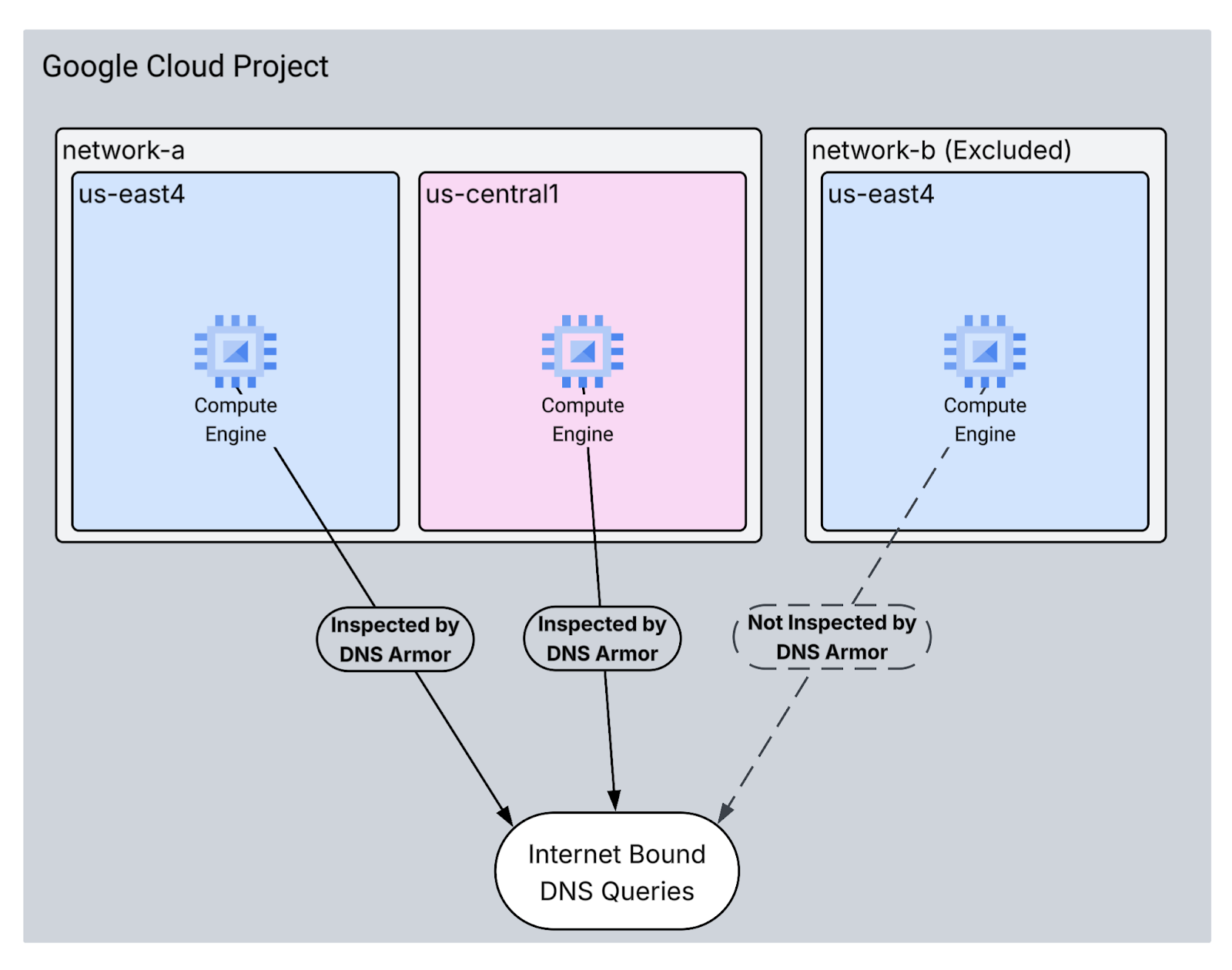
- Two VPC networks:
network-aandnetwork-b network-awill include subnets and virtual machines inus-east4andus-central1regions.network-bwill include a subnet and virtual machine solely inus-east4.- A DNS Armor advanced threat detector configured to inspect DNS queries.
What you'll learn
- How to provision the necessary networking resources, including VPCs and virtual machines.
- How to deploy an advanced threat detector and exclude specific networks.
- How to validate the threat detection configuration using a threat simulation script.
- How to analyze threat logs in Logs Explorer.
What you'll need
- A Google Cloud project.
- Access to the
gcloudcommand-line tool.
2. Prerequisites
In this section, you will perform the following tasks:
- Verify that your Google Cloud project meets the necessary Organization Policy constraints.
- Confirm that your user account has the required IAM roles and permissions.
- Enable the Google Cloud APIs essential for this codelab.
- Assign the
roles/logging.viewerIAM role to the Compute Engine Service Account.
Organization Policy Constraints
To successfully complete this codelab, please verify the Organization Policy constraints applied to your project. Certain policies might hinder the provisioning of necessary resources. The following constraints, could impact the configuration of this codelab:
constraints/gcp.resourceLocations: Restricts the regions where you can create resources; the codelab requiresus-east4andus-central1.constraints/compute.vmExternalIpAccess: Prevents the creation of virtual machines with public IP addresses, which could interfere with the setup if you don't follow the codelab's use of the--no-addressflag .constraints/compute.shieldedVm: Enforces the creation of Shielded VMs, which the codelab's VM creation commands do not specify, potentially causing an error.constraints/gcp.restrictServiceUsage: Limits which Google Cloud APIs can be enabled, and could block the codelab if it doesn't allowcompute.googleapis.com,networksecurity.googleapis.com,logging.googleapis.com, andmonitoring.googleapis.com.
IAM Roles and Permissions
To successfully complete this codelab, please verify the IAM roles and permissions granted to your user. The following IAM roles and permissions are required to complete this Codelab.
- Service Usage Admin (
roles/serviceusage.serviceUsageAdmin): To enable the required Google Cloud APIs for the codelab. - Compute Network Admin (
roles/compute.networkAdmin): To create and manage VPC networks, subnets, and Cloud NAT. - Compute Security Admin (
roles/compute.securityAdmin): To configure the firewall rules for SSH access to the virtual machines. - Compute Instance Admin (v1) (
roles/compute.instanceAdmin.v1): To create and manage the virtual machines required for the lab. - IAP-secured Tunnel User (
roles/iap.tunnelResourceAccessor): To connect to the virtual machines using SSH through Identity-Aware Proxy (IAP). - Network Security Admin (
roles/networksecurity.admin): To create and manage the DNS Armor threat detector. - Logs Viewer (
roles/logging.viewer): To view and analyze the threat logs in Logs Explorer.
Google Cloud APIs
Please make sure that the required Google Cloud APIs are enabled in your project.
1. Enable the necessary APIs, run the following gcloud commands within Cloud Shell.
gcloud services enable compute.googleapis.com \
networksecurity.googleapis.com \
logging.googleapis.com \
monitoring.googleapis.com
2. Verify the APIs are Enabled, run the following gcloud commands within Cloud Shell.
gcloud services list --enabled
Compute Engine Service Account
The test script requires permissions to read threat logs from Cloud Logging. Since the script will be executed from a VM utilizing the default Compute Engine Service Account, the roles/logging.viewer IAM role must be assigned to this service account.
1. Set the environment variables, run following commands within Cloud Shell.
export PROJECT_ID=$(gcloud config get-value project)
export PROJECT_NUMBER=$(gcloud projects describe $PROJECT_ID --format='value(projectNumber)')
2. Grant the logging viewer role to the Compute Engine SA. Run the following gcloud commands within Cloud Shell
gcloud projects add-iam-policy-binding $PROJECT_ID \
--member="serviceAccount:${PROJECT_NUMBER}-compute@developer.gserviceaccount.com" \
--role="roles/logging.viewer"
3. Basic Environment Setup
In this section, you will perform the following tasks:
- Create VPC networks (
network-aandnetwork-b) with custom subnets. - Configure Cloud Routers and Cloud NAT for internet egress in both
network-aandnetwork-b. - Create firewall rules to allow SSH access to VMs from IAP's IP range for both
network-aandnetwork-b. - Provision Linux virtual machines in both
network-aandnetwork-bwithout public IP addresses.
Create VPCs and Subnets
1. Create network-a and its subnets in the us-east4 and us-central1 regions. Run the following gcloud commands within Cloud Shell.
gcloud compute networks create network-a --subnet-mode=custom
gcloud compute networks subnets create subnet-a-use4 \
--network=network-a \
--range=10.10.0.0/24 \
--region=us-east4
gcloud compute networks subnets create subnet-a-usc1 \
--network=network-a \
--range=10.10.1.0/24 \
--region=us-central1
2. Create network-b and its subnet in the us-east4 region. Run the following gcloud commands within Cloud Shell.
gcloud compute networks create network-b --subnet-mode=custom
gcloud compute networks subnets create subnet-b-use4 \
--network=network-b \
--range=10.20.0.0/24 \
--region=us-east4
Configure Internet Egress
1. Create Cloud Router and Cloud NAT for network-a to allow internet egress for VMs without public IPs.
gcloud compute routers create router-a-use4 \
--network=network-a \
--region=us-east4
gcloud compute routers nats create nat-a-use4 \
--router=router-a-use4 \
--auto-allocate-nat-external-ips \
--nat-all-subnet-ip-ranges \
--region=us-east4
gcloud compute routers create router-a-usc1 \
--network=network-a \
--region=us-central1
gcloud compute routers nats create nat-a-usc1 \
--router=router-a-usc1 \
--auto-allocate-nat-external-ips \
--nat-all-subnet-ip-ranges \
--region=us-central1
2. Create Cloud Router and Cloud NAT for network-b to allow internet egress for VMs without public IPs.
gcloud compute routers create router-b-use4 \
--network=network-b \
--region=us-east4
gcloud compute routers nats create nat-b-use4 \
--router=router-b-use4 \
--auto-allocate-nat-external-ips \
--nat-all-subnet-ip-ranges \
--region=us-east4
Configure Firewall Rules
1. Create firewall rules for network-a to allow SSH access from IAP's IP range. Run the following gcloud commands within Cloud Shell.
gcloud compute firewall-rules create allow-ssh-iap-a \
--network=network-a \
--allow=tcp:22 \
--source-ranges=35.235.240.0/20
2. Create firewall rules for network-b to allow SSH access from IAP's IP range. Run the following gcloud commands within Cloud Shell.
gcloud compute firewall-rules create allow-ssh-iap-b \
--network=network-b \
--allow=tcp:22 \
--source-ranges=35.235.240.0/20
Create Virtual Machines
1. Create Linux VMs in network-a
gcloud compute instances create vm-a-use4 \
--zone=us-east4-c \
--network=network-a \
--subnet=subnet-a-use4 \
--no-address \
--scopes=cloud-platform
gcloud compute instances create vm-a-usc1 \
--zone=us-central1-a \
--network=network-a \
--subnet=subnet-a-usc1 \
--no-address \
--scopes=cloud-platform
2. Create Linux VM in network-b
gcloud compute instances create vm-b-use4 \
--zone=us-east4-c \
--network=network-b \
--subnet=subnet-b-use4 \
--no-address \
--scopes=cloud-platform
4. Create the DNS Threat Detector
In this section, you will perform the following tasks:
- Create the threat detector.
- List the threat detector.
- Describe the resource.
With the VPCs, subnets, and virtual machines now provisioned, the next step is to create the DNS threat detector.
1. Create the threat detector using the gcloud beta network-security dns-threat-detectors create command. Use the --excluded-networks flag to exclude network-b.
gcloud beta network-security dns-threat-detectors create my-dns-threat-detector \
--location=global \
--provider=infoblox \
--excluded-networks=projects/$PROJECT_ID/global/networks/network-b
2. List the threat detector to confirm creation.
gcloud beta network-security dns-threat-detectors list --location=global
3. Describe the resource to verify that network-b is correctly listed under excludedNetworks.
gcloud beta network-security dns-threat-detectors describe my-dns-threat-detector --location=global
Example Output:
createTime: '2025-08-06T17:06:30.297586089Z'
excludedNetworks:
- projects/dns-armor-demo-project/global/networks/network-b
name: projects/dns-armor-demo-project/locations/global/dnsThreatDetectors/my-dns-threat-detector
provider: INFOBLOX
updateTime: '2025-08-27T01:14:09.666357239Z'
5. Testing the Setup
In this section, you will perform the following tasks:
- SSH into the VMs.
- Install Git on the VMs.
- Clone the Infoblox threat detection simulator repository.
- Run the script and analyze the generated output.
Validate the setup by generating emulated malicious DNS queries from your VMs. You should observe log entries for queries originating from network-a, while no logs will be generated from network-b.
1. SSH into vm-a-use4. Run the following gcloud commands within Cloud Shell.
gcloud compute ssh vm-a-use4 --zone=us-east4-c
2. Install Git on the VM.
sudo apt-get install git -y
3. Clone the Infoblox threat detection simulator repository.
git clone https://github.com/infobloxopen/ib-threat-detection-simulator
4. Change directory to the simulator's directory.
cd ib-threat-detection-simulator/threat_detection_simulator/
5. Run the script and analyze the generated output.
Make the script executable.
chmod +x run.sh
Run the script.
./run.sh info basic
6. Sample Output
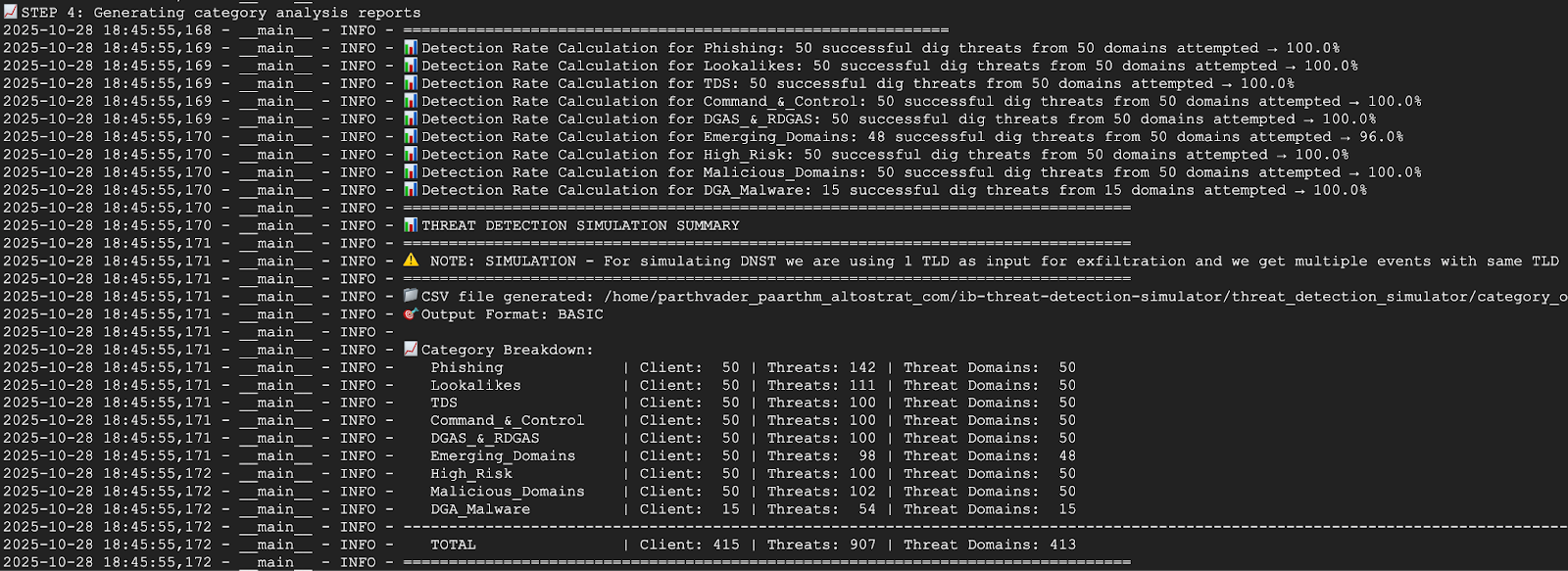
The screenshot below shows part of the script output from a VM in network-a. The output shows that 100% of the threats were detected.
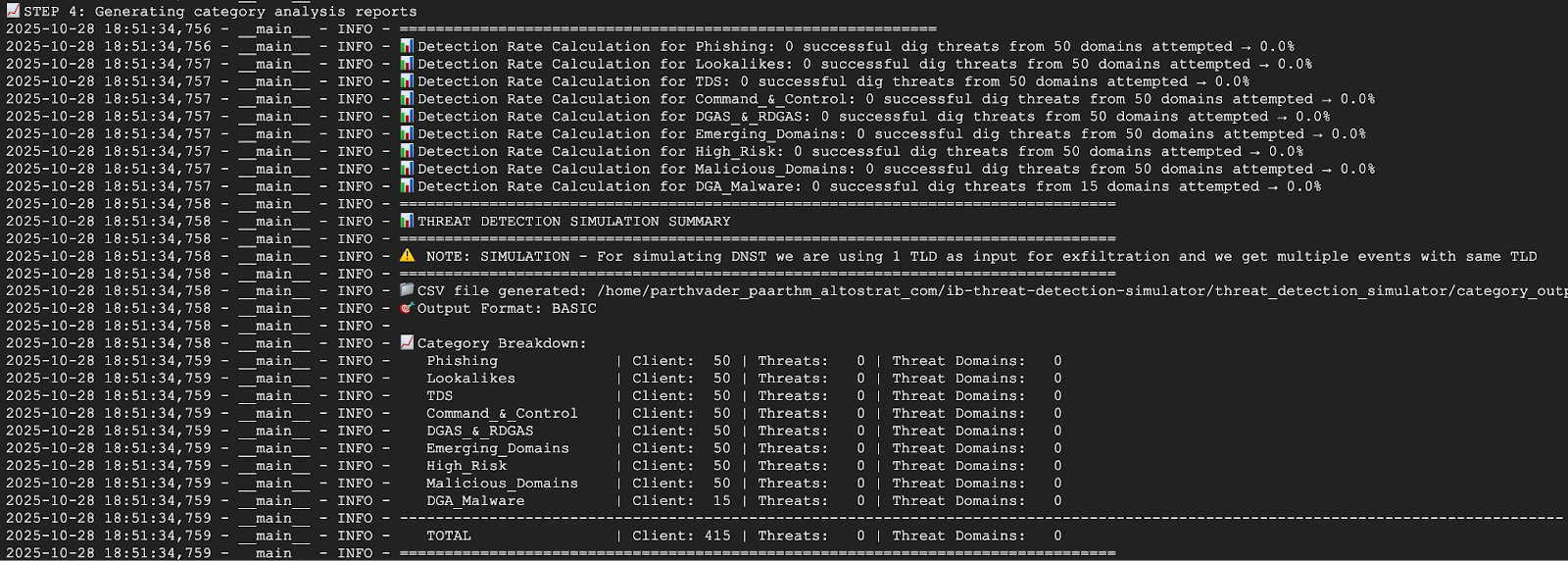
The screenshot below shows part of the script output from a VM in network-b. The output shows that 0% of the threats were detected. This is expected because network-b was excluded during the threat detector's creation.
7. Return to Cloud Shell by exiting the SSH session.
exit
6. View Threat Logs in Logs Explorer
The generated threat logs can be viewed in Logs Explorer after running the test script, as they are written to Cloud Logging.
Sample Log Entry
This section provides a sample log entry for a detected DNS threat, demonstrating the detailed information captured by DNS Armor, including the source IP, queried domain, and threat category. It serves as a reference for understanding the structure and content of the logs you will be analyzing.
{
  "insertId": "1izjkneb44",
  "jsonPayload": {
    "partnerId": "Infoblox",
    "detectionTime": "2025-08-08T01:49:54.092250101Z",
    "dnsQuery": {
      "authAnswer": false,
      "rdata": "random.malicious-domain.com.\t300\tIN\ta\t196.251.118.39",
      "protocol": "UDP",
      "projectNumber": "1234567890",
      "responseCode": "NOERROR",
      "queryType": "A",
      "location": "us-east4",
      "sourceIp": "10.10.0.2",
      "queryName": "random.malicious-domain.com.",
      "vmProjectNumber": "1234567890",
      "vmInstanceId": "01234567899876543210",
      "destinationIp": "",
      "queryTime": "2025-08-08T01:49:53.712692495Z"
    },
    "threatInfo": {
      "severity": "HIGH",
      "confidence": "HIGH",
      "threatDescription": "",
      "category": "EmergentDomain",
      "threatId": "Suspicious_EmergentDomain",
      "type": "Suspicious",
      "threatIndicator": "izumisv1.cc",
      "threatIndicatorType": "FQDN",
      "threat": "Suspicious",
      "threatFeed": "suspicious-noed"
    }
  },
  "resource": {
    "type": "networksecurity.googleapis.com/DnsThreatDetector",
    "labels": {
      "resource_container": "projects/1234567890",
      "id": "",
      "location": "us-east4"
    }
  },
  "timestamp": "2025-08-08T01:49:54.092250101Z",
  "severity": "INFO",
  "logName": "projects/dns-armor-demo-project/logs/networksecurity.googleapis.com%2Fdns_threat_events",
  "receiveTimestamp": "2025-08-08T01:49:55.290965780Z"
}
View Logs in Logs Explorer
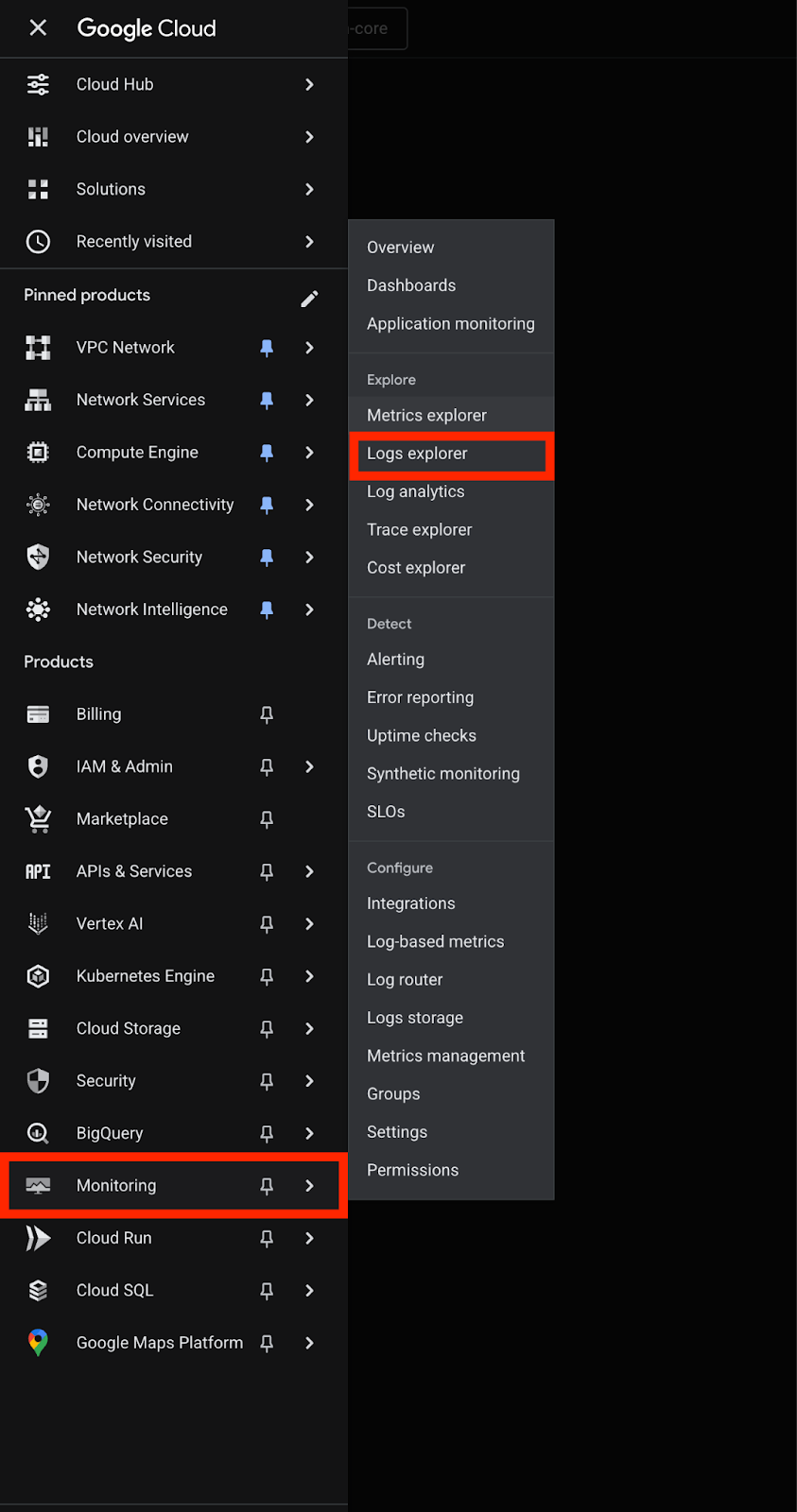
1. Navigate to the Monitoring section within the Google Cloud Console, then select Logs explorer.
2. Filter for all DNS Armor threat logs, use the following query. This filters logs based on the resource type for the DNS Threat Detector.
resource.type="networksecurity.googleapis.com/DnsThreatDetector"
3. Filter logs for the us-east4 region, add a filter for the location. This query will show only the threats detected in the us-east4 region.
resource.type="networksecurity.googleapis.com/DnsThreatDetector"
resource.labels.location="us-east4"
4. Filter logs by source network, filter the logs based on the source IP address of the DNS query to see threats originating from a specific VPC network.
To view logs from network-a (subnets 10.10.0.0/24 and 10.10.1.0/24):
resource.type="networksecurity.googleapis.com/DnsThreatDetector"
(jsonPayload.dnsQuery.sourceIp:"10.10.0." OR jsonPayload.dnsQuery.sourceIp:"10.10.1.")
To view logs from network-b (subnets 10.20.0.0/24):
resource.type="networksecurity.googleapis.com/DnsThreatDetector"
jsonPayload.dnsQuery.sourceIp:"10.20.0."
7. Cleanup
To avoid incurring future charges, delete the resources created in this codelab. Be sure to exit the shell of the VM and return to Cloud Shell when running the cleanup commands.
1. Delete the VMs.
gcloud compute instances delete vm-a-use4 --zone=us-east4-c --quiet
gcloud compute instances delete vm-a-usc1 --zone=us-central1-a --quiet
gcloud compute instances delete vm-b-use4 --zone=us-east4-c --quiet
2. Delete the firewall rules.
gcloud compute firewall-rules delete allow-ssh-iap-a --quiet
gcloud compute firewall-rules delete allow-ssh-iap-b --quiet
3. Delete the Cloud NAT Gateways.
gcloud compute routers nats delete nat-a-use4 --router=router-a-use4 --region=us-east4 --quiet
gcloud compute routers nats delete nat-a-usc1 --router=router-a-usc1 --region=us-central1 --quiet
gcloud compute routers nats delete nat-b-use4 --router=router-b-use4 --region=us-east4 --quiet
4. Delete the Cloud Routers
gcloud compute routers delete router-a-use4 --region=us-east4 --quiet
gcloud compute routers delete router-a-usc1 --region=us-central1 --quiet
gcloud compute routers delete router-b-use4 --region=us-east4 --quiet
5. Delete the subnets.
gcloud compute networks subnets delete subnet-a-use4 --region=us-east4 --quiet
gcloud compute networks subnets delete subnet-a-usc1 --region=us-central1 --quiet
gcloud compute networks subnets delete subnet-b-use4 --region=us-east4 --quiet
6. Delete the DNS threat detector.
gcloud beta network-security dns-threat-detectors delete my-dns-threat-detector --location=global --quiet
7. Delete the VPCs.
gcloud compute networks delete network-a --quiet
gcloud compute networks delete network-b --quiet
8. Congratulations
Congratulations! You have successfully configured, deployed, and tested the DNS Armor threat detector. You've gained hands-on experience in protecting your Google Cloud environment from DNS-based threats.
In this codelab, you have:
- Provisioned a network environment with multiple VPCs, subnets, and virtual machines.
- Configured internet egress for private VMs using Cloud NAT.
- Deployed a DNS Armor threat detector and learned how to exclude specific networks.
- Simulated DNS threats and validated the threat detection configuration.
- Analyzed threat logs in Logs Explorer to identify and understand malicious DNS activity.