
1. Introduction
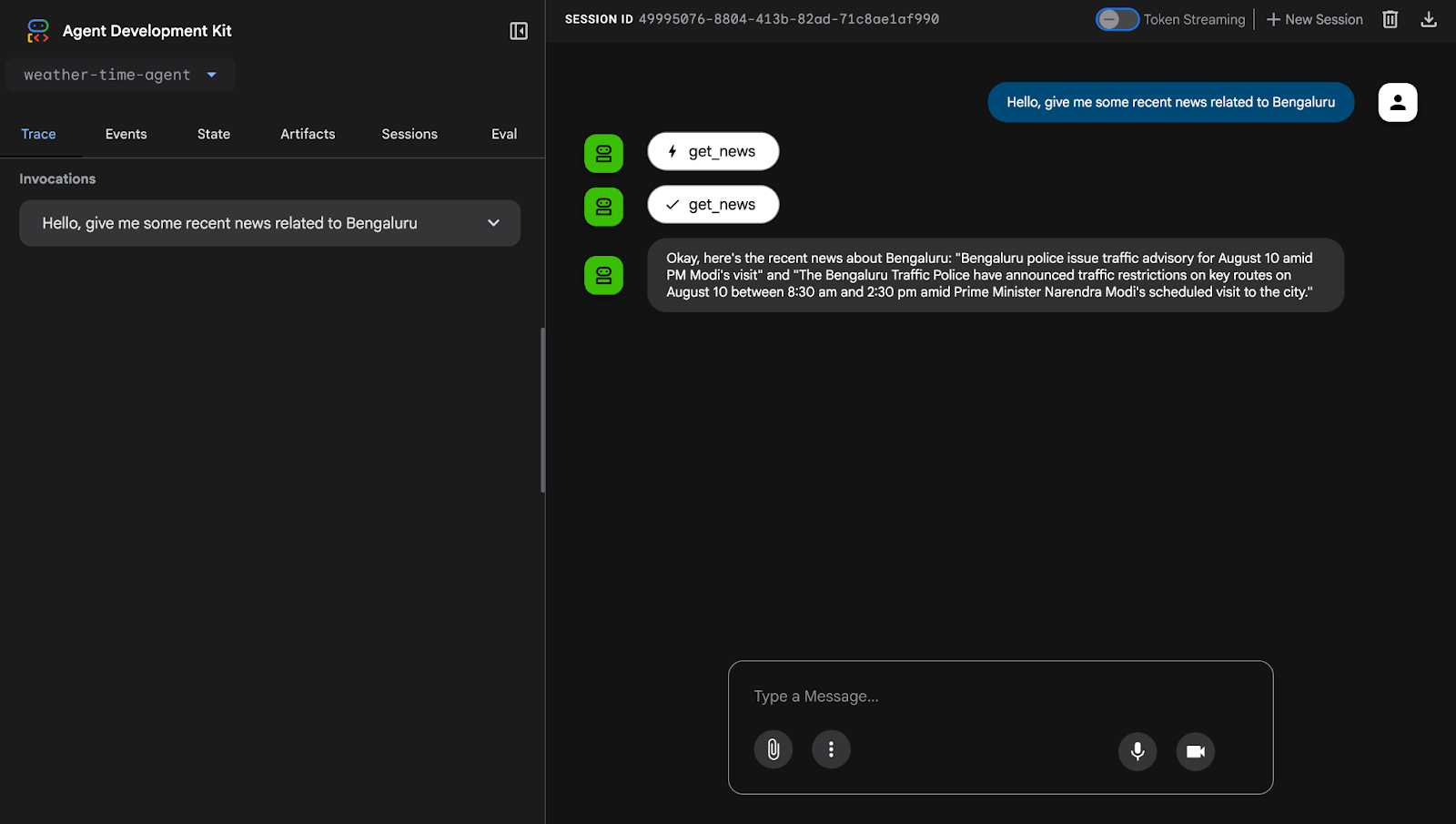
You will create an agent that can answer any query about the news and deploy it in Cloud Run. The news could be about any topic pertaining to only one location ‘Bengaluru'. Some of the queries can be:
- Can you tell me about some latest news from Bengaluru?
- Give me some recent news related to Bengaluru traffic.
You can deploy Agents on Cloud Run. We will create a simple agent that uses the model and a local tool, then deploy it.
What you will learn
- How to set up a Google Cloud Project for Cloud Run.
- How to build a simple AI agent using Google ADK.
- How to define and use local tools within the agent.
- How to package the agent using Docker.
- How to deploy the agent as a service on Google Cloud Run.
- How to interact with the deployed agent through a web UI.
What you will need
- A gmail account
- Chrome browser
2. Setup Google Cloud Environment
Getting Cloud Credits
Claim your with gift credit, you will need it for your deployment. Make sure to use your gmail account.
Create a project
- In the Google Cloud Console, on the project selector page, select or create a Google Cloud project.
- Make sure that billing is enabled for your Cloud project. Learn how to check if billing is enabled on a project.
- Activate Cloud Shell by clicking this link.
- To set the active account, run the following command on the Cloud Shell:
gcloud config set account <ACCOUNT>
Note the ACCOUNT is your gmail that you used for signing in onto the Google Cloud.
- Check your authentication by running the following command on the Cloud shell:
gcloud auth list
- Confirm the project ID using the following command:
gcloud config list project
- Set the project ID variable. Replace <YOUR_PROJECT_ID> with the ID from the previous step:
export PROJECT_ID=<YOUR_PROJECT_ID> && gcloud config set project $PROJECT_ID
export REGION=europe-west1 && gcloud config set run/region $REGION
- Set Google API key:
Generate your API key using https://aistudio.google.com/app/apikey and paste the key here:
export GOOGLE_API_KEY=PASTE_YOUR_ACTUAL_API_KEY_HERE
export GOOGLE_GENAI_USE_VERTEXAI=FALSE
- Enable the required APIs:
gcloud services enable cloudresourcemanager.googleapis.com \
    servicenetworking.googleapis.com \
    run.googleapis.com \
    cloudbuild.googleapis.com \
    artifactregistry.googleapis.com \
    aiplatform.googleapis.com \
    compute.googleapis.com \
    storage.googleapis.com
(This could take a few minutes.)
Clone Code Samples for Cloud Run Day Workshops
To access the sample code for all workshops, clone the entire repository:
git clone https://github.com/shrutimantri/first-adk-agent5.git
3. Deploy the Agent to Cloud Run
Once you have all the files ready in your Cloud Shell editor, execute the following commands in the Cloud Shell terminal to deploy the service to Cloud Run:
gcloud run deploy news-assistant-agent \
--source . \
--region $REGION \
--project $PROJECT_ID \
--allow-unauthenticated \
--set-env-vars="GOOGLE_GENAI_USE_VERTEXAI=$GOOGLE_GENAI_USE_VERTEXAI,GOOGLE_API_KEY=$GOOGLE_API_KEY"
(Confirm the deployment by typing ‘Y' when/if prompted.)
4. Test the Agent
Upon successful deployment, the Cloud Shell will output the URL for the deployed Cloud Run service.
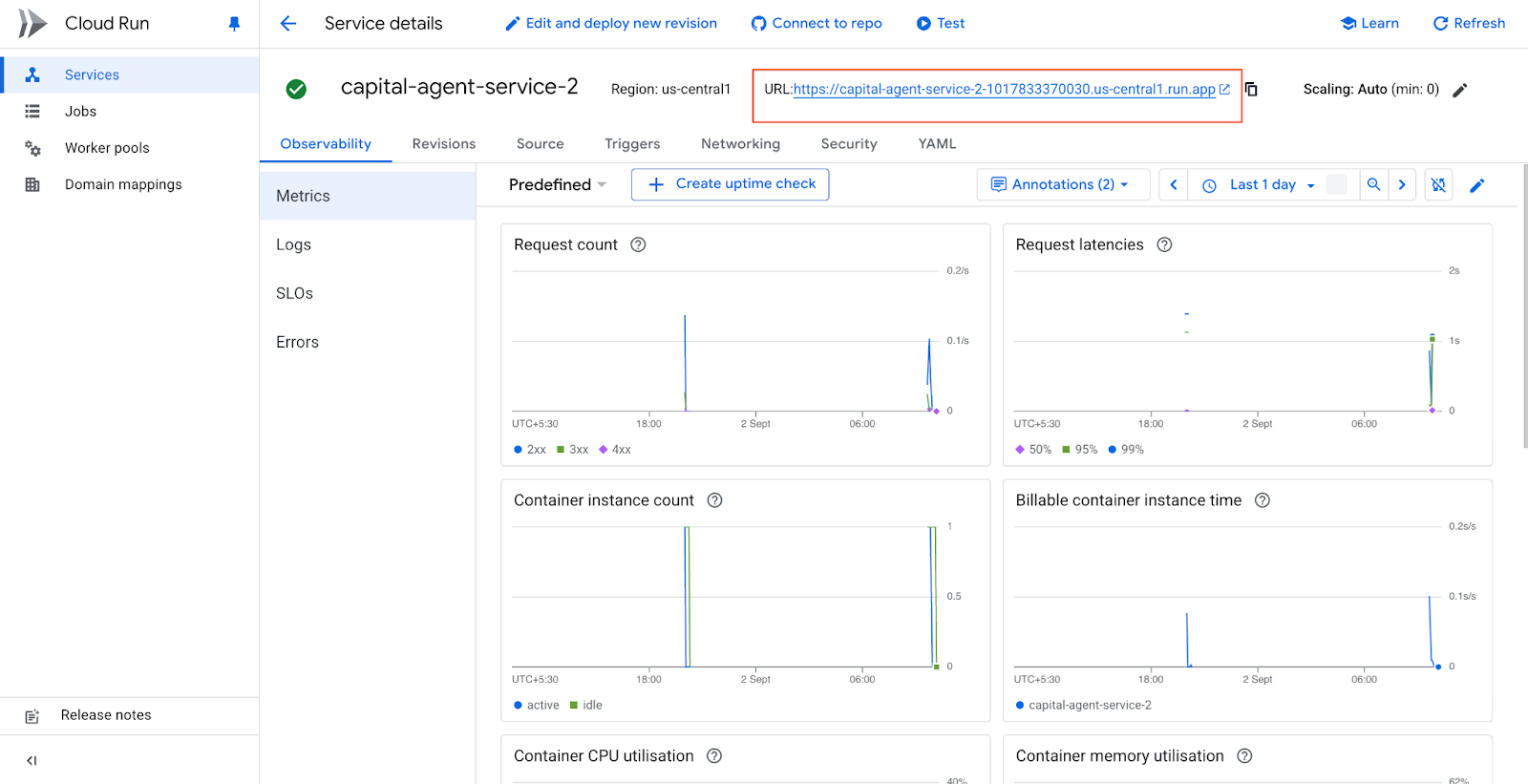
When you open the link, you can directly interact with your agent using the ADK web UI:
5. Cleanup
To avoid incurring future charges, delete the Cloud Run service that you have created.
gcloud run services delete news-assistant-agent --region $REGION $GOOGLE_CLOUD_LOCATION --quiet
6. Congratulations!
You have successfully built and deployed an AI News Agent to Google Cloud Run!