
1. Introduction
This codelab walks you through building a custom MCP (Model Context Protocol) server using Python, deploying it to Google Cloud Run, and connecting it with Gemini CLI to execute real Google Cloud Storage operations using natural language.
Architectural Flow: Gemini CLI → Cloud Run → MCP
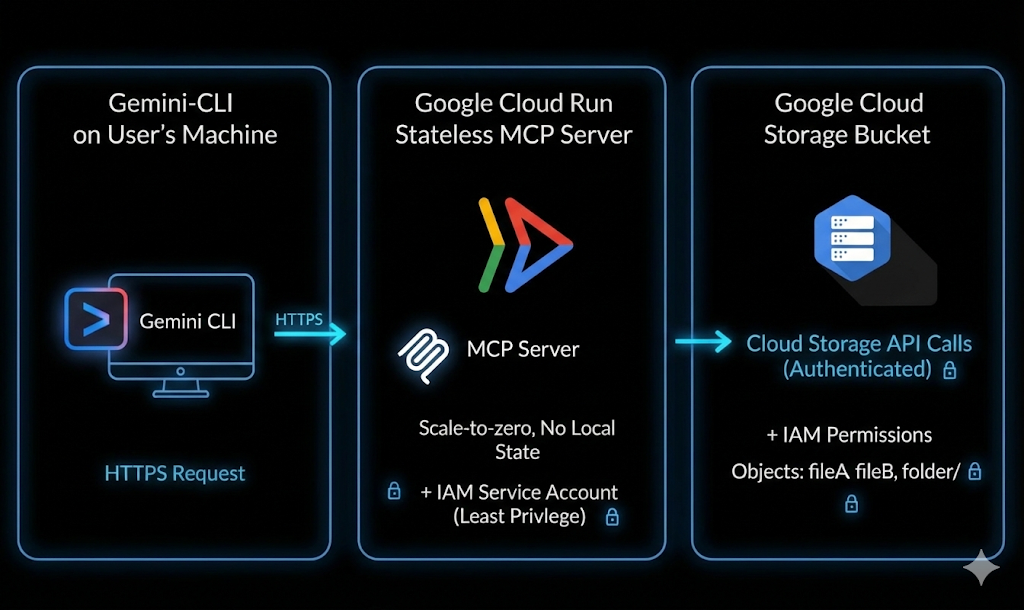
Imagine this: you open your terminal and type a simple prompt in an AI Agent, like the ones shown below:
List my GCS bucketsCreate a GCS bucket named <bucket-name>Tell me about the metadata of my GCS object
Within seconds, your cloud listens and executes. No complicated commands. No endless tab switching. Just plain language turning into real cloud actions.
What you'll do
You will build and deploy a custom MCP server that connects Gemini CLI with Google Cloud Storage.
You will:
- Build a Python-based MCP server
- Containerize the application
- Deploy it to Cloud Run
- Secure it using IAM and identity tokens
- Connect it with Gemini CLI
- Execute live GCS operations using natural language
What you'll learn
- What MCP (Model Context Protocol) is and how it works
- How to build tool-calling capabilities using Python
- How to deploy containerized applications to Cloud Run
- How Gemini CLI integrates with external MCP servers
- How to securely authenticate Cloud Run services
- How to execute real Google Cloud Storage operations using AI
What you'll need
- Chrome web browser
- A Gmail account
- A Google Cloud Project with billing enabled
- Gemini CLI (It comes preinstalled with Google Cloud Shell)
- Basic familiarity with Python and Google Cloud
This codelab expects that the user is familiar with basic knowledge of python
2. Before you begin
Create a project
- In the Google Cloud Console, on the project selector page, select or create a Google Cloud project.
- Make sure that billing is enabled for your Cloud project. Learn how to check if billing is enabled on a project .
- You'll use Cloud Shell, a command-line environment running in Google Cloud that comes preloaded with bq. Click Activate Cloud Shell at the top of the Google Cloud console.

- Once connected to Cloud Shell, you check that you're already authenticated and that the project is set to your project ID using the following command:
gcloud auth list
- Run the following command in Cloud Shell to confirm that the gcloud command knows about your project.
gcloud config list project
- If your project is not set, use the following command to set it:
gcloud config set project <YOUR_PROJECT_ID>
- Enable the required APIs via the command shown below. This could take a few minutes, so please be patient.
gcloud services enable \
  run.googleapis.com \
  artifactregistry.googleapis.com \
  cloudbuild.googleapis.com
If prompted to authorize, click Authorize to continue.
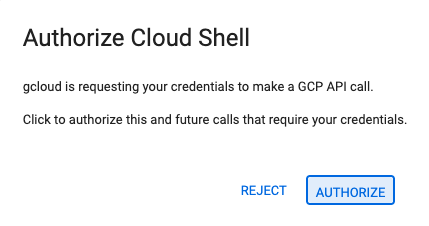
On successful execution of the command, you should see a message similar to the one shown below:
Operation "operations/..." finished successfully.
If any API is missed, you can always enable it during the course of the implementation.
Refer documentation for gcloud commands and usage.
Prepare your Python project
In this section, you will create the Python project that will host your MCP server and configure its dependencies for deployment to Cloud Run.
Create the project directory
Start by creating a new folder named mcp-on-cloudrun to store your source code:
mkdir gcs-mcp-server && cd gcs-mcp-server
Create requirements.txt
touch requirements.txt
cloudshell edit ~/gcs-mcp-server/requirements.txt
Add the following content to the file:
fastmcp
google-cloud-storage
google-api-core
pydantic
Save the file.
3. Create the MCP server
In this section, you will create the MCP server that exposes Google Cloud Storage operations as callable tools.
This server will:
- Register MCP tools
- Connect to Google Cloud Storage
- Run over HTTP
- Be deployable to Cloud Run
Now let's create our core MCP logic inside main.py.
Below is the complete code that defines multiple tools for managing Google Cloud Storage - from listing and creating buckets to uploading, downloading, and managing blobs
Create the main application file
Inside the mcp-on-cloudrun directory, create a new file named main.py:
touch main.py
Open the file using Cloud Shell Editor:
cloudshell edit ~/gcs-mcp-server/main.py
Add the following source to main.py file contents:
import asyncio
import logging
import os
from datetime import timedelta
from typing import List, Dict, Any
from fastmcp import FastMCP
from google.cloud import storage
from google.api_core import exceptions

# ---------------------------------------------------------
# 🌐 Initialize MCP
# ---------------------------------------------------------
logging.basicConfig(format="[%(levelname)s]: %(message)s", level=logging.INFO)
logger = logging.getLogger(__name__)

mcp = FastMCP(name="MyEnhancedGCSMCPServer")
# ---------------------------------------------------------
# 1️⃣ Simple Greeting
# ---------------------------------------------------------
@mcp.tool
def sayhi(name: str) -> str:
  """Returns a friendly greetings"""
  return f"Hello {name}! It's a pleasure to connect from your enhanced MCP Server."

# ---------------------------------------------------------
# 2️⃣ List all GCS buckets
# ---------------------------------------------------------
@mcp.tool
def list_gcs_buckets() -> List[str]:
  """Lists all GCS buckets in the project."""
  try:
      storage_client = storage.Client()
      buckets = storage_client.list_buckets()
      return [bucket.name for bucket in buckets]
  except exceptions.Forbidden as e:
      return [f"Error: Permission denied to list buckets. Details: {e}"]
  except Exception as e:
      return [f"An unexpected error occurred: {e}"]

# ---------------------------------------------------------
# 3️⃣ Create a new bucket
# ---------------------------------------------------------
@mcp.tool
def create_bucket(bucket_name: str, location: str = "US") -> str:
  """Creates a new GCS bucket. Bucket names must be globally unique."""
  try:
      storage_client = storage.Client()
      bucket = storage_client.bucket(bucket_name)
      bucket.location = location
      storage_client.create_bucket(bucket)
      return f"✅ Bucket '{bucket_name}' created successfully in '{location}'."
  except exceptions.Conflict:
      return f"⚠️ Error: Bucket '{bucket_name}' already exists."
  except exceptions.Forbidden as e:
      return f"❌ Error: Permission denied to create bucket. Details: {e}"
  except Exception as e:
      return f"❌ Unexpected error: {e}"

# ---------------------------------------------------------
# 4️⃣ Delete a bucket
# ---------------------------------------------------------
@mcp.tool
def delete_bucket(bucket_name: str) -> str:
  """Deletes a GCS bucket."""
  try:
      storage_client = storage.Client()
      bucket = storage_client.bucket(bucket_name)
      bucket.delete(force=True)
      return f"🗑️ Bucket '{bucket_name}' deleted successfully."
  except exceptions.NotFound:
      return f"⚠️ Error: Bucket '{bucket_name}' not found."
  except exceptions.Forbidden as e:
      return f"❌ Error: Permission denied to delete bucket. Details: {e}"
  except Exception as e:
      return f"❌ Unexpected error: {e}"

# ---------------------------------------------------------
# 5️⃣ List objects in a bucket
# ---------------------------------------------------------
@mcp.tool
def list_objects(bucket_name: str) -> List[str]:
  """Lists all objects in a specified GCS bucket."""
  try:
      storage_client = storage.Client()
      blobs = storage_client.list_blobs(bucket_name)
      return [blob.name for blob in blobs]
  except exceptions.NotFound:
      return [f"⚠️ Error: Bucket '{bucket_name}' not found."]
  except Exception as e:
      return [f"❌ Unexpected error: {e}"]
# ---------------------------------------------------------
# Delete file from a bucket
# ---------------------------------------------------------
@mcp.tool
def delete_blob(bucket_name: str, blob_name: str) -> str:
  """Deletes a blob from a GCS bucket."""
  try:
      storage_client = storage.Client()
      bucket = storage_client.bucket(bucket_name)
      blob = bucket.blob(blob_name)
      blob.delete()
      return f"🗑️ Blob '{blob_name}' deleted from bucket '{bucket_name}'."
  except exceptions.NotFound:
      return f"⚠️ Error: Bucket '{bucket_name}' or blob '{blob_name}' not found."
  except exceptions.Forbidden as e:
      return f" Permission denied. Details: {e}"
  except Exception as e:
      return f" Unexpected error: {e}"

# ---------------------------------------------------------
# Get bucket metadata
# ---------------------------------------------------------
@mcp.tool
def get_bucket_metadata(bucket_name: str) -> Dict[str, Any]:
  """Retrieves metadata for a GCS bucket."""
  try:
      storage_client = storage.Client()
      bucket = storage_client.get_bucket(bucket_name)
      return {
          "id": bucket.id,
          "name": bucket.name,
          "location": bucket.location,
          "storage_class": bucket.storage_class,
          "created": bucket.time_created.isoformat() if bucket.time_created else None,
          "updated": bucket.updated.isoformat() if bucket.updated else None,
          "versioning_enabled": bucket.versioning_enabled,
      }
  except exceptions.NotFound:
      return {"error": f" Bucket '{bucket_name}' not found."}
  except Exception as e:
      return {"error": f" Unexpected error: {e}"}

# ---------------------------------------------------------
# Get object metadata
# ---------------------------------------------------------
@mcp.tool
def get_blob_metadata(bucket_name: str, blob_name: str) -> Dict[str, Any]:
  """Retrieves metadata for a specific blob."""
  try:
      storage_client = storage.Client()
      bucket = storage_client.bucket(bucket_name)
      blob = bucket.get_blob(blob_name)
      if not blob:
          return {"error": f" Blob '{blob_name}' not found in '{bucket_name}'."}
      return {
          "name": blob.name,
          "bucket": blob.bucket.name,
          "size": blob.size,
          "content_type": blob.content_type,
          "updated": blob.updated.isoformat() if blob.updated else None,
          "storage_class": blob.storage_class,
          "crc32c": blob.crc32c,
          "md5_hash": blob.md5_hash,
      }
  except exceptions.NotFound:
      return {"error": f" Bucket '{bucket_name}' not found."}
  except Exception as e:
      return {"error": f" Unexpected error: {e}"}

# ---------------------------------------------------------
# 🚀 Entry Point
# ---------------------------------------------------------
if __name__ == "__main__":
  port = int(os.getenv("PORT", 8080))
  logger.info(f"🚀 Starting Enhanced GCS MCP Server on port {port}")
  asyncio.run(
      mcp.run_async(
          transport="http",
          host="0.0.0.0",
          port=port,
      )
  )
Save the file after adding the code.
Your project structure should now look like this:
gcs-mcp-server/
├── requirements.txt
└── main.py
Let us understand the code in brief:
Imports and Setup:
The code begins by importing necessary libraries.
- Standard Libraries:
asynciofor asynchronous execution,loggingfor outputting status messages, andosfor environment variables. - FastMCP: The core framework used to create the Model Context Protocol server.
- Google Cloud Storage: The
google.cloud.storagelibrary is imported to interact with GCS, along withexceptionsfor error handling.
Initialization:
We configure the logging format to help debug and track the server's identity. Additionally we configure an instance of FastMCP named MyEnhancedGCSMCPServer. This object (mcp) will be used to register all the tools (functions) that the server exposes. We define the following tools:
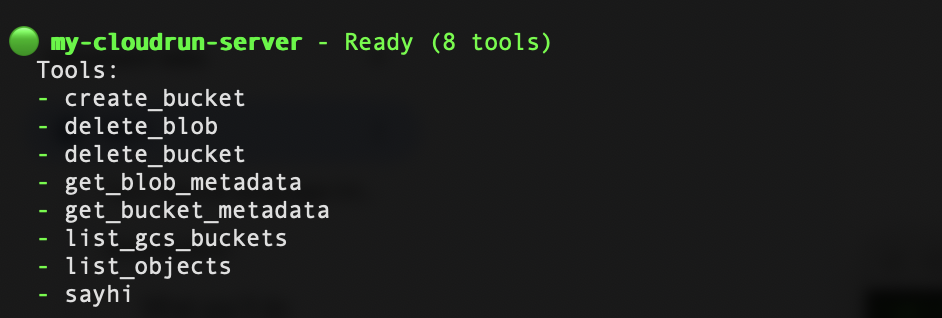
list_gcs_buckets: Retrieves a list of all storage buckets in the associated Google Cloud project.create_bucket: Creates a new bucket with a specific name and location.delete_bucket: Deletes an existing bucket.list_objects: Lists all files (blobs) inside a specific bucket.delete_blob: Deletes a single specific file from a bucket.get_bucket_metadata: Returns technical details about a bucket (Location, Storage Class, Versioning status, Creation time).get_blob_metadata: Returns technical details about a specific file (Size, Content Type, MD5 Hash, Last Updated).
Entry Point:
This configures the port, defaulting to 8080 if not set. It then uses asyncio.run() to start the server asynchronously with mcp.run_async. Finally it configures the server to run over HTTP (host 0.0.0.0), making it accessible for incoming network requests.
4. Containerize the MCP Server
In this section, you will create a Dockerfile so your MCP server can be deployed to Cloud Run.
Cloud Run requires a containerized application. You will define how your application is built and started.
Create the Dockerfile
Create a new file named Dockerfile:
touch Dockerfile
Open it in Cloud Shell Editor:
cloudshell edit ~/gcs-mcp-server/Dockerfile
Add Docker configuration
Paste the following content into the Dockerfile:
FROM python:3.11-slim
ENV PYTHONDONTWRITEBYTECODE=1
ENV PYTHONUNBUFFERED=1
WORKDIR /app
RUN apt-get update && apt-get install -y \
   build-essential \
   gcc \
   && rm -rf /var/lib/apt/lists/*
RUN pip install --upgrade pip
COPY . .
RUN pip install -r requirements.txt
ENV PORT=8080
EXPOSE 8080
CMD ["python", "main.py"]
Save the file after adding the content. Your project structure should now look like this:
gcs-mcp-server/
├── requirements.txt
├── main.py
└── Dockerfile
5. Deploying to Cloud Run
Now deploy your MCP server directly from source.
Run the following command in Cloud Shell:
gcloud run deploy gcs-mcp-server \
   --no-allow-unauthenticated \
   --region=us-central1 \
   --source=. \
   --labels=session=buildersdayblr
When prompted to
- Allow unauthenticated invocations? → No
Cloud Build will:
- Build the container image
- Push it to Artifact Registry
- Deploy it to Cloud Run
Enter Y to confirm that the Artifact Registry repository can be created.
Deploying from source requires an Artifact Registry Docker repository to store built containers. A repository named [cloud-run-source-deploy] in region [us-central1] will be created.

Do you want to continue (Y/n)?  Y
After successful deployment, you'll see a success message with the Cloud Run service URL.
You can also verify the deployment from your Google Cloud Console under Cloud Run → Services.

6. Gemini CLI Configuration
So far, we've built and deployed our MCP server on Cloud Run.
Now it's time for the fun part — connecting it with Gemini CLI and turning your natural-language prompts into real cloud actions.
Grant Cloud Run Invoker Permission
Since our Cloud Run service is private, we'll authenticate using an identity token and assign the correct IAM permissions.
We deployed the service with --no-allow-unauthenticated and hence you must grant permission to invoke it.
Set your project ID:
export GOOGLE_CLOUD_PROJECT=$(gcloud config get-value project)
Grant yourself the Cloud Run Invoker role:
gcloud projects add-iam-policy-binding $GOOGLE_CLOUD_PROJECT \
  --member=user:$(gcloud config get-value account) \
  --role='roles/run.invoker'
This allows your account to securely invoke the Cloud Run service.
Generate an Identity Token
Cloud Run requires an Identity Token for authenticated access.
Generate one:
export PROJECT_NUMBER=$(gcloud projects describe $GOOGLE_CLOUD_PROJECT --format="value(projectNumber)")
export ID_TOKEN=$(gcloud auth print-identity-token)
Verify it:
echo $PROJECT_NUMBER
echo $ID_TOKEN
You will use this token inside Gemini CLI configuration.
Configure the MCP Server in Gemini CLI
Open the Gemini CLI settings file:
cloudshell edit ~/.gemini/settings.json
Add the following configuration:
{
 "ide": {
   "enabled": true,
   "hasSeenNudge": true
 },
 "mcpServers": {
   "my-cloudrun-server": {
     "httpUrl": "https://gcs-mcp-server-$PROJECT_NUMBER.asia-south1.run.app/mcp",
     "headers": {
       "Authorization": "Bearer $ID_TOKEN"
     }
   }
 },
 "security": {
   "auth": {
     "selectedType": "cloud-shell"
   }
 }
}
Validate the MCP Servers configured in Gemini CLI
Launch Gemini CLI in the Cloud Shell terminal via the following command:
gemini
You will see the below output
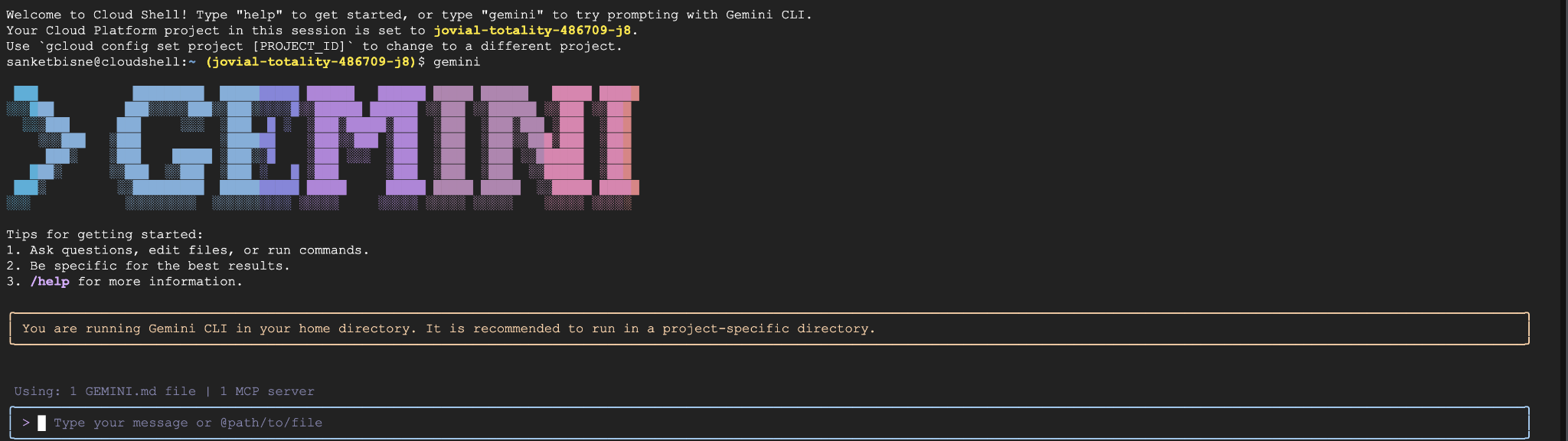
Inside Gemini CLI, run:
/mcp refresh
/mcp list
You should now see your gcs-cloudrun-server registered. A sample screenshot is shown below:
7. Invoke Google Storage Operations via Natural Language
Create bucket
Create a bucket named my-ai-bucket in asia-south1 region
This will prompt you requesting your permission to invoke the create_bucket tool from the MCP Server.
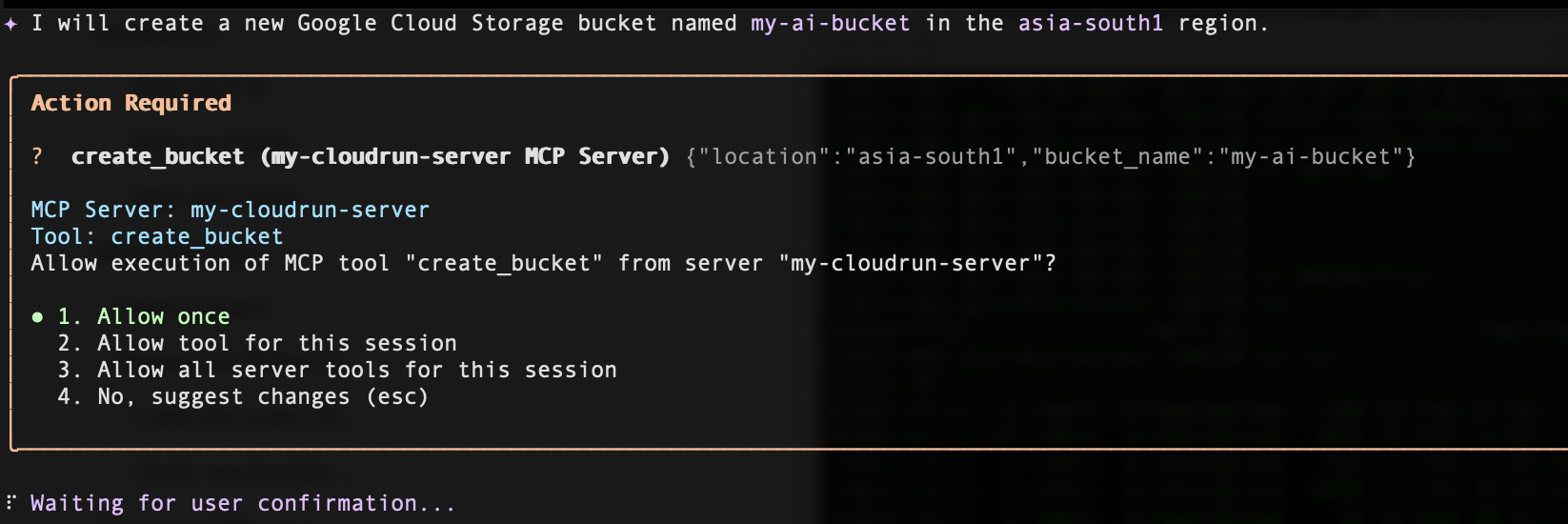
Click on Allow once, and then your bucket will be successfully created in the specific region that you requested.
List buckets
To list the buckets, enter the below prompt:
List all my GCS buckets
Delete bucket
To delete a bucket, enter the below prompt (substitute <your_bucket_name> with your bucket name):
Delete the bucket <your_bucket_name>
Get the metadata of the bucket
To get the metadata of a bucket, enter the below prompt (substitute <your_bucket_name> with your bucket name):
Give me metadata of the <your_bucket_name>
8. Clean up
Read this entire section first before deciding to delete the Google Cloud project, since this action is typically not reversible.
To avoid incurring charges to your Google Cloud account for the resources used in this codelab, follow these steps:
- In the Google Cloud Console, go to the Manage resources page.
- In the project list, select the project that you want to delete.
- Click Delete.
In the dialog, type the Project ID, and then click Shut down to permanently delete the project.
Deleting the project stops billing for all resources used within that project, including Cloud Run services and container images stored in Artifact Registry.
Alternatively, if you would like to keep the project but remove the deployed service:
- Go to Cloud Run in the Google Cloud Console.
- Select the gcs-mcp-server service.
- Click Delete to remove the service..
or give the following gcloud command in Cloud Shell terminal.
gcloud run services delete gcs-mcp-server --region=us-central1
9. Conclusion
🎉 Congratulations! You've just built your first AI-powered cloud workflow!
You implemented:
- A Custom Python-based MCP server
- Tool-calling capabilities for Google Cloud Storage
- Containerization using Docker
- Secure deployment to Cloud Run
- Identity-based authentication
- Integration with Gemini CLI
You can now extend this architecture to support additional Google Cloud services such as BigQuery, Pub/Sub, or Compute Engine.
This pattern demonstrates how AI systems can securely interact with cloud infrastructure through structured tool invocation.