

1. 소개
이 Codelab에서는 Python을 사용하여 맞춤 MCP (모델 컨텍스트 프로토콜) 서버를 빌드하고, Google Cloud Run에 배포하고, Gemini CLI와 연결하여 자연어를 사용하여 실제 Google Cloud Storage 작업을 실행하는 방법을 안내합니다.
아키텍처 흐름: Gemini CLI → Cloud Run → MCP
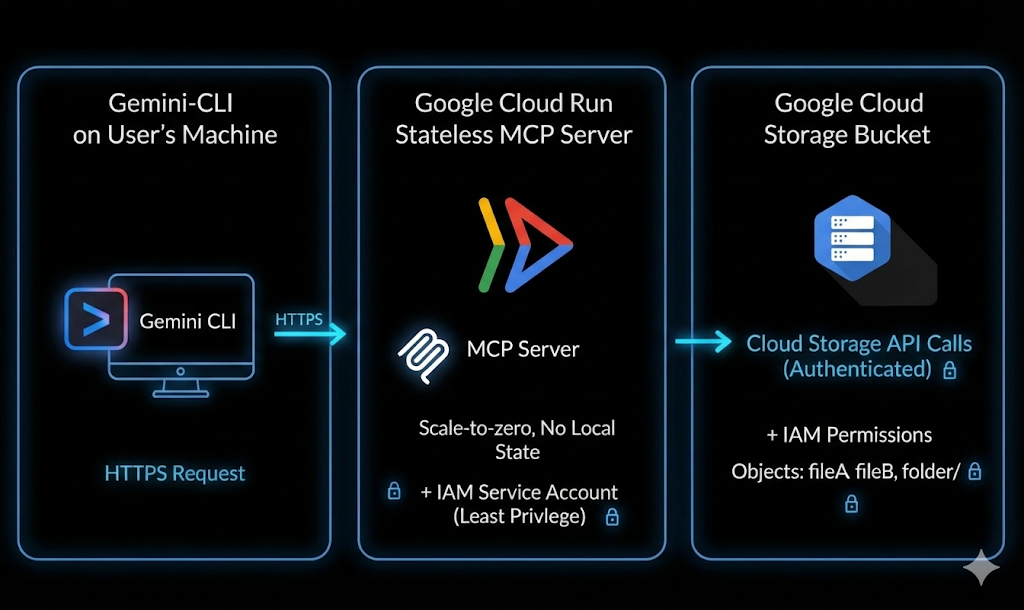
터미널을 열고 아래와 같은 간단한 프롬프트를 AI 에이전트에 입력한다고 가정해 보겠습니다.
List my GCS bucketsCreate a GCS bucket named <bucket-name>Tell me about the metadata of my GCS object
몇 초 이내에 클라우드가 듣고 실행합니다. 복잡한 명령어가 없습니다. 탭을 계속 전환할 필요가 없습니다. 일반 언어가 실제 클라우드 작업으로 전환됩니다.
실습할 내용
Gemini CLI를 Google Cloud Storage에 연결하는 맞춤 MCP 서버를 빌드하고 배포합니다.
실습할 내용은 다음과 같습니다.
- Python 기반 MCP 서버 빌드
- 애플리케이션 컨테이너화
- Cloud Run에 배포
- IAM 및 ID 토큰을 사용하여 보안 유지
- Gemini CLI와 연결하기
- 자연어를 사용하여 실시간 GCS 작업 실행
학습할 내용
- MCP (모델 컨텍스트 프로토콜)란 무엇이며 어떻게 작동하는지
- Python을 사용하여 도구 호출 기능을 빌드하는 방법
- Cloud Run에 컨테이너화된 애플리케이션을 배포하는 방법
- Gemini CLI가 외부 MCP 서버와 통합되는 방식
- Cloud Run 서비스를 안전하게 인증하는 방법
- AI를 사용하여 실제 Google Cloud Storage 작업을 실행하는 방법
필요한 항목
- Chrome 웹브라우저
- Gmail 계정
- 결제가 사용 설정된 Google Cloud 프로젝트
- Gemini CLI (Google Cloud Shell에 사전 설치되어 있음)
- Python 및 Google Cloud에 대한 기본적인 지식
이 Codelab에서는 사용자가 Python에 대한 기본 지식을 알고 있다고 가정합니다.
2. 시작하기 전에
프로젝트 만들기
- Google Cloud 콘솔의 프로젝트 선택기 페이지에서 Google Cloud 프로젝트를 선택하거나 만듭니다.
- Cloud 프로젝트에 결제가 사용 설정되어 있는지 확인합니다. 프로젝트에 결제가 사용 설정되어 있는지 확인하는 방법을 알아보세요 .
- bq가 미리 로드되어 제공되는 Google Cloud에서 실행되는 명령줄 환경인 Cloud Shell을 사용합니다. Google Cloud 콘솔 상단에서 Cloud Shell 활성화를 클릭합니다.

- Cloud Shell에 연결되면 다음 명령어를 사용하여 이미 인증되었는지, 프로젝트가 프로젝트 ID로 설정되었는지 확인합니다.
gcloud auth list
- Cloud Shell에서 다음 명령어를 실행하여 gcloud 명령어가 프로젝트를 알고 있는지 확인합니다.
gcloud config list project
- 프로젝트가 설정되지 않은 경우 다음 명령어를 사용하여 설정합니다.
gcloud config set project <YOUR_PROJECT_ID>
- 아래에 표시된 명령어를 통해 필수 API를 사용 설정합니다. 몇 분 정도 소요될 수 있으니 잠시 기다려 주세요.
gcloud services enable \
  run.googleapis.com \
  artifactregistry.googleapis.com \
  cloudbuild.googleapis.com
승인하라는 메시지가 표시되면 승인을 클릭하여 계속합니다.
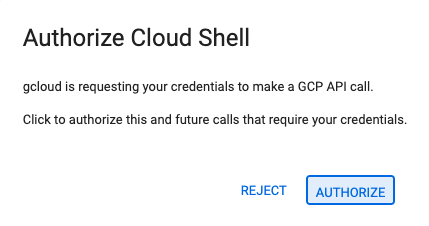
명령어가 성공적으로 실행되면 아래와 유사한 메시지가 표시됩니다.
Operation "operations/..." finished successfully.
API가 누락된 경우 구현 과정에서 언제든지 사용 설정할 수 있습니다.
gcloud 명령어 및 사용법은 문서를 참조하세요.
Python 프로젝트 준비
이 섹션에서는 MCP 서버를 호스팅할 Python 프로젝트를 만들고 Cloud Run에 배포하기 위한 종속 항목을 구성합니다.
프로젝트 디렉터리 만들기
먼저 소스 코드를 저장할 mcp-on-cloudrun이라는 새 폴더를 만듭니다.
mkdir gcs-mcp-server && cd gcs-mcp-server
requirements.txt 만들기
touch requirements.txt
cloudshell edit ~/gcs-mcp-server/requirements.txt
파일에 다음 콘텐츠를 추가합니다.
fastmcp
google-cloud-storage
google-api-core
pydantic
파일을 저장합니다.
3. MCP 서버 만들기
이 섹션에서는 Google Cloud Storage 작업을 호출 가능한 도구로 노출하는 MCP 서버를 만듭니다.
이 서버는 다음 작업을 실행합니다.
- MCP 도구 등록
- Google Cloud Storage에 연결하기
- HTTP를 통해 실행
- Cloud Run에 배포 가능
이제 main.py 내에서 핵심 MCP 로직을 만들어 보겠습니다.
다음은 버킷 나열 및 생성부터 블롭 업로드, 다운로드, 관리까지 Google Cloud Storage를 관리하는 여러 도구를 정의하는 전체 코드입니다.
기본 애플리케이션 파일 만들기
mcp-on-cloudrun 디렉터리 내부에 main.py이라는 새 파일을 만듭니다.
touch main.py
Cloud Shell 편집기를 사용하여 파일을 엽니다.
cloudshell edit ~/gcs-mcp-server/main.py
main.py 파일 콘텐츠에 다음 소스를 추가합니다.
import asyncio
import logging
import os
from datetime import timedelta
from typing import List, Dict, Any
from fastmcp import FastMCP
from google.cloud import storage
from google.api_core import exceptions

# ---------------------------------------------------------
# 🌐 Initialize MCP
# ---------------------------------------------------------
logging.basicConfig(format="[%(levelname)s]: %(message)s", level=logging.INFO)
logger = logging.getLogger(__name__)

mcp = FastMCP(name="MyEnhancedGCSMCPServer")
# ---------------------------------------------------------
# 1️⃣ Simple Greeting
# ---------------------------------------------------------
@mcp.tool
def sayhi(name: str) -> str:
  """Returns a friendly greetings"""
  return f"Hello {name}! It's a pleasure to connect from your enhanced MCP Server."

# ---------------------------------------------------------
# 2️⃣ List all GCS buckets
# ---------------------------------------------------------
@mcp.tool
def list_gcs_buckets() -> List[str]:
  """Lists all GCS buckets in the project."""
  try:
      storage_client = storage.Client()
      buckets = storage_client.list_buckets()
      return [bucket.name for bucket in buckets]
  except exceptions.Forbidden as e:
      return [f"Error: Permission denied to list buckets. Details: {e}"]
  except Exception as e:
      return [f"An unexpected error occurred: {e}"]

# ---------------------------------------------------------
# 3️⃣ Create a new bucket
# ---------------------------------------------------------
@mcp.tool
def create_bucket(bucket_name: str, location: str = "US") -> str:
  """Creates a new GCS bucket. Bucket names must be globally unique."""
  try:
      storage_client = storage.Client()
      bucket = storage_client.bucket(bucket_name)
      bucket.location = location
      storage_client.create_bucket(bucket)
      return f"✅ Bucket '{bucket_name}' created successfully in '{location}'."
  except exceptions.Conflict:
      return f"⚠️ Error: Bucket '{bucket_name}' already exists."
  except exceptions.Forbidden as e:
      return f"❌ Error: Permission denied to create bucket. Details: {e}"
  except Exception as e:
      return f"❌ Unexpected error: {e}"

# ---------------------------------------------------------
# 4️⃣ Delete a bucket
# ---------------------------------------------------------
@mcp.tool
def delete_bucket(bucket_name: str) -> str:
  """Deletes a GCS bucket."""
  try:
      storage_client = storage.Client()
      bucket = storage_client.bucket(bucket_name)
      bucket.delete(force=True)
      return f"🗑️ Bucket '{bucket_name}' deleted successfully."
  except exceptions.NotFound:
      return f"⚠️ Error: Bucket '{bucket_name}' not found."
  except exceptions.Forbidden as e:
      return f"❌ Error: Permission denied to delete bucket. Details: {e}"
  except Exception as e:
      return f"❌ Unexpected error: {e}"

# ---------------------------------------------------------
# 5️⃣ List objects in a bucket
# ---------------------------------------------------------
@mcp.tool
def list_objects(bucket_name: str) -> List[str]:
  """Lists all objects in a specified GCS bucket."""
  try:
      storage_client = storage.Client()
      blobs = storage_client.list_blobs(bucket_name)
      return [blob.name for blob in blobs]
  except exceptions.NotFound:
      return [f"⚠️ Error: Bucket '{bucket_name}' not found."]
  except Exception as e:
      return [f"❌ Unexpected error: {e}"]
# ---------------------------------------------------------
# Delete file from a bucket
# ---------------------------------------------------------
@mcp.tool
def delete_blob(bucket_name: str, blob_name: str) -> str:
  """Deletes a blob from a GCS bucket."""
  try:
      storage_client = storage.Client()
      bucket = storage_client.bucket(bucket_name)
      blob = bucket.blob(blob_name)
      blob.delete()
      return f"🗑️ Blob '{blob_name}' deleted from bucket '{bucket_name}'."
  except exceptions.NotFound:
      return f"⚠️ Error: Bucket '{bucket_name}' or blob '{blob_name}' not found."
  except exceptions.Forbidden as e:
      return f" Permission denied. Details: {e}"
  except Exception as e:
      return f" Unexpected error: {e}"

# ---------------------------------------------------------
# Get bucket metadata
# ---------------------------------------------------------
@mcp.tool
def get_bucket_metadata(bucket_name: str) -> Dict[str, Any]:
  """Retrieves metadata for a GCS bucket."""
  try:
      storage_client = storage.Client()
      bucket = storage_client.get_bucket(bucket_name)
      return {
          "id": bucket.id,
          "name": bucket.name,
          "location": bucket.location,
          "storage_class": bucket.storage_class,
          "created": bucket.time_created.isoformat() if bucket.time_created else None,
          "updated": bucket.updated.isoformat() if bucket.updated else None,
          "versioning_enabled": bucket.versioning_enabled,
      }
  except exceptions.NotFound:
      return {"error": f" Bucket '{bucket_name}' not found."}
  except Exception as e:
      return {"error": f" Unexpected error: {e}"}

# ---------------------------------------------------------
# Get object metadata
# ---------------------------------------------------------
@mcp.tool
def get_blob_metadata(bucket_name: str, blob_name: str) -> Dict[str, Any]:
  """Retrieves metadata for a specific blob."""
  try:
      storage_client = storage.Client()
      bucket = storage_client.bucket(bucket_name)
      blob = bucket.get_blob(blob_name)
      if not blob:
          return {"error": f" Blob '{blob_name}' not found in '{bucket_name}'."}
      return {
          "name": blob.name,
          "bucket": blob.bucket.name,
          "size": blob.size,
          "content_type": blob.content_type,
          "updated": blob.updated.isoformat() if blob.updated else None,
          "storage_class": blob.storage_class,
          "crc32c": blob.crc32c,
          "md5_hash": blob.md5_hash,
      }
  except exceptions.NotFound:
      return {"error": f" Bucket '{bucket_name}' not found."}
  except Exception as e:
      return {"error": f" Unexpected error: {e}"}

# ---------------------------------------------------------
# 🚀 Entry Point
# ---------------------------------------------------------
if __name__ == "__main__":
  port = int(os.getenv("PORT", 8080))
  logger.info(f"🚀 Starting Enhanced GCS MCP Server on port {port}")
  asyncio.run(
      mcp.run_async(
          transport="http",
          host="0.0.0.0",
          port=port,
      )
  )
코드를 추가한 후 파일을 저장합니다.
이제 프로젝트 구조는 다음과 같습니다.
gcs-mcp-server/
├── requirements.txt
└── main.py
코드를 간단히 살펴보겠습니다.
가져오기 및 설정:
코드는 필요한 라이브러리를 가져오는 것으로 시작합니다.
- 표준 라이브러리: 비동기 실행에는
asyncio, 상태 메시지 출력에는logging, 환경 변수에는os - FastMCP: 모델 컨텍스트 프로토콜 서버를 만드는 데 사용되는 핵심 프레임워크입니다.
- Google Cloud Storage: 오류 처리를 위한
exceptions와 함께 GCS와 상호작용하기 위해google.cloud.storage라이브러리가 가져옵니다.
초기화:
서버의 ID를 디버그하고 추적할 수 있도록 로깅 형식을 구성합니다. 또한 MyEnhancedGCSMCPServer이라는 FastMCP 인스턴스를 구성합니다. 이 객체 (mcp)는 서버에서 노출하는 모든 도구 (함수)를 등록하는 데 사용됩니다. 다음 도구를 정의합니다.
list_gcs_buckets: 연결된 Google Cloud 프로젝트의 모든 스토리지 버킷 목록을 가져옵니다.create_bucket: 특정 이름과 위치로 새 버킷을 만듭니다.delete_bucket: 기존 버킷을 삭제합니다.list_objects: 특정 버킷 내의 모든 파일 (블롭)을 나열합니다.delete_blob: 버킷에서 단일 특정 파일을 삭제합니다.get_bucket_metadata: 버킷에 관한 기술 세부정보 (위치, 스토리지 클래스, 버전 관리 상태, 생성 시간)를 반환합니다.get_blob_metadata: 특정 파일에 관한 기술 세부정보 (크기, 콘텐츠 유형, MD5 해시, 마지막 업데이트)를 반환합니다.
진입점:
포트를 구성하며, 설정하지 않으면 기본값은 8080입니다. 그런 다음 asyncio.run()를 사용하여 mcp.run_async로 서버를 비동기적으로 시작합니다. 마지막으로 HTTP (host 0.0.0.0)를 통해 실행되도록 서버를 구성하여 들어오는 네트워크 요청에 액세스할 수 있도록 합니다.
4. MCP 서버 컨테이너화
이 섹션에서는 MCP 서버를 Cloud Run에 배포할 수 있도록 Dockerfile을 만듭니다.
Cloud Run에는 컨테이너화된 애플리케이션이 필요합니다. 애플리케이션이 빌드되고 시작되는 방식을 정의합니다.
Dockerfile 만들기
Dockerfile라는 새 파일을 만듭니다.
touch Dockerfile
Cloud Shell 편집기에서 엽니다.
cloudshell edit ~/gcs-mcp-server/Dockerfile
Docker 구성 추가
다음 콘텐츠를 Dockerfile에 붙여넣습니다.
FROM python:3.11-slim
ENV PYTHONDONTWRITEBYTECODE=1
ENV PYTHONUNBUFFERED=1
WORKDIR /app
RUN apt-get update && apt-get install -y \
   build-essential \
   gcc \
   && rm -rf /var/lib/apt/lists/*
RUN pip install --upgrade pip
COPY . .
RUN pip install -r requirements.txt
ENV PORT=8080
EXPOSE 8080
CMD ["python", "main.py"]
콘텐츠를 추가한 후 파일을 저장합니다. 이제 프로젝트 구조는 다음과 같습니다.
gcs-mcp-server/
├── requirements.txt
├── main.py
└── Dockerfile
5. Cloud Run에 배포
이제 소스에서 직접 MCP 서버를 배포합니다.
Cloud Shell에서 다음 명령어를 실행합니다.
gcloud run deploy gcs-mcp-server \
   --no-allow-unauthenticated \
   --region=us-central1 \
   --source=. \
   --labels=session=buildersdayblr
메시지가 표시되면
- 인증되지 않은 호출을 허용하시겠어요? → 아니요
Cloud Build는 다음을 수행합니다.
- 컨테이너 이미지 빌드
- Artifact Registry로 푸시
- Cloud Run에 배포
Y를 입력하여 Artifact Registry 저장소를 만들 수 있는지 확인합니다.
Deploying from source requires an Artifact Registry Docker repository to store built containers. A repository named [cloud-run-source-deploy] in region [us-central1] will be created.

Do you want to continue (Y/n)?  Y
배포가 완료되면 Cloud Run 서비스 URL이 포함된 성공 메시지가 표시됩니다.
Google Cloud 콘솔의 Cloud Run → Services에서 배포를 확인할 수도 있습니다.

6. Gemini CLI 구성
지금까지 Cloud Run에 MCP 서버를 빌드하고 배포했습니다.
이제 재미있는 부분인 Gemini CLI와 연결하고 자연어 프롬프트를 실제 클라우드 작업으로 전환할 차례입니다.
Cloud Run 호출자 권한 부여
Cloud Run 서비스가 비공개이므로 ID 토큰을 사용하여 인증하고 올바른 IAM 권한을 할당합니다.
--no-allow-unauthenticated로 서비스를 배포했으므로 호출 권한을 부여해야 합니다.
프로젝트 ID를 설정합니다.
export GOOGLE_CLOUD_PROJECT=$(gcloud config get-value project)
자신에게 Cloud Run 호출자 역할을 부여합니다.
gcloud projects add-iam-policy-binding $GOOGLE_CLOUD_PROJECT \
  --member=user:$(gcloud config get-value account) \
  --role='roles/run.invoker'
이렇게 하면 계정에서 Cloud Run 서비스를 안전하게 호출할 수 있습니다.
ID 토큰 생성
Cloud Run에는 인증된 액세스를 위한 ID 토큰이 필요합니다.
하나 생성:
export PROJECT_NUMBER=$(gcloud projects describe $GOOGLE_CLOUD_PROJECT --format="value(projectNumber)")
export ID_TOKEN=$(gcloud auth print-identity-token)
확인:
echo $PROJECT_NUMBER
echo $ID_TOKEN
이 토큰은 Gemini CLI 구성 내에서 사용됩니다.
Gemini CLI에서 MCP 서버 구성
Gemini CLI 설정 파일을 엽니다.
cloudshell edit ~/.gemini/settings.json
다음 구성을 추가합니다.
{
 "ide": {
   "enabled": true,
   "hasSeenNudge": true
 },
 "mcpServers": {
   "my-cloudrun-server": {
     "httpUrl": "https://gcs-mcp-server-$PROJECT_NUMBER.asia-south1.run.app/mcp",
     "headers": {
       "Authorization": "Bearer $ID_TOKEN"
     }
   }
 },
 "security": {
   "auth": {
     "selectedType": "cloud-shell"
   }
 }
}
Gemini CLI에 구성된 MCP 서버 유효성 검사
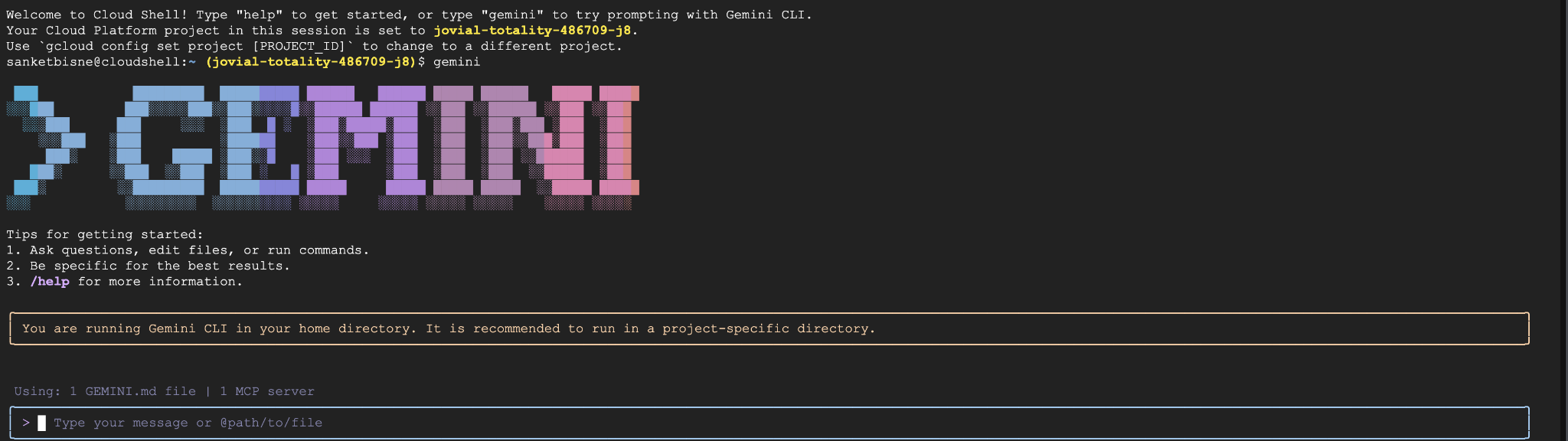
다음 명령어를 통해 Cloud Shell 터미널에서 Gemini CLI를 실행합니다.
gemini
아래와 같은 출력이 표시됩니다.
Gemini CLI 내에서 다음을 실행합니다.
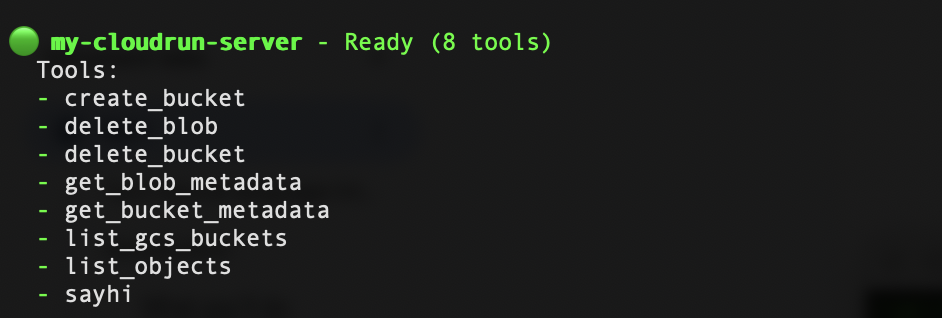
/mcp refresh
/mcp list
이제 gcs-cloudrun-server이 등록된 것을 확인할 수 있습니다. 샘플 스크린샷은 아래에 나와 있습니다.
7. 자연어를 통해 Google 스토리지 작업 호출
버킷 생성
Create a bucket named my-ai-bucket in asia-south1 region
그러면 MCP 서버에서 create_bucket 도구를 호출할 수 있는 권한을 요청하는 메시지가 표시됩니다.
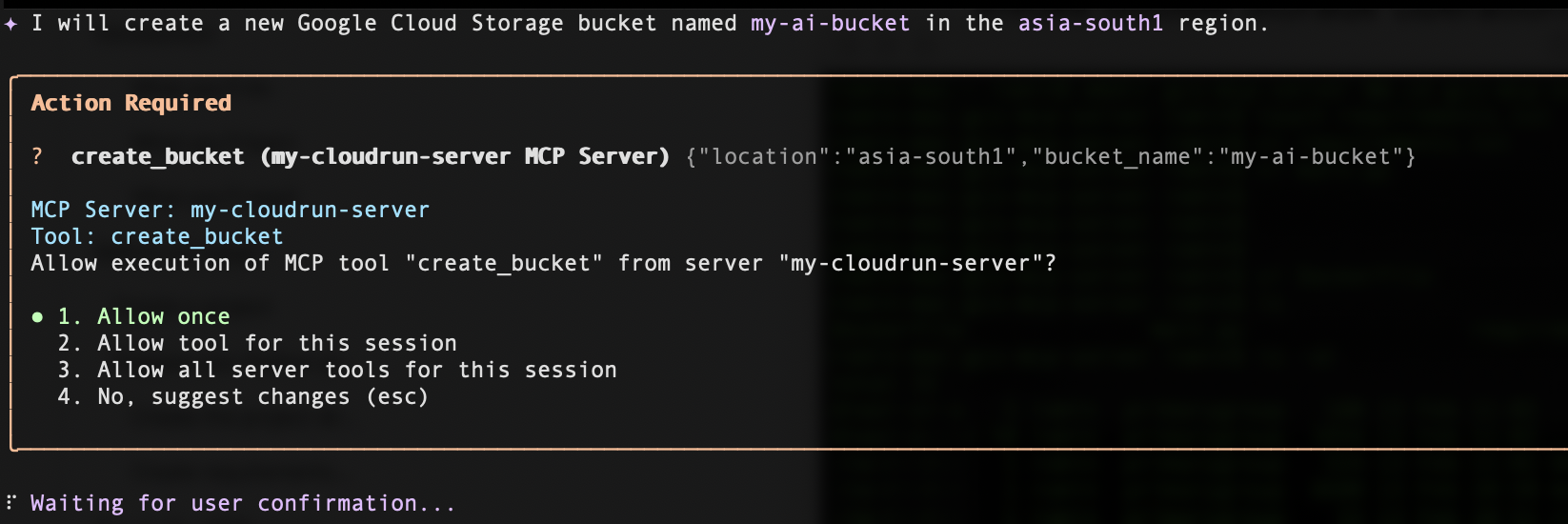
한 번 허용을 클릭하면 요청한 특정 리전에 버킷이 생성됩니다.
버킷 나열
버킷을 나열하려면 아래 프롬프트를 입력하세요.
List all my GCS buckets
버킷 삭제
버킷을 삭제하려면 아래 프롬프트를 입력하세요 (<your_bucket_name>을 버킷 이름으로 대체).
Delete the bucket <your_bucket_name>
버킷의 메타데이터 가져오기
버킷의 메타데이터를 가져오려면 아래 프롬프트를 입력하세요 (<your_bucket_name>을 버킷 이름으로 대체).
Give me metadata of the <your_bucket_name>
8. 삭제
이 작업은 일반적으로 되돌릴 수 없으므로 Google Cloud 프로젝트를 삭제하기 전에 이 섹션을 모두 읽어보세요.
이 Codelab에서 사용한 리소스의 비용이 Google Cloud 계정에 청구되지 않도록 하려면 다음 단계를 따르세요.
- Google Cloud 콘솔에서 리소스 관리 페이지로 이동합니다.
- 프로젝트 목록에서 삭제할 프로젝트를 선택합니다.
- 삭제를 클릭합니다.
대화상자에서 프로젝트 ID를 입력한 다음 종료를 클릭하여 프로젝트를 영구적으로 삭제합니다.
프로젝트를 삭제하면 Cloud Run 서비스 및 Artifact Registry에 저장된 컨테이너 이미지를 비롯해 해당 프로젝트 내에서 사용되는 모든 리소스에 대한 청구가 중지됩니다.
또는 프로젝트는 유지하고 배포된 서비스만 삭제하려면 다음 단계를 따르세요.
- Google Cloud 콘솔에서 Cloud Run으로 이동합니다.
- gcs-mcp-server 서비스를 선택합니다.
- 삭제를 클릭하여 서비스를 삭제합니다.
또는 Cloud Shell 터미널에서 다음 gcloud 명령어를 실행합니다.
gcloud run services delete gcs-mcp-server --region=us-central1
9. 결론
🎉 수고하셨습니다. 첫 번째 AI 기반 클라우드 워크플로를 빌드했습니다.
다음 항목을 구현했습니다.
- 맞춤 Python 기반 MCP 서버
- Google Cloud Storage의 도구 호출 기능
- Docker를 사용한 컨테이너화
- Cloud Run에 안전하게 배포
- ID 기반 인증
- Gemini CLI와의 통합
이제 이 아키텍처를 확장하여 BigQuery, Pub/Sub, Compute Engine과 같은 추가 Google Cloud 서비스를 지원할 수 있습니다.
이 패턴은 구조화된 도구 호출을 통해 AI 시스템이 클라우드 인프라와 안전하게 상호작용하는 방법을 보여줍니다.