

1. 簡介
本程式碼實驗室會逐步說明如何使用 Python 建構自訂 MCP (模型內容通訊協定) 伺服器、將其部署至 Google Cloud Run,以及將其連線至 Gemini CLI,以自然語言執行實際的 Google Cloud Storage 作業。
架構流程:Gemini CLI → Cloud Run → MCP
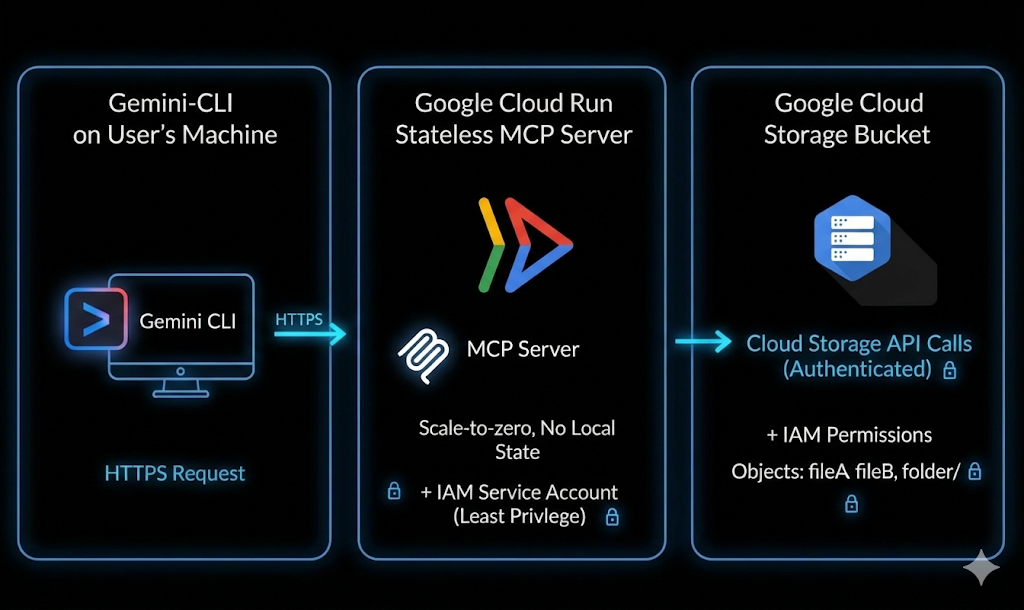
試想一下:您開啟終端機,並在 AI 代理程式中輸入簡單的提示,如下所示:
List my GCS bucketsCreate a GCS bucket named <bucket-name>Tell me about the metadata of my GCS object
雲端會在幾秒內聆聽並執行指令。無須使用複雜的指令,不必無止盡地切換分頁。將簡單的語言轉換為實際的雲端動作。
執行步驟
您將建構及部署自訂 MCP 伺服器,將 Gemini CLI 連接至 Google Cloud Storage。
您將學會以下內容:
- 建構以 Python 為基礎的 MCP 伺服器
- 將應用程式容器化
- 將其部署至 Cloud Run
- 使用 IAM 和身分權杖保護服務
- 連結至 Gemini CLI
- 使用自然語言執行即時 GCS 作業
課程內容
- 什麼是 MCP (Model Context Protocol)?運作方式為何?
- 如何使用 Python 建構工具呼叫功能
- 如何將容器化應用程式部署至 Cloud Run
- Gemini CLI 如何與外部 MCP 伺服器整合
- 如何安全地驗證 Cloud Run 服務
- 如何使用 AI 執行實際的 Google Cloud Storage 作業
軟硬體需求
- Chrome 網路瀏覽器
- Gmail 帳戶
- 已啟用計費功能的 Google Cloud 專案
- Gemini CLI (已預先安裝於 Google Cloud Shell)
- 對 Python 和 Google Cloud 有基本的瞭解
本程式碼實驗室假設使用者已具備 Python 基礎知識
2. 事前準備
建立專案
- 在 Google Cloud 控制台的專案選取器頁面中,選取或建立 Google Cloud 專案。
- 確認 Cloud 專案已啟用計費功能。瞭解如何檢查專案是否已啟用計費功能。
- 您將使用 Cloud Shell,這是 Google Cloud 中執行的指令列環境,預先載入了 bq。點選 Google Cloud 控制台頂端的「啟用 Cloud Shell」。

- 連至 Cloud Shell 後,請使用下列指令確認驗證已完成,專案也已設為獲派的專案 ID:
gcloud auth list
- 在 Cloud Shell 中執行下列指令,確認 gcloud 指令已瞭解您的專案。
gcloud config list project
- 如果未設定專案,請使用下列指令來設定:
gcloud config set project <YOUR_PROJECT_ID>
- 透過下列指令啟用必要的 API。這可能需要幾分鐘的時間,請耐心等候。
gcloud services enable \
  run.googleapis.com \
  artifactregistry.googleapis.com \
  cloudbuild.googleapis.com
如果系統提示您授權,請點選「授權」繼續操作。
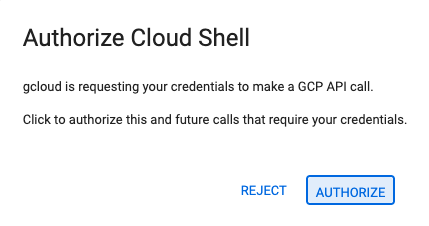
成功執行指令後,您應該會看到類似下方的訊息:
Operation "operations/..." finished successfully.
如果遺漏任何 API,您隨時可以在導入過程中啟用。
如要瞭解 gcloud 指令和用法,請參閱說明文件。
準備 Python 專案
在本節中,您將建立 Python 專案來代管 MCP 伺服器,並設定其依附元件,以便部署至 Cloud Run。
建立專案目錄
首先,請建立名為 mcp-on-cloudrun 的新資料夾,用來儲存原始碼:
mkdir gcs-mcp-server && cd gcs-mcp-server
建立 requirements.txt
touch requirements.txt
cloudshell edit ~/gcs-mcp-server/requirements.txt
在檔案中加入以下內容:
fastmcp
google-cloud-storage
google-api-core
pydantic
儲存檔案。
3. 建立 MCP 伺服器
在本節中,您將建立 MCP 伺服器,將 Google Cloud Storage 作業公開為可呼叫的工具。
這個伺服器會:
- 註冊 MCP 工具
- 連線至 Google Cloud Storage
- 透過 HTTP 執行
- 可部署至 Cloud Run
現在,我們要在 main.py 內建立核心 MCP 邏輯。
以下是完整程式碼,定義多種管理 Google Cloud Storage 的工具,包括列出及建立 bucket,以及上傳、下載及管理 Blob
建立主要應用程式檔案
在 mcp-on-cloudrun 目錄中,建立名為 main.py 的新檔案:
touch main.py
使用 Cloud Shell 編輯器開啟檔案:
cloudshell edit ~/gcs-mcp-server/main.py
在 main.py 檔案內容中新增下列來源:
import asyncio
import logging
import os
from datetime import timedelta
from typing import List, Dict, Any
from fastmcp import FastMCP
from google.cloud import storage
from google.api_core import exceptions

# ---------------------------------------------------------
# 🌐 Initialize MCP
# ---------------------------------------------------------
logging.basicConfig(format="[%(levelname)s]: %(message)s", level=logging.INFO)
logger = logging.getLogger(__name__)

mcp = FastMCP(name="MyEnhancedGCSMCPServer")
# ---------------------------------------------------------
# 1️⃣ Simple Greeting
# ---------------------------------------------------------
@mcp.tool
def sayhi(name: str) -> str:
  """Returns a friendly greetings"""
  return f"Hello {name}! It's a pleasure to connect from your enhanced MCP Server."

# ---------------------------------------------------------
# 2️⃣ List all GCS buckets
# ---------------------------------------------------------
@mcp.tool
def list_gcs_buckets() -> List[str]:
  """Lists all GCS buckets in the project."""
  try:
      storage_client = storage.Client()
      buckets = storage_client.list_buckets()
      return [bucket.name for bucket in buckets]
  except exceptions.Forbidden as e:
      return [f"Error: Permission denied to list buckets. Details: {e}"]
  except Exception as e:
      return [f"An unexpected error occurred: {e}"]

# ---------------------------------------------------------
# 3️⃣ Create a new bucket
# ---------------------------------------------------------
@mcp.tool
def create_bucket(bucket_name: str, location: str = "US") -> str:
  """Creates a new GCS bucket. Bucket names must be globally unique."""
  try:
      storage_client = storage.Client()
      bucket = storage_client.bucket(bucket_name)
      bucket.location = location
      storage_client.create_bucket(bucket)
      return f"✅ Bucket '{bucket_name}' created successfully in '{location}'."
  except exceptions.Conflict:
      return f"⚠️ Error: Bucket '{bucket_name}' already exists."
  except exceptions.Forbidden as e:
      return f"❌ Error: Permission denied to create bucket. Details: {e}"
  except Exception as e:
      return f"❌ Unexpected error: {e}"

# ---------------------------------------------------------
# 4️⃣ Delete a bucket
# ---------------------------------------------------------
@mcp.tool
def delete_bucket(bucket_name: str) -> str:
  """Deletes a GCS bucket."""
  try:
      storage_client = storage.Client()
      bucket = storage_client.bucket(bucket_name)
      bucket.delete(force=True)
      return f"🗑️ Bucket '{bucket_name}' deleted successfully."
  except exceptions.NotFound:
      return f"⚠️ Error: Bucket '{bucket_name}' not found."
  except exceptions.Forbidden as e:
      return f"❌ Error: Permission denied to delete bucket. Details: {e}"
  except Exception as e:
      return f"❌ Unexpected error: {e}"

# ---------------------------------------------------------
# 5️⃣ List objects in a bucket
# ---------------------------------------------------------
@mcp.tool
def list_objects(bucket_name: str) -> List[str]:
  """Lists all objects in a specified GCS bucket."""
  try:
      storage_client = storage.Client()
      blobs = storage_client.list_blobs(bucket_name)
      return [blob.name for blob in blobs]
  except exceptions.NotFound:
      return [f"⚠️ Error: Bucket '{bucket_name}' not found."]
  except Exception as e:
      return [f"❌ Unexpected error: {e}"]
# ---------------------------------------------------------
# Delete file from a bucket
# ---------------------------------------------------------
@mcp.tool
def delete_blob(bucket_name: str, blob_name: str) -> str:
  """Deletes a blob from a GCS bucket."""
  try:
      storage_client = storage.Client()
      bucket = storage_client.bucket(bucket_name)
      blob = bucket.blob(blob_name)
      blob.delete()
      return f"🗑️ Blob '{blob_name}' deleted from bucket '{bucket_name}'."
  except exceptions.NotFound:
      return f"⚠️ Error: Bucket '{bucket_name}' or blob '{blob_name}' not found."
  except exceptions.Forbidden as e:
      return f" Permission denied. Details: {e}"
  except Exception as e:
      return f" Unexpected error: {e}"

# ---------------------------------------------------------
# Get bucket metadata
# ---------------------------------------------------------
@mcp.tool
def get_bucket_metadata(bucket_name: str) -> Dict[str, Any]:
  """Retrieves metadata for a GCS bucket."""
  try:
      storage_client = storage.Client()
      bucket = storage_client.get_bucket(bucket_name)
      return {
          "id": bucket.id,
          "name": bucket.name,
          "location": bucket.location,
          "storage_class": bucket.storage_class,
          "created": bucket.time_created.isoformat() if bucket.time_created else None,
          "updated": bucket.updated.isoformat() if bucket.updated else None,
          "versioning_enabled": bucket.versioning_enabled,
      }
  except exceptions.NotFound:
      return {"error": f" Bucket '{bucket_name}' not found."}
  except Exception as e:
      return {"error": f" Unexpected error: {e}"}

# ---------------------------------------------------------
# Get object metadata
# ---------------------------------------------------------
@mcp.tool
def get_blob_metadata(bucket_name: str, blob_name: str) -> Dict[str, Any]:
  """Retrieves metadata for a specific blob."""
  try:
      storage_client = storage.Client()
      bucket = storage_client.bucket(bucket_name)
      blob = bucket.get_blob(blob_name)
      if not blob:
          return {"error": f" Blob '{blob_name}' not found in '{bucket_name}'."}
      return {
          "name": blob.name,
          "bucket": blob.bucket.name,
          "size": blob.size,
          "content_type": blob.content_type,
          "updated": blob.updated.isoformat() if blob.updated else None,
          "storage_class": blob.storage_class,
          "crc32c": blob.crc32c,
          "md5_hash": blob.md5_hash,
      }
  except exceptions.NotFound:
      return {"error": f" Bucket '{bucket_name}' not found."}
  except Exception as e:
      return {"error": f" Unexpected error: {e}"}

# ---------------------------------------------------------
# 🚀 Entry Point
# ---------------------------------------------------------
if __name__ == "__main__":
  port = int(os.getenv("PORT", 8080))
  logger.info(f"🚀 Starting Enhanced GCS MCP Server on port {port}")
  asyncio.run(
      mcp.run_async(
          transport="http",
          host="0.0.0.0",
          port=port,
      )
  )
新增程式碼後,請儲存檔案。
專案結構現在應如下所示:
gcs-mcp-server/
├── requirements.txt
└── main.py
讓我們簡要瞭解程式碼:
匯入和設定:
程式碼會先匯入必要的程式庫。
- 標準程式庫:
asyncio用於非同步執行、logging用於輸出狀態訊息,以及os用於環境變數。 - FastMCP:用於建立 Model Context Protocol 伺服器的核心架構。
- Google Cloud Storage:匯入
google.cloud.storage程式庫,與 GCS 互動,並匯入exceptions進行錯誤處理。
初始化:
我們設定記錄格式,協助偵錯及追蹤伺服器身分。此外,我們還設定了名為 MyEnhancedGCSMCPServer 的 FastMCP 執行個體。這個物件 (mcp) 會用於註冊伺服器公開的所有工具 (函式)。我們定義下列工具:
list_gcs_buckets:擷取相關聯 Google Cloud 雲端專案中的所有儲存空間 bucket 清單。create_bucket:建立具有特定名稱和位置的新值區。delete_bucket:刪除現有 bucket。list_objects:列出特定 bucket 內的所有檔案 (Blob)。delete_blob:從 bucket 刪除單一特定檔案。get_bucket_metadata:傳回值區的技術詳細資料 (位置、儲存空間級別、版本控管狀態、建立時間)。get_blob_metadata:傳回特定檔案的技術詳細資料 (大小、內容類型、MD5 雜湊、上次更新時間)。
進入點:
這會設定通訊埠,如果未設定,則預設為 8080。接著,它會使用 asyncio.run(),透過 mcp.run_async 非同步啟動伺服器。最後,伺服器會設定透過 HTTP (host 0.0.0.0) 執行,以便處理傳入的網路要求。
4. 將 MCP 伺服器容器化
在本節中,您將建立 Dockerfile,以便將 MCP 伺服器部署至 Cloud Run。
Cloud Run 需要容器化應用程式。您將定義應用程式的建構和啟動方式。
建立 Dockerfile
建立名為 Dockerfile 的新檔案:
touch Dockerfile
在 Cloud Shell 編輯器中開啟:
cloudshell edit ~/gcs-mcp-server/Dockerfile
新增 Docker 設定
將下列內容貼到 Dockerfile 中:
FROM python:3.11-slim
ENV PYTHONDONTWRITEBYTECODE=1
ENV PYTHONUNBUFFERED=1
WORKDIR /app
RUN apt-get update && apt-get install -y \
   build-essential \
   gcc \
   && rm -rf /var/lib/apt/lists/*
RUN pip install --upgrade pip
COPY . .
RUN pip install -r requirements.txt
ENV PORT=8080
EXPOSE 8080
CMD ["python", "main.py"]
新增內容後,請儲存檔案。專案結構現在應如下所示:
gcs-mcp-server/
├── requirements.txt
├── main.py
└── Dockerfile
5. 正在部署到 Cloud Run
現在可以直接從來源部署 MCP 伺服器。
在 Cloud Shell 中執行下列指令:
gcloud run deploy gcs-mcp-server \
   --no-allow-unauthenticated \
   --region=us-central1 \
   --source=. \
   --labels=session=buildersdayblr
系統提示
- 允許未經驗證的叫用?→ 無
Cloud Build 會執行下列操作:
- 建構容器映像檔
- 將其推送至 Artifact Registry
- 將其部署至 Cloud Run
輸入 Y,確認可以建立 Artifact Registry 存放區。
Deploying from source requires an Artifact Registry Docker repository to store built containers. A repository named [cloud-run-source-deploy] in region [us-central1] will be created.

Do you want to continue (Y/n)?  Y
部署成功後,您會看到成功訊息和 Cloud Run 服務網址。
您也可以在 Google Cloud 控制台的 Cloud Run → Services下驗證部署作業。

6. Gemini CLI 設定
目前我們已在 Cloud Run 建構及部署 MCP 伺服器。
現在要開始有趣的部分了,也就是將其與 Gemini CLI 連線,並將自然語言提示轉換為實際的雲端動作。
授予 Cloud Run 叫用者權限
由於我們的 Cloud Run 服務是私有服務,因此我們會使用身分符記進行驗證,並指派正確的 IAM 權限。
我們已透過 --no-allow-unauthenticated 部署服務,因此您必須授予叫用服務的權限。
設定專案 ID:
export GOOGLE_CLOUD_PROJECT=$(gcloud config get-value project)
授予自己 Cloud Run 叫用者角色:
gcloud projects add-iam-policy-binding $GOOGLE_CLOUD_PROJECT \
  --member=user:$(gcloud config get-value account) \
  --role='roles/run.invoker'
這樣一來,您的帳戶就能安全地叫用 Cloud Run 服務。
產生 ID 權杖
Cloud Run 需要身分權杖,才能進行已驗證的存取作業。
生成一個:
export PROJECT_NUMBER=$(gcloud projects describe $GOOGLE_CLOUD_PROJECT --format="value(projectNumber)")
export ID_TOKEN=$(gcloud auth print-identity-token)
驗證方法:
echo $PROJECT_NUMBER
echo $ID_TOKEN
您會在 Gemini CLI 設定中使用這個權杖。
在 Gemini CLI 中設定 MCP 伺服器
開啟 Gemini CLI 設定檔:
cloudshell edit ~/.gemini/settings.json
新增下列設定:
{
 "ide": {
   "enabled": true,
   "hasSeenNudge": true
 },
 "mcpServers": {
   "my-cloudrun-server": {
     "httpUrl": "https://gcs-mcp-server-$PROJECT_NUMBER.asia-south1.run.app/mcp",
     "headers": {
       "Authorization": "Bearer $ID_TOKEN"
     }
   }
 },
 "security": {
   "auth": {
     "selectedType": "cloud-shell"
   }
 }
}
驗證在 Gemini CLI 中設定的 MCP 伺服器
在 Cloud Shell 終端機中執行下列指令,啟動 Gemini CLI:
gemini
您會看到下列輸出內容
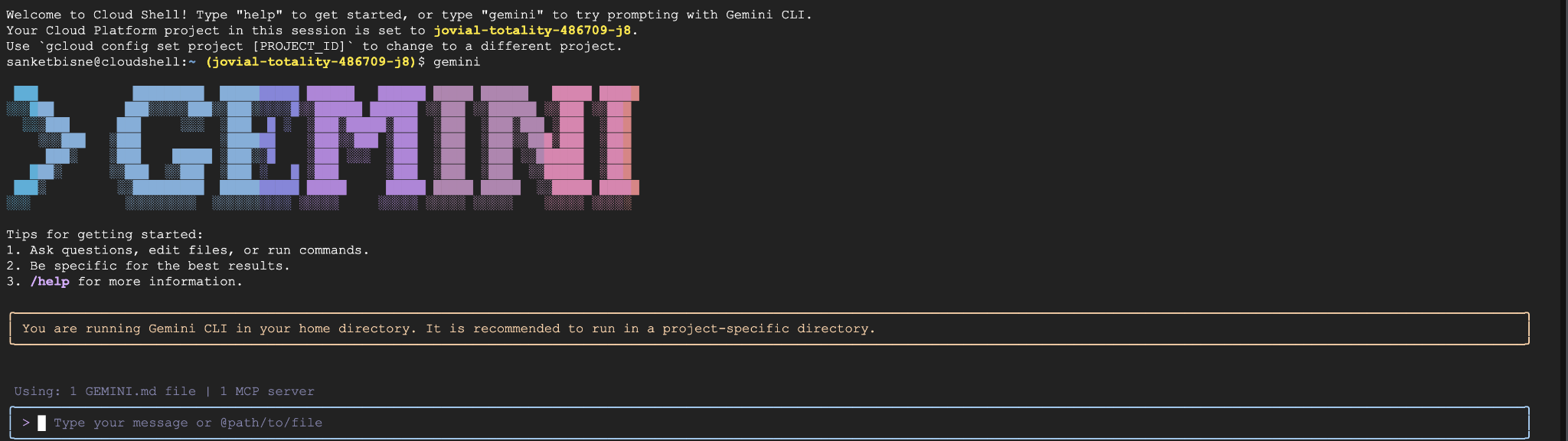
在 Gemini CLI 中執行下列指令:
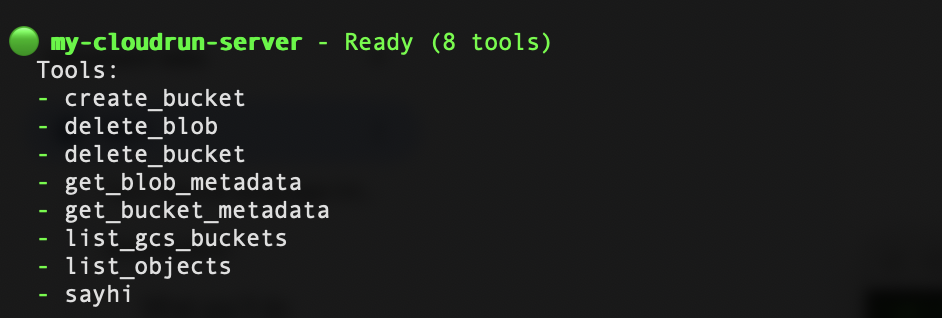
/mcp refresh
/mcp list
現在應該會看到已註冊的 gcs-cloudrun-server。螢幕截圖範例如下:
7. 透過自然語言叫用 Google 儲存空間作業
建立 bucket
Create a bucket named my-ai-bucket in asia-south1 region
系統會提示您授予權限,從 MCP 伺服器叫用 create_bucket 工具。
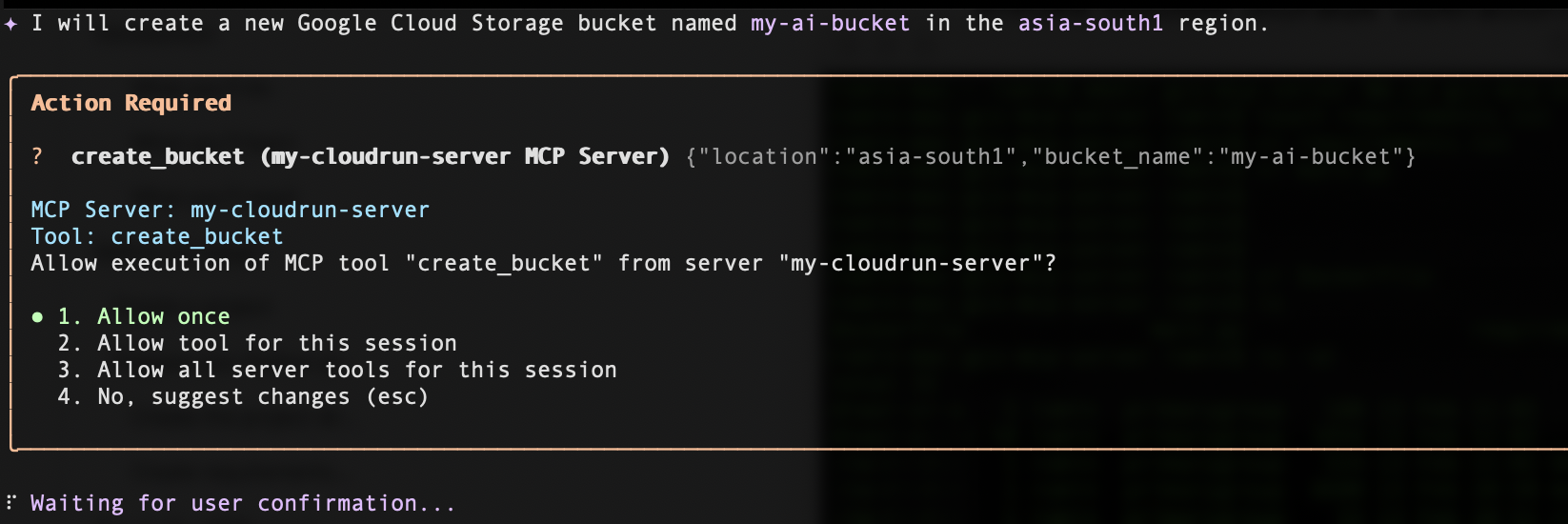
按一下「允許一次」,系統就會在您要求的特定區域中成功建立值區。
列出 bucket
如要列出 bucket,請輸入下列提示:
List all my GCS buckets
刪除值區
如要刪除值區,請輸入下列提示 (將 <your_bucket_name> 替換為值區名稱):
Delete the bucket <your_bucket_name>
取得值區的中繼資料
如要取得 bucket 的中繼資料,請輸入下列提示 (將 <your_bucket_name> 替換為 bucket 名稱):
Give me metadata of the <your_bucket_name>
8. 清理
請先詳閱本節內容,再決定是否要刪除 Google Cloud 專案,因為這項操作通常無法復原。
如要避免系統向您的 Google Cloud 帳戶收取本程式碼研究室所用資源的費用,請按照下列步驟操作:
- 前往 Google Cloud 控制台中的「管理資源」頁面。
- 在專案清單中,選取要刪除的專案。
- 然後按一下「刪除」。
在對話方塊中輸入專案 ID,然後按一下「關閉」,即可永久刪除專案。
刪除專案後,系統就會停止對專案使用的所有資源收取費用,包括 Cloud Run 服務和儲存在 Artifact Registry 中的容器映像檔。
或者,如要保留專案但移除已部署的服務,請按照下列步驟操作:
- 前往 Google Cloud 控制台的「Cloud Run」。
- 選取 gcs-mcp-server 服務。
- 按一下「刪除」即可移除服務。
或在 Cloud Shell 終端機中執行下列 gcloud 指令。
gcloud run services delete gcs-mcp-server --region=us-central1
9. 結語
🎉 恭喜!您已建構第一個 AI 技術輔助的雲端工作流程!
您實作了以下項目:
- 以 Python 為基礎的自訂 MCP 伺服器
- Google Cloud Storage 的工具呼叫功能
- 使用 Docker 容器化
- 安全部署至 Cloud Run
- 以身分為基礎的驗證
- 與 Gemini CLI 整合
現在您可以擴充這項架構,支援其他 Google Cloud 服務,例如 BigQuery、Pub/Sub 或 Compute Engine。
這個模式示範 AI 系統如何透過結構化工具叫用,安全地與雲端基礎架構互動。