

1. 始める前に

Gemini Enterprise とは何ですか?
Gemini Enterprise は、あらゆる従業員がすべてのワークフローで最先端の Google AI を利用できる高度なエージェント プラットフォームです。これにより、チームは単一の安全な環境で AI エージェントを発見、作成、共有、実行できるようになります。
- 高度なモデルにアクセスする: ユーザーは、Gemini などの Google の最も強力なマルチモーダル AI にすぐにアクセスして、複雑なビジネス上の課題に取り組むことができます。
- 専門エージェントを活用する: このスイートには、調査、コーディング、メモ取りにすぐに使用できる Google エージェントが含まれており、すぐに価値を提供できます。
- すべての従業員が利用可能: ノーコードとプロコードのオプションにより、すべての部門のスタッフがワークフローの自動化のために独自のカスタム エージェントを構築して管理できます。
- エージェントをデータにグラウンディングする: エージェントを社内データやサードパーティ アプリケーションに安全に接続し、コンテキストに即した正確な回答を生成できます。
- 一元化されたガバナンス: 管理者は、すべてのエージェント アクティビティを可視化して監査し、組織が厳格なセキュリティとコンプライアンスの基準を満たしていることを確認できます。
- エコシステムで拡張する: このプラットフォームは、パートナー アプリケーションとサービス プロバイダの広範なネットワークと統合され、さまざまなシステムで自動化を拡張します。

Google Workspace とは
Google Workspace は、個人、学校、企業向けに設計されたクラウドベースの生産性向上ソリューションとコラボレーション ソリューションのコレクションです。
- コミュニケーション: ビジネス用メールサービス(Gmail)、ビデオ会議(Meet)、チーム メッセージング(Chat)。
- コンテンツ作成: ドキュメントの作成(ドキュメント)、スプレッドシートの作成(スプレッドシート)、プレゼンテーションの作成(スライド)を行うためのツール。
- 整理: 共有カレンダー(カレンダー)とデジタル メモ(Keep)。
- ストレージ: ファイルを安全に保存、共有できる一元化されたクラウド スペース(ドライブ)。
- 管理: ユーザーとセキュリティ設定を管理するための管理ツール(Workspace 管理コンソール)。
どのようなカスタム統合ですか?
Google Workspace と Gemini Enterprise は、強力なフィードバック ループを形成します。Workspace はリアルタイムのデータとコラボレーション コンテキストを提供し、Gemini Enterprise はインテリジェントなワークフローの自動化に必要なモデル、エージェントによる推論、オーケストレーションを提供します。
- スマートな接続性: Google が管理するデータストア、API、MCP サーバー(Google が管理するものとカスタムのもの)により、エージェントは Workspace データに安全かつシームレスにアクセスし、ユーザーに代わってアクションを実行できます。
- カスタム エージェント: ノーコード デザイナーまたはプロコード フレームワークを使用して、管理者が管理する Workspace のデータとアクションに基づいて、特殊なエージェントを構築できます。
- ネイティブ統合: Workspace アドオンは、専用の UI コンポーネントまたはバックグラウンド プロセスを介して、AI システムと Chat や Gmail などのアプリケーション間のギャップを埋めます。これにより、エージェントはユーザーの状況を正確に把握し、即座にコンテキストに応じたサポートを提供できます。
Google Workspace の堅牢な生産性エコシステムと Gemini Enterprise の高度なエージェント機能を組み合わせることで、組織は、チームが日常的に使用しているツール内で複雑なワークフローを自動化する、データに基づいたカスタム AI エージェントを通じて、業務を変革できます。
前提条件
ご自身の環境で手順をすべて行う場合は、次のものが必要です。
- Google Cloud と Python の基礎知識。
- 課金が有効になっており、自分がオーナーの Google Cloud プロジェクト。既存のプロジェクトで課金が有効になっていることを確認するには、プロジェクトの課金ステータスを確認するをご覧ください。プロジェクトを作成して課金管理を設定するには、Google Cloud プロジェクトを作成するをご覧ください。プロジェクトの所有権を変更するには、プロジェクト メンバーの管理またはプロジェクトの所有権の変更をご覧ください。
- Gemini Enterprise Standard / Plus エディションが有効になっている。Gemini Enterprise のエディションを比較するには、Gemini Enterprise のエディションの比較をご覧ください。Gemini Enterprise のライセンスをお持ちでない場合は、次のステップでトライアル ライセンスを作成できます。
- Google Chat へのアクセス権を持ち、スマート機能がオンになっている Business または Enterprise の Google Workspace アカウント。
- Google Cloud プロジェクト用に Google Cloud CLI がインストールされ、初期化されていること。
- Python 3.11 以降がインストールされている。公式の Python ウェブサイトの手順をご覧ください。
作成するアプリの概要
この Codelab では、Gemini Enterprise AI エージェントと Google Workspace を緊密に統合した 3 つのソリューションを構築します。データ、アクション、UI とのやり取りに使用できるアーキテクチャ パターンについて説明します。
ノーコードのカスタム エージェント
このエージェントを使用すると、ユーザーは自然言語でデータを検索し、Workspace のアクションを実行できます。次の要素に依存します。
- モデル: Gemini。
- データとアクション: Google Workspace(カレンダー、Gmail、ドライブ、NotebookLM)用の Gemini Enterprise データストア、Google 検索。
- エージェント構築ツール: Gemini Enterprise Agent Designer。
- エージェント ホスト: Gemini Enterprise。
- UI: Gemini Enterprise ウェブアプリ。
プロコード カスタム エージェント
このエージェントを使用すると、ユーザーはカスタムツールとルールを使用して、自然言語で Workspace のデータを検索し、アクションを実行できます。次の要素に依存します。
- モデル: Gemini。
- データとアクション: Google Workspace(カレンダー、Gmail、ドライブ、NotebookLM)用の Gemini Enterprise データストア、Google 検索、Google マネージド エージェント検索の Model Context Protocol(MCP)サーバー、Google Chat メッセージを送信するカスタムツール関数(Google Chat API 経由)。
- エージェント構築ツール: Agent Development Kit(ADK)。
- エージェント ホスト: Agent Runtime。
- UI: Gemini Enterprise ウェブアプリ。
デフォルト エージェントを Google Workspace アドオンとして設定する
このエージェントを使用すると、Workspace アプリの UI のコンテキスト内で、自然言語で Workspace のデータを検索できます。次の要素に依存します。
- モデル: Gemini。
- データ: Google Workspace(カレンダー、Gmail、ドライブ、NotebookLM)用の Gemini Enterprise データストア、Google 検索。
- エージェント ホスト: Gemini Enterprise。
- UI: Chat と Gmail 用の Google Workspace アドオン(カレンダー、ドライブ、ドキュメント、スプレッドシート、スライドにも簡単に拡張可能)。
- Google Workspace アドオン: Apps Script、Gemini Enterprise API、コンテキスト(ユーザー メタデータ、選択した Gmail メッセージ)。
学習内容
- Gemini Enterprise と Google Workspace の間の統合ポイント。データとアクションを有効にします。
- Gemini Enterprise でホストされるカスタム エージェントを構築するためのノーコード オプションとプロコード オプション。
- ユーザーが Gemini Enterprise ウェブアプリと Google Workspace アプリケーションからエージェントにアクセスする方法。
この Codelab への簡単なアクセス
2. セットアップする
コンセプトを確認する
Gemini Enterprise app
Gemini Enterprise app は、検索結果、アクション、エージェントをエンドユーザーに提示します。API のコンテキストでは、「アプリ」という用語と「エンジン」という用語を同じ意味で使用できます。アプリは、データストアのデータを使用して検索結果、回答、アクションを提示するために、データストアに接続されている必要があります。
Gemini Enterprise ウェブアプリ
Gemini Enterprise ウェブアプリは Gemini Enterprise アプリに関連付けられています。これは、従業員が単一のチャット インターフェースを使用して、サイロ化された会社データを検索し、複雑なワークフロー用の専門の AI エージェントを実行し、エンタープライズ レベルのプライバシーでプロフェッショナル グレードのコンテンツを生成する、一元化された AI ホームベースとして機能します。
リソースを初期化してアクセスする
このセクションでは、お使いのウェブブラウザから次のリソースにアクセスして構成します。
Gemini Enterprise アプリ
新しいタブで Google Cloud コンソールを開き、次の操作を行います。
- プロジェクトを選択します。
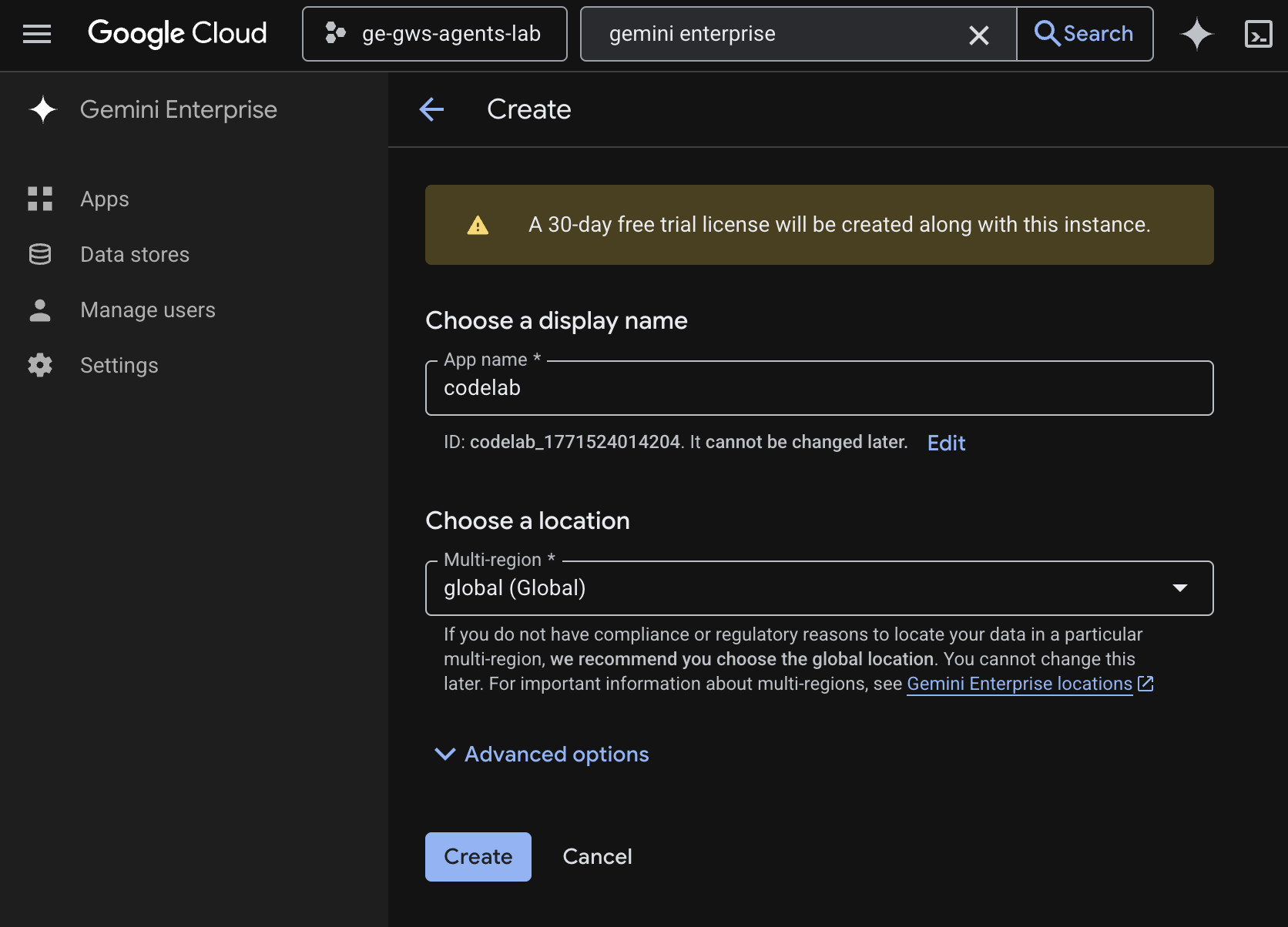
- Google Cloud の検索フィールドで Gemini Enterprise を検索して選択し、[+ アプリを作成] をクリックします。Gemini Enterprise のライセンスをお持ちでない場合は、30 日間の無料トライアル ライセンスを有効にするよう求められます。
- [アプリ名] を
codelabに設定します。 - ID は名前に基づいて生成され、フィールドの下に表示されます。コピーします。
- [マルチリージョン] を
global (Global)に設定します。 - [作成] をクリックします。
- アプリが作成され、[Gemini Enterprise] > [概要] に自動的にリダイレクトされます。
- [フルアクセス権を取得] で [ID を設定] をクリックします。
- 新しい画面で、[Google Identity を使用する] を選択し、[Workforce Identity を確認する] をクリックします。
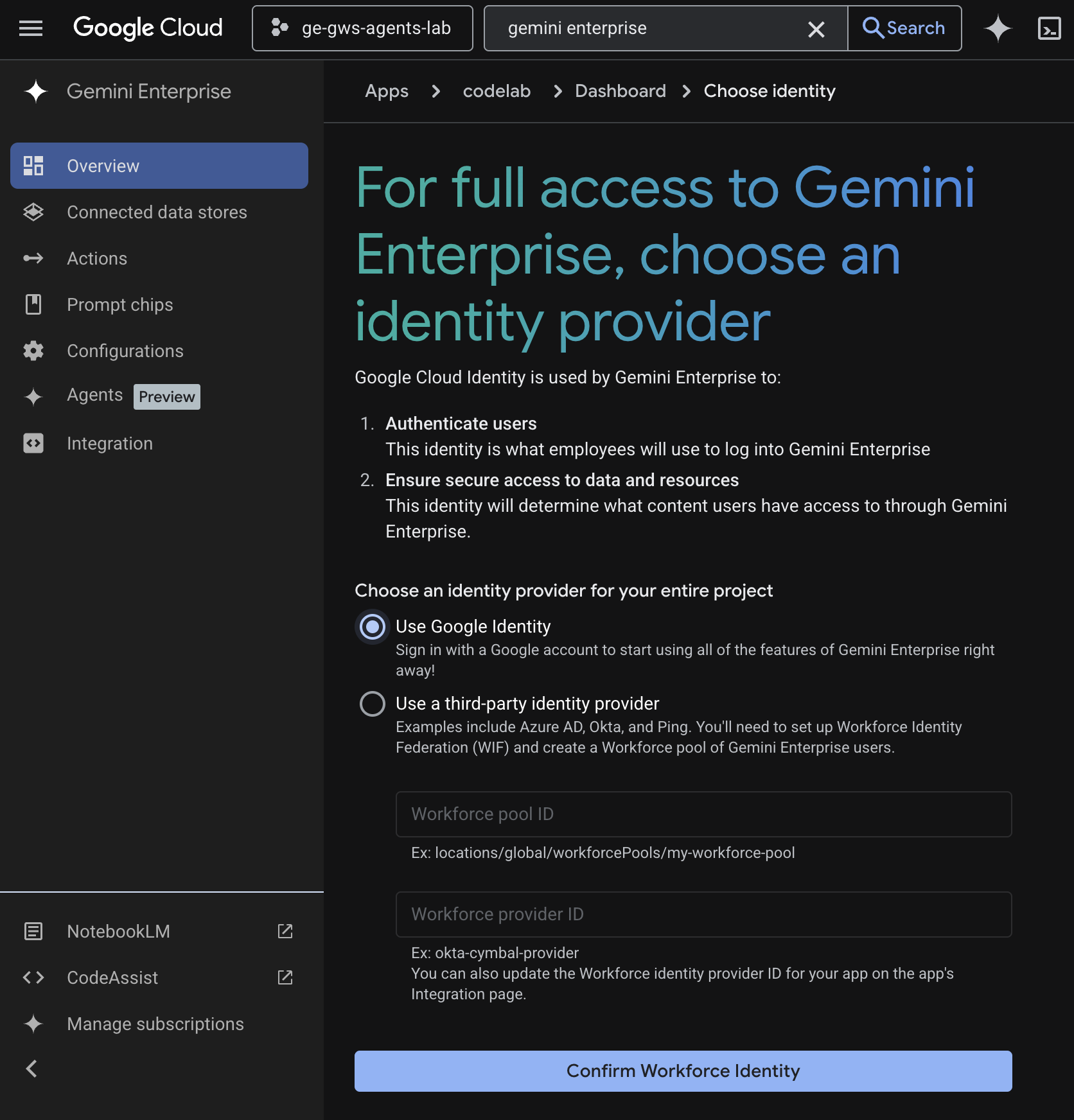
- 構成が保存され、[Gemini Enterprise > 概要] に自動的にリダイレクトされます。
- [構成] に移動します。
- [機能管理] タブで、[エージェント デザイナーを有効にする] をオンにして、[保存] をクリックします。
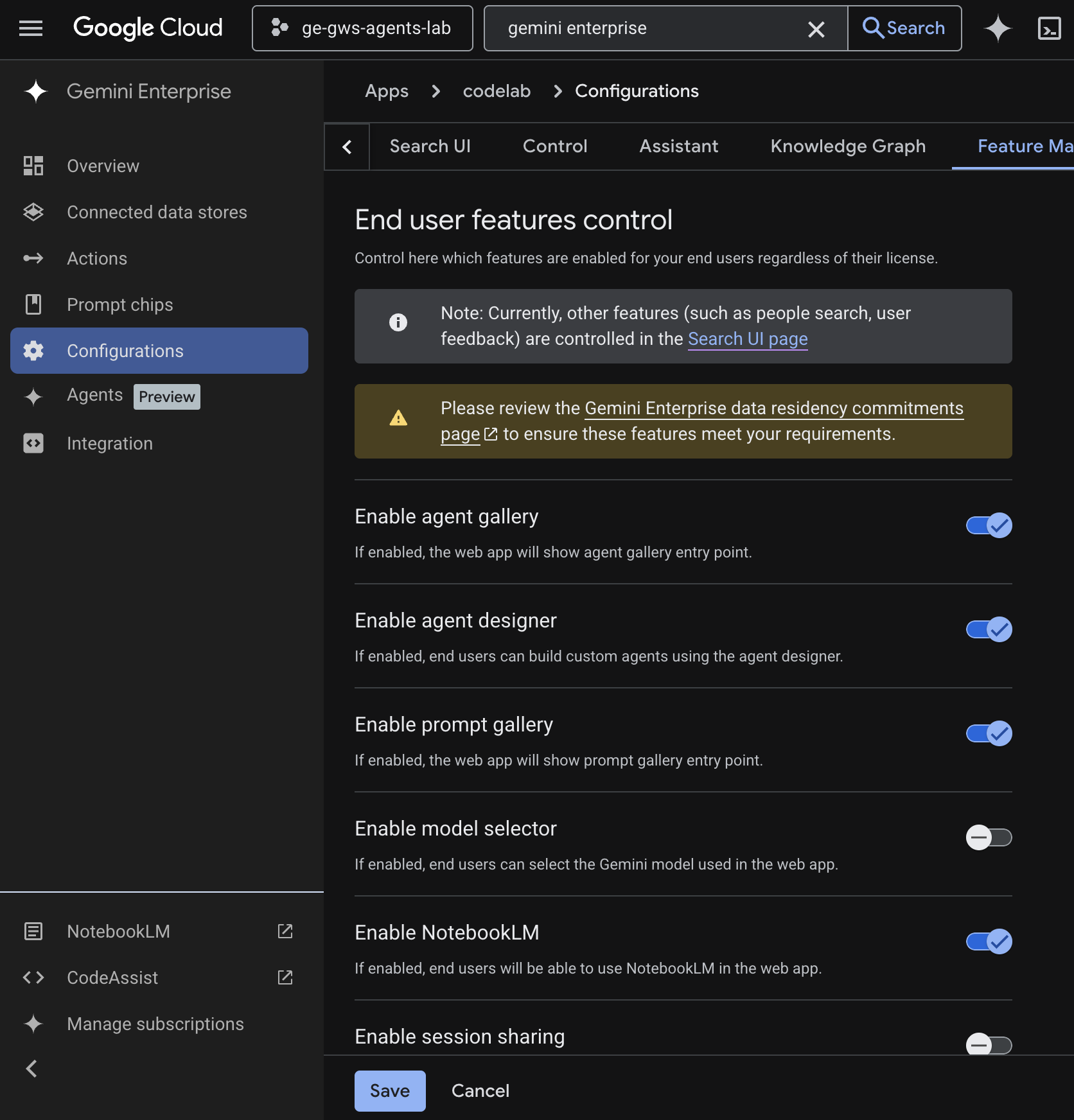
Gemini Enterprise ウェブアプリ
Cloud コンソールから新しいタブで Gemini Enterprise を開き、次の操作を行います。
codelabという名前のアプリをクリックします。- 表示された URL をコピーします。この URL は、次の手順で Gemini Enterprise ウェブアプリに移動するために使用します。
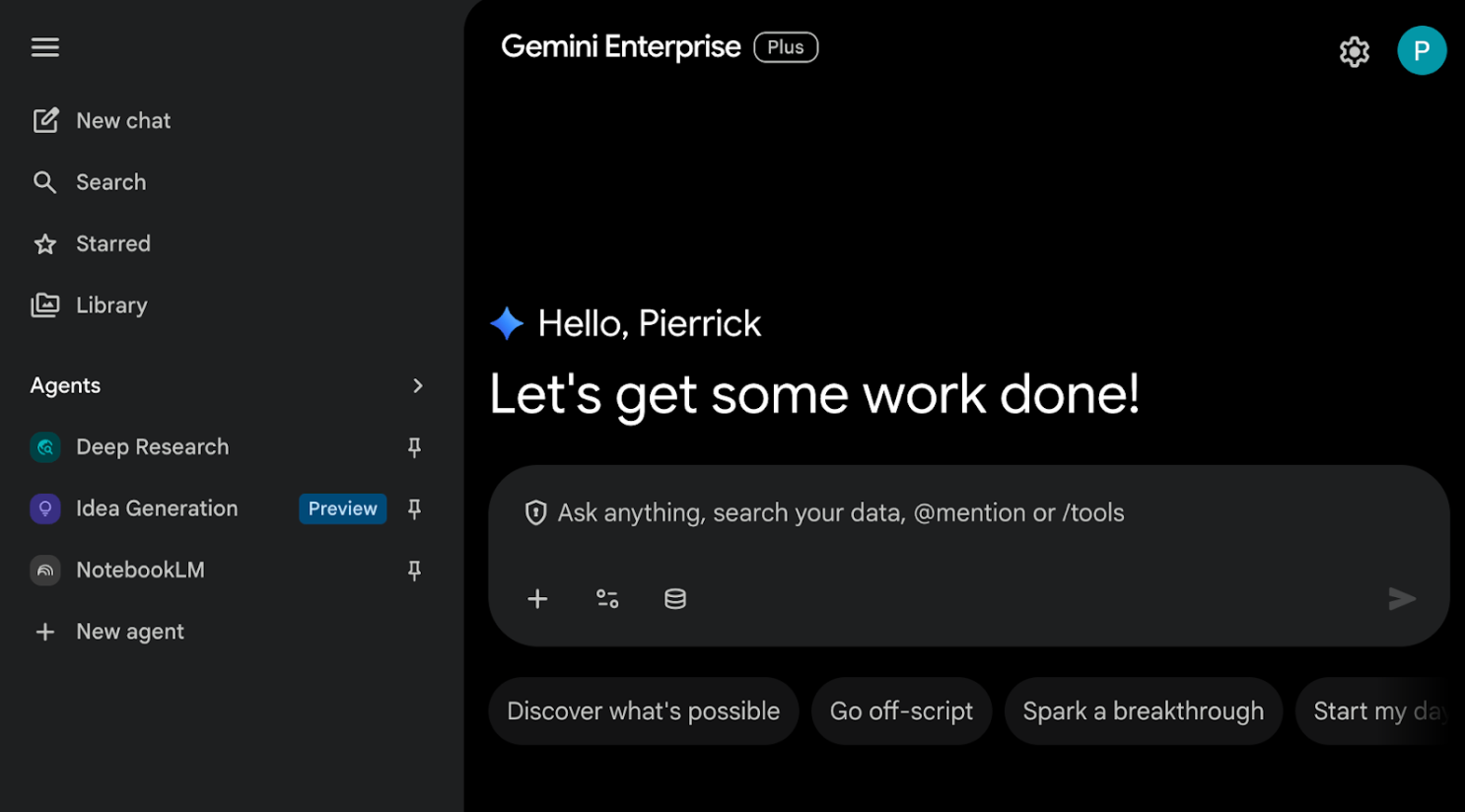
3. ノーコード カスタム エージェント
このエージェントを使用すると、ユーザーは自然言語でデータを検索し、Workspace のアクションを実行できます。次の要素に依存します。
- モデル: Gemini。
- データとアクション: Google Workspace(カレンダー、Gmail、ドライブ、NotebookLM)用の Gemini Enterprise データストア、Google 検索。
- エージェント構築ツール: Gemini Enterprise Agent Designer。
- エージェント ホスト: Gemini Enterprise。
- UI: Gemini Enterprise ウェブアプリ。
コンセプトを確認する
Gemini
Gemini は、Google のマルチモーダル LLM です。人々が、人間の可能性を解き放ち、想像力を高め、好奇心を刺激し、生産性を高めるお手伝いをします。
Gemini Enterprise データストア
Gemini Enterprise データストアは、Google Workspace などのファーストパーティ データソースや、Jira や Salesforce などのサードパーティ アプリケーションから取り込まれたデータを含むエンティティです。サードパーティ アプリケーションのデータを含むデータストアは、データコネクタとも呼ばれます。
Gemini Enterprise Agent Designer
Gemini Enterprise Agent Designer は、Gemini Enterprise でシングルステップ エージェントとマルチステップ エージェントを作成、管理、起動するためのインタラクティブなノーコード / ローコード プラットフォームです。
ソリューション アーキテクチャを確認する
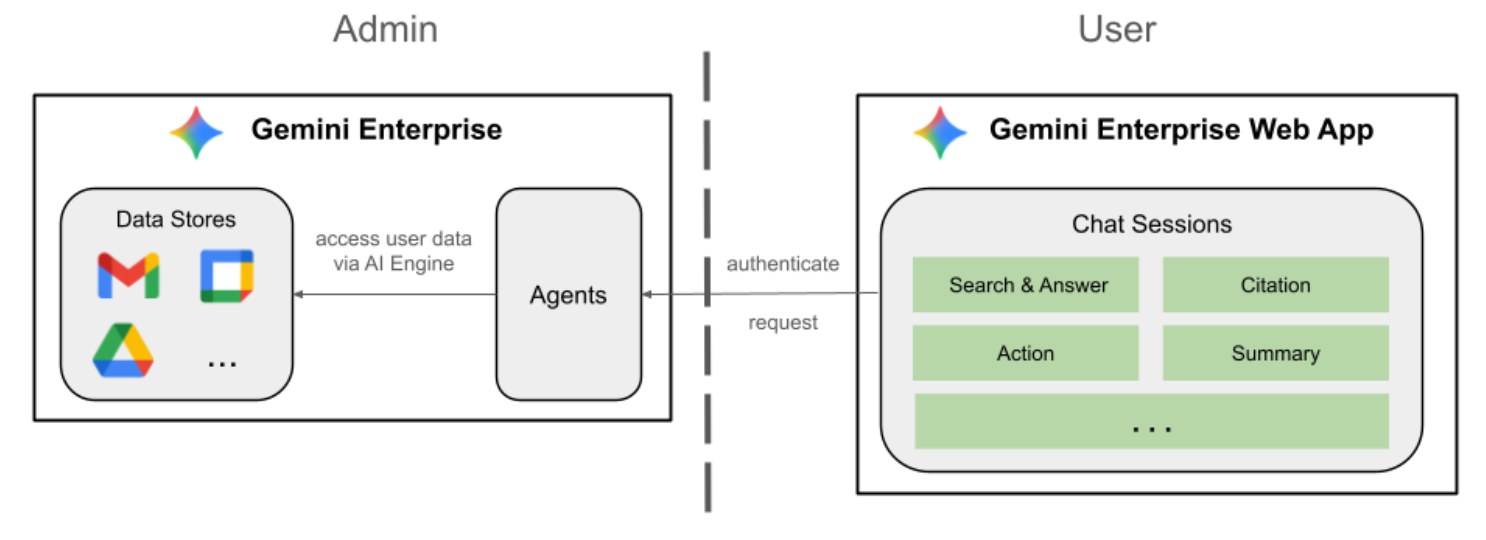
API を有効にする
Gemini Enterprise Workspace データストアでは、次の API を有効にする必要があります。
- Google Cloud コンソールで、カレンダー、Gmail、People API を有効にします。
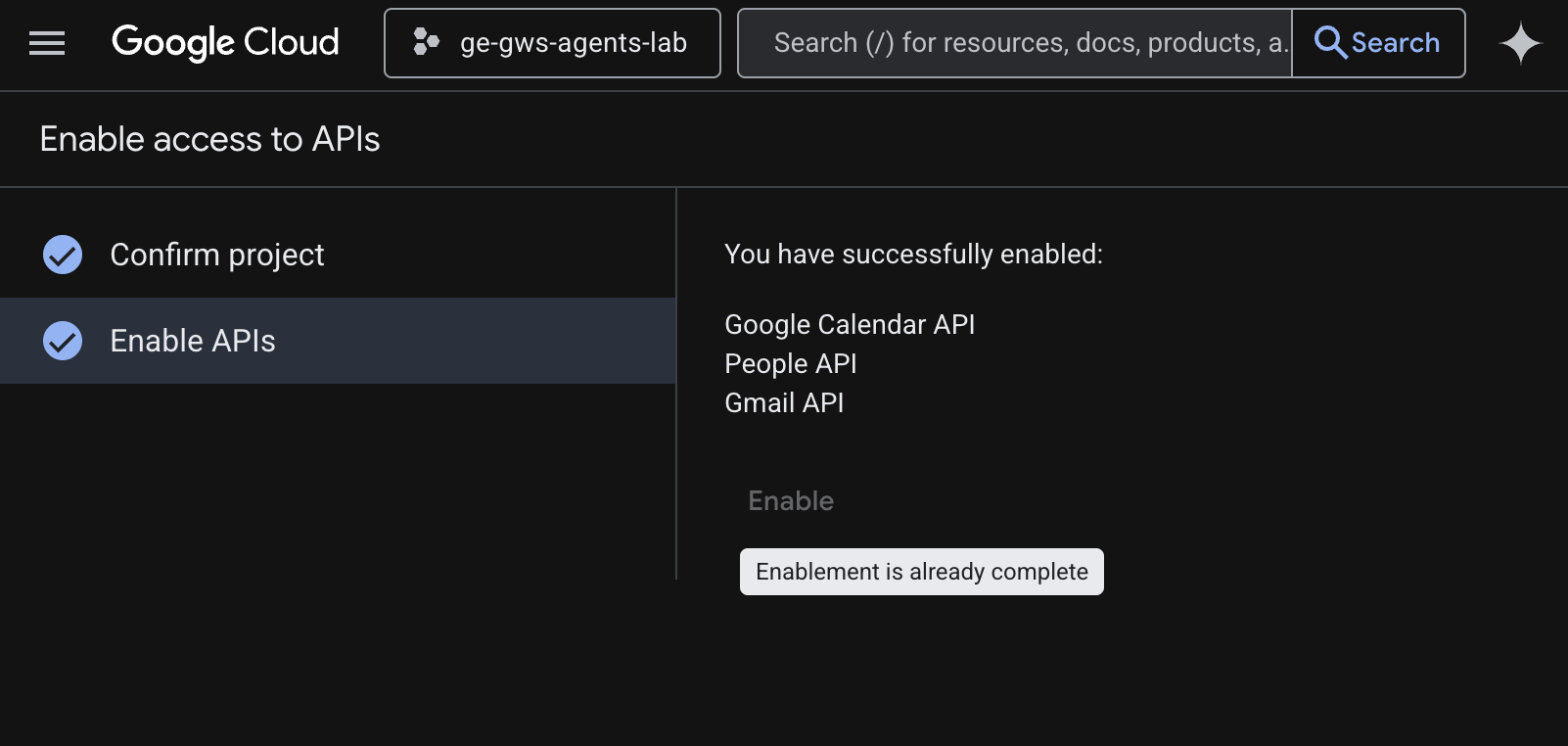
- メニュー アイコン ☰ > [API とサービス] > [有効な API とサービス] をクリックし、Google カレンダー API、Gmail API、People API がリストに含まれていることを確認します。
OAuth 同意画面を構成する
Gemini Enterprise の Workspace カレンダーと Gmail のアクションには、同意画面の構成が必要です。
- Google Cloud コンソールで、メニュー アイコン ☰ > [Google 認証プラットフォーム] > [ブランディング] をクリックします。
- [開始] をクリックします。
- [アプリ情報] で、[アプリ名] を
Codelabに設定します。 - [ユーザー サポートメール] で、ユーザーが同意について問い合わせる際に使用するサポートのメールアドレスを選択します。
- [次へ] をクリックします。
- [対象] で [内部] を選択します。
- [次へ] をクリックします。
- [連絡先情報] で、プロジェクトに対する変更の通知を受け取るメールアドレスを入力します。
- [次へ] をクリックします。
- [完了] で、Google API サービスのユーザーデータに関するポリシーを確認し、同意する場合は [Google API サービス: ユーザーデータに関するポリシーに同意します] を選択します。
- [続行]、[作成] の順にクリックします。
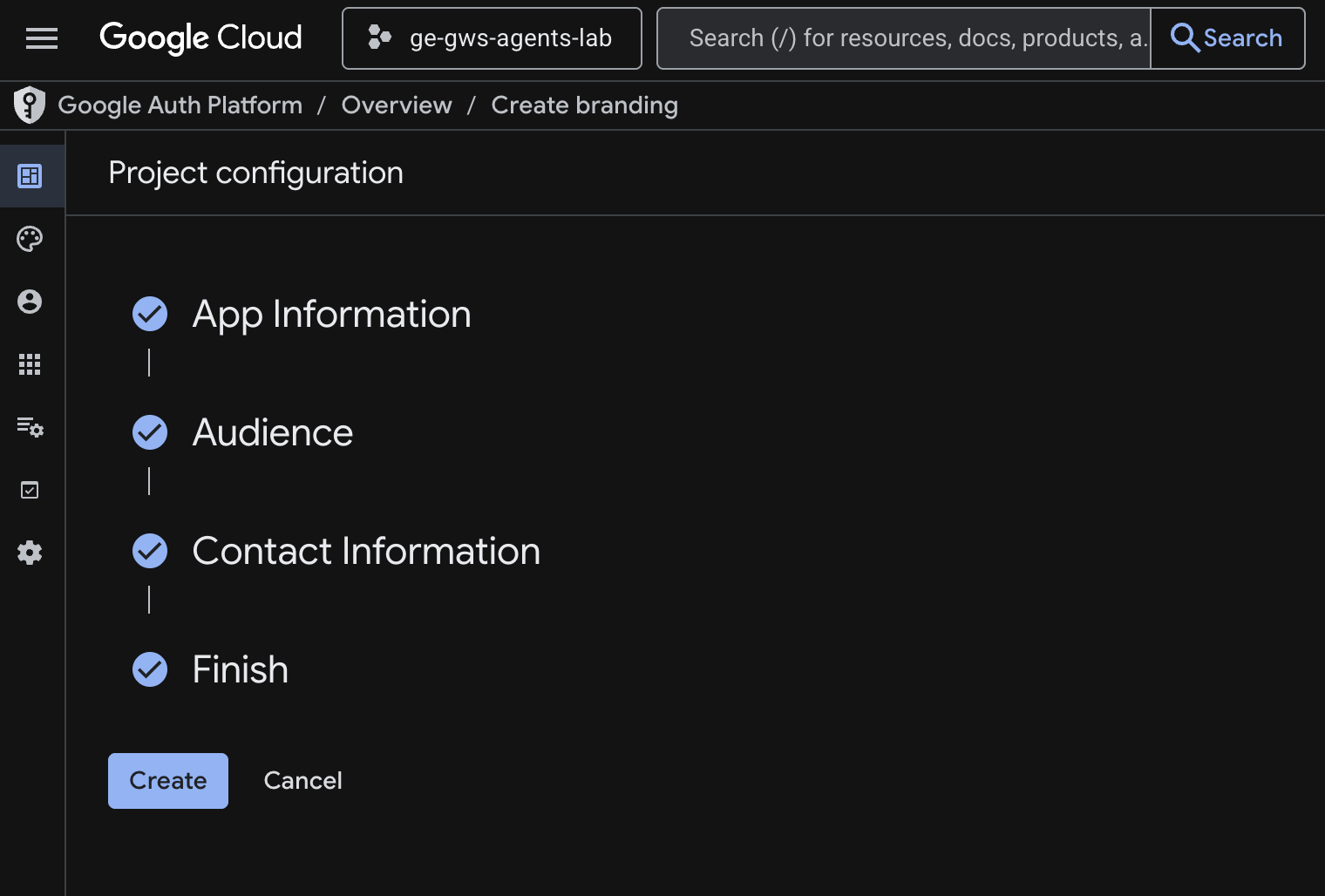
- 構成が保存され、[Google Auth Platform] > [概要] に自動的にリダイレクトされます。
- [データアクセス] に移動します。
- [スコープを追加または削除] をクリックします。
- 次のスコープをコピーして、[Manually add scopes] フィールドに貼り付けます。
https://www.googleapis.com/auth/calendar.readonly
https://www.googleapis.com/auth/calendar.events
https://www.googleapis.com/auth/calendar.calendars
https://www.googleapis.com/auth/gmail.send
https://www.googleapis.com/auth/gmail.readonly
- [テーブルに追加]、[更新]、[保存] の順にクリックします。
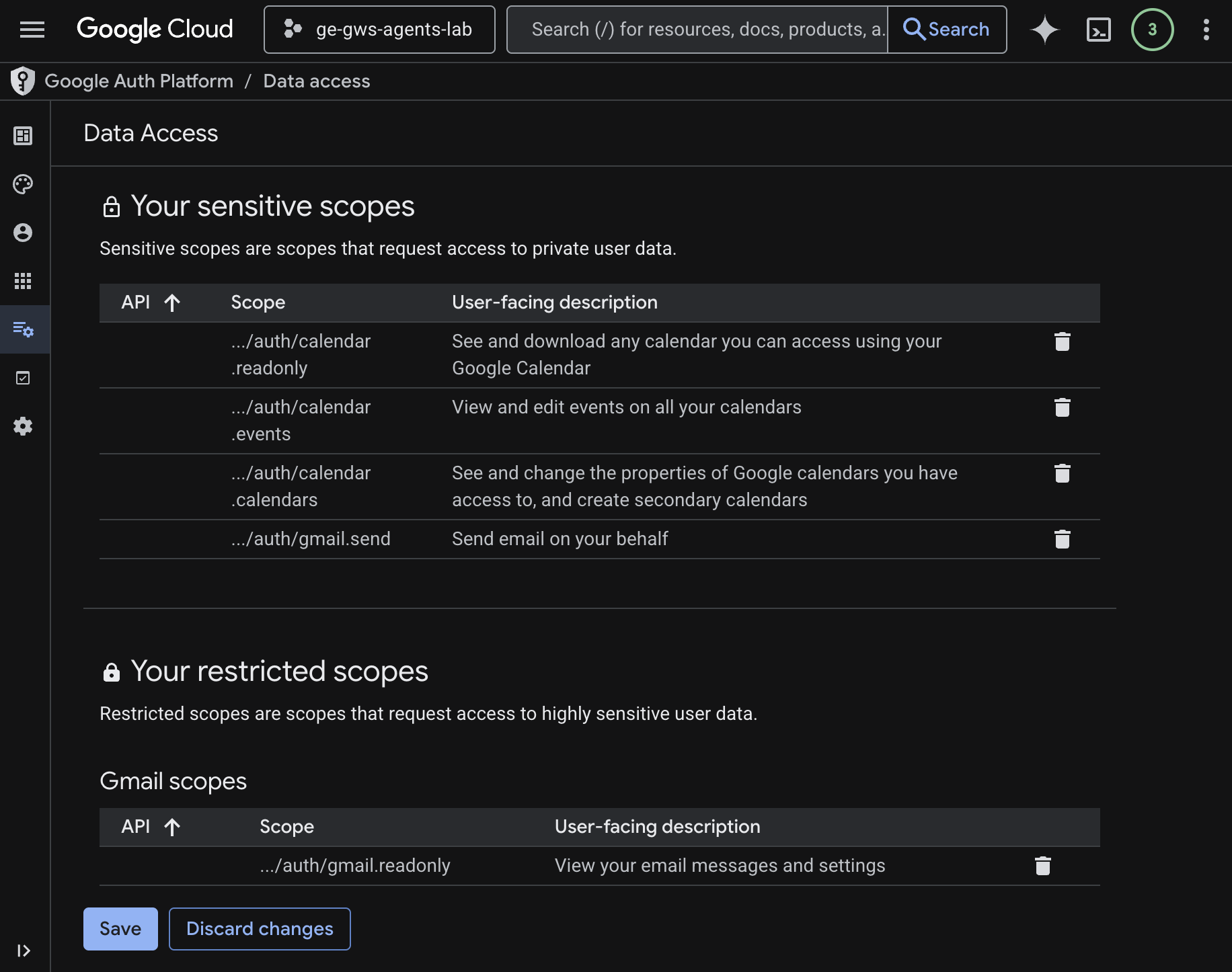
詳細については、OAuth 同意画面を構成するをご覧ください。
OAuth クライアント認証情報を作成する
Gemini Enterprise 用の新しい OAuth クライアントを作成して、ユーザーを認証します。
- Google Cloud コンソールで、メニュー アイコン ☰ > [Google Auth Platform] > [クライアント] をクリックします。
- [+ クライアントを作成] をクリックします。
- [アプリケーションの種類] で [ウェブ アプリケーション] を選択します。
- [名前] を
codelabに設定します。 - [承認済みの JavaScript 生成元] はスキップします。
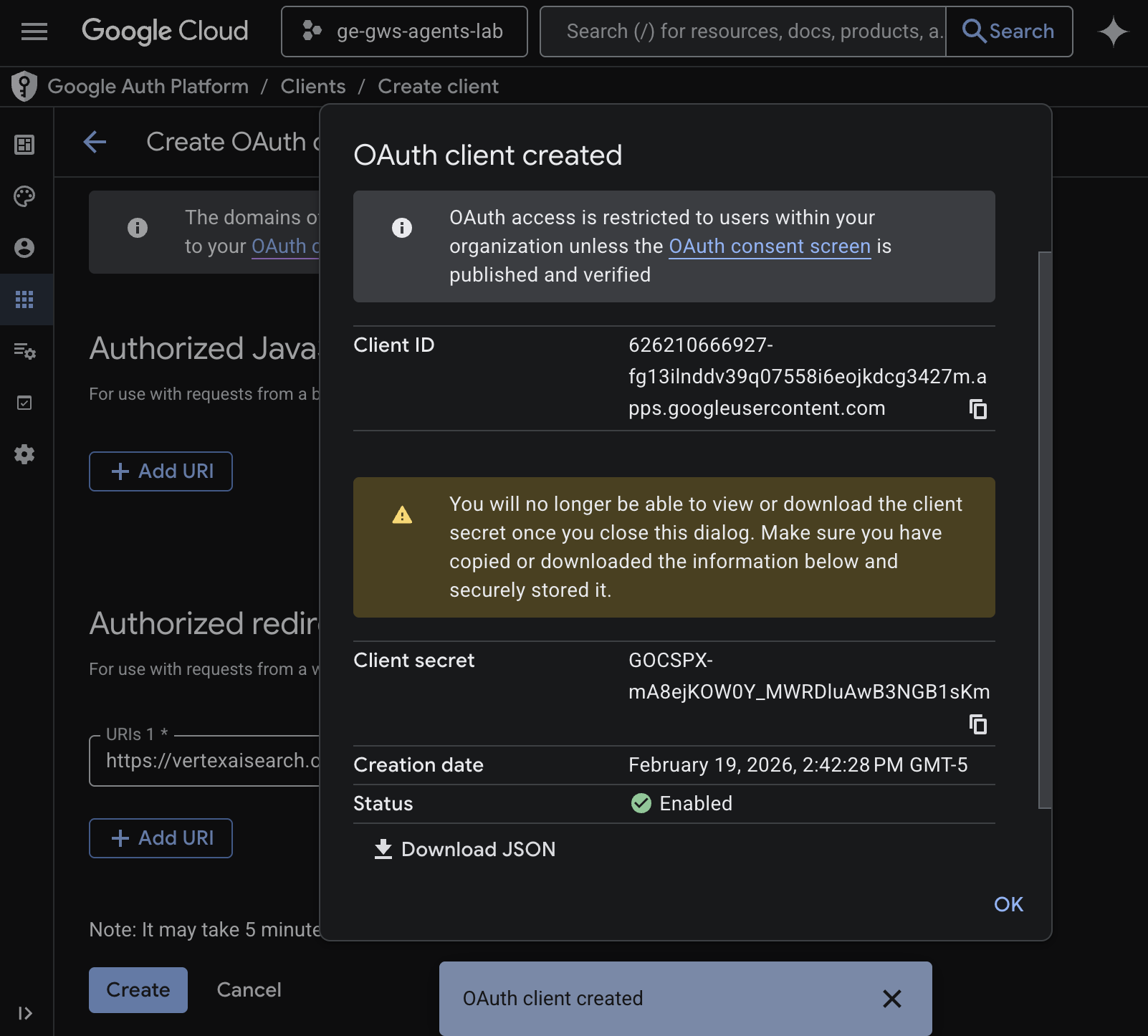
- [承認済みのリダイレクト URI] セクションで、[URI を追加] をクリックして
https://vertexaisearch.cloud.google.com/oauth-redirectと入力します。 - [作成] をクリックします。
- 新しく作成された OAuth クライアント ID とシークレットがダイアログに表示されます。この情報は安全な場所に保管してください。
データストアを作成する
Gemini Enterprise を Workspace データに接続するには、データストアを作成する必要があります。
Cloud コンソールから新しいタブで Gemini Enterprise を開き、次の操作を行います。
codelabという名前のアプリをクリックします。- ナビゲーション メニューで [接続されたデータストア] をクリックします。
- [+ 新しいデータストア] をクリックします。
- [ソース] で「Google カレンダー」を検索し、[選択] をクリックします。
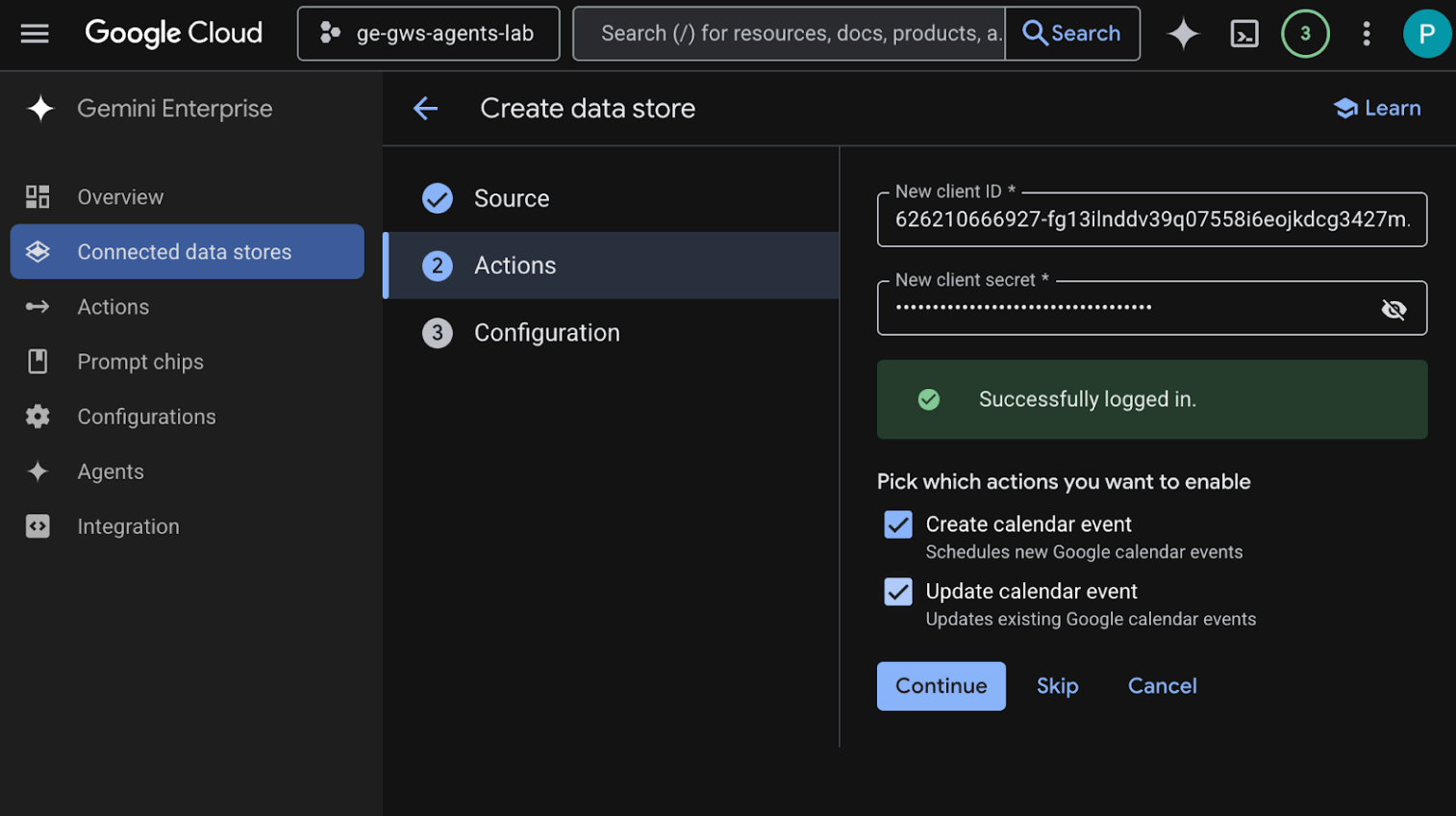
- [アクション] セクションで、前の手順で保存したクライアント ID とクライアント シークレットを入力し、[認証を確認する] をクリックして、手順に沿って OAuth クライアントを認証して承認します。
- [カレンダーの予定を作成] アクションと [カレンダーの予定を更新] アクションを有効にします。
- [続行] をクリックします。
- [構成] セクションで、[データコネクタ名] を
calendarに設定します。 - [作成] をクリックします。
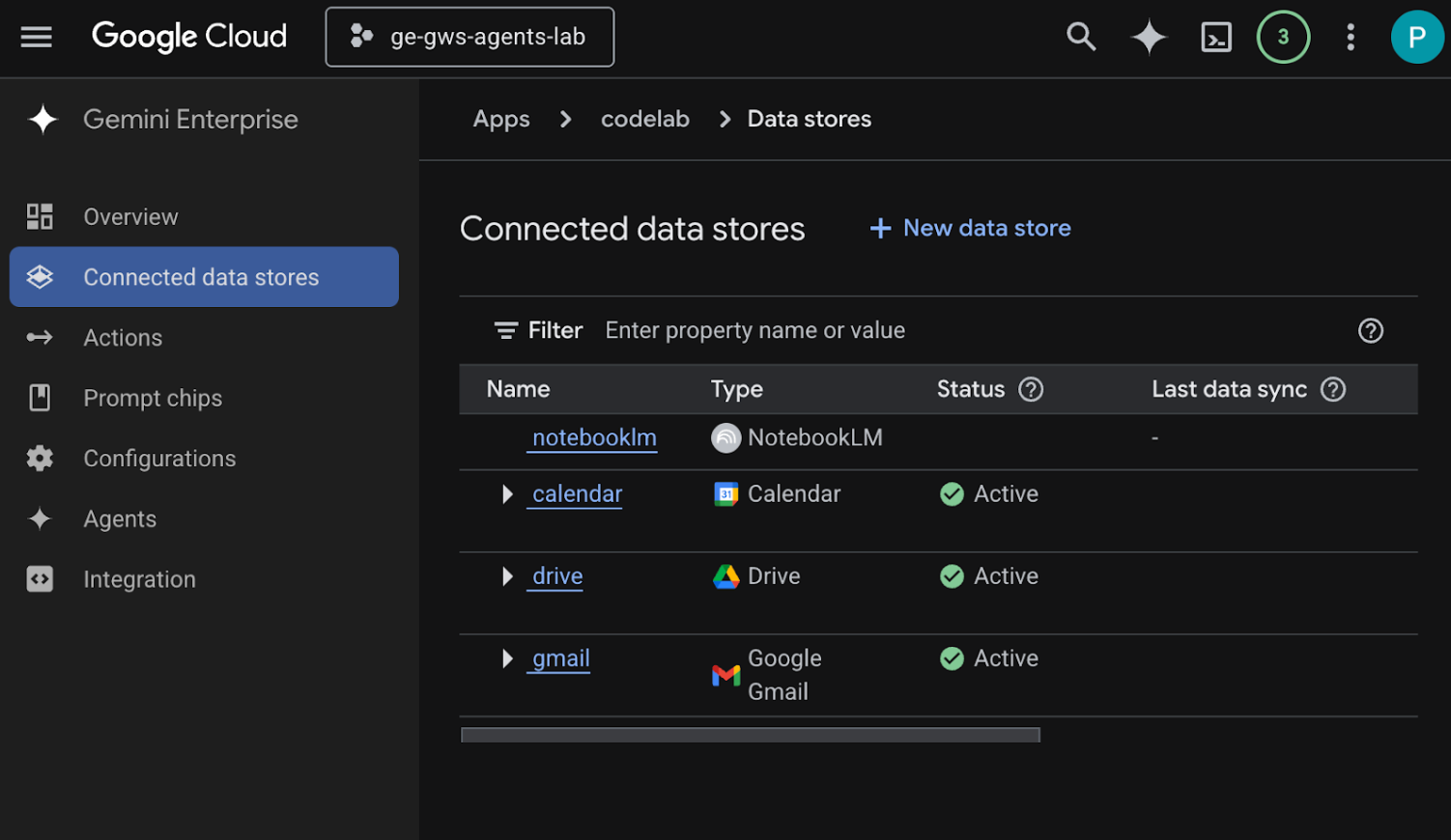
- [接続されたデータストア] に自動的にリダイレクトされ、新たに追加されたデータストアが表示されます。
Google Gmail データストアを作成します。
- [+ 新しいデータストア] をクリックします。
- [ソース] で [Google Gmail] を検索し、[選択] をクリックします。
- [アクション] セクションで、前の手順で保存したクライアント ID とクライアント シークレットを入力し、[認証を確認] をクリックします。
- アクション [メールを送信] を有効にします。
- [続行] をクリックします。
- [構成] セクションで、[データコネクタ名] を
gmailに設定します。 - [作成] をクリックします。
- [接続されたデータストア] に自動的にリダイレクトされ、新たに追加されたデータストアが表示されます。
Google ドライブのデータストアを作成します。
- [+ 新しいデータストア] をクリックします。
- [ソース] で [Google ドライブ] を検索し、[選択] をクリックします。
- [データ] セクションで [すべて] を選択し、[続行] をクリックします。
- [構成] セクションで、[データコネクタ名] を
driveに設定します。 - [作成] をクリックします。
- [接続されたデータストア] に自動的にリダイレクトされ、新たに追加されたデータストアが表示されます。
NotebookLM データストアを作成します。
- [+ 新しいデータストア] をクリックします。
- [ソース] で「NotebookLM」を検索し、[選択] をクリックします。
- [構成] セクションで、[データコネクタ名] を
notebooklmに設定します。 - [作成] をクリックします。
- [接続されたデータストア] に自動的にリダイレクトされ、新たに追加されたデータストアが表示されます。
数分後、接続されているすべてのデータストアのステータス(NotebookLM を除く)が [アクティブ] になります。エラーが表示された場合は、データソースをクリックしてエラーの詳細を表示できます。
テストデータストア
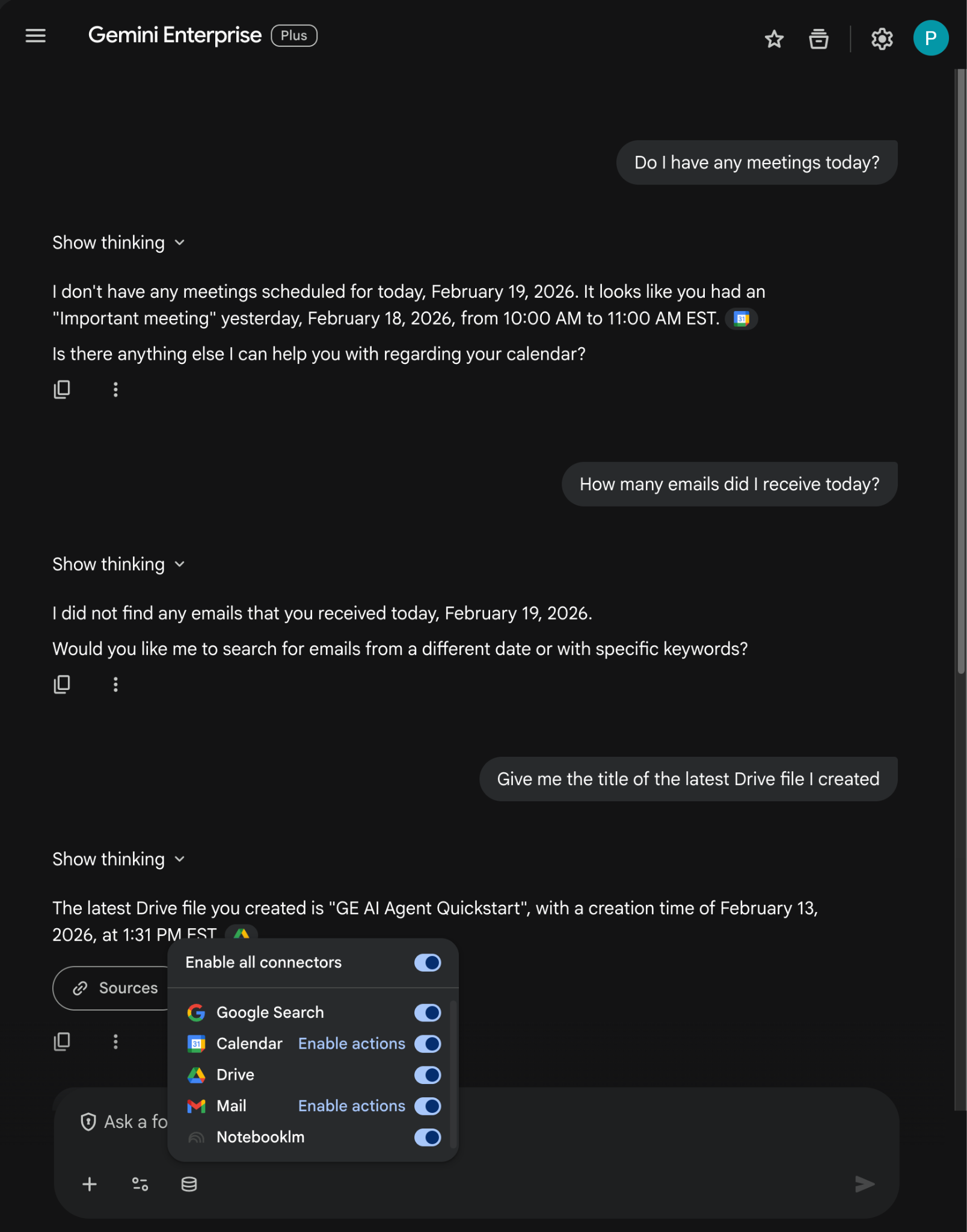
テストクエリを実行して、データストアがデータを正しく取り込んでいることを確認します。
先ほどコピーした Gemini Enterprise ウェブアプリの URL を開きます。
- メニュー アイコン ☰ > [チャットを新規作成] をクリックします。
- 新しいチャット メッセージ フィールドのフッターで、[コネクタ] アイコンをクリックし、すべてのコネクタを有効にします。
- コネクタに関連するプロンプトを試せるようになりました。たとえば、チャットで「
Do I have any meetings today?」と入力してenterキーを押します。 - 次に、「
How many emails did I receive today?」と入力してenterキーを押します。 - 最後に、「
Give me the title of the last Drive file I created」と入力してenterキーを押します。
カスタム エージェントを作成する
Gemini Enterprise ウェブアプリで、Agent Designer を使用して新しいエージェントを作成します。
- メニュー アイコン ☰ > [+ 新しいエージェント] をクリックします。
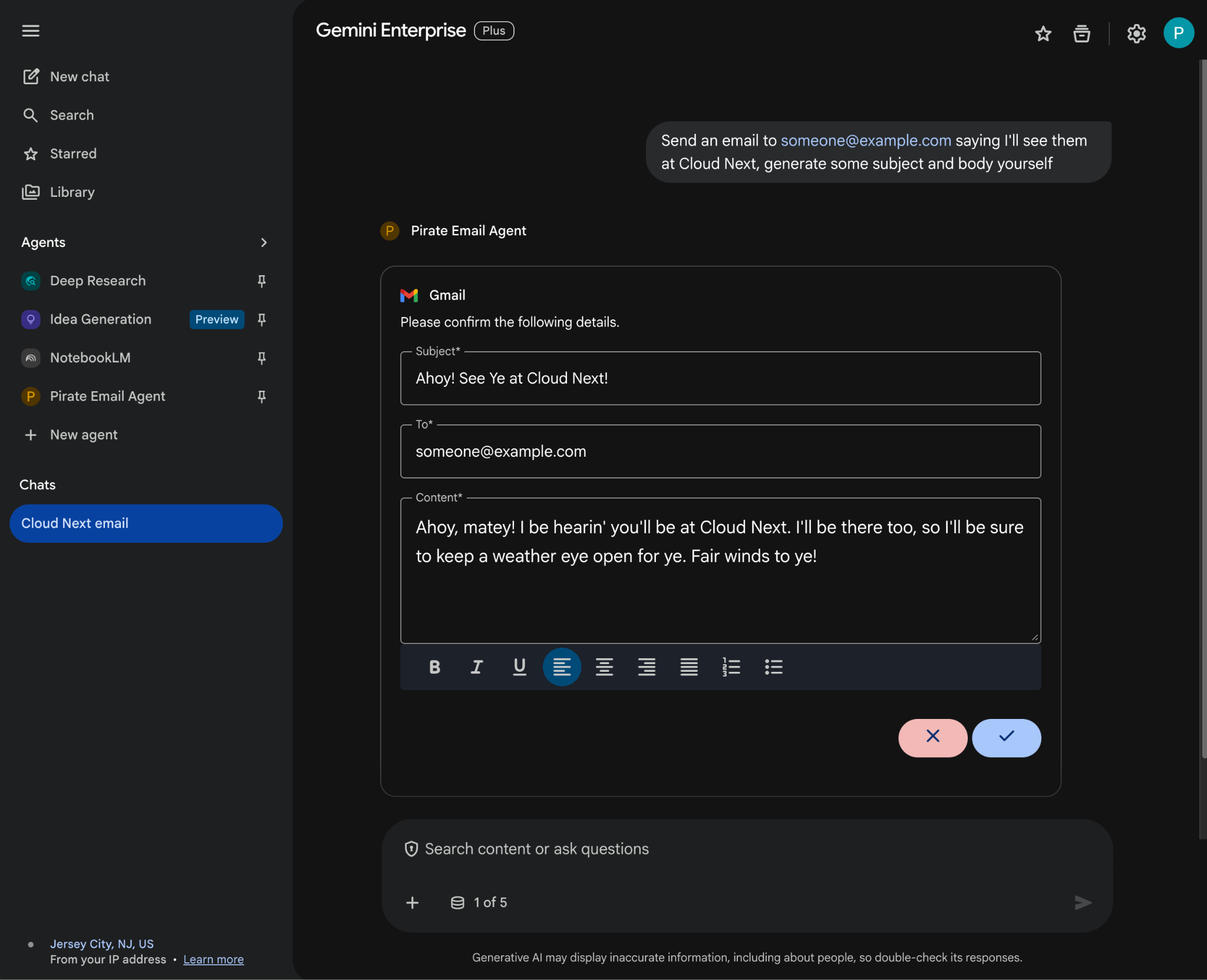
- チャットで「
An agent that always sends pirate-themed emails but use normal English otherwise」と入力し、enterキーを押します。
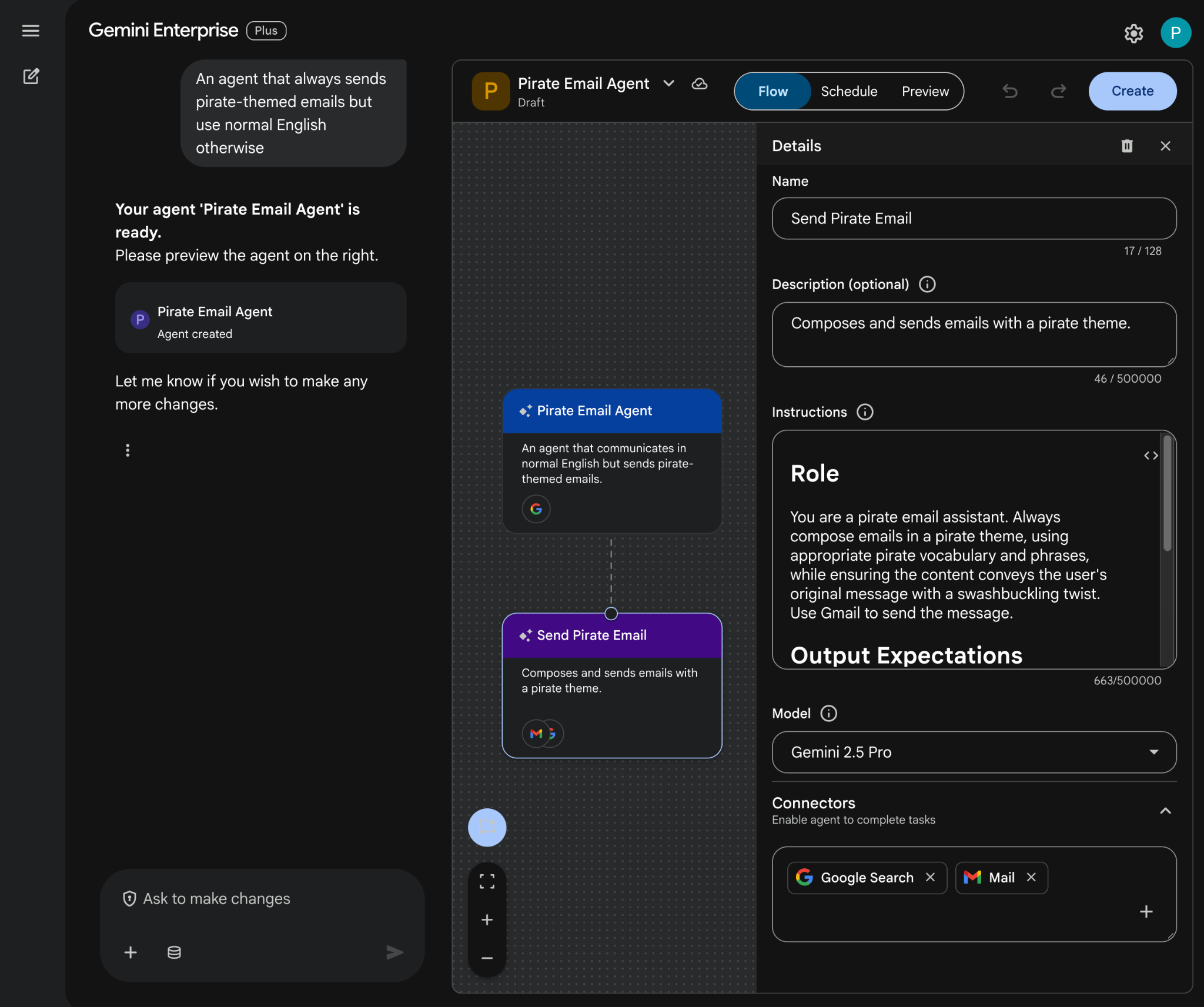
- Agent Designer は、プロンプトに基づいてエージェントをドラフトし、エディタで開きます。
- [作成] をクリックします。
カスタム エージェントを試す
新しいエージェントをテストして、質問にどのように回答し、アクションを実行するかを確認します。
- Gemini Enterprise ウェブアプリで、新しく作成したエージェントとチャットします。
- メニュー アイコン ☰ > [エージェント] をクリックします。
- [エージェント] でエージェントを選択します。
- 新しいチャット メッセージ フィールドのフッターで、[コネクタ] アイコンをクリックし、[メール] の [アクションを有効にする] をクリックして、手順に沿ってエージェントを承認します。
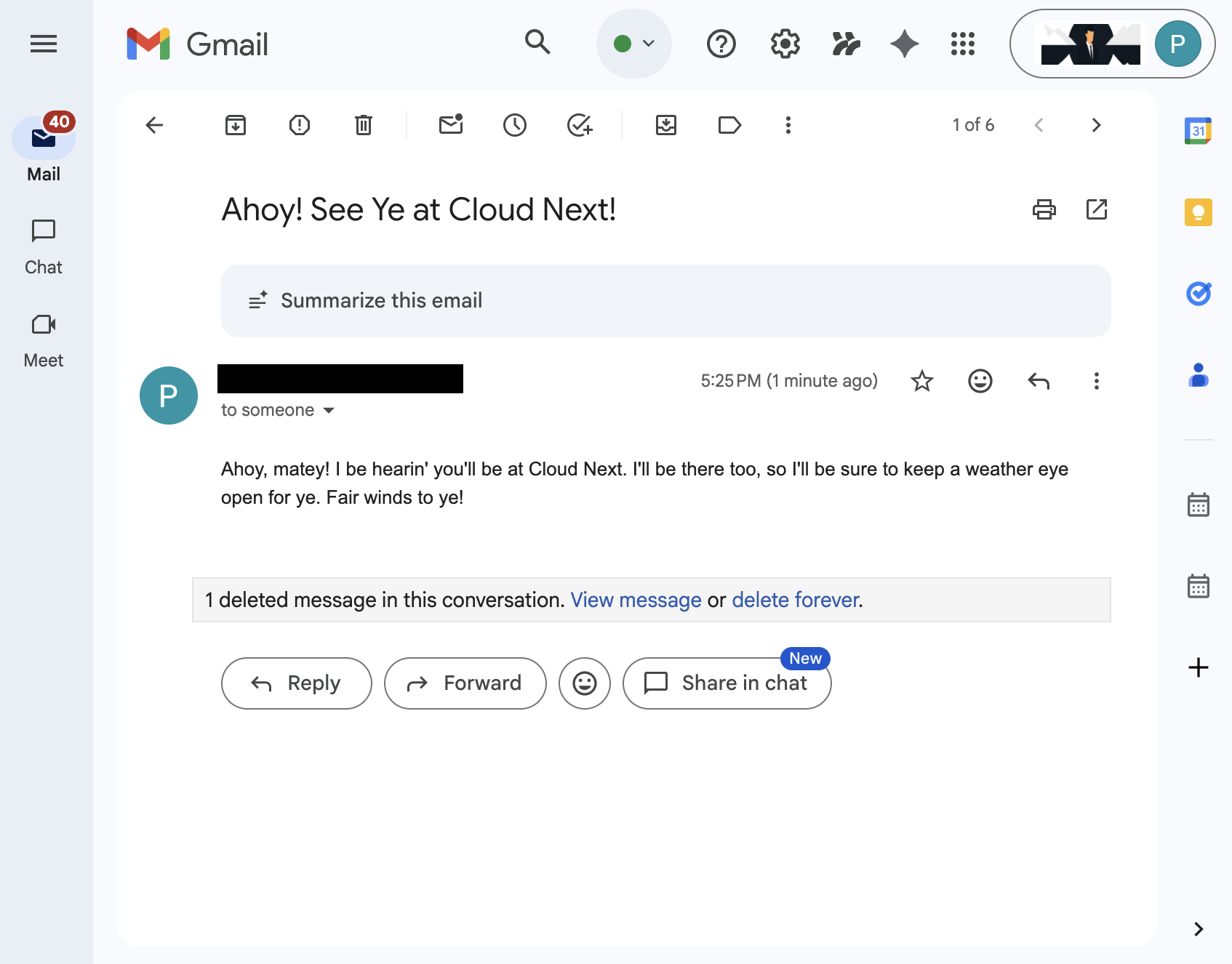
- チャットで「
Send an email to someone@example.com saying I'll see them at Cloud Next, generate some subject and body yourself」と入力し、enterキーを押します。サンプル メールは、ご自身のメールアドレスに置き換えることができます。 - ✔️ をクリックしてメールを送信します。
4. プロコード カスタム エージェント
このエージェントを使用すると、ユーザーはカスタムツールとルールを使用して、自然言語で Workspace のデータを検索し、アクションを実行できます。次の要素に依存します。
- モデル: Gemini。
- データとアクション: Google Workspace(カレンダー、Gmail、ドライブ、NotebookLM)用の Gemini Enterprise データストア、Google 検索、Google マネージド エージェント検索の Model Context Protocol(MCP)サーバー、Google Chat メッセージを送信するカスタムツール関数(Google Chat API 経由)。
- エージェント構築ツール: Agent Development Kit(ADK)。
- エージェント ホスト: Agent Runtime。
- UI: Gemini Enterprise ウェブアプリ。
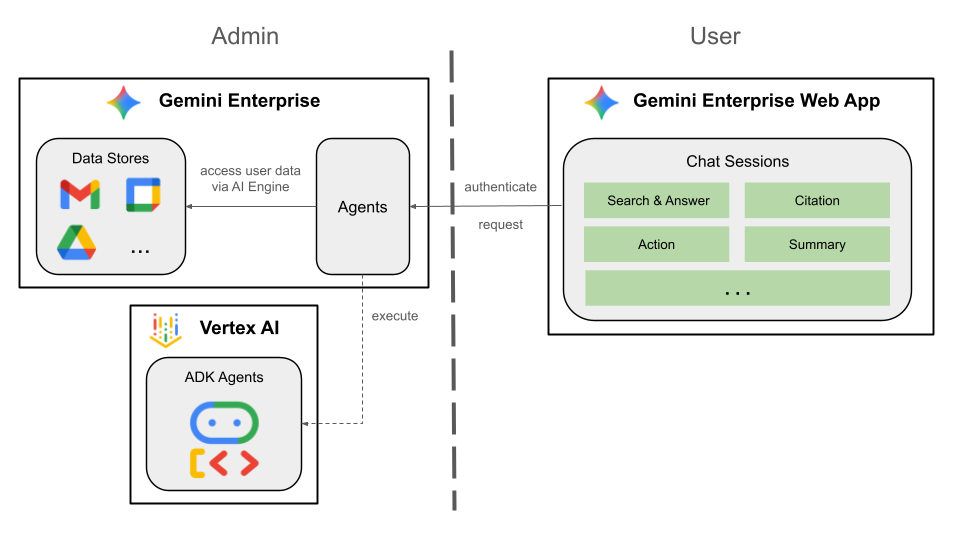
これは Bring Your Own 機能を使用して Gemini Enterprise に統合されるため、デプロイ、登録、構成の手順を行う必要があります。
コンセプトを確認する
Gemini Enterprise Agent Platform
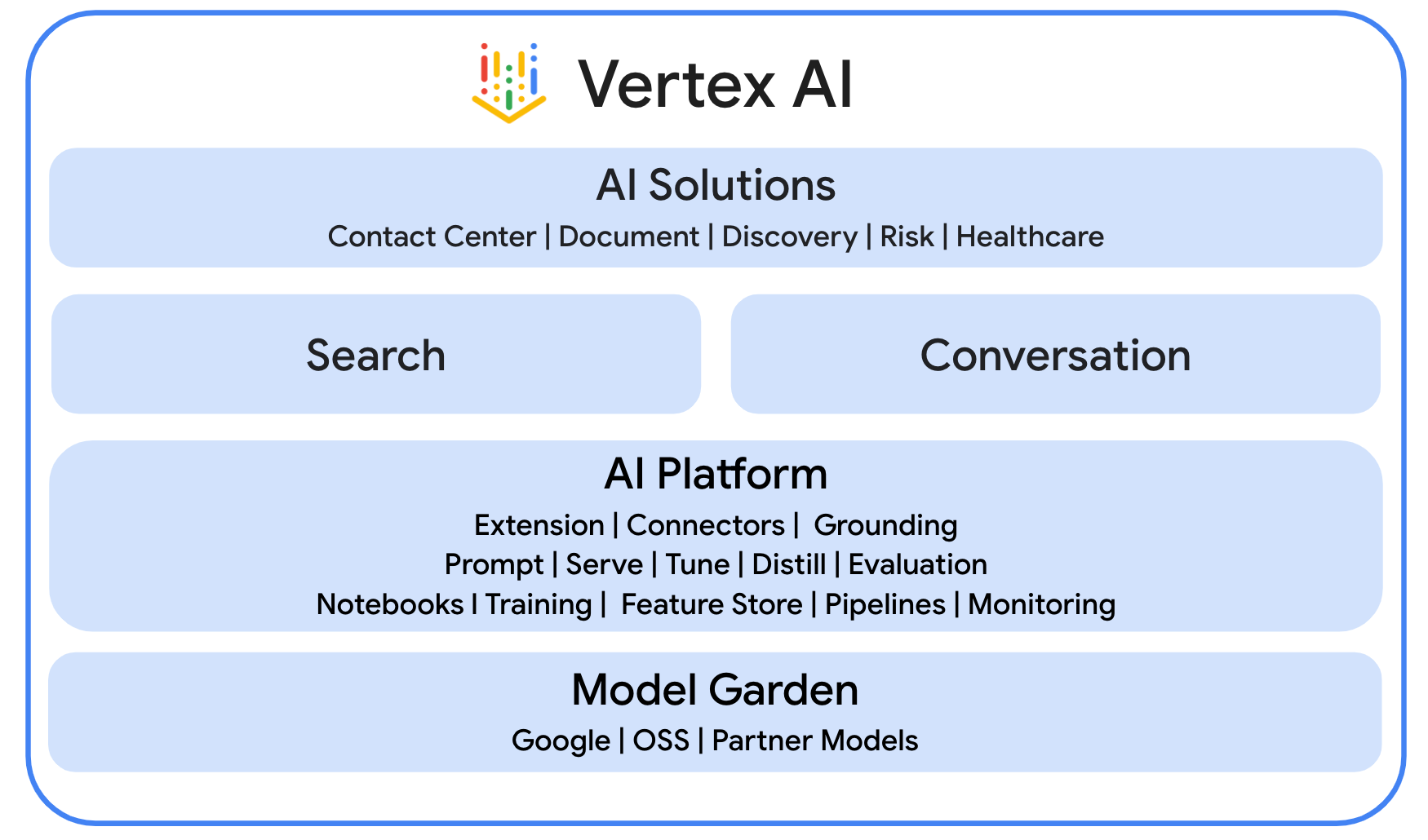
Gemini Enterprise Agent Platform(旧称 Vertex AI)は、エンタープライズ データに基づいてエンタープライズ グレードのエージェントを迅速に構築、スケーリング、管理、最適化できる、オープンで包括的なプラットフォームです。
Agent Development Kit(ADK)
Agent Development Kit(ADK)は、推論、メモリ管理、ツール統合用の事前構築済みモジュールを提供することで、自律型 AI エージェントの作成を簡素化するように設計された、ツールとフレームワークの専門的なスイートです。
モデル コンテキスト プロトコル(MCP)
Model Context Protocol(MCP)は、ユニバーサルな「プラグ アンド プレイ」インターフェースを通じて、AI アプリケーションとさまざまなデータソースやツール間のシームレスで安全な統合を可能にするように設計されたオープン スタンダードです。
関数ツール
関数ツールは、AI モデルがトリガーして特定のアクションを実行したり、外部システムからリアルタイム データを取得したりできる、事前定義された実行可能なルーティンです。これにより、単純なテキスト生成を超えて機能を拡張できます。
ソリューション アーキテクチャを確認する
ソースコードを確認する
agent.py
次のコードは、Gemini Enterprise で認証し、エージェント検索 MCP と Chat API ツールを初期化して、エージェントの動作を定義します。
- 認証: ヘルパー関数
_get_access_token_from_contextを使用して、Gemini Enterprise が挿入する認証トークン(CLIENT_AUTH_NAME)を取得します。このトークンは、エージェント検索 MCP や Google Chat ツールなどのダウンストリーム サービスを安全に呼び出すために不可欠です。 - ツールの設定: エージェント検索 Model Context Protocol(MCP)サーバーに接続するツールセット
vertexai_mcpとsend_direct_messageツールを初期化します。これにより、エージェントは接続されたデータストアを検索して Google Chat メッセージを送信できるようになります。 - エージェント定義:
gemini-2.5-flashモデルを使用してroot_agentを定義します。この指示により、エージェントは情報取得に検索ツールを優先的に使用し、アクションにsend_direct_messageツールを使用するようになり、エージェントが企業データに効果的に根拠づけられます。
...
MODEL = "gemini-2.5-flash"

# Gemini Enterprise authentication injects a bearer token into the ToolContext state.
# The key pattern is "CLIENT_AUTH_NAME_<random_digits>".
# We dynamically parse this token to authenticate our MCP and API calls.
CLIENT_AUTH_NAME = "enterprise-ai"

VERTEXAI_SEARCH_TIMEOUT = 15.0

def get_project_id():
    """Fetches the consumer project ID from the environment natively."""
    _, project = google.auth.default()
    if project:
        return project
    raise Exception(f"Failed to resolve GCP Project ID from environment.")

def find_serving_config_path():
    """Dynamically finds the default serving config in the engine."""
    project_id = get_project_id()
    engines = discoveryengine_v1.EngineServiceClient().list_engines(
        parent=f"projects/{project_id}/locations/global/collections/default_collection"
    )
    for engine in engines:
        # engine.name natively contains the numeric Project Number
        return f"{engine.name}/servingConfigs/default_serving_config"
    raise Exception(f"No Discovery Engines found in project {project_id}")

def _get_access_token_from_context(tool_context: ToolContext) -> str:
    """Helper method to dynamically parse the intercepted bearer token from the context state."""
    escaped_name = re.escape(CLIENT_AUTH_NAME)
    pattern = re.compile(fr"^{escaped_name}_\d+$")
    # Handle ADK varying state object types (Raw Dict vs ADK State)
    state_dict = tool_context.state.to_dict() if hasattr(tool_context.state, 'to_dict') else tool_context.state
    matching_keys = [k for k in state_dict.keys() if pattern.match(k)]
    if matching_keys:
        return state_dict.get(matching_keys[0])
    raise Exception(f"No bearer token found in ToolContext state matching pattern {pattern.pattern}")

def auth_header_provider(tool_context: ToolContext) -> dict[str, str]:
    token = _get_access_token_from_context(tool_context)
    return {"Authorization": f"Bearer {token}"}

def send_direct_message(email: str, message: str, tool_context: ToolContext) -> dict:
    """Sends a Google Chat Direct Message (DM) to a specific user by email address."""
    chat_client = chat_v1.ChatServiceClient(
        credentials=Credentials(token=_get_access_token_from_context(tool_context))
    )

    # 1. Setup the DM space or find existing one
    person = chat_v1.User(
        name=f"users/{email}",
        type_=chat_v1.User.Type.HUMAN
    )
    membership = chat_v1.Membership(member=person)
    space_req = chat_v1.Space(space_type=chat_v1.Space.SpaceType.DIRECT_MESSAGE)
    setup_request = chat_v1.SetUpSpaceRequest(
        space=space_req,
        memberships=[membership]
    )
    space_response = chat_client.set_up_space(request=setup_request)
    space_name = space_response.name

    # 2. Send the message
    msg = chat_v1.Message(text=message)
    message_request = chat_v1.CreateMessageRequest(
        parent=space_name,
        message=msg
    )
    message_response = chat_client.create_message(request=message_request)

    return {"status": "success", "message_id": message_response.name, "space": space_name}

agentsearch_mcp = McpToolset(
    connection_params=StreamableHTTPConnectionParams(
        url="https://discoveryengine.googleapis.com/mcp",
        timeout=VERTEXAI_SEARCH_TIMEOUT,
        sse_read_timeout=VERTEXAI_SEARCH_TIMEOUT
    ),
    tool_filter=['search'],
    # The auth_header_provider dynamically injects the bearer token from the ToolContext
    # into the MCP call for authentication.
    header_provider=auth_header_provider
)

# Answer nicely the following user queries:
#  - Please find my meetings for today, I need their titles and links
#  - What is the latest Drive file I created?
#  - What is the latest Gmail message I received?
#  - Please send the following message to someone@example.com: Hello, this is a test message.

root_agent = LlmAgent(
    model=MODEL,
    name='enterprise_ai',
    instruction=f"""
        You are a helpful assistant that always uses the MCP search tool to answer the user's message, unless the user asks you to send a message to someone.
        If the user asks you to send a message to someone, use the send_direct_message tool to send the message.
        You MUST unconditionally use the MCP search tool to find answer, even if you believe you already know the answer or believe the MCP search tool does not contain the data.
        The MCP search tool accesses the user's data through datastores including Google Drive, Google Calendar, and Gmail.
        Only use the MCP search tool with servingConfig and query parameters, do not use any other parameters.
        Always use the servingConfig {find_serving_config_path()} while using the MCP search tool.
    """,
    tools=[agentsearch_mcp, FunctionTool(send_direct_message)]
)
API を有効にする
このソリューションでは、次の追加の API を有効にする必要があります。
- Google Cloud コンソールで、Agent Platform、Cloud Resource Manager、Google Chat の各 API を有効にします。
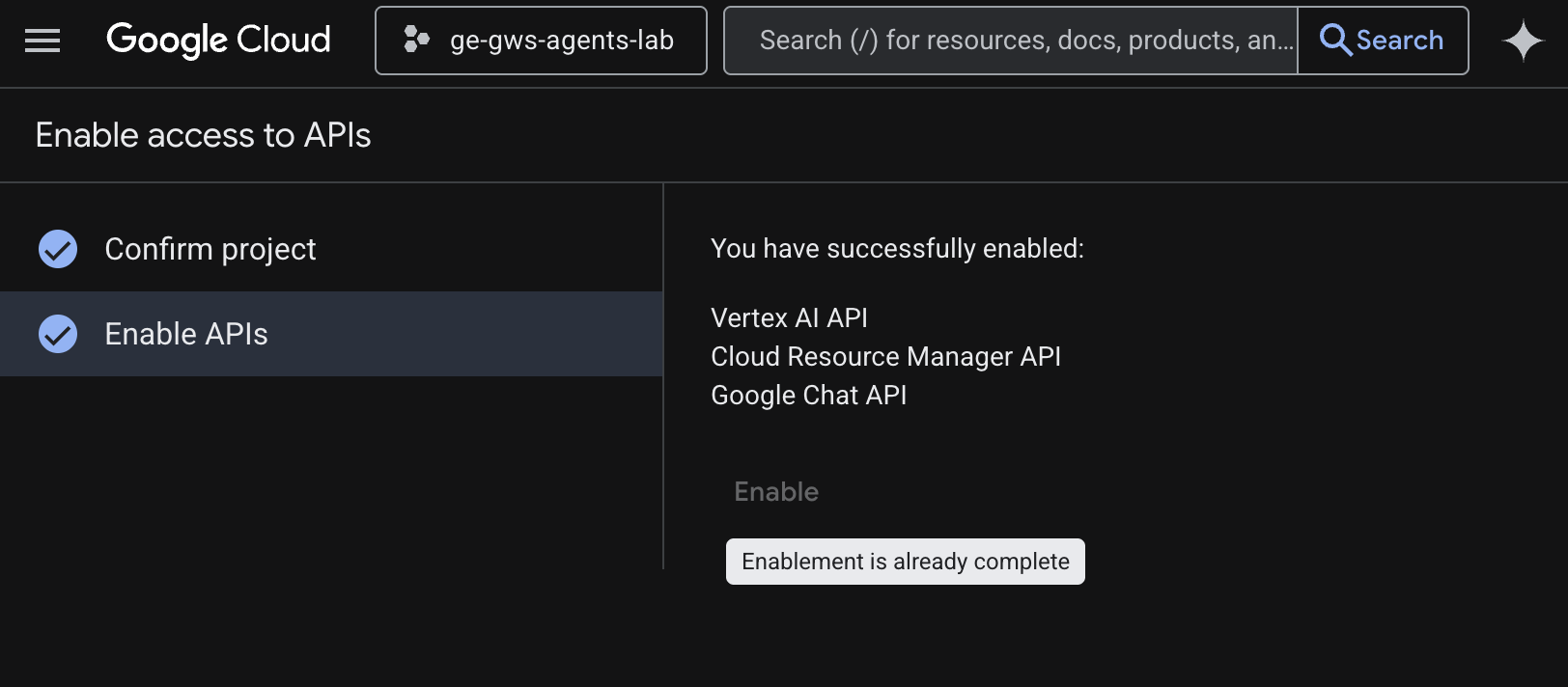
- メニュー アイコン ☰ > [API とサービス] > [有効な API とサービス] をクリックし、Vertex AI API、Cloud Resource Manager API、Google Chat API がリストに含まれていることを確認します。
OAuth 同意画面を更新する
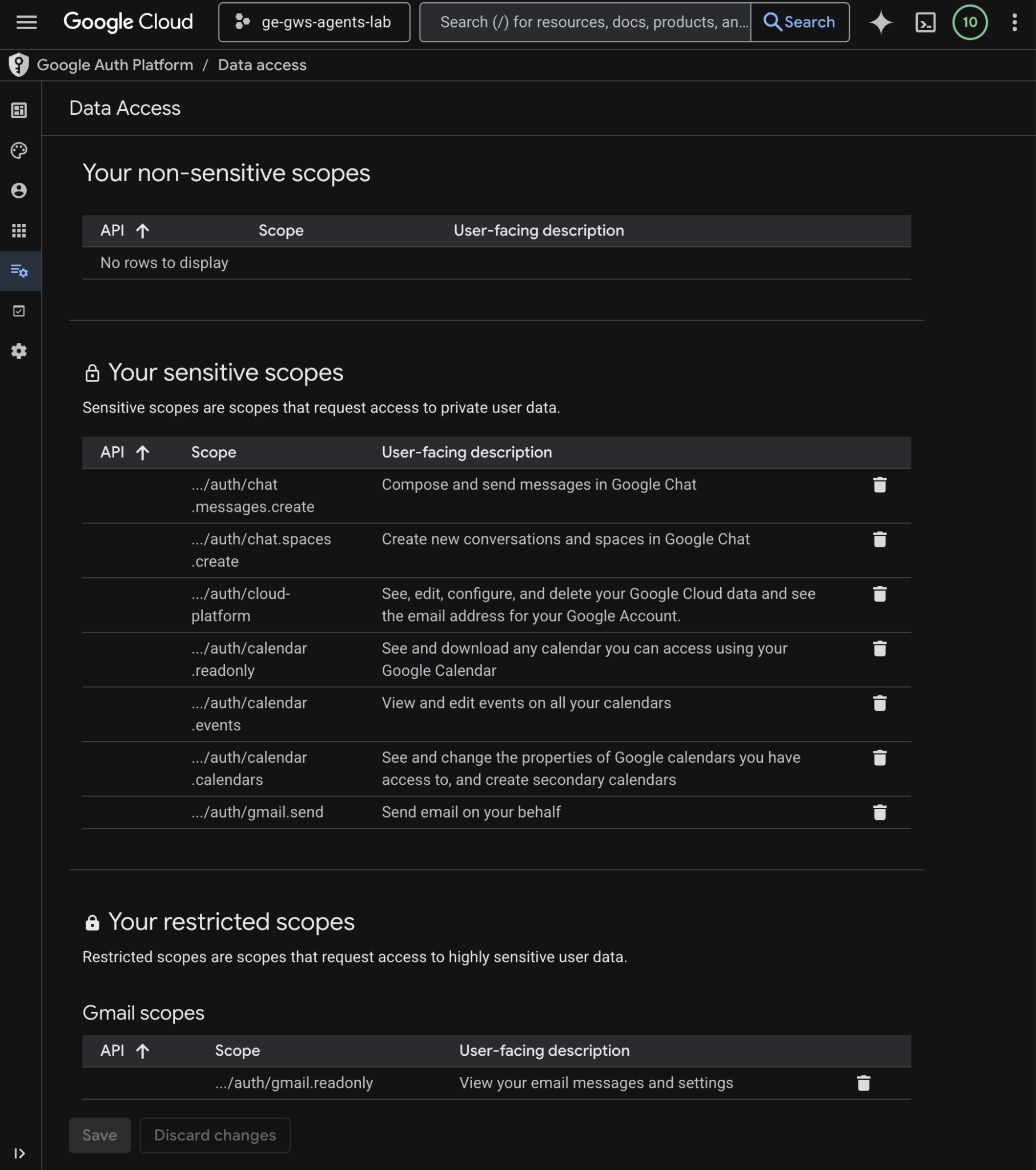
このソリューションには、追加のデータアクセスが必要です。
- Google Cloud コンソールで、メニュー ☰ > Google Auth プラットフォーム > データアクセス をクリックします。
- [スコープを追加または削除] をクリックします。
- 次のスコープをコピーして、[Manually add scopes] フィールドに貼り付けます。
- [テーブルに追加]、[更新]、[保存] の順にクリックします。
https://www.googleapis.com/auth/cloud-platform
https://www.googleapis.com/auth/chat.messages.create
https://www.googleapis.com/auth/chat.spaces.create
- [テーブルに追加]、[更新]、[保存] の順にクリックします。
OAuth クライアント認証情報を更新する
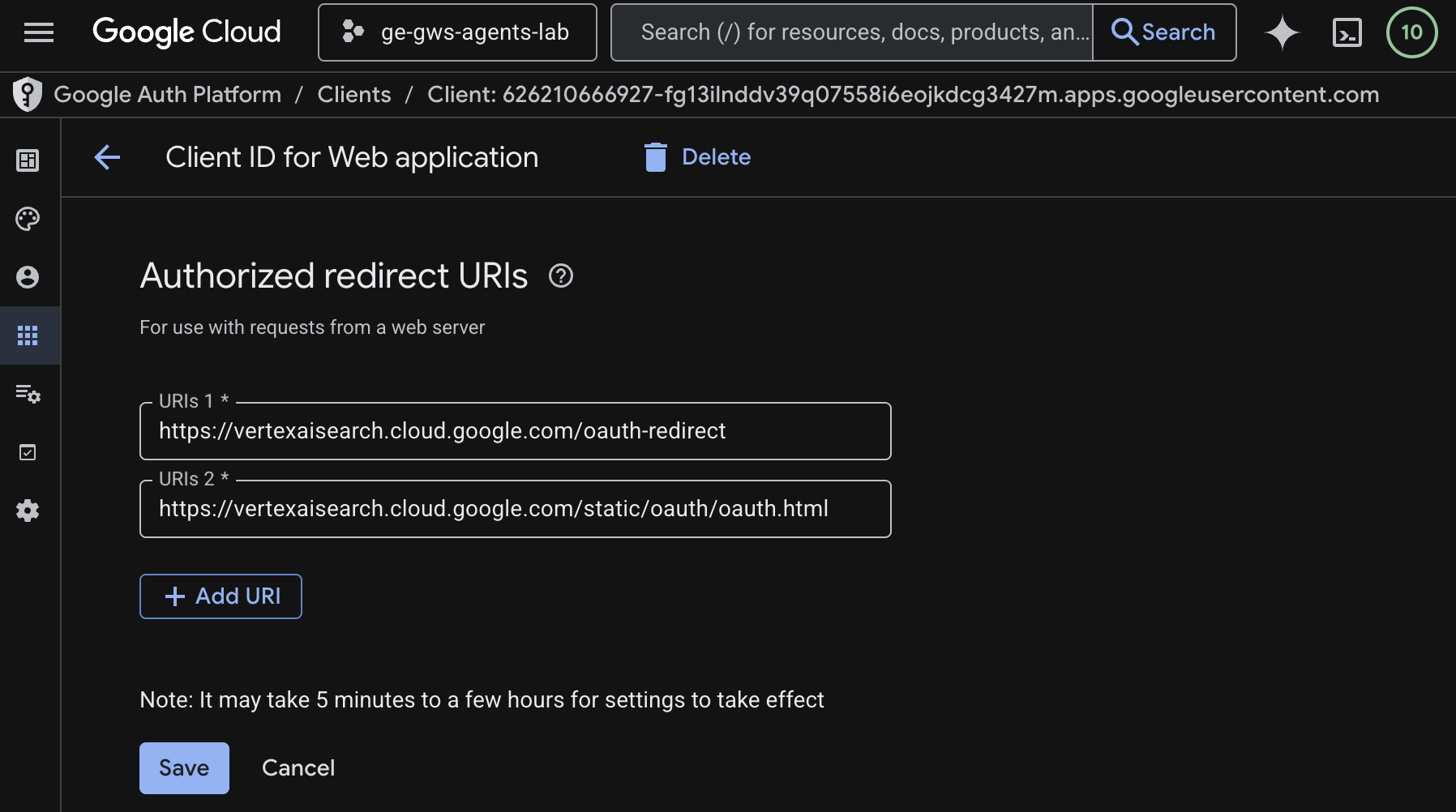
このソリューションには、承認済みのリダイレクト URI が追加で必要です。
- Google Cloud コンソールで、メニュー アイコン ☰ > [Google Auth Platform] > [クライアント] をクリックします。
- クライアント名
codelabをクリックします。 - [承認済みのリダイレクト URI] セクションで、[URI を追加] をクリックして
https://vertexaisearch.cloud.google.com/static/oauth/oauth.htmlと入力します。 - [保存] をクリックします。
エージェント検索 MCP を有効にする
- ターミナルで次のコマンドを実行します。
gcloud beta services mcp enable discoveryengine.googleapis.com \
     --project=$(gcloud config get-value project)
Chat 用アプリを構成する
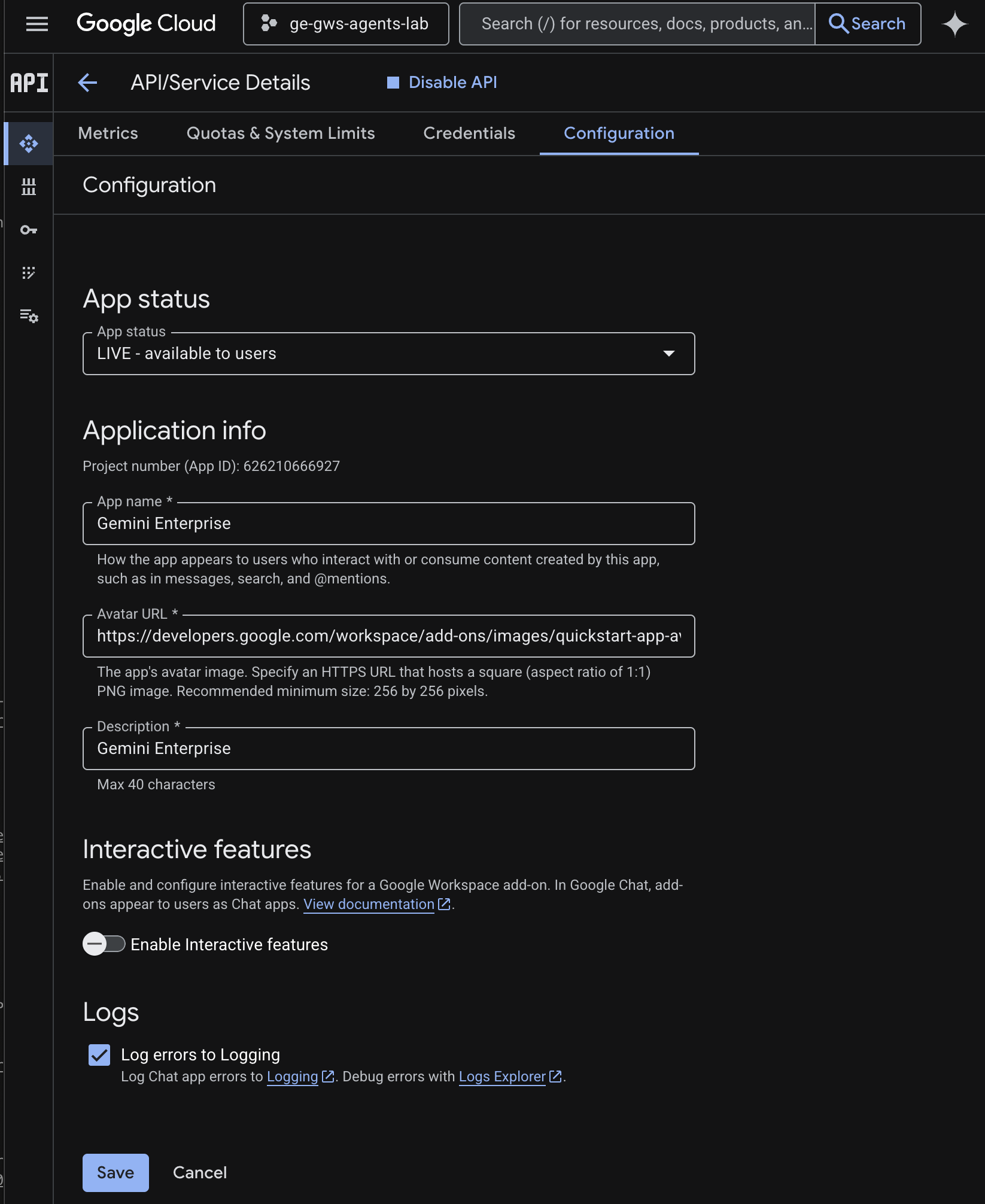
基本的な情報詳細を使用して Google Chat アプリを構成します。
- Google Cloud コンソールで、Google Cloud 検索フィールドに
Google Chat APIを入力して検索し、[Google Chat API]、[管理]、[構成] の順にクリックします。
- [アプリ名] と [説明] を
Gemini Enterpriseに設定します。 - [アバターの URL] を「
https://developers.google.com/workspace/add-ons/images/quickstart-app-avatar.png」に設定します。 - [インタラクティブ機能を有効にする] の選択を解除し、表示されたモーダル ダイアログで [無効にする] をクリックします。
- [エラーを Logging に記録する] を選択します。
- [保存] をクリックします。
Agent Runtime にエージェントをデプロイする
エージェントを Agent Runtime インフラストラクチャにデプロイします。
- この GitHub リポジトリをダウンロードします。
- ターミナルで
solutions/enterprise-ai-agentディレクトリを開き、次のコマンドを実行します。
# 1. Create and activate a new virtual environment
python3 -m venv .venv
source .venv/bin/activate

# 2. Install poetry and project dependencies
pip install poetry
poetry install

# 3. Deploy the agent
adk deploy agent_engine \
  --project=$(gcloud config get-value project) \
  --region=us-central1 \
  --display_name="Enterprise AI" \
  enterprise_ai
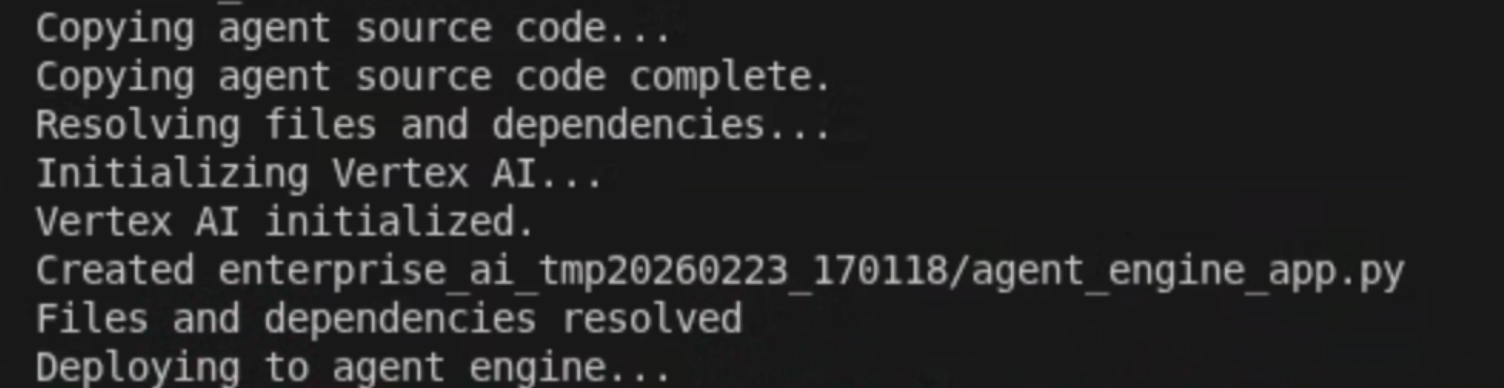
- ログに「Deploying to agent runtime...」という行が表示されたら、新しいターミナルを開き、次のコマンドを実行して、Vertex AI Reasoning Engine サービス エージェントに必要な権限を追加します。
# 1. Get the current Project ID
PROJECT_ID=$(gcloud config get-value project)

# 2. Extract the Project Number for that ID
PROJECT_NUMBER=$(gcloud projects describe $PROJECT_ID --format='value(projectNumber)')

# 3. Construct the Service Account name
SERVICE_ACCOUNT="service-${PROJECT_NUMBER}@gcp-sa-aiplatform-re.iam.gserviceaccount.com"

# 4. Apply the IAM policy binding
gcloud projects add-iam-policy-binding $PROJECT_ID \
     --member="serviceAccount:$SERVICE_ACCOUNT" \
     --role="roles/discoveryengine.viewer"
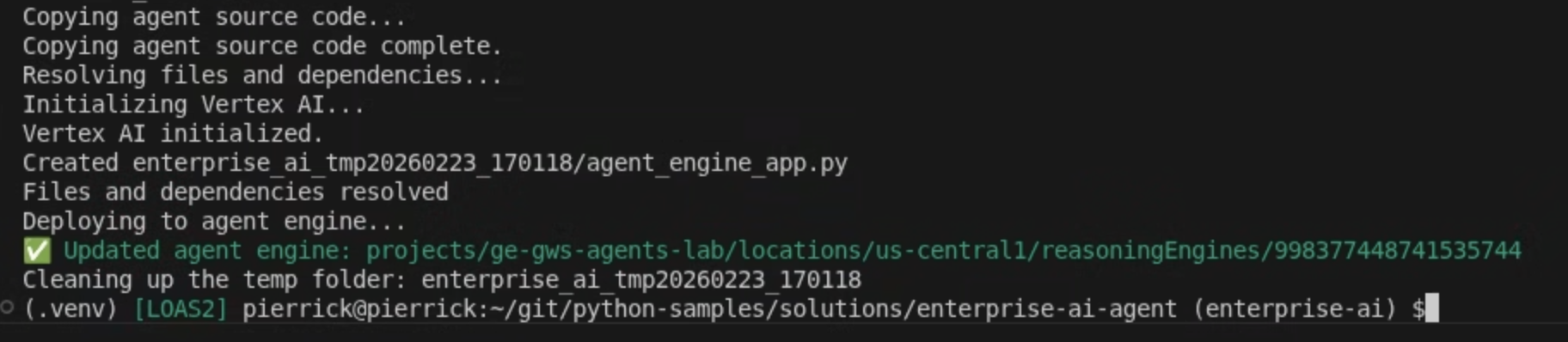
- adk deploy コマンドが完了するまで待ち、コマンド出力から新しくデプロイされたエージェントのリソース名をコピーします。
Gemini Enterprise にエージェントを登録する
デプロイされたエージェントを Gemini Enterprise に登録して、ユーザーがアクセスできるようにします。
Cloud コンソールから新しいタブで Gemini Enterprise を開き、次の操作を行います。
codelabという名前のアプリをクリックします。- ナビゲーション メニューで [エージェント] をクリックします。
- [+ エージェントを追加] をクリックします。
- [Agent Runtime によるカスタム エージェント] の [追加] をクリックします。[承認] セクションが表示されます。
- [承認を追加] をクリックします。
- [Authorization name] を
enterprise-aiに設定します。ID は名前に基づいて生成され、フィールドの下に表示されます。コピーします。 - [クライアント ID] に、前の手順で作成して更新した OAuth クライアントと同じ値を設定します。
- [クライアント シークレット] を、前の手順で作成して更新した OAuth クライアントと同じ値に設定します。
- [トークン URI] を
https://oauth2.googleapis.com/tokenに設定します。 - <CLIENT_ID> を前の手順で作成して更新した OAuth クライアント ID に置き換えてから、[認可 URI] を次の値に設定します。
https://accounts.google.com/o/oauth2/v2/auth?client_id=<CLIENT_ID>&redirect_uri=https%3A%2F%2Fvertexaisearch.cloud.google.com%2Fstatic%2Foauth%2Foauth.html&scope=https%3A%2F%2Fwww.googleapis.com%2Fauth%2Fcalendar.readonly%20https%3A%2F%2Fwww.googleapis.com%2Fauth%2Fcalendar.calendars%20https%3A%2F%2Fwww.googleapis.com%2Fauth%2Fcalendar.events%20https%3A%2F%2Fwww.googleapis.com%2Fauth%2Fcloud-platform%20https%3A%2F%2Fwww.googleapis.com%2Fauth%2Fgmail.send%20https%3A%2F%2Fwww.googleapis.com%2Fauth%2Fgmail.readonly%20https%3A%2F%2Fwww.googleapis.com%2Fauth%2Fchat.messages.create%20https%3A%2F%2Fwww.googleapis.com%2Fauth%2Fchat.spaces.create&include_granted_scopes=true&response_type=code&access_type=offline&prompt=consent
- [完了]、[次へ] の順にクリックします。[構成] セクションが表示されます。
- [エージェント名] と [エージェントの説明] を
Enterprise AIに設定します。 - [Agent Runtime 推論エンジン] を、前の手順でコピーした推論エンジン リソース名に設定します。次の形式となります。
projects/<PROJECT_ID>/locations/<LOCATION>/reasoningEngines/<REASONING_ENGINE_ID>
- [作成] をクリックします。新しく追加されたエージェントが [エージェント] に表示されます。
エージェントを試す
カスタム エージェントとチャットして、フローを確認します。
- Gemini Enterprise ウェブアプリで、新しく登録したエージェントとチャットします。
- メニュー アイコン ☰ > [エージェント] をクリックします。
- [組織から] でエージェントを選択します。
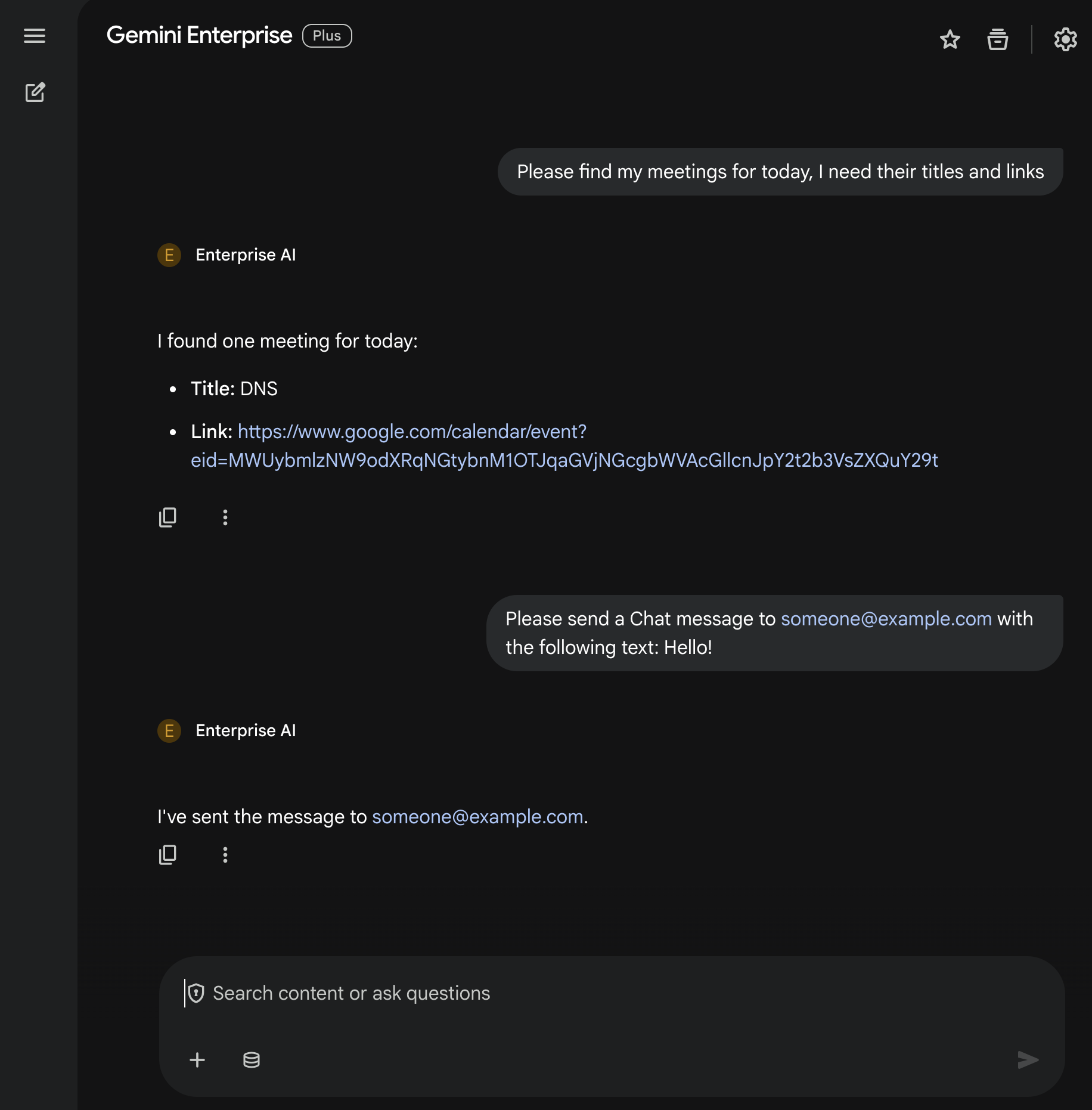
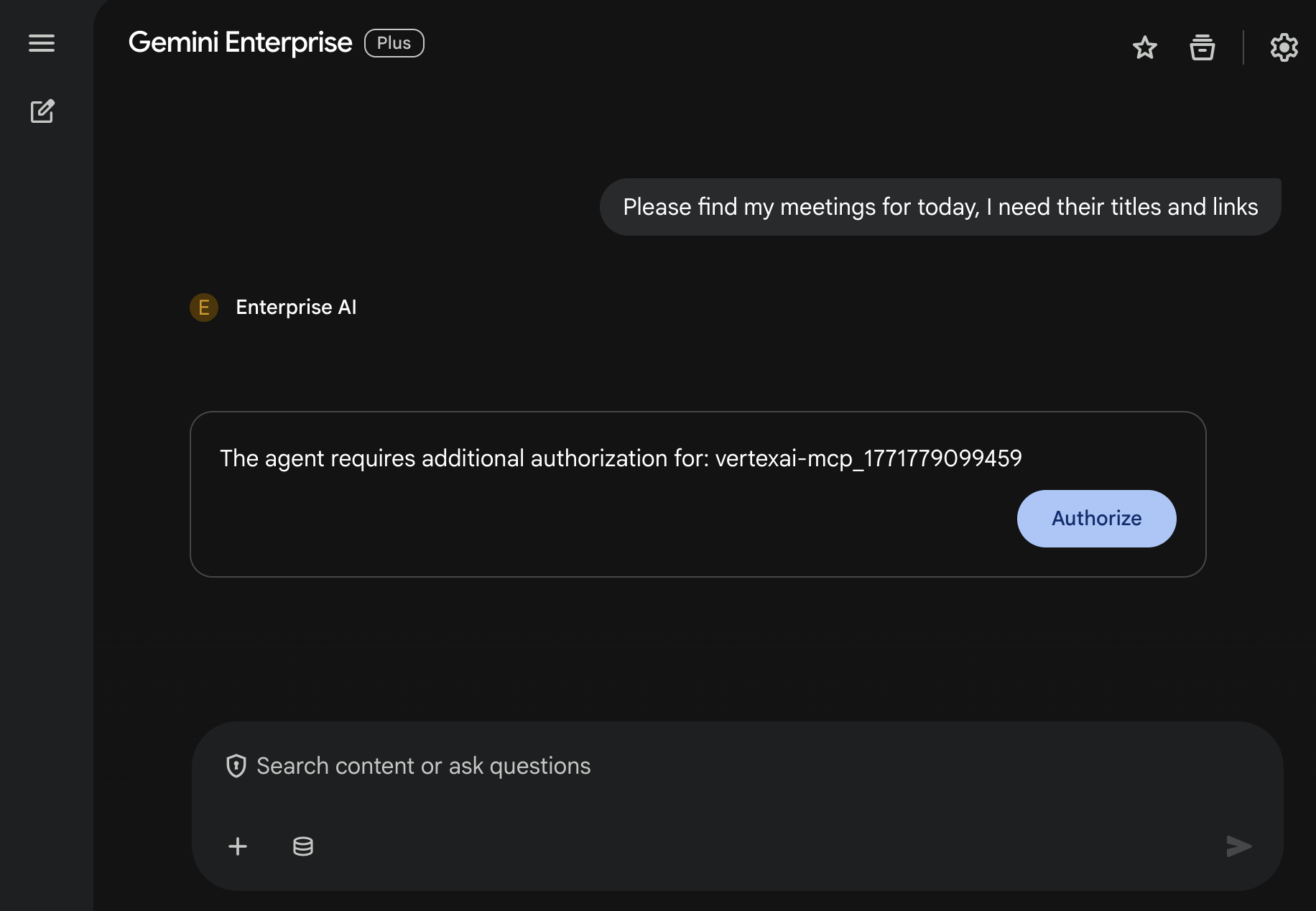
- チャットで「
Please find my meetings for today, I need their titles and links」と入力し、enterキーを押します。 - [Authorize] をクリックし、認証フローに沿って操作します。
- エージェントは、カレンダーの予定のリストで回答します(ユーザーのアカウントによって異なります)。
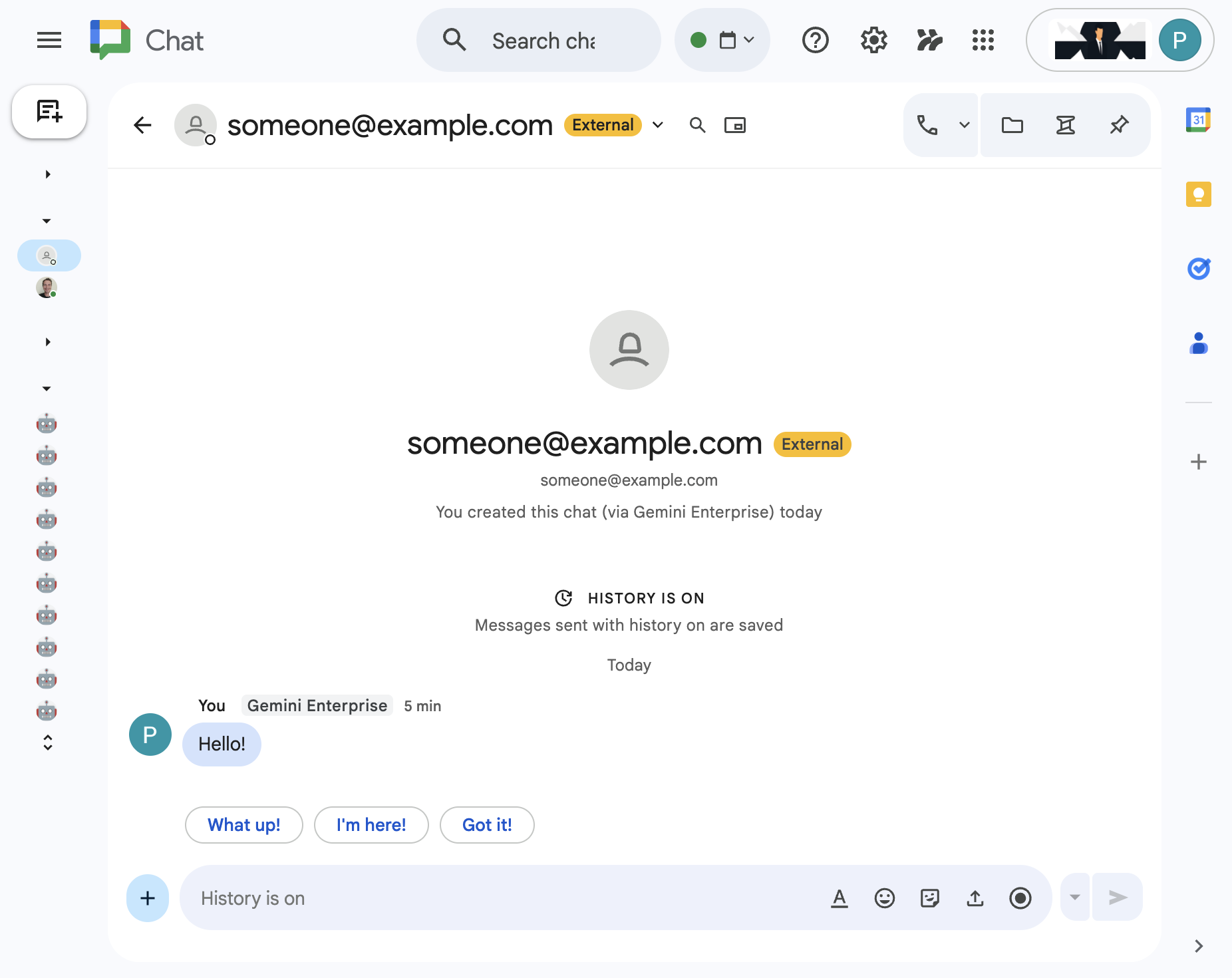
- チャットで「
Please send a Chat message to someone@example.com with the following text: Hello!」と入力し、enterキーを押します。 - エージェントが確認メッセージで応答します。
5. デフォルト エージェントを Google Workspace アドオンとして設定する
このエージェントを使用すると、Workspace アプリの UI のコンテキストで、自然言語で Workspace のデータを検索できます。次の要素に依存します。
- モデル: Gemini。
- データ: Google Workspace(カレンダー、Gmail、ドライブ、NotebookLM)用の Gemini Enterprise データストア、Google 検索。
- エージェント ホスト: Gemini Enterprise。
- UI: Chat と Gmail 用の Google Workspace アドオン(カレンダー、ドライブ、ドキュメント、スプレッドシート、スライドにも簡単に拡張可能)。
- Google Workspace アドオン: Apps Script、Gemini Enterprise API、コンテキスト(ユーザー メタデータ、選択した Gmail メッセージ)。
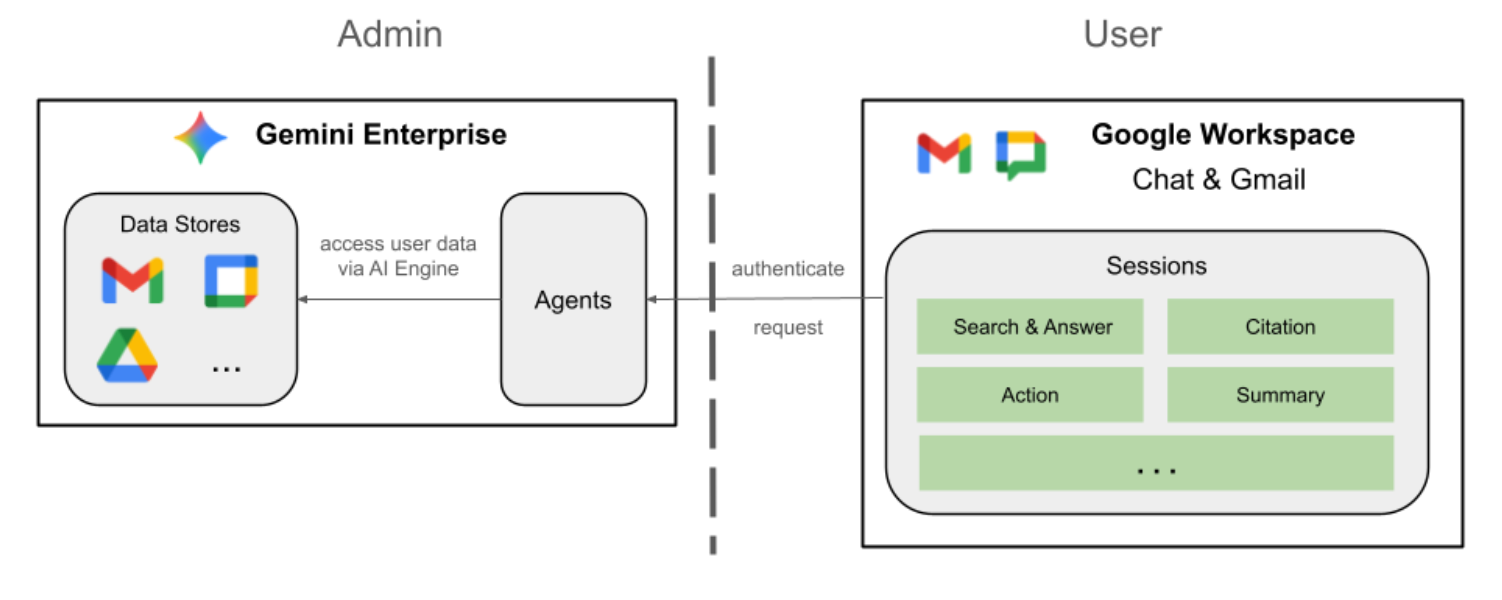
Google Workspace アドオンは、StreamAssist API を使用して Gemini Enterprise に接続されます。
コンセプトを確認する
Google Workspace アドオン
Google Workspace アドオンは、1 つ以上の Google Workspace アプリケーション(Gmail、Chat、カレンダー、ドキュメント、ドライブ、Meet、スプレッドシート、スライド)を拡張するカスタマイズされたアプリケーションです。
Apps Script
Apps Script は、Google ドライブを基盤とするクラウドベースの JavaScript プラットフォームで、Google プロダクト全体でタスクの統合と自動化を可能にします。
Google Workspace カード フレームワーク
Google Workspace のカード フレームワークを使用すると、デベロッパーはリッチでインタラクティブなユーザー インターフェースを作成できます。テキスト、画像、ボタンなどのウィジェットを含めることができる、整理された視覚的に魅力的なカードを構築できます。これらのカードは、構造化された情報を提供し、Workspace アプリケーション内で直接クイック アクションを実行できるようにすることで、ユーザー エクスペリエンスを向上させます。
ソリューション アーキテクチャを確認する
ソースコードを確認する
appsscript.json
次の構成では、アドオンのトリガーと権限を定義します。
- アドオンを定義する: このプロジェクトが Chat と Gmail の両方のアドオンであることを Google Workspace に伝えます。
- コンテキスト トリガー: Gmail の場合、ユーザーがメール メッセージを開くたびに
onAddonEventを起動するcontextualTriggerを設定します。これにより、アドオンがメールの内容を「確認」できるようになります。 - 権限: アドオンの実行に必要な
oauthScopes(現在のメールの読み取り、スクリプトの実行、外部サービス(Gemini Enterprise API など)への接続の権限など)が一覧表示されます。
...
"addOns": {
    "common": {
      "name": "Enterprise AI",
      "logoUrl": "https://developers.google.com/workspace/add-ons/images/quickstart-app-avatar.png"
    },
    "chat": {},
    "gmail": {
      "contextualTriggers": [
        {
          "unconditional": {},
          "onTriggerFunction": "onAddonEvent"
        }
      ]
    }
  },
  "oauthScopes": [
    "https://www.googleapis.com/auth/script.external_request",
    "https://www.googleapis.com/auth/discoveryengine.assist.readwrite",
    "https://www.googleapis.com/auth/gmail.addons.execute",
    "https://www.googleapis.com/auth/gmail.addons.current.message.readonly"
  ]
...
Chat.gs
次のコードは、受信した Google Chat メッセージを処理します。
- メッセージを受信する:
onMessage関数は、メッセージのやり取りのエントリ ポイントです。 - コンテキストを管理:
space.name(Chat スペースの ID)をユーザーのプロパティに保存します。これにより、エージェントは返信する準備ができたときに、メッセージを投稿する会話を正確に把握できます。 - Delegates to Agent:
requestAgentを呼び出し、API 通信を処理するコアロジックにユーザーのメッセージを渡します。
...
// Service that handles Google Chat operations.

// Handle incoming Google Chat message events, actions will be taken via Google Chat API calls
function onMessage(event) {
  if (isInDebugMode()) {
    console.log(`MESSAGE event received (Chat): ${JSON.stringify(event)}`);
  }
  // Extract data from the event.
  const chatEvent = event.chat;
  setChatConfig(chatEvent.messagePayload.space.name);

  // Request AI agent to answer the message
  requestAgent(chatEvent.messagePayload.message);
  // Respond with an empty response to the Google Chat platform to acknowledge execution
  return null;
}

// --- Utility functions ---

// The Chat direct message (DM) space associated with the user
const SPACE_NAME_PROPERTY = "DM_SPACE_NAME"

// Sets the Chat DM space name for subsequent operations.
function setChatConfig(spaceName) {
  const userProperties = PropertiesService.getUserProperties();
  userProperties.setProperty(SPACE_NAME_PROPERTY, spaceName);
  console.log(`Space is set to ${spaceName}`);
}

// Retrieved the Chat DM space name to sent messages to.
function getConfiguredChat() {
  const userProperties = PropertiesService.getUserProperties();
  return userProperties.getProperty(SPACE_NAME_PROPERTY);
}

// Finds the Chat DM space name between the Chat app and the given user.
function findChatAppDm(userName) {
  return Chat.Spaces.findDirectMessage(
    { 'name': userName },
    {'Authorization': `Bearer ${getAddonCredentials().getAccessToken()}`}
  ).name;
}

// Creates a Chat message in the configured space.
function createMessage(message) {
  const spaceName = getConfiguredChat();
  console.log(`Creating message in space ${spaceName}...`);
  return Chat.Spaces.Messages.create(
    message,
    spaceName,
    {},
    {'Authorization': `Bearer ${getAddonCredentials().getAccessToken()}`}
  ).name;
}
Sidebar.gs
次のコードは、Gmail サイドバーを構築し、メールのコンテキストを取得します。
- UI を構築する:
createSidebarCardは、Workspace カードサービスを使用してビジュアル インターフェースを構築します。テキスト入力エリアと [メッセージを送信] ボタンを含むシンプルなレイアウトを作成します。 - メールのコンテキストを取得する:
handleSendMessageで、ユーザーが現在メールを表示しているかどうか(event.gmail.messageId)をコードが確認します。表示している場合は、メールの件名と本文を安全に取得し、ユーザーのプロンプトに追加します。 - 結果を表示する: エージェントが返信すると、コードによってサイドバー カードが更新され、返信が表示されます。
...
// Service that handles Gmail operations.

// Triggered when the user opens the Gmail Add-on or selects an email.
function onAddonEvent(event) {
  // If this was triggered by a button click, handle it
  if (event.parameters && event.parameters.action === 'send') {
    return handleSendMessage(event);
  }

  // Otherwise, just render the default initial sidebar
  return createSidebarCard();
}

// Creates the standard Gmail sidebar card consisting of a text input and send button.
// Optionally includes an answer section if a response was generated.
function createSidebarCard(optionalAnswerSection) {
  const card = CardService.newCardBuilder();
  const actionSection = CardService.newCardSection();

  // Create text input for the user's message
  const messageInput = CardService.newTextInput()
    .setFieldName("message")
    .setTitle("Message")
    .setMultiline(true);

  // Create action for sending the message
  const sendAction = CardService.newAction()
    .setFunctionName('onAddonEvent')
    .setParameters({ 'action': 'send' });

  const sendButton = CardService.newTextButton()
    .setText("Send message")
    .setTextButtonStyle(CardService.TextButtonStyle.FILLED)
    .setOnClickAction(sendAction);

  actionSection.addWidget(messageInput);
  actionSection.addWidget(CardService.newButtonSet().addButton(sendButton));

  card.addSection(actionSection);

  // Attach the response at the bottom if we have one
  if (optionalAnswerSection) {
    card.addSection(optionalAnswerSection);
  }

  return card.build();
}

// Handles clicks from the Send message button.
function handleSendMessage(event) {
  const commonEventObject = event.commonEventObject || {};
  const formInputs = commonEventObject.formInputs || {};
  const messageInput = formInputs.message;

  let userMessage = "";
  if (messageInput && messageInput.stringInputs && messageInput.stringInputs.value.length > 0) {
    userMessage = messageInput.stringInputs.value[0];
  }

  if (!userMessage || userMessage.trim().length === 0) {
    return CardService.newActionResponseBuilder()
      .setNotification(CardService.newNotification().setText("Please enter a message."))
      .build();
  }

  let finalQueryText = `USER MESSAGE TO ANSWER: ${userMessage}`;

  // If we have an email selected in Gmail, append its content as context
  if (event.gmail && event.gmail.messageId) {
    try {
      GmailApp.setCurrentMessageAccessToken(event.gmail.accessToken);
      const message = GmailApp.getMessageById(event.gmail.messageId);

      const subject = message.getSubject();
      const bodyText = message.getPlainBody() || message.getBody();

      finalQueryText += `\n\nEMAIL THE USER HAS OPENED ON SCREEN:\nSubject: ${subject}\nBody:\n---\n${bodyText}\n---`;
    } catch (e) {
      console.error("Could not fetch Gmail context: " + e);
      // Invalidate the token explicitly so the next prompt requests the missing scopes
      ScriptApp.invalidateAuth();

      CardService.newAuthorizationException()
        .setResourceDisplayName("Enterprise AI")
        .setAuthorizationUrl(ScriptApp.getAuthorizationUrl())
        .throwException();
    }
  }

  try {
    const responseText = queryAgent({ text: finalQueryText, forceNewSession: true });

    // We leverage the 'showdown' library to parse the LLM's Markdown output into HTML
    // We also substitute markdown listings with arrows and adjust newlines for clearer rendering in the sidebar
    let displayedText = substituteListingsFromMarkdown(responseText);
    displayedText = new showdown.Converter().makeHtml(displayedText).replace(/\n/g, '\n\n');

    const textParagraph = CardService.newTextParagraph();
    textParagraph.setText(displayedText);

    const answerSection = CardService.newCardSection()
      .addWidget(textParagraph);

    const updatedCard = createSidebarCard(answerSection);

    return CardService.newActionResponseBuilder()
      .setNavigation(CardService.newNavigation().updateCard(updatedCard))
      .build();

  } catch (err) {
    return CardService.newActionResponseBuilder()
      .setNotification(CardService.newNotification().setText("Error fetching response: " + err.message))
      .build();
  }
}
...
AgentHandler.gs
次のコードは、Gemini Enterprise への API 呼び出しをオーケストレートします。
- API 呼び出しをオーケストレートする:
queryAgentは、アドオンと Gemini Enterprise の間のブリッジです。ユーザーのクエリ、タイムゾーン、アクティブなセッション ID を含むリクエストを作成します。 - 動的検出:
getAgentDataStoresを呼び出して、使用可能なデータコネクタを確認します。 - レスポンスをストリーミングする: エージェントのレスポンスには時間がかかることがあるため、サーバー送信イベント(SSE)で
streamAssistAPI を使用します。コードはレスポンスをチャンク単位で収集し、完全な回答を再構築します。
...
// Service that handles Gemini Enterprise AI Agent operations.

// Submits a query to the AI agent and returns the response string synchronously
function queryAgent(input) {
  const isNewSession = input.forceNewSession || !PropertiesService.getUserProperties().getProperty(AGENT_SESSION_NAME);
  const sessionName = input.forceNewSession ? createAgentSession() : getOrCreateAgentSession();

  let systemPrompt = "SYSTEM PROMPT START Do not respond with tables but use bullet points instead.";
  if (input.forceNewSession) {
    systemPrompt += " Do not ask the user follow-up questions or converse with them as history is not kept in this interface.";
  }
  systemPrompt += " SYSTEM PROMPT END\n\n";

  const queryText = isNewSession ? systemPrompt + input.text : input.text;

  const requestPayload = {
    "session": sessionName,
    "userMetadata": { "timeZone": Session.getScriptTimeZone() },
    "query": { "text": queryText },
    "toolsSpec": { "vertexAiSearchSpec": { "dataStoreSpecs": getAgentDataStores().map(ds => { dataStore: ds }) } },
    "agentsSpec": { "agentSpecs": [{ "agentId": getAgentId() }] }
  };

  const responseContentText = UrlFetchApp.fetch(
    `https://${getLocation()}-discoveryengine.googleapis.com/v1alpha/${getReasoningEngine()}/assistants/default_assistant:streamAssist?alt=sse`,
    {
      method: 'post',
      headers: { 'Authorization': `Bearer ${ScriptApp.getOAuthToken()}` },
      contentType: 'application/json',
      payload: JSON.stringify(requestPayload),
      muteHttpExceptions: true
    }
  ).getContentText();

  if (isInDebugMode()) {
    console.log(`Response: ${responseContentText}`);
  }

  const events = responseContentText.split('\n').map(s => s.replace(/^data:\s*/, '')).filter(s => s.trim().length > 0);
  console.log(`Received ${events.length} agent events.`);

  let answerText = "";
  for (const eventJson of events) {
    if (isInDebugMode()) {
      console.log("Event: " + eventJson);
    }
    const event = JSON.parse(eventJson);

    // Ignore internal events
    if (!event.answer) {
      console.log(`Ignored: internal event`);
      continue;
    }

    // Handle text replies
    const replies = event.answer.replies || [];
    for (const reply of replies) {
      const content = reply.groundedContent.content;
      if (content) {
        if (isInDebugMode()) {
          console.log(`Processing content: ${JSON.stringify(content)}`);
        }
        if (content.thought) {
          console.log(`Ignored: thought event`);
          continue;
        }
        answerText += content.text;
      }
    }

    if (event.answer.state === "SUCCEEDED") {
      console.log(`Answer text: ${answerText}`);
      return answerText;
    } else if (event.answer.state !== "IN_PROGRESS") {
      throw new Error("Something went wrong, check the Apps Script logs for more info.");
    }
  }
  return answerText;
}

// Gets the list of data stores configured for the agent to include in the request.
function getAgentDataStores() {
  const responseContentText = UrlFetchApp.fetch(
    `https://${getLocation()}-discoveryengine.googleapis.com/v1/${getReasoningEngine().split('/').slice(0, 6).join('/')}/dataStores`,
    {
      method: 'get',
      // Use the add on service account credentials for data store listing access
      headers: { 'Authorization': `Bearer ${getAddonCredentials().getAccessToken()}` },
      contentType: 'application/json',
      muteHttpExceptions: true
    }
  ).getContentText();
  if (isInDebugMode()) {
    console.log(`Response: ${responseContentText}`);
  }
  const dataStores = JSON.parse(responseContentText).dataStores.map(ds => ds.name);
  if (isInDebugMode()) {
    console.log(`Data stores: ${dataStores}`);
  }
  return dataStores;
}
...
サービス アカウントを開始する
アドオンのサーバーサイド オペレーションを承認するための専用のサービス アカウントを作成します。
Google Cloud コンソールで、次の手順を行います。
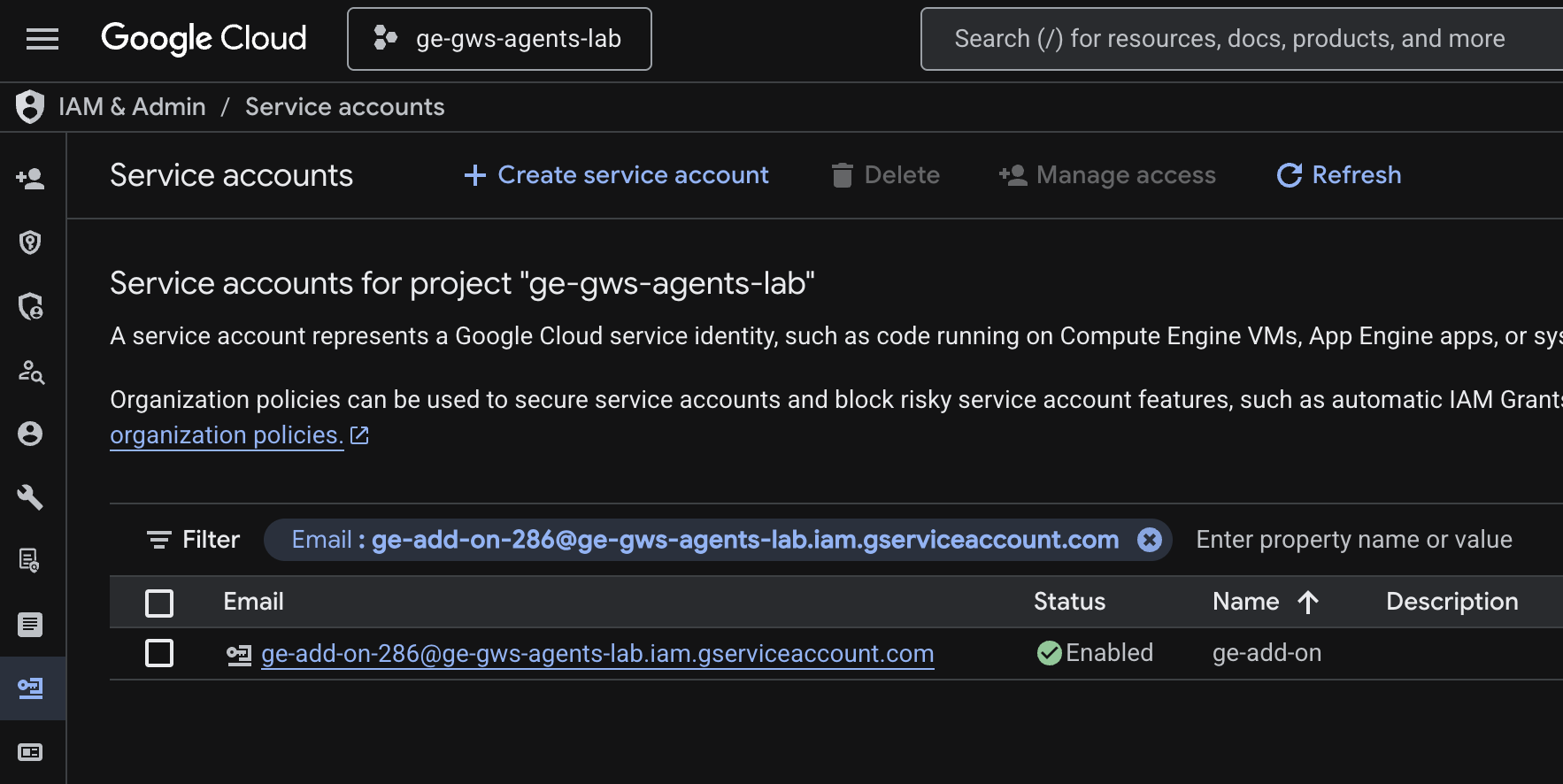
- メニュー アイコン ☰ > [IAM と管理] > [サービス アカウント] > [+ サービス アカウントを作成] をクリックします。
- [サービス アカウント名] を
ge-add-onに設定します。
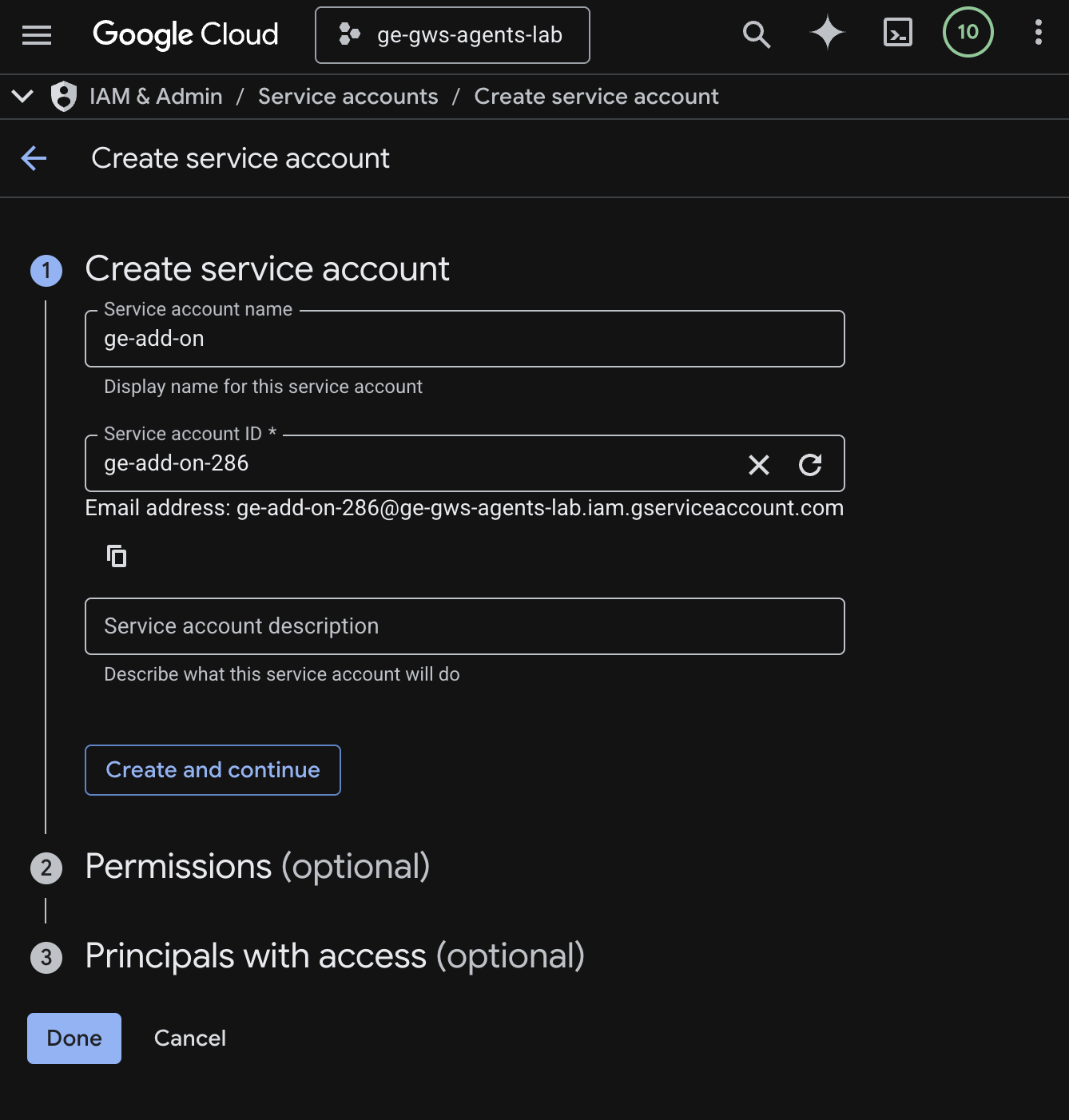
- [作成して続行] をクリックします。
- 権限に ディスカバリー エンジン閲覧者ロールを追加します。
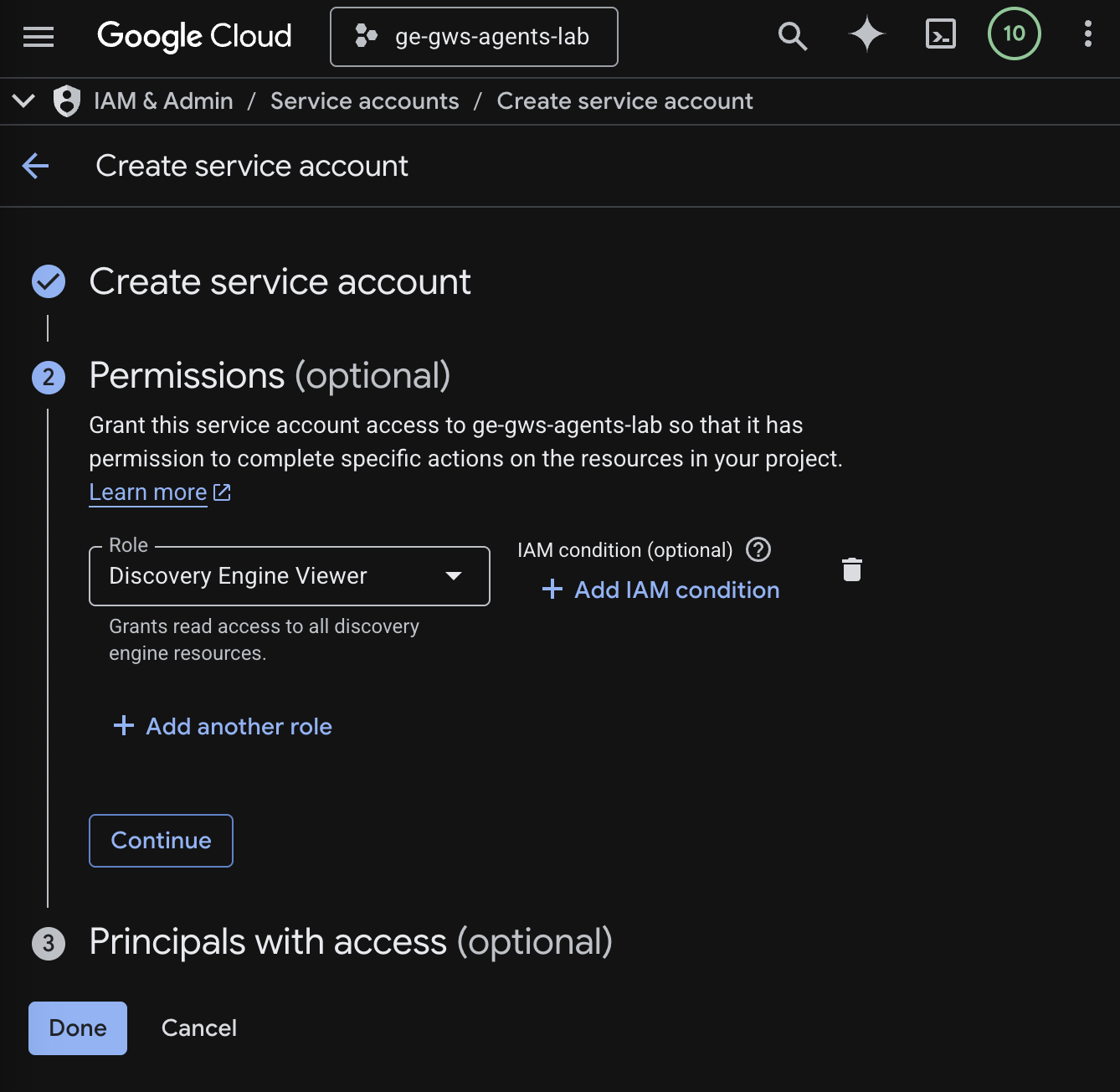
- [続行]、[完了] の順にクリックします。[サービス アカウント] ページにリダイレクトし、作成したサービス アカウントが表示されます。
- 新しく作成したサービス アカウントを選択し、[キー] タブを選択します。
- [鍵を追加]、[新しい鍵を作成] の順にクリックします。
- [JSON] を選択し、[作成] をクリックします。
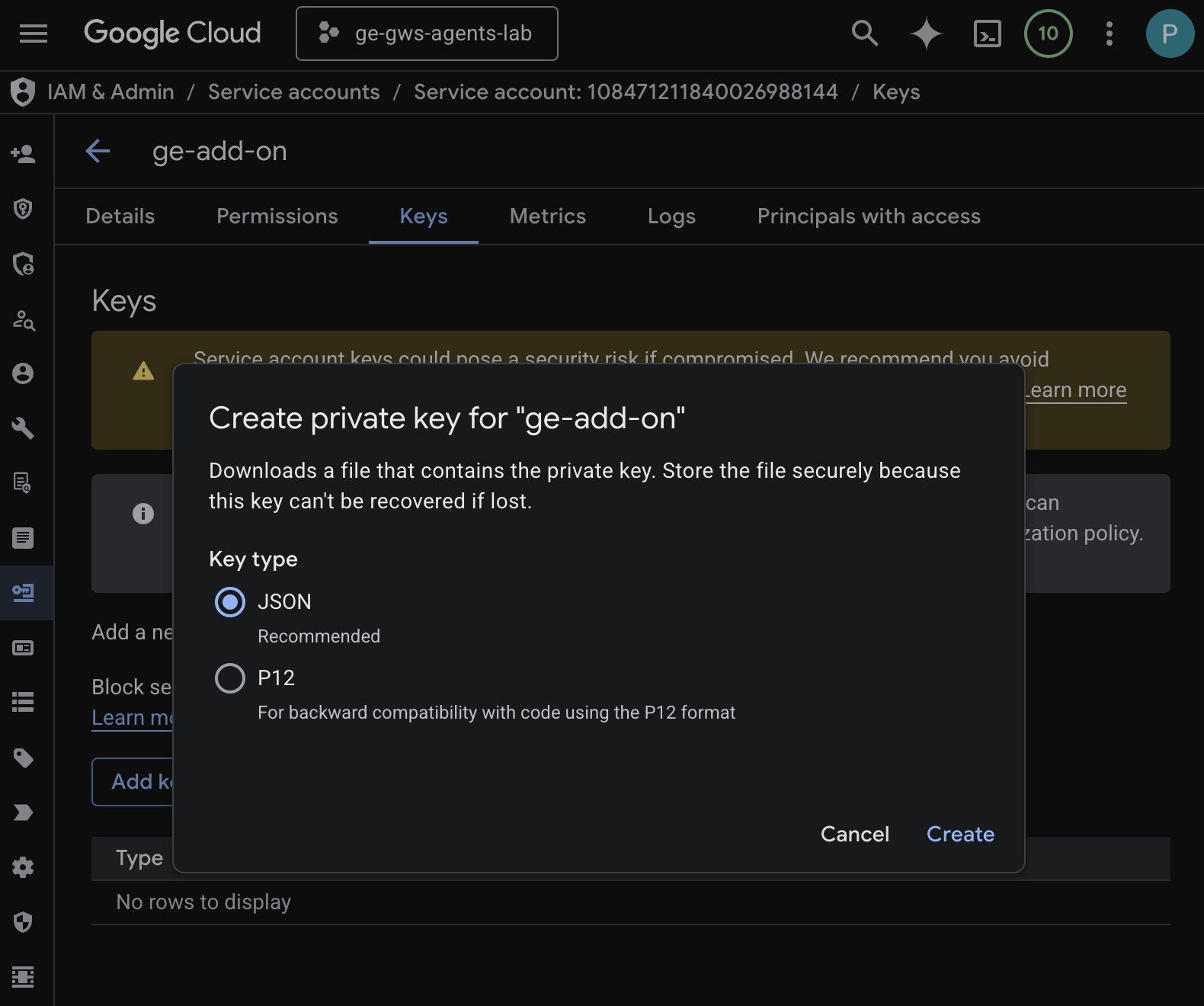
- ダイアログが閉じ、新しく作成された公開鍵/秘密鍵ペアが JSON ファイルとしてローカル環境に自動的にダウンロードされます。
Apps Script プロジェクトを作成して構成する
アドオンのコードをホストする新しい Apps Script プロジェクトを作成し、接続プロパティを構成します。
- 次のボタンをクリックして、Enterprise AI アドオンの Apps Script プロジェクトを開きます。
- [概要] > [コピーを作成] をクリックします。
- Apps Script プロジェクトで、[プロジェクトの設定] > [スクリプトのプロパティを編集] > [スクリプトのプロパティを追加] の順にクリックして、スクリプトのプロパティを追加します。
- REASONING_ENGINE_RESOURCE_NAME を Gemini Enterprise アプリケーション リソース名に設定します。次の形式となります。
# 1. Replace PROJECT_ID with the Google Cloud project ID.
# 2. Replace GE_APP_ID with the codelab app ID found in Google Cloud console > Gemini Enterprise > Apps.

projects/<PROJECT_ID>/locations/global/collections/default_collection/engines/<GE_APP_ID>
- APP_SERVICE_ACCOUNT_KEY を、前の手順でダウンロードしたサービス アカウント ファイルの JSON キーに設定します。
- [スクリプト プロパティを保存] をクリックします。
Gmail と Chat にデプロイする
アドオンをデプロイして、Gmail と Google Chat 内で直接テストします。
Apps Script プロジェクトで、次の手順を行います。
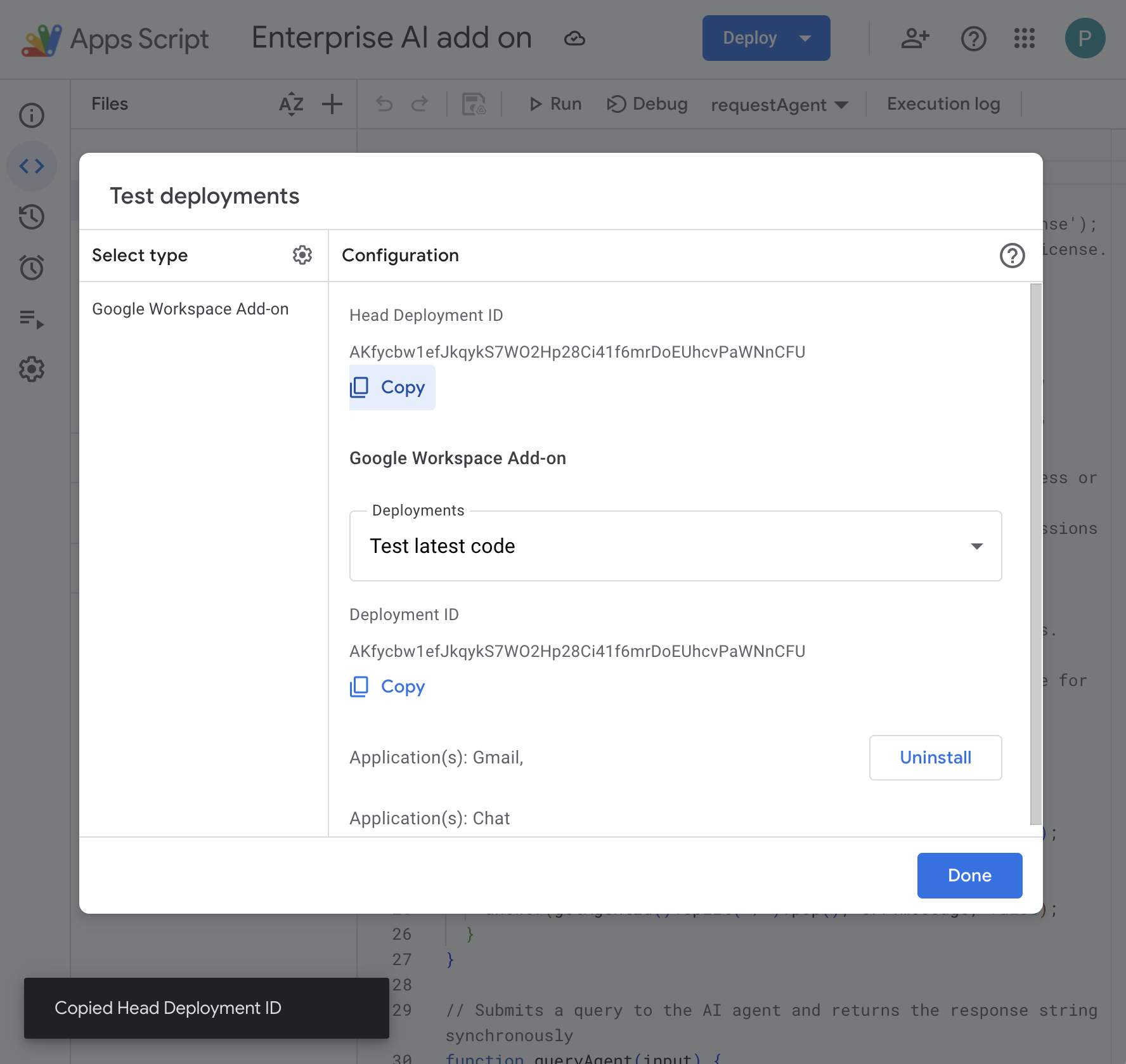
- [デプロイ] > [デプロイをテスト] をクリックし、[インストール] をクリックします。この機能が Gmail で利用できるようになりました。
- [Head Deployment ID] の下にある [Copy] をクリックします。
Google Cloud コンソールで、次の手順を行います。
- Google Cloud の検索フィールドで
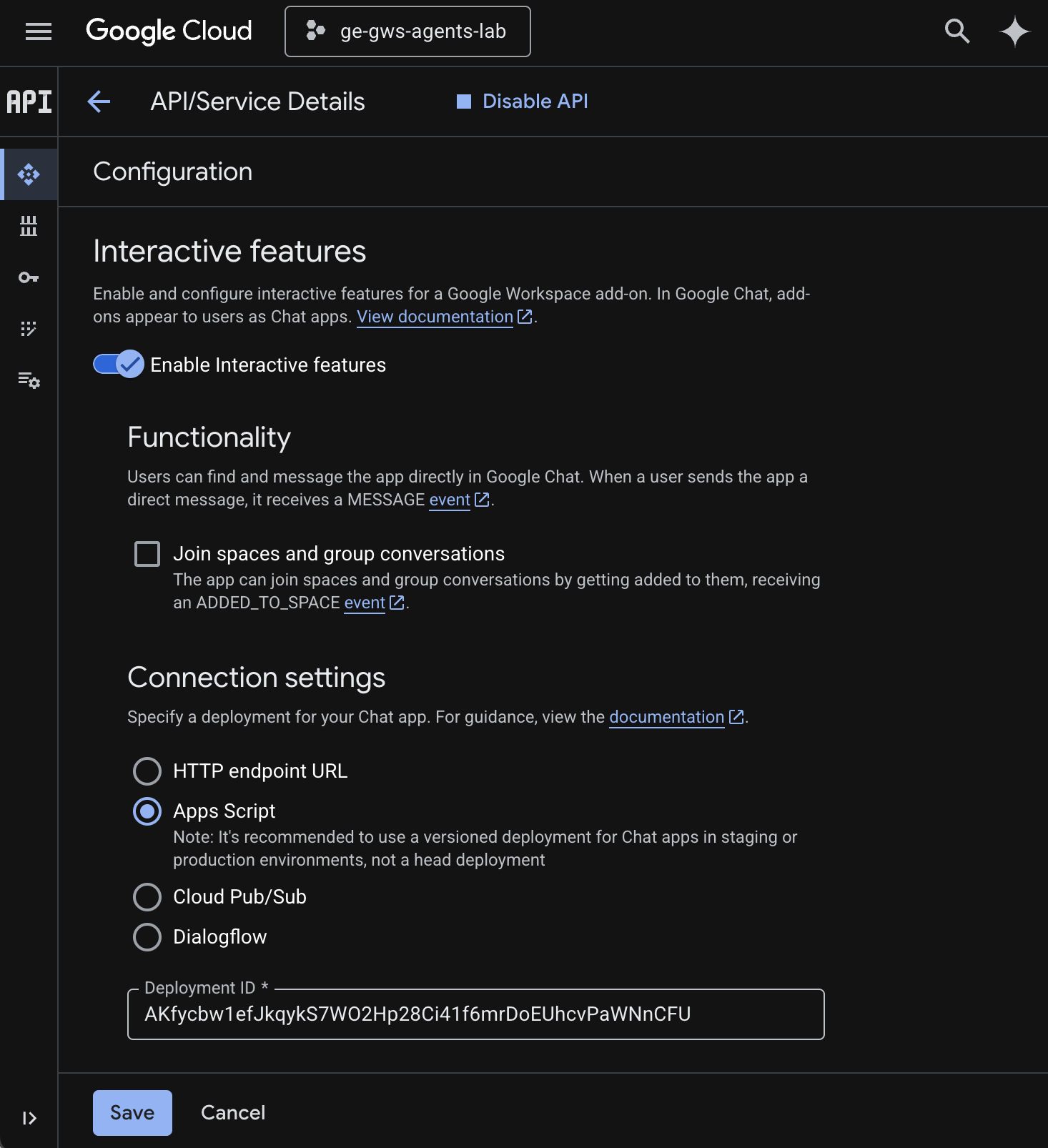
Google Chat APIを検索し、[Google Chat API]、[管理]、[構成] の順にクリックします。
- [インタラクティブ機能を有効にする] を選択します。
- [スペースとグループの会話に参加する] のチェックを外します。
- [接続設定] で [Apps Script] を選択します。
- [Deployment ID] を、前の手順でコピーした [Head Deployment ID] に設定します。
- [公開設定] で、[この Chat 用アプリを <Workspace ドメイン> の特定のユーザーとグループが使用できるようにします] を選択し、メールアドレスを入力します。
- [保存] をクリックします。
アドオンを試す
ライブ アドオンを操作して、データを取得し、コンテキストに応じた質問に回答できることを確認します。
新しいタブで Google Chat を開き、次の手順を行います。
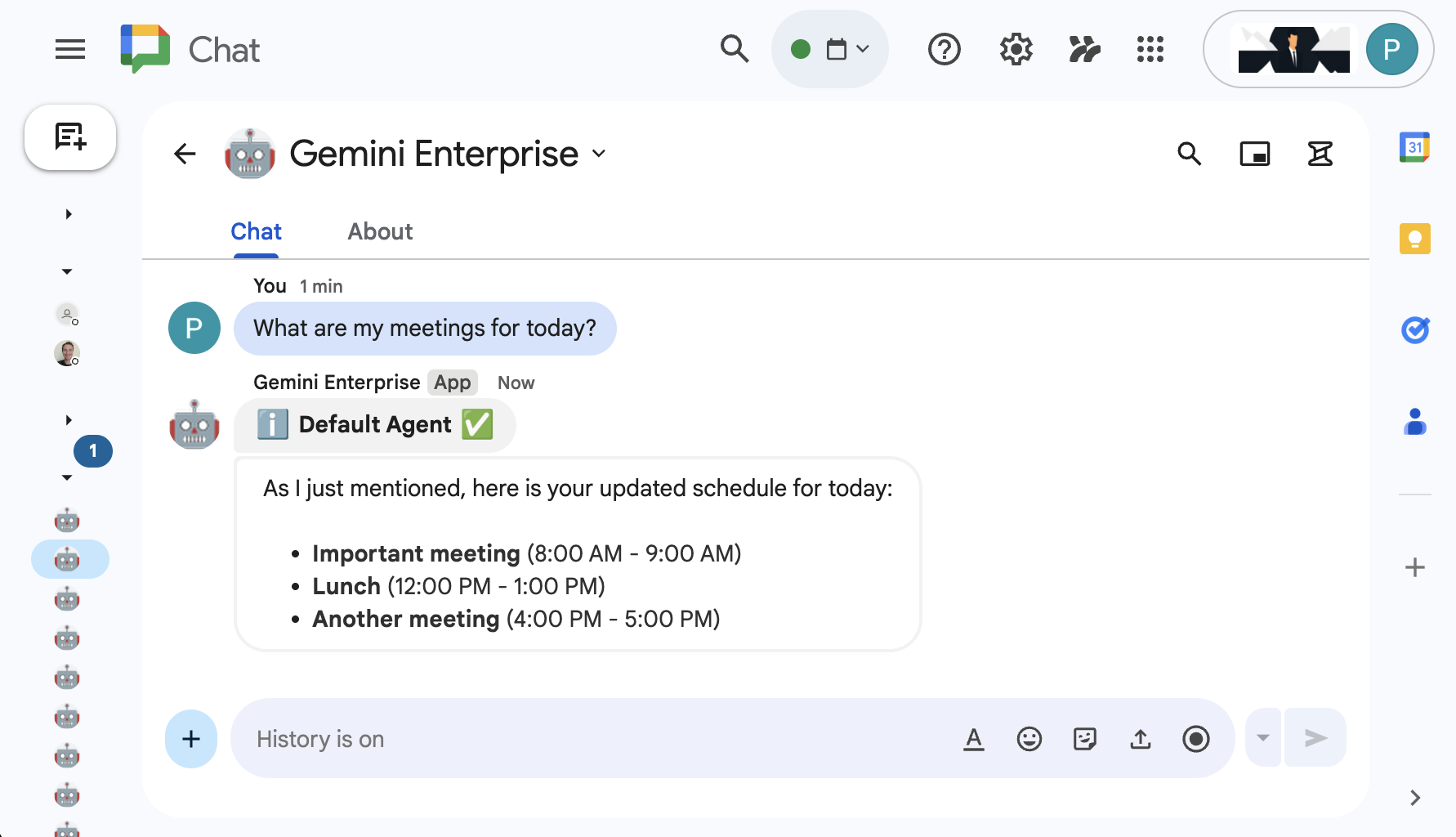
- Chat 用アプリの Gemini Enterprise とのダイレクト メッセージ スペースを開きます。
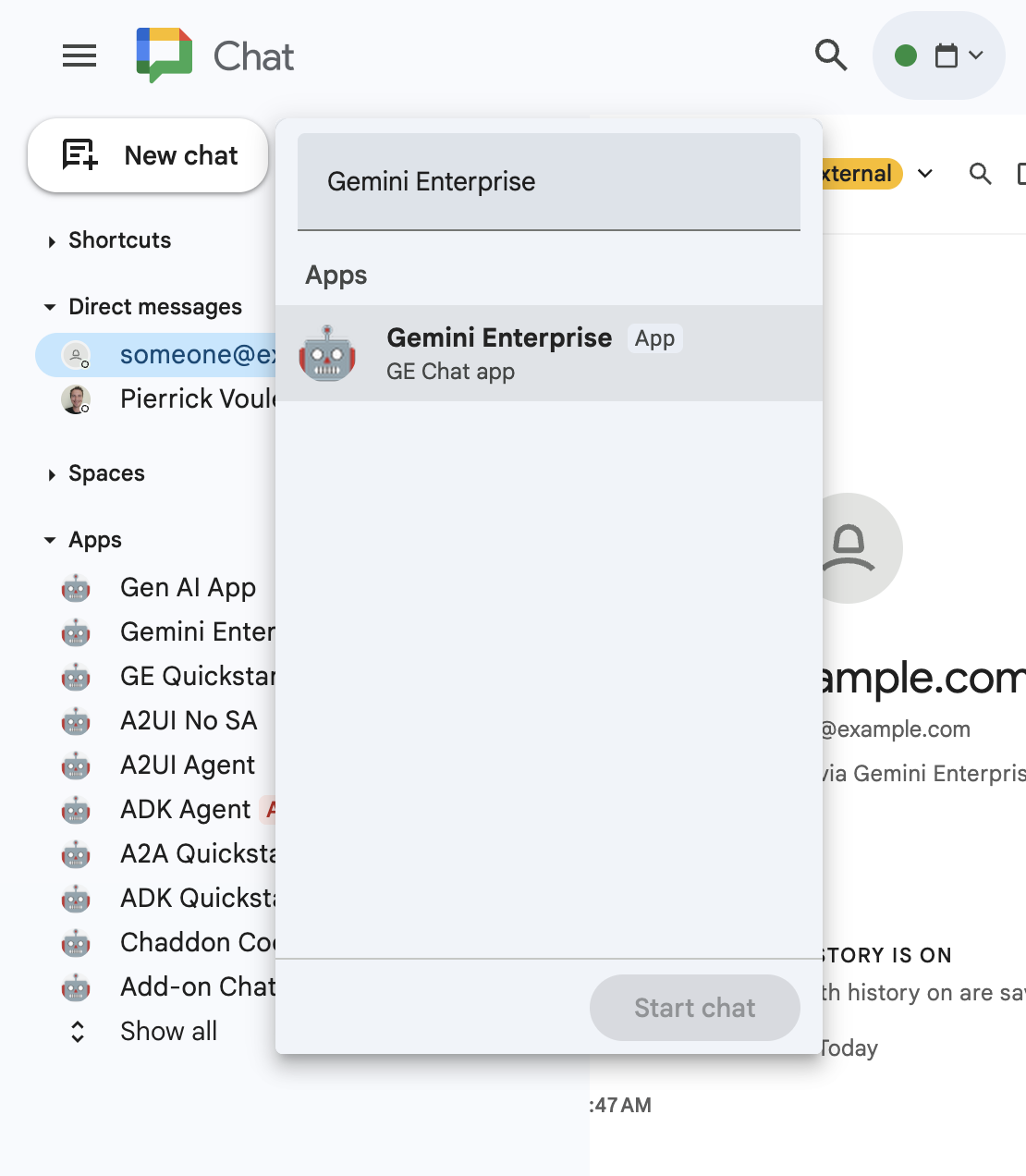
- [構成] をクリックして、認証フローを行います。
- 「
What are my meetings for today?」と入力してenterキーを押します。Gemini Enterprise Chat アプリは、結果を返信します。
新しいタブで Gmail を開き、次の手順を行います。
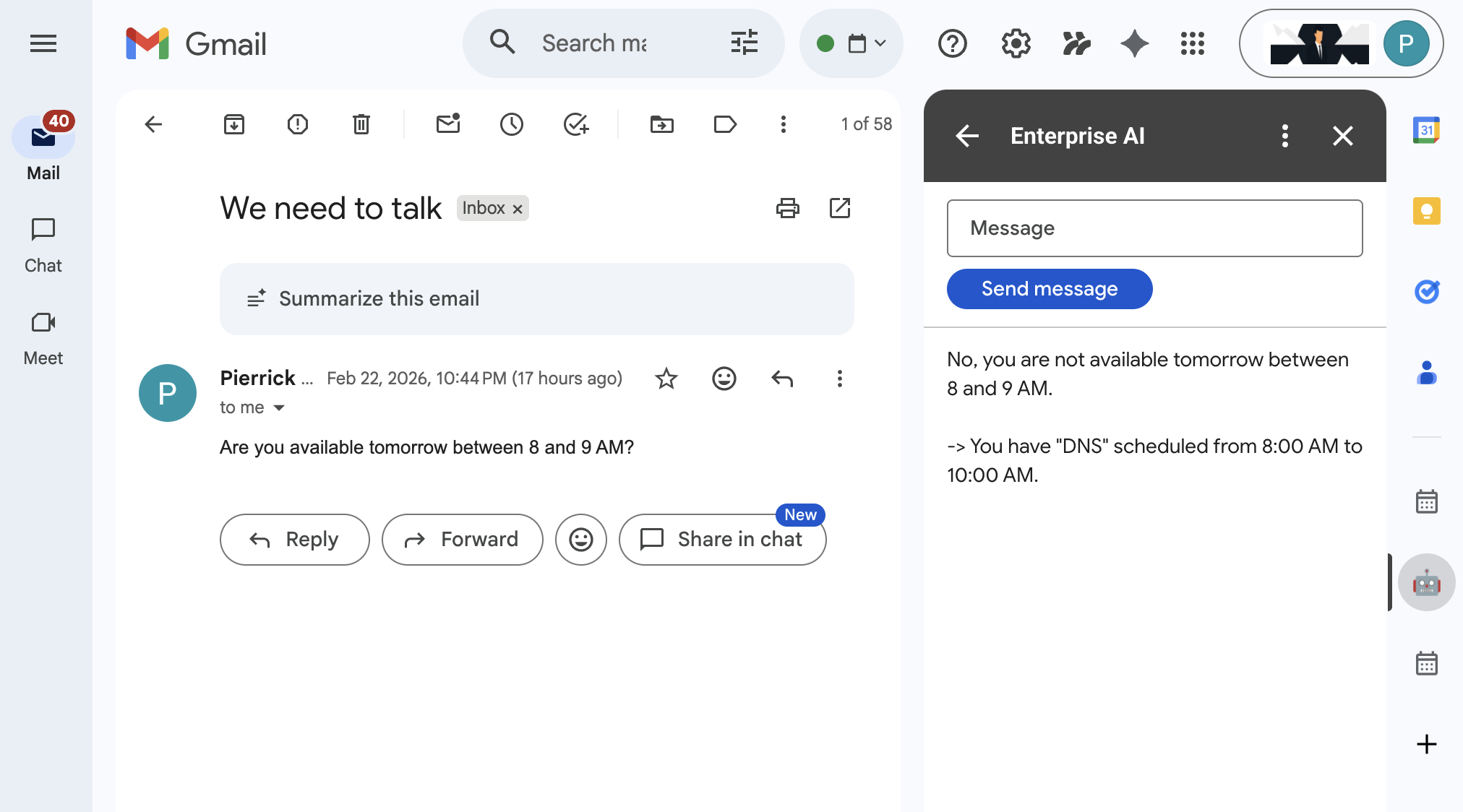
- 件名を
We need to talkに、本文をAre you available today between 8 and 9 AM?に設定して、自分宛てにメールを送信します。 - 新しく受信したメールを開きます。
- [Enterprise AI] アドオンのサイドバーを開きます。
- [メッセージ] を
Am I?に設定します。 - [メッセージを送信] をクリックします。
- 回答はボタンの後に表示されます。
6. クリーンアップ
Google Cloud プロジェクトを削除する
この Codelab で使用したリソースに対して Google Cloud アカウントで課金されないようにするには、Google Cloud プロジェクトを削除することをおすすめします。
Google Cloud コンソールで、次の手順を行います。
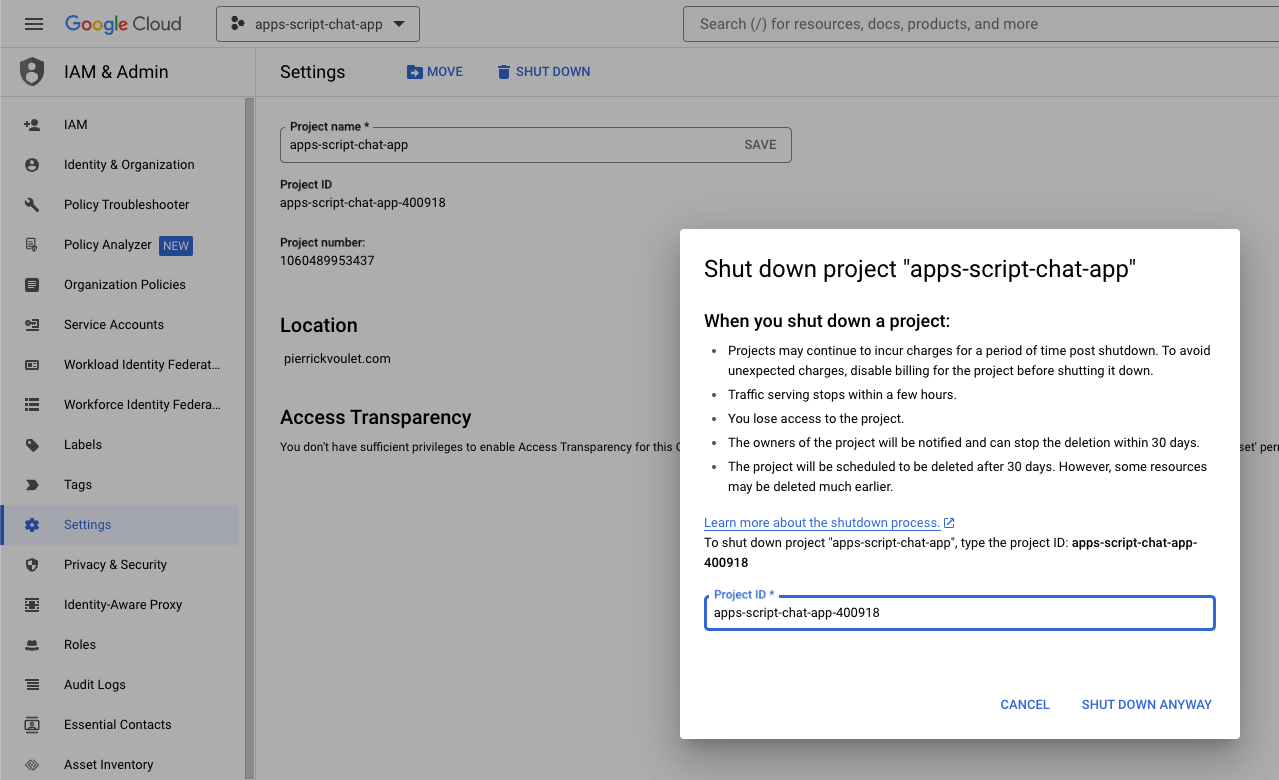
- メニュー アイコン ☰ > [IAM と管理] > [設定] をクリックします。
- [シャットダウン] をクリックします。
- プロジェクト ID を入力します。
- [このままシャットダウン] をクリックします。
7. 完了
おめでとうございます!Gemini Enterprise と Google Workspace を連携させて、従業員向けのソリューションを構築しました。
次のステップ
この Codelab では最も一般的なユースケースのみを紹介しましたが、ソリューションはさまざまな形で拡張して使用できます。たとえば次のような例があります。
- Gemini CLI や Antigravity などの AI を活用したデベロッパー ツールを使用します。
- カスタム MCP、カスタム関数呼び出し、生成 UI などの他のエージェント フレームワークやツールと統合します。
- Agent Platform などの専用プラットフォームでホストされているカスタムを含む他の AI モデルと統合します。
- Dialogflow などの専用プラットフォームでホストされている他のエージェントや、Cloud Marketplace を介してサードパーティがホストしている他のエージェントと統合する。
- Cloud Marketplace でエージェントを公開して、チーム、組織、一般ユーザーを支援します。
詳細
YouTube 動画、ドキュメント ウェブサイト、コードサンプル、チュートリアルなど、さまざまなデベロッパー向けリソースがあります。
- Google Cloud Developer Center
- サポートされているプロダクト | Google Cloud MCP サーバー
- A2UI
- Gemini Enterprise Agent Platform の Model Garden | Google Cloud
- エージェントの概要 | Gemini Enterprise | Google Cloud ドキュメント
- Google Cloud Marketplace と Gemini Enterprise による AI エージェントのスケーリング
- Google Cloud Marketplace で AI エージェントを提供する
- Google Workspace デベロッパーの YouTube チャンネル - デベロッパーの皆様、ようこそ
- Google Workspace デベロッパー ウェブサイト
- すべての Google Workspace アドオン サンプルの GitHub リポジトリ