
1. Introduction 👋
In this codelab, you will learn everything you need to know, as a developer, about the Gemini ecosystem. More specifically, you'll get to learn about different Gemini models, different tools powered by Gemini, Google Gen AI SDK to integrate with Gemini. You'll also explore various features of Gemini such as its long context, thinking mode, spatial understanding, Live API, native image & audio output, and more.
At the end of this codelab, you should have a solid understanding of the Gemini ecosystem.
💡What you'll learn
- Different Gemini models.
- Tools powered by Gemini models.
- How to integrate with Gemini using the Google Gen AI SDK.
- Long context window of Gemini.
- Gemini's thinking mode.
- Different built-in tools such as Google Search, Google Maps.
- How to interact with research agents with Interactions API.
- Image and Text-to-Speech Generation.
- Spatial understanding of Gemini.
- Live API for real-time voice and video interactions.
⚠️ What you'll need
- An API key for Google AI studio samples.
- A Google Cloud Project with billing enabled for Google Cloud samples.
- Your local development environment or Cloud Shell Editor in Google Cloud.
2. The Gemini Family 🫂
Gemini is Google's AI model that brings any idea to life. It's a great model for multimodal understanding and agentic and vibe coding — all built on a foundation of state-of-the-art reasoning. You can watch this video for a quick overview of the Gemini model:
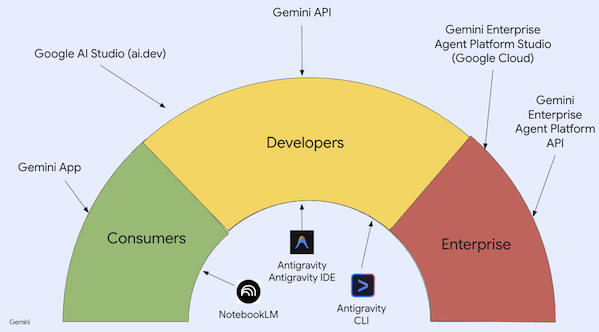
Gemini is not just a model. It is also an umbrella brand used in Google products
that utilize the Gemini model. There's a spectrum of Gemini products from consumer focused Gemini app and NotebookLM to developer focused AI Studio to enterprise focused Agent Platform of Google Cloud. There are also developer tools like Antigravity, Antigravity IDE, and Antigravity CLI powered by Gemini.
3. Gemini Powered Tools 🧰
Let's briefly take a look at the tools powered by Gemini.
Gemini App 💬
Gemini App ( gemini.google.com) is a chat-based consumer application. It's the easiest way to interact with different Gemini models (Flash-Lite, Flash, Pro) at different thinking levels.
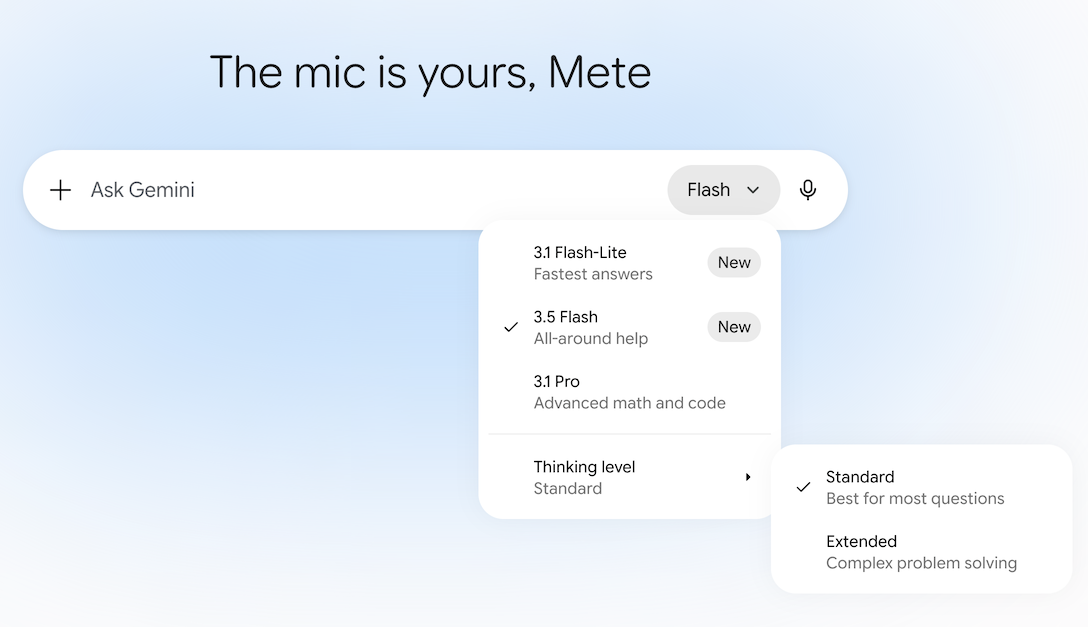
It also has tools for Deep Research, image, video, music generation and more. Gemini app is great for everyday usage.
NotebookLM 📓
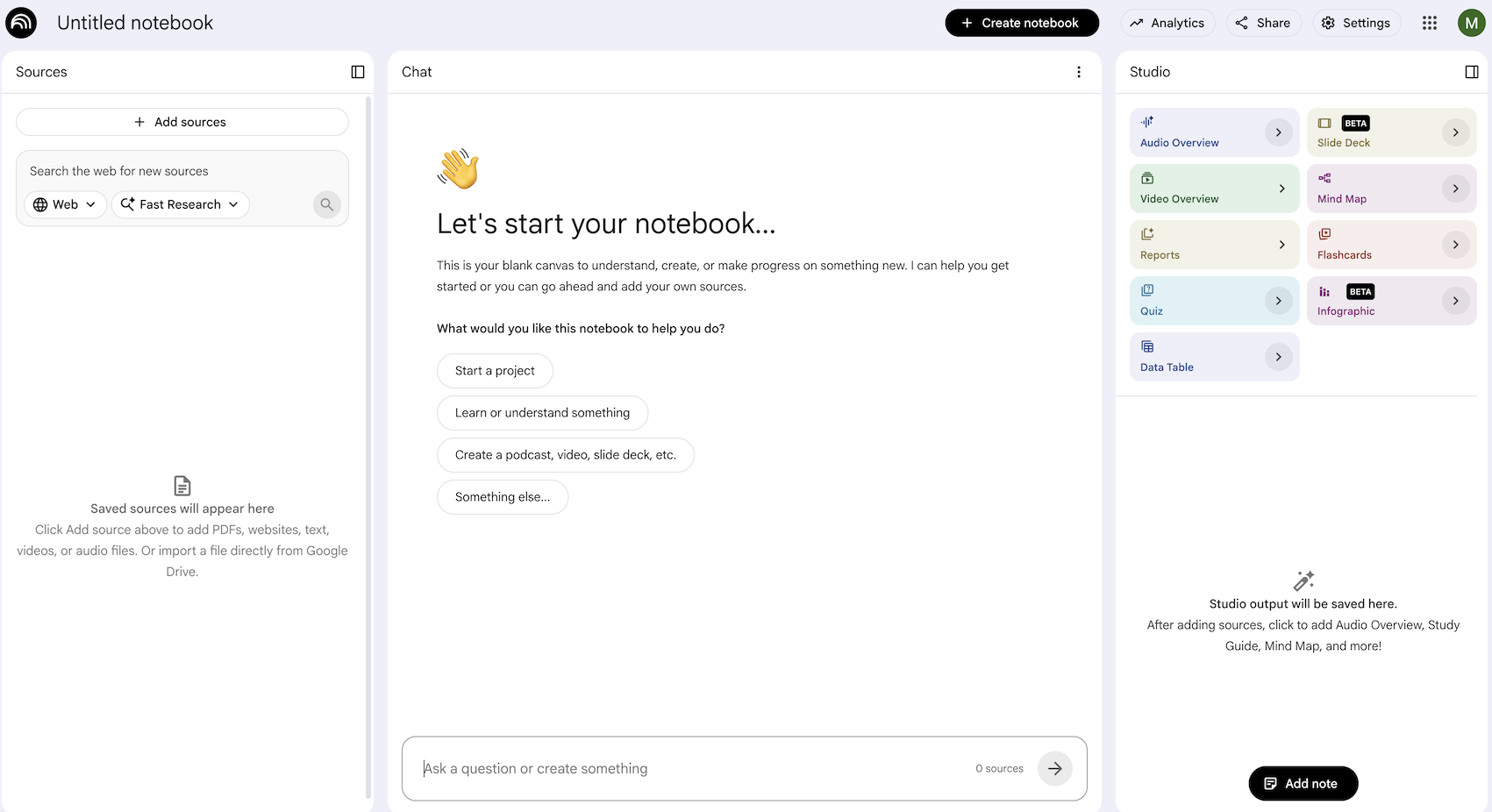
NotebookLM ( notebooklm.google.com) is an AI-powered research partner. Upload PDFs, websites, YouTube videos, audio files, Google Docs, Google Slides and more, and NotebookLM will summarize them and make interesting connections between topics, all powered by the latest version of Gemini's multimodal understanding capabilities. It also generates interesting and engaging audio overviews, video overviews, infographics, and more from the sources you uploaded.
Google AI Studio 🎨
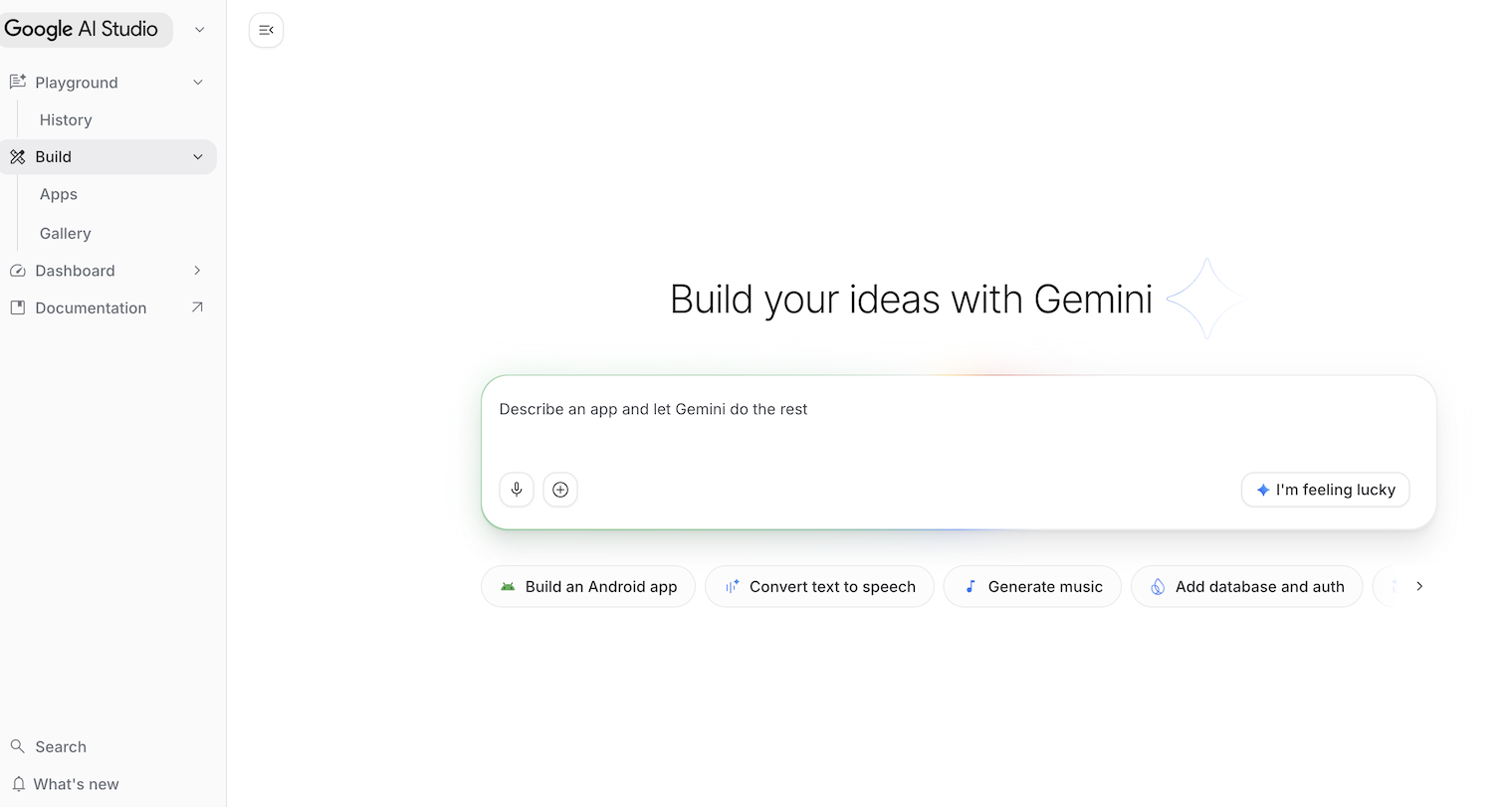
Google AI Studio ( ai.dev) is the fastest way to start building with Gemini. The Playground panel in Google AI Studio allows you to experiment with different models under Models section to generate text, image, video and also try out real-time voice and video with Gemini Live API.
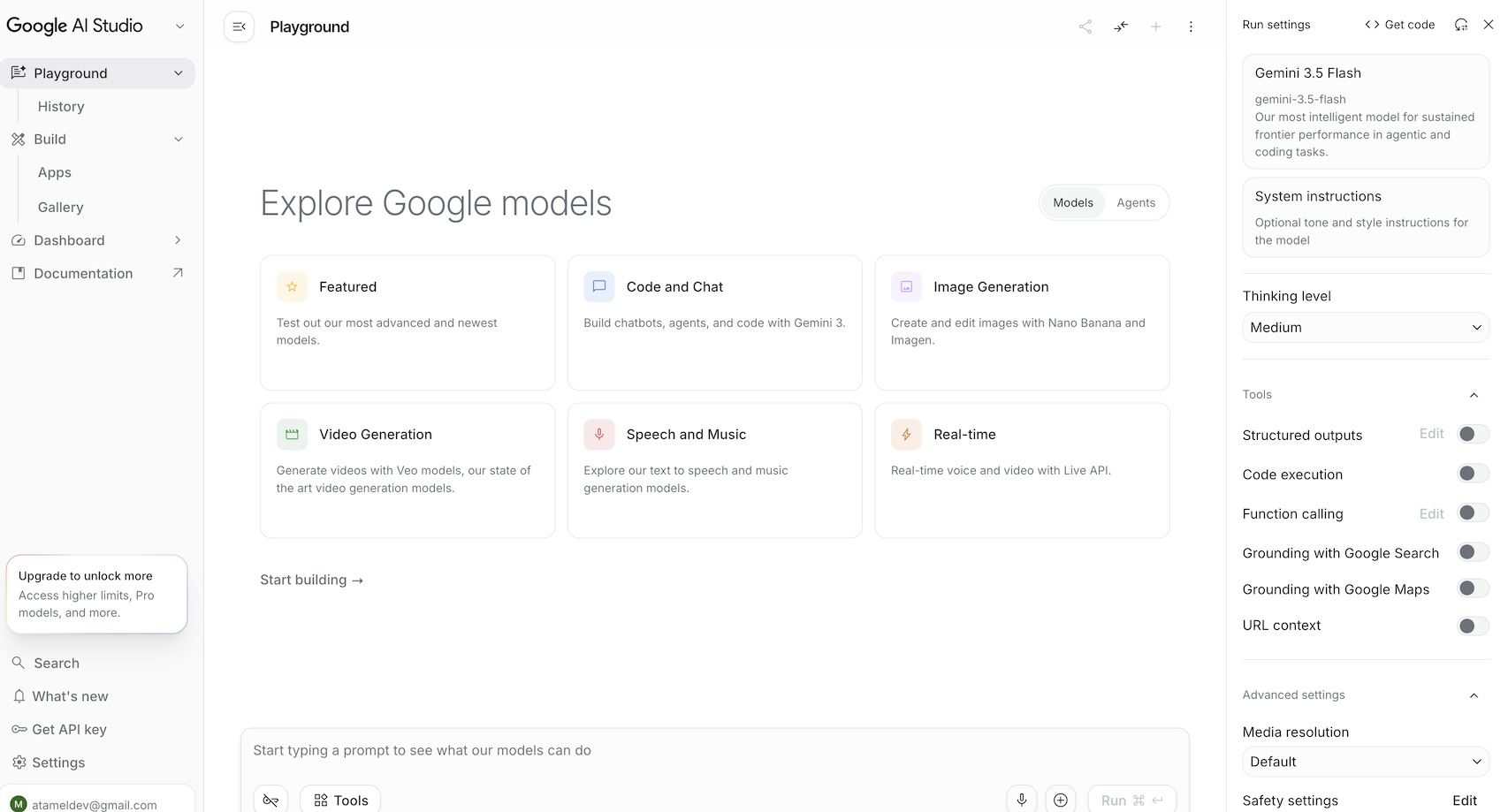
Under the Agents section, you can try out the managed agents in Gemini. The Build panel in Google AI Studio allows you to vibe-code full-stack web applications and deploy them to Cloud Run on Google Cloud and push the code to GitHub. You can also build Android apps.
Gemini Enterprise Agent Platform Studio ☁️
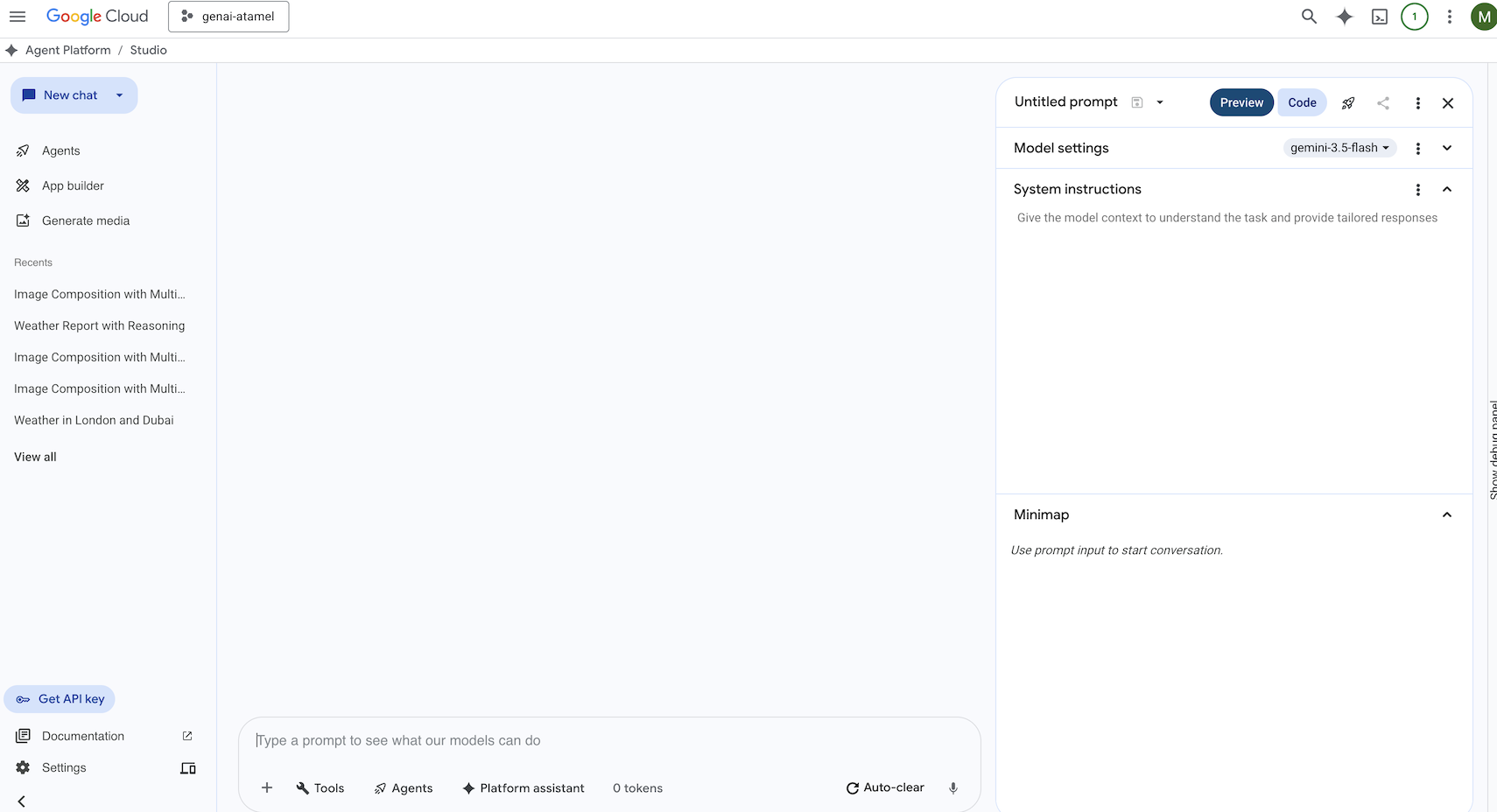
Gemini Enterprise Agent Platform is a fully-managed, unified AI development platform for building and using generative AI in Google Cloud. Gemini Enterprise Agent Platform Studio ( console.cloud.google.com/agent-platform) helps you test, tune, and deploy enterprise-ready generative AI applications.
Google Antigravity 🚀
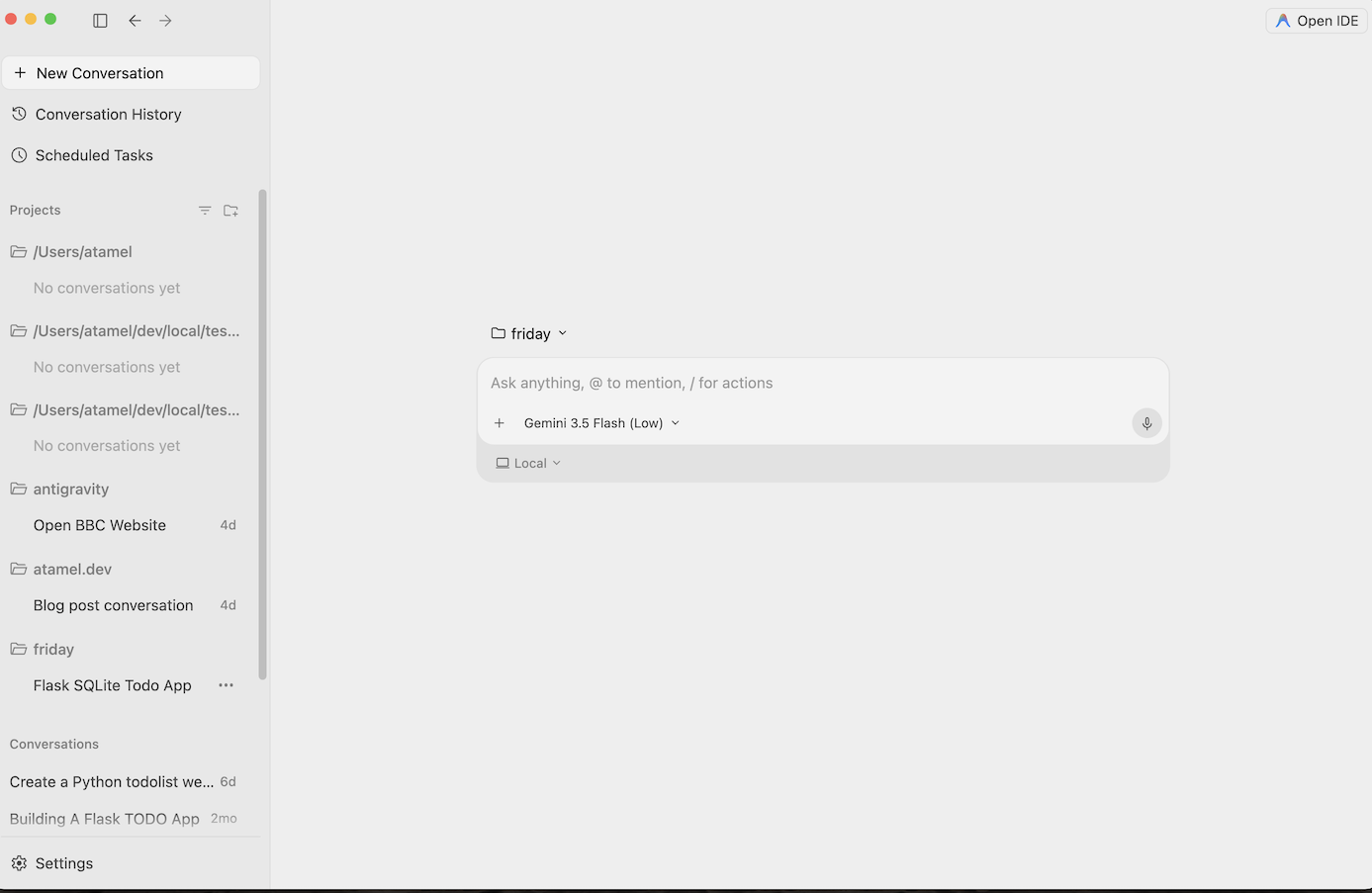
Antigravity ( antigravity.google) is an agentic development platform. Antigravity enables developers to operate at a higher, task-oriented level managing agents across workspaces. It also has Antigravity IDE, a familiar AI-driven IDE experience and Antigravity CLI for a command line interface.
Feel free to download and play with these tools. Here's some general guidance on which tool to use when:
- If you're just starting out, you'd probably use Gemini App to ask questions or generate some basic code.
- If you're vibe-coding a web application, Google AI Studio is probably the tool you'd choose.
- If you want to build a complex application with the context from your local development environment, then you'd choose Google Antigravity.
- If you want to deploy or already use Google Cloud and want the enterprise level support and features, Agent Platform and its studio is what you'd choose.
Of course, you can mix and match these tools. For example, start with vibe coding in AI Studio to push to GitHub and then use Antigravity to continue coding and then deploying to Google Cloud.
4. Gemini Models 🧠
Gemini Models are constantly getting better with new versions every few months. As of today (February 2026), these are the featured models on on Google Cloud:

There are many other Generally available Gemini models, Preview Gemini models, the open Gemma models, Embedding models, Imagegen models, Veo models, and more.
Take a look to visit Google Models documentation page to explore the major models available on Google Cloud for different use cases.
5. Google Gen AI SDK 📦
To integrate Gemini with your application, you can use the Google Gen AI SDK.
As we discussed earlier, you can access Gemini models through Google AI Studio or Agent Platform Studio. The Google Gen AI SDK provides a unified interface to Gemini models through both the Google AI API and the Google Cloud API. With a few exceptions, code that runs on one platform will run on both.
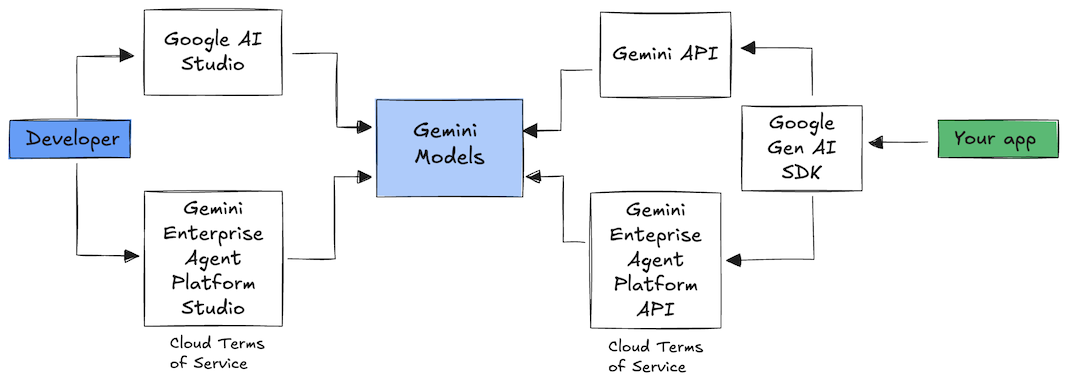
Google Gen AI SDK currently supports Python, Go, Node, Java, and C#.
For example, this is how you'd talk to Gemini in Google AI in Python:
client = genai.Client(
  api_key=your-gemini-api-key)

response = client.models.generate_content(
  model="gemini-3.5-flash",
  contents="Why is the sky blue?")
To do the same against Gemini in Agent Platform in Google Cloud, you just need to change the client initialization and the rest is the same:
client = genai.Client(
  vertexai=True,
  project=your-google-cloud-project,
  location="us-central1")

response = client.models.generate_content(
  model="gemini-3.5-flash",
  contents="Why is the sky blue?")
To run these samples yourself, you can run main.py in github.com/meteatamel/genai-samples/tree/main/vertexai/gemini2/hello-world.
6. Interactions API 🔄
The Interactions API (beta) is a new unified interface for interacting with Gemini models and agents. As an improved alternative to the generateContent API, it simplifies state management, tool orchestration, and long-running tasks.
This is how you'd have a basic interaction with the new API:
interaction =  client.interactions.create(
    model="gemini-3.5-flash",
    input="Tell me a short joke."
)
print(interaction.outputs[-1].text)
You can have a stateful conversation by passing the interaction id from the previous interaction:
interaction1 = client.interactions.create(
    model="gemini-3.5-flash",
    input="Hi, my name is Phil."
)
print(f"Model: {interaction1.outputs[-1].text}")

interaction2 = client.interactions.create(
    model="gemini-3.5-flash",
    input="What is my name?",
    previous_interaction_id=interaction1.id
)
print(f"Model: {interaction2.outputs[-1].text}")
The Interactions API is designed for building and interacting with agents, and includes support for function calling, built-in tools, structured outputs, and the Model Context Protocol (MCP). To see how it can be used with the Deep Research Agent, see the Agents 🤖 step below.
To run these samples yourself, you can run main.py in github.com/meteatamel/genai-samples/blob/main/vertexai/interactions-api.
7. Long Context Window 🪟
Many Gemini models come with large context windows of 1 million or more tokens. Historically, large language models (LLMs) were significantly limited by the amount of text (or tokens) that could be passed to the model at one time. The Gemini long context window unlocks many new use cases and developer paradigms.
To see the long context window in action, you can go to Agent Platform Studio Prompt Gallery and choose the Extract Video Chapters prompt. This prompt groups the video content into chapters and provides a summary for each chapter.
Once you run it with the supplied video, you should get an output similar to the following:
[
  {
    "timecode": "00:00",
    "chapterSummary": "The video opens with scenic views of Rio de Janeiro, introducing the \"Marvelous City\" and its famous beaches like Ipanema and Copacabana, before pivoting to the existence of the favelas."
  },
  {
    "timecode": "00:20",
    "chapterSummary": "The narrator describes the favelas, home to one in five Rio residents, highlighting that while often associated with crime and poverty, this is only a small part of their story."
  },
  {
    "timecode": "00:36",
    "chapterSummary": "Google introduces its project to map the favelas, emphasizing that providing addresses to these uncharted areas is a crucial step in giving residents an identity."
  },
  {
    "timecode": "00:43",
    "chapterSummary": "The video concludes by focusing on the people of the favelas, inviting viewers to go beyond the map and explore their world through a 360-degree experience."
  }
]
This is only possible thanks to the long context window of Gemini!
8. Thinking Mode 🧠
The Gemini models use an internal thinking process that significantly improves their reasoning for complex tasks. Thinking levels (Gemini 3) and budgets (Gemini 2.5) control the thinking behaviour. You can also enable the include_thoughts flag to see the model's raw thoughts.
To see the thinking mode in action, let's open up Google AI Studio ( ai.dev) and start a new chat. On the right side panel, you can set the thinking level.
If you click on the Get code button on top right, you can also see how you can set the thinking level in code, something similar to this:
response = client.models.generate_content(
    model="gemini-3.5-flash",
    contents="How does AI work?",
    config=types.GenerateContentConfig(
        thinking_config=types.ThinkingConfig(
          thinking_level="low",
          include_thoughts=True
        )
    ),
)
Play with different prompts and different thinking levels to see the behavior of the model.
9. Tools 🧰
Gemini comes with a number of built-in tools such as Google Search, Google Maps, Code Execution, Computer Use, File Search, and more. You can also define your custom tools with Function Calling. Let's take a look at how to use them briefly.
Google Search 🔎
You can ground model responses in Google Search results for more accurate, up-to-date, and relevant responses.
In Agent Platform Studio ( console.cloud.google.com/agent-platform/studio), or Google AI Studio ( ai.dev), you can start a new chat and make sure the Google Search grounding is off.
Then, you can ask a question about today's weather for your location. For example:
How's the weather in London today?
You usually get a response for a day in the past because the model does not have access to the latest information. For example:
In London today (Friday, May 24, 2025), the weather is a bit of a mixed bag, typical for late May.
Now, enable the Google Search grounding and ask the same question. You should get up-to-date weather information with links to the grounding sources:
In London today (Wednesday, February 11, 2026), the weather is cool and mostly cloudy with a chance of light rain.
This is how you'd have Google Search grounding in your code. You can also click on the Code button to get a grounding sample:
google_search_tool = Tool(google_search=GoogleSearch())
response = client.models.generate_content(
    model="gemini-3.5-flash",
    contents="How's the weather like today in London?",
    config=GenerateContentConfig(tools=[google_search_tool])
)
Google Maps 🗺️
You can also ground model responses with Google Maps, which has access to information on over 250 million places.
To see it in action, you can choose Google Maps instead of Google Search under the grounding section of the model settings in Agent Platform studio and ask a question that requires Maps data, for example:
Can you show me some Greek restaurants and their map coordinates near me?
The code for it looks something like this:
google_maps_tool = Tool(google_maps=GoogleMaps())
response = client.models.generate_content(
    model="gemini-3.5-flash",
    contents="What are the best restaurants near here?",
    config=GenerateContentConfig(tools=[google_maps_tool]),
       # Optional: Provide location context (this is in Los Angeles)
        tool_config=ToolConfig(
          retrieval_config=types.RetrievalConfig(
            lat_lng=types.LatLng(
                latitude=34.050481, longitude=-118.248526))),
)
Code Execution 🧑💻
Gemini can generate and run Python code with a list of supported libraries (pandas, numpy, PyPDF2, etc.). This is useful for applications that benefit from code-based reasoning (e.g. solving equations)
To try this out,switch to Google AI Studio, start a new chat, and make sure Code execution toggle is on. Then, ask a question where the code execution tool might be useful. For example:
What is the sum of the first 50 prime numbers?
Gemini should generate some Python code and run it. In the end, the right answer is 5117.
You can run the code execution tool from the code as follows:
code_execution_tool = Tool(code_execution=ToolCodeExecution())
response = client.models.generate_content(
  model="gemini-3.5-flash",
  contents="What is the sum of the first 50 prime numbers?",
  config=GenerateContentConfig(
    tools=[code_execution_tool],
    temperature=0))
Computer Use 🖥️
The Gemini Computer Use model (preview) enables you to build browser control agents to automate tasks. It works in this loop:
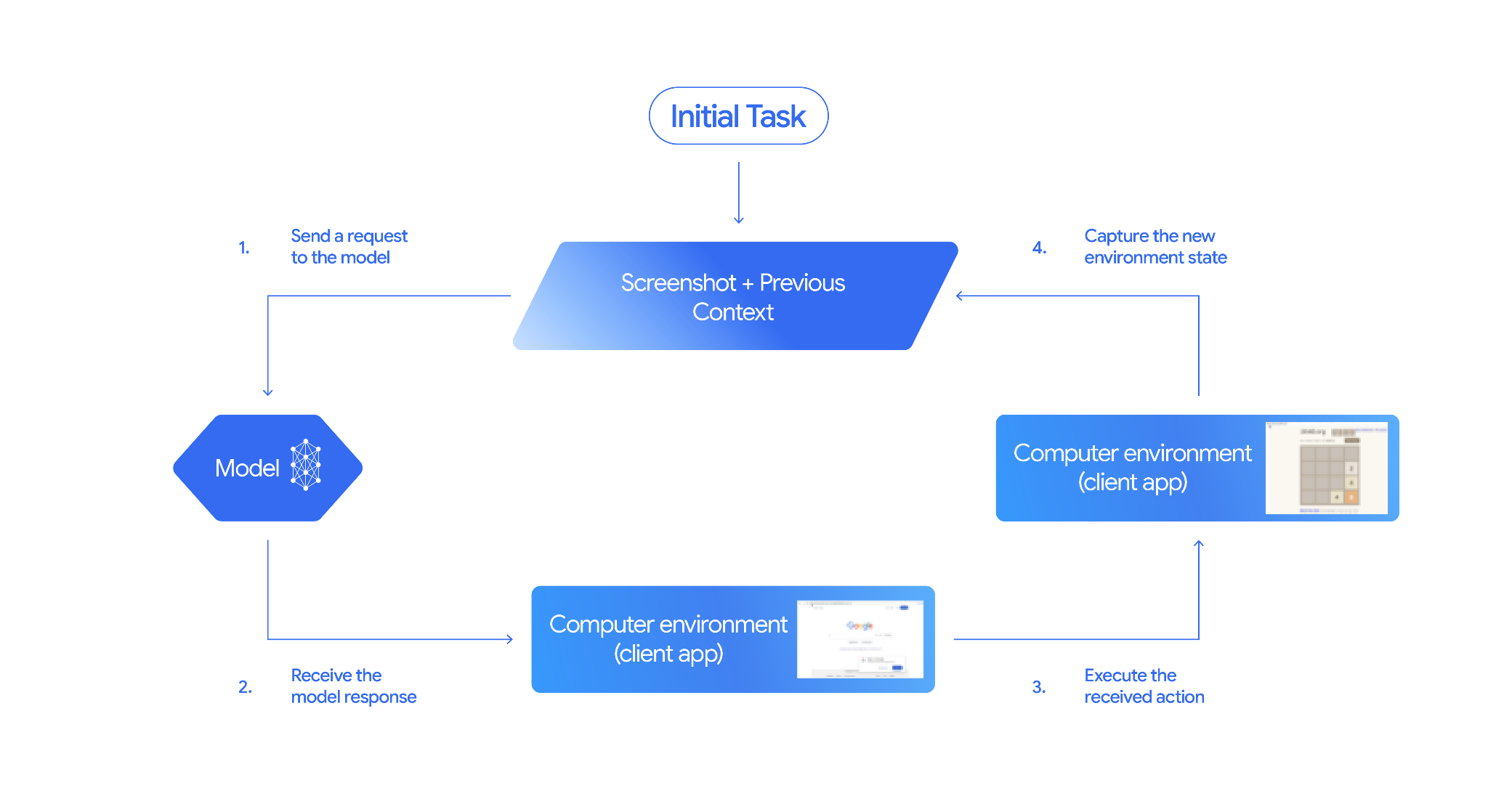
To see it in action, you can run main.py in github.com/google-gemini/computer-use-preview. Follow the instructions in the repository to create the python virtual env and install dependencies.
As an example, you can get your API key from Google AI Studio and ask Gemini to search for flights for you:
export GEMINI_API_KEY=your-api-key

python main.py --query "Find me top 5 fights sorted by price with the following constraints:

Flight site to use: www.google.com/travel/flights
From: London
To: Larnaca
One-way or roundtrip: One way
Date to leave: Sometime next week
Date to return: N/A
Travel preferences:
-Direct flights
-No flights before 10am
-Carry-on luggage"
You should see Gemini open an incognito browser and start searching for flights for you!
File Search 📁
File Search Tool enables effortless Retrieval Augmented Generation (RAG). Just upload your files and it does all the RAG details of chunking, embedding, retrieving for you.
To see it in action, you can run main.py in github.com/meteatamel/genai-beyond-basics/blob/main/samples/grounding/file-search-tool.
Get your API key from Google AI Studio and create a file search store:
export GEMINI_API_KEY=your-gemini-api-key

python main.py create_store my-file-search-store
Upload a PDF to the store:
python main.py upload_to_store fileSearchStores/myfilesearchstore-5a9x71ifjge9 cymbal-starlight-2024.pdf
Ask a question about the PDF pointing to the store:
python main.py generate_content "What's the cargo capacity of Cymbal Starlight?" fileSearchStores/myfilesearchstore-5a9x71ifjge9
You should get a response grounded with the PDF:
Generating content with file search store: fileSearchStores/myfilesearchstore-5a9x71ifjge9
Response: The Cymbal Starlight 2024 has a cargo capacity of 13.5 cubic feet, which is located in the trunk of the vehicle. It is important to distribute the weight evenly and not overload the trunk, as this could impact the vehicle's handling and stability. The vehicle can also accommodate up to two suitcases in the trunk, and it is recommended to use soft-sided luggage to maximize space and cargo straps to secure it while driving.
Grounding sources:  cymbal-starlight-2024.pdf
Function Calling 📲
If the built-in tools are not enough, you can also define your own tools (functions) in Gemini. You simply submit a Python function as a tool (instead of submitting a detailed OpenAPI specification of the function). It is automatically used as a tool by the model and the SDK.
For example, you can have a function to return a latitude and longitude of a location:
def location_to_lat_long(location: str):
    """Given a location, returns the latitude and longitude

    Args:
        location: The location for which to get the weather.

    Returns:
        The latitude and longitude information in JSON.
    """
    logger.info(f"Calling location_to_lat_long({location})")
    url = f"https://geocoding-api.open-meteo.com/v1/search?name={location}&count=1"
    return api_request(url)
You can also have a function to return the weather information from a latitude and longitude:
def lat_long_to_weather(latitude: str, longitude: str):
"""Given a latitude and longitude, returns the weather information
Args:
latitude: The latitude of a location
longitude: The longitude of a location
Returns:
The weather information for the location in JSON.
"""
logger.info(f"Calling lat_long_to_weather({latitude}, {longitude})")
url = (f"https://api.open-meteo.com/v1/forecast?latitude={latitude}&longitude={longitude}¤t=temperature_2m,"
f"relative_humidity_2m,surface_pressure,wind_speed_10m,wind_direction_10m&forecast_days=1")
return api_request(url)
Now, you can pass those two functions as tools to Gemini and let it use to fetch the weather information for a location:
def generate_content_with_function_calls():
    client = genai.Client(
        vertexai=True,
        project=PROJECT_ID,
        location=LOCATION)

    response = client.models.generate_content(
        model=MODEL_ID,
        contents=PROMPT,
        config=GenerateContentConfig(
            system_instruction=[
                "You are a helpful weather assistant.",
                "Your mission is to provide weather information for different cities."
                "Make sure your responses are in plain text format (no markdown) and include all the cities asked.",
            ],
            tools=[location_to_lat_long, lat_long_to_weather],
            temperature=0),
    )

    print(response.text)
    #print(response.automatic_function_calling_history)
To see it in action, you can run main_genaisdk.py in github.com/meteatamel/genai-beyond-basics/blob/main/samples/function-calling/weather.
10. Agents 🤖
The Interactions API of Gemini is designed for building and interacting with agents. You can use specialized agents like Gemini Deep Research Agent. The Gemini Deep Research Agent autonomously plans, executes, and synthesizes multi-step research tasks. It navigates complex information landscapes using web search and your own data to produce detailed, cited reports.
Here's how you'd use the Deep Research agent with the Interaction API:
interaction = client.interactions.create(
    input="Research the history of the Google TPUs.",
    agent="deep-research-pro-preview-12-2025",
    background=True
)

while True:
    if interaction.status == "completed":
        print("\nFinal Report:\n",
interaction.outputs[-1].text)
        break
To run this sample yourself, you can run main.py in github.com/meteatamel/genai-samples/blob/main/vertexai/interactions-api.
export GOOGLE_API_KEY=your-api-key
python main.py agent
You should see the research done after a while:
User: Research the history of the Google TPUs with a focus on 2025 and 2026

Status: in_progress
Status: in_progress
Status: in_progress
...
Model Final Report:
 # Architectural Convergence and Commercial Expansion: The History of Google TPUs (2015–2026)

## Key Findings
*   **Strategic Pivot (2025):** Google transitioned the Tensor Processing Unit (TPU) from a primarily internal differentiator to a commercial merchant-silicon competitor, epitomized by the massive "Ironwood" (TPU v7) deployment and external sales strategy.
*   **Technological Leap:** The introduction of TPU v7 "Ironwood" in 2025 marked a paradigm shift, utilizing 3nm process technology to deliver 42.5 exaFLOPS per pod, directly challenging NVIDIA's Blackwell architecture in the high-performance computing (HPC) sector.
...
11. Image Generation 📷
Nano Banana 🍌 is the name for Gemini's native image generation capabilities. Gemini can generate and process images conversationally with text, images, or a combination of both. This lets you create, edit, and iterate on visuals with control.
Nano Banana refers to two distinct models available in the Gemini API:
- Nano Banana: The Gemini Flash Image model. This model is designed for speed and efficiency, optimized for high-volume, low-latency tasks.
- Nano Banana Pro: The Gemini Pro Image model. This model is designed for professional asset production, utilizing advanced reasoning to follow complex instructions and render high-fidelity text.
Here's a snippet of code where you can pass an existing image and ask Nano Banana to edit the image:
from google import genai
from google.genai import types
from PIL import Image

client = genai.Client()

prompt = (
    "Create a picture of my cat eating a nano-banana in a "
    "fancy restaurant under the Gemini constellation",
)

image = Image.open("/path/to/cat_image.png")

response = client.models.generate_content(
    model="gemini-3.1-flash-image",
    contents=[prompt, image],
)

for part in response.parts:
    if part.text is not None:
        print(part.text)
    elif part.inline_data is not None:
        image = part.as_image()
        image.save("generated_image.png")
Nano Banana is available in Gemini App, AI Studio, or Agent Platform Studio. The simplest way to try it out is in Gemini App. In Gemini App ( gemini.google.com), select 🍌 Create images under Tools. Then, upload an image and try something fun. For example, you can say:
Can you transform this picture of mine to a nice beach on a tropical island?


12. Text-to-Speech Generation 🎶
Gemini can transform text input into single speaker or multi-speaker audio using Gemini text-to-speech (TTS) generation capabilities. TTS generation is controllable, meaning you can use natural language to structure interactions and guide the style, accent, pace, and tone of the audio.
The TTS capability differs from speech generation provided through the Live API, which is designed for interactive, unstructured audio, and multimodal inputs and outputs. While the Live API excels in dynamic conversational contexts, TTS through the Gemini API is tailored for scenarios that require exact text recitation with fine-grained control over style and sound, such as podcast or audiobook generation.
Here's a snippet of code for single-speaker TTS:
`
from google import genai
from google.genai import types
import wave

# Set up the wave file to save the output:
def wave_file(filename, pcm, channels=1, rate=24000, sample_width=2):
   with wave.open(filename, "wb") as wf:
      wf.setnchannels(channels)
      wf.setsampwidth(sample_width)
      wf.setframerate(rate)
      wf.writeframes(pcm)

client = genai.Client()

response = client.models.generate_content(
   model="gemini-3.1-flash-tts-preview",
   contents="Say cheerfully: Have a wonderful day!",
   config=types.GenerateContentConfig(
      response_modalities=["AUDIO"],
      speech_config=types.SpeechConfig(
         voice_config=types.VoiceConfig(
            prebuilt_voice_config=types.PrebuiltVoiceConfig(
               voice_name='Kore',
            )
         )
      ),
   )
)

data = response.candidates[0].content.parts[0].inline_data.data

file_name='out.wav'
wave_file(file_name, data) # Saves the file to current directory
You can see more samples in Text-to-speech generation (TTS) documentation.
You can also try out generating speech in Google AI Studio playground. Play with different prompts in generate-speech app.
13. Spatial Understanding 🌐
Gemini has advanced object detection and spatial understanding. The easiest way to understand this is to see it in action.
Go to the Google AI Studio Starter Applets and navigate to Spatial Understanding app.
Update the .env file with your Google AI Studio key, update the model in src/consts.tsx to one of the latest models. Install dependencies and start the app:
npm install
npm run dev
Navigate to http://localhost:8000/.
Now, you can start choosing some images and try to detect some items in the image with Gemini.
For example, you can detect "shadows" or "fruits" in different images:
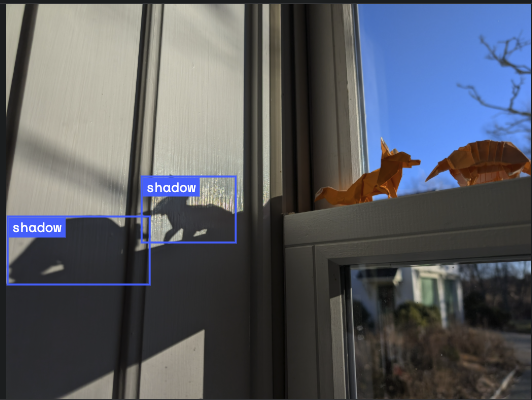
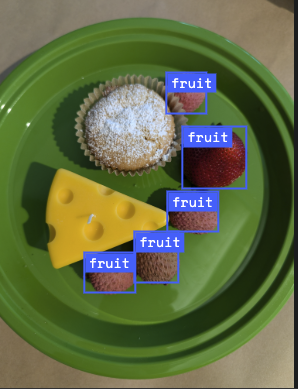
Play with different images and see how well Gemini detects and labels different objects.
14. Live API 🎤
The Live API enables low-latency, real-time voice and video interactions with Gemini. It processes continuous streams of audio, video, or text to deliver immediate, human-like spoken responses, creating a natural conversational experience for your users.
Go ahead and try out the Live API in Google AI Studio or the Live API in Agent Platform Studio. In both apps, you can share your voice, video, and screen and have a live conversation with Gemini.
Go ahead and start sharing your video or screen, and ask Gemini general things via voice. For example:
Can you describe what you see on the screen?
You'll be amazed how natural the responses will sound from Gemini.
15. Conclusion
In this codelab, we covered the Gemini ecosystem, starting with the Gemini family of products and learning how to integrate the models into our applications using the unified Google Gen AI SDK. We explored Gemini's cutting-edge features, including the Long Context Window, Thinking Mode, built-in grounding tools, Live API, and Spatial Understanding. We encourage you to dive deeper into the reference docs and continue experimenting with the full potential of Gemini.