

1. 소개 👋
이 Codelab에서는 개발자로서 Gemini 생태계에 관해 알아야 할 모든 것을 알아봅니다. 구체적으로 다양한 Gemini 모델, Gemini 기반의 다양한 도구, Gemini와 통합할 수 있는 Google 생성형 AI SDK에 대해 알아봅니다. 또한 긴 컨텍스트, 사고 모드, 공간 이해, Live API, 기본 이미지 및 오디오 출력 등 Gemini의 다양한 기능을 살펴봅니다.
이 Codelab을 마치면 Gemini 생태계를 확실히 이해할 수 있습니다.
💡학습 내용
- 다양한 Gemini 모델
- Gemini 모델 기반 도구
- Google 생성형 AI SDK를 사용하여 Gemini와 통합하는 방법
- Gemini의 긴 컨텍스트 윈도우
- Gemini의 사고 모드
- Google 검색, Google 지도와 같은 다양한 내장 도구
- Interactions API를 사용하여 연구 에이전트와 상호작용하는 방법
- 이미지 및 텍스트 음성 변환 생성
- Gemini의 공간 이해
- 실시간 음성 및 동영상 상호작용을 위한 Live API
⚠️ 필요한 항목
- Google AI Studio 샘플의 API 키입니다.
- Google Cloud 샘플에 결제가 사용 설정된 Google Cloud 프로젝트
- 로컬 개발 환경 또는 Google Cloud의 Cloud Shell 편집기
2. Gemini 제품군 🫂
Gemini는 어떤 아이디어든 실현할 수 있도록 도와주는 Google의 AI 모델입니다. 최첨단 추론을 기반으로 구축된 멀티모달 이해, 에이전트형 코딩, 바이브 코딩에 적합한 모델입니다. 이 동영상에서 Gemini 모델을 간략하게 살펴볼 수 있습니다.
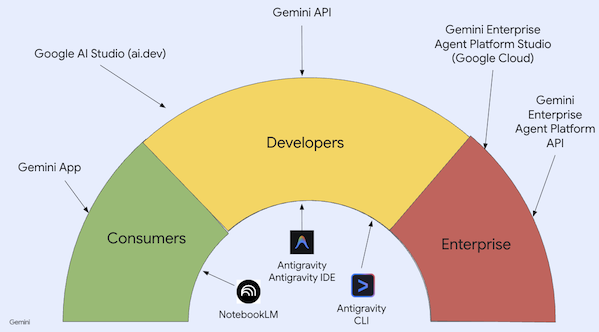
Gemini는 단순한 모델이 아닙니다. 또한 Google 제품에서 사용되는 포괄적인 브랜드입니다.
Gemini 모델을 활용합니다. 소비자 중심의 Gemini 앱 및 NotebookLM부터 개발자 중심의 AI Studio, 엔터프라이즈 중심의 Google Cloud Agent Platform에 이르기까지 다양한 Gemini 제품이 있습니다. Gemini로 구동되는 Antigravity, Antigravity IDE, Antigravity CLI와 같은 개발자 도구도 있습니다.
3. Gemini 기반 도구 🧰
Gemini 기반 도구를 간단히 살펴보겠습니다.
Gemini 앱 💬
Gemini 앱 ( gemini.google.com)은 채팅 기반 소비자 애플리케이션입니다. 다양한 사고 수준에서 여러 Gemini 모델 (Flash-Lite, Flash, Pro)과 상호작용하는 가장 쉬운 방법입니다.
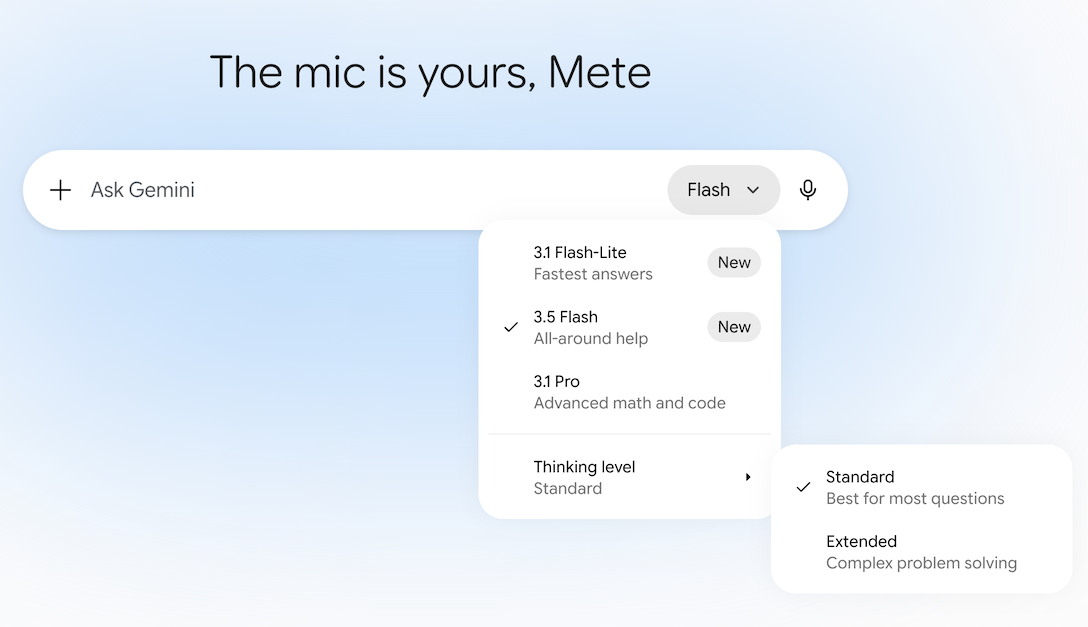
Deep Research, 이미지, 동영상, 음악 생성 등을 위한 도구도 있습니다. Gemini 앱은 일상적인 용도로 사용하기에 적합합니다.
NotebookLM 📓
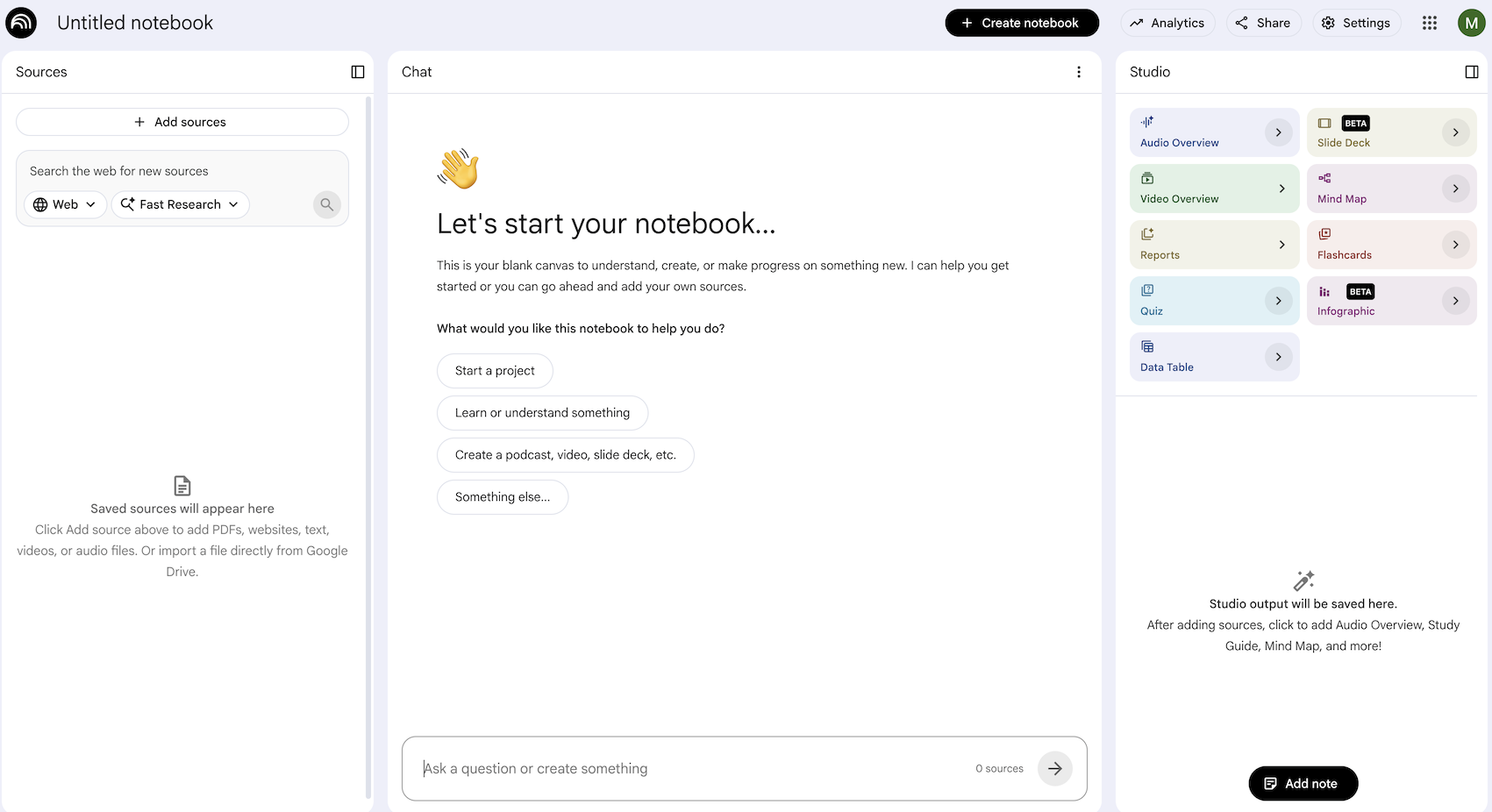
NotebookLM ( notebooklm.google.com)은 AI 기반 연구 파트너입니다. PDF, 웹사이트, YouTube 동영상, 오디오 파일, Google 문서, Google 슬라이드 등을 업로드하면 NotebookLM이 이를 요약하고 주제 간에 흥미로운 연결을 만듭니다. 이 모든 작업은 최신 버전의 Gemini 멀티모달 이해 기능을 통해 수행됩니다. 또한 업로드한 소스를 기반으로 흥미롭고 매력적인 AI 오디오 오버뷰, AI 동영상 오버뷰, 인포그래픽 등을 생성합니다.
Google AI Studio 🎨
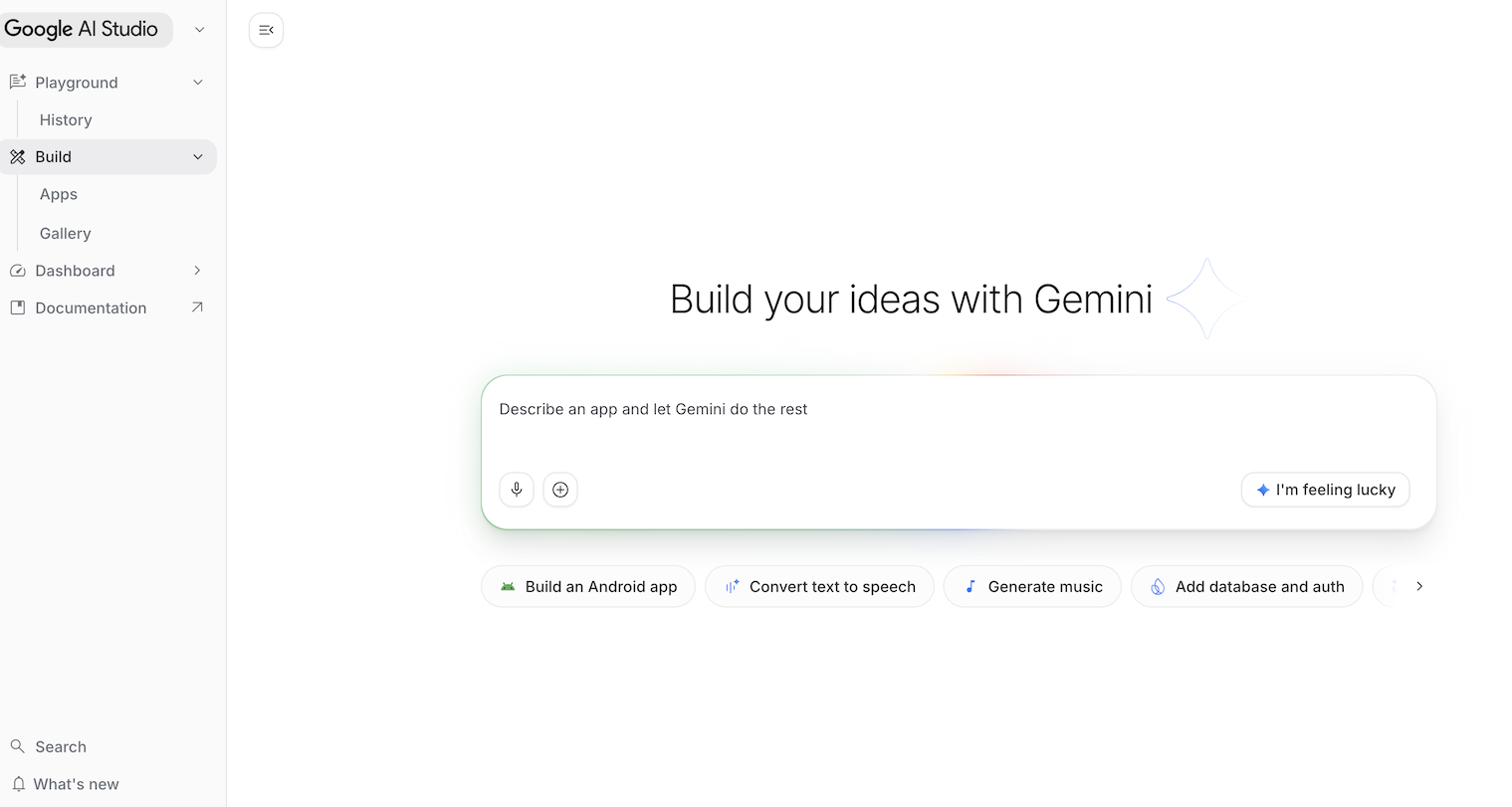
Google AI Studio ( ai.dev)는 Gemini로 빌드를 시작하는 가장 빠른 방법입니다. Google AI Studio의 플레이그라운드 패널을 사용하면 모델 섹션에서 다양한 모델을 실험하여 텍스트, 이미지, 동영상을 생성하고 Gemini Live API로 실시간 음성 및 동영상을 사용해 볼 수 있습니다.
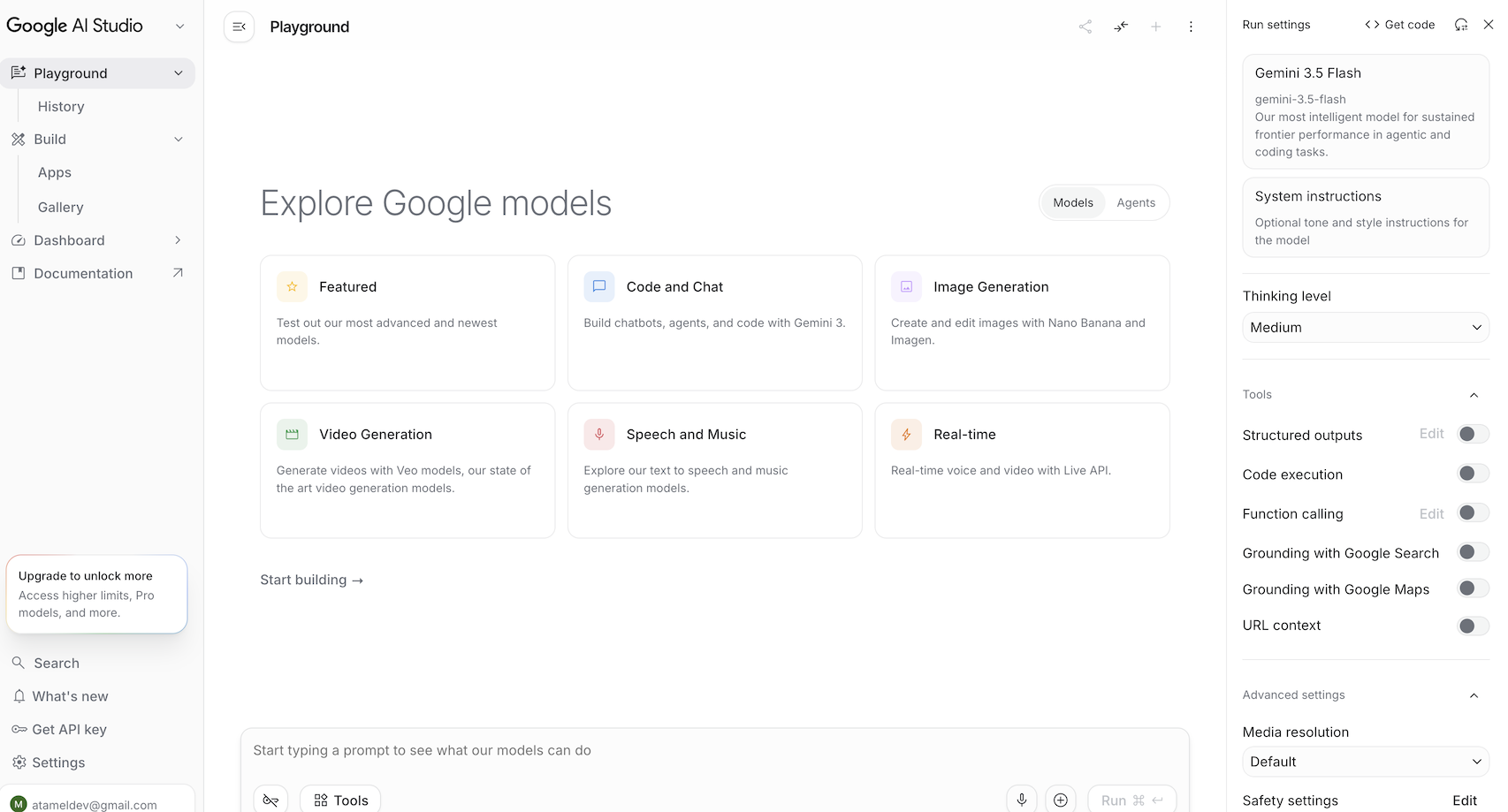
에이전트 섹션에서 Gemini의 관리 에이전트를 사용해 볼 수 있습니다. Google AI Studio의 빌드 패널을 사용하면 풀스택 웹 애플리케이션을 바이브 코딩하고 Google Cloud의 Cloud Run에 배포하고 코드를 GitHub에 푸시할 수 있습니다. Android 앱을 빌드할 수도 있습니다.
Gemini Enterprise Agent Platform Studio ☁️
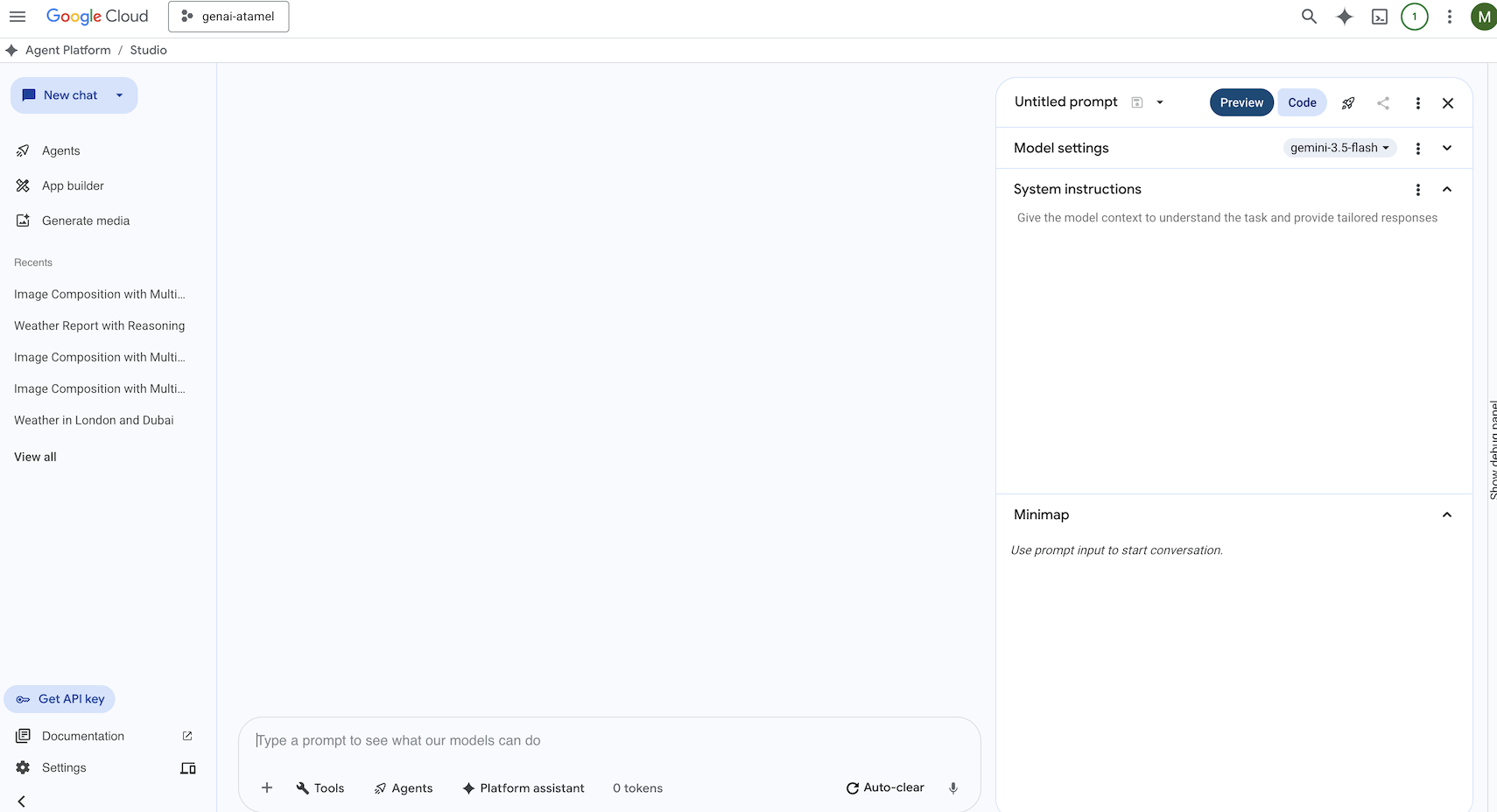
Gemini Enterprise Agent Platform은 Google Cloud에서 생성형 AI를 빌드하고 사용할 수 있는 완전 관리형 통합 AI 개발 플랫폼입니다. Gemini Enterprise Agent Platform Studio ( console.cloud.google.com/agent-platform)를 사용하면 엔터프라이즈급 생성형 AI 애플리케이션을 테스트, 조정, 배포할 수 있습니다.
Google Antigravity 🚀
Antigravity ( antigravity.google)는 에이전트형 개발 플랫폼입니다. Antigravity를 사용하면 개발자가 작업공간 전반에서 에이전트를 관리하는 더 높은 작업 중심 수준에서 작업할 수 있습니다. 또한 친숙한 AI 기반 IDE 환경인 Antigravity IDE와 명령줄 인터페이스용 Antigravity CLI도 있습니다.
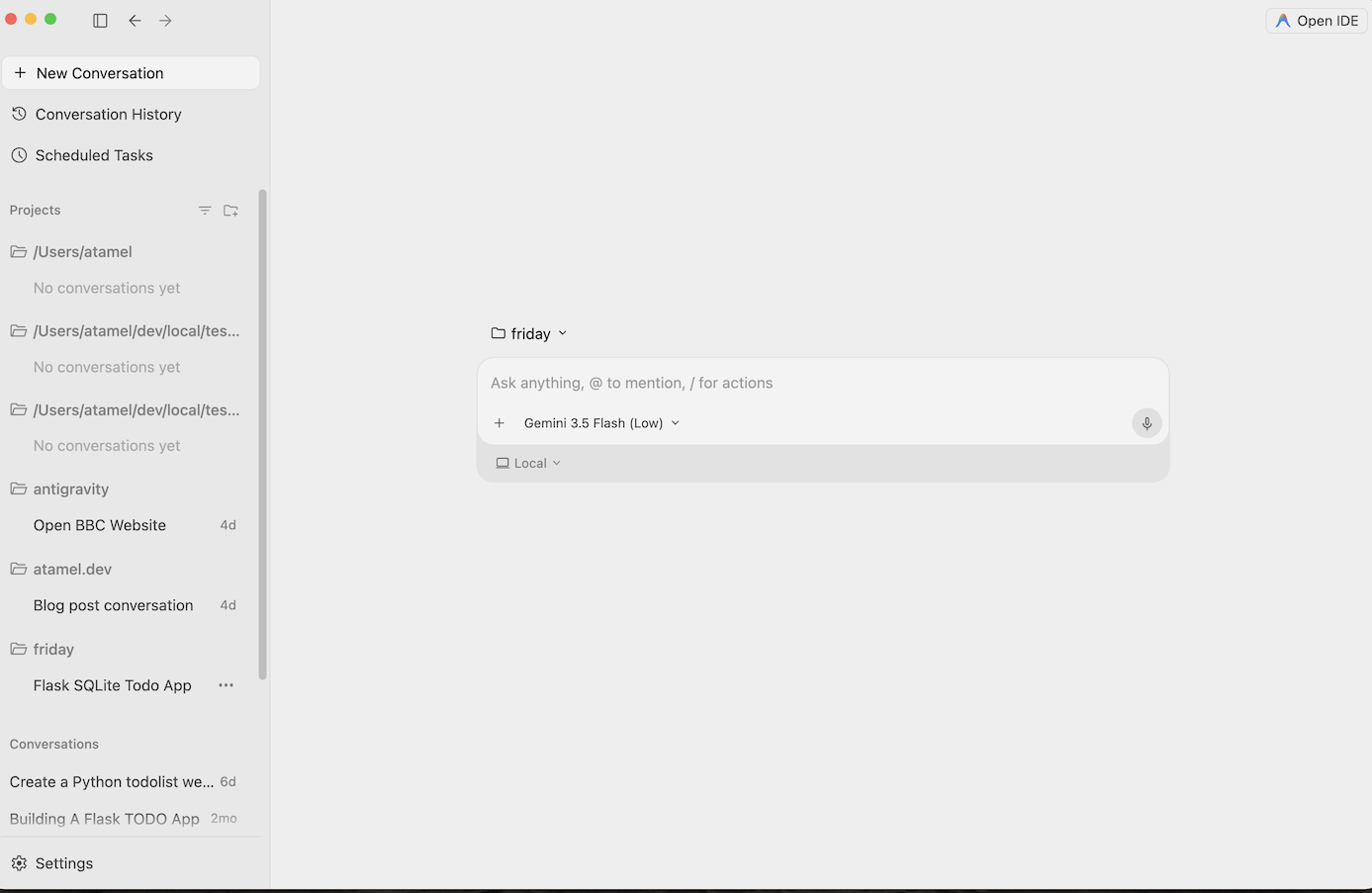
이러한 도구를 다운로드하여 자유롭게 사용해 보세요. 다음은 언제 어떤 도구를 사용해야 하는지에 관한 일반적인 가이드입니다.
- 이제 막 시작하는 경우 Gemini 앱을 사용하여 질문하거나 기본적인 코드를 생성할 수 있습니다.
- 웹 애플리케이션을 분위기에 맞춰 코딩하는 경우 Google AI Studio가 적합한 도구일 것입니다.
- 로컬 개발 환경의 컨텍스트를 사용하여 복잡한 애플리케이션을 빌드하려면 Google Antigravity를 선택합니다.
- Google Cloud를 배포하거나 이미 사용 중이며 엔터프라이즈 수준의 지원과 기능을 원하는 경우 Agent Platform과 스튜디오를 선택하면 됩니다.
물론 이러한 도구를 조합할 수도 있습니다. 예를 들어 AI Studio에서 바이브 코딩을 시작하여 GitHub에 푸시한 다음 Antigravity를 사용하여 코딩을 계속하고 Google Cloud에 배포할 수 있습니다.
4. Gemini 모델 🧠
Gemini 모델은 몇 개월마다 새로운 버전이 출시되면서 지속적으로 개선되고 있습니다. 현재 (2026년 2월) Google Cloud의 추천 모델은 다음과 같습니다.
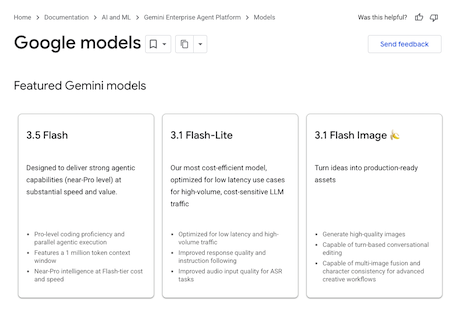
정식 버전 Gemini 모델, 프리뷰 Gemini 모델, 오픈 Gemma 모델, Embedding 모델, Imagegen 모델, Veo 모델 등 다양한 모델이 있습니다.
Google 모델 문서 페이지를 방문하여 다양한 사용 사례에 사용할 수 있는 Google Cloud의 주요 모델을 살펴보세요.
5. Google 생성형 AI SDK 📦
애플리케이션에 Gemini를 통합하려면 Google 생성형 AI SDK를 사용하면 됩니다.
앞서 설명한 것처럼 Google AI Studio 또는 Agent Platform Studio를 통해 Gemini 모델에 액세스할 수 있습니다. Google 생성형 AI SDK는 Google AI API와 Google Cloud API를 통해 Gemini 모델에 대한 통합 인터페이스를 제공합니다. 몇 가지 예외를 제외하고 한 플랫폼에서 실행되는 코드는 두 플랫폼 모두에서 실행됩니다.
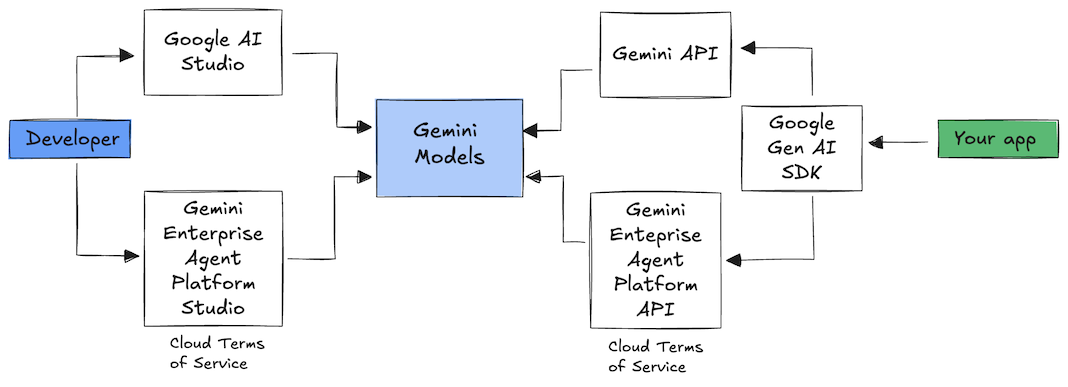
Google 생성형 AI SDK는 현재 Python, Go, Node, Java, C#을 지원합니다.
예를 들어 Python에서 Google AI의 Gemini와 대화하는 방법은 다음과 같습니다.
client = genai.Client(
  api_key=your-gemini-api-key)

response = client.models.generate_content(
  model="gemini-3.5-flash",
  contents="Why is the sky blue?")
Google Cloud의 Agent Platform에서 Gemini에 대해 동일한 작업을 수행하려면 클라이언트 초기화만 변경하면 됩니다. 나머지는 동일합니다.
client = genai.Client(
  vertexai=True,
  project=your-google-cloud-project,
  location="us-central1")

response = client.models.generate_content(
  model="gemini-3.5-flash",
  contents="Why is the sky blue?")
이러한 샘플을 직접 실행하려면 github.com/meteatamel/genai-samples/tree/main/vertexai/gemini2/hello-world에서 main.py를 실행하세요.
6. Interactions API 🔄
Interactions API (베타)는 Gemini 모델 및 에이전트와 상호작용하기 위한 새로운 통합 인터페이스입니다. generateContent API의 개선된 대안으로 상태 관리, 도구 조정, 장기 실행 작업을 간소화합니다.
새 API와 기본적인 상호작용을 하는 방법은 다음과 같습니다.
interaction =  client.interactions.create(
    model="gemini-3.5-flash",
    input="Tell me a short joke."
)
print(interaction.outputs[-1].text)
이전 상호작용의 상호작용 ID를 전달하여 상태 저장 대화를 할 수 있습니다.
interaction1 = client.interactions.create(
    model="gemini-3.5-flash",
    input="Hi, my name is Phil."
)
print(f"Model: {interaction1.outputs[-1].text}")

interaction2 = client.interactions.create(
    model="gemini-3.5-flash",
    input="What is my name?",
    previous_interaction_id=interaction1.id
)
print(f"Model: {interaction2.outputs[-1].text}")
Interactions API는 에이전트를 빌드하고 에이전트와 상호작용하도록 설계되었으며, 함수 호출, 기본 제공 도구, 구조화된 출력, 모델 컨텍스트 프로토콜 (MCP)을 지원합니다. Deep Research 에이전트와 함께 사용하는 방법은 아래의 에이전트 🤖 단계를 참고하세요.
이러한 샘플을 직접 실행하려면 github.com/meteatamel/genai-samples/blob/main/vertexai/interactions-api에서 main.py를 실행하세요.
7. 긴 컨텍스트 윈도우 🪟
많은 Gemini 모델에는 100만 개 이상의 토큰으로 구성된 큰 컨텍스트 윈도우가 제공됩니다. 지금까지 대규모 언어 모델 (LLM)은 한 번에 모델에 전달할 수 있는 텍스트 (또는 토큰) 양에 의해 크게 제한되었습니다. Gemini 긴 컨텍스트 윈도우는 많은 새로운 사용 사례와 개발자 패러다임을 제공합니다.
긴 컨텍스트 윈도우가 작동하는 것을 확인하려면 Agent Platform Studio 프롬프트 갤러리로 이동하여 Extract Video Chapters 프롬프트를 선택하세요. 이 프롬프트는 동영상 콘텐츠를 챕터로 그룹화하고 각 챕터의 요약을 제공합니다.
제공된 동영상으로 실행하면 다음과 비슷한 출력이 표시됩니다.
[
  {
    "timecode": "00:00",
    "chapterSummary": "The video opens with scenic views of Rio de Janeiro, introducing the \"Marvelous City\" and its famous beaches like Ipanema and Copacabana, before pivoting to the existence of the favelas."
  },
  {
    "timecode": "00:20",
    "chapterSummary": "The narrator describes the favelas, home to one in five Rio residents, highlighting that while often associated with crime and poverty, this is only a small part of their story."
  },
  {
    "timecode": "00:36",
    "chapterSummary": "Google introduces its project to map the favelas, emphasizing that providing addresses to these uncharted areas is a crucial step in giving residents an identity."
  },
  {
    "timecode": "00:43",
    "chapterSummary": "The video concludes by focusing on the people of the favelas, inviting viewers to go beyond the map and explore their world through a 360-degree experience."
  }
]
이는 Gemini의 긴 컨텍스트 윈도우 덕분에 가능합니다.
8. 사고 모드 🧠
Gemini 모델은 복잡한 작업에 대한 추론을 크게 개선하는 내부 사고 과정을 사용합니다. 사고 수준 (Gemini 3)과 예산 (Gemini 2.5)은 사고 동작을 제어합니다. include_thoughts 플래그를 사용 설정하여 모델의 원시적인 생각을 확인할 수도 있습니다.
사고 모드가 실제로 작동하는지 확인하려면 Google AI Studio ( ai.dev)를 열고 새 채팅을 시작하세요. 오른쪽 측면 패널에서 사고 수준을 설정할 수 있습니다.
오른쪽 상단의 Get code 버튼을 클릭하면 코드에서 사고 수준을 설정하는 방법도 확인할 수 있습니다.
response = client.models.generate_content(
    model="gemini-3.5-flash",
    contents="How does AI work?",
    config=types.GenerateContentConfig(
        thinking_config=types.ThinkingConfig(
          thinking_level="low",
          include_thoughts=True
        )
    ),
)
다양한 프롬프트와 다양한 사고 수준으로 모델의 동작을 확인해 보세요.
9. 도구 🧰
Gemini에는 Google 검색, Google 지도, 코드 실행, 컴퓨터 사용, 파일 검색 등 다양한 기본 제공 도구가 포함되어 있습니다. 함수 호출을 사용하여 맞춤 도구를 정의할 수도 있습니다. 간단히 사용 방법을 살펴보겠습니다.
Google 검색 🔎
Google 검색 결과에 모델 대답을 그라운딩하여 더 정확하고 최신 상태의 관련성 높은 대답을 생성할 수 있습니다.
Agent Platform Studio ( console.cloud.google.com/agent-platform/studio) 또는 Google AI Studio ( ai.dev)에서 새 채팅을 시작하고 Google 검색 그라운딩이 사용 중지되어 있는지 확인합니다.
그런 다음 내 위치의 오늘 날씨에 관해 질문할 수 있습니다. 예를 들면 다음과 같습니다.
How's the weather in London today?
모델이 최신 정보에 액세스할 수 없기 때문에 일반적으로 과거의 대답을 받게 됩니다. 예를 들면 다음과 같습니다.
In London today (Friday, May 24, 2025), the weather is a bit of a mixed bag, typical for late May.
이제 Google 검색 그라운딩을 사용 설정하고 동일한 질문을 합니다. 그라운딩 소스 링크와 함께 최신 날씨 정보가 표시됩니다.
In London today (Wednesday, February 11, 2026), the weather is cool and mostly cloudy with a chance of light rain.
코드를 통해 Google 검색 그라운딩을 사용하는 방법은 다음과 같습니다. '코드' 버튼을 클릭하여 그라운딩 샘플을 가져올 수도 있습니다.
google_search_tool = Tool(google_search=GoogleSearch())
response = client.models.generate_content(
    model="gemini-3.5-flash",
    contents="How's the weather like today in London?",
    config=GenerateContentConfig(tools=[google_search_tool])
)
Google 지도 🗺️
2억 5천만 개 이상의 장소 정보에 액세스할 수 있는 Google 지도를 사용하여 모델 대답을 그라운딩할 수도 있습니다.
실제로 작동하는 모습을 보려면 Agent Platform 스튜디오의 모델 설정에 있는 그라운딩 섹션에서 Google 검색 대신 Google 지도를 선택하고 지도 데이터가 필요한 질문을 하면 됩니다. 예를 들면 다음과 같습니다.
Can you show me some Greek restaurants and their map coordinates near me?
코드는 다음과 같습니다.
google_maps_tool = Tool(google_maps=GoogleMaps())
response = client.models.generate_content(
    model="gemini-3.5-flash",
    contents="What are the best restaurants near here?",
    config=GenerateContentConfig(tools=[google_maps_tool]),
       # Optional: Provide location context (this is in Los Angeles)
        tool_config=ToolConfig(
          retrieval_config=types.RetrievalConfig(
            lat_lng=types.LatLng(
                latitude=34.050481, longitude=-118.248526))),
)
코드 실행 🧑💻
Gemini는 지원되는 라이브러리 (pandas, numpy, PyPDF2 등) 목록을 사용하여 Python 코드를 생성하고 실행할 수 있습니다. 이는 코드 기반 추론 (예: 방정식 풀이)의 이점을 활용하는 애플리케이션에 유용합니다.
이 기능을 사용해 보려면 Google AI Studio로 전환하고 새 채팅을 시작한 후 Code execution 전환 버튼이 사용 설정되어 있는지 확인하세요. 그런 다음 코드 실행 도구가 유용할 수 있는 질문을 합니다. 예를 들면 다음과 같습니다.
What is the sum of the first 50 prime numbers?
Gemini가 Python 코드를 생성하고 실행해야 합니다. 결국 정답은 5117입니다.
다음과 같이 코드에서 코드 실행 도구를 실행할 수 있습니다.
code_execution_tool = Tool(code_execution=ToolCodeExecution())
response = client.models.generate_content(
  model="gemini-3.5-flash",
  contents="What is the sum of the first 50 prime numbers?",
  config=GenerateContentConfig(
    tools=[code_execution_tool],
    temperature=0))
컴퓨터 사용 🖥️
Gemini Computer Use 모델 (프리뷰)을 사용하면 브라우저 제어 에이전트를 빌드하여 작업을 자동화할 수 있습니다. 이 루프에서 작동합니다.
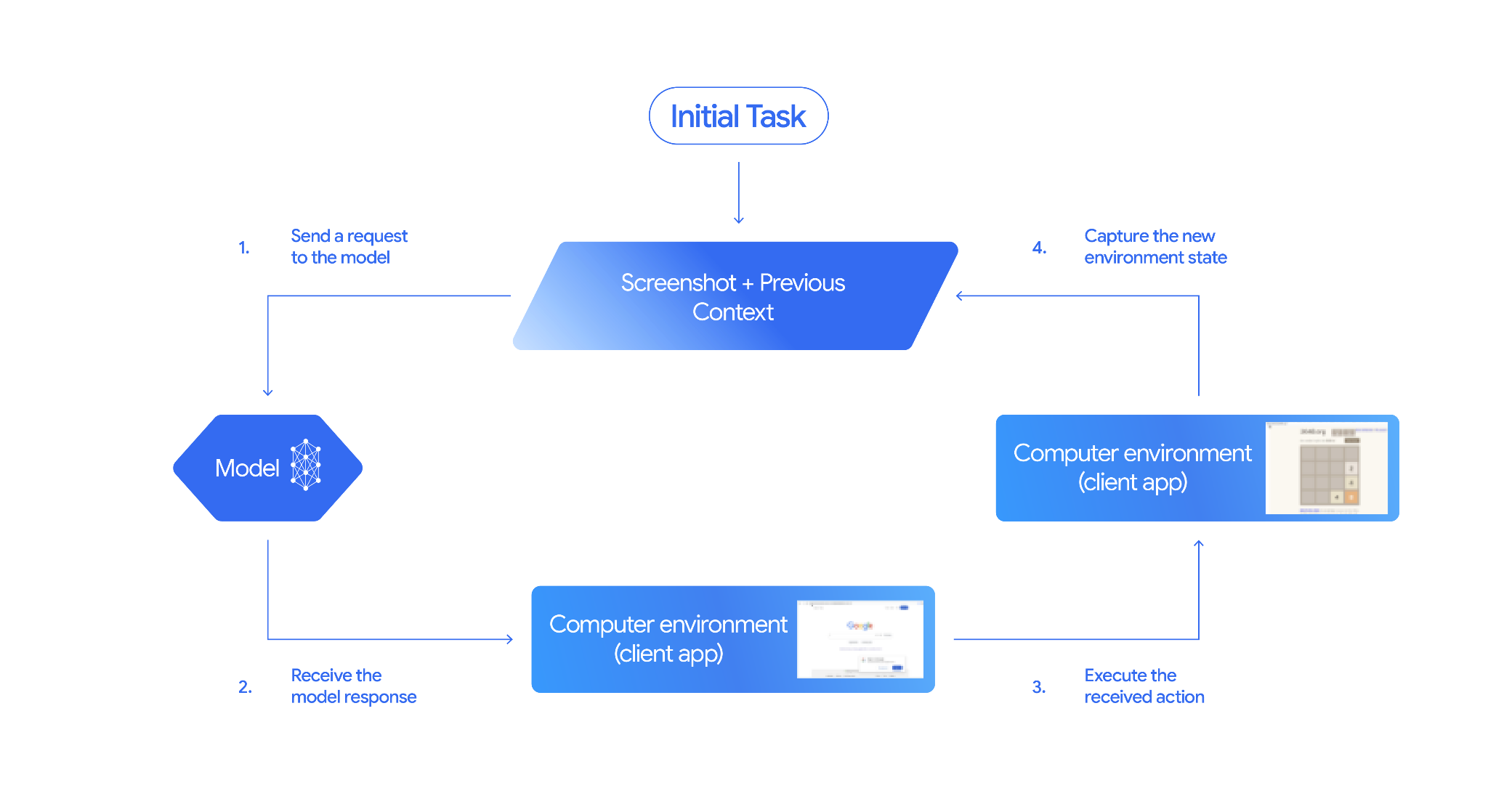
실제로 사용해 보려면 github.com/google-gemini/computer-use-preview에서 main.py을 실행하세요. 저장소의 안내에 따라 Python 가상 환경을 만들고 종속 항목을 설치합니다.
예를 들어 Google AI Studio에서 API 키를 가져와 Gemini에 항공편을 검색해 달라고 요청할 수 있습니다.
export GEMINI_API_KEY=your-api-key

python main.py --query "Find me top 5 fights sorted by price with the following constraints:

Flight site to use: www.google.com/travel/flights
From: London
To: Larnaca
One-way or roundtrip: One way
Date to leave: Sometime next week
Date to return: N/A
Travel preferences:
-Direct flights
-No flights before 10am
-Carry-on luggage"
Gemini가 시크릿 브라우저를 열고 항공편 검색을 시작합니다.
파일 검색 📁
파일 검색 도구를 사용하면 검색 증강 생성 (RAG)을 쉽게 실행할 수 있습니다. 파일을 업로드하기만 하면 청킹, 임베딩, 검색과 같은 모든 RAG 세부정보가 자동으로 처리됩니다.
실제로 작동하는 것을 확인하려면 github.com/meteatamel/genai-beyond-basics/blob/main/samples/grounding/file-search-tool에서 main.py를 실행하세요.
Google AI Studio에서 API 키를 가져와 파일 검색 저장소를 만듭니다.
export GEMINI_API_KEY=your-gemini-api-key

python main.py create_store my-file-search-store
스토어에 PDF를 업로드합니다.
python main.py upload_to_store fileSearchStores/myfilesearchstore-5a9x71ifjge9 cymbal-starlight-2024.pdf
스토어를 가리키는 PDF에 관해 질문합니다.
python main.py generate_content "What's the cargo capacity of Cymbal Starlight?" fileSearchStores/myfilesearchstore-5a9x71ifjge9
PDF를 기반으로 한 대답이 표시됩니다.
Generating content with file search store: fileSearchStores/myfilesearchstore-5a9x71ifjge9
Response: The Cymbal Starlight 2024 has a cargo capacity of 13.5 cubic feet, which is located in the trunk of the vehicle. It is important to distribute the weight evenly and not overload the trunk, as this could impact the vehicle's handling and stability. The vehicle can also accommodate up to two suitcases in the trunk, and it is recommended to use soft-sided luggage to maximize space and cargo straps to secure it while driving.
Grounding sources:  cymbal-starlight-2024.pdf
함수 호출 📲
기본 제공 도구가 충분하지 않은 경우 Gemini에서 자체 도구 (함수)를 정의할 수도 있습니다. 함수의 자세한 OpenAPI 사양을 제출하는 대신 Python 함수를 도구로 제출하면 됩니다. 모델과 SDK에서 자동으로 도구로 사용됩니다.
예를 들어 위치의 위도와 경도를 반환하는 함수가 있을 수 있습니다.
def location_to_lat_long(location: str):
    """Given a location, returns the latitude and longitude

    Args:
        location: The location for which to get the weather.

    Returns:
        The latitude and longitude information in JSON.
    """
    logger.info(f"Calling location_to_lat_long({location})")
    url = f"https://geocoding-api.open-meteo.com/v1/search?name={location}&count=1"
    return api_request(url)
위도와 경도에서 날씨 정보를 반환하는 함수를 사용할 수도 있습니다.
def lat_long_to_weather(latitude: str, longitude: str):
"""Given a latitude and longitude, returns the weather information
Args:
latitude: The latitude of a location
longitude: The longitude of a location
Returns:
The weather information for the location in JSON.
"""
logger.info(f"Calling lat_long_to_weather({latitude}, {longitude})")
url = (f"https://api.open-meteo.com/v1/forecast?latitude={latitude}&longitude={longitude}¤t=temperature_2m,"
f"relative_humidity_2m,surface_pressure,wind_speed_10m,wind_direction_10m&forecast_days=1")
return api_request(url)
이제 이러한 두 함수를 Gemini에 도구로 전달하여 위치의 날씨 정보를 가져오도록 할 수 있습니다.
def generate_content_with_function_calls():
    client = genai.Client(
        vertexai=True,
        project=PROJECT_ID,
        location=LOCATION)

    response = client.models.generate_content(
        model=MODEL_ID,
        contents=PROMPT,
        config=GenerateContentConfig(
            system_instruction=[
                "You are a helpful weather assistant.",
                "Your mission is to provide weather information for different cities."
                "Make sure your responses are in plain text format (no markdown) and include all the cities asked.",
            ],
            tools=[location_to_lat_long, lat_long_to_weather],
            temperature=0),
    )

    print(response.text)
    #print(response.automatic_function_calling_history)
실제로 작동하는 것을 확인하려면 github.com/meteatamel/genai-beyond-basics/blob/main/samples/function-calling/weather에서 main_genaisdk.py을 실행하세요.
10. 상담사 🤖
Gemini의 Interactions API는 에이전트를 빌드하고 에이전트와 상호작용하도록 설계되었습니다. Gemini Deep Research Agent와 같은 전문 에이전트를 사용할 수 있습니다. Gemini Deep Research 에이전트는 여러 단계로 이루어진 연구 작업을 자율적으로 계획, 실행, 종합합니다. 웹 검색과 자체 데이터를 사용하여 복잡한 정보 환경을 탐색하고 인용된 상세 보고서를 생성합니다.
Interaction API로 Deep Research 에이전트를 사용하는 방법은 다음과 같습니다.
interaction = client.interactions.create(
    input="Research the history of the Google TPUs.",
    agent="deep-research-pro-preview-12-2025",
    background=True
)

while True:
    if interaction.status == "completed":
        print("\nFinal Report:\n",
interaction.outputs[-1].text)
        break
이 샘플을 직접 실행하려면 github.com/meteatamel/genai-samples/blob/main/vertexai/interactions-api에서 main.py를 실행하세요.
export GOOGLE_API_KEY=your-api-key
python main.py agent
잠시 후 다음과 같이 연구가 완료됩니다.
User: Research the history of the Google TPUs with a focus on 2025 and 2026

Status: in_progress
Status: in_progress
Status: in_progress
...
Model Final Report:
 # Architectural Convergence and Commercial Expansion: The History of Google TPUs (2015–2026)

## Key Findings
*   **Strategic Pivot (2025):** Google transitioned the Tensor Processing Unit (TPU) from a primarily internal differentiator to a commercial merchant-silicon competitor, epitomized by the massive "Ironwood" (TPU v7) deployment and external sales strategy.
*   **Technological Leap:** The introduction of TPU v7 "Ironwood" in 2025 marked a paradigm shift, utilizing 3nm process technology to deliver 42.5 exaFLOPS per pod, directly challenging NVIDIA's Blackwell architecture in the high-performance computing (HPC) sector.
...
11. 이미지 생성 📷
Nano Banana 🍌는 Gemini의 기본 이미지 생성 기능의 이름입니다. Gemini는 텍스트, 이미지 또는 둘 다를 조합하여 대화형으로 이미지를 생성하고 처리할 수 있습니다. 이를 통해 제어 기능을 사용하여 시각적 요소를 만들고, 수정하고, 반복할 수 있습니다.
Nano Banana는 Gemini API에서 사용할 수 있는 두 가지 모델을 의미합니다.
- Nano Banana: Gemini Flash Image 모델입니다. 이 모델은 속도와 효율성을 위해 설계되었으며, 대용량의 짧은 지연 시간 작업에 최적화되어 있습니다.
- Nano Banana Pro: Gemini Pro Image 모델입니다. 이 모델은 전문적인 애셋 제작을 위해 설계되었으며, 고급 추론을 활용하여 복잡한 안내를 따르고 충실도 높은 텍스트를 렌더링합니다.
다음은 기존 이미지를 전달하고 Nano Banana에게 이미지를 수정하도록 요청할 수 있는 코드 스니펫입니다.
from google import genai
from google.genai import types
from PIL import Image

client = genai.Client()

prompt = (
    "Create a picture of my cat eating a nano-banana in a "
    "fancy restaurant under the Gemini constellation",
)

image = Image.open("/path/to/cat_image.png")

response = client.models.generate_content(
    model="gemini-3.1-flash-image",
    contents=[prompt, image],
)

for part in response.parts:
    if part.text is not None:
        print(part.text)
    elif part.inline_data is not None:
        image = part.as_image()
        image.save("generated_image.png")
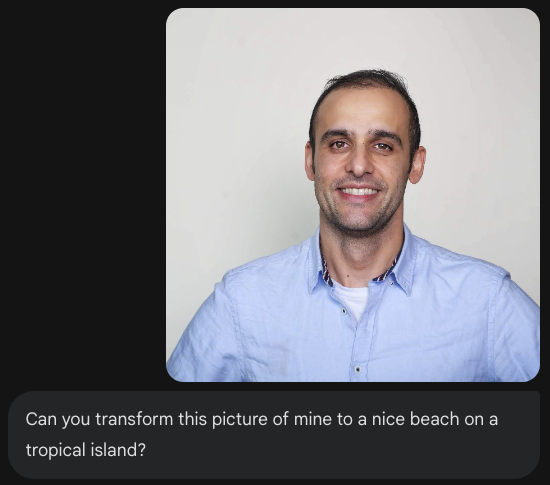
Nano Banana는 Gemini 앱, AI Studio 또는 Agent Platform Studio에서 사용할 수 있습니다. Gemini 앱에서 사용해 보는 것이 가장 간단합니다. Gemini 앱 ( gemini.google.com)에서 Tools 아래의 🍌 Create images를 선택합니다. 그런 다음 이미지를 업로드하고 재미있는 작업을 해 보세요. 예를 들면 다음과 같이 말하세요.
Can you transform this picture of mine to a nice beach on a tropical island?

12. Text-to-Speech 생성 🎶
Gemini는 Gemini 텍스트 음성 변환 (TTS) 생성 기능을 사용하여 텍스트 입력을 단일 화자 또는 다중 화자 오디오로 변환할 수 있습니다. TTS 생성은 제어 가능합니다. 즉, 자연어를 사용하여 상호작용을 구성하고 오디오의 스타일, 억양, 속도, 어조를 안내할 수 있습니다.
TTS 기능은 대화형 비구조화 오디오와 멀티모달 입력 및 출력을 위해 설계된 Live API를 통해 제공되는 음성 생성과 다릅니다. Live API는 동적인 대화 컨텍스트에 적합하지만 Gemini API를 통한 TTS는 포드캐스트 또는 오디오북 생성과 같이 스타일과 사운드를 세밀하게 제어하여 정확한 텍스트 낭독이 필요한 시나리오에 맞게 설계되었습니다.
다음은 단일 화자 TTS의 코드 스니펫입니다.
`
from google import genai
from google.genai import types
import wave

# Set up the wave file to save the output:
def wave_file(filename, pcm, channels=1, rate=24000, sample_width=2):
   with wave.open(filename, "wb") as wf:
      wf.setnchannels(channels)
      wf.setsampwidth(sample_width)
      wf.setframerate(rate)
      wf.writeframes(pcm)

client = genai.Client()

response = client.models.generate_content(
   model="gemini-3.1-flash-tts-preview",
   contents="Say cheerfully: Have a wonderful day!",
   config=types.GenerateContentConfig(
      response_modalities=["AUDIO"],
      speech_config=types.SpeechConfig(
         voice_config=types.VoiceConfig(
            prebuilt_voice_config=types.PrebuiltVoiceConfig(
               voice_name='Kore',
            )
         )
      ),
   )
)

data = response.candidates[0].content.parts[0].inline_data.data

file_name='out.wav'
wave_file(file_name, data) # Saves the file to current directory
텍스트 음성 변환 생성 (TTS) 문서에서 더 많은 샘플을 확인할 수 있습니다.
Google AI Studio Playground에서 음성 생성을 사용해 볼 수도 있습니다. generate-speech 앱에서 다양한 프롬프트를 사용해 보세요.
13. 공간 이해 🌐
Gemini는 고급 객체 감지 및 공간 이해 기능을 갖추고 있습니다. 이를 이해하는 가장 쉬운 방법은 실제로 사용해 보는 것입니다.
Google AI Studio 스타터 애플릿으로 이동하여 공간 이해 앱으로 이동합니다.
Google AI Studio 키로 .env 파일을 업데이트하고 src/consts.tsx의 모델을 최신 모델 중 하나로 업데이트합니다. 종속 항목을 설치하고 앱을 시작합니다.
npm install
npm run dev
http://localhost:8000/으로 이동합니다.
이제 이미지를 선택하고 Gemini로 이미지의 항목을 감지해 보세요.
예를 들어 다양한 이미지에서 '그림자' 또는 '과일'을 감지할 수 있습니다.
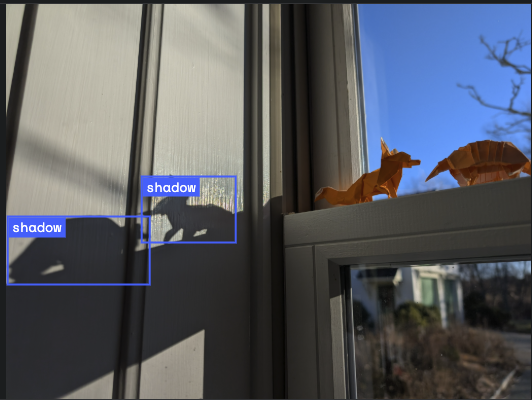
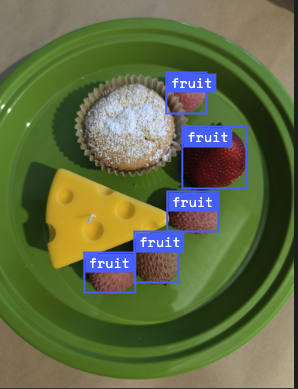
다양한 이미지를 사용해 보면서 Gemini가 다양한 객체를 얼마나 잘 감지하고 라벨을 지정하는지 확인해 보세요.
14. Live API 🎤
Live API는 Gemini와의 지연 시간이 짧은 실시간 음성 및 동영상 상호작용을 지원합니다. 오디오, 동영상 또는 텍스트의 연속 스트림을 처리하여 즉각적이고 사람과 유사한 음성 대답을 제공하여 사용자에게 자연스러운 대화형 환경을 제공합니다.
Google AI Studio의 Live API 또는 Agent Platform Studio의 Live API를 사용해 보세요. 두 앱 모두에서 음성, 동영상, 화면을 공유하고 Gemini와 실시간으로 대화할 수 있습니다.
동영상이나 화면을 공유하고 음성으로 Gemini에게 일반적인 질문을 해 보세요. 예를 들면 다음과 같습니다.
Can you describe what you see on the screen?
Gemini의 대답이 얼마나 자연스러운지 놀라실 겁니다.
15. 결론
이 Codelab에서는 Gemini 제품군으로 시작하여 Gemini 생태계를 다루고 통합된 Google 생성형 AI SDK를 사용하여 모델을 애플리케이션에 통합하는 방법을 알아봤습니다. 긴 컨텍스트 윈도우, 사고 모드, 기본 제공 그라운딩 도구, Live API, 공간 이해 등 Gemini의 최첨단 기능을 살펴봤습니다. 참조 문서를 자세히 살펴보고 Gemini의 모든 기능을 계속 실험해 보시기 바랍니다.