
1. Introduction
Leverage Private Service Connect (PSC) to establish highly secure, private access for models deployed from the Vertex AI Model Garden. Instead of exposing a public endpoint, this method allows you to deploy your model to a private Vertex AI endpoint accessible only within your Virtual Private Cloud (VPC).
Private Service Connect creates an endpoint with an internal IP address inside your VPC, connecting directly to the Google-managed Vertex AI service hosting your model. This enables applications in your VPC and on-premises environments (via Cloud VPN or Interconnect) to send inference requests using private IPs.
Critically, all network traffic between your VPC and the private Vertex AI endpoint remains on Google's dedicated network, completely isolating it from the public internet. Furthermore, this private connection is secured in transit using TLS encryption. This end-to-end encryption ensures that your prediction requests and model responses are protected, enhancing data confidentiality and integrity. The combination of network isolation via PSC and TLS encryption provides a robustly secure environment for your online predictions, reducing latency and significantly bolstering your security posture.
What you'll build
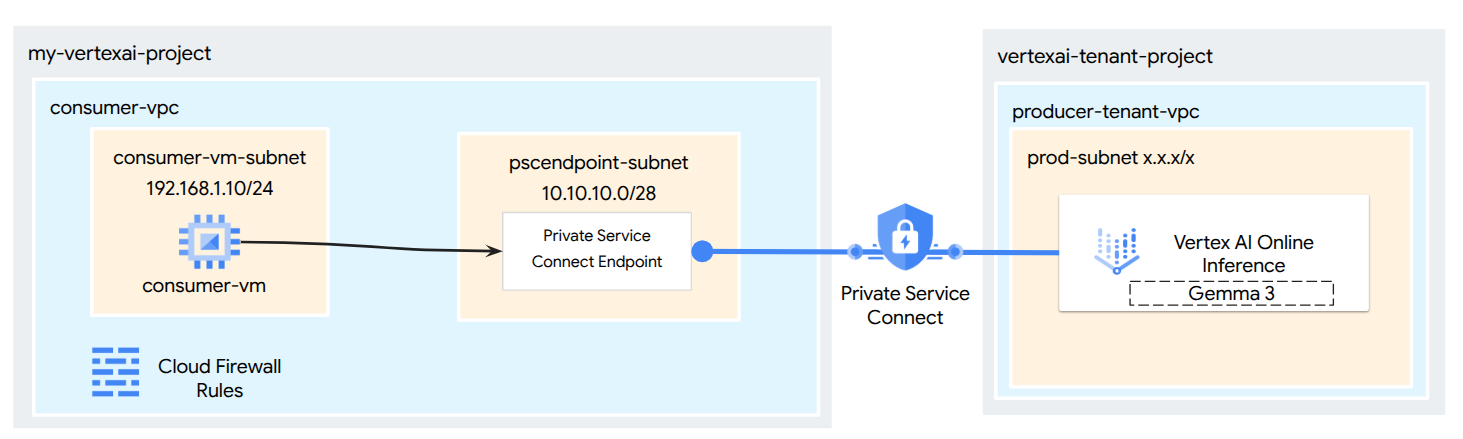
In this tutorial, you will download Gemma 3 from Model Garden, hosted in Vertex AI Online Inference as a private endpoint accessible via Private Service Connect. Your end-to-end setup will include:
- Model Garden Model: You will select Gemma 3 from the Vertex AI Model Garden and deploy it to a Private Service Connect endpoint.
- Private Service Connect: You will configure a consumer endpoint in your Virtual Private Cloud (VPC) consisting of an internal IP address within your own network.
- Secure Connection to Vertex AI: The PSC endpoint will target the Service Attachment automatically generated by Vertex AI for your private model deployment. This establishes a private connection, ensuring traffic between your VPC and the model serving endpoint does not traverse the public internet.
- Client Configuration within your VPC: You will set up a client (e.g., Compute Engine VM) within your VPC to send inference requests to the deployed model using the internal IP address of the PSC endpoint.
- Verify TLS Encryption: From the client VM within your VPC, you will use standard tools ( openssl s_client) to connect to the PSC endpoint's internal IP address. This step will allow you to confirm that the communication channel to the Vertex AI service is indeed encrypted using TLS by inspecting the handshake details and the server certificate presented.
By the end, you'll have a functional example of a Model Garden model being served privately, only accessible from within your designated VPC network.
What you'll learn
In this tutorial, you will learn how to deploy a model from Vertex AI Model Garden and make it securely accessible from your Virtual Private Cloud (VPC) using Private Service Connect (PSC). This method allows your applications within your VPC (the consumer) to privately connect to the Vertex AI model endpoint (the producer service) without traversing the public internet.
Specifically, you will learn:
- Understanding PSC for Vertex AI: How PSC enables private and secure consumer-to-producer connections. Your VPC can access the deployed Model Garden model using internal IP addresses.
- Deploying a Model with Private Access: How to configure a Vertex AI Endpoint for your Model Garden model to use PSC, making it a private endpoint.
- The Role of the Service Attachment: When you deploy a model to a private Vertex AI Endpoint, Google Cloud automatically creates a Service Attachment in a Google-managed tenant project. This Service Attachment exposes the model serving service to consumer networks.
- Creating a PSC Endpoint in Your VPC:
- How to obtain the unique Service Attachment URI from your deployed Vertex AI Endpoint details.
- How to reserve an internal IP address within your chosen subnet in your VPC.
- How to create a Forwarding Rule in your VPC that acts as the PSC Endpoint, targeting the Vertex AI Service Attachment. This endpoint makes the model accessible via the reserved internal IP.
- Establishing Private Connectivity: How the PSC Endpoint in your VPC connects to the Service Attachment, bridging your network with the Vertex AI service securely.
- Sending Inference Requests Privately: How to send prediction requests from resources (like Compute Engine VMs) within your VPC to the internal IP address of the PSC Endpoint.
- Validation: Steps to test and confirm that you can successfully send inference requests from your VPC to the deployed Model Garden model through the private connection.
- Verifying TLS Encryption: How to use tools from within your VPC client (e.g., a Compute Engine VM) to connect via TLS to the PSC Endpoint's internal IP address.
By completing this, you'll be able to host models from Model Garden that are only reachable from your private network infrastructure.
What you'll need
Google Cloud Project
IAM Permissions
- AI Platform Admin (roles/ml.Admin)
- Compute Network Admin (roles/compute.networkAdmin)
- Compute Instance Admin (roles/compute.instanceAdmin)
- Compute Security Admin (roles/compute.securityAdmin)
- DNS Administrator (roles/dns.admin)
- IAP-secured Tunnel User (roles/iap.tunnelResourceAccessor)
- Logging Admin (roles/logging.admin)
- Notebooks Admin (roles/notebooks.admin)
- Project IAM Admin (roles/resourcemanager.projectIamAdmin)
- Service Account Admin (roles/iam.serviceAccountAdmin)
- Service Usage Admin (roles/serviceusage.serviceUsageAdmin)
2. Before you begin
Update the project to support the tutorial
This tutorial makes use of $variables to aid gcloud configuration implementation in Cloud Shell.
Inside Cloud Shell, perform the following:
gcloud config list project
gcloud config set project [YOUR-PROJECT-ID]
projectid=[YOUR-PROJECT-ID]
echo $projectid
API Enablement
Inside Cloud Shell, perform the following:
gcloud services enable "compute.googleapis.com"
gcloud services enable "aiplatform.googleapis.com"
gcloud services enable "serviceusage.googleapis.com"
gcloud services enable dns.googleapis.com
3. Deploy Model
Follow the steps below to deploy your model from Model Garden
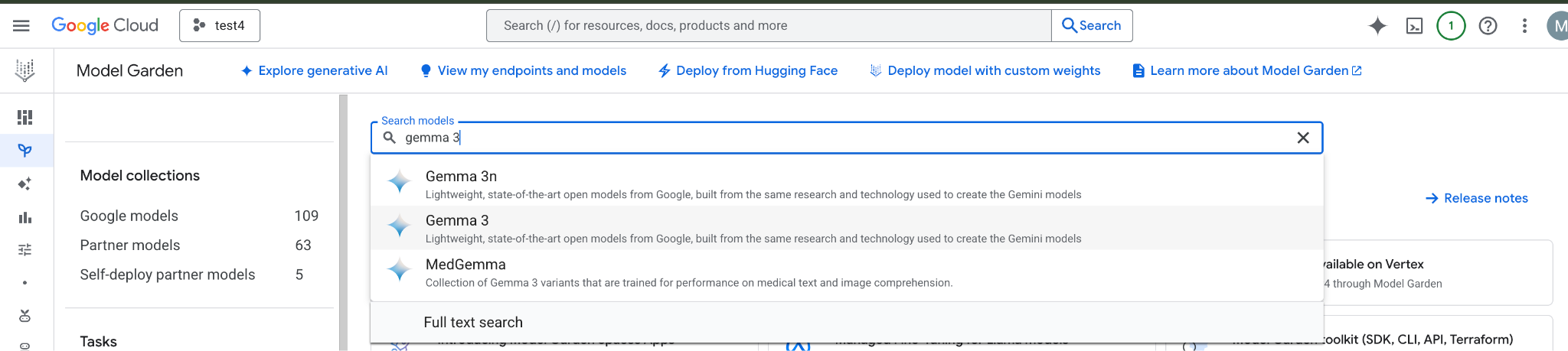
In the Google Cloud console, Go to Model Garden and search and select Gemma 3
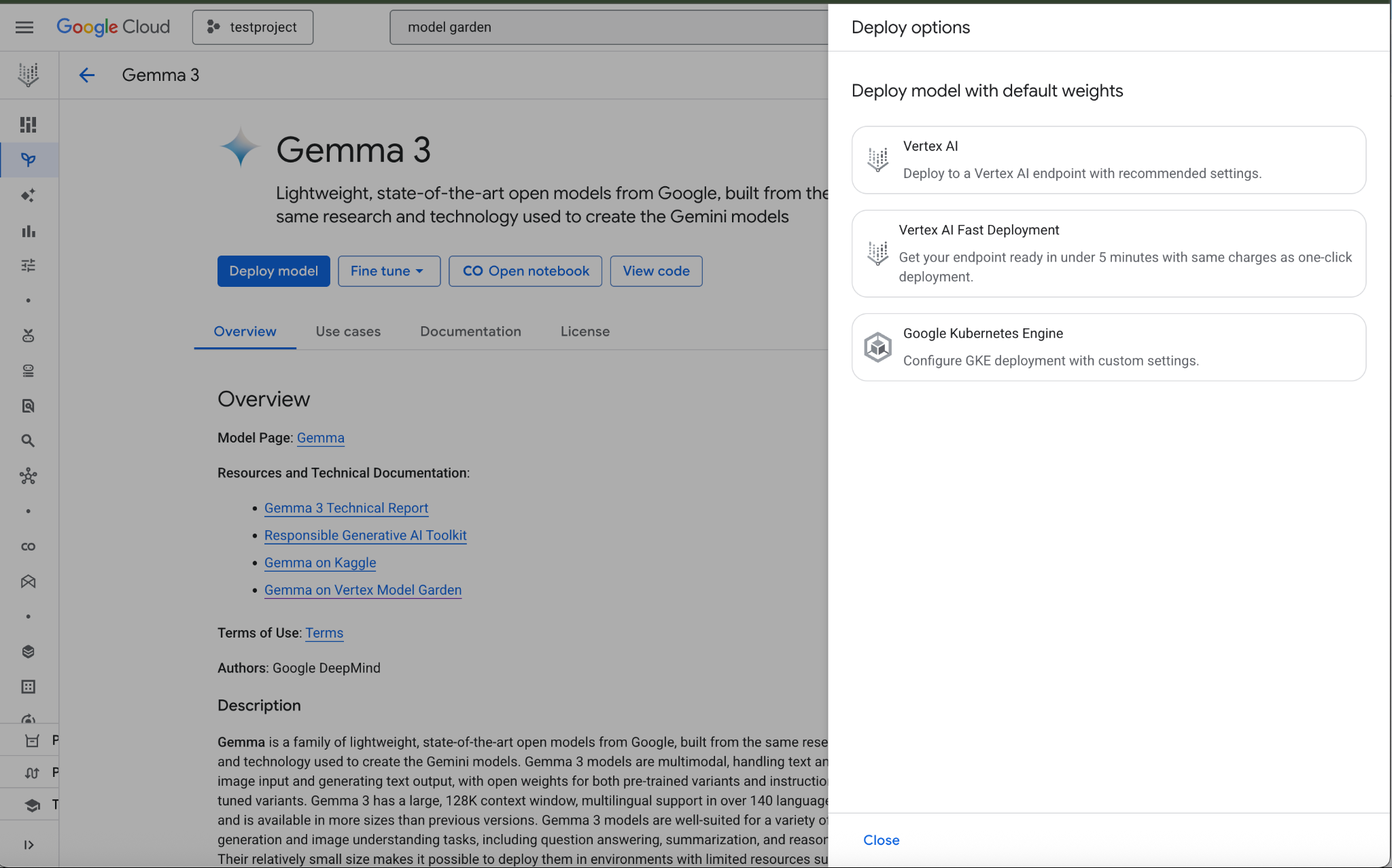
Click Deploy model and select Vertex AI
Select Edit Settings in the bottom of the Deployment Settings section
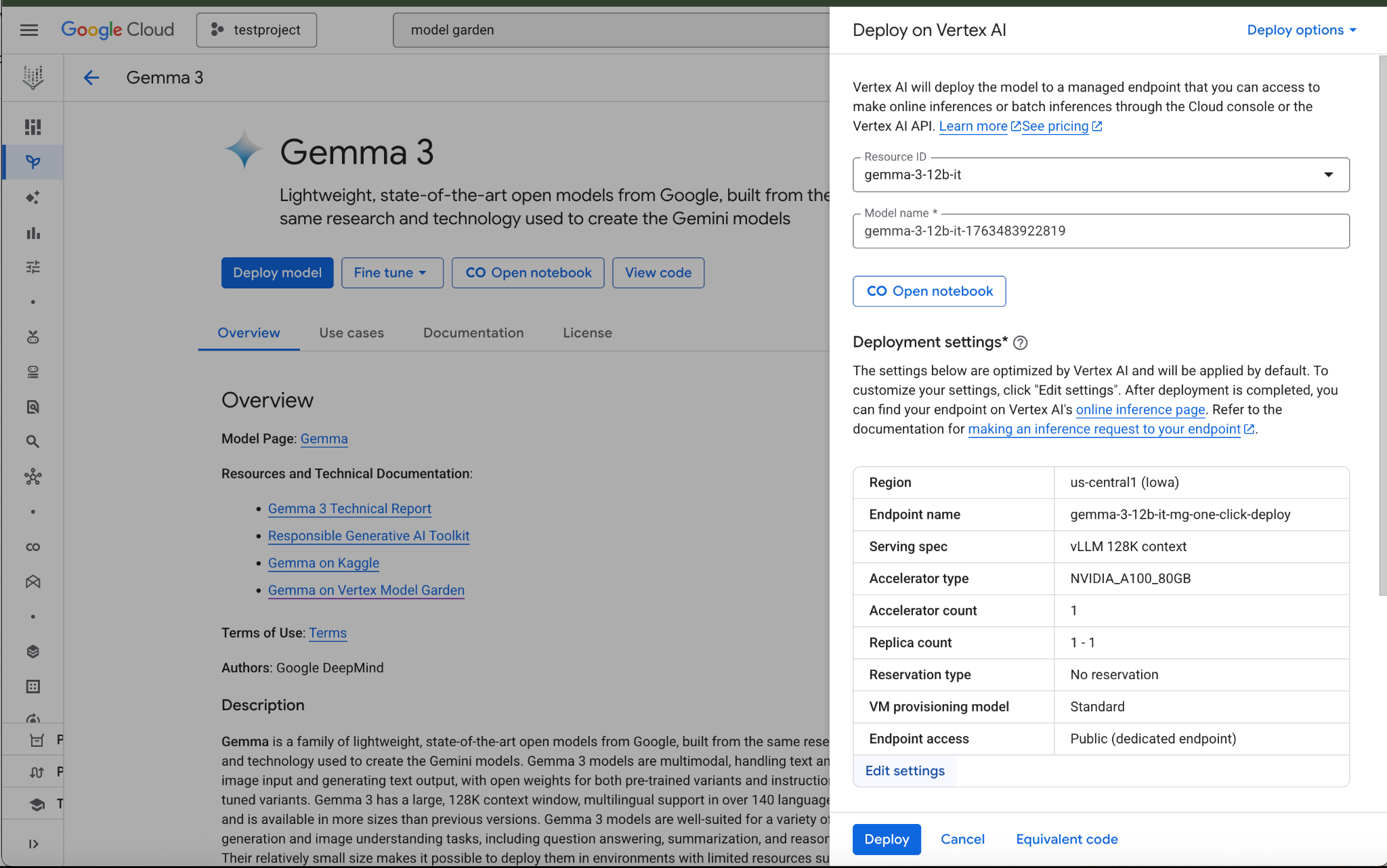
In the Deploy on Vertex AI pane, ensure Endpoint Access is configured as Private Service Connect then select your Project.
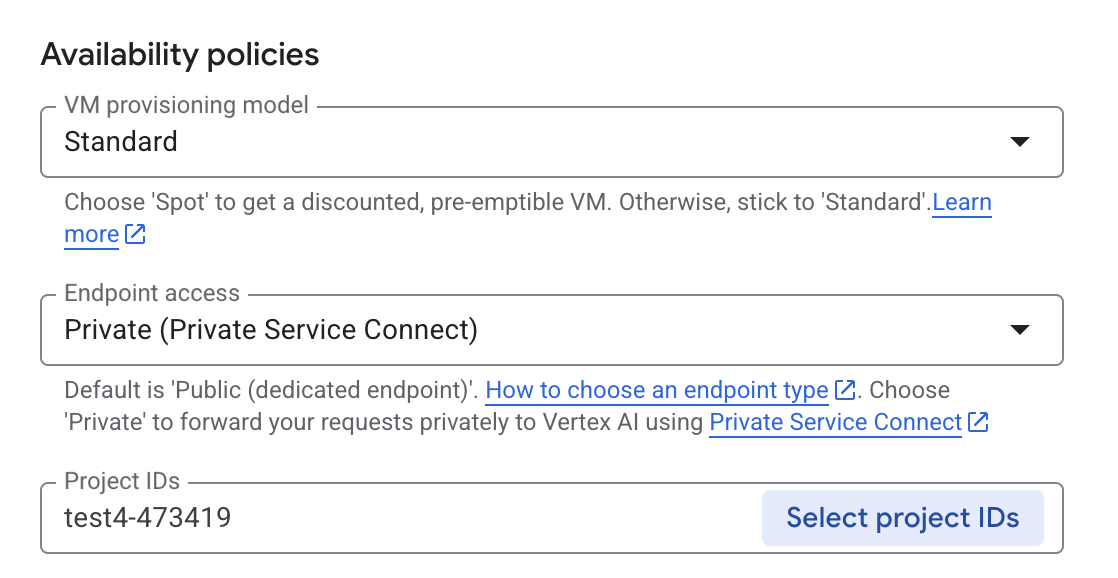
Leave all defaults for other options, then select Deploy at the bottom & Check your notifications for the deployment status.

In model Garden, select the region, us-central1, that provides the Gemma 3 model and endpoint. Model deployment takes approximately 5 min.
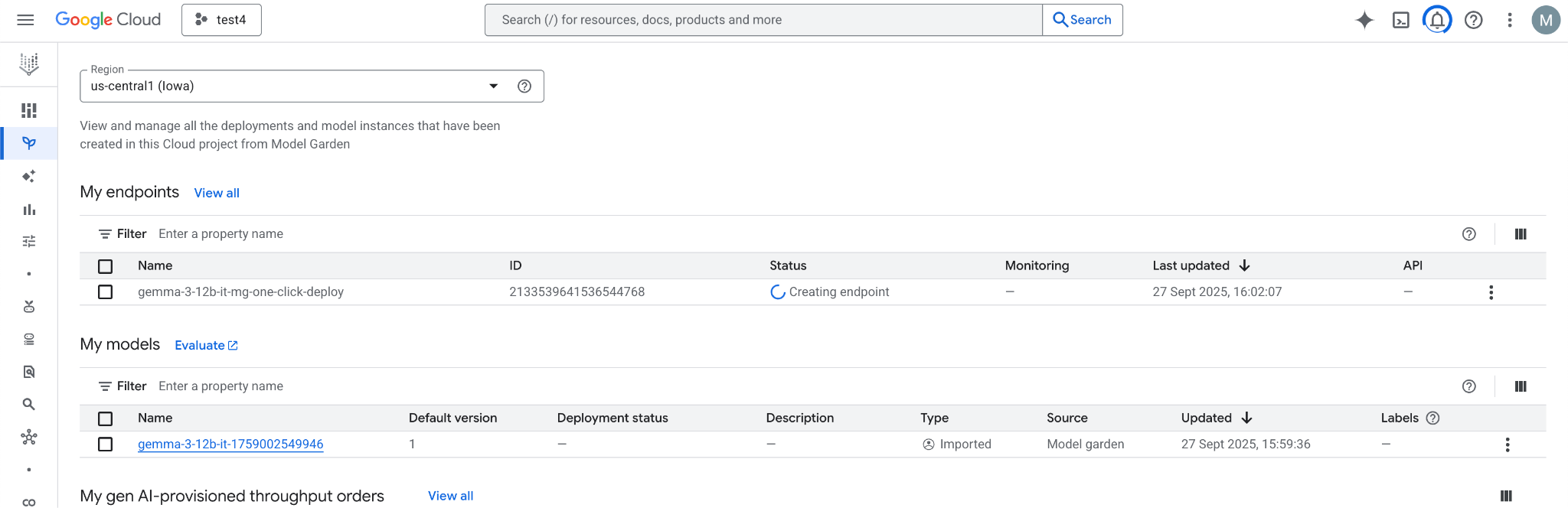
In 30 minutes, the endpoint will transition to "Active" once completed

Obtain and note the Endpoint ID by selecting the endpoint.
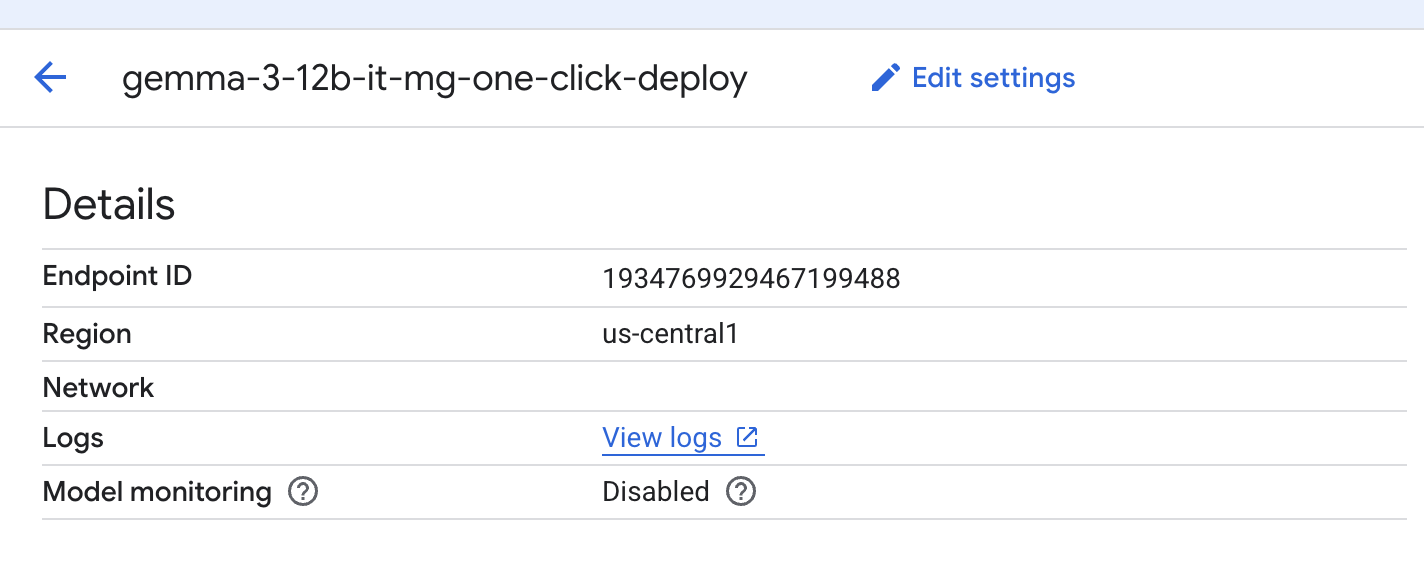
Select the endpoint to retrieve its Endpoint ID and update the variable. In the example shown, the ID is 1934769929467199488.
Inside Cloud Shell, perform the following:
endpointID=<Enter_Your_Endpoint_ID>
region=us-central1
Perform the following to obtain the Private Service Connect Service Attachment URI. This URI string is used by the consumer when deploying a PSC consumer endpoint.
Inside Cloud Shell, use the Endpoint ID/Region variable, then issue the following command:
gcloud ai endpoints describe $endpointID --region=$region | grep -i serviceAttachment:
Below is an example:
user@cloudshell:$ gcloud ai endpoints describe 1934769929467199488 --region=us-central1 | grep -i serviceAttachment:

Using endpoint [https://us-central1-aiplatform.googleapis.com/]
    serviceAttachment: projects/o9457b320a852208e-tp/regions/us-central1/serviceAttachments/gkedpm-52065579567eaf39bfe24f25f7981d
Copy the contents after serviceAttachment into a variable called "Service_attachment", you will need it later when creating the PSC connection.
user@cloudshell:$ Service_attachment=<Enter_Your_ServiceAttachment>
4. Consumer Setup
Create the Consumer VPC
Inside Cloud Shell, perform the following:
gcloud compute networks create consumer-vpc --project=$projectid --subnet-mode=custom
Create the consumer VM subnet
Inside Cloud Shell, perform the following:
gcloud compute networks subnets create consumer-vm-subnet --project=$projectid --range=192.168.1.0/24 --network=consumer-vpc --region=$region --enable-private-ip-google-access
Create the PSC Endpoint subnet, inside Cloud Shell, perform the following**:**
gcloud compute networks subnets create pscendpoint-subnet --project=$projectid --range=10.10.10.0/28 --network=consumer-vpc --region=$region
5. Enable IAP
To allow IAP to connect to your VM instances, create a firewall rule that:
- Applies to all VM instances that you want to be accessible by using IAP.
- Allows ingress traffic from the IP range 35.235.240.0/20. This range contains all IP addresses that IAP uses for TCP forwarding.
Inside Cloud Shell, create the IAP firewall rule.
gcloud compute firewall-rules create ssh-iap-consumer \
    --network consumer-vpc \
    --allow tcp:22 \
    --source-ranges=35.235.240.0/20
6. Create consumer VM instances
Inside Cloud Shell, create the consumer vm instance, consumer-vm.
gcloud compute instances create consumer-vm \
    --project=$projectid \
    --machine-type=e2-micro \
    --image-family debian-11 \
    --no-address \
    --shielded-secure-boot \
    --image-project debian-cloud \
    --zone us-central1-a \
    --subnet=consumer-vm-subnet
7. Private Service Connect Endpoints
The consumer creates a consumer endpoint (forwarding rule) with an internal IP address within their VPC. This PSC endpoint targets the producer's service attachment. Clients within the consumer VPC or hybrid network can send traffic to this internal IP address to reach the producer's service.
Reserve an IP address for the consumer endpoint.
Inside Cloud Shell, create the forwarding rule.
gcloud compute addresses create psc-address \
    --project=$projectid \
    --region=$region \
    --subnet=pscendpoint-subnet \
    --addresses=10.10.10.6
Verify that the IP address is reserved.
Inside Cloud Shell, list the reserved IP Address.
gcloud compute addresses list
You should see the 10.10.10.6 IP address reserved.

Create the consumer endpoint by specifying the service attachment URI, target-service-attachment, that you captured in the previous step, Deploy Model section.
Inside Cloud Shell, describe the network attachment.
 gcloud compute forwarding-rules create psc-consumer-ep \
    --network=consumer-vpc \
    --address=psc-address \
    --region=$region \
    --target-service-attachment=$Service_attachment \
    --project=$projectid
Verify that the service attachment accepts the endpoint.
Inside Cloud Shell, perform the following:
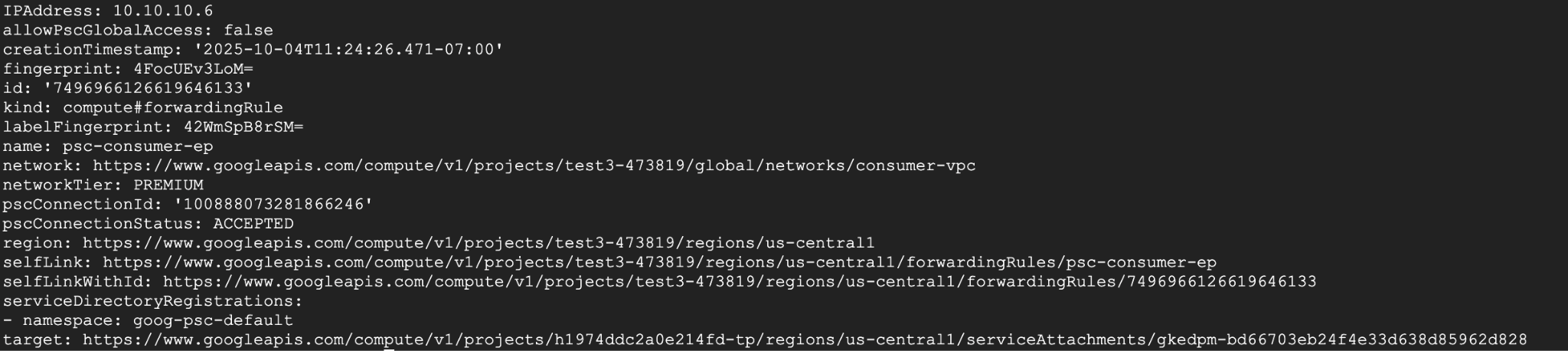
gcloud compute forwarding-rules describe psc-consumer-ep \
    --project=$projectid \
    --region=$region
In the response, verify that an "ACCEPTED" status appears in the pscConnectionStatus field
8. Set up to connect to Vertex HTTPS endpoint via TLS
Create a DNS private zone so you can get Online Inference without the need of specifying an IP address.
Inside Cloud Shell, perform the following:
DNS_NAME_SUFFIX="prediction.p.vertexai.goog."

gcloud dns managed-zones create vertex \
--project=$projectid \
--dns-name=$DNS_NAME_SUFFIX \
--networks=consumer-vpc \
--visibility=private \
--description="A DNS zone for Vertex AI endpoints using Private Service Connect."
Create A record to map the domain to the PSC IP address.
Inside Cloud Shell, perform the following:
gcloud dns record-sets create "*.prediction.p.vertexai.goog." \
  --zone=vertex \
  --type=A \
  --ttl=300 \
  --rrdatas="10.10.10.6"
Create Cloud Router instance as a prerequisite for a NAT instance.
Inside Cloud Shell, perform the following:
gcloud compute routers create consumer-cr \
--region=$region --network=consumer-vpc \
--asn=65001
Create Cloud NAT instance used to download openssl and dnsutils packages.
Inside Cloud Shell, perform the following:
gcloud compute routers nats create consumer-nat-gw \
  --router=consumer-cr \
  --region=$region \
  --nat-all-subnet-ip-ranges \
  --auto-allocate-nat-external-ips
Connect via ssh (console) to Consumer VM. Inside Cloud Shell, perform the following:
gcloud compute ssh --zone "us-central1-a" "consumer-vm" --tunnel-through-iap --project "$projectid"
Update below packages, install open-ssl and install DNS utilities
Inside Cloud Shell, perform the following:
sudo apt update
sudo apt install openssl
sudo apt-get install -y dnsutils
You will need the Project Number in the next step. To get your project number, run the following command from cloud shell and put it in a Variable:
Inside Cloud Shell, perform the following:
gcloud projects describe $projectid --format="value(projectNumber)"
Example Output: 549538389202
projectNumber=549538389202
You will need a few other variables defined in the next few steps, define these variables(ENDPOINT_ID, REGION, VERTEX_AI_PROJECT_ID) by capturing them from the cloud shell first then creating the same variables in the VM.
Inside Cloud Shell, perform the following:
echo $projectNumber
echo $projectid
echo $region
echo $endpointID
Example output below:
549538389202
test4-473419
Us-central1
1934769929467199s
In your consumer VM add these variables - example below:
projectNumber=1934769929467199488
projectid=test4-473419
region=us-central1
endpointID=1934769929467199488
Download the Vertex AI certificate by executing the following command from your home directory in your VM. This command creates a file named vertex_certificate.crt.
sudo openssl s_client -showcerts -connect $endpointID-$region-$projectNumber.prediction.p.vertexai.goog:443 </dev/null | openssl x509 -outform pem -out vertex_certificate.crt
Output should look like below, error is expected.

Move the certificate to the system trust store.
sudo mv vertex_certificate.crt /usr/local/share/ca-certificates
Update the certificate manager.
sudo update-ca-certificates
It should look like this once it's updated.
user@linux-vm:~$ sudo update-ca-certificates
Updating certificates in /etc/ssl/certs...
1 added, 0 removed; done.
Running hooks in /etc/ca-certificates/update.d...
Done.
9. Final Test from Consumer VM
On Consumer VM, Re-authenticate with Application Default Credentials and specify Vertex AI scopes:
gcloud auth application-default login
--scopes=https://www.googleapis.com/auth/cloud-platform
In Consumer VM run the following curl command to test Prediction to your Gemini Model with the prompt, "What weighs more 1 pound of feathers or rocks?
curl -v -X POST -H "Authorization: Bearer $(gcloud auth application-default print-access-token)" -H "Content-Type: application/json" https://$endpointID-$region-$projectNumber.prediction.p.vertexai.goog/v1/projects/$projectid/locations/$region/endpoints/$endpointID/chat/completions -d '{"model": "google/gemma-3-12b-it", "messages": [{"role": "user","content": "What weighs more 1 pound of feathers or rocks?"}] }'
FINAL RESULT - SUCCESS!!!
The result you should see prediction from Gemma 3 at the bottom of the output, this shows that you were able to hit the API endpoint privately through PSC endpoint
 Connection #0 to host 10.10.10.6 left intact
{"id":"chatcmpl-9e941821-65b3-44e4-876c-37d81baf62e0","object":"chat.completion","created":1759009221,"model":"google/gemma-3-12b-it","choices":[{"index":0,"message":{"role":"assistant","reasoning_content":null,"content":"This is a classic trick question! They weigh the same. One pound is one pound, regardless of the material. 😊\n\n\n\n","tool_calls":[]},"logprobs":null,"finish_reason":"stop","stop_reason":106}],"usage":{"prompt_tokens":20,"total_tokens":46,"completion_tokens":26,"prompt_tokens_details":null},"prompt_logprobs":null
10. Clean up
From Cloud Shell, delete tutorial components.
Get Deployed Model ID first with this command, you will need it to delete the Endpoint ID:

gcloud ai endpoints describe $endpointID \
  --region=$region \
  --project=$projectid \
  --format="table[no-heading](deployedModels.id)"

Example Output: 7389140900875599872

Put it in a Variable:

deployedModelID=7389140900875599872

Run following Commands:

gcloud ai endpoints undeploy-model $endpointID --deployed-model-id=$deployedModelID --region=$region --quiet

gcloud ai endpoints delete $endpointID --project=$projectid --region=$region --quiet

Run Following command to get $MODEL_ID to delete Model:

gcloud ai models list --project=$projectid --region=$region

Example Output:

Using endpoint [https://us-central1-aiplatform.googleapis.com/]
MODEL_ID: gemma-3-12b-it-1768409471942
DISPLAY_NAME: gemma-3-12b-it-1768409471942

Put MODEL_ID value in a variable:

MODEL_ID=gemma-3-12b-it-1768409471942

Run the follow command to delete Model:

gcloud ai models delete $MODEL_ID --project=$projectid --region=$region --quiet

Clean up rest of the lab:
gcloud compute instances delete consumer-vm --zone=us-central1-a --quiet

gcloud compute forwarding-rules delete psc-consumer-ep --region=$region --project=$projectid --quiet

gcloud compute addresses delete psc-address --region=$region --project=$projectid --quiet

gcloud compute networks subnets delete pscendpoint-subnet consumer-vm-subnet --region=$region --quiet

gcloud compute firewall-rules delete ssh-iap-consumer --project=$projectid

gcloud compute routers delete consumer-cr --region=$region

gcloud compute networks delete consumer-vpc --project=$projectid --quiet
11. Congratulations
Congratulations, you've successfully configured and validated private access to the Gemma 3 API hosted on Vertex AI Prediction using a Private Service Connect Endpoint using a self signed certificate obtained from Vertex AI and deployed to the VMs trust store.
You created the consumer infrastructure, including reserving an internal IP address, configuring a Private Service Connect Endpoint (a forwarding rule) within your VPC and private DNS to match the self signed certificate *prediction.p.vertexai.goog. This endpoint securely connects to the Vertex AI service by targeting the service attachment associated with your deployed Gemma 3 model.
This setup ensures your applications within the VPC or connected networks can interact with the Gemma 3 API privately using an internal IP address using certificates All traffic remains within Google's network, never traversing the public internet.