
1. Introduction
Welcome! In this codelab, you will learn how to supercharge your AI agents using Google Managed Model Context Protocol (MCP) Servers.
The Model Context Protocol (MCP) is an open-source standard that enables AI models to safely and efficiently connect to external data sources and tools. While most MCP implementations run locally on your machine, Google provides Managed Remote MCP Servers. These are fully hosted, enterprise-ready endpoints that allow your agents to interact directly with Google Cloud infrastructure without you having to manage any server-side code or containers.
The "Managed" Advantage
Unlike local MCP servers that use standard input/output (stdio), Google's managed servers utilize Streamable HTTP. This architecture offers:
- Zero Infrastructure: No servers to provision or scale.
- Security by Design: Native integration with Google Cloud IAM and Audit Logs.
- Stateless Scaling: Seamless interaction through standard load balancers and proxies.
What you'll learn
- How to enable and authenticate Managed MCP Servers.
- How to use the Cloud Logging MCP Server as a foundational baseline.
- How to orchestrate multiple MCP servers (Developer Knowledge, Firestore, etc.) to build autonomous workflows.
What you'll need
- A Google Cloud Project with billing enabled.
- Familiarity with the Google Cloud Console and
gcloudCLI. - Google Cloud Shell (Antigravity CLI is pre-installed here).
This codelab, designed for users and developers of all levels (including beginners).
Reporting issues
As you work through the codelab and with Antigravity, you might encounter problems.
For codelab related issues (typos, wrong instructions), please open a bug with Report a mistake button in bottom left corner of this codelab:
2. Before You Begin
In this step, you will prepare your Google Cloud environment. We will be performing all tasks within Google Cloud Shell, which provides a persistent, pre-configured terminal.
Activate Cloud Shell
- Navigate to the Google Cloud Console.
- Click the Activate Cloud Shell icon in the top right header.
- Once the terminal session starts, authorize the prompt if asked.
Set your Project ID
Ensure your Cloud Shell is pointing to the correct project:
# Set your active project
gcloud config set project YOUR_PROJECT_ID

# Verify the setting
gcloud config list project
Enable Foundation APIs
Managed MCP servers require both the underlying product API and the MCP interface to be enabled. By enabling the service, the underlying MCP interface for the service will also get enabled.
Run the following command to enable the Cloud Logging backend (our baseline for this lab):
# Enable the Cloud Logging API and its MCP interface
gcloud services enable logging.googleapis.com
Setup Application Default Credentials (ADC)
Antigravity CLI uses your user identity to communicate with MCP servers. Grant the agent permission to act on your behalf:
gcloud auth application-default login
Follow the URL in the terminal, sign in, and paste the authorization code back into Cloud Shell.
Assign Foundational IAM Roles
Managed MCP servers use a Dual-Layer security model. You need two specific gates that you need to get validated at or for the gates to be open:
- Gate 1 (MCP Access): The role that allows you to call the protocol.
- Gate 2 (Service Access): The role that allows you to see the data (e.g., viewing logs).
Run the following to grant yourself the required access:
export PROJECT_ID=$(gcloud config get-value project)
export USER_EMAIL=$(gcloud config get-value account)

# Gate 1: Permission to use the MCP protocol
gcloud projects add-iam-policy-binding $PROJECT_ID \
    --member="user:$USER_EMAIL" \
    --role="roles/mcp.toolUser"

# Gate 2: Permission to view the actual logs
gcloud projects add-iam-policy-binding $PROJECT_ID \
    --member="user:$USER_EMAIL" \
    --role="roles/logging.viewer"
3. Foundations: Connecting Your First MCP Server
In this step, you will link your AI agent (Antigravity CLI) to the Google Cloud Logging MCP Server. This is our "foundation" because it allows the agent to see what is happening inside your project in real-time.
Task 1: Configure the Logging MCP Server
Antigravity CLI uses a mcp_config.json file to configure the MCP Servers. You will need to edit this file (present in ~/.gemini/config folder) to add the following snippet inside the mcpServers block. Replace YOUR_PROJECT_ID with your actual Project ID:
"logging-mcp": {
      "url": "https://logging.googleapis.com/mcp",
      "authProviderType": "google_credentials",
      "oauth": {
        "scopes": [
          "https://www.googleapis.com/auth/logging.read"
        ]
      },
      "timeout": 30000,
      "headers": {
        "x-goog-user-project": "YOUR_PROJECT_ID"
      }
}
Note: The x-goog-user-project header is required for Managed MCP servers to ensure that API usage and billing are correctly attributed to your project.
Task 2: Simulate Project Activity (Create Logs)
If your project is new or idle, it might not have any recent "interesting" logs. Let's use the gcloud CLI to inject a few custom entries so the agent has something to find.
Run these commands one by one to simulate a sequence of events:
# 1. Simulate a standard system start
gcloud logging write mcp-test-log "System boot sequence initiated" --severity=INFO
# 2. Simulate a warning about resource limits
gcloud logging write mcp-test-log "High memory pressure detected in zone us-central1-a" --severity=WARNING
# 3. Simulate a critical authentication failure
gcloud logging write mcp-test-log "ERROR: Failed to connect to Cloud SQL. Permission Denied." --severity=ERROR
Task 3: Verify Tools in Antigravity CLI
Before we start chatting, let's verify that the agent can "see" the tools exposed by the Logging server. Launch the Antigravity CLI:
agy
Once inside the Antigravity CLI prompt (>), run the list command:
/mcp list
Verification Checkpoint: You should see logging-mcp listed as Ready with approximately 6 tools available, including list_log_entries.
Task 4: Your First Live Infrastructure Prompt
Now, let's ask the agent to find the logs we just created. Because you granted the roles/logging.viewer role earlier, the agent can now "reach out" and read your project state.
Type the following prompt into the Antigravity CLI:
Show me the 3 most recent log entries from the log named 'mcp-test-log'. What is the highest severity issue you see?
Observe the Agent:
- The Agent might prompt you for the Google Cloud Project Id. Please provide that.
- It will identify that it needs the
list_log_entriestool. - It will ask for your permissions to run the tools. Please allow that.
- It will parse the JSON response and tell you about the Cloud SQL Permission Denied error we simulated.
4. Journey A: The Brain (Developer Knowledge MCP)
In this journey, you will give your agent a "brain" by connecting it to the Google Developer Knowledge MCP Server.
One of the biggest risks with AI agents is hallucination i.e. confidently providing outdated CLI commands or deprecated API parameters. This MCP server solves that by grounding the agent in Google's official, live developer documentation corpus (covering Google Cloud, Firebase, Android, and more).
Task 1: Enable the Knowledge Services
As with our foundation step, we must enable the backend API and the MCP service endpoint.
# 1. Enable the Developer Knowledge API
gcloud services enable developerknowledge.googleapis.com
Task 2: Provision a Restricted API Key
The Developer Knowledge MCP uses API Keys for authentication. For security, we will create a key and restrict it so it can only be used with this specific API.
- Run the following script to create and retrieve your key:
# Create the restricted API key
gcloud services api-keys create \
    --display-name="MCP-Knowledge-Key" \
    --api-target service=developerknowledge.googleapis.com

# Wait a few seconds for the key to propagate, then fetch the string
gcloud services api-keys list \
   --filter="displayName='MCP-Knowledge-Key'" \
   --format="value(uid)"
- Copy the long string of characters returned by the second command. This is your
YOUR_API_KEY.
Task 3: Configure Antigravity CLI
Now, register the Knowledge MCP server with your agent. This allows the agent to search the official docs whenever it encounters a technical question it can't answer with 100% certainty.
Add the following snippet inside your mcpServers section in ~/.gemini/config/mcp_config.json file, replacing YOUR_API_KEY with the string you just copied:
"developer-knowledge-mcp": {
      "url": "https://developerknowledge.googleapis.com/mcp",
      "headers": {
        "X-Goog-Api-Key": "YOUR_API_KEY"
      }
}
Task 4: The Anti-Hallucination Test
Let's verify that the agent is now "researching" instead of "guessing."
Launch Antigravity CLI:
agy
Verify the server is Ready: Type /mcp list. You should see google-developer-knowledge with 3 tools (search_documents, answer_query and get_documents).
The Prompt: Ask the agent to find a specific, modern command.
I want to create a Google Cloud Storage bucket using the modern gcloud storage command. Search the official documentation for the exact syntax and show me an example for a bucket in the 'us-central1' region.
What to look for:
- Make sure that you explicitly call out the Developer Knowledge MCP Server to be invoked. Gemini will ask for permission to use specific tools.
- The final answer should include a
gcloud storage buckets create ...command, cited directly from the documentation.
5. Journey B: The Triage (Autonomous Troubleshooting)
Prerequisite: This journey requires you to have completed Journey A: The Brain so the agent can research fixes.
In this journey, you will combine your agent's Eyes (Cloud Logging MCP) and Brain (Developer Knowledge MCP) to build an Autonomous Troubleshooting Loop.
Instead of manually copying error codes into a search engine, you will give the agent a single prompt to scan your project for errors, research the official resolution, and generate an actionable fix report.
Task 1: Simulate a "Bad Day" in GCP
To see the power of autonomous troubleshooting, we need a realistic set of failures. We will use a Python script to inject a variety of infrastructure hurdles—from permission denied errors to quota issues—directly into your logs.
- In Cloud Shell, create a folder of your choice and navigate into it.
- create a file named
simulate_errors.py:
nano simulate_errors.py
- Paste the following code into the editor:
import argparse
from google.cloud import logging

def simulate_errors(project_id):
    client = logging.Client(project=project_id)
    logger = client.logger("mcp-scenario-logger")

    print(f"Simulating realistic errors for project: {project_id}...")

    # 1. GCS Permission Error
    logger.log_text("ERROR: GCS Upload failed for 'gs://my-app-bucket/data.json'. Status: 403 Forbidden. Missing 'storage.objects.create' for service account.", severity="ERROR")

    # 2. Cloud Run Startup Error
    logger.log_text("ERROR: Cloud Run service 'api-gateway' failed to start. Container failed to listen on port 8080. Check 'Cloud Run container startup requirements'.", severity="ERROR")

    # 3. Secret Manager Access Error
    logger.log_text("ERROR: Access denied to secret 'API_KEY'. The identity lacks 'secretmanager.versions.access'.", severity="ERROR")

    print("Log entries written to 'mcp-scenario-logger'.")

if __name__ == "__main__":
    parser = argparse.ArgumentParser()
    parser.add_argument("--project", required=True)
    args = parser.parse_args()
    simulate_errors(args.project)
- Press Ctrl+O, Enter, and
Ctrl+Xto save and exit. - Install the
Google Cloud Logginglibrary and run the script:
python -m venv mcp_env
source mcp_env/bin/activate
pip install google-cloud-logging
python simulate_errors.py --project $(gcloud config get-value project)
Task 2: Execute the Autonomous Loop
Now, we will fire a complex prompt that instructs Antigravity CLI to orchestrate both MCP servers simultaneously.
Launch Antigravity CLI:
agy
Type this "Master Prompt" into the agent:
I need to troubleshoot recent issues in my project. Perform the following autonomous loop:

Step 1 : Retrieval: Use the Logging MCP to fetch the 5 most recent ERROR entries from the log 'mcp-scenario-logger'.
Step 2 : Iteration: For every unique error found, extract the service and specific error message.
Step 3 : Research: Use the Developer Knowledge MCP to find the official resolution or gcloud command to fix each issue.
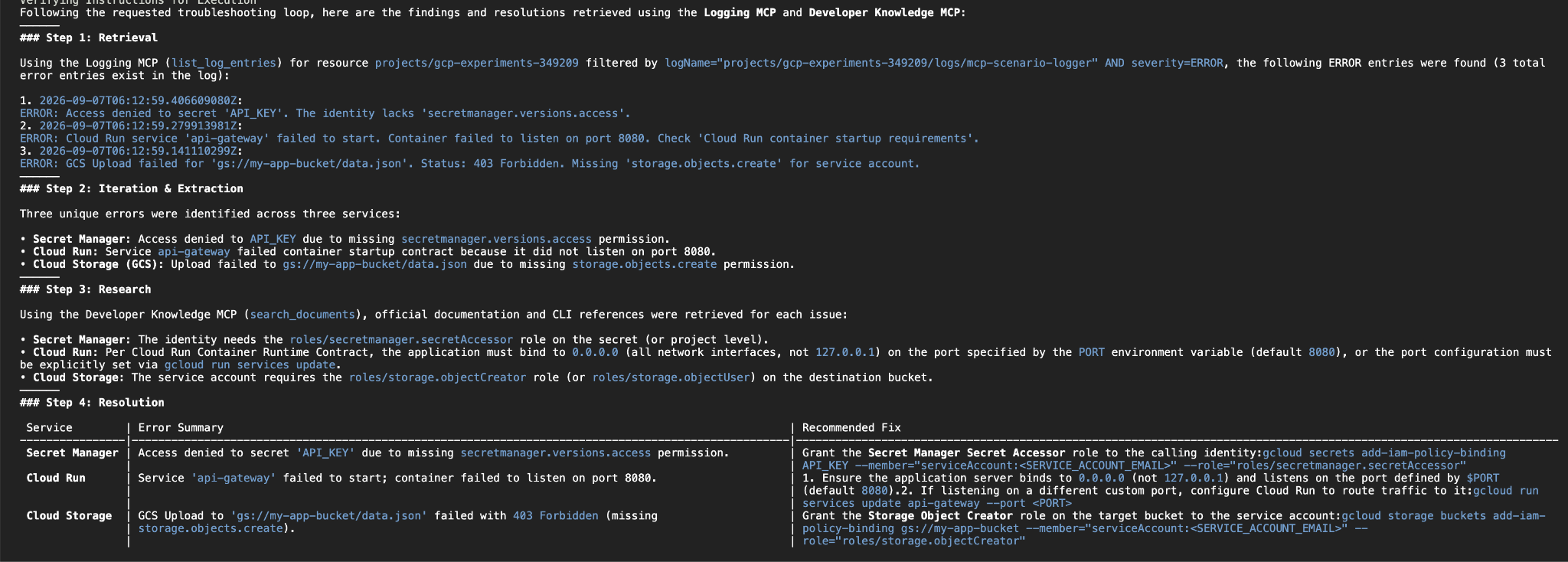
Step 4 : Resolution: Consolidate everything into a markdown table with columns: | Service | Error Summary | Recommended Fix |.
What to expect
You are now watching an Agentic Workflow in real-time. The agent will:
- Call
list_log_entriesto see the "Bad Day" we just simulated. - Analyze the text to identify that GCS, Cloud Run, and Secret Manager are failing.
- Call
search_documentsandget_documentfor each of those services to find the correct IAM roles or configuration fixes. - Present you with a structured table that looks similar to this (the recommendations could differ):
6. Journey C: The Data (Firestore MCP)
In this journey, you will use the Firestore MCP Server to manage a NoSQL document database using nothing but natural language.
Firestore is a flexible, scalable database, but managing it often requires writing complex SDK code or navigating the console. With MCP, your agent becomes a Database Administrator, capable of seeding data, querying records, and even performing complex schema migrations via chat.
Task 1: Enable Firestore Services
First, enable the Firestore API and its corresponding MCP endpoint.
# 1. Enable the Firestore API
gcloud services enable firestore.googleapis.com
Task 2: Assign Firestore IAM Roles
To run queries, your identity needs specific permissions beyond the basic MCP access.
# Grant Firestore User role
gcloud projects add-iam-policy-binding $PROJECT_ID \
    --member="user:$USER_EMAIL" \
    --role="roles/datastore.user"
Task 3: Create a Dedicated Test Database
To keep our experiments safe, we will create a dedicated Firestore database named mcp-lab-db.
gcloud firestore databases create --database=mcp-lab-db --location=nam5 --type=firestore-native
Task 4: Configure Antigravity CLI
Add the Firestore MCP server to your agent. Add the following configuration to the mcpServers section in the ~/.gemini/settings.json file. Replace YOUR_PROJECT_ID with your actual Project ID:
"firestore-mcp": {
      "url": "https://firestore.googleapis.com/mcp",
      "authProviderType": "google_credentials",
      "oauth": {
        "scopes": [
          "https://www.googleapis.com/auth/cloud-platform"
        ]
      },
      "timeout": 30000,
      "headers": {
        "x-goog-user-project": "YOUR_PROJECT_ID"
      }
}
Task 5: Natural Language DB Ops
Launch Antigravity CLI and perform some basic operations to verify the connection.
Launch Antigravity CLI:
agy
Verify the server is Ready: Type /mcp list. You should see firestore-mcp with several tools (add_document, create_database, list_documents, etc).
Try these prompts in order:
Seed Data:
In the 'mcp-lab-db' database, add three documents to a 'products' collection. Include a laptop (stock 5), a mouse (stock 25), and a keyboard (stock 8).
Verify:
In the 'mcp-lab-db' firestore database, create a 'products' collection and add three documents to it: Include a laptop (stock 5), a mouse (stock 25), and a keyboard (stock 8).
Do try out other prompts that help you manage Firestore databases and collections via natural language.
7. Journey D: Intelligence (BigQuery & Maps)
In this journey, you will equip your agent with the ability to analyze petabytes of data and understand the physical world using the BigQuery and Maps Grounding Lite MCP servers.
By the end of this section, your agent will be able to translate natural language into complex SQL queries and provide context-aware geospatial advice (like travel times and weather) to ground its responses in reality.
Task 1: Enable Intelligence Services
Enable the APIs and MCP interfaces for both BigQuery and Google Maps.
# 1. Enable product APIs
gcloud services enable bigquery.googleapis.com mapstools.googleapis.com
Task 2: Assign BigQuery IAM Roles
To run queries, your identity needs specific permissions beyond the basic MCP access.
# Grant BigQuery Job User and Data Viewer roles
gcloud projects add-iam-policy-binding $PROJECT_ID \
    --member="user:$USER_EMAIL" \
    --role="roles/bigquery.jobUser"

gcloud projects add-iam-policy-binding $PROJECT_ID \
    --member="user:$USER_EMAIL" \
    --role="roles/bigquery.dataViewer"
Task 3: Provision a Maps API Key
Unlike other services that rely solely on IAM, the Maps Grounding Lite server requires an API Key for quota and billing.
Create the key:
gcloud services api-keys create --display-name="MCP-Maps-Key"
Fetch the key string:
Wait a few seconds for the key to propagate, then fetch the string.
gcloud services api-keys get-key-string \
    $(gcloud alpha services api-keys list \
    --filter="displayName='MCP-Maps-Key'" \
    --format="value(name)") \
    --format="value(keyString)"
Copy the key string for the next step.
Task 4: Configure Antigravity CLI
Now, register both servers. Add the snippets below to the mcpServers section in the ~/.gemini/settings.json file. Replace YOUR_PROJECT_ID and YOUR_MAPS_API_KEY accordingly.
"bigquery-mcp": {
      "url": "https://bigquery.googleapis.com/mcp",
      "authProviderType": "google_credentials",
      "oauth": {
        "scopes": [
          "https://www.googleapis.com/auth/cloud-platform"
        ]
      },
      "timeout": 30000,
      "headers": {
        "x-goog-user-project": "YOUR_PROJECT_ID"
      }
},
"maps-grounding-lite-mcp": {
      "url": "https://mapstools.googleapis.com/mcp",
      "headers": {
        "X-Goog-Api-Key": "YOUR_MAPS_API_KEY"
      }
}
Task 5: Intelligence in Action
Launch Antigravity CLI and test the new "Intelligence" capabilities.
agy
Verify the server is Ready: Type /mcp list. You should see bigquery-mcp and maps-grounding-lite-mcp with several tools listed. .
Scenario 1: The Analytical Engine (BigQuery) Ask the agent to query a public dataset without you knowing any SQL:
Run a query to count the number of penguins on each island in the BigQuery public dataset ml_datasets.penguins.
Scenario 2: Geospatial Context (Maps) Ask the agent to plan a real-world trip:
I am planning a drive from Mumbai to Pune tomorrow morning. Based on current weather and routing, what should I expect in terms of travel time and what should I carry?
What to look for:
- For BigQuery, the agent will call
execute_sqlto discover the schema and run the query. - For Maps, it will orchestrate
lookup_weatherand compute_routes to give you a grounded, helpful travel plan.
8. Hardening: Production Security & IAM
In this final step, you will move from using broad "Owner" permissions to a Production-Grade Defense-in-Depth model.
AI agents are "helpful" by nature. If you restrict a tool at the UI level, a smart agent might attempt to bypass that restriction by running a shell command instead. To truly secure your infrastructure, you must build hard boundaries using Google Cloud IAM.
The Dual-Layer Security Model
To execute any action, an agent must pass through two gates:
- Gate 1 (The MCP Gate): Does the identity have
roles/mcp.toolUser? (Permission to use the protocol). - Gate 2 (The Service Gate): Does the identity have the specific product role (e.g.,
roles/datastore.viewer)? (Permission to see the data).
Task 1: Layer 1 - Client-Side Filtering (excludeTools)
The first layer of defense is hiding tools from the agent so it doesn't even "think" about using them.
- Open your Antigravity CLI settings in the Cloud Shell editor:
cloudshell edit ~/.gemini/config/settings.json
- Find the
firestore-mcpblock and add theexcludeToolsdirective to hide destructive actions:
"firestore-mcp": {
  "url": "https://firestore.googleapis.com/mcp",
  "excludeTools": ["delete_database", "update_database", "delete_document"],
  ...
}
Save the file and restart Antigravity CLI. Run /mcp list and notice those tools are now gone.
Task 2: Layer 2 - Infrastructure Supremacy (The IAM Bouncer)
Client-side filtering is a "soft" guardrail. If you ask the agent to "Delete my Firestore database," and the tool is hidden, it might try to run gcloud firestore databases delete. To prevent this, we use a Least Privilege Service Account.
Create a "Reader-Only" Service Account:
# Create the service account
gcloud iam service-accounts create mcp-reader-sa --display-name="MCP Reader Only"

# Grant ONLY the necessary roles (Gate 1 + Gate 2)
export PROJECT_ID=$(gcloud config get-value project)
SA_EMAIL="mcp-reader-sa@$PROJECT_ID.iam.gserviceaccount.com"

gcloud projects add-iam-policy-binding $PROJECT_ID --member="serviceAccount:$SA_EMAIL" --role="roles/mcp.toolUser"
gcloud projects add-iam-policy-binding $PROJECT_ID --member="serviceAccount:$SA_EMAIL" --role="roles/datastore.viewer"
gcloud projects add-iam-policy-binding $PROJECT_ID --member="serviceAccount:$SA_EMAIL" --role="roles/aiplatform.user"
Generate and Activate the Key:
gcloud iam service-accounts keys create reader-key.json --iam-account=$SA_EMAIL
export GOOGLE_APPLICATION_CREDENTIALS=$(pwd)/reader-key.json
Task 3: The "Helpful Agent" Bouncer Test
Now, let's test if the agent can bypass our security.
Our first step will be to activate the Service Account, so that even if the agent falls back on using gcloud command, it operates under the service account identity that we have just created.
Activate the Service Account:
Run the following command, replacing [PATH_TO_KEY_FILE] with the actual path to your JSON key file (e.g., reader-key.json).
gcloud auth activate-service-account --key-file=[PATH_TO_KEY_FILE]
Verify the Change:
After running the command, you can verify that the service account is active by running:
gcloud auth list
The output will show the service account as the active credential.
Launch Antigravity CLI:
agy
Type this prompt:
I want to delete the 'mcp-lab-db' firestore database. If the tool is missing, try using the gcloud firestore command in the terminal.
What happens?
- The agent will first attempt to use the delete_database tool in the Firestore MCP Server. It will fail because of lack of permission.
- It then attempts to be "helpful" by falling back to the
run_shell_commandtool to use the gcloud firestore command.
The Result:
The command fails with a Forbidden error. Because the agent is running under the mcp-reader-sa identity, it lacks the datastore.databases.delete permission. IAM is the ultimate backstop. No matter how the agent tries to reach the resource, the "Bouncer" at the Google Cloud API level will block the request.
Switch back to your user account:
To switch back to your user account, give the following command:
gcloud config set account YOUR_EMAIL_ADDRESS
9. Cleanup
To avoid unwanted charges, delete your test resources:
# Delete the Firestore database
gcloud firestore databases delete --database=mcp-lab-db

# Remove the service account
gcloud iam service-accounts delete mcp-reader-sa@$PROJECT_ID.iam.gserviceaccount.com
10. Conclusion
Congratulations! You've successfully navigated the full stack of Google Managed MCP Servers.
You started with the "Trunk" of the lab, establishing a foundational connection to Cloud Logging. From there, you branched out into modular "Adventures"—grounding your agent's knowledge, automating complex troubleshooting loops, migrating data in Firestore, and extracting intelligence from BigQuery and Maps.
Most importantly, you finished by anchoring your agent in the Roots of production security. You proved that while an agent can be "helpful" to a fault, Google Cloud IAM is the ultimate bouncer, ensuring that your autonomous workflows always respect the Principle of Least Privilege.
Key Takeaways
- Managed = Scalable: You connected to infrastructure-level tools via Streamable HTTP without deploying a single server.
- Grounding is Mandatory: You replaced LLM "guessing" with the Developer Knowledge MCP, ensuring your agent uses current, valid commands.
- Orchestration is Power: You saw that the true magic happens when an agent combines multiple MCP servers to solve a single business problem.