

1. 概览
AI 智能体正在迅速普及,它们能够自主运行、学习并与环境互动以实现目标,从而彻底改变了任务自动化和决策方式。
此 Codelab 将帮助您开始构建端到端多智能体系统。您将构建一个货币 MCP 服务器,构建一个使用该 MCP 服务器并通过 Agent2Agent (A2A) 协议公开的货币智能体,构建一个带有进程内天气子智能体的旅行智能体(该子智能体通过 A2A 使用货币智能体),最后将所有服务部署到 Cloud Run。

核心技术
Model Context Protocol (MCP)
Model Context Protocol (MCP) 是一种开放协议,可规范应用为 LLM 提供上下文和工具的方式。您可以将 MCP 想象成 AI 应用的 USB-C 端口:它提供了一种标准化方式,可将 AI 模型连接到外部数据源、API 和工具。
在此 Codelab 中,currency_mcp_server 通过可流式传输的 HTTP (/mcp) 公开 get_exchange_rate 工具,该工具由公开的 Frankfurter API 提供支持。
智能体开发套件 (ADK)
智能体开发套件 (ADK) 是一个灵活的编排框架,用于开发和部署 AI 智能体。ADK 不限模型、不限部署,并且可与其他框架兼容。ADK 让智能体开发更接近于标准软件工程,从而轻松创建、测试和编排复杂的 Agentic Workflows。
ADK 负责处理用户对话、提供交互式 Web 界面、通过 McpToolset 连接到 MCP 工具,以及管理 A2A 通信。
Agent2Agent (A2A) protocol
Agent2Agent (A2A) 协议是一种开放标准,旨在让 AI 智能体之间实现通信和协作。就像 MCP 规范了智能体与工具之间的连接一样,A2A 规范了智能体之间的协作!在当今世界,代理构建于不同的框架、托管环境和组织中,而 A2A 为发现和任务委派提供了一种通用语言。
ADK 将 currency_agent 公开为 A2A 服务 (to_a2a),并允许 travel_agent 将其作为 AgentTool (RemoteA2aAgent) 远程使用。
本地子智能体与远程 A2A 智能体
此架构突出了多智能体设计中的一个关键模式:
- 本地代理工具 (
weather_agent):作为AgentTool在编排器中进程内运行,具有零网络延迟或协议序列化开销。 - 远程智能体工具 (
currency_agent):作为独立的微服务运行,通过 A2A 协议跨网络调用。
学习内容
- 如何使用 FastMCP over Streamable HTTP 创建和测试本地 MCP 服务器
- 如何使用 ADK 构建使用 MCP 工具的智能体 (
McpToolset) - 如何将 ADK 智能体公开为 A2A 服务器 (
to_a2a) - 如何使用 A2A Python 客户端 (
a2a.client) 测试 A2A 服务器 - 如何构建一个编排器智能体,将本地子智能体工具与远程 A2A 智能体相结合
- 如何使用 ADK 网页界面在本地运行和测试完整的多智能体系统
- 如何将所有三个组件容器化并部署到 Google Cloud Run
所需条件
- 一个浏览器,例如 Chrome。
- 启用了结算功能的 Google Cloud 项目。
2. 准备工作
创建项目
如果您没有 Google Cloud 项目,请创建一个。
在 Google Cloud 控制台的项目选择器页面上,选择或创建一个 Google Cloud 项目。
此外,请确保您的云项目已启用结算功能。了解如何检查项目是否已启用结算功能。
激活 Cloud Shell
Google Cloud Shell 是直接在 Google Cloud 控制台中提供的基于浏览器的交互式开发环境。这是开始使用 Google Cloud 的最简单方法,无需在本地安装工具。
点击此链接,激活 Cloud Shell。您可以点击 Cloud Shell 中的相应按钮,在 Cloud Shell 终端(用于运行云命令)和编辑器(用于查看文件)之间进行切换。
连接到 Cloud Shell 后,验证您是否已通过身份验证:
gcloud auth list
确认 gcloud 命令了解您的项目:
gcloud config list project
设置项目 ID:
export PROJECT_ID=<YOUR_GOOGLE_CLOUD_PROJECT_ID>
gcloud config set project $PROJECT_ID
启用 Cloud API
为 Cloud Run、Cloud Build、Artifact Registry 和 Vertex AI 启用所需的 API:
gcloud services enable run.googleapis.com \
                       cloudbuild.googleapis.com \
                       artifactregistry.googleapis.com \
                       aiplatform.googleapis.com
获取代码
克隆代码库并前往 python 目录:
git clone https://github.com/meteatamel/getting-started-mcp-a2a-adk.git
cd getting-started-mcp-a2a-adk/python
使用 uv 安装依赖项
uv 是一款快速的 Python 软件包和项目管理器。它预安装在 Cloud Shell 中。如果在本地运行,您可以按如下方式安装:
# macOS and Linux
curl -LsSf https://astral.sh/uv/install.sh | sh

# Windows (PowerShell)
# powershell -ExecutionPolicy ByPass -c "irm https://astral.sh/uv/install.ps1 | iex"
Python 目录采用统一的 uv 结构
Workspace。运行以下命令,将所有工作区成员(currency_mcp_server、currency_agent 和 travel_agent)的所有依赖项安装到单个虚拟环境中:
uv sync
配置环境变量
在 python 目录中的 .env 文件中配置环境变量:
选项 A:Gemini Enterprise(Google Cloud / Cloud Shell)
echo "GOOGLE_GENAI_USE_ENTERPRISE=TRUE" >> .env \
&& echo "GOOGLE_CLOUD_PROJECT=$PROJECT_ID" >> .env \
&& echo "GOOGLE_CLOUD_LOCATION=global" >> .env
选项 B:Google AI Studio(本地 API 密钥)
如果您更愿意使用 Google AI Studio 中的 API 密钥,请执行以下操作:
echo "GOOGLE_API_KEY=<your_api_key_here>"<>>/span>  .env \
&& echo "GOOGLE_GENAI_USE_ENTERPRISE=FALSE" >> .env
3. 创建货币 MCP 服务器
在创建智能体之前,您将首先探索公开货币换算工具的 MCP 服务器。
借助 MCP 服务器,您可以编写轻量级程序,将各种功能作为工具开放。然后,一个或多个智能体可以使用标准化的 Model Context Protocol 访问这些工具。
FastMCP Python 软件包可用于创建 MCP 服务器,该服务器会公开一个名为 get_exchange_rate 的工具。get_exchange_rate 工具会调用 Frankfurter API,以获取两种货币之间的当前汇率。
MCP 服务器的代码位于 currency_mcp_server/server.py 中:
import asyncio
import logging
import os

import httpx
from fastmcp import FastMCP

logger = logging.getLogger(__name__)
logging.basicConfig(format="[%(levelname)s]: %(message)s", level=logging.INFO)

mcp = FastMCP("Currency MCP Server 💵")


@mcp.tool()
def get_exchange_rate(
    currency_from: str = "USD",
    currency_to: str = "EUR",
    currency_date: str = "latest",
):
    """Use this to get current exchange rate.

    Args:
        currency_from: The currency to convert from (e.g., "USD").
        currency_to: The currency to convert to (e.g., "EUR").
        currency_date: The date for the exchange rate or "latest". Defaults to "latest".

    Returns:
        A dictionary containing the exchange rate data, or an error message if the request fails.
    """
    logger.info(
        f"--- 🛠️ Tool: get_exchange_rate called for converting {currency_from} to {currency_to} ---"
    )
    try:
        response = httpx.get(
            f"https://api.frankfurter.dev/v1/{currency_date}",
            params={"from": currency_from, "to": currency_to},
        )
        response.raise_for_status()

        data = response.json()
        if "rates" not in data:
            logger.error(f"❌ rates not found in response: {data}")
            return {"error": "Invalid API response format."}
        logger.info(f"✅ API response: {data}")
        return data
    except httpx.HTTPError as e:
        logger.error(f"❌ API request failed: {e}")
        return {"error": f"API request failed: {e}"}
    except ValueError:
        logger.error("❌ Invalid JSON response from API")
        return {"error": "Invalid JSON response from API."}


if __name__ == "__main__":
    port = int(os.getenv("PORT", 8080))
    logger.info(f"🚀 MCP server started on port {port}")
    # Could also use 'sse' transport, host="0.0.0.0" required for Cloud Run.
    asyncio.run(
        mcp.run_async(
            transport="http",
            host="0.0.0.0",
            port=port,
        )
    )
在本地启动 MCP 服务器
在终端中启动 MCP 服务器:
uv run python currency_mcp_server/server.py
服务器在端口 8080 上启动,可流式传输的 HTTP 端点位于 /mcp (http://localhost:8080/mcp)。
测试 MCP 服务器
打开第二个终端窗口(让 MCP 服务器在第一个窗口中运行),前往 python 文件夹 (cd getting-started-mcp-a2a-adk/python),然后运行测试脚本:
uv run python currency_mcp_server/test_server.py
测试脚本会使用 FastMCP 的 Client 连接到 MCP 端点,列出工具,并调用 get_exchange_rate:
Connecting to MCP server at: http://localhost:8080/mcp
--- 🛠️  Tool found: get_exchange_rate ---
--- 🪛  Calling get_exchange_rate tool for USD to EUR ---
--- ✅  Success: {"amount":1.0,"base":"USD","date":"2026-09-29","rates":{"EUR":0.84919}} ---
太棒了!您已有一个正常运行的 MCP 服务器,该服务器公开了一个实时货币工具。请勿关闭此终端,以便执行后续步骤。
4. 使用 ADK 创建货币智能体
现在,您可以使用智能体开发套件 (ADK) 创建货币智能体了。
ADK 通过 McpToolset 类为 MCP 工具提供内置支持。货币智能体使用 StreamableHTTPConnectionParams 连接到我们的 MCP 服务器。
查看 currency_agent/agent.py 中的货币智能体定义:
import logging
import os
from urllib.parse import urlparse

from dotenv import load_dotenv
from google.adk.agents import LlmAgent
from google.adk.a2a.utils.agent_to_a2a import to_a2a
from google.adk.tools.mcp_tool import McpToolset, StreamableHTTPConnectionParams

logger = logging.getLogger(__name__)
logging.basicConfig(format="[%(levelname)s]: %(message)s", level=logging.INFO)

load_dotenv()

SYSTEM_INSTRUCTION = (
    "You are a specialized assistant for currency conversions. "
    "Your sole purpose is to use the 'get_exchange_rate' tool to answer questions about currency exchange rates. "
    "If the user asks about anything other than currency conversion or exchange rates, "
    "politely state that you cannot help with that topic and can only assist with currency-related queries. "
    "Do not attempt to answer unrelated questions or use tools for other purposes."
)

mcp_server_url = os.getenv("MCP_SERVER_URL", "http://localhost:8080/mcp")
if not mcp_server_url.endswith("/mcp"):
    mcp_server_url = f"{mcp_server_url.rstrip('/')}/mcp"

logger.info(f"--- 🔧 Loading MCP tools from MCP Server at {mcp_server_url}... ---")
logger.info("--- 🤖 Creating ADK Currency Agent... ---")

root_agent = LlmAgent(
    model="gemini-3.8-flash",
    name="currency_agent",
    description="An agent that can help with currency conversions",
    instruction=SYSTEM_INSTRUCTION,
    tools=[
        McpToolset(
            connection_params=StreamableHTTPConnectionParams(
                url=mcp_server_url
            )
        )
    ],
)
请注意,McpToolset 如何通过 HTTP 直接从正在运行的 MCP 服务器自动发现并加载 get_exchange_rate 工具。
使用 ADK 网页界面测试货币智能体
您可以使用 ADK 的开发网页界面单独测试智能体。在第二个终端中,运行:
uv run adk web --allow_origins "*" currency_agent
在浏览器中打开 http://localhost:8000(或点击 Cloud Shell 中的网页预览)。
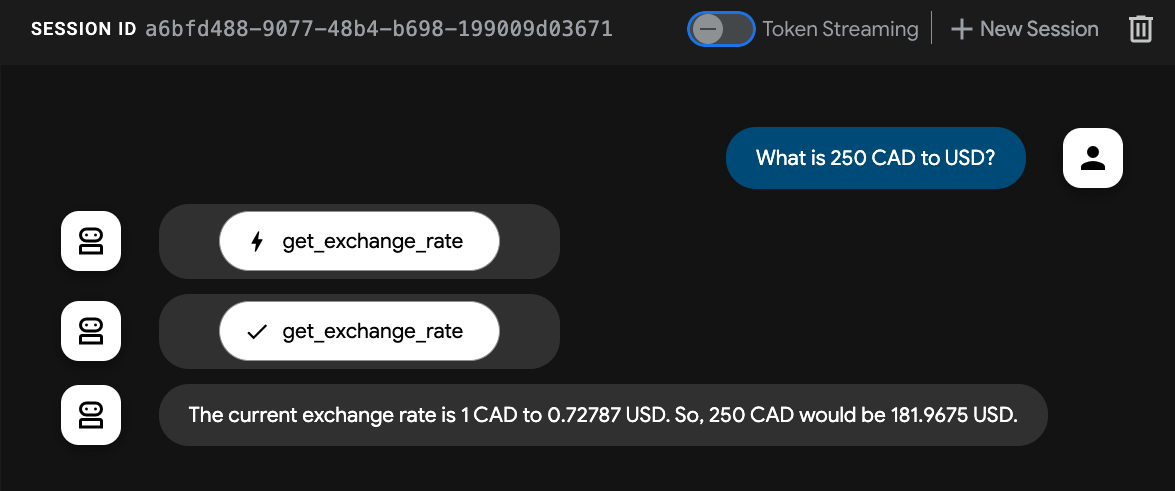
询问智能体:
“250 美元等于多少欧元?”
您会看到代理调用 get_exchange_rate MCP 工具并返回换算后的金额。请先使用 Ctrl+C 停止 adk web 进程,然后再继续。
5. Agent2Agent (A2A) 协议
Agent2Agent (A2A) 协议是一种开放标准,旨在让 AI 智能体之间实现通信和协作。
在现代多智能体系统中,智能体通常使用不同的框架(ADK、LangChain、CrewAI、AutoGen)构建,并部署在不同的基础设施上。A2A 通过定义标准化的通信协定来打破这些孤岛。
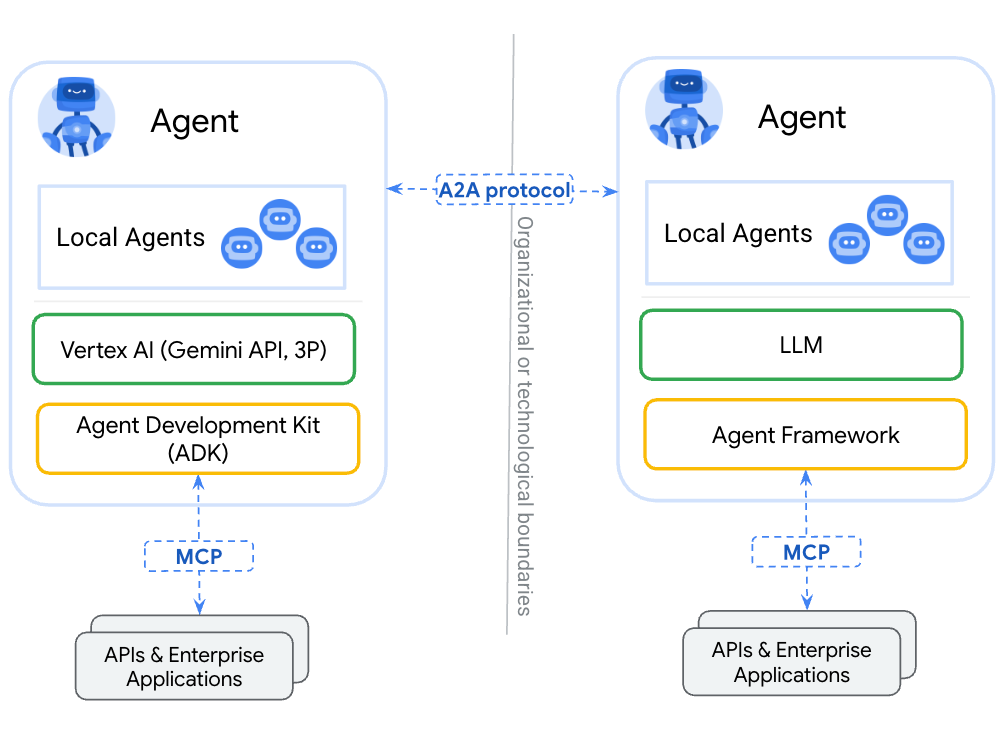
A2A 的关键概念
- 智能体发现(智能体卡片):每个符合 A2A 标准的智能体都会通过托管在
/.well-known/agent-card.json的标准 JSON 文件,宣传其功能、支持的 I/O 模式、身份验证要求和技能。 - 智能体技能 (
AgentSkill):智能体可以执行的特定功能或工具。其他智能体会读取这些技能,以决定何时委派任务。 - JSON-RPC 通信:智能体通过 HTTP JSON-RPC 2.0 等标准传输协议交换结构化消息、任务和工件。

在下一步中,您将把 ADK 货币智能体公开为 A2A 服务器,以便其他智能体能够发现它并将货币换算任务委托给它!
6. 将货币智能体公开为 A2A 服务器
借助 ADK 的 to_a2a() 实用函数,您可以轻松将任何 LlmAgent 转换为 A2A 兼容服务器。
查看 currency_agent/agent.py 的底部:
# Make the agent A2A-compatible
PORT = int(os.getenv("PORT", 8081))
AGENT_URL = os.getenv("AGENT_URL")

if AGENT_URL:
    parsed = urlparse(AGENT_URL)
    protocol = parsed.scheme or "https"
    host = parsed.hostname
    port = parsed.port or 443
else:
    protocol = "http"
    host = "localhost"
    port = PORT

a2a_app = to_a2a(root_agent, host=host, port=port, protocol=protocol)

if __name__ == "__main__":
    import uvicorn

    logger.info(f"🚀 Starting currency_agent on port {PORT}")
    uvicorn.run(a2a_app, host="0.0.0.0", port=PORT)
to_a2a() 帮助程序会自动执行以下操作:
- 检查
LlmAgent的工具和指令。 - 生成一个 A2A
AgentCard,用于描述其技能(例如currency_agent-get_exchange_rate)。 - 将智能体封装在支持 JSON-RPC 端点的 FastAPI 应用 (
a2a_app) 中。 - 根据
AGENT_URL(或 localhost)动态配置代理卡片中通告的url。
启动 Currency Agent A2A 服务器
在第二个终端中,启动货币智能体:
uv run python currency_agent/agent.py
服务器在端口 8081 上启动:
[INFO]: --- 🔧 Loading MCP tools from MCP Server at http://localhost:8080/mcp... ---
[INFO]: --- 🤖 Creating ADK Currency Agent... ---
[INFO]: 🚀 Starting currency_agent on port 8081
INFO:     Started server process
INFO:     Waiting for application startup.
INFO:     Application startup complete.
INFO:     Uvicorn running on http://0.0.0.0:8081 (Press CTRL+C to quit)
检查智能体卡片
在浏览器中,访问智能体卡片端点:http://localhost:8081/.well-known/agent-card.json
您会看到自动生成的 JSON 元数据:
{
  "name": "currency_agent",
  "description": "An agent that can help with currency conversions",
  "supportedInterfaces": [
    {
      "url": "http://localhost:8081",
      "protocolBinding": "JSONRPC",
      "protocolVersion": "1.0"
    }
  ],
  "version": "0.0.1",
  "capabilities": {
    "streaming": true
  },
  "defaultInputModes": [
    "text/plain"
  ],
  "defaultOutputModes": [
    "text/plain"
  ],
  "skills": [
    {
      "id": "currency_agent",
      "name": "model",
      "description": "An agent that can help with currency conversions",
      "tags": [
        "llm"
      ]
    },
    {
      "id": "currency_agent-get_exchange_rate",
      "name": "get_exchange_rate",
      "description": "Use this to get current exchange rate.",
      "tags": [
        "llm",
        "tools"
      ]
    }
  ]
}
使用 A2A 客户端进行测试
打开第三个终端,前往 python 文件夹 (cd getting-started-mcp-a2a-adk/python),然后使用专用 A2A 测试客户端脚本测试 A2A 端点:
uv run python currency_agent/test_a2aclient.py
客户端使用 A2ACardResolver 解析代理卡片,并发送 JSON-RPC 消息:
🔄 Fetching the agent card at http://localhost:8081
✅ Successfully fetched the agent card
====================================================
                     AgentCard
====================================================
Name        : currency_agent
Description : An agent that can help with currency conversions
Interfaces  : [0] http://localhost:8081  (JSONRPC 1.0)
Skills      : currency_agent, currency_agent-get_exchange_rate
====================================================
🔄 Initializing a non-streaming client
Sending request: "how much is 100 USD in GBP?"
Response:
100 USD is currently equal to approximately 73.37 GBP...
货币智能体现在作为功能齐全的 A2A 服务器运行!
7. 构建旅行代理
现在,您将构建编排旅行智能体。此代理展示了 ADK 代理如何轻松结合两种不同的工具范式:
- 本地智能体工具 (
weather_agent):在同一 Python 运行时中运行的进程内 ADK 子智能体,可避免任何网络或序列化延迟。 - 远程智能体工具 (
currency_agent):通过 A2A protocol 使用RemoteA2aAgent通过网络连接的外部智能体。
                    +-----------------------------+
                    |        travel_agent         |
                    | (Orchestrator with Web UI)  |
                    +--------------+--------------+
                                   |
             +---------------------+---------------------+
             | (In-process call)                         | (A2A Network Hop)
             v                                           v
+-------------------------+                 +-------------------------+
|   weather_agent         |                 |   currency_agent        |
|  (Local AgentTool)      |                 |  (Remote A2A Agent)     |
|  Calls wttr.in API      |                 |  Calls Currency MCP Svc |
+-------------------------+                 +-------------------------+
1. 本地天气子智能体
请查看 travel_agent/subagents/weather_agent.py:
import logging
import httpx
from google.adk.agents import LlmAgent

logger = logging.getLogger(__name__)

SYSTEM_INSTRUCTION = (
    "You are a specialized assistant for providing weather forecasts and conditions for travel destinations. "
    "Your sole purpose is to use the 'get_weather' tool to fetch weather information. "
    "Provide clear, concise summaries of current weather conditions, temperatures, and forecasts to help travelers pack and plan."
)


def get_weather(location: str = "London") -> dict:
    """Gets the current weather and forecast for a given location or city."""
    logger.info(f"--- 🌤️ Tool: get_weather called for {location} ---")
    try:
        response = httpx.get(
            f"https://wttr.in/{location}?format=j1",
            headers={"User-Agent": "curl/7.68.0"},
            timeout=8.0,
        )
        response.raise_for_status()
        data = response.json()
        current = data["current_condition"][0]
        return {
            "location": location,
            "condition": current.get("weatherDesc", [{}])[0].get("value", "Unknown"),
            "temperature_celsius": f"{current.get('temp_C', 'N/A')}°C",
            "temperature_fahrenheit": f"{current.get('temp_F', 'N/A')}°F",
            "humidity": f"{current.get('humidity', 'N/A')}%",
            "wind_speed_kmph": f"{current.get('windspeedKmph', 'N/A')} km/h",
        }
    except Exception as e:
        logger.warning(f"⚠️ Weather lookup failed: {e}. Returning simulated estimate.")
        return {
            "location": location,
            "condition": "Partly Cloudy",
            "temperature_celsius": "20°C",
            "temperature_fahrenheit": "68°F",
            "humidity": "55%",
            "wind_speed_kmph": "10 km/h",
            "note": f"Live data unavailable ({e}); showing estimated conditions.",
        }


weather_agent = LlmAgent(
    model="gemini-3.8-flash",
    name="weather_agent",
    description="A local specialist agent that provides current weather reports and forecasts for travel destinations.",
    instruction=SYSTEM_INSTRUCTION,
    tools=[get_weather],
)
天气智能体是一个 LlmAgent,它具有一个函数工具,可从 wttr.in 获取实时天气信息,并具有弹性回退机制。
2. 旅行社编排器
现在,请查看 travel_agent/agent.py:
import logging
import os
from dotenv import load_dotenv
from google.adk.agents import LlmAgent
from google.adk.tools.agent_tool import AgentTool
from google.adk.agents.remote_a2a_agent import RemoteA2aAgent, AGENT_CARD_WELL_KNOWN_PATH

try:
    from travel_agent.subagents.weather_agent import weather_agent
except ImportError:
    from subagents.weather_agent import weather_agent

logger = logging.getLogger(__name__)
logging.basicConfig(format="[%(levelname)s]: %(message)s", level=logging.INFO)

load_dotenv()

SYSTEM_INSTRUCTION = (
    "You are a helpful travel assistant. You help users plan trips, recommend places, "
    "and answer travel-related questions.\n\n"
    "- Whenever a user asks about currency exchange rates or money conversions, "
    "delegate the request to the 'currency_agent' tool.\n"
    "- Whenever a user asks about the weather, climate, or forecasts for a destination, "
    "delegate the request to the 'weather_agent' tool."
)

CURRENCY_AGENT_URL = os.getenv("CURRENCY_AGENT_URL", "http://localhost:8081").rstrip("/")

logger.info(
    "--- 🔗 Connecting to Remote A2A Currency Agent at %s... ---",
    CURRENCY_AGENT_URL,
)

currency_remote_agent = RemoteA2aAgent(
    name="currency_agent",
    agent_card=f"{CURRENCY_AGENT_URL}{AGENT_CARD_WELL_KNOWN_PATH}",
    description="An agent that can help with currency conversions and exchange rates.",
)

logger.info("--- 🤖 Creating ADK Travel Agent... ---")

root_agent = LlmAgent(
    model="gemini-3.8-flash",
    name="travel_agent",
    description="A travel assistant that can help plan trips, check weather forecasts via the local weather agent, and convert currencies via the remote currency agent.",
    instruction=SYSTEM_INSTRUCTION,
    tools=[
        AgentTool(agent=currency_remote_agent),
        AgentTool(agent=weather_agent),
    ],
)

if __name__ == "__main__":
    import uvicorn
    from google.adk.cli.fast_api import get_fast_api_app

    PORT = int(os.getenv("PORT", 8082))
    logger.info(f"🚀 Starting travel_agent Web UI on port {PORT}")
    app = get_fast_api_app(web=True, allow_origins=["*"], agents_dir=os.path.dirname(__file__) or ".")
    uvicorn.run(app, host="0.0.0.0", port=PORT)
主要亮点:
RemoteA2aAgent从http://localhost:8081/.well-known/agent-card.json提取货币智能体的卡片。currency_remote_agent和weather_agent均使用 ADK 的AgentTool进行封装。- 直接运行
travel_agent/agent.py会使用get_fast_api_app(web=True)在端口8082上启动 ADK 网页界面。
8. 在本地运行和测试多智能体系统
现在,您已准备好所有三个组件!让我们在本地运行并测试整个系统。
运行所有三项服务
确保服务在三个单独的终端窗口中(从 getting-started-mcp-a2a-adk/python 目录)按以下顺序运行:
终端 1(货币 MCP 服务器):
uv run python currency_mcp_server/server.py
(在端口 8080 上运行)
2 号航站楼(Currency A2A Agent):
uv run python currency_agent/agent.py
(在端口 8081 上运行)
终端 3(具有 Web 界面的旅行代理):
uv run python travel_agent/agent.py
(在端口 8082 上运行)
通过 ADK 网页界面进行测试
在浏览器中打开 http://localhost:8082(或在 Cloud Shell 中使用端口 8082 上的网页预览)。
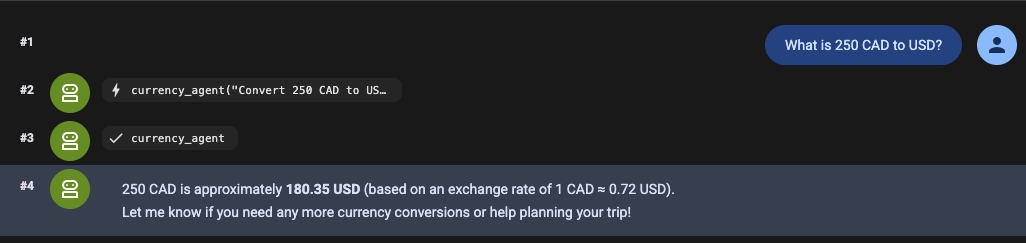
向 Travel Agent 提出一个需要同时使用这两个工具的复合问题:
“我正在规划前往伦敦的行程。天气怎么样?200 欧元相当于多少英镑?”
观看执行流程:
- 旅行社 在 Web 界面中收到请求。
- 它会将正在处理的天气问题委托给本地
weather_agent,后者会从wttr.in获取当前天气状况。 - 它通过 A2A protocol 将货币换算任务委托给端口 8081 上的
currency_agent。 currency_agent通过 MCP 在端口 8080 上调用currency_mcp_server,以获取汇率。- 所有结果都会经过整合,最终以统一、实用的回答呈现给您!
通过命令行进行测试
您还可以直接从 CLI 测试查询,而无需打开浏览器:
uv run adk run travel_agent "What is the weather in London and how much is 100 USD in EUR?"
现在,一切都已在本地机器上顺畅运行,接下来我们将整个系统部署到 Google Cloud Run!
9. 将多智能体系统部署到 Cloud Run
每个组件都有自己的 Dockerfile 和独立的 pyproject.toml,因此可以独立构建并部署到 Cloud Run。
使用 gcloud,您将部署每项服务并自动将其网址关联在一起。
设置环境变量
设置云项目 ID 和目标区域:
export PROJECT_ID=<YOUR_GOOGLE_CLOUD_PROJECT_ID>
export REGION=us-central1
第 1 步:部署货币 MCP 服务器
直接从源代码部署 MCP 服务器:
# 1. Deploy MCP server
gcloud run deploy currency-mcp-server \
  --source currency_mcp_server \
  --region $REGION \
  --allow-unauthenticated

# 2. Capture the deployed MCP server URL
MCP_SERVER_URL=$(gcloud run services describe currency-mcp-server --region $REGION --format='value(status.url)')/mcp
echo "MCP Server URL: $MCP_SERVER_URL"
第 2 步:部署 Currency Agent
由于 currency-agent 的公开网址是在首次部署时分配的,因此请先部署该服务,获取其网址,然后更新其 AGENT_URL 环境变量,以便其 A2A 智能体卡片通告正确的公开 HTTPS 地址:
# 1. Deploy Currency Agent connected to the deployed MCP Server
gcloud run deploy currency-agent \
  --source currency_agent \
  --region $REGION \
  --allow-unauthenticated \
  --update-env-vars MCP_SERVER_URL="$MCP_SERVER_URL",GOOGLE_GENAI_USE_ENTERPRISE="true",GOOGLE_CLOUD_PROJECT="$PROJECT_ID",GOOGLE_CLOUD_LOCATION="global"

# 2. Capture its assigned Cloud Run URL
CURRENCY_AGENT_URL=$(gcloud run services describe currency-agent --region $REGION --format='value(status.url)')
echo "Currency Agent URL: $CURRENCY_AGENT_URL"

# 3. Update AGENT_URL so the agent advertises its public HTTPS endpoint in its Agent Card
gcloud run services update currency-agent \
  --region $REGION \
  --update-env-vars AGENT_URL="$CURRENCY_AGENT_URL"
第 3 步:部署 Travel Agent
现在,部署 Travel Agent,并使用 CURRENCY_AGENT_URL 对其进行配置:
# 1. Deploy Travel Agent (with ADK Web UI) connected to Currency Agent
gcloud run deploy travel-agent \
  --source travel_agent \
  --region $REGION \
  --allow-unauthenticated \
  --update-env-vars CURRENCY_AGENT_URL="$CURRENCY_AGENT_URL",GOOGLE_GENAI_USE_ENTERPRISE="true",GOOGLE_CLOUD_PROJECT="$PROJECT_ID",GOOGLE_CLOUD_LOCATION="global"

# 2. Capture its assigned Cloud Run URL
TRAVEL_AGENT_URL=$(gcloud run services describe travel-agent --region $REGION --format='value(status.url)')
echo "Travel Agent URL: $TRAVEL_AGENT_URL"
10. 在 Cloud Run 中测试多智能体系统
部署完所有三个微服务后,让我们在 Cloud Run 中验证每个层。
1. 测试远程 MCP 服务器
通过命令行测试已部署的 Cloud Run MCP 服务器:
MCP_SERVER_URL="$MCP_SERVER_URL" uv run python currency_mcp_server/test_server.py
您应该会看到该工具已列出,并在 Cloud Run 上成功调用。
2. 通过 A2A 测试货币代理
使用 A2A 测试客户端测试已部署的 Currency Agent:
AGENT_URL="$CURRENCY_AGENT_URL" uv run python currency_agent/test_a2aclient.py
客户端将从 Cloud Run 提取远程智能体卡片,并通过 HTTPS JSON-RPC 交换消息。
3. 在 Cloud Run 中测试旅行代理 Web 界面
在浏览器中打开 $TRAVEL_AGENT_URL!
完整的 ADK Web 界面直接通过 Cloud Run 提供。试着问:
“我正在规划前往东京的行程。天气怎么样?500 美元可以兑换多少日元?”
[Browser]
   │
   ▼ (HTTPS)
[Cloud Run: travel-agent]
   ├──> Local in-process tool: weather_agent (wttr.in)
   └──> A2A JSON-RPC (HTTPS)
           │
           ▼
        [Cloud Run: currency-agent]
           └──> MCP Streamable HTTP (HTTPS)
                   │
                   ▼
                [Cloud Run: currency-mcp-server] (Frankfurter API)
这三项服务均在无服务器基础架构上独立扩缩,并通过开放协议无缝通信!
11. 恭喜和清理
学习成果
恭喜!您已构建并部署了一个生产级多智能体系统:
- Model Context Protocol (MCP):创建了一个 FastMCP 服务器,通过可流式传输的 HTTP 公开实时 API 工具。
- 智能体开发套件 (ADK):使用
LlmAgent构建了模块化智能体,使用McpToolset连接了 MCP 工具,并托管了 ADK 网页界面。 - Agent2Agent (A2A) 协议:将智能体公开为 A2A 服务 (
to_a2a),发布了智能体卡片 (agent-card.json),并使用RemoteA2aAgent使用了远程智能体。 - 多智能体架构:将本地进程内子智能体 (
weather_agent) 与分布式远程智能体 (currency_agent) 相结合。 - Cloud Run 无服务器部署:通过自动化配置连接,将所有三项服务容器化并部署。
如需查看完整代码(包括 Python 和 Java 实现)和未来更新,请访问 getting-started-mcp-a2a-adk 代码库。
清理
为避免系统因本 Codelab 中创建的 Cloud Run 服务向您的 Google Cloud 账号收取费用,请执行以下操作:
删除已部署的 Cloud Run 服务:
gcloud run services delete currency-mcp-server --region $REGION --quiet
gcloud run services delete currency-agent --region $REGION --quiet
gcloud run services delete travel-agent --region $REGION --quiet
或者,如果您为此 Codelab 创建了专用项目,则可以关停整个项目:
gcloud projects delete $PROJECT_ID