
1. Introduction
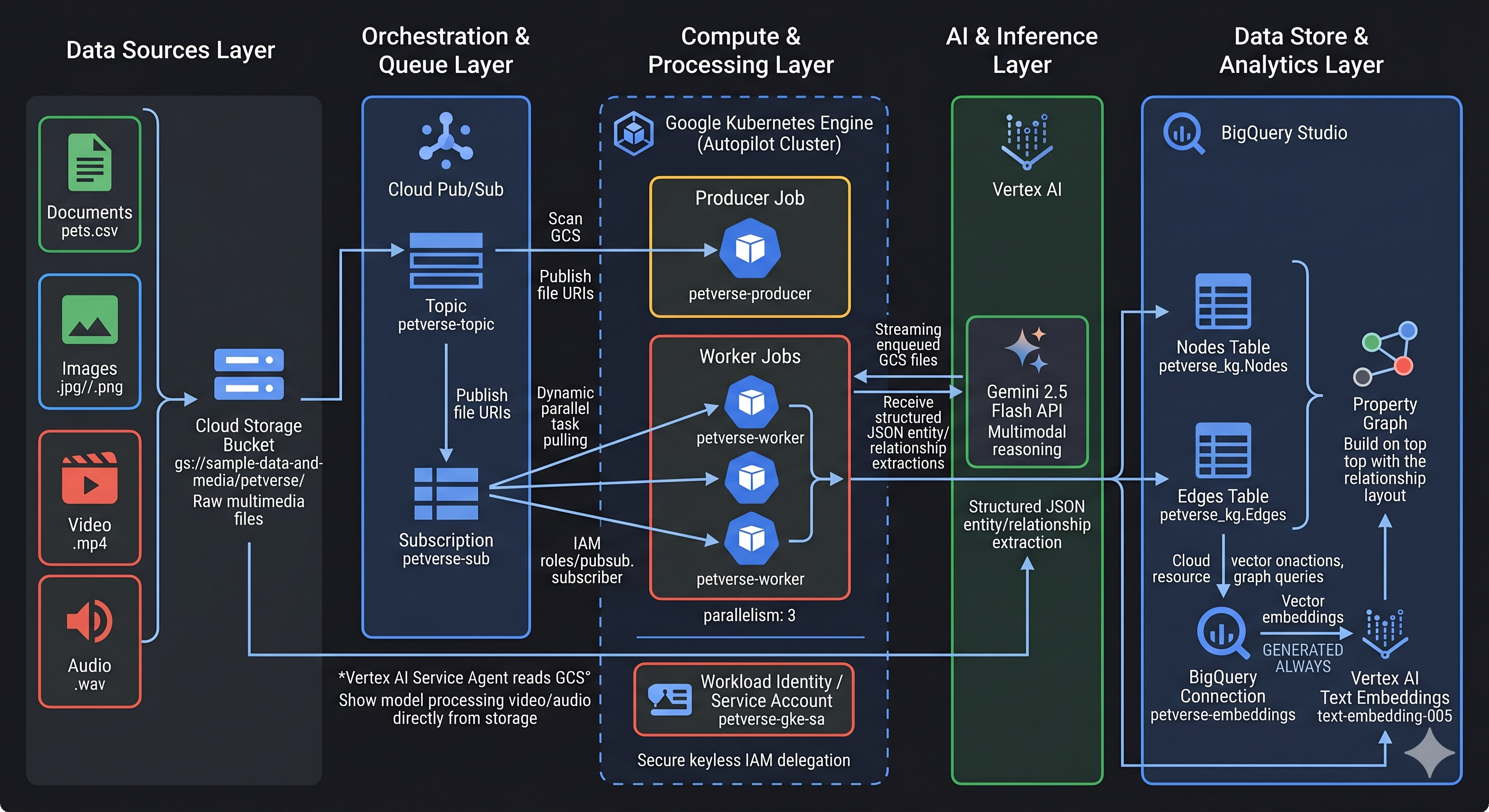
In this codelab, you will build a distributed knowledge acquisition pipeline for "Petverse". You will process unstructured multimedia assets (Audio, Video, Images, Text/CSV) from a Cloud Storage bucket, extract key information about the pets (favorite food, hobbies), and create a knowledge graph. You will scale the processing of the multimedia file using Gemini multi-modality processing on Google Kubernetes Engine (GKE). Finally, you will store this data in BigQuery and use the new BigQuery Property Graph feature to analyze the relationships.
We will use the power of Google Kubernetes Engine to demonstrate processing of high-volume data in parallel.
Why knowledge graphs?
Knowledge graphs are better suited than traditional relational databases for representing and analyzing complex relationships between entities.
We will use Gemini 2.5 Flash to analyze images, audio, and video files and establish facts about different pets.
What you'll do
- Build and deploy a distributed data processing job on GKE.
- Use Gemini to extract entities and relationships from multimedia files.
- Store the knowledge graph data in BigQuery.
- Create and query a Property Graph in BigQuery using Graph Query Language (GQL).
What you'll need
- A web browser such as Chrome
- A Google Cloud project with billing enabled
- Permissions in the project to create resources and modify IAM policies
This codelab is for developers of all levels, including beginners.
Estimated Duration: 45 minutes
Cost: The resources created in this codelab should cost less than $5.
2. Before you begin
Create a Google Cloud Project
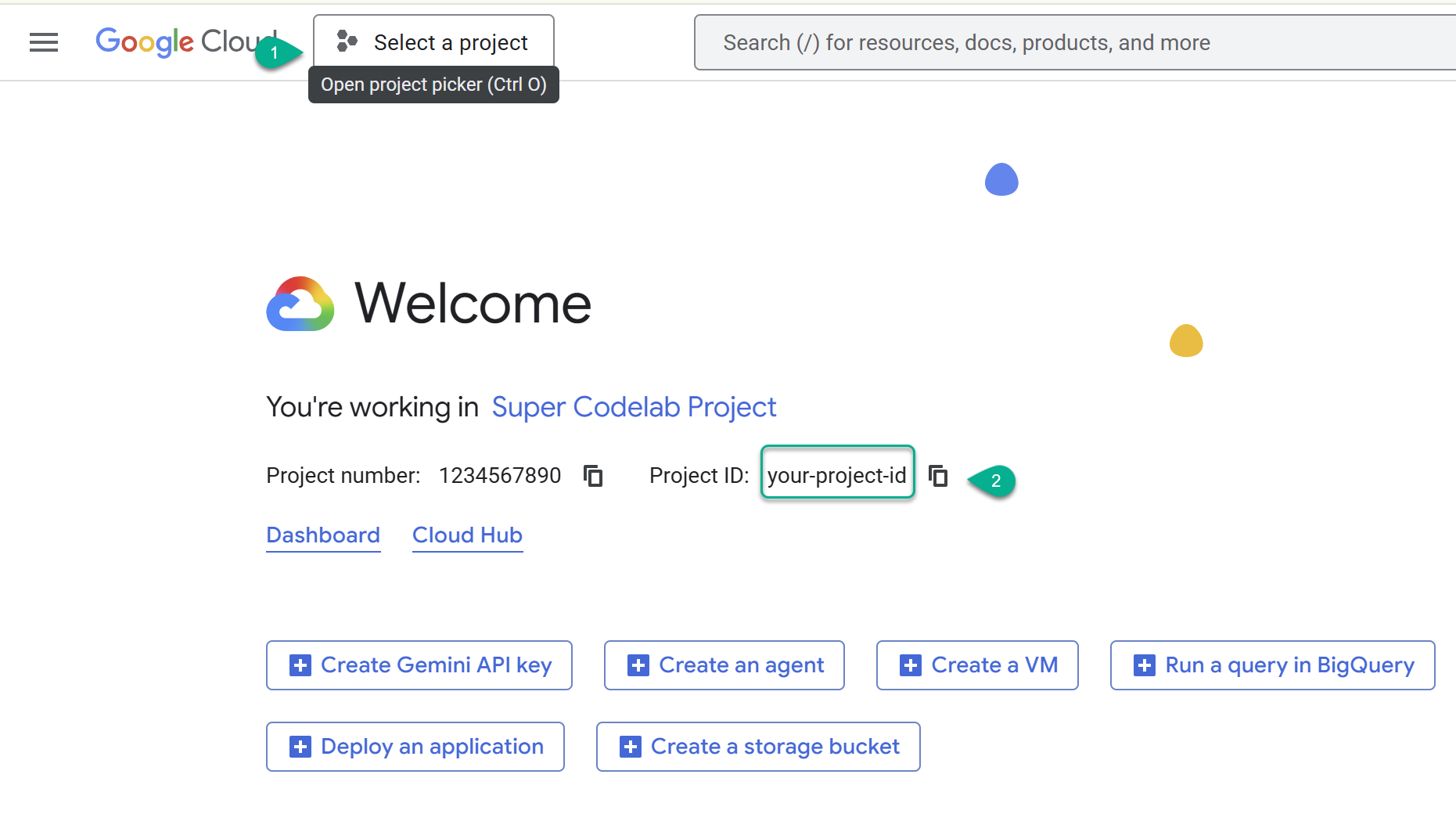
- Navigate to the Google Cloud Console: https://console.cloud.google.com, and then select or create a Google Cloud project.
- ⚠️ Note the Project ID. You will use it for several commands in this lab.
Start Cloud Shell
- Open Cloud Shell in a new tab: https://shell.cloud.google.com/.
- If prompted, click Authorize.
- Replace
PROJECT_IDand paste the following command into the terminal:
export PROJECT_ID="YOUR_PROJECT_ID"
gcloud config set project $PROJECT_ID
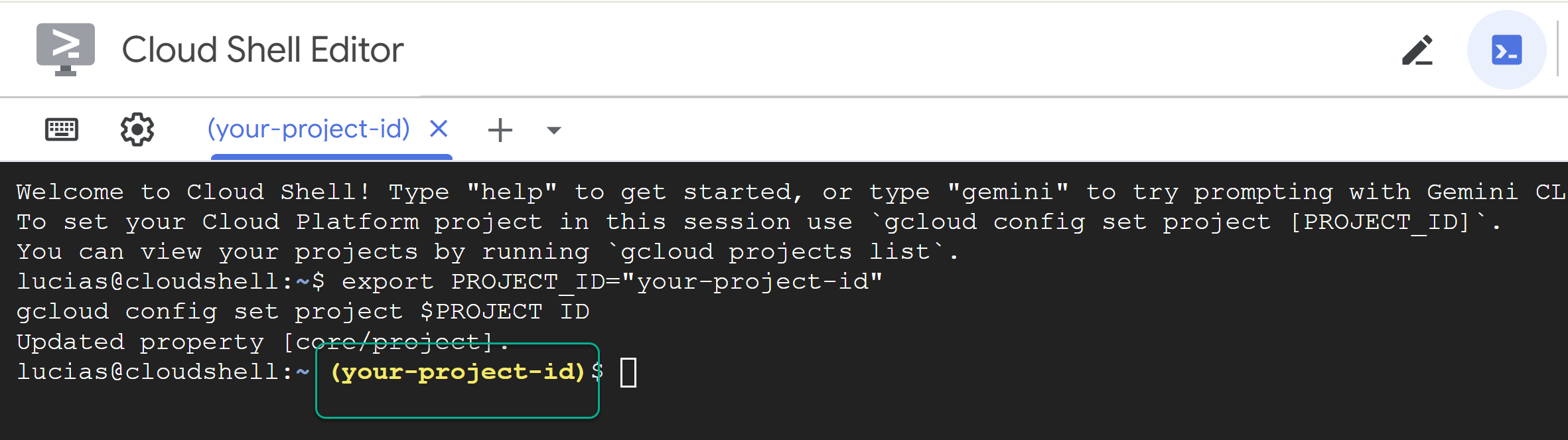
📝 Note Your project will be shown in yellow in the command line. If your session restarts, make sure you re-run the command above to set the project ID.
Enable APIs
Run this command to enable all the required APIs:
gcloud services enable \
  aiplatform.googleapis.com \
  bigquery.googleapis.com \
  artifactregistry.googleapis.com \
  container.googleapis.com \
  cloudbuild.googleapis.com \
  pubsub.googleapis.com
Clone repository
Run these commands to clone the repository.
cd ~/
git clone --filter=blob:none --no-checkout https://github.com/GoogleCloudPlatform/devrel-demos.git
cd ~/devrel-demos
git sparse-checkout init --cone
git sparse-checkout set codelabs/gke-knowledge-graph
git checkout main
cd codelabs/gke-knowledge-graph/
Run setup script
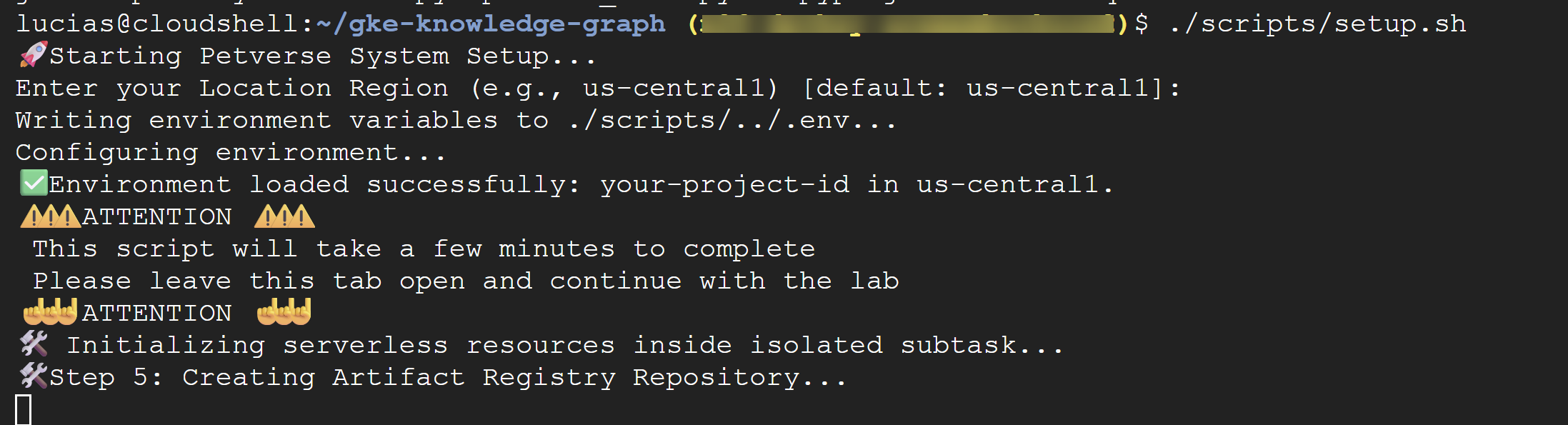
This script automates the backend configuration by:
- Creating a container image and an Artifact Registry repository
- Creating a BigQuery dataset
- Creating a BigQuery Connection to execute Gemini AI functions from SQL
Run the following command in your terminal:
./scripts/setup.sh
If the script prompts you for configuration details, use these values:
- Project ID: Use the ID you created in the previous step.
- Region:
us-central1
⚠️ Important The script will take a few minutes to complete. Leave this terminal window open to finish in the background. To continue with the next step, open a new terminal tab or window to run your next commands.
3. Setup the Data Agent Kit
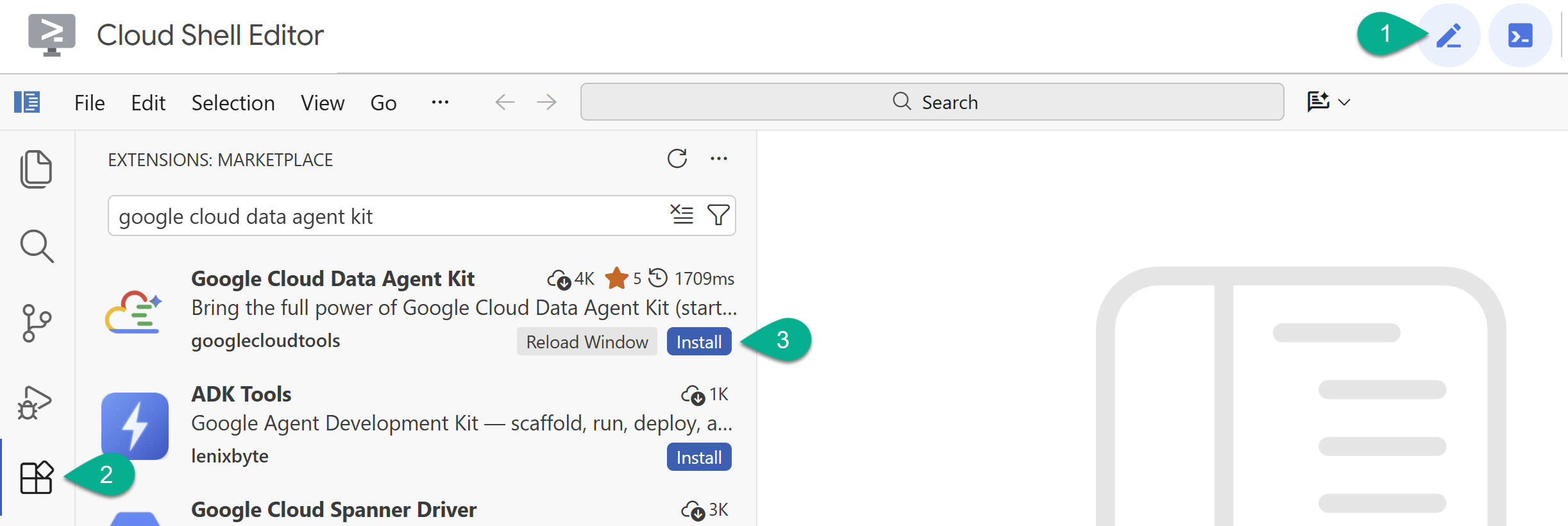
- Enable the Cloud Shell Editor with the pencil icon on the top right corner.
- In the Cloud Shell Editor, click the Extensions icon in the left sidebar.
- Search for Google Cloud Data Agent Kit and click Install if it's not installed already.
- Sign in to your Google account with the extension.
- In the Configuration Summary, enter your project ID and
us-central1as the region.
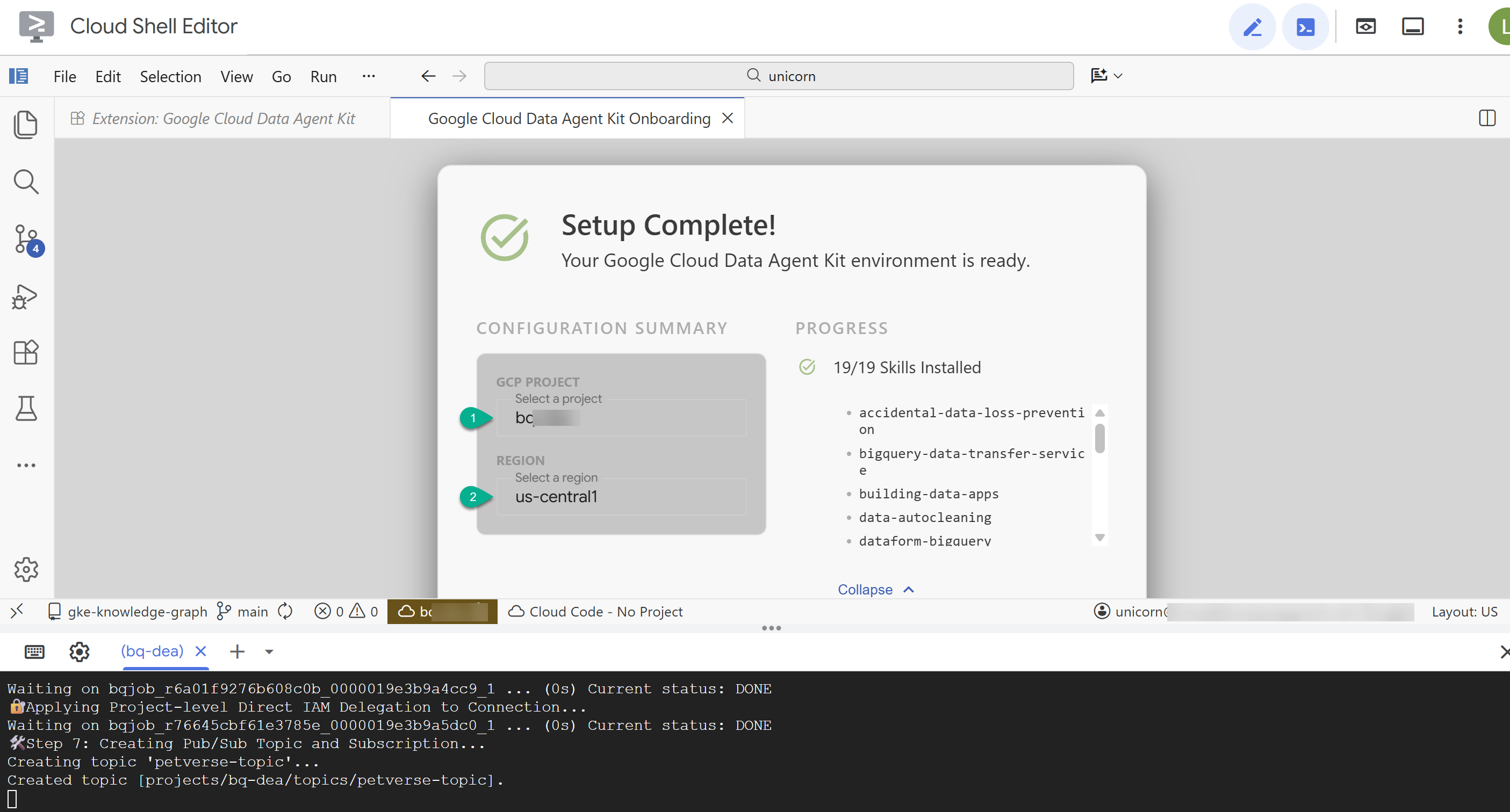
- Click Configure MCP Servers. You do not need to make any changes to this window, simply click Get started.
- Reload the window if prompted. You can close the Quick Start Guide tab for now.
Setup the tables in BigQuery
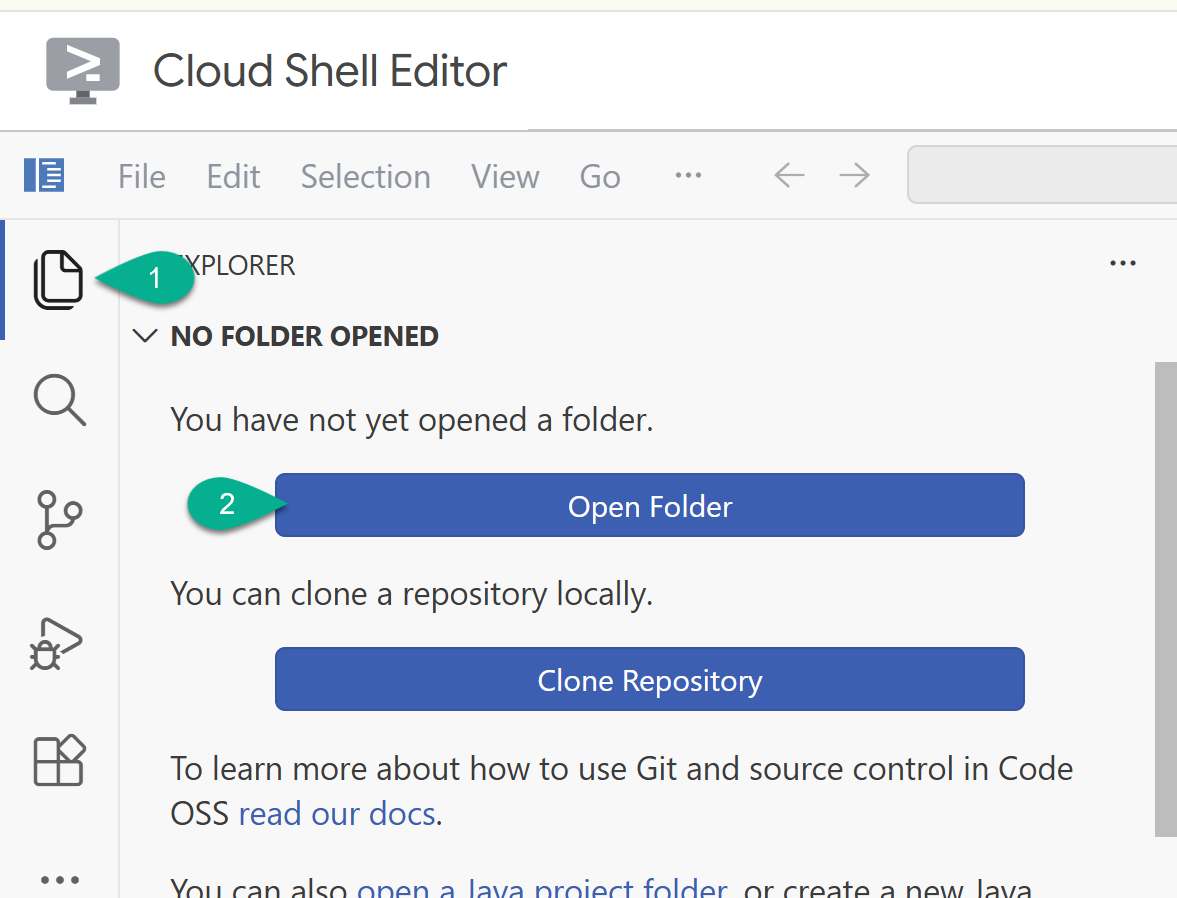
- On the side bar, return to the explorer. If your home folder (e.g.,
/home/your_user_name/) is not already open, click Open Folder and select it.
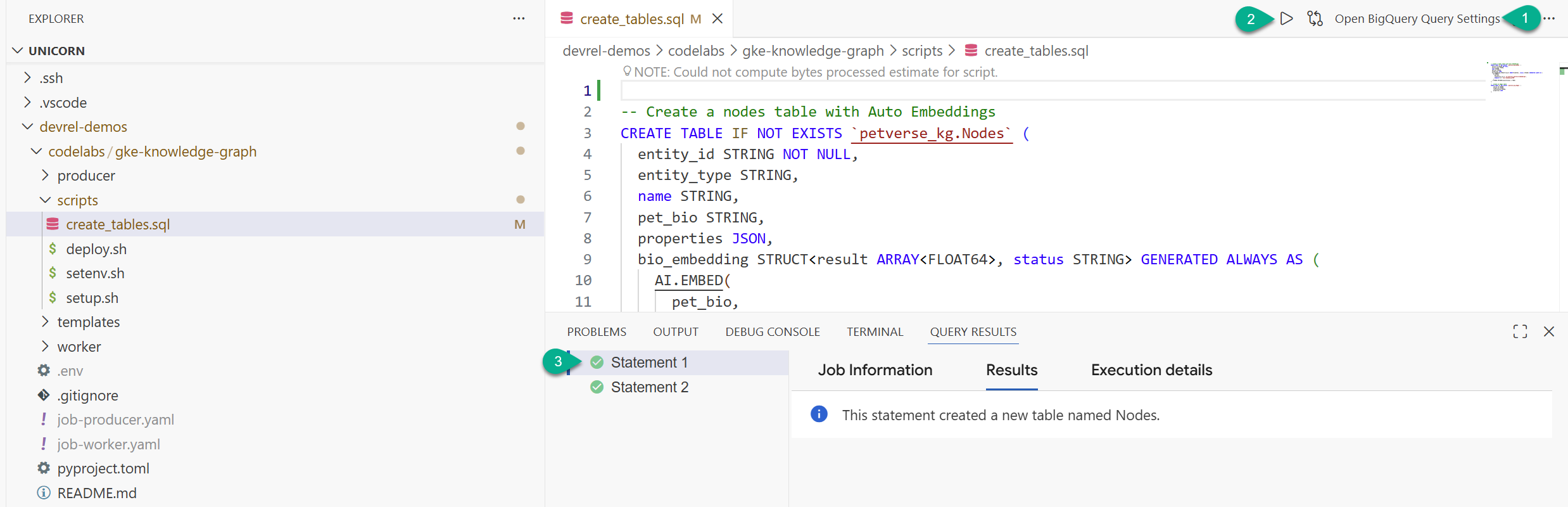
- In the explorer window, locate the folder you cloned from the repository (
devrel-demos). Undercodelabs/gke-knowledge-graph/scripts, you will findcreate_tables.sql. Open that file. - On the top right, click Open Query Settings.
- Choose BigQuery. Save and Close.
- Click Run.
You should see two statements executed successfully. You have now created the tables to store nodes and edges for your knowledge graph.
You can close the create_tables.sql tab and the results console.
4. Initialize GKE Cluster
We will use GKE Autopilot to run our data processing job. Autopilot is the recommended best practice as it manages the cluster infrastructure for you.
By now, the setup script should have finished. You should see a success message: 🎉🦄 Setup successfully finished! 🎉🦄.
Paste this command in the terminal to create the cluster:
source scripts/setenv.sh
gcloud container clusters create-auto petverse-cluster \
    --region=$REGION
🕓 This will take about 5' minutes.
Get credentials to interact with the cluster:
source scripts/setenv.sh
gcloud container clusters get-credentials petverse-cluster --region $REGION
You should see this output:
Fetching cluster endpoint and auth data.
kubeconfig entry generated for petverse-cluster.
5. Configure Workload Identity
Workload Identity Federation for GKE (using Direct Resource Access) allows your GKE workloads to securely access Google Cloud services without needing to manage service account keys.
Execute deploy.sh to:
- Create a Kubernetes service account
- Grant the necessary IAM roles directly to the Kubernetes Service Account principal
- Bind the IAM service account to the Kubernetes service account
- Annotate the Kubernetes service account to complete the link
source scripts/setenv.sh
./scripts/deploy.sh
6. Deploy Decoupled Processing Jobs
In this step, you will deploy the enqueuer (Producer) and the processing engines (Workers) onto GKE.
Our new decoupled architecture uses Google Cloud Pub/Sub to process assets asynchronously:
- The Producer scans GCS and enqueues all file paths onto a Pub/Sub queue.
- A pool of Workers scales up in GKE, dynamically pulling tasks in parallel, processing them via Gemini, and writing to BigQuery.
The setup.sh script already built and pushed both Producer and Worker container images, enqueued the Pub/Sub topics, and dynamically generated your GKE deployment manifests: job-producer.yaml and job-worker.yaml.
- Apply the Producer Job to scan your storage bucket and queue all assets:
kubectl apply -f job-producer.yaml
This job runs and finishes quickly as it only queues metadata.
- Deploy the Worker Job configured to run 6 parallel workers to drain the queue:
kubectl apply -f job-worker.yaml
GKE Autopilot will automatically detect the pending pods, dynamically scale up compute nodes, and run the workers in parallel to process enqueued audios, videos, images, and CSVs.
7. Verify Results
- Check the status of your jobs:
kubectl get jobs
Wait until both petverse-producer-job and petverse-worker-job show successful completions.
🕓 This will take about 10' minutes. You can see the progress with the commands below.
- Check the logs of the Producer to verify it enqueued files successfully:
cd ~/devrel-demos/codelabs/gke-knowledge-graph
source scripts/setenv.sh
kubectl logs -l app=petverse-producer --tail=50
- Watch your parallel workers process files from the queue:
kubectl logs -l app=petverse-worker --tail=50
(The workers feature a 60-second idle timeout and will automatically shut down and clean up when the Pub/Sub queue is empty).
Verify data in BigQuery.
- Navigate to BigQuery Studio. You will see two tables created: petverse_kg.Nodes and petverse_kg.Edges.
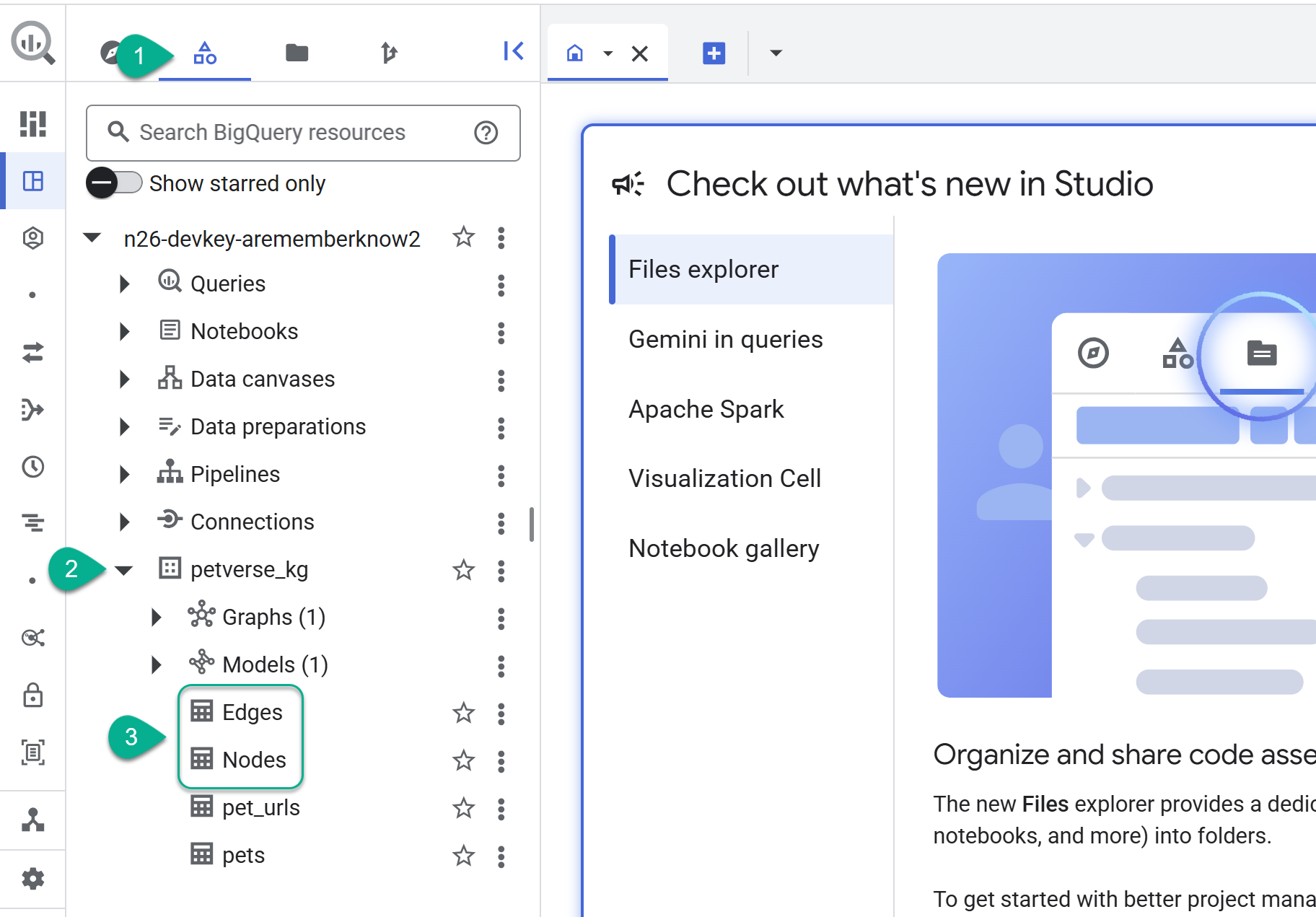
- To see the contents of the tables, double-click their names and then click Preview.
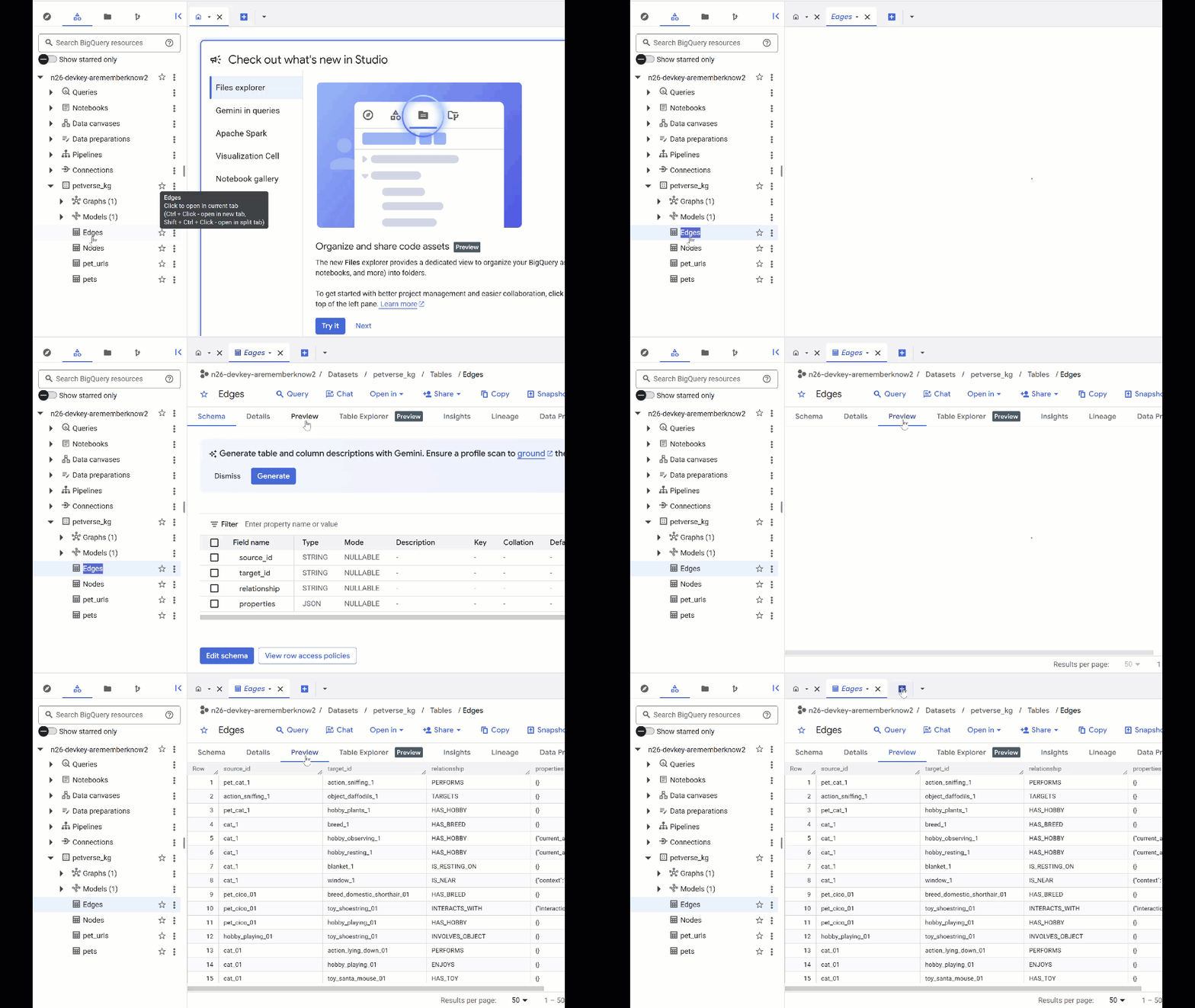
You will see the Nodes table has information about the entities picked up by Gemini in the audios, videos and pictures. The Edges table contains the relationships between them. So for example, if listen to the audio of the cat called SQL, he likes to play with shoestrings and enjoys freeze dried fishies.
- Use the + button to create a new query. Paste the following statement and click Run:
SELECT n.name, n.entity_id, e.relationship, e.target_id
FROM
  `petverse_kg.Nodes` n
JOIN
  `petverse_kg.Edges` e
  ON n.entity_id = e.source_id
WHERE n.name = 'SQL'
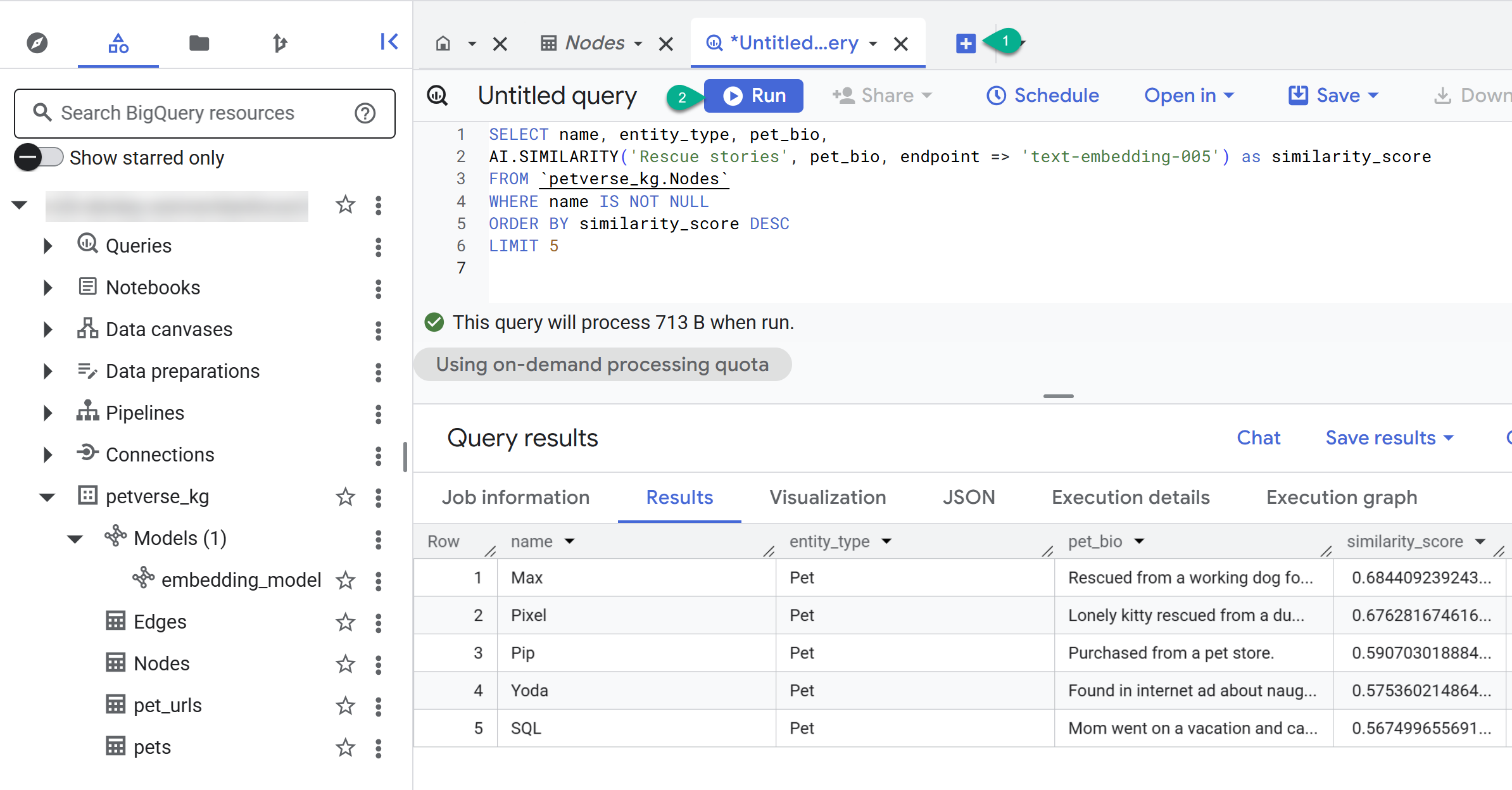
- Use the + button to create a new query. Paste the following statement and click Run:
SELECT name, entity_type, pet_bio,
AI.SIMILARITY('Pets who like to relax', pet_bio, endpoint => 'text-embedding-005') as similarity_score
FROM `petverse_kg.Nodes`
WHERE name IS NOT NULL
ORDER BY similarity_score DESC
LIMIT 5
You should see the nodes for pets who like to relax. This query performed a semantic search using the AI function AI.SIMILARITY to find pets whose bios are most similar to the query text.
Build the Property Graph
Now that we have nodes and edges in BigQuery, we can create a Property Graph to query relationships easily.
Create the Graph
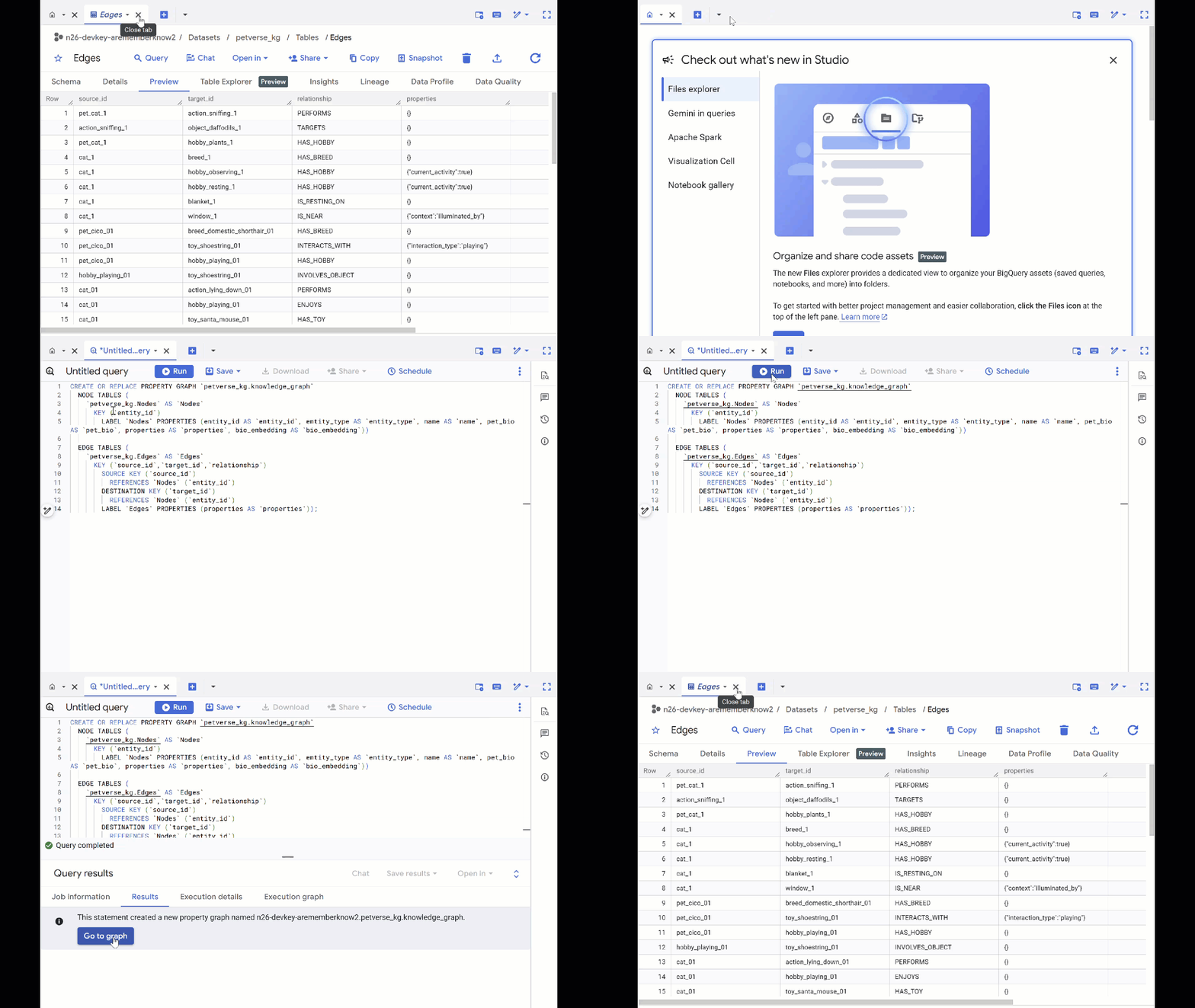
- Overwrite the previous query and run the following DDL to create the property graph:
CREATE OR REPLACE PROPERTY GRAPH `petverse_kg.knowledge_graph`
  NODE TABLES (
    `petverse_kg.Nodes` AS `Nodes`
      KEY (`entity_id`)
        LABEL `Nodes` PROPERTIES (entity_id AS `entity_id`, entity_type AS `entity_type`, name AS `name`, pet_bio AS `pet_bio`, properties AS `properties`, bio_embedding AS `bio_embedding`))

  EDGE TABLES (
    `petverse_kg.Edges` AS `Edges`
      KEY (`source_id`,`target_id`,`relationship`)
        SOURCE KEY (`source_id`)
          REFERENCES `Nodes` (`entity_id`)
        DESTINATION KEY (`target_id`)
          REFERENCES `Nodes` (`entity_id`)
        LABEL `Edges` PROPERTIES (properties AS `properties`));
- Click Go to Graph. You will see the graph visualization with a node that has an edge to itself. This is expected.
Query the Graph
- You can close all previous queries and open a new, blank one with the + button.
- Use GQL to find pets related to other pets via shared interests (like hobbies, favorite foods, or toys). This multi-hop query matches two different pets that are connected to the same node:
GRAPH `petverse_kg.knowledge_graph`
MATCH p = (pet1:Nodes)-[e1]->(interest:Nodes)<-[e2]-(pet2:Nodes)
WHERE pet1.entity_id != pet2.entity_id
  AND (LOWER(pet1.entity_type) = 'pet' AND LOWER(pet2.entity_type) = 'pet')
  AND LOWER(interest.entity_type) IN ('hobby', 'action', 'activity', 'food', 'toy')
RETURN TO_JSON(p) as res
LIMIT 100
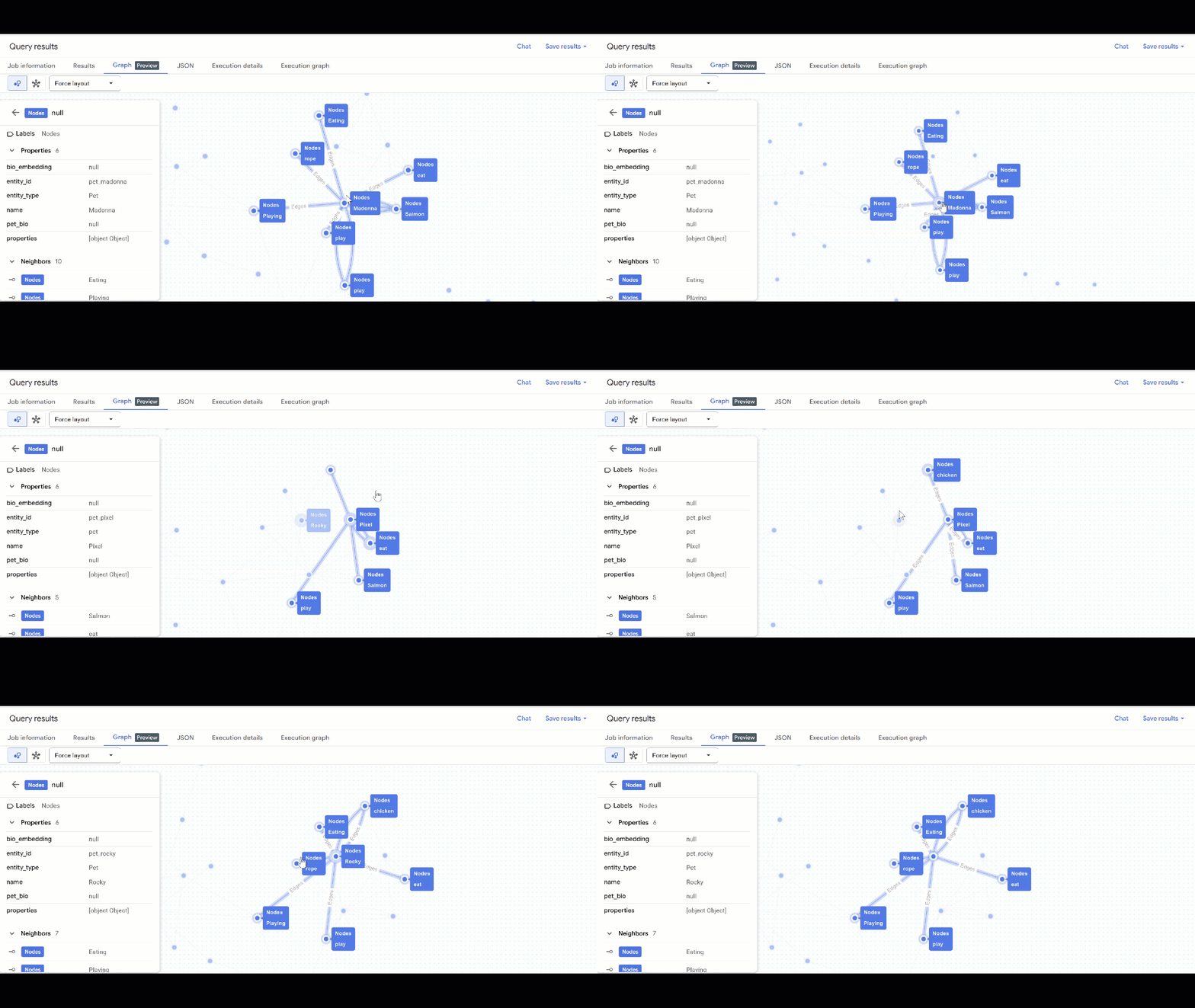
- You should see the visualization of the graph. You can click on the nodes to see the properties of the nodes and edges.
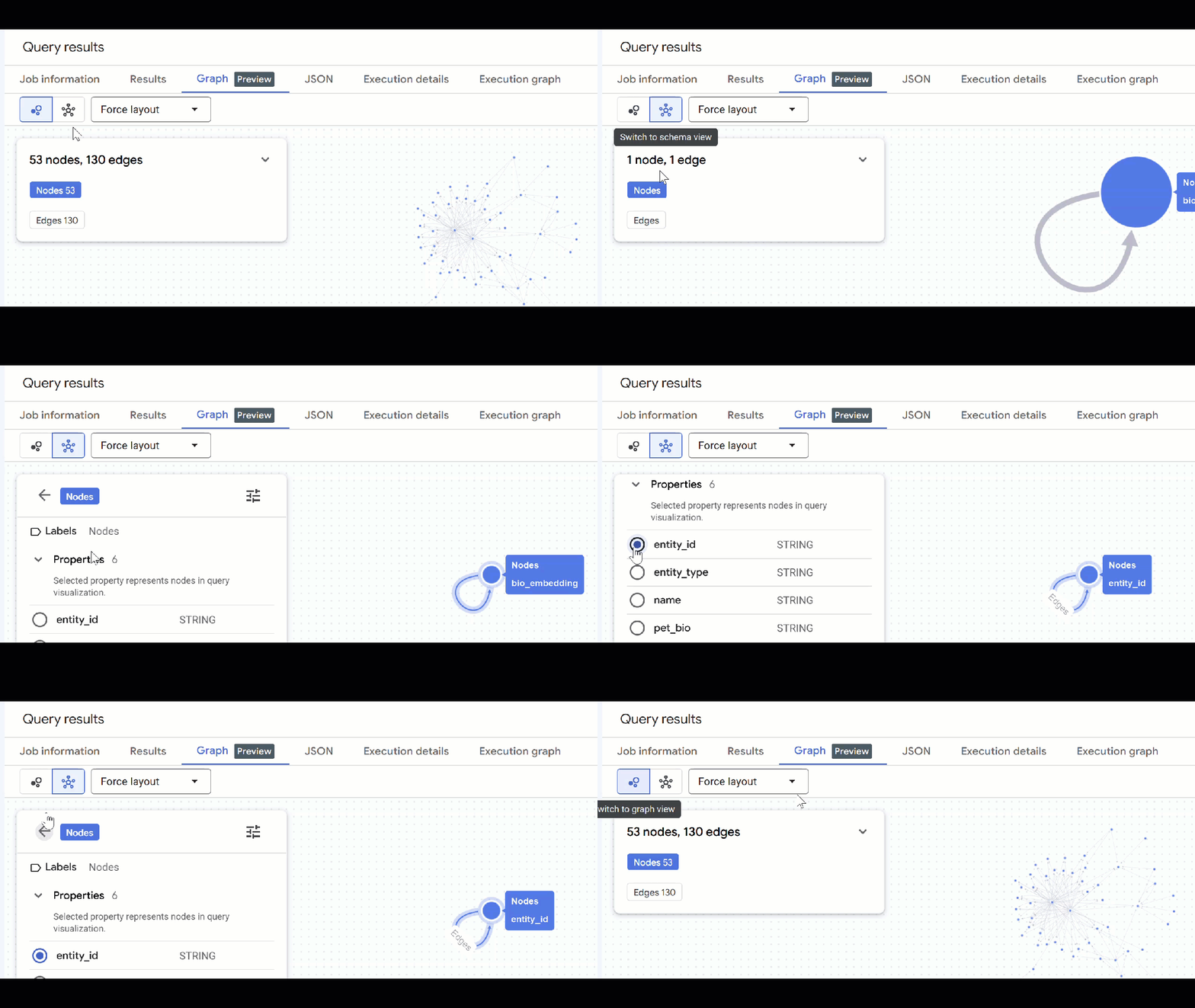
🕵️ Hint: You can adjust the value shown by the node clicking on Switch to schema view:
- You can close all open query tabs.
8. Chat with the graph
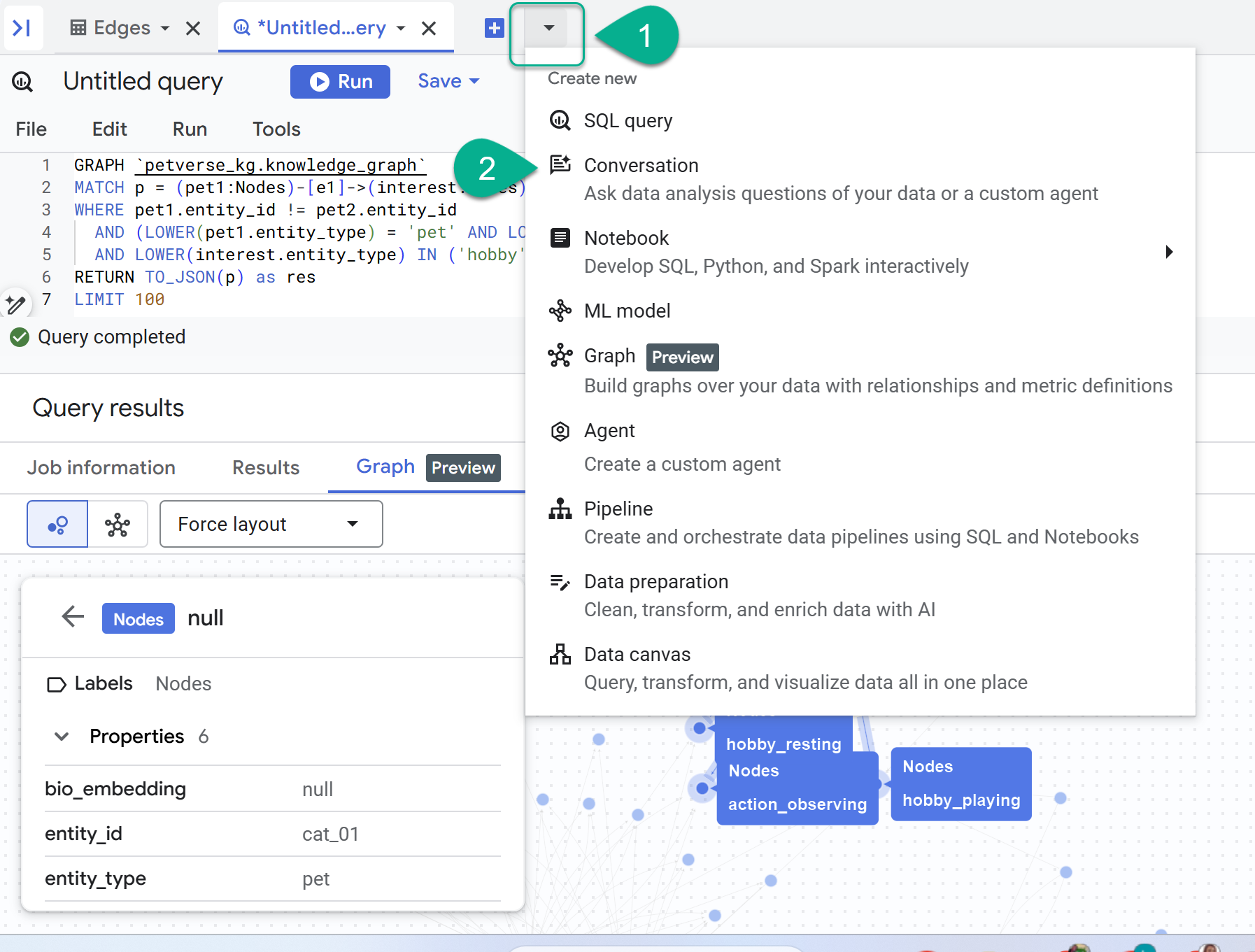
- Next to the + sign, you will find a drop-down menu. Select Conversation.
- You will be prompted to enable the Data Analytics API with Gemini. Enable both APIs. Once this finishes, refresh the window or create a new conversation to see the agent.
- Click New Agent.
- Give the agent a name like,
petverse. - Click Add source and then Graph.
- Select the
knowledge_graphyou created and click Add.
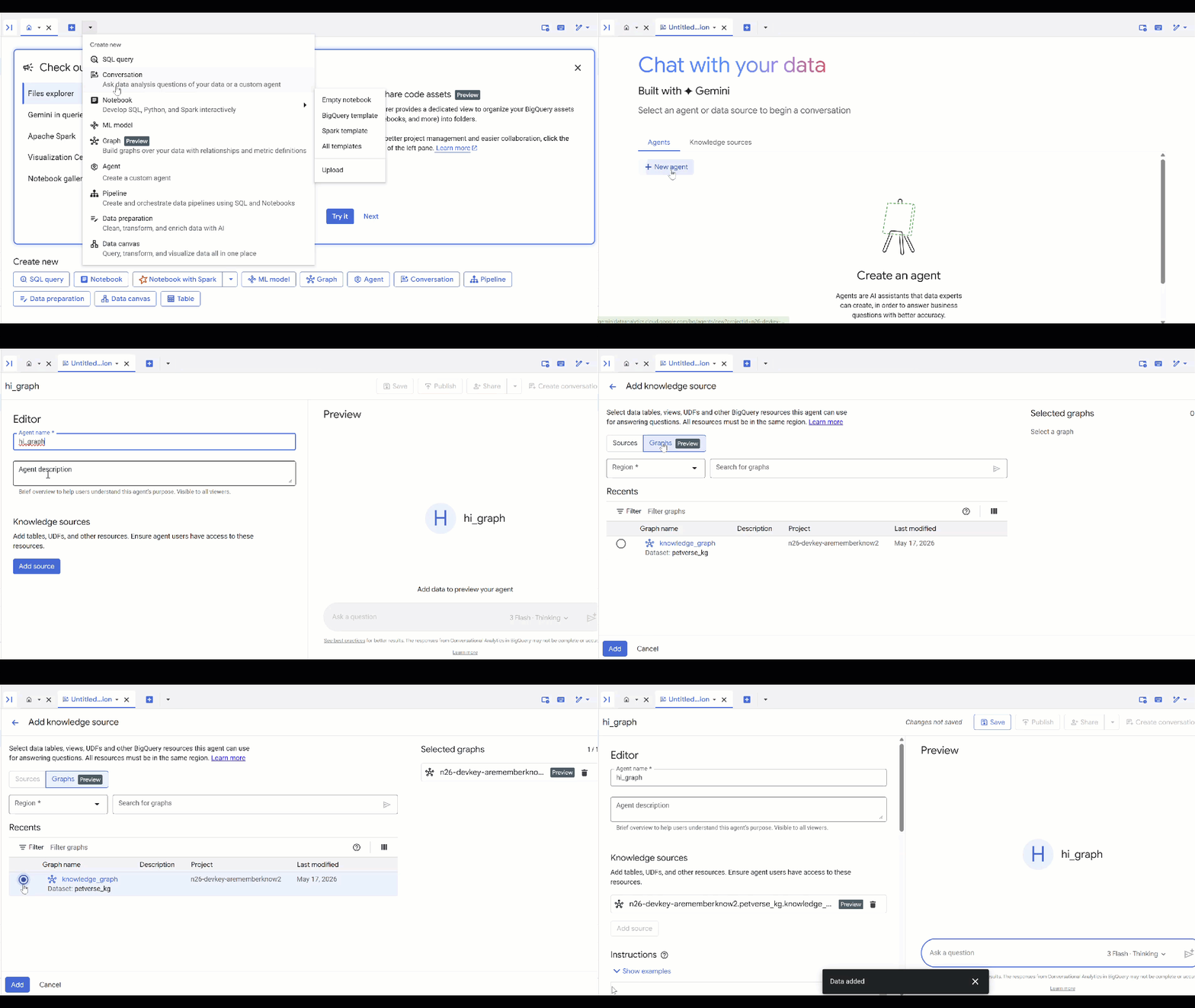
You can now ask the agent a question and see the answers and reasoning behind them. Here are some sample questions if you need inspiration. A thinking model may take a bit longer but is likely to construct a better GQL query. You can see what it builds by expanding Show Thinking.
- Find pets who share similar foods, who are friends with pets who enjoy naps.
- Do any pets share the exact same hobby, favorite food, or toy? List the pairs and their shared interests.
- Find pets that have the same species or breed, but completely different hobbies.
9. Clean up
To avoid ongoing charges to your Google Cloud account, delete the resources created during this codelab.
- Delete the GKE cluster:
gcloud container clusters delete petverse-cluster --region $REGION --quiet
- Delete the BigQuery dataset (this will delete all tables):
bq rm -r -f -d $PROJECT_ID:petverse_kg
- Delete the Pub/Sub queue resources:
gcloud pubsub subscriptions delete petverse-sub --quiet
gcloud pubsub topics delete petverse-topic --quiet
- Delete the Artifact Registry repository:
gcloud artifacts repositories delete gke-cats-repo --location=$REGION --quiet
- Delete the project-specific GCS bucket:
gcloud storage buckets delete gs://$PROJECT_ID-petverse --quiet
10. Congratulations
Congratulations! You have successfully built a distributed knowledge graph pipeline using GKE and Gemini, and queried it using BigQuery Property Graphs.
What you've learned
- How to deploy distributed jobs on GKE Autopilot.
- How to use Gemini for multimodal data extraction.
- How to use BigQuery auto-embeddings.
- How to create and query Property Graphs in BigQuery.