
1. Introduction
For eligible customers using this codelab, you will learn how to configure, govern, and secure Google Workspace Model Context Protocol (MCP) servers in Antigravity using Gemini Enterprise. MCP is an open standard that enables AI agents to securely query and execute tools exposed by remote backend services.
When developing complex features, architectural specifications, product requirements documents (PRDs), and business metrics live in Google Docs, Sheets, and Drive. Copy-pasting text between browser tabs creates stale context and risks data leakage. Connecting Workspace MCP servers using Gemini Enterprise gives your developers live context while enforcing enterprise-grade governance.
Learn more about enterprise AI developer capabilities in the Antigravity Enterprise blog post.
What you'll do
- Enable AI developer tools and configure centralized MCP server allow-lists in Gemini Enterprise.
- Activate backend Google Workspace and MCP APIs in Google Cloud.
- Configure scoped OAuth 2.0 Web application credentials restricted to your internal organization.
- Register and authenticate approved Workspace MCP services inside Antigravity.
- Verify administrative security boundaries, including allow-list blocking, user ACL parity, and audit logging.
What you'll need
- A web browser such as Google Chrome.
- A Google Cloud project with billing enabled, Gemini Enterprise administrator access.
- The Google Cloud project enrolled in the Google Workspace Developer Preview Program.
- Antigravity 2.0, IDE, or CLI installed on your workstation. Detailed installation guidance is available on the Antigravity documentation site.
2. Enable Gemini Enterprise AI Developer Tools & Allow-lists
Enterprise security begins with centralized governance. Before individual developers can register MCP servers locally, workspace administrators must authorize the integration.
Create or Select a Google Cloud project
In the Google Cloud Console, select or create a Google Cloud project.
Activate AI developer tools
- Open the Google Cloud Console.
- In the navigation menu, go to Gemini Enterprise > Settings.
- Select AI developer tools and toggle the switch to Enabled.
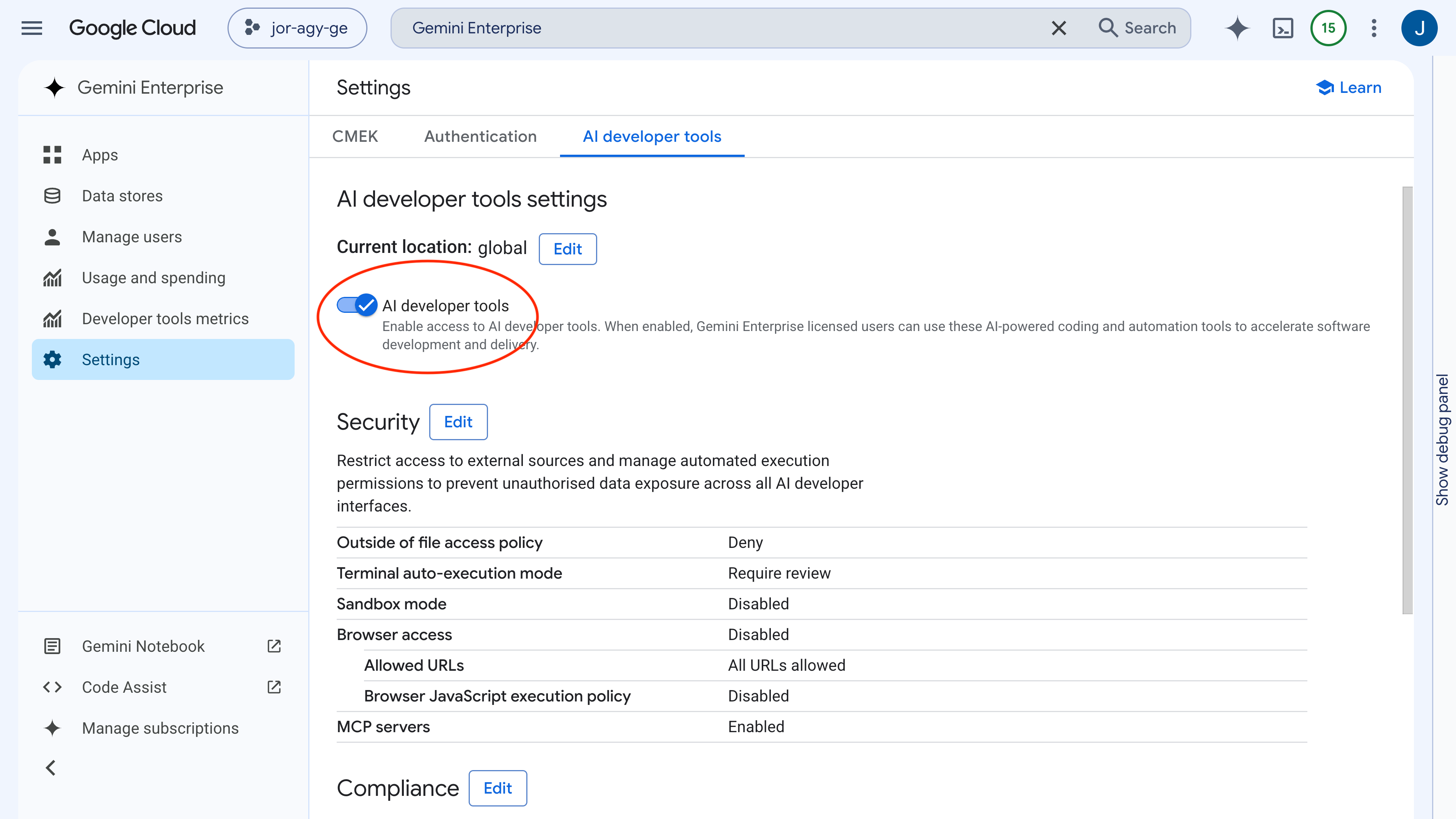
This setting permits authorized team members to authenticate their Antigravity sessions using their enterprise Google Cloud accounts.
Define the MCP server allow-list
To prevent unauthorized third-party tool connections, administrators define an explicit allow-list of approved MCP server endpoints.
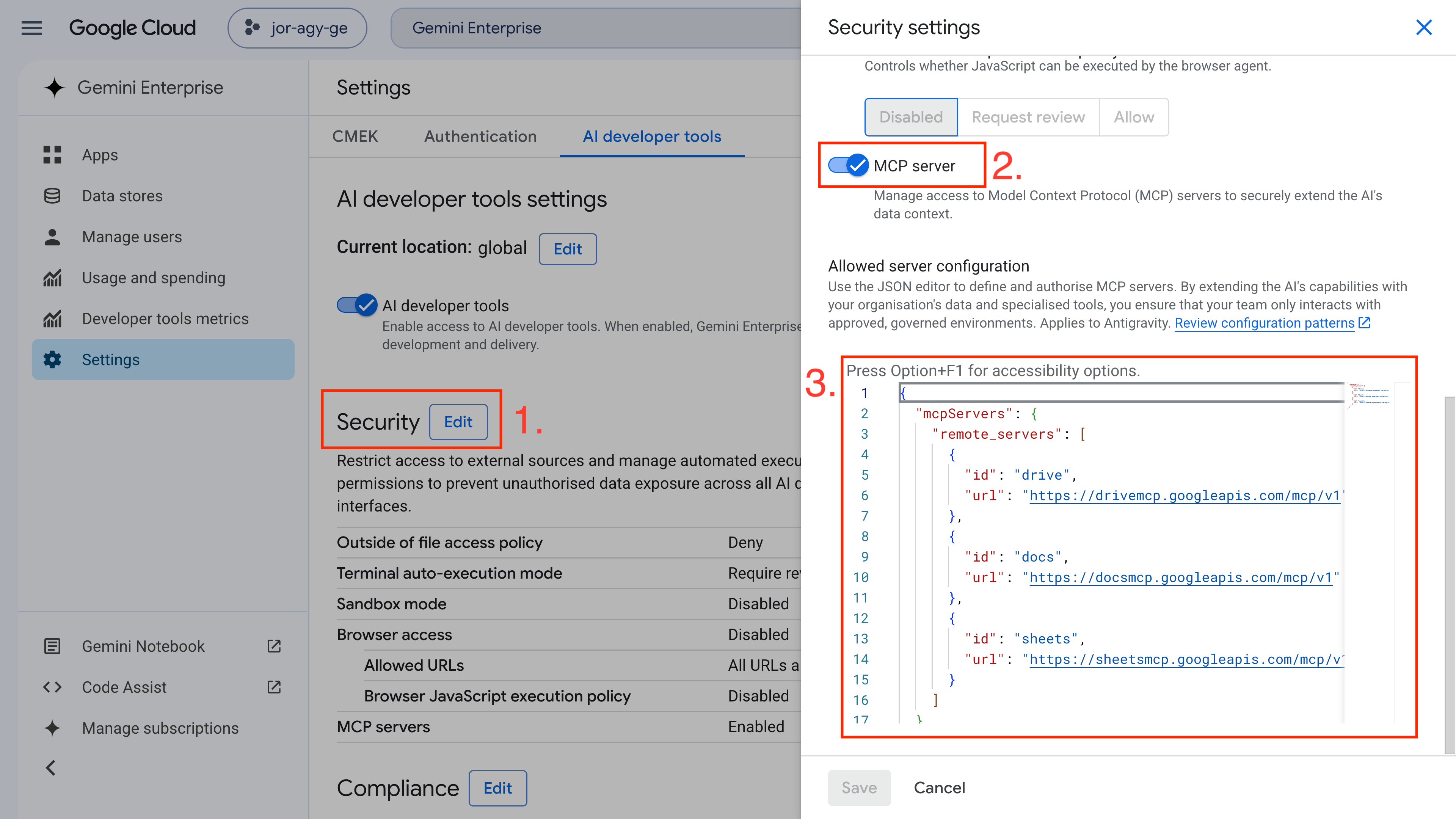
- Navigate to Gemini Enterprise > Settings > AI developer tools.
- Click Edit next to Security.
- Locate the MCP Servers setting and toggle it to Enabled.
- In the Allowed server configuration field, enter the approved Google Workspace MCP server configuration:
{
  "mcpServers": {
    "remote_servers": [
      {
        "id": "drive",
        "url": "https://drivemcp.googleapis.com/mcp/v1"
      },
      {
        "id": "docs",
        "url": "https://docsmcp.googleapis.com/mcp/v1"
      },
      {
        "id": "sheets",
        "url": "https://sheetsmcp.googleapis.com/mcp/v1"
      }
    ]
  }
}
- Click Save.
3. Configure Backend APIs and OAuth Credentials
With admin governance enabled, configure your Google Cloud project to route requests and handle user authentication.
Enable backend APIs and MCP services
Enable the standard Google Workspace APIs and their corresponding MCP backend services.
- Enable the Google Drive, Docs, and Sheets APIs:
- Enable the Google Drive, Docs, and Sheets MCP services:
Configure the OAuth consent screen
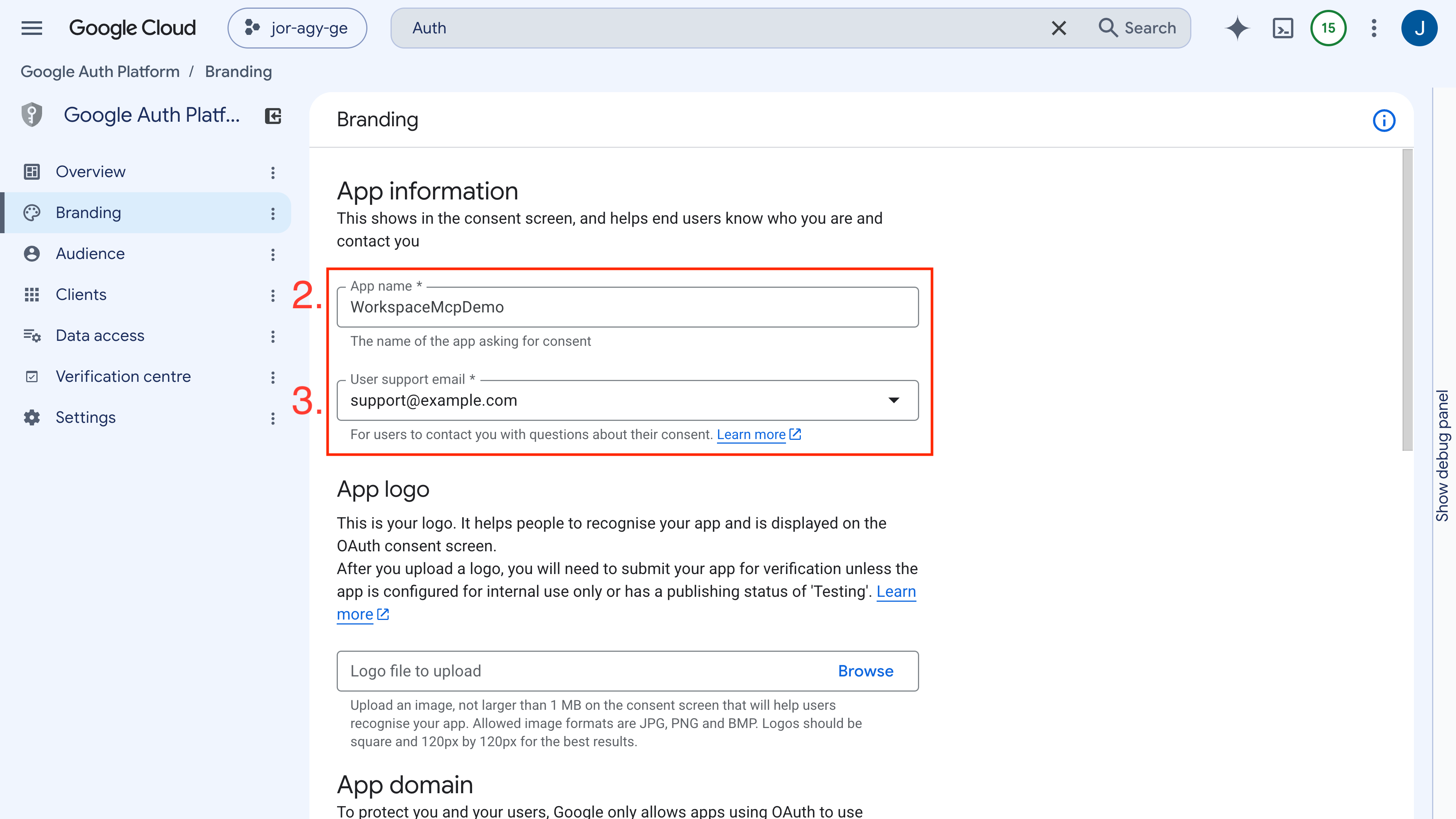
- In the Google Cloud Console, navigate to Google Auth Platform > Branding (or APIs & Services > OAuth consent screen).
- Set the Application Name to
WorkspaceMCPDemo. - Set the User support email and Developer contact information, then click Save and Continue.
Configure the audience
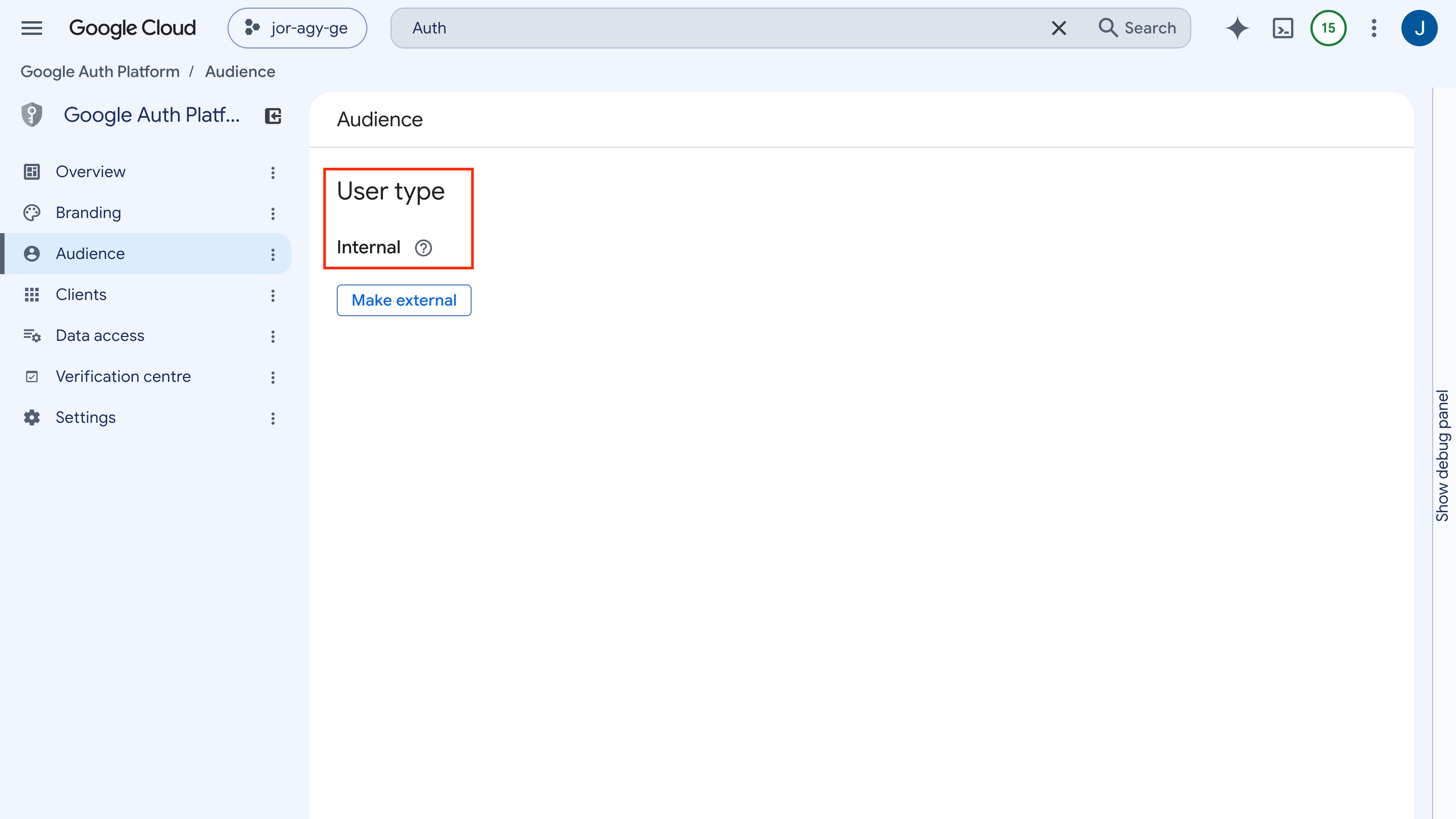
- Under Audience, choose the Internal user type. This limits authentication strictly to Google Workspace users within your organization.
Create OAuth 2.0 client credentials
- Navigate to Google Auth Platform > Clients (or APIs & Services > Credentials).
- Click Create Client (or Create Credentials > OAuth client ID).
- Select Web application for the application type.
- Set the Name to
WorkspaceMCPDemoClient. - Under Authorized redirect URIs, click + Add URI and enter:
https://antigravity.google/oauth-callback - Click Create and record your Client ID and Client Secret.
4. Configure Antigravity MCP Services
To verify your administrator setup, and to prepare onboarding guidance for your developers, configure the approved MCP services inside Antigravity.
Register approved MCP servers
Antigravity uses a central configuration file located at ~/.gemini/config/mcp_config.json.
- Open
~/.gemini/config/mcp_config.jsonin your preferred text editor (or navigate to Settings > Customizations in Antigravity and click Open MCP Config). - Populate the definitions for the allow-listed services (
drive,docs,sheets), replacing<YOUR_CLIENT_ID>and<YOUR_CLIENT_SECRET>with your OAuth credentials:
{
  "mcpServers": {
    "drive": {
      "serverUrl": "https://drivemcp.googleapis.com/mcp/v1",
      "oauth": {
        "clientId": "<YOUR_CLIENT_ID>",
        "clientSecret": "<YOUR_CLIENT_SECRET>"
      }
    },
    "docs": {
      "serverUrl": "https://docsmcp.googleapis.com/mcp/v1",
      "oauth": {
        "clientId": "<YOUR_CLIENT_ID>",
        "clientSecret": "<YOUR_CLIENT_SECRET>"
      }
    },
    "sheets": {
      "serverUrl": "https://sheetsmcp.googleapis.com/mcp/v1",
      "oauth": {
        "clientId": "<YOUR_CLIENT_ID>",
        "clientSecret": "<YOUR_CLIENT_SECRET>"
      }
    }
  }
}
- Save the file.
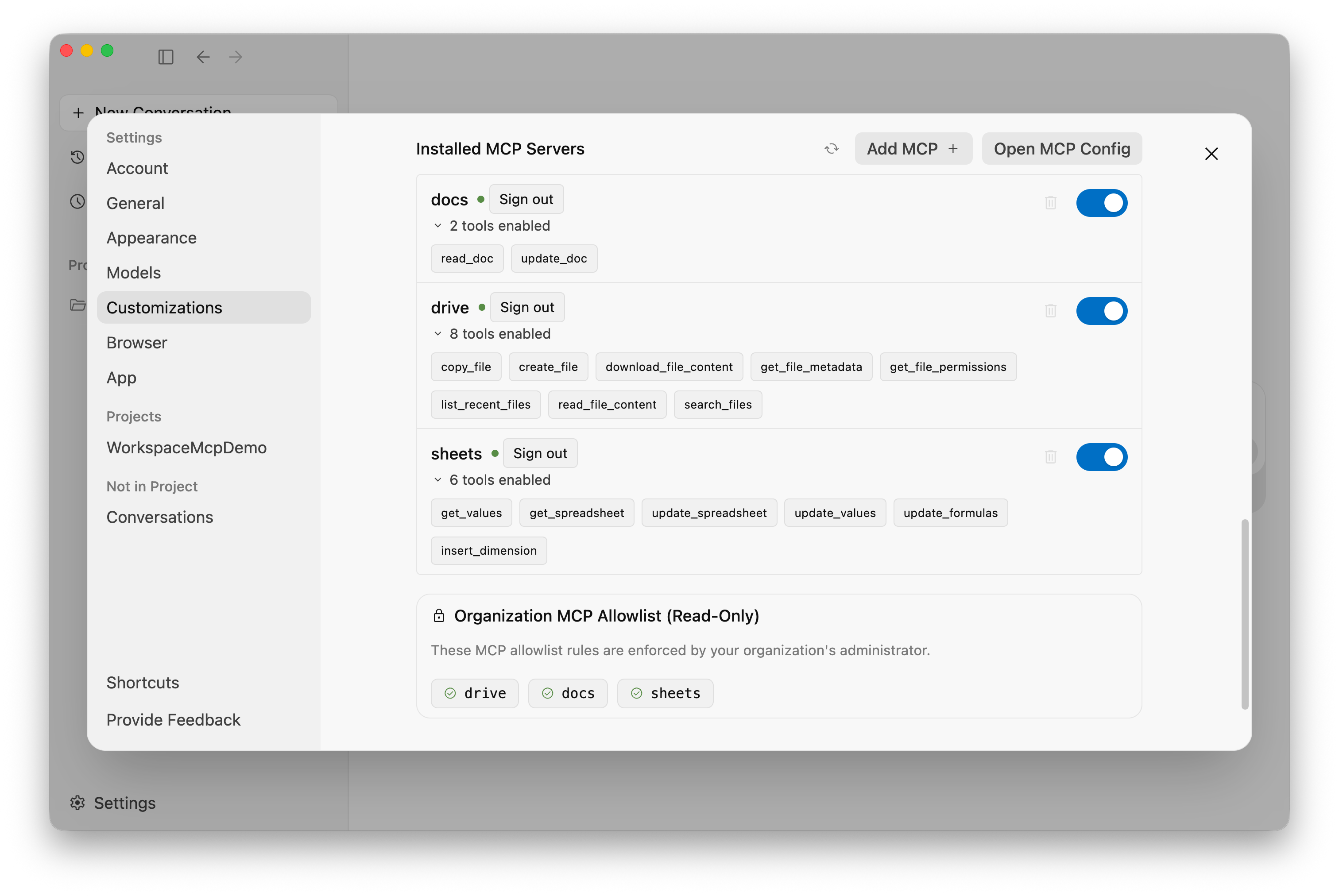
- Return to Settings > Customizations in Antigravity and click Refresh. Google Drive, Docs, and Sheets will appear under your active installed MCP servers.
5. Authenticate and Query Live Workspace Documents
Before the agent can make tool calls, link your user session to your OAuth credentials to verify end-to-end functionality.
Complete the OAuth handshake
- In the Customizations panel, click Authenticate next to each active service.
- Complete the browser-based OAuth flow with your enterprise Google Workspace account.
- Once authenticated, each server displays its registered tools (such as
read_doc,get_spreadsheet, andsearch_files).
Run grounded agent prompts
Verify that the agent can read and synthesize live Workspace files directly from the chat interface.
Prompt 1: Extract structured Google Sheet data
Read the 'Pricing Catalog' Sheet in my Google Drive and list our three most expensive items along with their specifications.
The agent invokes sheets.get_spreadsheet, parses the tabular data, and returns the top items with exact figures.
Prompt 2: Synthesize architecture specifications from Google Docs
Read the 'PRD: Online Storefront' Google Doc in Drive. Summarize the architectural requirements and highlight any missing security considerations.
The agent invokes docs.read_doc, retrieves the latest revision, and provides an actionable summary of features, risk points, and recommendations.
6. Verify Enterprise Security Boundaries and Governance
Enterprise deployments require verifiable security boundaries. Test how Gemini Enterprise and Antigravity enforce policy constraints.
Test 1: Strict administrative allow-list enforcement
Verify that developers cannot connect unapproved MCP servers.
- Open
~/.gemini/config/mcp_config.jsonand add an unapproved server definition (such as the People API):
{
  "mcpServers": {
    "people": {
      "serverUrl": "https://people.googleapis.com/mcp/v1",
      "oauth": {
        "clientId": "<YOUR_CLIENT_ID>",
        "clientSecret": "<YOUR_CLIENT_SECRET>"
      }
    }
  }
}
- In Antigravity Settings > Customizations, click Refresh.
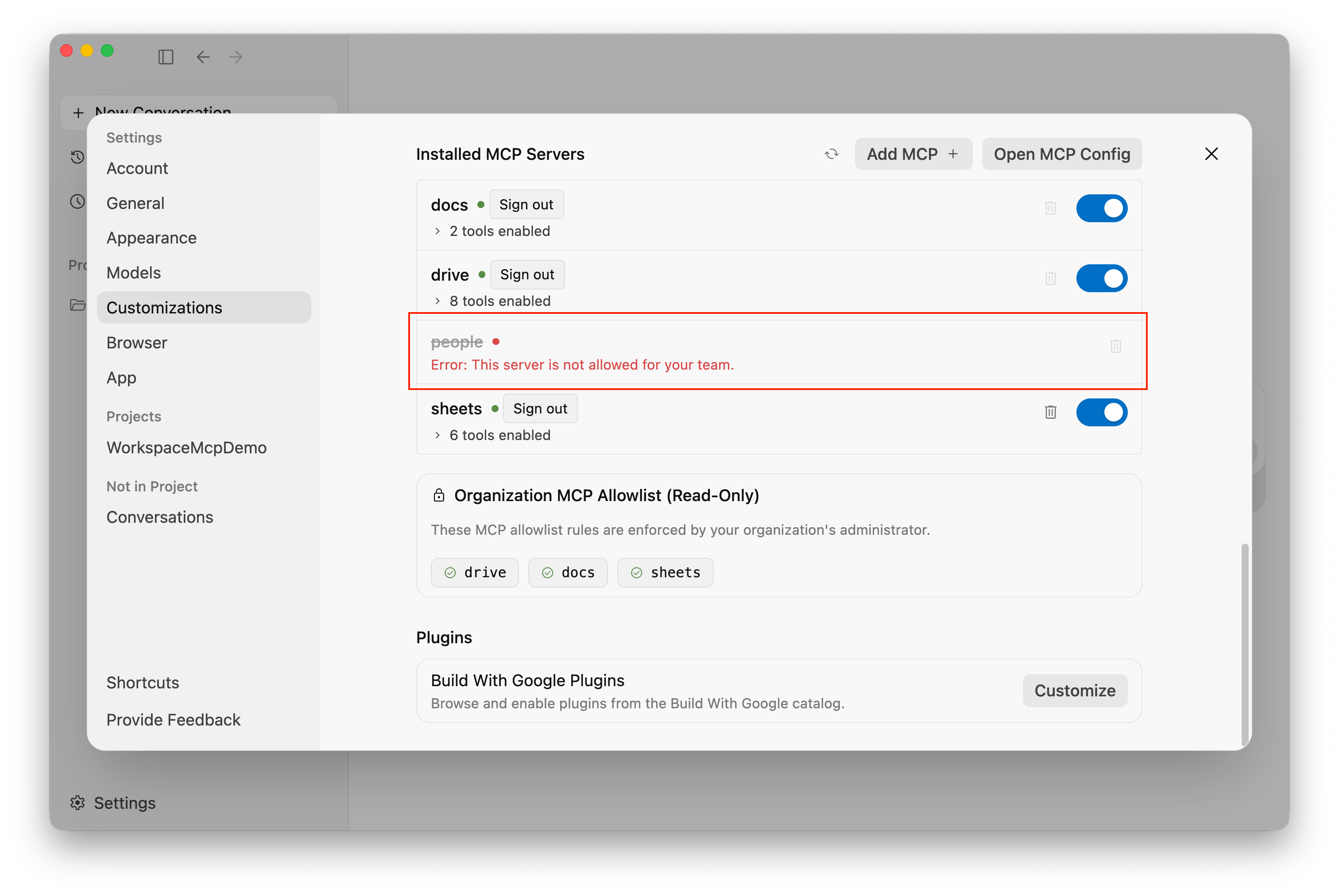
- Antigravity halts the connection. The unapproved server displays an
Unauthorized / Blocked by Admin Policystate and cannot be initialized or queried. - Remove the unapproved entry from
mcp_config.jsonand click Refresh again.
Test 2: User identity and ACL parity
The Workspace MCP integration enforces standard Access Control Lists (ACLs):
- Zero Privilege Escalation: The agent operates strictly under the OAuth access token of the authenticated user.
- Access Enforcement: If a developer lacks permission to view a specific Google Doc or Drive folder, the agent receives an HTTP
403 Forbiddenerror and cannot inspect the file. - Audit Logging: All API calls generated by the agent are recorded under the authenticated user's identity in Google Cloud Audit Logs.
7. Clean up
To clean up resources created in this codelab:
- In the Google Cloud Console, navigate to the APIs & Services Dashboard.
- Select each enabled MCP service (
drivemcp.googleapis.com,docsmcp.googleapis.com,sheetsmcp.googleapis.com) and click Disable API. - In Google Auth Platform > Clients, delete the
WorkspaceMCPDemoClientOAuth client credentials. - In Gemini Enterprise > Settings > AI developer tools, disable MCP server allow-lists if no longer needed.
8. Congratulations
Congratulations! You have successfully configured and verified centralized governance, allow-lists, and scoped OAuth authentication for Google Workspace MCP servers in Antigravity with Gemini Enterprise.
What you covered
- Enabled AI developer tools and defined MCP server allow-lists in Gemini Enterprise.
- Activated backend Google Workspace APIs and MCP services in Google Cloud.
- Generated scoped Internal OAuth 2.0 Web application credentials.
- Verified positive data retrieval and negative policy enforcement in Antigravity.
- Validated least-privilege security boundaries and audit logging.
Next steps: Share with your developers
Now that your enterprise environment is configured and secured, share our companion developer guide with your engineering teams: