
1. Introduction
This codelab is part of a two-part series exploring how to build a governance-aware AI agent.
(You can read the first part of this series, which covers how to establish the data foundation by registering a Knowledge Catalog aspect type, applying aspects to BigQuery tables, and testing the rules locally via the AGY CLI. 👉 Read Part 1)
However, testing in a local CLI is just the beginning. To roll this out to your entire company, you need centralized security, standardized AI tool connections, and a proper application framework to orchestrate the agent's logic and provide a familiar chat interface.
In this second part, you will solve these challenges and scale to production. Instead of deploying a custom MCP server, you will connect your agent directly to the Google-managed Knowledge Catalog MCP Server. Then, you will use Google's Agent Development Kit (ADK) to build the actual agent application, load your governance rules from your local agent skill, and deploy it to Cloud Run, complete with a professional web UI
.
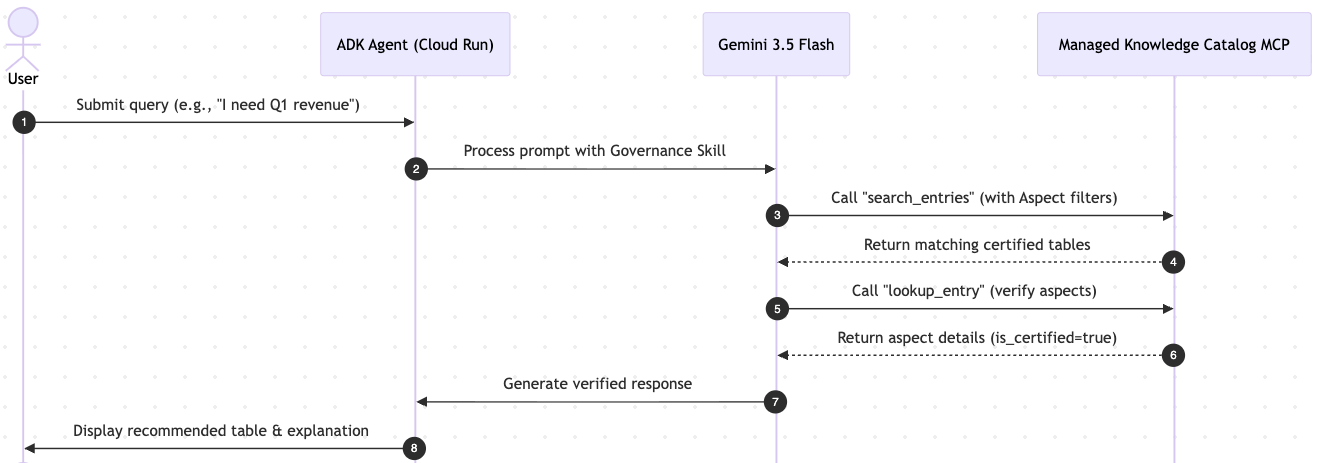
When a user interacts with the ADK UI, the following sequence occurs:
What you'll learn
- How to use the Model Context Protocol (MCP) to standardize how AI agents interact with Google Cloud data.
- How the ADK agent connects to the Google-managed Knowledge Catalog MCP Server.
- How to load your governance rules dynamically from the shared agent skill.
- How to deploy your agent to Cloud Run and run the ADK's built-in web playground.
What you'll need
- A Google Cloud project with billing enabled.
- Access to Google Cloud Shell.
- Basic understanding of Cloud Run, IAM Service Accounts, and Python.
- The BigQuery datasets and Knowledge Catalog aspects created in Part 1. (Don't worry if you deleted them; we provide a fast-track script below to recreate them!)
Key concepts
- Model Context Protocol (MCP): Think of MCP as a "universal USB-C cable" for AI agents. Instead of writing custom API integration code for every single AI model, MCP provides a standard way for AI to securely connect to your enterprise data tools (like Knowledge Catalog and BigQuery).
- Agent Development Kit (ADK): A flexible, open-source framework by Google designed to simplify the end-to-end development of AI agents. It applies software engineering principles to agent creation, allowing you to orchestrate complex tools, manage state, and easily launch a built-in developer UI for testing and deployment.
- Gemini Enterprise Agent Platform(GEAP): The enterprise-grade hosting and orchestration environment for deploying AI agents on Google Cloud.
2. Setup and requirements
Start Cloud Shell
While Google Cloud can be operated remotely from your laptop, in this codelab you will be using Google Cloud Shell, a command line environment running in the Cloud.
From the Google Cloud Console, click the Cloud Shell icon on the top right toolbar:

It should only take a few moments to provision and connect to the environment. When it is finished, you should see something like this:

This virtual machine is loaded with all the development tools you'll need. It offers a persistent 5GB home directory, and runs on Google Cloud, greatly enhancing network performance and authentication. All of your work in this codelab can be done within a browser. You do not need to install anything.
Initialize environment
Open Cloud Shell and set your project variables to ensure all commands target the correct infrastructure.
export PROJECT_ID=$(gcloud config get-value project)
gcloud config set project $PROJECT_ID
export REGION="us-central1"
Enable required APIs
Enable the minimum set of Google Cloud APIs required to manage your data foundation, run Vertex AI models, and host the ADK Agent on Cloud Run.
gcloud services enable \
    dataplex.googleapis.com \
    bigquery.googleapis.com \
    aiplatform.googleapis.com \
    run.googleapis.com \
    artifactregistry.googleapis.com \
    cloudbuild.googleapis.com
Checkpoint: Resume or rebuild?
Since this is Part 2, your agent needs the governed data from Part 1 to function. Please choose your path:
Path A: I just finished Part 1 and my resources are still running
Great! Navigate to the working directory and you are ready to proceed.
cd ~/devrel-demos/data-analytics/governance-context
Path B: I skipped Part 1 OR I deleted my resources (Cleaned up)
No problem! We have provided a "Fast-Track" command block below. This will automatically rebuild the BigQuery data lake, register the aspect type, and apply the governance metadata exactly as we did in Part 1.
# 1. Clone the repo and navigate to the working directory
git clone --depth 1 --filter=blob:none --sparse https://github.com/GoogleCloudPlatform/devrel-demos.git
cd devrel-demos
git sparse-checkout set data-analytics/governance-context
cd data-analytics/governance-context

# 2. Rebuild the BigQuery datasets and tables
chmod +x ./setup_bq_tables.sh
./setup_bq_tables.sh

# 3. Register the Knowledge Catalog aspect type
gcloud dataplex aspect-types create official-data-product-spec \
    --location="${REGION}" \
    --project="${PROJECT_ID}" \
    --metadata-template-file-name="aspect_template.json"

# 4. Generate and apply aspects (governance rules)
chmod +x ./generate_payloads.sh ./apply_governance.sh
./generate_payloads.sh
./apply_governance.sh
3. The centralized data control plane (managed MCP)
In a real enterprise environment, you need a secure, centralized data control plane. Rather than building and deploying a custom MCP server container to Cloud Run, we will connect our agent directly to the Google-managed Knowledge Catalog MCP Server.
By utilizing this managed endpoint, we achieve:
- Zero maintenance: No need to manage containers, scaling, or patching for the MCP server.
- Standardization: The agent connects to a standard, secure Google API endpoint using the Model Context Protocol (SSE transport).
- Controlled scope: The MCP server exposes only the necessary metadata tools (
search_entries,lookup_context,lookup_entry), enforcing a read-only, governance-first reasoning loop.
The Google-managed Knowledge Catalog MCP server is accessible via the following secure URL:
https://dataplex.googleapis.com/mcp
Because this is a 1st party Google API, the agent must authenticate using a standard Google Cloud OAuth2 Access Token rather than an ID Token. We will handle this authentication automatically in our application code.
4. Build the agent backend with ADK
You have a secure, managed data control plane. Now your AI agent needs a framework to orchestrate its logic, such as processing user inputs, deciding when to call the MCP server, and formatting the output.
We will use Google's Agent Development Kit (ADK). The ADK is a code-first framework that automatically wraps your agent logic into a FastAPI backend and provides a built-in web interface for instant testing.
Open the agent code in Cloud Shell Editor
Rather than dumping the entire file in the terminal, let's open it in the Cloud Shell Editor so you can easily inspect, edit, and understand the code.
Run the command below in the terminal and look at the code structure in the editor. The application is built using Google's Agent Development Kit (ADK):
cd ~/devrel-demos/data-analytics/governance-context/mcp_server

# Copy the governance skill directory inside the application bundle so it packages during Cloud Run deployment
mkdir -p skills
cp -r ../.agents/skills/knowledge-catalog-governance skills/

cloudshell edit agent.py
(Note: agent.py contains boilerplate code at the top to handle Google Cloud OAuth2 authentication and token refresh, ensuring the agent can securely communicate with the Google-managed Knowledge Catalog API).
1. Native Skill Loading
To build a highly optimized agent, we load the governance instructions from the external agent skill directory using ADK's native load_skill_from_dir. This approach enables progressive disclosure:
- L1 Metadata: The agent only loads the skill's name and description at startup. This minimal context allows the LLM to identify when to use the skill without consuming large amounts of tokens upfront.
- L2 Instructions: The full instruction set inside
SKILL.mdis fetched dynamically at runtime only when the model determines it is relevant.
base_dir = Path(__file__).parent
governance_skill = load_skill_from_dir(
    base_dir / "skills" / "knowledge-catalog-governance"
)

# Bundle the skill and MCP tools together into a SkillToolset
governance_skill_toolset = skill_toolset.SkillToolset(
    skills=[governance_skill],
    additional_tools=[tools]
)
2. Agent orchestration
The ADK allows you to orchestrate complex agent behaviors by chaining multiple agents together. We define a SequentialAgent workflow consisting of two specialized agents:
governance_researcher:Equipped withgovernance_skill_toolsetand the Knowledge Catalog MCPtools. It checks if the query falls within the data catalog and compliance scope, then queries Knowledge Catalog using environment variables injected into its system instructions.compliance_formatter:Responsible for translating the raw JSON metadata search results into a clean response, or gracefully explaining scope boundaries if the request is out-of-scope.
# 1. Researcher Agent (has access to the encapsulated SkillToolset)
governance_researcher = LlmAgent(
    name="governance_researcher",
    model=model_name,
    description="Dynamically interprets metadata schema (Booleans/Enums) and searches for assets using strict syntax.",
    instruction=f"""
    You are a governance researcher. Your job is to verify Knowledge Catalog metadata rules and find compliant assets for the user's query.

    YOUR ACTIVE ENVIRONMENT CONTEXT:
    - Google Cloud Project ID: {project_id}
    - Location (Region): {location}

    YOUR WORKFLOW:
    1. First, check if the user query is related to data analytics assets, database tables, or data compliance.
       - If YES: Call `load_skill` with `name="knowledge-catalog-governance"` to load the rules, then use search/lookup tools to locate a certified compliant table.
       - If NO (e.g., general chit-chat, unrelated tasks): Skip skill loading and output a JSON object indicating it is out of scope:
         {"error": "out_of_scope", "message": "The query does not pertain to data catalog search or governance compliance."}
    2. Populate the required projectId and location parameters in tool calls with the active environment parameters.
    3. Return the verified table's metadata in JSON format as your final research output.
    """,
    tools=[governance_skill_toolset, tools],
    output_key="research_data"
)

# 2. Formatter Agent (formats the output or explains out-of-scope errors)
compliance_formatter = LlmAgent(
    name="compliance_formatter",
    model=model_name,
    description="Formats the JSON research data into a helpful response for the user.",
    instruction="""
    You are the **Intelligent Data Governance Specialist**.
    Your job is to explain the findings of the governance research clearly to the user.

    **YOUR GOAL:**
    1. If the researcher found a matching table (valid JSON with table metadata):
       - Explain the logical connection between the User's Request, the Governance Schema (translated criteria), and the Recommended Table.
       - Use the following RESPONSE TEMPLATE:
         - **Analysis:** "I analyzed the metadata schema and translated your request into the following technical criteria:..."
         - **Recommendation:** "Based on this, I recommend the following table:"
           - **Table:** [Insert Table Name]
           - **Description:** [Insert Table Description]
         - **Verification:** "This asset is a verified match because: [Explain the verification details]."
    2. If the researcher returned an 'out_of_scope' error or no matching tables were found:
       - Apologize politely and explain that no data asset currently matches the strict governance criteria defined in `official-data-product-spec`.
       - Clearly state what domain of questions this agent is certified to answer (e.g., Data Catalog Search and Data Governance compliance).
    """
)

# 3. Orchestrated Workflow (Exported as root_agent)
root_agent = SequentialAgent(
    name="governance_workflow",
    description="Workflow to learn metadata rules, search with strict syntax, and recommend assets.",
    sub_agents=[
        governance_researcher,
        compliance_formatter,
    ]
)
Configure runtime variables
To run the agent, we must tell it where your managed MCP server is located and configure its project and region. We will save these variables to a .env file that the ADK will read at runtime.
Run the following command to generate the .env file. Notice that the MCP_SERVER_URL points directly to the Google-managed Knowledge Catalog API endpoint:
export MCP_SERVER_URL="https://dataplex.googleapis.com/mcp"

echo MCP_SERVER_URL=$MCP_SERVER_URL > .env
echo GOOGLE_GENAI_USE_VERTEXAI=1 >> .env
echo GOOGLE_CLOUD_PROJECT=$PROJECT_ID >> .env
echo GOOGLE_CLOUD_LOCATION=$REGION >> .env
5. Run and test the agent locally
Before deploying your agent to the cloud, you should run it locally in Cloud Shell to verify its behavior. Since the agent depends on several Python packages (including the Google Cloud Logging and ADK libraries), we will set up a local virtual environment to install these dependencies.
When running locally in Cloud Shell, the agent automatically uses your active Google Cloud user credentials, so it already has the necessary permissions to access Vertex AI and Knowledge Catalog.
- Navigate to the
mcp_serverdirectory, create a virtual environment, and install the dependencies:
cd ~/devrel-demos/data-analytics/governance-context/mcp_server

# Create a virtual environment using uv
uv venv
source .venv/bin/activate

# Install the dependencies listed in requirements.txt
uv pip install -r requirements.txt
- Start the interactive chat session in your terminal:
adk run .
- Once the session starts, you will see a prompt. Type a query to test the agent's governance logic:
I need the Q1 revenue summary for our internal board meeting.
The agent will process your request, query the Knowledge Catalog via the managed MCP server, and output its recommendation and reasoning directly in the terminal.
- To exit the interactive session, type
exitorquit(or pressCtrl+C). After exiting, you can deactivate the virtual environment:
deactivate
6. Deploy the agent to production
Now that you have verified the agent locally, you are ready to deploy it to Google Cloud for production use.
Create a service account
For security, the deployed agent should not run under your personal credentials. We will create a separate identity (knowledge-catalog-agent-sa) for the agent, adhering to the principle of least privilege.
Run the following commands to create the service account:
export AGENT_SA=knowledge-catalog-agent-sa
export AGENT_SERVICE_ACCOUNT="${AGENT_SA}@${PROJECT_ID}.iam.gserviceaccount.com"

gcloud iam service-accounts create ${AGENT_SA} \
    --display-name="Service Account for Knowledge Catalog Agent"
Grant permissions
Even though the agent delegates governance checks to the MCP server, it still needs basic permissions to operate.
gcloud projects add-iam-policy-binding $PROJECT_ID \
  --member="serviceAccount:$AGENT_SERVICE_ACCOUNT" \
  --role="roles/aiplatform.user"

gcloud projects add-iam-policy-binding $PROJECT_ID \
  --member="serviceAccount:$AGENT_SERVICE_ACCOUNT" \
  --role="roles/dataplex.catalogAdmin"

gcloud projects add-iam-policy-binding $PROJECT_ID \
  --member="serviceAccount:$AGENT_SERVICE_ACCOUNT" \
  --role="roles/bigquery.dataViewer"

gcloud projects add-iam-policy-binding $PROJECT_ID \
  --member="serviceAccount:$AGENT_SERVICE_ACCOUNT" \
  --role="roles/mcp.toolUser"

gcloud projects add-iam-policy-binding $PROJECT_ID \
  --member="serviceAccount:$AGENT_SERVICE_ACCOUNT" \
  --role="roles/viewer"
Deploy to Cloud Run
Finally, we deploy the agent to Cloud Run. The following command builds the container image using the Dockerfile in your current directory, uploads it to Artifact Registry, and deploys it to Cloud Run. It may take 1-3 minutes to complete.
gcloud run deploy knowledge-catalog-agent \
  --source . \
  --project=$PROJECT_ID \
  --region=$REGION \
  --service-account=$AGENT_SERVICE_ACCOUNT \
  --allow-unauthenticated \
  --clear-base-image \
  --labels created-by=adk
Once this command completes, it will output a Service URL (e.g., https://knowledge-catalog-agent-xyz.run.app). Click that link to open your fully governed GenAI Chat Interface.
7. Test the live agent
Now that your agent is live, let's test the governance scenarios. The logic remains the same, but you are now interacting with the deployed ADK Web Playground, which visualizes the internal state and tool executions.
Open the service URL you generated in the previous step (e.g., https://knowledge-catalog-agent-xyz.run.app) in your browser. Paste the following prompt:
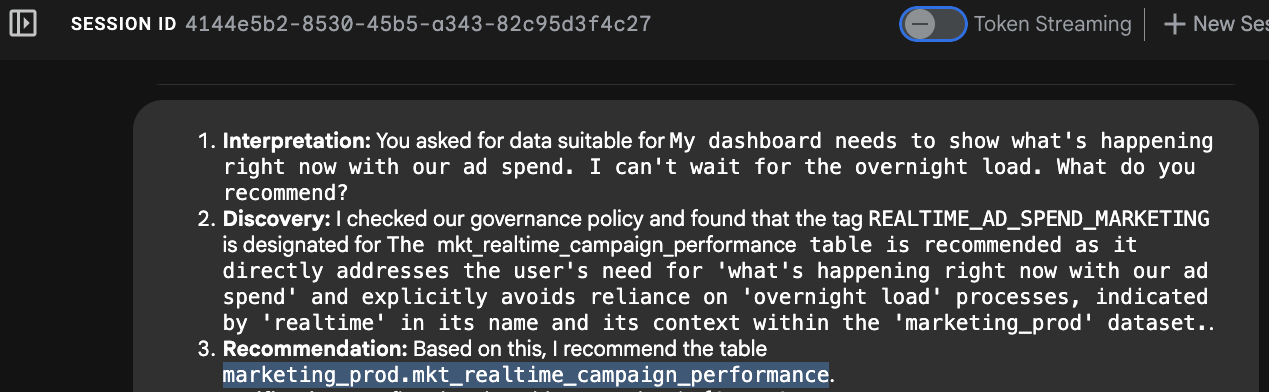
"My dashboard needs to show what's happening right now with our ad spend. I can't wait for the overnight load. What do you recommend?"
Observe the agent's reasoning process in the developer UI:
- Intent Recognition: The agent parses "right now" and "can't wait for overnight."
- Metadata Lookup: It calls the MCP tool search_entries with the query:
[PROJECT_ID].us-central1.official-data-product-spec.update_frequency=REALTIME_STREAMING - Selection: It identifies that the table
mkt_realtime_campaign_performancemeets these criteria. - Response: The agent recommends the real-time table.
Why this matters:
Without this governance metadata, an LLM would likely recommend the fin_monthly_closing_internal table simply because it has a column named "ad_spend," ignoring the fact that the data is 24 hours old. Your metadata context prevented a business error.
You can also test the "Board Meeting" prompt to see how the agent pivots to different tables based on the Data Product Tier aspect:
"We are preparing the deck for an internal Board of Directors meeting next week. I need the numbers to be absolutely finalized, trustworthy, and kept strictly confidential. Which table is safe to use?"
8. Clean up
To avoid incurring charges to your Google Cloud account, follow these steps to destroy all infrastructure created in this codelab.
Destroy the data lake
Use the clean-up script to tear down the BigQuery tables, datasets, and Knowledge Catalog aspect definitions.
cd ~/devrel-demos/data-analytics/governance-context
chmod +x ./cleanup_data_lake.sh
./cleanup_data_lake.sh
Delete Cloud Run services
Remove the compute resources to stop any active billing for the running container.
gcloud run services delete knowledge-catalog-agent --region=$REGION --quiet
Clean up build artifacts and staging storage
When you deployed the ADK agent, the system automatically built a container image and uploaded your source code to a temporary Cloud Storage bucket.
Remove the Artifact Registry repository and the Cloud Storage staging bucket:
# Delete the repository used for the agent build
gcloud artifacts repositories delete cloud-run-source-deploy \
    --location=$REGION \
    --quiet

# Delete the staging bucket created by Cloud Run source deploy
gcloud storage rm --recursive gs://run-sources-${PROJECT_ID}-${REGION}
Delete identity and permissions
Remove the IAM policy bindings first, then delete the Service Accounts.
# Remove IAM roles granted to the Agent Service Account
gcloud projects remove-iam-policy-binding $PROJECT_ID \
  --member="serviceAccount:$AGENT_SERVICE_ACCOUNT" \
  --role="roles/aiplatform.user" --quiet

gcloud projects remove-iam-policy-binding $PROJECT_ID \
  --member="serviceAccount:$AGENT_SERVICE_ACCOUNT" \
  --role="roles/dataplex.catalogViewer" --quiet

gcloud projects remove-iam-policy-binding $PROJECT_ID \
  --member="serviceAccount:$AGENT_SERVICE_ACCOUNT" \
  --role="roles/mcp.toolUser" --quiet

gcloud projects remove-iam-policy-binding $PROJECT_ID \
  --member="serviceAccount:$AGENT_SERVICE_ACCOUNT" \
  --role="roles/bigquery.dataViewer" --quiet

# Delete the Service Account
gcloud iam service-accounts delete $AGENT_SERVICE_ACCOUNT --quiet
Remove local configuration
Finally, clean up the local configuration files and environment variables in Cloud Shell.
# Uninstall the AGY CLI plugin
agy plugin uninstall dataplex

# Remove local repository files and unset variables
cd ~
rm -rf ~/devrel-demos
unset MCP_SERVER_URL
unset AGENT_SERVICE_ACCOUNT
9. Congratulations!
You have successfully deployed an end-to-end, governance-aware GenAI agent.
In this two-part codelab, you moved beyond simple prompt engineering to implement a robust, production-ready architecture. By treating data governance as a prerequisite for GenAI, you established a systematic method to prevent the model from retrieving uncertified or hallucinated data.
Key takeaways
- Deterministic AI through Metadata: Rather than relying on the LLM to guess the correct table based on column names, you enforced a strict reasoning loop using the Google-managed Knowledge Catalog MCP Server, forcing the model to verify data certifications before recommending tables.
- Decoupled Architecture: The frontend agent does not need to contain database logic; it only needs to communicate via the MCP standard. This means you can plug any future AI model or client into the same governed backend.
- Separation of Duties: You applied the principle of least privilege by isolating IAM identities. The user-facing ADK agent operates with permissions restricted to model invocation and API routing.
- Code-first Agent Orchestration: You utilized the Google Agent Development Kit (ADK) to instantly wrap your python agent logic into a scalable FastAPI backend, utilizing its built-in developer UI to visualize and debug the agent's internal tool executions.
What's next?
- Knowledge Catalog Foundational Governance Codelab: Master the fundamentals of data governance in Knowledge Catalog before adding the AI layer.
- Agent Development Kit (ADK) Documentation: Explore the official documentation for building and deploying agents with the ADK.
- Deep Dive into MCP: Check out the official MCP specification to understand how to build custom servers for your internal enterprise APIs.