
1. Trước khi bắt đầu
Trong lớp học lập trình này, bạn sẽ tìm hiểu cách hài hoà màu sắc tuỳ chỉnh với những màu do giao diện động tạo ra.
Điều kiện tiên quyết
Nhà phát triển phải
- Nắm rõ các khái niệm cơ bản về việc sắp xếp theo chủ đề trong Android
- Thành thạo cách làm việc với Android Views (Chế độ xem) của tiện ích và các thuộc tính của chúng
Kiến thức bạn sẽ học được
- Cách sử dụng tính năng hài hoà màu trong ứng dụng bằng nhiều phương thức
- Cách hoạt động của tính năng hài hoà và cách tính năng này chuyển màu
Bạn cần có
- Một máy tính đã cài đặt Android nếu bạn muốn làm theo.
2. Tổng quan về ứng dụng
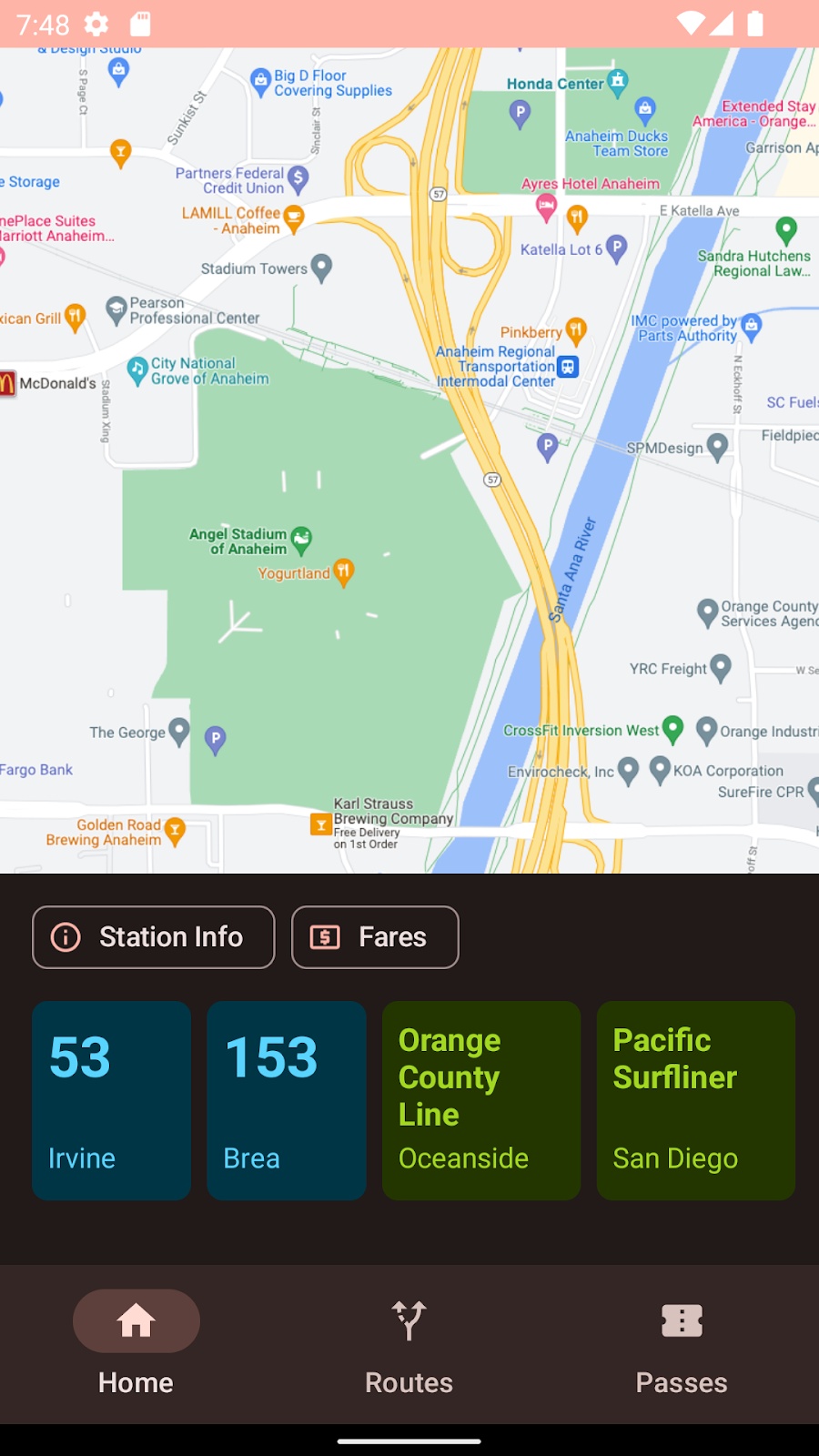
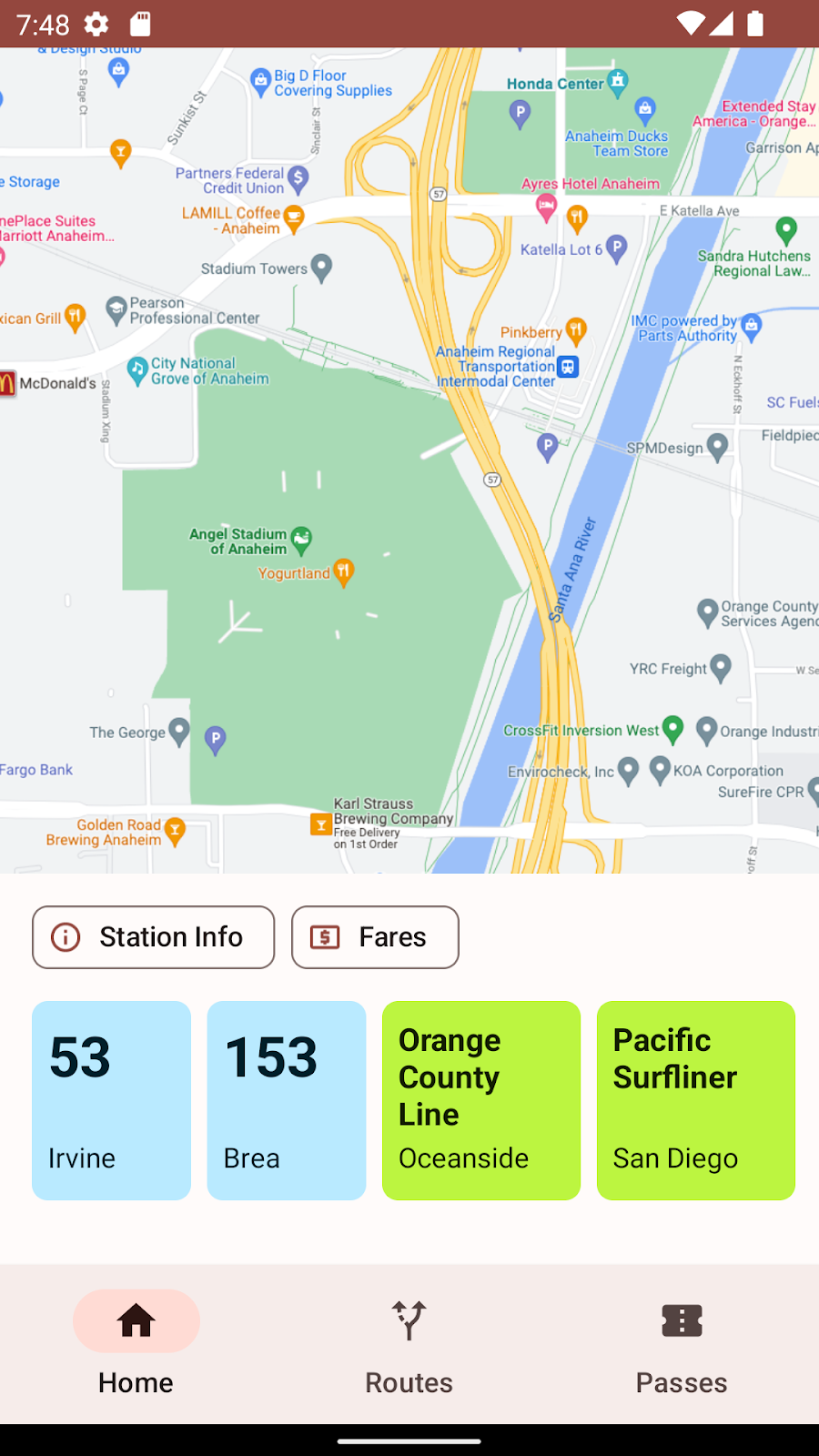
Voyaĝi là một ứng dụng giao thông công cộng đã sử dụng giao diện động. Đối với nhiều hệ thống giao thông công cộng, màu sắc là một chỉ báo quan trọng về tàu hoả, xe buýt hoặc xe điện và không thể thay thế bằng bất kỳ màu chính, màu phụ hoặc màu thứ ba động nào. Chúng ta sẽ tập trung vào RecyclerView của các thẻ giao thông công cộng có màu.
3. Tạo giao diện
Bạn nên sử dụng công cụ Material Theme Builder làm điểm dừng chân đầu tiên để tạo giao diện Material3. Trên thẻ tuỳ chỉnh, giờ đây, bạn có thể thêm nhiều màu hơn vào giao diện. Ở bên phải, bạn sẽ thấy các vai trò màu và bảng tông màu cho những màu đó.
Trong phần màu mở rộng, bạn có thể xoá hoặc đổi tên màu.
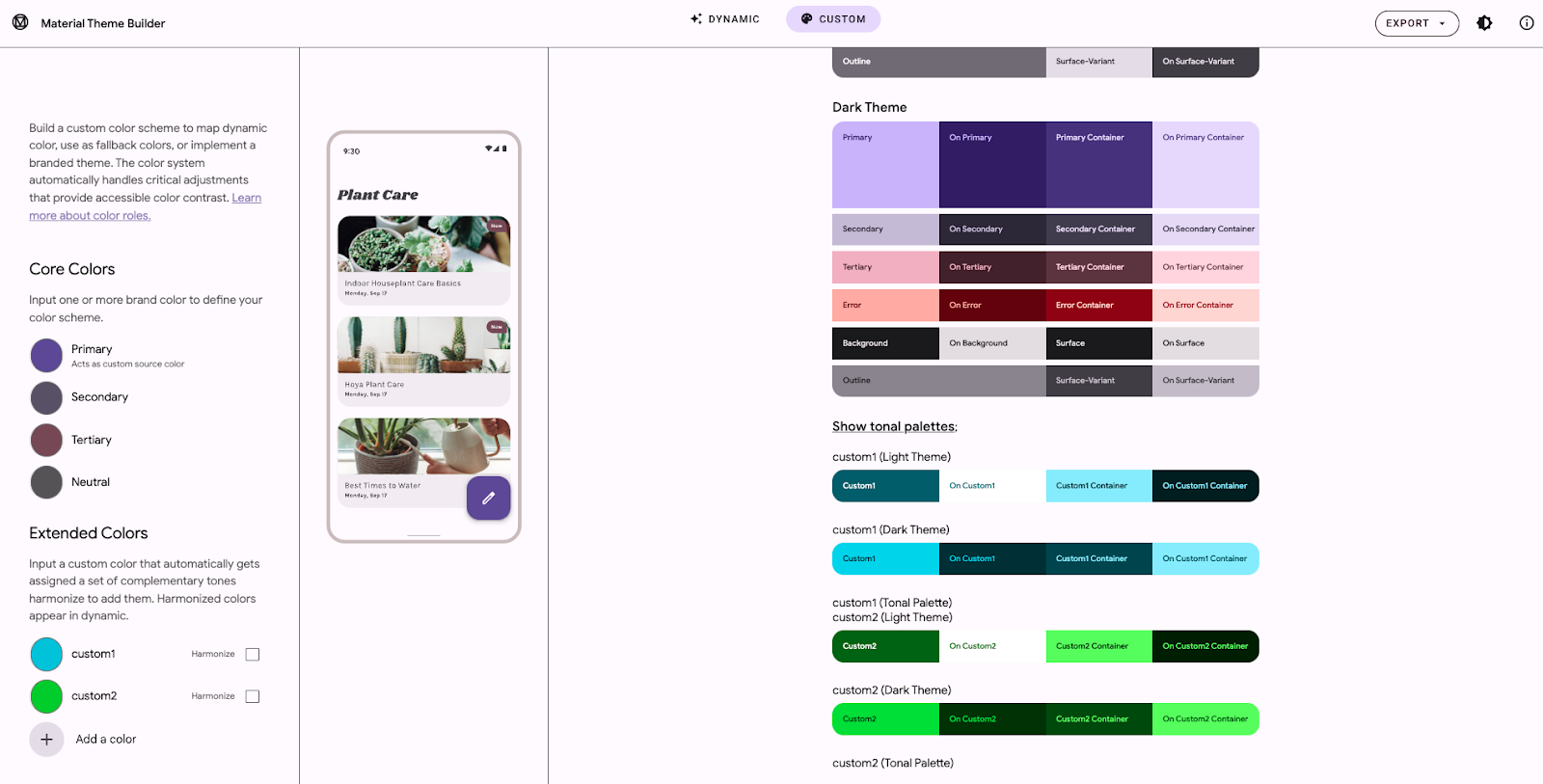
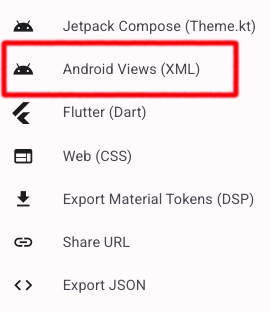
Trình đơn xuất sẽ hiển thị một số lựa chọn xuất có thể. Tại thời điểm viết bài, tính năng xử lý đặc biệt của Material Theme Builder đối với các chế độ cài đặt hài hoà chỉ có trong Android Views
Tìm hiểu các giá trị xuất mới
Để cho phép bạn sử dụng các màu này và vai trò màu được liên kết trong giao diện, bất kể bạn chọn hài hoà hay không, bản tải xuống đã xuất hiện nay bao gồm một tệp attrs.xml chứa tên vai trò màu cho từng màu tuỳ chỉnh.
<resources>
   <attr name="colorCustom1" format="color" />
   <attr name="colorOnCustom1" format="color" />
   <attr name="colorCustom1Container" format="color" />
   <attr name="colorOnCustom1Container" format="color" />
   <attr name="harmonizeCustom1" format="boolean" />

   <attr name="colorCustom2" format="color" />
   <attr name="colorOnCustom2" format="color" />
   <attr name="colorCustom2Container" format="color" />
   <attr name="colorOnCustom2Container" format="color" />
   <attr name="harmonizeCustom2" format="boolean" />
</resources>
Trong themes.xml, chúng tôi đã tạo 4 vai trò màu cho mỗi màu tuỳ chỉnh (color<name>, colorOn<name>, color<name>Container, and colorOn<nameContainer>). Các thuộc tính harmonize<name> phản ánh việc nhà phát triển đã chọn lựa chọn trong Material Theme Builder hay chưa. Thuộc tính này sẽ không chuyển màu trong giao diện cốt lõi.
<resources>
   <style name="AppTheme" parent="Theme.Material3.Light.NoActionBar">
       <!--- Normal theme attributes ... -->

       <item name="colorCustom1">#006876</item>
       <item name="colorOnCustom1">#ffffff</item>
       <item name="colorCustom1Container">#97f0ff</item>
       <item name="colorOnCustom1Container">#001f24</item>
       <item name="harmonizeCustom1">false</item>

       <item name="colorCustom2">#016e00</item>
       <item name="colorOnCustom2">#ffffff</item>
       <item name="colorCustom2Container">#78ff57</item>
       <item name="colorOnCustom2Container">#002200</item>
       <item name="harmonizeCustom2">false</item>
   </style>
</resources>
Trong tệp colors.xml, các màu gốc dùng để tạo vai trò màu được liệt kê ở trên được chỉ định cùng với các giá trị Boolean cho biết bảng màu của màu sẽ được chuyển hay không.
<resources>
   <!-- other colors used in theme -->

   <color name="custom1">#1AC9E0</color>
   <color name="custom2">#32D312</color>
</resources>
4. Kiểm tra màu tuỳ chỉnh
Khi phóng to bảng điều khiển bên của Material Theme Builder, chúng ta có thể thấy rằng việc thêm một màu tuỳ chỉnh sẽ hiển thị một bảng điều khiển với 4 vai trò màu chính trong bảng màu sáng và tối.
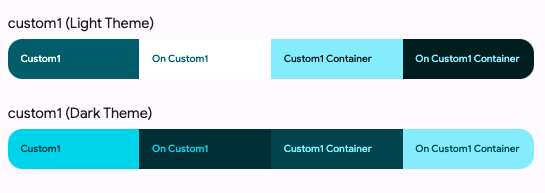
Trong Android Views, chúng tôi xuất các màu này cho bạn nhưng ở phía sau, chúng có thể được biểu thị bằng một thực thể của đối tượng ColorRoles.
Lớp ColorRoles có 4 thuộc tính: accent, onAccent, accentContainer, và onAccentContainer. Các thuộc tính này là biểu diễn số nguyên của 4 màu thập lục phân.
public final class ColorRoles {

  private final int accent;
  private final int onAccent;
  private final int accentContainer;
  private final int onAccentContainer;

  // truncated code

}
Bạn có thể truy xuất 4 vai trò màu chính từ một màu tuỳ ý trong thời gian chạy bằng cách sử dụng getColorRoles trong lớp MaterialColors có tên là getColorRoles cho phép bạn tạo tập hợp 4 vai trò màu đó trong thời gian chạy cho một màu gốc cụ thể.
public static ColorRoles getColorRoles(
    @NonNull Context context,
    @ColorInt int color
) { /* implementation */ }
Tương tự, các giá trị đầu ra là giá trị màu thực tế, KHÔNG phải là con trỏ đến các giá trị đó.**
5. Tính năng hài hoà màu là gì?
Hệ thống màu mới của Material được thiết kế theo thuật toán, tạo ra màu chính, màu phụ, màu thứ ba và màu trung tính từ một màu gốc đã cho. Một điểm đáng lo ngại mà chúng tôi nhận được rất nhiều khi nói chuyện với các đối tác nội bộ và bên ngoài là cách áp dụng màu động trong khi vẫn kiểm soát được một số màu.
Các màu này thường mang một ý nghĩa hoặc ngữ cảnh cụ thể trong ứng dụng sẽ bị mất nếu được thay thế bằng một màu ngẫu nhiên. Ngoài ra, nếu để nguyên, các màu này có thể trông khó chịu về mặt thị giác hoặc không phù hợp.
Màu trong Material You được mô tả bằng sắc độ, độ bão hoà và tông màu. Sắc độ của một màu liên quan đến nhận thức của một người về màu đó là thành phần của một dải màu so với một dải màu khác. Tông màu mô tả mức độ sáng hoặc tối của màu và độ bão hoà là cường độ của màu. Nhận thức về sắc độ có thể bị ảnh hưởng bởi các yếu tố văn hoá và ngôn ngữ, chẳng hạn như việc thiếu một từ để chỉ màu xanh dương trong các nền văn hoá cổ đại, thay vào đó, màu xanh dương được coi là cùng họ với màu xanh lục.
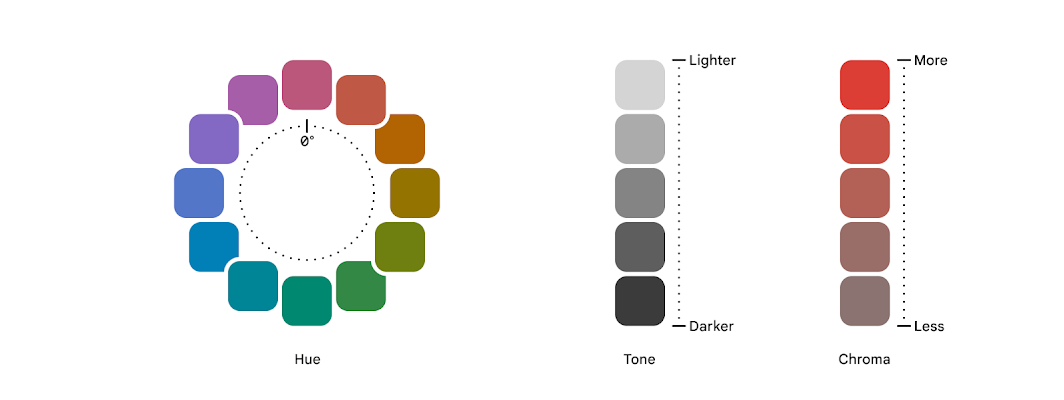 Một sắc độ cụ thể có thể được coi là ấm hoặc lạnh tuỳ thuộc vào vị trí của sắc độ đó trên phổ sắc độ. Việc chuyển sang sắc độ đỏ, cam hoặc vàng thường được coi là làm cho màu ấm hơn và chuyển sang màu xanh dương, xanh lục hoặc tím được coi là làm cho màu lạnh hơn. Ngay cả trong các màu ấm hoặc lạnh, bạn sẽ có tông màu ấm và lạnh. Dưới đây, màu vàng "ấm hơn" có màu cam hơn, trong khi màu vàng "lạnh hơn" chịu ảnh hưởng nhiều hơn của màu xanh lục.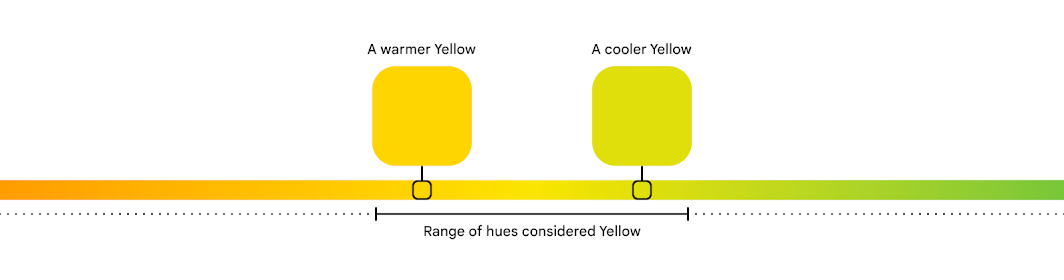
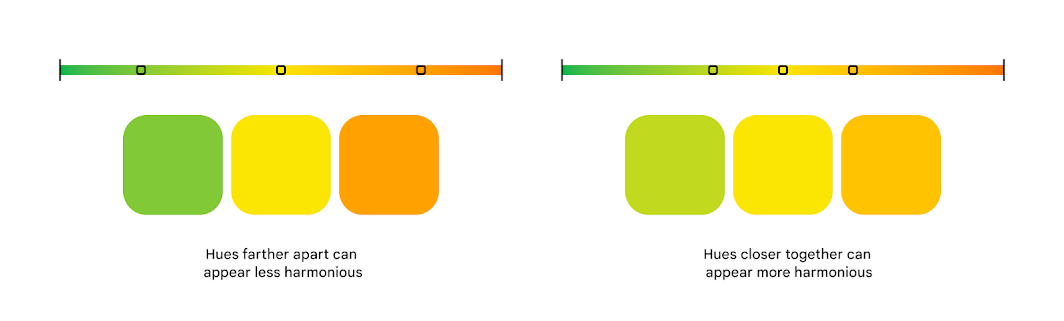
Thuật toán hài hoà màu sẽ kiểm tra sắc độ của màu không được chuyển và màu mà thuật toán này cần hài hoà để xác định một sắc độ hài hoà nhưng không làm thay đổi các đặc tính màu cơ bản. Trong hình ảnh đầu tiên, có ít sắc độ xanh lục, vàng và cam hài hoà được vẽ trên một phổ. Trong hình ảnh tiếp theo, màu xanh lục và màu cam đã được hài hoà với sắc độ vàng. Màu xanh lục mới ấm hơn và màu cam mới lạnh hơn.
Sắc độ đã chuyển trên màu cam và màu xanh lục nhưng chúng vẫn có thể được nhận biết là màu cam và màu xanh lục.
Nếu bạn muốn tìm hiểu thêm về một số quyết định thiết kế, khám phá và cân nhắc, thì các đồng nghiệp của tôi là Ayan Daniels và Andrew Lu đã viết một bài đăng trên blog đi sâu hơn một chút so với phần này.
6. Hài hoà màu theo cách thủ công
Để hài hoà một tông màu duy nhất, có 2 hàm trong MaterialColors, harmonize và harmonizeWithPrimary.
harmonizeWithPrimary sử dụng Context làm phương tiện để truy cập vào giao diện hiện tại và sau đó là màu chính từ giao diện đó.
@ColorInt
public static int harmonizeWithPrimary(@NonNull Context context, @ColorInt int colorToHarmonize) {
    return harmonize(
        colorToHarmonize,
        getColor(context, R.attr.colorPrimary, MaterialColors.class.getCanonicalName()));
  }


@ColorInt
  public static int harmonize(@ColorInt int colorToHarmonize, @ColorInt int colorToHarmonizeWith) {
    return Blend.harmonize(colorToHarmonize, colorToHarmonizeWith);
  }
Để truy xuất tập hợp 4 tông màu, chúng ta cần thực hiện thêm một chút.
Vì chúng ta đã có màu nguồn, nên chúng ta cần:
- xác định xem có nên hài hoà hay không,
- xác định xem chúng ta có đang ở chế độ tối hay không và,
- trả về đối tượng
ColorRolesđã hài hoà hoặc chưa hài hoà.
Xác định xem có nên hài hoà hay không
Trong giao diện đã xuất từ Material Theme Builder, chúng tôi đã đưa vào các thuộc tính boolean bằng cách sử dụng quy ước đặt tên harmonize<Color>. Dưới đây là một hàm tiện lợi để truy cập vào giá trị đó.
Nếu tìm thấy, hàm này sẽ trả về giá trị của nó; nếu không, hàm này sẽ xác định rằng không nên hài hoà màu.
// Looks for associated harmonization attribute based on the color id
// custom1 ===> harmonizeCustom1
fun shouldHarmonize(context: Context, colorId: Int): Boolean {
   val root = context.resources.getResourceEntryName(colorId)
   val harmonizedId = "harmonize" + root.replaceFirstChar { it.uppercaseChar() }

   val identifier = context.resources.getIdentifier(
           harmonizedId, "bool", context.packageName)

   return if (identifier != 0) context.resources.getBoolean(identifier) else false
}
Tạo đối tượng ColorRoles đã hài hoà
retrieveHarmonizedColorRoles là một hàm tiện lợi khác kết hợp tất cả các bước đã đề cập ở trên: truy xuất giá trị màu cho một tài nguyên được đặt tên, cố gắng phân giải một thuộc tính boolean để xác định tính năng hài hoà và trả về một đối tượng ColorRoles bắt nguồn từ màu gốc hoặc màu kết hợp (cho giao diện sáng hoặc tối).
fun retrieveHarmonizedColorRoles(
   view: View,
   customId: Int,
   isLight: Boolean
): ColorRoles {
   val context = view.context
   val custom = context.getColor(customId);

   val shouldHarmonize = shouldHarmonize(context, customId)
   if (shouldHarmonize) {
       val blended = MaterialColors.harmonizeWithPrimary(context, custom)
       return MaterialColors.getColorRoles(blended, isLight)
   } else return MaterialColors.getColorRoles(custom, isLight)
}
7. Điền thông tin vào thẻ giao thông công cộng
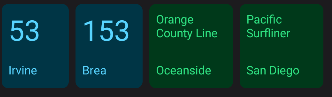
Như đã đề cập trước đó, chúng ta sẽ sử dụng RecyclerView và bộ chuyển đổi để điền sẵn và tô màu cho tập hợp thẻ đi phương tiện công cộng.
Lưu trữ dữ liệu giao thông công cộng
Để lưu trữ dữ liệu văn bản và thông tin màu cho thẻ giao thông công cộng, chúng ta sẽ sử dụng một lớp dữ liệu lưu trữ tên, đích đến và mã tài nguyên màu.
data class TransitInfo(val name: String, val destination: String, val colorId: Int)

/*  truncated code */

val transitItems = listOf(
   TransitInfo("53", "Irvine", R.color.custom1),
   TransitInfo("153", "Brea", R.color.custom1),
   TransitInfo("Orange County Line", "Oceanside", R.color.custom2),
   TransitInfo("Pacific Surfliner", "San Diego", R.color.custom2)
)
Chúng ta sẽ sử dụng màu này để tạo các tông màu cần thiết trong thời gian thực.
Bạn có thể hài hoà trong thời gian chạy bằng hàm onBindViewHolder sau.
override fun onBindViewHolder(holder: ViewHolder, position: Int) {
   val transitInfo = list.get(position)
   val color = transitInfo.colorId
   if (!colorRolesMap.containsKey(color)) {

       val roles = retrieveHarmonizedColorRoles(
           holder.itemView, color,
           !isNightMode(holder.itemView.context)
       )
       colorRolesMap.put(color, roles)
   }

   val card = holder.card
   holder.transitName.text = transitInfo.name
   holder.transitDestination.text = transitInfo.destination

   val colorRoles = colorRolesMap.get(color)
   if (colorRoles != null) {
       holder.card.setCardBackgroundColor(colorRoles.accentContainer)
       holder.transitName.setTextColor(colorRoles.onAccentContainer)
       holder.transitDestination.setTextColor(colorRoles.onAccentContainer)
   }
}
8. Tự động hài hoà màu
Ngoài cách xử lý tính năng hài hoà theo cách thủ công, bạn có thể để hệ thống xử lý cho mình. HarmonizedColorOptions là một lớp trình tạo cho phép bạn chỉ định nhiều nội dung mà chúng ta đã thực hiện theo cách thủ công cho đến nay.
Sau khi truy xuất ngữ cảnh hiện tại để bạn có quyền truy cập vào giao diện động hiện tại, bạn cần chỉ định các màu cơ bản mà bạn muốn hài hoà và tạo một ngữ cảnh mới dựa trên đối tượng HarmonizedColorOptions đó và ngữ cảnh đã bật DynamicColors.
Nếu không muốn hài hoà một màu, bạn chỉ cần không đưa màu đó vào harmonizedOptions.
val newContext = DynamicColors.wrapContextIfAvailable(requireContext())


val harmonizedOptions = HarmonizedColorsOptions.Builder()
 .setColorResourceIds(intArrayOf(R.color.custom1, R.color.custom2))
 .build();

harmonizedContext =
 HarmonizedColors.wrapContextIfAvailable(dynamicColorsContext, harmonizedOptions)
Khi màu cơ bản đã hài hoà được xử lý, bạn có thể cập nhật onBindViewHolder để chỉ cần gọi MaterialColors.getColorRoles và chỉ định xem các vai trò được trả về phải là sáng hay tối.
override fun onBindViewHolder(holder: ViewHolder, position: Int) {
   /*...*/
   val color = transitInfo.colorId
   if (!colorRolesMap.containsKey(color)) {

       val roles = MaterialColors.getColorRoles(context.getColor(color), !isNightMode(context))

       )
       colorRolesMap.put(color, roles)
   }

   val card = holder.card
   holder.transitName.text = transitInfo.name
   holder.transitDestination.text = transitInfo.destination

   val colorRoles = colorRolesMap.get(color)
   if (colorRoles != null) {
       holder.card.setCardBackgroundColor(colorRoles.accentContainer)
       holder.transitName.setTextColor(colorRoles.onAccentContainer)
       holder.transitDestination.setTextColor(colorRoles.onAccentContainer)
   }
}
9. Tự động hài hoà các thuộc tính giao diện
Các phương thức hiển thị cho đến nay dựa vào việc truy xuất các vai trò màu từ một màu riêng lẻ. Điều này rất hữu ích để cho thấy rằng một tông màu thực đang được tạo nhưng không thực tế đối với hầu hết các ứng dụng hiện có. Bạn có thể sẽ không trực tiếp tạo màu mà thay vào đó là sử dụng một thuộc tính giao diện hiện có.
Trước đó trong lớp học lập trình này, chúng ta đã nói về việc xuất các thuộc tính giao diện.
<resources>
   <style name="AppTheme" parent="Theme.Material3.Light.NoActionBar">
       <!--- Normal theme attributes ... -->

       <item name="colorCustom1">#006876</item>
       <item name="colorOnCustom1">#ffffff</item>
       <item name="colorCustom1Container">#97f0ff</item>
       <item name="colorOnCustom1Container">#001f24</item>
       <item name="harmonizeCustom1">false</item>

       <item name="colorCustom2">#016e00</item>
       <item name="colorOnCustom2">#ffffff</item>
       <item name="colorCustom2Container">#78ff57</item>
       <item name="colorOnCustom2Container">#002200</item>
       <item name="harmonizeCustom2">false</item>
   </style>
</resources>
Tương tự như phương thức tự động đầu tiên, chúng ta có thể cung cấp các giá trị cho HarmonizedColorOptions và sử dụng HarmonizedColors để truy xuất một Ngữ cảnh có các màu đã hài hoà. Có một điểm khác biệt chính giữa 2 phương thức. Ngoài ra, chúng ta cần cung cấp một lớp phủ giao diện chứa các trường cần được hài hoà.
val dynamicColorsContext = DynamicColors.wrapContextIfAvailable(requireContext())

// Harmonizing individual attributes
val harmonizedColorAttributes = HarmonizedColorAttributes.create(
 intArrayOf(
   R.attr.colorCustom1,
   R.attr.colorOnCustom1,
   R.attr.colorCustom1Container,
   R.attr.colorOnCustom1Container,
   R.attr.colorCustom2,
   R.attr.colorOnCustom2,
   R.attr.colorCustom2Container,
   R.attr.colorOnCustom2Container
 ), R.style.AppTheme_Overlay
)
val harmonizedOptions =
 HarmonizedColorsOptions.Builder().setColorAttributes(harmonizedColorAttributes).build()

val harmonizedContext =
 HarmonizedColors.wrapContextIfAvailable(dynamicColorsContext, harmonizedOptions)
Bộ chuyển đổi của bạn sẽ sử dụng ngữ cảnh đã hài hoà. Các giá trị trong lớp phủ giao diện phải tham chiếu đến biến thể sáng hoặc tối chưa hài hoà.
<style name="AppTheme.Overlay" parent="AppTheme">
   <item name="colorCustom1">@color/harmonized_colorCustom1</item>
   <item name="colorOnCustom1">@color/harmonized_colorOnCustom1</item>
   <item name="colorCustom1Container">@color/harmonized_colorCustom1Container</item>
   <item name="colorOnCustom1Container">@color/harmonized_colorOnCustom1Container</item>

   <item name="colorCustom2">@color/harmonized_colorCustom2</item>
   <item name="colorOnCustom2">@color/harmonized_colorOnCustom2</item>
   <item name="colorCustom2Container">@color/harmonized_colorCustom2Container</item>
   <item name="colorOnCustom2Container">@color/harmonized_colorOnCustom2Container</item>
</style>
Bên trong tệp bố cục XML, chúng ta có thể sử dụng các thuộc tính đã hài hoà đó như bình thường.
<?xml version="1.0" encoding="utf-8"?>
<com.google.android.material.card.MaterialCardView xmlns:android="http://schemas.android.com/apk/res/android"
   xmlns:app="http://schemas.android.com/apk/res-auto"
   style="?attr/materialCardViewFilledStyle"
   android:id="@+id/card"
   android:layout_width="80dp"
   android:layout_height="100dp"
   android:layout_marginStart="8dp"
   app:cardBackgroundColor="?attr/colorCustom1Container"
   >

   <androidx.constraintlayout.widget.ConstraintLayout
       android:layout_width="match_parent"
       android:layout_height="match_parent"
       android:layout_margin="8dp">

       <TextView
           android:id="@+id/transitName"
           android:layout_width="wrap_content"
           android:layout_height="wrap_content"
           android:textSize="28sp"
           android:textStyle="bold"
           android:textColor="?attr/colorOnCustom1Container"
           app:layout_constraintTop_toTopOf="parent" />

       <TextView
           android:id="@+id/transitDestination"
           android:layout_width="wrap_content"
           android:layout_height="wrap_content"
           android:layout_marginBottom="4dp"
           android:textColor="?attr/colorOnCustom1Container"
           app:layout_constraintBottom_toBottomOf="parent" />
   </androidx.constraintlayout.widget.ConstraintLayout>
</com.google.android.material.card.MaterialCardView>
10. Mã nguồn
package com.example.voyagi.harmonization.ui.dashboard

import android.content.Context
import android.content.res.Configuration
import android.graphics.Typeface
import android.os.Bundle
import android.util.TypedValue
import android.view.LayoutInflater
import android.view.View
import android.view.ViewGroup
import android.widget.TextView
import androidx.fragment.app.Fragment
import androidx.lifecycle.Observer
import androidx.lifecycle.ViewModelProvider
import androidx.recyclerview.widget.LinearLayoutManager
import androidx.recyclerview.widget.RecyclerView
import com.example.voyagi.harmonization.R
import com.example.voyagi.harmonization.databinding.FragmentDashboardBinding
import com.example.voyagi.harmonization.ui.home.TransitCardAdapter
import com.example.voyagi.harmonization.ui.home.TransitInfo
import com.google.android.material.card.MaterialCardView
import com.google.android.material.color.ColorRoles
import com.google.android.material.color.DynamicColors
import com.google.android.material.color.HarmonizedColorAttributes
import com.google.android.material.color.HarmonizedColors
import com.google.android.material.color.HarmonizedColorsOptions
import com.google.android.material.color.MaterialColors


class DashboardFragment : Fragment() {

 enum class TransitMode { BUS, TRAIN }
 data class TransitInfo2(val name: String, val destination: String, val mode: TransitMode)

 private lateinit var dashboardViewModel: DashboardViewModel
 private var _binding: FragmentDashboardBinding? = null

 // This property is only valid between onCreateView and
 // onDestroyView.
 private val binding get() = _binding!!

 override fun onCreateView(
   inflater: LayoutInflater,
   container: ViewGroup?,
   savedInstanceState: Bundle?
 ): View? {
   dashboardViewModel =
     ViewModelProvider(this).get(DashboardViewModel::class.java)

   _binding = FragmentDashboardBinding.inflate(inflater, container, false)
   val root: View = binding.root


   val recyclerView = binding.recyclerView

   val transitItems = listOf(
     TransitInfo2("53", "Irvine", TransitMode.BUS),
     TransitInfo2("153", "Brea", TransitMode.BUS),
     TransitInfo2("Orange County Line", "Oceanside", TransitMode.TRAIN),
     TransitInfo2("Pacific Surfliner", "San Diego", TransitMode.TRAIN)
   )

   val dynamicColorsContext = DynamicColors.wrapContextIfAvailable(requireContext())

   // Harmonizing individual attributes
   val harmonizedColorAttributes = HarmonizedColorAttributes.create(
     intArrayOf(
       R.attr.colorCustom1,
       R.attr.colorOnCustom1,
       R.attr.colorCustom1Container,
       R.attr.colorOnCustom1Container,
       R.attr.colorCustom2,
       R.attr.colorOnCustom2,
       R.attr.colorCustom2Container,
       R.attr.colorOnCustom2Container
     ), R.style.AppTheme_Overlay
   )
   val harmonizedOptions =
     HarmonizedColorsOptions.Builder().setColorAttributes(harmonizedColorAttributes).build()

   val harmonizedContext =
     HarmonizedColors.wrapContextIfAvailable(dynamicColorsContext, harmonizedOptions)


   val adapter = TransitCardAdapterAttr(transitItems, harmonizedContext)
   recyclerView.adapter = adapter
   recyclerView.layoutManager =
     LinearLayoutManager(harmonizedContext, RecyclerView.HORIZONTAL, false)

   return root
 }

 override fun onDestroyView() {
   super.onDestroyView()
   _binding = null
 }
}

class TransitCardAdapterAttr(val list: List<DashboardFragment.TransitInfo2>, context: Context) :
 RecyclerView.Adapter<RecyclerView.ViewHolder>() {
 val colorRolesMap = mutableMapOf<Int, ColorRoles>()
 private var harmonizedContext: Context? = context

 override fun onCreateViewHolder(
   parent: ViewGroup,
   viewType: Int
 ): RecyclerView.ViewHolder {
   return if (viewType == DashboardFragment.TransitMode.BUS.ordinal) {
     BusViewHolder(LayoutInflater.from(harmonizedContext).inflate(R.layout.transit_item_bus, parent, false))
   } else TrainViewHolder(LayoutInflater.from(harmonizedContext).inflate(R.layout.transit_item_train, parent, false))
 }

 override fun getItemCount(): Int {
   return list.size
 }

 override fun onBindViewHolder(holder: RecyclerView.ViewHolder, position: Int) {
   val item = list[position]
   if (item.mode.ordinal == DashboardFragment.TransitMode.BUS.ordinal) {
     (holder as BusViewHolder).bind(item)
     (holder as TransitBindable).adjustNameLength()
   } else {
       (holder as TrainViewHolder).bind(item)
       (holder as TransitBindable).adjustNameLength()
   }
 }

 override fun getItemViewType(position: Int): Int {
   return list[position].mode.ordinal
 }

 interface TransitBindable {
   val card: MaterialCardView
   var transitName: TextView
   var transitDestination: TextView

   fun bind(item: DashboardFragment.TransitInfo2) {
     transitName.text = item.name
     transitDestination.text = item.destination
   }
   fun Float.toDp(context: Context) =
     TypedValue.applyDimension(
       TypedValue.COMPLEX_UNIT_DIP,
       this,
       context.resources.displayMetrics
     )
   fun adjustNameLength(){
     if (transitName.length() > 4) {
       val layoutParams = card.layoutParams
       layoutParams.width = 100f.toDp(card.context).toInt()
       card.layoutParams = layoutParams
       transitName.setTypeface(Typeface.DEFAULT_BOLD);

       transitName.setTextSize(TypedValue.COMPLEX_UNIT_SP, 16.0f)
     }
   }
 }

 inner class BusViewHolder(itemView: View) : RecyclerView.ViewHolder(itemView), TransitBindable {
   override val card: MaterialCardView = itemView.findViewById(R.id.card)
   override var transitName: TextView = itemView.findViewById(R.id.transitName)
   override var transitDestination: TextView = itemView.findViewById(R.id.transitDestination)
 }
 inner class TrainViewHolder(itemView: View) : RecyclerView.ViewHolder(itemView), TransitBindable {
   override val card: MaterialCardView = itemView.findViewById(R.id.card)
   override var transitName: TextView = itemView.findViewById(R.id.transitName)
   override var transitDestination: TextView = itemView.findViewById(R.id.transitDestination)
 }
}
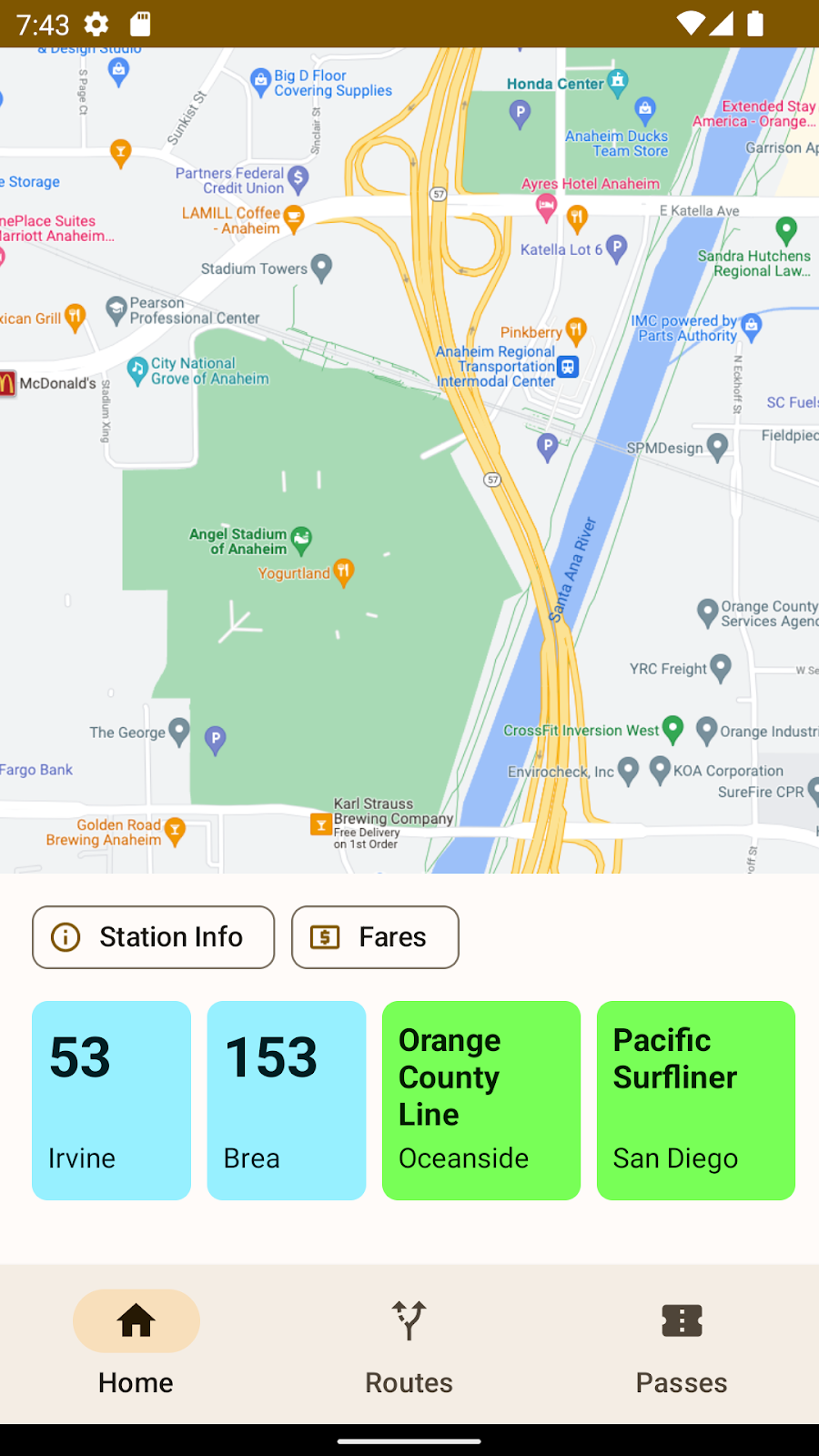
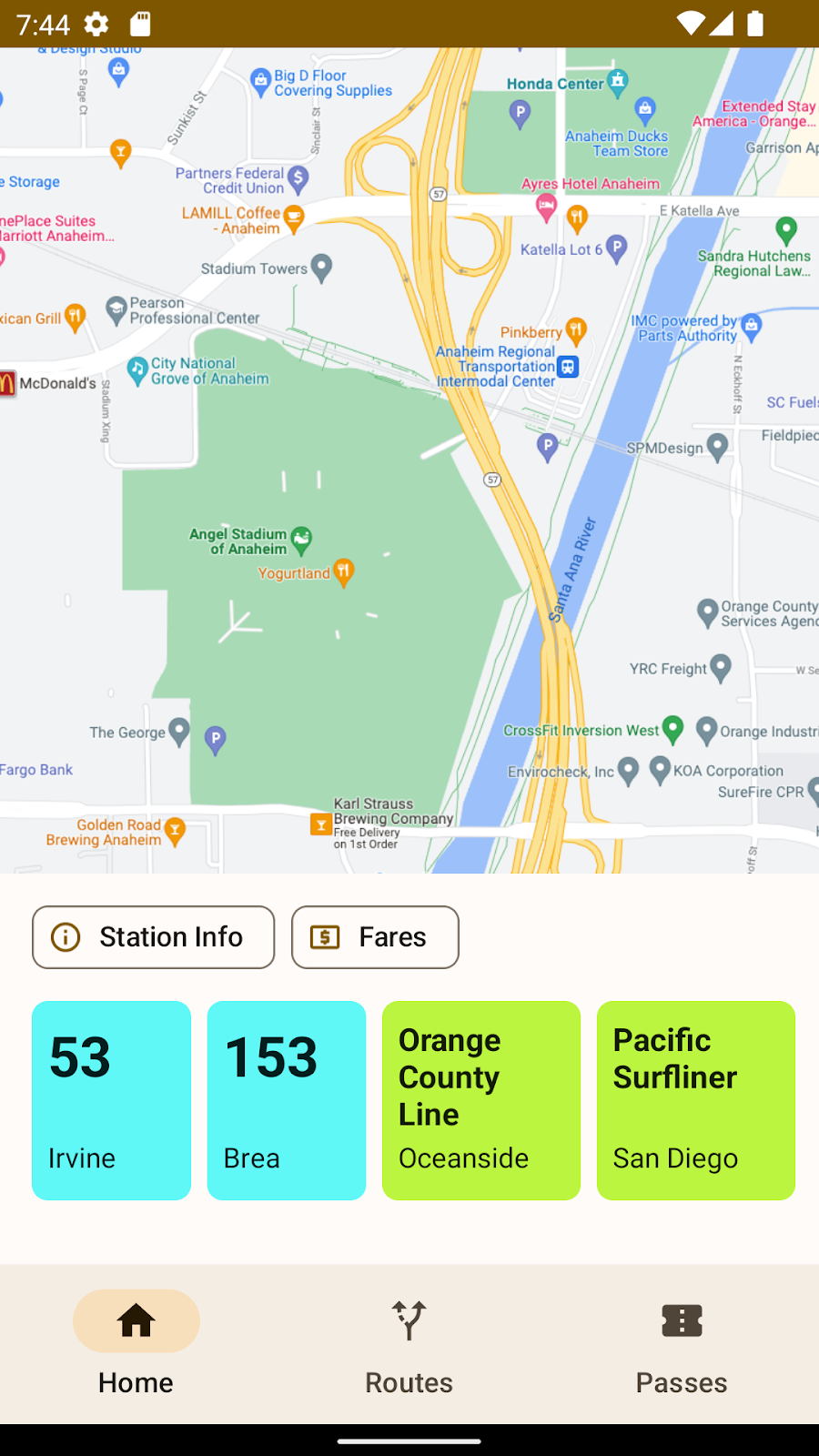
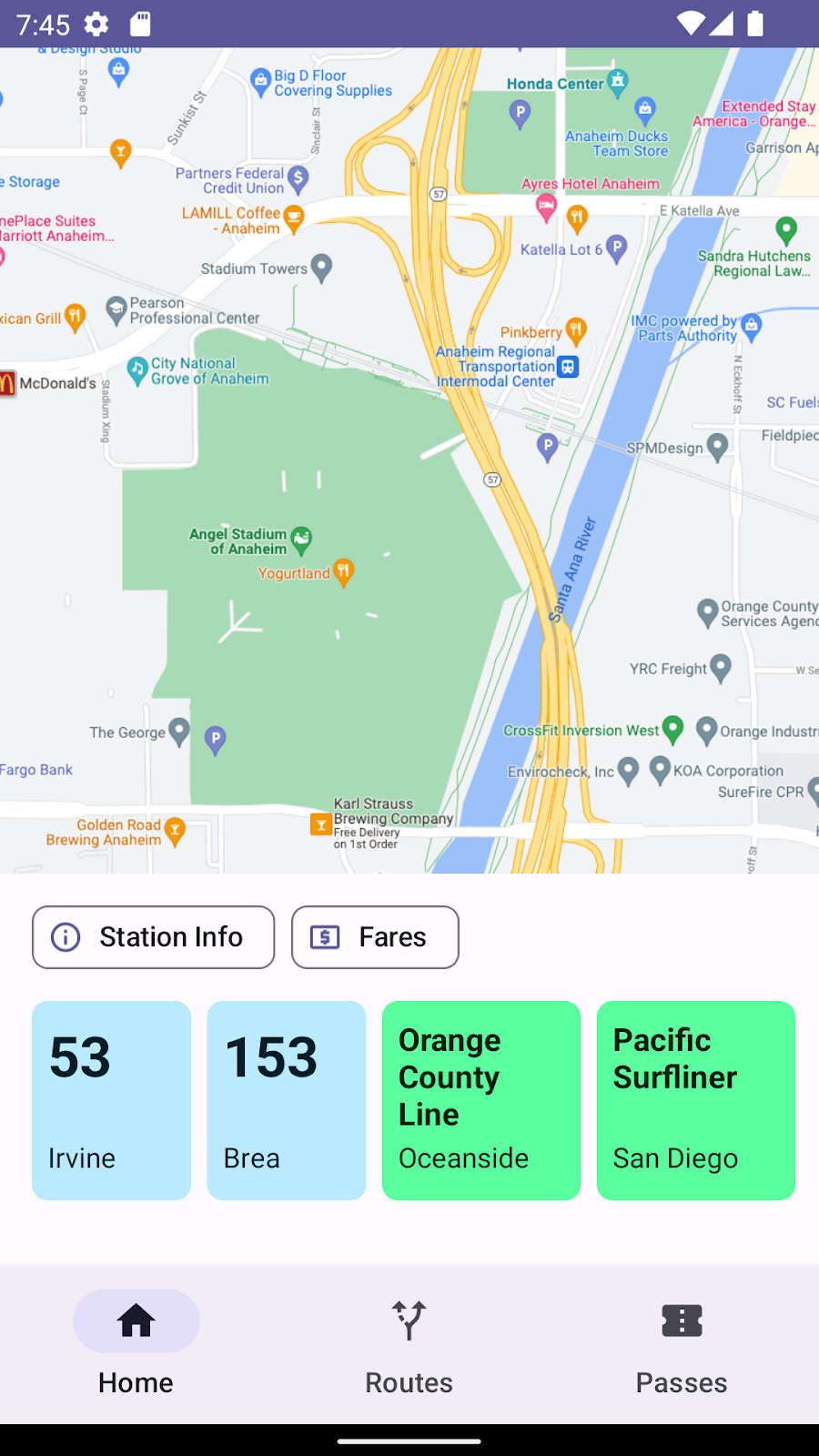
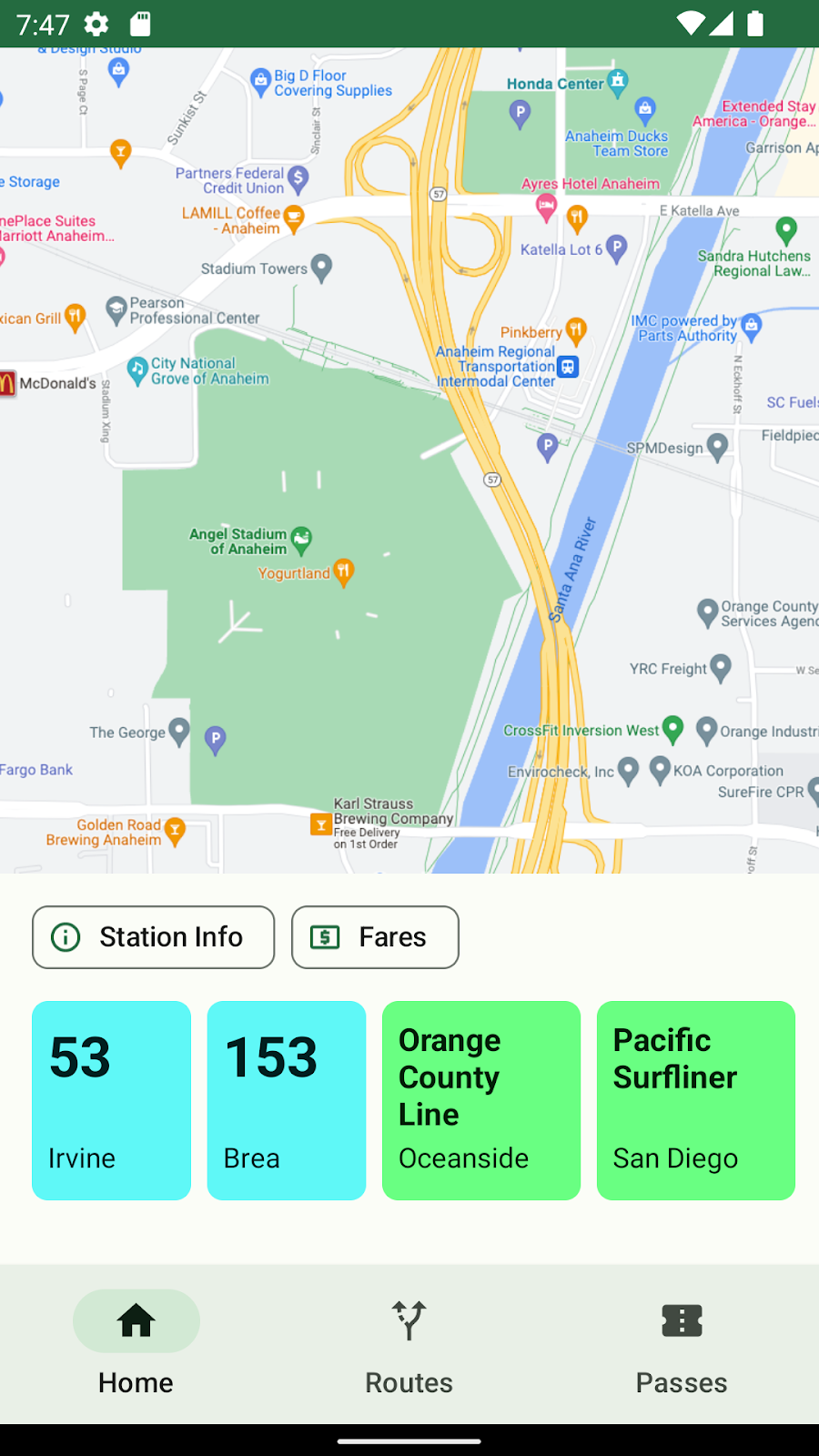
11. Ví dụ về giao diện người dùng
Giao diện mặc định và màu tuỳ chỉnh không có tính năng hài hoà
Màu tuỳ chỉnh đã hài hoà
12. Tóm tắt
Trong lớp học lập trình này, bạn đã tìm hiểu:
- Những kiến thức cơ bản về thuật toán hài hoà màu của chúng tôi
- Cách tạo vai trò màu từ một màu đã thấy.
- Cách chọn lọc để hài hoà một màu trong giao diện người dùng.
- Cách hài hoà một tập hợp thuộc tính trong một giao diện.
Nếu bạn có thắc mắc, cứ thoải mái hỏi chúng tôi bất cứ lúc nào qua @MaterialDesign trên X.
Hãy theo dõi để biết xem nội dung và hướng dẫn về thiết kế trên youtube.com/MaterialDesign