
1. Before you begin
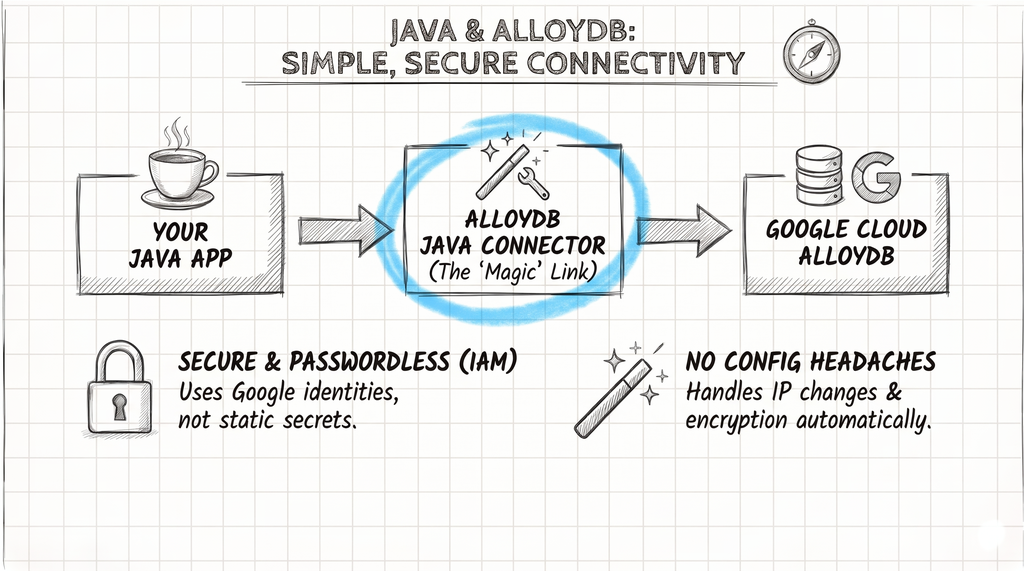
AlloyDB for PostgreSQL is Google Cloud's fully managed, PostgreSQL-compatible database service for demanding enterprise workloads. Connecting a Java application to AlloyDB securely and efficiently is done through the AlloyDB Java Connector (alloydb-jdbc-connector), a client library that goes beyond a standard JDBC driver.
The AlloyDB Java Connector's Magic
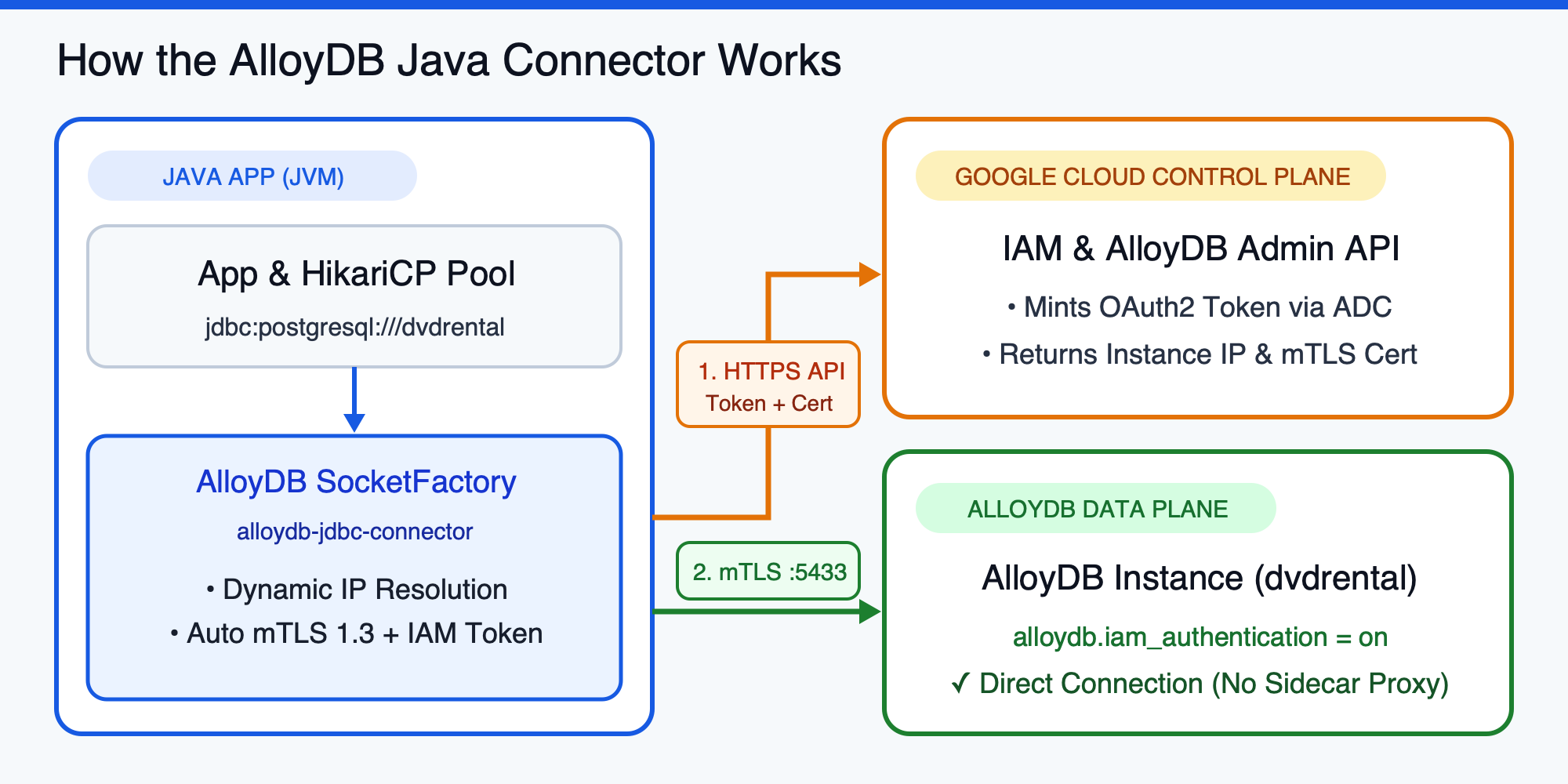
The alloydb-jdbc-connector functions as a smart SocketFactory for the standard PostgreSQL JDBC driver (org.postgresql:postgresql). It abstracts away the establishment of a secure database connection so you can focus on application logic rather than network security or credential rotation:
- mTLS 1.3 Encryption: Automatically establishes a mutually authenticated TLS 1.3 connection between your JVM and the AlloyDB instance without requiring you to manage SSL/TLS client certificates manually.
- IAM-Based Authorization: Instead of relying on static database passwords, the connector leverages Google Cloud IAM and Application Default Credentials (ADC) to obtain short-lived OAuth2 access tokens automatically.
- Dynamic IP Resolution: Queries the AlloyDB Admin API to resolve the current IP address (
PRIVATE,PUBLIC, or Private Service ConnectPSC) of your database instance dynamically. You do not need to hard-code hostnames or IP addresses, making failovers and maintenance transparent.
Prerequisites
- Familiarity with Java, Maven, and basic SQL/JDBC concepts.
- Basic familiarity with the Google Cloud CLI (
gcloud) and IAM roles.
What you'll do
- Configure an AlloyDB instance and Service Account for passwordless IAM Database Authentication.
- Grant least-privilege PostgreSQL schema and table permissions to an IAM principal.
- Configure a production-grade
DataSourcewith Plain JDBC and HikariCP using the AlloyDBSocketFactory. - Integrate the AlloyDB Java Connector in Spring Boot, Quarkus, and Micronaut applications.
- Register the AlloyDB
SocketFactoryfor GraalVM Native Image compilation and troubleshoot common IAM auth pitfalls.
What you'll need
- A Google Cloud project with billing enabled and an active AlloyDB Cluster and Primary Instance (see the AlloyDB cluster creation guide or spin up an AlloyDB Express cluster in under two seconds).
- The
roles/alloydb.adminandroles/resourcemanager.projectIamAdminIAM roles on your project. - Java 17 or higher (Java 17 or 21 LTS recommended) and Apache Maven installed.
gcloudCLI andpsqlclient installed (or access to Google Cloud Shell).
2. Set up IAM Database Authentication on AlloyDB
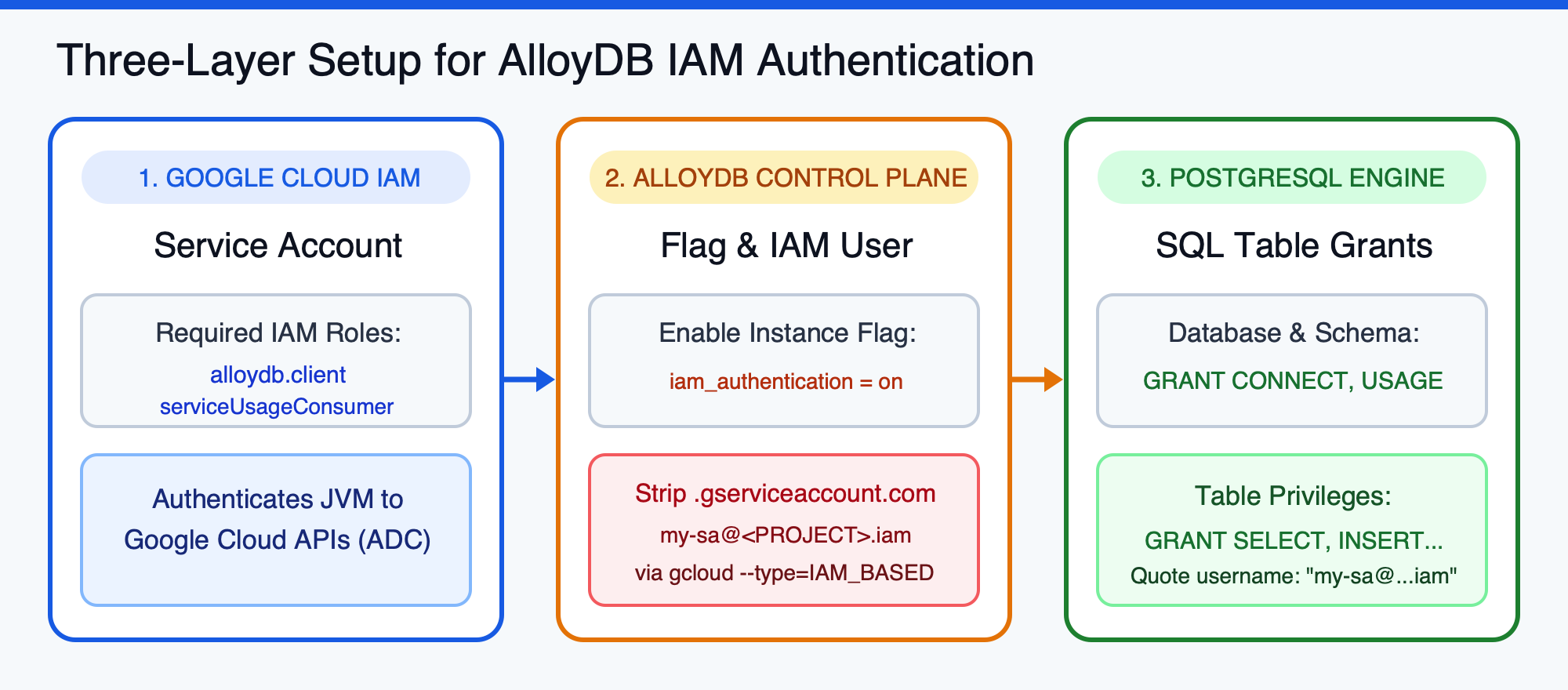
Before writing Java code, you need to configure your AlloyDB instance to accept IAM tokens and create the IAM identity that your application will use across three layers: Google Cloud IAM, the AlloyDB Control Plane, and the PostgreSQL Engine.
Set Environment Variables
In your terminal, export the variables corresponding to your Google Cloud project and AlloyDB instance (replace the
export PROJECT_ID="<PROJECT_ID>"
export REGION="europe-west1"
export CLUSTER_ID="<CLUSTER_ID>"
export INSTANCE_ID="<INSTANCE_ID>"
export DB_NAME="dvdrental"
Enable Required APIs
Enable the AlloyDB, Compute Engine, Cloud Resource Manager, IAM, and Service Usage APIs in your project:
gcloud services enable \
    alloydb.googleapis.com \
    compute.googleapis.com \
    cloudresourcemanager.googleapis.com \
    iam.googleapis.com \
    serviceusage.googleapis.com \
    --project="${PROJECT_ID}"
Create a Service Account and Grant IAM Roles
Create a dedicated Service Account that will serve as your Java application's identity:
gcloud iam service-accounts create java-alloydb-connector \
    --project="${PROJECT_ID}" \
    --display-name="Java Application DB Connector"
Grant the Service Account the two IAM roles required by the AlloyDB Java Connector:
roles/alloydb.client: Required to fetch instance metadata and request ephemeral mTLS certificates from the AlloyDB Admin API.roles/serviceusage.serviceUsageConsumer: Required for IAM database authentication.
gcloud projects add-iam-policy-binding "${PROJECT_ID}" \
    --member="serviceAccount:java-alloydb-connector@${PROJECT_ID}.iam.gserviceaccount.com" \
    --role="roles/alloydb.client"

gcloud projects add-iam-policy-binding "${PROJECT_ID}" \
    --member="serviceAccount:java-alloydb-connector@${PROJECT_ID}.iam.gserviceaccount.com" \
    --role="roles/serviceusage.serviceUsageConsumer"
Enable IAM Authentication on the AlloyDB Instance
Update your AlloyDB instance flags to set alloydb.iam_authentication=on. This is a dynamic flag and takes effect immediately without restarting the instance:
gcloud alloydb instances update "${INSTANCE_ID}" \
    --cluster="${CLUSTER_ID}" \
    --region="${REGION}" \
    --project="${PROJECT_ID}" \
    --database-flags=alloydb.iam_authentication=on
Register the IAM Database User
Register the Service Account as an IAM_BASED database user on your AlloyDB cluster using gcloud:
gcloud alloydb users create "java-alloydb-connector@${PROJECT_ID}.iam" \
    --cluster="${CLUSTER_ID}" \
    --region="${REGION}" \
    --project="${PROJECT_ID}" \
    --type=IAM_BASED
Grant PostgreSQL Schema and Table Permissions
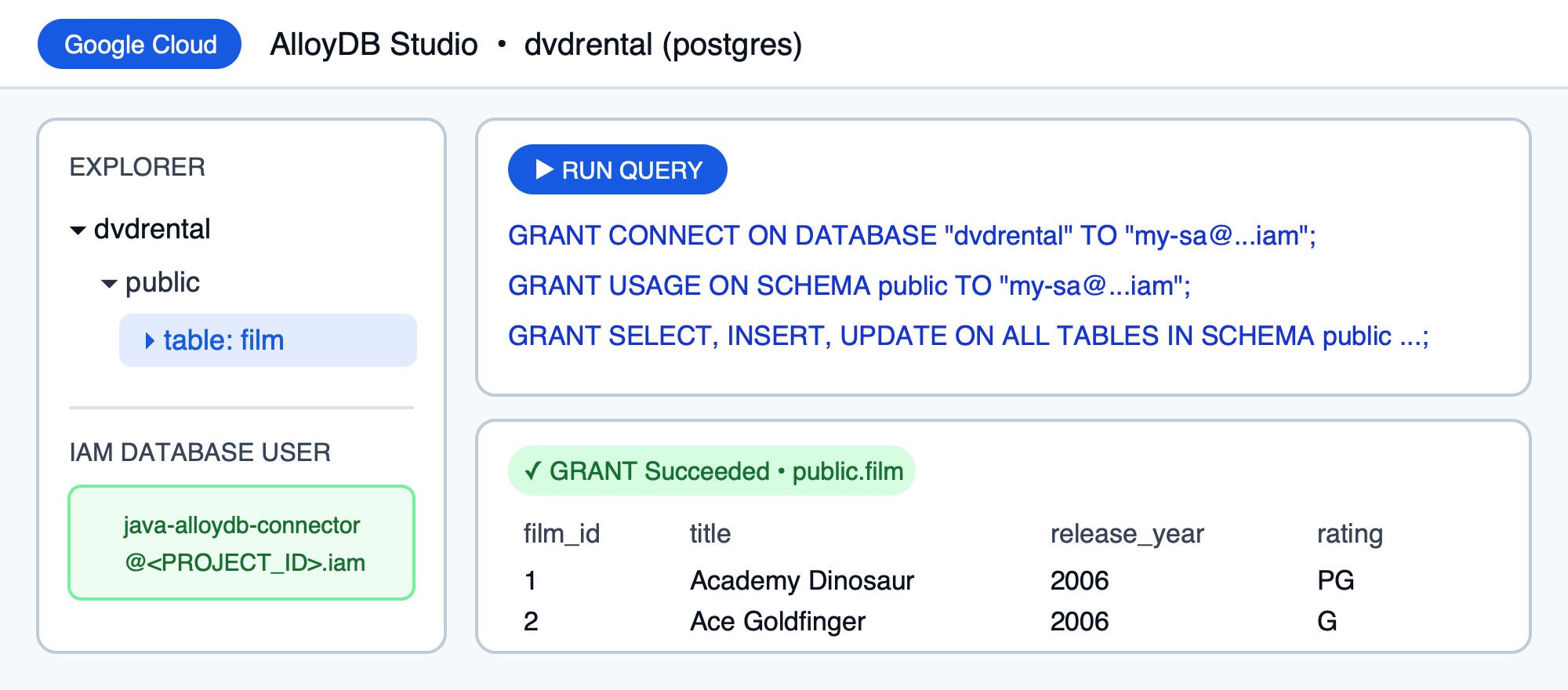
Newly created IAM database users have no table privileges by default. Connect to your AlloyDB instance as the postgres admin user (via psql or AlloyDB Studio in the Cloud Console) and grant access to your target database and tables (such as the DVD Rental sample database):
-- Connect to your target database first
\c dvdrental

-- (Optional) Create a sample film table if your database is empty
CREATE TABLE IF NOT EXISTS public.film (
    film_id SERIAL PRIMARY KEY,
    title VARCHAR(255) NOT NULL,
    release_year INTEGER DEFAULT 2006,
    rating VARCHAR(10) DEFAULT 'PG',
    rental_rate NUMERIC(4,2) DEFAULT 2.99
);

INSERT INTO public.film (film_id, title, release_year, rating, rental_rate) VALUES
    (1, 'Academy Dinosaur', 2006, 'PG', 0.99),
    (2, 'Ace Goldfinger', 2006, 'G', 4.99),
    (3, 'Adaptation Holes', 2006, 'NC-17', 2.99),
    (4, 'Affair Prejudice', 2006, 'G', 2.99),
    (5, 'African Egg', 2006, 'G', 2.99)
ON CONFLICT (film_id) DO NOTHING;

-- Grant permissions to the IAM user (double quotes are required because of '@' and '.')
GRANT CONNECT ON DATABASE "dvdrental" TO "java-alloydb-connector@<PROJECT_ID>.iam";
GRANT USAGE ON SCHEMA public TO "java-alloydb-connector@<PROJECT_ID>.iam";
GRANT SELECT, INSERT, UPDATE, DELETE ON ALL TABLES IN SCHEMA public TO "java-alloydb-connector@<PROJECT_ID>.iam";
When running these statements in AlloyDB Studio (or psql), you can inspect the public.film schema and verify the sample rows:
Configure Local Application Default Credentials (ADC)
When running on Cloud Run, Google Kubernetes Engine (GKE), or Compute Engine, attach the java-alloydb-connector Service Account directly to the workload. When running locally on your workstation, impersonate the Service Account so ADC mints tokens for that identity:
gcloud auth application-default login \
    --impersonate-service-account="java-alloydb-connector@${PROJECT_ID}.iam.gserviceaccount.com"
3. Connect with Plain JDBC and HikariCP
For any production-grade Java application, a connection pool is essential, and HikariCP is the industry standard. In this step, you will build a plain JDBC + HikariCP application that delegates socket creation to com.google.cloud.alloydb.SocketFactory.
Create the Maven Project (pom.xml)
Create a new directory jdbc-app with a pom.xml file containing the PostgreSQL JDBC driver (42.7.14), the AlloyDB Java Connector (1.4.0), and HikariCP (7.1.0):
mkdir -p jdbc-app/src/main/java
cd jdbc-app
Create pom.xml:
<?xml version="1.0" encoding="UTF-8"?>
<project xmlns="http://maven.apache.org/POM/4.0.0"
         xmlns:xsi="http://www.w3.org/2001/XMLSchema-instance"
         xsi:schemaLocation="http://maven.apache.org/POM/4.0.0 http://maven.apache.org/xsd/maven-4.0.0.xsd">
    <modelVersion>4.0.0</modelVersion>

    <groupId>com.example.alloydb</groupId>
    <artifactId>alloydb-jdbc-sample</artifactId>
    <version>1.0-SNAPSHOT</version>

    <properties>
        <maven.compiler.source>17</maven.compiler.source>
        <maven.compiler.target>17</maven.compiler.target>
        <project.build.sourceEncoding>UTF-8</project.build.sourceEncoding>
        <exec.mainClass>AlloyDBConnectivity</exec.mainClass>
    </properties>

    <dependencies>
        <dependency>
            <groupId>org.postgresql</groupId>
            <artifactId>postgresql</artifactId>
            <version>42.7.14</version>
        </dependency>

        <dependency>
            <groupId>com.google.cloud</groupId>
            <artifactId>alloydb-jdbc-connector</artifactId>
            <version>1.4.0</version>
        </dependency>

        <dependency>
            <groupId>com.zaxxer</groupId>
            <artifactId>HikariCP</artifactId>
            <version>7.1.0</version>
        </dependency>

        <dependency>
            <groupId>org.slf4j</groupId>
            <artifactId>slf4j-simple</artifactId>
            <version>2.0.16</version>
        </dependency>
    </dependencies>

    <build>
        <plugins>
            <plugin>
                <groupId>org.codehaus.mojo</groupId>
                <artifactId>exec-maven-plugin</artifactId>
                <version>3.5.0</version>
                <configuration>
                    <cleanupDaemonThreads>false</cleanupDaemonThreads>
                </configuration>
            </plugin>
        </plugins>
    </build>
</project>
Create AlloyDBConnectivity.java
Create src/main/java/AlloyDBConnectivity.java (view on GitHub Gist):
import com.zaxxer.hikari.HikariConfig;
import com.zaxxer.hikari.HikariDataSource;
import javax.sql.DataSource;
import java.sql.Connection;
import java.sql.PreparedStatement;
import java.sql.ResultSet;
import java.sql.SQLException;

public class AlloyDBConnectivity {
    // Retrieve configuration from environment variables
    private static final String ALLOYDB_INSTANCE_URI = System.getenv("ALLOYDB_INSTANCE_NAME"); // e.g., projects/<PROJECT_ID>/locations/<REGION>/clusters/<CLUSTER_ID>/instances/<INSTANCE_ID>
    private static final String ALLOYDB_DB_NAME = System.getenv("ALLOYDB_DB"); // e.g., "dvdrental"
    private static final String ALLOYDB_USER = System.getenv("ALLOYDB_USER"); // e.g., "java-alloydb-connector@<PROJECT_ID>.iam"
    private static final String ALLOYDB_PASS = System.getenv("ALLOYDB_PASS"); // Database password if not using IAM auth

    public static HikariDataSource createDataSource() {
        HikariConfig config = new HikariConfig();

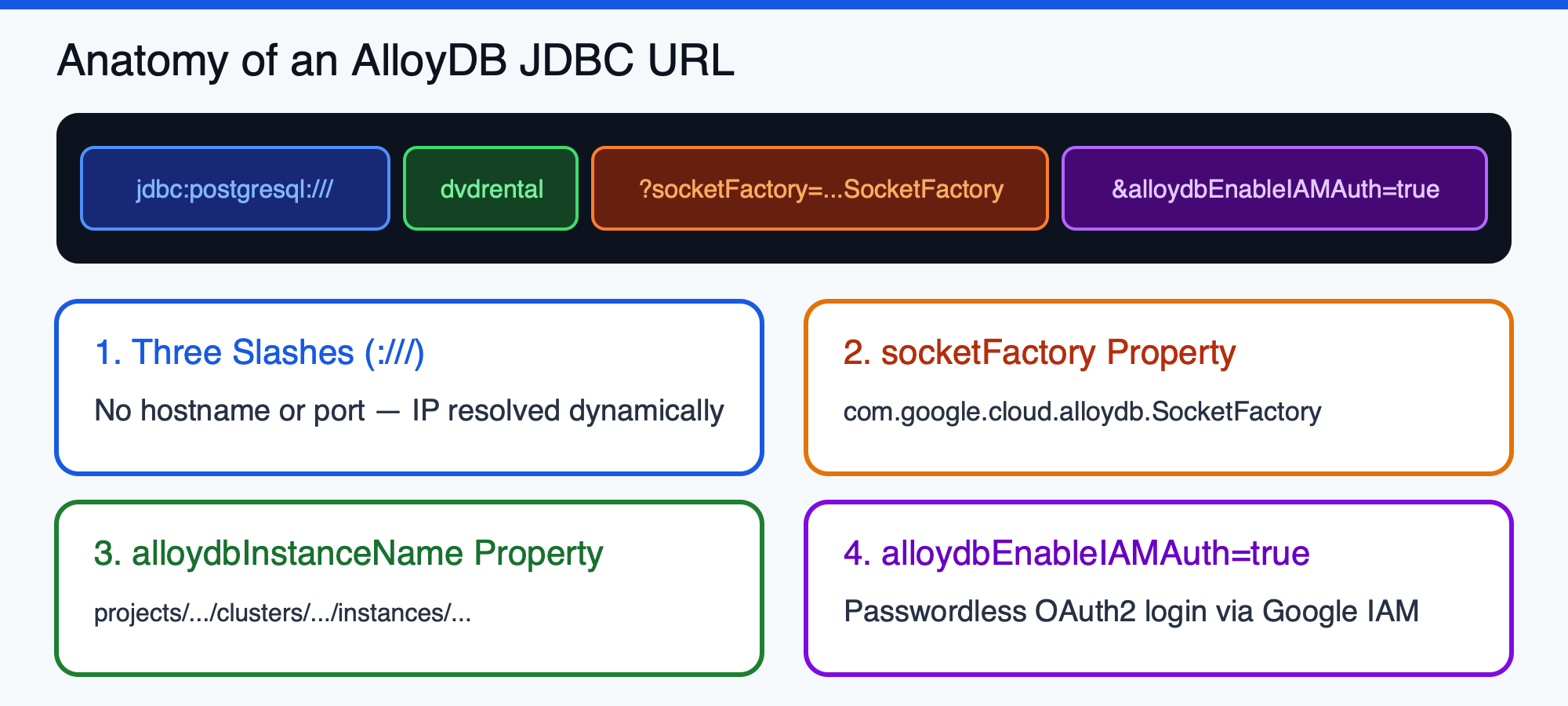
        // The JDBC URL does not need a host or port. The SocketFactory will resolve the IP address.
        config.setJdbcUrl(String.format("jdbc:postgresql:///%s", ALLOYDB_DB_NAME));
        config.setUsername(ALLOYDB_USER);

        // Only set the password if you are NOT using IAM authentication.
        if (System.getenv("ALLOYDB_ENABLE_IAM_AUTH") == null || !System.getenv("ALLOYDB_ENABLE_IAM_AUTH").equalsIgnoreCase("true")) {
            config.setPassword(ALLOYDB_PASS);
        }

        // 1. Set the SocketFactory to the AlloyDB Connector's implementation.
        config.addDataSourceProperty("socketFactory", "com.google.cloud.alloydb.SocketFactory");

        // 2. Tell the connector which AlloyDB instance to connect to.
        config.addDataSourceProperty("alloydbInstanceName", ALLOYDB_INSTANCE_URI);

        // 3. (Recommended) Enable IAM database authentication.
        if (System.getenv("ALLOYDB_ENABLE_IAM_AUTH") != null && System.getenv("ALLOYDB_ENABLE_IAM_AUTH").equalsIgnoreCase("true")) {
            config.addDataSourceProperty("alloydbEnableIAMAuth", "true");
        }

        // 4. (Optional) Specify IP type (e.g., "PRIVATE", "PUBLIC", "PSC"). Defaults to PRIVATE.
        String ipType = System.getenv("ALLOYDB_IP_TYPE");
        if (ipType != null) {
            config.addDataSourceProperty("alloydbIpType", ipType);
        }

        // Baseline HikariCP settings
        config.setMaximumPoolSize(10);
        config.setMinimumIdle(2);
        config.setConnectionTimeout(30000); // 30 seconds
        config.setIdleTimeout(600000);      // 10 minutes
        config.setMaxLifetime(1800000);     // 30 minutes

        return new HikariDataSource(config);
    }

    public static void main(String[] args) {
        String sql = "SELECT title, release_year FROM public.film ORDER BY film_id LIMIT 5";

        try (HikariDataSource pool = createDataSource();
             Connection conn = pool.getConnection();
             PreparedStatement stmt = conn.prepareStatement(sql);
             ResultSet rs = stmt.executeQuery()) {
            System.out.println("Successfully connected to AlloyDB via IAM! Sample films:");
            while (rs.next()) {
                System.out.printf(" - %s (%d)%n", rs.getString("title"), rs.getInt("release_year"));
            }
        } catch (SQLException e) {
            System.err.println("Database connection failed: " + e.getMessage());
            e.printStackTrace();
        }
    }
}
Run the Plain JDBC Application
Export the environment variables for your AlloyDB instance (set ALLOYDB_IP_TYPE="PUBLIC" if connecting from outside your VPC over Public IP, or "PRIVATE" / "PSC" when inside the VPC) and run the application:
export ALLOYDB_INSTANCE_NAME="projects/${PROJECT_ID}/locations/${REGION}/clusters/${CLUSTER_ID}/instances/${INSTANCE_ID}"
export ALLOYDB_DB="${DB_NAME}"
export ALLOYDB_USER="java-alloydb-connector@${PROJECT_ID}.iam"
export ALLOYDB_ENABLE_IAM_AUTH="true"
export ALLOYDB_IP_TYPE="PRIVATE" # Set to PUBLIC if connecting over Public IP from a local laptop

mvn compile exec:java
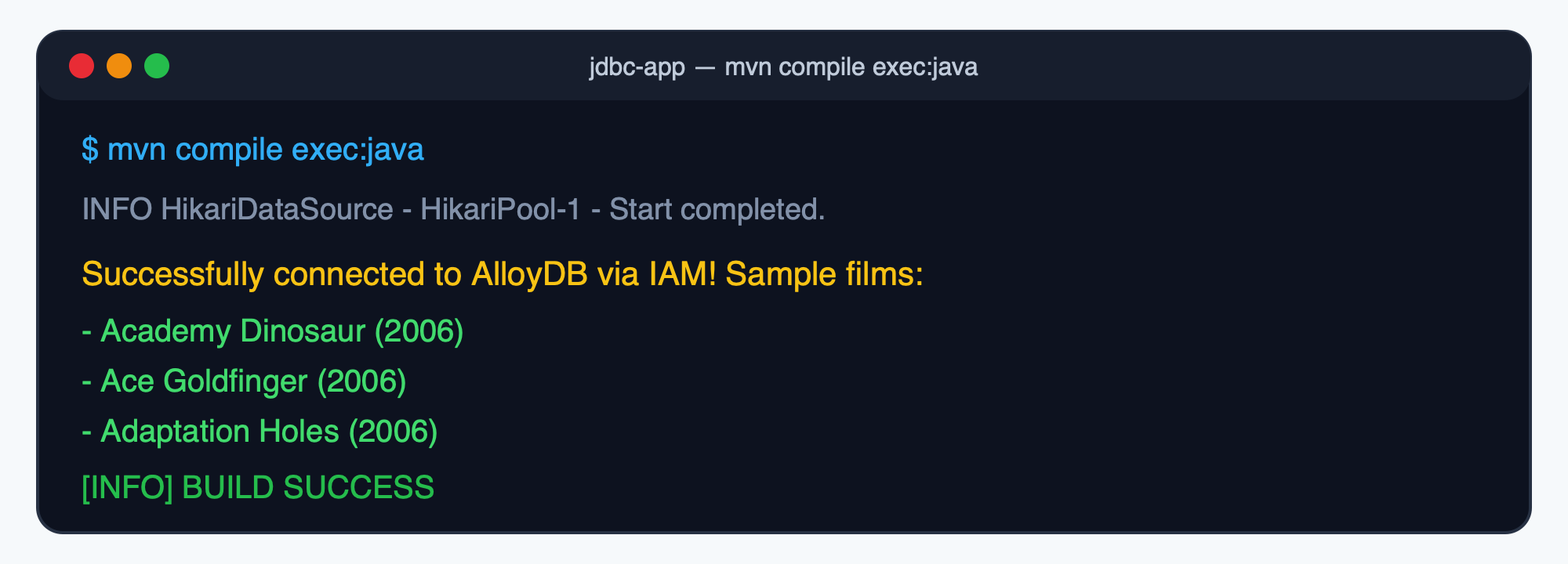
You should see output similar to:
[AlloyDBConnectivity.main()] INFO com.zaxxer.hikari.HikariDataSource - HikariPool-1 - Starting...
[AlloyDBConnectivity.main()] INFO com.zaxxer.hikari.pool.HikariPool - HikariPool-1 - Added connection org.postgresql.jdbc.PgConnection@1998bf07
[AlloyDBConnectivity.main()] INFO com.zaxxer.hikari.HikariDataSource - HikariPool-1 - Start completed.
Successfully connected to AlloyDB via IAM! Sample films:
 - Academy Dinosaur (2006)
 - Ace Goldfinger (2006)
 - Adaptation Holes (2006)
 - Affair Prejudice (2006)
 - African Egg (2006)
4. Connect with Spring Boot
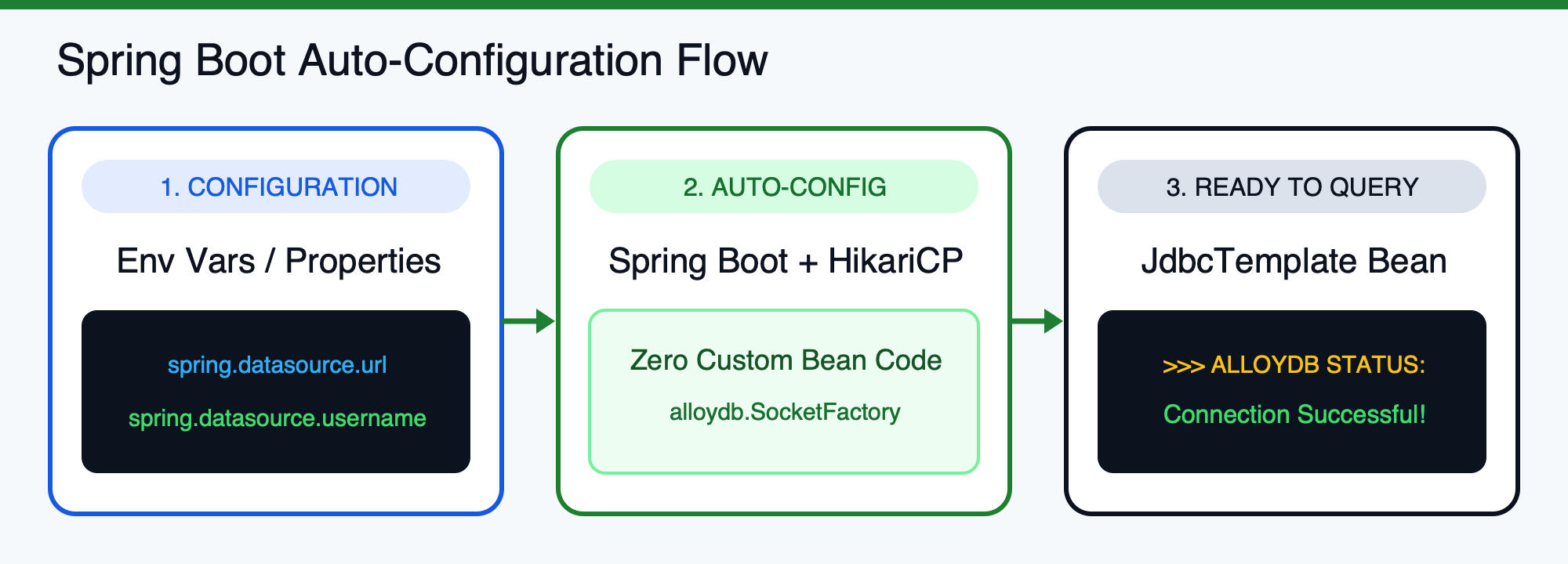
Spring Boot simplifies database connectivity by automatically configuring a HikariCP connection pool from your application properties. Integrating the AlloyDB Java Connector requires zero custom DataSource bean code.
Create the Spring Boot Project (pom.xml)
Create a new directory spring-boot-app:
cd ..
mkdir -p spring-boot-app/src/main/java/com/example/alloydb
mkdir -p spring-boot-app/src/main/resources
cd spring-boot-app
Create pom.xml with spring-boot-starter-jdbc (which includes HikariCP), org.postgresql:postgresql, and com.google.cloud:alloydb-jdbc-connector:
<?xml version="1.0" encoding="UTF-8"?>
<project xmlns="http://maven.apache.org/POM/4.0.0"
         xmlns:xsi="http://www.w3.org/2001/XMLSchema-instance"
         xsi:schemaLocation="http://maven.apache.org/POM/4.0.0 https://maven.apache.org/xsd/maven-4.0.0.xsd">
    <modelVersion>4.0.0</modelVersion>

    <parent>
        <groupId>org.springframework.boot</groupId>
        <artifactId>spring-boot-starter-parent</artifactId>
        <version>4.0.5</version>
        <relativePath/>
    </parent>

    <groupId>com.example.alloydb</groupId>
    <artifactId>alloydb-spring-boot-sample</artifactId>
    <version>0.0.1-SNAPSHOT</version>

    <properties>
        <java.version>17</java.version>
    </properties>

    <dependencies>
        <dependency>
            <groupId>org.springframework.boot</groupId>
            <artifactId>spring-boot-starter-jdbc</artifactId>
        </dependency>

        <dependency>
            <groupId>org.postgresql</groupId>
            <artifactId>postgresql</artifactId>
            <version>42.7.14</version>
        </dependency>

        <dependency>
            <groupId>com.google.cloud</groupId>
            <artifactId>alloydb-jdbc-connector</artifactId>
            <version>1.4.0</version>
        </dependency>
    </dependencies>

    <build>
        <plugins>
            <plugin>
                <groupId>org.springframework.boot</groupId>
                <artifactId>spring-boot-maven-plugin</artifactId>
            </plugin>
        </plugins>
    </build>
</project>
Configure application.properties or Environment Variables
You can configure the connection URL in src/main/resources/application.properties:
# No host or port is needed; the SocketFactory handles it.
spring.datasource.url=jdbc:postgresql:///dvdrental?socketFactory=com.google.cloud.alloydb.SocketFactory&alloydbInstanceName=projects/<PROJECT_ID>/locations/<REGION>/clusters/<CLUSTER_ID>/instances/<INSTANCE_ID>&alloydbEnableIAMAuth=true
spring.datasource.username=java-alloydb-connector@<PROJECT_ID>.iam
# No password required when alloydbEnableIAMAuth is true
To keep your source files completely free of project IDs or instance names, you can leave application.properties empty and supply these standard Spring Boot environment variables at runtime:
Environment Variable | Value |
|
|
|
|
Create AlloyDbTestApplication.java
Create src/main/java/com/example/alloydb/AlloyDbTestApplication.java (view on GitHub Gist):
package com.example.alloydb;

import org.springframework.boot.CommandLineRunner;
import org.springframework.boot.SpringApplication;
import org.springframework.boot.autoconfigure.SpringBootApplication;
import org.springframework.context.annotation.Bean;
import org.springframework.jdbc.core.JdbcTemplate;

@SpringBootApplication
public class AlloyDbTestApplication {

    public static void main(String[] args) {
        System.exit(SpringApplication.exit(SpringApplication.run(AlloyDbTestApplication.class, args)));
    }

    @Bean
    CommandLineRunner testConnection(JdbcTemplate jdbcTemplate) {
        return args -> {
            String result = jdbcTemplate.queryForObject("SELECT 'Connection Successful!'", String.class);
            System.out.println(">>> ALLOYDB STATUS: " + result);
        };
    }
}
Run the Spring Boot Application
Export the environment variables and run the app with mvn spring-boot:run:
export SPRING_DATASOURCE_URL="jdbc:postgresql:///${DB_NAME}?socketFactory=com.google.cloud.alloydb.SocketFactory&alloydbInstanceName=projects/${PROJECT_ID}/locations/${REGION}/clusters/${CLUSTER_ID}/instances/${INSTANCE_ID}&alloydbEnableIAMAuth=true"
export SPRING_DATASOURCE_USERNAME="java-alloydb-connector@${PROJECT_ID}.iam"

mvn spring-boot:run
You should see:
>>> ALLOYDB STATUS: Connection Successful!
5. Connect with Quarkus, Micronaut, and GraalVM Native Image
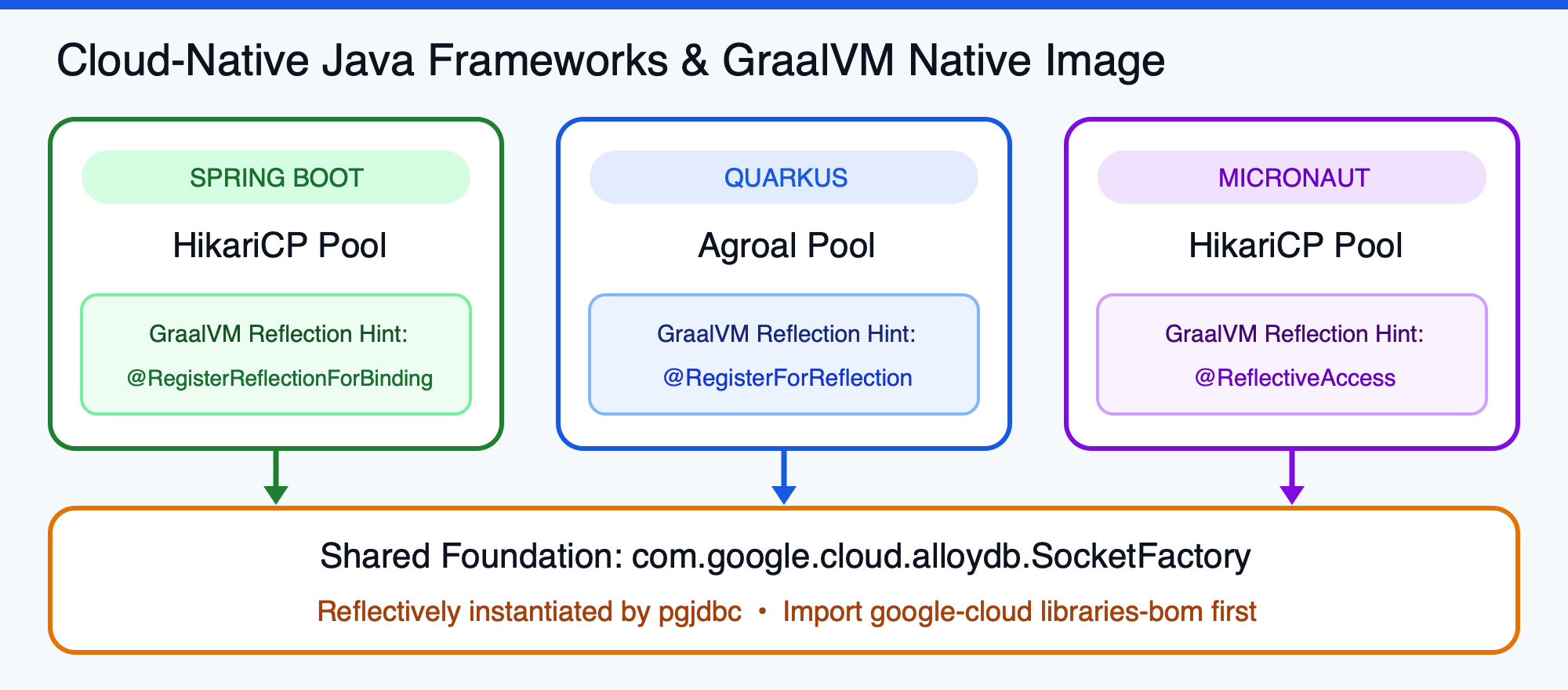
Because the AlloyDB Java Connector operates at the JDBC driver level, switching between cloud-native Java frameworks does not change how you secure database traffic or manage identities. Both Quarkus and Micronaut wrap the underlying JDBC driver and delegate mTLS encryption, dynamic IP resolution, and IAM authentication to the connector via ADC.
Quarkus Configuration (application.properties with Agroal)
In a Quarkus application (quarkus-agroal and quarkus-jdbc-postgresql), add com.google.cloud:alloydb-jdbc-connector:1.4.0 to your dependencies and pass the connector parameters via quarkus.datasource.jdbc.additional-jdbc-properties in src/main/resources/application.properties:
quarkus.datasource.db-kind=postgresql
quarkus.datasource.username=java-alloydb-connector@<PROJECT_ID>.iam
quarkus.datasource.jdbc.url=jdbc:postgresql:///dvdrental
quarkus.datasource.jdbc.additional-jdbc-properties.socketFactory=com.google.cloud.alloydb.SocketFactory
quarkus.datasource.jdbc.additional-jdbc-properties.alloydbInstanceName=projects/<PROJECT_ID>/locations/<REGION>/clusters/<CLUSTER_ID>/instances/<INSTANCE_ID>
quarkus.datasource.jdbc.additional-jdbc-properties.alloydbEnableIAMAuth=true
Micronaut Configuration (application.yml with HikariCP)
In a Micronaut application (micronaut-jdbc-hikari), add com.google.cloud:alloydb-jdbc-connector:1.4.0 and configure src/main/resources/application.yml:
datasources:
  default:
    url: jdbc:postgresql:///dvdrental?socketFactory=com.google.cloud.alloydb.SocketFactory&alloydbInstanceName=projects/<PROJECT_ID>/locations/<REGION>/clusters/<CLUSTER_ID>/instances/<INSTANCE_ID>&alloydbEnableIAMAuth=true
    username: java-alloydb-connector@<PROJECT_ID>.iam
    driver-class-name: org.postgresql.Driver
Registering the Connector for GraalVM Native Image
When compiling your application into a GraalVM Native Image (with Spring Boot 3+, Quarkus, or Micronaut), there is one important detail: Reflection.
The PostgreSQL JDBC driver instantiates com.google.cloud.alloydb.SocketFactory dynamically by class name using reflection. To prevent GraalVM's static analysis from stripping the class during native compilation, register it explicitly:
- Spring Boot 3+: Add
@RegisterReflectionForBinding(com.google.cloud.alloydb.SocketFactory.class)to your main application or@Configurationclass:@SpringBootApplication @RegisterReflectionForBinding(com.google.cloud.alloydb.SocketFactory.class) public class AlloyDbTestApplication { ... } - Quarkus: Add
@RegisterForReflection(targets = com.google.cloud.alloydb.SocketFactory.class)to your main class or a CDI bean:@QuarkusMain @RegisterForReflection(targets = com.google.cloud.alloydb.SocketFactory.class) public class QuarkusAlloyDbApp implements QuarkusApplication { ... }
6. Troubleshoot Common IAM and Connectivity Issues
If you encounter a FATAL: password authentication failed for user or AlloyDB IAM authentication failed error, verify the following four areas:
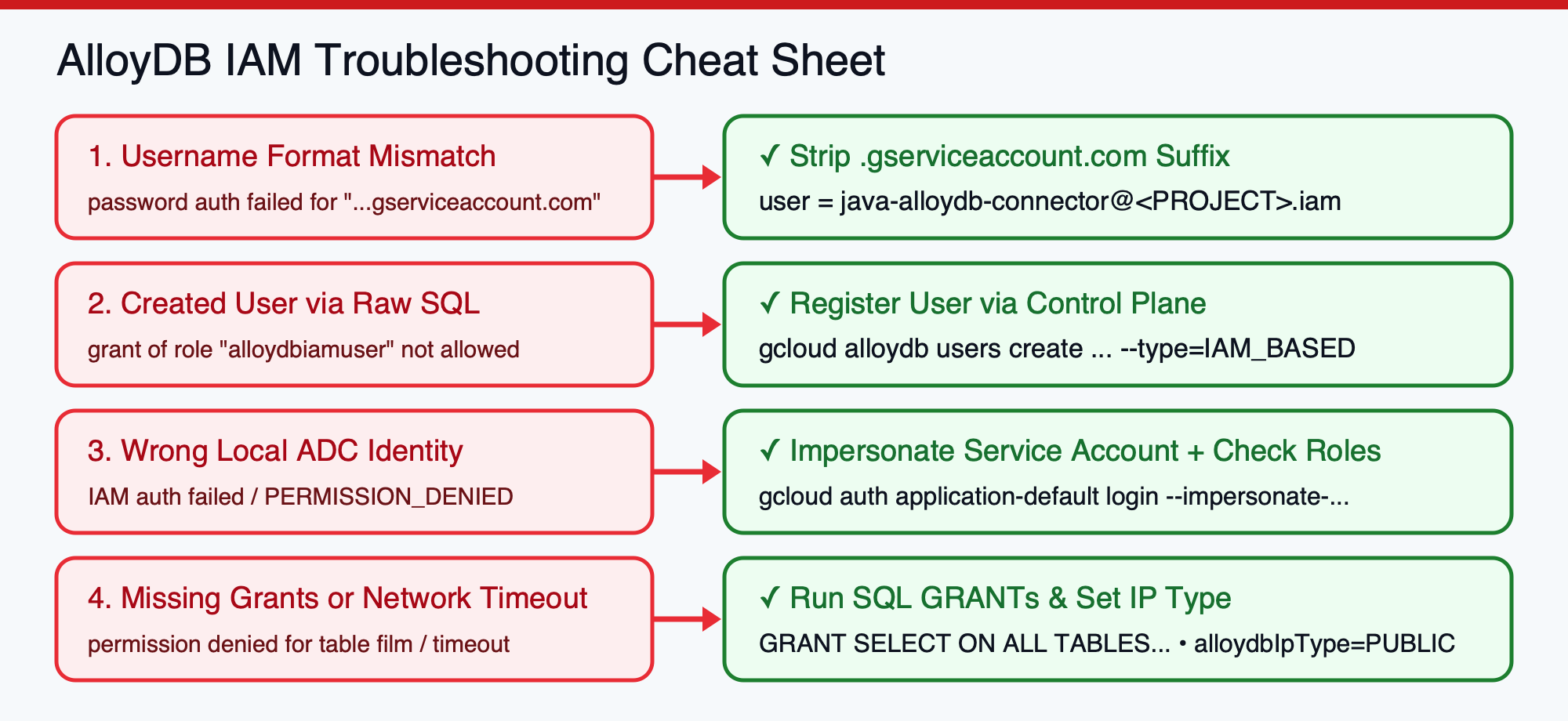
1. Remove .gserviceaccount.com from Service Account Database Usernames
The most frequent cause of IAM authentication failures is passing the full Service Account email address as the database username. AlloyDB formats IAM database usernames differently depending on the principal type:
- For IAM Service Accounts (strip
.gserviceaccount.com): If your Google Cloud Service Account email isjava-alloydb-connector@, you must remove the.iam.gserviceaccount.com .gserviceaccount.comsuffix and set your JDBC/AlloyDB database username tojava-alloydb-connector@..iam - For IAM User Accounts or Groups (keep the full email): If you are authenticating as a human Google Workspace or Cloud Identity user, use your full email address unmodified (for example,
2. Verify How the Database User Was Created
Did you register the user via gcloud alloydb users create --type=IAM_BASED (or Console/Terraform)? Creating a user with raw SQL CREATE USER will not work for IAM authentication because AlloyDB restricts GRANT alloydbiamuser to the control plane.
3. Verify Your Active ADC Identity
Ensure that the environment where the Java process is running is actually authenticated as the target IAM principal:
- Local Workstation (connecting as a Service Account): Run
gcloud auth application-default login --impersonate-service-account=java-alloydb-connector@so ADC mints tokens for the Service Account rather than your personal email..iam.gserviceaccount.com - Cloud Run / GKE: Confirm that the Service Account is attached to the workload and holds both
roles/alloydb.clientandroles/serviceusage.serviceUsageConsumer.
4. Account for IAM Propagation & Network Routing
- IAM Propagation Delay: IAM policy bindings can take 60–120 seconds to propagate. If you just created the Service Account or role binding, wait a minute and retry.
- VPC Network Access: By default, the AlloyDB Java Connector connects to the instance's
PRIVATEIP. If your application runs on Cloud Run, configure Direct VPC Egress (recommended for lower latency and cost over legacy Serverless VPC Access Connectors) or connect via Private Service Connect (PSC). If connecting from a local machine outside the VPC, enable Public IP on the instance and passalloydbIpType=PUBLIC.
7. Clean up
To avoid incurring unnecessary charges to your Google Cloud account and to remove the IAM identities created during this codelab, clean up the resources below.
1. Remove the AlloyDB IAM Database User and Service Account
Delete the IAM database user from your AlloyDB cluster and remove the Service Account:
# Delete the IAM database user from AlloyDB
gcloud alloydb users delete "java-alloydb-connector@${PROJECT_ID}.iam" \
    --cluster="${CLUSTER_ID}" \
    --region="${REGION}" \
    --project="${PROJECT_ID}" \
    --quiet

# Remove IAM policy bindings
gcloud projects remove-iam-policy-binding "${PROJECT_ID}" \
    --member="serviceAccount:java-alloydb-connector@${PROJECT_ID}.iam.gserviceaccount.com" \
    --role="roles/alloydb.client"

gcloud projects remove-iam-policy-binding "${PROJECT_ID}" \
    --member="serviceAccount:java-alloydb-connector@${PROJECT_ID}.iam.gserviceaccount.com" \
    --role="roles/serviceusage.serviceUsageConsumer"

# Delete the Service Account
gcloud iam service-accounts delete \
    "java-alloydb-connector@${PROJECT_ID}.iam.gserviceaccount.com" \
    --project="${PROJECT_ID}" \
    --quiet
2. Reset Local Application Default Credentials
If you configured local ADC impersonation, reset your local credentials back to your default user identity:
gcloud auth application-default login
3. (Optional) Delete the AlloyDB Cluster
gcloud alloydb clusters delete "${CLUSTER_ID}" \
    --region="${REGION}" \
    --project="${PROJECT_ID}" \
    --force \
    --quiet
8. Congratulations
You have completed the codelab and established secure, passwordless connectivity from Java to AlloyDB for PostgreSQL!
What you've accomplished
- Configured IAM Database Authentication: Created a least-privilege Service Account, enabled
alloydb.iam_authentication=on, registered the IAM user on the AlloyDB cluster, and granted PostgreSQL table privileges. - Connected with Plain JDBC & HikariCP: Configured
HikariConfigwithcom.google.cloud.alloydb.SocketFactoryfor automatic mTLS 1.3 encryption, IAM token refresh, and dynamic IP resolution. - Integrated Cloud-Native Frameworks: Configured Spring Boot, Quarkus (Agroal), and Micronaut (HikariCP) with zero custom connection-pool boilerplate, plus reflection hints for GraalVM Native Image.
- Mastered IAM Troubleshooting: Learned how to diagnose username formatting, ADC impersonation, and VPC routing issues.