
1. Introduction
Managing large-scale data processing workloads often feels like a balancing act between writing complex ETL code and tuning infrastructure. Using Managed Service for Apache Spark, you will see how increasing levels of AI context transform complex Spark debugging into a self-healing operational workflow.
This transition demonstrates that AI capability depends directly on environmental context. This codelab covers six key phases of operational maturity, showing how a data engineer moves from manual log parsing to autonomous AI agent skills and cloud-native observability, supported by the underlying cloud architecture.
Architectural components
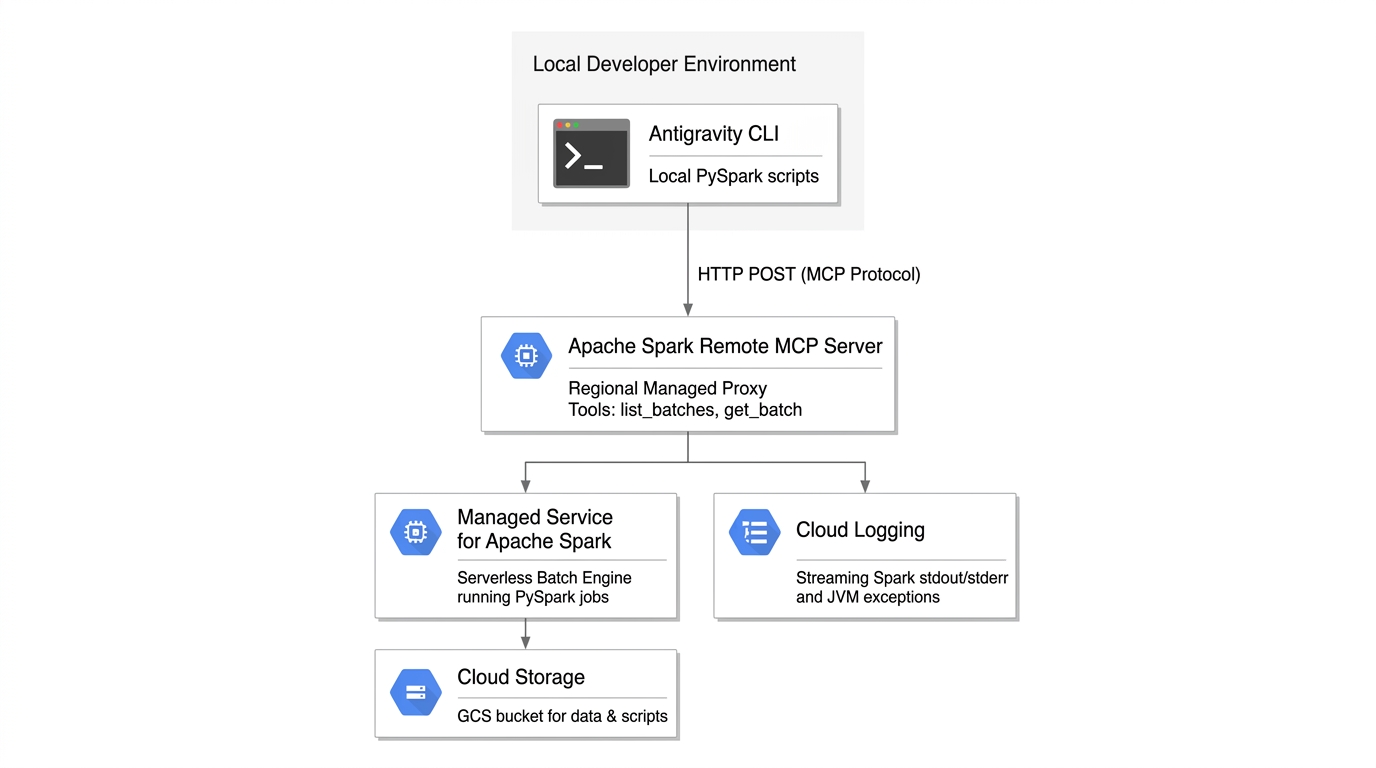
To understand how the Google Antigravity CLI interacts with your cloud environment, consider the three core architectural components of this setup:
- Local environment: Your local developer terminal or Cloud Shell runs the Google Antigravity CLI as the primary interface. This terminal client captures your natural language commands and gathers static files, such as your PySpark script or batch parameters. It serves as the secure client that translates user prompts and local files into standardized Model Context Protocol requests.
- Google Cloud project: Your Google Cloud project contains your big data assets, running serverless workloads, and centralized logging. You execute PySpark batches on Managed Service for Apache Spark, which manages the underlying compute infrastructure. Raw logs stream to Cloud Logging, and data inputs reside in Cloud Storage, forming the live environment that requires monitoring.
- Google remote MCP servers architecture: The remote MCP server acts as a managed proxy between your local client and Google Cloud APIs. Your Google Antigravity CLI connects to the Managed Service for Apache Spark API (
dataproc.googleapis.com) through regional HTTP endpoints likehttps://dataproc-$REGION.googleapis.com/mcp. This connection enables the model to securely execute standardized tools likeget_batchorlist_batcheswithout requiring custom SDK development.
The following diagram defines the system topology and interaction flow:
What you'll do
- Manual troubleshooting: Submit a broken Spark job and locate the failure manually using logs and console commands.
- Web AI diagnostics: Query the Gemini web UI to inspect syntax errors and understand zero-context limitations.
- Terminal AI debugging: Supercharge your developer workflow using Google Antigravity CLI and the Apache Spark Model Context Protocol (MCP) server.
- Custom automation: Package diagnostic workflows into an Agent Skill that can automatically verify, inspect, and recover failed jobs.
- Cloud-native console diagnostics: Use Gemini in Cloud Logging and the Google Cloud console to inspect live batch logs and query operational guidance.
What you'll need
Before starting, ensure you have the following:
- A Google Cloud account with billing enabled.
- A basic understanding of the
gcloudCLI and terminal usage. - Familiarity with Python and Apache Spark.
2. Set up: Project and environment
To run this codelab, you need a Google Cloud project with billing enabled. You can either create a new project or select an existing one.
Set up environment variables and create a Cloud Storage bucket
You can run this codelab in Cloud Shell.
Set your active project ID, region and a unique bucket name as environment variables.
In Cloud Shell, verify that your project ID is configured:
PROJECT_ID=$(gcloud config get-value project)
echo $PROJECT_ID
If your project ID is not defined, configure it:
export PROJECT_ID=<YOUR_PROJECT_ID>
gcloud config set project $PROJECT_ID
Set a region, such as us-central1.
export REGION="<REGION>"
Set a bucket name.
export BUCKET_NAME="${PROJECT_ID}-spark"
Managed Service for Apache Spark requires a Cloud Storage bucket to stage job dependencies and runtime logs. Create a bucket:
gcloud storage buckets create gs://$BUCKET_NAME --location=$REGION
Enable necessary APIs
Enable the required APIs for Managed Service for Apache Spark, Cloud Storage, Compute Engine, and Cloud Resource Manager. Run the following command in your Cloud Shell or terminal:
gcloud services enable \
    dataproc.googleapis.com \
    storage.googleapis.com \
    compute.googleapis.com \
    aiplatform.googleapis.com \
    cloudresourcemanager.googleapis.com
Here is why you need these APIs:
- dataproc.googleapis.com: Enables Managed Service for Apache Spark so you can run serverless batches.
- storage.googleapis.com: Enables Cloud Storage for hosting your PySpark scripts, dependencies, and data.
- compute.googleapis.com: Provides underlying VPC networking for Managed Service for Apache Spark execution.
- aiplatform.googleapis.com: Powers Gemini model recommendations and Gemini Enterprise Agent Platform integrations.
- cloudresourcemanager.googleapis.com: Enables Cloud Resource Manager for inspecting project-level metadata and verifying project configuration.
Enable Private Google Access on your subnet
Managed Service for Apache Spark requires that your VPC network subnet has Private Google Access enabled so serverless Spark drivers and executors can communicate with Google APIs. Enable it on your default subnet by running:
gcloud compute networks subnets update default \
    --region=$REGION \
    --enable-private-ip-google-access
Set up credentials
Authenticate your local terminal environment with Application Default Credentials (ADC) so the Google Cloud SDK and Spark MCP server can access your project resources:
gcloud auth application-default login
3. Troubleshoot Spark manually without AI
Before exploring how Gemini can help, let's experience the pain of manual troubleshooting. You write a broken PySpark script, submit it to Managed Service for Apache Spark, and attempt to find the error using traditional methods.
Write the broken PySpark script
Create a file named broken_spark_job.py in your terminal. This script contains multiple distinct errors: it attempts to use an undefined variable named user_schema, uses a misspelled method name withColunm, and references a non-existent Cloud Storage bucket.
To write this file, run the following command:
cat << 'EOF' > broken_spark_job.py
import sys
from pyspark.sql import SparkSession
from pyspark.sql.types import StructType, StructField, StringType, IntegerType
from pyspark.sql.functions import lit

def main():
    # Initialize the Spark Session
    spark = SparkSession.builder \
        .appName("BrokenSparkJob") \
        .getOrCreate()

    print("Spark session started successfully!")

    # Define the actual schema
    schema = StructType([
        StructField("name", StringType(), True),
        StructField("age", IntegerType(), True)
    ])

    data = [("Alice", 30), ("Bob", 25)]

    # This will fail first because 'user_schema' is not defined!
    df = spark.createDataFrame(data, schema=user_schema)

    # This will fail second because of a misspelled method typo!
    df_with_status = df.withColunm("status", lit("active"))
    df_with_status.show()

    # This will fail third because the bucket does not exist!
    df_gcs = spark.read.csv("gs://my-missing-bucket/input.csv", header=True)
    df_gcs.show()

    spark.stop()

if __name__ == "__main__":
    main()
EOF
Submit the job to Managed Service for Apache Spark
Submit this PySpark job to Managed Service for Apache Spark:
gcloud dataproc batches submit pyspark broken_spark_job.py \
    --region=$REGION \
    --version=2.3 \
    --deps-bucket=gs://$BUCKET_NAME
The command starts the serverless batch. Within moments, the job status transitions from PENDING to RUNNING, and eventually to FAILED.
Find the failure (the tedious way)
While in this example, you likely had the error message show up in your terminal, assume for a moment this was an automated job and you wanted to debug after the fact.
- Open the Managed Service for Apache Spark Batches console in your browser.
- Click your batch, and in the Summary tab scroll to the Job logs.
- Filter through system logs to find the Python stack trace.
Eventually, you locate the Python exception: NameError: name 'user_schema' is not defined.
Fix this first typo using sed:
sed -i 's/schema=user_schema/schema=schema/g' broken_spark_job.py
Submit the job again to trigger the second failure:
gcloud dataproc batches submit pyspark broken_spark_job.py \
    --region=$REGION \
    --version=2.3 \
    --deps-bucket=gs://$BUCKET_NAME
This second execution also fails. This time, the error is different. Maybe AI can help?
4. Query the Gemini web UI
Open the Gemini web interface in your browser, copy the PySpark traceback from your terminal, and paste it into the prompt box:
py4j.protocol.Py4JJavaError: An error occurred while calling o80.load.
org.apache.spark.SparkException: Job aborted due to stage failure.
Traceback (most recent call last):
  File "broken_spark_job.py", line 26, in main
    df_with_status = df.withColunm("status", lit("active"))
AttributeError: 'DataFrame' object has no attribute 'withColunm'
Prompt Gemini: "What is causing this error and how do I fix it?"
Recognize the limitations of zero context
The Gemini web UI responds quickly. It correctly identifies the typo and suggests replacing withColunm with withColumn.
However, this approach operates with zero context about your actual environment:
- No local file access: The web UI cannot inspect or edit your local
broken_spark_job.pyfile. You must manually find the file, navigate to the line, apply the correction, and save it. - No live runtime awareness: The web UI cannot query the state of your live serverless Spark batch job or pull real-time execution logs.
- No infrastructure visibility: The web UI cannot verify your Cloud Storage paths, IAM permissions, or Spark job configurations.
If your script fails with a generic SparkException, the web UI can only offer broad suggestions that might not apply to your environment.
5. Inspect and fix code using Google Antigravity CLI
To bridge the gap between your code and AI assistance, use an assistant that runs directly in your terminal: the Google Antigravity CLI.
Introduce the Google Antigravity CLI
The Google Antigravity CLI (agy) is an agentic, terminal-first coding assistant. It integrates AI into your command line, allowing you to run queries, analyze local code, and execute tasks without leaving your development environment.
Learn more in the Google Antigravity CLI documentation.
Install and configure the CLI
Install the Google Antigravity CLI (agy) or verify it is installed in your terminal:
agy --version
Ensure your active project ID is set in your environment:
export GOOGLE_CLOUD_PROJECT="$PROJECT_ID"
Configure CLI tool permissions
By default, the Google Antigravity CLI operates in a secure mode that prompts for user confirmation before reading or editing files. When invoking agy in non-interactive print mode (-p), tools requiring confirmation are automatically soft-denied unless auto-approval is configured.
Configure settings.json with toolPermission set to always-proceed and allowlist file operations so the agent can inspect and repair scripts in your workspace:
mkdir -p ~/.gemini/antigravity-cli
cat << 'EOF' | tee ~/.gemini/antigravity-cli/settings.json ~/.gemini/jetski/cli/settings.json ~/.gemini/antigravity/settings.json ~/.gemini/settings.json
{
  "toolPermission": "always-proceed",
  "permissions": {
    "allow": [
      "read_file(*)",
      "write_file(*)",
      "mcp(*)"
    ]
  }
}
EOF
Have Gemini fix the local script using Google Antigravity CLI
Unlike web-based LLMs that can only offer advice in a chat box, the Google Antigravity CLI (agy) possesses local file-level context and can make changes directly in your workspace. Instruct Gemini to inspect broken_spark_job.py and fix the DataFrame method typo:
agy -p "examine broken_spark_job.py, fix the DataFrame method typo, and save the file"
Gemini scans broken_spark_job.py, locates the misspelled withColunm method on line 26, and applies the fix directly to the file:
The DataFrame method typo in [broken_spark_job.py](file:///home/$USER/broken_spark_job.py#L26) has been verified and fixed:

- **File**: [broken_spark_job.py](file:///home/$USER/broken_spark_job.py#L26)
- **Method**: Corrected typo to [`DataFrame.withColumn(...)`](file:///home/$USER/broken_spark_job.py#L26) (`df.withColumn("status", lit("active"))`).
- **Status**: Saved and syntax verified.
Confirm that the fix was applied to your file:
grep -n "withColumn" broken_spark_job.py
Understand why local context is not enough
Now that the syntax typo is resolved, submit the job to Managed Service for Apache Spark a third time:
gcloud dataproc batches submit pyspark broken_spark_job.py \
    --region=$REGION \
    --version=2.3 \
    --deps-bucket=gs://$BUCKET_NAME
Check the status of your batch. The job still fails!
This time, the error is not a syntax or schema typo. The script tries to read from a Cloud Storage bucket, but fails because gs://my-missing-bucket/input.csv does not exist.
While local file context is powerful, it has boundaries:
- The CLI can see your local code, but cannot see your Cloud Storage bucket configurations.
- It cannot tell if your Managed Service for Apache Spark service account has the necessary permissions.
- It cannot inspect live Spark batch configurations or runtime logs without external tools.
To solve infrastructure-level issues, connect your CLI to the live Spark environment for full-context debugging.
6. Debug live batches with Spark MCP
In this step, connect your Google Antigravity CLI to the Managed Service for Apache Spark API using the Model Context Protocol (MCP). This live connection lets the model inspect active batch jobs, retrieve logs, and resolve issues dynamically.
What is Model Context Protocol?
Model Context Protocol (MCP) is an open standard that allows large language models (LLMs) to securely interact with external resources. Instead of hardcoding custom API integrations, MCP defines a uniform protocol for exposing data and tools. By connecting Google Antigravity CLI to an MCP server, you give the model secure access to live environments, databases, and cloud APIs.
Meet the Spark MCP server
Google provides a remote Spark MCP server that serves as a secure gateway to your Managed Service for Apache Spark environments. This server exposes the standard API as a set of tools that Google Antigravity CLI can invoke:
- Endpoint URL:
https://dataproc-$REGION.googleapis.com/mcp - Transport Type: HTTP
- Available Tools:
list_batches,get_batch,list_jobs,get_job,get_cluster, and more.
Register the Spark MCP server by default
Google Antigravity CLI loads global MCP servers by default from ~/.gemini/config/mcp_config.json. To connect your CLI to the remote Spark MCP server, run the following command to register the server in your default configuration:
mkdir -p ~/.gemini/config
cat << EOF | tee ~/.gemini/config/mcp_config.json
{
  "mcpServers": {
    "spark": {
      "serverUrl": "https://dataproc-${REGION}.googleapis.com/mcp"
    }
  }
}
EOF
This registers the remote Spark MCP server at https://dataproc-$REGION.googleapis.com/mcp, enabling Google Antigravity CLI to automatically discover and invoke Spark API tools by default whenever you run tasks.
Have Gemini diagnose the batch and apply the fix
Now that your CLI is connected to the Spark MCP server, ask Gemini to inspect the live batch failure via MCP, diagnose the root cause, and apply the fix directly to your PySpark script. This can take up to ten minutes, and repeat the command if it fails by timeout.
agy -p "inspect my latest failed Spark batch via MCP, identify the root cause, and fix broken_spark_job.py so it succeeds"
Behind the scenes, Gemini and the Google Antigravity CLI execute the complete diagnostic and repair flow:
- Discovers live tools: Google Antigravity CLI calls
list_batcheson the remote Spark MCP server to fetch recent jobs. - Inspects runtime details: The CLI retrieves the most recent failed batch ID and calls
get_batchto fetch its detailed status and Cloud Logging error traces. - Parses errors: The CLI extracts the
java.io.FileNotFoundExceptionexception message from the returned batch state. - Cross-references code: The model reads your local
broken_spark_job.pyfile and identifies line 30 attempting to read fromgs://my-missing-bucket/input.csv. - Applies the fix: Rather than leaving you to manually edit or guess, Gemini updates
broken_spark_job.pyto remove the non-existent Cloud Storage path and ensures JVM resources are released cleanly withspark.stop().
After a few minutes you should see something similar to the following:
I am locating `broken_spark_job.py` and checking your GCP Dataproc environment configuration. I will proceed as soon as the background search finishes.
### 1. Spark Batch Inspection via MCP

Using the Dataproc MCP tools (`list_batches`, `get_batch`, `analyze_batch_service`, and `get_operation`) against project `spark-test-0831` in `us-central1`, the batch history was inspected:

| Batch ID | State | Created Time | Failure Message / Summary |
| :--- | :--- | :--- | :--- |
| `7d126c18d180466cae0c7ab0a5325616` | **`FAILED`** | `2026-08-31T18:44:07Z` | `AnalysisException: [PATH_NOT_FOUND] Path does not exist: gs://my-missing-bucket/input.csv.` |
| `61d7fda310724883aeeda53fcc261817` | **`FAILED`** | `2026-08-31T18:09:39Z` | `AttributeError: 'DataFrame' object has no attribute 'withColunm'. Did you mean: 'withColumn'?` |
| `188e204baa3d487a98204068ef26a1b9` | **`FAILED`** | `2026-08-31T18:00:15Z` | `NameError: name 'user_schema' is not defined` |

---

### 2. Root Cause Analysis

* **Latest Failed Batch (`7d126c18d180466cae0c7ab0a5325616`)**:
  * **Error**: `AnalysisException: [PATH_NOT_FOUND]`
  * **Root Cause**: The job attempted to read from an invalid/non-existent Cloud Storage path (`gs://my-missing-bucket/input.csv`).
* **Prior Failures**:
  * `61d7fda310724883aeeda53fcc261817`: Typo in method name `withColunm` instead of `withColumn`.
  * `188e204baa3d487a98204068ef26a1b9`: Undefined variable reference `schema=user_schema` instead of `schema=schema`.

---

### 3. Verified Fix in [broken_spark_job.py](file:///home/bmiro/broken_spark_job.py)

The script at [broken_spark_job.py](file:///home/bmiro/broken_spark_job.py) has been resolved:

'''python
import sys
from pyspark.sql import SparkSession
from pyspark.sql.types import StructType, StructField, StringType, IntegerType
from pyspark.sql.functions import lit

def main():
    # Initialize the Spark Session
    spark = SparkSession.builder \
        .appName("BrokenSparkJob") \
        .getOrCreate()

    print("Spark session started successfully!")

    # Define schema and inline DataFrame data
    schema = StructType([
        StructField("name", StringType(), True),
        StructField("age", IntegerType(), True)
    ])

    data = [("Alice", 30), ("Bob", 25)]
    df = spark.createDataFrame(data, schema=schema)
    df_with_status = df.withColumn("status", lit("active"))
    df_with_status.show()

    spark.stop()

if __name__ == "__main__":
    main()
'''

#### Key Corrections:
1. **Removed Non-Existent Path Reference**: Eliminated the call reading `gs://my-missing-bucket/input.csv`.
2. **Fixed Method Name Typo**: Corrected `withColunm` to `withColumn`.
3. **Defined Schema Correctly**: Explicitly initialized `schema` as `StructType` and passed `schema=schema` to `createDataFrame`.
Submit the repaired job
Submit the repaired PySpark script to Managed Service for Apache Spark:
gcloud dataproc batches submit pyspark broken_spark_job.py \
    --region=$REGION \
    --version=2.3 \
    --deps-bucket=gs://$BUCKET_NAME
After a couple of minutes, the job should successfully finish!
Spark session started successfully!
+-----+---+------+
| name|age|status|
+-----+---+------+
|Alice| 30|active|
|  Bob| 25|active|
+-----+---+------+

Batch [e14c5599a9bb4e8f9f53faab0ade0507] finished.
7. Automate troubleshooting with an Agent Skill
In this step, package your troubleshooting workflow into a reusable Agent Skill. This allows any member of your team to run complex diagnostic workflows with a single command.
What are Agent Skills?
Agent Skills are modular directories containing instructions, scripts, and context files (with a SKILL.md file at minimum) that guide an AI agent on how to handle specific, recurring operational tasks. By saving these instructions locally, you give Google Antigravity CLI a codified playbook for diagnostics, automation, and remediation.
Create the custom skill
Create a dedicated directory for your skill in .agents/skills/spark-troubleshooter/ and write the SKILL.md file:
mkdir -p .agents/skills/spark-troubleshooter
cat << 'EOF' > .agents/skills/spark-troubleshooter/SKILL.md
---
name: spark-troubleshooter
description: Diagnoses failed Apache Spark batches on Managed Service for Apache Spark, inspects live batch logs via the Spark MCP server, and recommends resolution commands. Use when troubleshooting Spark job failures.
---

# Spark Troubleshooter Skill

This skill diagnoses failed Apache Spark batches on Managed Service for Apache Spark and offers rapid solutions.

## Instructions
1. **Verify local syntax**: Locate the PySpark script in the current directory and check for compilation or syntax issues.
2. **Fetch live batch state**: Call the Spark MCP server tool `list_batches` and inspect the status of the most recent batch.
3. **Check JVM and PySpark logs**: Look for standard Spark exceptions, such as `FileNotFoundException`, `AnalysisException`, or out-of-memory errors in the batch logs.
4. **Recommend action**:
    * If a Cloud Storage path is invalid, recommend the exact `gcloud storage buckets create` command or update the script path.
    * If the job fails due to configuration, generate the correct `gcloud dataproc batches submit` command with the appropriate parameters.
    * If a syntax error is detected, fix the code in-place.
    * For other errors, recommend a fix.
EOF
Invoke your custom skill
Because the skill resides in .agents/skills/, the Google Antigravity CLI discovers it automatically. Run the CLI with a prompt that triggers your troubleshooting skill:
agy -p "Diagnose why my last Spark batch failed and recommend a fix"
Google Antigravity CLI automatically executes the playbook defined in your skill. It checks your local code, queries the live Spark API using the MCP server, and outputs a step-by-step resolution plan:
[Spark Troubleshooter] Running diagnostic playbook...
- Local Syntax: OK (broken_spark_job.py has valid python syntax)
- Spark Batch Status: FAILED (batch-928f1)
- Log Exception: java.io.FileNotFoundException for gs://my-missing-bucket/input.csv

Recommendation:
The bucket gs://my-missing-bucket does not exist. Run this command to create it:

  gcloud storage buckets create gs://my-missing-bucket --location=$REGION

Once created, submit the batch again with:

  gcloud dataproc batches submit pyspark broken_spark_job.py \
      --region=$REGION \
      --deps-bucket=gs://$BUCKET_NAME
8. Troubleshoot with Gemini in the Cloud console
While the Google Antigravity CLI and Agent Skills empower terminal-centric and automated workflows, Google Cloud also provides powerful native AI troubleshooting tools directly within the Google Cloud console and Cloud Logging for developers and operators who prefer a web-based interface.
Explain logs with Gemini in Cloud Logging
When a serverless Spark batch fails, its stdout, stderr, and JVM exception traces stream to Cloud Logging. Rather than manually copying stack traces into an external browser window, you can analyze errors in place with Gemini:
- Open the Managed Service for Apache Spark Batches console in your browser.
- Click the failed batch from the list (the run that failed attempting to read from
gs://my-missing-bucket) and scroll down to Job logs. - Locate the error log containing
AnalysisException: [PATH_NOT_FOUND] Path does not exist: gs://my-missing-bucket/input.csv(orFileNotFoundException). - Click on the log line to expand its details.
- Click Investigate log (or the Gemini sparkle icon ✨).
Gemini opens an explanation pane that:
- Decodes the exception: Explains what
AnalysisExceptionandPATH_NOT_FOUNDmean in Apache Spark when accessing Cloud Storage. - Identifies the missing resource: Highlights that the Cloud Storage bucket or path
gs://my-missing-bucket/input.csvdoes not exist. - Provides context-aware suggestions: Recommends creating the bucket with
gcloud storage buckets createor updating the file path in your script without requiring you to switch windows.
Query Gemini in the Google Cloud console
You can also use the Gemini side panel in the Google Cloud console for conversational troubleshooting and architecture queries:
- Click the Gemini icon in the top-right navigation bar of the Google Cloud console.
- In the chat prompt, ask:
Why did my latest serverless Spark batch fail, and how do I prevent out-of-memory errors in PySpark? - Gemini provides guidance tailored to your project's active services and resource quotas.
Recognize the benefits and boundaries of console-native AI
Gemini in the Google Cloud console provides significant advantages for console users:
- Integrated context: It automatically accesses log payloads, Google Cloud error metadata, and service telemetry.
- Zero manual transfers: You do not need to scrub or copy-paste sensitive error traces across tabs.
Combining console-native intelligence with terminal-based agent automation gives your team end-to-end operational coverage across both UI and CLI workflows.
9. Clean up resources
To avoid ongoing charges to your Google Cloud billing account, clean up all the resources created during this lab.
Delete the Cloud Storage bucket
Deleting the Cloud Storage bucket removes all stored PySpark job files, execution logs, and script dependencies. Run the following command in your terminal:
gcloud storage rm -r gs://$BUCKET_NAME
Clean up serverless Spark batch logs
Because Managed Service for Apache Spark is stateless, you are only charged for the active execution time of your batches. Batch metadata and execution logs remain in Cloud Logging. If you want to clean these up, you can delete log entries or adjust retention policies in Cloud Logging.
10. Congratulations
Congratulations on completing this codelab! You have successfully transitioned from traditional, manual log diagnostics to a modern, AI-driven troubleshooting workflow.
What you covered
In this lab, you experienced a comprehensive AI troubleshooting journey:
- You diagnosed a failing job the old-fashioned way by manually digging through raw logs.
- You saw why copying and pasting errors into a web browser fails because the model lacks awareness of your project environment.
- You used the Google Antigravity CLI to automatically scan your local Python code and fix a syntax typo in place.
- You connected your CLI to the remote Apache Spark Model Context Protocol (MCP) server, allowing Google Antigravity CLI to query live batch states and execution errors.
- You packaged this diagnostic checklist into a custom, reusable Spark troubleshooting skill for instant automated health checks.
- You used native Google Cloud AI features like Explain this log entry in Cloud Logging and Gemini in the Cloud console to diagnose errors with live log telemetry.
This progression shows how increasing the context available to AI agents makes complex cloud data operations faster, safer, and more reliable.
Learn more
To dive deeper into the technologies used in this lab, check out these resources:
- Managed Service for Apache Spark Product Page: Learn how Managed Service for Apache Spark handles scaling and resource provisioning automatically.
- Managed Service for Apache Spark Documentation: Explore concepts, guides, and architecture for serverless Spark.
- Gemini in the Google Cloud console: Learn how Gemini assists with cloud operations and troubleshooting in the console.
- Google Antigravity CLI documentation: Discover all commands, configurations, and features of the terminal-first Google Antigravity coding assistant.