

1. 简介
本 Codelab 从基础知识入手,逐步介绍如何开发多工具智能体,全面介绍如何使用 ADK 构建智能体。
简单来说,AI 智能体是一种软件系统,它使用大语言模型 (LLM) 作为“推理引擎”,通过自主执行一系列任务来实现目标。
如果说 LLM 是可以为您提供建议的优秀顾问,那么 AI 智能体就是可以利用工具来执行这些建议的主动型工程师。
LLM 与代理
大脑 (LLM):提供推理、规划和自然语言理解功能。它会决定需要做什么。
双手(工具):这些是 API、SDK 和自定义函数,可让智能体与现实世界互动。执行计划。
智能体开发套件 (ADK)
智能体开发套件 (ADK) 是一个专门的框架,旨在简化 AI 智能体的创建、部署和编排。它提供所需的标准化构建块,可将静态的大语言模型转变为能够执行代码、调用 API 和管理多步工作流的动态智能体。
多工具智能体是一种编排器,可选择并按顺序使用不同的专业功能(例如搜索引擎、数据库和计算器)来解决复杂问题。它会智能地确定每个步骤要使用哪个工具,并且可以将一项操作的输出作为下一项操作的输入,以实现最终目标。
构建内容
在此 Codelab 中,您将构建一个“健康提示”代理,这是一个智能营养顾问,可从简单的文本推理过渡到多功能强大的工具。您将首先创建一个能够理解营养概念的基本对话式代理,然后逐步为其配备 Storage SDK 工具以归档食材图片,并配备 Vision 工具以“读取”和分析这些图片。完成本实验后,您将拥有一个功能齐全的编排器,该编排器可以接收上传的食品标签照片,将其存储在云端存储桶中以供记录,并立即为每种成分提供“健康提示”。
2. 前提条件
- 启用了结算功能的 Google Cloud 项目
- 网络浏览器
创建项目
- 在 Google Cloud Console 的项目选择器页面上,选择或创建一个 Google Cloud 项目。
- 确保您的云项目已启用结算功能。了解如何检查项目是否已启用结算功能。
激活 Cloud Shell
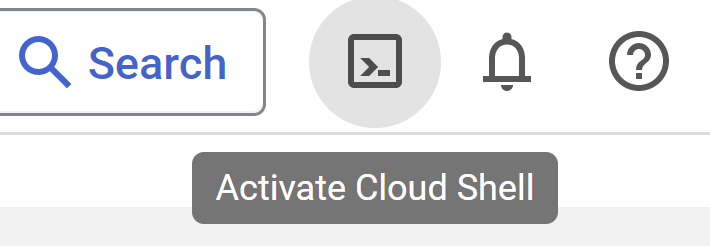
- 您将使用 Cloud Shell,这是一个在 Google Cloud 控制台中运行的命令行环境,它预加载了所需的语言。在 Cloud 控制台中,点击右上角的激活 Cloud Shell:
- 在连接到 Cloud Shell 后,您应该会看到自己已通过身份验证,并且相关项目已设置为您的项目 ID。在 Cloud Shell 中运行以下命令,以确认您已通过身份验证:
gcloud auth list
- 在 Cloud Shell 中运行以下命令,以确认 gcloud 命令了解您的项目:
gcloud config list project
- 如果项目未设置,请使用以下命令进行设置:
gcloud config set project <YOUR_PROJECT_ID>
如需了解 gcloud 命令和用法,请参阅文档。
打开编辑器
- 在此 Codelab 中,我们将使用内置的 Cloud 编辑器。在 Cloud Shell 窗口中,点击右上角的“打开编辑器”按钮。系统随即会打开 VSCode 编辑器。

3. ADK 设置
让我们前往上一部分中激活的 Cloud Shell 终端:
- 创建并激活虚拟环境(推荐)
在 Cloud Shell 终端中,创建一个虚拟环境:
python -m venv .venv
激活该虚拟环境:
source .venv/bin/activate
- 安装 ADK
pip install google-adk
4. Google API 密钥
使用 AI Studio 创建 Google API 密钥:
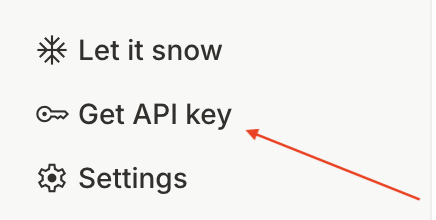
- 访问 https://aistudio.google.com/,然后从左下角菜单中点击
Get API Key
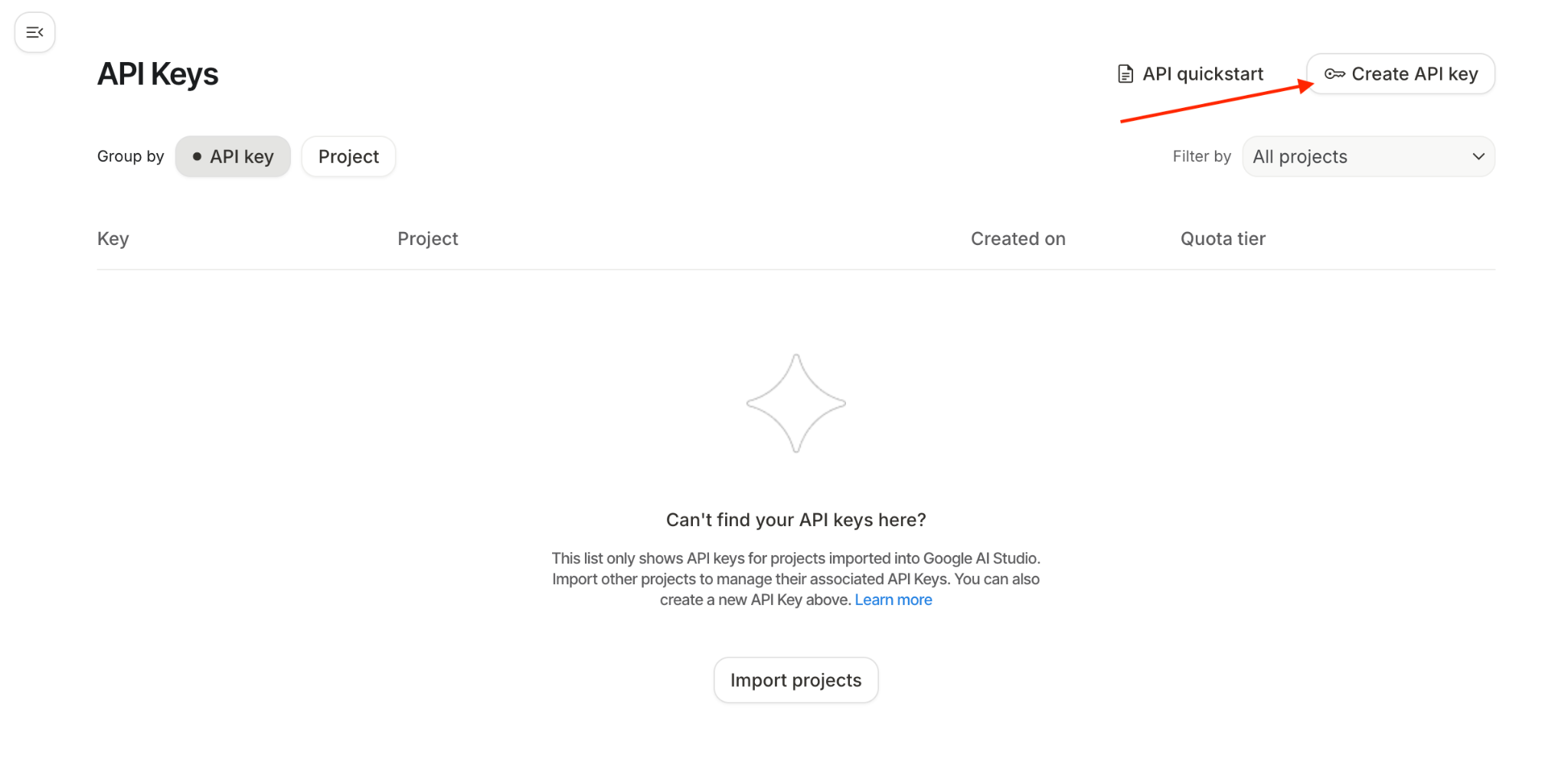
- 您会看到“API 密钥”窗口,点击此窗口中的“创建 API 密钥”:
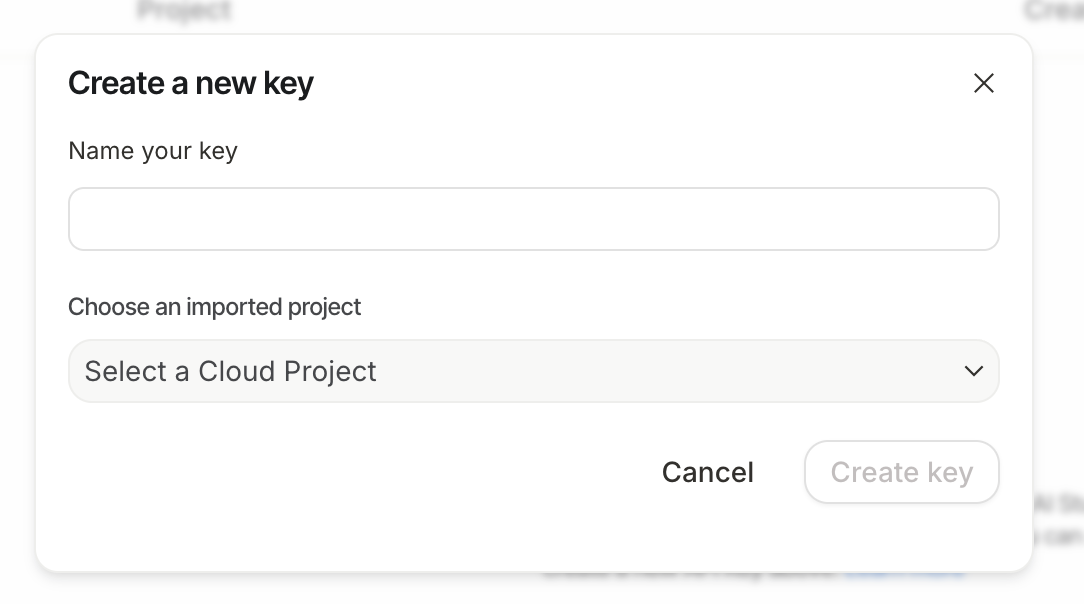
- 系统会显示一个用于创建新密钥的弹出式窗口。将密钥命名为:
healthy-hints-key
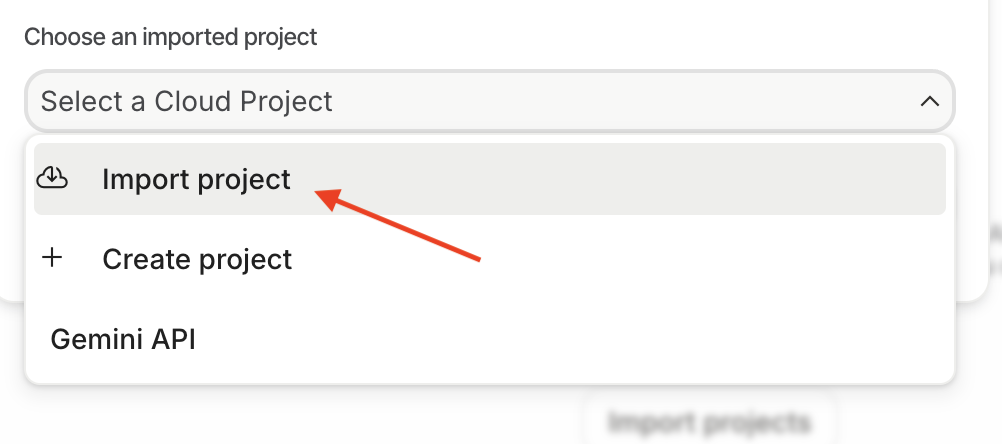
前往下拉菜单“选择一个导入的项目”
- 点击
Import Project,系统会显示一个侧边窗口,其中列出了您的所有 Google Cloud 项目,请选择您要使用的项目。
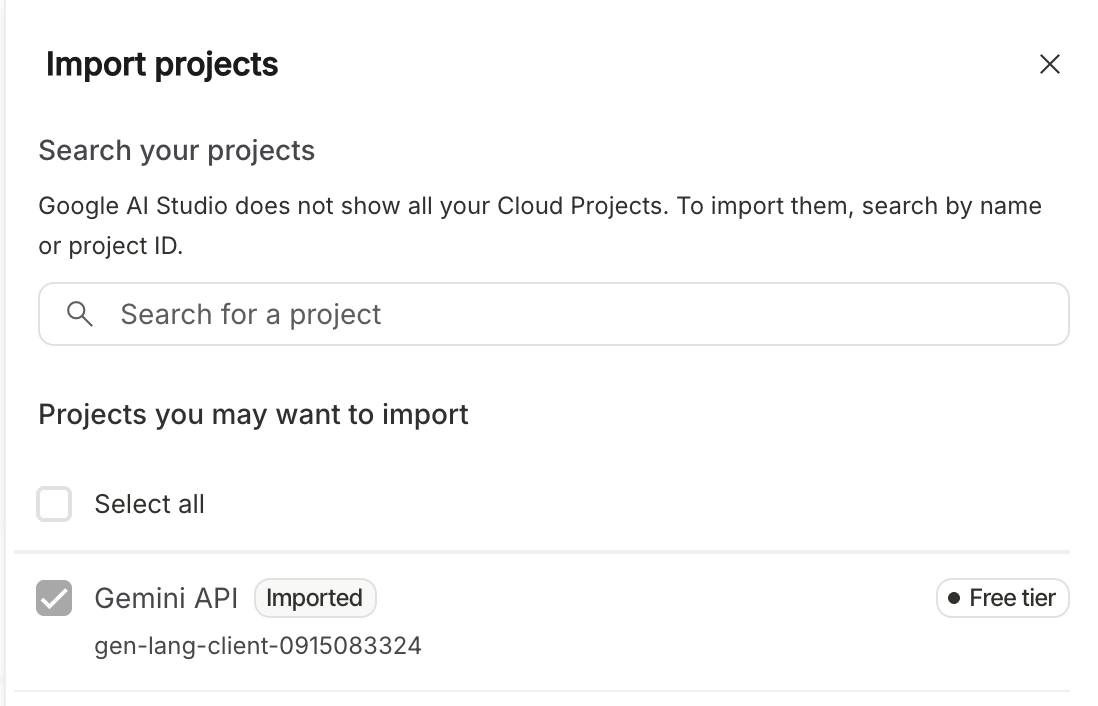
点击“导入”

- 下拉菜单现在会更新为您刚刚导入的项目。从下拉菜单中选择项目。点击“立即创建密钥”。您现在会看到已创建的 API 密钥的列表。点击刚刚创建的 API 密钥的复制图标。

5. 示例代理
- 使用 Cloud Shell 终端,在所需的项目位置为您的代理创建一个根目录:
adk create healthy_hints

您可以选择任何模型,但在此 Codelab 中,我们将继续使用 gemini-2.5-flash
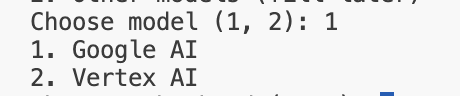
在此 Codelab 中,我们将使用 Google AI。粘贴您在上一步中创建的 API 密钥。

- 我们来打开刚刚创建的文件夹。在最左侧的菜单中,点击图标
 ,然后依次点击“文件”->“打开文件夹”。选择刚刚创建的文件夹
 healthy_hints,该文件夹通常位于/home/<username>文件夹中。 healthy_hints文件夹结构通常如下所示:
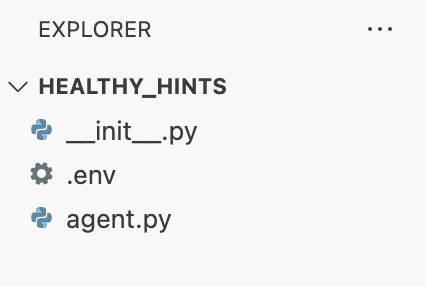
- 您会看到一个包含 Google API 密钥的 .env 文件。您可以使用此文件设置任何环境变量。
- 系统还会创建另一个名为
agent.py的文件,这是我们的主要代理文件。这是创建示例根代理的位置。我们来仔细看看此文件的内容,首先从 ADK 导入llm_agent。然后,我们使用 ADK DSL 创建根代理。我们将模型名称指定为Gemini-2.5-flash,为智能体命名,并提供有关智能体的精美说明。指令是这里最重要的部分,我们在此处使用自然语言告知代理需要做什么。 - 此示例代理非常通用,可以回答用户的任何问题。
- 现在,我们将在本地运行此代理。您可以通过两种方式与此代理互动:CLI 和 Web。
- CLI:从
healthy_hints目录外部运行以下命令
adk run healthy_hints
或者,如果您位于 healthy_hints 目录中,请运行以下命令:
adk run .
您将会看到如下所示的输出:

请继续输入“你好”或您有任何问题。对于不同的人,答案可能各不相同,这就是生成式 AI 的特性。
- Web:从
healthy_hints的父目录运行以下命令:
adk web
6. 多工具代理
工具是一个模块化的代码片段(通常是函数或 API),可让智能体与超出其内部知识范围的世界进行互动。
ADK 中的工具类型
- 函数工具:您自行编写的自定义逻辑。例如,连接到特定数据库的函数,或适用于公司特有格式的自定义“日志解析器”。
- 内置工具:Google 或 ADK 提供的即用型功能,例如 Google 搜索、代码解释器或 Google RAG 引擎。
- Agents-as-Tools::在高级“多工具”或“多智能体”系统中,一个专业智能体可以充当另一个智能体的工具。例如,“搜索代理”可以是“研究经理代理”使用的工具。
在此 Codelab 中,我们将介绍函数工具。现在,我们来升级智能体,使其成为多功能工具。
我们来在 agent.py 中添加一个新方法 get_weather
def get_weather(city: str) -> dict:
  """Retrieves the current weather report for a specified city.

  Args:
    city (str): The name of the city for which to retrieve the weather report.

  Returns:
    dict: status and result or error msg.
  """
  if city.lower() == "new york":
    return {
      "status": "success",
      "report": (
          "The weather in New York is sunny with a temperature of 25 degrees"
          " Celsius (77 degrees Fahrenheit)."
      ),
    }
  else:
    return {
      "status": "error",
      "error_message": f"Weather information for '{city}' is not available.",
    }
我们来修改 agent.py,更改智能体的名称、说明和指令:
root_agent = Agent(
    model='gemini-2.5-flash',
    name='healthy_hints_agent',
    description='Agent to answer questions about the weather in a city.',
    instruction='You are a helpful agent who can answer user questions about the weather in a city.',
    tools=[get_weather],
)
到目前为止,我们只创建了一个工具。现在,我们来创建多个工具:
我们再创建一个名为 get_current_time 的方法:
def get_current_time(city: str) -> dict:
  """Returns the current time in a specified city.

  Args:
    city (str): The name of the city for which to retrieve the current time.

  Returns:
    dict: status and result or error msg.
  """

  if city.lower() == "new york":
    tz_identifier = "America/New_York"
  else:
    return {
      "status": "error",
      "error_message": (
        f"Sorry, I don't have timezone information for {city}."
      ),
    }

  tz = ZoneInfo(tz_identifier)
  now = datetime.datetime.now(tz)
  report = (
    f'The current time in {city} is {now.strftime("%Y-%m-%d %H:%M:%S %Z%z")}'
  )
  return {"status": "success", "report": report}
我们来修改代理,以调用此工具:
root_agent = Agent(
  model='gemini-2.5-flash',
  name='healthy_hints_agent',
  description='Agent to answer questions about the time and weather in a city.',
  instruction='You are a helpful agent who can answer user questions about the time and weather in a city.',
  tools=[get_weather, get_current_time],
)
我们已相应修改了说明、指令和工具。现在,我们来运行这个更新后的代理。这次,智能体还会回答当前时间和天气。
7. SDK 集成
现在,我们已经了解了如何使用多种工具。我们来看一些实际示例。我们来创建“健康提示”智能体。我们的目标是,将包含成分列表的任何图片上传到代理,然后代理会告知我们每种成分是否健康。
- 我们先在 Google Cloud Storage 中创建一个存储桶,以便上传图片。我们来打开一个新标签页,然后前往 https://console.cloud.google.com/,并在搜索栏中输入“Cloud Storage”。现在,在“产品和网页”下选择“Cloud Storage”:
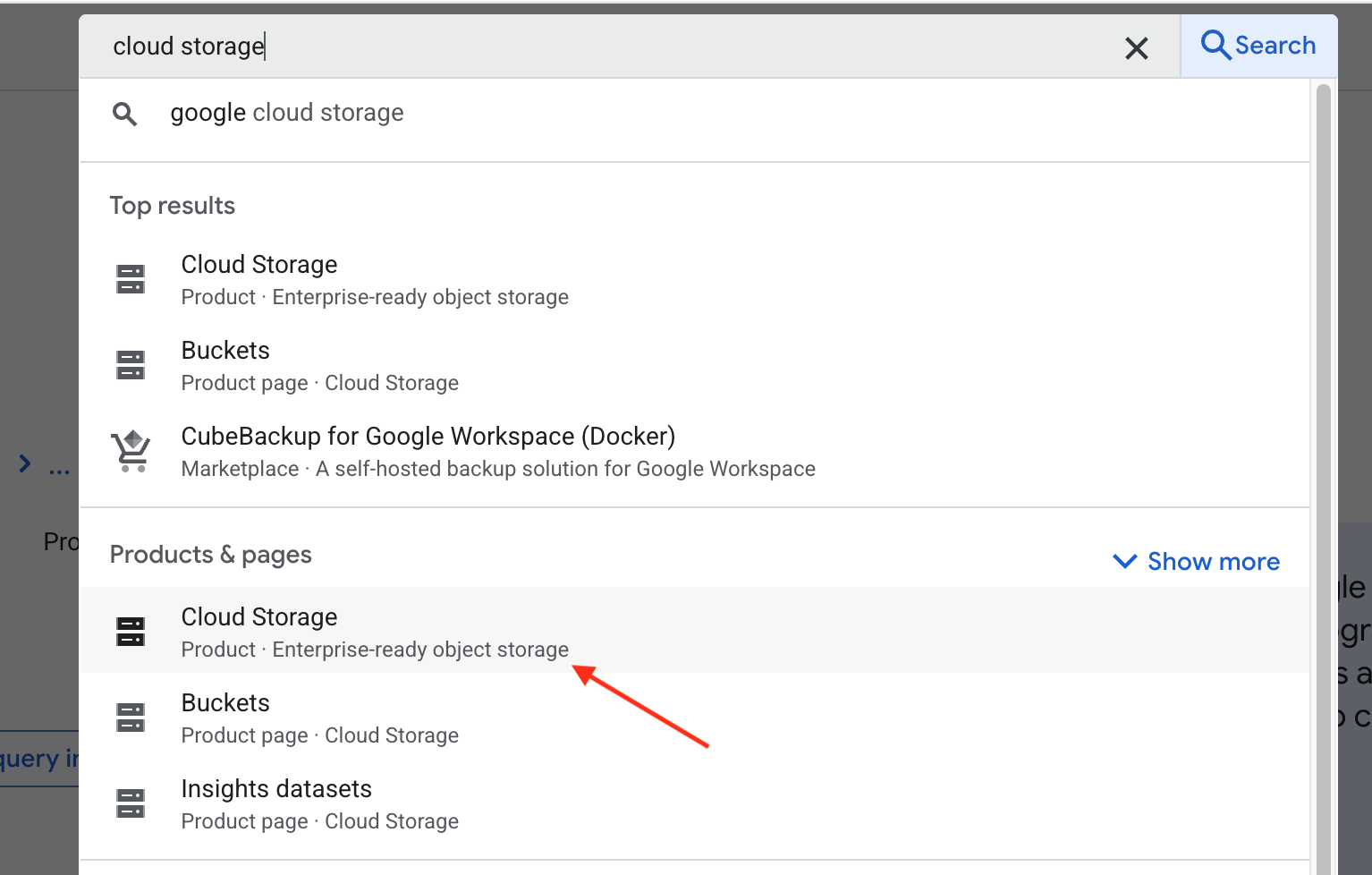
系统会将您转到 Google Cloud Storage 的概览页面。点击 Create bucket 按钮。在创建存储桶页面中,输入存储桶的名称。名称可以是任何内容,但在此 Codelab 中,我们将使用 healthy-hints-bucket-kolkata。将所有其他设置保留为原样,然后点击 Create 按钮。
- 让我们创建一个名为
requirements.txt的新文件,并在其中添加google-cloud-storage。我们将使用 Python Storage SDK 将图片上传到 Storage。
我们先来安装依赖项:
pip install -r requirements.txt
您可能需要先启用 Storage API。为此,请在终端中运行以下命令:
gcloud services enable storage.googleapis.com
现在,我们来添加一个用于上传图片的新工具。
def upload_image() -> str:
  storage_client = storage.Client()
  bucket_name = "healthy-hints-bucket-kolkata"
  bucket = storage_client.bucket(bucket_name)
  blob = bucket.blob("ingredirents")
  blob.upload_from_filename(<image-file-path>)
- 现在,我们来更新智能体,使其使用新工具:
root_agent = Agent(
  model='gemini-2.5-flash',
  name='healthy_hints_agent',
  description='Agent to upload image to Google Cloud Storage',
  instruction='You are a helpful agent who will upload the image to Google Cloud Storage using `upload_image` tool.',
  tools=[upload_image],
)
- 现在,我们将添加另一个工具来朗读图片中的食材。我们来在
requirements.txt中添加google-cloud-vision并安装新依赖项。
pip install -r requirements.txt
同样,您可能需要先启用 Vision API。为此,请在终端中运行以下命令:
gcloud services enable vision.googleapis.com
现在,我们来添加一个新工具 read_ingredients:
def read_ingredients() -> str:
  vision_client = vision.ImageAnnotatorClient()

  with io.open("/home/bajajnehaa/healthy_hints/images/Ingredients-list.jpg", 'rb') as image_file:
    content = image_file.read()

  image = vision.Image(content=content)
  response = vision_client.text_detection(image=image)
  texts = response.text_annotations
  return texts[0].description
现在,我们来更新代理,以使用此工具
root_agent = Agent(
  model='gemini-2.5-flash',
  name='healthy_hints_agent',
  description='Agent to upload image to Google Cloud Storage, read the list of ingredients from the image and explain if the ingredient is healthy or not',
  instruction='You are a helpful agent who will upload the image to Google Cloud Storage using `upload_image` tool, read the ingredients of the image using `read_ingredients` tool and explain if the ingredient is healthy or not in one line.',
  tools=[upload_image, read_ingredients],
)
8. 总结
恭喜您完成“健康提示”Codelab!您已成功将标准 AI 从文本生成工具转变为主动式多工具智能体。通过使用 ADK 集成 Vision API 和 Cloud Storage SDK,您为代理提供了“眼睛”来读取标签,并提供了“记忆”来归档标签。您已了解智能体如何自主决定何时保存文件,以及如何解读原始数据以提供实际的健康建议。
未来,这些原则将成为任何自动化系统的蓝图。无论您是管理云基础架构还是构建个人助理,核心概念都保持不变:定义专用工具,然后让智能体编排逻辑。接下来,您可以尝试添加更多工具,例如“营养数据库”或“电子邮件工具”,以扩大代理的影响。