
1. Introduction
Overview
In this lab, users will explore how Network Connectivity Center (NCC) utilizes the NCC Gateway to establish secure connectivity. Users will implement Secure Access Connect to integrate third-party Security Service Edge (SSE) products, enabling robust inspection and protection of traffic flows. This configuration simplifies network management by offering a centralized gateway-based model for securing traffic entering and exiting Google Cloud environments.
What you'll build
In this codelab, you'll build a logical hub and spoke topology with the NCC hub that will implement a fully meshed VPC connectivity fabric across three distinct VPCs.
What you'll learn
- Hybrid Inspection Topology
- NCC Gateway
- Secure Access Connect
- Palo Alto Network SSE
What you'll need
- Knowledge of GCP VPC network
- Knowledge of Cloud Router and BGP routing
- This Codelab requires 5 VPCs. One of those VPC(s) must reside in a separate project than the NCC hub
- Check your Quota:Networks and request additional Networks if required, screenshot below:

Objectives
- Setup the GCP Environment
- Configure Network Connectivity Center for Hybrid Inspection
- Provision Palo Alto Network Stratacloud Manager for SSE
- Validate Data Path
- Explore NCC serviceability features
- Clean up used resources
Before you begin
Google Cloud Console and Cloud Shell
To interact with GCP, we will use both the Google Cloud Console and Cloud Shell throughout this lab.
NCC Hub Project Google Cloud Console
The Cloud Console can be reached at https://console.cloud.google.com.
Set up the following items in Google Cloud to make it easier to configure Network Connectivity Center:
In the Google Cloud Console, on the project selector page, select or create a Google Cloud project.
Note: If you don't plan to keep the resources that you create in this procedure, create a project instead of selecting an existing project. After you finish these steps, you can delete the project, removing all resources associated with the project
Launch the Cloud Shell. This Codelab makes use of $variables to aid gcloud configuration implementation in Cloud Shell.
gcloud auth list
gcloud config list project
gcloud config set project [HUB-PROJECT-ID]
projectname=[HUB-PROJECT-ID]
echo $projectname
gcloud config set compute/zone us-central1-a
gcloud config set compute/region us-central1
IAM Roles
NCC requires IAM roles to access specific APIs. Be sure to configure your user with the NCC IAM roles as required.
Role/Description | Permissions |
| networkconnectivity.hubs.networkconnectivity.spokes.networkconnectivity.gatewaynetworkconnectivity.locations. |
| networkconnectivity.gatewayAdvertisedRoutes.networkconnectivity.groups. networkconnectivity.hubRouteTables.networkconnectivity.hubRoutes.networkconnectivity.hubs. networkconnectivity.locations. networkconnectivity.operations.* networkconnectivity.spokes.*resourcemanager.projects.getresourcemanager.projects.list |
| networkconnectivity.gatewayAdvertisedRoutes.getnetworkconnectivity.gatewayAdvertisedRoutes.listnetworkconnectivity.groups.getnetworkconnectivity.groups.getIamPolicynetworkconnectivity.groups.listnetworkconnectivity.hubRouteTables.getnetworkconnectivity.hubRouteTables.getIamPolicynetworkconnectivity.hubRouteTables.listnetworkconnectivity.hubRoutes.getnetworkconnectivity.hubRoutes.getIamPolicynetworkconnectivity.hubRoutes.listnetworkconnectivity.hubs.getnetworkconnectivity.hubs.getIamPolicynetworkconnectivity.hubs.listnetworkconnectivity.hubs.listSpokesnetworkconnectivity.hubs.queryStatus networkconnectivity.locations.*networkconnectivity.spokes.getnetworkconnectivity.spokes.getIamPolicynetworkconnectivity.spokes.listresourcemanager.projects.getresourcemanager.projects.list |
2. Setup the Network Environment
In this section, we'll deploy the VPC networks and firewall rules in a single project. The logical diagram illustrates the network environment that will be set up in this step.
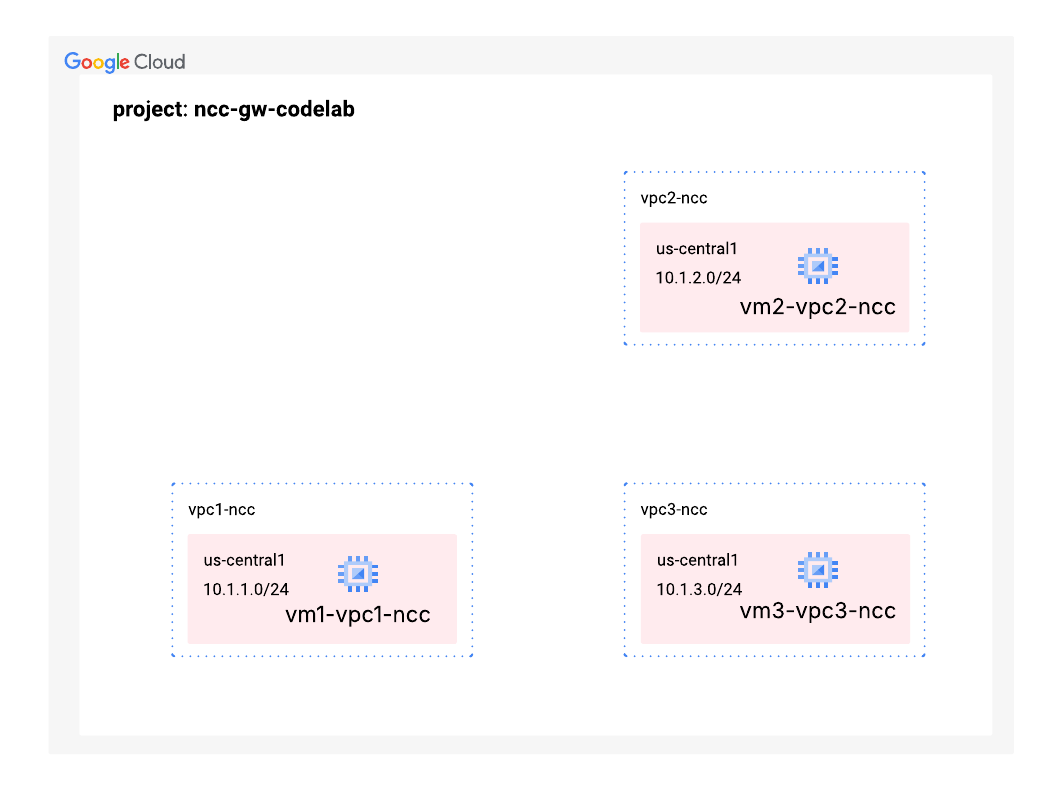
Create the VPCs and the Subnets
The VPC network contains subnets that you'll install GCE VM for data path validation
gcloud compute networks create vpc1-ncc --subnet-mode custom
gcloud compute networks create vpc2-ncc --subnet-mode custom
gcloud compute networks create vpc3-ncc --subnet-mode custom
gcloud compute networks subnets create vpc1-ncc-subnet1 \
--network vpc1-ncc \
--range 10.1.1.0/24 \
--region us-central1

gcloud compute networks subnets create vpc2-ncc-subnet1 \
--network vpc2-ncc \
--range 10.1.2.0/24 \
--region us-central1

gcloud compute networks subnets create vpc3-ncc-subnet1 \
--network vpc3-ncc \
--range 10.1.3.0/24 \
--region us-central1
Configure VPC Firewall Rules
Configure firewall rules on each VPC to allow
- SSH
- Internal IAP
- 10.0.0.0/8 range
gcloud compute firewall-rules create ncc1-vpc-internal \
--network vpc1-ncc \
--allow all \
--source-ranges 10.0.0.0/8

gcloud compute firewall-rules create ncc2-vpc-internal \
--network vpc2-ncc \
--allow all \
--source-ranges 10.0.0.0/8

gcloud compute firewall-rules create ncc3-vpc-internal \
--network vpc3-ncc \
--allow all \
--source-ranges 10.0.0.0/8

gcloud compute firewall-rules create ncc1-vpc-iap \
--network vpc1-ncc \
--allow all \
--source-ranges 35.235.240.0/20

gcloud compute firewall-rules create ncc2-vpc-iap \
--network vpc2-ncc \
--allow=tcp:22 \
--source-ranges 35.235.240.0/20

gcloud compute firewall-rules create ncc3-vpc-iap \
--network vpc3-ncc \
--allow=tcp:22  \
--source-ranges 35.235.240.0/20
Configure GCE VM in Each VPC
You'll need temporary internet access to install packages on "vm1-vpc1-ncc."
Create four virtual machines, each VM will be assigned to one of the VPCs previously created.
gcloud compute instances create vm1-vpc1-ncc \
--subnet vpc1-ncc-subnet1 \
--metadata=startup-script='#!/bin/bash
  apt-get update
  apt-get install apache2 -y
  apt-get install tcpdump -y
  service apache2 restart
  echo "
<h3>Web Server: vpc1-vm1</h3>" | tee /var/www/html/index.html'


gcloud compute instances create vm1-vpc2-ncc \
--zone us-central1-a \
--subnet vpc2-ncc-subnet1 \
--no-address \
--metadata=startup-script='#!/bin/bash
  apt-get update
  apt-get install apache2 -y
  apt-get install tcpdump -y
  service apache2 restart
  echo "
<h3>Web Server: vpc2-vm2</h3>" | tee /var/www/html/index.html'

gcloud compute instances create vm1-vpc3-ncc \
--zone us-central1-a \
--subnet vpc3-ncc-subnet1 \
--no-address \
--metadata=startup-script='#!/bin/bash
  apt-get update
  apt-get install apache2 -y
  apt-get install tcpdump -y
  service apache2 restart
  echo "
<h3>Web Server: vpc3-vm3</h3>" | tee /var/www/html/index.html'
3. NCC Hybrid Inspection Topology
In this section, we'll deploy the Network Connectivity Center Hub for Hybrid Inspection Topology. NCC hybrid inspection topology implements preset NCC spoke policies to specifically support NCC Gateway. The logical diagram illustrates the network environment that will be set up in this step.
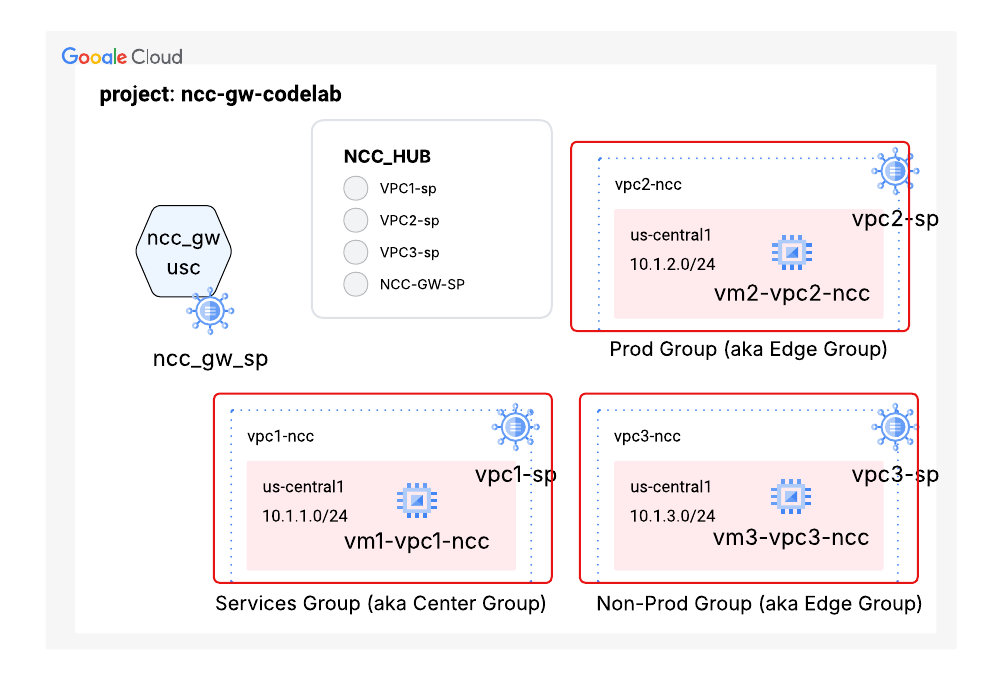
NCC Hub for Hybrid Spoke Inspection
When creating an NCC Hub, use the "-preset-topology=hybrid-inspection" flag to create four groups of NCC spoke types. The four types of NCC spokes include:
Groups:gateways | Gateway spokes serve as regional entry and exit points for traffic flows entering Google Cloud from on-premises or other clouds. They facilitate traffic inspection through third-party SSE services such as Palo Alto Networks or Symantec. Note: This is the only group that can contain NCC Gateway spokes in this topology |
Groups:services | This group acts as a "hub" for shared resources; spokes in this group have connectivity to all other spoke groups (prod, non-prod, and gateways). Shared Service VPCs (e.g., for logging, authentication, monitoring, or common tools) |
Groups:prod | Use Case: Allocate production Application VPCs containing mission-critical workloads (VMs, GKE clusters). |
Groups:non-prod | Assigned Resources: Non-Production Application VPCs used for development, testing, or staging environments. |
Configure NCC hub to use the hybrid inspection preset topology
gcloud beta network-connectivity hubs create cl-hi-hub \ --preset-topology=hybrid-inspection
Example output
Create request issued for: [cl-hi-hub]
Waiting for operation [projects/"${projectname}"/locations/global/operations/operation-1759424304217-6402fe4a97da0-5de6
e5a1-2ea2de02] to complete...done.
Created hub [cl-hi-hub].
Use the gcloud command to verify the NCC hub's preset routing table:
gcloud network-connectivity hubs describe cl-hi-hub
Example output
createTime: '2026-02-18T16:14:45.828597880Z'
exportPsc: false
name: projects/"${projectname}"/locations/global/hubs/cl-hi-hub
policyMode: PRESET
routeTables:
- projects/"${projectname}"/locations/global/hubs/cl-hi-hub/routeTables/gateways
- projects/"${projectname}"/locations/global/hubs/cl-hi-hub/routeTables/non-prod
- projects/"${projectname}"/locations/global/hubs/cl-hi-hub/routeTables/prod
- projects/"${projectname}"/locations/global/hubs/cl-hi-hub/routeTables/services
spokeSummary:
state: ACTIVE
uniqueId: c0fbb826-173b-42dd-a5d2-00c2aa66fed8
updateTime: '2026-04-21T19:13:50.269721594Z'
NCC spokes can be added to a group to apply traffic flow policies. An NCC spoke(s) can only be part of one group. For this release, a specific preset topology called HYBRID-INSPECTION introduces 4 groups: gateways, prod, non-prod, and services.
All NCC Gateway resources (including their hybrid connections) are part of the gateways group. Spokes in the gateways group will be able to communicate with each other, and traffic between gateways and other spoke groups are eligible for inspection (depending on the service policy configuration).
NCC Spoke Group Connectivity Rules
Source Group | Can Access (Allowed) | Cannot Access (Restricted) |
Services Group | gateways, prod, non-prod, services | None |
Prod Group | gateways, services, prod spokes | non-prod spokes |
Non-prod Group | gateways, services, non-prod spokes | prod spokes |
Gateways Group | gateways, services, prod, non-prod | None |
Use the gcloud command to list the the pre-set groups on the NCC Hub
gcloud network-connectivity hubs groups list --hub cl-hi-hub --project "${projectname}"
Example output
NAME      HUB        DESCRIPTION
gateways  cl-hi-hub
non-prod  cl-hi-hub
prod      cl-hi-hub
services  cl-hi-hub
On the web console, navigate to network connectivity > Network Connectivity Center > select "cl-hi-hub" to view the NCC hub configuration
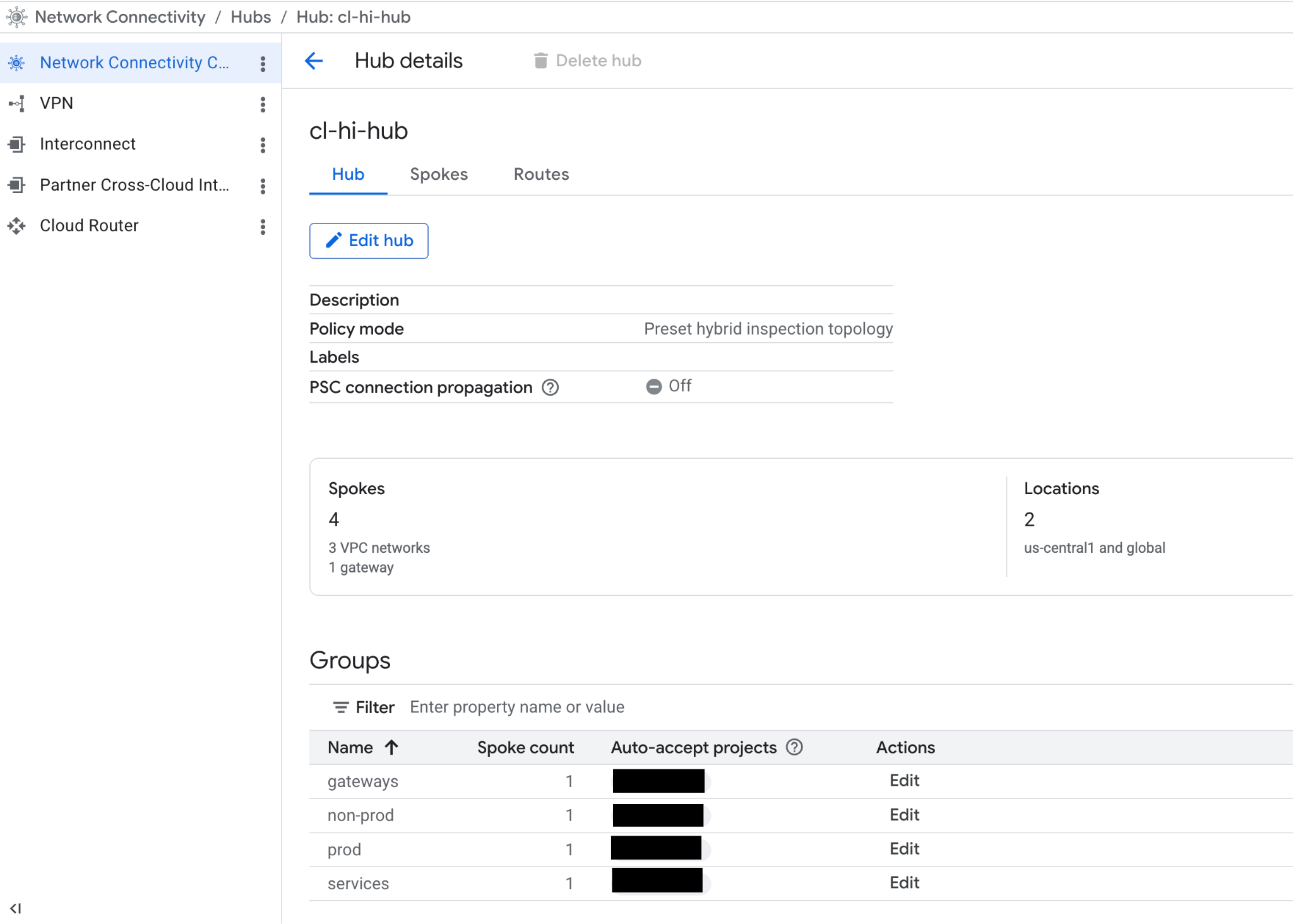
Workload VPC2 as a spoke in NCC group:prod
Use the gcloud command to configure workload VPC3 as a (workload) spoke and assign the spoke to group:prod
gcloud network-connectivity spokes linked-vpc-network create vpc2-sp \
--hub=cl-hi-hub \
--description=codelab-vpc2-ncc-spoke \
--vpc-network=vpc2-ncc \
--global \
--group=prod
Example Output
Create request issued for: [vpc2-sp]
Waiting for operation [projects/"${projectname}"/locations/global/operations/operation-1776966793852-650245286757a-766d806c-1bc4fabe] to complete...done.
Created spoke [vpc2-sp].
createTime: '2026-04-23T17:53:14.083783233Z'
description: codelab-vpc2-ncc-spoke
etag: '2'
group: projects/"${projectname}"/locations/global/hubs/cl-hi-hub/groups/prod
hub: projects/"${projectname}"/locations/global/hubs/cl-hi-hub
linkedVpcNetwork:
  uri: https://www.googleapis.com/compute/v1/projects/"${projectname}"/global/networks/vpc-ncc2
name: projects/"${projectname}"/locations/global/spokes/vpc2-sp
spokeType: VPC_NETWORK
state: ACTIVE
uniqueId: 92972784-e4ed-47e5-be22-08a516a39b0c
updateTime: '2026-04-23T17:53:55.029481722Z'
Use the gcloud command to view the prefixes in the NCC hub's "prod" route table.
gcloud network-connectivity hubs route-tables routes list --hub=cl-hi-hub --route_table=prod
Example Output
IP_CIDR_RANGE: 10.1.2.0/24
PRIORITY:
LOCATION: us-central1
STATE: ACTIVE
TYPE: VPC_PRIMARY_SUBNET
SITE_TO_SITE: N/A
NEXT_HOP: vpc2-ncc
HUB: cl-hi-hub
ROUTE_TABLE: prod
Configure workload VPC3 as a spoke in NCC group:non-prod
Use the gcloud command to configure workload VPC3 as a (workload) spoke and assign the spoke to group:non-prod
gcloud network-connectivity spokes linked-vpc-network create vpc3-sp \
--hub=cl-hi-hub \
--description=codelab-vpc3-ncc-spoke \
--vpc-network=vpc3-ncc \
--global \
--group=non-prod
Example Output
Create request issued for: [vpc3-sp]
Waiting for operation [projects/cloudnet-demo/locations/global/operations/operation-1778757016454-651c5241b83fe-18b62f78-02d70f9a] to complete...done.
Created spoke [vpc3-sp].
createTime: '2026-05-14T11:10:16.758117151Z'
description: codelab-vpc3-ncc-spoke
etag: '2'
group: projects/cloudnet-demo/locations/global/hubs/cl-hi-hub/groups/non-prod
hub: projects/cloudnet-demo/locations/global/hubs/cl-hi-hub
linkedVpcNetwork:
  uri: https://www.googleapis.com/compute/v1/projects/cloudnet-demo/global/networks/vpc3-ncc
name: projects/cloudnet-demo/locations/global/spokes/vpc3-sp
spokeType: VPC_NETWORK
state: ACTIVE
uniqueId: efe8cfed-d77f-4636-aaae-898e73897b49
updateTime: '2026-05-14T11:10:52.880508489Z'
Use the gcloud command to view the prefixes in the NCC hub's "prod" route table.
gcloud network-connectivity hubs route-tables routes list --hub=cl-hi-hub --route_table=prod
Example Output
IP_CIDR_RANGE: 10.1.2.0/24
PRIORITY:
LOCATION: us-central1
STATE: ACTIVE
TYPE: VPC_PRIMARY_SUBNET
SITE_TO_SITE: N/A
NEXT_HOP: vpc2-ncc
HUB: cl-hi-hub
ROUTE_TABLE: prod
Configure workload VPC1 as a spoke in NCC group:services
Use the gcloud command to configure workload VPC1 as a (workload) spoke and assign the spoke to group:services
gcloud network-connectivity spokes linked-vpc-network create vpc1-sp \
--hub=cl-hi-hub \
--description=codelab-vpc1-ncc-spoke \
--vpc-network=vpc1-ncc \
--global \
--group=services
Example Output
Create request issued for: [vpc1-sp]
Waiting for operation [projects/cloudnet-demo/locations/global/operations/operation-1778758397065-651c57665f795-1af6d94f-942c9ebd] to complete...done.
Created spoke [vpc1-sp].
createTime: '2026-05-14T11:33:17.359361160Z'
description: codelab-vpc1-ncc-spoke
etag: '2'
group: projects/cloudnet-demo/locations/global/hubs/cl-hi-hub/groups/services
hub: projects/cloudnet-demo/locations/global/hubs/cl-hi-hub
linkedVpcNetwork:
  uri: https://www.googleapis.com/compute/v1/projects/cloudnet-demo/global/networks/vpc1-ncc
name: projects/cloudnet-demo/locations/global/spokes/vpc1-sp
spokeType: VPC_NETWORK
state: ACTIVE
uniqueId: 82b29a2b-50cb-4557-8b12-3345f5a36ad6
updateTime: '2026-05-14T11:33:55.914406863Z'
Configure NCC Gateway spoke for SSE gateways in us-central1
Use the gcloud command to create an NCC Gateway spoke in us-central1:
gcloud beta network-connectivity spokes gateways create cl-ncc-gw-usc-sp \
--region=us-central1 \
--hub=cl-hi-hub \
--capacity=1g \
--ip-range-reservations=10.100.0.0/23 \
--group=gateways
Example Output
Create request issued for: [cl-ncc-gw-usc-sp]
Waiting for operation [projects/cloudnet-demo/locations/us-central1/operations/operation-1778758907555-651c594d36fc5-783a8d5d-8d3e341b] to complete...done.
Created spoke [cl-ncc-gw-usc-sp].
createTime: '2026-05-14T11:41:48.066042872Z'
etag: '2'
gateway:
  capacity: CAPACITY_1_GBPS
  ipRangeReservations:
  - ipRange: 10.100.0.0/23
group: projects/cloudnet-demo/locations/global/hubs/cl-hi-hub/groups/gateways
hub: projects/cloudnet-demo/locations/global/hubs/cl-hi-hub
name: projects/cloudnet-demo/locations/us-central1/spokes/cl-ncc-gw-usc-sp
spokeType: GATEWAY
state: ACTIVE
uniqueId: ffe8e2b7-c864-4279-9d21-ca72d87083fe
updateTime: '2026-05-14T11:44:08.787947523Z'
Use the gcloud command to list NCC spokes:
gcloud network-connectivity spokes list
Example Output
NAME: vpc2-sp
LOCATION: global
HUB: cl-hi-hub
GROUP: prod
TYPE: VPC network
RESOURCE COUNT: 1
DATA TRANSFER: N/A
DESCRIPTION: codelab-vpc2-ncc-spoke

NAME: vpc3-sp
LOCATION: global
HUB: cl-hi-hub
GROUP: non-prod
TYPE: VPC network
RESOURCE COUNT: 1
DATA TRANSFER: N/A
DESCRIPTION: codelab-vpc3-ncc-spoke

NAME: vpc1-sp
LOCATION: global
HUB: cl-hi-hub
GROUP: services
TYPE: VPC network
RESOURCE COUNT: 1
DATA TRANSFER: N/A
DESCRIPTION: codelab-vpc1-ncc-spoke

NAME: cl-ncc-gw-usc-sp
LOCATION: us-central1
HUB: cl-hi-hub
GROUP: gateways
TYPE:
RESOURCE COUNT: 1
DATA TRANSFER: Off
DESCRIPTION:
Examine the NCC spokes that are configured on the "cl-hi-hub" NCC hub:
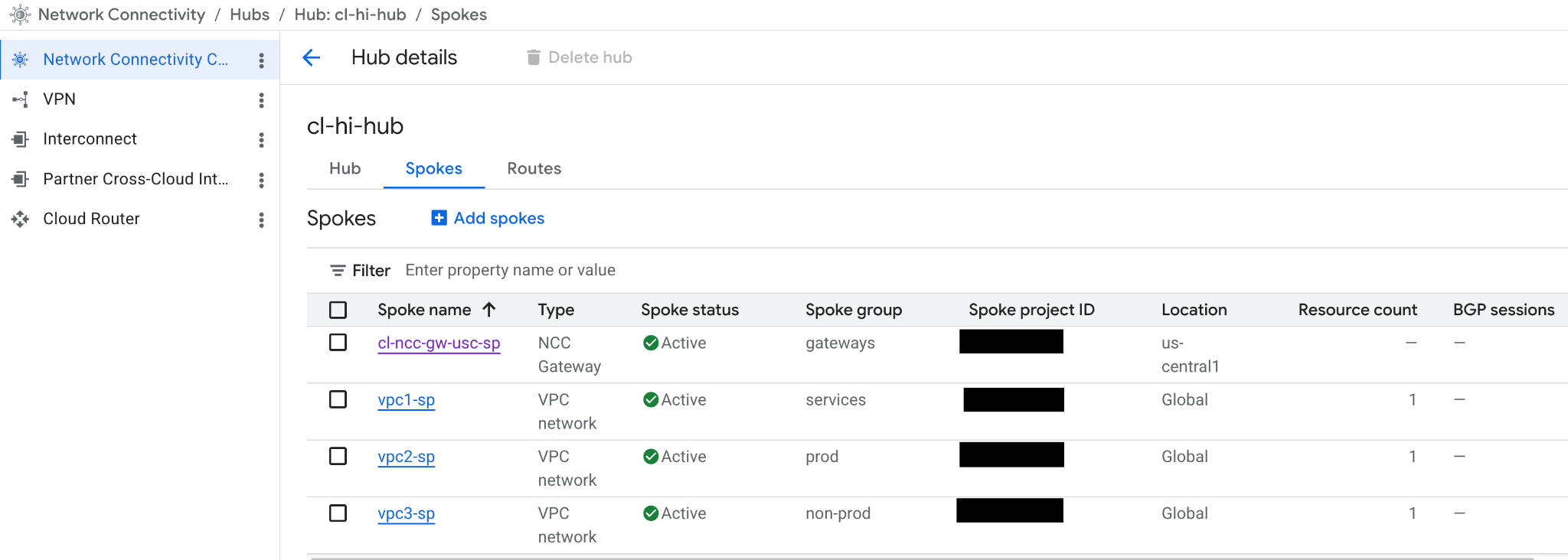
Advertise IP prefixes from NCC Gateway to NCC Hub
Configure NCC Gateway to announce specific prefixes to the NCC hub route table.
gcloud beta network-connectivity spokes gateways advertised-routes create example-dot-com \
--ip-range=1.1.1.1/32 \
--priority=200 \
--advertise-to-hub \
--region=us-central1 \
--spoke=cl-ncc-gw-usc-sp


gcloud beta network-connectivity spokes gateways advertised-routes create google-dot-com \
--ip-range=173.194.204.101/32 \
--priority=200 \
--advertise-to-hub \
--region=us-central1 \
--spoke=cl-ncc-gw-usc-sp


gcloud beta network-connectivity spokes gateways advertised-routes create branch \
--ip-range=192.168.1.0/24 \
--priority=200 \
--advertise-to-hub \
--region=us-central1 \
--spoke=cl-ncc-gw-usc-sp


gcloud beta network-connectivity spokes gateways advertised-routes create prod \
--ip-range=192.168.11.0/24 \
--priority=200 \
--advertise-to-hub \
--region=us-central1 \
--spoke=cl-ncc-gw-usc-sp

gcloud beta network-connectivity spokes gateways advertised-routes create non-prod \
--ip-range=192.168.12.0/24 \
--priority=200 \
--advertise-to-hub \
--region=us-central1 \
--spoke=cl-ncc-gw-usc-sp
Use the gcloud command to list the advertised routes originating from the gateway spoke
gcloud beta network-connectivity spokes gateways advertised-routes list --region=us-central1
Example output

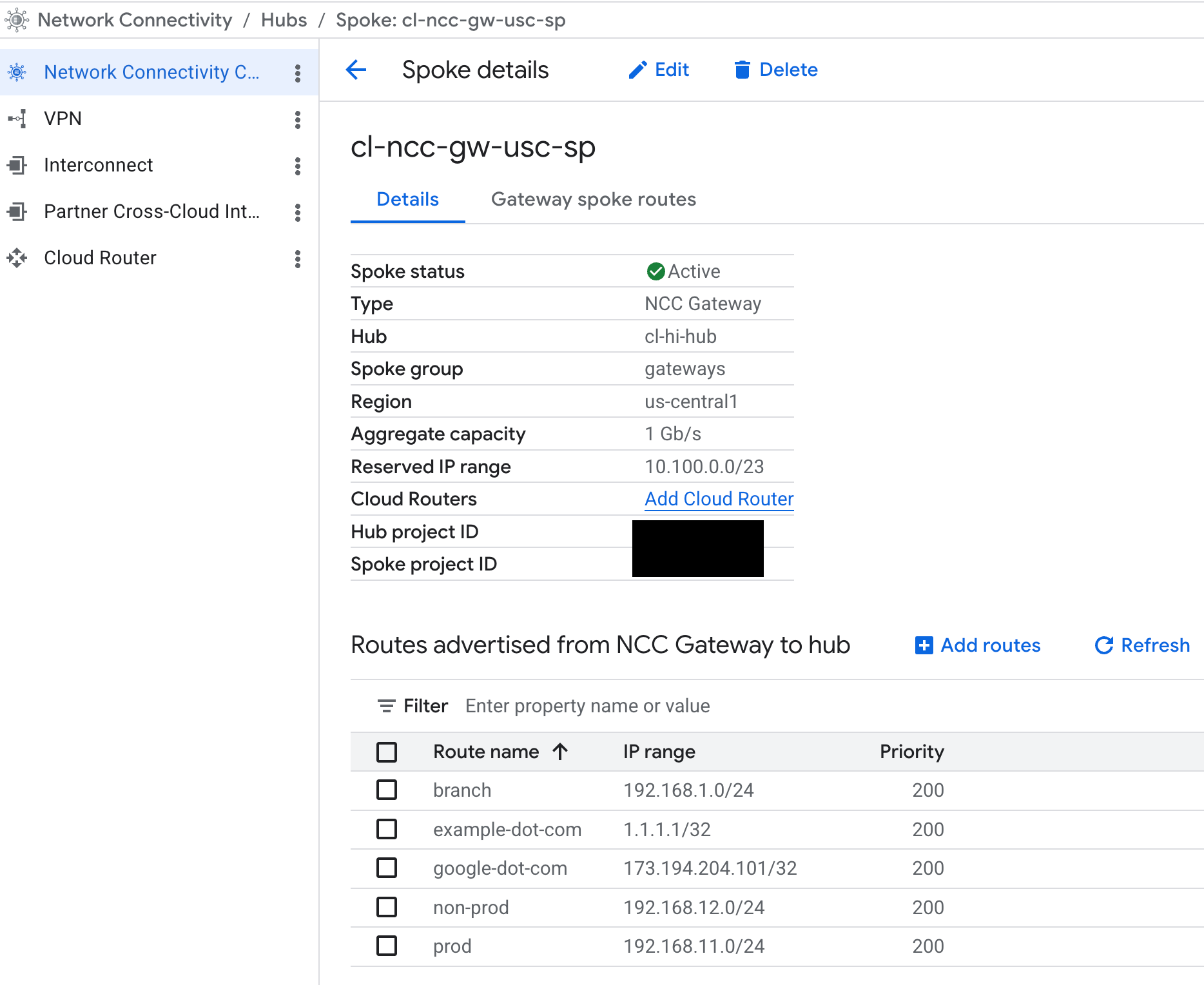
Examine the NCC Gateway spoke's advertised routes
On the web console navigate to Network Connectivity > Network Connectivity Center > Select "Spokes" tab: click "cl-ncc-gw-usc-sp".
4. Cloud Interconnect Hybrid Connections
At the time of writing, NCC Gateway only supports Google Cloud Interconnects. NCC Gateway uses a global VPC and Cloud Routers in the Google tenant project to terminate VLAN attachment and BGP peering sessions.
While the diagram shows a pair of Cloud Interconnects and VLAN attachments logically connected to an NCC Gateway, the Cloud Router in a Google managed tenant global VPC are the underlying components that terminate the VLAN attachments. In this section, you'll configure a Cloud Router associated with the NCC Gateway to manage BGP sessions for on-premises connectivity.
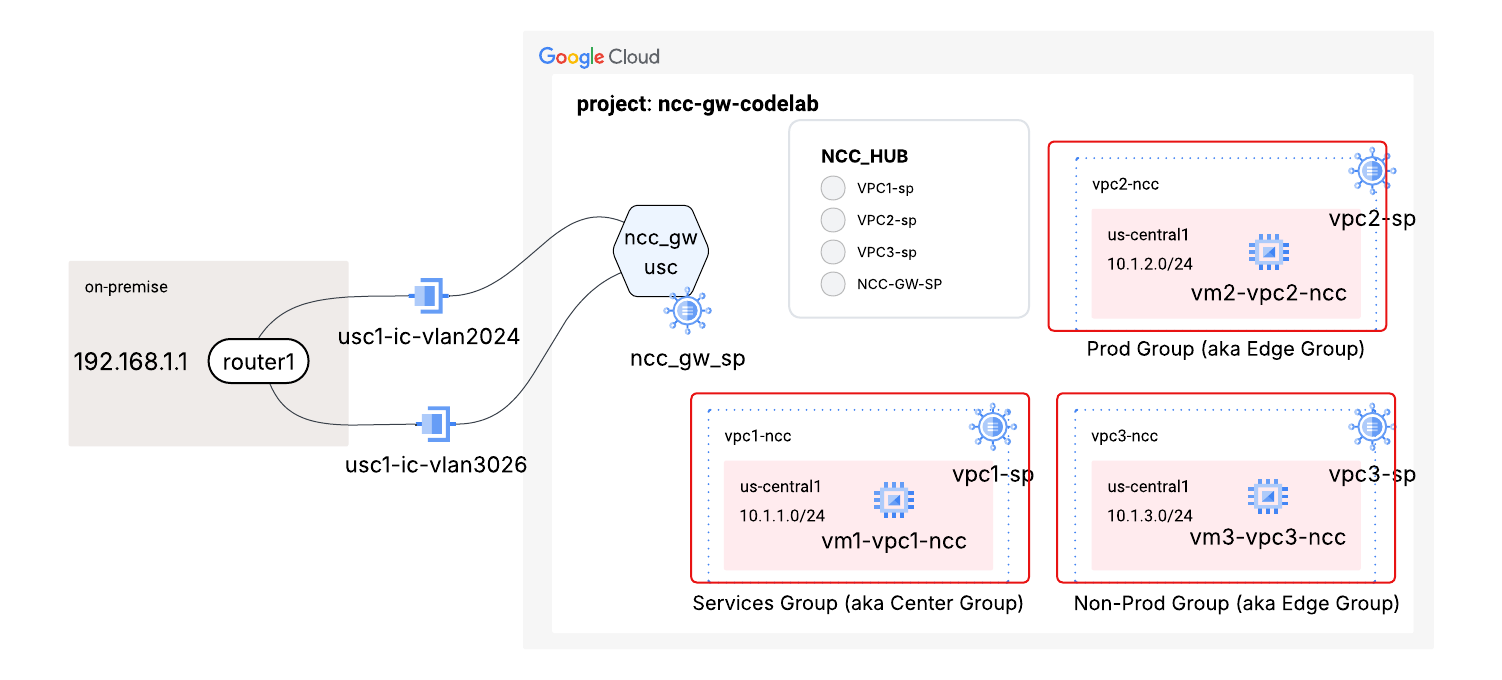
NCC Gateway specific Cloud Router in us-central1
Use the gcloud command to configure a Cloud Router specifically for the NCC Gateway.
gcloud beta compute routers create ncc-gw-usc1-cr \
--ncc-gateway=https://networkconnectivity.googleapis.com/v1/projects/"${projectid}"/locations/us-central1/spokes/cl-ncc-gw-usc-sp \
--asn=64666 \
--advertisement-mode=CUSTOM \
--set-advertisement-ranges=10.100.2.0/23 \
--region=us-central1
Example output
Creating router [ncc-gw-usc1-cr]...done.
NAME            REGION       NCC_GATEWAY
ncc-gw-usc1-cr  us-central1  cl-ncc-gw-usc-sp
- NCC_GW_NAME: The full URI of the NCC Gateway spoke. The format of the URI follows this pattern: https://networkconnectivity.googleapis.com/v1/projects/"${projectid}"/locations/REGION/spokes/GATEWAY_SPOKE_NAME
- ADVERTISED_IP_RANGES: IP ranges to advertise to on-premises networks to attract traffic to Google Cloud.
Use this gcloud command to list the router that was just created
gcloud compute routers list --filter="region:(us-central1)"
Note that the Cloud Router is not associated with a VPC
NAME                      REGION       NETWORK
ncc-gw-usc1-cr            us-central1  N/A
Create VLAN attachments from an existing dedicated Cloud Interconnect that will be used as interfaces on the Cloud Router. The example configuration below uses a link-local IP address as a candidate subnet range. A specific host address from this range will be used to configure BGP peering.
gcloud compute interconnects attachments dedicated create vl2029-ead1 \
--region=us-central1 \
--interconnect=projects/some-interconnect-project/global/interconnects/interconnect-lab-sea26-zone1 \
--router=ncc-gw-usc1-cr \
--vlan=2024 \
--bandwidth=500m \
--mtu=1440 \
--candidate-subnets=169.254.222.216/29
Created [https://www.googleapis.com/compute/v1/projects/"${projectname}"/regions/us-central1/interconnectAttachments/vl2029-ead1].
gcloud compute interconnects attachments dedicated create vl3029-ead2 \
--region=us-central1 \
--interconnect=projects/some-interconnect-project/global/interconnects/interconnect-lab-sea26-zone2 \
--router=ncc-gw-usc1-cr  \
--vlan=3026 \
--bandwidth=500m \
--mtu=1440 \
--candidate-subnets=169.254.220.184/29
Created [https://www.googleapis.com/compute/v1/projects/"${projectname}"/regions/us-central1/interconnectAttachments/vl3029-ead2].
Configure the NCC Gateway Cloud Router in us-central1 with an interface
Use the gcloud command to associate the VLAN attachment created in us-central to the NCC Gateway Cloud Router.
gcloud compute routers add-interface ncc-gw-usc1-cr \
--region=us-central1 \
--interface-name=if-vl2029-ead1 \
--interconnect-attachment=vl2029-ead1
Output:
Updated [https://www.googleapis.com/compute/v1/projects/cloudnet-demo/regions/us-central1/routers/ncc-gw-usc1-cr].
Configure BGP peer for the created VLAN attachment above.
Use the gcloud command below to activate BGP peering on the Cloud Router interface.
gcloud compute routers add-bgp-peer ncc-gw-usc1-cr \
--region=us-central1 \
--peer-name=bgp-vl2029-ead1 \
--interface=if-vl2029-ead1 \
--peer-asn=65112 \
--advertisement-mode=DEFAULT
Output:
Creating peer [bgp-vl2029-ead1] in router [ncc-gw-usc1-cr]...done.
Configure the NCC Gateway Cloud Router in us-central1 with a second VLAN attachment interface.
Use the gcloud command to add the second VLAN attachment as an interface to NCC Gateway's Cloud Router
gcloud compute routers add-interface ncc-gw-usc1-cr \
--region=us-central1 \
--interface-name=if-vl3029-ead2 \
--interconnect-attachment=vl3029-ead2
Output:
Updated [https://www.googleapis.com/compute/v1/projects/cloudnet-demo/regions/us-central1/routers/ncc-gw-usc1-cr]
Use the gcloud command below to activate BGP peering on the Cloud Router interface.
gcloud compute routers add-bgp-peer ncc-gw-usc1-cr \
--region=us-central1 \
--peer-name=bgp-vl3029-ead2 \
--interface=if-vl3029-ead2 \
--peer-asn=65112 \
--advertisement-mode=DEFAULT
Verify BGP Peering Status with the On prem BGP speaker
Use the gcloud command to verify BGP peer status with the on-premise router and to see what routes the NCC Gateway Cloud Router is sending to the on-premise network.
gcloud compute routers get-status ncc-gw-usc1-cr \
--region=us-central1
**
--format="yaml(result.bgpPeerStatus)"
Output:
Ensure the BGP state is "Established".
result:
  bgpPeerStatus:
  - advertisedRoutes:
    - destRange: 10.100.2.0/23
      kind: compute#route
      nextHopIp: 169.254.111.217
      nextHopOrigin: INCOMPLETE
      priority: 100
      routeType: BGP
    enableIpv4: true
    enableIpv6: false
    ipAddress: 169.254.111.217
    md5AuthEnabled: false
    name: bgp-vl2029-ead1
    numLearnedRoutes: 2
    peerIpAddress: 169.254.111.218
    state: Established
    status: UP
    uptime: 6 minutes, 27 seconds
    uptimeSeconds: '387'
  - advertisedRoutes:
    - destRange: 10.100.2.0/23
      kind: compute#route
      nextHopIp: 169.254.112.217
      nextHopOrigin: INCOMPLETE
      priority: 100
      routeType: BGP
    enableIpv4: true
    enableIpv6: false
    ipAddress: 169.254.112.217
    md5AuthEnabled: false
    name: bgp-vl3029-ead2
    numLearnedRoutes: 1
    peerIpAddress: 169.254.112.218
    state: Established
    status: UP
    uptime: 1 minutes, 35 seconds
    uptimeSeconds: '95'
Use the gcloud command to see what routes the NCC Gateway Cloud Router is receiving from the on-premises network:
gcloud compute routers get-status ncc-gw-usc1-cr \
--region=us-central1 \
--format="yaml(result.bestRoutes)"
Output:
result:
  bestRoutes:
  - asPaths:
    - asLists:
      - 65112
      pathSegmentType: AS_SEQUENCE
    creationTimestamp: '2026-05-14T10:02:44.265-07:00'
    destRange: 172.16.0.0/16
    kind: compute#route
    nextHopInterRegionCost: 0
    nextHopIp: 169.254.111.218
    nextHopMed: 0
    nextHopOrigin: IGP
    priority: 65536
    routeType: BGP
  - asPaths:
    - asLists:
      - 65112
      pathSegmentType: AS_SEQUENCE
    creationTimestamp: '2026-05-14T09:54:04.340-07:00'
    destRange: 3.3.3.0/24
    kind: compute#route
    nextHopInterRegionCost: 0
    nextHopIp: 169.254.111.218
    nextHopMed: 0
    nextHopOrigin: IGP
    priority: 65536
    routeType: BGP
  - asPaths:
    - asLists:
      - 65112
      pathSegmentType: AS_SEQUENCE
    creationTimestamp: '2026-05-14T09:58:56.189-07:00'
    destRange: 4.4.4.0/24
    kind: compute#route
    nextHopInterRegionCost: 0
    nextHopIp: 169.254.112.218
    nextHopMed: 0
    nextHopOrigin: IGP
    priority: 65536
    routeType: BGP
Advertise GCP custom prefixes to On Prem**, as subnet routes are automatically advertised. You have the option to advertise a "summary" route for your custom prefixes.**
cloud compute routers update ncc-gw-usc1-cr \
    --project=cloudnet-demo \
    --region=us-central1 \
    --advertisement-mode custom \
    --set-advertisement-groups=all_subnets \
    --set-advertisement-ranges="10.1.0.0/16"
Output:
Updating router [ncc-gw-usc1-cr]...done.
5. Integrating Third-Party SSE with the NCC Gateway
Secure Access Connect is a feature that lets you connect third-party Security Service Edge (SSE) products to the NCC Gateway to secure incoming and outgoing traffic. Its primary function is to establish a link between GCP and a 3-party SSE provider.
In this section, you'll login to Strata Cloud Manager to activate and configure the SSE proxy service in the NCC Gateway.
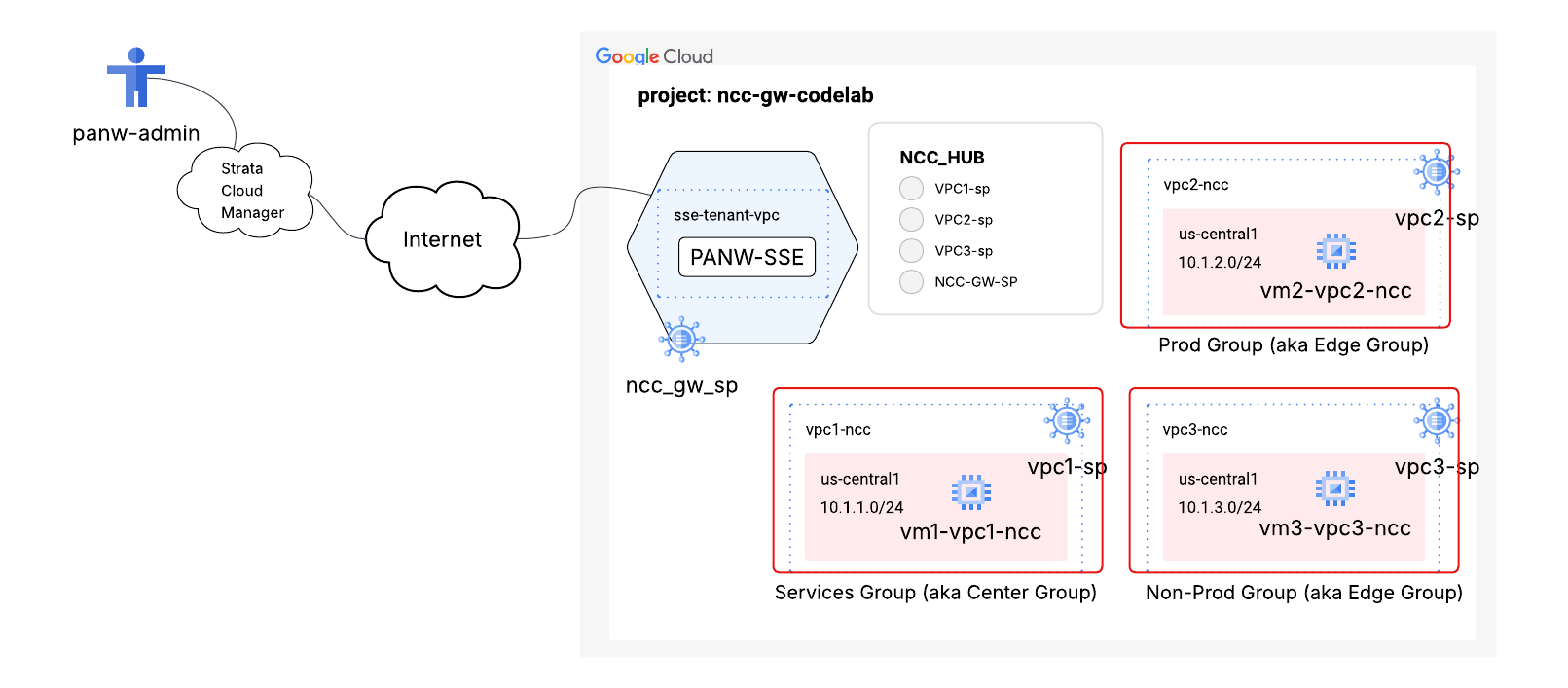
The service is composed of two primary resources:
- Secure Access Connect Realm: A global resource that links your Google Cloud project to the SSE service. It establishes a shared security policy space for a group of VPCs or users, exposing to the SSE provider which gateways should be governed by the same set of security policies.
- Secure Access Connect Attachment: A regional logical resource that physically enables the NCC Gateway to process traffic with the SSE service. It holds the metadata necessary to establish trust and connectivity with the partner's SSE stack
Create a Secure Access Connect realm
gcloud beta network-security secure-access-connect realms create codelab-sac-realm \
--security-service=prisma-access
Identify the pairing key
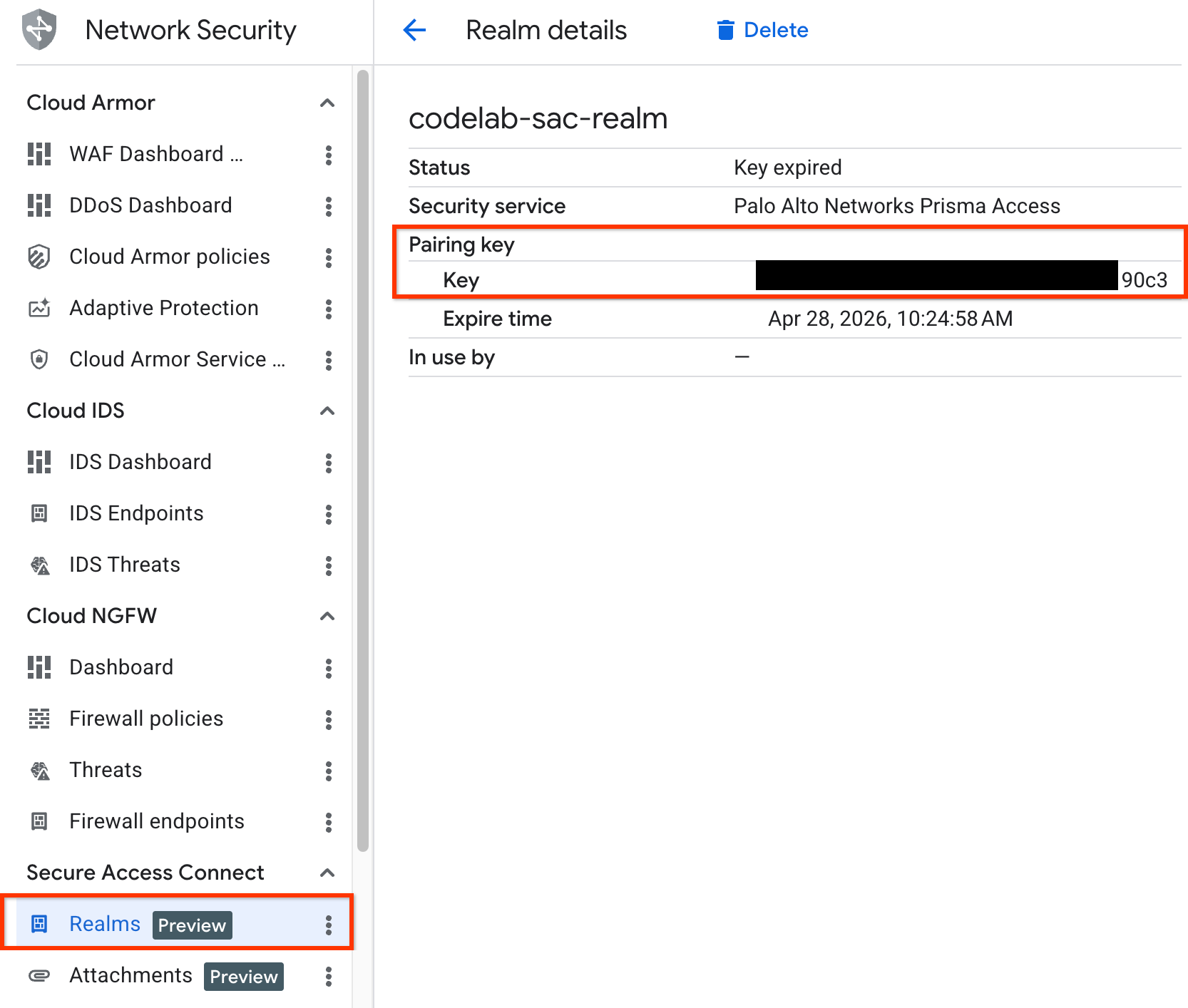
To associate the secure access connect realm with Prisma Access, you'll need the pairing key. This alpha-numeric string will be used to configure and provision the SSE gateway through the Strata Cloud Manager web portal.
gcloud beta network-security secure-access-connect realms describe codelab-sac-realm
createTime: '2026-04-21T13:48:53.760262401Z'
name: projects/"${projectname}"/locations/global/sacRealms/codelab-cden
pairingKey:
  expireTime: '2026-04-28T13:48:51.107221733Z'
  key: 2a52a7e2-7c95-4dc7-9155-c3234976fad4
securityService: PALO_ALTO_PRISMA_ACCESS
state: PENDING_PARTNER_ATTACHMENT
updateTime: '2026-04-21T13:48:55.874553834Z'
Create the Partner Realm with Managed Cloud WAN in Prisma Access
- Login to Strata Cloud Manager, ensure that you're using your assigned SSE gateway tenant
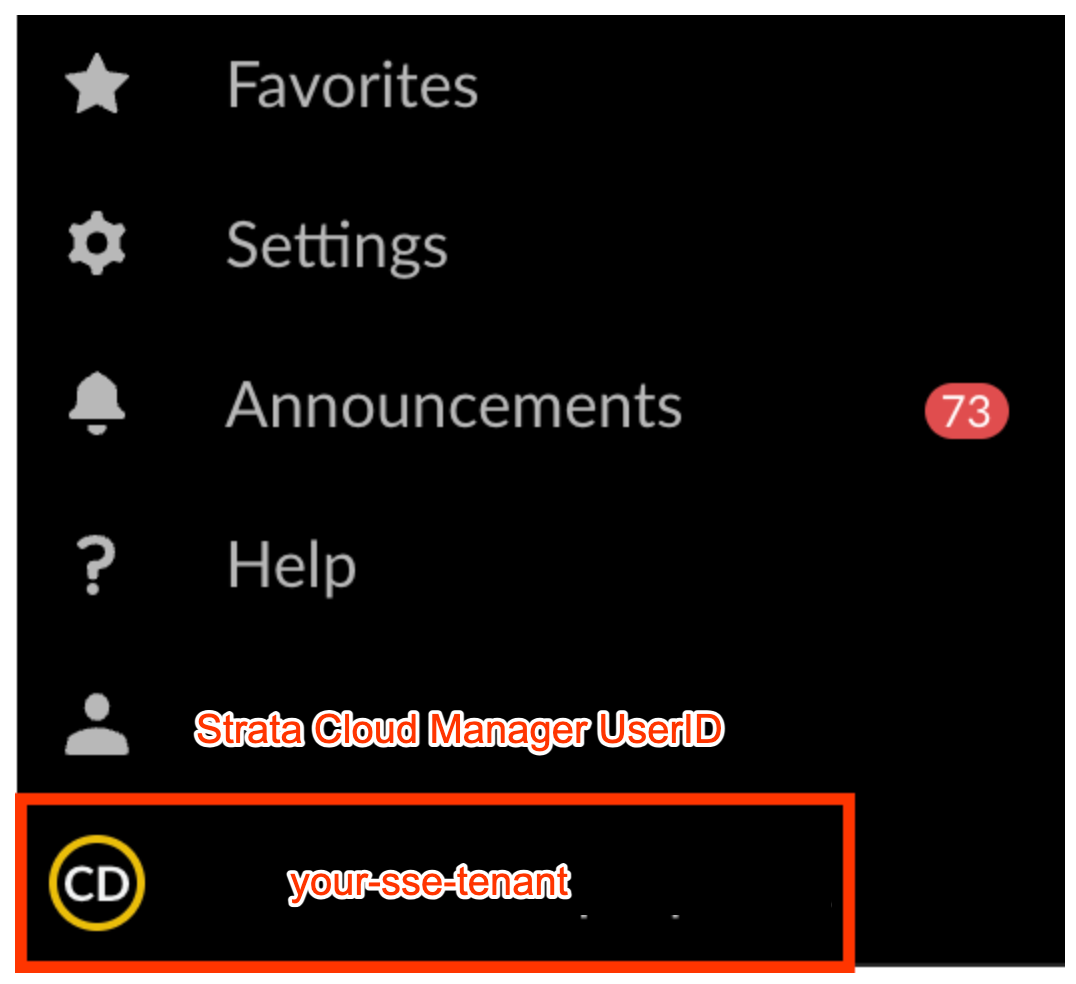
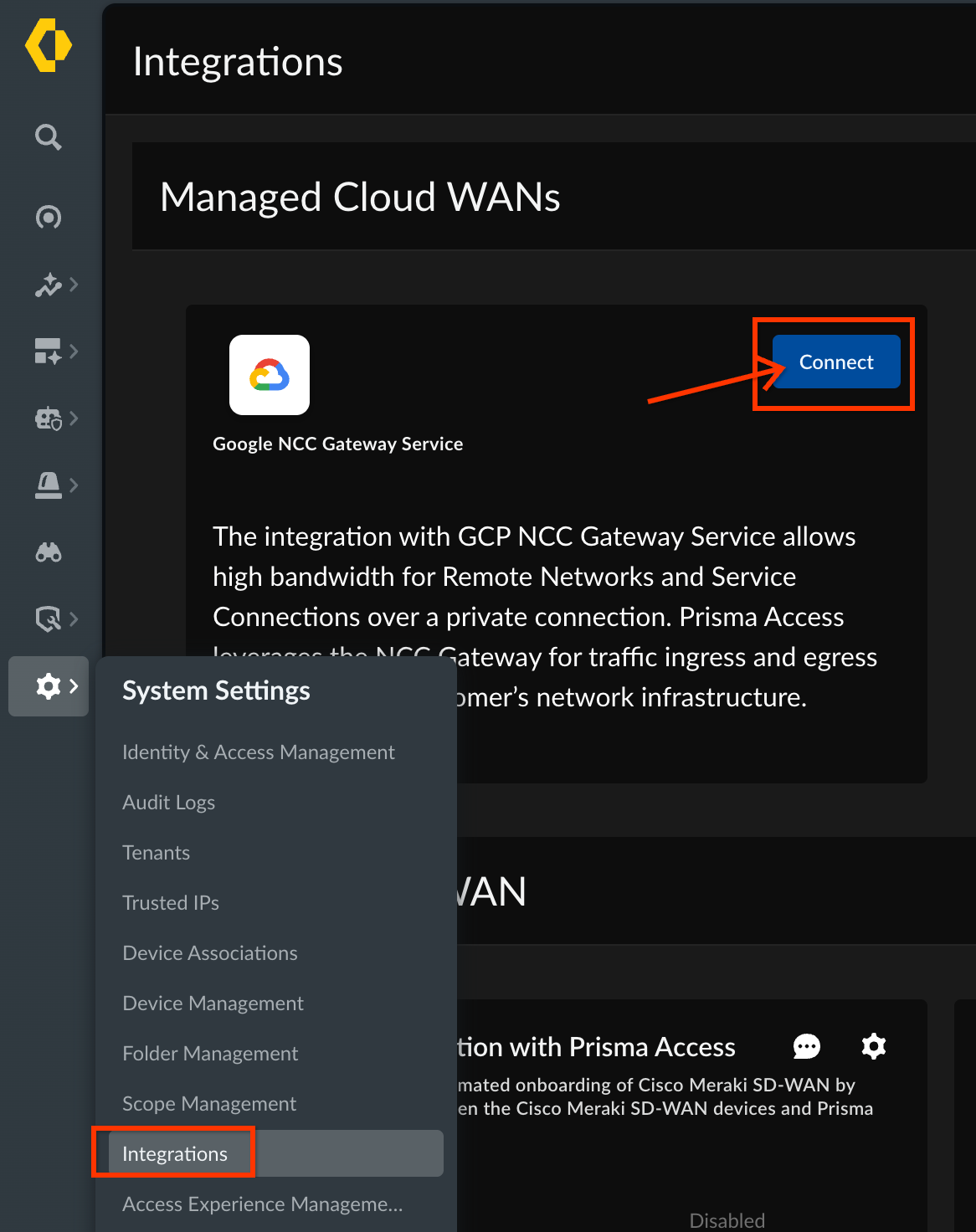
- To connect the SAC realm to the partner tenant, navigate to
System Settings -> Integrations -> Managed Cloud WANs and
Click "Connect"
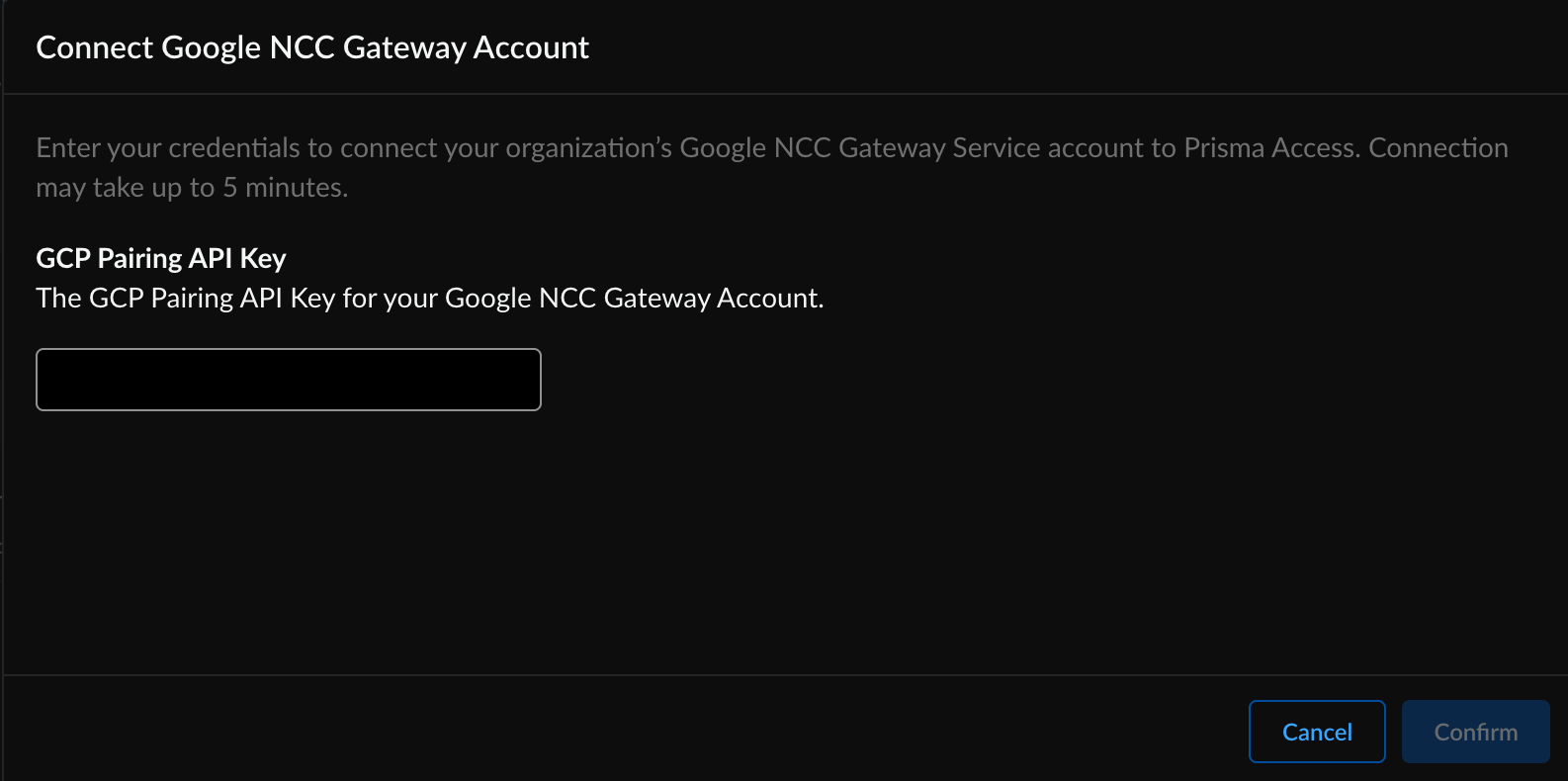
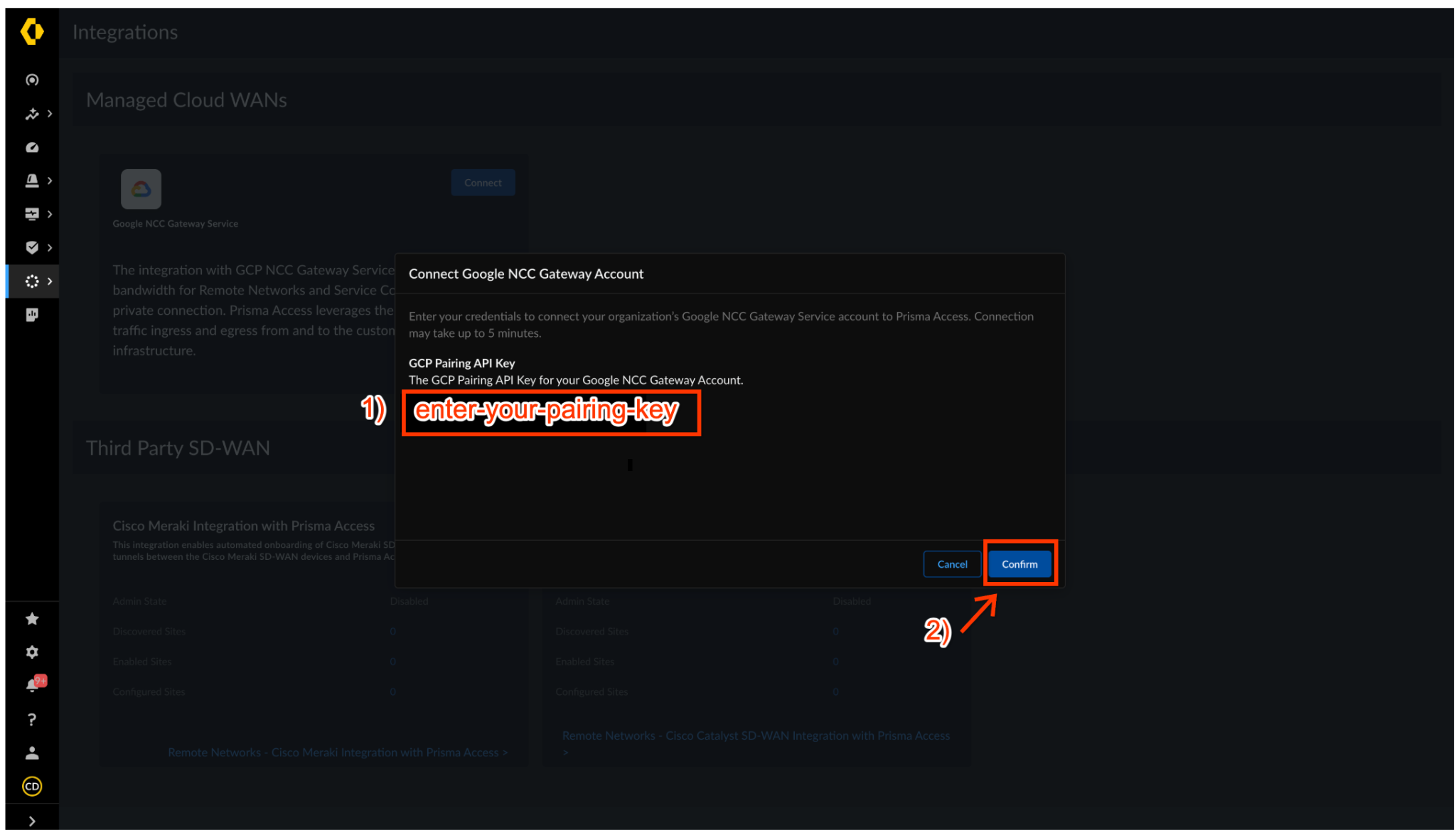
- Enter the pairing key of the SAC realm in the "Connect Google NCC Gateway Account" dialog box. Click "Confirm" to start creating the realm.
It takes a few minutes for the NCC Gateway status to update to "Connected."
On the GCP Cloud Shell, use the gcloud command to find the pairing key that is associated with the SAC realm.
gcloud beta network-security secure-access-connect realms describe codelab-sac-realm
You can also view the pairing key on GCP console
Add the NCC Gateway SSE cluster as managed Cloud WAN connection by navigating to
Configuration > NGFW and Prisma Access > Click "Configuration Scope" and select "Remote Network" under the "Prisma Access" section.
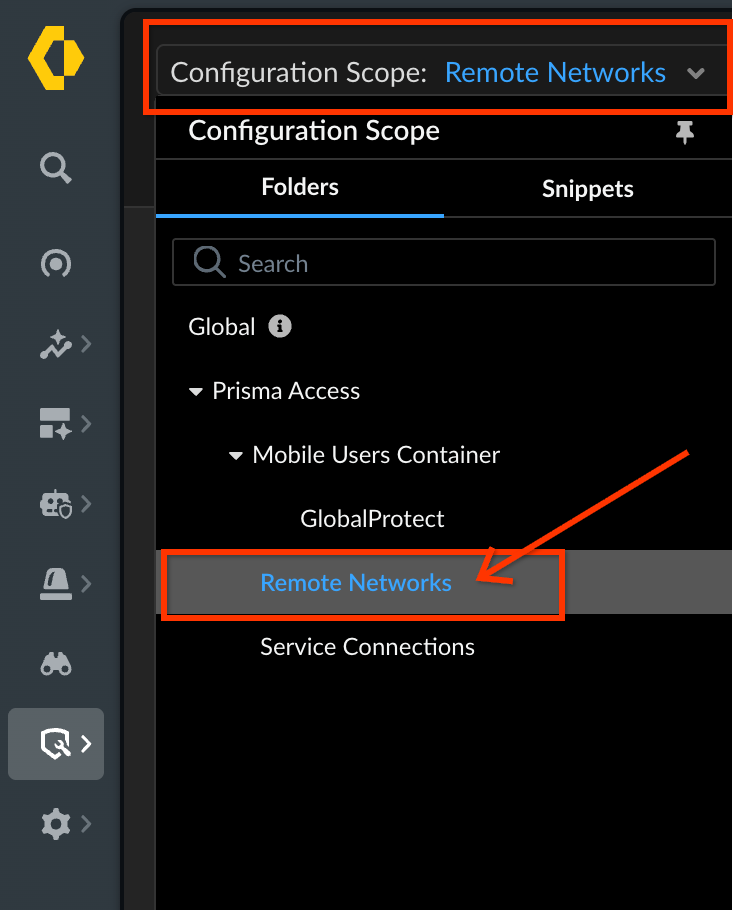
On the Overview page, click "setup" and select "Managed Cloud WAN Connections"
Click "Add Managed Cloud WAN Site."

Activate the SSE Instance in the NCC Gateway
Switch to the GCP console, use the gcloud command to create a Secure Access Connect attachment.
gcloud alpha network-security secure-access-connect attachments create codelab-sac-attachment-usc1 \
--location=us-central1 \
--realm=codelab-sac-realm  \
--gateway=cl-ncc-gw-usc-sp

Create the Partner Gateway
Enter the parameters for the managed cloud WAN connection.
- Site Name—Enter a unique name for the connection.
- **Service Type—**Select Google NCC Gateway as the service type.
- Connection Name—Select the GCP service location you created during N CC Gateway SAC attachment activation and creation.
- Prisma Access Compute Location—Select the compute location where you want to deploy the NCC Gateway integration with Prisma Access.
- Bandwidth (Mbps)—Select the bandwidth to allocate in Mbps. The maximum you can allocate is 10000 Mbps (10 Gbps
The maximum you can allocate is 10000 Mbps (10 Gbps).
When done, click "Save"
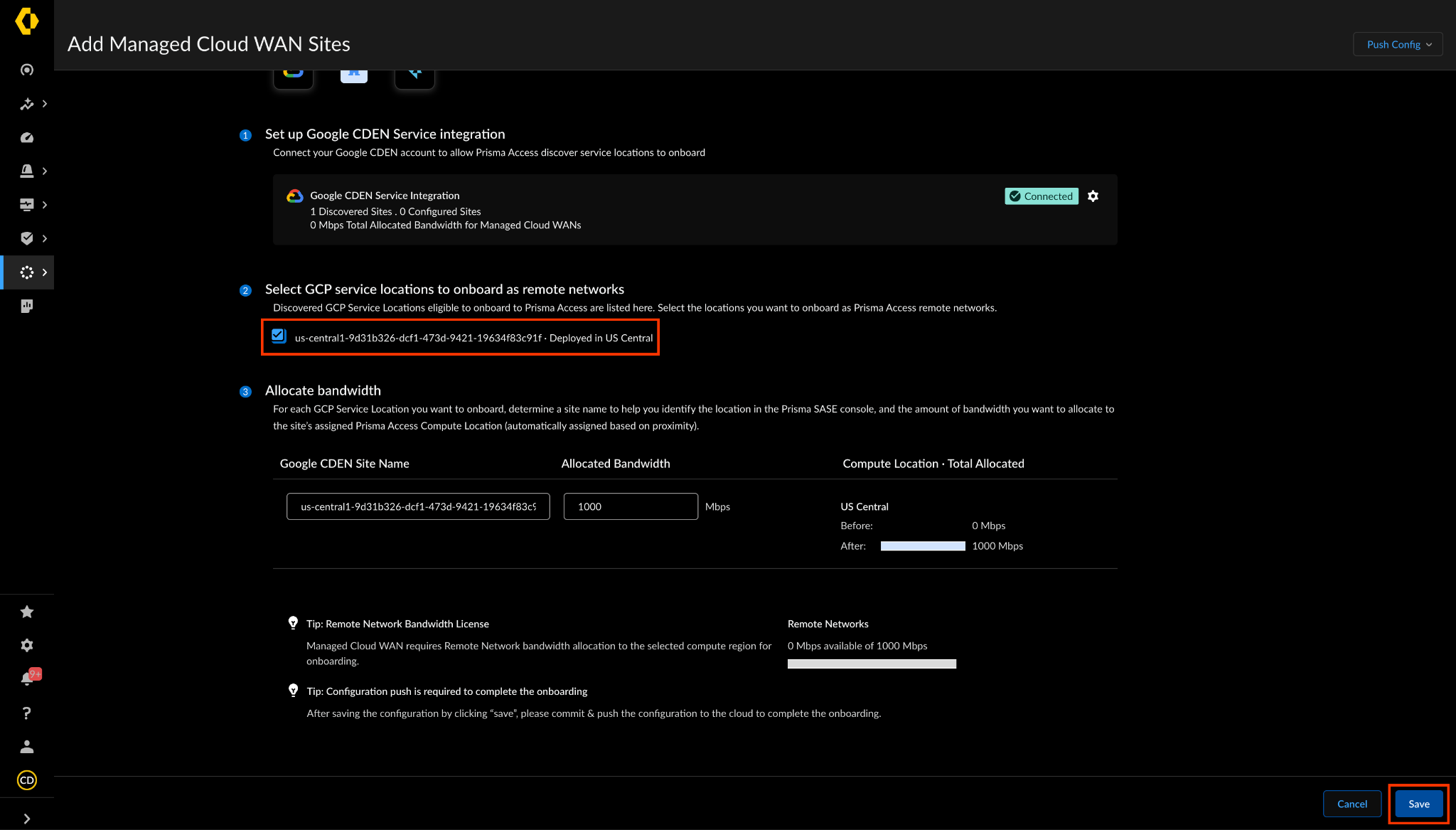
Sync the NCC Gateway's SSE instance configuration
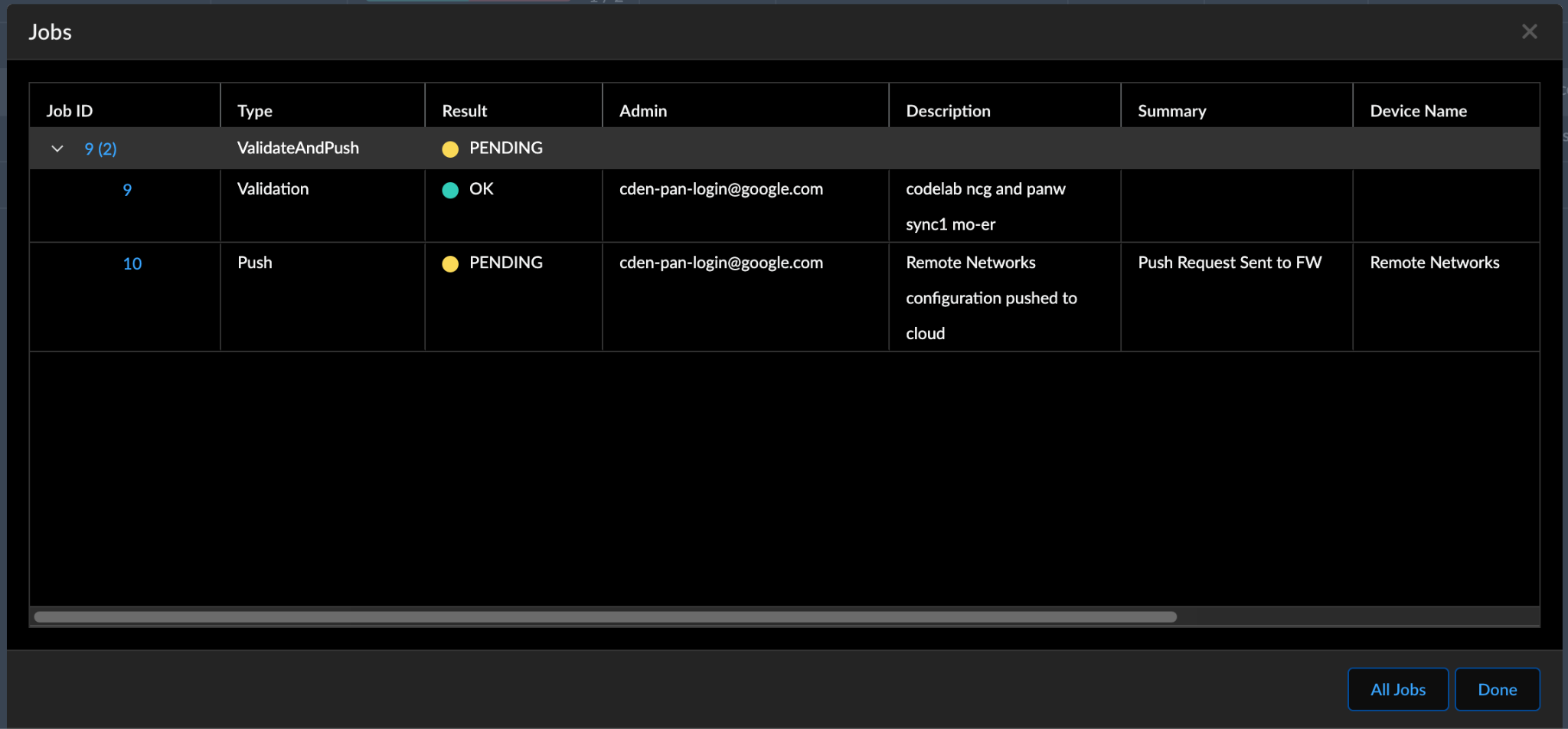
Select "Push Config" to create the partner SSE instance on the NCC Gateway spoke.

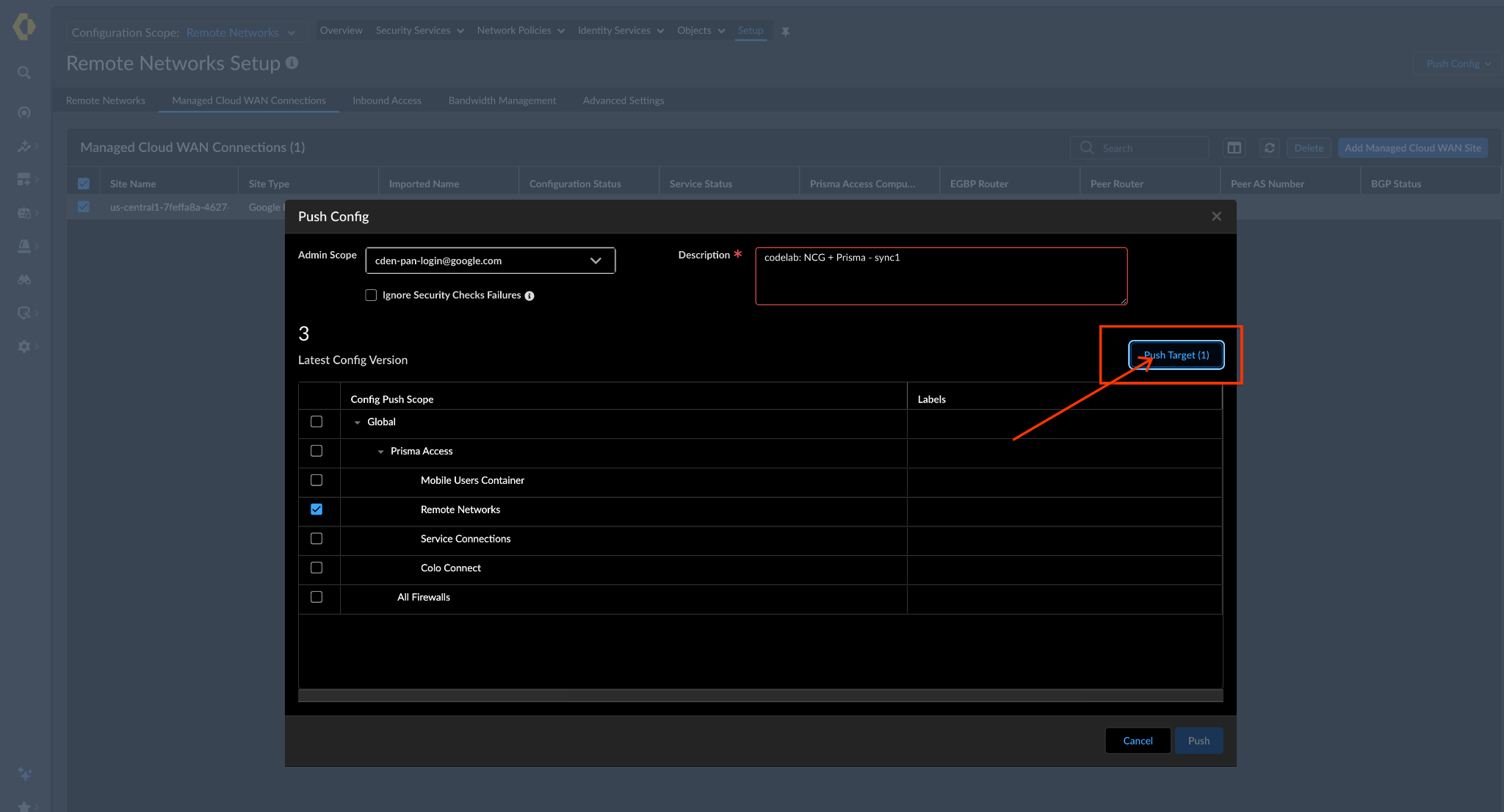
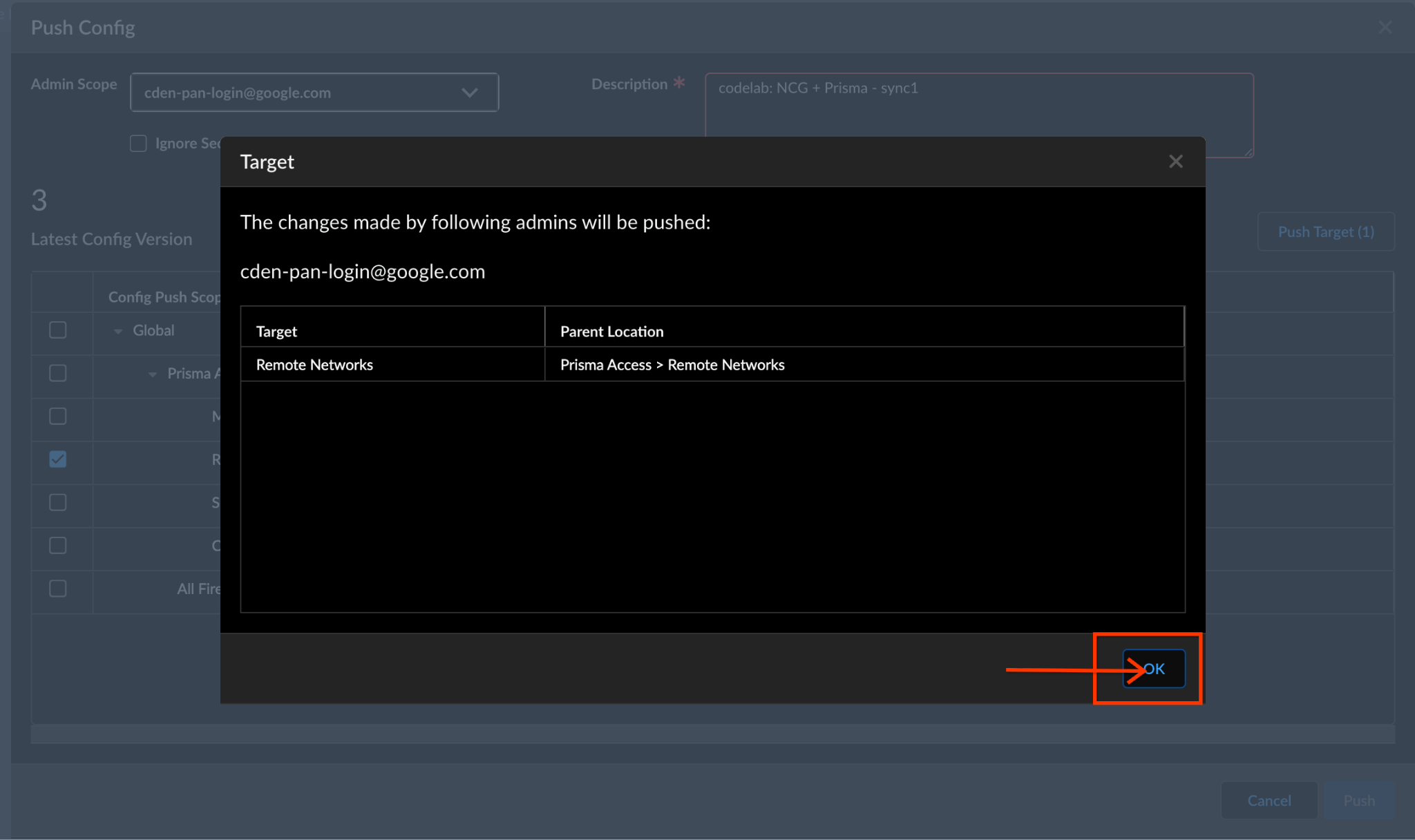
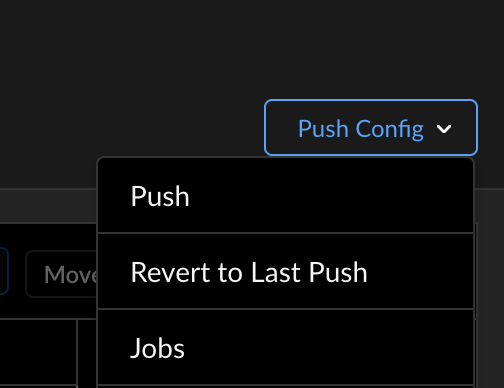
Monitor the progress by clicking "Push Config" and select "Jobs." Wait for all "Result" to complete for your specific Job.
When finished click "Done".
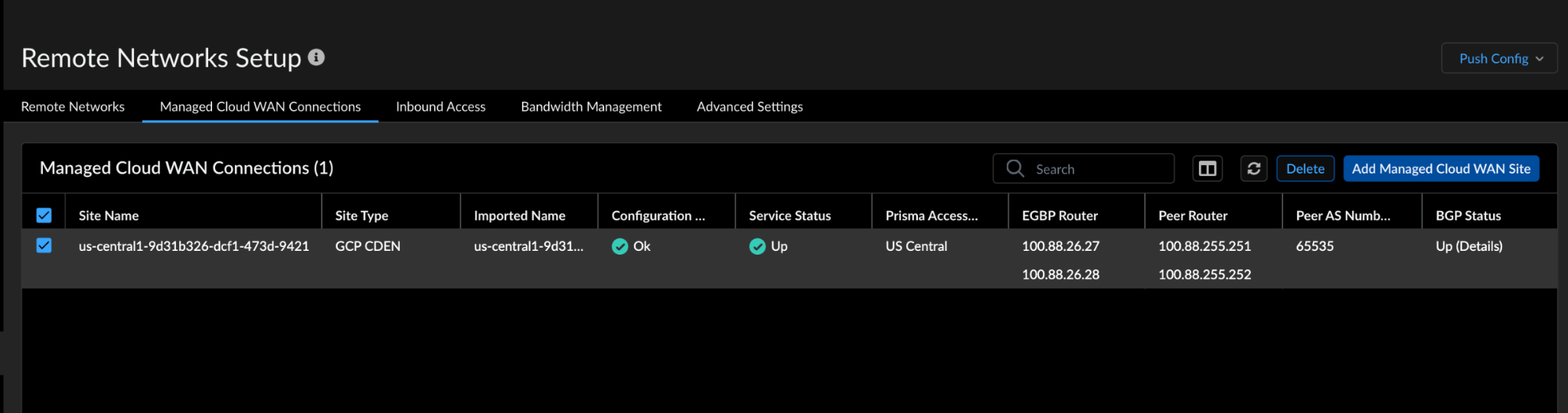
Check the partner SSE-gateway's status by navigating to Configuration > NGFW and Prisma Access > Configuration Scope > Prisma Access > Remote Networks >Setup > Managed Cloud WAN Connections
Prisma Access automatically provisions Managed Cloud WAN Connection's BGP configuration.
6. Verify the data path through NCC Gateway
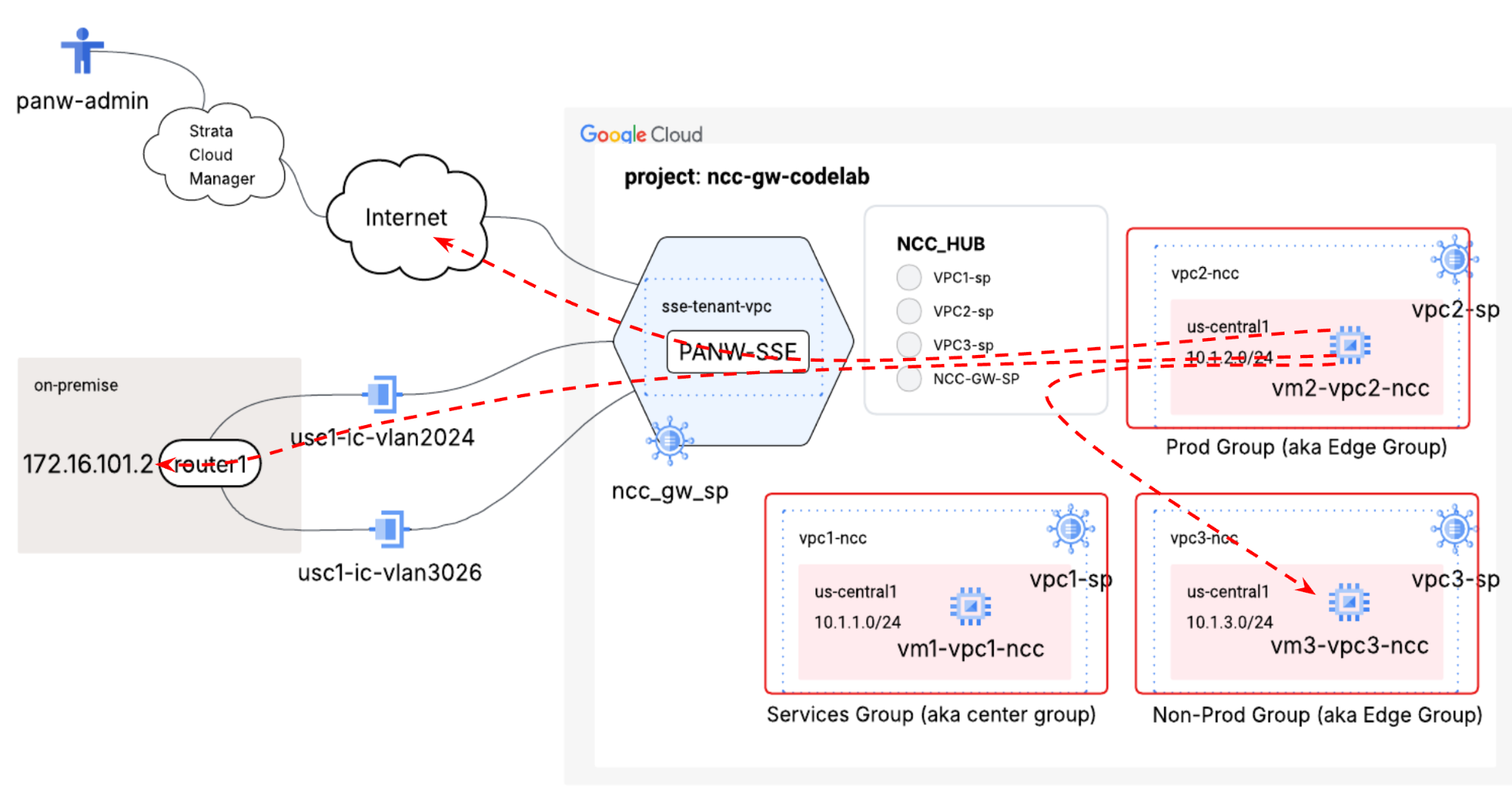
Switch over to your GCP Cloud Shell Console
Use the gcloud command to view the advertised routes originating from the gateway spoke:
gcloud beta network-connectivity spokes gateways advertised-routes list --region=us-central1
SSH to "vm1-vpc1-ncc**"** and start TCP dump to trace ICMP packets from **" vm2-vpc2-ncc."** As a reminder this VM resides on VPC2.
vm1-vpc1-ncc
sudo tcpdump -i any icmp -v -e -n
Establish a SSH session to "vm1-vpc2-ncc**"** and "ping" the ip address of "vm1-vpc1-ncc."
vm1-vpc2-ncc
ping 10.1.1.2
Output:
You should see the trace below on vm1-vpc1-ncc.
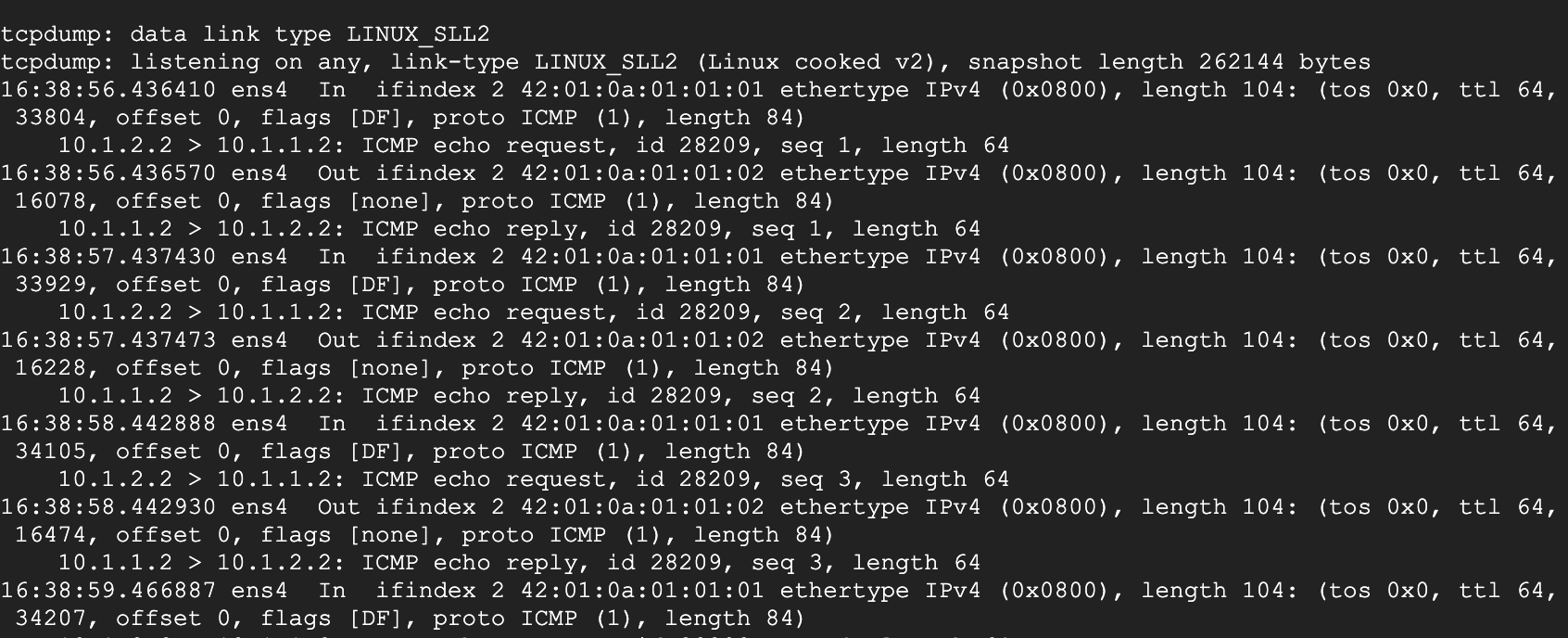
Run a curl command on VM-1 to On-prem HTTP server to test On-prem reachability
vm1-vpc1-ncc
curl 172.16.101.11 -vv
Output:
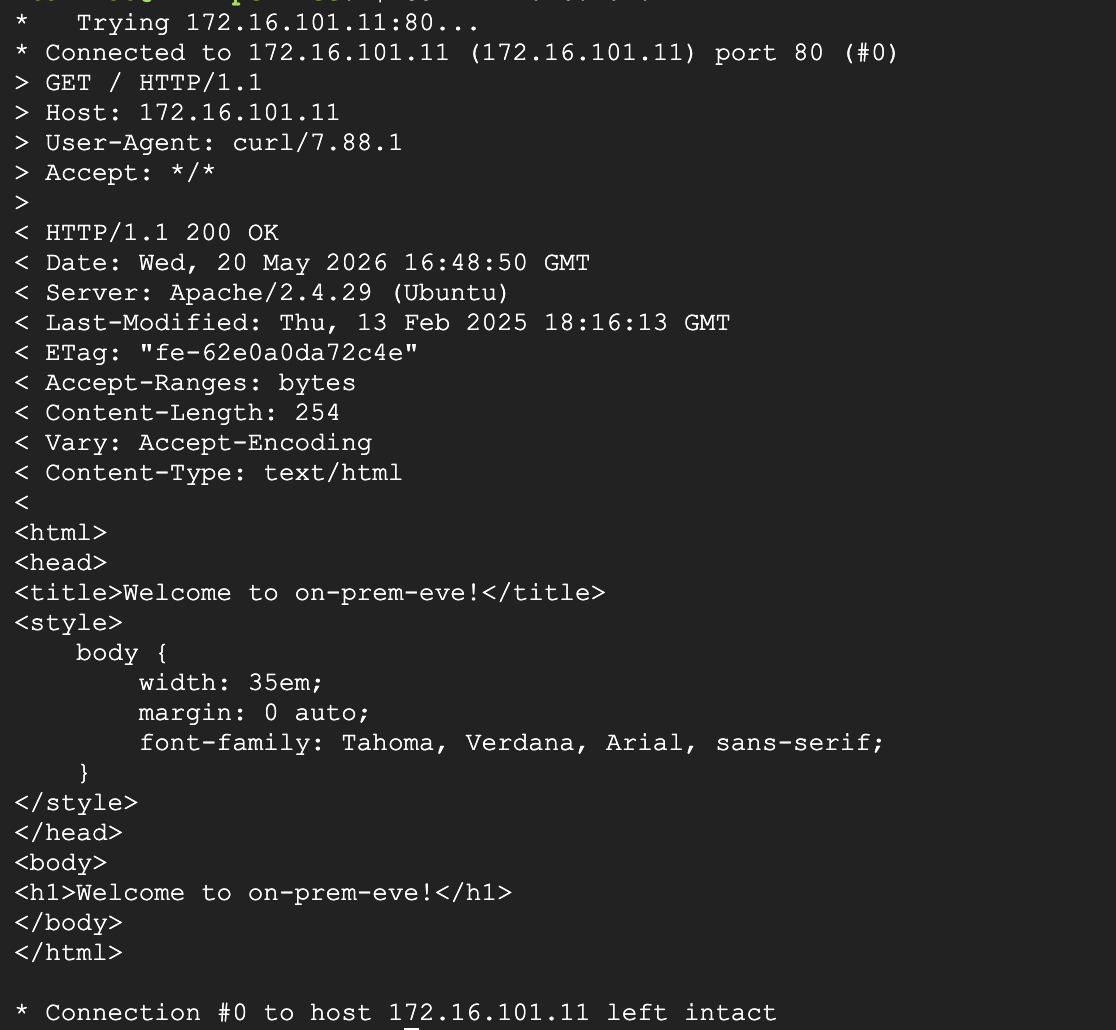
Establish a SSH session to "vm1-vpc2-ncc**"** and "ping" the ip address "1.1.1.1."
vm1-vpc2-ncc
ping 1.1.1.1
Output:

Pings are not working because they need to be allowed in Prisma(Strata Cloud Manager). Let's enable this!
Go to Strata Cloud Manager —-> Configuration —-> NGFW and Prisma Access, you will see below:::
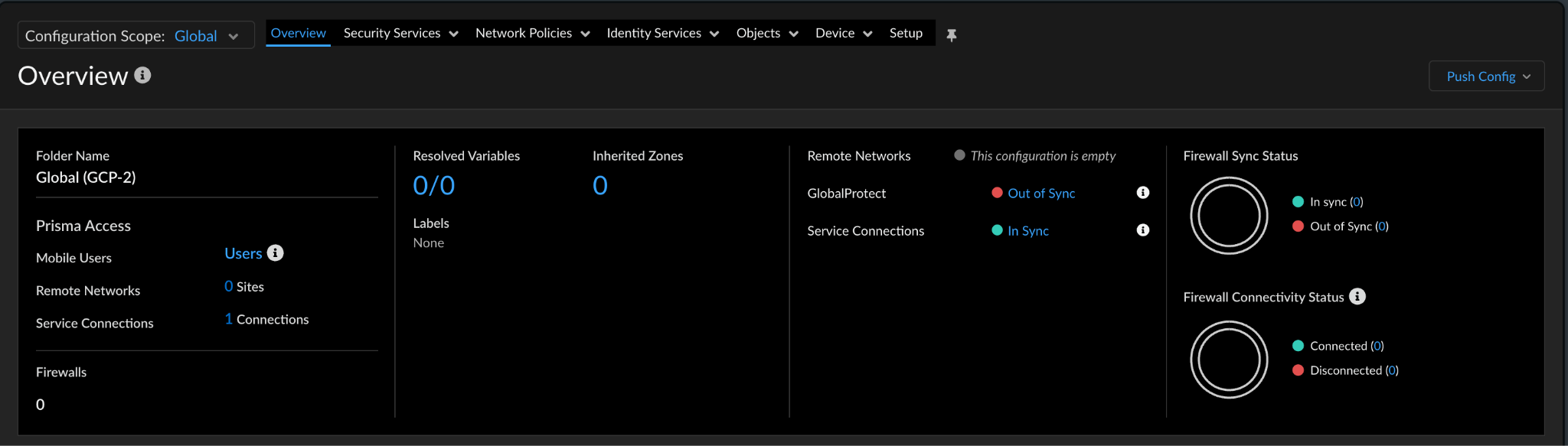
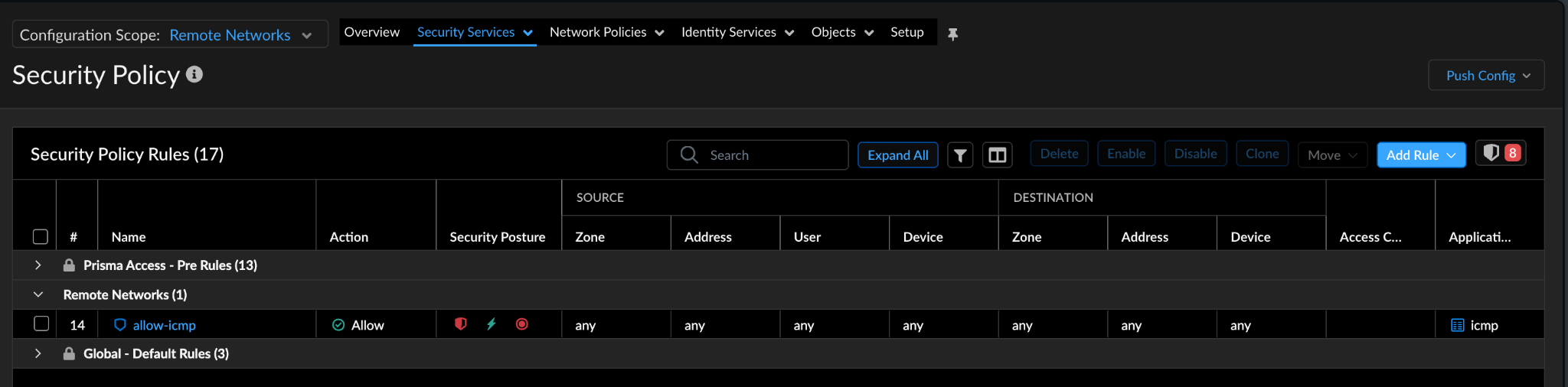
At the top left, press the Global drop down menu, and choose "Remote Networks", then click "Security Services" tab and choose "Security Policy", see below:::
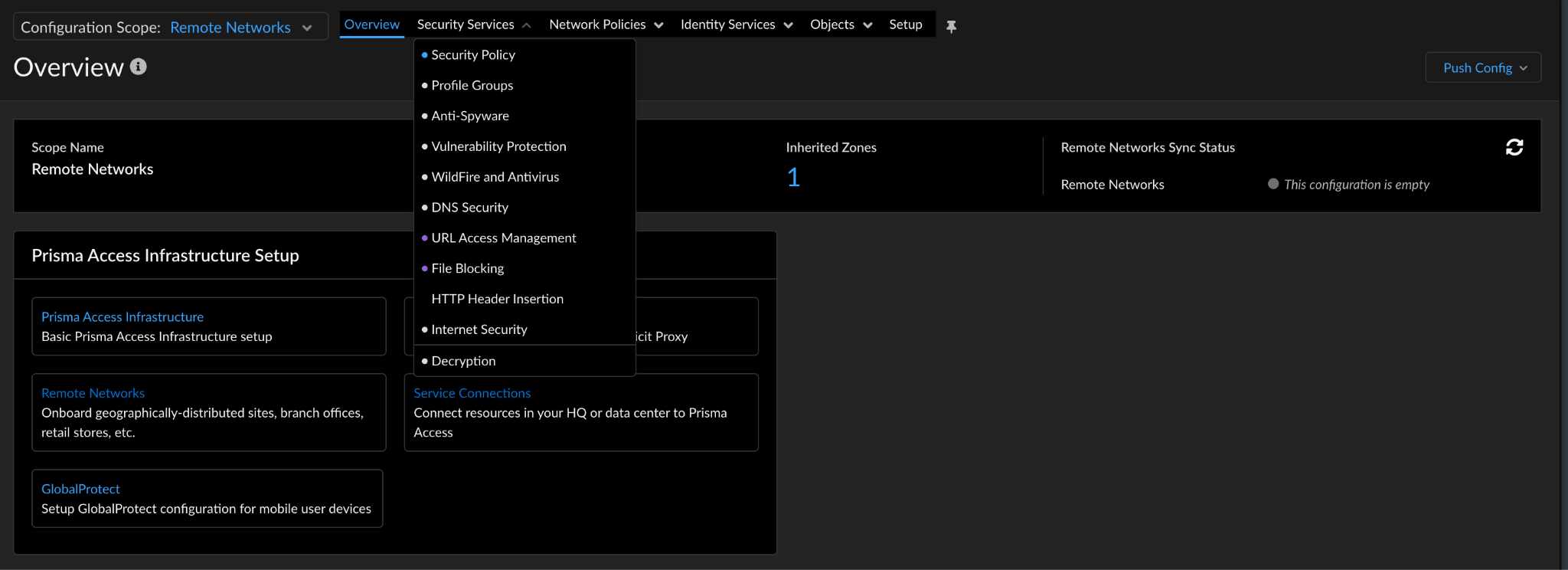
Click Add rule at the top right, and create an "allow icmp" rule to allow icmp traffic between vm1-vpc2-ncc to 1.1.1.1, once done press "Push Config" at the top right.
Make sure to see the Jobs to ensure that the config was pushed successfully. Click Push Config —-> Jobs
Once the job is successful, test ping again from vm1-vpc2-ncc.
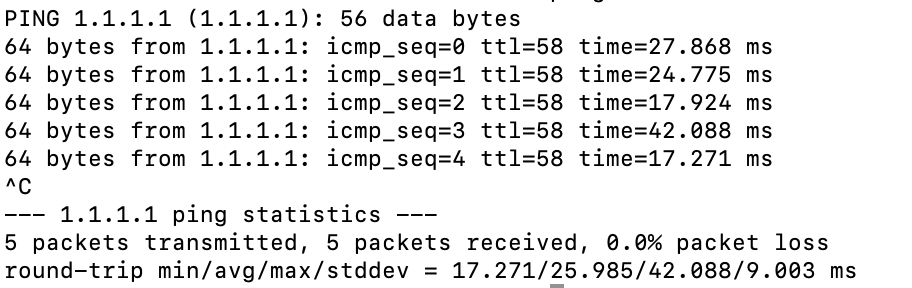
SUCCESS!!! You have successfully completed this codelab!
7. Lab clean up
Delete the VLAN attachments
gcloud compute interconnects attachments delete vl2024-ead1 \
--region=us-central1 \
--quiet

gcloud compute interconnects attachments delete vl3026-ead2 \
--region=us-central1 \
--quiet
Delete the NCC Gateway Cloud Router bgp peer and bgp interface
gcloud compute routers remove-bgp-peer ncc-gw-usc1-cr \
--peer-name=bgp-vl2024-ead1 \
--region=us-central1


gcloud compute routers remove-interface ncc-gw-usc1-cr \
--interface-name=if-vl3026-ead2 \
--region=us-central1
Delete ncc-gw-usc1-cr and ncc-gw-usc1-cr
gcloud compute routers delete ncc-gw-usc1-cr \
--region=us-central1 \
--quiet
Delete gateway advertised routes
gcloud beta network-connectivity spokes gateways advertised-routes delete ncc-gw-usc1-cr \
--region=us-central1 \
--spoke=cl-ncc-gw-usw-sp \
Delete NCC VPC spokes
gcloud network-connectivity spokes delete vpc1-sp --global --quiet
gcloud network-connectivity spokes delete vpc2-sp --global --quiet
gcloud network-connectivity spokes delete vpc3-sp --global --quiet
Delete ncc-gateway spoke
gcloud network-connectivity spokes delete cl-ncc-gw-usc-sp --region=us-central1 \
--quiet
Delete the secure access realm
gcloud beta network-security secure-access-connect realms delete codelab-sac-realm --quie
t
Delete NCC Hub
gcloud network-connectivity hubs delete ncc-hub --quiet
Delete Firewall Rules
gcloud compute firewall-rules delete ncc1-vpc-internal --quiet
gcloud compute firewall-rules delete ncc2-vpc-internal --quiet
gcloud compute firewall-rules delete ncc3-vpc-internal --quiet
gcloud compute firewall-rules delete ncc1-vpc-iap --quiet
gcloud compute firewall-rules delete ncc2-vpc-iap --quiet
gcloud compute firewall-rules delete ncc3-vpc-iap --quiet
Delete GCE Instances
gcloud compute instances delete vm1-vpc1-ncc --zone=us-central1-a --quiet
gcloud compute instances delete vm2-vpc2-ncc --zone=us-central1-a --quiet
gcloud compute instances delete vm1-vpc3-ncc --zone=us-east1-b --quiet
Delete VPC Subnets
gcloud compute networks subnets delete vpc1-ncc-subnet1 --region us-central1 --quiet
gcloud compute networks subnets delete vpc1-ncc-subnet2 --region us-central1 --quiet
gcloud compute networks subnets delete vpc1-ncc-subnet3 --region us-central1 --quiet
Delete VPC(s)
gcloud compute networks delete vpc1-ncc vpc2-ncc vpc3-ncc vpc4-ncc, vpc5-ncc --quiet
8. Congratulations!
You have completed the Network Connectivity Center Lab!
What you covered
- Configure NCC Hybrid Inspection Topology
- NCC Gateway Spoke
- Palo Alto Network SSE Gateway on Google Cloud
- PANW: Strata Cloud Manager
Next Steps