

1. บทนำ
ภาพรวม
ใน Lab นี้ ผู้ใช้จะได้สำรวจวิธีใช้ Network Connectivity Center (NCC) เพื่อสร้างการเชื่อมต่อภายในองค์กรในวงกว้างผ่านการรองรับ VPC Spoke และการแลกเปลี่ยนเส้นทางแบบไดนามิก เมื่อผู้ใช้กำหนด VPC เป็น VPC Spoke ก็จะสามารถเชื่อมต่อ VPC กับเครือข่าย VPC หลายรายการเข้าด้วยกันผ่าน NCC Hub ได้ หากต้องการสร้างการเชื่อมต่อเครือข่ายกับเครือข่ายภายในองค์กรของผู้ใช้ ผู้ใช้สามารถแนบ NIC เสมือนของอุปกรณ์เราเตอร์ อุโมงค์ข้อมูล HA_VPN หรือไฟล์แนบ VLAN ของการเชื่อมต่อถึงกันกับ NCC Hub เดียวกันกับ NCC VPC Spoke ได้
ทรัพยากรฮับมีโมเดลการจัดการการเชื่อมต่อแบบรวมศูนย์เพื่อเชื่อมต่อ Spoke
สิ่งที่คุณจะได้สร้าง
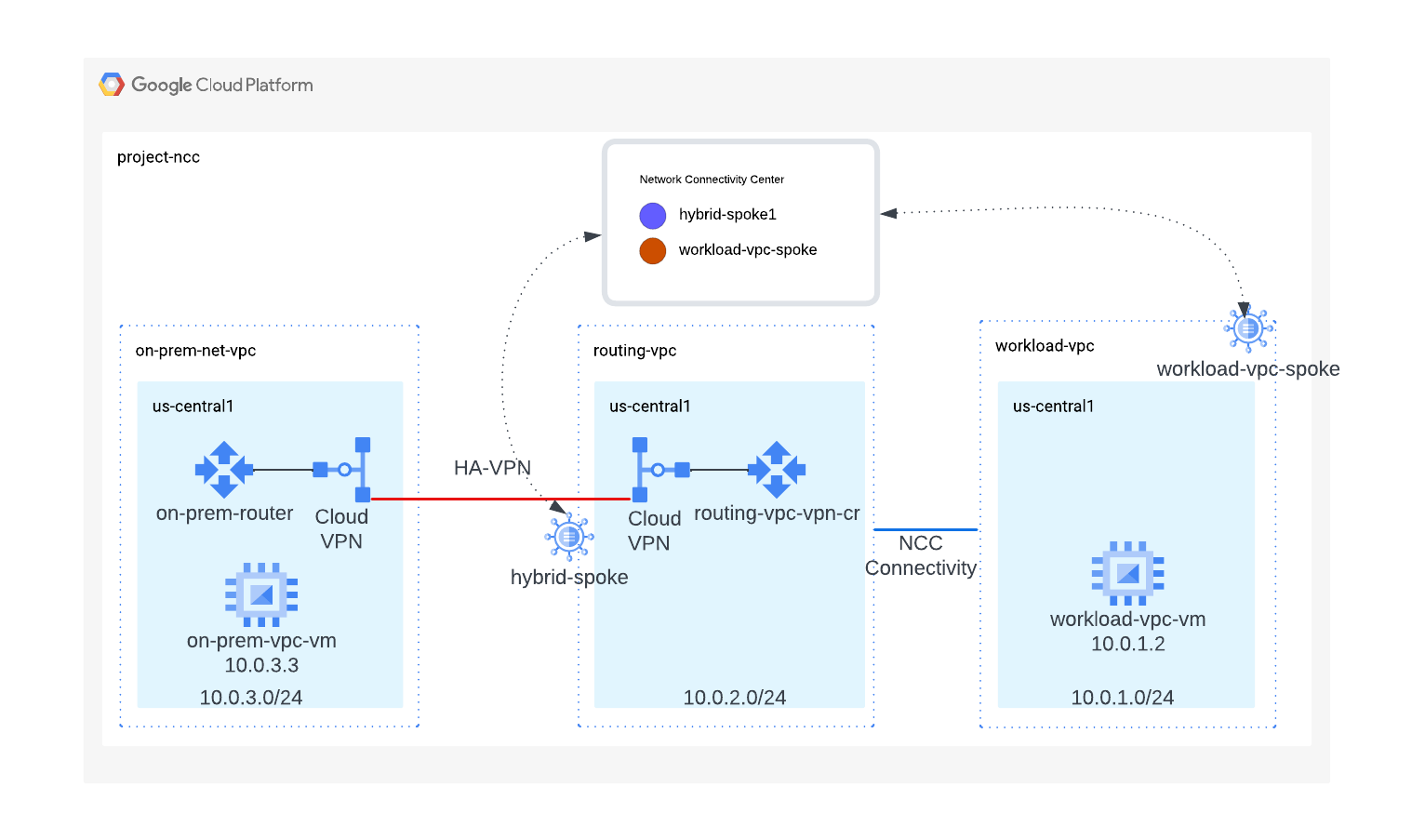
ใน Codelab นี้ คุณจะได้สร้างโทโพโลยีฮับและ Spoke เชิงตรรกะด้วย NCC Hub ซึ่งจะใช้การเชื่อมต่อแบบผสมระหว่างเครือข่ายภายในองค์กรกับ VPC สำหรับภาระงาน
สิ่งที่คุณจะได้เรียนรู้
- ความแตกต่างระหว่าง VPC สำหรับภาระงานกับ VPC สำหรับการกำหนดเส้นทาง
- การผสานรวม NCC ของ VPC Spoke และ Hybrid Spoke
สิ่งที่คุณต้องมี
- ความรู้เกี่ยวกับเครือข่าย VPC ของ GCP
- ความรู้เกี่ยวกับ Cloud Router และการกำหนดเส้นทาง BGP
- โปรเจ็กต์ Google Cloud
- ตรวจสอบโควต้า: เครือข่าย และ ขอเครือข่ายเพิ่มเติมหากจำเป็น โดยดูภาพหน้าจอด้านล่าง

วัตถุประสงค์
- ตั้งค่าสภาพแวดล้อม GCP
- กำหนดค่า Network Connectivity Center โดยใช้ VPC เป็น Spoke
- กำหนดค่า Network Connectivity Center โดยใช้อุโมงค์ข้อมูล HA-VPN เป็น Hybrid Spoke
- ตรวจสอบเส้นทางของข้อมูล
- สำรวจฟีเจอร์ความพร้อมใช้งานของ NCC
- ล้างทรัพยากรที่ใช้แล้ว
ก่อนเริ่มต้น
คอนโซล Google Cloud และ Cloud Shell
เราจะใช้ทั้งคอนโซล Google Cloud และ Cloud Shell ตลอด Lab นี้เพื่อโต้ตอบกับ GCP
โปรเจ็กต์ NCC Hub คอนโซล Google Cloud
คุณเข้าถึง Cloud Console ได้ที่ https://console.cloud.google.com
ตั้งค่ารายการต่อไปนี้ใน Google Cloud เพื่อให้กำหนดค่า Network Connectivity Center ได้ง่ายขึ้น
ในคอนโซล Google Cloud ในหน้าตัวเลือกโปรเจ็กต์ ให้เลือกหรือสร้างโปรเจ็กต์ Google Cloud
เปิดใช้ Cloud Shell Codelab นี้ใช้ตัวแปร $เพื่อช่วยในการติดตั้งใช้งานการกำหนดค่า gcloud ใน Cloud Shell
gcloud auth list
gcloud config list project
gcloud config set project [YOUR-PROJECT-NAME]
projectname=[YOUR-PROJECT-NAME]
echo $projectname
region="us-central1"
zone="us-central1-a"
บทบาท IAM
NCC ต้องใช้บทบาท IAM เพื่อเข้าถึง API บางรายการ โปรดกำหนดค่าผู้ใช้ด้วยบทบาท IAM ของ NCC ตามที่จำเป็น
บทบาท/คำอธิบาย | สิทธิ์ |
| networkconnectivity.hubs.networkconnectivity.spokes.networkconnectivity.gatewaynetworkconnectivity.locations. |
| networkconnectivity.gatewayAdvertisedRoutes.networkconnectivity.groups. networkconnectivity.hubRouteTables.networkconnectivity.hubRoutes.networkconnectivity.hubs. networkconnectivity.locations. networkconnectivity.operations.* networkconnectivity.spokes.*resourcemanager.projects.getresourcemanager.projects.list |
| networkconnectivity.gatewayAdvertisedRoutes.getnetworkconnectivity.gatewayAdvertisedRoutes.listnetworkconnectivity.groups.getnetworkconnectivity.groups.getIamPolicynetworkconnectivity.groups.listnetworkconnectivity.hubRouteTables.getnetworkconnectivity.hubRouteTables.getIamPolicynetworkconnectivity.hubRouteTables.listnetworkconnectivity.hubRoutes.getnetworkconnectivity.hubRoutes.getIamPolicynetworkconnectivity.hubRoutes.listnetworkconnectivity.hubs.getnetworkconnectivity.hubs.getIamPolicynetworkconnectivity.hubs.listnetworkconnectivity.hubs.listSpokesnetworkconnectivity.hubs.queryStatus networkconnectivity.locations.*networkconnectivity.spokes.getnetworkconnectivity.spokes.getIamPolicynetworkconnectivity.spokes.listresourcemanager.projects.getresourcemanager.projects.list |
2. ตั้งค่าสภาพแวดล้อมเครือข่าย
ภาพรวม
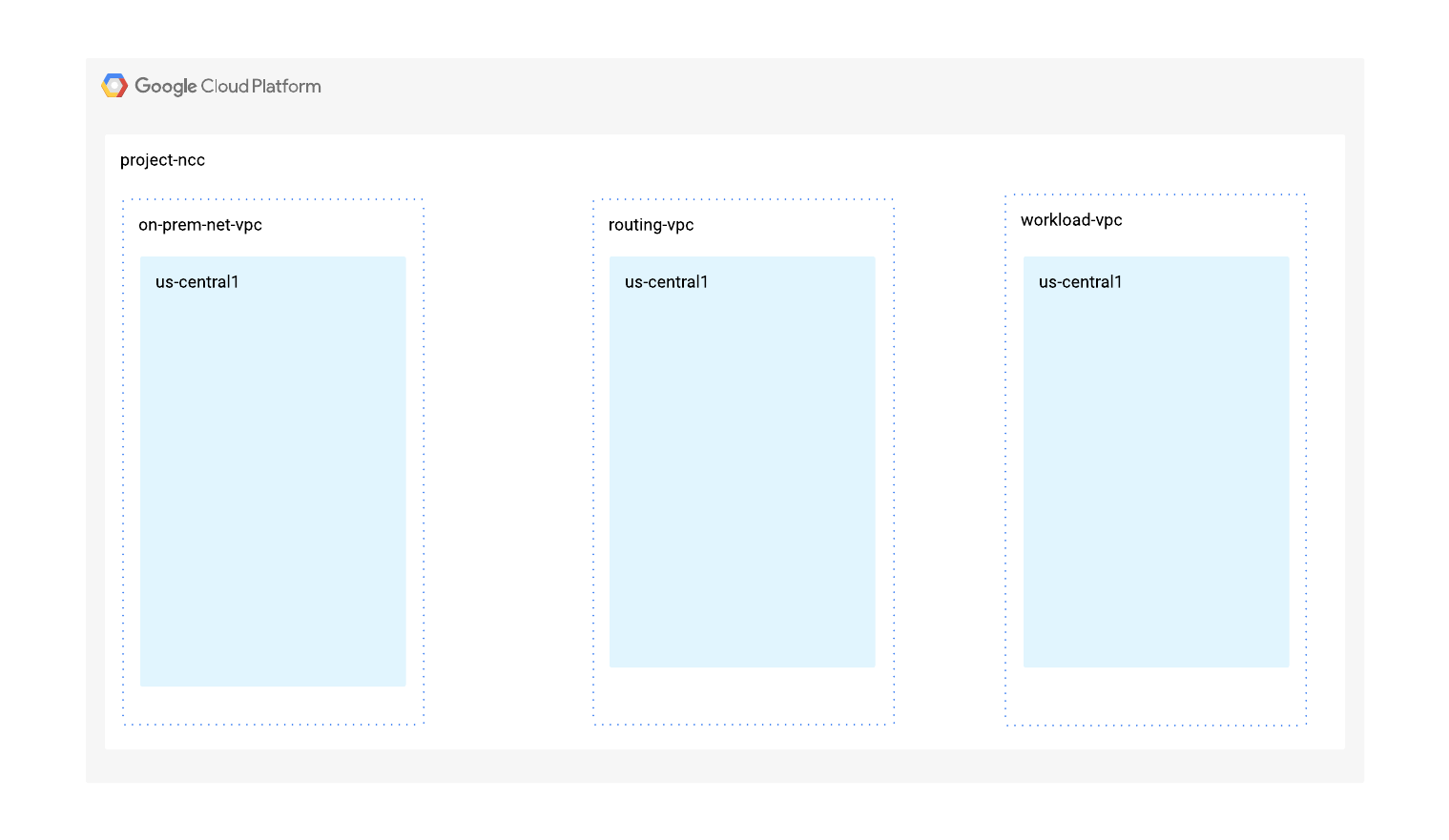
ในส่วนนี้ เราจะทำให้เครือข่าย VPC 3 รายการและกฎไฟร์วอลล์ใช้งานได้ในโปรเจ็กต์เดียว แผนภาพเชิงตรรกะแสดงสภาพแวดล้อมเครือข่ายที่จะตั้งค่าในขั้นตอนนี้ เราจะใช้ VPC เพื่อจำลองเครือข่ายภายในองค์กรสำหรับ Codelab นี้
แนวคิดหลัก 1
VPC ทั่วโลกของ Google Cloud ให้การเชื่อมต่อเส้นทางของข้อมูลระหว่างภูมิภาค GCP มากกว่า 44 ภูมิภาค Cloud Router ซึ่งเป็นบริการระดับภูมิภาคจะประกาศซับเน็ตแบบไดนามิกและเผยแพร่เส้นทางที่เรียนรู้ในภูมิภาคที่กำหนดค่าเราเตอร์หรือทั่วทั้งเครือข่าย VPC สิ่งที่กำหนดให้ Cloud Router เผยแพร่เส้นทางในระดับภูมิภาคหรือระดับโลกขึ้นอยู่กับผู้ใช้ที่กำหนดโหมดการกำหนดเส้นทางแบบไดนามิกเป็นระดับภูมิภาคหรือระดับโลก
ในส่วนนี้ เราจะเริ่มต้นด้วยการกำหนดค่า VPC แต่ละรายการด้วยโหมดการกำหนดเส้นทางระดับภูมิภาค สำหรับส่วนที่เหลือของ Codelab นี้
- "VPC สำหรับการกำหนดเส้นทาง" หมายถึง VPC ที่ไม่ได้กำหนดค่าเป็น NCC VPC Spoke
- "VPC สำหรับภาระงาน" หมายถึง VPC ที่กำหนดค่าเป็น NCC Spoke
สร้าง VPC สำหรับภาระงานและซับเน็ต
เครือข่าย VPC มีซับเน็ตที่คุณจะติดตั้ง GCE VM เพื่อตรวจสอบเส้นทางของข้อมูล
vpc_spoke_network_name="workload-vpc"
vpc_spoke_subnet_name="workload-subnet"
vpc_spoke_subnet_ip_range="10.0.1.0/24"
vpc_spoke_name="workload-vpc-spoke"
region="us-central1"
zone="us-central1-a"

gcloud compute networks create "${vpc_spoke_network_name}" \
--subnet-mode=custom

gcloud compute networks subnets create "${vpc_spoke_subnet_name}" \
--network="${vpc_spoke_network_name}" \
--range="${vpc_spoke_subnet_ip_range}" \
--region="${region}"
สร้าง VPC สำหรับการกำหนดเส้นทางและซับเน็ต
NCC รองรับช่วงซับเน็ต IPv4 ที่ถูกต้องทั้งหมด ยกเว้นที่อยู่ IP สาธารณะที่ใช้แบบส่วนตัว
routing_vpc_network_name="routing-vpc"
routing_vpc_subnet_name="routing-vpc-subnet"
routing_vpc_subnet_range="10.0.2.0/24"

gcloud compute networks create "${routing_vpc_network_name}" \
--subnet-mode=custom

gcloud compute networks subnets create "${routing_vpc_subnet_name}" \
--region="${region}" \
--network="${routing_vpc_network_name}" \
--range="${routing_vpc_subnet_range}"
สร้าง VPC ภายในองค์กรและซับเน็ต
NCC รองรับช่วงซับเน็ต IPv4 ที่ถูกต้องทั้งหมด ยกเว้นที่อยู่ IP สาธารณะที่ใช้แบบส่วนตัว
on_prem_network_name="on-prem-net-vpc"
on_prem_subnet_name="on-prem-subnet"
on_prem_subnet_range="10.0.3.0/24"

gcloud compute networks create "${on_prem_network_name}" \
--subnet-mode=custom

gcloud compute networks subnets create "${on_prem_subnet_name}" \
--region="${region}" \
--network="${on_prem_network_name}" \
--range="${on_prem_subnet_range}"
กำหนดค่ากฎไฟร์วอลล์ของ VPC สำหรับภาระงาน
workload_vpc_firewall_name="workload-protocol-fw-vpc"
workload_port_firewall_name="workload-port-firewall-vpc"

gcloud compute firewall-rules create "${workload_vpc_firewall_name}" \
--network=${vpc_spoke_network_name} \
--allow="tcp,udp,icmp"

gcloud compute firewall-rules create "${workload_port_firewall_name}" \
--network=${vpc_spoke_network_name} \
--allow="tcp:22,tcp:3389,tcp:11180,icmp"
กำหนดค่า VPC สำหรับการกำหนดเส้นทางและกฎไฟร์วอลล์ของ VPC
routing_vpc_fw_name="routing-vpc-protocol-fw"
routing_vpc_port_fw_name="routing-vpc--port-fw"

gcloud compute firewall-rules create "${routing_vpc_fw_name}" \
--network=${routing_vpc_network_name} \
--allow="tcp,udp,icmp"

gcloud compute firewall-rules create "${routing_vpc_port_fw_name}" \
--network=${routing_vpc_network_name} \
--allow="tcp:22,tcp:3389,tcp:11180,icmp"
กำหนดค่า VPC ภายในองค์กรและกฎไฟร์วอลล์ของ VPC
prem_protocol_fw_name="onprem-vpc-protocol-firewall"
prem_port_firewall_name="onprem-vpc-port-firewall-prem"

gcloud compute firewall-rules create "${prem_protocol_fw_name}" \
--network=${on_prem_network_name} \
--allow="tcp,udp,icmp"

gcloud compute firewall-rules create "${prem_port_firewall_name}" \
--network=${on_prem_network_name} \
--allow="tcp:22,tcp:3389,tcp:11180,icmp"
กำหนดค่า GCE VM ใน VPC แต่ละรายการ
คุณจะต้องมีสิทธิ์เข้าถึงอินเทอร์เน็ตชั่วคราวเพื่อติดตั้งแพ็กเกจใน "vm1-vpc1-ncc"
สร้างเครื่องเสมือน 3 เครื่อง โดยแต่ละเครื่องจะกำหนดให้กับ VPC ที่สร้างไว้ก่อนหน้านี้
gcloud compute instances create vm1-vpc-workload \
--zone us-central1-a \
--subnet="${vpc_spoke_subnet_name}" \
--metadata=startup-script='#!/bin/bash
  apt-get update
  apt-get install apache2 -y
  apt-get install tcpdump -y
  service apache2 restart
  echo "
<h3>Web Server: www-vm1</h3>" | tee /var/www/html/index.html'


gcloud compute instances create vm2-vpc-routing \
--zone us-central1-a \
--subnet="${routing_vpc_subnet_name}" \
--no-address

gcloud compute instances create vm3-onprem \
--zone us-central1-a \
--subnet="${on_prem_subnet_name}" \
--no-address
3. ตั้งค่าการเชื่อมต่อแบบไฮบริด
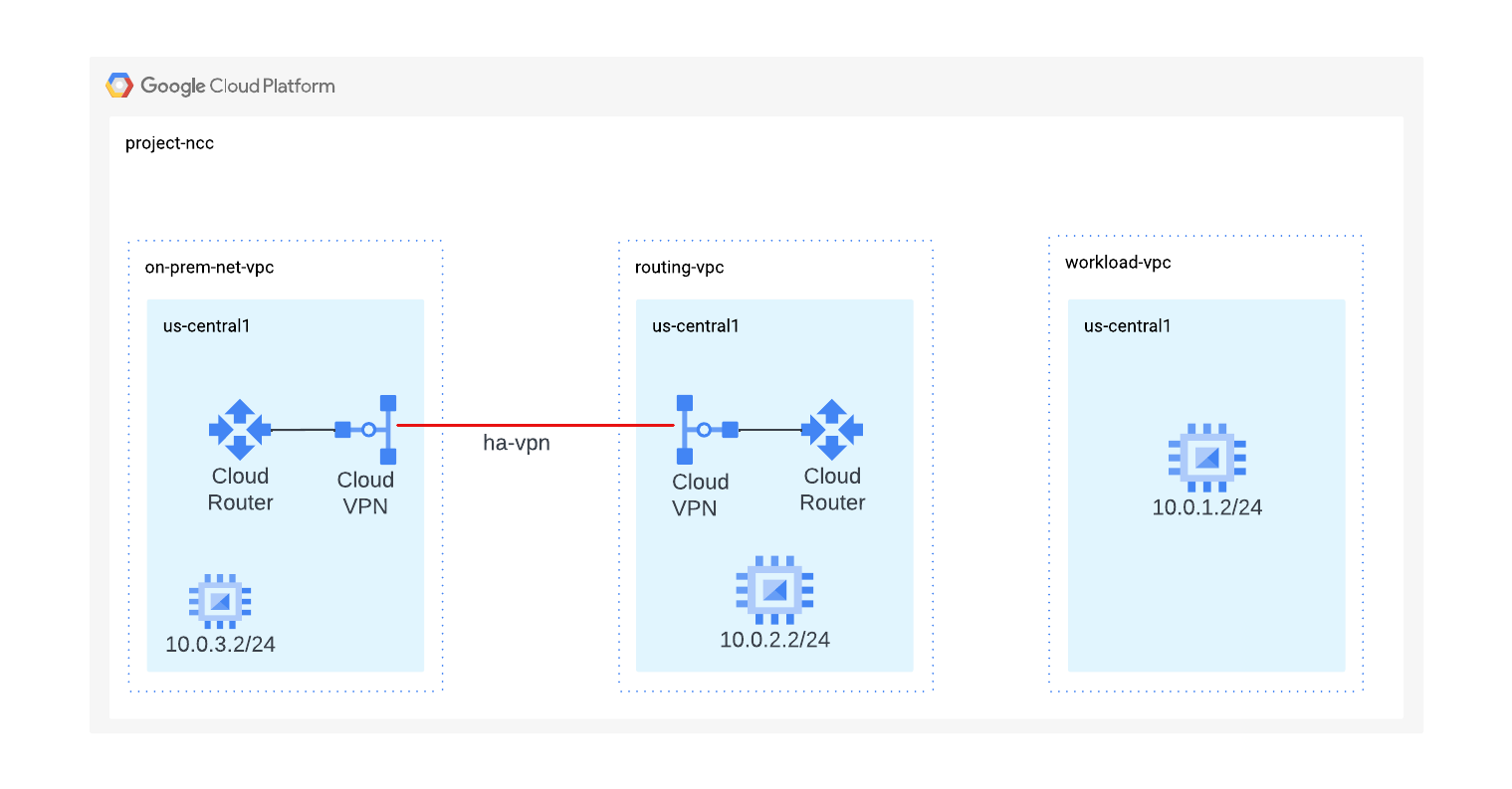
ในส่วนนี้ เราจะกำหนดค่าอุโมงค์ข้อมูล VPN ความพร้อมใช้งานสูง เพื่อเชื่อมต่อเครือข่าย VPC ภายในองค์กรและเครือข่าย VPC สำหรับการกำหนดเส้นทางเข้าด้วยกัน
กำหนดค่า Cloud Router ด้วย BGP ใน VPC สำหรับการกำหนดเส้นทาง
routing_vpc_router_name="routing-vpc-cr"
routing_vpc_router_asn=64525

gcloud compute routers create "${routing_vpc_router_name}" \
--region="${region}" \
--network="${routing_vpc_network_name}" \
--asn="${routing_vpc_router_asn}"
กำหนดค่า Cloud Router ด้วย BGP ใน VPC ภายในองค์กร
on_prem_router_name="on-prem-router"
on_prem_router_asn=64526

gcloud compute routers create "${on_prem_router_name}" \
--region="${region}" \
--network="${on_prem_network_name}" \
--asn="${on_prem_router_asn}"
กำหนดค่าเกตเวย์ VPN ใน VPC สำหรับการกำหนดเส้นทาง
routing_vpn_gateway_name="routing-vpc-vpn-gateway"

gcloud compute vpn-gateways create "${routing_vpn_gateway_name}" \
--region="${region}" \
--network="${routing_vpc_network_name}"
กำหนดค่าเกตเวย์ VPN ใน VPC ภายในองค์กร
on_prem_gateway_name="on-prem-vpn-gateway"

gcloud compute vpn-gateways create "${on_prem_gateway_name}" \
--region="${region}" \
--network="${on_prem_network_name}"
กำหนดค่าอุโมงค์ข้อมูล VPN ใน VPC สำหรับการกำหนดเส้นทางและ VPC ภายในองค์กร
secret_key=$(openssl rand -base64 24)
routing_vpc_tunnel_name="routing-vpc-tunnel"
on_prem_tunnel_name="on-prem-tunnel"

gcloud compute vpn-tunnels create "${routing_vpc_tunnel_name}" \
--vpn-gateway="${routing_vpn_gateway_name}" \
--peer-gcp-gateway="${on_prem_gateway_name}" \
--router="${routing_vpc_router_name}" \
--region="${region}" \
--interface=0 \
--shared-secret="${secret_key}"

gcloud compute vpn-tunnels create "${on_prem_tunnel_name}" \
--vpn-gateway="${on_prem_gateway_name}" \
--peer-gcp-gateway="${routing_vpn_gateway_name}" \
--router="${on_prem_router_name}" \
--region="${region}" \
--interface=0 \
--shared-secret="${secret_key}"
สร้างเซสชัน BGP เพื่อเพียร์ BGP VPC สำหรับการกำหนดเส้นทางและ Cloud Router ภายในองค์กร
interface_hub_name="if-hub-to-prem"
hub_router_ip="169.254.1.1"

gcloud compute routers add-interface "${routing_vpc_router_name}" \
--interface-name="${interface_hub_name}" \
--ip-address="${hub_router_ip}" \
--mask-length=30 \
--vpn-tunnel="${routing_vpc_tunnel_name}" \
--region="${region}"

bgp_hub_name="bgp-hub-to-prem"
prem_router_ip="169.254.1.2"
gcloud compute routers add-bgp-peer "${routing_vpc_router_name}" \
--peer-name="${bgp_hub_name}" \
--peer-ip-address="${prem_router_ip}" \
--interface="${interface_hub_name}" \
--peer-asn="${on_prem_router_asn}" \
--region="${region}"

interface_prem_name="if-prem-to-hub"
gcloud compute routers add-interface "${on_prem_router_name}" \
--interface-name="${interface_prem_name}" \
--ip-address="${prem_router_ip}" \
--mask-length=30 \
--vpn-tunnel="${on_prem_tunnel_name}" \
--region="${region}"

bgp_prem_name="bgp-prem-to-hub"
gcloud compute routers add-bgp-peer "${on_prem_router_name}" \
--peer-name="${bgp_prem_name}" \
--peer-ip-address="${hub_router_ip}" \
--interface="${interface_prem_name}" \
--peer-asn="${routing_vpc_router_asn}" \
--region="${region}"
โดยค่าเริ่มต้น ระบบจะไม่ประกาศซับเน็ต NCC Hub ให้กับ Hybrid Spoke ในขั้นตอนถัดไป ให้กำหนดค่า Cloud Router เพื่อประกาศเส้นทางซับเน็ต NCC ให้กับเครือข่ายภายในองค์กร
ประกาศซับเน็ต VPC Spoke ให้กับ Cloud Router ภายในองค์กร
gcloud compute routers update "${routing_vpc_router_name}" \
--advertisement-mode custom \
--set-advertisement-groups=all_subnets \
--set-advertisement-ranges="${vpc_spoke_subnet_ip_range}" \
--region="${region}"
ประกาศซับเน็ตภายในองค์กรให้กับ Cloud Router ของ VPC สำหรับการกำหนดเส้นทาง
gcloud compute routers update "${on_prem_router_name}" \
--advertisement-mode custom \
--set-advertisement-groups=all_subnets \
--region="${region}"
อัปเดตการกำหนดค่าการเพียร์ BGP ของ Cloud Router ภายในองค์กรเพื่อประกาศคำนำหน้าที่มีค่า MED เป็น "111" ในส่วนถัดไป เราจะดูพฤติกรรมของ NCC ที่มีค่า MED ของ BGP
on_prem_router_name="on-prem-router"
bgp_prem_name="bgp-prem-to-hub"

gcloud compute routers update-bgp-peer "${on_prem_router_name}" \
--peer-name="${bgp_prem_name}" \
--advertised-route-priority="111" \
--region="${region}"
ตรวจสอบสถานะของอุโมงค์ข้อมูล VPC สำหรับการกำหนดเส้นทาง
gcloud compute vpn-tunnels describe routing-vpc-tunnel \
--region=us-central1 \
--format='flattened(status,detailedStatus)'
ตรวจสอบสถานะของ Cloud Router ของ VPC สำหรับการกำหนดเส้นทาง
ใช้คำสั่ง gcloud เพื่อแสดงเส้นทางที่เรียนรู้ BGP ของ Cloud Router ของ VPC สำหรับการกำหนดเส้นทาง
gcloud compute routers get-status routing-vpc-cr \
--region=us-central1
4. ฮับ Network Connectivity Center
ภาพรวม
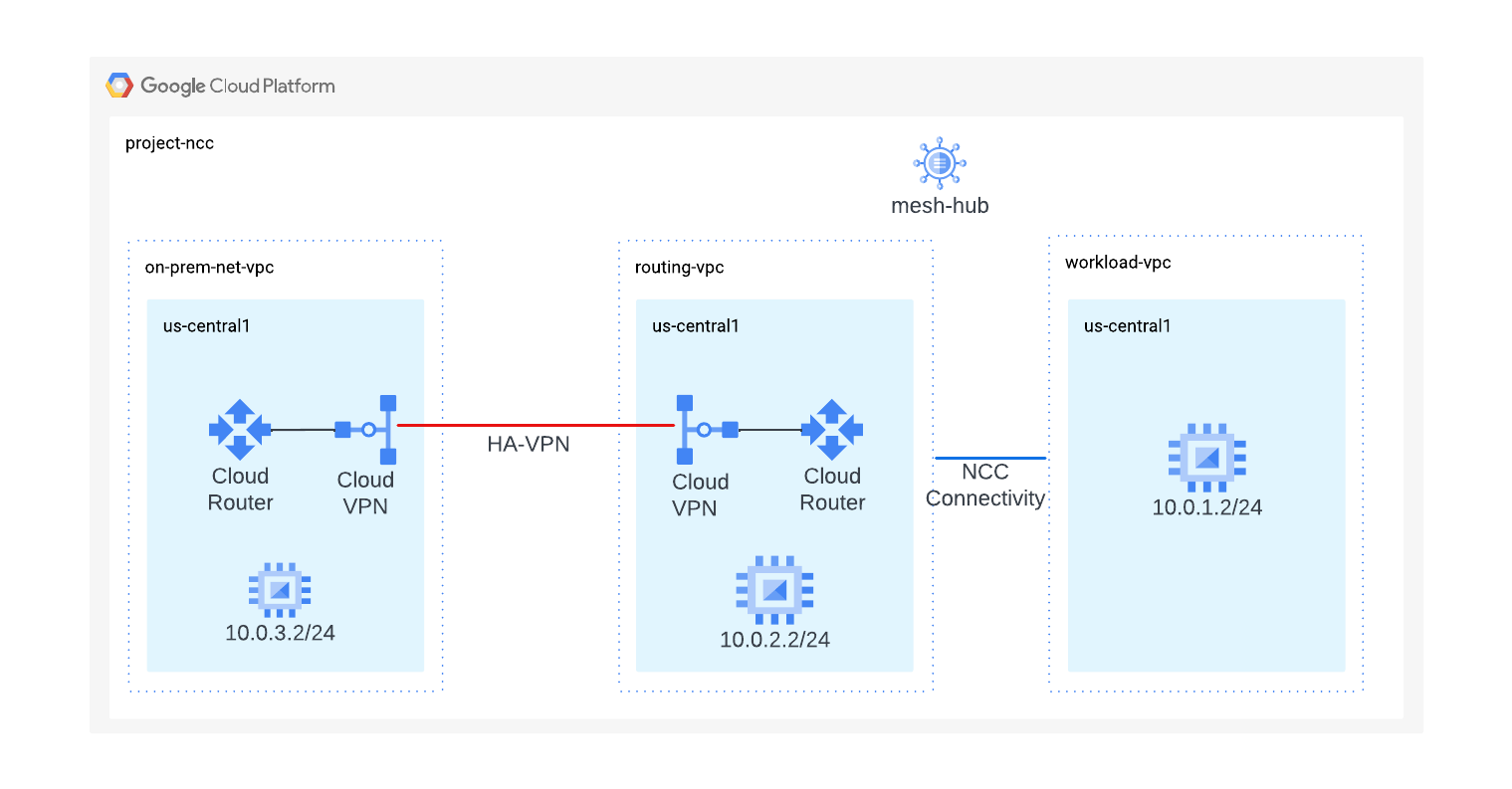
ในส่วนนี้ เราจะกำหนดค่า NCC Hub โดยใช้คำสั่ง gcloud NCC Hub จะทำหน้าที่เป็นระนาบควบคุมที่รับผิดชอบในการสร้างการกำหนดเส้นทางระหว่าง VPC Spoke แต่ละรายการ
เปิดใช้บริการ API
เปิดใช้ Network Connectivity API ในกรณีที่ยังไม่ได้เปิดใช้
gcloud services enable networkconnectivity.googleapis.com
สร้าง NCC Hub
สร้าง NCC Hub โดยใช้คำสั่ง gcloud
hub_name="mesh-hub"
gcloud network-connectivity hubs create "${hub_name}"
ตัวอย่างเอาต์พุต
Create request issued for: [mesh-hub]
Waiting for operation [projects/ncc/locations/global/operations/operation-1719930559145-61c448a0426e4-2d18c8dd-7107edbe] to complete...done.
Created hub [mesh-hub].
อธิบาย NCC Hub ที่สร้างขึ้นใหม่ จดชื่อและเส้นทางที่เชื่อมโยงไว้
gcloud network-connectivity hubs describe mesh-hub
createTime: '2024-07-02T14:29:19.260054897Z'
exportPsc: false
name: projects/ncc/locations/global/hubs/mesh-hub
policyMode: PRESET
presetTopology: MESH
routeTables:
- projects/ncc/locations/global/hubs/mesh-hub/routeTables/default
state: ACTIVE
uniqueId: 08f9ae88-f76f-432b-92b2-357a85fc83aa
updateTime: '2024-07-02T14:29:32.583206925Z'
NCC Hub ได้เปิดตัวตารางการกำหนดเส้นทางที่กำหนดระนาบควบคุมสำหรับการสร้างการเชื่อมต่อข้อมูล ค้นหาชื่อตารางการกำหนดเส้นทางของ NCC Hub
gcloud network-connectivity hubs route-tables list --hub=mesh-hub
NAME     HUB       DESCRIPTION
default  mesh-hub
ค้นหา URI ของตารางเส้นทางเริ่มต้นของ NCC
gcloud network-connectivity hubs route-tables describe default --hub=mesh-hub
createTime: '2024-07-02T14:29:22.340190411Z'
name: projects/ncc/locations/global/hubs/mesh-hub/routeTables/default
state: ACTIVE
uid: fa2af78b-d416-41aa-b442-b8ebdf84f799
แสดงเนื้อหาของตารางการกำหนดเส้นทางเริ่มต้นของ NCC Hub หมายเหตุ* ตารางเส้นทางของ NCC Hub จะว่างเปล่าจนกว่าจะมีการกำหนด NCC Hybrid Spoke หรือ VPC Spoke
gcloud network-connectivity hubs route-tables routes list --hub=mesh-hub --route_table=default
ตารางเส้นทางของ NCC Hub ควรว่างเปล่า
5. NCC ที่มี Hybrid Spoke และ VPC Spoke
ภาพรวม
ในส่วนนี้ คุณจะได้กำหนดค่า NCC Spoke 2 รายการโดยใช้คำสั่ง gcloud Spoke รายการหนึ่งจะเป็น VPC Spoke และอีกรายการหนึ่งจะเป็น Hybrid Spoke (VPN)
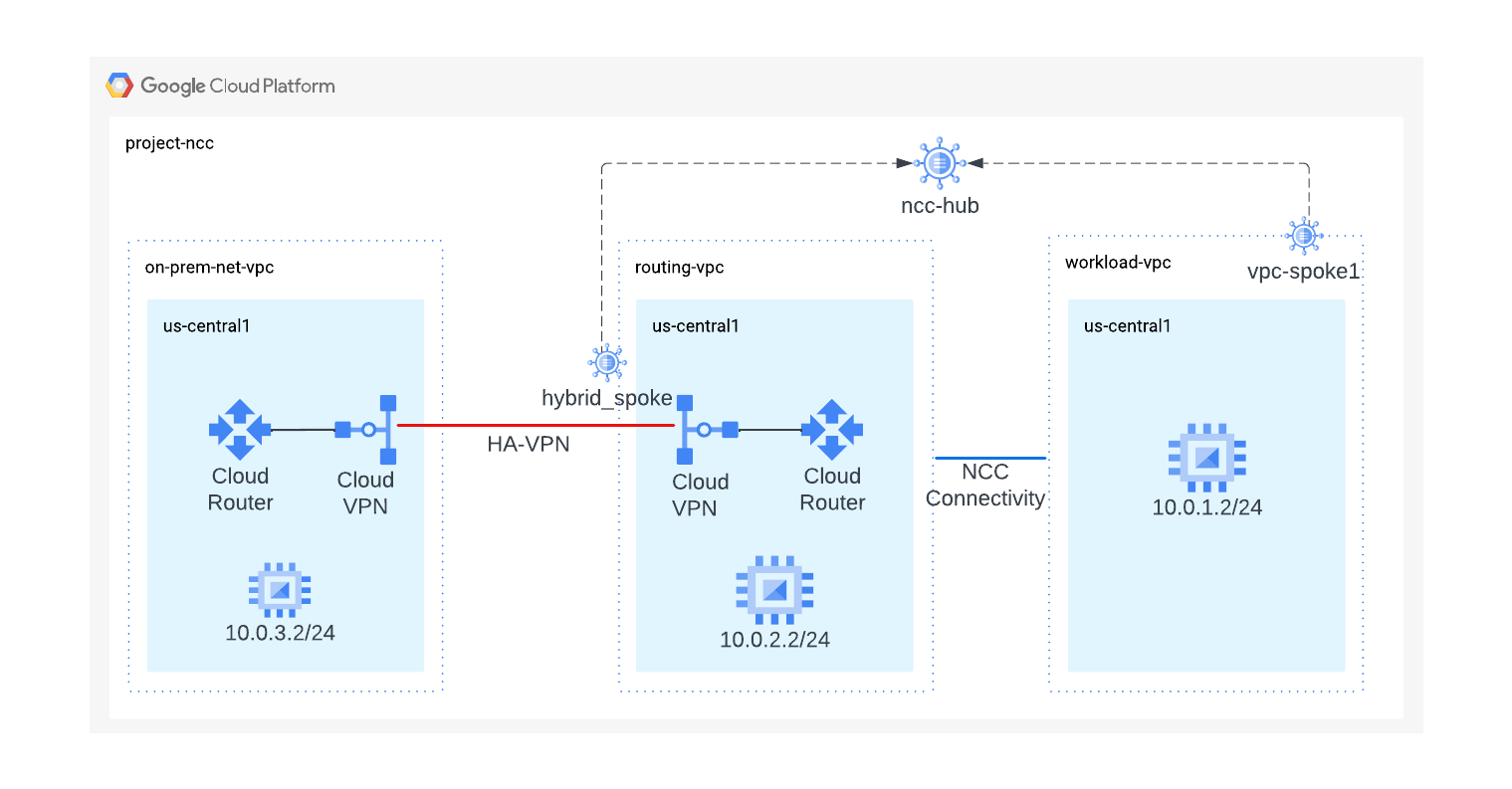
กำหนดค่า VPC สำหรับภาระงานเป็น NCC Spoke
กำหนดค่า VPC สำหรับภาระงานเป็น NCC Spoke และกำหนดให้กับ NCC Hub ที่สร้างไว้ก่อนหน้านี้ การเรียก API ของ NCC Spoke ต้องระบุสถานที่ แฟล็ก "--global" ช่วยให้ผู้ใช้ไม่ต้องระบุเส้นทาง URI แบบเต็มเมื่อกำหนดค่า NCC Spoke ใหม่
vpc_spoke_name="workload-vpc-spoke"
vpc_spoke_network_name="workload-vpc"

gcloud network-connectivity spokes linked-vpc-network create "${vpc_spoke_name}" \
--hub="${hub_name}" \
--vpc-network="${vpc_spoke_network_name}" \
--global
Create request issued for: [workload-vpc-spoke]
Waiting for operation [projects/ncc/locations/global/operations/operation-1719931097138-61c44aa15463f-90de22c7-40c10e6b] to complete...done.
Created spoke [workload-vpc-spoke].
createTime: '2024-07-02T14:38:17.315200822Z'
group: projects/ncc/locations/global/hubs/mesh-hub/groups/default
hub: projects/ncc/locations/global/hubs/mesh-hub
linkedVpcNetwork:
  uri: https://www.googleapis.com/compute/v1/projects/ncc/global/networks/workload-vpc
name: projects/ncc/locations/global/spokes/workload-vpc-spoke
spokeType: VPC_NETWORK
state: ACTIVE
uniqueId: 33e50612-9b62-4ec7-be6c-962077fd47dc
updateTime: '2024-07-02T14:38:44.196850231Z'
กำหนดค่าอุโมงค์ข้อมูล VPN ใน VPC สำหรับการกำหนดเส้นทางเป็น Hybrid Spoke
ใช้คำสั่ง gcloud นี้เพื่อกำหนดค่าอุโมงค์ข้อมูล VPN เป็น Hybrid Spoke เพื่อเข้าร่วม Mesh-Hub
vpn_spoke_name="hybrid-spoke"
routing_vpc_tunnel_name="routing-vpc-tunnel"
region="us-central1"
hub_name="mesh-hub"

gcloud network-connectivity spokes linked-vpn-tunnels create "${vpn_spoke_name}" \
--region="${region}" \
--hub="${hub_name}" \
--vpn-tunnels="${routing_vpc_tunnel_name}"
ตัวอย่างเอาต์พุต
Create request issued for: [hybrid-spoke]
Waiting for operation [projects/ncc/locations/us-central1/operations/operation-1719932916561-61c45168774be-0a06ae03-88192175] to complete...done.
Created spoke [hybrid-spoke].
แม้ว่า NCC Hub จะเรียนรู้เส้นทางซับเน็ต VPC ทั้งหมด แต่โดยค่าเริ่มต้น NCC จะไม่ประกาศคำนำหน้าเหล่านี้ให้กับ Hybrid Spoke หากต้องการบังคับให้ NCC Hub ประกาศซับเน็ต VPC สำหรับภาระงานภายในองค์กร ผู้ดูแลระบบเครือข่ายควรใช้แฟล็ก "include-import-ranges" เพื่อนำเข้าช่วง IPv4 จากฮับไปยัง Hybrid Spoke
ใช้คำสั่งเพื่ออัปเดต NCC Hybrid Spoke เพื่อประกาศคำนำหน้าตารางเส้นทาง NCC Hub ทั้งหมดไปยังเครือข่ายภายในองค์กร
vpn_spoke_name="hybrid-spoke"
routing_vpc_tunnel_name="routing-vpc-tunnel"
region="us-central1"
hub_name="mesh-hub"

gcloud network-connectivity spokes linked-vpn-tunnels update "${vpn_spoke_name}" \
--region="${region}" \
--include-import-ranges=ALL_IPV4_RANGES
ตรวจสอบการกำหนดค่า Spoke ของ Mesh-Hub
ใช้คำสั่ง gcloud เพื่อแสดงเนื้อหาของตารางการกำหนดเส้นทางเริ่มต้นของ NCC Hub
gcloud network-connectivity hubs list-spokes mesh-hub
วิเคราะห์ตารางการกำหนดเส้นทางเริ่มต้นของ Mesh-Hub
ใช้คำสั่ง gcloud เพื่อแสดงเนื้อหาของตารางการกำหนดเส้นทางเริ่มต้นของ NCC Hub
gcloud network-connectivity hubs route-tables routes list --hub=mesh-hub \
--route_table=default
ระบบจะเผยแพร่คำนำหน้าที่ Cloud Router เรียนรู้ที่มีค่า MED ของ BGP ไปยัง NCC Spoke เมื่อใช้การแลกเปลี่ยนเส้นทางแบบไดนามิกกับ NCC Hybrid Spoke
ใช้คำสั่ง gcloud เพื่อดูค่าลำดับความสำคัญของ "111"
gcloud network-connectivity hubs route-tables routes list \
--hub=mesh-hub \
--route_table=default \
--effective-location=us-central1 \
--filter=10.0.3.0/24
เปลี่ยนไปใช้ Cloud Router ภายในองค์กร
ใช้คำสั่ง gcloud เพื่อดูเส้นทางที่ Cloud Router เรียนรู้จากเครือข่ายภายในองค์กร
gcloud compute routers get-status on-prem-router \
--region=us-central1\
--format="yaml(result.bgpPeerStatus)"
6. ตัวกรอง NCC Hybrid Spoke
ในส่วนนี้ เราจะสร้างซับเน็ตใหม่ 2 รายการ รายการหนึ่งใน VPC ภายในองค์กรและอีกรายการหนึ่งใน VPC สำหรับภาระงาน และดูพฤติกรรมของตัวกรอง NCC Hybrid Spoke
ใช้คำสั่งเพื่อสร้างซับเน็ตใหม่ใน VPC ภายในองค์กร
on_prem_network_name="on-prem-net-vpc"
on_prem_subnet_name="on-prem-subnet30"
on_prem_subnet_range="10.30.30.0/24"
region="us-central1"

gcloud compute networks subnets create "${on_prem_subnet_name}" \
--region="${region}" \
--network="${on_prem_network_name}" \
--range="${on_prem_subnet_range}"
ใช้คำสั่งเพื่อสร้างซับเน็ตใหม่ใน VPC สำหรับภาระงาน
vpc_spoke_network_name="workload-vpc"
vpc_spoke_subnet_name="workload-subnet10"
vpc_spoke_subnet_ip_range="10.10.10.0/24"
vpc_spoke_name="workload-vpc-spoke"
region="us-central1"

gcloud compute networks subnets create "${vpc_spoke_subnet_name}" \
--network="${vpc_spoke_network_name}" \
--range="${vpc_spoke_subnet_ip_range}" \
--region="${region}"
ผู้ดูแลระบบสามารถใช้แฟล็ก "--exclude-export-ranges" เพื่อกรองคำนำหน้า IP ที่ส่งออกไปยังตารางเส้นทาง NCC Hub ซึ่งจะช่วยให้ผู้ดูแลระบบควบคุมขนาดของตารางเส้นทาง NCC Hub ได้ โดยค่าเริ่มต้น ระบบจะเรียนรู้คำนำหน้า IPv4 ทั้งหมดจากภายในองค์กรและอนุญาตให้เข้าสู่ตารางเส้นทาง NCC Hub
ใช้คำสั่งเพื่ออัปเดต NCC Hybrid Spoke เพื่อกรองคำนำหน้า 10.30.30.0/24 ไม่ให้แทรกลงในตารางเส้นทาง NCC Hub
vpn_spoke_name="hybrid-spoke"
routing_vpc_tunnel_name="routing-vpc-tunnel"
region="us-central1"
hub_name="mesh-hub"

gcloud network-connectivity spokes linked-vpn-tunnels update "${vpn_spoke_name}" \
--region="${region}" \
--exclude-export-ranges=10.30.30.0/24
ใช้คำสั่ง gcloud เพื่อยืนยันว่าคำนำหน้า 10.30.30.0/24 **ไม่ได้** อยู่ในตารางเส้นทาง NCC Hub
gcloud network-connectivity hubs route-tables routes list \
--hub=mesh-hub \
--route_table=default \
--effective-location=us-central1 \
--filter=10.30.30.0/24
เปลี่ยนไปใช้เราเตอร์ภายในองค์กรและใช้คำสั่ง gcloud เพื่อดูว่าเราเตอร์ได้เรียนรู้ซับเน็ต 10.10.10.0/24 ของ VPC สำหรับภาระงานแล้ว
gcloud compute routers get-status on-prem-router \
--region=us-central1\
--format="yaml(result.bgpPeerStatus)"
คำสั่งด้านล่างที่มีแฟล็ก "–exclude-import-ranges" เพื่อกรองคำนำหน้า 10.10.10.0/24 ที่เฉพาะเจาะจงไม่ให้ประกาศไปยังเราเตอร์ภายในองค์กร
vpn_spoke_name="hybrid-spoke"
routing_vpc_tunnel_name="routing-vpc-tunnel"
region="us-central1"
hub_name="mesh-hub"

gcloud network-connectivity spokes linked-vpn-tunnels update "${vpn_spoke_name}" \
--region="${region}" \
--exclude-import-ranges=10.10.10.0/24
เปลี่ยนไปใช้เราเตอร์ภายในองค์กรและใช้คำสั่ง gcloud เพื่อตรวจสอบตารางการกำหนดเส้นทาง โปรดทราบว่าคำนำหน้า 10.10.10.0/24 ไม่ควร ปรากฏ
gcloud compute routers get-status on-prem-router \
--region=us-central1\
--format="yaml(result.bgpPeerStatus)"
7. ตรวจสอบเส้นทางของข้อมูล
ในขั้นตอนนี้ เราจะตรวจสอบเส้นทางของข้อมูลระหว่าง NCC Hybrid Spoke กับ VPC Spoke 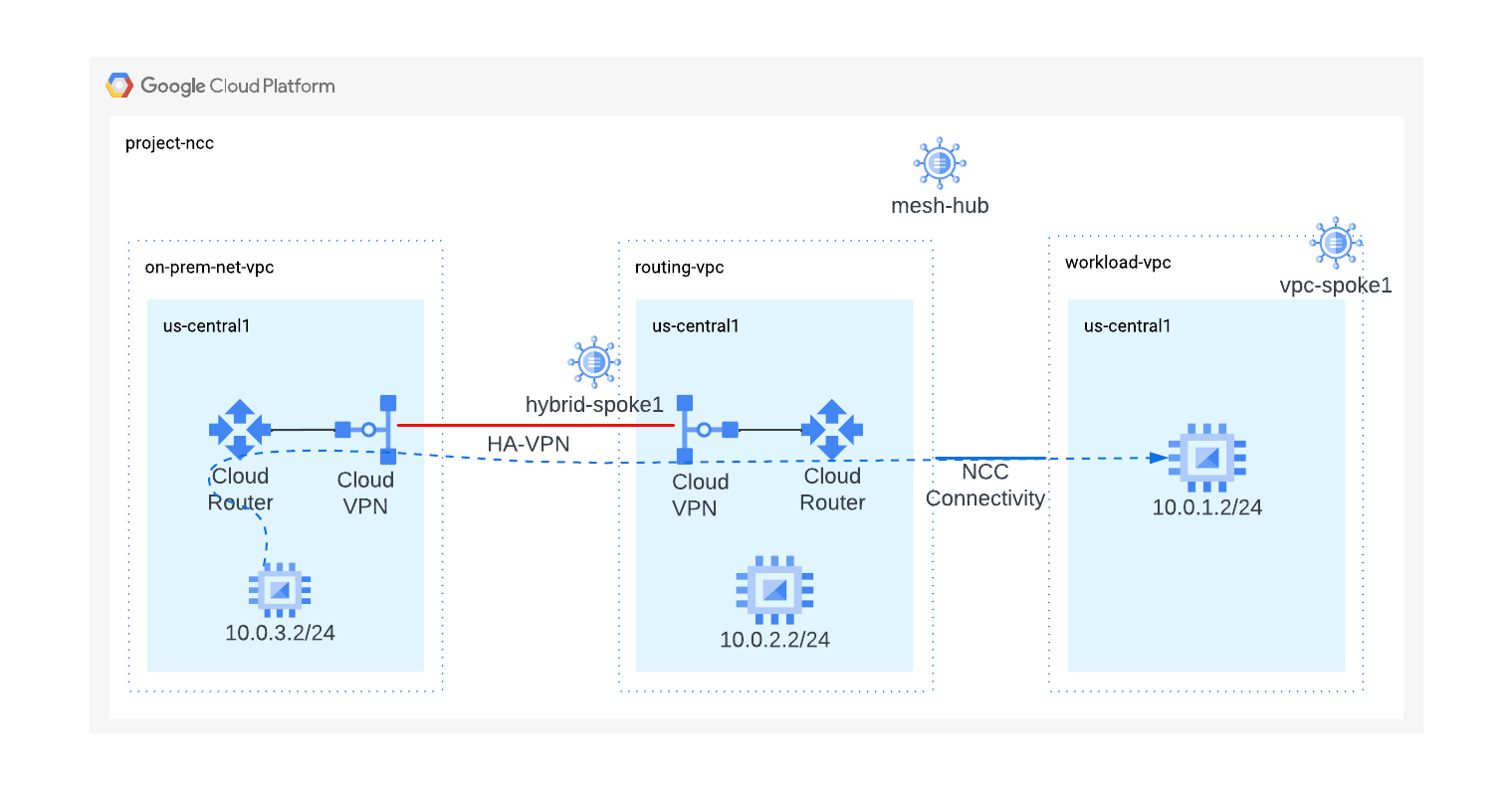
ใช้เอาต์พุตจากคำสั่ง gcloud เหล่านี้เพื่อเข้าสู่ระบบ VM ภายในองค์กร
gcloud compute instances list --filter="name=vm3-onprem"
เข้าสู่ระบบอินสแตนซ์ VM ที่อยู่ในเครือข่ายภายในองค์กร
gcloud compute ssh vm3-onprem --zone=us-central1-a
ในเทอร์มินัลของ vm3-onprem ให้ใช้คำสั่ง curl เพื่อสร้างเซสชันเว็บกับ VM ที่โฮสต์ใน workload-vpc
curl 10.0.1.2 -v
*   Trying 10.0.1.2:80...
* Connected to 10.0.1.2 (10.0.1.2) port 80 (#0)
> GET / HTTP/1.1
> Host: 10.0.1.2
> User-Agent: curl/7.74.0
> Accept: */*
>
* Mark bundle as not supporting multiuse
< HTTP/1.1 200 OK
< Date: Wed, 03 Jul 2024 15:41:34 GMT
< Server: Apache/2.4.59 (Debian)
< Last-Modified: Mon, 01 Jul 2024 20:36:16 GMT
< ETag: "1e-61c358c8272ba"
< Accept-Ranges: bytes
< Content-Length: 30
< Content-Type: text/html
<

<h3>Web Server: www-vm1</h3>
* Connection #0 to host 10.0.1.2 left intact
8. ล้าง
เข้าสู่ระบบ Cloud Shell และลบทรัพยากร GCP
ลบ NCC Spoke
gcloud network-connectivity spokes delete workload-vpc-spoke --global \
--quiet

gcloud network-connectivity spokes delete hybrid-spoke \
--quiet \
--region us-central1
ลบ NCC Hub
gcloud network-connectivity hubs delete mesh-hub --quiet
ลบกฎไฟร์วอลล์
gcloud compute firewall-rules delete onprem-vpc-port-firewall-prem onprem-vpc-protocol-firewall routing-vpc--port-fw routing-vpc-protocol-fw workload-port-firewall-vpc workload-protocol-fw-vpc --quiet
ลบอุโมงค์ข้อมูล HA-VPN
gcloud compute vpn-tunnels delete on-prem-tunnel \
--region=us-central1 \
--quiet

gcloud compute vpn-tunnels delete routing-vpc-tunnel \
--region=us-central1 \
--quiet
ลบเกตเวย์ VPN
gcloud compute vpn-gateways delete on-prem-vpn-gateway \
--region=us-central1 --quiet

gcloud compute vpn-gateways delete routing-vpc-vpn-gateway \
--region us-central1 --quiet
ลบ Cloud Router
gcloud compute routers delete routing-vpc-cr --region us-central1 --quiet

gcloud compute routers delete on-prem-router --region us-central1 --quiet
ลบอินสแตนซ์ GCE
gcloud compute instances delete vm1-vpc-workload \
--zone=us-central1-a \
--quiet


gcloud compute instances delete vm2-vpc-routing \
--zone=us-central1-a \
--quiet

gcloud compute instances delete vm3-onprem \
--zone=us-central1-a \
--quiet
ลบซับเน็ต VPC
gcloud compute networks subnets delete workload-subnet --region us-central1 --quiet

gcloud compute networks subnets delete on-prem-subnet --region us-central1 --quiet

gcloud compute networks subnets delete routing-vpc-subnet --region us-central1 --quiet
ลบ VPC
gcloud compute networks delete on-prem-net-vpcworkload-vpc routing-vpc
--quiet
9. ยินดีด้วย
คุณทำ Lab Network Connectivity Center สำหรับการแลกเปลี่ยนเส้นทางแบบไดนามิกเสร็จสมบูรณ์แล้ว
สิ่งที่คุณได้เรียนรู้
- การแลกเปลี่ยนเส้นทางแบบไดนามิกด้วย Network Connectivity Center
ขั้นตอนถัดไป
©Google, LLC หรือบริษัทในเครือ สงวนลิขสิทธิ์ ห้ามเผยแพร่