
1. Overview
Most agent apps return plain text. A2UI changes that. It's a protocol with 18 declarative UI primitives that lets your agent compose rich, interactive interfaces. The client renders them natively. No new frontend code needed per layout.
This codelab uses the Agent Development Kit (ADK) to build the agent and A2UI to generate the UI.
What you'll build
A mock cloud infrastructure dashboard in three stages:
- A standard agent that returns resource data as plain text
- An A2UI agent that returns the same data as structured A2UI JSON
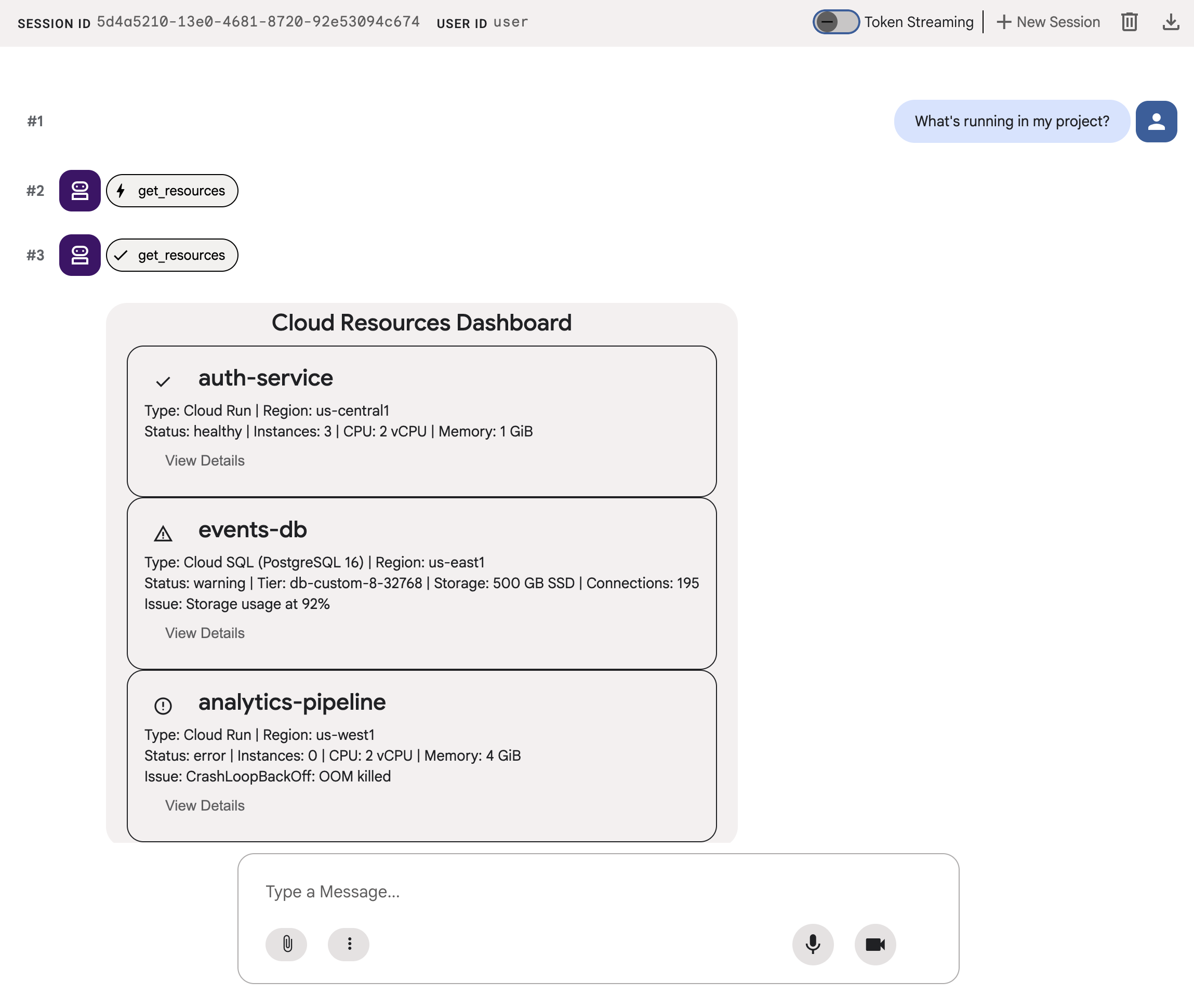
- A rendered agent that displays the A2UI JSON as interactive UI components in the ADK dev UI
What you'll learn
- How A2UI works: 18 primitives, 3 message types, flat component model
- How to use the A2UI SDK to prompt an ADK agent to generate A2UI JSON
- How to render A2UI components in
adk web
What you'll need
- A Google Cloud project with billing enabled
- A web browser such as Chrome
- Python 3.12+
This codelab is for intermediate developers who have some familiarity with Python and Google Cloud.
This codelab takes approximately 15-20 minutes to complete.
The resources created in this codelab should cost less than $5.
2. Set up your environment
Create a Google Cloud Project
- In the Google Cloud Console, on the project selector page, select or create a Google Cloud project.
- Make sure that billing is enabled for your Cloud project. Learn how to check if billing is enabled on a project.
Start Cloud Shell Editor
To launch a Cloud Shell session from the Google Cloud console, click Activate Cloud Shell in your Google Cloud console.
This launches a session in the bottom pane of your Google Cloud console.
To launch the editor, click Open Editor on the toolbar of the Cloud Shell window.
Set environment variables
In the Cloud Shell Editor toolbar, click Terminal and New Terminal, then run the following commands to set your project, location, and configure ADK to use Gemini in Vertex AI.
export GOOGLE_CLOUD_PROJECT=<INSERT_YOUR_GCP_PROJECT_HERE>
export GOOGLE_CLOUD_LOCATION=global
export GOOGLE_GENAI_USE_VERTEXAI=True
Enable APIs
In the terminal, run the following command to enable the required APIs:
gcloud services enable aiplatform.googleapis.com
Install dependencies
In the terminal, run the following command to install the latest version of Agent Development Kit (ADK):
pip install -U google-adk a2ui-agent-sdk
export PATH="$HOME/.local/bin:$PATH"
3. Build the agent
Start with a standard ADK agent that returns plain text. This is what most agent apps look like today.
Create agent folder
Create a folder called a2ui_agent that will contain the source code for your agent and tools.
Define tool and mock data
Create a2ui_agent/resources.py with the following contents. This tool returns a list of cloud resources with their status.
RESOURCES = [
    {
        "name": "auth-service",
        "type": "Cloud Run",
        "region": "us-west1",
        "status": "healthy",
        "cpu": "2 vCPU",
        "memory": "1 GiB",
        "instances": 3,
        "url": "https://auth-service-abc123.run.app",
        "last_deployed": "2026-04-18T14:22:00Z",
    },
    {
        "name": "events-db",
        "type": "Cloud SQL",
        "region": "us-east1",
        "status": "warning",
        "tier": "db-custom-8-32768",
        "storage": "500 GB SSD",
        "connections": 195,
        "version": "PostgreSQL 16",
        "issue": "Storage usage at 92%",
    },
    {
        "name": "analytics-pipeline",
        "type": "Cloud Run",
        "region": "us-west1",
        "status": "error",
        "cpu": "2 vCPU",
        "memory": "4 GiB",
        "instances": 0,
        "url": "https://analytics-pipeline-ghi789.run.app",
        "last_deployed": "2026-04-10T16:45:00Z",
        "issue": "CrashLoopBackOff: OOM killed",
    },
]

def get_resources() -> list[dict]:
    """Get all cloud resources in the current project.
    Returns a list of cloud infrastructure resources including their
    name, type, region, status, and type-specific details.
    Status is one of: healthy, warning, error. Resources with
    warning or error status include an 'issue' field describing
    the problem.
    """
    return RESOURCES
Define the agent
Create a2ui_agent/agent.py with the following contents:
from google.adk.agents import Agent
from .resources import get_resources

root_agent = Agent(
    model="gemini-3-flash-preview",
    name="cloud_dashboard",
    description="A cloud infrastructure assistant that reports on project resources.",
    instruction=(
        "You are a cloud infrastructure assistant. When users ask about their "
        "cloud resources, use the get_resources tool to fetch the current state. "
        "Summarize the results clearly in plain text."
    ),
    tools=[get_resources],
)
4. Test the agent
ADK includes a dev UI that you can use to interact with and send prompts to your agent in a browser for testing.
Start ADK dev UI
In your Cloud Shell Editor terminal, run the following command to start the ADK dev UI:
adk web --port 8080 --allow_origins "*" --reload_agents
You should see a message similar to the following:
+-----------------------------------------------------------------------------+
| ADK Web Server started                                                      |
|                                                                             |
| For local testing, access at http://127.0.0.1:8080.                         |
+-----------------------------------------------------------------------------+
Open ADK dev UI
You can open the ADK dev UI in your browser by Ctrl or Cmd clicking on the local testing URL, or by clicking the Web Preview button and selecting Preview on Port 8080.
Once you are viewing the ADK dev UI, select a2ui_agent from the drop-down menu.
Send sample prompts
Send a sample prompt to the agent:
What's running in my project?
Now try another sample prompt and you'll get more text output:
Does anything need my attention?
Your conversation should look similar to the following:
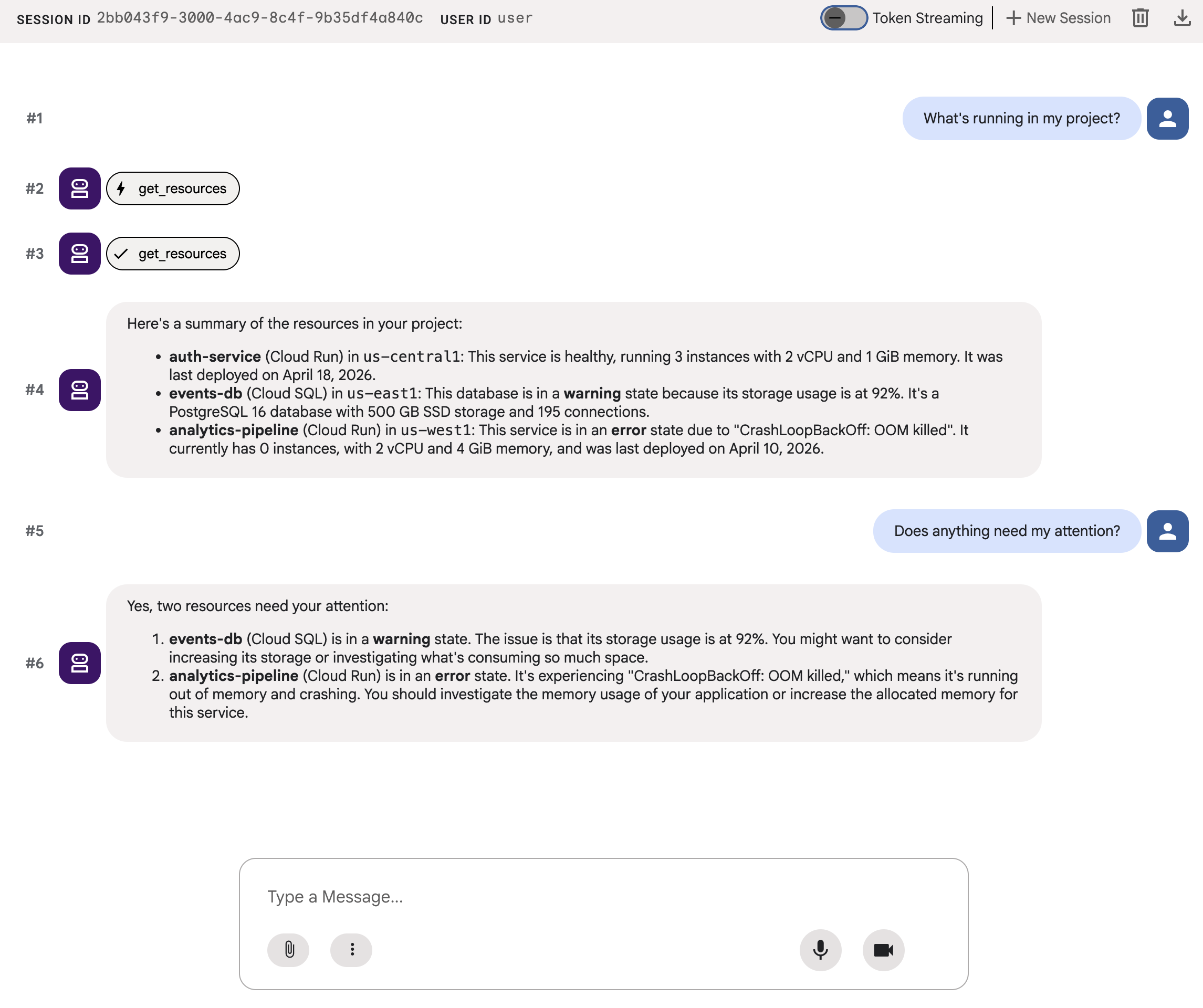
You'll get a wall of text. Accurate, but not a great user experience.
5. Generate A2UI JSON
What if the agent could describe a UI instead of dumping text? A2UI is a protocol that lets agents compose interactive interfaces from a catalog of 18 primitives. The client renders them natively.
The A2UI Python SDK includes a schema manager that generates system prompts for you. It teaches the LLM the full A2UI component catalog, the correct property names and types, and the JSON structure.
Update the agent
Replace the contents of a2ui_agent/agent.py with the following:
from google.adk.agents import Agent
from a2ui.schema.manager import A2uiSchemaManager
from a2ui.basic_catalog.provider import BasicCatalog
from .resources import get_resources

schema_manager = A2uiSchemaManager(
    version="0.8",
    catalogs=[BasicCatalog.get_config("0.8")],
)

instruction = schema_manager.generate_system_prompt(
    role_description=(
        "You are a cloud infrastructure assistant. When users ask about "
        "their cloud resources, use the get_resources tool to fetch the "
        "current state."
    ),
    workflow_description=(
        "Analyze the user's request and return structured UI when appropriate."
    ),
    ui_description=(
        "Use cards for resource summaries, rows and columns for comparisons, "
        "icons for status indicators, and buttons for drill-down actions. "
        "Do NOT use markdown formatting in text values. Use the usageHint "
        "property for heading levels instead. "
        "Respond ONLY with the A2UI JSON array. Do NOT include any text "
        "outside the JSON. Put all explanations into Text components."
    ),
    include_schema=True,
    include_examples=True,
)

root_agent = Agent(
    model="gemini-3-flash-preview",
    name="cloud_dashboard",
    description="A cloud infrastructure assistant that renders rich A2UI interfaces.",
    instruction=instruction,
    tools=[get_resources],
)
The generate_system_prompt() method combines your role description with the full A2UI JSON schema and few-shot examples, so the LLM knows exactly how to format its output. You don't need to write the component catalog by hand.
6. Test the JSON output
If you still have the ADK dev UI running from earlier, it should automatically reload the changes that you made to your agent.
Select a2ui_agent, start a new session by clicking on +New Session on the top right of the ADK dev UI, then send the same prompt as before:
What's running in my project?
This time, the agent responds with A2UI JSON instead of plain text. You'll see structured messages containing beginRendering, surfaceUpdate, and dataModelUpdate in the chat output.
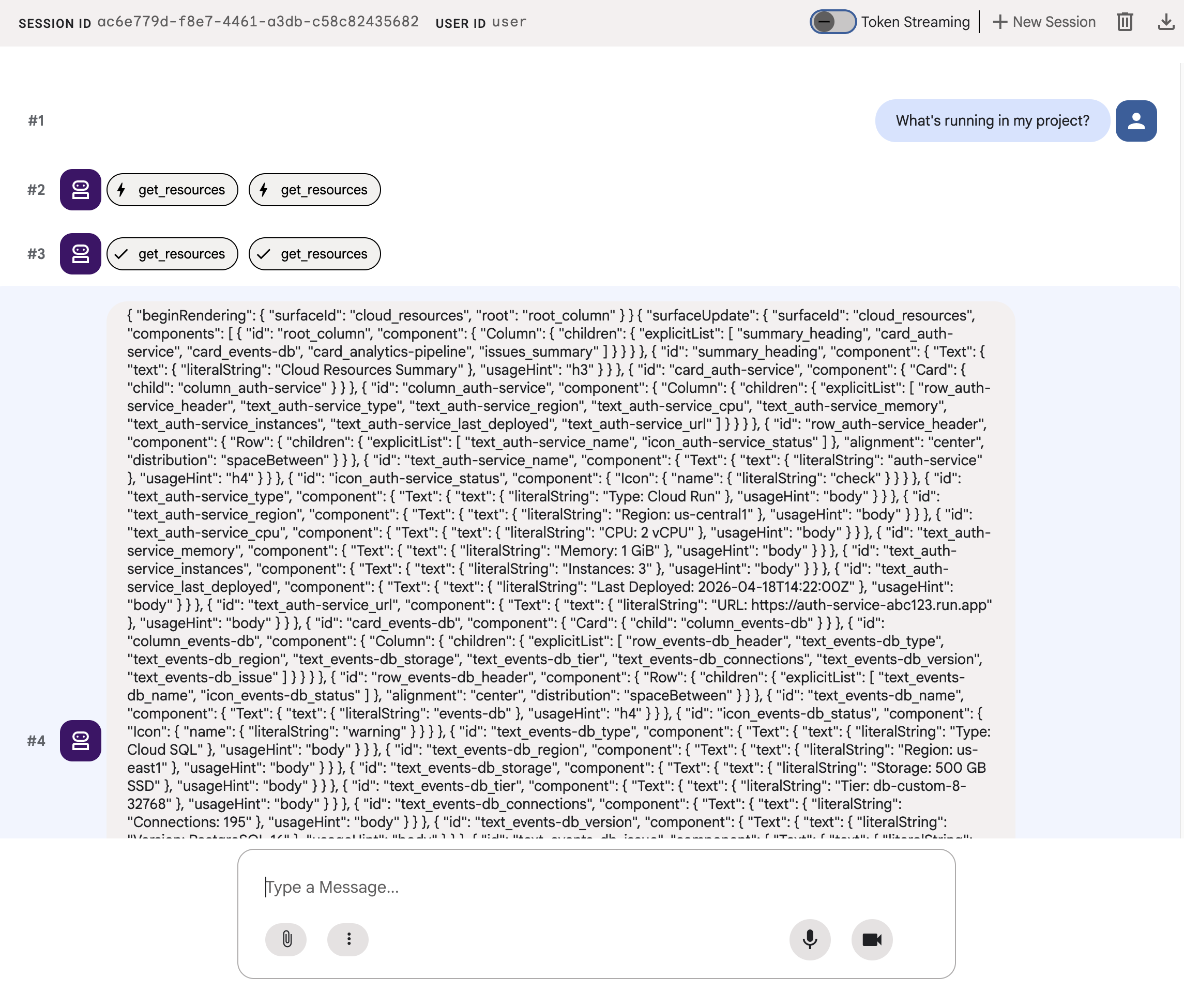
The JSON describes a rich UI with cards, icons, and buttons, but adk web displays it as raw text. In the next step, you'll make it render as actual UI components.
7. Understand A2UI
Look at the JSON your agent just generated. You'll notice it contains three types of messages. Every A2UI response follows this same structure:
1. beginRendering
Creates a rendering surface and names the root component:
{"beginRendering": {"surfaceId": "default", "root": "main-column"}}
2. surfaceUpdate
Sends the component tree as a flat list with ID references (not nested):
{"surfaceUpdate": {"surfaceId": "default", "components": [
  {"id": "main-column", "component": {"Column": {"children": {"explicitList": ["title", "card1"]}}}},
  {"id": "title", "component": {"Text": {"text": {"literalString": "My Resources"}, "usageHint": "h1"}}},
  {"id": "card1", "component": {"Card": {"child": "card1-content"}}},
  {"id": "card1-content", "component": {"Text": {"text": {"path": "service_name"}}}}
]}}
3. dataModelUpdate
Sends the data separately from the structure:
{"dataModelUpdate": {"surfaceId": "default", "contents": [
  {"key": "service_name", "valueString": "auth-service"},
  {"key": "status", "valueString": "healthy"}
]}}
Components bind to data using {"path": "key"}. You can update data without resending the component tree.
The 18 primitives
Category | Components |
Layout | Card, Column, Row, List, Tabs, Divider, Modal |
Display | Text, Image, Icon, Video, AudioPlayer |
Input | TextField, DateTimeInput, MultipleChoice, CheckBox, Slider |
Action | Button |
The agent composes different layouts from the same catalog. See the component reference for full details on each primitive. A browse view, a priority dashboard, and a configuration form all use these same 18 primitives. No new frontend components needed.
8. Render A2UI components
The agent generates valid A2UI JSON, but adk web displays it as raw text. To render it as actual UI components, you need a small utility that converts the agent's A2UI JSON output into the format that adk web's built-in renderer expects.
Create the A2UI rendering utility
Create a2ui_agent/a2ui_utils.py with the following contents:
import json
import re
from google.genai import types
from google.adk.agents.callback_context import CallbackContext
from google.adk.models.llm_response import LlmResponse

def _wrap_a2ui_part(a2ui_message: dict) -> types.Part:
    """Wrap a single A2UI message for rendering in adk web."""
    datapart_json = json.dumps({
        "kind": "data",
        "metadata": {"mimeType": "application/json+a2ui"},
        "data": a2ui_message,
    })
    blob_data = (
        b"<a2a_datapart_json>"
        + datapart_json.encode("utf-8")
        + b"</a2a_datapart_json>"
    )
    return types.Part(
        inline_data=types.Blob(
            data=blob_data,
            mime_type="text/plain",
        )
    )

def a2ui_callback(
    callback_context: CallbackContext,
    llm_response: LlmResponse,
) -> LlmResponse | None:
    """Convert A2UI JSON in text output to rendered components."""
    if not llm_response.content or not llm_response.content.parts:
        return None
    for part in llm_response.content.parts:
        if not part.text:
            continue
        text = part.text.strip()
        if not text:
            continue
        if not any(k in text for k in ("beginRendering", "surfaceUpdate", "dataModelUpdate")):
            continue
        # Strip markdown fences
        if text.startswith("```"):
            text = text.split("\n", 1)[-1]
            if text.endswith("```"):
                text = text[:-3].strip()
        # Find where JSON starts (skip conversational prefix)
        json_start = None
        for i, ch in enumerate(text):
            if ch in ("[", "{"):
                json_start = i
                break
        if json_start is None:
            continue
        json_text = text[json_start:]
        # raw_decode parses JSON and ignores trailing text
        try:
            parsed, _ = json.JSONDecoder().raw_decode(json_text)
        except json.JSONDecodeError:
            # Handle concatenated JSON objects: {"a":1} {"b":2}
            try:
                fixed = "[" + re.sub(r'\}\s*\{', '},{', json_text) + "]"
                parsed, _ = json.JSONDecoder().raw_decode(fixed)
            except json.JSONDecodeError:
                continue
        if not isinstance(parsed, list):
            parsed = [parsed]
        a2ui_keys = {"beginRendering", "surfaceUpdate", "dataModelUpdate", "deleteSurface"}
        a2ui_messages = [msg for msg in parsed if isinstance(msg, dict) and any(k in msg for k in a2ui_keys)]
        if not a2ui_messages:
            continue
        new_parts = [_wrap_a2ui_part(msg) for msg in a2ui_messages]
        return LlmResponse(
            content=types.Content(role="model", parts=new_parts),
            custom_metadata={"a2a:response": "true"},
        )
    return None
This utility does two things:
- Extracts A2UI JSON from the agent's text output
- Wraps each A2UI message in the format that
adk web's built-in A2UI renderer expects
Update the agent
Replace the contents of a2ui_agent/agent.py with the following. The only change from the previous step is the import of a2ui_callback and the after_model_callback parameter on the agent:
from google.adk.agents import Agent
from a2ui.schema.manager import A2uiSchemaManager
from a2ui.basic_catalog.provider import BasicCatalog
from .resources import get_resources
from .a2ui_utils import a2ui_callback

schema_manager = A2uiSchemaManager(
    version="0.8",
    catalogs=[BasicCatalog.get_config("0.8")],
)

instruction = schema_manager.generate_system_prompt(
    role_description=(
        "You are a cloud infrastructure assistant. When users ask about "
        "their cloud resources, use the get_resources tool to fetch the "
        "current state."
    ),
    workflow_description=(
        "Analyze the user's request and return structured UI when appropriate."
    ),
    ui_description=(
        "Use cards for resource summaries, rows and columns for comparisons, "
        "icons for status indicators, and buttons for drill-down actions. "
        "Do NOT use markdown formatting in text values. Use the usageHint "
        "property for heading levels instead. "
        "Respond ONLY with the A2UI JSON array. Do NOT include any text "
        "outside the JSON. Put all explanations into Text components."
    ),
    include_schema=True,
    include_examples=True,
)

root_agent = Agent(
    model="gemini-3-flash-preview",
    name="cloud_dashboard",
    description="A cloud infrastructure assistant that renders rich A2UI interfaces.",
    instruction=instruction,
    tools=[get_resources],
    after_model_callback=a2ui_callback,
)
9. Test the rendered UI
If you still have the ADK dev UI running from earlier, it should automatically reload the changes that you made to your agent.
Refresh the browser tab, select a2ui_agent, then start a new session by clicking on +New Session on the top right of the ADK dev UI and send the same prompt as before:
What's running in my project?
This time, adk web renders the A2UI components as actual UI: cards with status indicators, resource details, and action buttons.
Try a different prompt to see how the agent composes a different UI from the same set of primitives:
Does anything need my attention?
Finally, try another prompt to generate a different UI to deploy a new service:
I need to deploy a new service
Each prompt goes to the same agent, same tool, and same 18 primitives. But each prompt results in a different UI for a different intent.
10. Clean Up
To avoid leaving local servers running, clean up the resources:
- In the terminal running
adk web, press Ctrl+C to stop the agent server.
If you created a project specifically for this codelab, you can delete the entire project:
gcloud projects delete ${GOOGLE_CLOUD_PROJECT}
11. Congratulations
You built an ADK agent that generates rich, interactive UI using A2UI.
What you learned
- A2UI is a protocol with 18 declarative primitives and 3 message types
- The A2UI SDK generates system prompts that teach the LLM the component catalog
- The same agent, tool, and primitives compose different UIs for different intents
- A2UI components can be rendered directly in
adk webduring development
Build a production frontend
In this codelab, you rendered A2UI inside adk web for development and testing.
For production, you would build a frontend using one of the official A2UI renderers:
Platform | Renderer | Install |
Web (React) |
|
|
Web (Lit) |
|
|
Web (Angular) |
|
|
Mobile/Desktop | Flutter GenUI SDK |
Reference docs
What's Next
Explore learning resources to build and deploy enterprise-grade agents with Gemini Enterprise Agent Ready (GEAR).