

1. 概览
大多数智能体应用都会返回纯文本。A2UI 改变了这一局面。它是一种协议,包含 18 个声明式界面基元,可让您的智能体组合丰富的交互式界面。客户端会以原生方式呈现这些界面。每个布局都不需要新的前端代码。
本 Codelab 使用智能体开发套件 (ADK)构建智能体,并使用A2UI生成界面。
构建内容
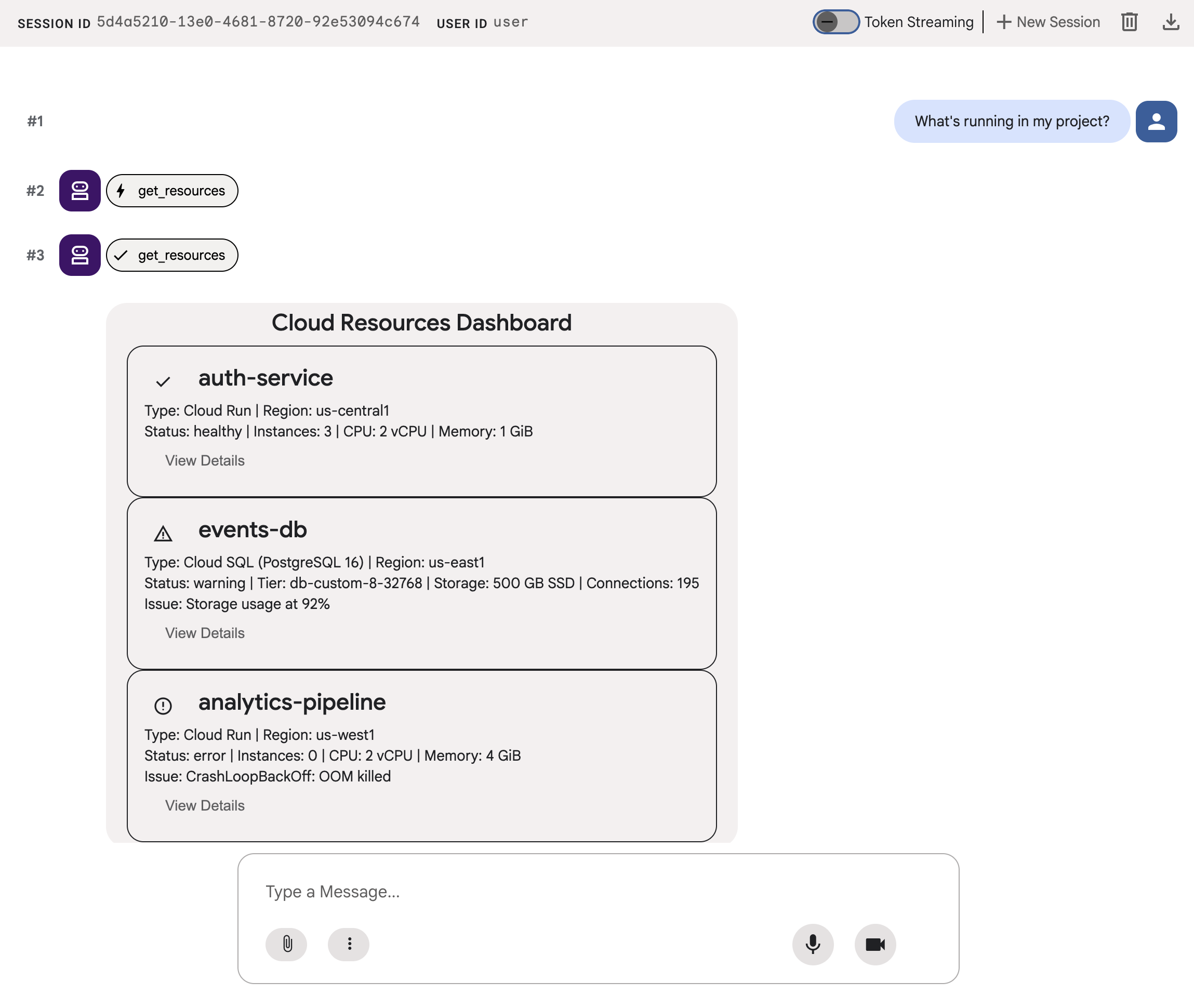
一个模拟云基础架构信息中心,分为三个阶段:
- 一个标准智能体 ,以纯文本形式返回资源数据
- 一个 A2UI 智能体 ,以结构化 A2UI JSON 形式返回相同的数据
- 一个呈现的智能体 ,在 ADK 开发者界面中将 A2UI JSON 显示为交互式界面组件
学习内容
- A2UI 的工作原理:18 个基元、3 种消息类型、扁平组件模型
- 如何使用 A2UI SDK 提示 ADK 智能体生成 A2UI JSON
- 如何在
adk web中呈现 A2UI 组件
所需条件
- 启用了结算功能的 Google Cloud 项目
- 网络浏览器,例如 Chrome
- Python 3.12+
本 Codelab 适用于对 Python 和 Google Cloud 有一定了解的中级开发者。
完成本 Codelab 大约需要 15-20 分钟。
在本 Codelab 中创建的资源费用应低于 5 美元。
2. 设置您的环境
创建 Google Cloud 项目
- 在 Google Cloud 控制台 的项目选择器页面上,选择或创建一个 Google Cloud 项目。
- 确保您的云项目已启用结算功能。了解如何检查项目是否已启用结算功能。
启动 Cloud Shell Editor
如需从 Google Cloud 控制台启动 Cloud Shell 会话,请点击 Google Cloud 控制台中的激活 Cloud Shell 。
此操作会在 Google Cloud 控制台的底部窗格中启动会话。
如需启动编辑器,请点击 Cloud Shell 窗口工具栏上的打开编辑器 。
设置环境变量
在 Cloud Shell Editor 工具栏中,依次点击终端 和新建终端 ,然后运行以下命令来设置您的项目和位置,并将 ADK 配置为在 Vertex AI 中使用 Gemini。
export GOOGLE_CLOUD_PROJECT=<INSERT_YOUR_GCP_PROJECT_HERE>
export GOOGLE_CLOUD_LOCATION=global
export GOOGLE_GENAI_USE_VERTEXAI=True
启用 API
在终端中,运行以下命令以启用所需的 API:
gcloud services enable aiplatform.googleapis.com
安装依赖项
在终端中,运行以下命令以安装最新版本的智能体开发套件 (ADK):
pip install -U google-adk a2ui-agent-sdk
export PATH="$HOME/.local/bin:$PATH"
3. 构建智能体
首先构建一个返回纯文本的标准 ADK 智能体。这是目前大多数智能体应用的样子。
创建智能体文件夹
创建一个名为 a2ui_agent 的文件夹,其中将包含智能体和工具的源代码。
定义工具和模拟数据
使用以下内容创建 a2ui_agent/resources.py。此工具会返回云资源及其状态的列表。
RESOURCES = [
    {
        "name": "auth-service",
        "type": "Cloud Run",
        "region": "us-west1",
        "status": "healthy",
        "cpu": "2 vCPU",
        "memory": "1 GiB",
        "instances": 3,
        "url": "https://auth-service-abc123.run.app",
        "last_deployed": "2026-04-18T14:22:00Z",
    },
    {
        "name": "events-db",
        "type": "Cloud SQL",
        "region": "us-east1",
        "status": "warning",
        "tier": "db-custom-8-32768",
        "storage": "500 GB SSD",
        "connections": 195,
        "version": "PostgreSQL 16",
        "issue": "Storage usage at 92%",
    },
    {
        "name": "analytics-pipeline",
        "type": "Cloud Run",
        "region": "us-west1",
        "status": "error",
        "cpu": "2 vCPU",
        "memory": "4 GiB",
        "instances": 0,
        "url": "https://analytics-pipeline-ghi789.run.app",
        "last_deployed": "2026-04-10T16:45:00Z",
        "issue": "CrashLoopBackOff: OOM killed",
    },
]

def get_resources() -> list[dict]:
    """Get all cloud resources in the current project.
    Returns a list of cloud infrastructure resources including their
    name, type, region, status, and type-specific details.
    Status is one of: healthy, warning, error. Resources with
    warning or error status include an 'issue' field describing
    the problem.
    """
    return RESOURCES
定义智能体
使用以下内容创建 a2ui_agent/agent.py:
from google.adk.agents import Agent
from .resources import get_resources

root_agent = Agent(
    model="gemini-3-flash-preview",
    name="cloud_dashboard",
    description="A cloud infrastructure assistant that reports on project resources.",
    instruction=(
        "You are a cloud infrastructure assistant. When users ask about their "
        "cloud resources, use the get_resources tool to fetch the current state. "
        "Summarize the results clearly in plain text."
    ),
    tools=[get_resources],
)
4. 测试智能体
ADK 包含一个开发者界面,您可以使用该界面在浏览器中与智能体互动并向其发送提示,以进行测试。
启动 ADK 开发者界面
在 Cloud Shell Editor 终端中,运行以下命令以启动 ADK 开发者界面:
adk web --port 8080 --allow_origins "*" --reload_agents
您应该会看到如下所示的消息:
+-----------------------------------------------------------------------------+
| ADK Web Server started                                                      |
|                                                                             |
| For local testing, access at http://127.0.0.1:8080.                         |
+-----------------------------------------------------------------------------+
打开 ADK 开发者界面
您可以在浏览器中打开 ADK 开发者界面,方法是按住 Ctrl 键或 Cmd 键并点击本地测试网址,或者点击 网页预览 按钮并选择 在端口 8080 上预览。
查看 ADK 开发者界面后,从下拉菜单中选择 a2ui_agent。
发送示例提示
向智能体发送示例提示:
What's running in my project?
现在尝试另一个示例提示,您将获得更多文本输出:
Does anything need my attention?
您的对话应类似于以下内容:
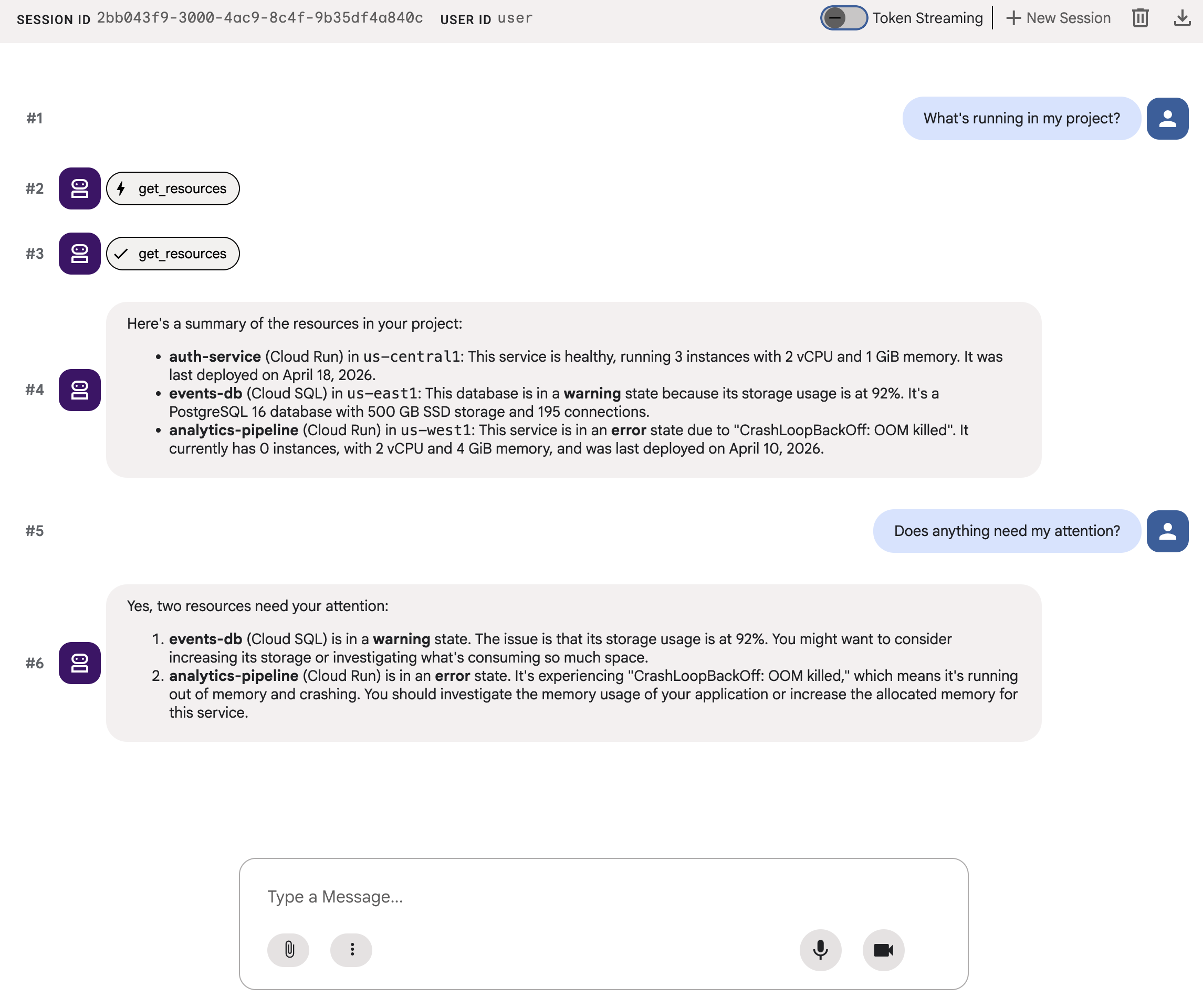
您会看到一堆文本。虽然准确,但用户体验并不好。
5. 生成 A2UI JSON
如果智能体可以描述界面,而不是转储文本,会怎么样?A2UI 是一种协议,可让智能体从 18 个基元的目录中组合交互式界面。客户端会以原生方式呈现这些界面。
A2UI Python SDK 包含一个架构管理器,可为您生成系统提示。它会向大语言模型介绍完整的 A2UI 组件目录、正确的属性名称和类型以及 JSON 结构。
更新智能体
使用以下内容替换 a2ui_agent/agent.py 的内容:
from google.adk.agents import Agent
from a2ui.schema.manager import A2uiSchemaManager
from a2ui.basic_catalog.provider import BasicCatalog
from .resources import get_resources

schema_manager = A2uiSchemaManager(
    version="0.8",
    catalogs=[BasicCatalog.get_config("0.8")],
)

instruction = schema_manager.generate_system_prompt(
    role_description=(
        "You are a cloud infrastructure assistant. When users ask about "
        "their cloud resources, use the get_resources tool to fetch the "
        "current state."
    ),
    workflow_description=(
        "Analyze the user's request and return structured UI when appropriate."
    ),
    ui_description=(
        "Use cards for resource summaries, rows and columns for comparisons, "
        "icons for status indicators, and buttons for drill-down actions. "
        "Do NOT use markdown formatting in text values. Use the usageHint "
        "property for heading levels instead. "
        "Respond ONLY with the A2UI JSON array. Do NOT include any text "
        "outside the JSON. Put all explanations into Text components."
    ),
    include_schema=True,
    include_examples=True,
)

root_agent = Agent(
    model="gemini-3-flash-preview",
    name="cloud_dashboard",
    description="A cloud infrastructure assistant that renders rich A2UI interfaces.",
    instruction=instruction,
    tools=[get_resources],
)
generate_system_prompt() 方法会将您的角色说明与完整的 A2UI JSON 架构和少样本示例相结合,以便大语言模型确切了解如何设置输出格式。您无需手动编写组件目录。
6. 测试 JSON 输出
如果您之前运行的 ADK 开发者界面仍在运行,则它应会自动重新加载您对智能体所做的更改。
选择 a2ui_agent,点击 ADK 开发者界面右上角的 +新建会话 以启动新会话,然后发送与之前相同的提示:
What's running in my project?
这次,智能体将使用 A2UI JSON 而不是纯文本进行响应。您会在聊天输出中看到包含 beginRendering、surfaceUpdate 和 dataModelUpdate 的结构化消息。
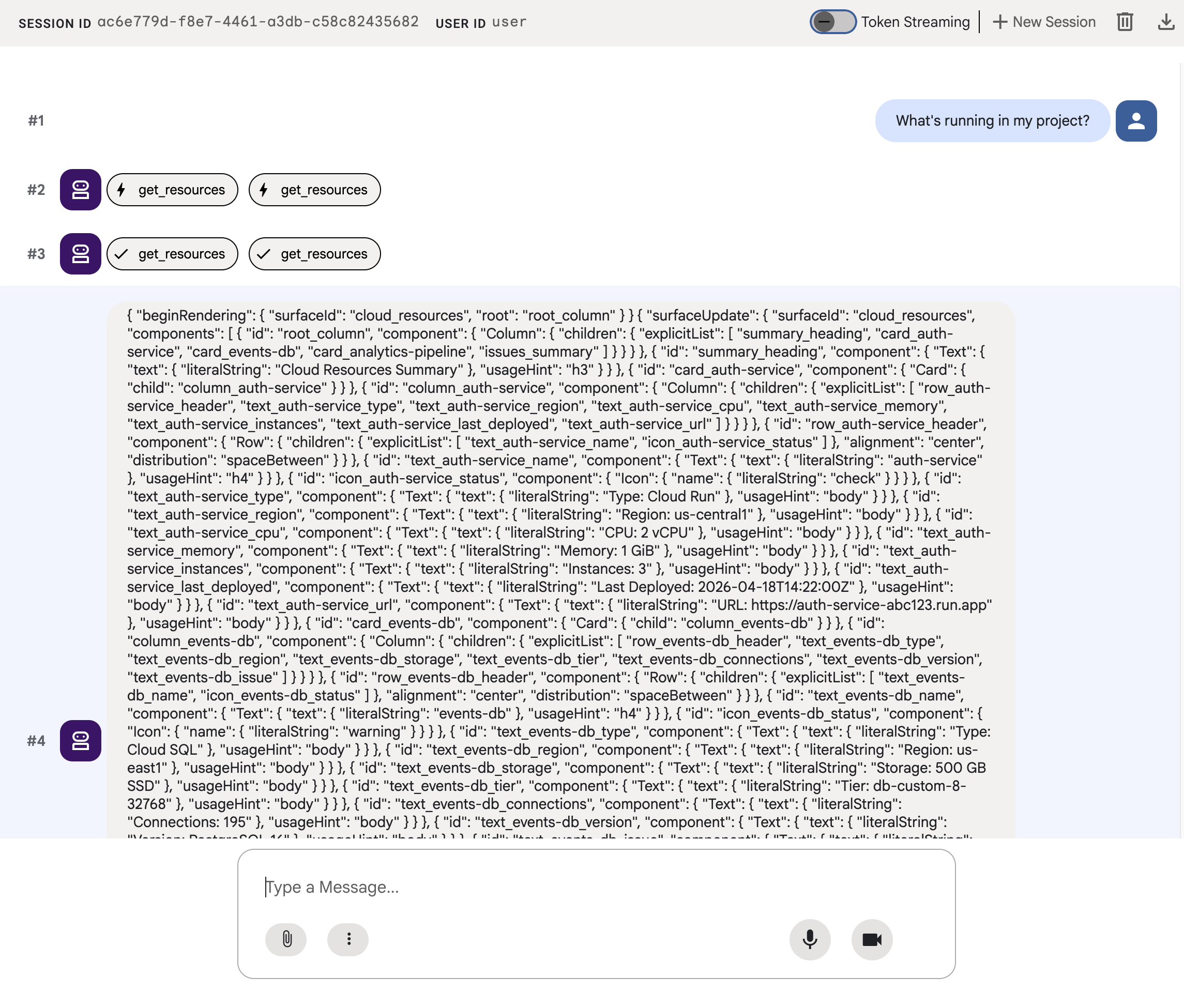
JSON 描述了一个包含卡片、图标和按钮的丰富界面,但 adk web 会将其显示为原始文本。在下一步中,您将使其呈现为实际的界面组件。
7. 了解 A2UI
查看智能体刚刚生成的 JSON。您会注意到它包含三种类型的消息。每个 A2UI 响应都遵循相同的结构:
1. beginRendering
创建呈现表面并命名根组件:
{"beginRendering": {"surfaceId": "default", "root": "main-column"}}
2. surfaceUpdate
将组件树作为包含 ID 引用的扁平列表 (而非嵌套列表)发送:
{"surfaceUpdate": {"surfaceId": "default", "components": [
  {"id": "main-column", "component": {"Column": {"children": {"explicitList": ["title", "card1"]}}}},
  {"id": "title", "component": {"Text": {"text": {"literalString": "My Resources"}, "usageHint": "h1"}}},
  {"id": "card1", "component": {"Card": {"child": "card1-content"}}},
  {"id": "card1-content", "component": {"Text": {"text": {"path": "service_name"}}}}
]}}
3. dataModelUpdate
将数据与结构分开发送:
{"dataModelUpdate": {"surfaceId": "default", "contents": [
  {"key": "service_name", "valueString": "auth-service"},
  {"key": "status", "valueString": "healthy"}
]}}
组件使用 {"path": "key"} 绑定到数据。您可以更新数据,而无需重新发送组件树。
18 个基元
类别 | 组件 |
布局 | 卡片、列、行、列表、标签页、分隔线、模态框 |
显示 | 文本、图片、图标、视频、音频播放器 |
输入 | TextField、DateTimeInput、MultipleChoice、CheckBox、Slider |
操作 | 按钮 |
智能体从同一目录中组合不同的布局。如需详细了解每个基元,请参阅组件参考。浏览视图、优先级信息中心和配置表单都使用这 18 个基元。无需新的前端组件。
8. 呈现 A2UI 组件
智能体生成有效的 A2UI JSON,但 adk web 会将其显示为原始文本。如需将其呈现为实际的界面组件,您需要一个小实用程序,将智能体的 A2UI JSON 输出转换为 adk web 的内置渲染器所需的格式。
创建 A2UI 呈现实用程序
使用以下内容创建 a2ui_agent/a2ui_utils.py:
import json
import re
from google.genai import types
from google.adk.agents.callback_context import CallbackContext
from google.adk.models.llm_response import LlmResponse

def _wrap_a2ui_part(a2ui_message: dict) -> types.Part:
    """Wrap a single A2UI message for rendering in adk web."""
    datapart_json = json.dumps({
        "kind": "data",
        "metadata": {"mimeType": "application/json+a2ui"},
        "data": a2ui_message,
    })
    blob_data = (
        b"<a2a_datapart_json>"
        + datapart_json.encode("utf-8")
        + b"</a2a_datapart_json>"
    )
    return types.Part(
        inline_data=types.Blob(
            data=blob_data,
            mime_type="text/plain",
        )
    )

def a2ui_callback(
    callback_context: CallbackContext,
    llm_response: LlmResponse,
) -> LlmResponse | None:
    """Convert A2UI JSON in text output to rendered components."""
    if not llm_response.content or not llm_response.content.parts:
        return None
    for part in llm_response.content.parts:
        if not part.text:
            continue
        text = part.text.strip()
        if not text:
            continue
        if not any(k in text for k in ("beginRendering", "surfaceUpdate", "dataModelUpdate")):
            continue
        # Strip markdown fences
        if text.startswith("```"):
            text = text.split("\n", 1)[-1]
            if text.endswith("```"):
                text = text[:-3].strip()
        # Find where JSON starts (skip conversational prefix)
        json_start = None
        for i, ch in enumerate(text):
            if ch in ("[", "{"):
                json_start = i
                break
        if json_start is None:
            continue
        json_text = text[json_start:]
        # raw_decode parses JSON and ignores trailing text
        try:
            parsed, _ = json.JSONDecoder().raw_decode(json_text)
        except json.JSONDecodeError:
            # Handle concatenated JSON objects: {"a":1} {"b":2}
            try:
                fixed = "[" + re.sub(r'\}\s*\{', '},{', json_text) + "]"
                parsed, _ = json.JSONDecoder().raw_decode(fixed)
            except json.JSONDecodeError:
                continue
        if not isinstance(parsed, list):
            parsed = [parsed]
        a2ui_keys = {"beginRendering", "surfaceUpdate", "dataModelUpdate", "deleteSurface"}
        a2ui_messages = [msg for msg in parsed if isinstance(msg, dict) and any(k in msg for k in a2ui_keys)]
        if not a2ui_messages:
            continue
        new_parts = [_wrap_a2ui_part(msg) for msg in a2ui_messages]
        return LlmResponse(
            content=types.Content(role="model", parts=new_parts),
            custom_metadata={"a2a:response": "true"},
        )
    return None
此实用程序会执行以下两项操作:
- 从智能体的文本输出中提取 A2UI JSON
- 以
adk web的内置 A2UI 渲染器所需的格式封装每个 A2UI 消息
更新智能体
使用以下内容替换 a2ui_agent/agent.py 的内容。与上一步相比,唯一的变化是导入了 a2ui_callback 和智能体上的 after_model_callback 参数:
from google.adk.agents import Agent
from a2ui.schema.manager import A2uiSchemaManager
from a2ui.basic_catalog.provider import BasicCatalog
from .resources import get_resources
from .a2ui_utils import a2ui_callback

schema_manager = A2uiSchemaManager(
    version="0.8",
    catalogs=[BasicCatalog.get_config("0.8")],
)

instruction = schema_manager.generate_system_prompt(
    role_description=(
        "You are a cloud infrastructure assistant. When users ask about "
        "their cloud resources, use the get_resources tool to fetch the "
        "current state."
    ),
    workflow_description=(
        "Analyze the user's request and return structured UI when appropriate."
    ),
    ui_description=(
        "Use cards for resource summaries, rows and columns for comparisons, "
        "icons for status indicators, and buttons for drill-down actions. "
        "Do NOT use markdown formatting in text values. Use the usageHint "
        "property for heading levels instead. "
        "Respond ONLY with the A2UI JSON array. Do NOT include any text "
        "outside the JSON. Put all explanations into Text components."
    ),
    include_schema=True,
    include_examples=True,
)

root_agent = Agent(
    model="gemini-3-flash-preview",
    name="cloud_dashboard",
    description="A cloud infrastructure assistant that renders rich A2UI interfaces.",
    instruction=instruction,
    tools=[get_resources],
    after_model_callback=a2ui_callback,
)
9. 测试呈现的界面
如果您之前运行的 ADK 开发者界面仍在运行,则它应会自动重新加载您对智能体所做的更改。
刷新浏览器标签页,选择 a2ui_agent,然后点击 ADK 开发者界面右上角的 +新建会话 以启动新会话,并发送与之前相同的提示:
What's running in my project?
这次,adk web 会将 A2UI 组件呈现为实际的界面:包含状态指示器、资源详细信息和操作按钮的卡片。
尝试使用不同的提示,看看智能体如何使用同一组基元组合不同的界面:
Does anything need my attention?
最后,尝试使用另一个提示来生成不同的界面,以部署新服务:
I need to deploy a new service
每个提示都指向同一智能体、同一工具和同一 18 个基元。但每个提示都会针对不同的 intent 生成不同的界面。
10. 清理
为避免本地服务器继续运行,请清理资源:
- 在运行
adk web的终端中,按 Ctrl+C 停止智能体服务器。
如果您专门为此 Codelab 创建了一个项目,则可以删除整个项目:
gcloud projects delete ${GOOGLE_CLOUD_PROJECT}
11. 恭喜
您使用 A2UI 构建了一个 ADK 智能体,该智能体可生成丰富的交互式界面。
要点回顾
- A2UI 是一种协议,包含 18 个声明式基元 和 3 种消息类型
- A2UI SDK 会生成系统提示,向大语言模型介绍组件目录
- 同一智能体、工具和基元会针对不同的 intent 组合不同的界面
- 在开发期间,A2UI 组件可以直接在
adk web中呈现
构建生产前端
在本 Codelab 中,您在 adk web 中呈现了 A2UI,以进行开发和测试。
对于生产环境,您可以使用以下官方 A2UI 渲染器之一构建前端:
平台 | 渲染器 | 安装 |
Web (React) |
|
|
Web (Lit) |
|
|
Web (Angular) |
|
|
移动设备/桌面设备 | Flutter GenUI SDK |
参考文档
后续步骤
探索学习资源,了解如何使用 Gemini Enterprise Agent Ready (GEAR) 构建和部署企业级智能体。