
1. Overview
In this codelab, you will build a data science agent that queries real data from BigQuery public datasets and remembers your preferences across sessions. You will then deploy it to Agent Engine, a fully managed Google Cloud service that handles infrastructure, scaling, and session management.
The agent uses three core capabilities that progressively activate:
- BigQuery Toolset: The agent explores schemas and runs SQL queries against real BigQuery datasets — this works both locally and when deployed.
- Memory Bank: When deployed, the agent remembers user preferences and context across disconnected sessions.
- Observability: Cloud Trace captures the agent's reasoning steps, tool calls, and latencies via OpenTelemetry instrumentation.
What you'll learn
- How to create an ADK agent with
BigQueryToolsetfor real data access - How to configure Memory Bank for cross-session persistence
- How to deploy your agent to Agent Engine with
adk deploy - How to grant IAM permissions for the deployed agent's service account
- How to test memory persistence and observability
What you'll need
- A Google Cloud project with billing enabled
- Google Cloud SDK (
gcloudCLI) - A web browser such as Chrome
- uv (Python package manager)
- Python 3.12+ (installed automatically by
uvif needed)
ADK (Agent Development Kit) is Google's framework for building AI agents. This codelab uses ADK to create an agent and deploy it to Agent Engine.
This codelab is for intermediate developers who have some familiarity with Python and Google Cloud.
This codelab takes approximately 30 minutes to complete (including 5–10 minutes for deployment).
The resources created in this codelab should cost less than $5.
2. Set up your environment
Create a Google Cloud Project
- In the Google Cloud Console, on the project selector page, select or create a Google Cloud project.
- Make sure that billing is enabled for your Cloud project. Learn how to check if billing is enabled on a project.
Set Environment Variables
Open up the Cloud Shell Editor in your created GCP project.
Then create a Terminal > New Terminal, and run the following commands.
export GOOGLE_CLOUD_PROJECT=<INSERT_YOUR_GCP_PROJECT_HERE>
export GOOGLE_CLOUD_LOCATION=us-central1
export GOOGLE_GENAI_USE_VERTEXAI=True
Enable APIs
In the terminal, run the following command.
gcloud services enable \
  aiplatform.googleapis.com \
  bigquery.googleapis.com \
  telemetry.googleapis.com \
  --project=$GOOGLE_CLOUD_PROJECT
- AI Platform API (
aiplatform.googleapis.com) — Agent Engine hosting - BigQuery API (
bigquery.googleapis.com) — SQL queries against public and private datasets - Telemetry API (
telemetry.googleapis.com) — OpenTelemetry traces for agent observability
Create a Virtual Environment and Install ADK
uv venv .venv --python 3.12
source .venv/bin/activate
uv pip install google-adk google-auth
The google-adk package includes the adk CLI tool that you will use to test and deploy the agent.
3. Create the Agent
Create a new agent project directory. All subsequent commands should be run from this working directory (the parent of data_science_agent/):
mkdir data_science_agent
Your final directory structure will look like this:
./
  data_science_agent/
    __init__.py
    agent.py
    requirements.txt    # created in the Deploy step
    .env                # created in the Deploy step
You will create __init__.py and agent.py now, then add requirements.txt and .env in the Deploy step.
Create data_science_agent/__init__.py — this file is required so that ADK can discover and load your agent:
from . import agent # noqa: F401 — required by `adk eval` and `adk web`
Create data_science_agent/agent.py:
This agent connects to BigQuery for data extraction and persists sessions to Memory Bank.
Memory activates automatically when deployed — the GOOGLE_CLOUD_AGENT_ENGINE_ID environment variable is set by the Agent Engine runtime and is absent when running locally.
from __future__ import annotations

import os

from google.adk.agents import LlmAgent
from google.adk.agents.callback_context import CallbackContext
from google.adk.apps import App
from google.adk.tools.bigquery import BigQueryCredentialsConfig
from google.adk.tools.bigquery import BigQueryToolset
from google.adk.tools.preload_memory_tool import PreloadMemoryTool
import google.auth

PROJECT_ID = os.getenv("GOOGLE_CLOUD_PROJECT")
if not PROJECT_ID:
    raise ValueError(
        "GOOGLE_CLOUD_PROJECT environment variable is required. "
        "Set it with: export GOOGLE_CLOUD_PROJECT=<your-project-id>"
    )

credentials, _ = google.auth.default()
bq_toolset = BigQueryToolset(credentials_config=BigQueryCredentialsConfig(credentials=credentials))

# GOOGLE_CLOUD_AGENT_ENGINE_ID is set automatically by the Agent Engine runtime.
agent_engine_id = os.getenv("GOOGLE_CLOUD_AGENT_ENGINE_ID")


async def _save_memory(callback_context: CallbackContext) -> None:
    """Persist the session to Memory Bank after each agent run.

    Only activates on Agent Engine where Memory Bank is available.
    """
    if agent_engine_id:
        await callback_context.add_session_to_memory()


root_agent = LlmAgent(
    name="data_science_agent",
    model="gemini-2.5-pro",
    instruction=(
        "You are an expert Data Science Agent. "
        "Your goal is to query enterprise BigQuery datasets, analyze the data, "
        "and summarize your findings. "
        f"When executing SQL queries, use project_id `{PROJECT_ID}` as the "
        "billing project unless the user specifies a different one. "
        "Present results clearly with formatted numbers. "
        "Remember user preferences like preferred regions, date ranges, "
        "or analysis formats across conversations."
    ),
    tools=[bq_toolset, PreloadMemoryTool()],
    after_agent_callback=_save_memory,
)

app = App(
    name="data_science_agent",
    root_agent=root_agent,
)
Let's walk through what this code does:
- BigQueryToolset gives the agent tools like
execute_sql,list_table_ids, andget_table_info— it can explore schemas and query any dataset the caller has access to. - PreloadMemoryTool automatically retrieves relevant memories before each LLM call by searching Memory Bank for content related to the user's message. The
_save_memorycallback persists the session to Memory Bank after each agent run, so the agent can recall context in future sessions. - App wraps the root agent into a deployable application that Agent Engine can serve. The
namemust match the directory name (data_science_agent) —adk webuses this to locate and load the agent. - The instruction tells the agent to use the billing project for SQL queries and remember user preferences.
4. Deploy to Agent Engine
Create a requirements.txt file in the data_science_agent directory:
google-adk>=1.26.0
google-genai>=1.27.0
google-auth>=2.0.0
python-dotenv>=1.1.0
opentelemetry-instrumentation-fastapi
opentelemetry-instrumentation-google-genai
opentelemetry-instrumentation-httpx
opentelemetry-instrumentation-grpc
google-adkandgoogle-genai— the ADK framework and Gemini clientgoogle-auth— Google Cloud authenticationpython-dotenv— loads the.envfile at startup- The four
opentelemetry-instrumentation-*packages enable the observability features you will explore later. They instrument FastAPI HTTP requests, Gemini model calls, and internal gRPC/HTTP communication so that traces appear in the Agent Engine Traces tab.
Create a .env file in the data_science_agent directory to enable telemetry on the deployed agent:
GOOGLE_CLOUD_AGENT_ENGINE_ENABLE_TELEMETRY=true
OTEL_INSTRUMENTATION_GENAI_CAPTURE_MESSAGE_CONTENT=true
GOOGLE_CLOUD_AGENT_ENGINE_ENABLE_TELEMETRY— activates the OpenTelemetry pipeline in the Agent Engine runtime.OTEL_INSTRUMENTATION_GENAI_CAPTURE_MESSAGE_CONTENT— logs full prompt inputs and agent responses, useful for debugging.
Deploy the agent. The last argument data_science_agent is the directory containing your agent code:
adk deploy agent_engine \
  --project=$GOOGLE_CLOUD_PROJECT \
  --region=$GOOGLE_CLOUD_LOCATION \
  --display_name="Data Science Agent" \
  --trace_to_cloud \
  --otel_to_cloud \
  data_science_agent
Flag | Purpose |
| Target Google Cloud project and region |
| Human-readable name shown in the Cloud Console |
| Enables the Cloud Trace exporter for agent spans |
| Enables the OpenTelemetry instrumentation pipeline |
When deployed to Agent Engine, two capabilities activate automatically:
- Memory Bank:
PreloadMemoryToolconnects to Agent Engine Memory Bank and_save_memorypersists sessions automatically. - Observability: Cloud Trace captures the agent's reasoning steps, tool calls, and latencies.
5. Grant BigQuery Permissions
You need to grant BigQuery access to the Agent Engine service account. When deployed, the agent runs as a Google-managed service account (not your personal credentials), so it needs explicit permissions to execute SQL queries.
PROJECT_NUMBER=$(gcloud projects describe $GOOGLE_CLOUD_PROJECT \
  --format='value(projectNumber)')

SA="service-${PROJECT_NUMBER}@gcp-sa-aiplatform-re.iam.gserviceaccount.com"

# Required to execute SQL queries
gcloud projects add-iam-policy-binding $GOOGLE_CLOUD_PROJECT \
  --member="serviceAccount:${SA}" \
  --role="roles/bigquery.jobUser"

# Required to read table metadata and data
gcloud projects add-iam-policy-binding $GOOGLE_CLOUD_PROJECT \
  --member="serviceAccount:${SA}" \
  --role="roles/bigquery.dataViewer"
Each command prints Updated IAM policy for project [...] when successful.
6. Test the Deployed Agent
Open the Agent Engine page in the Google Cloud Console. Click on your deployed agent to open the Agent Engine Playground.
Test the BigQuery capabilities:
- "List the tables in bigquery-public-data.hacker_news"
- Expected: The agent calls
list_table_idsand returns table names includingfull.
- Expected: The agent calls
- "Find the number of posts per year in bigquery-public-data.hacker_news.full"
- Expected: The agent calls
execute_sqlwith a SQL query and returns a table of years and post counts.
- Expected: The agent calls
- "What was the year-over-year percentage change in posts?"
- Expected: The agent calls
execute_sqlwith a SQL query that computes the percentage change and returns the results.
- Expected: The agent calls
7. Test Memory Persistence
Still in the Playground, teach the agent a preference:
- "Remember that my favorite dataset is bigquery-public-data.hacker_news"
- "What tables does it have?"
Wait a few seconds for the memory to persist (the _save_memory callback runs after the agent responds).
Now start a new session by clicking the "+ New Session" button in the Playground sidebar, then ask:
- "What is my favorite dataset?"
The agent should recall bigquery-public-data.hacker_news even though this is a brand new session with no conversation history. This works because:
_save_memorypersists each session to Memory Bank viacallback_context.add_session_to_memory()PreloadMemoryToolretrieves relevant memories before each LLM call- Memory Bank matches content semantically, not just by keyword
8. Explore Observability
In the Cloud Console, navigate to your deployed agent and click the Traces tab.
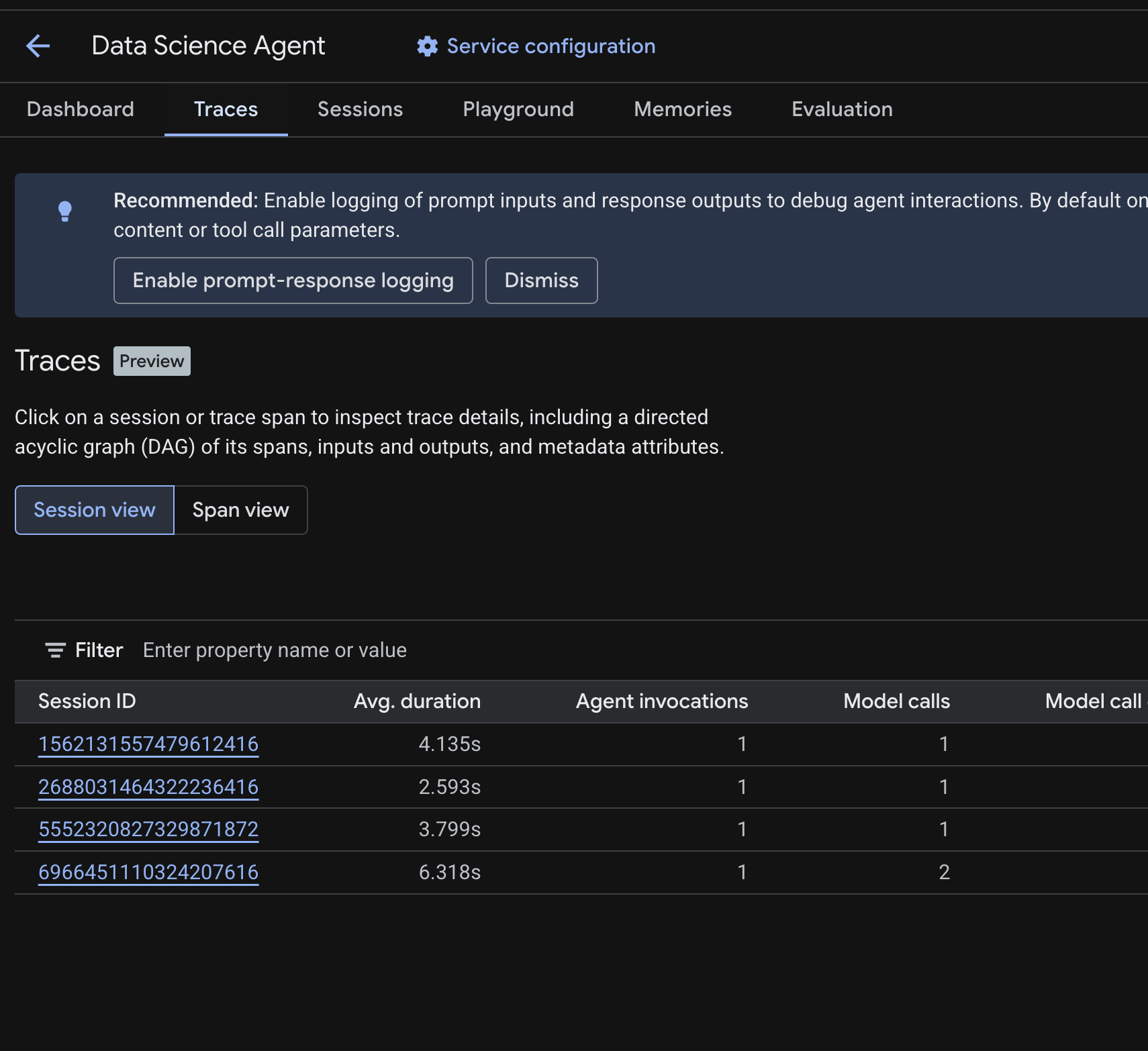
You should see a Session table listing the sessions from the test queries you ran in previous steps. The table shows summary metrics for each session — average duration, model calls, tool calls, token usage, and any errors.
Click on a session to inspect its trace details, including:
- A directed acyclic graph (DAG) of its spans — showing the step-by-step breakdown of agent reasoning, tool calls (BigQuery queries), and latencies
- Inputs and outputs for each span (enabled via the
OTEL_INSTRUMENTATION_GENAI_CAPTURE_MESSAGE_CONTENTenv var in.env) - Metadata attributes like span IDs, trace IDs, and timing
You can also switch to Span view (toggle at the top) to see individual spans across all sessions.
How Tracing Works
When you deploy with --trace_to_cloud and --otel_to_cloud, the Agent Engine runtime initializes an OpenTelemetry pipeline that:
- Creates a TracerProvider with an OTLP exporter that sends spans to
telemetry.googleapis.com - Uses the four instrumentation packages from your
requirements.txtto capture spans from key libraries (FastAPI, Gemini, httpx, gRPC) —google-genaiis explicitly instrumented by the runtime, while the others contribute via OpenTelemetry auto-discovery - Batches and exports spans to the Telemetry API, where the Traces tab reads them
The Agent Engine base image provides the OpenTelemetry SDK and exporter, but does not include the instrumentation packages. This is why your requirements.txt must list all four — without them, no spans are created and no traces appear.
Troubleshooting
If no traces appear after a few minutes:
- Check that the Telemetry API is enabled — you enabled it in the setup step. Verify with:
gcloud services list --enabled --project=$GOOGLE_CLOUD_PROJECT | grep telemetry - Check Cloud Logging for warnings — go to Logging > Logs Explorer and search for
"telemetry enabled but proceeding without". If you see a warning about GenAI instrumentation,opentelemetry-instrumentation-google-genaiis missing from yourrequirements.txt. - Do not add
google-cloud-aiplatform[agent-engines]to yourrequirements.txt. The ADK deploy CLI adds it automatically; re-declaring it with a different version can cause OpenTelemetry package conflicts and silently break instrumentation.
9. Clean Up
To avoid ongoing charges, delete the resources created during this codelab.
Delete the deployed agent from the Agent Engine page in the Cloud Console. Select your agent and click Delete.
If you created a project specifically for this codelab, you can delete the entire project instead:
gcloud projects delete ${GOOGLE_CLOUD_PROJECT}
Optionally, clean up your local environment:
deactivate
rm -rf .venv data_science_agent
10. Congratulations
You have built a stateful data science agent and deployed it to Agent Engine!
What you've learned
- How to create an ADK agent with
BigQueryToolsetfor real data access - How to enable persistent memory with Memory Bank using
PreloadMemoryToolandafter_agent_callback - How to grant IAM permissions for the deployed agent's service account
- How to deploy to Agent Engine and enable observability with Cloud Trace
Next steps
- Query your own private BigQuery datasets by granting the Agent Engine service account access to your data
- Add Code Execution to run Python analysis in a secure sandbox
- Set up Cloud Trace observability dashboards to monitor your agent in production
- Publish results to Google Workspace using MCP tools