
1. Overview
In this codelab, you will build a data science agent that queries real data from BigQuery public datasets and remembers your preferences across sessions. You will then deploy it to Agent Runtime, a fully managed Google Cloud service that handles infrastructure, scaling, and session management.
The agent uses three core capabilities that progressively activate:
- BigQuery Toolset: The agent explores schemas and runs SQL queries against real BigQuery datasets — this works both locally and when deployed.
- Memory Bank: When deployed, the agent remembers user preferences and context across disconnected sessions.
- Observability: Cloud Trace captures the agent's reasoning steps, tool calls, and latencies via OpenTelemetry instrumentation.
What you'll learn
- How to create an ADK agent with
BigQueryToolsetfor real data access - How to configure Memory Bank for cross-session persistence
- How to deploy your agent to Agent Runtime with
adk deploy - How to grant IAM permissions for the deployed agent's service account
- How to test memory persistence and observability
What you'll need
- A Google Cloud project with billing enabled
- A web browser such as Chrome
- If you run the code on your own machine instead of Cloud Shell: the Google Cloud SDK (
gcloudCLI), uv (Python package manager), and Python 3.12+ (installed automatically byuvif needed)
ADK (Agent Development Kit) is Google's framework for building AI agents. This codelab uses ADK to create an agent and deploy it to Agent Runtime.
This codelab is for intermediate developers who have some familiarity with Python and Google Cloud.
This codelab takes approximately 35 minutes to complete (including 5–10 minutes for deployment).
The resources created in this codelab should cost less than $5.
2. Set up your environment
Create a Google Cloud Project
- In the Google Cloud Console, on the project selector page, select or create a Google Cloud project.
- Make sure that billing is enabled for your Cloud project. Learn how to check if billing is enabled on a project.
Set your project
Open up the Cloud Shell Editor in your created GCP project.
Then create a Terminal > New Terminal, and run the following command to set your project. Later commands read the project ID from this setting.
gcloud config set project <INSERT_YOUR_GCP_PROJECT_HERE>
Enable APIs
In the terminal, run the following command.
gcloud services enable \
  aiplatform.googleapis.com \
  bigquery.googleapis.com \
  telemetry.googleapis.com \
  --project=$(gcloud config get project)
aiplatform.googleapis.com: hosts your agent on Agent Runtime, including Gemini Enterprise Sessions and Memory Bank, and serves the Gemini model- BigQuery API (
bigquery.googleapis.com): SQL queries against public and private datasets - Telemetry API (
telemetry.googleapis.com): OpenTelemetry traces for agent observability
Install ADK
In the terminal, run the following commands to create a folder for this codelab and install ADK and its dependencies:
mkdir -p ~/adk-deploy-scale
cd ~/adk-deploy-scale
uv init --bare
uv add google-adk google-auth google-cloud-bigquery "google-cloud-aiplatform[agent_engines]"
uv creates an isolated Python environment for this codelab, so you don't need to activate anything. Prefix Python commands with uv run.
The google-adk package includes the adk CLI tool that you will use to test and deploy the agent. adk deploy uses google-cloud-aiplatform to create your agent on Agent Runtime, and google-cloud-bigquery is the client library behind ADK's BigQuery tools.
3. Create the Agent
In the ~/adk-deploy-scale folder, create the agent directory. Run all later commands from ~/adk-deploy-scale (the parent of data_science_agent/):
mkdir data_science_agent
Then run the following command to create data_science_agent/.env with your project, the region where you'll deploy the agent, and settings for the deployed agent. adk deploy reads this file, so these settings still work if you open a new terminal.
cat > ~/adk-deploy-scale/data_science_agent/.env <<EOF
GOOGLE_CLOUD_PROJECT=$(gcloud config get project)
GOOGLE_CLOUD_LOCATION=us-central1
GOOGLE_GENAI_USE_ENTERPRISE=True
OTEL_INSTRUMENTATION_GENAI_CAPTURE_MESSAGE_CONTENT=true
EOF
GOOGLE_CLOUD_PROJECTandGOOGLE_CLOUD_LOCATION: your project ID (filled in fromgcloud) and the region the agent runs inGOOGLE_GENAI_USE_ENTERPRISE: has ADK call Gemini through your Google Cloud projectOTEL_INSTRUMENTATION_GENAI_CAPTURE_MESSAGE_CONTENT: logs full prompt inputs and agent responses, useful for debugging
Your final directory structure will look like this:
adk-deploy-scale/
  data_science_agent/
    .env
    __init__.py
    agent.py
    requirements.txt    # created in the Deploy step
You will create __init__.py and agent.py now, then add requirements.txt in the Deploy step.
Create data_science_agent/__init__.py — this file is required so that ADK can discover and load your agent:
from . import agent # noqa: F401 — required by `adk eval` and `adk web`
Create data_science_agent/agent.py:
This agent connects to BigQuery for data extraction and persists sessions to Memory Bank.
Memory activates automatically when deployed. Agent Runtime sets the GOOGLE_CLOUD_AGENT_ENGINE_ID environment variable, which is absent when running locally.
from __future__ import annotations

import os

from google.adk.agents import LlmAgent
from google.adk.agents.callback_context import CallbackContext
from google.adk.apps import App
from google.adk.integrations.bigquery import BigQueryCredentialsConfig
from google.adk.integrations.bigquery import BigQueryToolset
from google.adk.models import Gemini
from google.adk.tools.preload_memory_tool import PreloadMemoryTool
from google.genai import types
import google.auth

PROJECT_ID = os.getenv("GOOGLE_CLOUD_PROJECT")
if not PROJECT_ID:
    raise ValueError(
        "GOOGLE_CLOUD_PROJECT environment variable is required. "
        "Add it to data_science_agent/.env: GOOGLE_CLOUD_PROJECT=<your-project-id>"
    )

credentials, _ = google.auth.default()
bq_toolset = BigQueryToolset(credentials_config=BigQueryCredentialsConfig(credentials=credentials))

# GOOGLE_CLOUD_AGENT_ENGINE_ID is set automatically by Agent Runtime.
agent_engine_id = os.getenv("GOOGLE_CLOUD_AGENT_ENGINE_ID")


async def _save_memory(callback_context: CallbackContext) -> None:
    """Persist the session to Memory Bank after each agent run.

    Only activates on Agent Runtime, where Memory Bank is available.
    """
    if agent_engine_id:
        await callback_context.add_session_to_memory()


root_agent = LlmAgent(
    name="data_science_agent",
    model=Gemini(
        model="gemini-3.8-flash",
        # gemini-3.8-flash is served from the global endpoint. The agent
        # itself runs in GOOGLE_CLOUD_LOCATION (us-central1).
        client_kwargs={"location": "global"},
        retry_options=types.HttpRetryOptions(attempts=5),
    ),
    instruction=(
        "You are an expert Data Science Agent. "
        "Your goal is to query enterprise BigQuery datasets, analyze the data, "
        "and summarize your findings. "
        f"When executing SQL queries, use project_id `{PROJECT_ID}` as the "
        "billing project unless the user specifies a different one. "
        "Present results clearly with formatted numbers. "
        "Remember user preferences like preferred regions, date ranges, "
        "or analysis formats across conversations."
    ),
    tools=[bq_toolset, PreloadMemoryTool()],
    after_agent_callback=_save_memory,
)

app = App(
    name="data_science_agent",
    root_agent=root_agent,
)
Let's walk through what this code does:
- BigQueryToolset gives the agent tools like
execute_sql,list_table_ids, andget_table_info— it can explore schemas and query any dataset the caller has access to. - PreloadMemoryTool automatically retrieves relevant memories before each LLM call by searching Memory Bank for content related to the user's message. The
_save_memorycallback persists the session to Memory Bank after each agent run, so the agent can recall context in future sessions. - App wraps the root agent into a deployable application that Agent Runtime can serve. The
namemust match the directory name (data_science_agent) —adk webuses this to locate and load the agent. - The instruction tells the agent to use the billing project for SQL queries and remember user preferences.
- Gemini with
client_kwargs={"location": "global"}sends model calls to the global endpoint, wheregemini-3.8-flashis available. The agent itself runs inus-central1:adk deploysetsGOOGLE_CLOUD_LOCATIONon the deployed agent to the region you deploy to, so the model's location is set in code instead.
4. Deploy to Agent Runtime
Create a requirements.txt file in the data_science_agent directory:
google-adk
google-genai
google-auth
google-cloud-bigquery
python-dotenv
opentelemetry-instrumentation-google-genai
opentelemetry-instrumentation-httpx
opentelemetry-instrumentation-grpc
google-adkandgoogle-genai: ADK and the Gemini clientgoogle-auth: Google Cloud authenticationgoogle-cloud-bigquery: the BigQuery client library thatBigQueryToolsetuses. ADK doesn't install it by default.python-dotenv: loads the.envfile at startup- The three
opentelemetry-instrumentation-*packages enable the observability features you will explore later. They instrument Gemini model calls and internal gRPC/HTTP communication so that traces appear on your agent's Traces tab.
adk deploy also reads the data_science_agent/.env file you created earlier and sets its settings on the deployed agent.
Deploy the agent. The last argument data_science_agent is the directory containing your agent code:
uv run adk deploy agent_engine \
  --project=$(gcloud config get project) \
  --region=us-central1 \
  --display_name="Data Science Agent" \
  --otel_to_cloud \
  data_science_agent
Near the start, the output shows two yellow lines, Ignoring GOOGLE_CLOUD_PROJECT in .env ... and Ignoring GOOGLE_CLOUD_LOCATION in .env .... They're expected: the --project and --region flags take precedence over the same values in .env.
Flag | Purpose |
| Target Google Cloud project and region |
| Human-readable name shown in the Cloud Console |
| Exports OpenTelemetry traces and logs to Google Cloud, and turns on telemetry ( |
When deployed to Agent Runtime, two capabilities activate automatically:
- Memory Bank:
adk deployconnects the agent to Sessions and Memory Bank on its Agent Runtime instance.PreloadMemoryToolreads from Memory Bank and_save_memorypersists sessions automatically. - Observability: Cloud Trace captures the agent's reasoning steps, tool calls, and latencies.
5. Grant BigQuery Permissions
You need to grant BigQuery access to the Agent Runtime service agent (the AI Platform Reasoning Engine Service Agent). When deployed, the agent runs as this Google-managed service account (not your personal credentials), so it needs explicit permissions to execute SQL queries.
PROJECT_NUMBER=$(gcloud projects describe $(gcloud config get project) \
  --format='value(projectNumber)')

SA="service-${PROJECT_NUMBER}@gcp-sa-aiplatform-re.iam.gserviceaccount.com"

# Required to execute SQL queries
gcloud projects add-iam-policy-binding $(gcloud config get project) \
  --member="serviceAccount:${SA}" \
  --role="roles/bigquery.jobUser"

# Required to read table metadata and data
gcloud projects add-iam-policy-binding $(gcloud config get project) \
  --member="serviceAccount:${SA}" \
  --role="roles/bigquery.dataViewer"
Each command prints Updated IAM policy for project [...] when successful.
6. Test the Deployed Agent
Open the Deployments page in the Google Cloud Console. Click on your deployed agent, then click the Playground tab.
Test the BigQuery capabilities:
- "List the tables in bigquery-public-data.hacker_news"
- Expected: The agent calls
list_table_idsand returns table names includingfull.
- Expected: The agent calls
- "Find the number of posts per year in bigquery-public-data.hacker_news.full"
- Expected: The agent calls
execute_sqlwith a SQL query and returns a table of years and post counts.
- Expected: The agent calls
- "What was the year-over-year percentage change in posts?"
- Expected: The agent calls
execute_sqlwith a SQL query that computes the percentage change and returns the results.
- Expected: The agent calls
7. Test Memory Persistence
Still in the Playground, teach the agent a preference:
- "Remember that my favorite dataset is bigquery-public-data.hacker_news"
- "What tables does it have?"
Wait a few seconds for the memory to persist (the _save_memory callback runs after the agent responds).
Now start a new session by clicking New Session in the Playground, then ask:
- "What is my favorite dataset?"
The agent should recall bigquery-public-data.hacker_news even though this is a brand new session with no conversation history. This works because:
_save_memorypersists each session to Memory Bank viacallback_context.add_session_to_memory()PreloadMemoryToolretrieves relevant memories before each LLM call- Memory Bank matches content semantically, not just by keyword
8. Explore Observability
In the Cloud Console, navigate to your deployed agent and click the Traces tab.
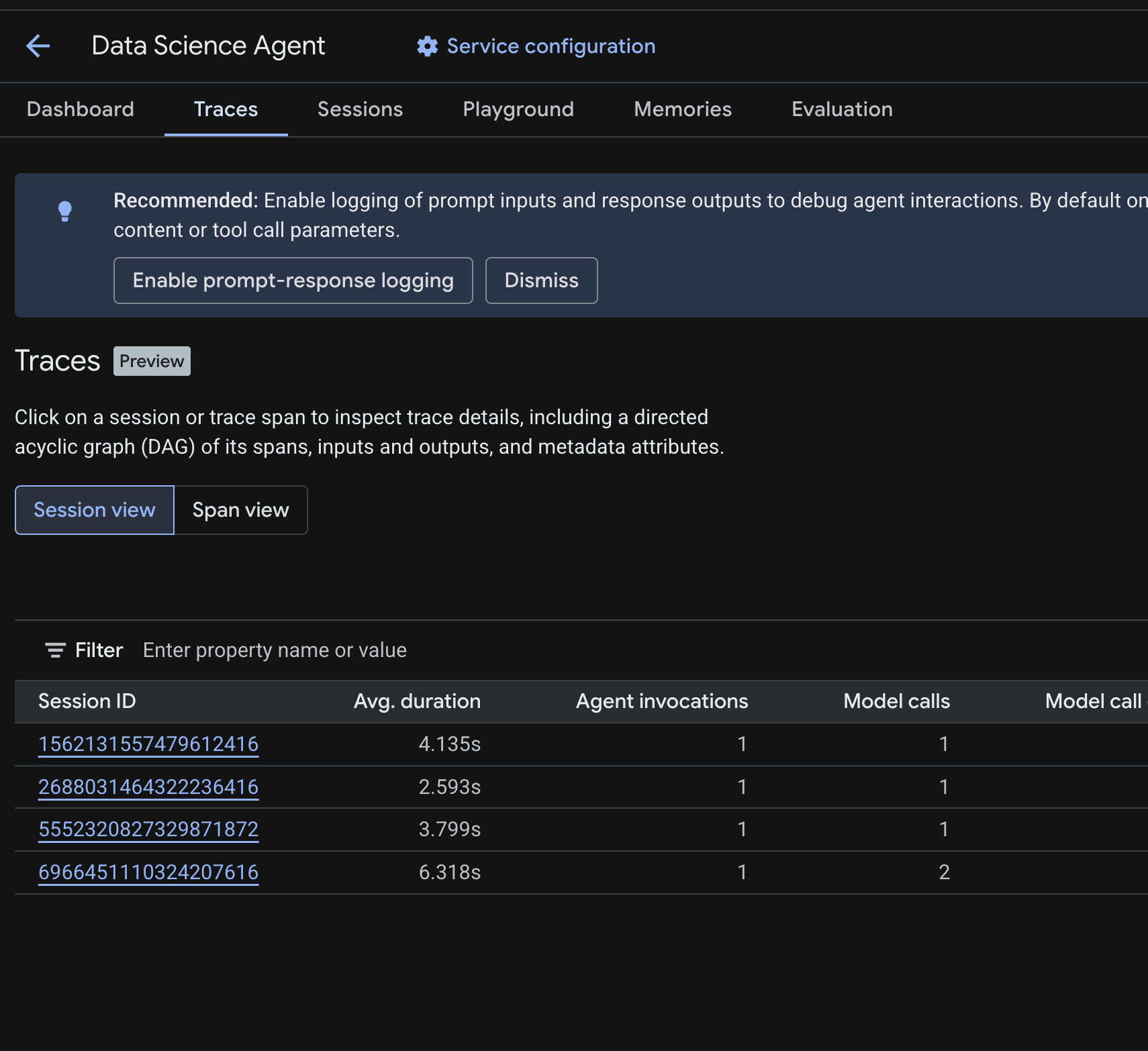
You should see a Session table listing the sessions from the test queries you ran in previous steps. The table shows summary metrics for each session — average duration, model calls, tool calls, token usage, and any errors.
Click on a session to inspect its trace details, including:
- A directed acyclic graph (DAG) of its spans — showing the step-by-step breakdown of agent reasoning, tool calls (BigQuery queries), and latencies
- Inputs and outputs for each span (enabled via the
OTEL_INSTRUMENTATION_GENAI_CAPTURE_MESSAGE_CONTENTenv var in.env) - Metadata attributes like span IDs, trace IDs, and timing
You can also switch to Span view (toggle at the top) to see individual spans across all sessions.
How Tracing Works
When you deploy with --otel_to_cloud, adk deploy builds a container that runs the ADK API server with OpenTelemetry turned on. On Agent Runtime, the server initializes an OpenTelemetry pipeline that:
- Creates a TracerProvider with an OTLP exporter that sends spans to
telemetry.googleapis.com - Records ADK's own spans for agent runs, model calls, and tool calls, and uses the three instrumentation packages from your
requirements.txtto add spans from key libraries (Gemini, httpx, gRPC) - Batches and exports spans to the Telemetry API, where the Traces tab reads them
The deployed container includes ADK and the OpenTelemetry SDK and exporter, but does not include the instrumentation packages. This is why your requirements.txt lists all three. Without them, the ADK API server logs a warning and skips those spans.
Troubleshooting
If no traces appear after a few minutes:
- Check that the Telemetry API is enabled: you enabled it in the setup step. Verify with:
gcloud services list --enabled --project=$(gcloud config get project) | grep telemetry - Check Cloud Logging for warnings: go to Logging > Logs Explorer and search for
"proceeding without"or"GoogleGenAiSdkInstrumentor". A warning that names an instrumentation (GenAI, HTTPX, or gRPC) means the matchingopentelemetry-instrumentation-*package is missing from yourrequirements.txt. - Do not add
google-cloud-aiplatformto yourrequirements.txt.adk deployadds it automatically; declaring it yourself can cause OpenTelemetry package conflicts and silently break instrumentation.
9. Clean Up
To avoid ongoing charges, delete the resources created during this codelab.
Delete the deployed agent from the Deployments page in the Cloud Console. Select your agent and click Delete.
If you created a project specifically for this codelab, you can delete the entire project instead:
gcloud projects delete <YOUR_PROJECT_ID>
Optionally, clean up your local environment:
cd ~
rm -rf ~/adk-deploy-scale
10. Congratulations
You have built a stateful data science agent and deployed it to Agent Runtime!
What you've learned
- How to create an ADK agent with
BigQueryToolsetfor real data access - How to enable persistent memory with Memory Bank using
PreloadMemoryToolandafter_agent_callback - How to grant IAM permissions for the deployed agent's service account
- How to deploy to Agent Runtime and enable observability with Cloud Trace
Next steps
- Query your own private BigQuery datasets by granting the Agent Runtime service agent access to your data
- Add Code Execution to run Python analysis in a secure sandbox
- Set up Cloud Trace observability dashboards to monitor your agent in production
- Publish results to Google Workspace using MCP tools