
1. Introduction
In this codelab, you will learn how to plan and build software applications with the Gemini CLI Conductor extension. You will start by building a "greenfield" application completely from scratch. Then, you will treat it as a "brownfield" project, iterating on it to add authentication and storage.
What you'll do
- Install Gemini CLI and the Conductor extension
- Build a "Picker Wheel" web app from scratch using Conductor's planning and implementation capabilities
- Add personalization to the application by adding authentication and storage using Firebase
What you'll learn
- How to use the Conductor extension to plan, implement, and review a "greenfield" application
- How to use the Conductor extension to add features to a "brownfield" application
What you'll need
- A web browser such as Chrome
- A Google Cloud project with billing enabled
- Node.js installed (version 18+ recommended)
- A Local code editor like Visual Studio Code
2. Before you begin
Create a Google Cloud Project
- In the Google Cloud Console, on the project selector page, select or create a Google Cloud project.
- Make sure that billing is enabled for your Cloud project. Learn how to check if billing is enabled on a project.
Start Cloud Shell
Cloud Shell is a command-line environment running in Google Cloud that comes preloaded with necessary tools.
- Click Activate Cloud Shell at the top of the Google Cloud console.
- Once connected to Cloud Shell, verify your authentication:
gcloud auth list - Confirm your project is configured:
gcloud config get project - If your project is not set as expected, set it:
export PROJECT_ID=<YOUR_PROJECT_ID>
gcloud config set project $PROJECT_ID
Enable APIs
Enable the Firebase Management API in your Google Cloud project.
gcloud services enable firebase.googleapis.com
Add Firebase to your project
The Firebase CLI comes pre-installed in Cloud Shell. From Cloud Shell, sign in with the same Google Account that gives you access to the Google Cloud project. If you are working locally, install the Firebase CLI by following the instructions.
firebase login
Run the following command to add Firebase to your Google Cloud project:
firebase projects:addfirebase
If this is your first time running the firebase CLI, answer any questions that you are asked.
Exit Cloud Shell
You may close the Cloud Shell window. In the following section we'll configure your local environment.
3. Install Gemini CLI and Conductor locally
In this step, you will prepare your local development environment by installing Gemini CLI and the Conductor extension using your local code editor and terminal.
Install Gemini CLI
- Install the latest version of the Gemini CLI globally using npm:
npm install -g @google/gemini-cli - Restart your terminal so that
geminiis added to your PATH. - Verify the installation has installed the latest version:
gemini --version - Create and change to a new project directory: In a later section we'll create a project in a
picker-wheeldirectory. Create that directory now and change to this directory:mkdir picker-wheel cd picker-wheel - Authenticate:
- Start Gemini CLI.
gemini - When asked "Do you trust the files in this folder?", select Trust folder (picker-wheel)
- When asked "How would you like to authenticate for this project?", select Vertex AI. Follow the authentication guide to obtain a Google Cloud API key and set the
GOOGLE_API_KEYenvironment variable. Take a moment to explore different usage tiers and their corresponding API rate limits.
- Start Gemini CLI.
- Exit Gemini CLI: Type
/quitfrom the CLI terminal to end your live Gemini CLI session before continuing.
Install Conductor Extension
Conductor is a Google-built, open-source Gemini CLI extension that enables context-driven development features like planning and implementation tracking.
- Install the extension:
gemini extensions install https://github.com/gemini-cli-extensions/conductor - Verify the installation:
- Start Gemini CLI.
gemini - Type
/conductorand you will see a list of commands likesetup,newTrack,implement, etc.
- Start Gemini CLI.
- Exit Gemini CLI: Type
/quitfrom the CLI terminal to end your live Gemini CLI session before continuing.
4. Greenfield Development: The Picker Wheel
Now that your environment is set up, you will build a new application from scratch. You'll create a "Picker Wheel" — a lightweight web app that spins to select a random option.
Setup Product Context
- Confirm you are in the
picker-wheeldirectory you created in the previous section:pwd - Start Gemini CLI: Start a new Gemini CLI session from your project directory.
gemini - Initialize Conductor: Run the setup command to scaffold the project and set up the Conductor environment.
/conductor:setup - Follow the interactive prompts: The interactive prompts you see will not match these examples exactly. Focus a simpler design to familiarize yourself with the Conductor workflow.
- Product goal: A web application that displays a configurable spinning wheel to select a random item from a list.
- Target Audience → General Public
- Interaction → Tap/Click to Spin
- Customization → Basic
- Platform → Desktop-First
- Product guidelines: Autogenerate.
- Tech stack:
- Languages → TypeScript/JavaScript - Ideal for full-stack web
- Frontend → Vue.js - Intuitive web interfaces
- Backend → Express.js - Fast Node backend
- Database → None - No database needed
- Workflow: Standard.
- Product requirements:
- User Stories → Customizable Options, Clear Winner Display
- Key Features → Editable Option List, Randomized Colors
- Constraints → Client-Side Only, High Performance
- Non-Functional → High Test Coverage, TypeScript & Vue.js, Responsive Design
conductor/directory. - Product goal: A web application that displays a configurable spinning wheel to select a random item from a list.
Create a New Track
A "Track" in Conductor represents a feature or a unit of work.
- Start a new track using
/conductor:newTrack. Conductor might propose an initial track based on the product context. Alternatively, you can propose your own or ask conductor to suggest a track. - Review the generated plan: Conductor will generate an
index.md, aspec.md, and aplan.mdinsideconductor/tracks/{track-id}/. Take a moment to read them. If everything looks good, Conductor will prompt you to save and commit the initial setup files.
Implement the Track
- Start implementation:
/conductor:implement - Verify the application: Throughout the implementation phase, Conductor will prompt you to manually test the application. For example, it will ask you to open the local web server, preview the application in your browser, and verify the changes. When the implementation is complete, you should see a functional picker wheel.
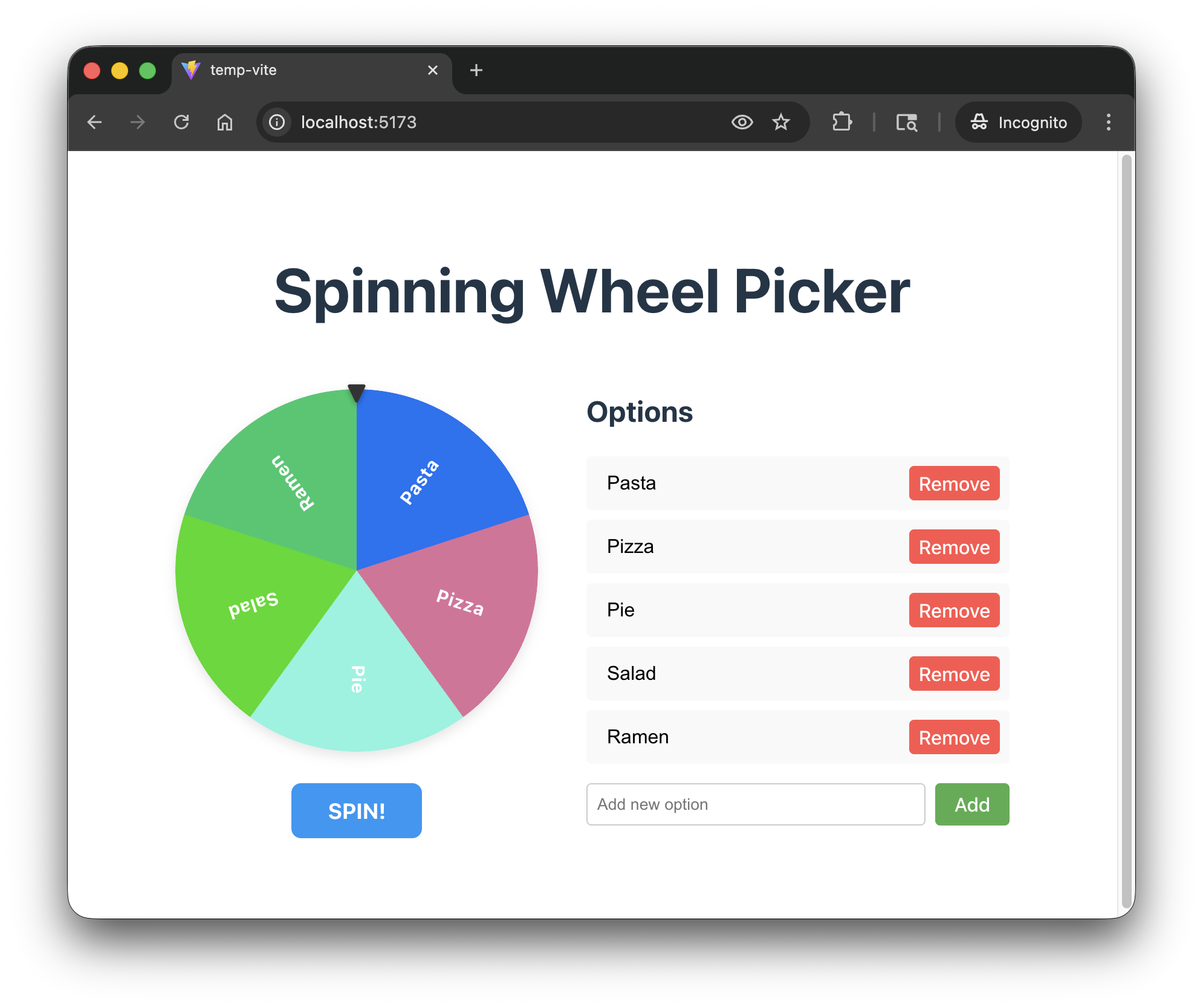
- Review the implementation: As a last step, you can ask Conductor to review the implementation. It should review the source code, synchronize the project documentation, and archive the track.
/conductor:review
5. Brownfield Iteration: Add Personalization
Now you will pivot to "brownfield" development. You will improve the picker wheel web application from the previous section so that signed-in users can save and restore their picker wheel configurations.
Create a Personalization Track
- In the following "brownfield" example, we will use Firebase for authentication and storage. Install the Gemini CLI Firebase extension so Conductor can use it.
gemini extensions install https://github.com/firebase/agent-skills - Start Gemini CLI: Start a new Gemini CLI session from your project directory.
gemini - Start a new track: Start a new track.
/conductor:newTrack "I want users to be able to log in to their accounts and save their picker wheel configurations." - Follow the interactive prompts: The interactive prompts you see will not match these examples exactly. Focus a simpler design to familiarize yourself with the Conductor workflow.
- Track goal:
- Auth Provider → Firebase Auth
- Saved Configs → Wheel Options
- Data Storage → Firestore
- Firestore Login UI → Modal Overlay
conductor/tracks/{track-id}. - Track goal:
- Review the generated plan: Take a moment to read a
index.md, aspec.md, and aplan.mdinsideconductor/tracks/{track-id}/. - Implement: If everything looks good, you can start the implementation.
/conductor:implement - Verify: Reload your application. You should see an updated application.
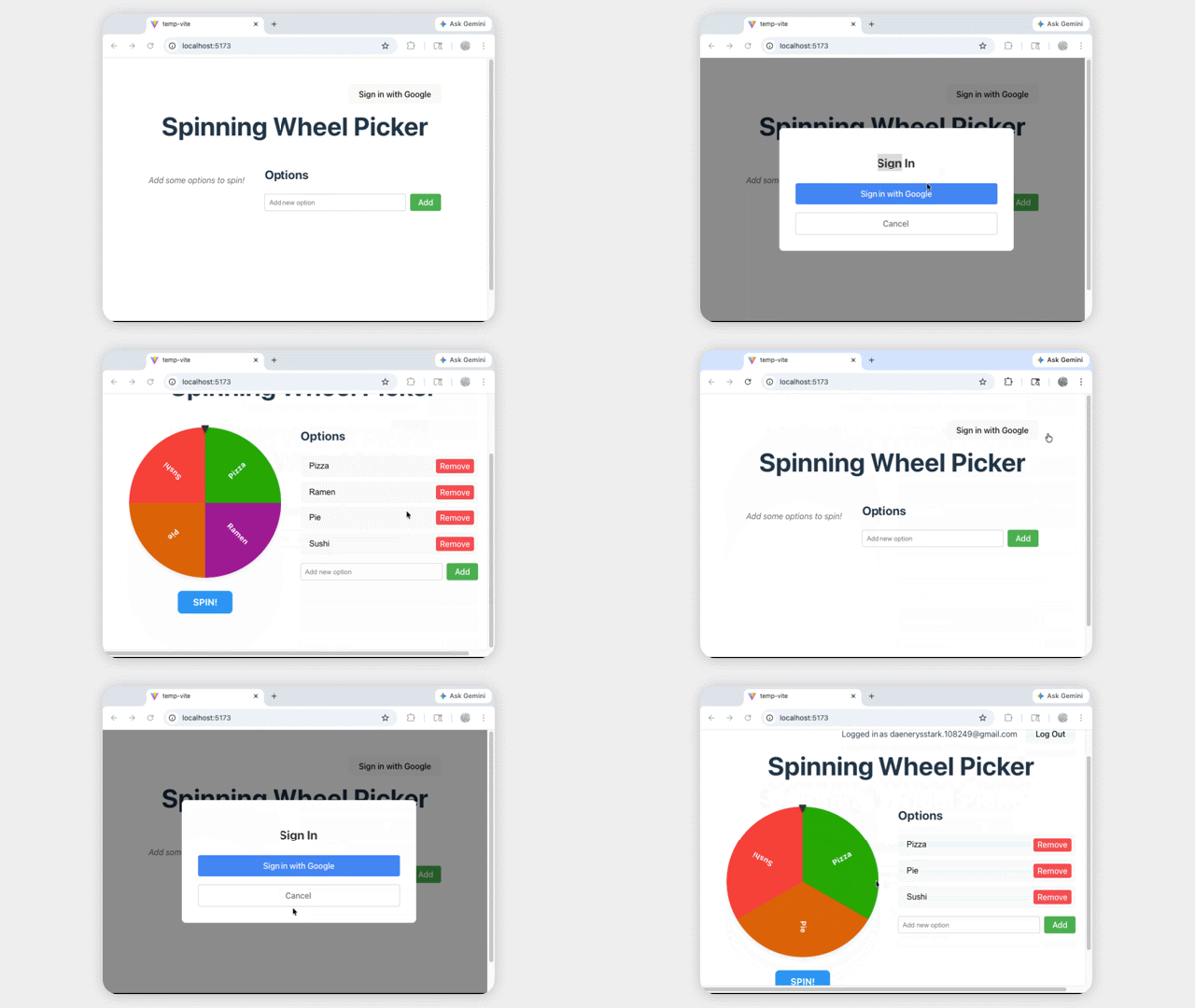
Here is the golden code for a reference implementation. You must provide your Firebase project in .firebaserc and your Firebase configurations in firebase.ts to start your application properly.
6. Clean up
To avoid ongoing charges to your Google Cloud account, delete the resources created during this codelab.
Delete the Firebase Project (and Google Cloud Project)
The easiest way to clean up is to delete the project entirely.
- In the Google Cloud Console, select the project you created.
- Click DELETE.
Alternatively, if you want to keep the project but delete resources:
- Delete Firestore Database: Go to Firebase Console > Firestore and delete the database.
- Delete Authentication: Go to Firebase Console > AuthenticationSign-in method, disable Google.
7. Congratulations
Congratulations! You have successfully used the Gemini CLI Conductor extension to build a web application from scratch and then iterate on it with complex features like authentication and database integration.
Next steps
- Explore Gemini CLI Plan Mode for light-weight planning
- Explore more Gemini CLI Extensions