

1. 简介
在此 Codelab 中,您将学习如何使用 (Ranking Update Method) RUM 扩展程序和可扩缩最近邻 (ScaNN) 索引在 AlloyDB 中执行混合搜索。本实验是专门介绍 AlloyDB AI 功能的实验合集中的一个。如需了解详情,请参阅文档中的 AlloyDB AI 页面。
前提条件
- 对 Google Cloud 控制台有基本的了解
- 具备命令行界面和 Google Shell 方面的基本技能
学习内容
- 如何部署 AlloyDB 集群和主实例
- 如何从 Google Compute Engine 虚拟机连接到 AlloyDB
- 如何创建数据库并启用 AlloyDB AI
- 如何将数据加载到数据库中
- 如何使用 AlloyDB Studio
- 使用 Vertex AI 生成嵌入
- 如何创建 ScaNN 向量索引以提升向量搜索效果
- 如何为 Elasticsearch 创建外部数据封装器 (FDW)
- 将 AlloyDB 中的语义搜索与 Elastic 中的全文搜索相结合,执行混合搜索。
所需条件
- Google Cloud 账号和 Google Cloud 项目
- 网络浏览器,例如 Chrome
2. 设置和要求
项目设置
登录 Google Cloud 控制台。如果您还没有 Gmail 或 Google Workspace 账号,则必须创建一个。
请改用个人账号,而非工作账号或学校账号。
创建 Google Cloud 项目
- 在 Google Cloud 控制台的项目选择器页面上,选择或创建一个 Google Cloud 项目。
- 确保您的 Cloud 项目已启用结算功能。了解如何检查项目是否已启用结算功能。
启用结算功能
您可以通过以下两种方式启用结算功能。您可以使用个人结算账号,也可以按照以下步骤兑换积分。
设置个人结算账号
如果您使用 Google Cloud 积分设置了结算,则可以跳过此步骤。
如需设置个人结算账号,请点击此处在 Cloud 控制台中启用结算功能。
注意事项:
- 完成本实验的 Cloud 资源费用应低于 3 美元。
- 您可以按照本实验末尾的步骤删除资源,以避免产生更多费用。
- 新用户符合参与 $300 USD 免费试用计划的条件。
启动 Cloud Shell
虽然可以通过笔记本电脑对 Google Cloud 进行远程操作,但在此 Codelab 中,您将使用 Google Cloud Shell,这是一个在云端运行的命令行环境。
Cloud Shell 是在 Google Cloud 中运行的命令行环境,预加载了必要的工具。
- 点击 Google Cloud 控制台顶部的激活 Cloud Shell。
- 连接到 Cloud Shell 后,验证您的身份验证:
gcloud auth list - 确认您的项目已配置:
gcloud config get project - 如果项目未按预期设置,请进行设置:
export PROJECT_ID=<YOUR_PROJECT_ID>
gcloud config set project $PROJECT_ID
这个虚拟机已加载了您需要的所有开发工具。它提供了一个持久的 5 GB 主目录,并且在 Google Cloud 中运行,大大增强了网络性能和身份验证功能。您在此 Codelab 中的所有工作都可以在浏览器中完成。您无需安装任何程序。
3. 准备工作
启用 API
输出:
如需使用 AlloyDB、Compute Engine、网络服务和 Vertex AI,您需要在 Google Cloud 云项目中启用它们各自的 API。
启用 API
在 Cloud Shell 的终端中,确保项目 ID 已设置:
gcloud config set project [YOUR-PROJECT-ID]
设置环境变量 PROJECT_ID:
PROJECT_ID=$(gcloud config get-value project)
启用所有必要的 API:
gcloud services enable alloydb.googleapis.com \
                       compute.googleapis.com \
                       cloudresourcemanager.googleapis.com \
                       servicenetworking.googleapis.com \
                       aiplatform.googleapis.com \
                       secretmanager.googleapis.com
预期输出
student@cloudshell:~ (test-project-001-402417)$ gcloud config set project test-project-001-402417
Updated property [core/project].
student@cloudshell:~ (test-project-001-402417)$ PROJECT_ID=$(gcloud config get-value project)
Your active configuration is: [cloudshell-14650]
student@cloudshell:~ (test-project-001-402417)$
student@cloudshell:~ (test-project-001-402417)$ gcloud services enable alloydb.googleapis.com \
                       compute.googleapis.com \
                       cloudresourcemanager.googleapis.com \
                       servicenetworking.googleapis.com \
                       aiplatform.googleapis.com \
                       secretmanager.googleapis.com
Operation "operations/acat.p2-4470404856-1f44ebd8-894e-4356-bea7-b84165a57442" finished successfully.
API 简介
- 借助 AlloyDB API (
alloydb.googleapis.com),您可以创建、管理和扩缩 AlloyDB for PostgreSQL 集群。它提供与 PostgreSQL 兼容的全代管式数据库服务,专为要求严苛的企业事务性工作负载和分析性工作负载而设计。 - 借助 Compute Engine API (
compute.googleapis.com),您可以创建和管理虚拟机 (VM)、永久性磁盘和网络设置。它提供运行工作负载所需的核心基础设施即服务 (IaaS) 基础,并为许多托管服务托管底层基础架构。 - 借助 Cloud Resource Manager API (
cloudresourcemanager.googleapis.com),您可以以编程方式管理 Google Cloud 云项目的元数据和配置。借助它,您可以整理资源、处理 Identity and Access Management (IAM) 政策,以及验证项目层次结构中的权限。 - 借助 Service Networking API (
servicenetworking.googleapis.com),您可以自动设置虚拟私有云 (VPC) 网络与 Google 的受管服务之间的专用连接。您必须为 AlloyDB 等服务建立专用 IP 访问通道,以便它们能够与其他资源安全地通信。 - Vertex AI API (
aiplatform.googleapis.com) 可让您的应用构建、部署和扩缩机器学习模型。它为所有 Google Cloud AI 服务提供统一的界面,包括访问生成式 AI 模型(如 Gemini)和自定义模型训练。 - Secret Manager API (
secretmanager.googleapis.com) 是一项密钥和凭据管理服务,可让您存储和管理敏感数据,例如 API 密钥、用户名、密码、证书等。
您可以选择配置默认区域,以使用 Vertex AI 嵌入模型。详细了解 Vertex AI 的可用位置。在本示例中,我们使用的是 us-central1 区域。
gcloud config set compute/region us-central1
4. 部署 AlloyDB
在创建 AlloyDB 集群之前,我们需要在 VPC 中分配一个可用的专用 IP 范围,以供未来的 AlloyDB 实例使用。如果我们没有该服务账号,则需要创建该服务账号,并将其分配给内部 Google 服务使用,之后我们才能创建集群和实例。
创建专用 IP 范围
我们需要在 VPC 中为 AlloyDB 配置专用服务访问配置。这里假设我们的项目中有“默认”VPC 网络,它将用于所有操作。
创建专用 IP 范围:
gcloud compute addresses create psa-range \
    --global \
    --purpose=VPC_PEERING \
    --prefix-length=24 \
    --description="VPC private service access" \
    --network=default
使用分配的 IP 范围创建专用连接:
gcloud services vpc-peerings connect \
    --service=servicenetworking.googleapis.com \
    --ranges=psa-range \
    --network=default \
    --export-custom-routes
预期的控制台输出:
student@cloudshell:~ (test-project-402417)$ gcloud compute addresses create psa-range \
    --global \
    --purpose=VPC_PEERING \
    --prefix-length=24 \
    --description="VPC private service access" \
    --network=default
Created [https://www.googleapis.com/compute/v1/projects/test-project-402417/global/addresses/psa-range].

student@cloudshell:~ (test-project-402417)$ gcloud services vpc-peerings connect \
    --service=servicenetworking.googleapis.com \
    --ranges=psa-range \
    --network=default
Operation "operations/pssn.p24-4470404856-595e209f-19b7-4669-8a71-cbd45de8ba66" finished successfully.

student@cloudshell:~ (test-project-402417)$
创建 AlloyDB 集群
在此部分中,我们将在 us-central1 区域中创建 AlloyDB 集群。
为 postgres 用户定义密码。您可以自行定义密码,也可以使用随机函数生成密码
export PGPASSWORD=`openssl rand -hex 12`
预期的控制台输出:
student@cloudshell:~ (test-project-402417)$ export PGPASSWORD=`openssl rand -hex 12`
请记下该 PostgreSQL 密码,以备将来使用。
echo $PGPASSWORD
您日后需要使用该密码以 postgres 用户身份连接到实例。建议您将其复制到安全位置(例如密码管理工具)。
预期的控制台输出:
student@cloudshell:~ (test-project-402417)$ echo $PGPASSWORD
<generated password>
创建 AlloyDB 集群
定义区域和 AlloyDB 集群名称。我们将使用 us-central1 区域和 alloydb-hybrid-search 作为集群名称:
export REGION=us-central1
export ADBCLUSTER=alloydb-hybrid-search
运行命令以创建集群:
gcloud alloydb clusters create $ADBCLUSTER \
    --password=$PGPASSWORD \
    --network=default \
    --region=$REGION
预期的控制台输出:
export REGION=us-central1
export ADBCLUSTER=alloydb-hybrid-search
gcloud alloydb clusters create $ADBCLUSTER \
    --password=$PGPASSWORD \
    --network=default \
    --region=$REGION
Operation ID: operation-1697655441138-6080235852277-9e7f04f5-2012fce4
Creating cluster...done.
在同一 Cloud Shell 会话中为集群创建 AlloyDB 主实例。如果您断开连接,则需要重新定义区域和集群名称环境变量。
gcloud alloydb instances create $ADBCLUSTER-pr \
    --instance-type=PRIMARY \
    --cpu-count=2 \
    --region=$REGION \
    --cluster=$ADBCLUSTER
预期的控制台输出:
student@cloudshell:~ (alloydb-hybrid-search)$ gcloud alloydb instances create $ADBCLUSTER-pr \
    --instance-type=PRIMARY \
    --cpu-count=2 \
    --region=$REGION \
    --availability-type ZONAL \
    --cluster=$ADBCLUSTER
Operation ID: operation-1697659203545-6080315c6e8ee-391805db-25852721
Creating instance...done.
5. 连接到 AlloyDB
AlloyDB 是使用仅限专用连接进行部署的,因此我们需要安装了 PostgreSQL 客户端的虚拟机才能使用该数据库。我们还将使用此虚拟机运行 Elasticsearch 实例。
部署 GCE 虚拟机
在 AlloyDB 集群所在的区域和 VPC 中创建 GCE 虚拟机,确保启动磁盘足够大,可以运行 Elastic。在此示例中,我们在 --create-disk 标志中指定了 20GB 的启动磁盘。
在 Cloud Shell 中,执行以下命令:
export ZONE=us-central1-a
gcloud compute instances create instance-1 \
    --zone=$ZONE \
    --create-disk=auto-delete=yes,boot=yes,size=20,image=projects/debian-cloud/global/images/$(gcloud compute images list --filter="family=debian-12 AND family!=debian-12-arm64" --format="value(name)") \
    --scopes=https://www.googleapis.com/auth/cloud-platform
预期的控制台输出:
student@cloudshell:~ (alloydb-hybrid-search)$ export ZONE=us-central1-a
student@cloudshell:~ (talloydb-hybrid-search)$ export ZONE=us-central1-a
gcloud compute instances create instance-1 \
    --zone=$ZONE \
    --create-disk=auto-delete=yes,boot=yes,image=projects/debian-cloud/global/images/$(gcloud compute images list --filter="family=debian-12 AND family!=debian-12-arm64" --format="value(name)") \
    --scopes=https://www.googleapis.com/auth/cloud-platform

Created [https://www.googleapis.com/compute/v1/projects/test-project-402417/zones/us-central1-a/instances/instance-1].
NAME: instance-1
ZONE: us-central1-a
MACHINE_TYPE: n1-standard-1
PREEMPTIBLE:
INTERNAL_IP: 10.128.0.2
EXTERNAL_IP: 34.71.192.233
STATUS: RUNNING
安装 Postgres 客户端
在已部署的虚拟机上安装 PostgreSQL 客户端软件
连接到虚拟机:
gcloud compute ssh instance-1 --zone=us-central1-a
预期的控制台输出:
student@cloudshell:~ (alloydb-hybrid-search)$ gcloud compute ssh instance-1 --zone=us-central1-a
Updating project ssh metadata...working..Updated [https://www.googleapis.com/compute/v1/projects/alloydb-hybrid-search].
Updating project ssh metadata...done.
Waiting for SSH key to propagate.
Warning: Permanently added 'compute.5110295539541121102' (ECDSA) to the list of known hosts.
Linux instance-1.us-central1-a.c.gleb-test-short-001-418811.internal 6.1.0-18-cloud-amd64 #1 SMP PREEMPT_DYNAMIC Debian 6.1.76-1 (2024-02-01) x86_64

The programs included with the Debian GNU/Linux system are free software;
the exact distribution terms for each program are described in the
individual files in /usr/share/doc/*/copyright.

Debian GNU/Linux comes with ABSOLUTELY NO WARRANTY, to the extent
permitted by applicable law.
student@instance-1:~$
在虚拟机内运行以下命令来安装软件:
sudo apt-get update
sudo apt-get install --yes postgresql-client
预期的控制台输出:
student@instance-1:~$ sudo apt-get update
sudo apt-get install --yes postgresql-client
Get:1 https://packages.cloud.google.com/apt google-compute-engine-bullseye-stable InRelease [5146 B]
Get:2 https://packages.cloud.google.com/apt cloud-sdk-bullseye InRelease [6406 B]
Hit:3 https://deb.debian.org/debian bullseye InRelease
Get:4 https://deb.debian.org/debian-security bullseye-security InRelease [48.4 kB]
Get:5 https://packages.cloud.google.com/apt google-compute-engine-bullseye-stable/main amd64 Packages [1930 B]
Get:6 https://deb.debian.org/debian bullseye-updates InRelease [44.1 kB]
Get:7 https://deb.debian.org/debian bullseye-backports InRelease [49.0 kB]
...redacted...
update-alternatives: using /usr/share/postgresql/13/man/man1/psql.1.gz to provide /usr/share/man/man1/psql.1.gz (psql.1.gz) in auto mode
Setting up postgresql-client (13+225) ...
Processing triggers for man-db (2.9.4-2) ...
Processing triggers for libc-bin (2.31-13+deb11u7) ...
连接到实例
使用 psql 从虚拟机连接到主实例。
在同一 Cloud Shell 标签页中,打开与 instance-1 虚拟机的 SSH 会话。
使用记下的 AlloyDB 密码 (PGPASSWORD) 值和 AlloyDB 集群 ID 从 GCE 虚拟机连接到 AlloyDB:
export PGPASSWORD=<Noted password>
export PROJECT_ID=$(gcloud config get-value project)
export REGION=us-central1
export ADBCLUSTER=alloydb-hybrid-search
export INSTANCE_IP=$(gcloud alloydb instances describe $ADBCLUSTER-pr --cluster=$ADBCLUSTER --region=$REGION --format="value(ipAddress)")
psql "host=$INSTANCE_IP user=postgres sslmode=require"
预期的控制台输出:
student@instance-1:~$ export PGPASSWORD=<noted password>
student@instance-1:~$ ADBCLUSTER=alloydb-aip-01
student@instance-1:~$ REGION=us-central1
student@instance-1:~$ INSTANCE_IP=$(gcloud alloydb instances describe $ADBCLUSTER-pr --cluster=$ADBCLUSTER --region=$REGION --format="value(ipAddress)")
gleb@instance-1:~$ psql "host=$INSTANCE_IP user=postgres sslmode=require"
psql (15.6 (Debian 15.6-0+deb12u1), server 15.5)
SSL connection (protocol: TLSv1.3, cipher: TLS_AES_256_GCM_SHA384, compression: off)
Type "help" for help.

postgres=>
关闭 psql 会话:
exit
6. 准备数据库
我们需要创建数据库、启用 Vertex AI 集成、创建数据库对象并导入数据。
向 AlloyDB 授予必要权限
向 AlloyDB 服务代理添加 Vertex AI 权限。
使用顶部的“+”号打开另一个 Cloud Shell 标签页。
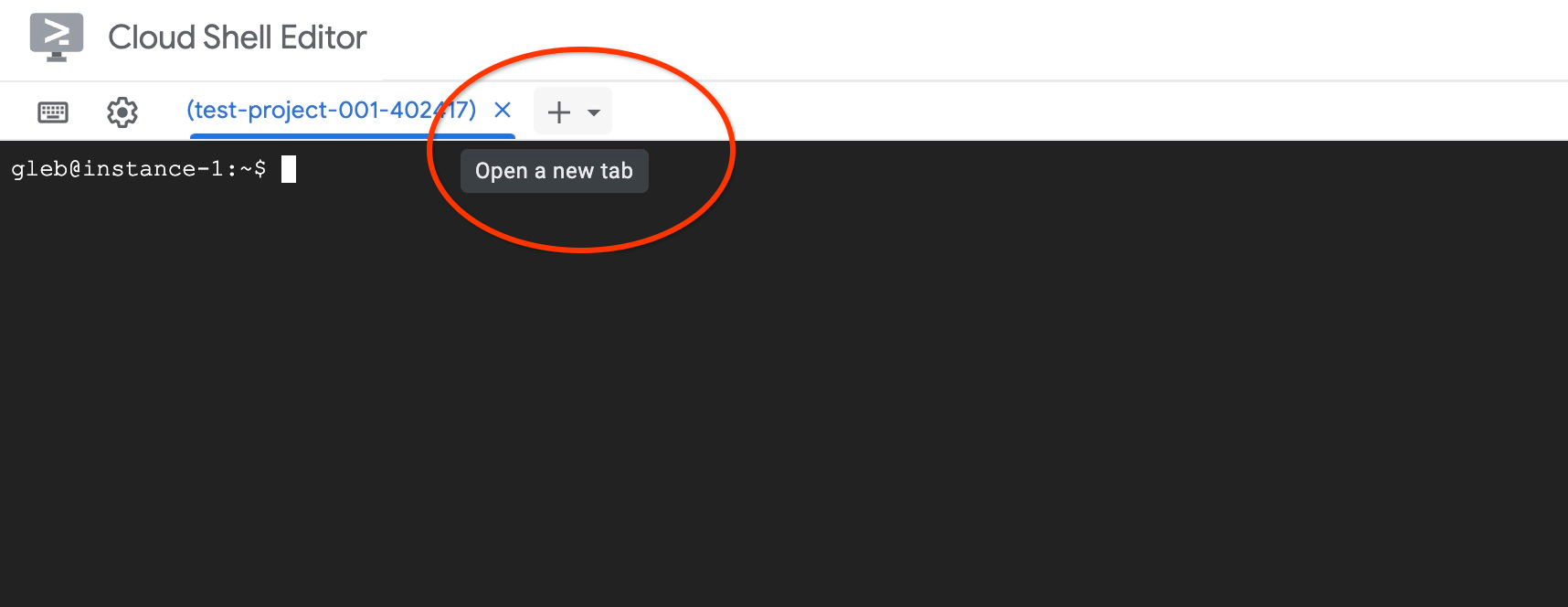
在新的 Cloud Shell 标签页中,执行以下命令:
PROJECT_ID=$(gcloud config get-value project)
gcloud projects add-iam-policy-binding $PROJECT_ID \
  --member="serviceAccount:service-$(gcloud projects describe $PROJECT_ID --format="value(projectNumber)")@gcp-sa-alloydb.iam.gserviceaccount.com" \
  --role="roles/aiplatform.user"
预期的控制台输出:
student@cloudshell:~ (test-project-001-402417)$ PROJECT_ID=$(gcloud config get-value project)
Your active configuration is: [cloudshell-11039]
student@cloudshell:~ (test-project-001-402417)$ gcloud projects add-iam-policy-binding $PROJECT_ID \
  --member="serviceAccount:service-$(gcloud projects describe $PROJECT_ID --format="value(projectNumber)")@gcp-sa-alloydb.iam.gserviceaccount.com" \
  --role="roles/aiplatform.user"
Updated IAM policy for project [test-project-001-402417].
bindings:
- members:
  - serviceAccount:service-4470404856@gcp-sa-alloydb.iam.gserviceaccount.com
  role: roles/aiplatform.user
- members:
...
etag: BwYIEbe_Z3U=
version: 1
点击“X”或执行以下命令,关闭该标签页:
exit
创建数据库
创建一个名为 quickstart 的数据库。
在 GCE 虚拟机会话中,执行以下命令:
创建数据库:
psql "host=$INSTANCE_IP user=postgres" -c "CREATE DATABASE quickstart_db"
预期的控制台输出:
student@instance-1:~$ psql "host=$INSTANCE_IP user=postgres" -c "CREATE DATABASE quickstart_db"
CREATE DATABASE
student@instance-1:~$
启用 Vertex AI 集成
在数据库中启用 Vertex AI 集成和 pgvector 扩展程序。
在 GCE 虚拟机中,执行以下命令:
psql "host=$INSTANCE_IP user=postgres dbname=quickstart_db" -c "CREATE EXTENSION IF NOT EXISTS google_ml_integration CASCADE"
psql "host=$INSTANCE_IP user=postgres dbname=quickstart_db" -c "CREATE EXTENSION IF NOT EXISTS vector"
预期的控制台输出:
student@instance-1:~$ psql "host=$INSTANCE_IP user=postgres dbname=quickstart_db" -c "CREATE EXTENSION IF NOT EXISTS google_ml_integration CASCADE"
psql "host=$INSTANCE_IP user=postgres dbname=quickstart_db" -c "CREATE EXTENSION IF NOT EXISTS vector"
CREATE EXTENSION
CREATE EXTENSION
student@instance-1:~$
导入数据
下载准备好的数据,然后将其导入到新数据库中。
在 GCE 虚拟机中,执行以下命令:
gcloud storage cat gs://cloud-training/gcc/gcc-tech-004/cymbal_demo_schema.sql |psql "host=$INSTANCE_IP user=postgres dbname=quickstart_db"
gcloud storage cat gs://cloud-training/gcc/gcc-tech-004/cymbal_products.csv |psql "host=$INSTANCE_IP user=postgres dbname=quickstart_db" -c "\copy cymbal_products from stdin csv header"
gcloud storage cat gs://cloud-training/gcc/gcc-tech-004/cymbal_inventory.csv |psql "host=$INSTANCE_IP user=postgres dbname=quickstart_db" -c "\copy cymbal_inventory from stdin csv header"
gcloud storage cat gs://cloud-training/gcc/gcc-tech-004/cymbal_stores.csv |psql "host=$INSTANCE_IP user=postgres dbname=quickstart_db" -c "\copy cymbal_stores from stdin csv header"
预期的控制台输出:
student@instance-1:~$ gcloud storage cat gs://cloud-training/gcc/gcc-tech-004/cymbal_demo_schema.sql |psql "host=$INSTANCE_IP user=postgres dbname=quickstart_db"
SET
SET
SET
SET
SET
 set_config
------------

(1 row)
SET
SET
SET
SET
SET
SET
CREATE TABLE
ALTER TABLE
CREATE TABLE
ALTER TABLE
CREATE TABLE
ALTER TABLE
CREATE TABLE
ALTER TABLE
CREATE SEQUENCE
ALTER TABLE
ALTER SEQUENCE
ALTER TABLE
ALTER TABLE
ALTER TABLE
student@instance-1:~$ gcloud storage cat gs://cloud-training/gcc/gcc-tech-004/cymbal_products.csv |psql "host=$INSTANCE_IP user=postgres dbname=quickstart_db" -c "\copy cymbal_products from stdin csv header"
COPY 941
student@instance-1:~$ gcloud storage cat gs://cloud-training/gcc/gcc-tech-004/cymbal_inventory.csv |psql "host=$INSTANCE_IP user=postgres dbname=quickstart_db" -c "\copy cymbal_inventory from stdin csv header"
COPY 263861
student@instance-1:~$ gcloud storage cat gs://cloud-training/gcc/gcc-tech-004/cymbal_stores.csv |psql "host=$INSTANCE_IP user=postgres dbname=quickstart_db" -c "\copy cymbal_stores from stdin csv header"
COPY 4654
student@instance-1:~$
接下来,我们来设置必要的数据库标志。您可以使用 Web 控制台并管理主实例中的标志,也可以使用 gcloud 命令,如下所示:
export PROJECT_ID=$(gcloud config get-value project)
export REGION=us-central1
export ADBCLUSTER=alloydb-hybrid-search
gcloud beta alloydb instances update $ADBCLUSTER-pr \
   --database-flags google_ml_integration.enable_faster_embedding_generation=on,scann.enable_preview_features=on,google_ml_integration.enable_preview_ai_functions=on,google_ml_integration.enable_ai_query_engine=on \
   --region=$REGION \
   --cluster=$ADBCLUSTER \
   --project=$PROJECT_ID \
   --update-mode=FORCE_APPLY
预期控制台输出
export PROJECT_ID=$(gcloud config get-value project)
export REGION=us-central1
export ADBCLUSTER=alloydb-hybrid-search
gcloud beta alloydb instances update $ADBCLUSTER-pr \
   --database-flags google_ml_integration.enable_faster_embedding_generation=on,scann.enable_preview_features=on,google_ml_integration.enable_preview_ai_functions=on,google_ml_integration.enable_ai_query_engine=on \
   --region=$REGION \
   --cluster=$ADBCLUSTER \
   --project=$PROJECT_ID \
   --update-mode=FORCE_APPLY
Your active configuration is: [cloudshell-724]
Operation ID: operation-1775159889986-64e7f9ea9858a-b031e866-4c7c36df
启用数据库标志需要重启实例,并且需要几分钟时间。完成后,AlloyDB 实例状态将显示为“就绪”。
7. 生成向量嵌入
导入数据后,我们得到以下表格:cymbal_products 用于存储商品信息,cymbal_inventory 用于跟踪每家商店的商品库存,以及 cymbal_stores 用于存储商店列表。为了对我们的产品执行语义搜索,我们需要使用 initialize_embeddings 函数生成产品说明的向量嵌入。我们将使用 Vertex AI 集成功能,根据产品说明计算向量数据并将其添加到表中。如需详细了解所用技术,请参阅文档。
如需使用集成功能,请使用 AlloyDB Studio 或通过虚拟机中的 psql 连接到数据库,并使用 AlloyDB 实例 IP 和 postgres 密码:
psql "host=$INSTANCE_IP user=postgres dbname=quickstart_db"
验证 google_ml_integration 扩展程序的版本。
SELECT extversion FROM pg_extension WHERE extname = 'google_ml_integration';
版本应为 1.5.2 或更高版本。以下是输出示例:
quickstart_db=> SELECT extversion FROM pg_extension WHERE extname = 'google_ml_integration';
 extversion
------------
 1.5.2
(1 row)
默认版本应为 1.5.2 或更高版本,但如果您的实例显示的是旧版本,则可能需要更新。检查实例是否已停用维护。
安装向量扩展程序并创建一个新列来存储 cymbal_products 中的嵌入
CREATE EXTENSION IF NOT EXISTS vector;
ALTER TABLE cymbal_products ADD COLUMN product_embedding vector(768);
预期的控制台输出:
quickstart_db=> ALTER TABLE cymbal_products ADD COLUMN product_embedding vector(768);
ALTER TABLE
quickstart_db=>
我们将使用批量嵌入生成功能来提高效率。如需详细了解不同的嵌入生成选项和技术,请参阅此指南。我们之前已启用 goole_ml_integration.enable_faster_embedding_generation 标志,这使我们能够批量生成嵌入内容。
最后,我们还希望在列值发生更改时刷新嵌入,因此在函数调用中添加了 incremental_refresh_mode 实参。这会给我们的数据库带来开销,但我们做出了这种权衡,以便自动使嵌入与内容保持同步。如果您想手动更新嵌入内容,可以在文档中找到相关说明。
现在,我们将所有内容整合在一起并生成嵌入,使用 initialize_embeddings 函数并传递 50 的 batch_size 作为批次提示,并将 incremental_refresh_mode 设置为 transactional
CALL ai.initialize_embeddings(
    model_id => 'text-embedding-005',
    table_name => 'cymbal_products',
    content_column => 'product_description',
    embedding_column => 'product_embedding',
    batch_size => 50,
    incremental_refresh_mode => 'transactional'
);
现在,如果我们向表中插入一个新行,其中 product_embedding 列的值为 NULL
INSERT INTO "cymbal_products" ("uniq_id", "crawl_timestamp", "product_url", "product_name", "product_description", "list_price", "sale_price", "brand", "item_number", "gtin", "package_size", "category", "postal_code", "available", "product_embedding") VALUES ('fd604542e04b470f9e6348e640cff794', NOW(), 'https://example.com/new_product', 'New Cymbal Product', 'This is a new cymbal product description.', 199.99, 149.99, 'Example Brand', 'EB123', '1234567890', 'Single', 'Cymbals', '12345', TRUE, NULL);
现在,当我们查询刚刚插入的行时,会看到 product_embedding 列已自动更新。
SELECT uniq_id, (product_embedding::real[])[1:5] as product_embedding FROM cymbal_products WHERE uniq_id='fd604542e04b470f9e6348e640cff794';
输出应如下所示:
quickstart_db=> SELECT uniq_id,(product_embedding::real[])[1:5] as product_embedding  FROM cymbal_products WHERE uniq_id='fd604542e04b470f9e6348e640cff794';
             uniq_id              |                      product_embedding
----------------------------------+---------------------------------------------------------------
 fd604542e04b470f9e6348e640cff794 | {0.015003494,-0.005349732,-0.059790313,-0.0087091,-0.0271452}
(1 row)

Time: 3.295 ms
8. 创建向量索引
为了提升向量搜索性能,我们将添加 ScaNN 索引。
创建 ScaNN 索引
如需构建 SCANN 索引,我们需要再启用一个扩展程序。扩展程序 alloydb_scann 提供了一个接口,用于使用 Google 的 ScaNN 算法处理 ANN 类型的向量索引。
CREATE EXTENSION IF NOT EXISTS alloydb_scann;
预期输出:
quickstart_db=> CREATE EXTENSION IF NOT EXISTS alloydb_scann;
CREATE EXTENSION
Time: 27.468 ms
quickstart_db=>
索引可以在 MANUAL 或 AUTO 模式下创建。默认情况下,系统会启用 MANUAL 模式,您可以像创建和维护任何其他索引一样创建和维护索引。不过,如果您启用 AUTO 模式,则可以创建不需要您进行任何维护的索引。您可以在文档中详细了解所有选项。在本例中,我们没有足够的行来以 AUTO 模式创建索引,因此我们将以 MANUAL 模式创建索引并添加调优参数。您可以在文档中了解如何调整索引参数。
CREATE INDEX cymbal_products_embeddings_scann ON cymbal_products
  USING scann (product_embedding cosine)
  WITH (mode='MANUAL', num_leaves=31, max_num_levels = 2);
预期输出:
quickstart_db=> CREATE INDEX cymbal_products_embeddings_scann ON cymbal_products
  USING scann (product_embedding cosine)
  WITH (num_leaves=31, max_num_levels = 2);
CREATE INDEX
quickstart_db=>
检查索引使用情况
现在,我们可以在 EXPLAIN 模式下运行向量搜索查询,并验证是否正在使用索引。
EXPLAIN (analyze)
WITH trees as (
SELECT
        cp.product_name,
        left(cp.product_description,80) as description,
        cp.sale_price,
        cs.zip_code,
        cp.uniq_id as product_id
FROM
        cymbal_products cp
JOIN cymbal_inventory ci on
        ci.uniq_id=cp.uniq_id
JOIN cymbal_stores cs on
        cs.store_id=ci.store_id
        AND ci.inventory>0
        AND cs.store_id = 1583
ORDER BY
        (cp.product_embedding <=> embedding('text-embedding-005','What kind of fruit trees grow well here?')::vector) ASC
LIMIT 1)
SELECT json_agg(trees) FROM trees;
预期输出(为清晰起见,这里省略了部分信息):
...
Aggregate (cost=16.59..16.60 rows=1 width=32) (actual time=2.875..2.877 rows=1 loops=1)
-> Subquery Scan on trees (cost=8.42..16.59 rows=1 width=142) (actual time=2.860..2.862 rows=1 loops=1)
-> Limit (cost=8.42..16.58 rows=1 width=158) (actual time=2.855..2.856 rows=1 loops=1)
-> Nested Loop (cost=8.42..6489.19 rows=794 width=158) (actual time=2.854..2.855 rows=1 loops=1)
-> Nested Loop (cost=8.13..6466.99 rows=794 width=938) (actual time=2.742..2.743 rows=1 loops=1)
-> Index Scan using cymbal_products_embeddings_scann on cymbal_products cp (cost=7.71..111.99 rows=876 width=934) (actual time=2.724..2.724 rows=1 loops=1)
Order By: (embedding <=> '[0.008864171,0.03693164,-0.024245683,-0.00355923,0.0055611245,0.015985578,...<redacted>...5685,-0.03914233,-0.018452475,0.00826032,-0.07372604]'::vector)
...
从输出中,我们可以清楚地看到查询使用了“Index Scan using cymbal_products_embeddings_scann on cymbal_products”。
9. 创建 Elastic 实例
Elasticsearch 是 Elastic NV 的商标,与 Google LLC 没有附属关系。我们将使用 Elasticsearch 来实现混合搜索的全文搜索 (FTS) 部分。如果您有 Elasticsearch 实例,可以跳过以下步骤,并创建一个只读的个人/用户 API 密钥,供 AlloyDB 用于访问您的 Elasticsearch 集群。否则,您可以在之前创建的虚拟机中启动 Elasticsearch 实例。
通过 SSH 连接到虚拟机并安装 Docker
sudo apt-get update
sudo apt-get install -y ca-certificates curl gnupg
sudo install -m 0755 -d /etc/apt/keyrings
curl -fsSL https://download.docker.com/linux/debian/gpg | sudo gpg --dearmor -o /etc/apt/keyrings/docker.gpg
sudo chmod a+r /etc/apt/keyrings/docker.gpg

echo \
  "deb [arch="$(dpkg --print-architecture)" signed-by=/etc/apt/keyrings/docker.gpg] https://download.docker.com/linux/debian \
  "$(. /etc/os-release && echo "$VERSION_CODENAME")" stable" | \
  sudo tee /etc/apt/sources.list.d/docker.list > /dev/null
sudo apt-get update
sudo apt-get install -y docker-ce docker-ce-cli containerd.io docker-buildx-plugin docker-compose-plugin
现在,您可以修改要由用户运行的 Docker 命令了
sudo usermod -aG docker $USER
newgrp docker
在虚拟机终端中,执行以下命令以创建弹性容器:
curl -fsSL https://elastic.co/start-local | sh
预期输出(已隐去部分信息)
🎉 Congrats, Elasticsearch and Kibana are installed and running in Docker!

🌐 Open your browser at http://localhost:5601

   Username: elastic
   Password: [password_value]

🔌 Elasticsearch API endpoint: http://localhost:9200
🔑 API key: [API Key]

Learn more at https://github.com/elastic/start-local
复制输出内容,然后将输出内容粘贴到以下文件中
nano elastic-last-run.txt
按 Ctrl + O、Enter、Ctrl + X 即可保存并退出。
默认情况下,Docker 容器将监听 http://localhost:9200,并且可能无法接收来自 AlloyDB 的外部请求。我们必须将 docker-compose.yml 配置为在 9200:9200 上监听
运行脚本后,系统应会创建一个新的 elastic-start-local 目录。前往此目录并修改 Dockerfile
cd elastic-start-local/
nano docker-compose.yml
在顶部附近,您会看到
  elasticsearch:
    image: docker.elastic.co/elasticsearch/elasticsearch:${ES_LOCAL_VERSION}
    container_name: ${ES_LOCAL_CONTAINER_NAME}
    volumes:
      - dev-elasticsearch:/usr/share/elasticsearch/data
    ports:
      - localhost:9200
将 ports 字段修改为
    ports:
      - 9200:9200
按 Ctrl + O、Enter、Ctrl + X 键保存并退出。现在,继续操作并重启堆栈
docker compose up -d
现在,我们将使用商品说明和名称填充 Elastic 实例。将商品 CSV 从 Cloud Storage 复制到虚拟机。
gcloud storage cp gs://cloud-training/gcc/gcc-tech-004/cymbal_products.csv .
预期输出
gcloud storage cp gs://cloud-training/gcc/gcc-tech-004/cymbal_products.csv .
Copying gs://cloud-training/gcc/gcc-tech-004/cymbal_products.csv to file://./cymbal_products.csv
  Completed files 1/1 | 1.4MiB/1.4MiB

Average throughput: 147.9MiB/s
现在,创建一个 Python 脚本来提取 CSV 并将数据格式化为 NDJSON 以进行批量上传
nano convert.py
将以下内容粘贴到文件中
import csv
import json

# Configuration
input_file = 'cymbal_products.csv'
output_file = 'products.json'
index_name = 'elasticindexdemo'

def convert():
    try:
        with open(input_file, mode='r', encoding='utf-8') as f_in, \
             open(output_file, mode='w', encoding='utf-8') as f_out:

            reader = csv.DictReader(f_in)

            count = 0
            for row in reader:
                metadata = {
                    "index": {
                        "_index": index_name,
                        "_id": row['uniq_id'].strip()
                    }
                }

                # 2. Data/Source line
                document = {
                    "uniq_id": row['uniq_id'].strip(),
                    "product_name": row['product_name'].strip(),
                    "product_description": row['product_description'].strip()
                }

                # Write to file
                f_out.write(json.dumps(metadata) + '\n')
                f_out.write(json.dumps(document) + '\n')
                count += 1

            print(f"Success: Processed {count} products.")
            print(f"Output saved to: {output_file}")

    except Exception as e:
        print(f"An error occurred: {e}")

if __name__ == "__main__":
    convert()
保存文件并运行
python3 convert.py
预期输出
~$ python3 convert.py
Success: Processed 941 products.
Output saved to: products.json
对于批量数据加载,我们必须从之前的运行文件中获取 API 密钥,并使用该密钥授权访问实例。然后,传入之前创建的 JSON 文件。对于生产场景,最好在 Elasticsearch 中定义索引和数据类型。由于此 Codelab 中的数据集较小,因此我们让 Elasticsearch 处理数据。首先,从文件中获取 API 密钥并将其保存到一个变量中。
AUTH_HDR=$(grep "API key" elastic-last-run.txt | sed -e "s/^.*API key:[[:space:]]*/ApiKey /g")
使用我们保存的变量,运行以下 curl 命令,该命令会上传 JSON 中的数据。
curl -s -X POST "localhost:9200/elasticindexdemo/_bulk?pretty" \
  -H "Content-Type: application/x-ndjson" \
  -H "Authorization: $AUTH_HDR" \
  --data-binary "@products.json"
预期输出
~$ curl -s -X POST "localhost:9200/elasticindexdemo/_bulk?pretty" \
  -H "Content-Type: application/x-ndjson" \
  -H "Authorization: $AUTH_HDR" \
  --data-binary "@products.json"
{
  "errors" : false,
  "took" : 1003,
  "items" : [
    {
      "index" : {
        "_index" : "elasticindexdemo",
        "_id" : "a73d5f754f225ecb9fdc64232a57bc37",
        "_version" : 1,
        "result" : "created",
        "_shards" : {
          "total" : 2,
          "successful" : 1,
          "failed" : 0
        },
        "_seq_no" : 0,
        "_primary_term" : 1,
        "status" : 201
      }
    },
...]
}
Done
最后,我们需要获取 Elasticsearch 实例的 API 密钥,以便保存该密钥供 AlloyDB 使用。运行以下命令并复制 API 密钥值
cat elastic-last-run.txt
有了 API 密钥后,我们需要在 Secret Manager 中创建一个 Secret。在 Cloud Shell 中,使用您的 API 密钥运行以下命令
echo -n "[YOUR_API_KEY_VALUE]" | \
gcloud secrets create elasticsearch \
    --replication-policy="automatic" \
    --data-file=-
10. 在 AlloyDB 中创建外部数据封装器
时长 20:00
如需从 AlloyDB 查询存储在 Elasticsearch 中的数据,我们必须为 Elastic 创建一个外部数据封装器 (FDW) 和一个外部表。之前,您将 Elastic API 密钥存储在 Secret Manager 中,为了让 AlloyDB 能够访问该密钥,请向服务账号授予所需权限。
在 Cloudshell 中,向服务账号授予对 elasticsearch Secret 的访问权限
gcloud secrets add-iam-policy-binding elasticsearch \
    --member="serviceAccount:service-$(gcloud projects describe $(gcloud config get-value project) --format='value(projectNumber)')@gcp-sa-alloydb.iam.gserviceaccount.com" \
    --role="roles/secretmanager.secretAccessor"
预期输出
gcloud secrets add-iam-policy-binding elasticsearch \
    --member="serviceAccount:service-$(gcloud projects describe $(gcloud config get-value project) --format='value(projectNumber)')@gcp-sa-alloydb.iam.gserviceaccount.com" \
    --role="roles/secretmanager.secretAccessor"
Updated IAM policy for secret [elasticsearch].
bindings:
- members:
  - serviceAccount:service-257907437930@gcp-sa-alloydb.iam.gserviceaccount.com
  role: roles/secretmanager.secretAccessor
etag: BwZOghJiP5U=
version: 1
前往 AlloyDB 集群并打开 AlloyDB Studio(您也可以使用 psql 从虚拟机进行连接)。以 postgres 用户身份登录 quickstart_db。
启用 FDW 扩展程序
CREATE EXTENSION external_search_fdw;
预期输出
Statement executed successfully
如需访问 Elasticsearch,请创建外部数据服务器。您可以在“Compute Engine”>“虚拟机实例”中找到虚拟机的内部 IP 地址。对于密钥路径,请前往 Secret Manager 并选择您的密钥,路径应位于顶部。请务必添加 /versions/latest 以获取最新版本的密文。
CREATE SERVER elastic_demo_server
FOREIGN DATA WRAPPER external_search_fdw
OPTIONS(
    server 'http://[VM INTERNAL IP ADDRESS]:9200',
    search_provider 'elastic',
    auth_method 'ApiKey',
    secret_path '[SECRET PATH]/versions/latest'
);
接下来,定义外部表。在元数据之后,提供与之前加载的数据相匹配的 Elasticsearch 字段架构定义。在远程表中指定 Elastic 索引的名称。
CREATE FOREIGN TABLE elasticindexdemo (
    metadata external_search_fdw_schema.OpaqueMetadata,
    uniq_id TEXT,
    product_name TEXT,
    product_description TEXT
)
SERVER elastic_demo_server
OPTIONS(
    remote_table_name 'elasticindexdemo'
);
为服务器创建用户映射
CREATE USER MAPPING FOR CURRENT_USER SERVER elastic_demo_server;
现在,您可以测试外部表了
SELECT uniq_id, product_name
FROM elasticindexdemo
ORDER BY metadata <@> 'product_description:lamp' DESC
limit 10;
预期输出
"uniq_id","product_name"
"59c05332f09426c23d8d005528e3c12e","CVL Mini Vintage Metal Lamp Shade: Black Metal with Punched Pattern"
"c24dd78c0d570105256e1bf1cb2fea9d","Better Homes & Gardens Tapered Drum Shade, White Box Pleat"
"7ba20db2bcfab28f88fc714d73af1eb8","4 Pack E27 Wireless Remote Control Light Lamp Bulb Holder Cap Socket Switch 30m"
"0fad1469ea9dfa80b35cfe5266b8bfe7","Star Projector Lamp, 360 Degree Star Night Light Romantic Room Rotating Cosmos Star Projuctor With USB Cable, Light Lamp Starry Moon Sky Night Projector Kid Bedroom Lamp"
"70b37e483ef3678078236d36954525ce","Lucille 10.5\""h Duck Egg Blue Empire Stitched Lamp Shade 7x10x8"
"b7a4b9151598f4cae7707cbedabe3c1b","10x12x8\"" SLIP UNO FITTER Hardback Shallow Drum Lamp Shade Textured Slate"
"5962cf47b88186eed76d14f6376882df","E27 To E14 Lampshade Lamp Light Shades Socket Reducing Ring Adapter Washer"
"7c54fdebfe0b1dd3f649741b8928a95b","iMounTEK LED Projector Lamp Kids Night Light Star Moon Projection Night Lamp 360\u00b0 Rotation Timer for Children Bedroom"
"4531201095c2653530747e215fcc1435","Home Concept Inc 11 Classics Brass Empire Lamp Shade"
"350527adb4299a015bcce74dee97805e","6 Colors LED Star Projector Lamp 360 Degree Romantic Rotating Night Cosmos Star Sky Moon Projector Kids Sleep Night Light For Children Gift Bedroom Decor"
11. 使用混合搜索
时长 15:00
现在,一切都已设置完毕,我们可以使用 ai.hybrid_search() 函数将向量搜索和全文搜索结合起来。如需详细了解混合搜索,请参阅相关文档。使用混合搜索时,默认情况下,查询结果会使用倒数排序融合算法对多个查询的排名结果进行排序。首先,我们分别尝试向量搜索和混合搜索,以分析它们之间的差异。
以下查询会执行向量搜索,以查找与樱桃类似的商品。该数组提供要执行的搜索列表,在本例中我们仅使用向量搜索,但稍后我们将同时提供向量搜索和 FTS。
SELECT id, score, cymbal_products.product_name, cymbal_products.product_description
FROM ai.hybrid_search(
  ARRAY[
      '{
        "data_type": "vector",
        "table_name": "cymbal_products",
        "key_column": "uniq_id",
        "vec_column": "product_embedding",
        "distance_operator": "public.<=>",
        "limit": 3,
        "query_vector": "ai.embedding(''text-embedding-005'', ''cherry'')::vector"
      }'::JSONB
  ]
) JOIN cymbal_products ON id = cymbal_products.uniq_id;
在输出中,樱桃树是第一个结果,但请注意,接下来的两个结果也是果树。这是因为,当我们在 product_description 列中使用向量搜索时,会找到与搜索条件在语义上匹配的结果。
"id","score","product_name","product_description"
"d536e9e823296a2eba198e52dd23e712","0.01639344262295082","Cherry Tree","This is a beautiful cherry tree that will produce delicious cherries. It is an deciduous tree that grows to be about 15 feet tall. The leaves are dark green in the summer and turn a beautiful red in the fall. Cherry trees are known for their beauty and their ability to provide shade and privacy. Cherry trees prefer a cool, moist climate and sandy soil. They are best suited for USDA zones 4-9."
"b70c44b1a38c0a2329fa583c9109a80f","0.016129032258064516","Peach Tree","This is a beautiful peach tree that will produce delicious peaches. It is an evergreen tree that grows to be about 20 feet tall. The leaves are dark green in the summer and turn a beautiful yellow in the fall. Peach trees are known for their beauty and their ability to provide shade and privacy. Peach trees prefer a cool, moist climate and sandy soil. They are best suited for USDA zones 2-9."
"23e41a71d63d8bbc9bdfa1d118cfddc5","0.015873015873015872","Apple Tree","This is a beautiful apple tree that will produce delicious apples. It is a deciduous tree that grows to be about 30 feet tall. The leaves are dark green in the summer and turn a beautiful red, orange, and yellow in the fall. Apple trees are known for their strength and durability. They are also a popular choice for shade trees. Apple trees prefer a cool, moist climate and loamy soil. They are best suited for USDA zones 4-8."
如需执行全文搜索,请运行以下查询
SELECT id, score, cymbal_products.product_name, cymbal_products.product_description
FROM ai.hybrid_search(
  ARRAY[
      '{
        "limit": 3,
        "data_type": "external_search_fdw",
        "table_name": "elasticindexdemo",
        "key_column": "uniq_id",
        "query_text_input": "product_description:(cherry)"
      }'::JSONB
  ]
) JOIN cymbal_products ON id = cymbal_products.uniq_id;
请注意,由于全文搜索使用完全匹配,因此结果会返回产品描述中包含“cherry”一词的所有内容。
"id","score","product_name","product_description"
"d536e9e823296a2eba198e52dd23e712","0.01639344262295082","Cherry Tree","This is a beautiful cherry tree that will produce delicious cherries. It is an deciduous tree that grows to be about 15 feet tall. The leaves are dark green in the summer and turn a beautiful red in the fall. Cherry trees are known for their beauty and their ability to provide shade and privacy. Cherry trees prefer a cool, moist climate and sandy soil. They are best suited for USDA zones 4-9."
"390cf08feac229e7b752709fd1f943b3","0.016129032258064516","Woven Round Placemat, Set of Twelve, Grass","...These placemats are great for special occasions and holidays, but are also perfect to accessorize your everyday place settings.|Measurements. 15-inch round diameter is the perfect size for most table sizes and shapes.|Pop Colors. Choose from 7 pop woven color placemats including: Black, Cherry, Grass, Taupe, Navy, Sun and Graphite."
"2c9aa7ac98c30abf78dd9c62a68a34e6","0.015873015873015872","48 Scented Wax Melts Wax Cubes: Jelly Belly Jelly Beans Candy Bulk Soy Wax Melts For Candle Warmer, Wax Warmers, Wax Melt Warmers In 8 Pack Set","...From These Flavors: Lemon Drop, Mixed Berry Smoothie, Sizzling Cinnamon, Crushed Pineapple, Juicy Pear, Cotton Candy, Toasted Marshmallow, French Vanilla, Watermelon, Red Apple, Very Cherry, Buttered Popcorn..."
现在,您可以将语义搜索和 FTS 结合起来,以获得更有意义的结果。假设我们要搜索一种比房屋高的树,并且这种树原产于加利福尼亚州。我们拆分了查询,以利用语义意图与字面匹配。矢量搜索可以处理描述性部分:“比房屋高的树”,因为它了解高度和比例的概念,而无需确切的关键字。与此同时,全文搜索会将“加利福尼亚”视为严格的过滤条件,以确保我们获得的是确切的地理位置匹配结果,而不仅仅是概念上相似的结果。
SELECT id, score, cymbal_products.product_name, cymbal_products.product_description
FROM ai.hybrid_search(
  ARRAY[
    '{
        "data_type": "vector",
        "table_name": "cymbal_products",
        "key_column": "uniq_id",
        "vec_column": "product_embedding",
        "distance_operator": "public.<=>",
        "limit": 3,
        "query_vector": "ai.embedding(''text-embedding-005'', ''tree that can grow taller than a house'')::vector"
      }'::JSONB,
      '{
        "limit": 3,
        "data_type": "external_search_fdw",
        "table_name": "elasticindexdemo",
        "key_column": "uniq_id",
        "query_text_input": "product_description:(California)"
      }'::JSONB
  ]
) JOIN cymbal_products ON id = cymbal_products.uniq_id;
预期结果:
"id","score","product_name","product_description"
"a589fd36a8a20fd9472d2403d6ed692a","0.00819672631147241","California Redwood","This is a beautiful redwood tree that can grow to be over 300 feet tall. It is an evergreen tree that grows in the coastal forests of California. Redwoods are known for their beauty and their strength. They are best suited for USDA zones 7-10."
"ef9432802da24041594c2cf368dfb4d2","0.008064521129029258","Madrone","This is a beautiful madrona tree that can grow to be over 80 feet tall. It is an evergreen tree that grows in the coastal forests of California. Madronas are known for their beauty and their bark. They are best suited for USDA zones 7-10."
"1360d8642bc218e4ea28e9c32b2e1721","0.007936512936504936","California Sycamore","This is a beautiful sycamore tree that can grow to be over 100 feet tall. It is an deciduous tree that grows in the valleys and foothills of California. California sycamores are known for their beauty and their shade. They are best suited for USDA zones 7-10."
12. 清理环境
完成实验后销毁 AlloyDB 实例和集群。
删除 AlloyDB 集群和所有实例
如果您曾使用 AlloyDB 试用版。如果您计划使用试用集群测试其他实验和资源,请勿删除该集群。您将无法在同一项目中创建其他试用集群。
系统会通过强制选项销毁集群,该选项还会删除属于该集群的所有实例。
如果您已断开连接且之前的所有设置都已丢失,请在 Cloud Shell 中定义项目和环境变量:
gcloud config set project <your project id>
export REGION=us-central1
export ADBCLUSTER=alloydb-hybrid-search
export PROJECT_ID=$(gcloud config get-value project)
删除集群:
gcloud alloydb clusters delete $ADBCLUSTER --region=$REGION --force
预期的控制台输出:
student@cloudshell:~ (test-project-001-402417)$ gcloud alloydb clusters delete $ADBCLUSTER --region=$REGION --force
All of the cluster data will be lost when the cluster is deleted.

Do you want to continue (Y/n)?  Y

Operation ID: operation-1697820178429-6082890a0b570-4a72f7e4-4c5df36f
Deleting cluster...done.
删除 AlloyDB 备份
删除集群的所有 AlloyDB 备份:
for i in $(gcloud alloydb backups list --filter="CLUSTER_NAME: projects/$PROJECT_ID/locations/$REGION/clusters/$ADBCLUSTER" --format="value(name)" --sort-by=~createTime) ; do gcloud alloydb backups delete $(basename $i) --region $REGION --quiet; done
预期的控制台输出:
student@cloudshell:~ (test-project-001-402417)$ for i in $(gcloud alloydb backups list --filter="CLUSTER_NAME: projects/$PROJECT_ID/locations/$REGION/clusters/$ADBCLUSTER" --format="value(name)" --sort-by=~createTime) ; do gcloud alloydb backups delete $(basename $i) --region $REGION --quiet; done
Operation ID: operation-1697826266108-60829fb7b5258-7f99dc0b-99f3c35f
Deleting backup...done.
现在我们可以销毁虚拟机了
删除 GCE 虚拟机
在 Cloud Shell 中,执行以下命令:
export GCEVM=instance-1
export ZONE=us-central1-a
gcloud compute instances delete $GCEVM \
    --zone=$ZONE \
    --quiet
预期的控制台输出:
student@cloudshell:~ (test-project-001-402417)$ export GCEVM=instance-1
export ZONE=us-central1-a
gcloud compute instances delete $GCEVM \
    --zone=$ZONE \
    --quiet
Deleted
13. 恭喜
恭喜您完成此 Codelab!
所学内容
- 如何部署 AlloyDB 集群和主实例
- 如何从 Google Compute Engine 虚拟机连接到 AlloyDB
- 如何创建数据库并启用 AlloyDB AI
- 如何将数据加载到数据库中
- 如何使用 AlloyDB Studio
- 使用 Vertex AI 生成嵌入
- 如何创建 ScaNN 向量索引以提升向量搜索效果
- 如何为 Elasticsearch 创建外部数据封装容器 (FDW)
- 将 AlloyDB 中的语义搜索与 Elastic 中的全文搜索相结合,执行混合搜索。
后续步骤
您可以访问官方 Codelab 网站,探索更多 AlloyDB Codelab。