
1. Introduction
In this codelab, you will learn how to debug AI agents running on Google Cloud. You will deploy a simulator agent to Agent Runtime, use Cloud Observability to detect issues, and use Gemini Cloud Assist and the Antigravity IDE to root-cause and fix errors in real time.
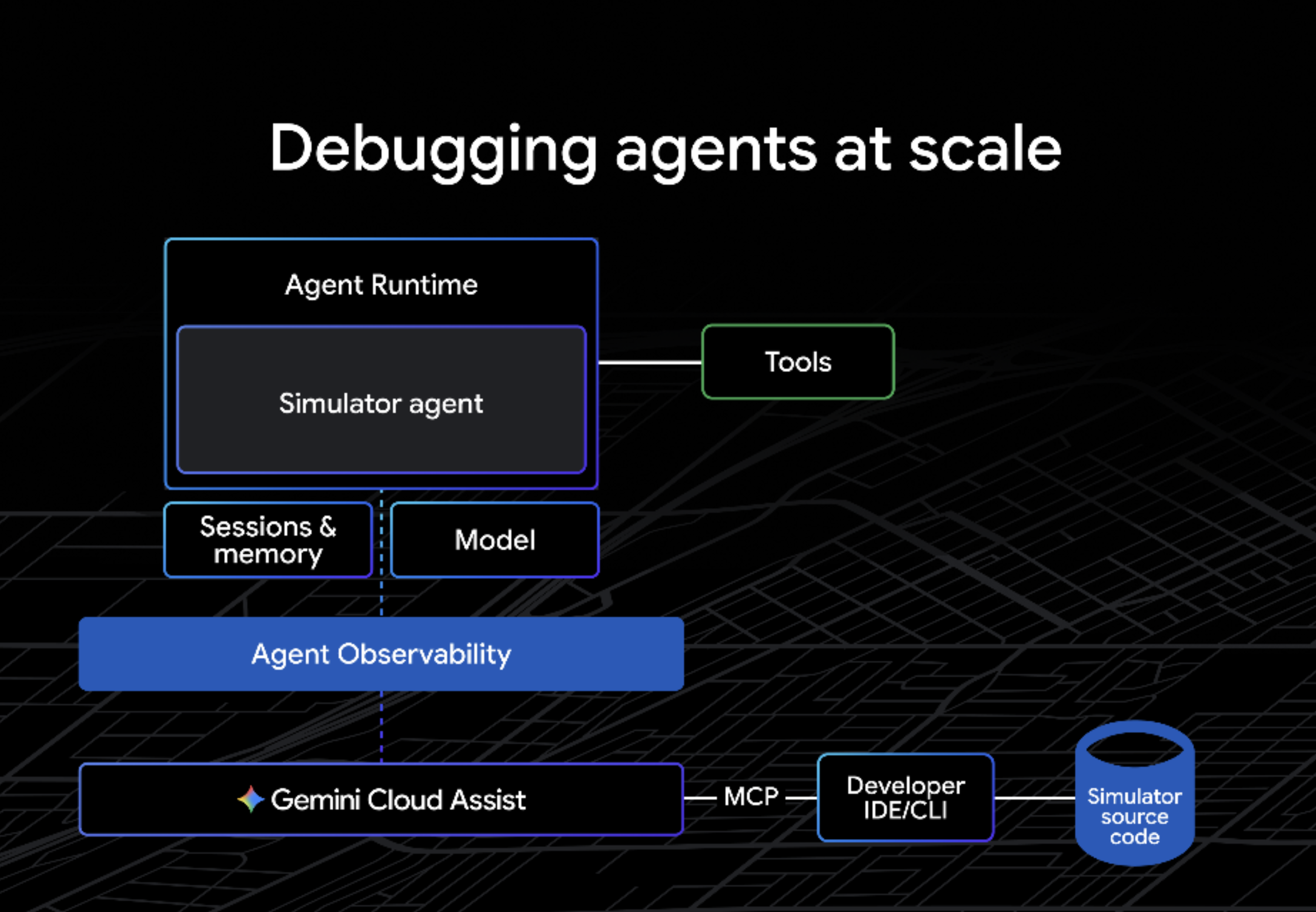
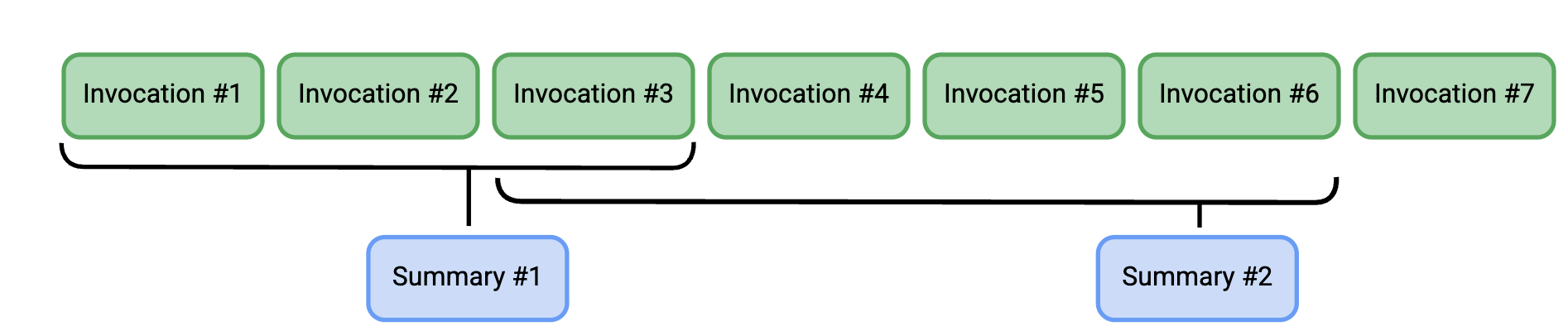
The premise of this demo is that we have just added ADK EventCompaction to the Simulator Agent. This allows the Simulator to periodically summarize its workflow using Gemini, reducing the total context sent to the model at each turn - thus improving response quality, and reducing total costs. But, we will learn that there's a bug in our EventCompactionConfig, causing errors in the agent! This codelab walks through how we'd find that sort of problem, and quickly fix it.
What you'll do
- Deploy the Marathon Simulator Agent to Agent Runtime.
- Set up a Cloud Monitoring Alert to detect agent errors.
- Investigate errors using Cloud Trace and Gemini Cloud Assist.
- Root-cause and patch the agent using Antigravity and MCP.
What you'll need
- A web browser such as Chrome.
- A Google account
- Antigravity (Supports Mac, Linux, and Windows)
- Python 3.13+.
- uv (Python package manager)
Estimated Duration: 45 minutes
Estimated Cost: Less than $5 USD
2. Before you begin
Create a Google Cloud Project
- In the Google Cloud Console, select or create a Google Cloud project.
- Make sure that billing is enabled for your Cloud project.
Set up your environment
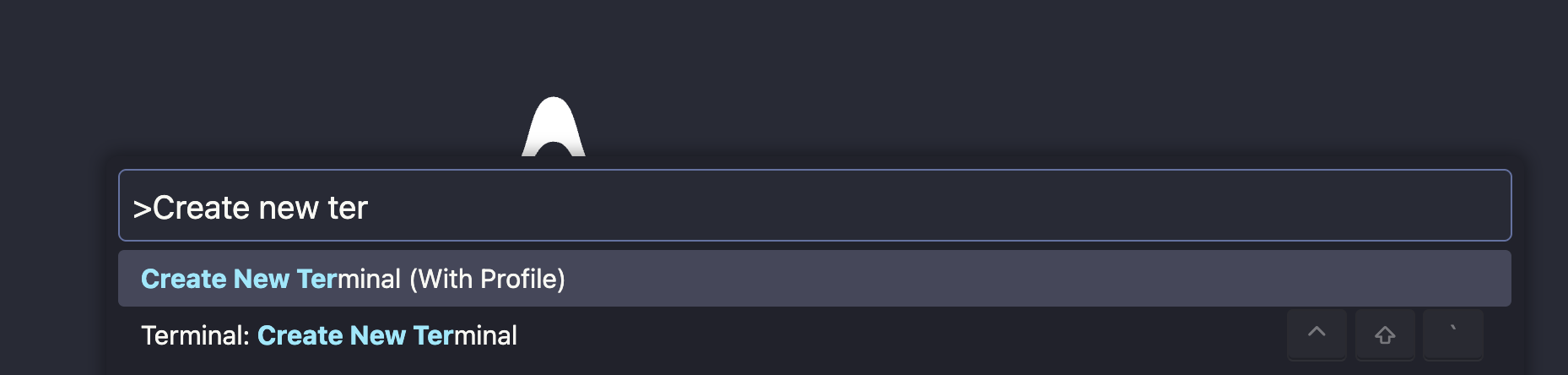
Open Antigravity, and sign in. Then, open a Terminal by hitting cmd-shift-P (or ctrl-shift-P), then typing "Create New Terminal."
- From the Terminal, authenticate with Google Cloud:
gcloud auth login
gcloud auth application-default login
- Set your Project ID:
export PROJECT_ID=<YOUR_PROJECT_ID>
gcloud config set project $PROJECT_ID
gcloud auth application-default set-quota-project $PROJECT_ID
Enable APIs
Run the following command to enable the required Google Cloud APIs:
gcloud services enable \
 aiplatform.googleapis.com \
 logging.googleapis.com \
 apphub.googleapis.com \
 cloudtrace.googleapis.com \
 telemetry.googleapis.com
gcloud services enable \
 geminicloudassist.googleapis.com \
 cloudaicompanion.googleapis.com
3. Set up the Simulator Agent
In this step, you will clone the demo repository and configure the environment variables for the Simulator Agent.
Clone the Repository
Clone the next-26-keynotes repository and navigate to the demo directory:
git clone https://github.com/GoogleCloudPlatform/next-26-keynotes
cd next-26-keynotes/devkey/debugging-agents
Configure Environment Variables
The Simulator Agent uses a .env file for configuration.
Locate the sample.env file on the left side of the Antigravity window (Explorer):
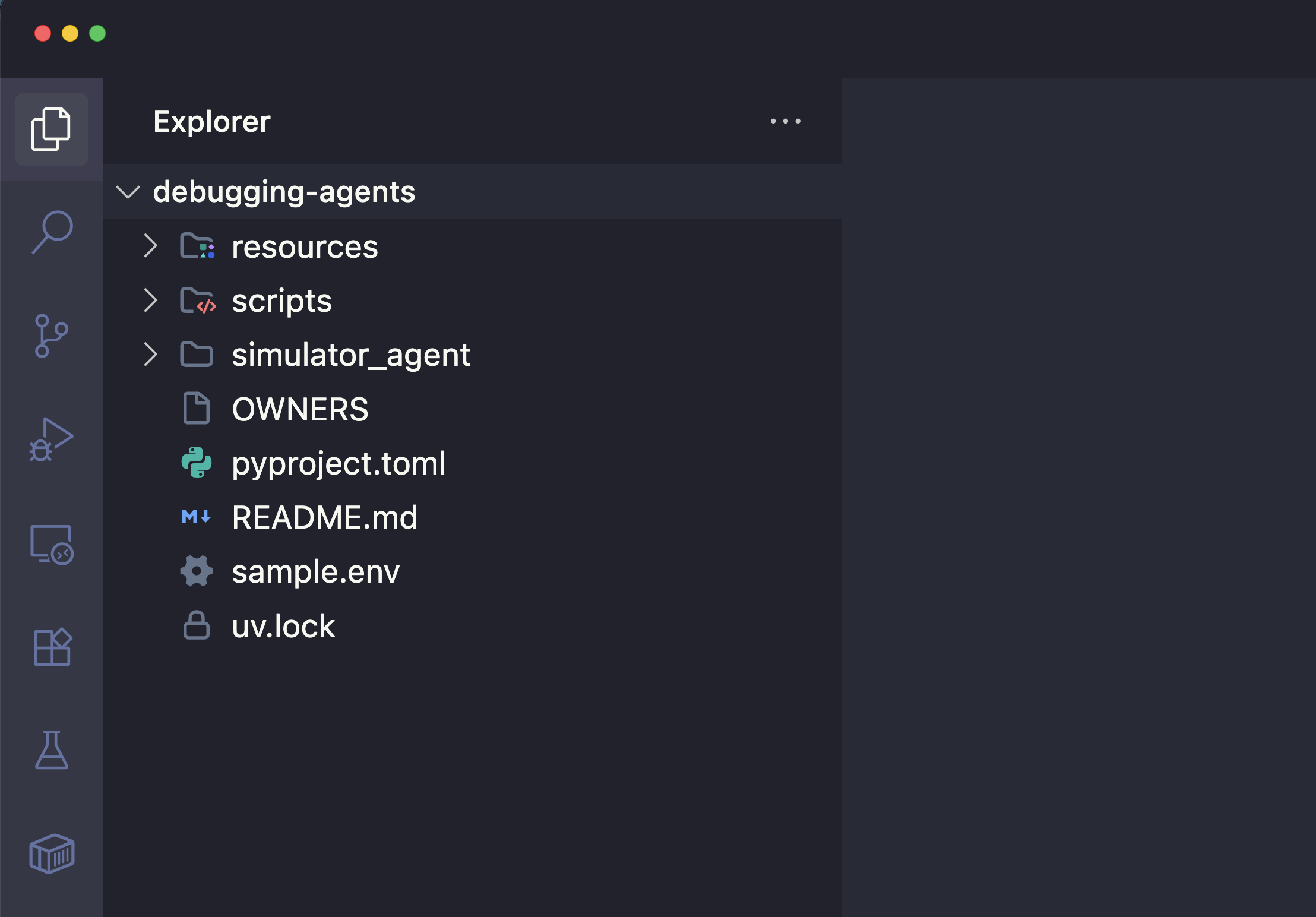
Open sample.env and update the GCP_PROJECT_ID field with your actual Google Cloud Project ID. The file should look similar to this:
GCP_PROJECT_ID="YOUR_PROJECT_ID"
GCP_LOCATION="us-central1"
GOOGLE_GENAI_USE_VERTEXAI=TRUE
USE_VERTEXAI_SESSION_SERVICE=true
GOOGLE_CLOUD_AGENT_ENGINE_ENABLE_TELEMETRY=true
OTEL_PYTHON_LOGGING_AUTO_INSTRUMENTATION_ENABLED=true
OTEL_INSTRUMENTATION_GENAI_CAPTURE_MESSAGE_CONTENT=true
ADK_CAPTURE_MESSAGE_CONTENT_IN_SPANS=false
4. Deploy the Simulator Agent to Agent Runtime
Now, you will deploy the agent to Agent Runtime using the Agent Development Kit (ADK).
Install dependencies
uv sync
Deploy to Agent Runtime
- Run the
adk deploycommand. This step packages your agent and deploys it to Google Cloud (Agent Runtime).
uv run adk deploy agent_engine \
    --project="$PROJECT_ID" \
    --region="us-central1" \
    --otel_to_cloud \
    --env_file="sample.env" \
    --adk_app_object=app \
    simulator_agent
This may take up to 5 minutes to run. You should eventually see output like this:
✅ Created Agent Runtime:
projects/1234567890/locations/us-central1/reasoningEngines/9876543210...
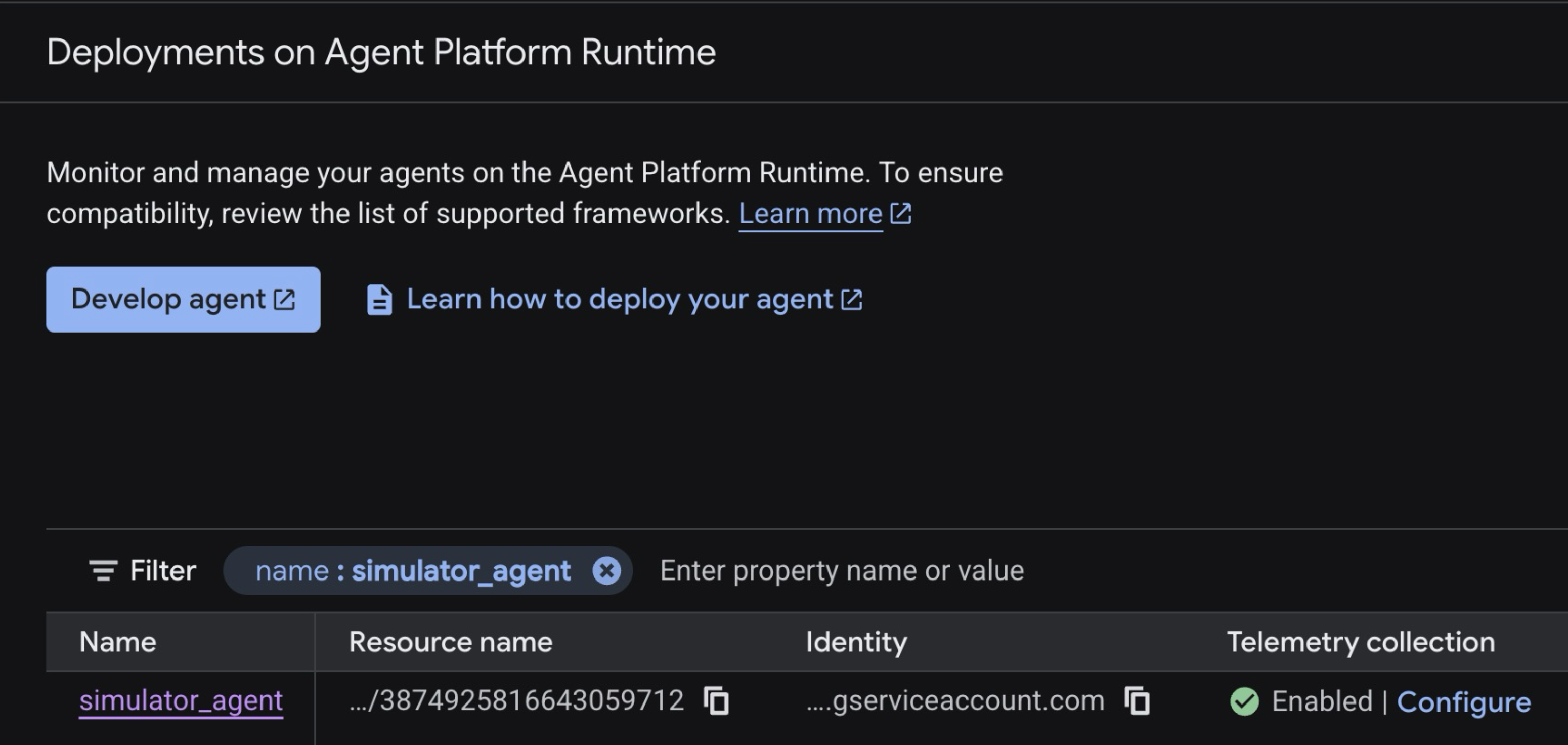
- From a web browser, open the Agent Runtime console. You should see the
simulator_agentrunning on Agent Runtime, with telemetry collection enabled.
5. Set up an Alert Policy
To detect Agent Runtime errors automatically, you will create a log-based alert in the Google Cloud Console.
- Navigate to the Cloud Monitoring - Alerting console.
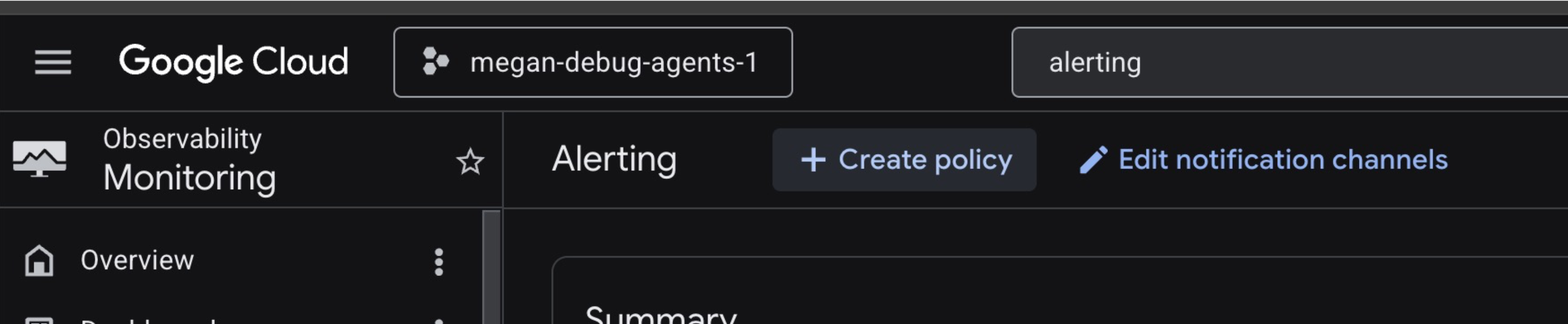
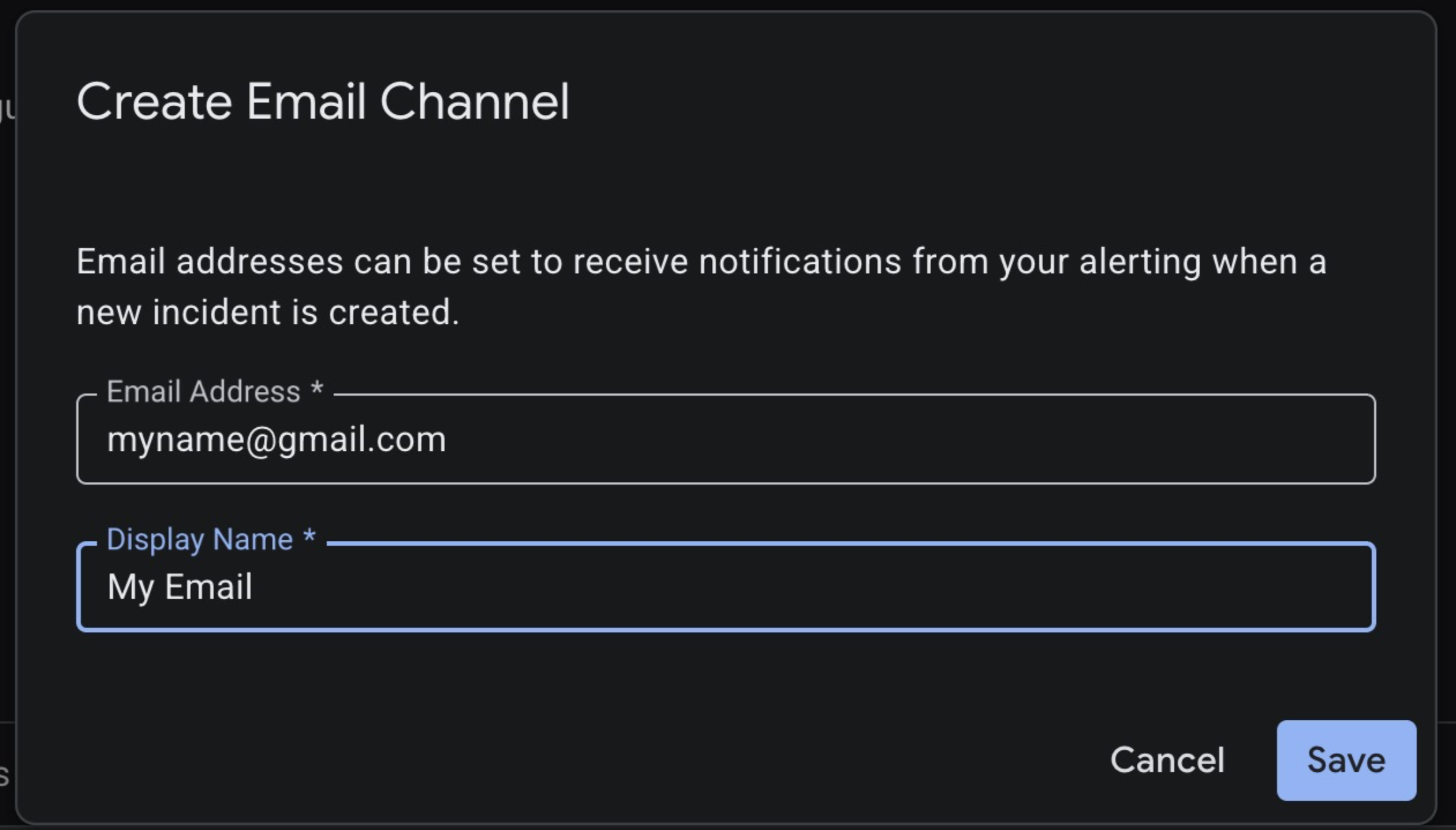
- Click Edit Notification Channels. Scroll down to the Email type, then create an email notification channel to send to your personal email. Click Save.
- Return to the Alerting dashboard, and click Create Policy.
- On the right side of the screen, click Create log-based alert.
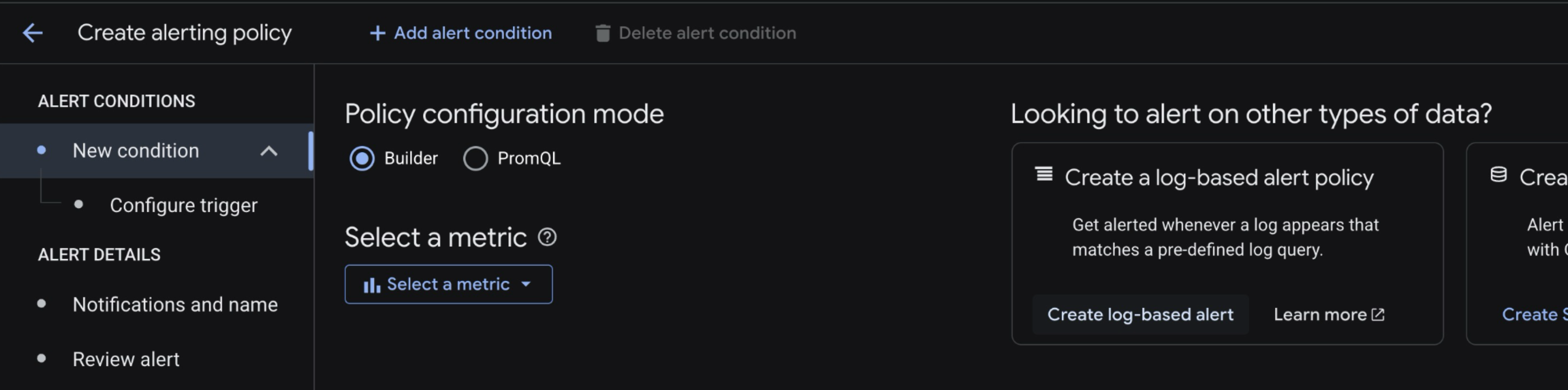
- You will be redirected to the Log Explorer. Paste in the following log query, replacing with your Project ID.
resource.type="aiplatform.googleapis.com/ReasoningEngine"
logName="projects/<YOUR_PROJECT_ID>/logs/aiplatform.googleapis.com%2Freasoning_engine_stderr"
"ERROR"
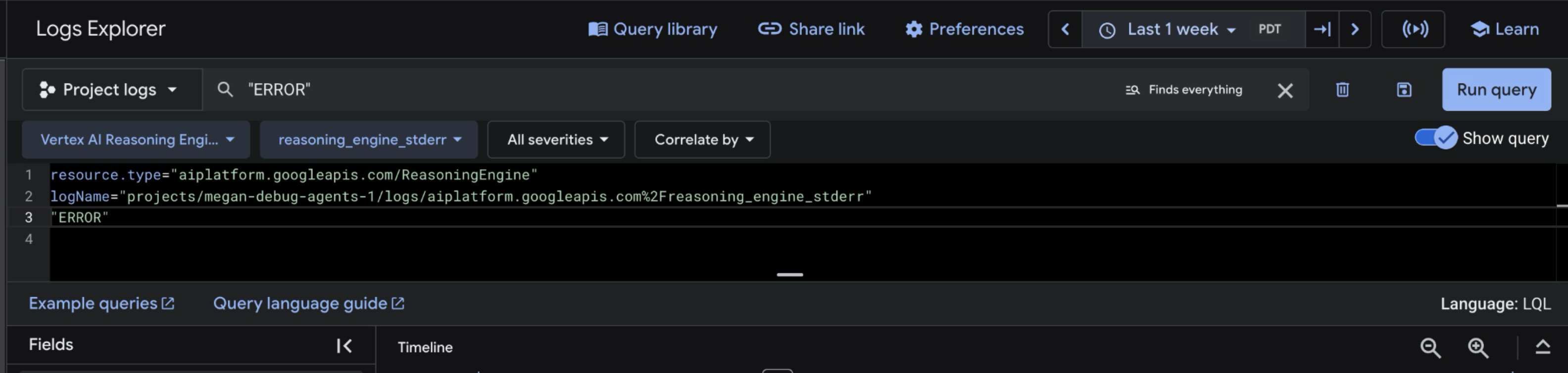
- Click Run Query. You won't see any logs show up yet - that is expected.
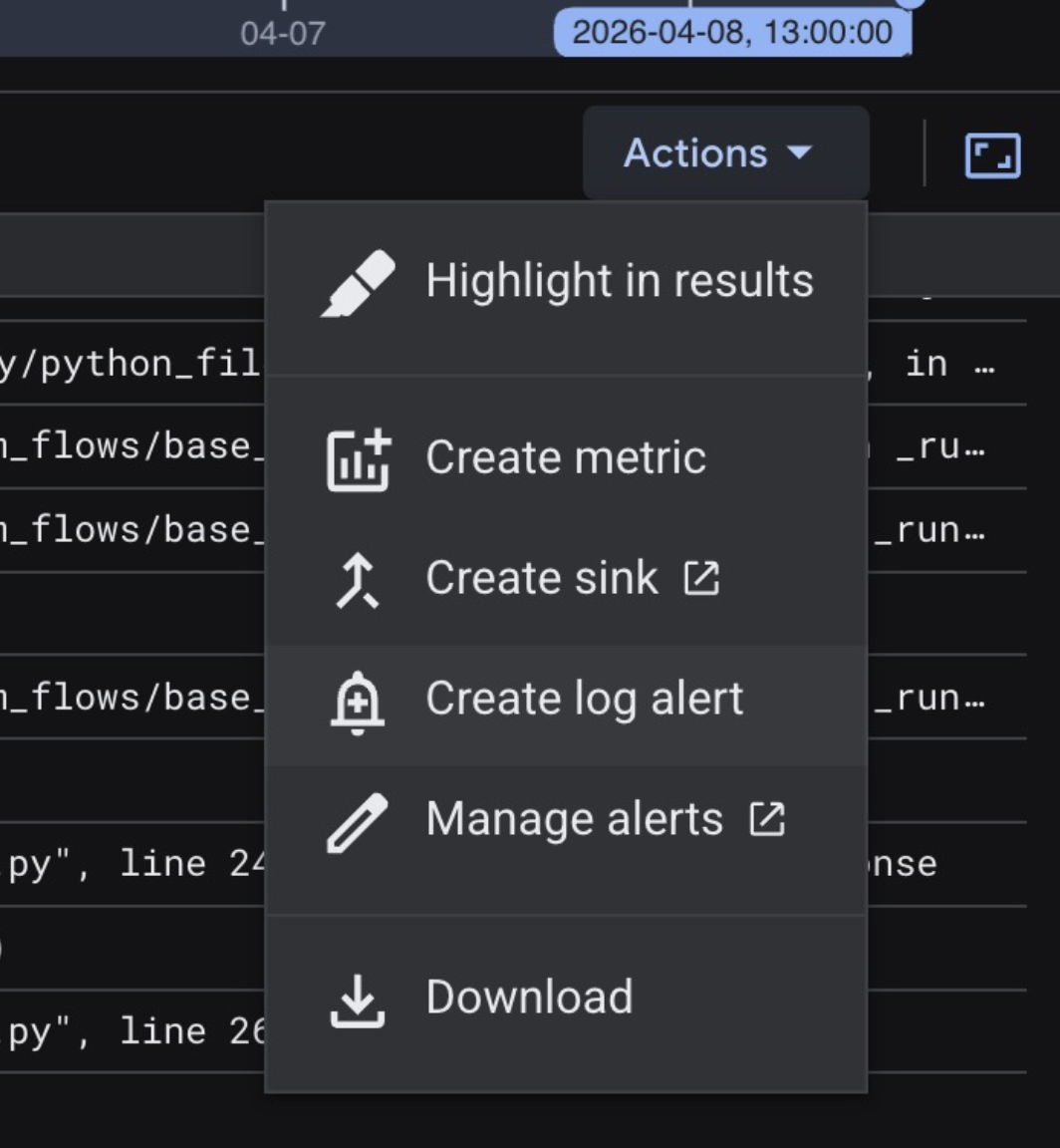
- Click Actions in the results toolbar, then click Create log alert.
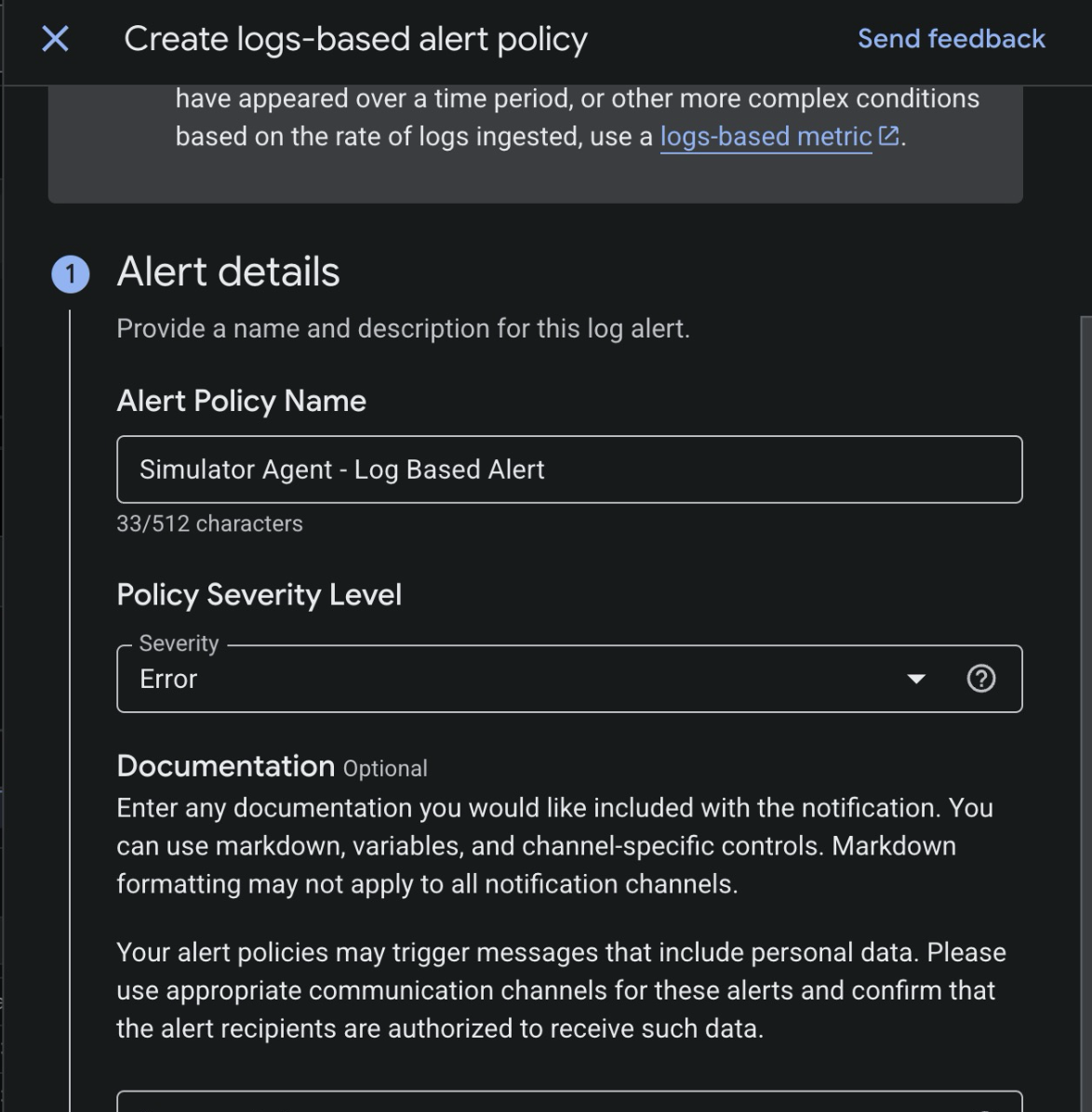
- Configure the log-based alert. Give the alert a name (any), then set the severity level to Error.
- Click Next for the "Set notification frequency" section (keep the defaults).
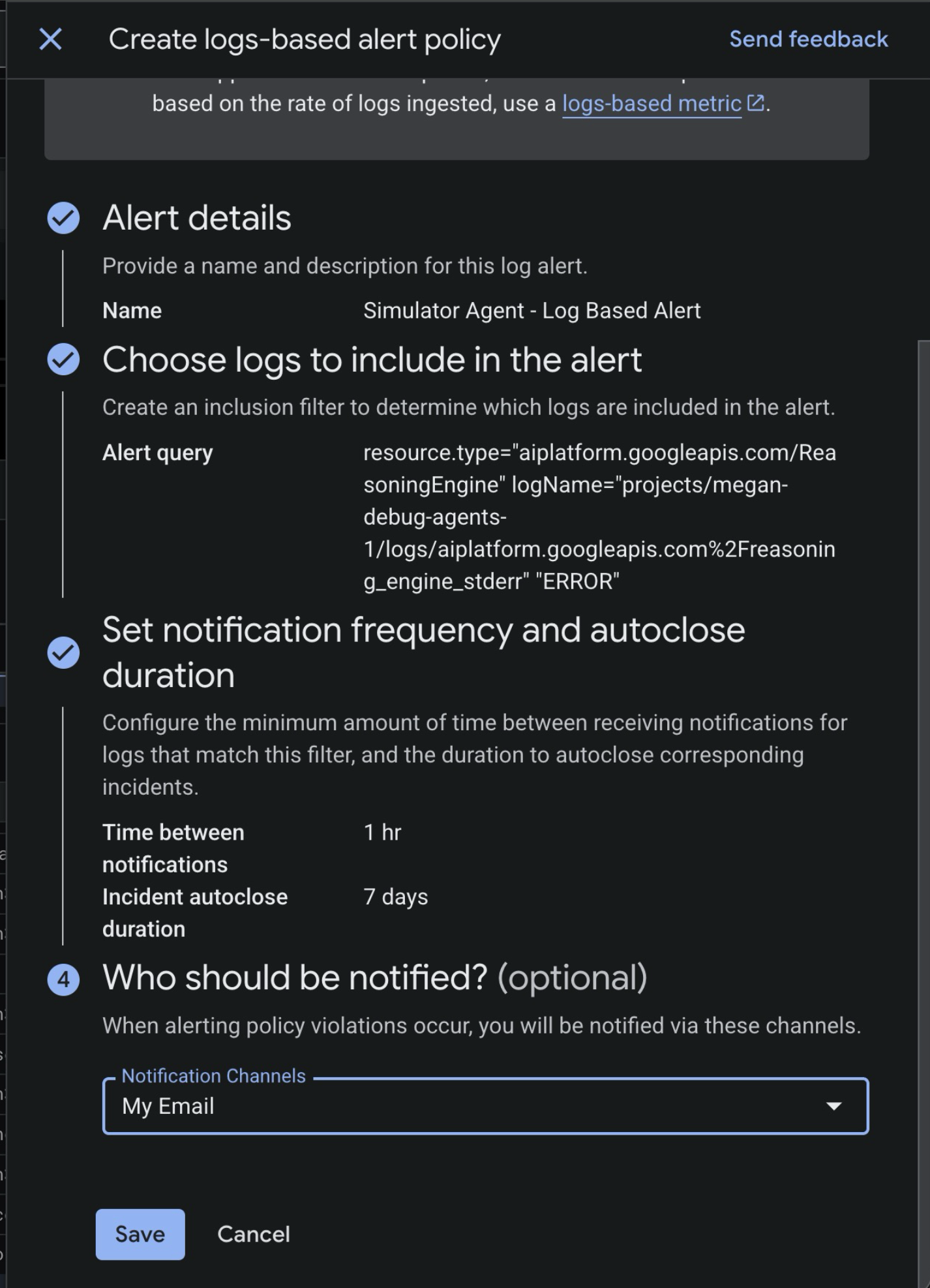
- For Who should be notified?, set the alert to trigger the Email Notification Channel you just set up (ie.
My Email). - Click Save.
6. Trigger the Incident
Now that the agent is deployed and monitored, let's try to invoke the marathon simulation in a way that throws an error.
- In the Google Cloud Console, navigate to the Agent Runtime console.
- Click
simulator_agent. - From the top toolbar, click Playground. This will start a new session with the ADK agent.
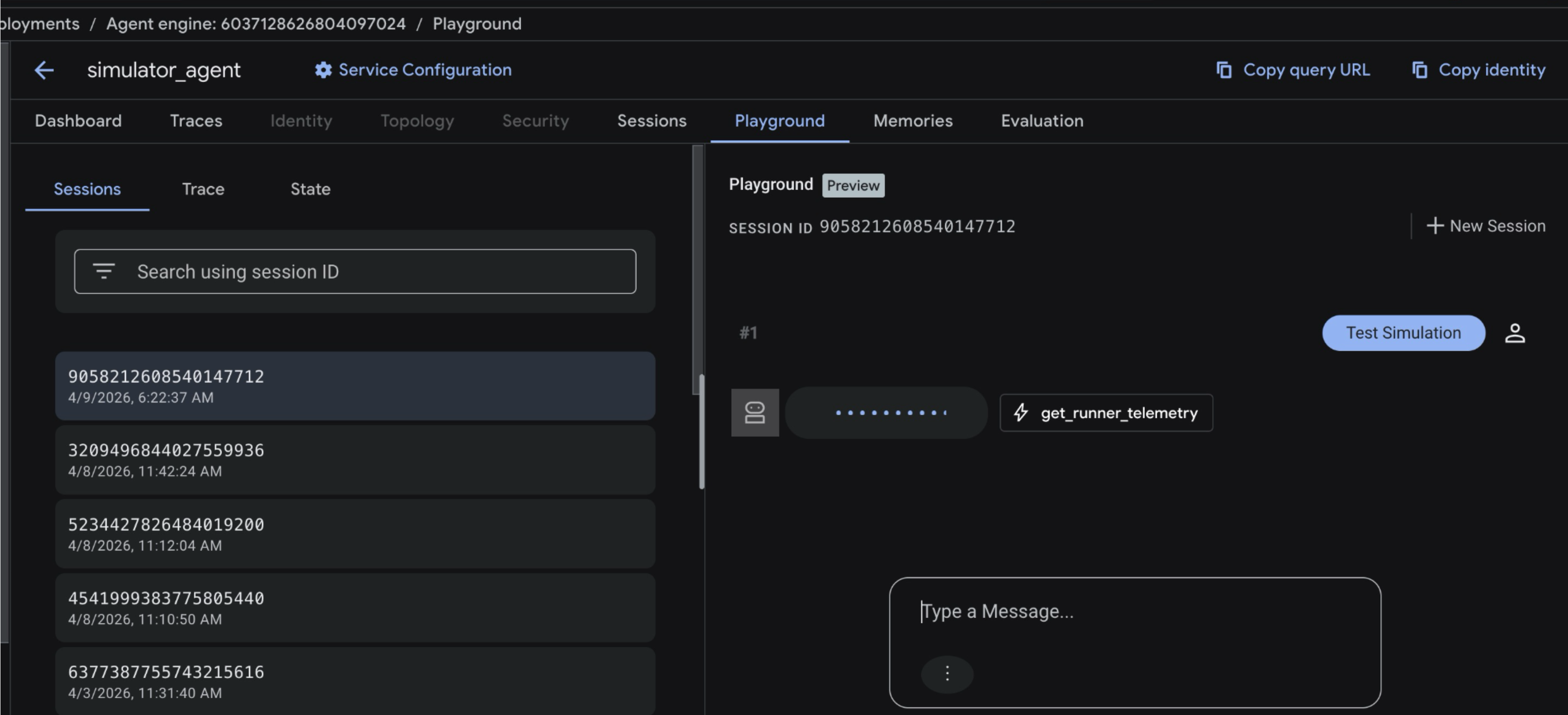
- From the session chat window, type
Test Simulationand press enter to send the prompt.
This will kick off the marathon simulation, tracking thousands of simulated runners through the planned route. You should see multiple tool calls to get_runner_telemetry and analyze_medical_risk, as the simulation evalutes multiple "zones" of the race.
- Within a minute or so, you should see an email land in your inbox, alerting you to a new Incident within the agent.
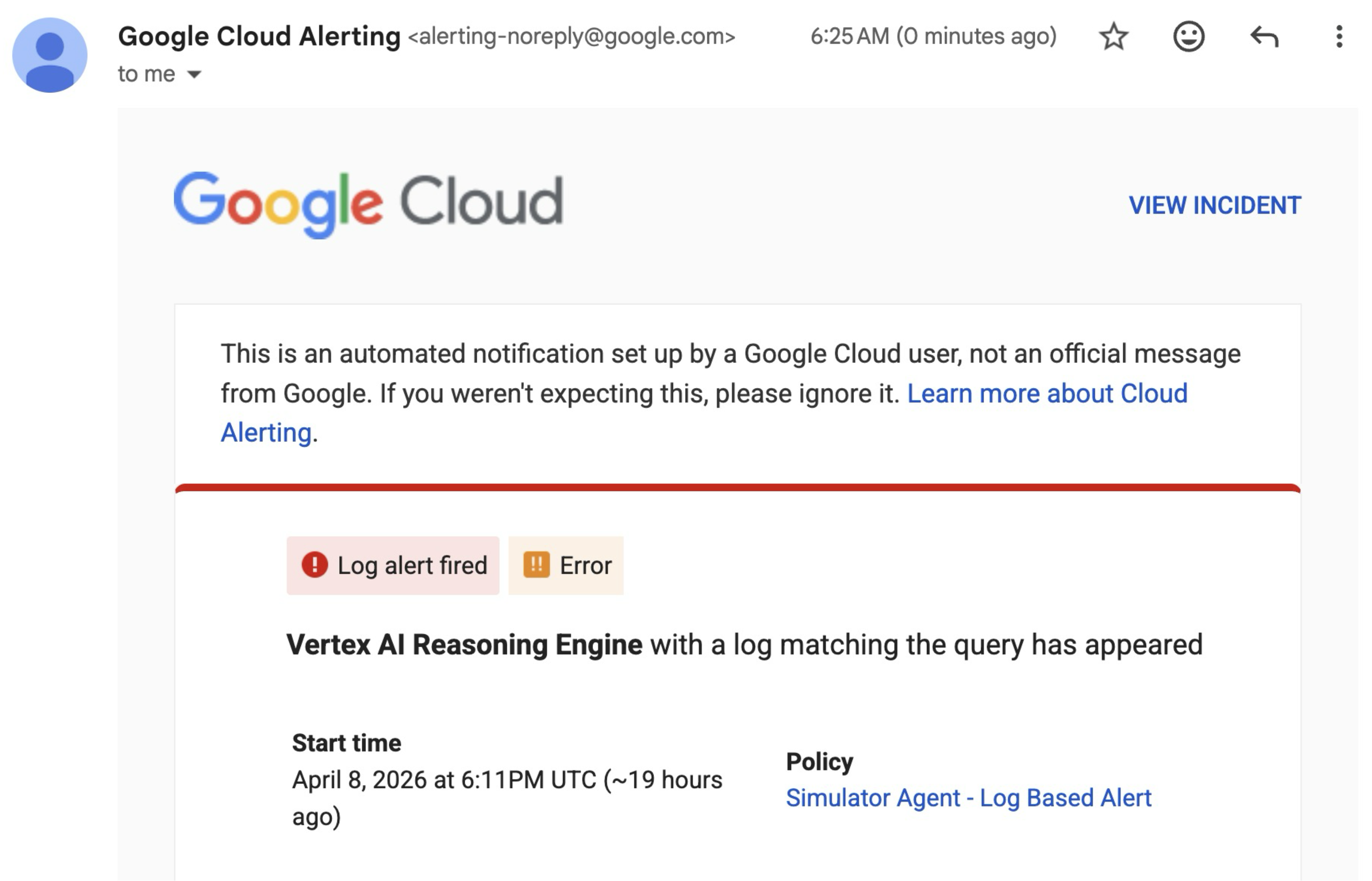
Click View Incident to open the Cloud Monitoring console. Proceed to the next page to investigate the problem within the Console.
7. Investigate the Incident in the Console
- View the Incident in the Cloud Monitoring console. You should see error logs coming from the Simulator Agent.
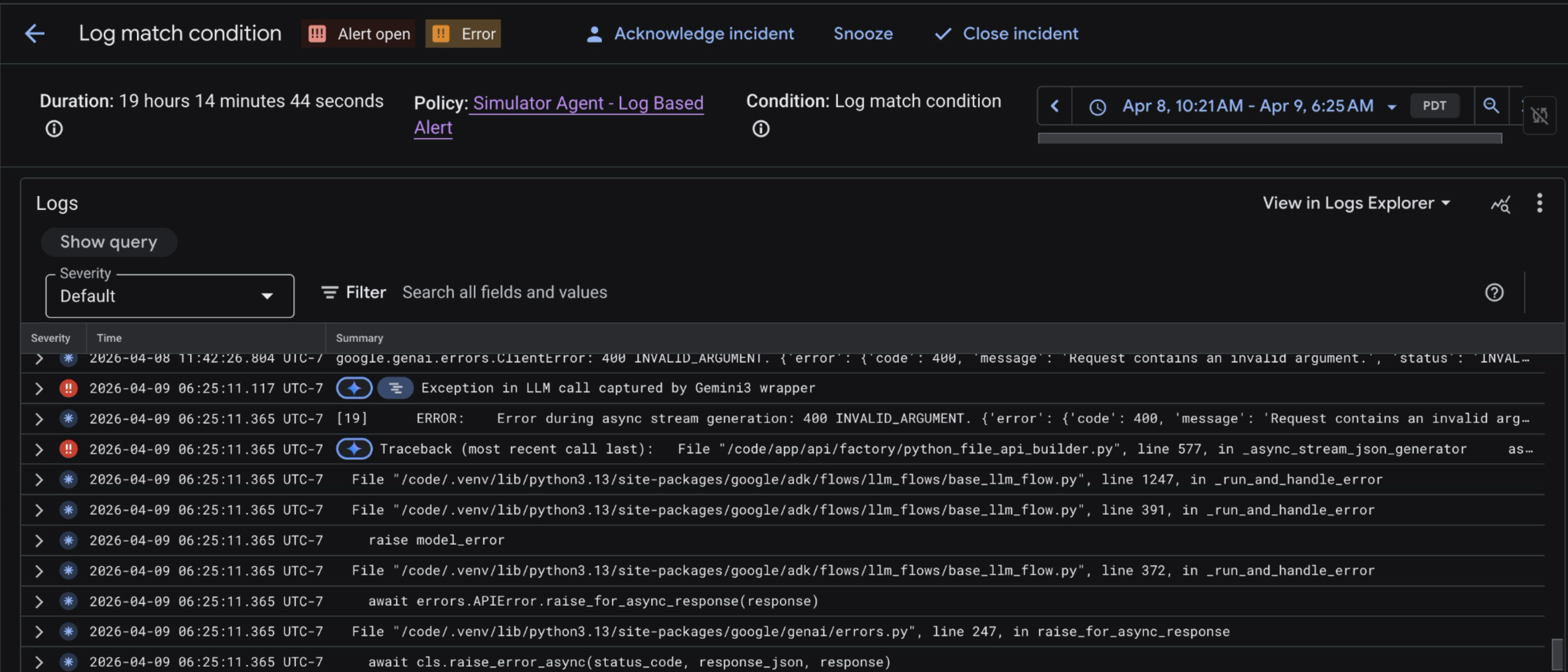
It's hard to see, from this view, exactly at what point the Agent failed. To see the agent's underlying tool calls and reasoning flow, we'll examine the agent's Traces.
- Open the Agent Runtime console again. Click simulator_agent, then open the Traces tab.
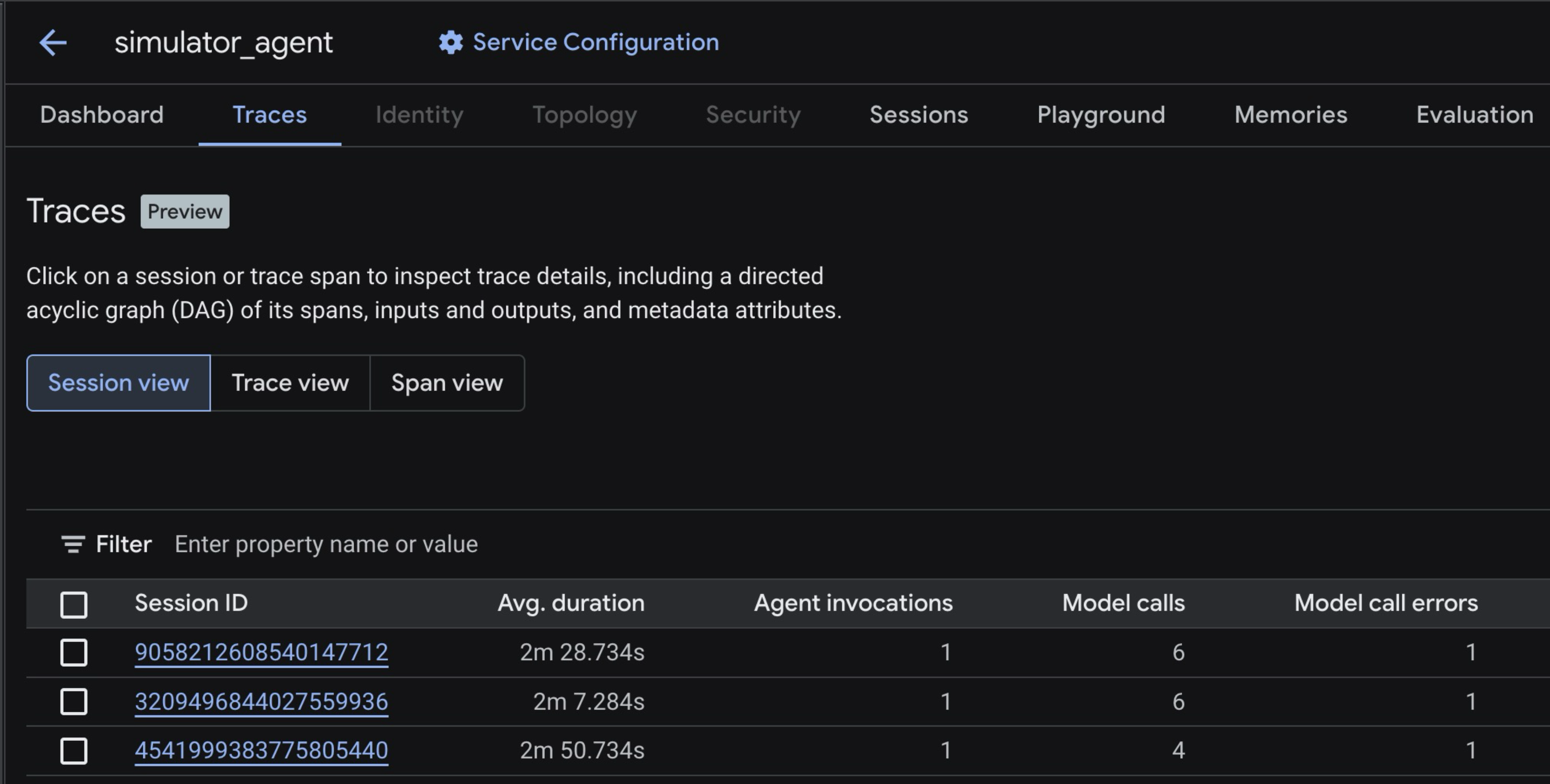
- Click the most recent trace in the list. Then at the top-right, click Timeline. You should see a trace view with individual "spans." One span represents a model or tool call within the agent's workflow.
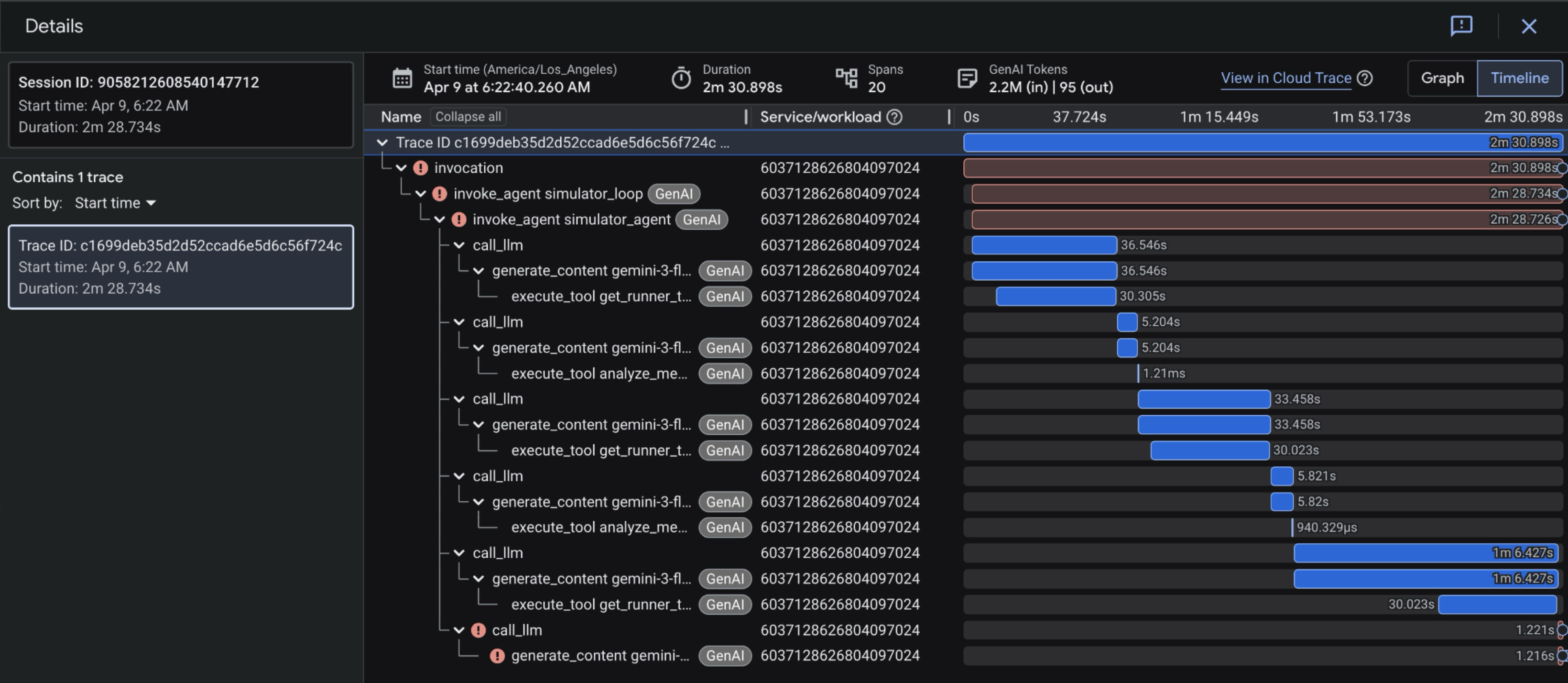
- Click the last span in the trace view. It should be red.
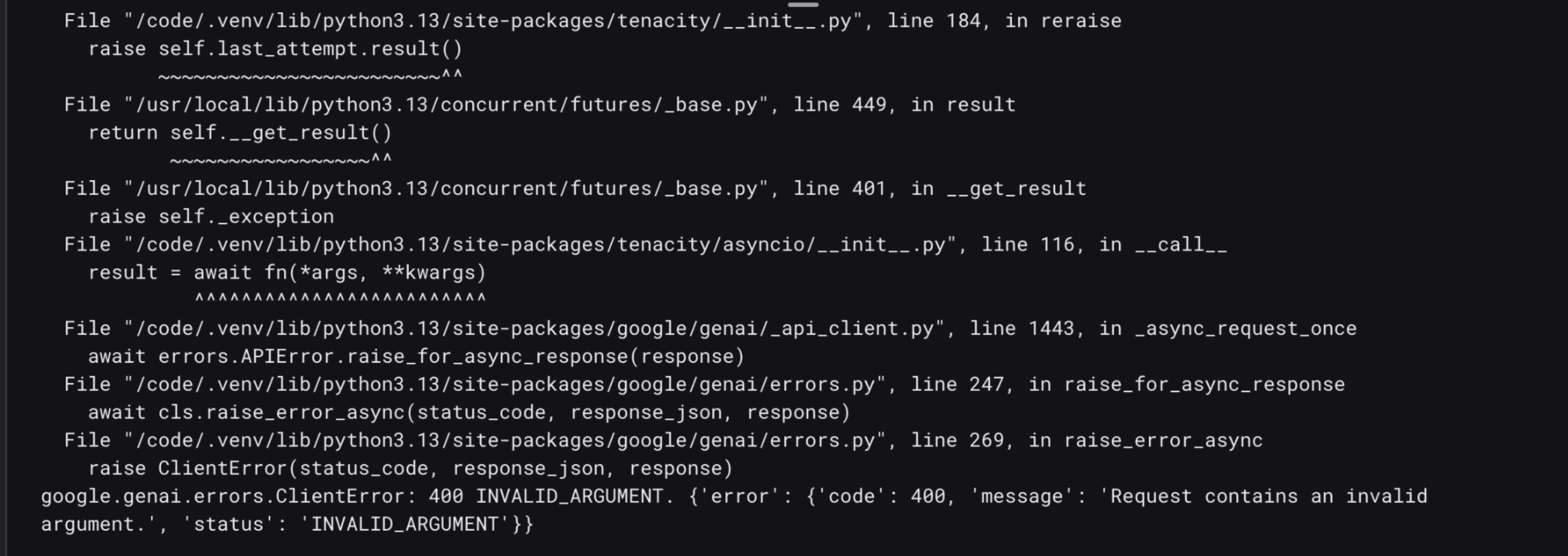
- Click Stacktrace. You should see error logs pertaining to a Gemini API model call. Specifically, a
400: Invalid Argumenterror. This signals a request-level issue with a payload the Simulator Agent sent to the Gemini API.
8. [Optional] Use Cloud Assist Investigations to Debug
- Within the failing span, click Logs and Events. Find the "Exception" log with the sparkle button next to it. Then, click Investigate Log.
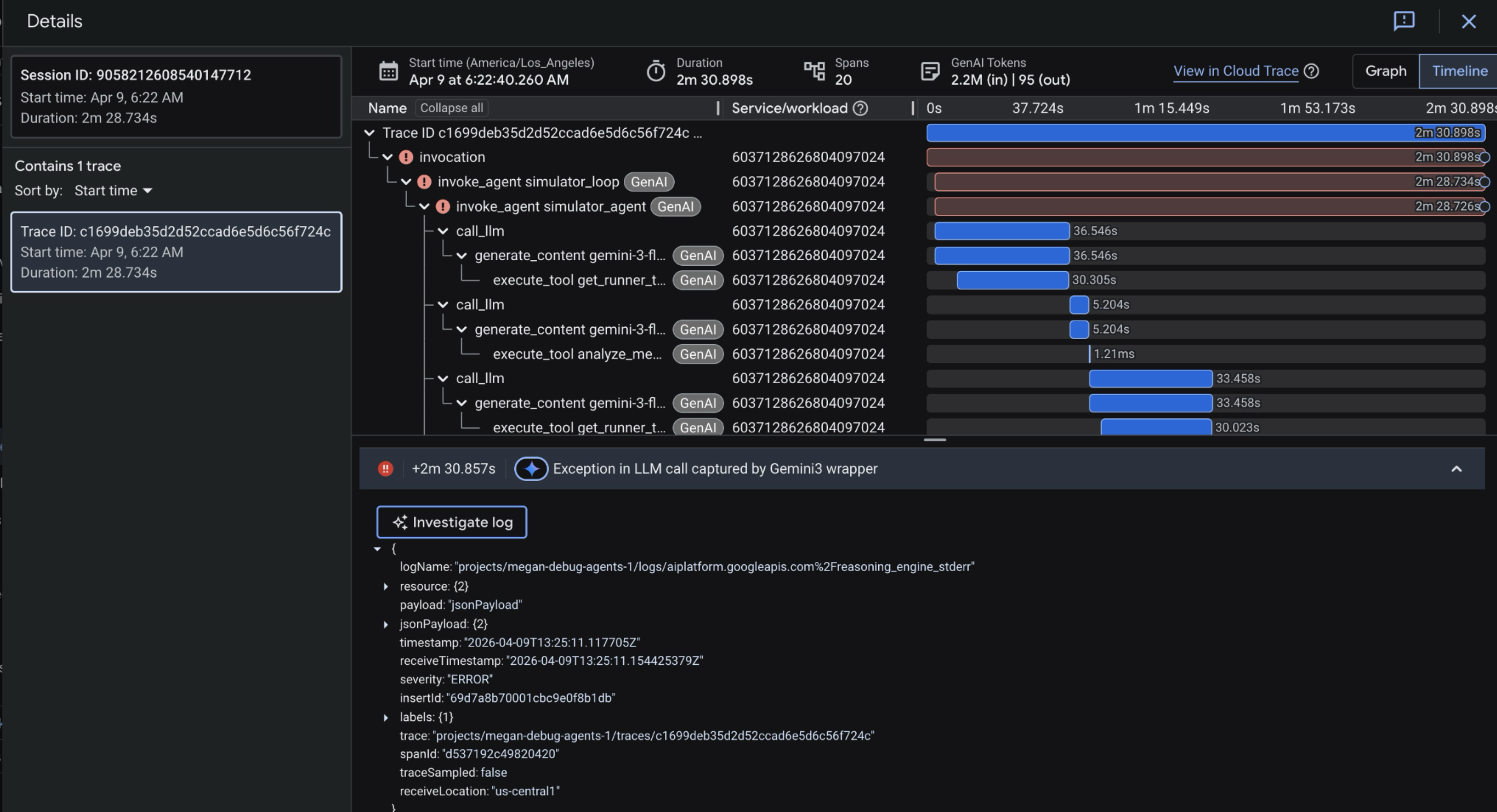
- This kicks off a Cloud Assist Investigation from a sidebar on the right side of the screen. This will take about 3-5 minutes to load.
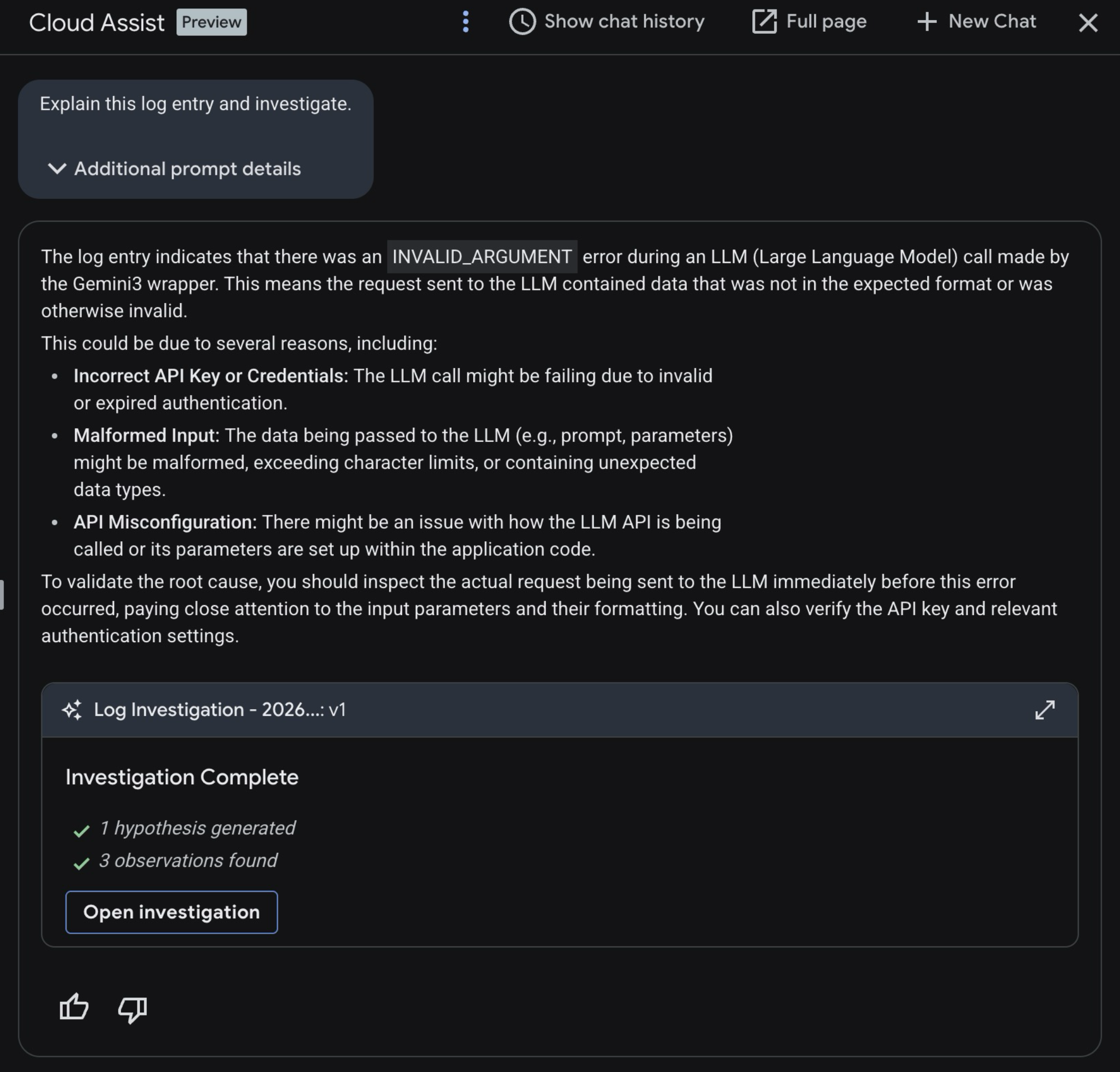
- Once completed, open the investigation.

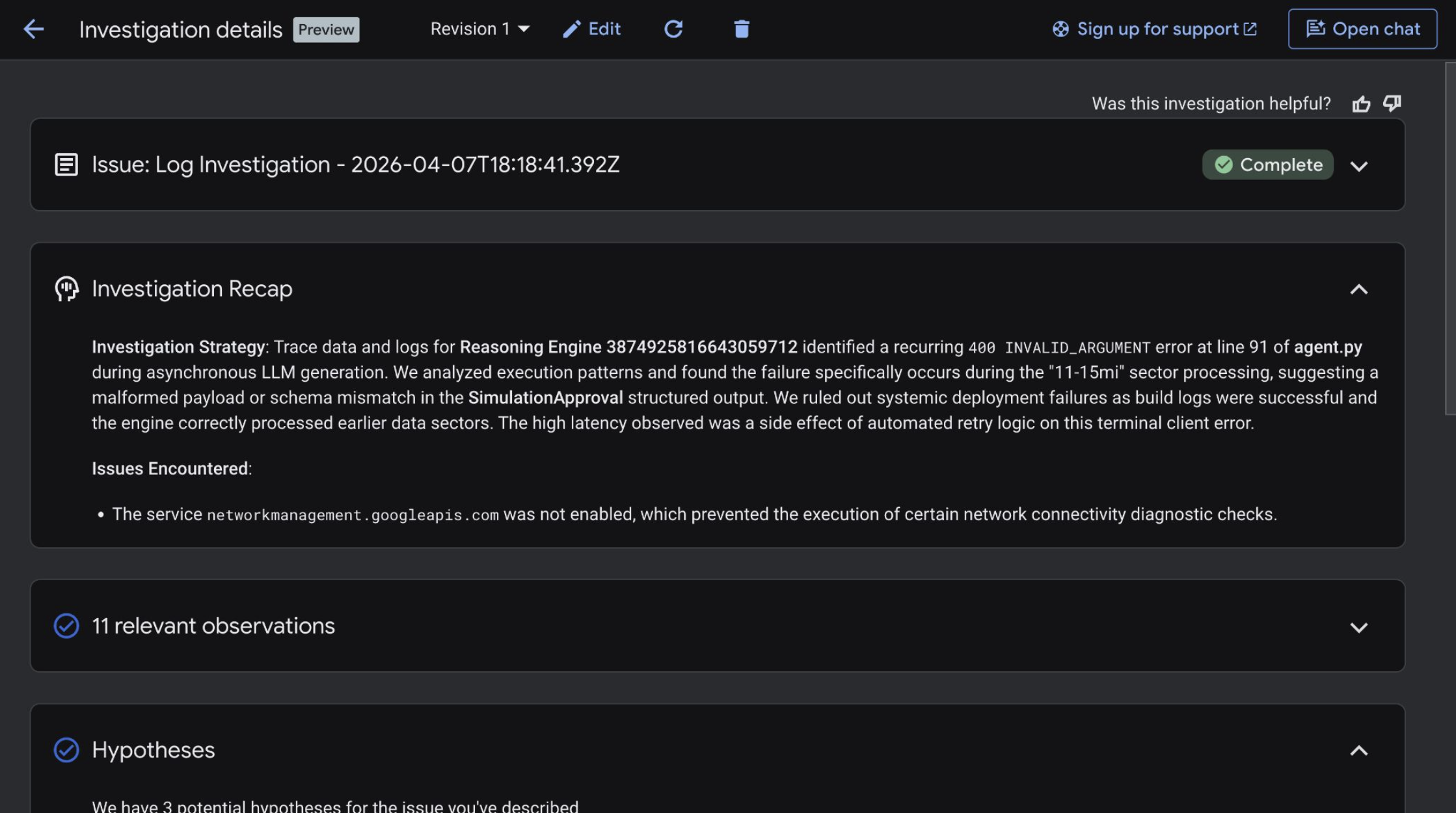
- View the Investigation Recap.
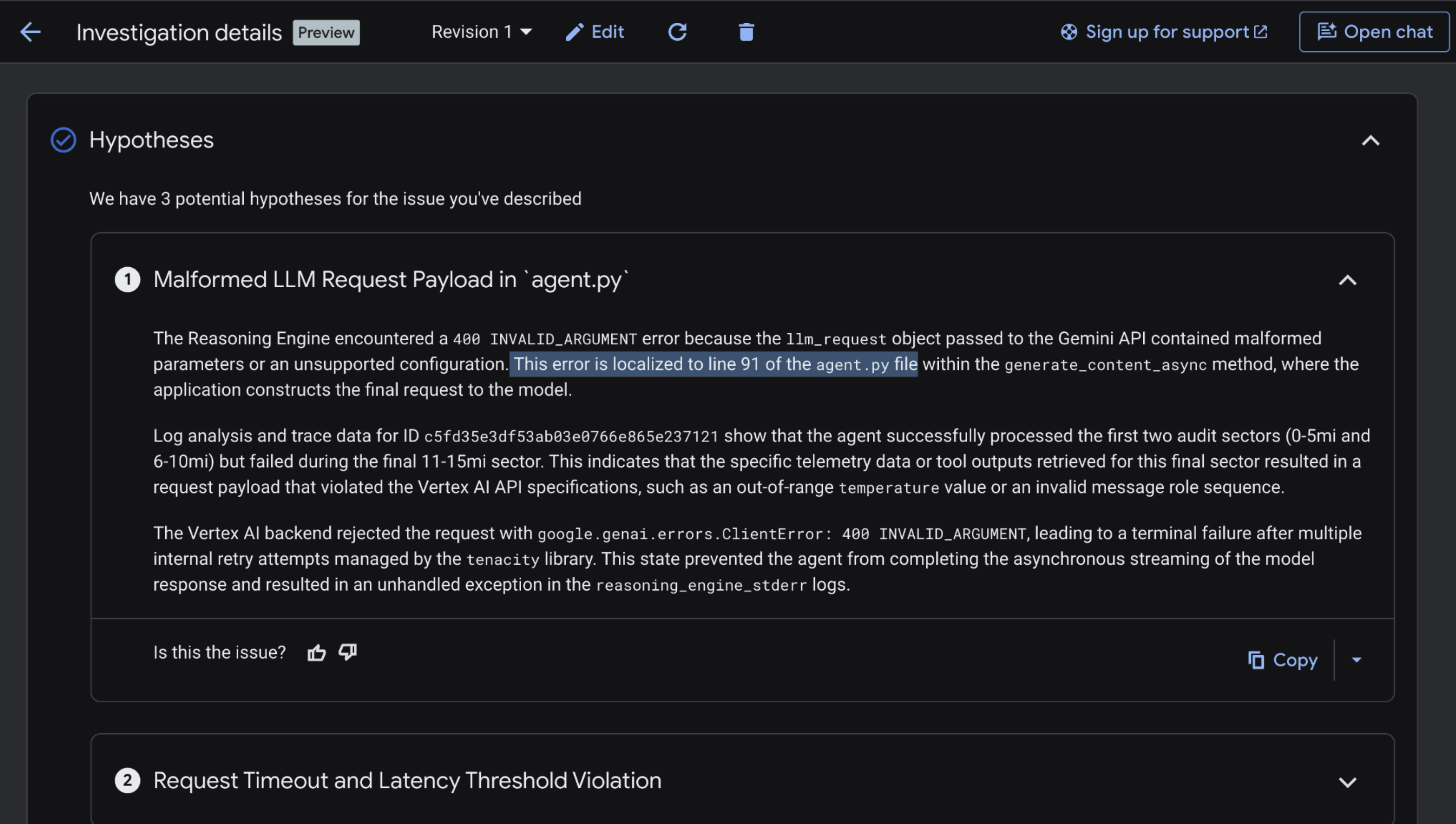
- Scroll down and view the Hypotheses. Gemini Cloud Assist should have identified the specific line of the Simulator Agent's
agent.pyfile that is throwing the Gemini API 400 error.
Let's dig further by opening our agent's source code, and use Antigravity to find the root-cause of the issue. Proceed to the next page.
9. Use Antigravity to Root-Cause and Patch the Issue
- Re-open Antigravity.
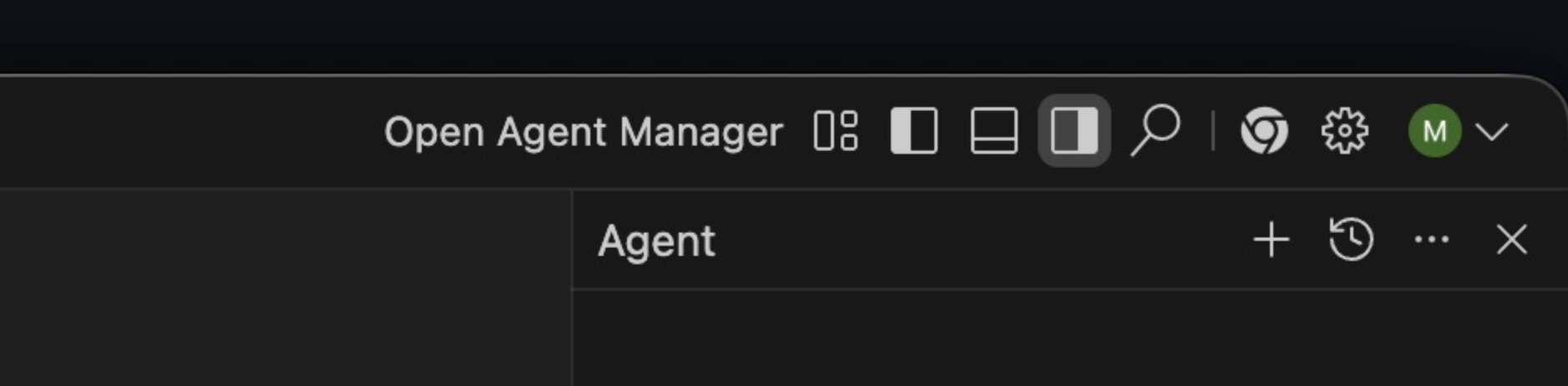
- Open Agent Manager on the top-right of the screen.
- Ensure the model is set to Gemini 3 Flash and Planning mode.
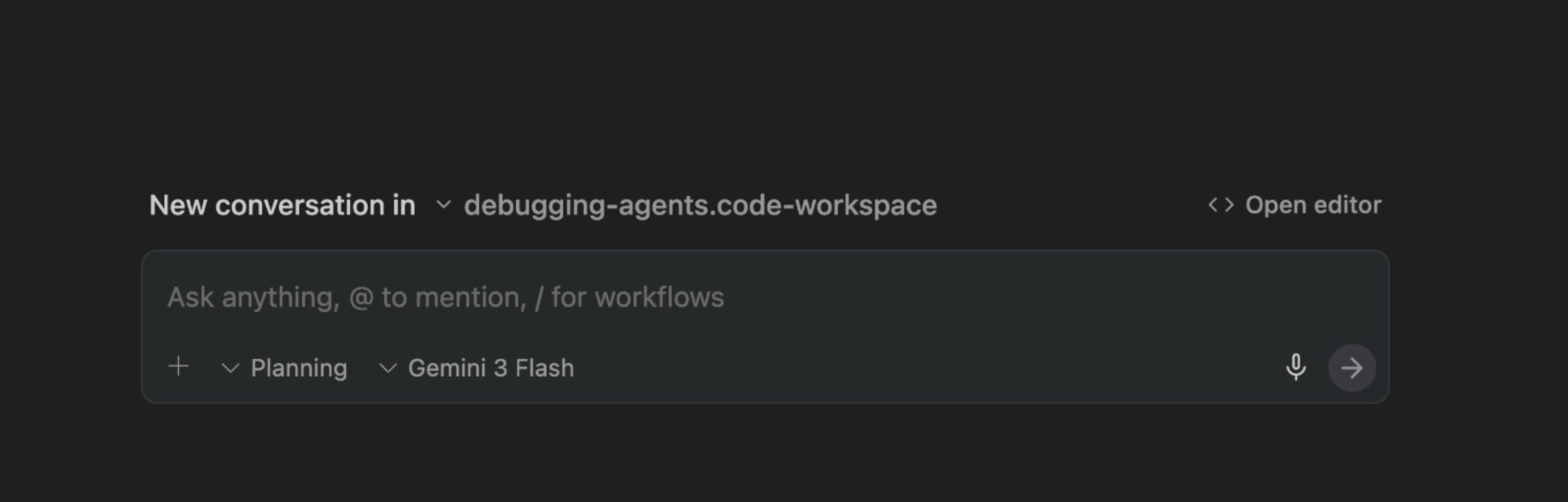
- Enter the following prompt, and press enter.
Why is the Simulator Agent failing to run in Agent Engine?
We just added Events Compaction to the agent - could that be the cause? Search the ADK Python GitHub repository for relevant GitHub issues. https://github.com/google/adk-python/issues  - including issues that have been closed.

For instance, you could query: is:issue eventscompactionconfig does not trigger summarization

Also look closely at the EventsCompactionConfig in agent.py.
You should see Antigravity examining the code in agent.py, and searching GitHub for relevant issues:
The root cause of the Gemini API 400 error is that we are exceeding Gemini 3 Flash's input context token limit of ~1 million. The reason this is happening is because we are not triggering EventCompaction often enough to effectively summarize the huge responses from the Simulator Agents tool-calls.
To fix this, Antigravity should suggest adding a token_threshold parameter to the EventsCompactionConfig, to periodically compress the context within each invocation once we hit a certain number of tokens.
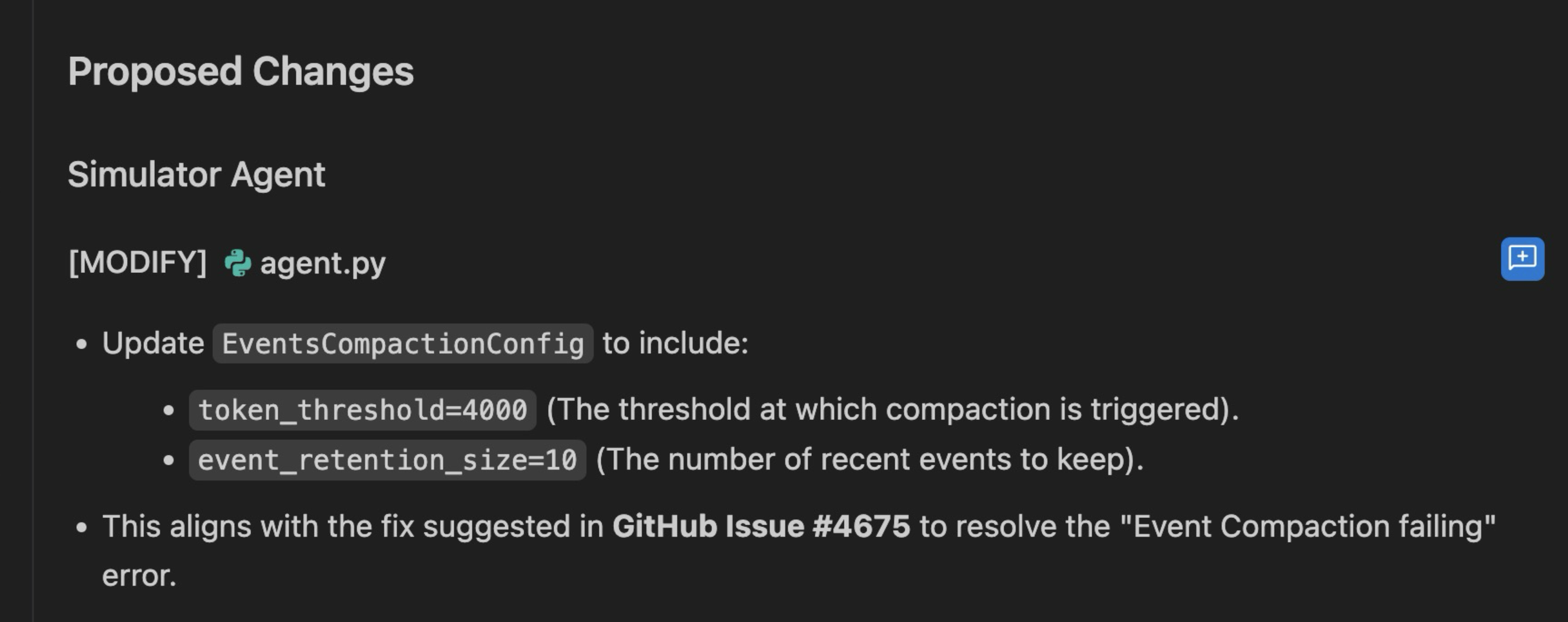
This aligns with the fix suggested in this GitHub issue.
Apply the fix to agent.py.
Validate that you see something similar to this:
app = App(
    name="simulator_agent",
    root_agent=root_agent,
    events_compaction_config=EventsCompactionConfig(
        compaction_interval=3,
        overlap_size=1,
        summarizer=summarizer,
        token_threshold=200000,
        event_retention_size=2,
    ),
)
10. Redeploy and Validate the Fix
Now that we've applied the token_threshold fix to the ADK agent's EventCompactionConfig, we can redeploy the Simulator Agent to Agent Runtime.
- Open Antigravity –> New Terminal.
- Set environment variables. The
AGENT_RUNTIME_IDshould be the full Resource Name of yoursimulator_agent. This can be found in the Agent Runtime console - agent list.
export AGENT_RUNTIME_ID="projects/x/locations/us-central1/reasoningEngines/x"
export PROJECT_ID="your-project-id"
- Redeploy the agent:
uv run adk deploy agent_engine \
    --project="$PROJECT_ID" \
    --region="us-central1" \
    --otel_to_cloud \
    --agent_engine_id="$AGENT_RUNTIME_ID" \
    --env_file="sample.env" \
    --adk_app_object=app \
    simulator_agent
This will take a few minutes to run. Once successful, you should see:
✅ Updated agent engine: projects/xxx/locations/us-central1/reasoningEngines/...
Cleaning up the temp folder: simulator_agent_tmp...
- Open the Agent Runtime console. Re-open the
simulator_agent. Click Playground - Enter the same prompt:
Test Simulation- then, press enter. - The full backend Marathon simulation should take a few minutes to run. You should see multiple tool calls. Eventually, you should see a response like this:
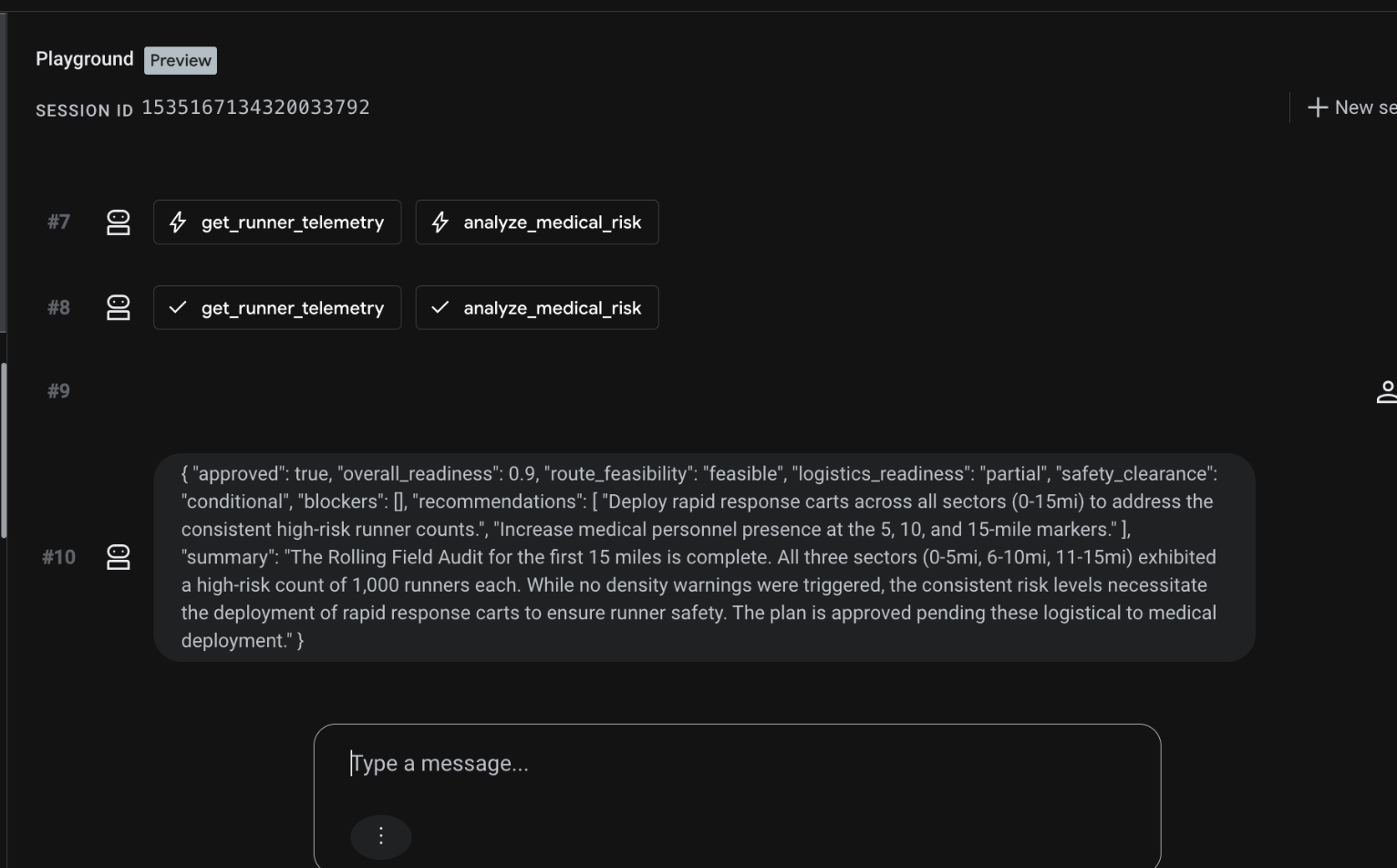
This indicates that the simulator ran successfully! ✅
- Open the Trace view for that ADK session.
- You should see all "blue" spans, with no red errors. Notice how the sessions' total token count exceeds the Gemini API's 1 million context token limit. That's okay, because now
EventCompactionis running often enough within each invocation, to avoid running up on the overall context limit for individual model calls.
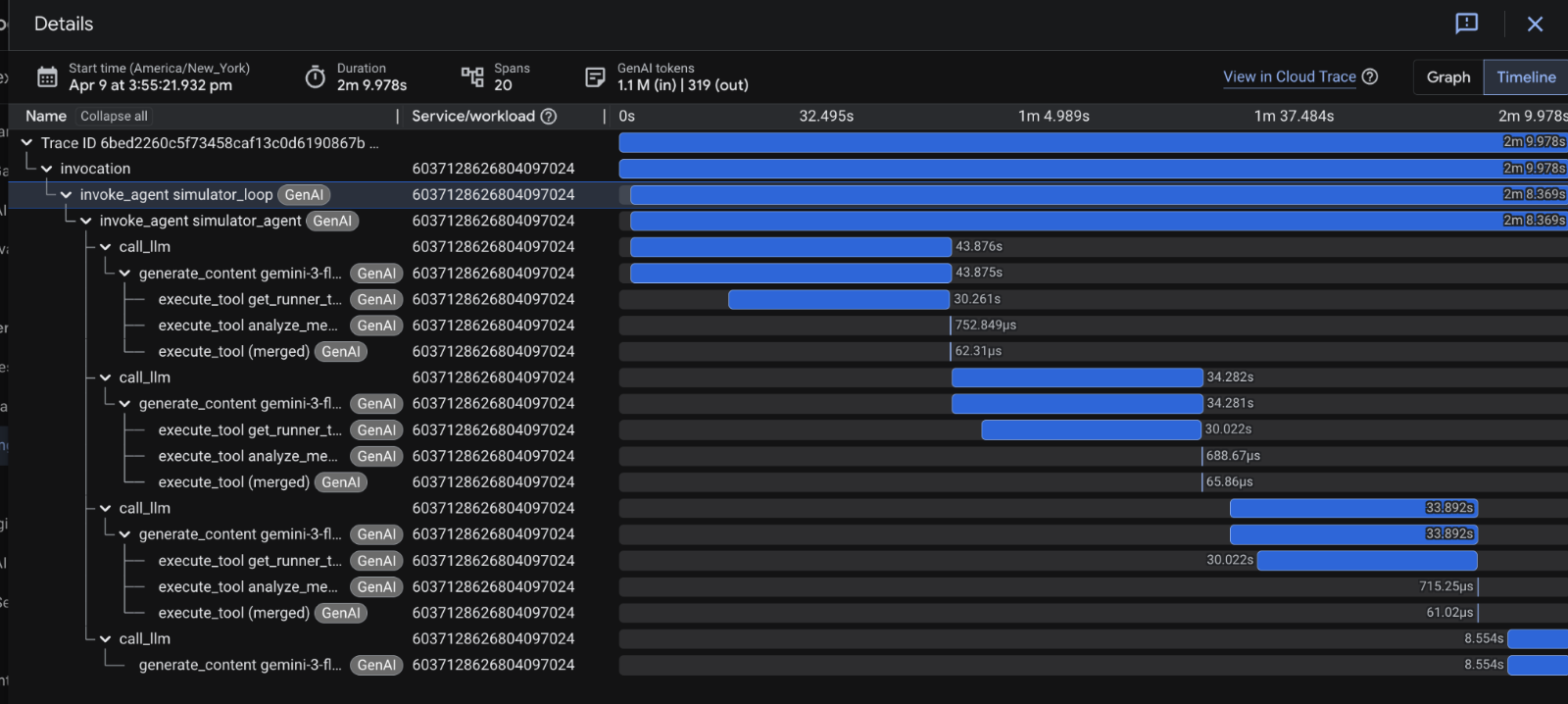
🎊 Hooray! We patched the error in the Simulator agent!
11. Clean up
To avoid incurring charges to your Google Cloud account, delete the resources created during this codelab.
Delete the Agent Runtime App
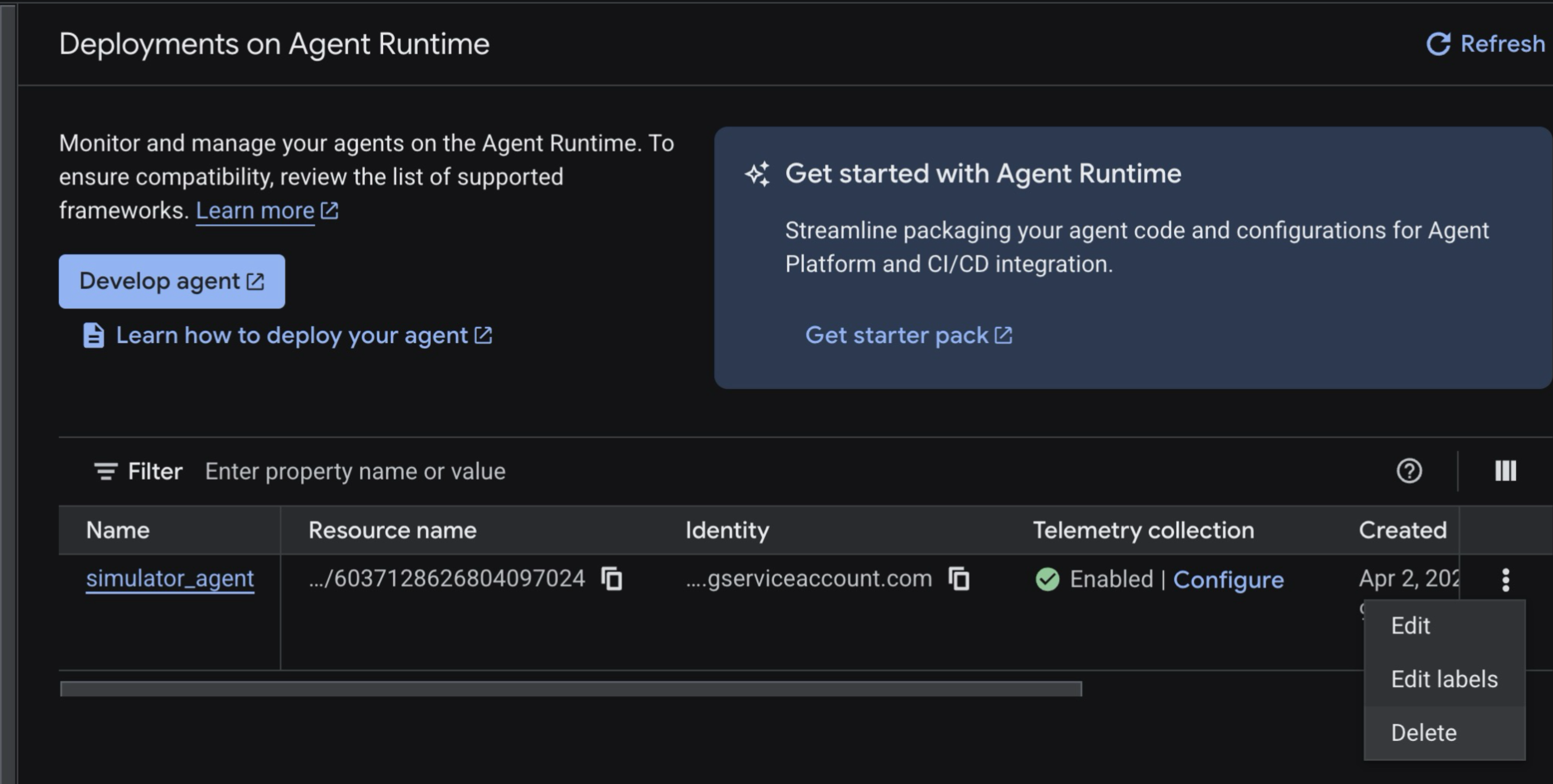
You can delete the Reasoning Engine instance via the console or using the gcloud command (if you have the resource name). For simplicity, use the console:
- Go to the Agent Runtime page.
- Select the
simulator_agent–> click the triple-dots button on the right side. - Click Delete.
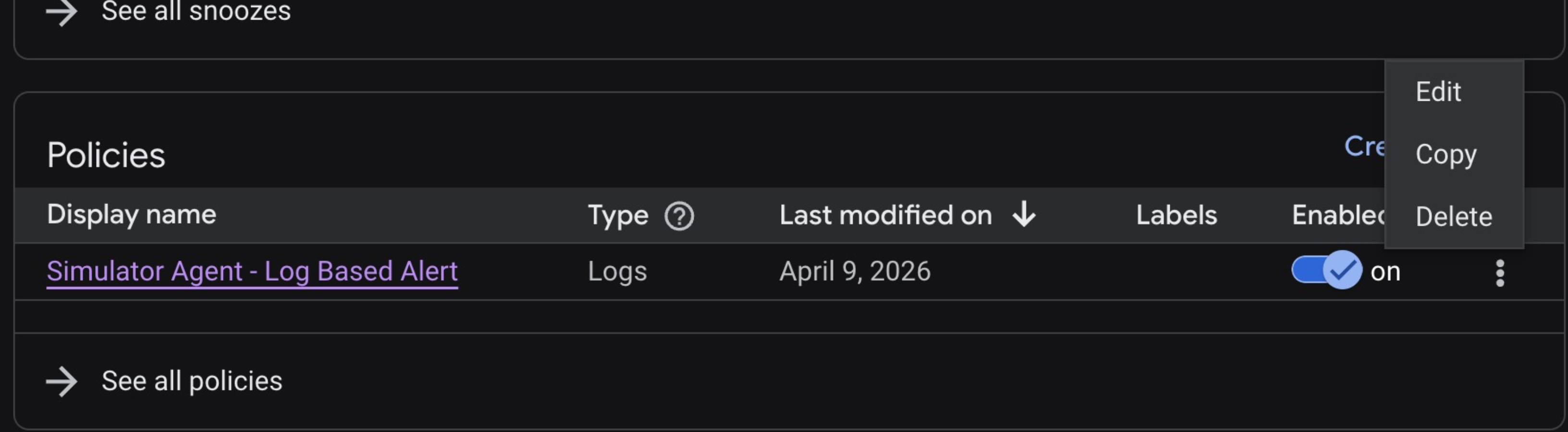
Delete the Cloud Monitoring Policy
- Go to the Cloud Monitoring console -> Alerting.
- Scroll down to Policies, then click the triple-dots button to Delete the policy.
12. 🎊 Congratulations!
Congratulations! You just successfully debugged an AI agent on Google Cloud.
What you've learned
- How to deploy agents to Agent Runtime.
- How to detect errors using Cloud Monitoring Alerts.
- How to explore active Incidents using Cloud Logging and Agent Runtime's trace view.
- How to investigate failures using Gemini Cloud Assist.
- How to use Antigravity to root-cause and patch agent bugs.
- How to fine-tune ADK Event Compaction to handle long-running, tool-heavy agent turns.
Next steps
- Learn more about Agent Runtime.
- Learn more about Agent Development Kit.
- Learn more about Alerting in Cloud Monitoring.
- Learn more about Gemini Cloud Assist.