
1. Introduction
Gemini Cloud Assist is a fully featured agent that supports your Google Cloud workloads. The agent is your partner for designing new applications or updating existing ones, deploying and running workloads in Google Cloud, troubleshooting workloads, and optimizing them for cost and performance.
Gemini Cloud Assist optimizes your costs and performance by providing proactive recommendations and insights, helping you right-size resources, identify inefficiencies, and continuously improve your application's efficiency over time.
What you'll learn
- How to set up a multi-region service.
- How to use Gemini Cloud Assist to analyze your cost.
- How to get recommendations to improve your service cost and performance.
2. Set up your project
Project Setup
Create a Google Cloud Project
- In the Google Cloud Console, on the project selector page, select or create a Google Cloud project.
- Make sure that billing is enabled for your Cloud project. Learn how to check if billing is enabled on a project.
Start Cloud Shell
Cloud Shell is a command-line environment running in Google Cloud that comes preloaded with necessary tools.
- Click Activate Cloud Shell at the top of the Google Cloud console.
- Once connected to Cloud Shell, verify your authentication:
gcloud auth list - Confirm your project is configured:
gcloud config get project - If your project is not set as expected, set it:
export PROJECT_ID=<YOUR_PROJECT_ID>
gcloud config set project $PROJECT_ID
3. Enable APIs
Enable the following APIs for the application components to deploy, and to use Google Cloud Assist:
In the terminal, enable the APIs:
gcloud services enable \
  geminicloudassist.googleapis.com \
  run.googleapis.com \
  cloudbuild.googleapis.com \
  storage.googleapis.com \
  compute.googleapis.com \
  artifactregistry.googleapis.com \
  cloudasset.googleapis.com \
  recommender.googleapis.com \
  appoptimize.googleapis.com \
  monitoring.googleapis.com \
  cloudscheduler.googleapis.com
When the command finishes, you should see an output like the following:
Operation "operations/acf.p2-176675280136-b03ab5e4-3483-4ebf-9655-43dc3b345c63" finished successfully.
4. Prepare the Project
You will create the basic application and deployment in order to test Gemini Cloud Assist.
Clone the Repository
- Clone the repository to your Cloud Shell environment:
git clone --depth 1 https://github.com/GoogleCloudPlatform/devrel-demos.git
- Navigate to the demo directory:
cd infrastructure/cross-region-demo
5. Deploy the Application
The application code and Google Cloud resources are ready to deploy. This can take up to 15 minutes.
Set up the project
Run the following command from the terminal:
chmod +x scripts/setup.sh
./scripts/setup.sh
This script validates API enablement for the project and creates the required policy bindings for you to create resources.
Deploy the application components
Run the following command from the terminal:
chmod +x scripts/deploy.sh
./scripts/deploy.sh
This script deploys the Google Cloud Resources including:
- Cloud Run services for the frontend and backend
- Cloud Storage buckets for object transfers
- Cloud Scheduler job for running transfers on a time based schedule to create traffic
While the components deploy, browse the files in Cloud Shell Editor to learn more.
6. View the deployed Service
Open Cloud Run on the left pane. Then, click the two-tier-frontend service.
You can trigger different patterns in the service for types of cross-region traffic including bucket object transfers, and transferring over API calls between services.
The Cloud Scheduler job will automatically run to start populating cost data. 4-This takes about 24 hours to complete.
7. View optimization insights
After running traffic for about a day (the cost metrics update at around 00:00 Pacific Standard Time), the dashboard will be ready
Note: If you do not see any cost data, come back the following day.
Open the Optimization dashboard
Open Cloud Hub Optimization.
You will see something like:
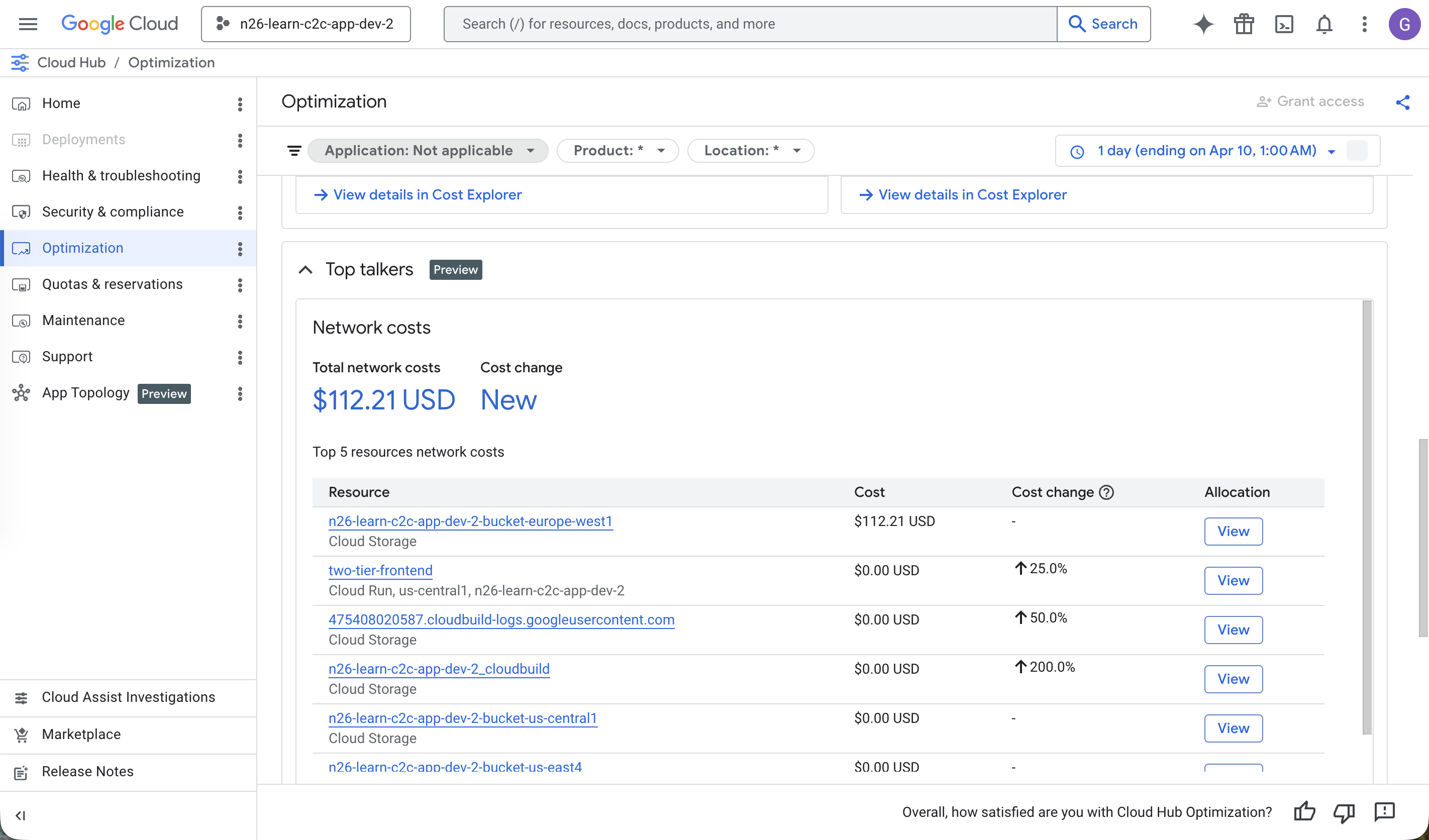
The Optimization dashboard contains Cloud Billing charges over the prior duration (defaulting to 7 days).
Scroll in the dashboard to see insights, including Top Talkers representing network traffic in the project.
Chat with Gemini Cloud Assist
Open Gemini Cloud Assist by clicking the sparkle icon in the top navigation bar.
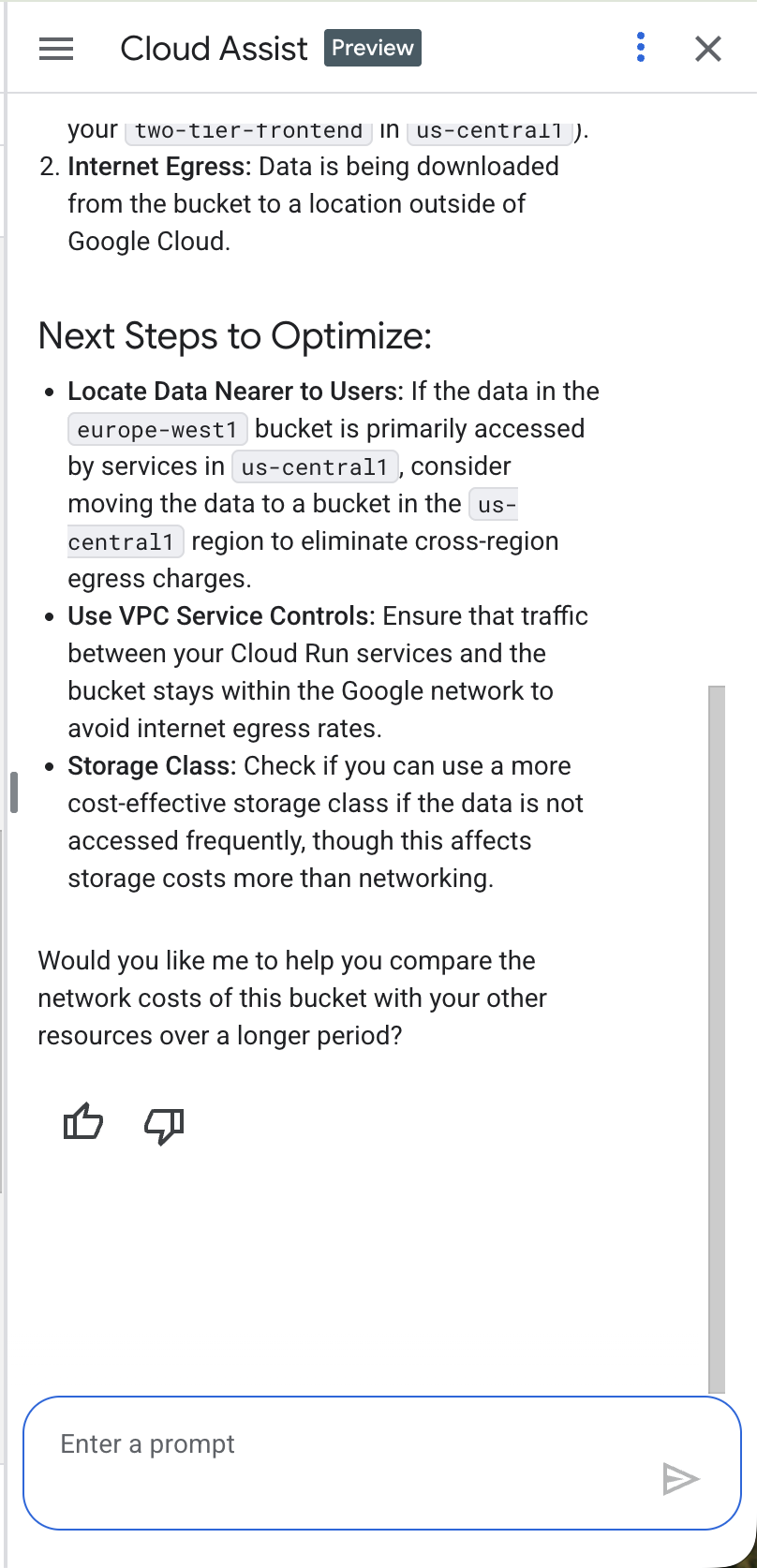
In the Gemini Cloud Assist chat, ask a question such as: Why are my networking costs so high?. Gemini Cloud Assist analyzes your project's specific networking charges and proposes a set of ideas to remediate your network traffic.
You will see something like:
8. Remove resources
To stop services from continuing to generate traffic and logs, open Cloud Shell Editor and run the following command:
Run the following command from the terminal:
cd ~/devrel-demos/infrastructure/cross-region-demo
chmod +x scripts/destroy.sh
./scripts/destroy.sh
9. Congratulations
Congratulations! You have successfully completed this introduction to Cloud Optimization and the process of optimizing your application's cost and performance on Google Cloud.
What's next?
- Explore other guides and examples showcasing how to use Gemini Cloud Assist for different scenarios:
- Review the Gemini Cloud Assist documentation to learn more about its features and capabilities.