

1. はじめに
Gemini Cloud Assist は、Google Cloud ワークロードをサポートするフル機能のエージェントです。エージェントは、新しいアプリケーションの設計や既存のアプリケーションの更新、Google Cloud でのワークロードのデプロイと実行、ワークロードのトラブルシューティング、コストとパフォーマンスの最適化を行うパートナーです。
Gemini Cloud Assist を使用すると、予期しないエラーやダウンタイムに対応する能力が向上します。
学習内容
- デプロイ: 基本的なバックエンドとデータベースを Google Cloud にデプロイする方法。
- デバッグ: Gemini Cloud Assist がクラウドとコードの問題の調査と根本原因分析を自動化する方法。
- 修復: Gemini Cloud Assist が根本原因に基づいて修正を特定する仕組み。
2. プロジェクトの設定
Google アカウント
個人の Google アカウントをお持ちでない場合は、Google アカウントを作成する必要があります。
仕事用または学校用アカウントではなく、個人アカウントを使用します。
Google Cloud コンソールにログインする
個人の Google アカウントを使用して Google Cloud コンソールにログインします。
課金を有効にする
個人用の請求先アカウントを設定する
Google Cloud クレジットを使用して課金を設定した場合は、この手順をスキップできます。
個人用の請求先アカウントを設定するには、Cloud コンソールでこちらに移動して課金を有効にします。
注意事項:
- このラボを完了するのにかかる Cloud リソースの費用は 1 米ドル未満です。
- このラボの最後の手順に沿ってリソースを削除すると、それ以上の料金は発生しません。
- 新規ユーザーは、300 米ドル分の無料トライアルをご利用いただけます。
プロジェクトの作成(省略可)
このラボで使用する現在のプロジェクトがない場合は、こちらで新しいプロジェクトを作成します。
3. Cloud Shell エディタを開く
- このリンクをクリックすると、Cloud Shell エディタに直接移動します。
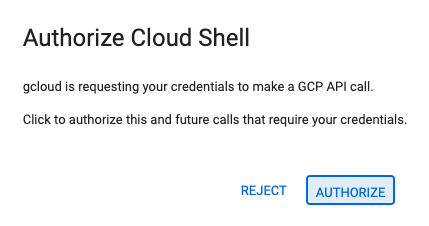
- 本日、承認を求めるメッセージがどこかの時点で表示された場合は、[承認] をクリックして続行します。
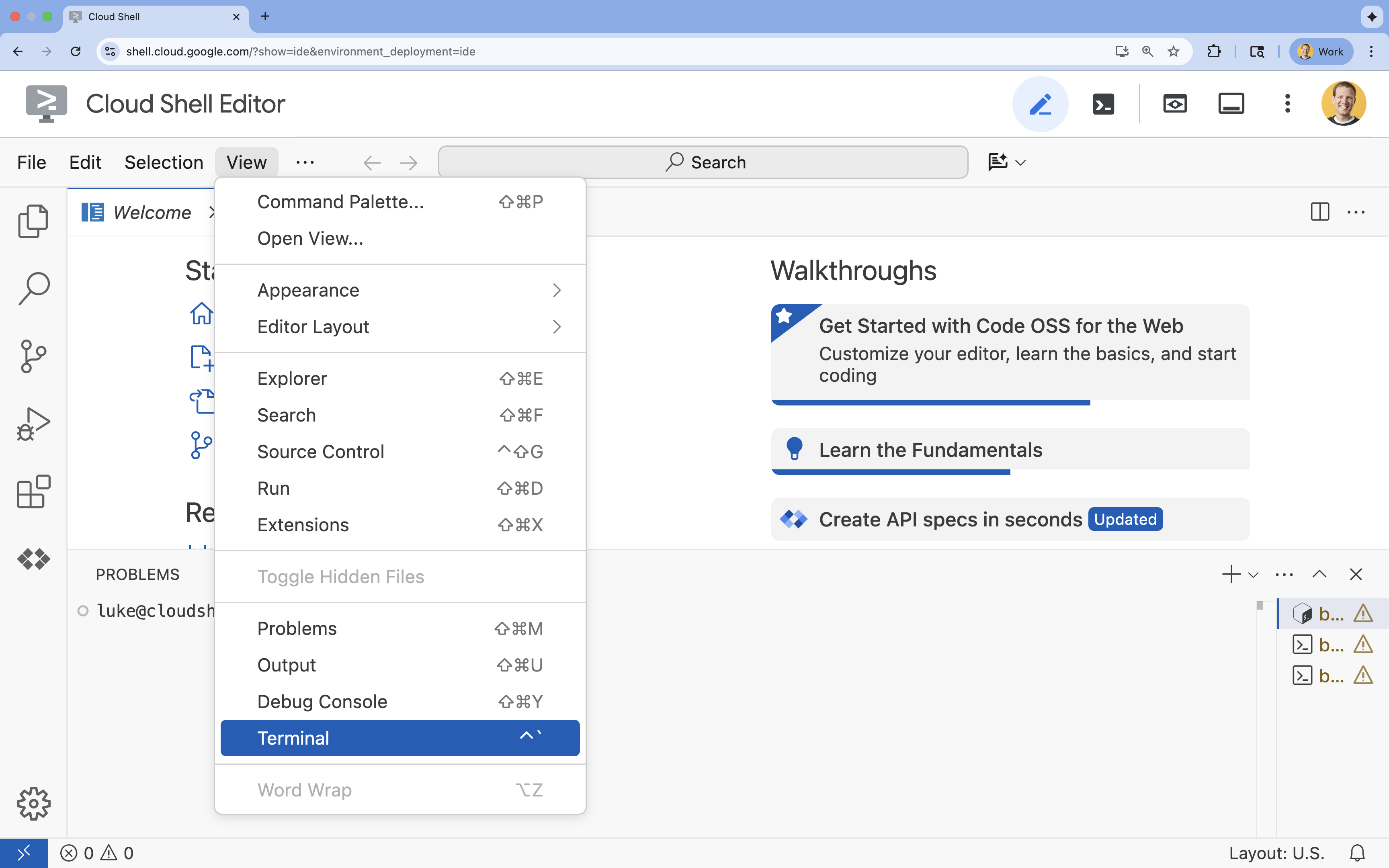
- ターミナルが画面の下部に表示されない場合は、ターミナルを開きます。
- [表示] をクリックします。
- [ターミナル] をクリックします。
- ターミナルで、次のコマンドを使用してプロジェクトを設定します。
gcloud config set project [PROJECT_ID]- 例:
gcloud config set project lab-project-id-example - プロジェクト ID がわからない場合は、次のコマンドでプロジェクト ID をすべて一覧表示できます。
gcloud projects list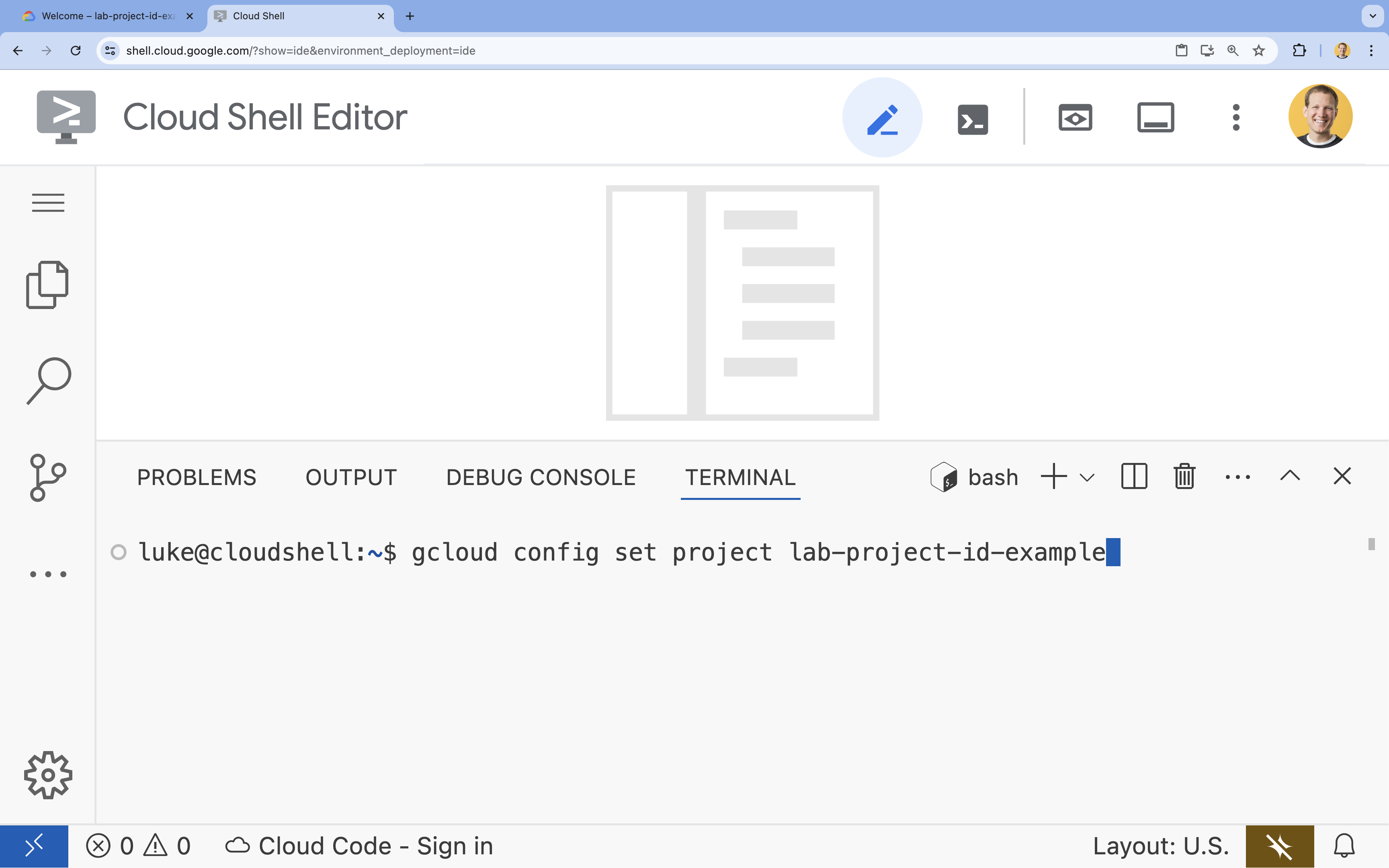
- 例:
- 次のようなメッセージが表示されます。
Updated property [core/project].
4. API を有効にする
デプロイするアプリケーション コンポーネントと Google Cloud Assist を使用するために、次の API を有効にします。
ターミナルで、API を有効にします。
```bash
gcloud services enable \
  container.googleapis.com \
  artifactregistry.googleapis.com \
  cloudbuild.googleapis.com \
  alloydb.googleapis.com \
  run.googleapis.com
```
<br>
When the command finishes, you should see an output like the following:
<br>

```console
Operation "operations/acf.p2-176675280136-b03ab5e4-3483-4ebf-9655-43dc3b345c63" finished successfully.
```
5. プロジェクトを準備する
Cloud Assist をテストするために、基本的なアプリケーションとデプロイを作成します。
ディレクトリを作成する
- Cloud Shell エディタまたは任意のデベロッパー環境を開きます。
- 新しいフォルダを作成する:
mkdir -p ~/gemini-cloud-assist-debug mkdir -p ~/gemini-cloud-assist-debug/auth_issue_demo mkdir -p ~/gemini-cloud-assist-debug/terraform cd ~/gemini-cloud-assist-debug - ターミナルで次のコマンドを実行して、Cloud Shell エディタのワークスペースを開きます。
cloudshell open-workspace ~/gemini-cloud-assist-debug
ファイルを作成する
次に、アプリケーションに必要なスターター ファイルを作成します。
- ターミナルで次のコマンドを実行して、Dockerfile を作成します。このファイルは、アプリケーション コンテナの作成を処理します。
cat <<EOF > ~/gemini-cloud-assist-debug/auth_issue_demo/Dockerfile
FROM python:3.11-slim

WORKDIR /app

COPY requirements.txt .
RUN pip install --no-cache-dir -r requirements.txt

COPY main.py .

CMD ["gunicorn", "--bind", "0.0.0.0:8080", "main:app"]
EOF
- ターミナルで次のコマンドを実行して、
main.pyファイルを作成します。このファイルには、Python で記述されたアプリケーションが含まれています。
cat <<EOF > ~/gemini-cloud-assist-debug/auth_issue_demo/main.py
import os
import logging
from flask import Flask
from google.cloud.alloydb.connector import Connector
import sqlalchemy

app = Flask(__name__)

# Configure logging
logging.basicConfig(level=logging.INFO)
logger = logging.getLogger(__name__)

# Configuration from Environment Variables
# The fully qualified instance URI: projects/<PROJECT>/locations/<REGION>/clusters/<CLUSTER>/instances/<INSTANCE>
ALLOYDB_URI = os.environ.get("ALLOYDB_URI")
DB_USER = os.environ.get("DB_USER", "auth-debug")
DB_PASS = os.environ.get("DB_PASS", "debug-auth")
DB_NAME = os.environ.get("DB_NAME", "postgres")
USE_PUBLIC_IP = os.environ.get("USE_PUBLIC_IP", "false").lower() == "true"

# Initialize Connector lazily
_connector = None

def get_connector():
    global _connector
    if _connector is None:
        _connector = Connector()
    return _connector

def getconn():
    connector = get_connector()
    ip_type = "PUBLIC" if USE_PUBLIC_IP else "PRIVATE"

    conn = connector.connect(
        ALLOYDB_URI,
        "pg8000",
        user=DB_USER,
        password=DB_PASS,
        db=DB_NAME,
        ip_type=ip_type
    )
    return conn

@app.route("/")
def index():
    return "AlloyDB Auth Demo. /connect to test.", 200

@app.route("/connect")
def connect_db():
    if not ALLOYDB_URI:
        return "FAILURE: ALLOYDB_URI env var is not set.", 500

    try:
        logger.info(f"Attempting connection to {ALLOYDB_URI} with user {DB_USER}...")

        # Create connection pool
        pool = sqlalchemy.create_engine(
            "postgresql+pg8000://",
            creator=getconn,
        )

        with pool.connect() as db_conn:
            # Simple query to validate connection
            result = db_conn.execute(sqlalchemy.text("SELECT NOW()")).fetchone()
            timestamp = result[0]

        msg = f"SUCCESS: Connected to AlloyDB! DB Time: {timestamp}"
        logger.info(msg)
        return msg, 200

    except Exception as e:
        logger.exception("Connection failed")
        # Return the error to the caller to visualize the auth failure
        return f"FAILURE: Connection Error.\nDetails: {str(e)}", 500

if __name__ == "__main__":
    app.run(host="0.0.0.0", port=int(os.environ.get("PORT", 8080)))
EOF
- ターミナルで次のコマンドを実行して、
requirements.txtファイルを作成します。このファイルは Python パッケージの要件を処理します。
cat <<EOF > ~/gemini-cloud-assist-debug/auth_issue_demo/requirements.txt
flask==3.1.3
gunicorn==25.3.0
google-cloud-alloydb-connector[pg8000]==1.12.1
sqlalchemy==2.0.49
EOF
- ターミナルで次のコマンドを実行して、
main.tfファイルを作成します。このファイルは、作成する Google Cloud リソースを処理します。
cat <<EOF > ~/gemini-cloud-assist-debug/terraform/main.tf
provider "google" {
  project = var.project_id
  region  = var.region
}

# Enable APIs
locals {
  apis = [
    "alloydb.googleapis.com",
    "run.googleapis.com",
    "artifactregistry.googleapis.com",
    "compute.googleapis.com",
    "geminicloudassist.googleapis.com",
    "monitoring.googleapis.com",
    "cloudasset.googleapis.com",
    "cloudbuild.googleapis.com",
    "recommender.googleapis.com",
    "appoptimize.googleapis.com"
  ]
}

resource "random_password" "db_pass" {
  count            = var.db_password == null ? 1 : 0
  length           = 16
  special          = true
  override_special = "!#$%&*()-_=+[]{}<>:?"
}

locals {
  db_password = var.db_password != null ? var.db_password : random_password.db_pass[0].result
}

resource "google_project_service" "apis" {
  for_each           = toset(local.apis)
  service            = each.value
  disable_on_destroy = false
}

# Service Account
resource "google_service_account" "auth_demo_sa" {
  account_id   = var.service_account_name
  display_name = "Auth Demo SA"
}

# AlloyDB Cluster
resource "google_alloydb_cluster" "rma_cluster" {
  cluster_id = var.cluster_id
  location   = var.region

  # Initial password, managed via variable or generated randomly
  initial_user {
    password = local.db_password
  }

  # Use default network as in the manual setup
  network_config {
    network = "projects/${var.project_id}/global/networks/default"
  }

  depends_on = [google_project_service.apis["alloydb.googleapis.com"]]
}

# AlloyDB Instance
resource "google_alloydb_instance" "rma_instance_1" {
  cluster       = google_alloydb_cluster.rma_cluster.name
  instance_id   = var.instance_id
  instance_type = "PRIMARY"

  machine_config {
    cpu_count = 2
  }

  network_config {
    enable_public_ip = true
  }

  depends_on = [google_alloydb_cluster.rma_cluster]
}

# Cloud Run Service
resource "google_cloud_run_service" "auth_issue_demo" {
  name     = var.cloud_run_service_name
  location = var.region

  template {
    spec {
      containers {
        image = var.cloud_run_image
        env {
          name  = "ALLOYDB_URI"
          value = "projects/${var.project_id}/locations/${var.region}/clusters/${var.cluster_id}/instances/${var.instance_id}"
        }
        env {
          name  = "DB_USER"
          value = "postgres"
        }
        env {
          name  = "DB_PASS"
          value = local.db_password
        }
        env {
          name  = "USE_PUBLIC_IP"
          value = "true"
        }
      }
      service_account_name = google_service_account.auth_demo_sa.email
    }
  }

  traffic {
    percent         = 100
    latest_revision = true
  }

  depends_on = [google_project_service.apis["run.googleapis.com"], google_alloydb_instance.rma_instance_1]
}

# Allow unauthenticated access to Cloud Run service (matching --allow-unauthenticated)
resource "google_cloud_run_service_iam_member" "public_access" {
  location = google_cloud_run_service.auth_issue_demo.location
  project  = google_cloud_run_service.auth_issue_demo.project
  service  = google_cloud_run_service.auth_issue_demo.name
  role     = "roles/run.invoker"
  member   = "allUsers"
}
EOF
- ターミナルで次のコマンドを実行して、
variables.tfファイルを作成します。このファイルは、Google Cloud リソースの Terraform 変数を処理します。
cat <<EOF > ~/gemini-cloud-assist-debug/terraform/variables.tf
variable "project_id" {
  description = "The ID of the Google Cloud project."
  type        = string
}

variable "region" {
  description = "The region to deploy resources in."
  type        = string
  default     = "us-central1"
}

variable "cluster_id" {
  description = "The ID of the AlloyDB cluster."
  type        = string
  default     = "rma-cluster"
}

variable "instance_id" {
  description = "The ID of the AlloyDB instance."
  type        = string
  default     = "rma-instance-1"
}

variable "service_account_name" {
  description = "The name of the service account."
  type        = string
  default     = "auth-demo-sa"
}

variable "cloud_run_service_name" {
  description = "The name of the Cloud Run service."
  type        = string
  default     = "auth-issue-demo"
}

variable "cloud_run_image" {
  description = "The container image for the Cloud Run service."
  type        = string
}

variable "db_password" {
  description = "The database password. If not provided, a random one will be generated."
  type        = string
  sensitive   = true
  default     = null
}
EOF
- ターミナルで次のコマンドを実行して、
setup_via_tf.shファイルを作成します。このファイルは Python パッケージの要件を処理します。
cat <<EOF > ~/gemini-cloud-assist-debug/setup_via_tf.sh
#!/bin/bash
set -e

# Get script directory and change to project root
SCRIPT_DIR="$( cd "$( dirname "${BASH_SOURCE[0]}" )" && pwd )"
cd "$SCRIPT_DIR"

# Load configuration from .env
if [ -f .env ]; then
    set -a
    source .env
    set +a
else
    echo "ERROR: .env file not found. Please create one with PROJECT_ID."
    exit 1
fi

if [ -z "$PROJECT_ID" ]; then
    echo "ERROR: PROJECT_ID is not set in .env file."
    exit 1
fi

REGION="us-central1"
CLUSTER_ID="rma-cluster"
INSTANCE_ID="rma-instance-1"
SA_NAME="auth-demo-sa"
SERVICE_NAME="auth-issue-demo"

echo "--- Terraform Setup for Auth Demo ---"
echo "Using Project: $PROJECT_ID"

# Get current Cloud Run image
echo "Fetching current Cloud Run image..."
IMAGE=$(gcloud run services describe $SERVICE_NAME --region=$REGION --project=$PROJECT_ID --format="value(spec.template.spec.containers[0].image)" 2>/dev/null || true)

if [ -z "$IMAGE" ]; then
    echo "WARNING: Could not find existing Cloud Run service image."
    echo "Using a placeholder image (gcr.io/cloudrun/hello) for initial Terraform apply."
    IMAGE="gcr.io/cloudrun/hello"
fi

echo "Found Image: $IMAGE"

cd terraform

# Initialize Terraform
echo "Initializing Terraform..."
terraform init

echo "Formatting Terraform files..."
terraform fmt

echo "Validating Terraform configuration..."
terraform validate

echo "------------------------------------------------"
echo "Applying changes..."
echo "------------------------------------------------"

terraform apply -var="project_id=$PROJECT_ID" -var="cloud_run_image=$IMAGE" -auto-approve

echo "------------------------------------------------"
echo "Building and deploying updated Cloud Run service..."
echo "------------------------------------------------"

gcloud run deploy $SERVICE_NAME \
  --source ../auth_issue_demo \
  --region $REGION \
  --project $PROJECT_ID \
  --service-account $SA_NAME@$PROJECT_ID.iam.gserviceaccount.com \
  --quiet
EOF
- 次のコマンドを実行して、シェル スクリプトを実行可能にします。
chmod +x ~/gemini-cloud-assist-debug/setup_via_tf.sh
- デプロイ用の Google Cloud プロジェクト ID を含む
.envファイルを作成します。YOUR_PROJECT_IDフィールドを更新します。
cat <<EOF > ~/gemini-cloud-assist-debug/.env
PROJECT_ID=YOUR_PROJECT_ID
USE_PUBLIC_IP=true
EOF
6. アプリケーションをデプロイする
アプリケーション コードと Google Cloud リソースをデプロイする準備が整っている。この処理には最長で 15 分ほどかかります。
ターミナルから次のコマンドを実行します。
cd ~/gemini-cloud-assist-debug
./setup_via_tf.sh
コンポーネントのデプロイ中に、Cloud Shell エディタでファイルを参照して詳細を確認します。
7. エラーを作成してデバッグする
次に、アプリケーションからエラーをトリガーします。左側のペインで Cloud Run を開きます。[auth-issue-demo] サービスをクリックします。
- [サービスの詳細] ページの上部に URL が表示されます。URL をコピーして、新しいブラウザタブを開きます。URL を貼り付けて、
/connectを追加します。URL は次のようになります。
https://auth-issue-demo-
- URL に移動します。Cloud Run インスタンスの起動には数秒かかることがあります。エラーが発生します。
- [Cloud Run] サービスの詳細ページに戻ります。[オブザーバビリティ] をクリックし、[ログ] をクリックします。エラーを含むコンテナのログが表示されます。エラーログがまだ利用できない場合は、数秒待ってから、右上のアイコンを使用してページを更新します。
- エラーログをクリックすると、詳細が表示されます。メインログの行にある調査アイコンをクリックします。[Investigate Log](ログを調査)をクリックします。
Cloud Assist チャットペインが開きます。調査の完了には 2 ~ 3 分かかります。
調査が完了すると、結果と推奨事項を確認できます。Cloud Run が AlloyDB インスタンスにアクセスできるように、サービス アカウントに適切な権限付与を追加することが推奨されます。
8. エラーを修正する
サービス アカウントの権限エラーを修正します。
- Cloud IAM に移動します。
- [アクセス権を付与] ボタンをクリックします。プリンシパル ペインで、まず
auth-demoと入力し、サービス アカウントが表示されるのを待ちます。 - 次に、
AlloyDB Clientロールをサービス アカウントに追加し、[保存] をクリックします。
反映されるまでに 1 分ほどかかります。
しばらく待ってから、戻って申請を更新します。AlloyDB データベースから成功メッセージが表示されます。
9. 完了
おめでとうございます!これで、Cloud Investigations の概要と、Google Cloud でアプリケーションの権限をデバッグするプロセスについての説明は完了です。
次のステップ
- Gemini Cloud Assist をさまざまなシナリオで使用する方法を紹介する他のガイドと例をご覧ください。
- 機能の詳細については、Gemini Cloud Assist のドキュメントをご覧ください。