

1. 簡介
Gemini Cloud Assist 是功能齊全的代理程式,可支援 Google Cloud 工作負載。這個代理程式可協助您設計新應用程式或更新現有應用程式、在 Google Cloud 中部署及執行工作負載、排解工作負載問題,以及最佳化工作負載的成本和效能。
Gemini Cloud Assist 可協助您更有效率地處理非預期的錯誤和停機問題。
課程內容
- 部署:瞭解如何將基本後端和資料庫部署至 Google Cloud。
- 偵錯:瞭解 Gemini Cloud Assist 如何自動調查雲端和程式碼問題,並分析根本原因。
- 修復:Gemini Cloud Assist 如何根據根本原因找出修正方法。
2. 專案設定
Google 帳戶
如果沒有個人 Google 帳戶,請建立 Google 帳戶。
請使用個人帳戶,而非公司或學校帳戶。
登入 Google Cloud 控制台
使用個人 Google 帳戶登入 Google Cloud 控制台。
啟用計費功能
設定個人帳單帳戶
如果使用 Google Cloud 抵免額設定帳單,可以略過這個步驟。
如要設定個人帳單帳戶,請前往這裡在 Cloud 控制台中啟用帳單。
注意事項:
- 完成本實驗室的 Cloud 資源費用應不到 $1 美元。
- 您可以按照本實驗室結尾的步驟刪除資源,以免產生後續費用。
- 新使用者可獲得價值 $300 美元的免費試用期。
建立專案 (選用)
如果沒有要用於本實驗室的現有專案,請在這裡建立新專案。
3. 開啟 Cloud Shell 編輯器
- 按一下這個連結,直接前往 Cloud Shell 編輯器
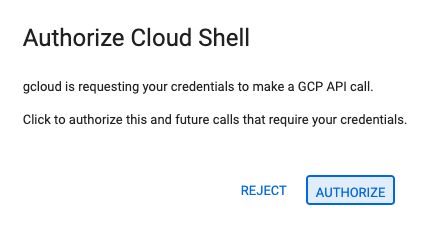
- 如果系統在今天任何時間提示您授權,請點選「授權」繼續操作。
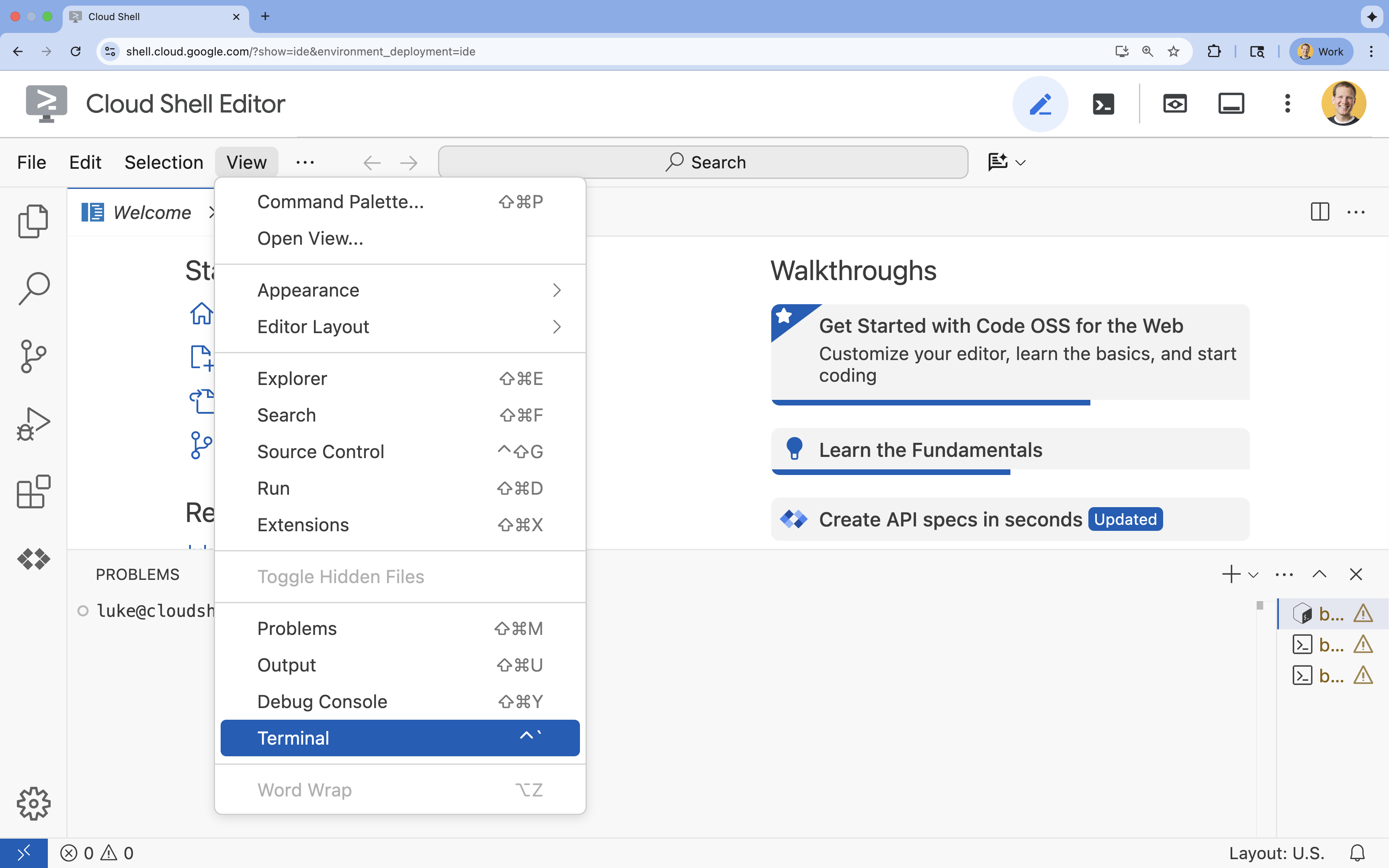
- 如果畫面底部未顯示終端機,請開啟終端機:
- 按一下「查看」
- 按一下「終端機」
- 在終端機中,使用下列指令設定專案:
gcloud config set project [PROJECT_ID]- 範例:
gcloud config set project lab-project-id-example - 如果忘記專案 ID,可以使用下列指令列出所有專案 ID:
gcloud projects list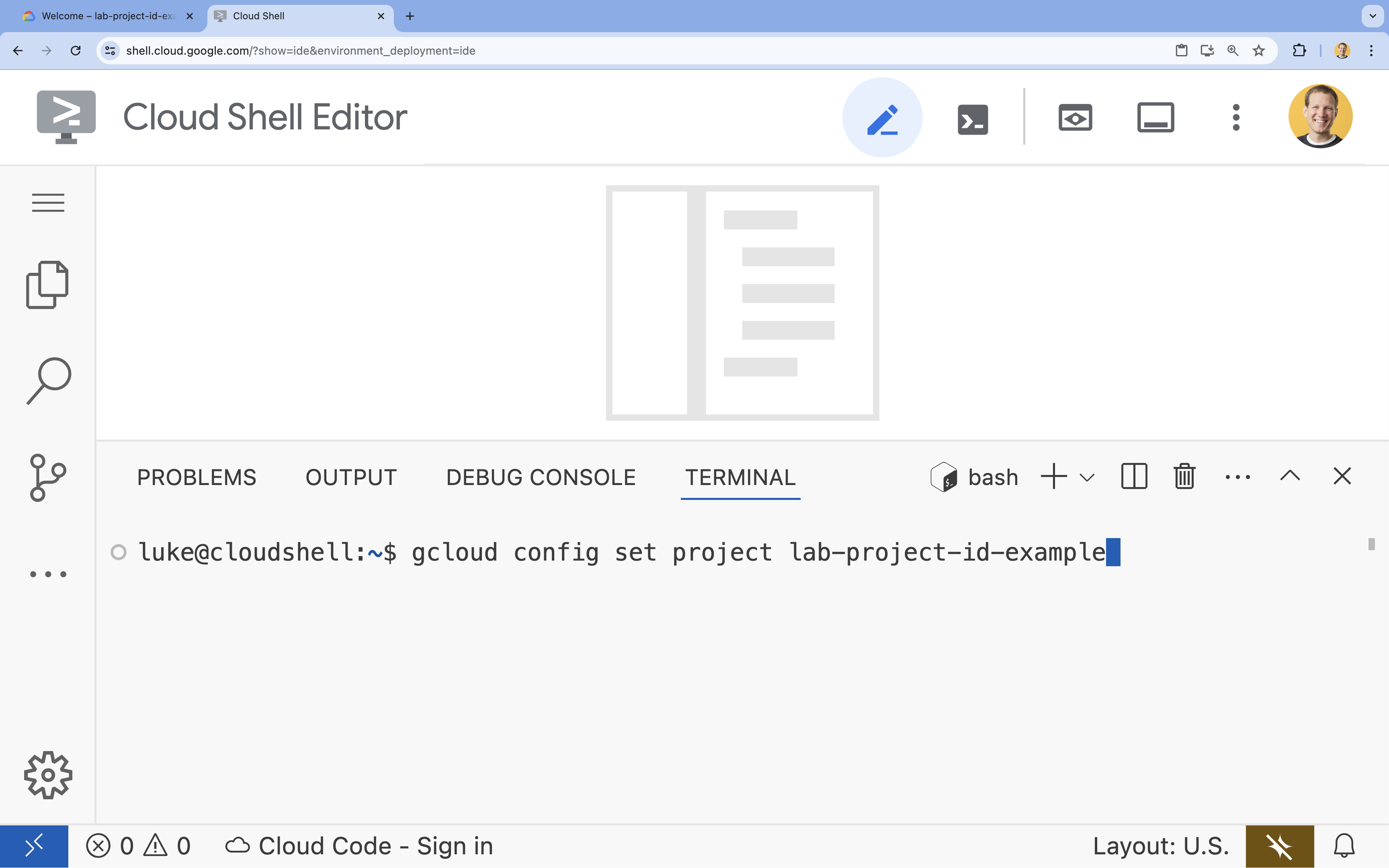
- 範例:
- 您應會看到下列訊息:
Updated property [core/project].
4. 啟用 API
啟用下列 API,即可部署應用程式元件及使用 Google Cloud Assist:
在終端機中啟用 API:
```bash
gcloud services enable \
  container.googleapis.com \
  artifactregistry.googleapis.com \
  cloudbuild.googleapis.com \
  alloydb.googleapis.com \
  run.googleapis.com
```
<br>
When the command finishes, you should see an output like the following:
<br>

```console
Operation "operations/acf.p2-176675280136-b03ab5e4-3483-4ebf-9655-43dc3b345c63" finished successfully.
```
5. 準備專案
您將建立基本應用程式和部署作業,以便測試 Cloud Assist。
建立目錄
- 開啟 Cloud Shell 編輯器,或選擇您要使用的開發人員環境。
- 建立新資料夾:
mkdir -p ~/gemini-cloud-assist-debug mkdir -p ~/gemini-cloud-assist-debug/auth_issue_demo mkdir -p ~/gemini-cloud-assist-debug/terraform cd ~/gemini-cloud-assist-debug - 在終端機中執行下列指令,開啟 Cloud Shell 編輯器工作區:
cloudshell open-workspace ~/gemini-cloud-assist-debug
建立檔案
現在請為應用程式建立必要的啟動檔案。
- 在終端機中執行下列指令,建立 Dockerfile。這個檔案會處理應用程式容器的建立作業。
cat <<EOF > ~/gemini-cloud-assist-debug/auth_issue_demo/Dockerfile
FROM python:3.11-slim

WORKDIR /app

COPY requirements.txt .
RUN pip install --no-cache-dir -r requirements.txt

COPY main.py .

CMD ["gunicorn", "--bind", "0.0.0.0:8080", "main:app"]
EOF
- 在終端機中執行下列指令,建立
main.py檔案。這個檔案包含以 Python 編寫的應用程式。
cat <<EOF > ~/gemini-cloud-assist-debug/auth_issue_demo/main.py
import os
import logging
from flask import Flask
from google.cloud.alloydb.connector import Connector
import sqlalchemy

app = Flask(__name__)

# Configure logging
logging.basicConfig(level=logging.INFO)
logger = logging.getLogger(__name__)

# Configuration from Environment Variables
# The fully qualified instance URI: projects/<PROJECT>/locations/<REGION>/clusters/<CLUSTER>/instances/<INSTANCE>
ALLOYDB_URI = os.environ.get("ALLOYDB_URI")
DB_USER = os.environ.get("DB_USER", "auth-debug")
DB_PASS = os.environ.get("DB_PASS", "debug-auth")
DB_NAME = os.environ.get("DB_NAME", "postgres")
USE_PUBLIC_IP = os.environ.get("USE_PUBLIC_IP", "false").lower() == "true"

# Initialize Connector lazily
_connector = None

def get_connector():
    global _connector
    if _connector is None:
        _connector = Connector()
    return _connector

def getconn():
    connector = get_connector()
    ip_type = "PUBLIC" if USE_PUBLIC_IP else "PRIVATE"

    conn = connector.connect(
        ALLOYDB_URI,
        "pg8000",
        user=DB_USER,
        password=DB_PASS,
        db=DB_NAME,
        ip_type=ip_type
    )
    return conn

@app.route("/")
def index():
    return "AlloyDB Auth Demo. /connect to test.", 200

@app.route("/connect")
def connect_db():
    if not ALLOYDB_URI:
        return "FAILURE: ALLOYDB_URI env var is not set.", 500

    try:
        logger.info(f"Attempting connection to {ALLOYDB_URI} with user {DB_USER}...")

        # Create connection pool
        pool = sqlalchemy.create_engine(
            "postgresql+pg8000://",
            creator=getconn,
        )

        with pool.connect() as db_conn:
            # Simple query to validate connection
            result = db_conn.execute(sqlalchemy.text("SELECT NOW()")).fetchone()
            timestamp = result[0]

        msg = f"SUCCESS: Connected to AlloyDB! DB Time: {timestamp}"
        logger.info(msg)
        return msg, 200

    except Exception as e:
        logger.exception("Connection failed")
        # Return the error to the caller to visualize the auth failure
        return f"FAILURE: Connection Error.\nDetails: {str(e)}", 500

if __name__ == "__main__":
    app.run(host="0.0.0.0", port=int(os.environ.get("PORT", 8080)))
EOF
- 在終端機中執行下列指令,建立
requirements.txt檔案。這個檔案會處理 Python 套件需求條件。
cat <<EOF > ~/gemini-cloud-assist-debug/auth_issue_demo/requirements.txt
flask==3.1.3
gunicorn==25.3.0
google-cloud-alloydb-connector[pg8000]==1.12.1
sqlalchemy==2.0.49
EOF
- 在終端機中執行下列指令,建立
main.tf檔案。這個檔案會處理要建立的 Google Cloud 資源。
cat <<EOF > ~/gemini-cloud-assist-debug/terraform/main.tf
provider "google" {
  project = var.project_id
  region  = var.region
}

# Enable APIs
locals {
  apis = [
    "alloydb.googleapis.com",
    "run.googleapis.com",
    "artifactregistry.googleapis.com",
    "compute.googleapis.com",
    "geminicloudassist.googleapis.com",
    "monitoring.googleapis.com",
    "cloudasset.googleapis.com",
    "cloudbuild.googleapis.com",
    "recommender.googleapis.com",
    "appoptimize.googleapis.com"
  ]
}

resource "random_password" "db_pass" {
  count            = var.db_password == null ? 1 : 0
  length           = 16
  special          = true
  override_special = "!#$%&*()-_=+[]{}<>:?"
}

locals {
  db_password = var.db_password != null ? var.db_password : random_password.db_pass[0].result
}

resource "google_project_service" "apis" {
  for_each           = toset(local.apis)
  service            = each.value
  disable_on_destroy = false
}

# Service Account
resource "google_service_account" "auth_demo_sa" {
  account_id   = var.service_account_name
  display_name = "Auth Demo SA"
}

# AlloyDB Cluster
resource "google_alloydb_cluster" "rma_cluster" {
  cluster_id = var.cluster_id
  location   = var.region

  # Initial password, managed via variable or generated randomly
  initial_user {
    password = local.db_password
  }

  # Use default network as in the manual setup
  network_config {
    network = "projects/${var.project_id}/global/networks/default"
  }

  depends_on = [google_project_service.apis["alloydb.googleapis.com"]]
}

# AlloyDB Instance
resource "google_alloydb_instance" "rma_instance_1" {
  cluster       = google_alloydb_cluster.rma_cluster.name
  instance_id   = var.instance_id
  instance_type = "PRIMARY"

  machine_config {
    cpu_count = 2
  }

  network_config {
    enable_public_ip = true
  }

  depends_on = [google_alloydb_cluster.rma_cluster]
}

# Cloud Run Service
resource "google_cloud_run_service" "auth_issue_demo" {
  name     = var.cloud_run_service_name
  location = var.region

  template {
    spec {
      containers {
        image = var.cloud_run_image
        env {
          name  = "ALLOYDB_URI"
          value = "projects/${var.project_id}/locations/${var.region}/clusters/${var.cluster_id}/instances/${var.instance_id}"
        }
        env {
          name  = "DB_USER"
          value = "postgres"
        }
        env {
          name  = "DB_PASS"
          value = local.db_password
        }
        env {
          name  = "USE_PUBLIC_IP"
          value = "true"
        }
      }
      service_account_name = google_service_account.auth_demo_sa.email
    }
  }

  traffic {
    percent         = 100
    latest_revision = true
  }

  depends_on = [google_project_service.apis["run.googleapis.com"], google_alloydb_instance.rma_instance_1]
}

# Allow unauthenticated access to Cloud Run service (matching --allow-unauthenticated)
resource "google_cloud_run_service_iam_member" "public_access" {
  location = google_cloud_run_service.auth_issue_demo.location
  project  = google_cloud_run_service.auth_issue_demo.project
  service  = google_cloud_run_service.auth_issue_demo.name
  role     = "roles/run.invoker"
  member   = "allUsers"
}
EOF
- 在終端機中執行下列指令,建立
variables.tf檔案。這個檔案會處理 Google Cloud 資源的 Terraform 變數。
cat <<EOF > ~/gemini-cloud-assist-debug/terraform/variables.tf
variable "project_id" {
  description = "The ID of the Google Cloud project."
  type        = string
}

variable "region" {
  description = "The region to deploy resources in."
  type        = string
  default     = "us-central1"
}

variable "cluster_id" {
  description = "The ID of the AlloyDB cluster."
  type        = string
  default     = "rma-cluster"
}

variable "instance_id" {
  description = "The ID of the AlloyDB instance."
  type        = string
  default     = "rma-instance-1"
}

variable "service_account_name" {
  description = "The name of the service account."
  type        = string
  default     = "auth-demo-sa"
}

variable "cloud_run_service_name" {
  description = "The name of the Cloud Run service."
  type        = string
  default     = "auth-issue-demo"
}

variable "cloud_run_image" {
  description = "The container image for the Cloud Run service."
  type        = string
}

variable "db_password" {
  description = "The database password. If not provided, a random one will be generated."
  type        = string
  sensitive   = true
  default     = null
}
EOF
- 在終端機中執行下列指令,建立
setup_via_tf.sh檔案。這個檔案會處理 Python 套件需求條件。
cat <<EOF > ~/gemini-cloud-assist-debug/setup_via_tf.sh
#!/bin/bash
set -e

# Get script directory and change to project root
SCRIPT_DIR="$( cd "$( dirname "${BASH_SOURCE[0]}" )" && pwd )"
cd "$SCRIPT_DIR"

# Load configuration from .env
if [ -f .env ]; then
    set -a
    source .env
    set +a
else
    echo "ERROR: .env file not found. Please create one with PROJECT_ID."
    exit 1
fi

if [ -z "$PROJECT_ID" ]; then
    echo "ERROR: PROJECT_ID is not set in .env file."
    exit 1
fi

REGION="us-central1"
CLUSTER_ID="rma-cluster"
INSTANCE_ID="rma-instance-1"
SA_NAME="auth-demo-sa"
SERVICE_NAME="auth-issue-demo"

echo "--- Terraform Setup for Auth Demo ---"
echo "Using Project: $PROJECT_ID"

# Get current Cloud Run image
echo "Fetching current Cloud Run image..."
IMAGE=$(gcloud run services describe $SERVICE_NAME --region=$REGION --project=$PROJECT_ID --format="value(spec.template.spec.containers[0].image)" 2>/dev/null || true)

if [ -z "$IMAGE" ]; then
    echo "WARNING: Could not find existing Cloud Run service image."
    echo "Using a placeholder image (gcr.io/cloudrun/hello) for initial Terraform apply."
    IMAGE="gcr.io/cloudrun/hello"
fi

echo "Found Image: $IMAGE"

cd terraform

# Initialize Terraform
echo "Initializing Terraform..."
terraform init

echo "Formatting Terraform files..."
terraform fmt

echo "Validating Terraform configuration..."
terraform validate

echo "------------------------------------------------"
echo "Applying changes..."
echo "------------------------------------------------"

terraform apply -var="project_id=$PROJECT_ID" -var="cloud_run_image=$IMAGE" -auto-approve

echo "------------------------------------------------"
echo "Building and deploying updated Cloud Run service..."
echo "------------------------------------------------"

gcloud run deploy $SERVICE_NAME \
  --source ../auth_issue_demo \
  --region $REGION \
  --project $PROJECT_ID \
  --service-account $SA_NAME@$PROJECT_ID.iam.gserviceaccount.com \
  --quiet
EOF
- 執行下列指令,將殼層指令碼設為可執行:
chmod +x ~/gemini-cloud-assist-debug/setup_via_tf.sh
- 建立
.env檔案,其中包含要部署的 Google Cloud 雲端專案 ID。更新YOUR_PROJECT_ID欄位:
cat <<EOF > ~/gemini-cloud-assist-debug/.env
PROJECT_ID=YOUR_PROJECT_ID
USE_PUBLIC_IP=true
EOF
6. 部署應用程式
應用程式程式碼和 Google Cloud 資源已準備好部署。這項作業最多可能需要 15 分鐘才能完成。
在終端機中執行下列指令:
cd ~/gemini-cloud-assist-debug
./setup_via_tf.sh
部署元件時,請在 Cloud Shell 編輯器中瀏覽檔案,進一步瞭解相關資訊。
7. 建立及偵錯錯誤
現在,我們要從應用程式觸發錯誤。開啟左側窗格的 Cloud Run。然後按一下「auth-issue-demo」服務。
- 「服務詳細資料」頁面頂端會顯示網址。複製網址並開啟新的瀏覽器分頁。貼上網址並在網址中加入
/connect。網址格式如下:
https://auth-issue-demo-
- 前往該網址。Cloud Run 執行個體可能需要幾秒鐘的時間才能啟動。系統會顯示錯誤訊息。
- 返回「Cloud Run」服務詳細資料頁面。依序點按「可觀測性」和「記錄」。您會看到容器的記錄檔,包括錯誤。如果錯誤記錄尚未提供,請稍候片刻,然後使用右上角的圖示重新整理頁面。
- 按一下錯誤記錄即可閱讀更多內容。按一下主要記錄行中的「調查」圖示。然後按一下「調查記錄」
Cloud Assist 對話窗格隨即開啟。調查作業大約需要 2 到 3 分鐘。
調查完成後,您可以查看結果和建議。建議您將適當的授權授予服務帳戶,讓 Cloud Run 存取 AlloyDB 執行個體。
8. 修正錯誤
修正服務帳戶權限錯誤。
- 前往 Cloud IAM。
- 按一下「授予存取權」按鈕。在主體窗格中,先輸入
auth-demo,然後等待服務帳戶顯示。 - 接著,將
AlloyDB Client角色新增至服務帳戶,然後按一下「儲存」。
這項作業最多需要一分鐘才能完成。
等待一段時間後,返回並重新整理應用程式。現在您會看到 AlloyDB 資料庫的成功訊息。
9. 恭喜
恭喜!您已成功完成這項 Cloud Investigations 簡介,並瞭解如何偵錯 Google Cloud 應用程式的權限。
後續步驟
- 如要瞭解如何使用 Gemini Cloud Assist 處理不同情境,請參閱其他指南和範例:
- 如要進一步瞭解 Gemini Cloud Assist 的功能和特色,請參閱說明文件。