
1. Introduction
In this codelab, you will build a trip planning agent using the Agent Development Kit (ADK) and grounding it with Google Maps. You will prompt the agent to generate scenic routes and restaurant recommendations, leveraging real-world data from Google Maps.
What you'll do
- Initialize an agent project using the Agent Starter Pack
- Configure the agent to use the Google Maps Grounding tool
- Test the resulting agent locally with a web interface
What you'll need
- A web browser such as Chrome
- A Google Cloud project with billing enabled
This codelab is for intermediate developers, who have some familiarity with Python and Google Cloud, but aren't necessarily experts.
2. Before you begin
Create a Google Cloud Project
- In the Google Cloud Console, on the project selector page, select or create a Google Cloud project.
- Make sure that billing is enabled for your Cloud project. Learn how to check if billing is enabled on a project.
Start Cloud Shell
- Verify authentication:
gcloud auth list
- Confirm your project:
gcloud config get project
- Set it if needed:
export PROJECT_ID=<YOUR_PROJECT_ID>
gcloud config set project $PROJECT_ID
Enable APIs
Run this command to enable all the required APIs:
gcloud services enable \
  aiplatform.googleapis.com
3. Install the Agent Starter Pack
The easiest way to begin an ADK project is with the Agent Starter Pack. The Google Cloud Agent Starter Pack is an open-source command-line interface (CLI) tool designed to accelerate the development and deployment of production-ready Generative AI agents on Google Cloud.
- Ensure
uvis installed, then run the create command to initialize a new agent project:
uvx agent-starter-pack create
- When prompted, provide the following options to configure your project for local development with a React frontend:
- Agent Template:
adk(Simple React Agent) - Deployment:
none(Cloud Deployment disabled for now) - Region:
us-central1
This will generate a project directory structure containing your main agent logic, tests, and a GEMINI.md guide. Navigate into your new directory:
cd my-agent
4. Configure Grounding
The Agent Starter Pack generates a GEMINI.md file instructing AI-assisted coding tools on how to manage your project. We'll update this to include the Google Maps Grounding documentation.
- Open
GEMINI.mdin your editor. - Add the following reference link under the
## Reference Documentationsection:
- **Google Maps Grounding**: https://docs.cloud.google.com/vertex-ai/generative-ai/docs/grounding/grounding-with-google-maps
This context will help any AI coding assistants understand the grounding feature.
5. Update the Agent
Now we'll configure the agent to act as an itinerary planner, complete with the Google Maps Grounding tool.
- Open the file
app/agent.py. - Replace the entire contents of
app/agent.pywith the following code:
"""Agent application for the itinerary planner codelab."""

import os
import google.auth
from google.adk.agents import Agent
from google.adk.apps import App
from google.adk.models import Gemini
from google.adk.tools import google_maps_grounding
from google.genai import types

# Authenticate and set environment variables
_, project_id = google.auth.default()
os.environ["GOOGLE_CLOUD_PROJECT"] = project_id
os.environ["GOOGLE_CLOUD_LOCATION"] = "global"
os.environ["GOOGLE_GENAI_USE_VERTEXAI"] = "True"

# Define the root agent
root_agent = Agent(
    name="itinerary_planner_agent",
    model=Gemini(
        model="gemini-2.5-flash",
        retry_options=types.HttpRetryOptions(attempts=3),
    ),
    instruction=(
        "You are an itinerary planner agent. Help users plan their trips by"
        " recommending restaurants and scenic routes. Use the"
        " google_maps_grounding tool to get both restaurant recommendations and"
        " route recommendations based on user preferences. When calling for"
        " restaurant recommendation, prompt the tool to tell you about the vibe"
        " of the place. When calling for routes with multiple legs, describe"
        " each of those legs with a brief sentence. Always describe the key"
        " landmarks along the route in one brief sentence."
    ),
    # Add the Google Maps Grounding tool to the agent
    tools=[google_maps_grounding],
)

app = App(
    root_agent=root_agent,
    name="app",
)
This code configures a gemini-2.5-flash based agent that uses the google_maps_grounding tool to retrieve current information about places and routes.
To view all available models, see the Vertex AI documentation.
6. Run the Agent
With your agent logic in place, try testing it out in your local web interface.
- From the root of your
my-agentdirectory, run the following command to start the web app:
uv run adk web
or, if using a virtual environment:
adk web
- Open the URL provided in the terminal output in your browser.
- Test the agent by asking it a question. For example:
- "Plan a 1-day itinerary in San Francisco including a good Italian restaurant."
- "I'm visiting Tokyo, can you give me an itinerary with interesting historical landmarks and a highly rated ramen spot with a cozy vibe?"
You should see output similar to a detailed itinerary enriched with real reviews and route descriptions pulled directly from Google Maps.
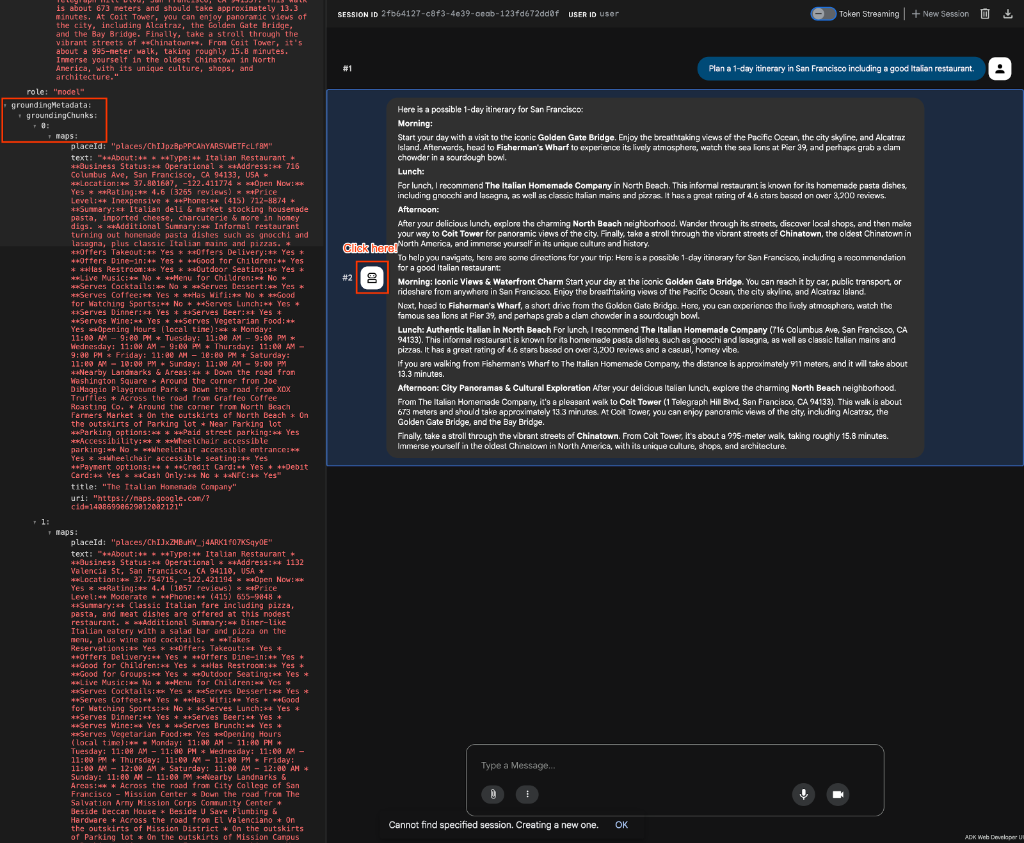
7. Verify Grounding in Code
To programmatically confirm that your agent is successfully using Maps grounding, you can inspect the response events for Maps-specific metadata.
When you run your agent (for example, in a test script), the agent yields events that contain grounding_metadata. You can iterate through the grounding_chunks within this metadata and check for the maps attribute.
Here is an example demonstrating how to check for the maps attribute, similar to what you might use in an automated test:
async for event in runner.run_async(
    user_id="test_user",
    session_id=session.id,
    new_message=content,
):
    if event.grounding_metadata:
        if event.grounding_metadata.grounding_chunks:
            for chunk in event.grounding_metadata.grounding_chunks:
                # Check for the maps attribute to confirm maps grounding
                if hasattr(chunk, "maps") and chunk.maps:
                    print("SUCCESS: Maps grounding chunks detected in the response!")
8. Extract Encoded Polylines
In addition to verifying that grounding occurred, you might want to extract specific data like route paths. When the Maps grounding tool returns route information, it often includes an "Encoded Polyline" which can be used to render the route on a map frontend.
You can find this polyline by checking the text within the maps attribute of the grounding_chunks. Here is an example of how you can detect it:
async for event in runner.run_async(
    user_id="test_user",
    session_id=session.id,
    new_message=content,
):
    if event.grounding_metadata:
        if event.grounding_metadata.grounding_chunks:
            for chunk in event.grounding_metadata.grounding_chunks:
                # Extract the encoded polyline from the maps chunk text
                if (
                    hasattr(chunk, "maps")
                    and chunk.maps
                    and hasattr(chunk.maps, "text")
                    and chunk.maps.text
                    and "Encoded Polyline" in chunk.maps.text
                ):
                    print("SUCCESS: Encoded Polyline detected in the response!")
9. Clean up
To avoid ongoing charges to your Google Cloud account, delete the resources created during this codelab.
- If you created a dedicated project for this codelab, delete it entirely:
gcloud projects delete $PROJECT_ID
If you used an existing project and want to keep it, you have no specific resources to delete, as the Agent ran locally and the APIs used are serverless.
10. Congratulations
Congratulations! You've successfully built an itinerary planner agent and grounded it using Google Maps insights.
What you've learned
- How to scaffold a new agent using the Agent Starter Pack
- How to add grounding tools to an ADK Agent definition
- How to test an ADK agent using the built-in web runner
Next steps
- Explore other ADK Tools and integration patterns