

1. 簡介
在本程式碼實驗室中,您將使用 Agent Development Kit (ADK) 建構旅遊規劃代理,並以 Google 地圖為基礎。您將提示代理程式生成風景優美的路線和餐廳建議,並運用 Google 地圖的真實世界資料。
學習內容
- 使用 Agent Starter Pack 初始化代理程式專案
- 設定代理程式,使用 Google 地圖基礎工具
- 使用網頁介面在本機測試產生的代理程式
軟硬體需求
- 網路瀏覽器,例如 Chrome
- 已啟用計費功能的 Google Cloud 雲端專案
本程式碼研究室適合中階開發人員,也就是對 Python 和 Google Cloud 有些瞭解,但不一定是專家。
2. 事前準備
建立 Google Cloud 專案
- 在 Google Cloud 控制台的專案選取器頁面中,選取或建立 Google Cloud 專案。
- 確認 Cloud 專案已啟用計費功能。瞭解如何檢查專案是否已啟用計費功能。
啟動 Cloud Shell
- 驗證:
gcloud auth list
- 確認專案:
gcloud config get project
- 視需要設定:
export PROJECT_ID=<YOUR_PROJECT_ID>
gcloud config set project $PROJECT_ID
啟用 API
執行下列指令,啟用所有必要的 API:
gcloud services enable \
  aiplatform.googleapis.com
3. 安裝 Agent Starter Pack
如要開始 ADK 專案,最簡單的方法是使用 Agent Starter Pack。Google Cloud Agent Starter Pack 是一項開放原始碼指令列介面 (CLI) 工具,旨在加速在 Google Cloud 上開發及部署可供正式環境使用的生成式 AI 代理。
- 確認已安裝
uv,然後執行建立指令來初始化新的代理程式專案:
uvx agent-starter-pack create
- 系統出現提示時,請提供下列選項,為本機開發設定專案 (使用 React 前端):
- 代理程式範本:
adk(簡單的 React 代理程式) - 部署:
none(目前已停用 Cloud Deployment) - Region (區域):
us-central1
這會產生專案目錄結構,其中包含主要代理程式邏輯、測試和GEMINI.md指南。前往新目錄:
cd my-agent
4. 設定依據
Agent Starter Pack 會產生 GEMINI.md 檔案,指示 AI 輔助程式碼編寫工具如何管理專案。我們將更新這項內容,加入 Google 地圖基礎文件。
- 在編輯器中開啟
GEMINI.md。 - 在
## Reference Documentation區段下方新增下列參照連結:
- **Google Maps Grounding**: https://docs.cloud.google.com/vertex-ai/generative-ai/docs/grounding/grounding-with-google-maps
這項脈絡有助於 AI 程式設計助理瞭解基礎功能。
5. 更新代理程式
現在我們要設定代理,讓它擔任行程規劃師,並使用 Google 地圖基礎工具。
- 開啟
app/agent.py檔案。 - 將
app/agent.py的全部內容替換為下列程式碼:
"""Agent application for the itinerary planner codelab."""

import os
import google.auth
from google.adk.agents import Agent
from google.adk.apps import App
from google.adk.models import Gemini
from google.adk.tools import google_maps_grounding
from google.genai import types

# Authenticate and set environment variables
_, project_id = google.auth.default()
os.environ["GOOGLE_CLOUD_PROJECT"] = project_id
os.environ["GOOGLE_CLOUD_LOCATION"] = "global"
os.environ["GOOGLE_GENAI_USE_VERTEXAI"] = "True"

# Define the root agent
root_agent = Agent(
    name="itinerary_planner_agent",
    model=Gemini(
        model="gemini-2.5-flash",
        retry_options=types.HttpRetryOptions(attempts=3),
    ),
    instruction=(
        "You are an itinerary planner agent. Help users plan their trips by"
        " recommending restaurants and scenic routes. Use the"
        " google_maps_grounding tool to get both restaurant recommendations and"
        " route recommendations based on user preferences. When calling for"
        " restaurant recommendation, prompt the tool to tell you about the vibe"
        " of the place. When calling for routes with multiple legs, describe"
        " each of those legs with a brief sentence. Always describe the key"
        " landmarks along the route in one brief sentence."
    ),
    # Add the Google Maps Grounding tool to the agent
    tools=[google_maps_grounding],
)

app = App(
    root_agent=root_agent,
    name="app",
)
這段程式碼會設定以 gemini-2.5-flash 為基礎的代理,使用 google_maps_grounding 工具擷取地點和路線的最新資訊。
如要查看所有可用模型,請參閱 Vertex AI 說明文件。
6. 執行代理程式
代理程式邏輯設定完成後,請嘗試在本機網頁介面中測試。
- 在
my-agent目錄的根層級,執行下列指令來啟動網頁應用程式:
uv run adk web
如果使用虛擬環境,請輸入:
adk web
- 在瀏覽器中開啟終端機輸出內容中提供的網址。
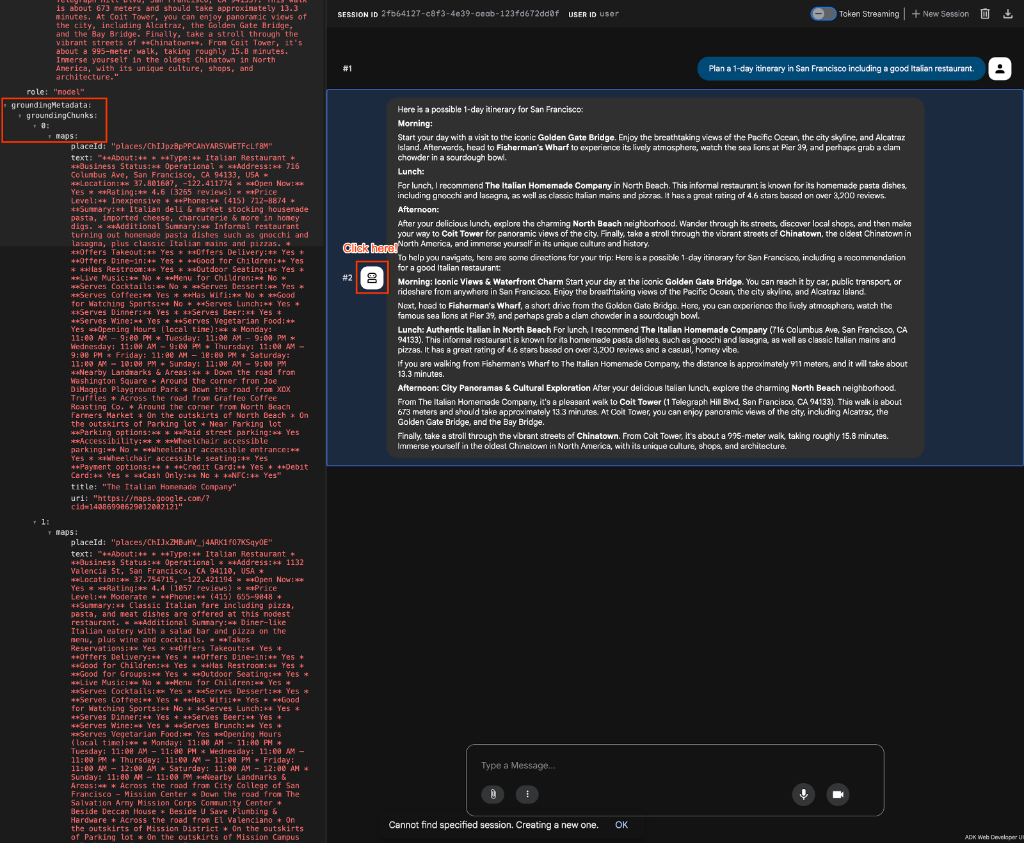
- 向代理提問,測試代理功能。例如:
- 「規劃舊金山一日遊行程,包括一間好吃的義大利餐廳。」
- 「我要去東京,請提供行程,包含有趣的歷史地標和評價很高的拉麵店,氣氛要溫馨。」
您應該會看到類似詳細行程的輸出內容,其中直接從 Google 地圖擷取真實評論和路線說明。
7. 驗證程式碼中的基礎
如要以程式輔助方式確認代理程式已成功使用地圖基礎,可以檢查回應事件的地圖專屬中繼資料。
執行代理 (例如在測試腳本中) 時,代理會產生包含 grounding_metadata 的事件。您可以疊代這個中繼資料中的 grounding_chunks,並檢查 maps 屬性。
以下範例說明如何檢查 maps 屬性,與您在自動化測試中使用的類似:
async for event in runner.run_async(
    user_id="test_user",
    session_id=session.id,
    new_message=content,
):
    if event.grounding_metadata:
        if event.grounding_metadata.grounding_chunks:
            for chunk in event.grounding_metadata.grounding_chunks:
                # Check for the maps attribute to confirm maps grounding
                if hasattr(chunk, "maps") and chunk.maps:
                    print("SUCCESS: Maps grounding chunks detected in the response!")
8. 擷取編碼折線
除了驗證是否已建立基準,您可能還想擷取特定資料,例如路線路徑。地圖基礎工具傳回路線資訊時,通常會包含「編碼折線」,可用於在地圖前端算繪路線。
如要找出這條折線,請檢查 grounding_chunks 的 maps 屬性中的文字。以下範例說明如何偵測:
async for event in runner.run_async(
    user_id="test_user",
    session_id=session.id,
    new_message=content,
):
    if event.grounding_metadata:
        if event.grounding_metadata.grounding_chunks:
            for chunk in event.grounding_metadata.grounding_chunks:
                # Extract the encoded polyline from the maps chunk text
                if (
                    hasattr(chunk, "maps")
                    and chunk.maps
                    and hasattr(chunk.maps, "text")
                    and chunk.maps.text
                    and "Encoded Polyline" in chunk.maps.text
                ):
                    print("SUCCESS: Encoded Polyline detected in the response!")
9. 清理
如要避免系統持續向您的 Google Cloud 帳戶收取費用,請刪除本程式碼研究室建立的資源。
- 如果您為本程式碼研究室特地建立了專案,請刪除這整個專案:
gcloud projects delete $PROJECT_ID
如果您使用現有專案並想保留專案,則不需要刪除任何特定資源,因為 Agent 是在本機執行,而使用的 API 屬於無伺服器 API。
10. 恭喜
恭喜!您已成功建立行程規劃工具代理程式,並使用 Google 地圖洞察資料做為基礎。
目前所學內容
- 如何使用 Agent Starter Pack 搭建新代理
- 如何將基礎工具新增至 ADK 代理定義
- 如何使用內建的網路執行元件測試 ADK 代理
後續步驟
- 探索其他 ADK 工具和整合模式