
1. Introduction
In this codelab, you will learn how to build the Living Memory Demo, an AI-powered assistant that tracks "memories" of your conversation to provide a personalized experience.
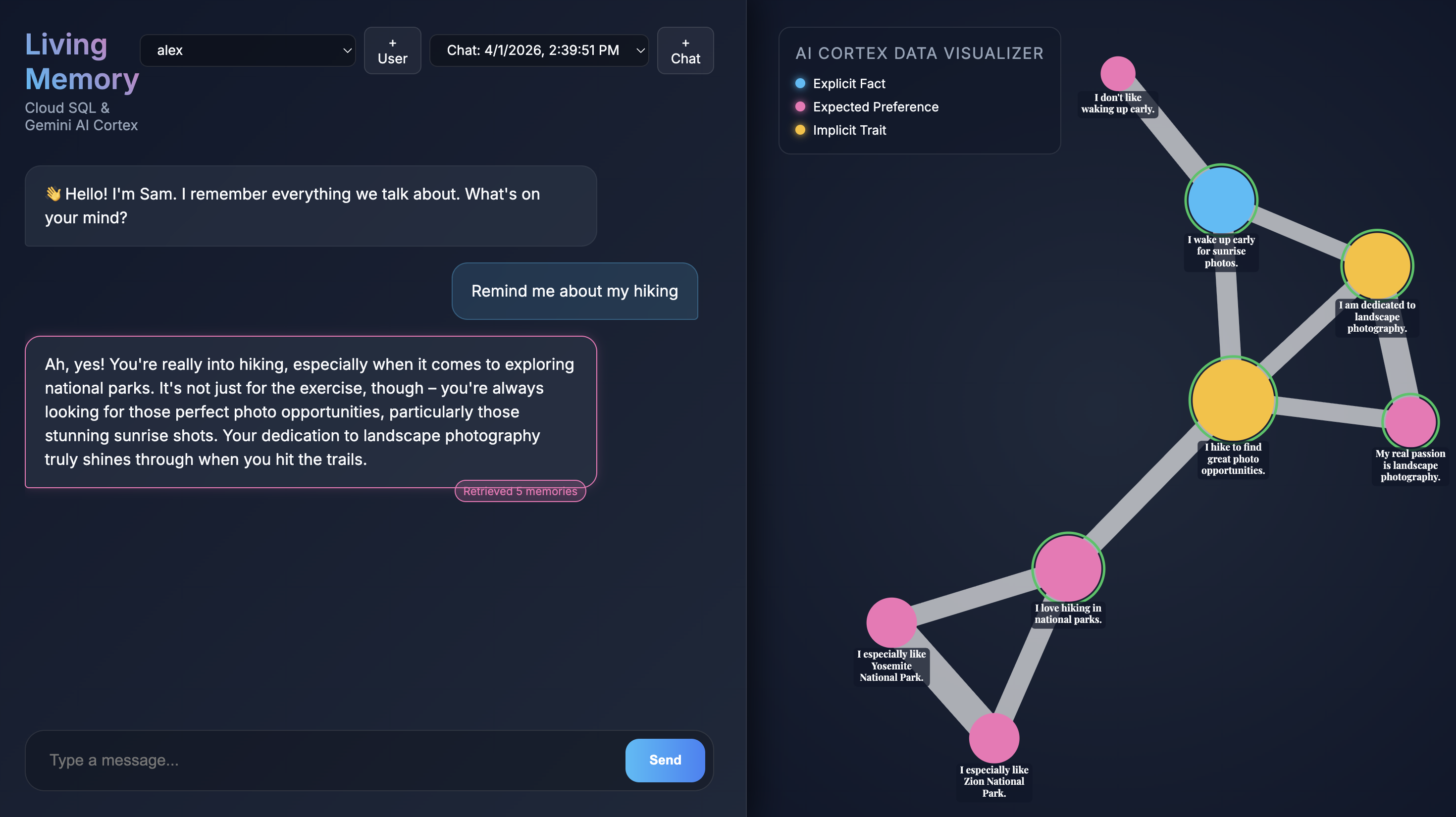
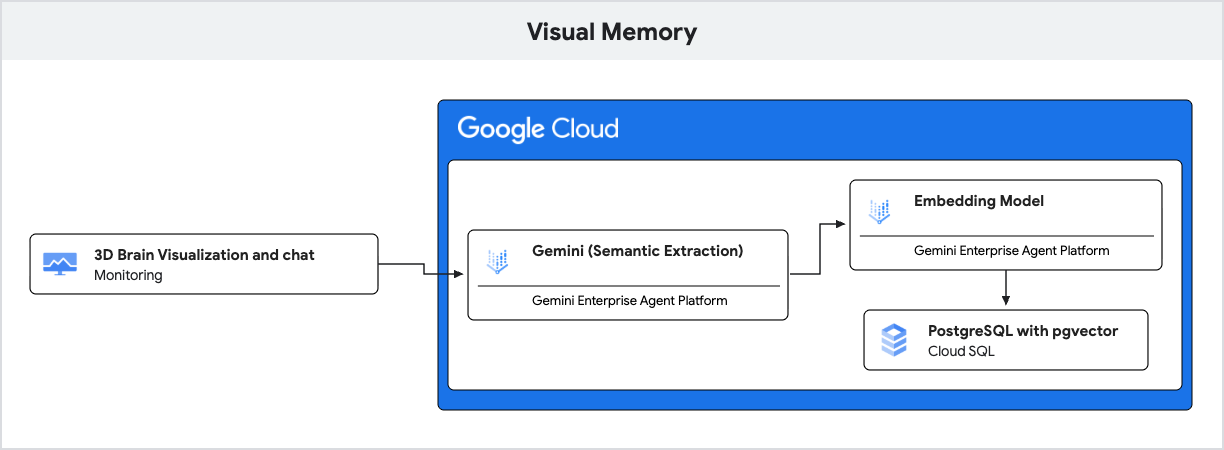
The application uses Gemini for natural language understanding and Cloud SQL for PostgreSQL with the pgvector extension to store and retrieve these memories based on semantic similarity.
This codelab is intended for developers of all skill levels interested in AI and databases and should take about 60 minutes to complete. The resources created should cost less than $5.
What you'll do
- How to set up a Cloud SQL for PostgreSQL instance with
pgvectorsupport. - How to use Gemini to interactively extract "memories" from user messages.
- How to perform vector searches in PostgreSQL to retrieve relevant context for AI responses.
What you'll need
- A Google Cloud project with billing enabled.
- Basic knowledge of the command line and Node.js.
2. Before you begin
Project setup
Create a Google Cloud Project
- In the Google Cloud Console, on the project selector page, select or create a Google Cloud project.
- Make sure that billing is enabled for your Cloud project. Learn how to check if billing is enabled on a project.
Start Cloud Shell
Cloud Shell is a command-line environment running in Google Cloud that comes preloaded with necessary tools.
- Click Activate Cloud Shell at the top of the Google Cloud console.
- Once connected to Cloud Shell, verify your authentication:
gcloud auth list - Confirm your project is configured:
gcloud config get project - If your project is not set as expected, set it:
export PROJECT_ID=<YOUR_PROJECT_ID>
gcloud config set project $PROJECT_ID
Enable APIs
Run the following command in Cloud Shell to enable the required APIs:
gcloud services enable sqladmin.googleapis.com \
                       aiplatform.googleapis.com
3. Clone the demo repository
Now, get the code for the Living Memory Demo.
- Clone the repository to your Cloud Shell environment:
git clone https://github.com/GoogleCloudPlatform/devrel-demos.git cd devrel-demos/codelabs/visual-memory-postgres-demo - Install the dependencies:
npm install
4. Create and configure the Cloud SQL database
In this section, you'll create a Cloud SQL instance, initialize a database, and set up the schema.
- The application uses environment variables for configuration. Run the following block in your Cloud Shell terminal to set the required variables for this session:
export REGION="us-central1" export INSTANCE_NAME="living-memory-db" export DB_HOST=127.0.0.1 export DB_PORT=5432 export DB_USER=memory_app export DB_PASS=memory_app_password export DB_NAME=living_memory export PGPASSWORD=$DB_PASS - Create the instance. This step usually takes 5-10 minutes.
gcloud sql instances create $INSTANCE_NAME \ --database-version=POSTGRES_16 \ --cpu=1 \ --memory=3840MB \ --region=$REGION \ --root-password=$DB_PASS \ --edition=ENTERPRISEvectorextension and creates several tables to support the application: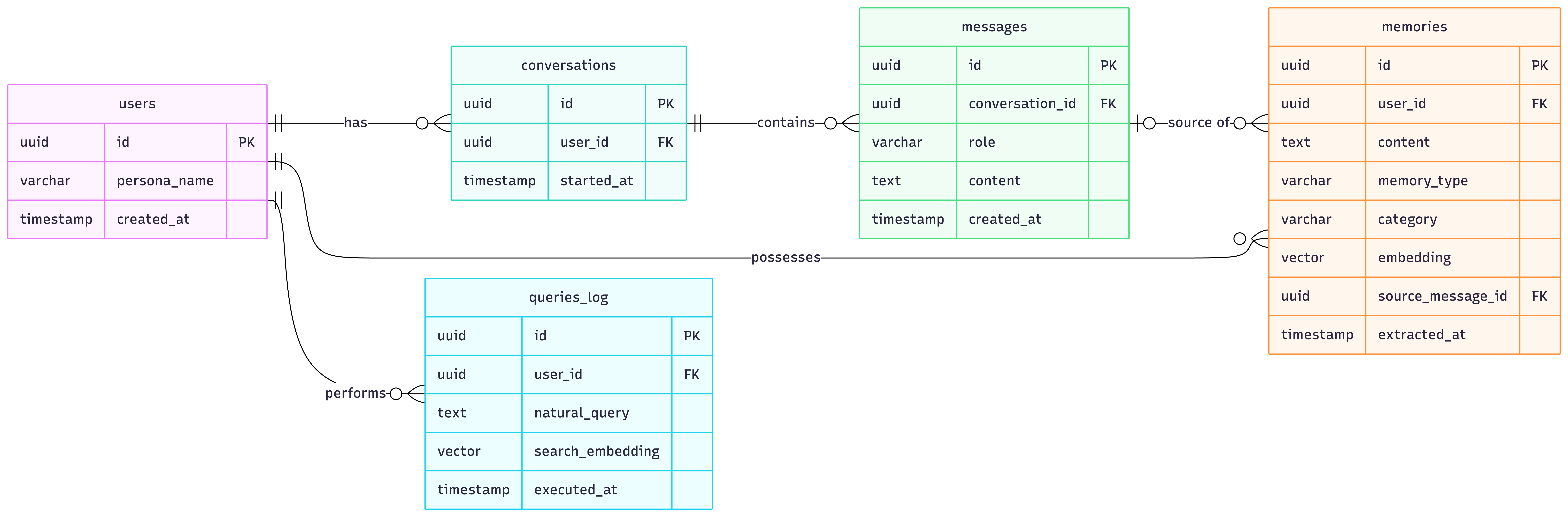
users,conversations,messages: Standard tables to store user profiles and conversation history.memories: This is the core table for Retrieval-Augmented Generation (RAG). Each row represents a piece of information extracted from the conversation (e.g., "User likes hiking"). It stores:content: The text of the memory.memory_type: The type of memory (FACT,PREF, orIMPLICIT).embedding: A 768-dimensionvectorcolumn containing the semantic representation of the content, generated by Gemini.
pgvectorIndex: AnHNSW(Hierarchical Navigable Small World) index is created on theembeddingcolumn. This is crucial for optimizing k-Nearest Neighbor (k-NN) searches, allowingpgvectorto quickly find the most semantically similar memories using the cosine distance operator (<=>).
- Create the Database
gcloud sql databases create $DB_NAME --instance=$INSTANCE_NAME - Create the Application User
gcloud sql users create $DB_USER --instance=$INSTANCE_NAME --password=$DB_PASS - Start the Cloud SQL Auth Proxy. The proxy provides secure access to your instance without needing to configure IP allowlisting.
(cloud-sql-proxy ${GOOGLE_CLOUD_PROJECT}:us-central1:living-memory-db &) && sleep 2 && echo ""The proxy has started successfully and is ready for new connections!. - Apply the
schema.sqlto enable thevectorextension and create the necessary tables. Because the proxy is running, you can now connect to your instance at127.0.0.1.psql -h 127.0.0.1 -U $DB_USER -d $DB_NAME < schema.sql - Verify the schema creation was successful.
psql -h 127.0.0.1 -U $DB_USER -d $DB_NAME -c "\dt"conversations,memories,messages, anduserstables.List of relations Schema | Name | Type | Owner --------+---------------+-------+------------ public | conversations | table | memory_app public | memories | table | memory_app public | messages | table | memory_app public | queries_log | table | memory_app public | users | table | memory_app (5 rows)
5. Understand semantic retrieval with pgvector
In this section, you'll examine how the application retrieves relevant context for the AI before generating a response. The following snippet from server.js shows the code responsible for this in the /api/chat endpoint:
// Retrieve Similar Memories for Context (Using pgvector)
const promptEmbeddingRes = await ai.models.embedContent({
  model: 'gemini-embedding-001',
  contents: message,
  config: { outputDimensionality: 768 },
});

const promptEmbedding = promptEmbeddingRes.embeddings[0].values;
const embeddingStr = `[${promptEmbedding.join(',')}]`;

// Query DB for top 5 closest memories
const relevantMemories = await pool.query(
  `SELECT id, content, memory_type, category
   FROM memories
   WHERE user_id = $1
   ORDER BY embedding <=> $2::vector
   LIMIT 5`,
  [userId, embeddingStr]
);
How it works
- Gen AI (Embedding): The application takes the user's incoming message and uses the
gemini-embedding-001model to convert the text into a 768-dimensional vector. This vector represents the semantic meaning of the message. - Cloud SQL (pgvector): The application passes that vector to Cloud SQL. Using the
<=>(cosine distance) operator provided by thepgvectorextension, Cloud SQL finds the 5 memories most semantically similar to the prompt. - The Result: This is Retrieval-Augmented Generation (RAG). The AI gets access to specific, relevant memories from the database to personalize its response, without needing to load the entire history.
6. Understand memory extraction
Next, look at how the application learns from the conversation. The following snippet is from the extractMemoriesAsync function in server.js:
// MEMORY EXTRACTION LOGIC
async function extractMemoriesAsync(userMessage, userId, messageId) {
  const extractionPrompt = `
    Analyze the following user message. A memory profile is being built for this user.
    Extract ANY explicit facts (Facts), preferences (Pref), or implicit behavioral traits/styles (Implicit).
    Return the result as a raw JSON array of objects (NO Markdown blocks, just the JSON array).
    Format: [{"content": "string fact/sentence", "type": "FACT|PREF|IMPLICIT", "category": "General|Travel|Hobby|Persona"}]
    If nothing is found, return [].
    Message: "${userMessage}"
    `;

  const result = await ai.models.generateContent({
    model: 'gemini-2.5-flash',
    contents: extractionPrompt
  });
  let rawJson = result.text.replace(/^```json/g, '').replace(/```$/g, '').trim();

  let extracted;
  try {
    extracted = JSON.parse(rawJson);
  } catch (e) {
    console.warn("Could not parse extracted JSON:", rawJson);
    return;
  }

  if (Array.isArray(extracted) && extracted.length > 0) {
    // Compute embeddings and save each to the DB
    for (const memory of extracted) {
      const embedRes = await ai.models.embedContent({
        model: 'gemini-embedding-001',
        contents: memory.content,
        config: { outputDimensionality: 768 },
      });
      const vectorData = `[${embedRes.embeddings[0].values.join(',')}]`;

      await pool.query(
        `INSERT INTO memories (user_id, content, memory_type, category, embedding, source_message_id)
                 VALUES ($1, $2, $3, $4, $5, $6)`,
        [userId, memory.content, memory.type.toUpperCase(), memory.category, vectorData, messageId]
      );
      console.log(`Saved new memory: ${memory.content}`);
    }
  }
}
How it works
- Gen AI (Structured Output): The application uses the ultra-fast
gemini-2.5-flashmodel to analyze the user's message and extract structured facts and preferences as a JSON array. - Cloud SQL (Hybrid Storage): After generating embeddings for these new facts, they are stored in Cloud SQL. Notice that standard relational data (User ID, text content, categories) is stored right alongside the high-dimensional vector data in a single row.
- The Result: The app builds a self-updating memory profile in real-time, leveraging both the analytical power of Gemini and the storage capabilities of Cloud SQL.
7. Run the chat application
- Seed the database with a few example users
npm run seed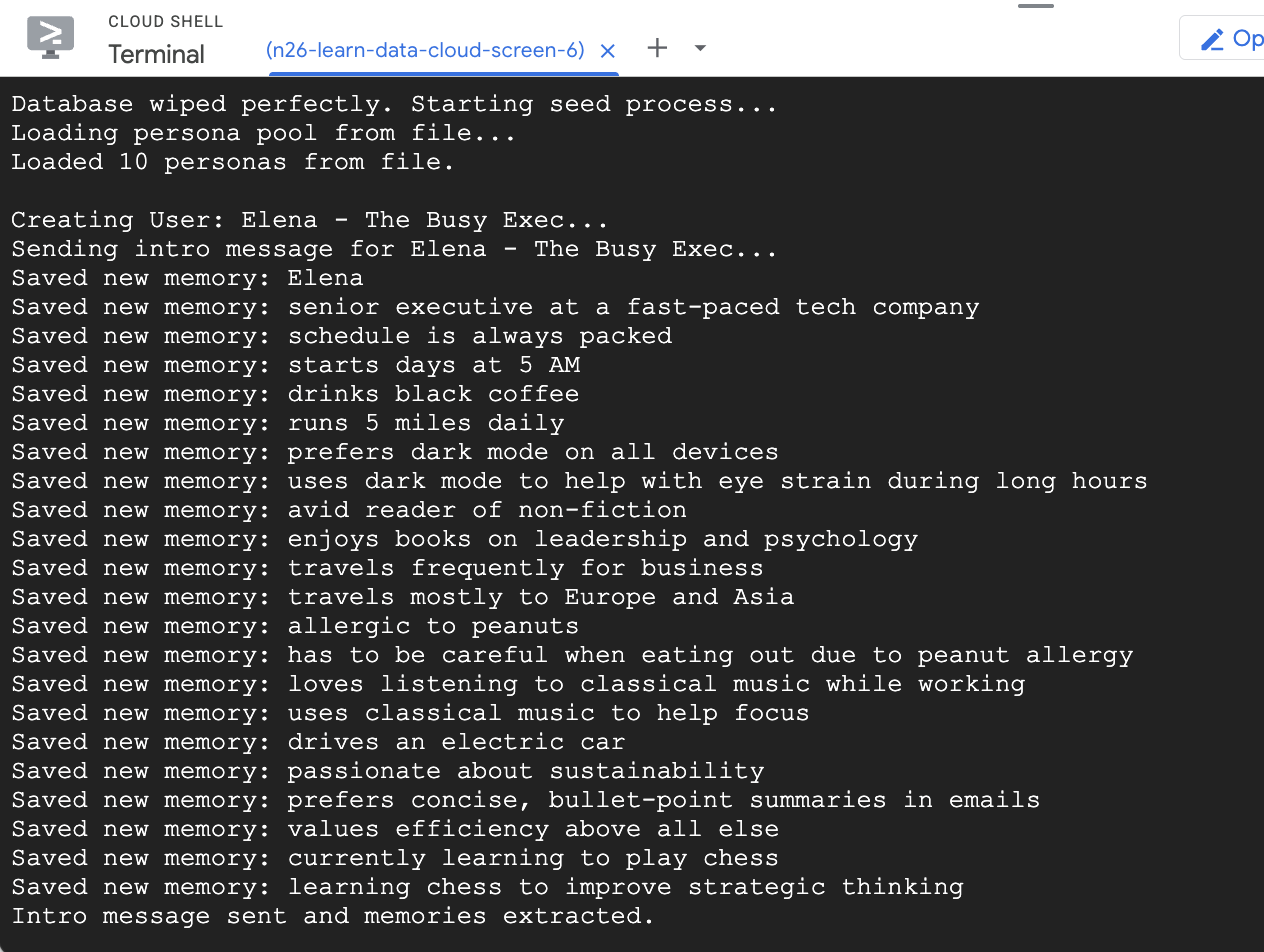
- Then run the server
node server.js - In Cloud Shell, click Web Preview at the top right of the terminal toolbar, and select Change Port. Enter
3000for the port number and click Change and Preview.
Interact with the assistant
When the application opens in your browser, you'll see the Living Memory chat interface. On the right, the AI Cortex Data Visualizer displays memories as nodes in a vector space, color-coded by type (Fact, Preference, Implicit Trait). The text on memory nodes might be small depending on your screen resolution; use your mouse or trackpad to zoom and pan for a closer look.
Query existing memories
The seed script you ran earlier created two sample users with some pre-populated memories.
- Select a user from the user dropdown menu at the top left.
- Use one of the quick-chat buttons or type
Give me restaurant recommendations in New York Cityinto the chat input and press Send. - When the assistant responds you can click the assistant's message to see which memories it used. They will be highlighted in green and you can zoom around to them and see how they helped form the response.
Create a new user
Now, let's create a new user.
- Click the + button next to the user dropdown to start a new chat session.
- Use the generated name and description or edit them to describe yourself.
- Click Create and see the application start extracting memories. In around 30 seconds, you should see new nodes appear in the visualizer on the right. These represent the facts and preferences that Gemini extracted from your message and stored in the Cloud SQL database.
- Ask a follow-up question like
What food do I like?to see the assistant use its newly acquired memories in conversation.
8. Clean up
To avoid ongoing charges to your Google Cloud account for the resources used in this codelab, you should delete the resources you created.
- Delete the Cloud SQL instance:
gcloud sql instances delete $INSTANCE_NAME --quiet - Remove the demo repository:
rm -rf ~/devrel-demos
9. Congratulations
You've successfully built and deployed a "Living Memory" AI assistant!
What you've learned
- How to use Cloud SQL pgvector for semantic search.
- How to use Gemini for dynamic memory extraction.
Next steps
- Explore the Cloud SQL pgvector documentation.
- Learn more about Gemini API capabilities.
- Deep dive into the Cloud SQL Auth Proxy.
- Try customizing the
extractionPromptinserver.jsto extract different types of data!
Enjoy building with Living Memory!