

1. 簡介
如果您想直接執行封裝的指令碼,而不使用逐步教學課程,可以在 GoogleCloudPlatform/devrel-demos 存放區中找到這些指令碼。
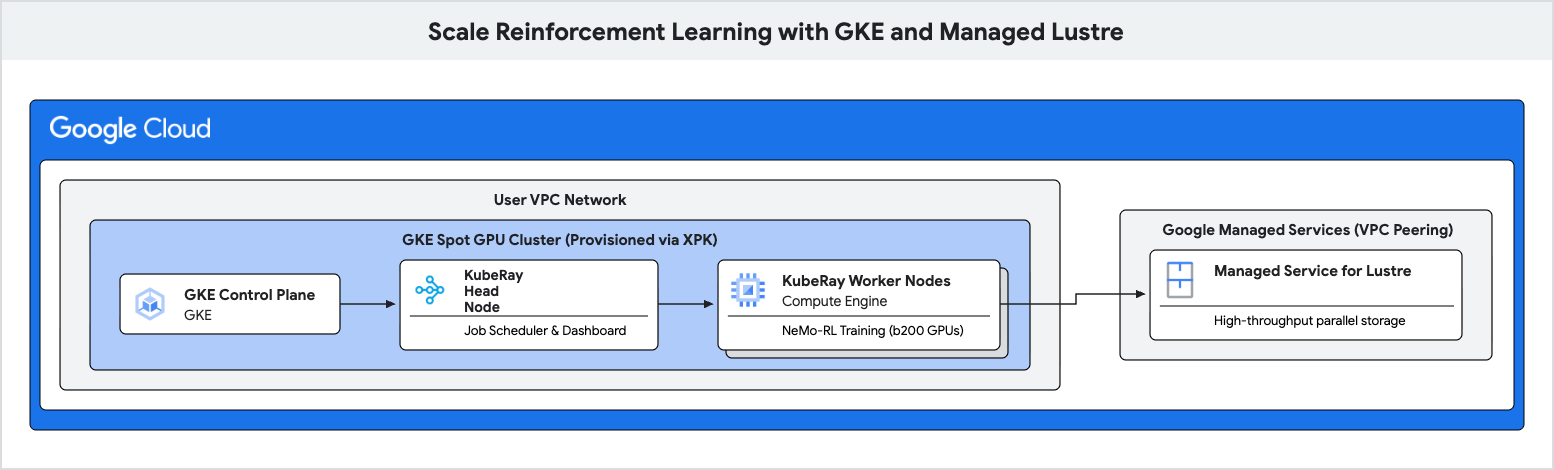
在本程式碼研究室中,您將瞭解如何使用 Google Kubernetes Engine (GKE) 和 Managed Lustre,部署高效能的強化學習 (RL) 訓練管道。
增強學習工作負載 (尤其是使用群組相對政策最佳化 (GRPO) 等演算法的工作負載) 會在「體驗生成」期間產生大量資料,並需要頻繁檢查點。在這些 I/O 爆量期間,標準物件儲存空間可能會造成瓶頸,導致昂貴的加速器閒置。
您將使用平行檔案系統 Managed Lustre,消除這些瓶頸並提高訓練處理量。
學習內容
- 為以 GPU 為基礎的 Ray 叢集設定環境變數。
- 使用 Cluster Toolkit 在 GKE 上佈建 Spot GPU 叢集,並佈建 Managed Lustre 執行個體。
- 部署 KubeRay 叢集,並掛接 Lustre 檔案系統。
- 提交 NeMo-RL 訓練工作負載。
- 使用 Cloud Monitoring 觀察高處理量和低檢查點延遲時間。
軟硬體需求
- 網路瀏覽器,例如 Chrome。
- 已啟用計費功能的 Google Cloud 專案。
本程式碼實驗室適合熟悉 GKE 和儲存空間概念的進階技術使用者、平台工程師和 AI 研究人員。
預計總時長:45 到 60 分鐘,外加 2 小時的訓練時間
2. 事前準備
建立 Google Cloud 專案
- 在 Google Cloud 控制台中,選取或建立 Google Cloud 專案。
- 確認 Cloud 專案已啟用計費功能。
啟動 Cloud Shell
Cloud Shell 是在 Google Cloud 中運作的指令列環境,已預先載入必要工具。
- 點選 Google Cloud 控制台頂端的「啟用 Cloud Shell」。
- 連至 Cloud Shell 後,請驗證您的驗證:
gcloud auth list - 確認專案已設定:
gcloud config get project - 如果專案未如預期設定,請設定專案:
export PROJECT_ID=<YOUR_PROJECT_ID>
gcloud config set project $PROJECT_ID
安裝 Cluster Toolkit
本程式碼研究室使用 Cluster Toolkit (gcluster) 部署 GKE 叢集。如需 Cluster Toolkit 設定操作說明,請參閱 Cluster Toolkit 設定指南。
啟用 API
在 Cloud Shell 執行下列指令,啟用所有必要 API:
gcloud services enable \
  container.googleapis.com \
  lustre.googleapis.com \
  compute.googleapis.com \
  servicenetworking.googleapis.com
3. 設定環境變數
為確保本程式碼研究室中的指令一致,請設定幾個環境變數。
建立名為 env.sh 的檔案,並填入設定。你可以使用下列範本:
# Environment Variables for the RL Demo execution
export PROJECT_ID="{{'<var>'}}PROJECT_ID{{'</var>'}}"
export ZONE="us-east1-b"
export REGION="us-east1"
export CLUSTER_NAME="ray-a4-gpu-spot"
export HF_TOKEN="{{'<var>'}}YOUR_HF_TOKEN{{'</var>'}}" # Required for downloading models
export WANDB_API_KEY="{{'<var>'}}YOUR_WANDB_API_KEY{{'</var>'}}" # Optional

# Topology defaults
export NUM_NODES="8"
export GPUS_PER_NODE="8" # Fixed for A4/B200 architecture
請將 <YOUR_PROJECT_ID> 和 <YOUR_HF_TOKEN> 換成實際值。
為檔案提供來源,將變數載入目前的工作階段:
source env.sh
4. 使用 Cluster Toolkit 部署 GKE 叢集和 Managed Lustre
在這個步驟中,您會使用 Cluster Toolkit (gcluster) 部署含 Spot GPU 的 GKE 叢集,並透過 Lustre CSI 驅動程式和預先設定的 PersistentVolumeClaim (lustre-pvc),自動佈建 Managed Lustre 儲存空間。
準備藍圖
部署前,請先查看examples/gke-a4/gke-a4.yaml藍圖 (詳情請參閱「建立 A4 叢集」):
- 啟用 Managed Lustre:取消註解
gke-a4.yaml中的managed-lustre和lustre-pvc模組區段。 - 啟用 RayOperator 外掛程式:在
gke-a4.yaml中,將gke_cluster模組設定下的enable_ray_operator: true設為。
部署基礎架構
設定 Cloud Shell 存取的授權 CIDR,並使用 gcluster deploy 部署:
export AUTHORIZED_CIDR="$(curl -s ifconfig.me)/32"

gcluster deploy examples/gke-a4/gke-a4.yaml \
  --vars project_id=${PROJECT_ID},deployment_name=${CLUSTER_NAME},region=${REGION},zone=${ZONE},static_node_count=${NUM_NODES},authorized_cidr=${AUTHORIZED_CIDR},spot=true
等待部署作業完成。Cluster Toolkit 會在協調式部署作業中,自動佈建虛擬私有雲網路、私人服務存取權 (PSA) 對等互連、Managed Lustre 檔案系統、Lustre CSI 驅動程式、RayOperator 外掛程式和 Kubernetes 儲存空間聲明 (lustre-pvc)。
5. 在 GKE 上部署 Ray 叢集
在這個步驟中,您會在 GKE 節點上部署 KubeRay 叢集,並使用 Cluster Toolkit 自動佈建的 PersistentVolumeClaim (lustre-pvc) 掛接 Lustre 檔案系統。
建立 RayCluster 設定
建立名為 ray-cluster.yaml 的檔案。這會指定 KubeRay 的頭部和工作站節點,使用 nvidia-b200 加速器類型,並在 /lustre 掛接 Lustre 磁碟區。
cat << EOF > ray-cluster.yaml
apiVersion: ray.io/v1
kind: RayCluster
metadata:
  name: ${CLUSTER_NAME}
  namespace: default
spec:
  rayVersion: '2.54.0'
  headGroupSpec:
    rayStartParams:
      dashboard-host: '0.0.0.0'
    template:
      spec:
        nodeSelector:
          cloud.google.com/gke-accelerator: nvidia-b200
        tolerations:
        - key: "nvidia.com/gpu"
          operator: "Exists"
          effect: "NoSchedule"
        containers:
        - name: ray-head
          image: nvcr.io/nvidia/nemo-rl:v0.4.0
          ports:
          - containerPort: 6379
            name: gcs-server
          - containerPort: 8265
            name: dashboard
          - containerPort: 10001
            name: client
          resources:
            limits:
              cpu: "32"
              memory: "1000Gi"
            requests:
              cpu: "8"
              memory: "64Gi"
          volumeMounts:
          - mountPath: /lustre
            name: lustre-storage
        volumes:
        - name: lustre-storage
          persistentVolumeClaim:
            claimName: lustre-pvc
  workerGroupSpecs:
  - groupName: gpu-worker-group
    replicas: ${NUM_NODES}
    minReplicas: ${NUM_NODES}
    maxReplicas: ${NUM_NODES}
    rayStartParams: {}
    template:
      spec:
        nodeSelector:
          cloud.google.com/gke-accelerator: nvidia-b200
        tolerations:
        - key: "nvidia.com/gpu"
          operator: "Exists"
          effect: "NoSchedule"
        containers:
        - name: ray-worker
          image: nvcr.io/nvidia/nemo-rl:v0.4.0
          resources:
            limits:
              nvidia.com/gpu: "8"
              cpu: "100"
              memory: "1000Gi"
            requests:
              nvidia.com/gpu: "8"
              cpu: "100"
              memory: "1000Gi"
          volumeMounts:
          - mountPath: /lustre
            name: lustre-storage
          - mountPath: /dev/shm
            name: dshm
        volumes:
        - name: lustre-storage
          persistentVolumeClaim:
            claimName: lustre-pvc
        - name: dshm
          emptyDir:
            medium: Memory
EOF
連線至叢集
確認 Cloud Shell 工作階段已通過 GKE 叢集驗證:
gcloud container clusters get-credentials ${CLUSTER_NAME} \
  --region ${REGION} \
  --project ${PROJECT_ID}
套用 RayCluster 設定
套用 Ray 叢集設定:
kubectl apply -f ray-cluster.yaml
驗證叢集狀態
監控 Pod 的建立作業:
kubectl get pods -w
等待頭部和工作站 Pod Running。
6. 提交強化學習工作負載
在本步驟中,您會將 NeMo-RL GRPO 訓練工作提交至 Ray 叢集。
連線至 Ray 資訊主頁
如要提交工作及查看指標,您必須連線至 Ray 資訊主頁。由於資訊主頁位於 GKE 中,請使用通訊埠轉送功能從 Cloud Shell 存取:
# Run this in a separate Cloud Shell tab or in the background
kubectl port-forward service/${CLUSTER_NAME}-head-svc 8265:8265 &
建立執行指令碼
建立名為 run_nemo_rl.sh 的檔案。這段指令碼會在 Ray 叢集工作站上執行。我們會使用 cat << EOF 填入您先前設定的環境變數。
cat << EOF > run_nemo_rl.sh
#!/bin/bash
set -ex

# Override job runtime conflicts (NeMo-RL passes os.environ to ray.init)
export RAY_OVERRIDE_JOB_RUNTIME_ENV=1

echo "--- Running on Ray Cluster ---"
cd /opt/nemo-rl

# Ensure directories exist on the high-speed Lustre drive
mkdir -p /lustre/huggingface_cache
mkdir -p /lustre/nemo_rl_qwen_72b_ds_cp

echo "Launching NeMo-RL GRPO training..."
uv run python examples/run_grpo_math.py \
  --config examples/configs/grpo_math_70B_megatron.yaml \
  policy.model_name='Qwen/Qwen2.5-72B-Instruct' \
  policy.megatron_cfg.converter_type='Qwen2ForCausalLM' \
  logger.wandb_enabled=False \
  cluster.num_nodes=${NUM_NODES} \
  cluster.gpus_per_node=${GPUS_PER_NODE} \
  logger.wandb.name='nemo-rl-grpo-test1' \
  grpo.max_num_steps=20 \
  grpo.num_generations_per_prompt=8 \
  grpo.num_prompts_per_step=32 \
  policy.train_global_batch_size=256 \
  checkpointing.enabled=True \
  checkpointing.save_period=2 \
  checkpointing.keep_top_k=2 \
  checkpointing.metric_name=null \
  checkpointing.checkpoint_dir=/lustre/nemo_rl_qwen_72b_ds_cp/nemo-rl-grpo-test1 \
  data.dataset_name='DeepScaler'
EOF
chmod +x run_nemo_rl.sh
建立 Ray 忽略檔案
建立 .rayignore 檔案,避免 Ray 上傳大型或不必要的目錄:
cat << EOF > .rayignore
cluster-toolkit/
.git/
*.sh.log
EOF
建立執行階段環境設定
建立 JSON 檔案,將環境變數傳遞至 Ray 工作:
cat << EOF > ray_runtime_env_nemo.json
{
  "env_vars": {
    "HF_TOKEN": "${HF_TOKEN}",
    "WANDB_API_KEY": "${WANDB_API_KEY}",
    "HF_HOME": "/lustre/huggingface_cache",
    "GLOO_SOCKET_IFNAME": "eth0",
    "NCCL_SOCKET_IFNAME": "eth0"
  }
}
EOF
提交工作
使用 Ray CLI 將工作提交至資訊主頁端點。如果 Cloud Shell 找不到 ray 指令,可以使用 pip install ray 安裝:
ray job submit \
    --address="http://localhost:8265" \
    --working-dir . \
    --runtime-env ray_runtime_env_nemo.json \
    -- bash run_nemo_rl.sh
Cloud Shell 終端機中會顯示串流記錄。這項工作會載入模型、初始化 Ray 工作站,並開始 GRPO 訓練迴圈。
7. 監控訓練成效
在這個步驟中,您將觀察訓練和檢查點期間 Lustre 檔案系統的效能。
查看訓練記錄
訓練期間,您會看到記錄檔,指出檢查點正在儲存至 /lustre/nemo_rl_qwen_72b_ds_cp/nemo-rl-grpo-test1。請注意,檢查點作業是採非同步方式進行,不會長時間封鎖 Ray 工作人員。
如要查看檢查點的儲存速度,請尋找指出已儲存檢查點的記錄行。
在 Cloud 控制台中查看 Lustre 指標
如要查看 Lustre 執行個體的指標,請按照下列步驟操作:
- 在 Google Cloud 控制台中,搜尋 Managed Service for Lustre。
- 按一下執行個體名稱 (例如
${CLUSTER_NAME}-lustre或rl-demo-gpu-lustre)。 - 點選「監控」分頁標籤。
您可以在這裡觀察:
- 處理量 (位元組/秒):查看檢查點期間的尖峰。
- 容量:監控檢查點耗用的空間。
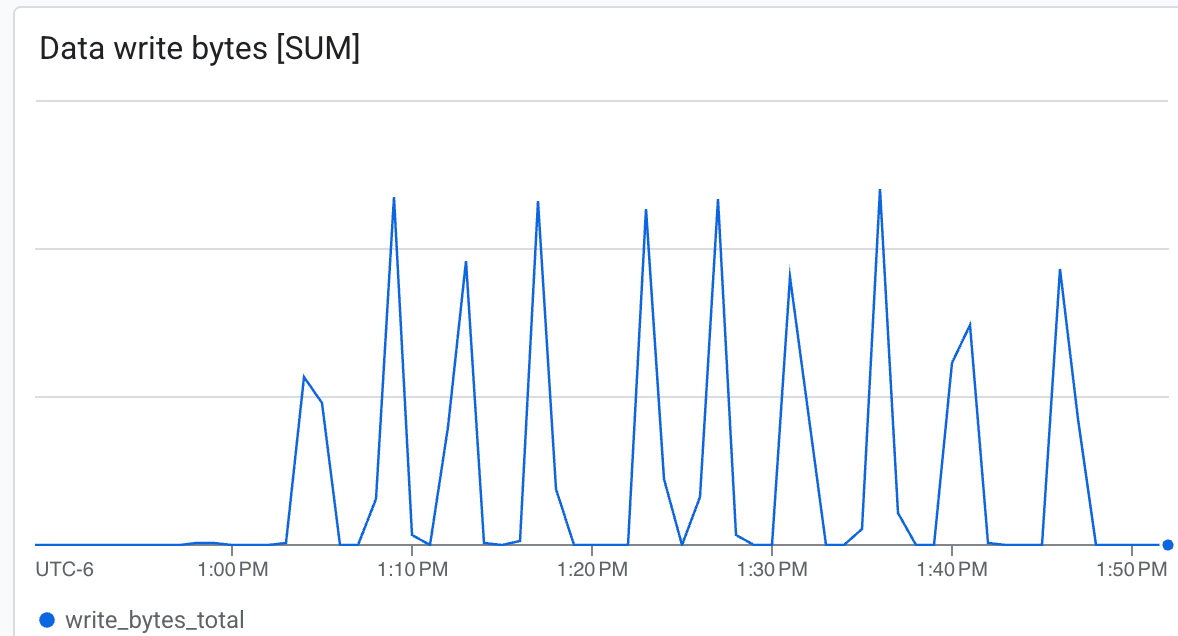 Lustre 能夠以極高速度寫入,並在最短時間內寫入檢查點
8. 清除資源
在 Cloud Shell 中執行下列指令,一次銷毀所有已佈建的基礎架構 (GKE 叢集、GPU 節點集區、受管理 Lustre 執行個體和 VPC 網路):
gcluster destroy "${CLUSTER_NAME}"
這個指令會在前景同步執行,拆除部署作業管理的所有基礎架構,並將進度記錄輸出至終端機。請等待指令完全執行完畢,再關閉 Cloud Shell 工作階段。
9. 恭喜
您已成功完成「使用 GKE 和 Managed Lustre 擴充強化學習」程式碼研究室!
目前所學內容
- 瞭解如何使用 Cluster Toolkit,透過 Spot 執行個體和 Managed Lustre 儲存空間佈建 GKE GPU 叢集。
- 如何部署 KubeRay 叢集並掛接 Lustre 儲存空間。
- 如何提交 NeMo-RL GRPO 訓練工作負載。
- 如何觀察訓練期間的儲存空間效能。
後續步驟
- 探索更多 NVIDIA NeMo-RL 功能。
- 進一步瞭解 Google Cloud AI Hypercomputer。
- 參閱 Managed Service for Lustre 說明文件。