

1. 简介
在此实践会话中,您将超越基本无状态聊天机器人的范畴,创建一个智能咖啡厅礼宾服务机器人。该机器人是一款由 Gemini 提供支持的 AI 智能体,可充当友好的咖啡师。它会接收在会话状态中跟踪的咖啡订单,记住用户范围状态中的长期饮食偏好,并将所有内容持久保存到 Cloud SQL PostgreSQL 数据库中。最后,即使您重启应用并开始全新的对话,代理也会记住您有乳糖不耐症。
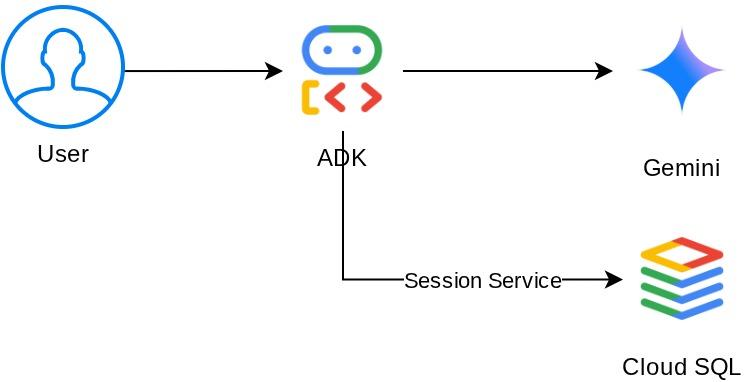
以下是我们将构建的系统架构
前提条件
- 具有试用结算账号的 Google Cloud 账号
- 基本熟悉 Python
- 无需拥有 ADK、AI 智能体或 Cloud SQL 相关经验
学习内容
- 使用 Google 的智能体开发套件 (ADK) 和自定义工具创建 AI 智能体
- 定义通过
ToolContext读取和写入会话状态的工具 - 区分会话级范围的状态和用户级范围的状态(
user:前缀) - 预配 Cloud SQL PostgreSQL 实例并从 Cloud Shell 连接到该实例
- 从本地存储空间(使用
adk web命令时的默认设置)迁移到DatabaseSessionService,以使用专用数据库实现持久性存储 - 验证代理记忆是否在应用重启和不同的对话会话中保持不变
所需条件
- 一台可正常运行的计算机和可靠的互联网连接。
- 浏览器(例如 Chrome),用于访问 Google Cloud 控制台
- 好奇心和求知欲。
2. 设置环境
此步骤将准备 Cloud Shell 环境并配置您的 Google Cloud 项目
打开 Cloud Shell
在浏览器中打开 Cloud Shell。Cloud Shell 提供了一个预配置的环境,其中包含本 Codelab 所需的所有工具。在系统提示时点击授权,以
界面应如下所示
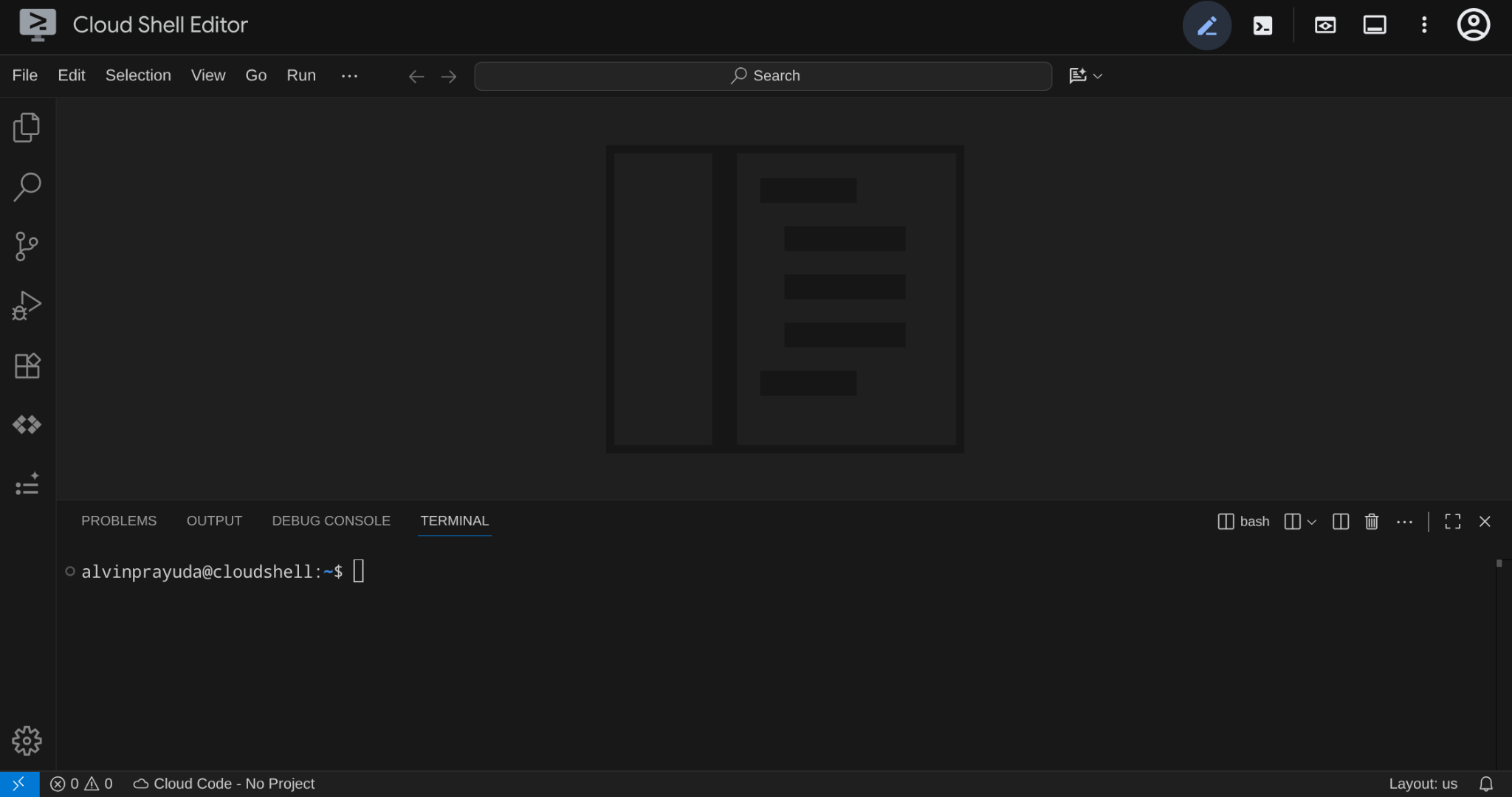
这将是我们的主要界面,顶部是 IDE,底部是终端
设置工作目录
创建工作目录。您在此 Codelab 中编写的所有代码都位于此处,与参考代码库分开:
# Create your working directory
mkdir -p ~/build-agent-adk-cloudsql

# Change cloudshell workspace and working directory into previously created dir
cloudshell workspace ~/build-agent-adk-cloudsql && cd ~/build-agent-adk-cloudsql
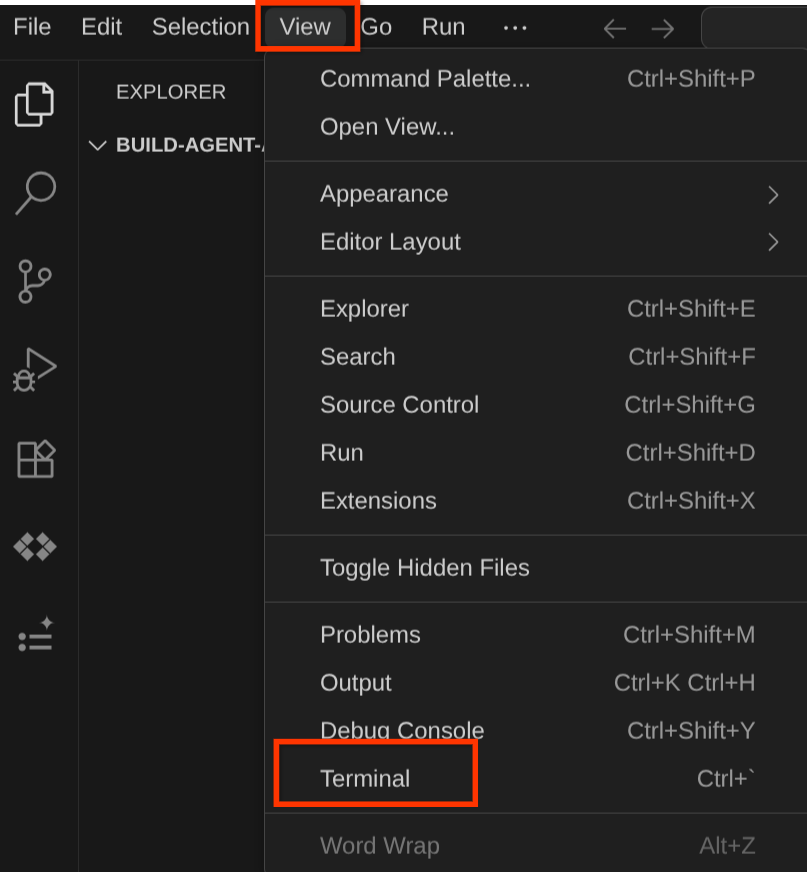
如需生成终端,请依次选择 View -> Terminal
设置 Google Cloud 项目和初始环境变量
将项目设置脚本下载到您的工作目录中:
curl -sL https://raw.githubusercontent.com/alphinside/cloud-trial-project-setup/main/setup_verify_trial_project.sh -o setup_verify_trial_project.sh
运行脚本。它会验证您的试用结算账号,创建新项目(或验证现有项目),将项目 ID 保存到当前目录中的 .env 文件,并在终端中设置有效项目
bash setup_verify_trial_project.sh && source .env
运行此命令时,系统会提示建议的项目 ID 名称,您可以按 Enter 继续
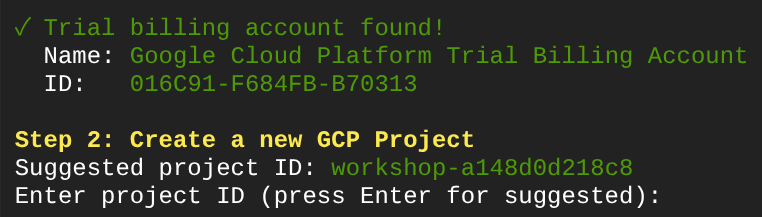
等待一段时间后,如果您在控制台中看到以下输出,则可以继续执行下一步 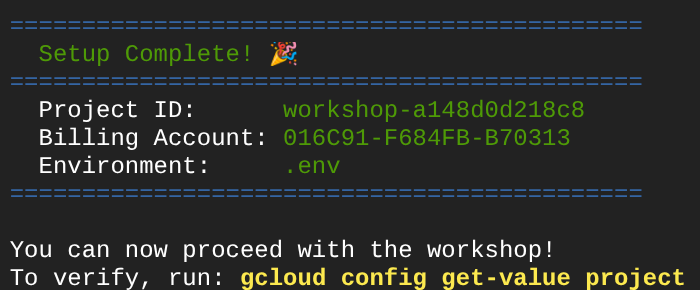
执行的脚本会执行以下步骤:
- 验证您是否拥有有效的试用结算账号
- 检查
.env中是否存在现有项目(如果有) - 创建新项目或重复使用现有项目
- 将试用结算账号与您的项目相关联
- 将项目 ID 保存到 .env
- 将项目设置为活跃 gcloud 项目
通过检查 Cloud Shell 终端提示中工作目录旁边的黄色文字,验证项目是否已正确设置。其中应显示您的项目 ID。

启用必需的 API
启用此 Codelab 所需的 Google Cloud API:
gcloud services enable \
  aiplatform.googleapis.com \
  sqladmin.googleapis.com \
  compute.googleapis.com
- Vertex AI API (
aiplatform.googleapis.com) - 您的代理通过 Vertex AI 使用 Gemini 模型。 - Cloud SQL Admin API (
sqladmin.googleapis.com) - 您可以预配和管理 PostgreSQL 实例以实现永久性存储。 - Compute Engine API (
compute.googleapis.com) - 创建 Cloud SQL 实例时需要此 API。
配置 Gemini 和 Cloud 产品区域
在继续之前,我们还需要为互动的产品设置必要的位置/区域配置。将以下配置添加到我们的 .env 文件中
# This is for our Gemini endpoint
echo "GOOGLE_CLOUD_LOCATION=global" >> .env

# This is for our other Cloud products
echo "REGION=us-central1" >> .env

source .env
接下来,我们继续执行下一步
3. 设置 Cloud SQL
此步骤会预配 Cloud SQL PostgreSQL 实例,并将代理从内存中存储切换到数据库支持的存储。创建实例需要几分钟时间,因此您先开始创建,然后我们可以在等待实例创建完成的同时继续讨论下一个主题
开始创建实例
将数据库密码添加到 .env 文件并重新加载,我们将使用 cafe-agent-pwd-2025 作为密码。
echo "DB_PASSWORD=cafe-agent-pwd-2025" >> .env
source .env
运行此命令以创建 Cloud SQL PostgreSQL 实例。此过程需要几分钟时间才能完成,您可以让其运行,然后继续学习下一部分。
gcloud sql instances create cafe-concierge-db \
  --database-version=POSTGRES_17 \
  --edition=ENTERPRISE \
  --region=${REGION} \
  --availability-type=ZONAL \
  --project=${GOOGLE_CLOUD_PROJECT} \
  --tier=db-f1-micro \
  --root-password=${DB_PASSWORD} \
  --quiet &
以下是有关上述命令的几点说明:
db-f1-micro是最小(也是最便宜)的 Cloud SQL 层级,足以满足本 Codelab 的需求。--root-password为默认的 postgres 用户设置密码。- 命令中的后缀
&会在后台运行该命令,以便您继续工作。
该进程将在后台运行,但控制台输出偶尔会显示在当前终端中。我们来在 Cloud Shell 中打开一个新终端标签页(点击 + 图标),以便更专注于操作。

再次前往工作目录,然后使用之前的设置脚本激活项目。
cd ~/build-agent-adk-cloudsql
bash setup_verify_trial_project.sh && source .env
接下来,我们继续学习下一部分
4. 构建咖啡厅礼宾智能体
此步骤将为您的 ADK 智能体创建项目结构,并定义一个带有菜单工具的基本咖啡厅礼宾智能体。
初始化 Python 项目
此 Codelab 使用 uv,这是一款快速的 Python 软件包管理器,可在一个工具中处理虚拟环境和依赖项。它预先安装在 Cloud Shell 中。
初始化 Python 项目并将 ADK 添加为依赖项:
uv init
uv add google-adk==1.25.0 asyncpg
uv init 会创建 pyproject.toml 和虚拟环境。uv add 会安装依赖项并将其记录在 pyproject.toml 中。
初始化代理项目结构
ADK 需要特定的文件夹布局:一个以代理命名的目录,其中包含 __init__.py、agent.py,以及代理目录中的 .env
ADK 具有内置命令,可帮助您快速建立此连接,请运行以下命令
uv run adk create cafe_concierge \
    --model gemini-2.5-flash \
    --project ${GOOGLE_CLOUD_PROJECT} \
    --region ${GOOGLE_CLOUD_LOCATION}
此命令将创建一个以 gemini-2.5-flash 为大脑的代理结构。您的目录现在应如下所示:
build-agent-adk-cloudsql/
├── cafe_concierge/
│   ├── __init__.py
│   ├── agent.py
│   └── .env
├── pyproject.toml
├── .env
├── .venv/
└── ...
编写智能体
在 Cloud Shell Editor 中打开 cafe_concierge/agent.py
cloudshell edit cafe_concierge/agent.py
并使用以下代码覆盖该文件
# cafe_concierge/agent.py
from google.adk.agents import LlmAgent
from google.adk.tools import ToolContext

CAFE_MENU = {
    "espresso": {
        "price": 3.50,
        "description": "Rich and bold single shot",
        "tags": ["vegan", "dairy-free", "gluten-free"],
    },
    "latte": {
        "price": 5.00,
        "description": "Espresso with steamed milk",
        "tags": ["gluten-free"],
    },
    "oat milk latte": {
        "price": 5.50,
        "description": "Espresso with steamed oat milk",
        "tags": ["vegan", "dairy-free", "gluten-free"],
    },
    "cappuccino": {
        "price": 4.50,
        "description": "Espresso with equal parts steamed milk and foam",
        "tags": ["gluten-free"],
    },
    "cold brew": {
        "price": 4.00,
        "description": "Slow-steeped for 12 hours, served over ice",
        "tags": ["vegan", "dairy-free", "gluten-free"],
    },
    "matcha latte": {
        "price": 5.50,
        "description": "Ceremonial grade matcha with steamed milk",
        "tags": ["gluten-free"],
    },
    "croissant": {
        "price": 3.00,
        "description": "Buttery, flaky French pastry",
        "tags": [],
    },
    "banana bread": {
        "price": 3.50,
        "description": "Homemade with walnuts",
        "tags": ["vegan"],
    },
}


def get_menu() -> dict:
    """Returns the full cafe menu with prices, descriptions, and dietary tags.

    Use this tool when the customer asks what's available, wants to see
    the menu, or asks about specific items.
    """
    return CAFE_MENU


root_agent = LlmAgent(
    name="cafe_concierge",
    model="gemini-2.5-flash",
    instruction="""You are a friendly and knowledgeable barista at "The Cloud Cafe".

Your job:
- Help customers browse the menu and answer questions about items.
- Take coffee and food orders.
- Remember and respect dietary preferences.

Be conversational, warm, and concise. If a customer mentions a dietary
restriction, acknowledge it and suggest suitable options from the menu.
""",
    tools=[get_menu],
)
这定义了一个包含一个工具 (get_menu()) 的基本代理。智能体可以回答有关菜单的问题,但目前还无法跟踪订单或记住偏好设置。
验证代理是否运行
从工作目录启动 ADK 开发者界面:
cd ~/build-agent-adk-cloudsql
uv run adk web
使用 Cloud Shell 的网页预览功能打开终端中显示的网址(通常为 http://localhost:8000)。从左上角的代理下拉菜单中选择 cafe_concierge。
在聊天栏中输入以下文本,并验证代理是否会回复菜单项和价格。
What's on the menu?
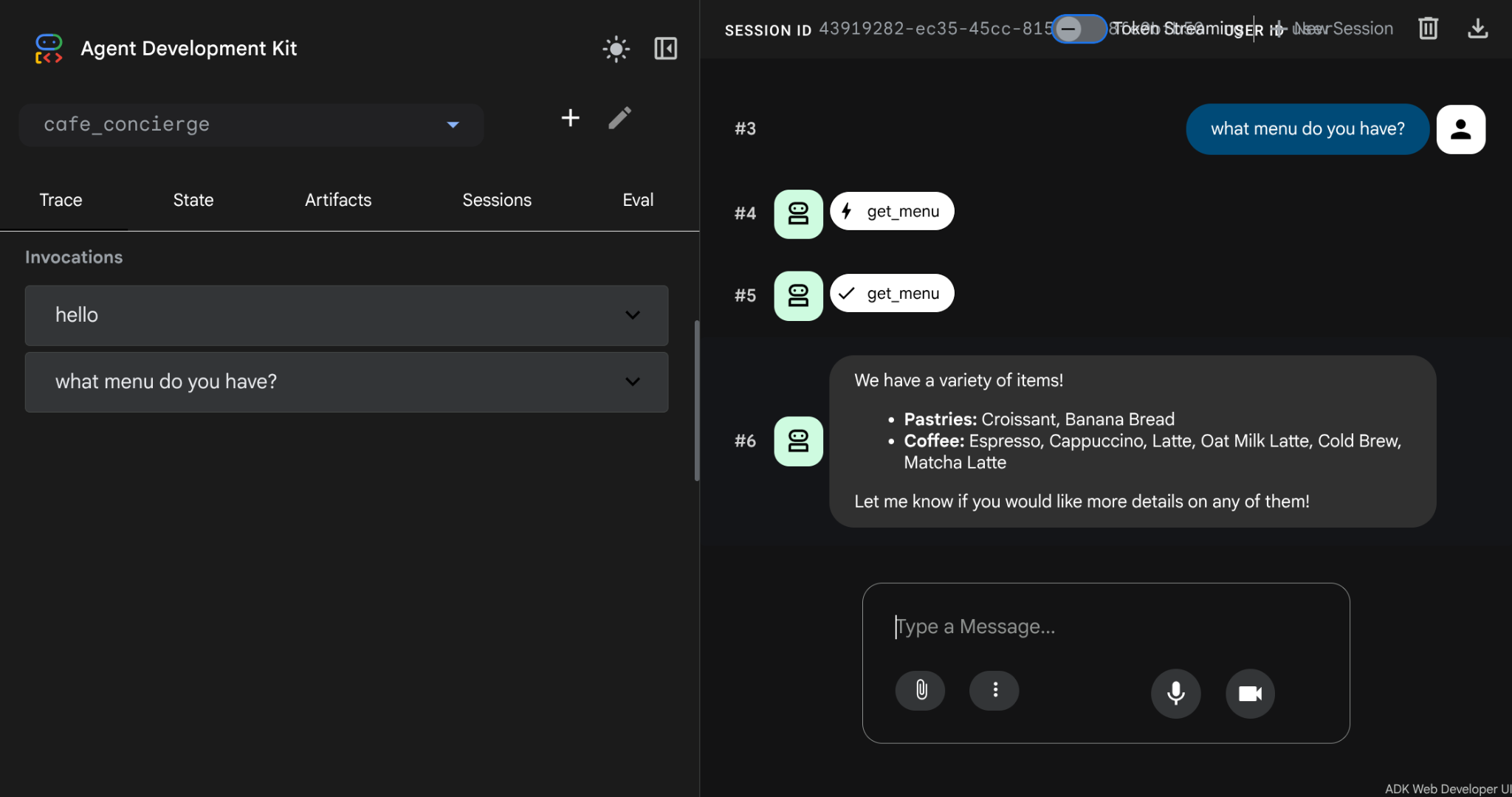
在继续操作之前,请使用 Ctrl+C 停止开发者界面。
5. 添加有状态的订单管理功能
代理可以显示菜单,但无法接单或记住偏好设置。此步骤添加了四种工具,这些工具使用 ADK 的状态系统来跟踪对话中的订单,并在对话之间存储饮食偏好。
了解会话事件和状态
每个 ADK 对话都位于 Session 对象内。会话会跟踪两件不同的事物:事件和状态。了解二者之间的区别是构建能够以正确方式记住正确事物的代理的关键。
事件是指对话中发生的所有事情按时间顺序排列的日志。每条用户消息、每条代理回答、每次工具调用及其返回值都会记录为 Event,并附加到会话的 events 列表中。事件是不可变的:一旦记录,便永远不会更改。您可以将事件视为对话的完整转写内容。
状态是智能体在对话期间读取和写入的键值对暂存区。与事件不同,状态是可变的,值会随着对话的进展而变化。状态是指代理存储需要采取行动的结构化数据的位置:当前订单、客户偏好设置、累计总额。您可以将状态视为代理在转写内容旁边保留的便笺。
以下是它们之间的关系:
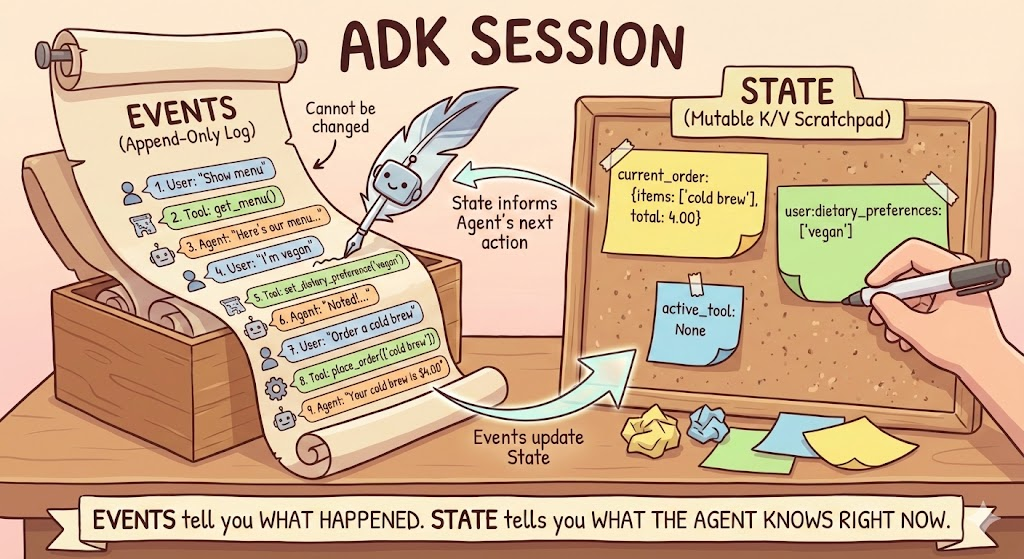
工具通过 ToolContext 读取和写入状态,ToolContext 是 ADK 自动注入到任何将它声明为形参的工具函数中的对象。您无法自行创建。通过 tool_context.state,工具可以读取和写入会话的状态草稿本。ADK 会检查函数签名:类型为 ToolContext 的参数会被注入,所有其他参数都由 LLM 根据对话内容填充。
当工具写入 tool_context.state 时,ADK 会将该更改记录为事件内的 state_delta。然后,SessionService 将增量应用于会话的当前状态。这意味着,状态变化始终可以追溯到导致该变化的事件。对于其他形式的上下文(例如 callback_context)也是如此
了解状态前缀
状态键使用前缀来控制其范围:
前缀 | 范围 | 重启后是否仍然存在?(含数据库) |
(无) | 仅限当前会话 | 是 |
| 该用户的所有会话 | 是 |
| 所有会话,所有用户 | 是 |
| 仅限当前调用 | 否 |
在此 Codelab 中,您将使用以下两个前缀:用于会话范围数据的无前缀键(当前订单 - 仅与本次对话相关)和用于用户范围数据的 user: 键(饮食偏好 - 与该用户的所有对话相关)。
添加有状态工具
在 Cloud Shell Editor 中打开 cafe_concierge/agent.py。
cloudshell edit cafe_concierge/agent.py
然后,在 root_agent 定义上方添加以下四个函数:
# cafe_concierge/agent.py (add below get_menu, above root_agent)

def place_order(tool_context: ToolContext, items: list[str]) -> dict:
    """Places an order for the specified menu items.

    Use this tool when the customer confirms they want to order something.

    Args:
        tool_context: Provided automatically by ADK.
        items: A list of menu item names the customer wants to order.
    """
    valid_items = []
    invalid_items = []
    total = 0.0

    for item in items:
        item_lower = item.lower()
        if item_lower in CAFE_MENU:
            valid_items.append(item_lower)
            total += CAFE_MENU[item_lower]["price"]
        else:
            invalid_items.append(item)

    if not valid_items:
        return {"error": f"None of these items are on our menu: {invalid_items}"}

    order = {"items": valid_items, "total": round(total, 2)}
    tool_context.state["current_order"] = order

    result = {"order": order}
    if invalid_items:
        result["warning"] = f"These items are not on our menu: {invalid_items}"
    return result


def get_order_summary(tool_context: ToolContext) -> dict:
    """Returns the current order summary for this session.

    Use this tool when the customer asks about their current order,
    wants to review what they ordered, or asks for the total.

    Args:
        tool_context: Provided automatically by ADK.
    """
    order = tool_context.state.get("current_order")
    if order:
        return {"order": order}
    return {"message": "No order has been placed yet in this session."}


def set_dietary_preference(tool_context: ToolContext, preference: str) -> dict:
    """Saves a dietary preference that persists across all conversations.

    Use this tool when the customer mentions a dietary restriction or
    preference (e.g., "I'm vegan", "I'm lactose intolerant",
    "I have a nut allergy").

    Args:
        tool_context: Provided automatically by ADK.
        preference: The dietary preference to save (e.g., "vegan",
            "lactose intolerant", "nut allergy").
    """
    existing = tool_context.state.get("user:dietary_preferences", [])
    if not isinstance(existing, list):
        existing = []

    preference_lower = preference.lower().strip()
    if preference_lower not in existing:
        existing.append(preference_lower)

    tool_context.state["user:dietary_preferences"] = existing
    return {
        "saved": preference_lower,
        "all_preferences": existing,
    }


def get_dietary_preferences(tool_context: ToolContext) -> dict:
    """Retrieves the customer's saved dietary preferences.

    Use this tool when you need to check the customer's dietary
    restrictions before making recommendations.

    Args:
        tool_context: Provided automatically by ADK.
    """
    preferences = tool_context.state.get("user:dietary_preferences", [])
    if preferences:
        return {"preferences": preferences}
    return {"message": "No dietary preferences saved yet."}
请注意以下两点:
place_order和get_order_summary使用无前缀的键 (current_order)。此状态与当前会话相关联,新对话以空订单开始。set_dietary_preference和get_dietary_preferences使用user:前缀 (user:dietary_preferences)。此状态在同一用户的所有会话中共享。
使用新工具和指令更新智能体
将文件底部的现有 root_agent 定义替换为:
# cafe_concierge/agent.py (replace the existing root_agent)

root_agent = LlmAgent(
    name="cafe_concierge",
    model="gemini-2.5-flash",
    instruction="""You are a friendly and knowledgeable barista at "The Cloud Cafe".

Your job:
- Help customers browse the menu and answer questions about items.
- Take coffee and food orders.
- Remember and respect dietary preferences.

The customer's saved dietary preferences are: {user:dietary_preferences?}

IMPORTANT RULES:
- When a customer mentions a dietary restriction, ALWAYS save it using the
  set_dietary_preference tool before doing anything else.
- Before recommending items, check the customer's dietary preferences. If they
  have preferences saved, only recommend items compatible with those
  restrictions. Check the menu item tags to determine compatibility.
- When placing an order, confirm the items and total with the customer.

Be conversational, warm, and concise.
""",
    tools=[
        get_menu,
        place_order,
        get_order_summary,
        set_dietary_preference,
        get_dietary_preferences,
    ],
)
该指令使用状态注入模板 {user:dietary_preferences?} 将相应客户的已保存偏好直接注入到提示中。
验证完整文件
您的 cafe_concierge/agent.py 现在应包含:
CAFE_MENU字典- 五种工具函数:
get_menu、place_order、get_order_summary、set_dietary_preference、get_dietary_preferences - 包含所有五种工具的
root_agent定义
6. 使用 ADK 开发者界面测试智能体
此步骤会运行代理并测试所有有状态的功能:排序、偏好跟踪和跨会话内存(在同一进程中)。您还将检查“事件”和“状态”面板,了解 ADK 如何在内部跟踪对话。
启动开发者界面
cd ~/build-agent-adk-cloudsql
uv run adk web
打开端口 8000 上的网页预览,然后从下拉菜单中选择 cafe_concierge。
对话 1:下单和设置偏好
按顺序尝试以下提示:
What's on the menu?
I'm lactose intolerant
What would you recommend?
I'll have an oat milk latte and a banana bread
What's my order?
检查会话事件
所有事件都将被捕获并显示在网页界面上,您会在聊天框中看到,除了您的提示和回答之外,还有 tool_call 和 tool_response
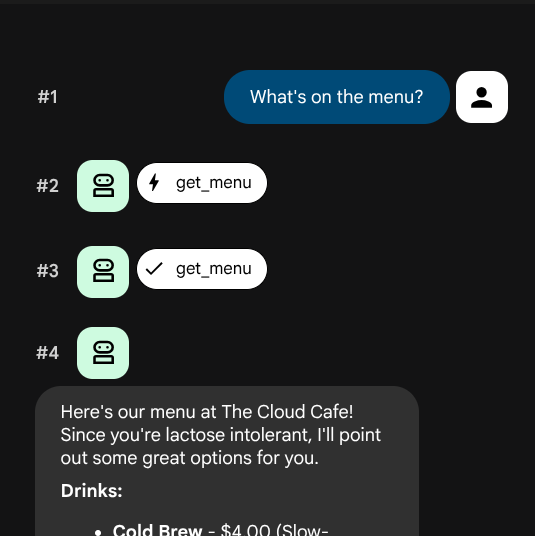
您应该会看到按顺序排列的活动列表。每个事件都有一个作者(事件的创建者)和一个类型(表示事件所代表的互动类型):
Author | 类型 | 表示的含义 |
|
| 您在聊天中输入的消息 |
|
| 智能体的文本回答 |
|
| 智能体决定调用工具(显示函数名称 + 实参) |
|
| 工具调用的返回值 |
点击其中一个 tool_call 事件,例如 set_dietary_preference 调用。您应该会看到:
- 函数名称:
set_dietary_preference - 参数:
{"preference": "lactose intolerant"}
现在,点击其正下方的相应 tool_response 活动。您应该会看到返回值:
- 回答:
{"saved": "lactose intolerant", "all_preferences": ["lactose intolerant"]}
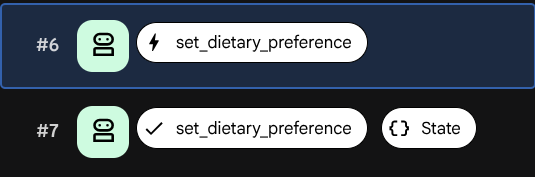
在 tool_response 事件中查找 state_delta 字段。这会显示因调用此工具而发生的确切状态变化:
state_delta: {"user:dietary_preferences": ["lactose intolerant"]}
每个状态变化都可追溯到特定事件。ADK 就是通过这种方式来确保状态暂存区与对话历史记录保持同步的。
检查会话状态
点击状态标签页。与显示完整历史记录的事件日志不同,“状态”标签页显示的是智能体当前所知信息的快照,即每个状态键的当前值。
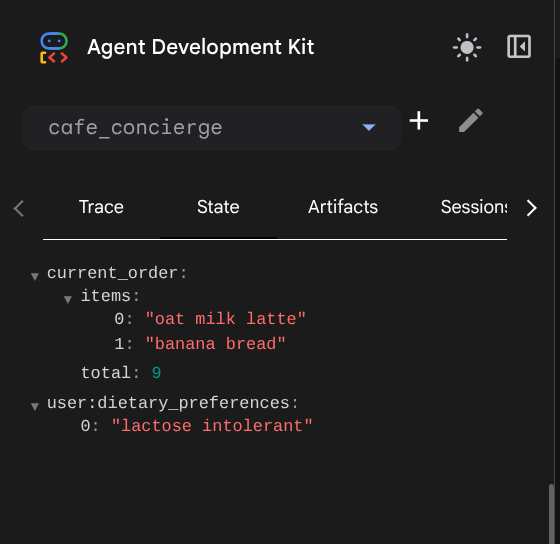
您应该会看到两个条目:
current_order-{"items": ["oat milk latte", "banana bread"], "total": 9.0}user:dietary_preferences-["lactose intolerant"]
请注意键名的差异:
current_order没有前缀,属于会话级范围的。它仅存在于此对话中,并在会话结束后消失。user:dietary_preferences具有user:前缀,属于用户级范围。它会在相应用户的所有会话中共享。
这种区别在代码中是不可见的(两者都使用 tool_context.state),但它会控制数据的覆盖范围。您将在下一个测试中看到此结果。
对话 2:验证跨会话用户状态
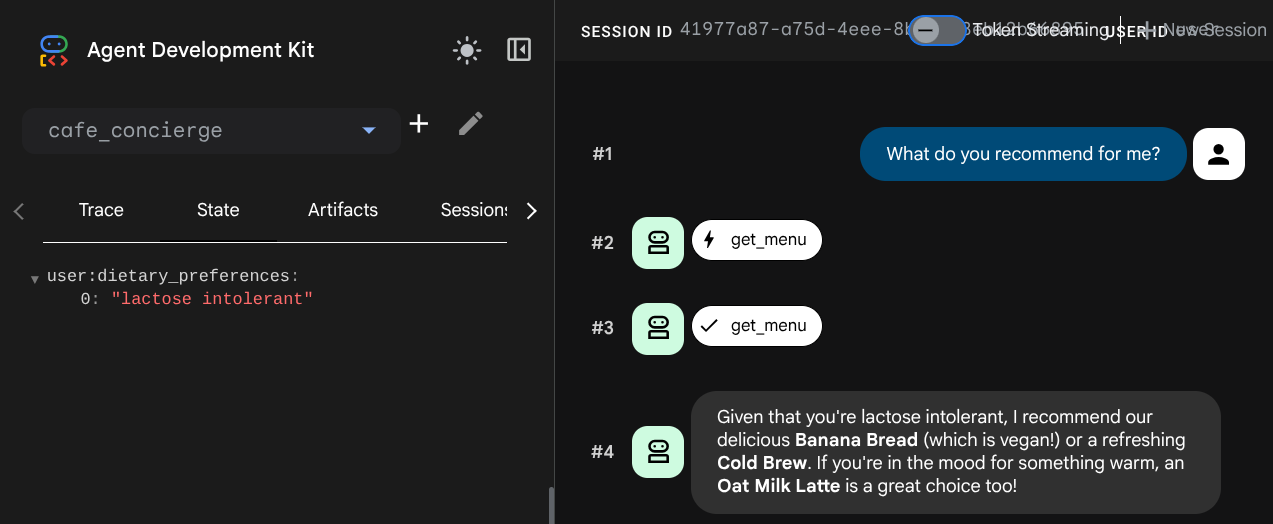
点击开发者界面中的新会话按钮,即可开始新的对话。这会为同一用户创建新的会话。

请尝试以下提示:
What do you recommend for me?
在新会话中,检查状态标签页。user:dietary_preferences 键会保留,但 current_order 会消失,因为该状态与之前的会话相关联。
7. 观察本地存储空间限制
智能体可以跨会话记住偏好设置,但前提是本地存储空间存在。此步骤演示了本地存储的根本限制。
再次启动代理
您在上一步结束时停止了开发者界面。现在,我们移除本地存储并重新启动,以模拟无状态的无服务器环境:
cd ~/build-agent-adk-cloudsql
rm -f cafe_concierge/.adk/session.db
uv run adk web
现在,打开端口 8000 上的网页预览,然后选择 cafe_concierge。
测试偏好设置回忆
Type:
Do you remember my dietary preferences?
代理没有记忆。饮食偏好、订单记录,全都消失了。
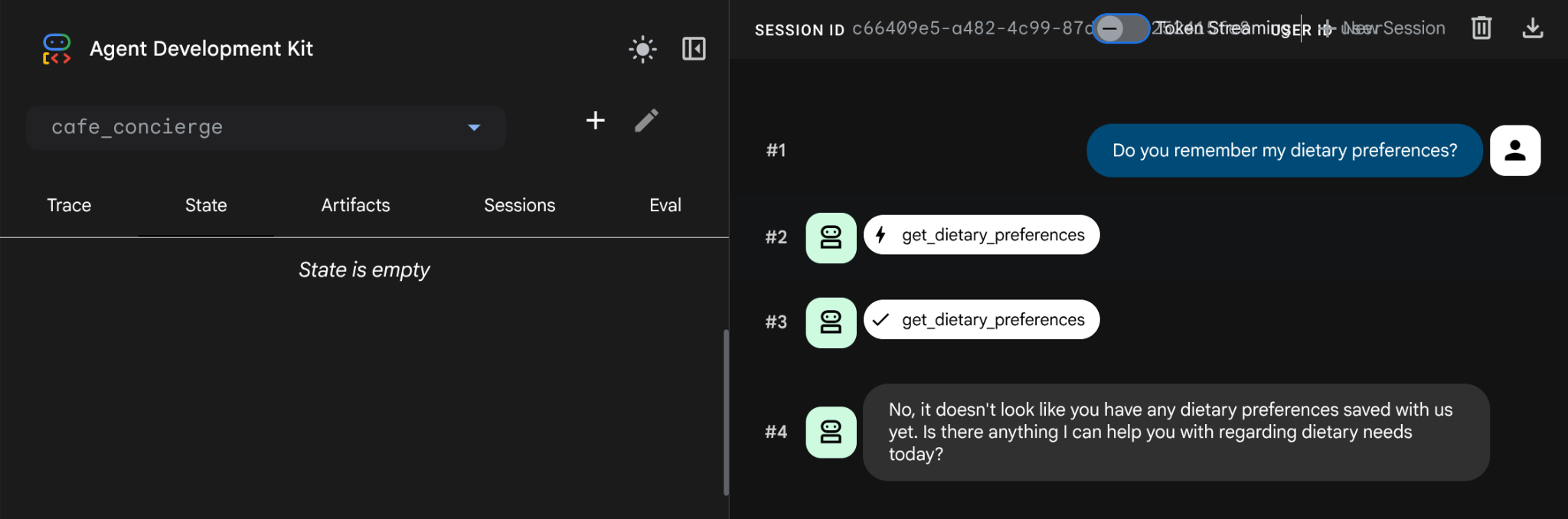
删除本地存储时,所有内容都会被彻底清除,这通常会在我们使用无服务器环境时发生。session.db 将所有状态存储在进程内存中。移除后,所有数据都会被清除。
解决方案:指定 DatabaseSessionService,在本教程中,该参数会将所有会话数据存储在 Cloud SQL 数据库中的 PostgreSQL 中。代理代码和工具保持完全不变,只有存储后端发生变化。
在继续操作之前,请先按 Ctrl+C 停止开发界面。
8. 重新访问数据库设置
此时,数据库实例创建应该已经完成。让我们验证一下,运行以下命令
gcloud sql instances describe cafe-concierge-db --format="value(state)"
您应该会看到以下输出内容,请将其标记为已完成
RUNNABLE
创建数据库
为代理的会话数据创建专用数据库:
gcloud sql databases create agent_db --instance=cafe-concierge-db
启动 Cloud SQL Auth 代理
Cloud SQL Auth 代理可提供从 Cloud Shell 到 Cloud SQL 实例的安全且经过身份验证的连接,而无需将 IP 地址列入许可名单。它已预安装在 Cloud Shell 中。
cloud-sql-proxy ${GOOGLE_CLOUD_PROJECT}:${REGION}:cafe-concierge-db --port 5432 &
命令中的 & 后缀可让代理在后台运行。您应该会看到确认代理已准备就绪的输出,如下所示
[your-project-id:your-region:cafe-concierge-db] Listening on 127.0.0.1:5432
The proxy has started successfully and is ready for new connections!
验证连接
测试您是否可以通过代理连接到数据库:
psql "host=127.0.0.1 port=5432 dbname=agent_db user=postgres password=$DB_PASSWORD" -c "SELECT 'Connection ok' AS status;"
您应该会看到:
      status
---------------------
 Connection ok
(1 row)
9. 验证会话间的持久内存
此步骤证明,当确保 cafe_concierge/.adk/session_db(本地数据库)被移除并跨越对话会话时,代理的记忆能够经受住重置。
启动代理
确保 Cloud SQL Auth 代理仍在运行(通过作业检查)。如果未运行,请重启:
if ss -tlnp | grep -q ':5432 '; then
  echo "Cloud SQL Auth Proxy is already running."
else
  cloud-sql-proxy ${GOOGLE_CLOUD_PROJECT}:${REGION}:cafe-concierge-db --port 5432 &
fi
然后,我们通过将数据库指定为会话服务来启动 ADK 开发者界面
uv run adk web --session_service_uri postgresql+asyncpg://postgres:${DB_PASSWORD}@127.0.0.1:5432/agent_db
在端口 8000 上打开网页预览,然后选择 cafe_concierge。
测试 1:下单并设置偏好设置
在第一个会话中,运行以下提示:
Show me the menu
I'm vegan
What can I eat?
I'll have a cold brew and banana bread
测试 2:在重启后保持运行
使用 Ctrl+C 停止开发界面,并确保已移除本地 session.db
rm -f cafe_concierge/.adk/session.db
然后,重新运行开发者界面服务器
uv run adk web --session_service_uri postgresql+asyncpg://postgres:${DB_PASSWORD}@127.0.0.1:5432/agent_db
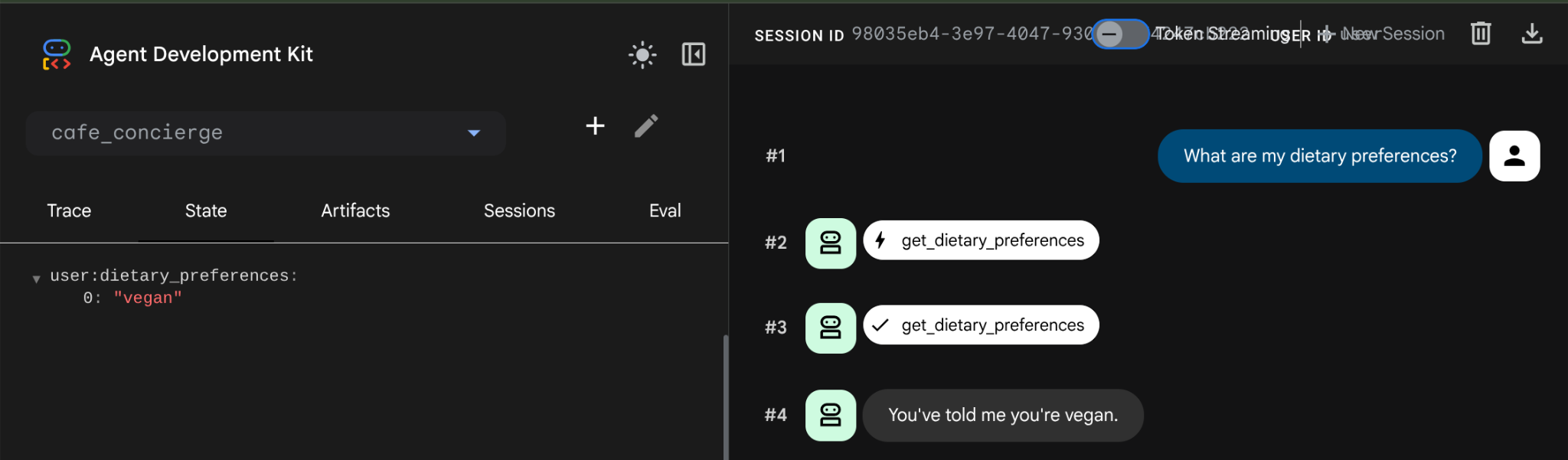
在端口 8000 上打开网页预览,选择 cafe_concierge,然后启动新会话。然后询问
What are my dietary preferences?
代理会返回您保存的偏好设置 - 纯素。由于数据现在存储在 PostgreSQL 中,而不是本地存储空间中,因此在重新启动后仍保留下来。如果我们创建新会话,情况也是如此,因为 user: 状态会延续到该用户的每个新会话。
直接检查数据库
在 Cloud Shell 中打开新的终端标签页,然后查询数据库以查看存储的数据:
psql "host=127.0.0.1 port=5432 dbname=agent_db user=postgres password=$DB_PASSWORD" -c "\dt"
您应该会看到 ADK 自动创建的用于存储会话、事件和状态的表格,如下例所示
                List of relations
 Schema |         Name          | Type  |  Owner
--------+-----------------------+-------+----------
 public | adk_internal_metadata | table | postgres
 public | app_states            | table | postgres
 public | events                | table | postgres
 public | sessions              | table | postgres
 public | user_states           | table | postgres
(5 rows)
状态行为摘要
状态键 | 前缀 | 范围 | 是否跨会话共享? |
| (无) | 会话 | 否 |
|
| 用户 | 是 |
10. 恭喜 / 清理
恭喜!您已使用 ADK 和 Cloud SQL 成功构建了一个持久性有状态 AI 智能体。
您学到的内容
- 如何创建可读取和写入会话状态的自定义工具 ADK 智能体
- 会话级范围的状态(无前缀)与用户级范围的状态(
user:前缀)之间的区别 - 为什么默认的 adk local
session.db仅适用于开发环境 - 移除时所有数据都会丢失(且易于移除,没有备份),不适合无状态的无服务器部署 - 如何预配 Cloud SQL PostgreSQL 实例并使用 Cloud SQL Auth 代理连接到该实例
- 如何以最少的代码更改连接到 CloudSQL 上的 PostgreSQL 的 DatabaseSessionService - 相同的工具、相同的代理、不同的后端
- 用户级范围的状态如何在不同的对话会话中持久保留
清理
为避免系统向您的 Google Cloud 账号收取费用,请清理在此 Codelab 中创建的资源。
方法 1:删除项目(推荐)
最简单的清理方法是删除项目。这会移除与项目关联的所有资源。
gcloud projects delete ${GOOGLE_CLOUD_PROJECT}
方法 2:删除单个资源
如果您想保留项目,但只移除在本 Codelab 中创建的资源,请执行以下操作:
gcloud sql instances delete cafe-concierge-db --quiet