

1. 簡介
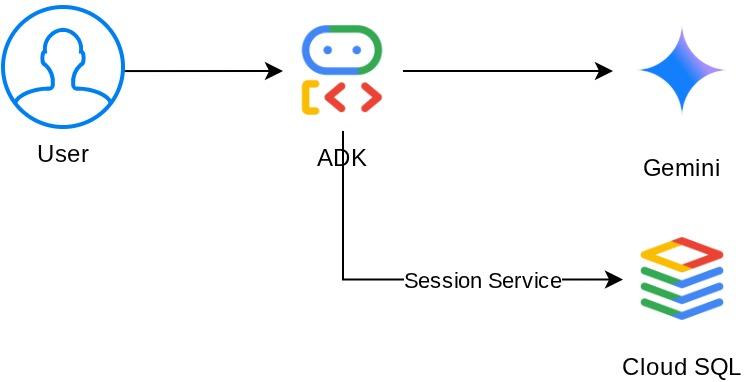
在本實作課程中,您將進一步瞭解基本無狀態的聊天機器人,並建立 Smart Cafe Concierge,這項 AI 代理由 Gemini 提供技術支援,可充當友善的咖啡師。這項應用程式會追蹤工作階段狀態中記錄的咖啡訂單、記住以使用者為範圍狀態中的長期飲食偏好,並將所有內容保存到 Cloud SQL PostgreSQL 資料庫。最後,即使重新啟動應用程式並開始全新的對話,服務專員仍會記得你有乳糖不耐症。
我們要建構的系統架構如下
必要條件
- 具有試用帳單帳戶的 Google Cloud 帳戶
- 對 Python 有基本的瞭解
- 無須具備 ADK、AI 代理或 Cloud SQL 經驗
課程內容
- 使用 Google 的 Agent Development Kit (ADK) 建立具備自訂工具的 AI 代理
- 定義透過
ToolContext讀取及寫入工作階段狀態的工具 - 區分以工作階段為範圍的狀態和以使用者為範圍的狀態 (
user:前置字串) - 佈建 Cloud SQL PostgreSQL 執行個體,並從 Cloud Shell 連線至該執行個體
- 從本機儲存空間 (使用
adk web指令時的預設值) 遷移至DatabaseSessionService,以使用專屬資料庫進行永久儲存空間 - 確認代理程式記憶體在應用程式重新啟動後,以及在不同的對話工作階段中,都能持續存在
軟硬體需求
- 可正常運作的電腦和穩定的網際網路連線。
- 用來存取 Google Cloud 控制台 的瀏覽器,例如 Chrome
- 好奇心和學習熱忱。
2. 設定環境
這個步驟會準備 Cloud Shell 環境,並設定 Google Cloud 專案
開啟 Cloud Shell
在瀏覽器中開啟 Cloud Shell。Cloud Shell 提供預先設定的環境,內含本程式碼研究室所需的所有工具。系統出現提示時,請點選「授權」。
介面應與下圖類似
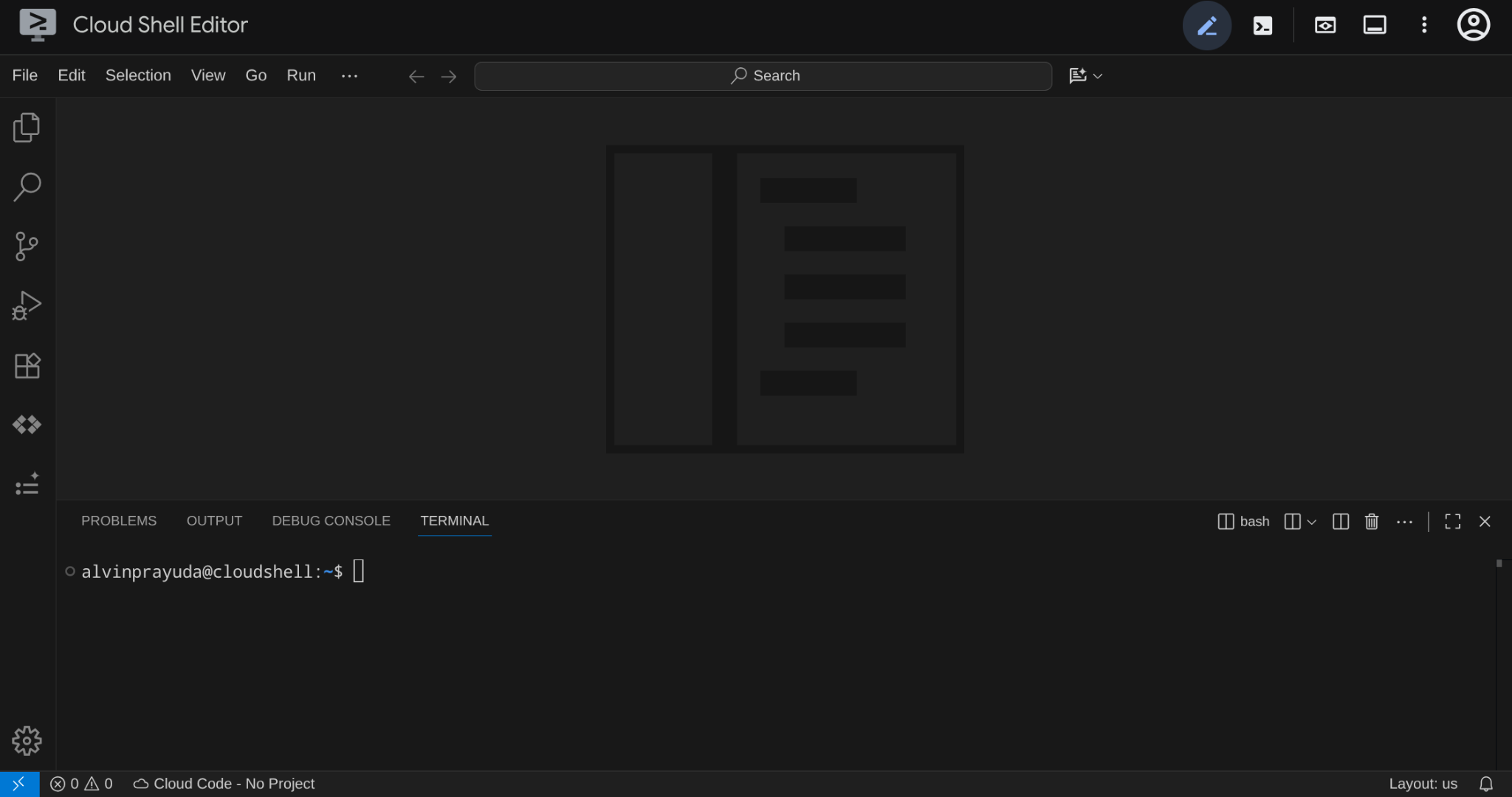
這會是我們的主要介面,頂端是 IDE,底部是終端機
設定工作目錄
建立工作目錄。您在本程式碼研究室中編寫的所有程式碼都會儲存在這裡,與參考存放區分開:
# Create your working directory
mkdir -p ~/build-agent-adk-cloudsql

# Change cloudshell workspace and working directory into previously created dir
cloudshell workspace ~/build-agent-adk-cloudsql && cd ~/build-agent-adk-cloudsql
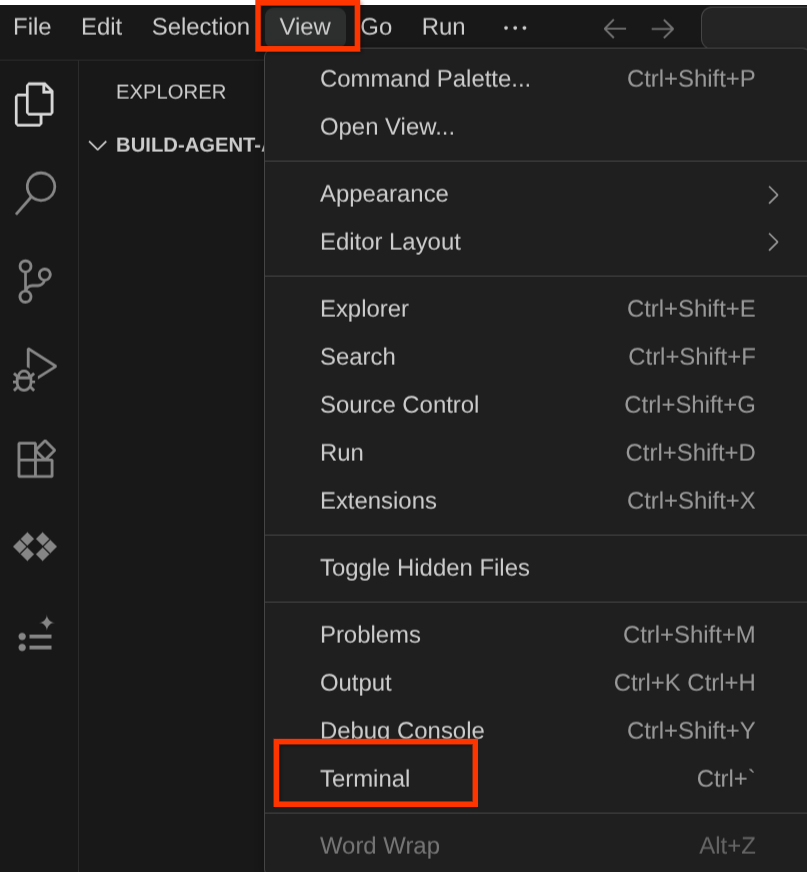
如要產生終端機,請依序點選「View」->「Terminal」。
設定 Google Cloud 雲端專案和初始環境變數
將專案設定指令碼下載至工作目錄:
curl -sL https://raw.githubusercontent.com/alphinside/cloud-trial-project-setup/main/setup_verify_trial_project.sh -o setup_verify_trial_project.sh
執行指令碼,這項指令會驗證試用帳單帳戶、建立新專案 (或驗證現有專案)、將專案 ID 儲存至目前目錄中的 .env 檔案,並在終端機中設定有效專案
bash setup_verify_trial_project.sh && source .env
執行這項操作時,系統會提示建議的專案 ID 名稱,您可以按下 Enter 繼續
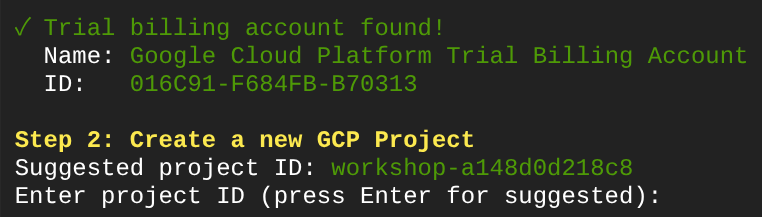
稍待片刻後,如果主控台顯示以下輸出內容,即可前往下一個步驟 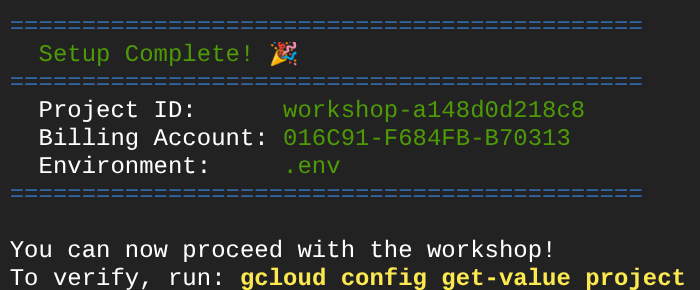
執行的指令碼會執行下列步驟:
- 確認您有有效的試用帳單帳戶
- 檢查
.env中是否有現有專案 (如有) - 建立新專案或重複使用現有專案
- 將試用帳單帳戶連結至專案
- 將專案 ID 儲存至 .env
- 將專案設為有效的 gcloud 專案
在 Cloud Shell 終端機提示中,檢查工作目錄旁的黃色文字,確認專案設定正確。應該會顯示專案 ID。

啟用必要的 API
啟用本程式碼研究室所需的 Google Cloud API:
gcloud services enable \
  aiplatform.googleapis.com \
  sqladmin.googleapis.com \
  compute.googleapis.com
- Vertex AI API (
aiplatform.googleapis.com) - 代理程式透過 Vertex AI 使用 Gemini 模型。 - Cloud SQL Admin API (
sqladmin.googleapis.com) - 您可以佈建及管理 PostgreSQL 執行個體,做為永久儲存空間。 - Compute Engine API (
compute.googleapis.com) - 建立 Cloud SQL 執行個體時需要此 API。
設定 Gemini 和 Cloud 產品的區域
繼續之前,請先為互動的產品設定必要的位置/區域設定。在 .env 檔案中新增下列設定
# This is for our Gemini endpoint
echo "GOOGLE_CLOUD_LOCATION=global" >> .env

# This is for our other Cloud products
echo "REGION=us-central1" >> .env

source .env
接著進行下一個步驟
3. 設定 Cloud SQL
這個步驟會佈建 Cloud SQL PostgreSQL 執行個體,並將代理程式從記憶體內儲存空間切換至資料庫支援的儲存空間。建立執行個體需要幾分鐘,因此請先建立執行個體,我們可以在等待期間繼續討論下一個主題
開始建立執行個體
將資料庫密碼新增至 .env 檔案並重新載入,我們將使用 cafe-agent-pwd-2025 做為密碼。
echo "DB_PASSWORD=cafe-agent-pwd-2025" >> .env
source .env
執行這項指令,建立 Cloud SQL PostgreSQL 執行個體。這項作業需要幾分鐘才能完成,請讓作業繼續執行,然後前往下一個章節。
gcloud sql instances create cafe-concierge-db \
  --database-version=POSTGRES_17 \
  --edition=ENTERPRISE \
  --region=${REGION} \
  --availability-type=ZONAL \
  --project=${GOOGLE_CLOUD_PROJECT} \
  --tier=db-f1-micro \
  --root-password=${DB_PASSWORD} \
  --quiet &
上述指令有幾項注意事項:
db-f1-micro是最小 (也是最便宜) 的 Cloud SQL 層級,足以用於本程式碼研究室。--root-password設定預設 postgres 使用者的密碼。- 指令中的後置字元
&會在背景執行指令,因此你可以繼續工作。
這項程序會在背景執行,但控制台輸出內容偶爾會顯示在目前的終端機中。在 Cloud Shell 中開啟新的終端機分頁 (點選「+」圖示),以便更專注地執行作業。

再次前往工作目錄,並使用先前的設定指令碼啟用專案。
cd ~/build-agent-adk-cloudsql
bash setup_verify_trial_project.sh && source .env
接著,請繼續閱讀下一個部分
4. 建構咖啡廳禮賓服務專員
這個步驟會建立 ADK 代理的專案結構,並定義含有菜單工具的基本 Cafe Concierge。
初始化 Python 專案
本程式碼實驗室使用 uv,這是一種快速的 Python 套件管理工具,可透過單一工具處理虛擬環境和依附元件。Cloud Shell 已預先安裝這項工具。
初始化 Python 專案,並將 ADK 新增為依附元件:
uv init
uv add google-adk==1.25.0 asyncpg
uv init 會建立 pyproject.toml 和虛擬環境。uv 會新增依附元件,並記錄在 pyproject.toml 中。
初始化代理程式專案結構
ADK 預期會看到特定資料夾版面配置:以代理程式命名的目錄,其中包含 __init__.py、agent.py,以及代理程式目錄內的 .env
ADK 內建指令可協助您快速建立此項目,請執行下列指令
uv run adk create cafe_concierge \
    --model gemini-2.5-flash \
    --project ${GOOGLE_CLOUD_PROJECT} \
    --region ${GOOGLE_CLOUD_LOCATION}
這個指令會建立以 gemini-2.5-flash 為大腦的代理程式結構。您的目錄現在應如下所示:
build-agent-adk-cloudsql/
├── cafe_concierge/
│   ├── __init__.py
│   ├── agent.py
│   └── .env
├── pyproject.toml
├── .env
├── .venv/
└── ...
編寫代理
在 Cloud Shell 編輯器中開啟 cafe_concierge/agent.py
cloudshell edit cafe_concierge/agent.py
並覆寫檔案,使用下列程式碼
# cafe_concierge/agent.py
from google.adk.agents import LlmAgent
from google.adk.tools import ToolContext

CAFE_MENU = {
    "espresso": {
        "price": 3.50,
        "description": "Rich and bold single shot",
        "tags": ["vegan", "dairy-free", "gluten-free"],
    },
    "latte": {
        "price": 5.00,
        "description": "Espresso with steamed milk",
        "tags": ["gluten-free"],
    },
    "oat milk latte": {
        "price": 5.50,
        "description": "Espresso with steamed oat milk",
        "tags": ["vegan", "dairy-free", "gluten-free"],
    },
    "cappuccino": {
        "price": 4.50,
        "description": "Espresso with equal parts steamed milk and foam",
        "tags": ["gluten-free"],
    },
    "cold brew": {
        "price": 4.00,
        "description": "Slow-steeped for 12 hours, served over ice",
        "tags": ["vegan", "dairy-free", "gluten-free"],
    },
    "matcha latte": {
        "price": 5.50,
        "description": "Ceremonial grade matcha with steamed milk",
        "tags": ["gluten-free"],
    },
    "croissant": {
        "price": 3.00,
        "description": "Buttery, flaky French pastry",
        "tags": [],
    },
    "banana bread": {
        "price": 3.50,
        "description": "Homemade with walnuts",
        "tags": ["vegan"],
    },
}


def get_menu() -> dict:
    """Returns the full cafe menu with prices, descriptions, and dietary tags.

    Use this tool when the customer asks what's available, wants to see
    the menu, or asks about specific items.
    """
    return CAFE_MENU


root_agent = LlmAgent(
    name="cafe_concierge",
    model="gemini-2.5-flash",
    instruction="""You are a friendly and knowledgeable barista at "The Cloud Cafe".

Your job:
- Help customers browse the menu and answer questions about items.
- Take coffee and food orders.
- Remember and respect dietary preferences.

Be conversational, warm, and concise. If a customer mentions a dietary
restriction, acknowledge it and suggest suitable options from the menu.
""",
    tools=[get_menu],
)
這會定義一個基本代理程式,其中包含一項工具:get_menu()。服務專員可以回答有關菜單的問題,但目前還無法追蹤訂單或記住偏好設定。
確認代理程式正在執行
從工作目錄啟動 ADK 開發人員使用者介面:
cd ~/build-agent-adk-cloudsql
uv run adk web
使用 Cloud Shell 的網頁預覽功能,開啟終端機中顯示的網址 (通常為 http://localhost:8000)。選取左上角代理程式下拉式選單中的 cafe_concierge。
在對話列中輸入下列文字,並確認服務專員會回覆菜單項目和價格。
What's on the menu?
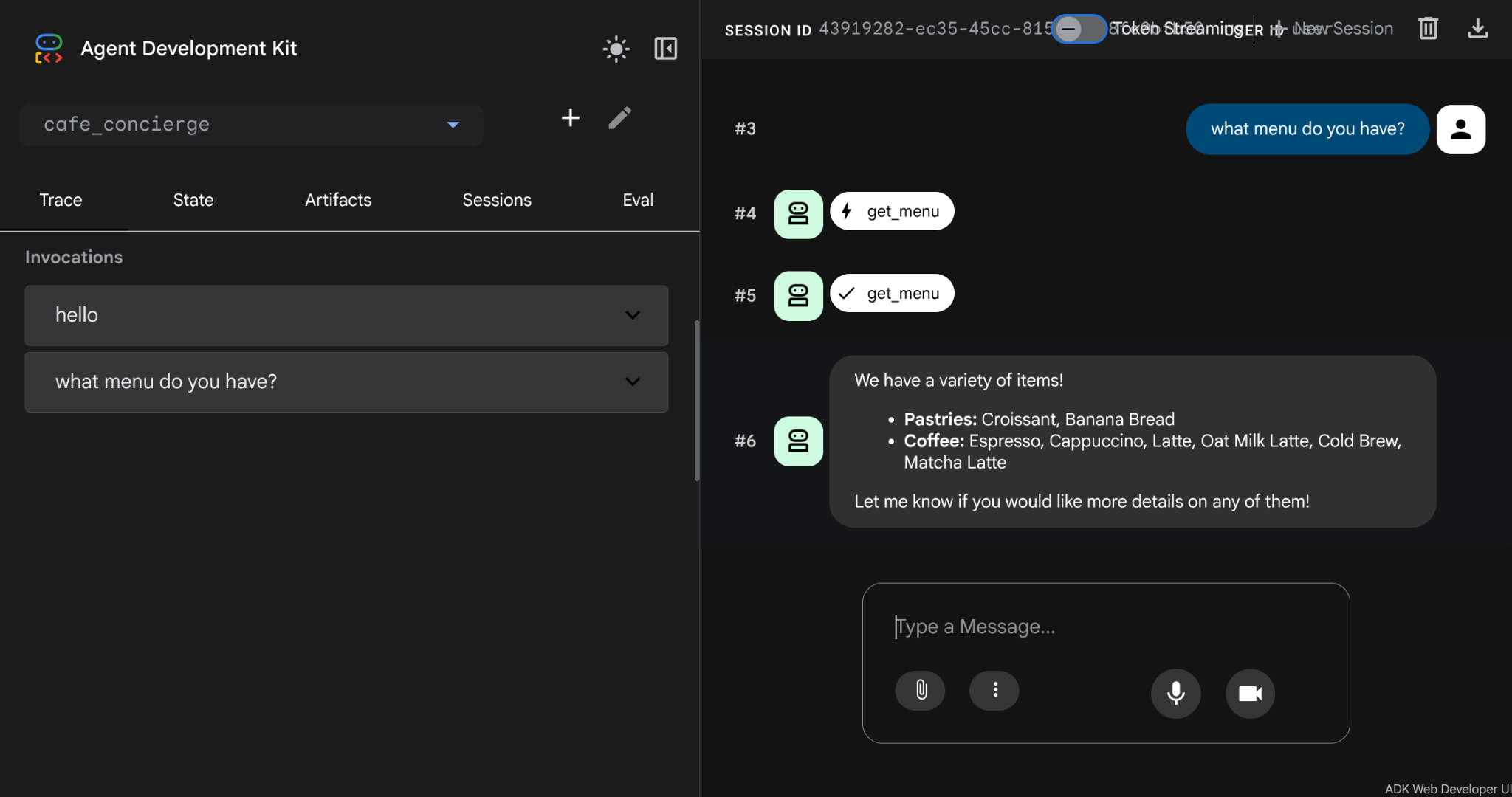
請先按下 Ctrl+C 停止開發人員 UI,再繼續操作。
5. 新增具狀態的訂單管理功能
服務專員可以顯示菜單,但無法下單或記住偏好設定。這個步驟會新增四項工具,使用 ADK 的狀態系統追蹤對話中的訂單,並在對話中儲存飲食偏好。
瞭解工作階段事件和狀態
每段 ADK 對話都存放在 Session 物件中。工作階段會追蹤兩項不同的事物:事件和狀態。瞭解兩者差異,是建構代理程式的關鍵,有助於代理程式以正確方式記住正確事項。
事件是記錄對話中所有活動的時間軸。每則使用者訊息、每則服務專員回覆、每次工具呼叫及其傳回值,都會記錄為 Event,並附加至工作階段的 events 清單。事件不可變更,一旦記錄就不會變動。事件就像是完整對話記錄。
狀態是鍵值暫存區,代理會在對話期間讀取及寫入資料。與事件不同,狀態是可變動的,值會隨著對話演變而改變。代理會將需要執行的結構化資料儲存在狀態中,例如目前的訂單、顧客偏好設定和累計總額。狀態就像是代理程式在轉錄稿旁保留的便利貼。
兩者之間的關係如下:
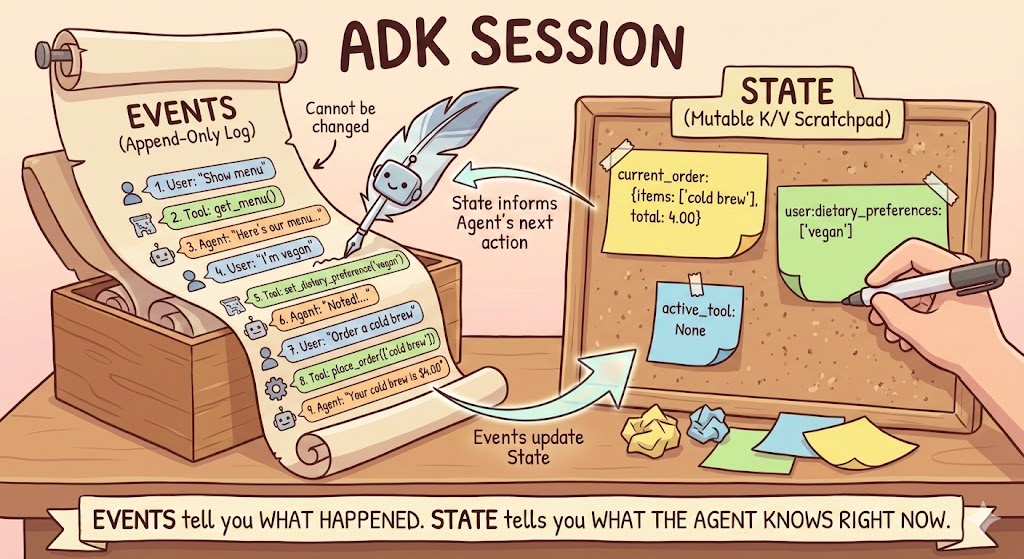
工具會透過 ToolContext 讀取及寫入狀態。ADK 會自動將這個物件插入任何將其宣告為參數的工具函式。你無法自行建立。工具可以透過 tool_context.state 讀取及寫入工作階段的狀態暫存區。ADK 會檢查函式簽章:系統會插入類型為 ToolContext 的參數,其餘參數則由 LLM 根據對話內容填入。
當工具寫入 tool_context.state 時,ADK 會將該變更記錄為事件內的 state_delta。SessionService 接著會將差異套用至工作階段的目前狀態。也就是說,狀態變更一律可追溯至造成變更的事件。這也適用於其他形式的內容,例如 callback_context
瞭解州別前置字元
狀態鍵會使用前置字串來控制範圍:
前置字串 | 範圍 | 重新啟動後是否仍存在?(含資料庫) |
(無) | 僅限目前的工作階段 | 是 |
| 使用者的所有工作階段 | 是 |
| 所有工作階段,所有使用者 | 是 |
| 僅限目前叫用 | 否 |
在本程式碼研究室中,您會使用其中兩個前置字元:用於工作階段範圍資料的無前置字元鍵 (目前訂單 - 僅與本次對話相關),以及用於使用者範圍資料的 user: 鍵 (飲食偏好 - 與該使用者的所有對話相關)。
新增有狀態的工具
在 Cloud Shell 編輯器中開啟 cafe_concierge/agent.py。
cloudshell edit cafe_concierge/agent.py
接著,在 root_agent 定義「上方」新增下列四個函式:
# cafe_concierge/agent.py (add below get_menu, above root_agent)

def place_order(tool_context: ToolContext, items: list[str]) -> dict:
    """Places an order for the specified menu items.

    Use this tool when the customer confirms they want to order something.

    Args:
        tool_context: Provided automatically by ADK.
        items: A list of menu item names the customer wants to order.
    """
    valid_items = []
    invalid_items = []
    total = 0.0

    for item in items:
        item_lower = item.lower()
        if item_lower in CAFE_MENU:
            valid_items.append(item_lower)
            total += CAFE_MENU[item_lower]["price"]
        else:
            invalid_items.append(item)

    if not valid_items:
        return {"error": f"None of these items are on our menu: {invalid_items}"}

    order = {"items": valid_items, "total": round(total, 2)}
    tool_context.state["current_order"] = order

    result = {"order": order}
    if invalid_items:
        result["warning"] = f"These items are not on our menu: {invalid_items}"
    return result


def get_order_summary(tool_context: ToolContext) -> dict:
    """Returns the current order summary for this session.

    Use this tool when the customer asks about their current order,
    wants to review what they ordered, or asks for the total.

    Args:
        tool_context: Provided automatically by ADK.
    """
    order = tool_context.state.get("current_order")
    if order:
        return {"order": order}
    return {"message": "No order has been placed yet in this session."}


def set_dietary_preference(tool_context: ToolContext, preference: str) -> dict:
    """Saves a dietary preference that persists across all conversations.

    Use this tool when the customer mentions a dietary restriction or
    preference (e.g., "I'm vegan", "I'm lactose intolerant",
    "I have a nut allergy").

    Args:
        tool_context: Provided automatically by ADK.
        preference: The dietary preference to save (e.g., "vegan",
            "lactose intolerant", "nut allergy").
    """
    existing = tool_context.state.get("user:dietary_preferences", [])
    if not isinstance(existing, list):
        existing = []

    preference_lower = preference.lower().strip()
    if preference_lower not in existing:
        existing.append(preference_lower)

    tool_context.state["user:dietary_preferences"] = existing
    return {
        "saved": preference_lower,
        "all_preferences": existing,
    }


def get_dietary_preferences(tool_context: ToolContext) -> dict:
    """Retrieves the customer's saved dietary preferences.

    Use this tool when you need to check the customer's dietary
    restrictions before making recommendations.

    Args:
        tool_context: Provided automatically by ADK.
    """
    preferences = tool_context.state.get("user:dietary_preferences", [])
    if preferences:
        return {"preferences": preferences}
    return {"message": "No dietary preferences saved yet."}
請注意以下兩點:
place_order和get_order_summary使用不含前置字元的鍵 (current_order)。這項狀態與目前的工作階段相關聯,新的對話會從空白訂單開始。set_dietary_preference和get_dietary_preferences使用user:前置字串 (user:dietary_preferences)。這個狀態會在同位使用者的所有工作階段共用。
使用新工具和指令更新代理程式
將檔案底部的現有 root_agent 定義替換為:
# cafe_concierge/agent.py (replace the existing root_agent)

root_agent = LlmAgent(
    name="cafe_concierge",
    model="gemini-2.5-flash",
    instruction="""You are a friendly and knowledgeable barista at "The Cloud Cafe".

Your job:
- Help customers browse the menu and answer questions about items.
- Take coffee and food orders.
- Remember and respect dietary preferences.

The customer's saved dietary preferences are: {user:dietary_preferences?}

IMPORTANT RULES:
- When a customer mentions a dietary restriction, ALWAYS save it using the
  set_dietary_preference tool before doing anything else.
- Before recommending items, check the customer's dietary preferences. If they
  have preferences saved, only recommend items compatible with those
  restrictions. Check the menu item tags to determine compatibility.
- When placing an order, confirm the items and total with the customer.

Be conversational, warm, and concise.
""",
    tools=[
        get_menu,
        place_order,
        get_order_summary,
        set_dietary_preference,
        get_dietary_preferences,
    ],
)
這項指令會使用狀態插入範本 {user:dietary_preferences?},將這位顧客儲存的偏好設定直接插入提示。
確認檔案完整性
您的 cafe_concierge/agent.py 現在應包含:
CAFE_MENU字典- 五個工具函式:
get_menu、place_order、get_order_summary、set_dietary_preference、get_dietary_preferences - 使用所有五項工具的
root_agent定義
6. 使用 ADK 開發 UI 測試代理
這個步驟會執行代理程式,並運用所有具狀態的功能:排序、偏好追蹤和跨工作階段記憶 (在同一程序中)。您也會檢查「Events」和「State」面板,瞭解 ADK 如何在內部追蹤對話。
啟動開發人員 UI
cd ~/build-agent-adk-cloudsql
uv run adk web
開啟通訊埠 8000 的網頁預覽,然後從下拉式選單中選取 cafe_concierge。
對話 1:下單並設定偏好設定
請依序嘗試下列提示:
What's on the menu?
I'm lactose intolerant
What would you recommend?
I'll have an oat milk latte and a banana bread
What's my order?
檢查工作階段事件
所有事件都會擷取並顯示在網頁版 UI 中,您會發現聊天方塊中不僅有提示和回覆,還有 tool_call 和 tool_response
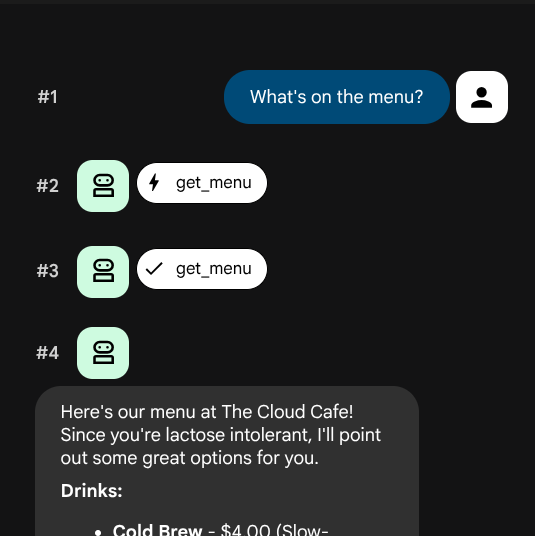
系統應會依序顯示事件清單。每個事件都有作者 (製作者) 和類型 (代表的互動類型):
作者 | 類型 | 代表意義 |
|
| 你在即時通訊中輸入的訊息 |
|
| 服務專員的文字回覆 |
|
| 代理決定呼叫工具 (顯示函式名稱 + 引數) |
|
| 工具呼叫傳回的值 |
按一下其中一個 tool_call 事件,例如 set_dietary_preference 通話。如下所示:
- 函式名稱:
set_dietary_preference - 引數:
{"preference": "lactose intolerant"}
現在請點選下方對應的 tool_response 事件。您應該會看到傳回值:
- 回應:
{"saved": "lactose intolerant", "all_preferences": ["lactose intolerant"]}
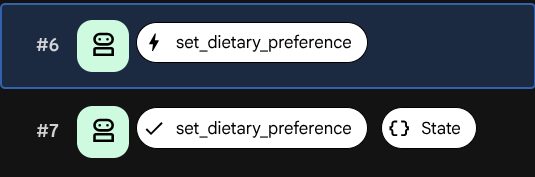
在 tool_response 事件中尋找 state_delta 欄位。這會顯示因呼叫工具而變更的確切狀態:
state_delta: {"user:dietary_preferences": ["lactose intolerant"]}
每個狀態變更都可以追溯至特定事件。ADK 就是透過這種方式,確保狀態暫存區與對話記錄保持同步。
檢查工作階段狀態
按一下「State」分頁標籤,與事件記錄 (顯示完整記錄) 不同,「狀態」分頁會顯示代理程式目前所知的內容快照,也就是每個狀態鍵的目前值。
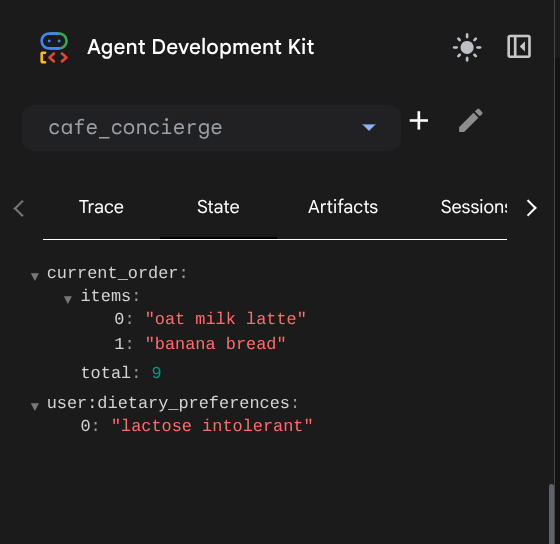
您應該會看到兩筆記錄:
current_order:{"items": ["oat milk latte", "banana bread"], "total": 9.0}user:dietary_preferences:["lactose intolerant"]
請注意鍵名差異:
current_order沒有前置字元,因為這是以工作階段為範圍的維度。這類訊息只會出現在這項對話中,工作階段結束後就會消失。user:dietary_preferences的前置字元為user:,因此屬於以使用者為範圍的維度。該使用者所有工作階段都會共用這項資料。
這項差異在程式碼中看不出來 (兩者都使用 tool_context.state),但會控管資料的傳輸範圍。您會在下一個測試中看到這種情況。
對話 2:驗證跨工作階段的使用者狀態
點按開發 UI 中的「New Session」按鈕,即可發起新對話。系統會為同一位使用者建立新的工作階段。

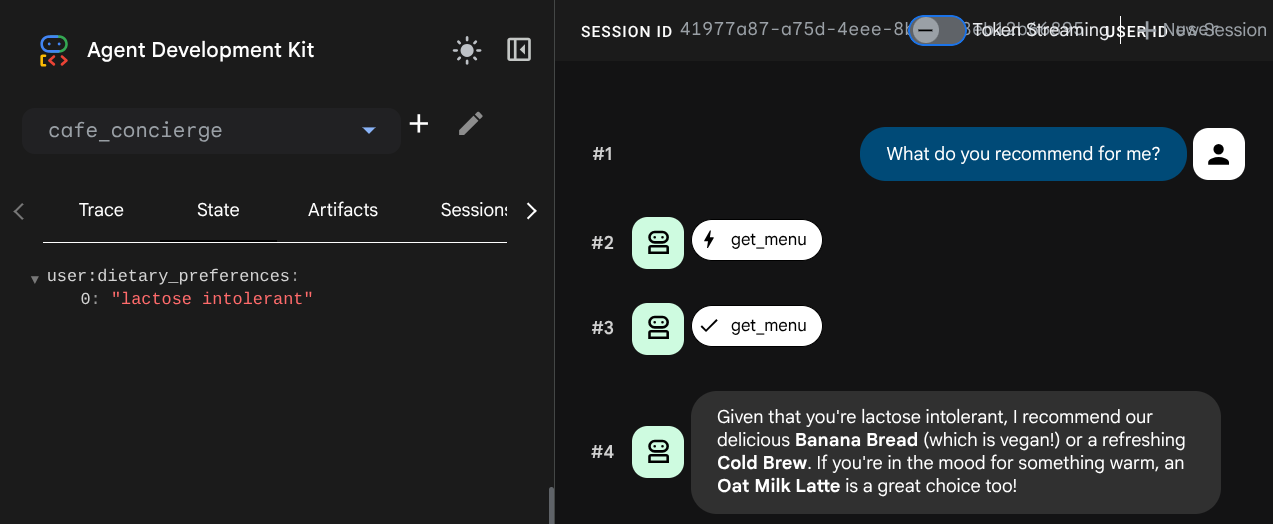
試試這則提示詞:
What do you recommend for me?
在新工作階段中檢查「State」分頁標籤。user:dietary_preferences 鍵會沿用,但 current_order 鍵會消失,因為該狀態與上一個工作階段相關聯。
7. 注意本機儲存空間限制
代理會在不同工作階段記住偏好設定,但前提是本機儲存空間存在。這個步驟說明瞭本機儲存空間的基本限制。
再次啟動代理程式
您在上一個步驟的結尾停止了開發人員 UI。現在移除本機儲存空間並重新啟動,模擬無狀態的無伺服器環境:
cd ~/build-agent-adk-cloudsql
rm -f cafe_concierge/.adk/session.db
uv run adk web
現在,開啟通訊埠 8000 的網頁預覽,然後選取 cafe_concierge。
測試偏好設定回想
Type:
Do you remember my dietary preferences?
但代理程式沒有相關記憶。飲食偏好和訂單記錄等資料都會消失。
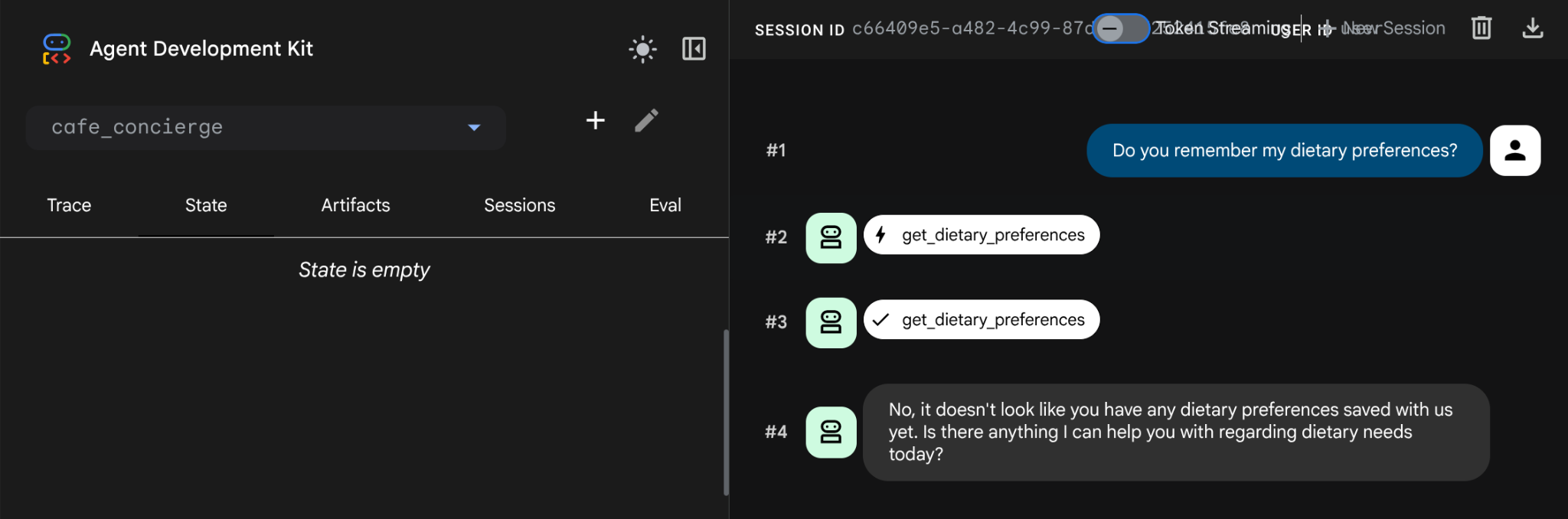
刪除本機儲存空間時,所有內容都會清除,這通常發生在使用無伺服器環境時。session.db 會將所有狀態儲存在程序記憶體中。移除後,所有資料都會遭到清除。
解決方案:指定 DatabaseSessionService,在本教學課程中,這會將所有工作階段資料儲存在 Cloud SQL 資料庫的 PostgreSQL 中。代理程式碼和工具完全不變,只有儲存後端會變更。
請先按下 Ctrl+C 停止開發人員使用者介面,再繼續操作。
8. 再次前往資料庫設定頁面
此時,資料庫執行個體應該已建立完成。讓我們驗證一下,執行下列指令
gcloud sql instances describe cafe-concierge-db --format="value(state)"
您應該會看到下列輸出內容,請將其標示為完成
RUNNABLE
建立資料庫
為虛擬服務專員的工作階段資料建立專用資料庫:
gcloud sql databases create agent_db --instance=cafe-concierge-db
啟動 Cloud SQL 驗證 Proxy
Cloud SQL Auth Proxy 可提供從 Cloud Shell 到 Cloud SQL 執行個體的安全驗證連線,不需要將 IP 位址加入許可清單。Cloud Shell 已預先安裝此工具。
cloud-sql-proxy ${GOOGLE_CLOUD_PROJECT}:${REGION}:cafe-concierge-db --port 5432 &
指令中的 & 後置字元會讓 Proxy 在背景執行。您應該會看到輸出內容,確認 Proxy 已準備就緒,如下所示
[your-project-id:your-region:cafe-concierge-db] Listening on 127.0.0.1:5432
The proxy has started successfully and is ready for new connections!
驗證連線
測試是否能透過 Proxy 連線至資料庫:
psql "host=127.0.0.1 port=5432 dbname=agent_db user=postgres password=$DB_PASSWORD" -c "SELECT 'Connection ok' AS status;"
如下所示:
      status
---------------------
 Connection ok
(1 row)
9. 驗證跨工作階段的持續性記憶體
這個步驟會確保 cafe_concierge/.adk/session_db (本機資料庫) 已移除,且跨越對話工作階段,證明代理程式的記憶體在重設後仍存在。
啟動代理程式
請確認 Cloud SQL Auth Proxy 仍在執行中 (請檢查作業)。如果沒有,請重新啟動:
if ss -tlnp | grep -q ':5432 '; then
  echo "Cloud SQL Auth Proxy is already running."
else
  cloud-sql-proxy ${GOOGLE_CLOUD_PROJECT}:${REGION}:cafe-concierge-db --port 5432 &
fi
接著,請將資料庫指定為工作階段服務,啟動 ADK 開發人員使用者介面
uv run adk web --session_service_uri postgresql+asyncpg://postgres:${DB_PASSWORD}@127.0.0.1:5432/agent_db
開啟通訊埠 8000 的網頁預覽,然後選取 cafe_concierge。
測試 1:下單並設定偏好設定
在第一個工作階段中,執行下列提示:
Show me the menu
I'm vegan
What can I eat?
I'll have a cold brew and banana bread
測試 2:重新啟動後是否仍可運作
使用 Ctrl+C 停止開發使用者介面,並確認已移除本機 session.db
rm -f cafe_concierge/.adk/session.db
然後重新執行開發 UI 伺服器
uv run adk web --session_service_uri postgresql+asyncpg://postgres:${DB_PASSWORD}@127.0.0.1:5432/agent_db
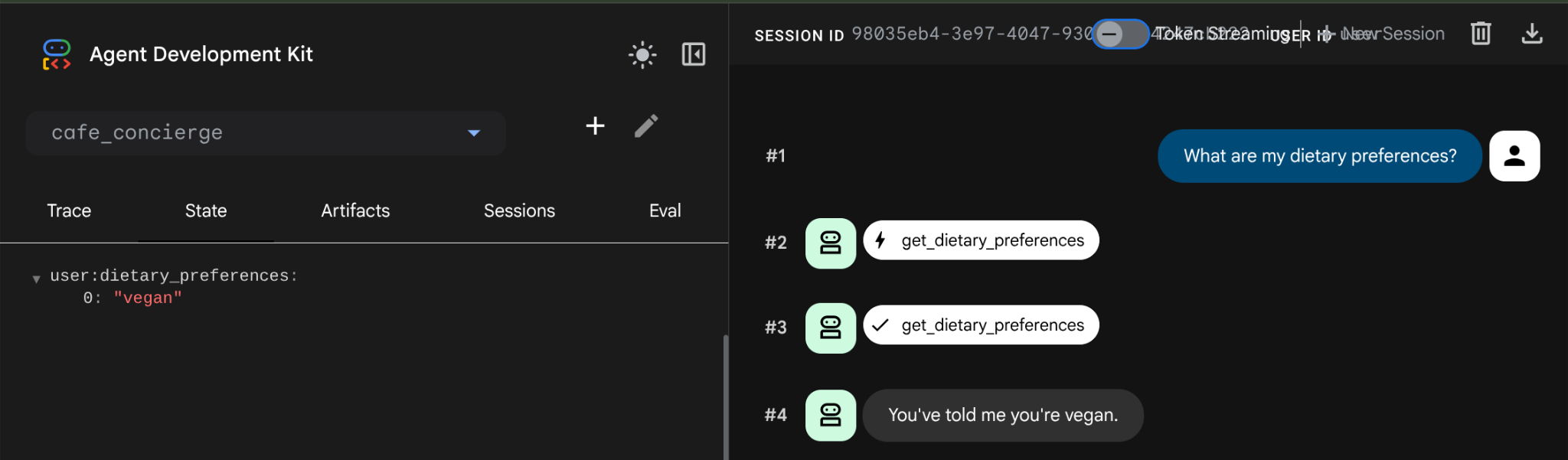
開啟通訊埠 8000 的網頁預覽,選取 cafe_concierge,然後啟動新工作階段。然後詢問
What are my dietary preferences?
代理會回覆你儲存的偏好設定「素食」。資料現在儲存在 PostgreSQL 中,而非本機儲存空間,因此重新啟動後不會遺失。如果我們建立新工作階段,情況也是一樣,因為 user: 狀態會延續到這位使用者的每個新工作階段。
直接檢查資料庫
在 Cloud Shell 中開啟新的終端機分頁,然後查詢資料庫,查看儲存的資料:
psql "host=127.0.0.1 port=5432 dbname=agent_db user=postgres password=$DB_PASSWORD" -c "\dt"
您應該會看到 ADK 自動建立的資料表,用於儲存工作階段、事件和狀態,如下例所示
                List of relations
 Schema |         Name          | Type  |  Owner
--------+-----------------------+-------+----------
 public | adk_internal_metadata | table | postgres
 public | app_states            | table | postgres
 public | events                | table | postgres
 public | sessions              | table | postgres
 public | user_states           | table | postgres
(5 rows)
狀態行為摘要
狀態鍵 | 前置字串 | 範圍 | 是否要跨工作階段共用? |
| (無) | 工作階段 | 否 |
|
| 使用者 | 是 |
10. 恭喜 / 清除
恭喜!您已使用 ADK 和 Cloud SQL 成功建構持續性、具狀態的 AI 代理。
您已經瞭解的內容
- 如何建立 ADK 代理,使用可讀取及寫入工作階段狀態的自訂工具
- 以工作階段為範圍的狀態 (無前置字串) 與以使用者為範圍的狀態 (
user:前置字串) 的差異 - 為什麼預設的 ADK 本機
session.db只適合開發:移除時所有資料都會遺失 (而且很容易移除,沒有備份),不適合無伺服器部署 (無狀態) - 如何佈建 Cloud SQL PostgreSQL 執行個體,並使用 Cloud SQL 驗證 Proxy 連線至該執行個體
- 如何透過最少的程式碼變更,使用 CloudSQL 上的 PostgreSQL 連線至 DatabaseSessionService - 相同的工具、相同的代理程式、不同的後端
- 如何跨不同對話工作階段保留以使用者為範圍的狀態
清理
如要避免系統向您的 Google Cloud 帳戶收費,請清理本程式碼研究室建立的資源。
方法 1:刪除專案 (建議)
最簡單的清理方式就是刪除專案。這會移除與專案相關聯的所有資源。
gcloud projects delete ${GOOGLE_CLOUD_PROJECT}
方法 2:刪除個別資源
如要保留專案,但只移除本程式碼研究室建立的資源,請按照下列步驟操作:
gcloud sql instances delete cafe-concierge-db --quiet