

1. 📖 簡介
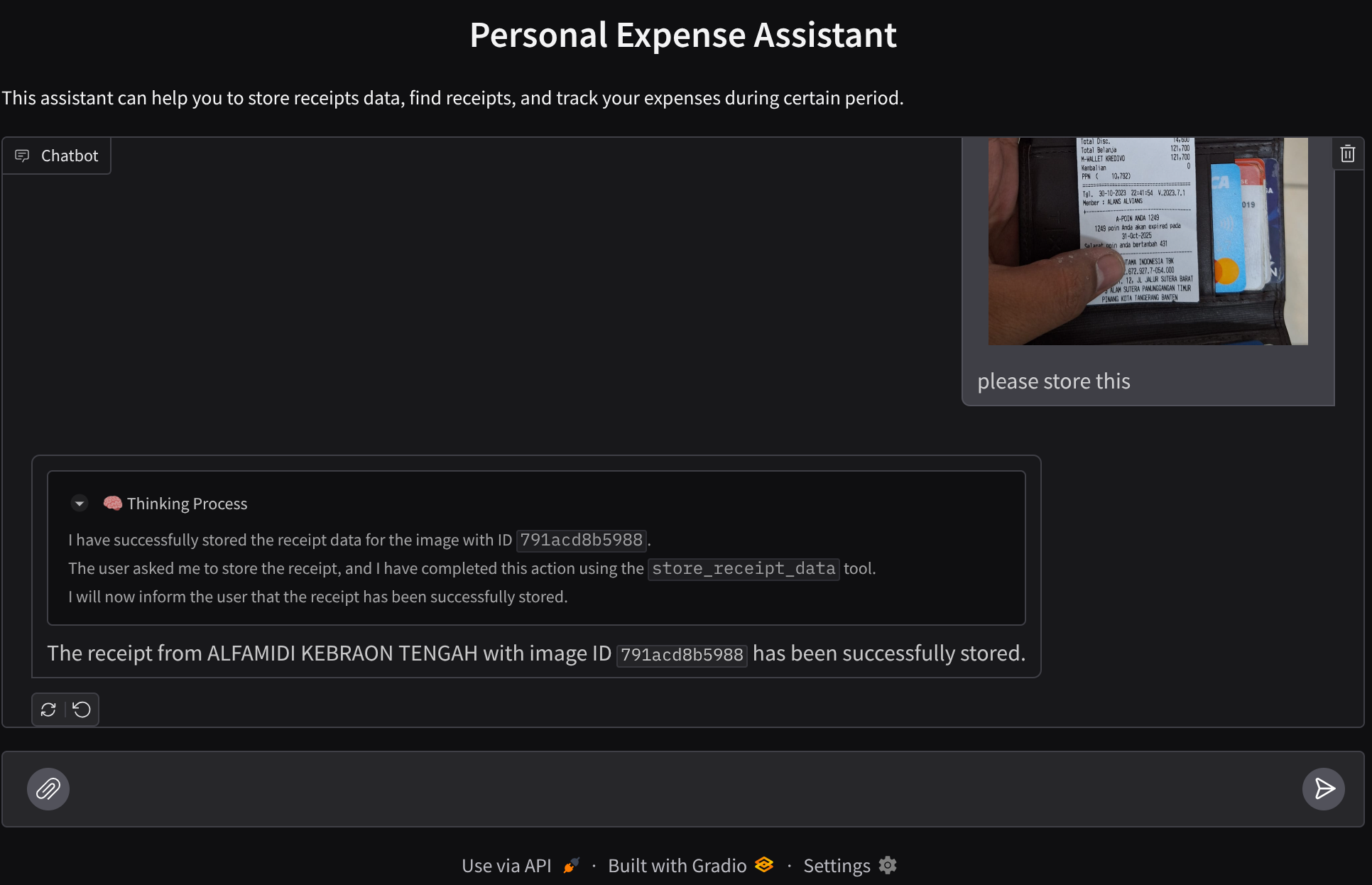
你是否曾因個人支出過多而感到沮喪,但又懶得管理?我也是!因此,在本程式碼研究室中,我們將建構個人支出管理助理,由 Gemini 2.5 提供技術支援,為我們處理所有雜事!從管理上傳的收據,到分析您是否已花費過多金額購買咖啡!
這個助理會以聊天網頁介面的形式,透過網路瀏覽器存取,你可以與其通訊、上傳一些收據圖片並要求助理儲存,或搜尋收據以取得檔案並進行一些費用分析。所有這些功能都以 Google Agent Development Kit 框架為基礎
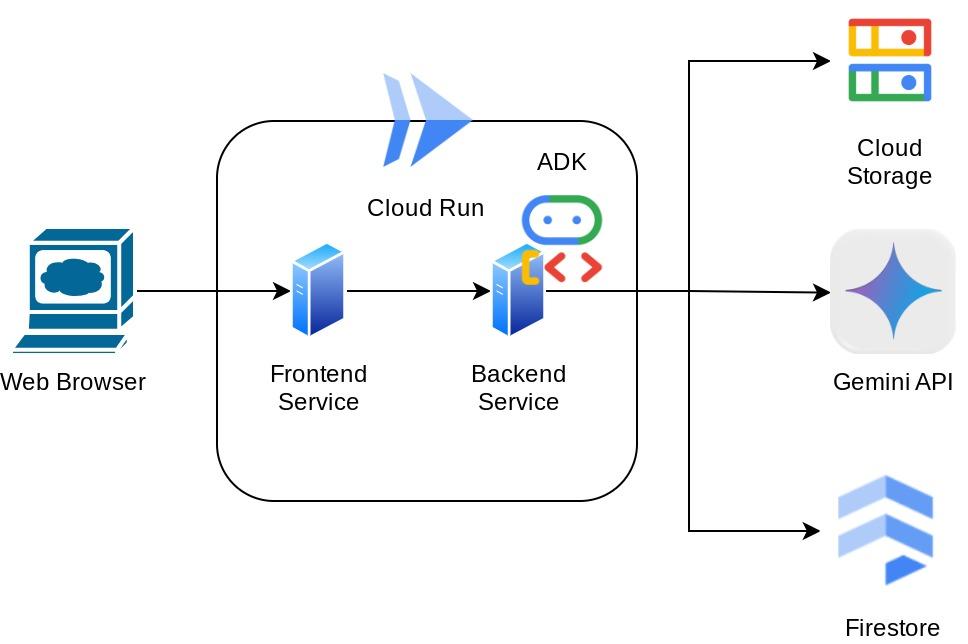
應用程式本身分為前端和後端 2 項服務,方便您快速建構原型並試用,同時瞭解 API 合約的外觀,以便整合這兩項服務。
在本程式碼研究室中,您將逐步完成下列步驟:
- 準備 Google Cloud 專案,並啟用所有必要 API
- 在 Google Cloud Storage 中設定 bucket,並在 Firestore 中設定資料庫
- 建立 Firestore 索引
- 為程式碼編寫環境設定工作區
- 建構 ADK 代理程式原始碼、工具、提示等。
- 使用 ADK 本機 Web 開發 UI 測試代理程式
- 使用 Gradio 程式庫建構前端服務 (對話介面),傳送一些查詢內容並上傳收據圖片
- 建構後端服務 - 使用 FastAPI 的 HTTP 伺服器,其中包含 ADK 代理程式程式碼、SessionService 和 Artifact Service
- 管理環境變數,並設定將應用程式部署至 Cloud Run 時所需的檔案
- 將應用程式部署至 Cloud Run
架構總覽
必要條件
- 熟悉 Python
- 瞭解使用 HTTP 服務的基本全端架構
課程內容
- 使用 Gradio 製作前端網頁原型
- 使用 FastAPI 和 Pydantic 開發後端服務
- 運用 ADK 代理的各項功能建構架構
- 工具使用情形
- 工作階段和構件管理
- 在傳送至 Gemini 前,使用回呼修改輸入內容
- 利用 BuiltInPlanner 進行規劃,提升工作執行效率
- 透過 ADK 本機網頁介面快速偵錯
- 透過提示工程和使用 ADK 回呼修改 Gemini 要求,剖析及擷取資訊,進而最佳化多模態互動的策略
- 使用 Firestore 做為向量資料庫的代理檢索增強生成功能
- 使用 Pydantic-settings 管理 YAML 檔案中的環境變數
- 使用 Dockerfile 將應用程式部署至 Cloud Run,並透過 YAML 檔案提供環境變數
軟硬體需求
- Chrome 網路瀏覽器
- Gmail 帳戶
- 已啟用計費功能的 Cloud 專案
本程式碼研究室適用於所有程度的開發人員 (包括初學者),並在範例應用程式中使用 Python。不過,您不需要具備 Python 知識,也能瞭解本文介紹的概念。
2. 🚀 事前準備
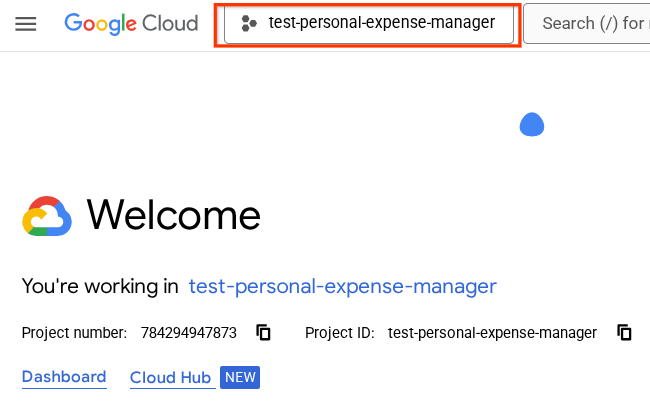
在 Cloud 控制台中選取有效專案
本程式碼研究室假設您已擁有啟用計費功能的 Google Cloud 專案。如果尚未取得,請按照下列操作說明開始使用。
- 在 Google Cloud 控制台的專案選取器頁面中,選取或建立 Google Cloud 專案。
- 確認 Cloud 專案已啟用計費功能。瞭解如何檢查專案是否已啟用計費功能。
準備 Firestore 資料庫
接著,我們也需要建立 Firestore 資料庫。Firestore (原生模式) 是專為自動調整資源配置、發揮高效能及協助開發應用程式所打造的 NoSQL 文件資料庫。此外,這項服務也能做為向量資料庫,支援實驗室的檢索增強生成技術。
- 在搜尋列中搜尋「firestore」,然後點選 Firestore 產品
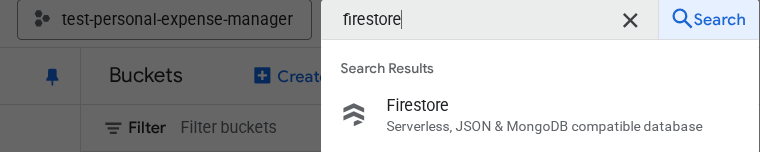
- 然後點選「建立 Firestore 資料庫」按鈕。
- 使用 (default) 做為資料庫 ID 名稱,並保持選取「Standard Edition」。為了進行本實驗室的示範,請使用「Firestore Native」搭配「Open」安全規則。
- 您也會發現這個資料庫實際上具有「免費方案用量 YEAY!」接著點選「建立資料庫」按鈕。
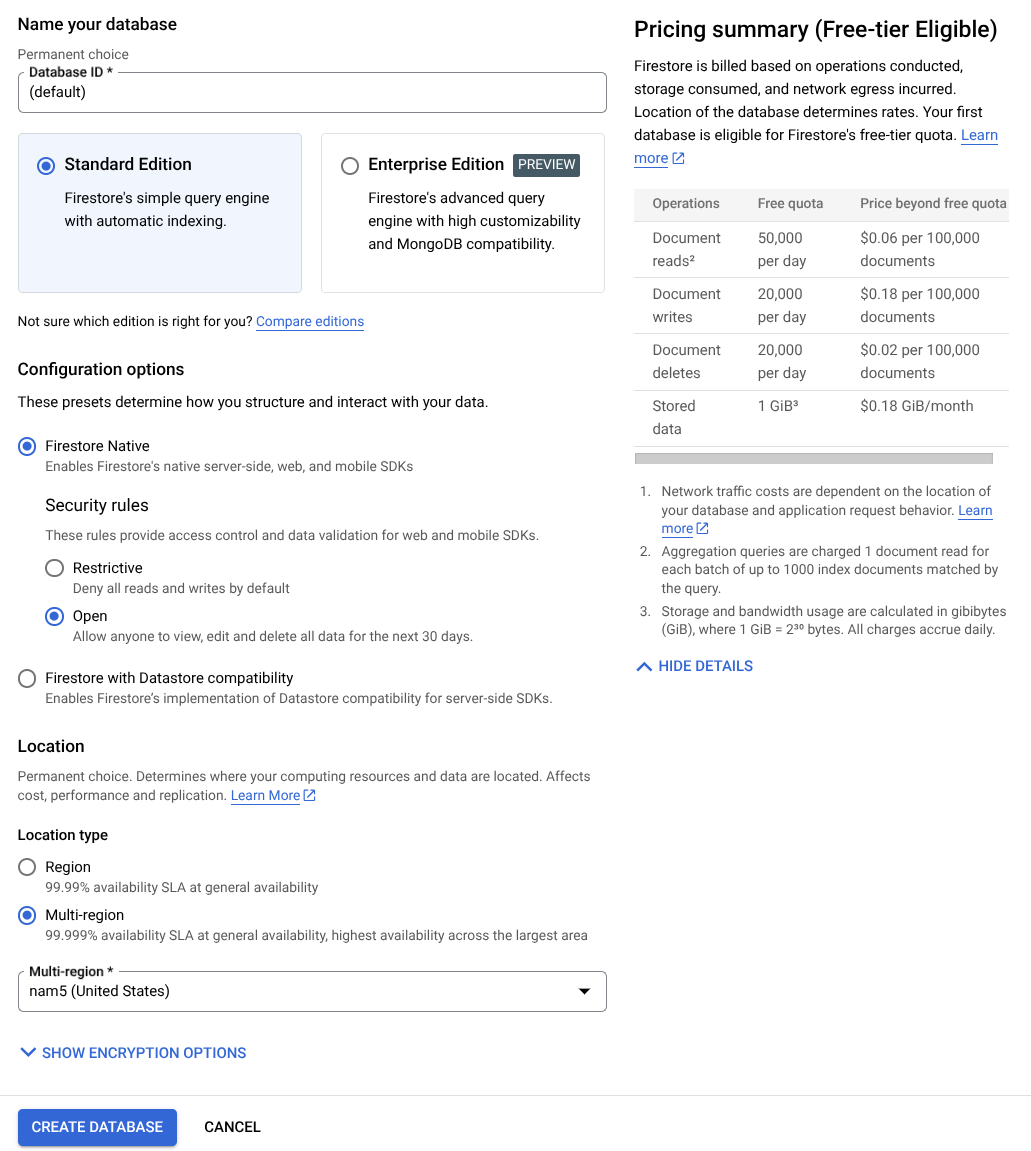
完成這些步驟後,系統應該會將您重新導向至剛建立的 Firestore 資料庫
在 Cloud Shell 終端機中設定 Cloud 專案
- 您將使用 Cloud Shell,這是 Google Cloud 中執行的指令列環境,且已預先載入 bq。點選 Google Cloud 控制台頂端的「啟用 Cloud Shell」。
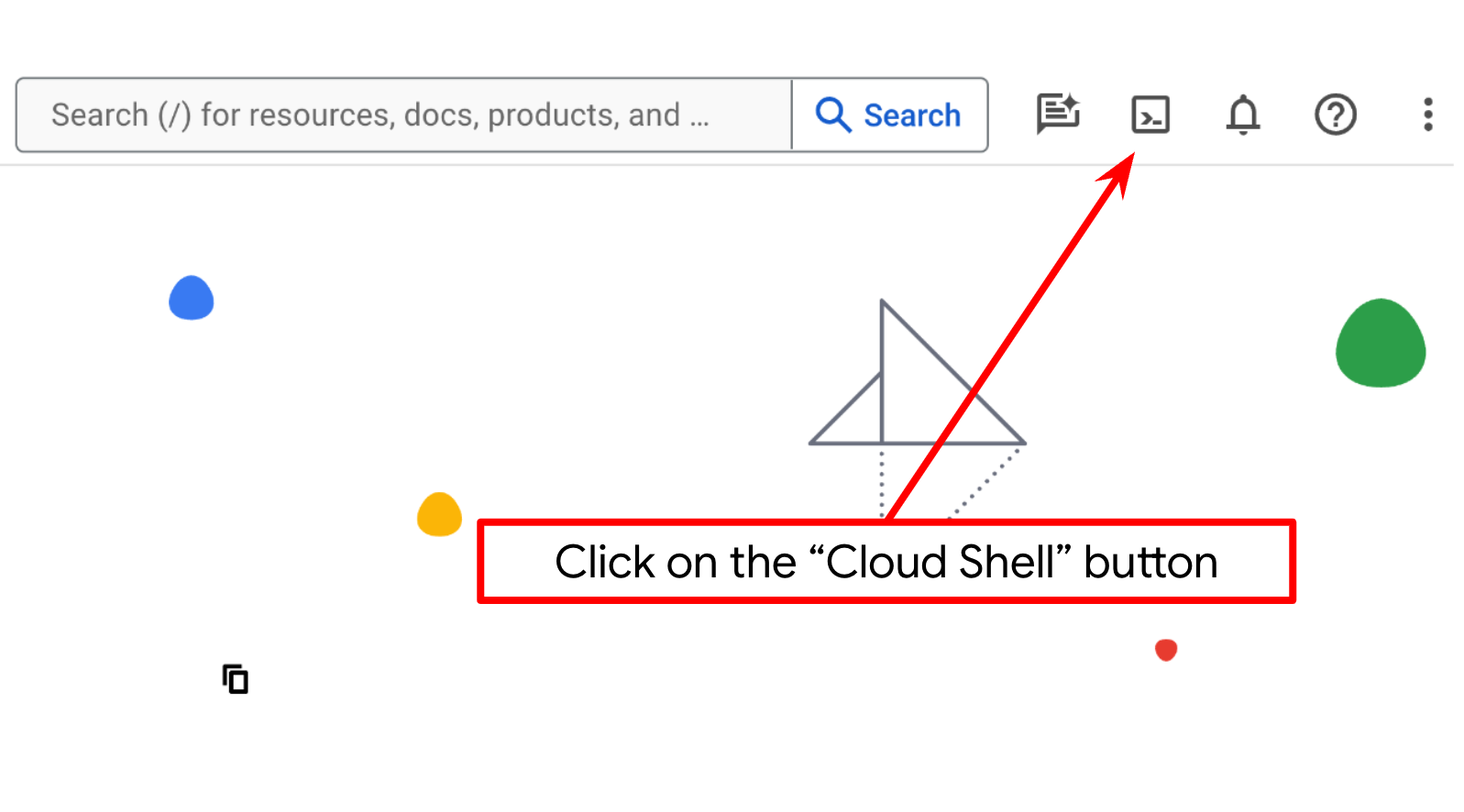
- 連線至 Cloud Shell 後,請使用下列指令確認您已通過驗證,且專案已設為您的專案 ID:
gcloud auth list
- 在 Cloud Shell 中執行下列指令,確認 gcloud 指令知道您的專案。
gcloud config list project
- 如果未設定專案,請使用下列指令來設定:
gcloud config set project <YOUR_PROJECT_ID>
或者,您也可以在控制台中查看 PROJECT_ID id

按一下該專案,右側就會顯示所有專案和專案 ID
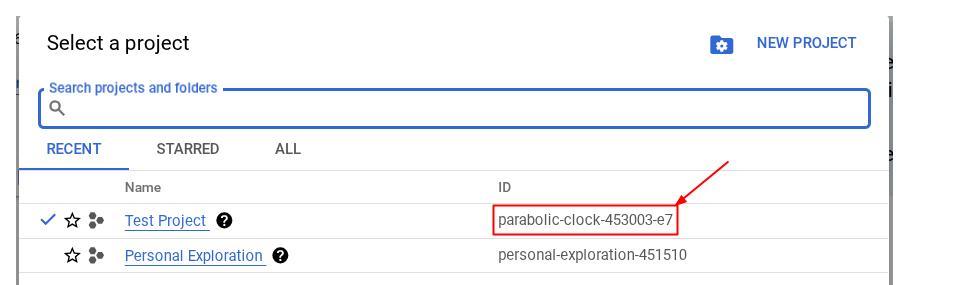
- 透過下列指令啟用必要的 API。這可能需要幾分鐘的時間,請耐心等候。
gcloud services enable aiplatform.googleapis.com \
                       firestore.googleapis.com \
                       run.googleapis.com \
                       cloudbuild.googleapis.com \
                       cloudresourcemanager.googleapis.com
成功執行指令後,您應該會看到類似下方的訊息:
Operation "operations/..." finished successfully.
除了使用 gcloud 指令,您也可以透過控制台搜尋各項產品,或使用這個連結。
如果遺漏任何 API,您隨時可以在導入過程中啟用。
如要瞭解 gcloud 指令和用法,請參閱說明文件。
準備 Google Cloud Storage bucket
接著,我們需要從同一個終端機準備 GCS bucket,用來儲存上傳的檔案。執行下列指令來建立 bucket,您需要一個不重複但與個人支出助理收據相關的 bucket 名稱,因此我們會使用下列 bucket 名稱,並結合您的專案 ID
gsutil mb -l us-central1 gs://personal-expense-{your-project-id}
輸出內容如下:
Creating gs://personal-expense-{your-project-id}
如要確認,請前往瀏覽器左上方的「導覽選單」,然後選取「Cloud Storage -> Bucket」。
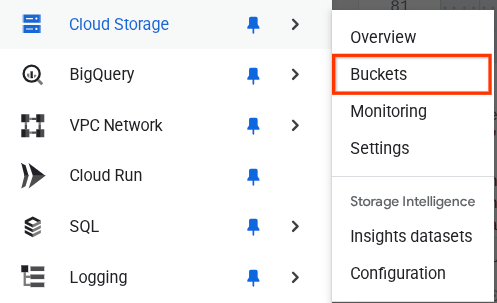
為搜尋功能建立 Firestore 索引
Firestore 本身是 NoSQL 資料庫,在資料模型方面提供卓越效能和彈性,但在複雜查詢方面則有其限制。由於我們打算使用一些複合多欄位查詢和向量搜尋,因此需要先建立一些索引。如要進一步瞭解詳細資料,請參閱這份說明文件。
- 執行下列指令來建立索引,以支援複合查詢
gcloud firestore indexes composite create \
        --collection-group=personal-expense-assistant-receipts \
        --field-config field-path=total_amount,order=ASCENDING \
        --field-config field-path=transaction_time,order=ASCENDING \
        --field-config field-path=__name__,order=ASCENDING \
        --database="(default)"
- 並執行這個指令來支援向量搜尋
gcloud firestore indexes composite create \
        --collection-group="personal-expense-assistant-receipts" \
        --query-scope=COLLECTION \
        --field-config field-path="embedding",vector-config='{"dimension":"768", "flat": "{}"}' \
        --database="(default)"
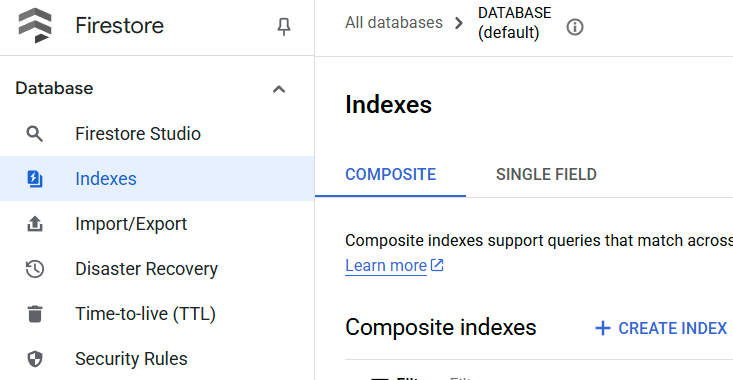
如要查看建立的索引,請前往 Cloud 控制台中的 Firestore,點選「(default)」資料庫執行個體,然後選取導覽列上的「Indexes」(索引)。
前往 Cloud Shell 編輯器並設定應用程式工作目錄
現在,我們可以設定程式碼編輯器,進行一些程式設計工作。我們會使用 Cloud Shell 編輯器執行這項操作
- 按一下「Open Editor」(開啟編輯器) 按鈕,開啟 Cloud Shell 編輯器,即可在此編寫程式碼
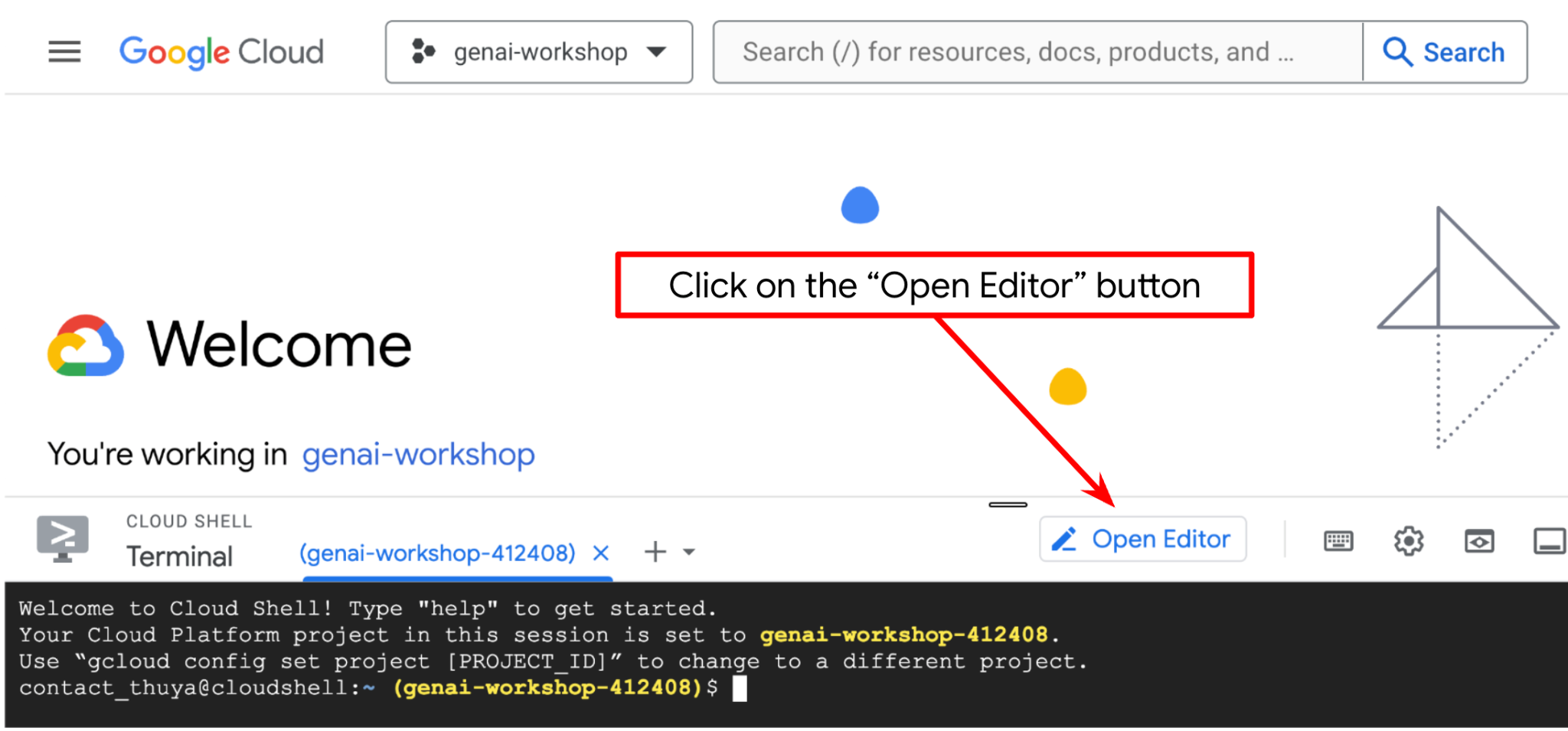
- 接著,我們也需要檢查 Shell 是否已設定為正確的專案 ID。如果終端機的 $ 圖示前有括號內的值 (在下方螢幕截圖中,該值為「adk-multimodal-tool」),表示目前 Shell 工作階段已設定專案。

如果顯示的值正確無誤,可以略過下一個指令。但如果該值不正確或遺失,請執行下列指令
gcloud config set project <YOUR_PROJECT_ID>
- 接著,請從 Github 複製本程式碼研究室的範本工作目錄,執行下列指令。系統會在 personal-expense-assistant 目錄中建立工作目錄
git clone https://github.com/alphinside/personal-expense-assistant-adk-codelab-starter.git personal-expense-assistant
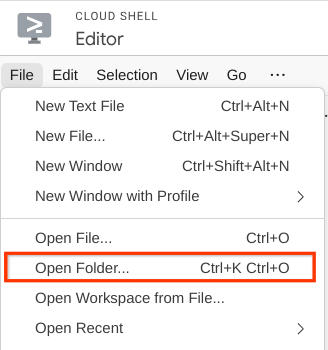
- 完成後,前往 Cloud Shell 編輯器頂端,依序點選「File」->「Open Folder」,找到「username」目錄和「personal-expense-assistant」目錄,然後點選「OK」按鈕。這會將所選目錄設為主要工作目錄。在本範例中,使用者名稱為 alvinprayuda,因此目錄路徑如下所示

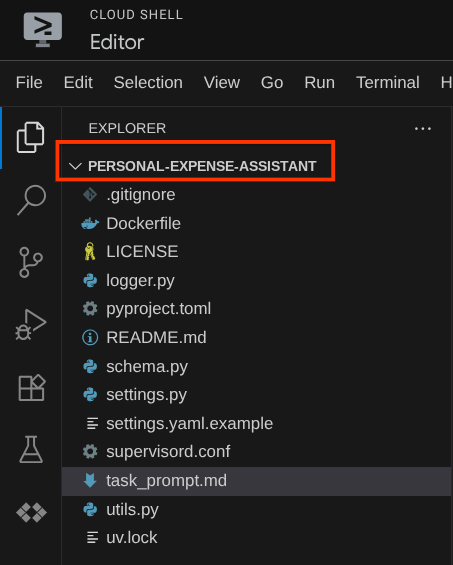
現在,Cloud Shell 編輯器應如下所示
環境設定
準備 Python 虛擬環境
下一步是準備開發環境。目前有效的終端機應位於 personal-expense-assistant 工作目錄中。在本程式碼研究室中,我們將使用 Python 3.12,並使用 uv Python 專案管理工具,簡化建立及管理 Python 版本和虛擬環境的需求。
- 如果尚未開啟終端機,請依序點選「Terminal」(終端機) ->「New Terminal」(新增終端機),或使用 Ctrl + Shift + C 鍵,在瀏覽器底部開啟終端機視窗

- 現在請使用
uv初始化虛擬環境,執行下列指令:
cd ~/personal-expense-assistant
uv sync --frozen
這會建立 .venv 目錄並安裝依附元件。快速瀏覽 pyproject.toml,即可查看依附元件資訊,如下所示
dependencies = [
    "datasets>=3.5.0",
    "google-adk==1.18",
    "google-cloud-firestore>=2.20.1",
    "gradio>=5.23.1",
    "pydantic>=2.10.6",
    "pydantic-settings[yaml]>=2.8.1",
]
設定檔
現在我們需要為這個專案設定設定檔。我們使用 pydantic-settings 從 YAML 檔案讀取設定。
我們已在 settings.yaml.example 中提供檔案範本,您需要複製該檔案並重新命名為 settings.yaml。執行這項指令來建立檔案
cp settings.yaml.example settings.yaml
然後將下列值複製到檔案中
GCLOUD_LOCATION: "us-central1"
GCLOUD_PROJECT_ID: "your-project-id"
BACKEND_URL: "http://localhost:8081/chat"
STORAGE_BUCKET_NAME: "personal-expense-{your-project-id}"
DB_COLLECTION_NAME: "personal-expense-assistant-receipts"
在本程式碼研究室中,我們將使用 GCLOUD_LOCATION, BACKEND_URL, 和 DB_COLLECTION_NAME 的預先設定值。
現在我們可以繼續下一個步驟,建構代理程式,然後建構服務
3. 🚀 使用 Google ADK 和 Gemini 2.5 建構代理
ADK 目錄結構簡介
首先,我們來瞭解 ADK 的功能,以及如何建構代理程式。如要查看 ADK 完整說明文件,請前往這個網址。ADK 在執行 CLI 指令時提供許多公用程式。部分範例如下:
- 設定代理程式目錄結構
- 透過 CLI 輸入/輸出快速試用互動功能
- 快速設定本機開發 UI 網頁介面
現在,我們使用 CLI 指令建立代理程式目錄結構。執行下列指令。
uv run adk create expense_manager_agent
系統詢問時,請選擇模型 gemini-2.5-flash 和 Vertex AI 後端。精靈接著會要求您提供專案 ID 和位置。按下 Enter 鍵即可接受預設選項,或視需要變更選項。請再次確認您使用的是稍早在此實驗室中建立的正確專案 ID。輸出內容如下所示:
Choose a model for the root agent:
1. gemini-2.5-flash
2. Other models (fill later)
Choose model (1, 2): 1
1. Google AI
2. Vertex AI
Choose a backend (1, 2): 2

You need an existing Google Cloud account and project, check out this link for details:
https://google.github.io/adk-docs/get-started/quickstart/#gemini---google-cloud-vertex-ai

Enter Google Cloud project ID [going-multimodal-lab]:
Enter Google Cloud region [us-central1]:

Agent created in /home/username/personal-expense-assistant/expense_manager_agent:
- .env
- __init__.py
- agent.py
系統會建立下列代理程式目錄結構
expense_manager_agent/
├── __init__.py
├── .env
├── agent.py
如果您檢查 init.py 和 agent.py,會看到這段程式碼
# __init__.py

from . import agent
# agent.py

from google.adk.agents import Agent

root_agent = Agent(
    model='gemini-2.5-flash',
    name='root_agent',
    description='A helpful assistant for user questions.',
    instruction='Answer user questions to the best of your knowledge',
)
現在可以執行
uv run adk run expense_manager_agent
測試完成後,只要輸入 exit 或按下 Ctrl+D,即可退出代理程式。
建構費用管理代理程式
讓我們來建構費用管理代理!開啟 expense_manager_agent/agent.py 檔案,然後複製下方包含 root_agent 的程式碼。
# expense_manager_agent/agent.py

from google.adk.agents import Agent
from expense_manager_agent.tools import (
    store_receipt_data,
    search_receipts_by_metadata_filter,
    search_relevant_receipts_by_natural_language_query,
    get_receipt_data_by_image_id,
)
from expense_manager_agent.callbacks import modify_image_data_in_history
import os
from settings import get_settings
from google.adk.planners import BuiltInPlanner
from google.genai import types

SETTINGS = get_settings()
os.environ["GOOGLE_CLOUD_PROJECT"] = SETTINGS.GCLOUD_PROJECT_ID
os.environ["GOOGLE_CLOUD_LOCATION"] = SETTINGS.GCLOUD_LOCATION
os.environ["GOOGLE_GENAI_USE_VERTEXAI"] = "TRUE"

# Get the code file directory path and read the task prompt file
current_dir = os.path.dirname(os.path.abspath(__file__))
prompt_path = os.path.join(current_dir, "task_prompt.md")
with open(prompt_path, "r") as file:
    task_prompt = file.read()

root_agent = Agent(
    name="expense_manager_agent",
    model="gemini-2.5-flash",
    description=(
        "Personal expense agent to help user track expenses, analyze receipts, and manage their financial records"
    ),
    instruction=task_prompt,
    tools=[
        store_receipt_data,
        get_receipt_data_by_image_id,
        search_receipts_by_metadata_filter,
        search_relevant_receipts_by_natural_language_query,
    ],
    planner=BuiltInPlanner(
        thinking_config=types.ThinkingConfig(
            thinking_budget=2048,
        )
    ),
    before_model_callback=modify_image_data_in_history,
)
程式碼說明
這個指令碼包含代理程式啟動程序,我們會初始化下列項目:
- 設定用於
gemini-2.5-flash的模型 - 將代理程式說明和指令設為系統提示,系統會從
task_prompt.md讀取這些提示 - 提供支援代理程式功能的必要工具
- 使用 Gemini 2.5 Flash 的思考能力,在生成最終回覆或執行作業前先進行規劃
- 在將要求傳送至 Gemini 前,先設定回呼攔截,限制預測前傳送的圖片資料數量
4. 🚀 設定代理程式工具
我們的費用管理代理程式將具備下列功能:
- 從收據圖片擷取資料,並儲存資料和檔案
- 精確搜尋費用資料
- 根據費用資料進行情境搜尋
因此我們需要適當的工具來支援這項功能。在 expense_manager_agent 目錄下建立新檔案,並命名為 tools.py
touch expense_manager_agent/tools.py
開啟 expense_manage_agent/tools.py,然後複製下列程式碼
# expense_manager_agent/tools.py

import datetime
from typing import Dict, List, Any
from google.cloud import firestore
from google.cloud.firestore_v1.vector import Vector
from google.cloud.firestore_v1 import FieldFilter
from google.cloud.firestore_v1.base_query import And
from google.cloud.firestore_v1.base_vector_query import DistanceMeasure
from settings import get_settings
from google import genai

SETTINGS = get_settings()
DB_CLIENT = firestore.Client(
    project=SETTINGS.GCLOUD_PROJECT_ID
)  # Will use "(default)" database
COLLECTION = DB_CLIENT.collection(SETTINGS.DB_COLLECTION_NAME)
GENAI_CLIENT = genai.Client(
    vertexai=True, location=SETTINGS.GCLOUD_LOCATION, project=SETTINGS.GCLOUD_PROJECT_ID
)
EMBEDDING_DIMENSION = 768
EMBEDDING_FIELD_NAME = "embedding"
INVALID_ITEMS_FORMAT_ERR = """
Invalid items format. Must be a list of dictionaries with 'name', 'price', and 'quantity' keys."""
RECEIPT_DESC_FORMAT = """
Store Name: {store_name}
Transaction Time: {transaction_time}
Total Amount: {total_amount}
Currency: {currency}
Purchased Items:
{purchased_items}
Receipt Image ID: {receipt_id}
"""


def sanitize_image_id(image_id: str) -> str:
    """Sanitize image ID by removing any leading/trailing whitespace."""
    if image_id.startswith("[IMAGE-"):
        image_id = image_id.split("ID ")[1].split("]")[0]

    return image_id.strip()


def store_receipt_data(
    image_id: str,
    store_name: str,
    transaction_time: str,
    total_amount: float,
    purchased_items: List[Dict[str, Any]],
    currency: str = "IDR",
) -> str:
    """
    Store receipt data in the database.

    Args:
        image_id (str): The unique identifier of the image. For example IMAGE-POSITION 0-ID 12345,
            the ID of the image is 12345.
        store_name (str): The name of the store.
        transaction_time (str): The time of purchase, in ISO format ("YYYY-MM-DDTHH:MM:SS.ssssssZ").
        total_amount (float): The total amount spent.
        purchased_items (List[Dict[str, Any]]): A list of items purchased with their prices. Each item must have:
            - name (str): The name of the item.
            - price (float): The price of the item.
            - quantity (int, optional): The quantity of the item. Defaults to 1 if not provided.
        currency (str, optional): The currency of the transaction, can be derived from the store location.
            If unsure, default is "IDR".

    Returns:
        str: A success message with the receipt ID.

    Raises:
        Exception: If the operation failed or input is invalid.
    """
    try:
        # In case of it provide full image placeholder, extract the id string
        image_id = sanitize_image_id(image_id)

        # Check if the receipt already exists
        doc = get_receipt_data_by_image_id(image_id)

        if doc:
            return f"Receipt with ID {image_id} already exists"

        # Validate transaction time
        if not isinstance(transaction_time, str):
            raise ValueError(
                "Invalid transaction time: must be a string in ISO format 'YYYY-MM-DDTHH:MM:SS.ssssssZ'"
            )
        try:
            datetime.datetime.fromisoformat(transaction_time.replace("Z", "+00:00"))
        except ValueError:
            raise ValueError(
                "Invalid transaction time format. Must be in ISO format 'YYYY-MM-DDTHH:MM:SS.ssssssZ'"
            )

        # Validate items format
        if not isinstance(purchased_items, list):
            raise ValueError(INVALID_ITEMS_FORMAT_ERR)

        for _item in purchased_items:
            if (
                not isinstance(_item, dict)
                or "name" not in _item
                or "price" not in _item
            ):
                raise ValueError(INVALID_ITEMS_FORMAT_ERR)

            if "quantity" not in _item:
                _item["quantity"] = 1

        # Create a combined text from all receipt information for better embedding
        result = GENAI_CLIENT.models.embed_content(
            model="text-embedding-004",
            contents=RECEIPT_DESC_FORMAT.format(
                store_name=store_name,
                transaction_time=transaction_time,
                total_amount=total_amount,
                currency=currency,
                purchased_items=purchased_items,
                receipt_id=image_id,
            ),
        )

        embedding = result.embeddings[0].values

        doc = {
            "receipt_id": image_id,
            "store_name": store_name,
            "transaction_time": transaction_time,
            "total_amount": total_amount,
            "currency": currency,
            "purchased_items": purchased_items,
            EMBEDDING_FIELD_NAME: Vector(embedding),
        }

        COLLECTION.add(doc)

        return f"Receipt stored successfully with ID: {image_id}"
    except Exception as e:
        raise Exception(f"Failed to store receipt: {str(e)}")


def search_receipts_by_metadata_filter(
    start_time: str,
    end_time: str,
    min_total_amount: float = -1.0,
    max_total_amount: float = -1.0,
) -> str:
    """
    Filter receipts by metadata within a specific time range and optionally by amount.

    Args:
        start_time (str): The start datetime for the filter (in ISO format, e.g. 'YYYY-MM-DDTHH:MM:SS.ssssssZ').
        end_time (str): The end datetime for the filter (in ISO format, e.g. 'YYYY-MM-DDTHH:MM:SS.ssssssZ').
        min_total_amount (float): The minimum total amount for the filter (inclusive). Defaults to -1.
        max_total_amount (float): The maximum total amount for the filter (inclusive). Defaults to -1.

    Returns:
        str: A string containing the list of receipt data matching all applied filters.

    Raises:
        Exception: If the search failed or input is invalid.
    """
    try:
        # Validate start and end times
        if not isinstance(start_time, str) or not isinstance(end_time, str):
            raise ValueError("start_time and end_time must be strings in ISO format")
        try:
            datetime.datetime.fromisoformat(start_time.replace("Z", "+00:00"))
            datetime.datetime.fromisoformat(end_time.replace("Z", "+00:00"))
        except ValueError:
            raise ValueError("start_time and end_time must be strings in ISO format")

        # Start with the base collection reference
        query = COLLECTION

        # Build the composite query by properly chaining conditions
        # Notes that this demo assume 1 user only,
        # need to refactor the query for multiple user
        filters = [
            FieldFilter("transaction_time", ">=", start_time),
            FieldFilter("transaction_time", "<=", end_time),
        ]

        # Add optional filters
        if min_total_amount != -1:
            filters.append(FieldFilter("total_amount", ">=", min_total_amount))

        if max_total_amount != -1:
            filters.append(FieldFilter("total_amount", "<=", max_total_amount))

        # Apply the filters
        composite_filter = And(filters=filters)
        query = query.where(filter=composite_filter)

        # Execute the query and collect results
        search_result_description = "Search by Metadata Results:\n"
        for doc in query.stream():
            data = doc.to_dict()
            data.pop(
                EMBEDDING_FIELD_NAME, None
            )  # Remove embedding as it's not needed for display

            search_result_description += f"\n{RECEIPT_DESC_FORMAT.format(**data)}"

        return search_result_description
    except Exception as e:
        raise Exception(f"Error filtering receipts: {str(e)}")


def search_relevant_receipts_by_natural_language_query(
    query_text: str, limit: int = 5
) -> str:
    """
    Search for receipts with content most similar to the query using vector search.
    This tool can be use for user query that is difficult to translate into metadata filters.
    Such as store name or item name which sensitive to string matching.
    Use this tool if you cannot utilize the search by metadata filter tool.

    Args:
        query_text (str): The search text (e.g., "coffee", "dinner", "groceries").
        limit (int, optional): Maximum number of results to return (default: 5).

    Returns:
        str: A string containing the list of contextually relevant receipt data.

    Raises:
        Exception: If the search failed or input is invalid.
    """
    try:
        # Generate embedding for the query text
        result = GENAI_CLIENT.models.embed_content(
            model="text-embedding-004", contents=query_text
        )
        query_embedding = result.embeddings[0].values

        # Notes that this demo assume 1 user only,
        # need to refactor the query for multiple user
        vector_query = COLLECTION.find_nearest(
            vector_field=EMBEDDING_FIELD_NAME,
            query_vector=Vector(query_embedding),
            distance_measure=DistanceMeasure.EUCLIDEAN,
            limit=limit,
        )

        # Execute the query and collect results
        search_result_description = "Search by Contextual Relevance Results:\n"
        for doc in vector_query.stream():
            data = doc.to_dict()
            data.pop(
                EMBEDDING_FIELD_NAME, None
            )  # Remove embedding as it's not needed for display
            search_result_description += f"\n{RECEIPT_DESC_FORMAT.format(**data)}"

        return search_result_description
    except Exception as e:
        raise Exception(f"Error searching receipts: {str(e)}")


def get_receipt_data_by_image_id(image_id: str) -> Dict[str, Any]:
    """
    Retrieve receipt data from the database using the image_id.

    Args:
        image_id (str): The unique identifier of the receipt image. For example, if the placeholder is
            [IMAGE-ID 12345], the ID to use is 12345.

    Returns:
        Dict[str, Any]: A dictionary containing the receipt data with the following keys:
            - receipt_id (str): The unique identifier of the receipt image.
            - store_name (str): The name of the store.
            - transaction_time (str): The time of purchase in UTC.
            - total_amount (float): The total amount spent.
            - currency (str): The currency of the transaction.
            - purchased_items (List[Dict[str, Any]]): List of items purchased with their details.
        Returns an empty dictionary if no receipt is found.
    """
    # In case of it provide full image placeholder, extract the id string
    image_id = sanitize_image_id(image_id)

    # Query the receipts collection for documents with matching receipt_id (image_id)
    # Notes that this demo assume 1 user only,
    # need to refactor the query for multiple user
    query = COLLECTION.where(filter=FieldFilter("receipt_id", "==", image_id)).limit(1)
    docs = list(query.stream())

    if not docs:
        return {}

    # Get the first matching document
    doc_data = docs[0].to_dict()
    doc_data.pop(EMBEDDING_FIELD_NAME, None)

    return doc_data
程式碼說明
在實作這項工具函式時,我們會根據以下 2 個主要概念設計工具:
- 使用圖片 ID 字串預留位置
[IMAGE-ID <hash-of-image-1>],剖析收據資料並對應至原始檔案 - 使用 Firestore 資料庫儲存及擷取資料
「store_receipt_data」工具
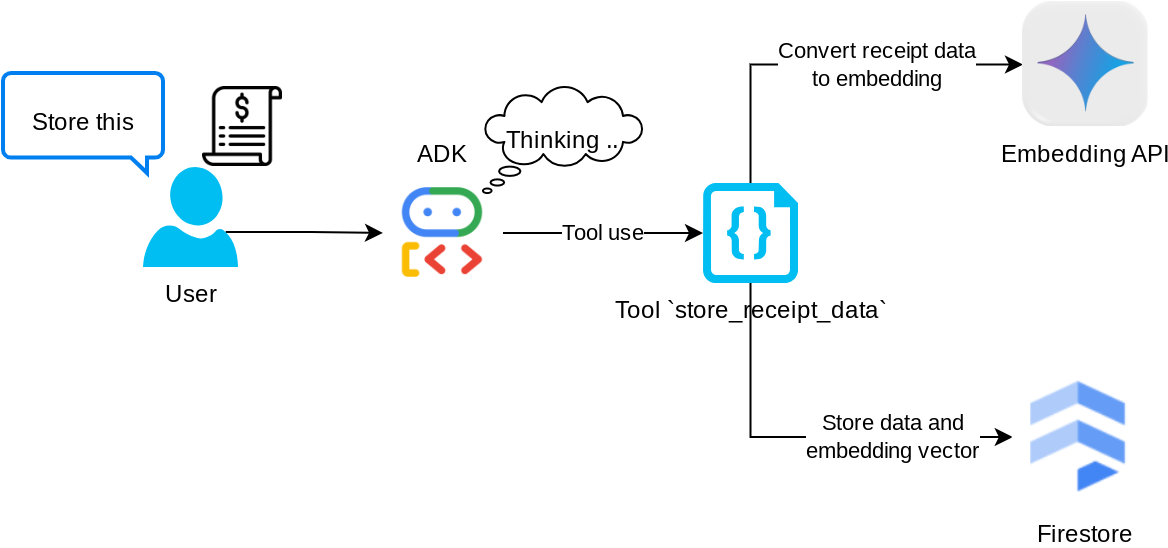
這項工具是光學字元辨識工具,可從圖片資料剖析必要資訊,並辨識圖片 ID 字串,然後將兩者對應並儲存在 Firestore 資料庫中。
此外,這項工具也會使用 text-embedding-004 將收據內容轉換為嵌入,以便一併儲存及建立所有中繼資料和嵌入的索引。可透過查詢或情境搜尋擷取資料,彈性十足。
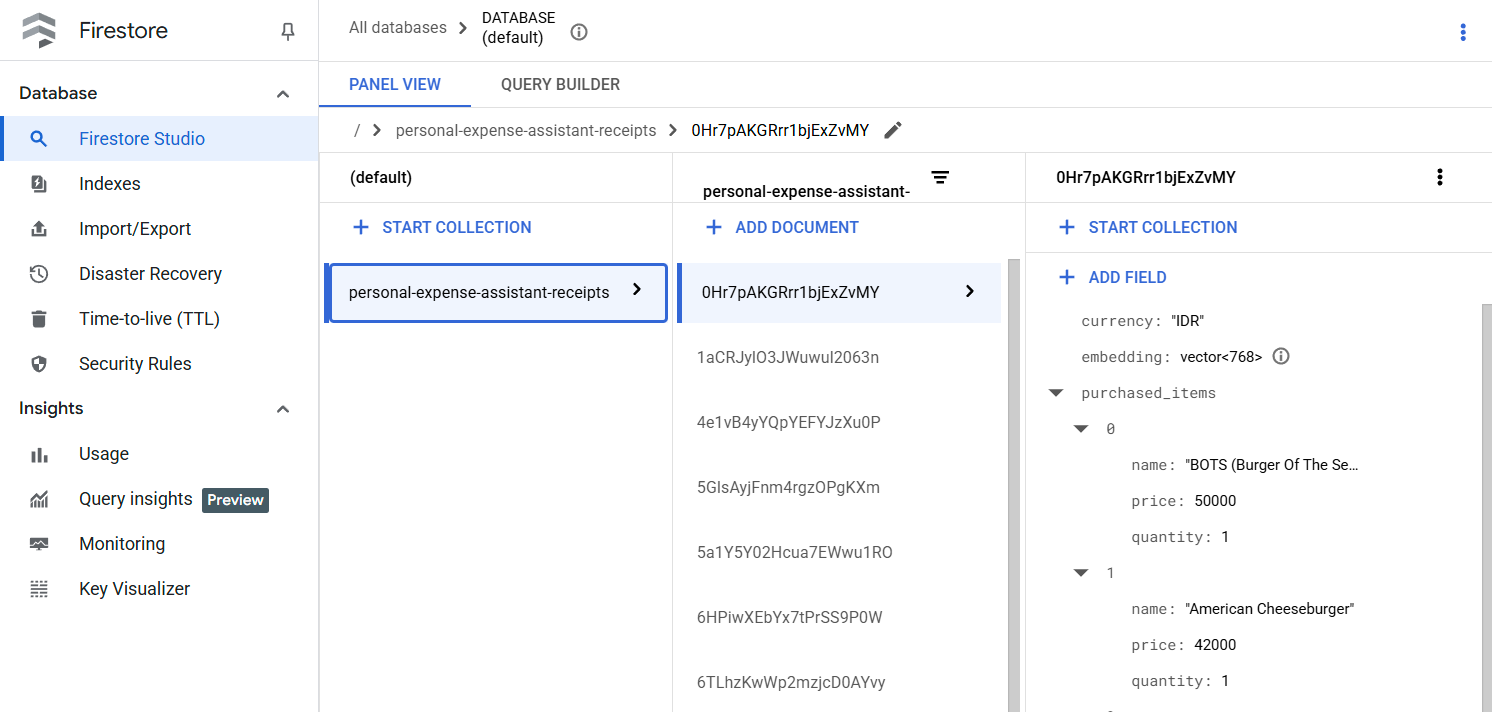
成功執行這項工具後,您會看到收據資料已在 Firestore 資料庫中建立索引,如下所示
工具「search_receipts_by_metadata_filter」
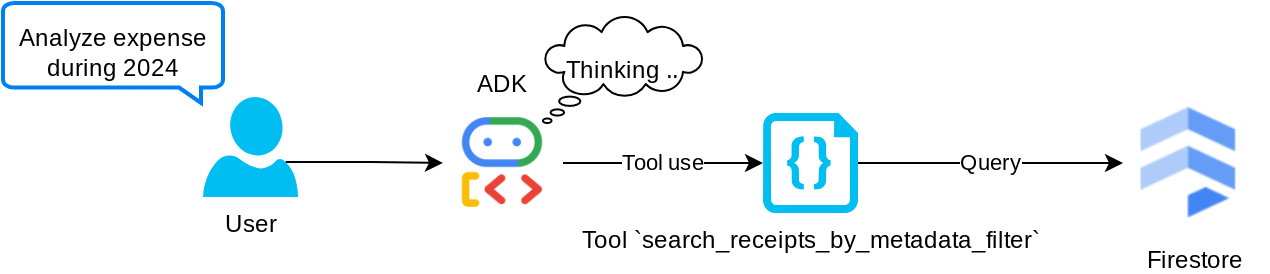
這項工具會將使用者查詢轉換為中繼資料查詢篩選器,支援依日期範圍和/或交易總額搜尋。系統會傳回所有相符的收據資料,並在過程中捨棄嵌入欄位,因為代理程式不需要該欄位即可瞭解情境
工具「search_relevant_receipts_by_natural_language_query」
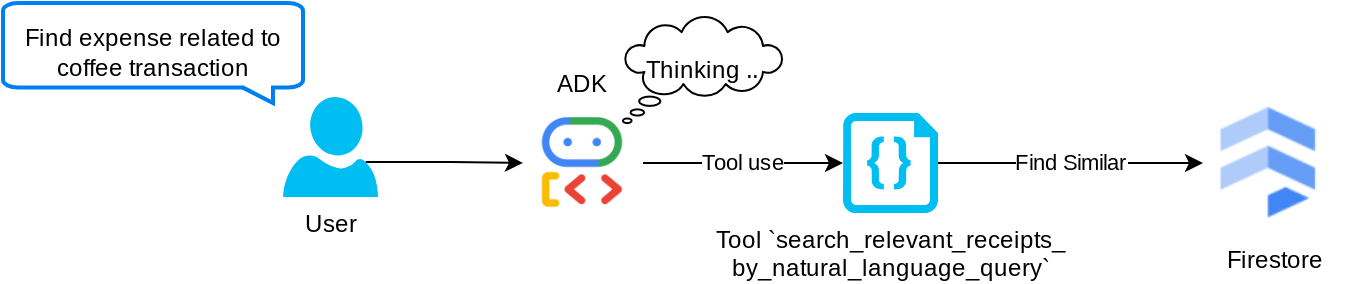
這是我們的檢索增強生成 (RAG) 工具。我們的服務專員可以自行設計查詢,從向量資料庫擷取相關收據,也可以選擇何時使用這項工具。Agentic RAG 方法的定義之一,是允許代理自行決定是否使用這項 RAG 工具,以及設計自己的查詢。
我們不僅允許該模型建構自己的查詢,也允許該模型選取要擷取多少相關文件。搭配適當的提示工程,例如:
# Example prompt

Always filter the result from tool
search_relevant_receipts_by_natural_language_query as the returned
result may contain irrelevant information
這項工具將能搜尋幾乎所有內容,但由於最鄰近搜尋並非完全比對,因此可能無法傳回所有預期結果。
5. 🚀 透過回呼修改對話內容
Google ADK 可讓我們在不同層級「攔截」代理執行階段。如要進一步瞭解這項詳細功能,請參閱這份說明文件。在本實驗室中,我們會使用 before_model_callback 修改傳送至 LLM 的要求,移除舊對話記錄情境中的圖片資料 ( 僅納入最近 3 次使用者互動中的圖片資料),以提高效率。
不過,我們仍希望服務專員在必要時取得圖片資料的背景資訊。因此,我們在對話中的每個圖片位元組資料後方,新增了字串圖片 ID 預留位置。這有助於代理程式將圖片 ID 連結至實際檔案資料,以便在儲存或擷取圖片時使用。結構如下所示
<image-byte-data-1>
[IMAGE-ID <hash-of-image-1>]
<image-byte-data-2>
[IMAGE-ID <hash-of-image-2>]
And so on..
即使對話記錄中的位元組資料已過時,字串 ID 仍會保留,方便您使用工具存取資料。移除圖片資料後的記錄結構範例
[IMAGE-ID <hash-of-image-1>]
[IMAGE-ID <hash-of-image-2>]
And so on..
現在就開始吧!在 expense_manager_agent 目錄下建立新檔案,並命名為 callbacks.py
touch expense_manager_agent/callbacks.py
開啟 expense_manager_agent/callbacks.py 檔案,然後複製下列程式碼
# expense_manager_agent/callbacks.py

import hashlib
from google.genai import types
from google.adk.agents.callback_context import CallbackContext
from google.adk.models.llm_request import LlmRequest


def modify_image_data_in_history(
    callback_context: CallbackContext, llm_request: LlmRequest
) -> None:
    # The following code will modify the request sent to LLM
    # We will only keep image data in the last 3 user messages using a reverse and counter approach

    # Count how many user messages we've processed
    user_message_count = 0

    # Process the reversed list
    for content in reversed(llm_request.contents):
        # Only count for user manual query, not function call
        if (content.role == "user") and (content.parts[0].function_response is None):
            user_message_count += 1
            modified_content_parts = []

            # Check any missing image ID placeholder for any image data
            # Then remove image data from conversation history if more than 3 user messages
            for idx, part in enumerate(content.parts):
                if part.inline_data is None:
                    modified_content_parts.append(part)
                    continue

                if (
                    (idx + 1 >= len(content.parts))
                    or (content.parts[idx + 1].text is None)
                    or (not content.parts[idx + 1].text.startswith("[IMAGE-ID "))
                ):
                    # Generate hash ID for the image and add a placeholder
                    image_data = part.inline_data.data
                    hasher = hashlib.sha256(image_data)
                    image_hash_id = hasher.hexdigest()[:12]
                    placeholder = f"[IMAGE-ID {image_hash_id}]"

                    # Only keep image data in the last 3 user messages
                    if user_message_count <= 3:
                        modified_content_parts.append(part)

                    modified_content_parts.append(types.Part(text=placeholder))

                else:
                    # Only keep image data in the last 3 user messages
                    if user_message_count <= 3:
                        modified_content_parts.append(part)

            # This will modify the contents inside the llm_request
            content.parts = modified_content_parts
6. 🚀 提示
設計具有複雜互動和功能的代理程式時,我們需要找到足夠好的提示來引導代理程式,讓代理程式的行為符合我們的期望。
先前我們有處理對話記錄中圖片資料的機制,也有可能難以使用的工具,例如 search_relevant_receipts_by_natural_language_query.。我們也希望代理程式能夠搜尋並擷取正確的收據圖片。也就是說,我們需要以適當的提示結構,正確傳達所有這些資訊
我們會要求代理程式將輸出內容整理成下列 Markdown 格式,以便剖析思考過程、最終回覆和附件 ( 如有)
# THINKING PROCESS

Thinking process here

# FINAL RESPONSE

Response to the user here

Attachments put inside json block

{
    "attachments": [
      "[IMAGE-ID <hash-id-1>]",
      "[IMAGE-ID <hash-id-2>]",
      ...
    ]
}
我們先使用下列提示詞,達成費用管理代理程式行為的初步期望。task_prompt.md 檔案應已存在於現有的工作目錄中,但我們需要將其移至 expense_manager_agent 目錄下。執行下列指令來移動該檔案
mv task_prompt.md expense_manager_agent/task_prompt.md
7. 🚀 測試代理程式
現在讓我們嘗試透過 CLI 與代理程式通訊,請執行下列指令
uv run adk run expense_manager_agent
系統會顯示類似下方的輸出內容,您可輪流與代理程式對話,但只能透過這個介面傳送文字
Log setup complete: /tmp/agents_log/agent.xxxx_xxx.log
To access latest log: tail -F /tmp/agents_log/agent.latest.log
Running agent root_agent, type exit to exit.
user: hello
[root_agent]: Hello there! How can I help you today?
user:
現在,除了 CLI 互動之外,ADK 也提供開發 UI,方便我們在互動期間進行互動及檢查。執行下列指令,啟動本機開發 UI 伺服器
uv run adk web --port 8080
這會產生類似下列範例的輸出內容,表示我們已可存取網頁介面
INFO:     Started server process [xxxx]
INFO:     Waiting for application startup.

+-----------------------------------------------------------------------------+
| ADK Web Server started                                                      |
|                                                                             |
| For local testing, access at http://localhost:8080.                         |
+-----------------------------------------------------------------------------+

INFO:     Application startup complete.
INFO:     Uvicorn running on http://0.0.0.0:8080 (Press CTRL+C to quit)
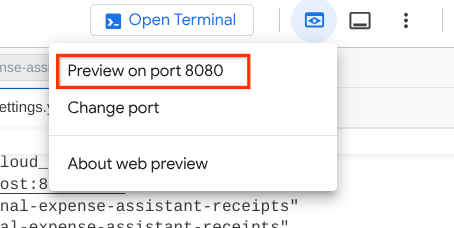
如要檢查,請點選 Cloud Shell 編輯器頂端的「Web Preview」(網頁預覽) 按鈕,然後選取「Preview on port 8080」(透過以下通訊埠預覽:8080)。
您會看到下列網頁,可以在左上方的下拉式按鈕中選取可用的代理程式 ( 在本例中應為 expense_manager_agent),並與機器人互動。在左側視窗中,您會看到代理程式執行階段的記錄詳細資料
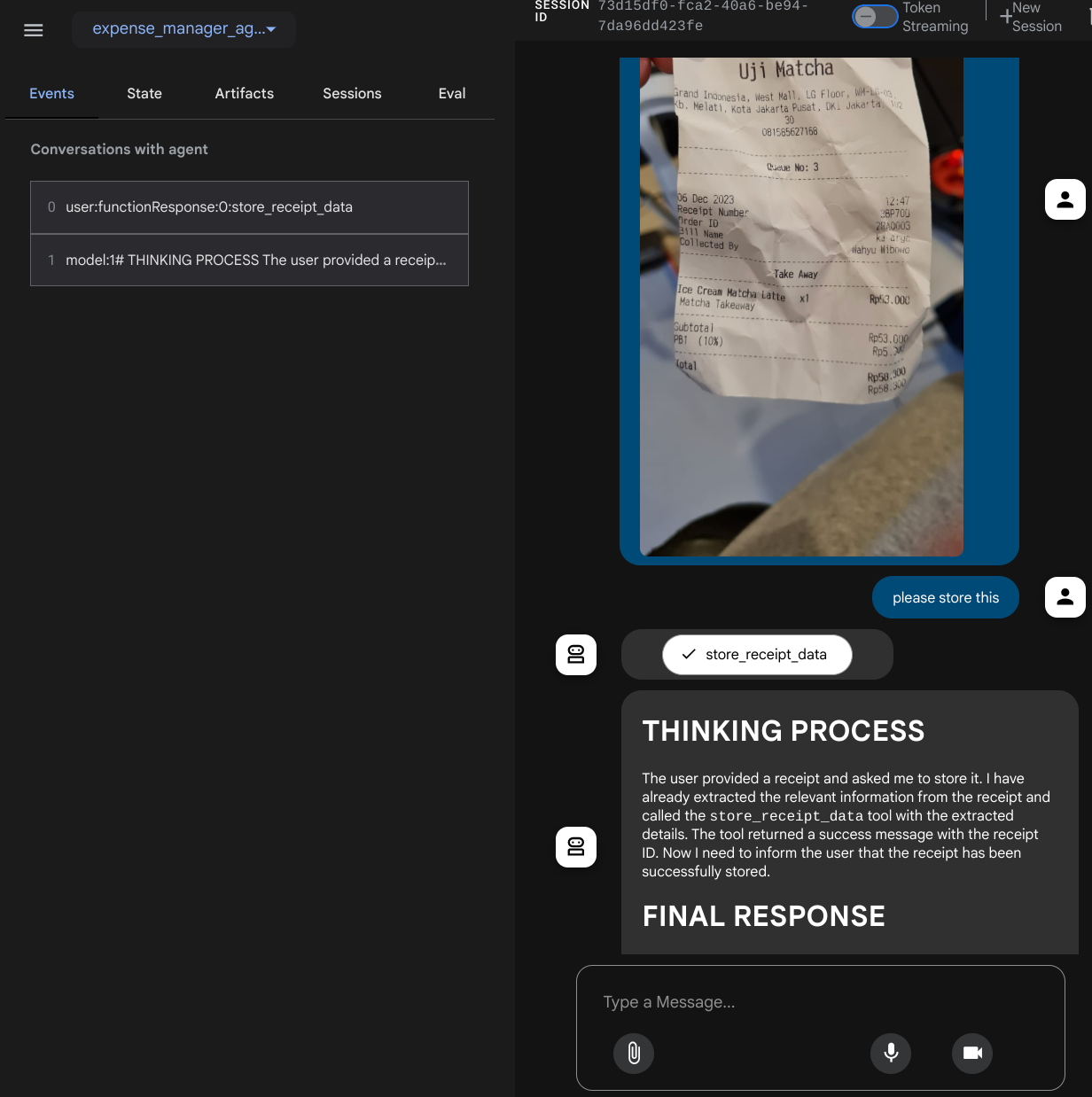
我們來試試一些動作!上傳這 2 張收據範例 ( 來源:Hugging Face 資料集 mousserlane/id_receipt_dataset)。在每張圖片上按一下滑鼠右鍵,然後選擇「另存圖片…」( 系統會下載收據圖片),然後按一下「迴紋針」圖示,將檔案上傳至機器人,並說明要儲存這些收據
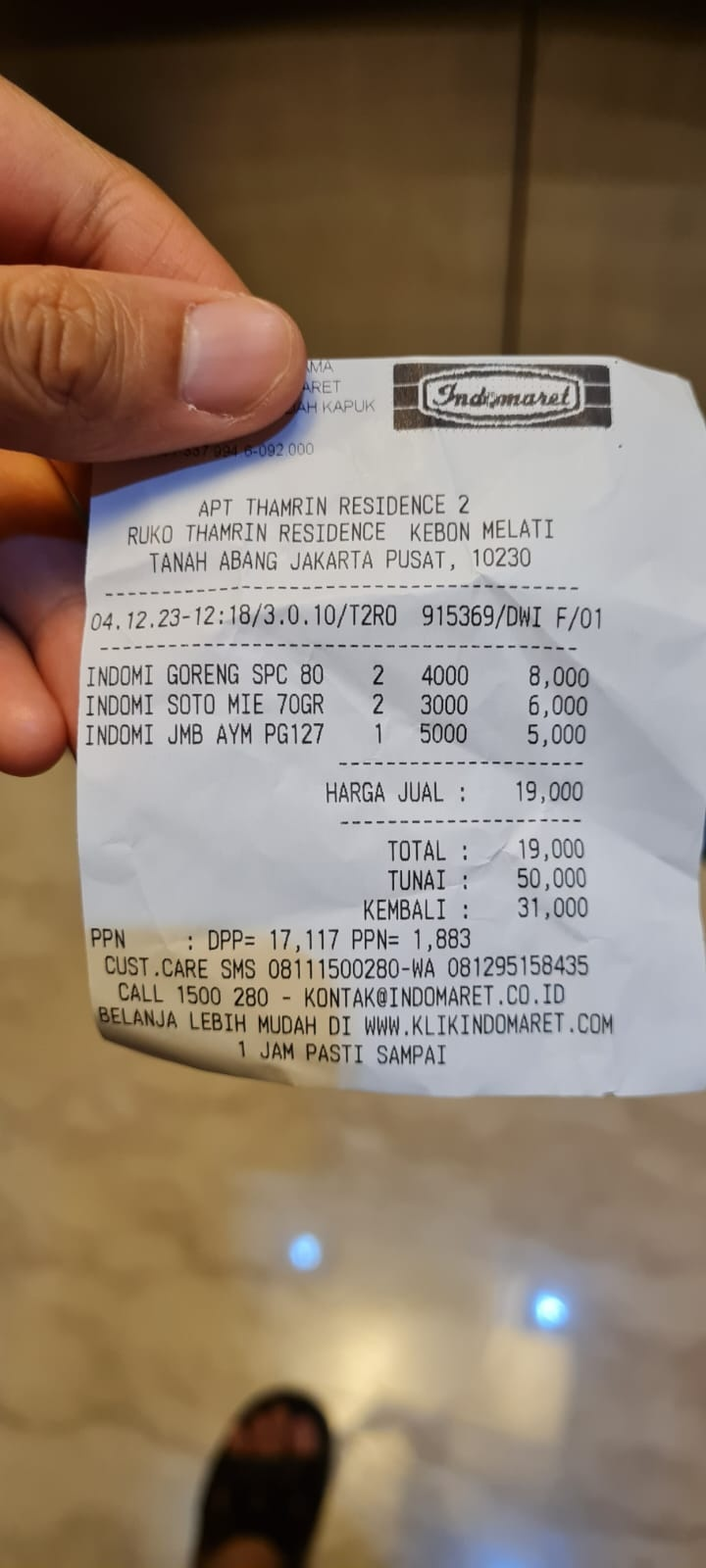
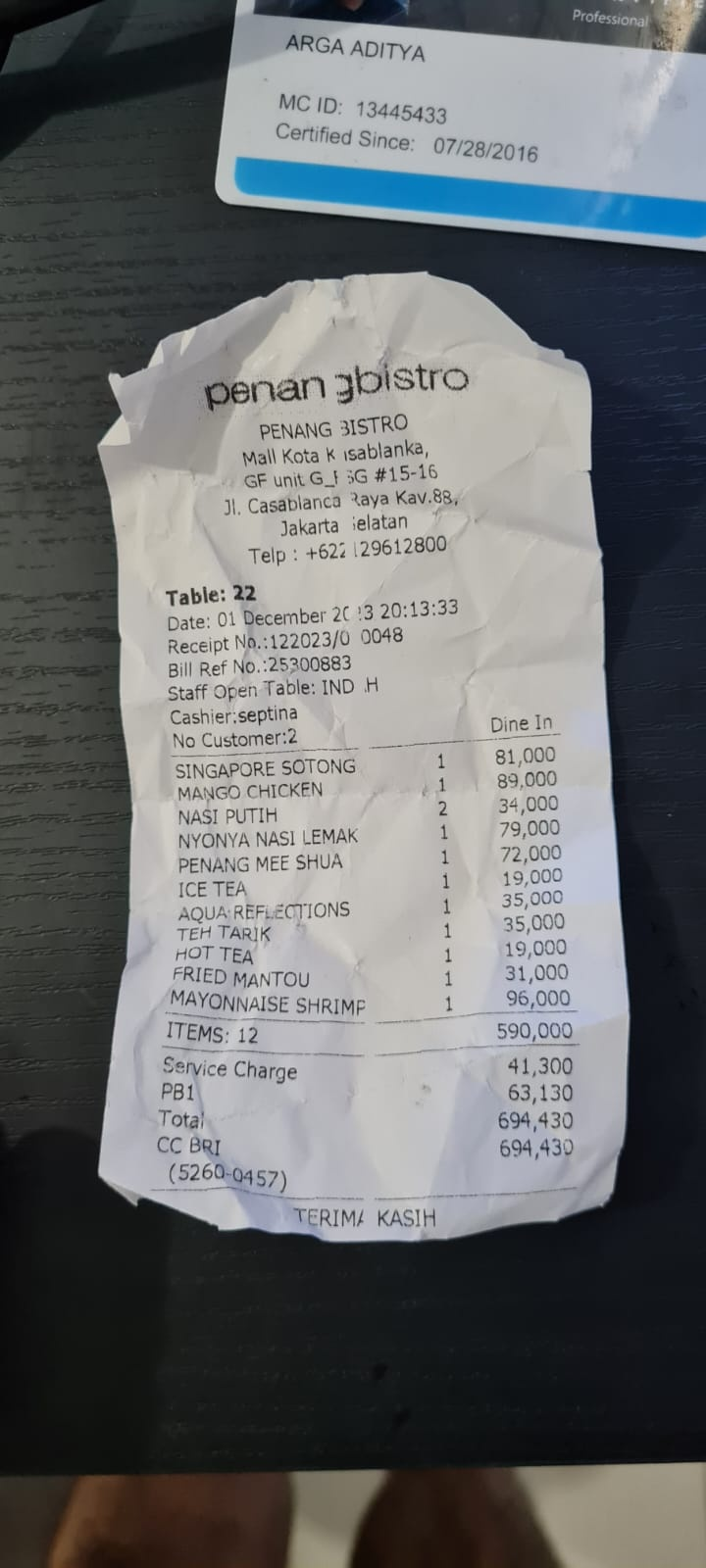
接著嘗試下列查詢,進行搜尋或檔案擷取
- 「請提供 2023 年的支出明細和總額」
- 「Give me receipt file from Indomaret」(給我 Indomaret 的收據檔案)
使用某些工具時,您可以檢查開發 UI 中的情況
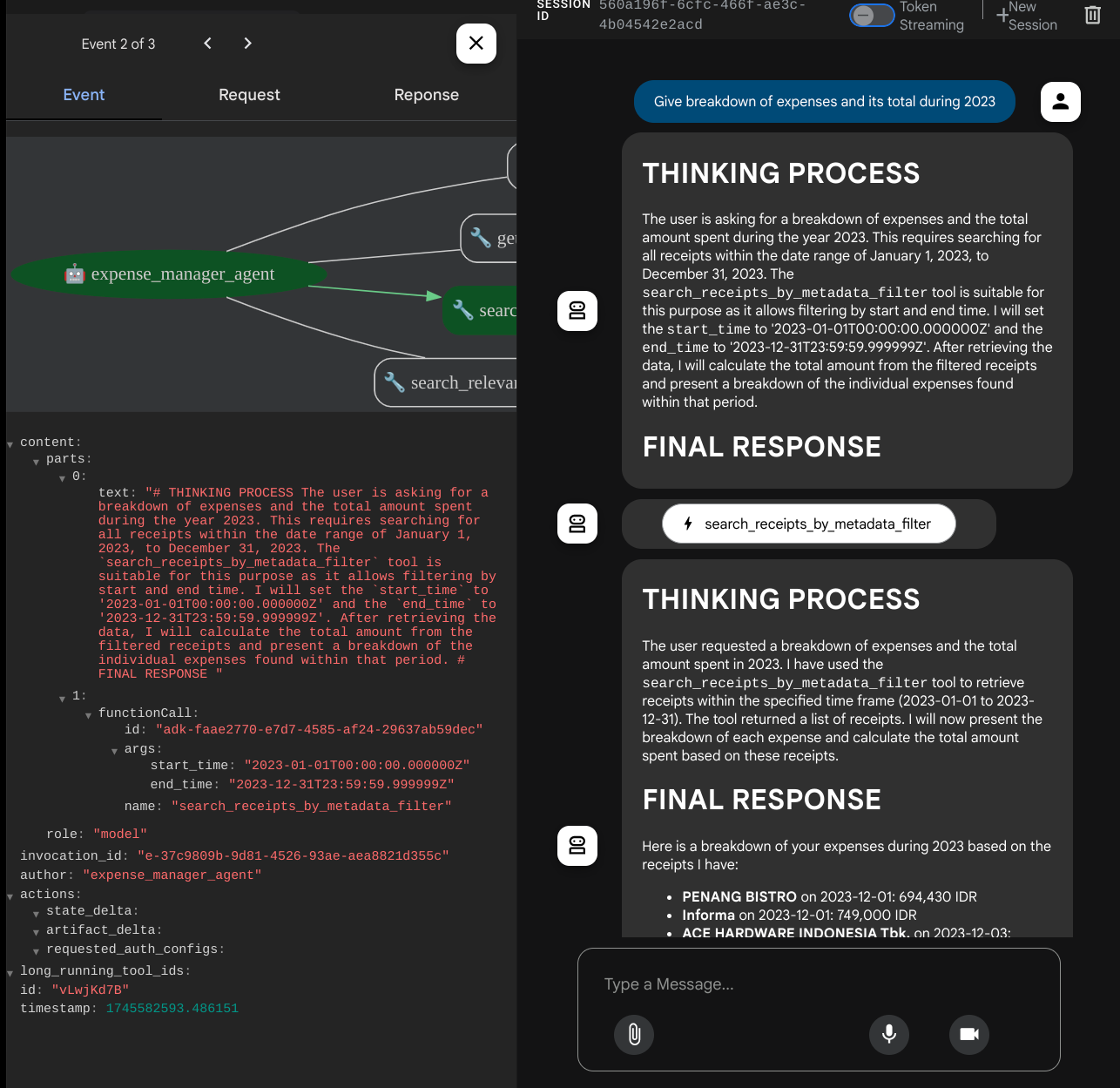
查看代理程式的回覆,並確認是否符合 task_prompt.py 提示中的所有規則。恭喜!現在您已擁有完整且可運作的開發代理程式。
現在,請完成這個應用程式,加入適當且美觀的 UI,以及上傳和下載圖片檔案的功能。
8. 🚀 使用 Gradio 建構前端服務
我們將建構如下所示的即時通訊網頁介面
當中包含對話介面和輸入欄位,使用者可在此輸入文字,並上傳收據圖片檔案。
我們將使用 Gradio 建構前端服務。
建立新檔案並命名為 frontend.py
touch frontend.py
然後複製下列程式碼並儲存
import mimetypes
import gradio as gr
import requests
import base64
from typing import List, Dict, Any
from settings import get_settings
from PIL import Image
import io
from schema import ImageData, ChatRequest, ChatResponse


SETTINGS = get_settings()


def encode_image_to_base64_and_get_mime_type(image_path: str) -> ImageData:
    """Encode a file to base64 string and get MIME type.

    Reads an image file and returns the base64-encoded image data and its MIME type.

    Args:
        image_path: Path to the image file to encode.

    Returns:
        ImageData object containing the base64 encoded image data and its MIME type.
    """
    # Read the image file
    with open(image_path, "rb") as file:
        image_content = file.read()

    # Get the mime type
    mime_type = mimetypes.guess_type(image_path)[0]

    # Base64 encode the image
    base64_data = base64.b64encode(image_content).decode("utf-8")

    # Return as ImageData object
    return ImageData(serialized_image=base64_data, mime_type=mime_type)


def decode_base64_to_image(base64_data: str) -> Image.Image:
    """Decode a base64 string to PIL Image.

    Converts a base64-encoded image string back to a PIL Image object
    that can be displayed or processed further.

    Args:
        base64_data: Base64 encoded string of the image.

    Returns:
        PIL Image object of the decoded image.
    """
    # Decode the base64 string and convert to PIL Image
    image_data = base64.b64decode(base64_data)
    image_buffer = io.BytesIO(image_data)
    image = Image.open(image_buffer)

    return image


def get_response_from_llm_backend(
    message: Dict[str, Any],
    history: List[Dict[str, Any]],
) -> List[str | gr.Image]:
    """Send the message and history to the backend and get a response.

    Args:
        message: Dictionary containing the current message with 'text' and optional 'files' keys.
        history: List of previous message dictionaries in the conversation.

    Returns:
        List containing text response and any image attachments from the backend service.
    """
    # Extract files and convert to base64
    image_data = []
    if uploaded_files := message.get("files", []):
        for file_path in uploaded_files:
            image_data.append(encode_image_to_base64_and_get_mime_type(file_path))

    # Prepare the request payload
    payload = ChatRequest(
        text=message["text"],
        files=image_data,
        session_id="default_session",
        user_id="default_user",
    )

    # Send request to backend
    try:
        response = requests.post(SETTINGS.BACKEND_URL, json=payload.model_dump())
        response.raise_for_status()  # Raise exception for HTTP errors

        result = ChatResponse(**response.json())
        if result.error:
            return [f"Error: {result.error}"]

        chat_responses = []

        if result.thinking_process:
            chat_responses.append(
                gr.ChatMessage(
                    role="assistant",
                    content=result.thinking_process,
                    metadata={"title": "🧠 Thinking Process"},
                )
            )

        chat_responses.append(gr.ChatMessage(role="assistant", content=result.response))

        if result.attachments:
            for attachment in result.attachments:
                image_data = attachment.serialized_image
                chat_responses.append(gr.Image(decode_base64_to_image(image_data)))

        return chat_responses
    except requests.exceptions.RequestException as e:
        return [f"Error connecting to backend service: {str(e)}"]


if __name__ == "__main__":
    demo = gr.ChatInterface(
        get_response_from_llm_backend,
        title="Personal Expense Assistant",
        description="This assistant can help you to store receipts data, find receipts, and track your expenses during certain period.",
        type="messages",
        multimodal=True,
        textbox=gr.MultimodalTextbox(file_count="multiple", file_types=["image"]),
    )

    demo.launch(
        server_name="0.0.0.0",
        server_port=8080,
    )
接著,我們可以嘗試執行下列指令來執行前端服務。別忘了將 main.py 檔案重新命名為 frontend.py
uv run frontend.py
雲端控制台會顯示類似以下的輸出內容
* Running on local URL:  http://0.0.0.0:8080

To create a public link, set `share=True` in `launch()`.
接著,只要 按住 Ctrl 鍵並點選本機網址連結,即可查看網頁介面。或者,您也可以點按 Cloud Editor 右上方的「Web Preview」(網頁預覽) 按鈕,然後選取「Preview on port 8080」(透過以下通訊埠預覽:8080),存取前端應用程式。
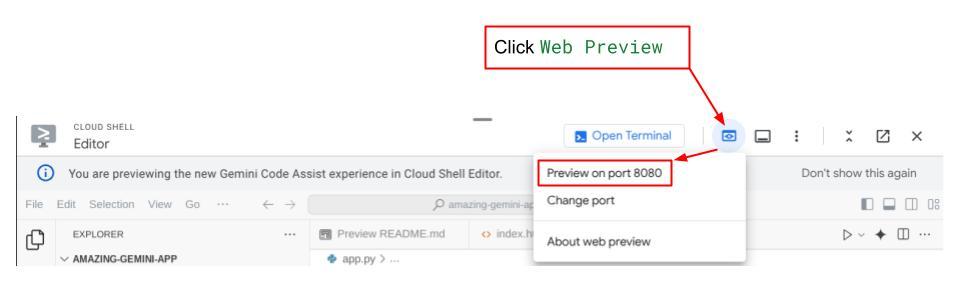
您會看到網頁介面,但由於後端服務尚未設定,因此嘗試提交對話時會收到預期錯誤
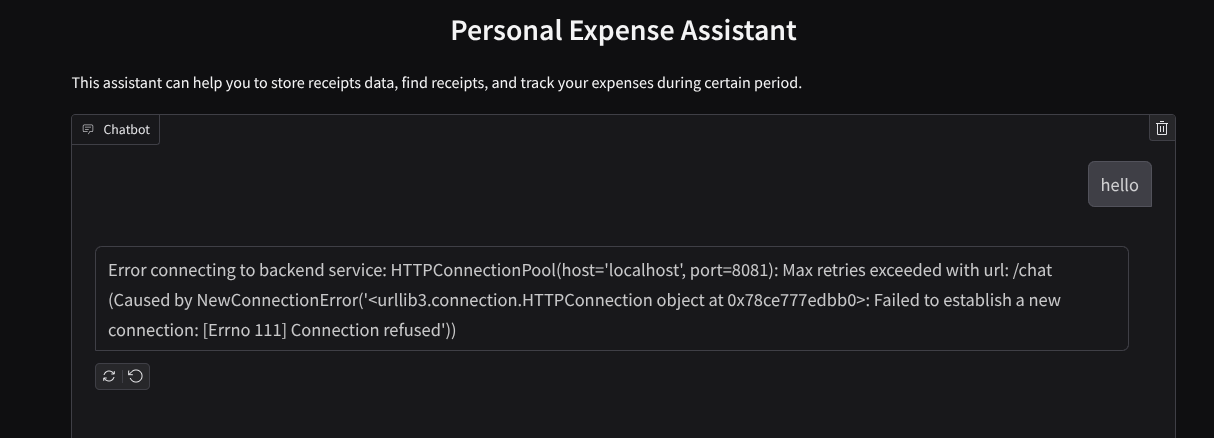
現在請執行服務,但先別終止服務。我們會在另一個終端機分頁中執行後端服務
程式碼說明
在這個前端程式碼中,首先要讓使用者傳送文字和上傳多個檔案。Gradio 允許我們使用 gr.ChatInterface 方法搭配 gr.MultimodalTextbox,建立這類功能
現在,在將檔案和文字傳送至後端之前,我們需要找出檔案的 MIME 類型,因為後端需要這項資訊。我們也需要將圖片檔案位元組編碼為 base64,並與 MIME 類型一併傳送。
class ImageData(BaseModel):
    """Model for image data with hash identifier.

    Attributes:
        serialized_image: Optional Base64 encoded string of the image content.
        mime_type: MIME type of the image.
    """

    serialized_image: str
    mime_type: str
用於前端 - 後端互動的結構定義是在 schema.py 中定義。我們使用 Pydantic BaseModel 在結構定義中強制執行資料驗證
收到回覆時,我們已將思考過程、最終回覆和附件分開。因此,我們可以利用 Gradio 元件,透過 UI 元件顯示每個元件。
class ChatResponse(BaseModel):
    """Model for a chat response.

    Attributes:
        response: The text response from the model.
        thinking_process: Optional thinking process of the model.
        attachments: List of image data to be displayed to the user.
        error: Optional error message if something went wrong.
    """

    response: str
    thinking_process: str = ""
    attachments: List[ImageData] = []
    error: Optional[str] = None
9. 🚀 使用 FastAPI 建構後端服務
接下來,我們需要建構後端,以便初始化 Agent 和其他元件,執行 Agent 執行階段。
建立新檔案,並命名為 backend.py
touch backend.py
並複製下列程式碼
from expense_manager_agent.agent import root_agent as expense_manager_agent
from google.adk.sessions import InMemorySessionService
from google.adk.runners import Runner
from google.adk.events import Event
from fastapi import FastAPI, Body, Depends
from typing import AsyncIterator
from types import SimpleNamespace
import uvicorn
from contextlib import asynccontextmanager
from utils import (
    extract_attachment_ids_and_sanitize_response,
    download_image_from_gcs,
    extract_thinking_process,
    format_user_request_to_adk_content_and_store_artifacts,
)
from schema import ImageData, ChatRequest, ChatResponse
import logger
from google.adk.artifacts import GcsArtifactService
from settings import get_settings

SETTINGS = get_settings()
APP_NAME = "expense_manager_app"


# Application state to hold service contexts
class AppContexts(SimpleNamespace):
    """A class to hold application contexts with attribute access"""

    session_service: InMemorySessionService = None
    artifact_service: GcsArtifactService = None
    expense_manager_agent_runner: Runner = None


# Initialize application state
app_contexts = AppContexts()


@asynccontextmanager
async def lifespan(app: FastAPI):
    # Initialize service contexts during application startup
    app_contexts.session_service = InMemorySessionService()
    app_contexts.artifact_service = GcsArtifactService(
        bucket_name=SETTINGS.STORAGE_BUCKET_NAME
    )
    app_contexts.expense_manager_agent_runner = Runner(
        agent=expense_manager_agent,  # The agent we want to run
        app_name=APP_NAME,  # Associates runs with our app
        session_service=app_contexts.session_service,  # Uses our session manager
        artifact_service=app_contexts.artifact_service,  # Uses our artifact manager
    )

    logger.info("Application started successfully")
    yield
    logger.info("Application shutting down")
    # Perform cleanup during application shutdown if necessary


# Helper function to get application state as a dependency
async def get_app_contexts() -> AppContexts:
    return app_contexts


# Create FastAPI app
app = FastAPI(title="Personal Expense Assistant API", lifespan=lifespan)


@app.post("/chat", response_model=ChatResponse)
async def chat(
    request: ChatRequest = Body(...),
    app_context: AppContexts = Depends(get_app_contexts),
) -> ChatResponse:
    """Process chat request and get response from the agent"""

    # Prepare the user's message in ADK format and store image artifacts
    content = await format_user_request_to_adk_content_and_store_artifacts(
        request=request,
        app_name=APP_NAME,
        artifact_service=app_context.artifact_service,
    )

    final_response_text = "Agent did not produce a final response."  # Default

    # Use the session ID from the request or default if not provided
    session_id = request.session_id
    user_id = request.user_id

    # Create session if it doesn't exist
    if not await app_context.session_service.get_session(
        app_name=APP_NAME, user_id=user_id, session_id=session_id
    ):
        await app_context.session_service.create_session(
            app_name=APP_NAME, user_id=user_id, session_id=session_id
        )

    try:
        # Process the message with the agent
        # Type annotation: runner.run_async returns an AsyncIterator[Event]
        events_iterator: AsyncIterator[Event] = (
            app_context.expense_manager_agent_runner.run_async(
                user_id=user_id, session_id=session_id, new_message=content
            )
        )
        async for event in events_iterator:  # event has type Event
            # Key Concept: is_final_response() marks the concluding message for the turn
            if event.is_final_response():
                if event.content and event.content.parts:
                    # Extract text from the first part
                    final_response_text = event.content.parts[0].text
                elif event.actions and event.actions.escalate:
                    # Handle potential errors/escalations
                    final_response_text = f"Agent escalated: {event.error_message or 'No specific message.'}"
                break  # Stop processing events once the final response is found

        logger.info(
            "Received final response from agent", raw_final_response=final_response_text
        )

        # Extract and process any attachments and thinking process in the response
        base64_attachments = []
        sanitized_text, attachment_ids = extract_attachment_ids_and_sanitize_response(
            final_response_text
        )
        sanitized_text, thinking_process = extract_thinking_process(sanitized_text)

        # Download images from GCS and replace hash IDs with base64 data
        for image_hash_id in attachment_ids:
            # Download image data and get MIME type
            result = await download_image_from_gcs(
                artifact_service=app_context.artifact_service,
                image_hash=image_hash_id,
                app_name=APP_NAME,
                user_id=user_id,
                session_id=session_id,
            )
            if result:
                base64_data, mime_type = result
                base64_attachments.append(
                    ImageData(serialized_image=base64_data, mime_type=mime_type)
                )

        logger.info(
            "Processed response with attachments",
            sanitized_response=sanitized_text,
            thinking_process=thinking_process,
            attachment_ids=attachment_ids,
        )

        return ChatResponse(
            response=sanitized_text,
            thinking_process=thinking_process,
            attachments=base64_attachments,
        )

    except Exception as e:
        logger.error("Error processing chat request", error_message=str(e))
        return ChatResponse(
            response="", error=f"Error in generating response: {str(e)}"
        )


# Only run the server if this file is executed directly
if __name__ == "__main__":
    uvicorn.run(app, host="0.0.0.0", port=8081)
接著,我們可以嘗試執行後端服務。請注意,我們在上一個步驟中執行了前端服務,現在需要開啟新的終端機,並嘗試執行這個後端服務
- 建立新終端機。前往底部的終端機,然後找到「+」按鈕,即可建立新的終端機。或者,您也可以按下 Ctrl + Shift + C 開啟新的終端機

- 接著,請確認您位於工作目錄 personal-expense-assistant,然後執行下列指令
uv run backend.py
- 如果成功,輸出內容會如下所示
INFO:     Started server process [xxxxx]
INFO:     Waiting for application startup.
INFO:     Application startup complete.
INFO:     Uvicorn running on http://0.0.0.0:8081 (Press CTRL+C to quit)
程式碼說明
初始化 ADK 代理、SessionService 和 ArtifactService
如要在後端服務中執行代理程式,我們需要建立 Runner,其中包含 SessionService 和代理程式。SessionService 會管理對話記錄和狀態,因此與 Runner 整合後,代理就能接收進行中對話的背景資訊。
我們也會使用 ArtifactService 處理上傳的檔案。如要進一步瞭解 ADK 工作階段和構件,請參閱這篇文章。
...

@asynccontextmanager
async def lifespan(app: FastAPI):
    # Initialize service contexts during application startup
    app_contexts.session_service = InMemorySessionService()
    app_contexts.artifact_service = GcsArtifactService(
        bucket_name=SETTINGS.STORAGE_BUCKET_NAME
    )
    app_contexts.expense_manager_agent_runner = Runner(
        agent=expense_manager_agent,  # The agent we want to run
        app_name=APP_NAME,  # Associates runs with our app
        session_service=app_contexts.session_service,  # Uses our session manager
        artifact_service=app_contexts.artifact_service,  # Uses our artifact manager
    )

    logger.info("Application started successfully")
    yield
    logger.info("Application shutting down")
    # Perform cleanup during application shutdown if necessary

...
在本示範中,我們會使用 InMemorySessionService 和 GcsArtifactService,與代理程式 Runner 整合。由於對話記錄儲存在記憶體中,後端服務終止或重新啟動後,記錄就會遺失。我們會在 FastAPI 應用程式生命週期中初始化這些項目,以便在 /chat 路由中做為依附元件插入。
使用 GcsArtifactService 上傳及下載圖片
所有上傳的圖片都會由 GcsArtifactService 儲存為構件,您可以在 utils.py 內的 format_user_request_to_adk_content_and_store_artifacts 函式中查看這項資訊。
...

# Prepare the user's message in ADK format and store image artifacts
content = await asyncio.to_thread(
    format_user_request_to_adk_content_and_store_artifacts,
    request=request,
    app_name=APP_NAME,
    artifact_service=app_context.artifact_service,
)

...
代理程式執行器處理的所有要求都必須格式化為 types.Content 類型。在函式中,我們也會處理每個圖片資料,並擷取其 ID,以取代圖片 ID 預留位置。
使用規則運算式擷取圖片 ID 後,下載附件的機制也類似:
...
sanitized_text, attachment_ids = extract_attachment_ids_and_sanitize_response(
    final_response_text
)
sanitized_text, thinking_process = extract_thinking_process(sanitized_text)

# Download images from GCS and replace hash IDs with base64 data
for image_hash_id in attachment_ids:
    # Download image data and get MIME type
    result = await asyncio.to_thread(
        download_image_from_gcs,
        artifact_service=app_context.artifact_service,
        image_hash=image_hash_id,
        app_name=APP_NAME,
        user_id=user_id,
        session_id=session_id,
    )
...
10. 🚀 整合測試
現在,您應該會在不同的 Cloud 控制台分頁中執行多項服務:
- 前端服務在通訊埠 8080 執行
* Running on local URL:  http://0.0.0.0:8080

To create a public link, set `share=True` in `launch()`.
- 後端服務在通訊埠 8081 執行
INFO:     Started server process [xxxxx]
INFO:     Waiting for application startup.
INFO:     Application startup complete.
INFO:     Uvicorn running on http://0.0.0.0:8081 (Press CTRL+C to quit)
目前您應該可以上傳收據圖片,並透過通訊埠 8080 上的網路應用程式,與助理順暢對話。
按一下 Cloud Shell 編輯器頂端的「Web Preview」(網頁預覽) 按鈕,然後選取「Preview on port 8080」(透過以下通訊埠預覽:8080)。
現在,我們來與助理互動吧!
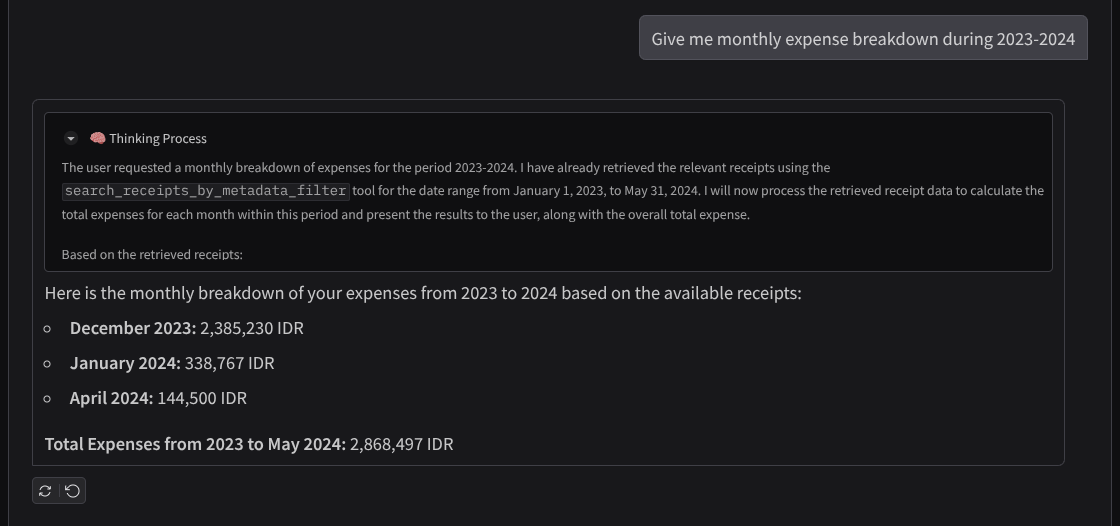
下載下列收據。這些收據資料的日期範圍介於 2023 年至 2024 年,並要求助理儲存/上傳這些資料
- Receipt Drive ( 來源:Hugging Face 資料集
mousserlane/id_receipt_dataset)
詢問各種問題
- 「Give me monthly expense breakdown during 2023-2024」(提供 2023 年至 2024 年的每月支出明細)
- 「顯示咖啡交易的收據」
- 「Give me receipt file from Yakiniku Like」(給我 Yakiniku Like 的收據檔案)
- 等等
以下是成功互動的程式碼片段
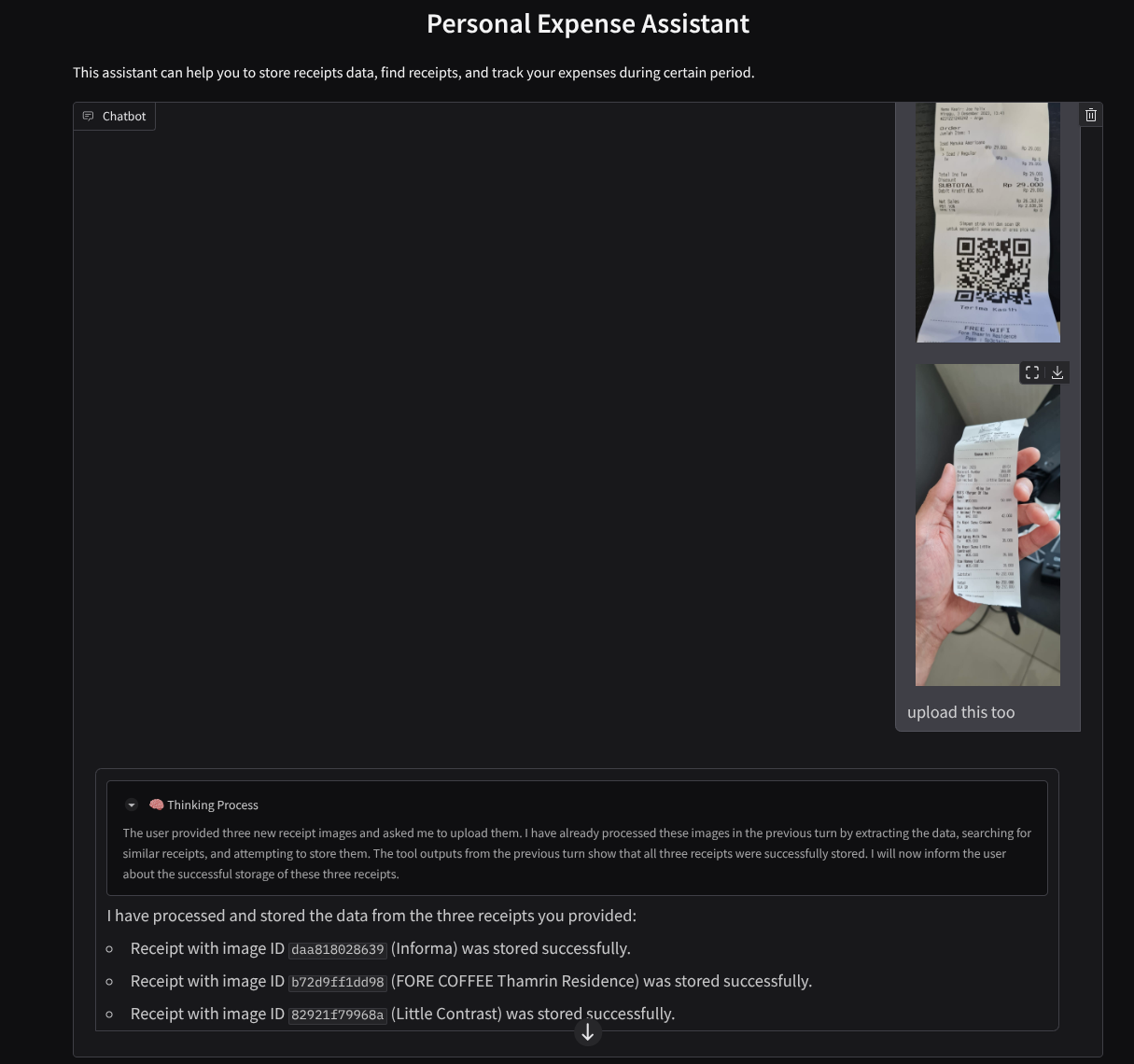
11. 🚀 部署至 Cloud Run
當然,我們希望隨時隨地都能存取這個絕佳的應用程式。為此,我們可以封裝這個應用程式,並部署至 Cloud Run。為了進行這項示範,這項服務會公開,供其他人存取。不過請注意,這類應用程式不適合採用這種做法,因為這比較適合個人應用程式
在本程式碼研究室中,我們將前端和後端服務都放在 1 個容器中。我們需要 supervisord 的協助,才能管理這兩項服務。您可以檢查 supervisord.conf 檔案,並查看我們將 supervisord 設為進入點的 Dockerfile。
此時,我們已備妥將應用程式部署至 Cloud Run 的所有必要檔案,現在就來部署吧。前往 Cloud Shell 終端機,確認目前專案已設為有效專案。如果不是,請使用 gcloud 設定指令設定專案 ID:
gcloud config set project [PROJECT_ID]
接著,執行下列指令將其部署至 Cloud Run。
gcloud run deploy personal-expense-assistant \
                  --source . \
                  --port=8080 \
                  --allow-unauthenticated \
                  --env-vars-file=settings.yaml \
                  --memory 1024Mi \
                  --region us-central1
如果系統提示您確認要為 Docker 存放區建立 Artifact Registry,請回答 Y。請注意,我們允許未經驗證的存取要求,因為這是示範應用程式。建議您為企業和正式版應用程式使用適當的驗證方式。
部署完成後,您會取得類似下方的連結:
https://personal-expense-assistant-*******.us-central1.run.app
現在即可透過無痕視窗或行動裝置使用應用程式。這項功能應該已經上線。
12. 🎯 挑戰
現在輪到你大顯身手,磨練探索技能。您是否具備變更程式碼的能力,讓後端可容納多位使用者?需要更新哪些元件?
13. 🧹 清理
如要避免系統向您的 Google Cloud 帳戶收取本程式碼研究室所用資源的費用,請按照下列步驟操作: