

1. はじめに
この Codelab では、自動リージョン フェイルオーバー用の Private Service Connect(PSC)の複合ヘルスチェックについて説明します。PSC の複合ヘルスは、サービスの復元性と可用性を向上させるネットワーキング機能です。
複合ヘルスチェックを使用すると、サービス プロデューサーはカスタマイズされたヘルス ポリシー(健全なサービスと異常なサービスを定義する状態)を定義し、これらのシグナルを PSC バックエンドを使用してサービスに接続するサービス コンシューマーに自動的に伝播できます。この機能は、クロスリージョン フェイルオーバーの自動化をサポートするために特別に設計されています。リージョン プロデューサー サービスが異常な状態になると、コンシューマー ロードバランサは自動的にそのリージョンへのトラフィックの転送を停止し、別のリージョンの正常なサービスにトラフィックを転送します。
外れ値検出などの以前のクロスリージョン フェイルオーバー方法と比較して、複合ヘルスはプロデューサー サービス バックエンド(VM インスタンス グループまたはネットワーク エンドポイント)の集約された健全性に直接基づいているため、より正確なフェイルオーバー シグナルを提供します。プロデューサーは独自のヘルスロジックを定義して、サービスが必要なヘルス基準を実際に満たしている場合にのみトラフィックを受信するようにできます。
学習内容
- 複合ヘルスチェックのコンポーネントと、それらが連携してプロデューサー サービスのヘルス状態を判断する方法
- gcloud コマンドを使用してプロデューサー サービスの PSC の複合ヘルスを実装する
- プロデューサーの複合ヘルス ポリシーのヘルスシグナルを使用するためのクロスリージョン PSC コンシューマー アクセス ロードバランサの構成
- サービス障害シナリオをテストし、クロスリージョンの自動フェイルオーバーを検証する
必要なもの
- Google Cloud プロジェクト
- 事前定義ロール
roles/compute.admin、またはroles/adminや以前のroles/ownerなどの広範な基本ロールに付与された IAM 権限 - Google Cloud のネットワーキングのコンセプトと Google Cloud CLI の使用に精通していること
2. コンセプト
PSC ネットワーキング
この Codelab のネットワーク トポロジには、2 つのアクティブな Google Cloud リージョンにコンシューマーとプロデューサーの VPC ネットワークが含まれています。
コンシューマー側には、PSC ネットワーク エンドポイント グループ(NEG)バックエンドを備えたクロスリージョン内部アプリケーション ロードバランサを介してプロデューサー サービスにアクセスするために使用されるクライアント VM インスタンスを含むリージョン サブネットがあります。グローバル(リージョン間)クライアントのイングレ用のリージョン IP アドレスを持つ 2 つのリージョン ロードバランサ転送ルールがあります。バックエンド サービスは、さまざまなリージョンで NEG をサポートするグローバル リソースです。フェイルオーバー シナリオでは、いずれかのリージョン フロントエンド転送ルールに接続しているクライアントを正常なグローバル バックエンドに転送できます。
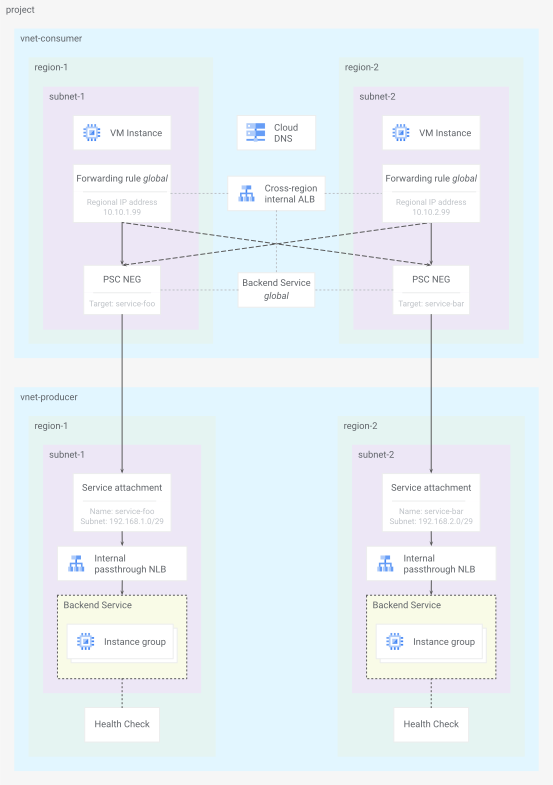
図 1. Codelab のネットワーク トポロジ
プロデューサー側には、リージョン PSC サービス アタッチメント リソースを介してサービスを公開するリージョン 内部パススルー ネットワーク ロードバランサを含むリージョン サブネットがあります。バックエンド サービスにはリージョン Managed Instance Group(MIG)が含まれており、http リクエストをプローブして 200 (OK) レスポンスを検証することでヘルスチェックが行われます。
PSC の複合ヘルスをサポートするロードバランサについては、プロデューサーの構成に関する Private Service Connect の互換性に関する最新のドキュメントをご覧ください。
サービスの状態
ロードバランサの作成時に構成されたプロデューサー バックエンド サービスのヘルスチェックは、PSC 機能の複合ヘルスの元のシグナルとして機能します。ヘルスソース リソースは、そのシグナルと、ヘルス集計ポリシー リソースで定義された追加の制約を使用して、単一のバックエンド サービスのヘルス状態を判断します。
デフォルトでは、次の両方の制約が満たされている場合、サービスは正常とみなされます。
- バックエンドの最小
x% が正常(デフォルト60) y個以上のバックエンドが正常である(デフォルトは1)
複合ヘルスチェックは、すべてのバックエンド サービスのすべてのヘルスソースを参照して、リージョン プロデューサー サービス全体の全体的な健全性を判断します。このラボでは、各リージョン プロデューサー サービスに、1 つの複合ヘルスチェックにロールアップされるバックエンド サービス ヘルスソースが 1 つだけあります。
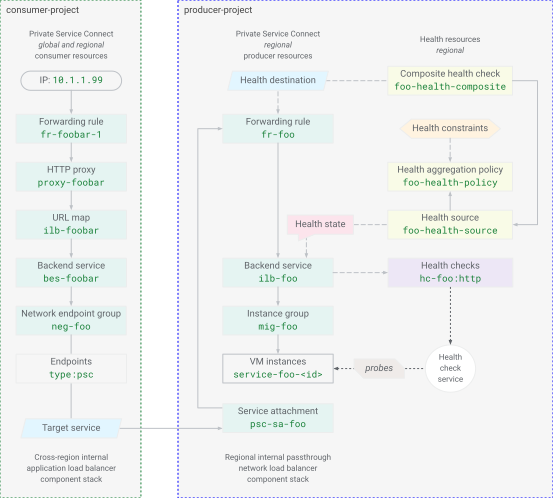
図 2. PSC リソースモデルの複合ヘルス
複合ヘルスチェック リソース定義は、プロデューサー サービス ロードバランサの転送ルールも参照します。コンシューマー アクセス ロードバランサ バックエンド PSC NEG は、プロデューサー PSC サービス アタッチメントとプロデューサー ロードバランサ転送ルールに論理的に接続されています。これにより、コンシューマー アクセス ロードバランサがプロデューサー サービスの複合ヘルスチェックの状態に関連付けられます。リージョン プロデューサー サービスの全体的なサービス健全性がコンシューマー ロードバランサに伝播され、適切なバックエンドが選択されます。
3. プロジェクトの設定
プロジェクトにアクセスする
この Codelab は、単一の Google Cloud プロジェクトを使用するように作成されています。構成手順では、gcloud コマンドと Linux シェル コマンドを使用します。
注: 通常、本番環境のデプロイでは、PSC コンシューマー リソースとプロデューサー サービスは異なるプロジェクトに存在します。
まず、次のコマンドを使用して Google Cloud プロジェクトのコマンドラインにアクセスします。
- Cloud Shell
http://shell.cloud.google.com/、または gcloudCLI がインストールされているローカル ターミナル
プロジェクト ID を設定する
gcloud config set project YOUR_PROJECT_ID_HERE
シェル環境変数を設定する
export PROJECT_ID=$(gcloud config list --format="value(core.project)")
export REGION_1="us-west1"
export ZONE_1="us-west1-c"
export REGION_2="us-east1"
export ZONE_2="us-east1-c"
echo ${PROJECT_ID}
echo ${REGION_1}
echo ${ZONE_1}
echo ${REGION_2}
echo ${ZONE_2}
API サービスを有効にする
gcloud services enable compute.googleapis.com
gcloud services enable dns.googleapis.com
4. プロデューサー サービス
共有リソースを作成する
ネットワークを作成
gcloud compute networks create vnet-producer --subnet-mode=custom
サブネットを作成する
# create subnet for service workload in region 1
gcloud compute networks subnets create subnet-foo \
  --network=vnet-producer \
  --region=${REGION_1} \
  --range=172.16.1.0/24 \
  --enable-private-ip-google-access

# create subnet for psc nat in region 1
gcloud compute networks subnets create subnet-foo-pscnat \
  --network=vnet-producer \
  --region=${REGION_1} \
  --range=192.168.1.0/29 \
  --purpose=PRIVATE_SERVICE_CONNECT
# create subnet for service workload in region 2
gcloud compute networks subnets create subnet-bar \
  --network=vnet-producer \
  --region=${REGION_2} \
  --range=172.16.2.0/24 \
  --enable-private-ip-google-access

# create subnet for psc nat in region 2
gcloud compute networks subnets create subnet-bar-pscnat \
  --network=vnet-producer \
  --region=${REGION_2} \
  --range=192.168.2.0/29 \
  --purpose=PRIVATE_SERVICE_CONNECT
ファイアウォール コンポーネントを作成する
VM リソースへのトラフィックを許可するには、ファイアウォール ルールが必要です(暗黙的なデフォルトのファイアウォール ルールは、上り(内向き)を拒否し、下り(外向き)を許可します)。ポリシーは、ネットワーク ファイアウォール ポリシー リソースを作成し、ポリシーにルールを作成して追加し、ポリシーを VPC ネットワークに関連付けることで、ファイアウォール ルールをデプロイする推奨の方法です。
# create fw policy
gcloud compute network-firewall-policies create fw-policy-producer --global
# create fw policy rules
gcloud compute network-firewall-policies rules create 1001 \
  --description="allow iap for ssh" \
  --firewall-policy=fw-policy-producer \
  --global-firewall-policy \
  --action=allow \
  --direction=INGRESS \
  --layer4-configs=tcp:22  \
  --src-ip-ranges=35.235.240.0/20

gcloud compute network-firewall-policies rules create 1002 \
  --description="allow health checks" \
  --firewall-policy=fw-policy-producer \
  --global-firewall-policy \
  --action=allow \
  --direction=INGRESS \
  --layer4-configs=tcp,udp,icmp  \
  --src-ip-ranges=130.211.0.0/22,35.191.0.0/16

gcloud compute network-firewall-policies rules create 1003 \
  --description="allow psc nat clients" \
  --firewall-policy=fw-policy-producer \
  --global-firewall-policy \
  --action=allow \
  --direction=INGRESS \
  --layer4-configs=tcp:80  \
  --src-ip-ranges=192.168.1.0/29,192.168.2.0/29
# associate fw policy to vnet
gcloud compute network-firewall-policies associations create \
  --firewall-policy=fw-policy-producer \
  --network=vnet-producer \
  --name=fw-policy-association-producer \
  --global-firewall-policy
Cloud Router と NAT ゲートウェイを作成する
# create routers for nat in each region
gcloud compute routers create cr-nat-foo \
  --network=vnet-producer \
  --asn=16550 \
  --region=${REGION_1}

gcloud compute routers create cr-nat-bar \
  --network=vnet-producer \
  --asn=16550 \
  --region=${REGION_2}
# create nat gateways in each region
gcloud compute routers nats create natgw-foo \
  --router=cr-nat-foo \
  --region=${REGION_1} \
  --auto-allocate-nat-external-ips \
  --nat-all-subnet-ip-ranges

gcloud compute routers nats create natgw-bar \
  --router=cr-nat-bar \
  --region=${REGION_2} \
  --auto-allocate-nat-external-ips \
  --nat-all-subnet-ip-ranges
HTTP サーバーを使用して VM 起動構成を作成する
cat > vm-server-startup.sh << 'EOF'
#! /bin/bash
apt-get update
apt-get install apache2 -y
vm_hostname="$(curl -H "Metadata-Flavor:Google" \
http://169.254.169.254/computeMetadata/v1/instance/name)"
vm_zone="$(curl -H "Metadata-Flavor:Google" \
http://169.254.169.254/computeMetadata/v1/instance/zone)"
echo "Page served from: $vm_hostname in zone $vm_zone" | \
tee /var/www/html/index.html
systemctl restart apache2
EOF
リージョン 1 にサービス foo を設定する
サービス コンピューティングを作成する
# create managed instance group template
gcloud compute instance-templates create mig-template-foo \
  --machine-type=e2-micro \
  --network=vnet-producer \
  --region=${REGION_1} \
  --subnet=subnet-foo \
  --no-address \
  --shielded-secure-boot \
  --metadata-from-file=startup-script=vm-server-startup.sh
# create regional managed instance group
gcloud compute instance-groups managed create mig-foo \
  --region=${REGION_1} \
  --size=2 \
  --template=mig-template-foo \
  --base-instance-name=service-foo
サービス ロードバランサ コンポーネントを作成する
# create lb health check
gcloud compute health-checks create http hc-foo-http \
  --region=${REGION_1} \
  --port=80 \
  --enable-logging
# create backend service
gcloud compute backend-services create ilb-foo \
  --load-balancing-scheme=INTERNAL \
  --protocol=tcp \
  --region=${REGION_1} \
  --health-checks=hc-foo-http \
  --health-checks-region=${REGION_1}

# add managed instance group to backend service
gcloud compute backend-services add-backend ilb-foo \
  --instance-group=mig-foo \
  --instance-group-region=${REGION_1} \
  --region=${REGION_1}
# create forwarding rule
gcloud compute forwarding-rules create fr-foo \
  --region=${REGION_1} \
  --load-balancing-scheme=INTERNAL \
  --network=vnet-producer \
  --subnet=subnet-foo \
  --address=172.16.1.99 \
  --ip-protocol=TCP \
  --ports=80 \
  --backend-service=ilb-foo \
  --backend-service-region=${REGION_1} \
  --allow-global-access
PSC サービスを公開する
# create psc service attachment
gcloud compute service-attachments create psc-sa-foo \
  --region=${REGION_1} \
  --target-service=projects/${PROJECT_ID}/regions/${REGION_1}/forwardingRules/fr-foo \
  --connection-preference=ACCEPT_AUTOMATIC \
  --nat-subnets=subnet-foo-pscnat
リージョン 2 にサービス bar を設定する
サービス コンピューティングを作成する
# create managed instance group template
gcloud compute instance-templates create mig-template-bar \
  --machine-type=e2-micro \
  --network=vnet-producer \
  --region=${REGION_2} \
  --subnet=subnet-bar \
  --no-address \
  --shielded-secure-boot \
  --metadata-from-file=startup-script=vm-server-startup.sh
# create regional managed instance group
gcloud compute instance-groups managed create mig-bar \
  --region=${REGION_2} \
  --size=2 \
  --template=mig-template-bar \
  --base-instance-name=service-bar
サービス ロードバランサ コンポーネントを作成する
# create lb health check
gcloud compute health-checks create http hc-bar-http \
  --region=${REGION_2} \
  --port=80 \
  --enable-logging
# create backend service
gcloud compute backend-services create ilb-bar \
  --load-balancing-scheme=INTERNAL \
  --protocol=tcp \
  --region=${REGION_2} \
  --health-checks=hc-bar-http \
  --health-checks-region=${REGION_2}

# add managed instance group to backend service
gcloud compute backend-services add-backend ilb-bar \
  --instance-group=mig-bar \
  --instance-group-region=${REGION_2} \
  --region=${REGION_2}
# create forwarding rule
gcloud compute forwarding-rules create fr-bar \
  --region=${REGION_2} \
  --load-balancing-scheme=INTERNAL \
  --network=vnet-producer \
  --subnet=subnet-bar \
  --address=172.16.2.99 \
  --ip-protocol=TCP \
  --ports=80 \
  --backend-service=ilb-bar \
  --backend-service-region=${REGION_2} \
  --allow-global-access
PSC サービスを公開する
# create psc service attachment
gcloud compute service-attachments create psc-sa-bar \
  --region=${REGION_2} \
  --target-service=projects/${PROJECT_ID}/regions/${REGION_2}/forwardingRules/fr-bar \
  --connection-preference=ACCEPT_AUTOMATIC \
  --nat-subnets=subnet-bar-pscnat
5. コンシューマー アクセス
クライアント リソースを設定する
ネットワーク コンポーネントを作成する
# create vpc network
gcloud compute networks create vnet-consumer --subnet-mode=custom
# create client subnet in each region
gcloud compute networks subnets create subnet-client-1 \
  --network=vnet-consumer \
  --region=${REGION_1} \
  --range=10.10.1.0/24 \
  --enable-private-ip-google-access

gcloud compute networks subnets create subnet-client-2 \
  --network=vnet-consumer \
  --region=${REGION_2} \
  --range=10.10.2.0/24 \
  --enable-private-ip-google-access
コンシューマー アプリケーション(プロキシベース)ロードバランサには、プロキシ専用サブネットが必要です。これらのサブネットは、プロキシベースのロードバランサがバックエンドにトラフィックを送信するときに内部送信元アドレスとして使用する IP アドレスのプールを提供します。
# create proxy subnet in each region
gcloud compute networks subnets create subnet-proxy-1 \
  --purpose=GLOBAL_MANAGED_PROXY \
  --role=ACTIVE \
  --network=vnet-consumer \
  --region=${REGION_1} \
  --range=10.10.128.0/23

gcloud compute networks subnets create subnet-proxy-2 \
  --purpose=GLOBAL_MANAGED_PROXY \
  --role=ACTIVE \
  --network=vnet-consumer \
  --region=${REGION_2} \
  --range=10.10.130.0/23
ファイアウォール コンポーネントを作成する
# create fw policy
gcloud compute network-firewall-policies create fw-policy-consumer --global
# create fw policy rules
gcloud compute network-firewall-policies rules create 1001 \
  --description="allow iap for ssh" \
  --firewall-policy=fw-policy-consumer \
  --global-firewall-policy \
  --action=allow \
  --direction=INGRESS \
  --layer4-configs=tcp:22  \
  --src-ip-ranges=35.235.240.0/20
# associate fw policy to vnet
gcloud compute network-firewall-policies associations create \
  --firewall-policy=fw-policy-consumer \
  --network=vnet-consumer \
  --name=fw-policy-association-consumer \
  --global-firewall-policy
ロードバランサのコンポーネントの作成
# create psc network endpoint group per region
gcloud compute network-endpoint-groups create neg-foo \
  --network-endpoint-type=private-service-connect \
  --psc-target-service=projects/${PROJECT_ID}/regions/${REGION_1}/serviceAttachments/psc-sa-foo \
  --region=${REGION_1} \
  --network=vnet-consumer \
  --subnet=subnet-client-1

gcloud compute network-endpoint-groups create neg-bar \
  --network-endpoint-type=private-service-connect \
  --psc-target-service=projects/${PROJECT_ID}/regions/${REGION_2}/serviceAttachments/psc-sa-bar \
  --region=${REGION_2} \
  --network=vnet-consumer \
  --subnet=subnet-client-2
# verify psc connections
gcloud compute network-endpoint-groups list --format="value(selfLink, pscData.pscConnectionStatus)"
# create global backend service
gcloud compute backend-services create bes-foobar \
  --load-balancing-scheme=INTERNAL_MANAGED \
  --protocol=HTTP \
  --global
# add negs to backend service
gcloud compute backend-services add-backend bes-foobar \
  --network-endpoint-group=neg-foo \
  --network-endpoint-group-region=${REGION_1} \
  --global

gcloud compute backend-services add-backend bes-foobar \
  --network-endpoint-group=neg-bar \
  --network-endpoint-group-region=${REGION_2} \
  --global
# create global url map
gcloud compute url-maps create ilb-foobar \
  --default-service=bes-foobar \
  --global
# create global target proxy
gcloud compute target-http-proxies create proxy-foobar \
  --url-map=ilb-foobar \
  --global
# create global forwarding rule for region 1
gcloud compute forwarding-rules create fr-foobar-1 \
  --load-balancing-scheme=INTERNAL_MANAGED \
  --network=vnet-consumer \
  --subnet=subnet-client-1 \
  --subnet-region=${REGION_1} \
  --address=10.10.1.99 \
  --ports=80 \
  --target-http-proxy=proxy-foobar \
  --global
# create global forwarding rule for region 2
gcloud compute forwarding-rules create fr-foobar-2 \
  --load-balancing-scheme=INTERNAL_MANAGED \
  --network=vnet-consumer \
  --subnet=subnet-client-2 \
  --subnet-region=${REGION_2} \
  --address=10.10.2.99 \
  --ports=80 \
  --target-http-proxy=proxy-foobar \
  --global
DNS レコードを作成する
# create dns zone
gcloud dns managed-zones create zone-foobar \
  --description="private zone for foobar" \
  --dns-name=foobar.com \
  --networks=vnet-consumer \
  --visibility=private
# create geo dns record
gcloud dns record-sets create www.foobar.com \
  --zone=zone-foobar \
  --type=A \
  --ttl=300 \
  --routing-policy-type=GEO \
  --routing-policy-item="location=${REGION_1},rrdatas=10.10.1.99" \
  --routing-policy-item="location=${REGION_2},rrdatas=10.10.2.99"
コンピューティング リソースを作成する
# create client vm in region 1
gcloud compute instances create client-1 \
  --machine-type=e2-micro \
  --zone=${ZONE_1} \
  --subnet=subnet-client-1 \
  --no-address \
  --shielded-secure-boot
# create client vm in region 2
gcloud compute instances create client-2 \
  --machine-type=e2-micro \
  --zone=${ZONE_2} \
  --subnet=subnet-client-2 \
  --no-address \
  --shielded-secure-boot
テスト サービスのベースライン
リージョン 1 のクライアント VM から
# send request from vm to service using hostname
gcloud compute ssh client-1 --zone=${ZONE_1} --command='
  curl -s -v www.foobar.com'
# send request from vm to load balancer forwarding rule region 1
gcloud compute ssh client-1 --zone=${ZONE_1} --command='
  curl -s 10.10.1.99'
# send request from vm to load balancer forwarding rule region 2
gcloud compute ssh client-1 --zone=${ZONE_1} --command='
  curl -s 10.10.2.99'
省略可: リージョン 2 のクライアント VM から同じテストを試します。gcloud compute ssh client-2 --zone=${ZONE_2}
重要なポイント: region-x の転送ルールに送信されるクライアント リクエストに対する通常のロードバランサの動作は、同じ region-x 内のバックエンドを優先することです。すべてのバックエンド リソースが正常な場合、レイテンシが最も低いリージョンが優先されます。グローバル バックエンドは、適切なヘルスシグナルを持つ別のリージョンにフェイルオーバーします。
しかし、実際のプロデューサー サービス リソースはプロデューサー VPC ネットワークのプロデューサー ロードバランサの背後にあるため、これらのヘルスシグナルは以前はコンシューマー ロードバランサに対して不透明でした。そのため、コンシューマー側ではこのようなバックエンド フェイルオーバーの判断を行うことができませんでした。PSC の健全性は、サービス健全性情報をプロデューサー側からコンシューマー側に伝播することで、この問題に対処します。
6. 健康に関するリソース
PSC リソースの複合ヘルスは、リージョン サービスの全体的な健全性を表すようにプロデューサーによって構成されます。ヘルスポリシーは、サービス プロデューサーが機能するサービスレベルを維持するために適切と定義した内容に基づいています。しきい値は、プロデューサーが定義した条件が満たされなくなったときに、コンシューマーにフェイルオーバーを通知するように設定されます。
リージョン 1 でサービス ヘルス foo を設定する
ヘルス集計ポリシーを作成する
gcloud compute health-aggregation-policies create foo-health-policy \
  --region=${REGION_1} \
  --healthy-percent-threshold=60 \
  --min-healthy-threshold=1
ヘルスソースを作成する
gcloud compute health-sources create foo-health-source \
  --region=${REGION_1} \
  --source-type=BACKEND_SERVICE \
  --sources=ilb-foo \
  --health-aggregation-policy=foo-health-policy
複合ヘルスチェックを作成する
gcloud compute composite-health-checks create foo-health-composite \
  --region=${REGION_1} \
  --health-sources=foo-health-source \
  --health-destination=projects/${PROJECT_ID}/regions/${REGION_1}/forwardingRules/fr-foo
サービス foo のヘルス 構成を確認する
ヘルス リソース構成は、リージョンごとに list(および describe)コマンドで表示できます。
# show health aggregation policies
gcloud compute health-aggregation-policies list --regions=${REGION_1}

# show health sources
gcloud compute health-sources list --regions=${REGION_1}

# show composite health checks
gcloud compute composite-health-checks list --regions=${REGION_1}
リージョン 2 でサービス ヘルス bar を設定する
ヘルス集計ポリシーを作成する
gcloud compute health-aggregation-policies create bar-health-policy \
  --region=${REGION_2} \
  --healthy-percent-threshold=60 \
  --min-healthy-threshold=1
ヘルスソースを作成する
gcloud compute health-sources create bar-health-source \
  --region=${REGION_2} \
  --source-type=BACKEND_SERVICE \
  --sources=ilb-bar \
  --health-aggregation-policy=bar-health-policy
複合ヘルスチェックを作成する
gcloud compute composite-health-checks create bar-health-composite \
  --region=${REGION_2} \
  --health-sources=bar-health-source \
  --health-destination=projects/${PROJECT_ID}/regions/${REGION_2}/forwardingRules/fr-bar
サービス bar のヘルス 構成を確認する
# show health aggregation policies
gcloud compute health-aggregation-policies list --regions=${REGION_2}

# show health sources
gcloud compute health-sources list --regions=${REGION_2}

# show composite health checks
gcloud compute composite-health-checks list --regions=${REGION_2}
これで構成は完了です。次はテストに進みます。
7. フェイルオーバー テスト
サービス foo のリージョン 1 が異常な状態のシナリオ
このシナリオでは、2 つの VM インスタンスのいずれかでウェブサーバーを停止して、リージョン 1 の PSC プロデューサー サービス foo の障害をシミュレートします。
サーバー VM の詳細を取得する
# set env var for a foo service vm name
export FOO_FAIL_NAME=$(gcloud compute instance-groups managed list-instances mig-foo \
  --limit=1 \
  --region=${REGION_1} \
  --format="value(name)")
echo ${FOO_FAIL_NAME}
# set env var for a foo service zone
export FOO_FAIL_ZONE=$(gcloud compute instance-groups managed list-instances mig-foo \
  --limit=1 \
  --region=${REGION_1} \
  --format="value(ZONE)")
echo ${FOO_FAIL_ZONE}
リージョン 1 の http サーバーを停止する
# stop apache http server to fail service
gcloud compute ssh ${FOO_FAIL_NAME} --zone=${FOO_FAIL_ZONE} --command='
  sudo systemctl stop apache2'
# verify service dead
gcloud compute ssh ${FOO_FAIL_NAME} --zone=${FOO_FAIL_ZONE} --command='
  sudo systemctl status apache2 | grep Active:'
リージョン サービスが異常であることを確認する
# check health state of backend service
gcloud compute backend-services get-health ilb-foo --region=${REGION_1}
出力は次のようになります。
backend: .../regions/us-west1/instanceGroups/mig-foo
status:
  healthStatus:
  -   forwardingRule: .../regions/us-west1/forwardingRules/fr-foo
    forwardingRuleIp: 172.16.1.99
    healthState: UNHEALTHY
    instance: .../zones/us-west1-a/instances/service-foo-<UID_1>
    ipAddress: 172.16.1.2
    port: 80
  -   forwardingRule: .../regions/us-west1/forwardingRules/fr-foo
    forwardingRuleIp: 172.16.1.99
    healthState: HEALTHY
    instance: .../zones/us-west1-b/instances/service-foo-<UID_2>
    ipAddress: 172.16.1.3
    port: 80
  kind: compute#backendServiceGroupHealth
# check health state of health source
gcloud compute health-sources get-health foo-health-source --region=${REGION_1}
出力は次のようになります。
healthState: UNHEALTHY
kind: compute#healthSourceHealth
sources:
- backends:
  - endpointCount: 1
    group: .../zones/us-west1-a/instanceGroups/mig-foo
    healthyEndpointCount: 0
  - endpointCount: 0
    group: .../zones/us-west1-c/instanceGroups/mig-foo
    healthyEndpointCount: 0
  - endpointCount: 1
    group: .../zones/us-west1-b/instanceGroups/mig-foo
    healthyEndpointCount: 1
  forwardingRule: .../regions/us-west1/forwardingRules/fr-foo
  source: .../regions/us-west1/backendServices/ilb-foo
リージョン 1 のクライアント フェイルオーバーをテストする
# send request to service using hostname
gcloud compute ssh client-1 --zone=${ZONE_1} --command='
  curl -s -v www.foobar.com'
# curl to ilb vip in region 1
gcloud compute ssh client-1 --zone=${ZONE_1} --command='
  curl -s 10.10.1.99'
# curl to ilb vip in region 2
gcloud compute ssh client-1 --zone=${ZONE_1} --command='
  curl -s 10.10.2.99'
PSC の複合ヘルスは、コンシューマー ロードバランサを更新し、リージョン 1 の異常なバックエンド サービスを回避するように指示しました。代わりに、リージョン 2 の正常なサービス bar にトラフィックを転送しました。
リージョン 1 の http サーバーを再起動する
# start apache http server to return service to healthy
gcloud compute ssh ${FOO_FAIL_NAME} --zone=${FOO_FAIL_ZONE} --command='
  sudo systemctl start apache2'
# verify service running
gcloud compute ssh ${FOO_FAIL_NAME} --zone=${FOO_FAIL_ZONE} --command='
  sudo systemctl status apache2 | grep Active:'
# check health state of health source
gcloud compute health-sources get-health foo-health-source --region=${REGION_1}
出力には、次のような HEALTHY ステータスが表示されます。
healthState: HEALTHY
kind: compute#healthSourceHealth
sources:
- backends:
  - endpointCount: 1
    group: .../zones/us-west1-a/instanceGroups/mig-foo
    healthyEndpointCount: 1
  - endpointCount: 0
    group: .../zones/us-west1-c/instanceGroups/mig-foo
    healthyEndpointCount: 0
  - endpointCount: 1
    group: .../zones/us-west1-b/instanceGroups/mig-foo
    healthyEndpointCount: 1
  forwardingRule: .../regions/us-west1/forwardingRules/fr-foo
  source: .../regions/us-west1/backendServices/ilb-foo
ヘルス ポリシーを変更する
プロデューサーは、さまざまな条件に基づいてサービス ヘルスポリシーを調整できます。ヘルス集約ポリシー リソースは、さまざまなヘルスソース(バックエンド サービス)全体で正常なステータスを維持するために必要な最小しきい値を指定します。
bar サービス ヘルス集計ポリシーを更新する
gcloud compute health-aggregation-policies update bar-health-policy \
  --region=${REGION_2} \
  --description="min 40% threshold" \
  --healthy-percent-threshold=40 \
  --min-healthy-threshold=2
# verify new policy is applied
gcloud compute health-aggregation-policies list --regions=${REGION_2}
このプロデューサーの健全性ポリシーの変更により、次のことが実現します。
- 正常の最小しきい値の割合を 60% から 40% に引き下げます。これにより、単一の VM インスタンスの障害では、
--healthy-percent-thresholdに基づく異常状態がトリガーされなくなります(障害状態は 50% になり、正常な状態を維持するために必要なのは 40% のみになります)。 - バックエンドの最小正常数を 1 から 2 VM インスタンスに増やします。これにより、単一の VM インスタンスの障害で
--min-healthy-thresholdに基づいて異常状態がトリガーされます(障害状態は 1 になりますが、正常な状態にするには 2 が必要です)。
サービス bar リージョン 2 が異常な状態のシナリオ
このシナリオでは、2 つの VM インスタンスのいずれかでウェブサーバーを停止して、リージョン 2 の PSC プロデューサー サービス bar の障害をシミュレートします。
サーバー VM の詳細を取得する
# set env var for a bar service vm name
export BAR_FAIL_NAME=$(gcloud compute instance-groups managed list-instances mig-bar \
  --limit=1 \
  --region=${REGION_2} \
  --format="value(name)")
echo ${BAR_FAIL_NAME}
# set env var for a bar service zone
export BAR_FAIL_ZONE=$(gcloud compute instance-groups managed list-instances mig-bar \
  --limit=1 \
  --region=${REGION_2} \
  --format="value(ZONE)")
echo ${BAR_FAIL_ZONE}
リージョン 2 の http サーバーを停止する
# stop apache http server to fail service
gcloud compute ssh ${BAR_FAIL_NAME} --zone=${BAR_FAIL_ZONE} --command='
  sudo systemctl stop apache2'
# verify service dead
gcloud compute ssh ${BAR_FAIL_NAME} --zone=${BAR_FAIL_ZONE} --command='
  sudo systemctl status apache2 | grep Active:'
リージョン サービスが異常であることを確認する
# check health state of backend service
gcloud compute backend-services get-health ilb-bar --region=${REGION_2}
出力は次のようになります。
backend: .../regions/us-east1/instanceGroups/mig-bar
status:
  healthStatus:
  -   forwardingRule: .../regions/us-east1/forwardingRules/fr-bar
    forwardingRuleIp: 172.16.2.99
    healthState: UNHEALTHY
    instance: .../zones/us-east1-b/instances/service-bar-<UID_1>
    ipAddress: 172.16.2.3
    port: 80
  -   forwardingRule: .../regions/us-east1/forwardingRules/fr-bar
    forwardingRuleIp: 172.16.2.99
    healthState: HEALTHY
    instance: .../zones/us-east1-d/instances/service-foo-<UID_2>
    ipAddress: 172.16.2.2
    port: 80
  kind: compute#backendServiceGroupHealth
# check health state of health source
gcloud compute health-sources get-health bar-health-source --region=${REGION_2}
出力は次のようになります。
healthState: UNHEALTHY
kind: compute#healthSourceHealth
sources:
- backends:
  - endpointCount: 1
    group: .../zones/us-east1-b/instanceGroups/mig-bar
    healthyEndpointCount: 0
  - endpointCount: 1
    group: .../zones/us-east1-d/instanceGroups/mig-bar
    healthyEndpointCount: 1
  - endpointCount: 0
    group: .../zones/us-east1-c/instanceGroups/mig-bar
    healthyEndpointCount: 0
  forwardingRule: .../regions/us-west1/forwardingRules/fr-bar
  source: .../regions/us-west1/backendServices/ilb-bar
リージョン 2 のクライアント フェイルオーバーをテストする
# send request to service using hostname
gcloud compute ssh client-2 --zone=${ZONE_2} --command='
  curl -s -v www.foobar.com'
# curl to ilb vip in region 1
gcloud compute ssh client-2 --zone=${ZONE_2} --command='
  curl -s 10.10.1.99'
# curl to ilb vip in region 2
gcloud compute ssh client-2 --zone=${ZONE_2} --command='
  curl -s 10.10.2.99'
PSC の複合ヘルスがコンシューマー ロードバランサを更新し、リージョン 2 の異常なバックエンド サービスを回避するように指示しました。代わりに、リージョン 1 の正常なサービス foo にトラフィックを転送しました。
コンシューマー ロードバランサがすべてのプロデューサー サービスを異常と認識している場合、ロードバランサは正常なインスタンスにフェイルオーバーできません。想定される動作は、ロードバランサがすべての異常なバックエンドにトラフィックを分散することです(フェイルオープン)。
これでテスト部分は終了です。次はモニタリングに進みます。
8. 正常性をモニタリングする
健全性の変化はデフォルトでログに記録されます。プロデューサー プロジェクトは、ヘルスソースと複合ヘルスチェックのログを表示できます。コンシューマー プロジェクトは、複合ヘルスを使用して公開サービスに接続された PSC NEG のログを確認できます。
このラボでは、わかりやすくするためにコンシューマー リソースとプロデューサー リソースの両方を同じプロジェクトにデプロイしますが、別々のプロジェクトにデプロイすると、ログには 2 つのロールが分離して表示されます。
モニタリング対象リソース | 表示 | ログ名 |
ヘルスソースと複合チェック | プロデューサー ビュー |
|
Private Service Connect NEG | ユーザーの検索画面 |
|
プロデューサー ログ
プロデューサーのログには、プロデューサー サービスの内部ヘルス ロールアップが表示されます。
HealthSource: 個々のバックエンド サービスの健全性(mig-barとmig-fooの VM ステータスなど)CompositeHealthCheck: パブリッシュされたサービスの集約されたリージョン ヘルス。プロデューサー転送ルールの宛先(fr-barやfr-fooなど)にマッピングされます。
# query logs for producer
gcloud logging read \
  'logName="projects/'${PROJECT_ID}'/logs/compute.googleapis.com%2Fcompositehealth"' \
  --project=${PROJECT_ID} \
  --limit=10 \
  --format='table(
    timestamp.date(format="%I:%M:%S %p", tz=LOCAL):label=TIME,
    resource.type.basename():label=TYPE,
    resource.labels.location:label=REGION,
    jsonPayload.healthState:label=STATE,
    jsonPayload.sources[0].backends[].group.basename().join(","):label=BACKENDS,
    jsonPayload.sources[0].backends[].healthyEndpointCount.join(","):label=HEALTHY,
    jsonPayload.sources[0].backends[].endpointCount.join(","):label=TOTAL,
    jsonPayload.healthDestination.basename():label=DESTINATION
  )'
コンシューマー ログ
コンシューマー ログには、コンシューマー リソースの伝播されたヘルス ステータスが表示されます。
NetworkEndpointGroup: 公開サービスに接続された PSC NEG の伝播されたヘルス状態(neg-bar、neg-fooなど)
コンシューマーとプロデューサーが別々に設定されている場合は、コンシューマー プロジェクトでこのログクエリを使用して、PSC NEG の複合ヘルスイベントをターゲットにします。
# query logs for consumer
gcloud logging read \
  "logName=projects/${PROJECT_ID}/logs/compute.googleapis.com%2Fservicehealthchecks
  AND resource.type=\"compute.googleapis.com/NetworkEndpointGroupV2\"" \
  --project="${PROJECT_ID}" \
  --freshness=30m \
  --limit=10 \
  --format="table(
    timestamp.date(format='%I:%M:%S %p', tz=LOCAL):label=TIME,
    resource.labels.location:label=REGION,
    jsonPayload.serviceHealthCheckResult.healthState:label=STATE,
    jsonPayload.serviceHealthCheckResult.previousHealthState:label=PREV_STATE,
    resource.labels.network_endpoint_group_id:label=NEG_ID
  )"
これでモニタリングは終了です。次はクリーンアップに進みます。
9. クリーンアップ
# delete health resources
gcloud -q compute composite-health-checks delete foo-health-composite --region=${REGION_1}

gcloud -q compute health-sources delete foo-health-source --region=${REGION_1}

gcloud -q compute health-aggregation-policies delete foo-health-policy --region=${REGION_1}

gcloud -q compute composite-health-checks delete bar-health-composite --region=${REGION_2}

gcloud -q compute health-sources delete bar-health-source --region=${REGION_2}

gcloud -q compute health-aggregation-policies delete bar-health-policy --region=${REGION_2}
# delete consumer compute and load balancer resources
gcloud -q compute instances delete client-2 --zone=${ZONE_2}

gcloud -q compute instances delete client-1 --zone=${ZONE_1}

gcloud -q dns record-sets delete www.foobar.com --type=A --zone=zone-foobar

gcloud -q dns managed-zones delete zone-foobar

gcloud -q compute forwarding-rules delete fr-foobar-2 --global

gcloud -q compute forwarding-rules delete fr-foobar-1 --global

gcloud -q compute target-http-proxies delete proxy-foobar --global

gcloud -q compute url-maps delete ilb-foobar --global

gcloud -q compute backend-services delete bes-foobar --global
# delete consumer network resources
gcloud -q compute network-endpoint-groups delete neg-bar --region=${REGION_2}

gcloud -q compute network-endpoint-groups delete neg-foo --region=${REGION_1}

gcloud -q compute networks subnets delete subnet-proxy-2 --region=${REGION_2}

gcloud -q compute networks subnets delete subnet-proxy-1 --region=${REGION_1}

gcloud -q compute networks subnets delete subnet-client-2 --region=${REGION_2}

gcloud -q compute networks subnets delete subnet-client-1 --region=${REGION_1}

gcloud -q compute network-firewall-policies associations delete \
  --firewall-policy=fw-policy-consumer \
  --name=fw-policy-association-consumer \
  --global-firewall-policy

gcloud -q compute network-firewall-policies delete fw-policy-consumer --global

gcloud -q compute networks delete vnet-consumer
# delete producer load balancer resources
gcloud -q compute service-attachments delete psc-sa-bar --region=${REGION_2}

gcloud -q compute service-attachments delete psc-sa-foo --region=${REGION_1}

gcloud -q compute forwarding-rules delete fr-bar --region=${REGION_2}

gcloud -q compute forwarding-rules delete fr-foo --region=${REGION_1}

gcloud -q compute backend-services delete ilb-bar --region=${REGION_2}

gcloud -q compute backend-services delete ilb-foo --region=${REGION_1}

gcloud -q compute health-checks delete hc-bar-http --region=${REGION_2}

gcloud -q compute health-checks delete hc-foo-http --region=${REGION_1}
# delete producer compute resources
gcloud -q compute instance-groups managed delete mig-bar --region=${REGION_2}

gcloud -q compute instance-groups managed delete mig-foo --region=${REGION_1}

gcloud -q compute instance-templates delete mig-template-bar --global

gcloud -q compute instance-templates delete mig-template-foo --global
# delete producer network resources
gcloud -q compute networks subnets delete subnet-bar-pscnat --region=${REGION_2}

gcloud -q compute networks subnets delete subnet-foo-pscnat --region=${REGION_1}

gcloud -q compute networks subnets delete subnet-bar --region=${REGION_2}

gcloud -q compute networks subnets delete subnet-foo --region=${REGION_1}

gcloud -q compute routers delete cr-nat-bar --region=${REGION_2}

gcloud -q compute routers delete cr-nat-foo --region=${REGION_1}

gcloud -q compute network-firewall-policies associations delete \
  --firewall-policy=fw-policy-producer \
  --name=fw-policy-association-producer \
  --global-firewall-policy

gcloud -q compute network-firewall-policies delete fw-policy-producer --global

gcloud -q compute networks delete vnet-producer
# delete shell variables and script file
unset FOO_FAIL_NAME FOO_FAIL_ZONE BAR_FAIL_NAME BAR_FAIL_ZONE

unset PROJECT_ID REGION_1 ZONE_1 REGION_2 ZONE_2

rm vm-server-startup.sh
#
10. まとめ
おめでとうございます!これで、PSC の複合ヘルスチェックを構成し、自動リージョン フェイルオーバーをテストできました。
ご意見、ご質問、修正点などがありましたら、こちらのフィードバック フォームからお気軽にお寄せください。
ありがとうございました