

۱. مقدمه
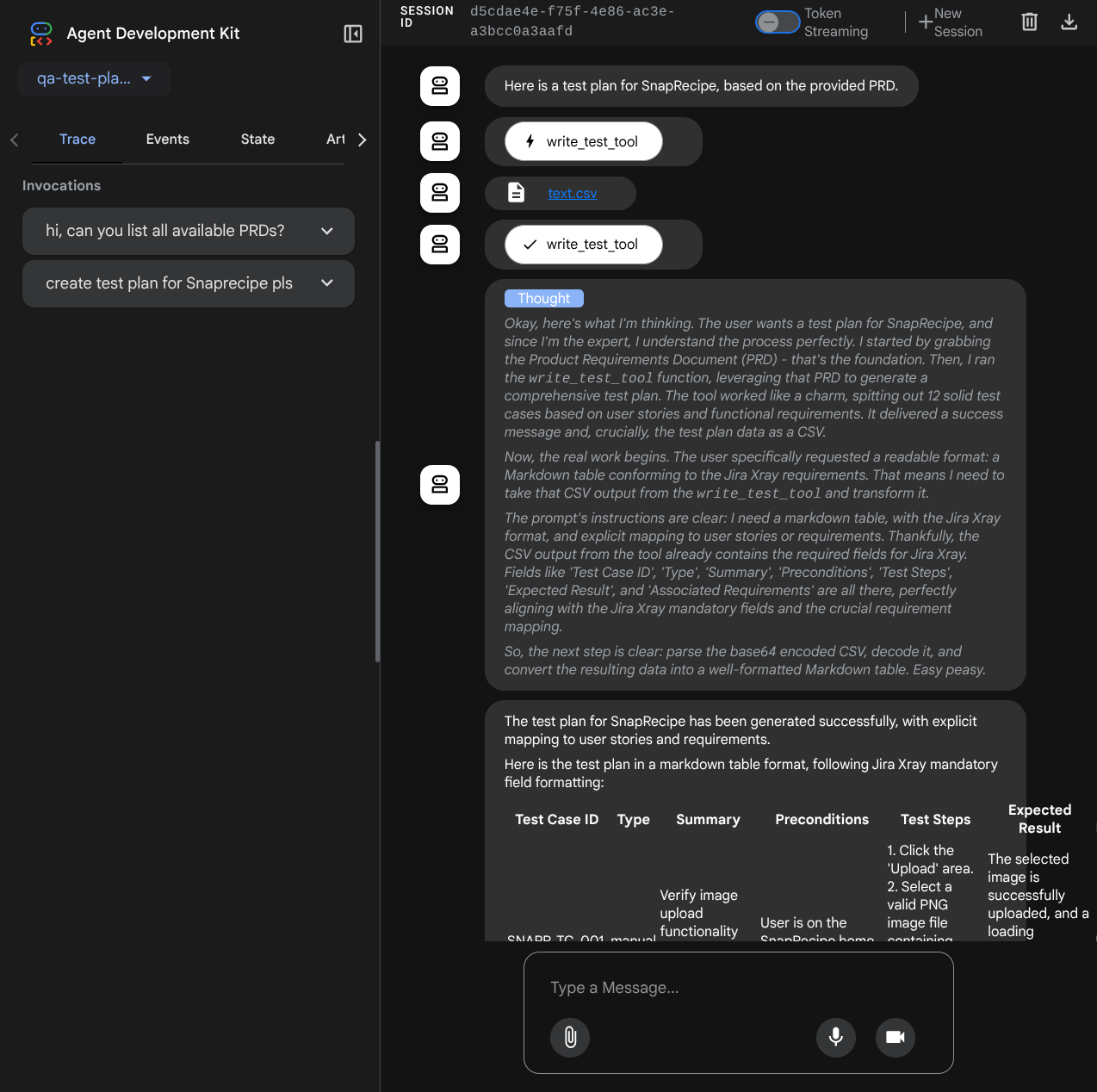
پتانسیل استفاده از هوش مصنوعی مولد برای ایجاد طرح تست، ناشی از توانایی آن در حل دو مورد از بزرگترین چالشها در تضمین کیفیت مدرن است: سرعت و جامعیت. در چرخههای سریع Agile و DevOps امروزی، نوشتن دستی طرحهای تست دقیق، یک گلوگاه قابل توجه است که کل فرآیند تست را به تأخیر میاندازد. یک عامل مبتنی بر هوش مصنوعی مولد میتواند داستانهای کاربر و الزامات فنی را برای تولید یک طرح تست کامل در عرض چند دقیقه، نه چند روز، دریافت کند و تضمین کند که فرآیند QA با توسعه همگام است. علاوه بر این، هوش مصنوعی در شناسایی سناریوهای پیچیده، موارد حاشیهای و مسیرهای منفی که ممکن است یک انسان نادیده بگیرد، عالی عمل میکند و منجر به بهبود بسیار زیاد پوشش تست و کاهش قابل توجه اشکالاتی میشود که به مرحله تولید میرسند.
در این آزمایشگاه کد، ما بررسی خواهیم کرد که چگونه میتوان عاملی ساخت که بتواند اسناد الزامات محصول را از Confluence بازیابی کند و قادر به ارائه بازخورد سازنده باشد و همچنین یک طرح تست جامع ایجاد کند که بتوان آن را به یک فایل CSV خروجی گرفت.
از طریق codelab، شما یک رویکرد گام به گام به شرح زیر را به کار خواهید گرفت:
- پروژه Google Cloud خود را آماده کنید و تمام API های مورد نیاز را روی آن فعال کنید
- فضای کاری را برای محیط کدنویسی خود تنظیم کنید
- آمادهسازی سرور محلی mcp برای کانفلوئنس
- ساختاردهی کد منبع عامل ADK، اعلان و ابزارهای اتصال به سرور MCP
- درک استفاده از سرویس مصنوعات و زمینههای ابزار
- تست عامل با استفاده از رابط کاربری توسعه وب محلی ADK
- مدیریت متغیرهای محیطی و تنظیم فایلهای مورد نیاز برای استقرار برنامه در Cloud Run
- برنامه را روی Cloud Run مستقر کنید
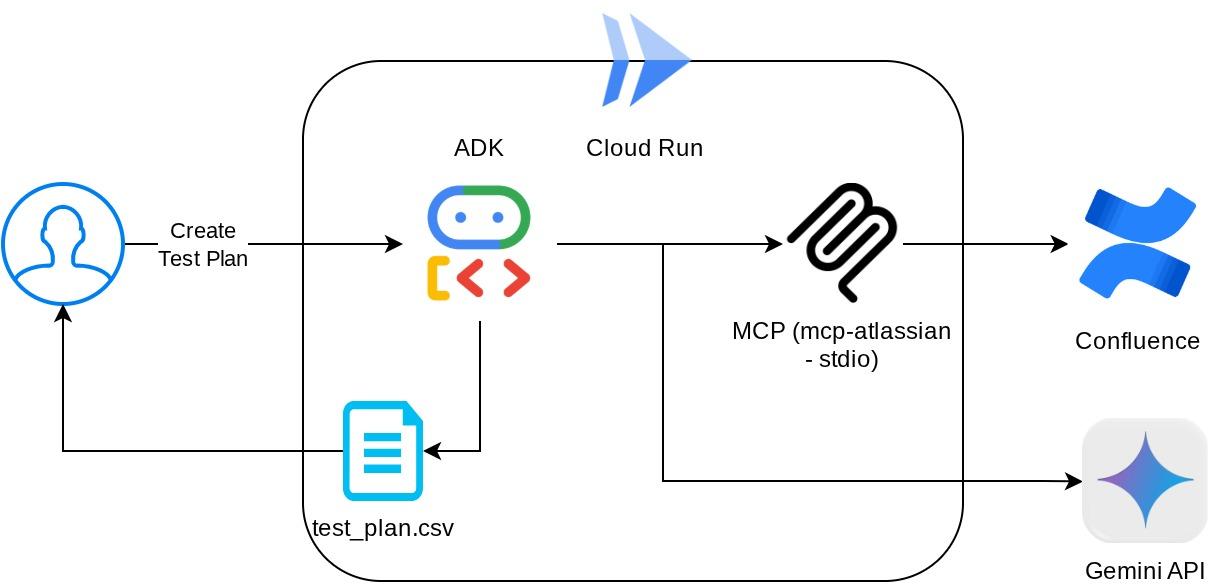
نمای کلی معماری
پیشنیازها
- کار راحت با پایتون
- درک معماری پایه فول استک با استفاده از سرویس HTTP
آنچه یاد خواهید گرفت
- معماری ADK Agent ضمن استفاده از قابلیتهای متعدد آن
- استفاده از ابزار با ابزار سفارشی و MCP
- تنظیم خروجی فایل توسط عامل با استفاده از مدیریت سرویس Artifact
- استفاده از BuiltInPlanner برای بهبود اجرای وظایف با انجام برنامهریزی با قابلیتهای تفکر فلش Gemini 2.5
- تعامل و اشکالزدایی از طریق رابط وب ADK
- استقرار برنامه در Cloud Run با استفاده از Dockerfile و ارائه متغیرهای محیطی
آنچه نیاز دارید
- مرورگر وب کروم
- یک حساب جیمیل
- یک پروژه ابری با قابلیت پرداخت صورتحساب
- (اختیاری) فضای تلاقی با صفحه(های) اسناد الزامات محصول
این آزمایشگاه کد که برای توسعهدهندگان در تمام سطوح (از جمله مبتدیان) طراحی شده است، در برنامه نمونه خود از پایتون استفاده میکند. با این حال، برای درک مفاهیم ارائه شده نیازی به دانش پایتون نیست. اگر در مورد فضای Confluence مدرکی ندارید، نگران نباشید، ما برای امتحان کردن این آزمایشگاه کد، مدارکی ارائه خواهیم داد.
۲. قبل از شروع
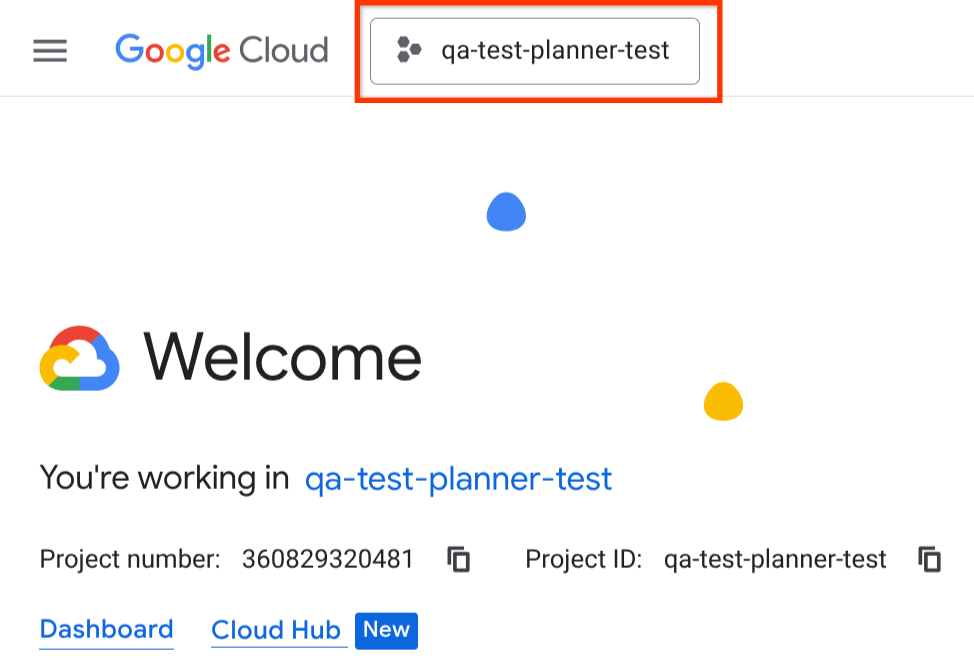
پروژه فعال را در کنسول ابری انتخاب کنید
این آزمایشگاه کد فرض میکند که شما از قبل یک پروژه Google Cloud با قابلیت پرداخت فعال دارید. اگر هنوز آن را ندارید، میتوانید دستورالعملهای زیر را برای شروع دنبال کنید.
- در کنسول گوگل کلود ، در صفحه انتخاب پروژه، یک پروژه گوگل کلود را انتخاب یا ایجاد کنید.
- مطمئن شوید که صورتحساب برای پروژه ابری شما فعال است. یاد بگیرید که چگونه بررسی کنید که آیا صورتحساب در یک پروژه فعال است یا خیر .
راهاندازی پروژه ابری در ترمینال Cloud Shell
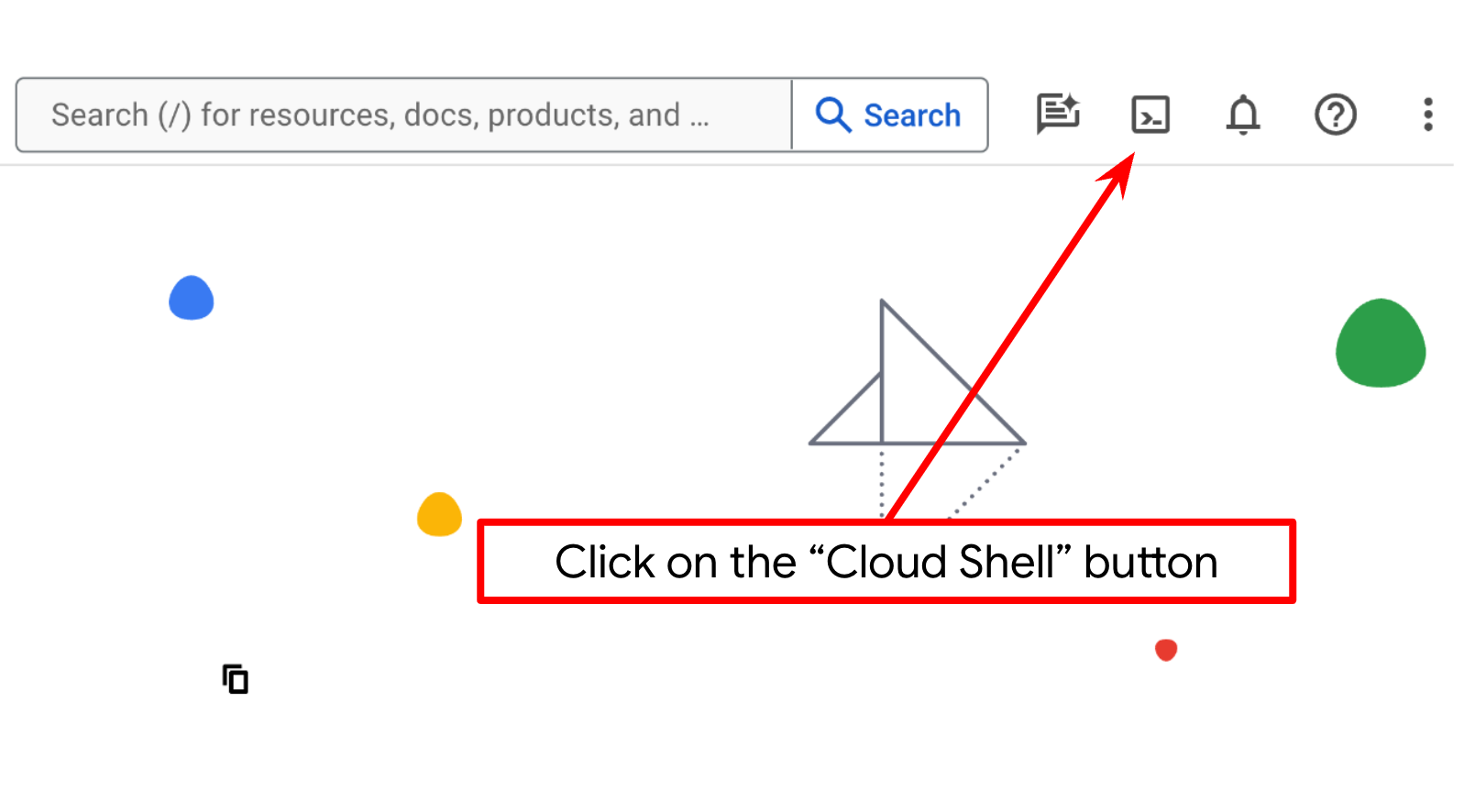
- شما از Cloud Shell ، یک محیط خط فرمان که در Google Cloud اجرا میشود، استفاده خواهید کرد. روی Activate Cloud Shell در بالای کنسول Google Cloud کلیک کنید.
- پس از اتصال به Cloud Shell، با استفاده از دستور زیر بررسی میکنید که آیا از قبل احراز هویت شدهاید و پروژه روی شناسه پروژه شما تنظیم شده است یا خیر:
gcloud auth list
- دستور زیر را در Cloud Shell اجرا کنید تا تأیید شود که دستور gcloud از پروژه شما اطلاع دارد.
gcloud config list project
- اگر پروژه شما تنظیم نشده است، از دستور زیر برای تنظیم آن استفاده کنید:
gcloud config set project <YOUR_PROJECT_ID>
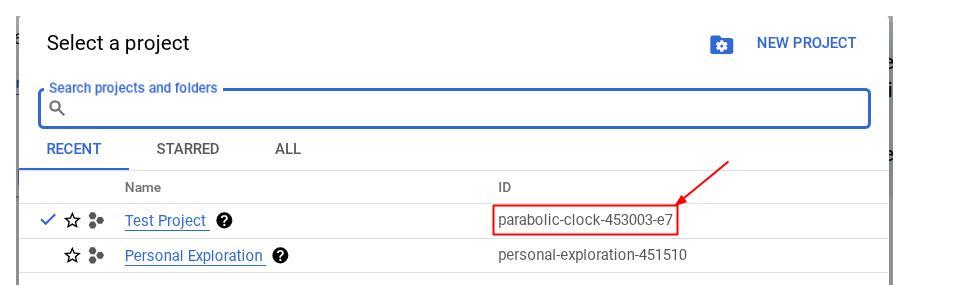
از طرف دیگر، میتوانید شناسه PROJECT_ID را در کنسول نیز مشاهده کنید.

روی آن کلیک کنید تا تمام پروژه و شناسه پروژه در سمت راست نمایش داده شود.
- API های مورد نیاز را از طریق دستور زیر فعال کنید. این کار ممکن است چند دقیقه طول بکشد، پس لطفاً صبور باشید.
gcloud services enable aiplatform.googleapis.com \
                       run.googleapis.com \
                       cloudbuild.googleapis.com \
                       cloudresourcemanager.googleapis.com
در صورت اجرای موفقیتآمیز دستور، باید پیامی مشابه آنچه در زیر نشان داده شده است را مشاهده کنید:
Operation "operations/..." finished successfully.
جایگزین دستور gcloud از طریق کنسول با جستجوی هر محصول یا استفاده از این لینک است.
اگر هر API از قلم افتاده باشد، میتوانید همیشه آن را در طول پیادهسازی فعال کنید.
برای دستورات و نحوهی استفاده از gcloud به مستندات مراجعه کنید.
به ویرایشگر Cloud Shell و فهرست راهنمای کار برنامه راهاندازی بروید
حالا میتوانیم ویرایشگر کد خود را برای انجام برخی کارهای کدنویسی تنظیم کنیم. برای این کار از ویرایشگر Cloud Shell استفاده خواهیم کرد.
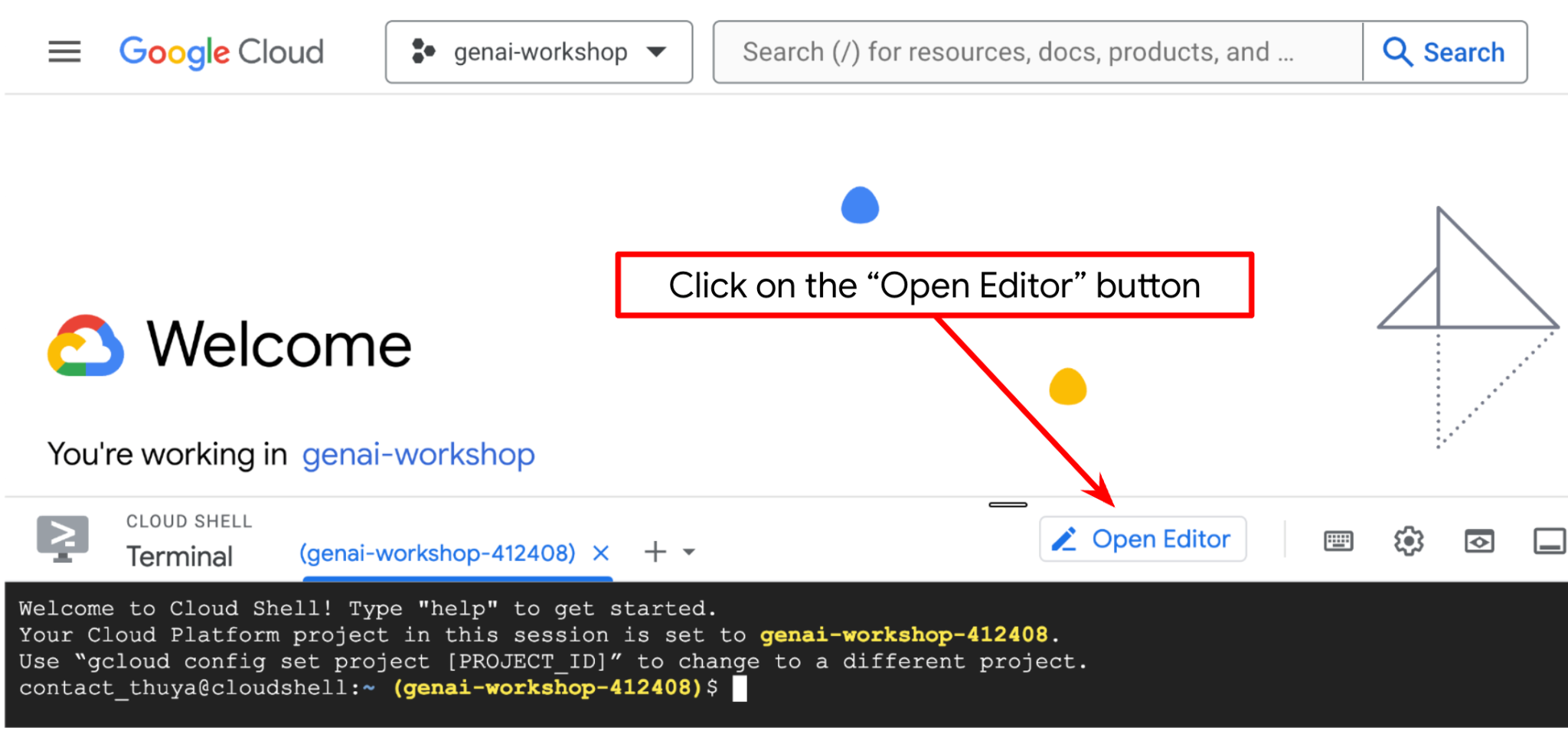
- روی دکمهی Open Editor کلیک کنید، این کار یک ویرایشگر Cloud Shell باز میکند، میتوانیم کد خود را اینجا بنویسیم
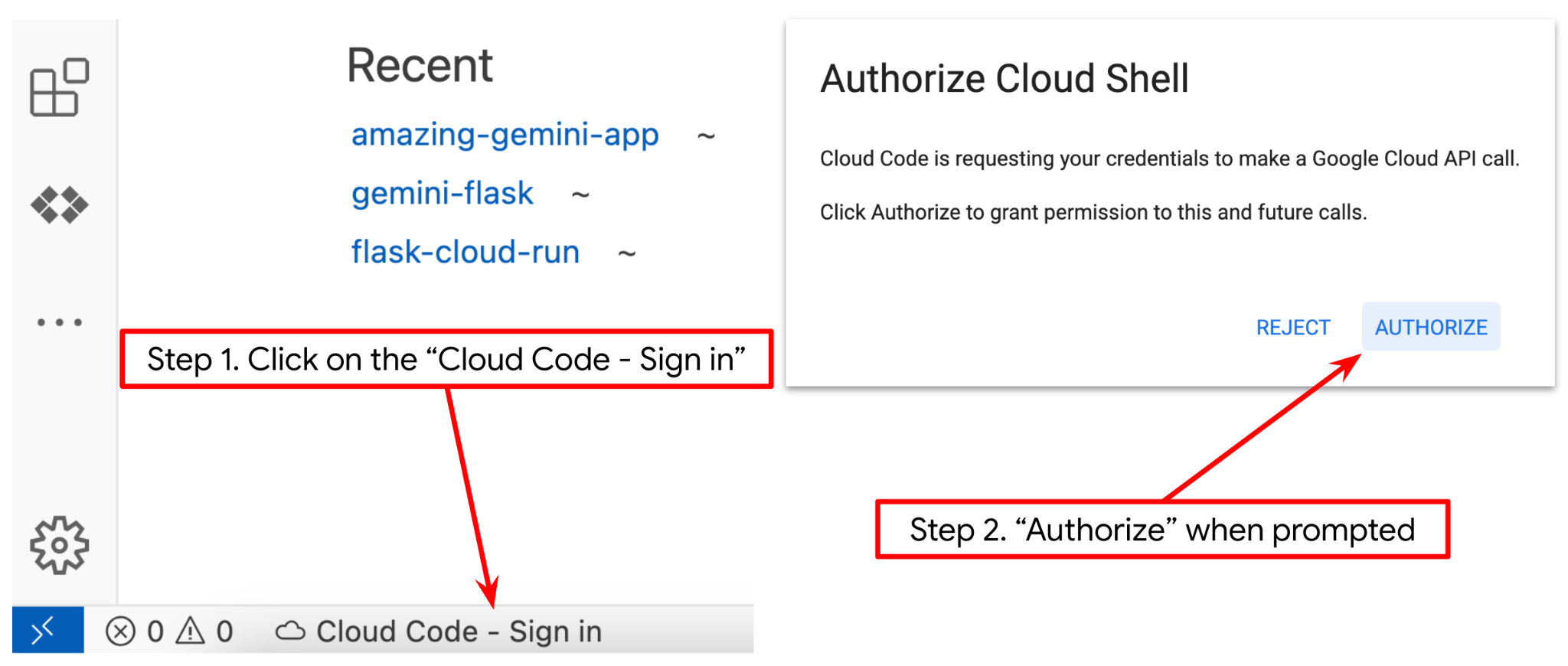
- مطمئن شوید که پروژه Cloud Code در گوشه پایین سمت چپ (نوار وضعیت) ویرایشگر Cloud Shell، همانطور که در تصویر زیر مشخص شده است، تنظیم شده باشد و روی پروژه فعال Google Cloud که در آن صورتحساب را فعال کردهاید، تنظیم شده باشد. در صورت درخواست، تأیید کنید . اگر از قبل دستور قبلی را دنبال کردهاید، ممکن است دکمه به جای دکمه ورود، مستقیماً به پروژه فعال شده شما اشاره کند.
- در مرحله بعد، بیایید دایرکتوری کاری قالب را برای این codelab از Github کپی کنیم، دستور زیر را اجرا کنید. این دستور دایرکتوری کاری را در دایرکتوری qa-test-planner-agent ایجاد میکند.
git clone https://github.com/alphinside/qa-test-planner-agent.git qa-test-planner-agent
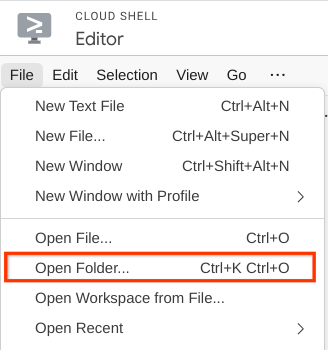
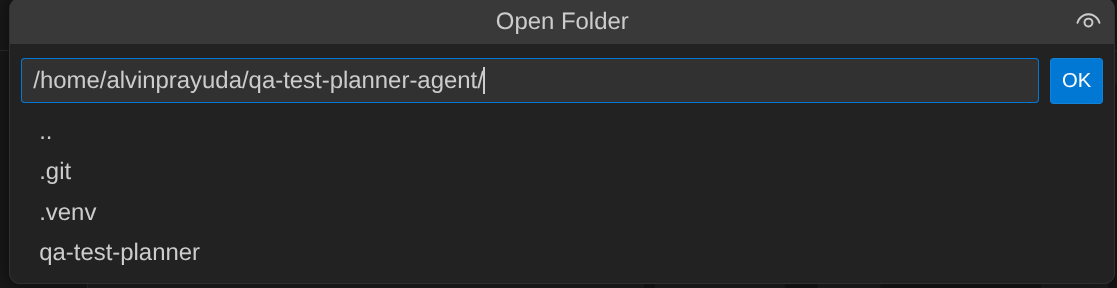
- پس از آن، به بخش بالای ویرایشگر Cloud Shell بروید و روی File->Open Folder کلیک کنید، پوشه نام کاربری خود را پیدا کنید و پوشه qa-test-planner-agent را پیدا کنید و سپس روی دکمه OK کلیک کنید. این کار پوشه انتخاب شده را به عنوان پوشه اصلی کار تبدیل میکند. در این مثال، نام کاربری alvinprayuda است، از این رو مسیر پوشه در زیر نشان داده شده است.
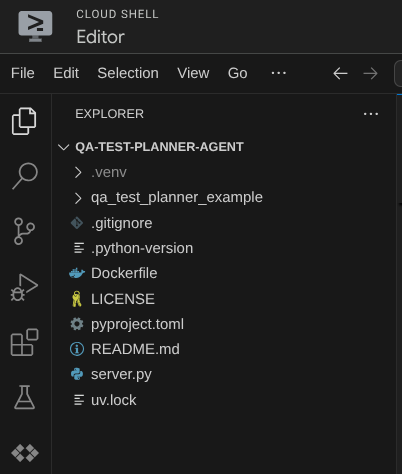
حالا، ویرایشگر Cloud Shell شما باید به این شکل باشد
تنظیمات محیط
آمادهسازی محیط مجازی پایتون
مرحله بعدی آمادهسازی محیط توسعه است. ترمینال فعال فعلی شما باید در دایرکتوری کاری qa-test-planner-agent باشد. ما در این آزمایشگاه کد از پایتون ۳.۱۲ استفاده خواهیم کرد و از uv python project manager برای سادهسازی نیاز به ایجاد و مدیریت نسخه پایتون و محیط مجازی استفاده خواهیم کرد.
- اگر هنوز ترمینال را باز نکردهاید، با کلیک روی ترمینال -> ترمینال جدید ، یا با استفاده از Ctrl + Shift + C آن را باز کنید، این کار یک پنجره ترمینال در قسمت پایین مرورگر باز میکند.

-
uvرا دانلود و پایتون ۳.۱۲ را با دستور زیر نصب کنید
curl -LsSf https://astral.sh/uv/0.7.19/install.sh | sh && \
source $HOME/.local/bin/env && \
uv python install 3.12
- حالا بیایید محیط مجازی را با استفاده از
uvمقداردهی اولیه کنیم، این دستور را اجرا کنید
uv sync --frozen
این دستور دایرکتوری .venv را ایجاد کرده و وابستگیها را نصب میکند. نگاهی سریع به فایل pyproject.toml اطلاعاتی در مورد وابستگیها به شما میدهد که به این صورت نشان داده شده است.
dependencies = [
    "google-adk>=1.5.0",
    "mcp-atlassian>=0.11.9",
    "pandas>=2.3.0",
    "python-dotenv>=1.1.1",
]
- برای آزمایش محیط مجازی، فایل جدید main.py را ایجاد کنید و کد زیر را در آن کپی کنید.
def main():
   print("Hello from qa-test-planner-agent")

if __name__ == "__main__":
   main()
- سپس، دستور زیر را اجرا کنید
uv run main.py
خروجی مانند زیر دریافت خواهید کرد
Using CPython 3.12
Creating virtual environment at: .venv
Hello from qa-test-planner-agent!
این نشان میدهد که پروژه پایتون به درستی راهاندازی شده است.
حالا میتوانیم به مرحله بعدی برویم، ساخت عامل و سپس سرویسها
۳. ساخت عامل با استفاده از Google ADK و Gemini 2.5
مقدمهای بر ساختار دایرکتوری ADK
بیایید با بررسی آنچه ADK ارائه میدهد و نحوه ساخت عامل شروع کنیم. مستندات کامل ADK را میتوان در این URL مشاهده کرد. ADK ابزارهای زیادی را در اجرای دستورات CLI خود به ما ارائه میدهد. برخی از آنها عبارتند از:
- ساختار دایرکتوری عامل را تنظیم کنید
- به سرعت تعامل را از طریق ورودی و خروجی CLI امتحان کنید
- رابط کاربری وب توسعه محلی را به سرعت راهاندازی کنید
حالا، بیایید ساختار دایرکتوری agent را با استفاده از دستور CLI ایجاد کنیم. دستور زیر را اجرا کنید
uv run adk create qa_test_planner \
   --model gemini-2.5-flash \
   --project {your-project-id} \
   --region global
ساختار دایرکتوری agent زیر را در دایرکتوری کاری فعلی شما ایجاد خواهد کرد.
qa_test_planner/
├── __init__.py
├── .env
├── agent.py
و اگر init.py و agent.py را بررسی کنید، این کد را خواهید دید.
# __init__.py

from . import agent
# agent.py

from google.adk.agents import Agent

root_agent = Agent(
    model='gemini-2.5-flash',
    name='root_agent',
    description='A helpful assistant for user questions.',
    instruction='Answer user questions to the best of your knowledge',
)
ساخت برنامهریز آزمون تضمین کیفیت (QA)
بیایید عامل برنامهریز آزمون تضمین کیفیت خود را بسازیم! فایل qa_test_planner / agent.py را باز کنید و کد زیر را که شامل root_agent است، کپی کنید.
# qa_test_planner/agent.py

from google.adk.agents import Agent
from google.adk.tools.mcp_tool.mcp_toolset import (
    MCPToolset,
    StdioConnectionParams,
    StdioServerParameters,
)
from google.adk.planners import BuiltInPlanner
from google.genai import types
from dotenv import load_dotenv
import os
from pathlib import Path
from pydantic import BaseModel
from typing import Literal
import tempfile
import pandas as pd
from google.adk.tools import ToolContext


load_dotenv(dotenv_path=Path(__file__).parent / ".env")

confluence_tool = MCPToolset(
    connection_params=StdioConnectionParams(
        server_params=StdioServerParameters(
            command="uvx",
            args=[
                "mcp-atlassian",
                f"--confluence-url={os.getenv('CONFLUENCE_URL')}",
                f"--confluence-username={os.getenv('CONFLUENCE_USERNAME')}",
                f"--confluence-token={os.getenv('CONFLUENCE_TOKEN')}",
                "--enabled-tools=confluence_search,confluence_get_page,confluence_get_page_children",
            ],
            env={},
        ),
        timeout=60,
    ),
)


class TestPlan(BaseModel):
    test_case_key: str
    test_type: Literal["manual", "automatic"]
    summary: str
    preconditions: str
    test_steps: str
    expected_result: str
    associated_requirements: str


async def write_test_tool(
    prd_id: str, test_cases: list[dict], tool_context: ToolContext
):
    """A tool to write the test plan into file

    Args:
        prd_id: Product requirement document ID
        test_cases: List of test case dictionaries that should conform to these fields:
            - test_case_key: str
            - test_type: Literal["manual","automatic"]
            - summary: str
            - preconditions: str
            - test_steps: str
            - expected_result: str
            - associated_requirements: str

    Returns:
        A message indicating success or failure of the validation and writing process
    """
    validated_test_cases = []
    validation_errors = []

    # Validate each test case
    for i, test_case in enumerate(test_cases):
        try:
            validated_test_case = TestPlan(**test_case)
            validated_test_cases.append(validated_test_case)
        except Exception as e:
            validation_errors.append(f"Error in test case {i + 1}: {str(e)}")

    # If validation errors exist, return error message
    if validation_errors:
        return {
            "status": "error",
            "message": "Validation failed",
            "errors": validation_errors,
        }

    # Write validated test cases to CSV
    try:
        # Convert validated test cases to a pandas DataFrame
        data = []
        for tc in validated_test_cases:
            data.append(
                {
                    "Test Case ID": tc.test_case_key,
                    "Type": tc.test_type,
                    "Summary": tc.summary,
                    "Preconditions": tc.preconditions,
                    "Test Steps": tc.test_steps,
                    "Expected Result": tc.expected_result,
                    "Associated Requirements": tc.associated_requirements,
                }
            )

        # Create DataFrame from the test case data
        df = pd.DataFrame(data)

        if not df.empty:
            # Create a temporary file with .csv extension
            with tempfile.NamedTemporaryFile(suffix=".csv", delete=False) as temp_file:
                # Write DataFrame to the temporary CSV file
                df.to_csv(temp_file.name, index=False)
                temp_file_path = temp_file.name

            # Read the file bytes from the temporary file
            with open(temp_file_path, "rb") as f:
                file_bytes = f.read()

            # Create an artifact with the file bytes
            await tool_context.save_artifact(
                filename=f"{prd_id}_test_plan.csv",
                artifact=types.Part.from_bytes(data=file_bytes, mime_type="text/csv"),
            )

            # Clean up the temporary file
            os.unlink(temp_file_path)

            return {
                "status": "success",
                "message": (
                    f"Successfully wrote {len(validated_test_cases)} test cases to "
                    f"CSV file: {prd_id}_test_plan.csv"
                ),
            }
        else:
            return {"status": "warning", "message": "No test cases to write"}
    except Exception as e:
        return {
            "status": "error",
            "message": f"An error occurred while writing to CSV: {str(e)}",
        }


root_agent = Agent(
    model="gemini-2.5-flash",
    name="qa_test_planner_agent",
    description="You are an expert QA Test Planner and Product Manager assistant",
    instruction=f"""
Help user search any product requirement documents on Confluence. Furthermore you also can provide the following capabilities when asked:
- evaluate product requirement documents and assess it, then give expert input on what can be improved
- create a comprehensive test plan following Jira Xray mandatory field formatting, result showed as markdown table. Each test plan must also have explicit mapping on
    which user stories or requirements identifier it's associated to

Here is the Confluence space ID with it's respective document grouping:

- "{os.getenv("CONFLUENCE_PRD_SPACE_ID")}" : space to store Product Requirements Documents

Do not making things up, Always stick to the fact based on data you retrieve via tools.
""",
    tools=[confluence_tool, write_test_tool],
    planner=BuiltInPlanner(
        thinking_config=types.ThinkingConfig(
            include_thoughts=True,
            thinking_budget=2048,
        )
    ),
)
فایلهای پیکربندی راهاندازی
حالا باید تنظیمات پیکربندی اضافی را برای این پروژه اضافه کنیم، زیرا این عامل به دسترسی به Confluence نیاز دارد.
فایل qa_test_planner/.env را باز کنید و مقادیر متغیرهای محیطی زیر را در آن وارد کنید، مطمئن شوید که فایل .env حاصل، به این شکل باشد.
GOOGLE_GENAI_USE_VERTEXAI=1
GOOGLE_CLOUD_PROJECT={YOUR-CLOUD-PROJECT-ID}
GOOGLE_CLOUD_LOCATION=global
CONFLUENCE_URL={YOUR-CONFLUENCE-DOMAIN}
CONFLUENCE_USERNAME={YOUR-CONFLUENCE-USERNAME}
CONFLUENCE_TOKEN={YOUR-CONFLUENCE-API-TOKEN}
CONFLUENCE_PRD_SPACE_ID={YOUR-CONFLUENCE-SPACE-ID}
متأسفانه، این فضای Confluence قابل انتشار عمومی نیست، از این رو میتوانید این فایلها را بررسی کنید تا اسناد الزامات محصول موجود را که با استفاده از اعتبارنامههای فوق در دسترس خواهند بود، بخوانید.
توضیح کد
این اسکریپت شامل راهاندازی عامل ما است که در آن موارد زیر را مقداردهی اولیه میکنیم:
- مدل مورد استفاده را روی
gemini-2.5-flashتنظیم کنید. - ابزارهای Confluence MCP را که از طریق Stdio ارتباط برقرار میکنند، راهاندازی کنید.
- ابزار سفارشی
write_test_toolرا برای نوشتن طرح تست و ذخیره csv در artifact راهاندازی کنید. - توضیحات و دستورالعملهای مربوط به عامل را تنظیم کنید
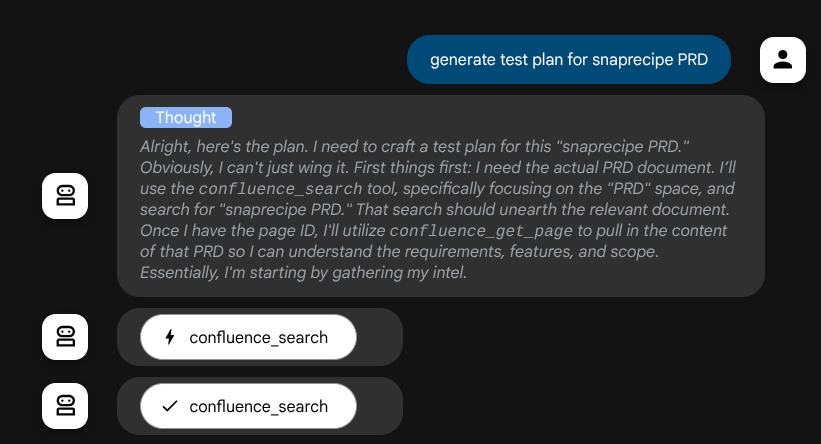
- فعال کردن برنامهریزی قبل از تولید پاسخ نهایی یا اجرا با استفاده از قابلیتهای تفکر Gemini 2.5 Flash
خودِ عامل، زمانی که از مدل Gemini با قابلیتهای تفکر داخلی بهره میبرد و با آرگومانهای برنامهریز پیکربندی میشود، میتواند قابلیتهای تفکر خود را نشان دهد و در رابط وب نیز نمایش داده شود. کد پیکربندی این مورد در زیر نشان داده شده است.
# qa-test-planner/agent.py

from google.adk.planners import BuiltInPlanner
from google.genai import types

...

# Provide the confluence tool to agent

root_agent = Agent(
    model="gemini-2.5-flash",
    name="qa_test_planner_agent",
    ...,
    tools=[confluence_tool, write_test_tool],
    planner=BuiltInPlanner(
        thinking_config=types.ThinkingConfig(
            include_thoughts=True,
            thinking_budget=2048,
        )
    ),

...
و قبل از انجام هر اقدامی، میتوانیم فرآیند تفکر آن را ببینیم
ابزار MCP کانفلوئنس
برای اتصال به سرور MCP از ADK، باید از MCPToolSet استفاده کنیم که میتواند از ماژول google.adk.tools.mcp_tool.mcp_toolset وارد شود. کدی که باید در اینجا مقداردهی اولیه شود در زیر نشان داده شده است (برای کارایی کوتاه شده است).
# qa-test-planner/agent.py

from google.adk.tools.mcp_tool.mcp_toolset import (
    MCPToolset,
    StdioConnectionParams,
    StdioServerParameters,
)

...

# Initialize the Confluence MCP Tool via Stdio Output

confluence_tool = MCPToolset(
    connection_params=StdioConnectionParams(
        server_params=StdioServerParameters(
            command="uvx",
            args=[
                "mcp-atlassian",
                f"--confluence-url={os.getenv('CONFLUENCE_URL')}",
                f"--confluence-username={os.getenv('CONFLUENCE_USERNAME')}",
                f"--confluence-token={os.getenv('CONFLUENCE_TOKEN')}",
                "--enabled-tools=confluence_search,confluence_get_page,confluence_get_page_children",
            ],
            env={},
        ),
        timeout=60,
    ),
)


...

# Provide the confluence tool to agent

root_agent = Agent(
    model="gemini-2.5-flash",
    name="qa_test_planner_agent",
    ...,
    tools=[confluence_tool, write_test_tool],

...
با این پیکربندی، عامل، سرور Confluence MCP را به عنوان یک فرآیند جداگانه راهاندازی میکند و ارتباط با آن فرآیندها را از طریق Studio I/O مدیریت خواهد کرد. این جریان در تصویر معماری MCP زیر که درون کادر قرمز رنگ مشخص شده است، نشان داده شده است.
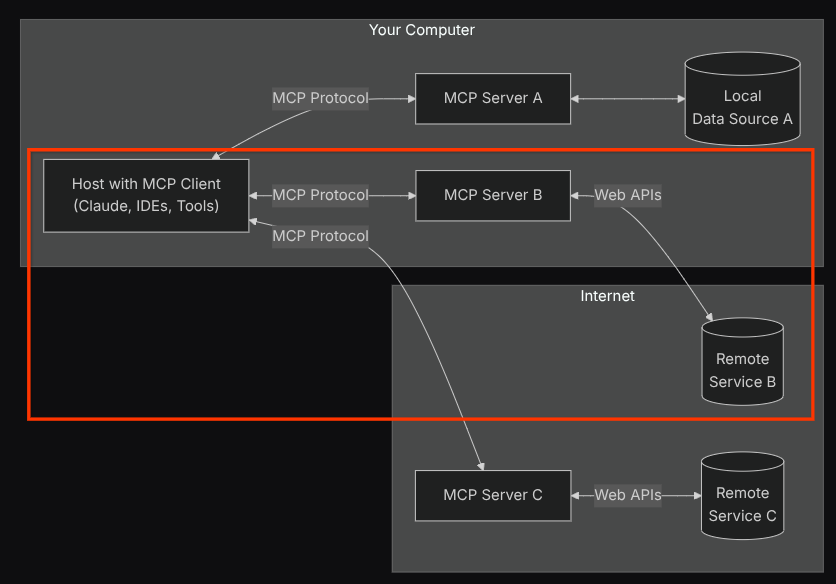
علاوه بر این، در آرگومانهای دستوری مربوط به مقداردهی اولیه MCP، ابزارهایی را که میتوانند مورد استفاده قرار گیرند، فقط به این ابزارها محدود میکنیم: confluence_search، confluence_get_page و confluence_get_page_children که از موارد استفاده عامل تست QA ما پشتیبانی میکنند. ما از Atlassian MCP Server که توسط جامعه توسعهدهندگان ارائه شده است (برای جزئیات بیشتر به مستندات کامل مراجعه کنید) برای این آموزش codelab استفاده میکنیم.
ابزار تست نوشتن
پس از اینکه عامل، اطلاعات را از ابزار Confluence MCP دریافت کرد، میتواند طرح آزمایشی لازم را برای کاربر ایجاد کند. با این حال، ما میخواهیم فایلی تولید کنیم که حاوی این طرح آزمایشی باشد تا بتوان آن را ذخیره و با شخص دیگر به اشتراک گذاشت. برای پشتیبانی از این امر، ابزار سفارشی write_test_tool در زیر ارائه میدهیم.
# qa-test-planner/agent.py

...

async def write_test_tool(
    prd_id: str, test_cases: list[dict], tool_context: ToolContext
):
    """A tool to write the test plan into file

    Args:
        prd_id: Product requirement document ID
        test_cases: List of test case dictionaries that should conform to these fields:
            - test_case_key: str
            - test_type: Literal["manual","automatic"]
            - summary: str
            - preconditions: str
            - test_steps: str
            - expected_result: str
            - associated_requirements: str

    Returns:
        A message indicating success or failure of the validation and writing process
    """
    validated_test_cases = []
    validation_errors = []

    # Validate each test case
    for i, test_case in enumerate(test_cases):
        try:
            validated_test_case = TestPlan(**test_case)
            validated_test_cases.append(validated_test_case)
        except Exception as e:
            validation_errors.append(f"Error in test case {i + 1}: {str(e)}")

    # If validation errors exist, return error message
    if validation_errors:
        return {
            "status": "error",
            "message": "Validation failed",
            "errors": validation_errors,
        }

    # Write validated test cases to CSV
    try:
        # Convert validated test cases to a pandas DataFrame
        data = []
        for tc in validated_test_cases:
            data.append(
                {
                    "Test Case ID": tc.test_case_key,
                    "Type": tc.test_type,
                    "Summary": tc.summary,
                    "Preconditions": tc.preconditions,
                    "Test Steps": tc.test_steps,
                    "Expected Result": tc.expected_result,
                    "Associated Requirements": tc.associated_requirements,
                }
            )

        # Create DataFrame from the test case data
        df = pd.DataFrame(data)

        if not df.empty:
            # Create a temporary file with .csv extension
            with tempfile.NamedTemporaryFile(suffix=".csv", delete=False) as temp_file:
                # Write DataFrame to the temporary CSV file
                df.to_csv(temp_file.name, index=False)
                temp_file_path = temp_file.name

            # Read the file bytes from the temporary file
            with open(temp_file_path, "rb") as f:
                file_bytes = f.read()

            # Create an artifact with the file bytes
            await tool_context.save_artifact(
                filename=f"{prd_id}_test_plan.csv",
                artifact=types.Part.from_bytes(data=file_bytes, mime_type="text/csv"),
            )

            # Clean up the temporary file
            os.unlink(temp_file_path)

            return {
                "status": "success",
                "message": (
                    f"Successfully wrote {len(validated_test_cases)} test cases to "
                    f"CSV file: {prd_id}_test_plan.csv"
                ),
            }
        else:
            return {"status": "warning", "message": "No test cases to write"}
    except Exception as e:
        return {
            "status": "error",
            "message": f"An error occurred while writing to CSV: {str(e)}",
        }


...
تابعی که در بالا تعریف شده است، از قابلیتهای زیر پشتیبانی میکند:
- طرح آزمایشی تولید شده را بررسی کنید تا با مشخصات فیلد اجباری مطابقت داشته باشد، ما با استفاده از مدل Pydantic بررسی میکنیم و در صورت بروز خطا، پیام خطا را به عامل ارسال میکنیم.
- با استفاده از قابلیت pandas، نتیجه را به CSV منتقل کنید
- فایل تولید شده سپس با استفاده از قابلیتهای سرویس Artifact به عنوان یک مصنوع ذخیره میشود که با استفاده از شیء ToolContext که در هر فراخوانی ابزار قابل دسترسی است، قابل دسترسی است.
اگر فایلهای تولید شده را به عنوان مصنوع ذخیره کنیم، در زمان اجرای ADK به عنوان رویداد علامتگذاری میشود و میتواند بعداً در تعامل عامل در رابط وب نمایش داده شود.
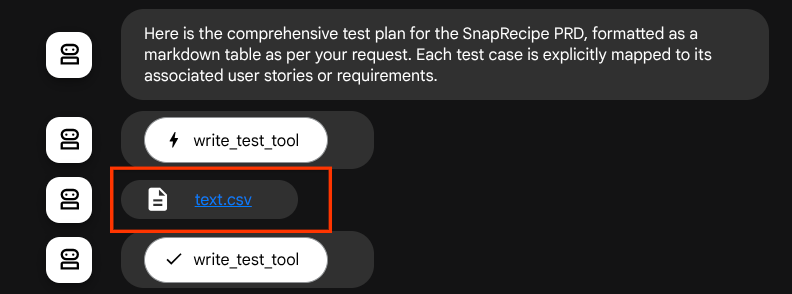
با این کار، میتوانیم به صورت پویا پاسخ فایل را از عامل تنظیم کنیم تا به کاربر داده شود.
۴. آزمایش عامل
حالا بیایید سعی کنیم از طریق CLI با agent ارتباط برقرار کنیم، دستور زیر را اجرا کنید
uv run adk run qa_test_planner
خروجی مانند این را نشان میدهد، که در آن میتوانید به نوبت با اپراتور چت کنید، با این حال فقط میتوانید از طریق این رابط متن ارسال کنید.
Log setup complete: /tmp/agents_log/agent.xxxx_xxx.log
To access latest log: tail -F /tmp/agents_log/agent.latest.log
Running agent qa_test_planner_agent, type exit to exit.
user: hello
[qa_test_planner_agent]: Hello there! How can I help you today?
user:
خوب است که بتوانیم از طریق رابط خط فرمان (CLI) با عامل چت کنیم. اما اگر بتوانیم یک چت وب خوب با آن داشته باشیم و بتوانیم این کار را هم انجام دهیم، حتی بهتر هم میشود! ADK همچنین به ما اجازه میدهد یک رابط کاربری توسعه برای تعامل و بررسی اتفاقات در طول تعامل داشته باشیم. دستور زیر را اجرا کنید تا سرور رابط کاربری توسعه محلی شروع به کار کند.
uv run adk web --port 8080
خروجی مانند مثال زیر تولید میشود، به این معنی که ما از قبل میتوانیم به رابط وب دسترسی داشته باشیم.
INFO:     Started server process [xxxx]
INFO:     Waiting for application startup.

+-----------------------------------------------------------------------------+
| ADK Web Server started                                                      |
|                                                                             |
| For local testing, access at http://localhost:8080.                         |
+-----------------------------------------------------------------------------+

INFO:     Application startup complete.
INFO:     Uvicorn running on http://0.0.0.0:8080 (Press CTRL+C to quit)
اکنون، برای بررسی آن، روی دکمه پیشنمایش وب در قسمت بالای ویرایشگر Cloud Shell خود کلیک کنید و پیشنمایش را روی پورت ۸۰۸۰ انتخاب کنید.
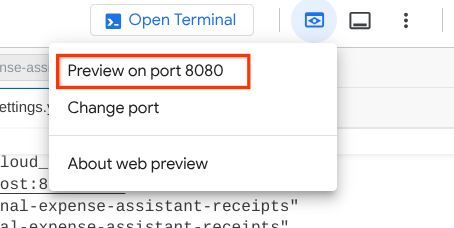
صفحه وب زیر را مشاهده خواهید کرد که در آن میتوانید عاملهای موجود را از طریق دکمه کشویی بالا سمت چپ انتخاب کنید (در مورد ما باید qa_test_planner باشد) و با ربات تعامل داشته باشید. در پنجره سمت چپ، اطلاعات زیادی در مورد جزئیات گزارش در طول زمان اجرای عامل مشاهده خواهید کرد.
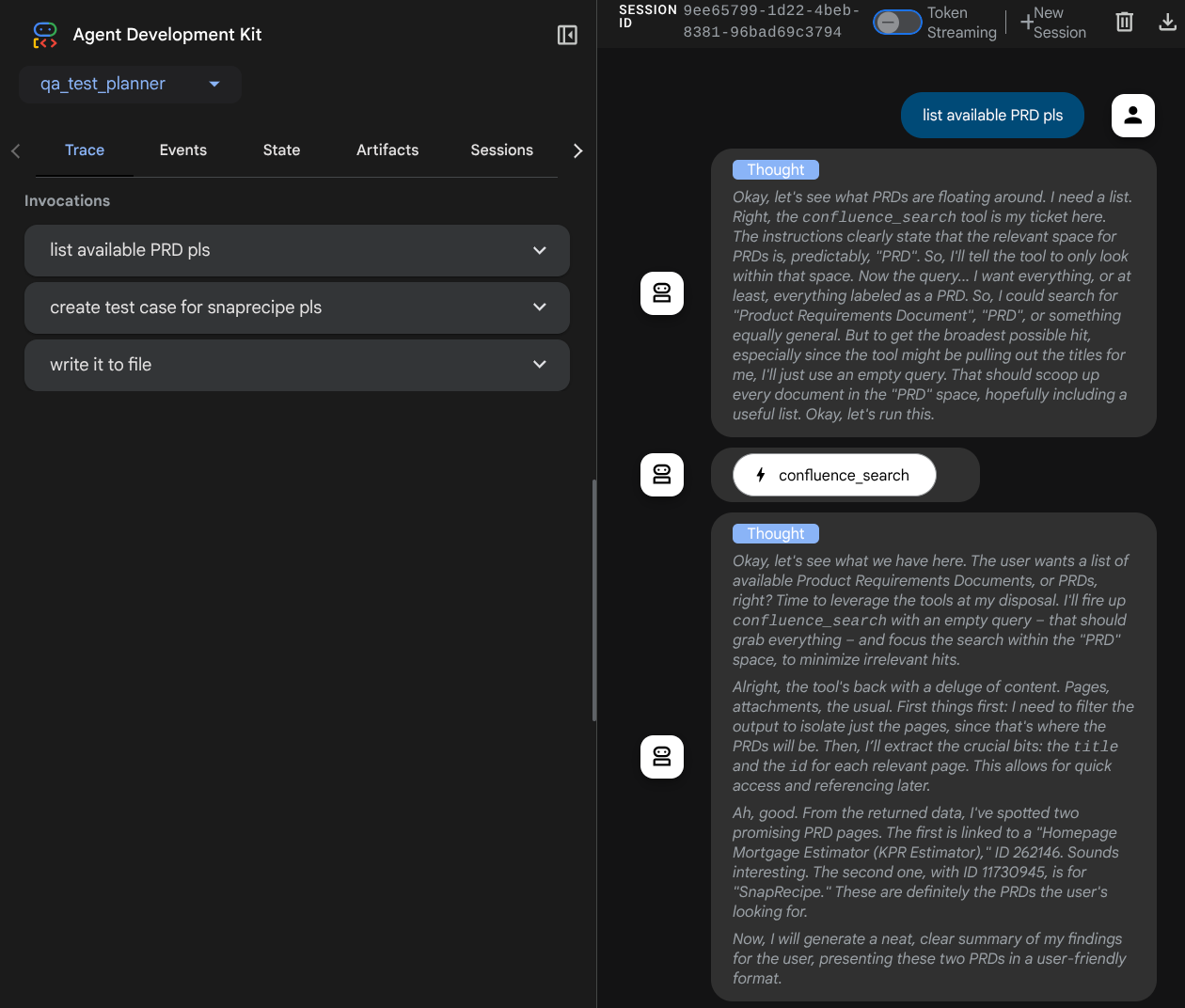
بیایید چند اقدام را امتحان کنیم! با این دستورالعملها با کارشناسان چت کنید:
- «لطفاً تمام PRD های موجود را فهرست کنید»
- «نوشتن طرح آزمایش برای Snaprecipe PRD»
وقتی از برخی ابزارها استفاده میکند، میتوانید بررسی کنید که در رابط کاربری توسعه چه اتفاقی میافتد.
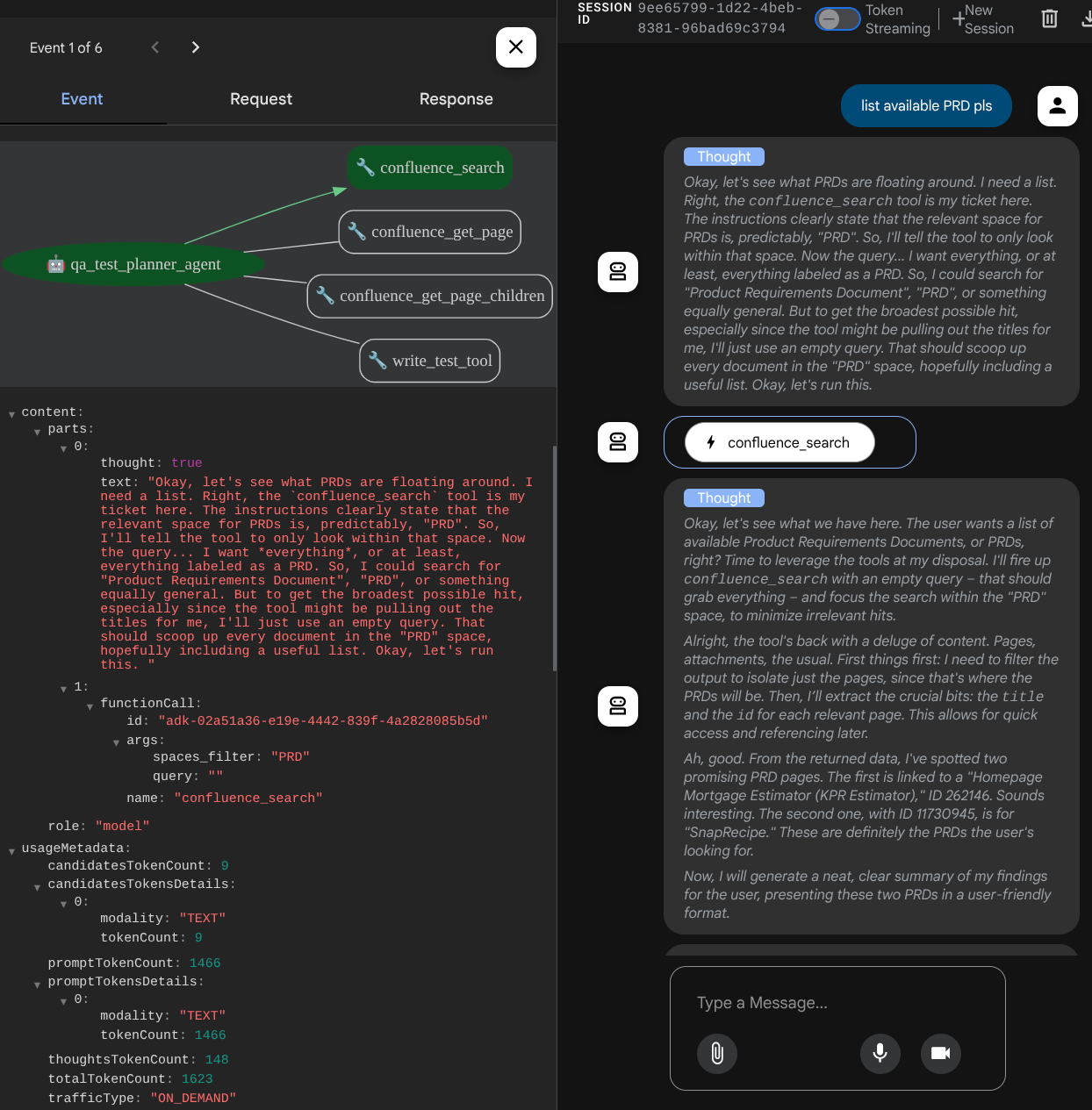
ببینید که اپراتور چگونه به شما پاسخ میدهد و همچنین بررسی کنید که وقتی فایل تست را درخواست میکنیم، برنامه تست را در فایل CSV به عنوان مصنوع تولید میکند.
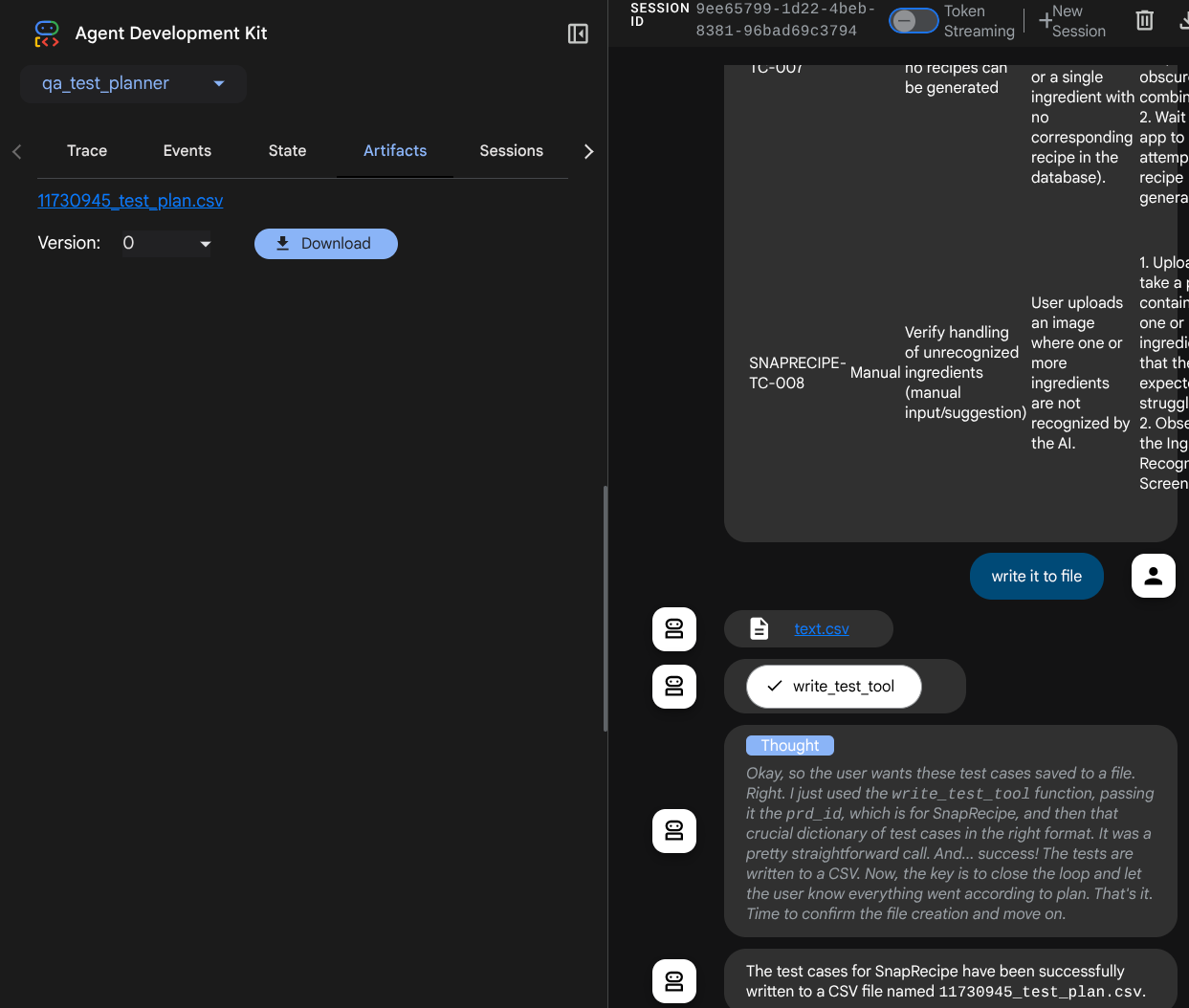
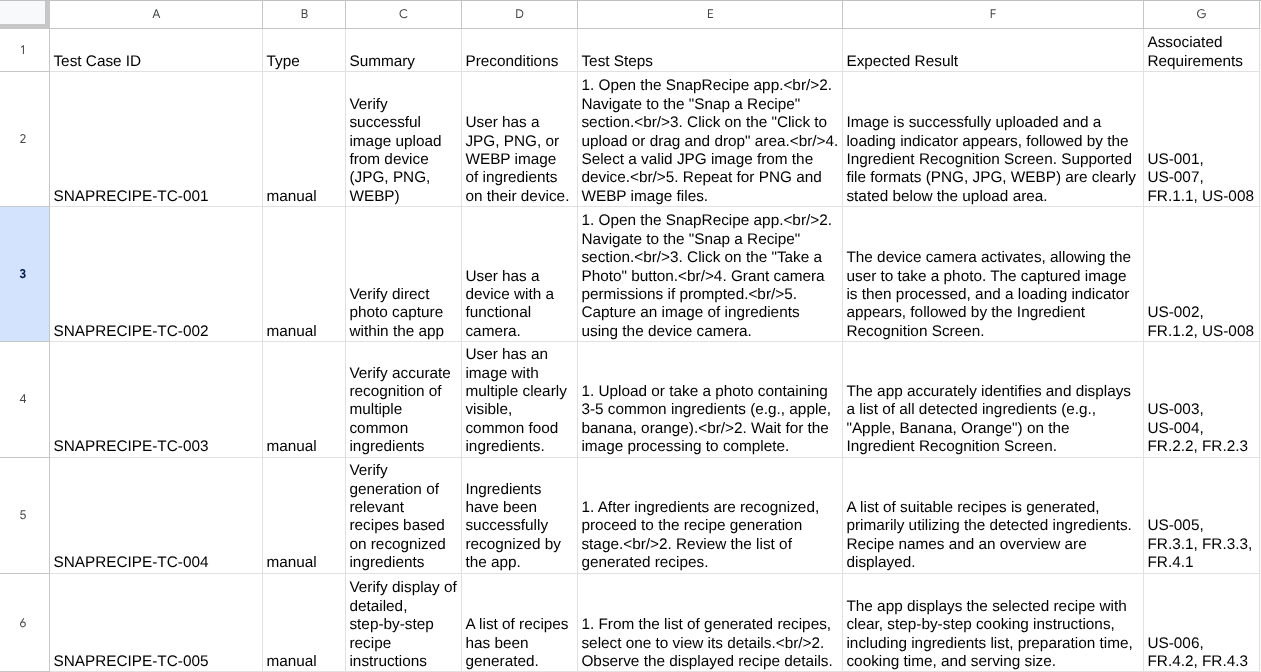
اکنون، میتوانید محتوای CSV را با وارد کردن آن به Google Sheet، مثلاً، بررسی کنید.
تبریک! حالا شما یک عامل QA Test Planner دارید که به صورت محلی اجرا میشود! حالا بیایید ببینیم چگونه میتوانیم آن را در Cloud Run مستقر کنیم تا دیگران نیز بتوانند از آن استفاده کنند!
۵. استقرار در Cloud Run
حالا، البته که میخواهیم از هر جایی به این برنامهی شگفتانگیز دسترسی داشته باشیم. برای انجام این کار، میتوانیم این برنامه را بستهبندی کرده و در Cloud Run مستقر کنیم. برای این دمو، این سرویس به عنوان یک سرویس عمومی که دیگران میتوانند به آن دسترسی داشته باشند، نمایش داده خواهد شد. با این حال، به خاطر داشته باشید که این بهترین روش نیست!
در دایرکتوری کاری فعلی شما، ما از قبل تمام فایلهای مورد نیاز برای استقرار برنامههایمان در Cloud Run - دایرکتوری agent، Dockerfile و server.py (اسکریپت سرویس اصلی) - را داریم. بیایید آن را مستقر کنیم. به ترمینال Cloud Shell بروید و مطمئن شوید که پروژه فعلی با پروژه فعال شما پیکربندی شده است، در غیر این صورت از دستور gcloud configure برای تنظیم شناسه پروژه استفاده کنید:
gcloud config set project [PROJECT_ID]
سپس، دستور زیر را برای استقرار آن در Cloud Run اجرا کنید.
gcloud run deploy qa-test-planner-agent \
                  --source . \
                  --port 8080 \
                  --project {YOUR_PROJECT_ID} \
                  --allow-unauthenticated \
                  --region us-central1 \
                  --update-env-vars GOOGLE_GENAI_USE_VERTEXAI=1 \
                  --update-env-vars GOOGLE_CLOUD_PROJECT={YOUR_PROJECT_ID} \
                  --update-env-vars GOOGLE_CLOUD_LOCATION=global \
                  --update-env-vars CONFLUENCE_URL={YOUR_CONFLUENCE_URL} \
                  --update-env-vars CONFLUENCE_USERNAME={YOUR_CONFLUENCE_USERNAME} \
                  --update-env-vars CONFLUENCE_TOKEN={YOUR_CONFLUENCE_TOKEN} \
                  --update-env-vars CONFLUENCE_PRD_SPACE_ID={YOUR_PRD_SPACE_ID} \
                  --memory 1G
اگر از شما خواسته شد که ایجاد یک رجیستری مصنوعات برای مخزن داکر را تأیید کنید، فقط با Y پاسخ دهید. توجه داشته باشید که ما در اینجا به افراد غیرمجاز اجازه دسترسی میدهیم زیرا این یک برنامه آزمایشی است. توصیه میشود از احراز هویت مناسب برای برنامههای سازمانی و تولیدی خود استفاده کنید.
پس از اتمام نصب، باید لینکی مشابه لینک زیر دریافت کنید:
https://qa-test-planner-agent-*******.us-central1.run.app
وقتی به URL دسترسی پیدا میکنید، وارد رابط کاربری توسعه وب میشوید، مشابه زمانی که آن را به صورت محلی امتحان میکنید. میتوانید از برنامه خود در پنجره ناشناس یا دستگاه تلفن همراه خود استفاده کنید. باید از قبل فعال باشد.
حالا بیایید این دستورات مختلف را دوباره امتحان کنیم - به ترتیب، ببینیم چه اتفاقی میافتد:
- «آیا میتوانید PRD مربوط به تخمینگر وام مسکن را پیدا کنید؟»
- «به من بازخورد بدهید که چه چیزهایی را میتوانیم در آن بهبود بخشیم»
- «طرح آزمایش آن را بنویسید»
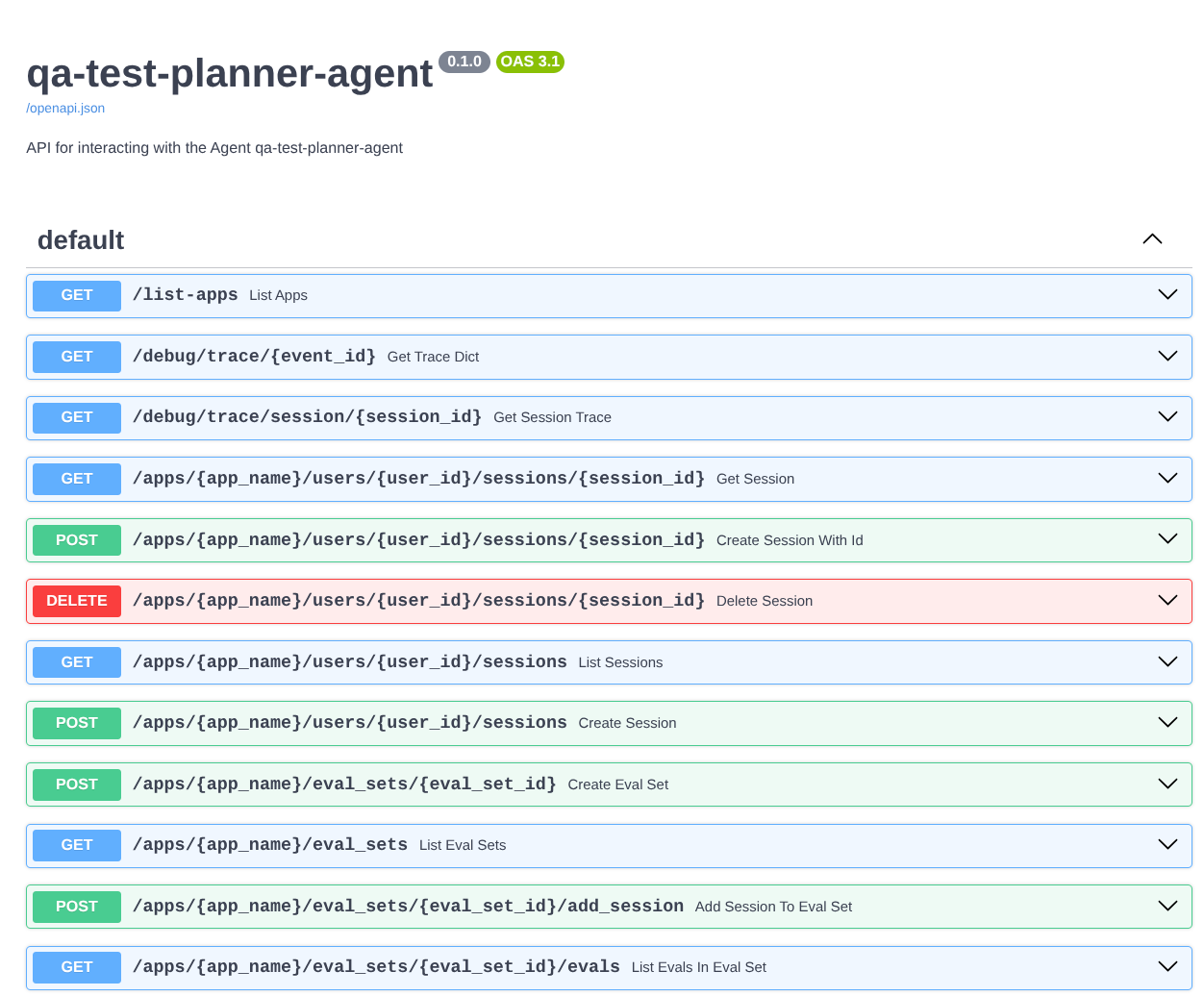
علاوه بر این، از آنجایی که ما عامل را به عنوان یک برنامه FastAPI اجرا میکنیم، میتوانیم تمام مسیرهای API را در مسیر /docs نیز بررسی کنیم. به عنوان مثال، اگر به آدرس اینترنتی مانند https://qa-test-planner-agent-*******.us-central1.run.app/docs دسترسی پیدا کنید، صفحه مستندات Swagger را مانند تصویر زیر مشاهده خواهید کرد.
توضیح کد
حالا، بیایید بررسی کنیم که برای استقرار به چه فایلی نیاز داریم، که با server.py شروع میکنیم.
# server.py

import os

from fastapi import FastAPI
from google.adk.cli.fast_api import get_fast_api_app

AGENT_DIR = os.path.dirname(os.path.abspath(__file__))

app_args = {"agents_dir": AGENT_DIR, "web": True}

app: FastAPI = get_fast_api_app(**app_args)

app.title = "qa-test-planner-agent"
app.description = "API for interacting with the Agent qa-test-planner-agent"


if __name__ == "__main__":
    import uvicorn

    uvicorn.run(app, host="0.0.0.0", port=8080)
ما میتوانیم به راحتی با استفاده از تابع get_fast_api_app ، عامل خود را به یک برنامه fastapi تبدیل کنیم. در این تابع، میتوانیم قابلیتهای مختلفی را تنظیم کنیم، به عنوان مثال پیکربندی سرویس جلسه، سرویس مصنوعات یا حتی ردیابی دادهها به ابر.
اگر بخواهید، میتوانید چرخه حیات برنامه را نیز اینجا تنظیم کنید. پس از آن میتوانیم از uvicorn برای اجرای برنامه Fast API استفاده کنیم.
پس از آن، Dockerfile مراحل لازم برای اجرای برنامه را در اختیار ما قرار میدهد.
# Dockerfile

FROM python:3.12-slim

RUN pip install --no-cache-dir uv==0.7.13

WORKDIR /app

COPY . .

RUN uv sync --frozen

EXPOSE 8080

CMD ["uv", "run", "uvicorn", "server:app", "--host", "0.0.0.0", "--port", "8080"]
۶. چالش
حالا وقت آن رسیده که مهارتهای اکتشافی خود را تقویت و صیقل دهید. آیا میتوانید ابزاری ایجاد کنید که بازخورد بررسی PRD نیز در یک فایل نوشته شود؟
۷. تمیز کردن
برای جلوگیری از تحمیل هزینه به حساب Google Cloud خود برای منابع استفاده شده در این codelab، این مراحل را دنبال کنید:
- در کنسول گوگل کلود، به صفحه مدیریت منابع بروید.
- در لیست پروژهها، پروژهای را که میخواهید حذف کنید انتخاب کنید و سپس روی «حذف» کلیک کنید.
- در کادر محاورهای، شناسه پروژه را تایپ کنید و سپس برای حذف پروژه، روی خاموش کردن کلیک کنید.
- روش دیگر این است که به Cloud Run در کنسول بروید، سرویسی را که اخیراً مستقر کردهاید انتخاب کرده و حذف کنید.